Windows solutions that allow multiple users, each with their
own independent and familiar Windows experience, to
simultaneously share one computer.
User stations, consisting of a monitor, keyboard, and mouse,
are directly connected to the host computer through USB or
Network cable via switch hub.
MultiPoint Server enables multiple users to share one
computer, it can provide a low-cost alternative to traditional
computing scenarios where each user has their own computer.
WHAT IS WINDOWS MULTIPOINT SERVER
2012?
Multipoint Dashboard/Notification
an application that allows
specific non-administrator
users to monitor and interact
with user desktops
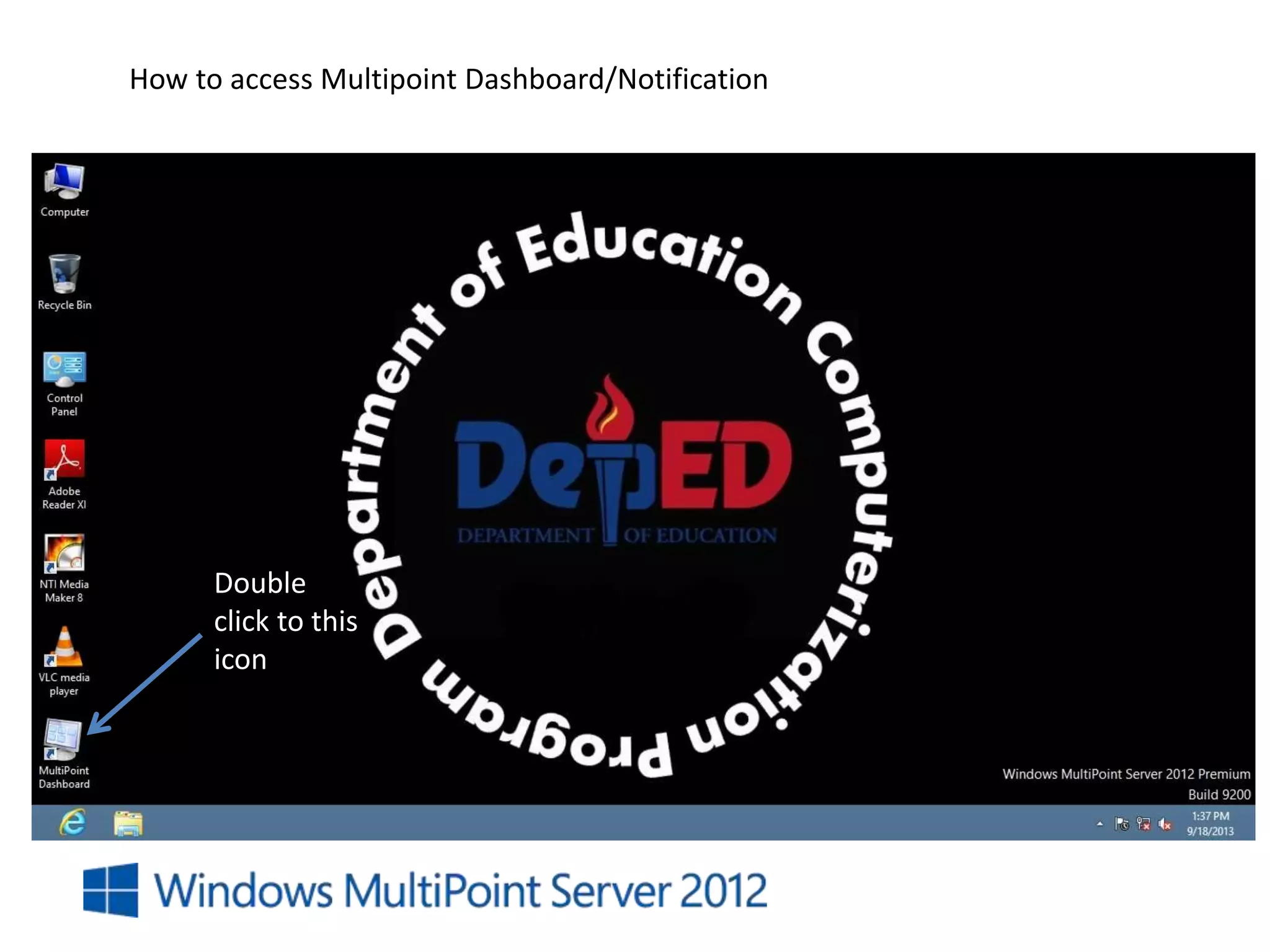
How to access Multipoint Dashboard/Notification
Double
click to this
icon
Note: If you cannot find the Multipoint Dashboard Shortcut or icon in
desktop, you can use search option to access it
Double
click to this
icon
Move the
Mouse Cursor
to the upper
right corner of
the screen to
show the
Charms Bar
then click on
the Search
Icon
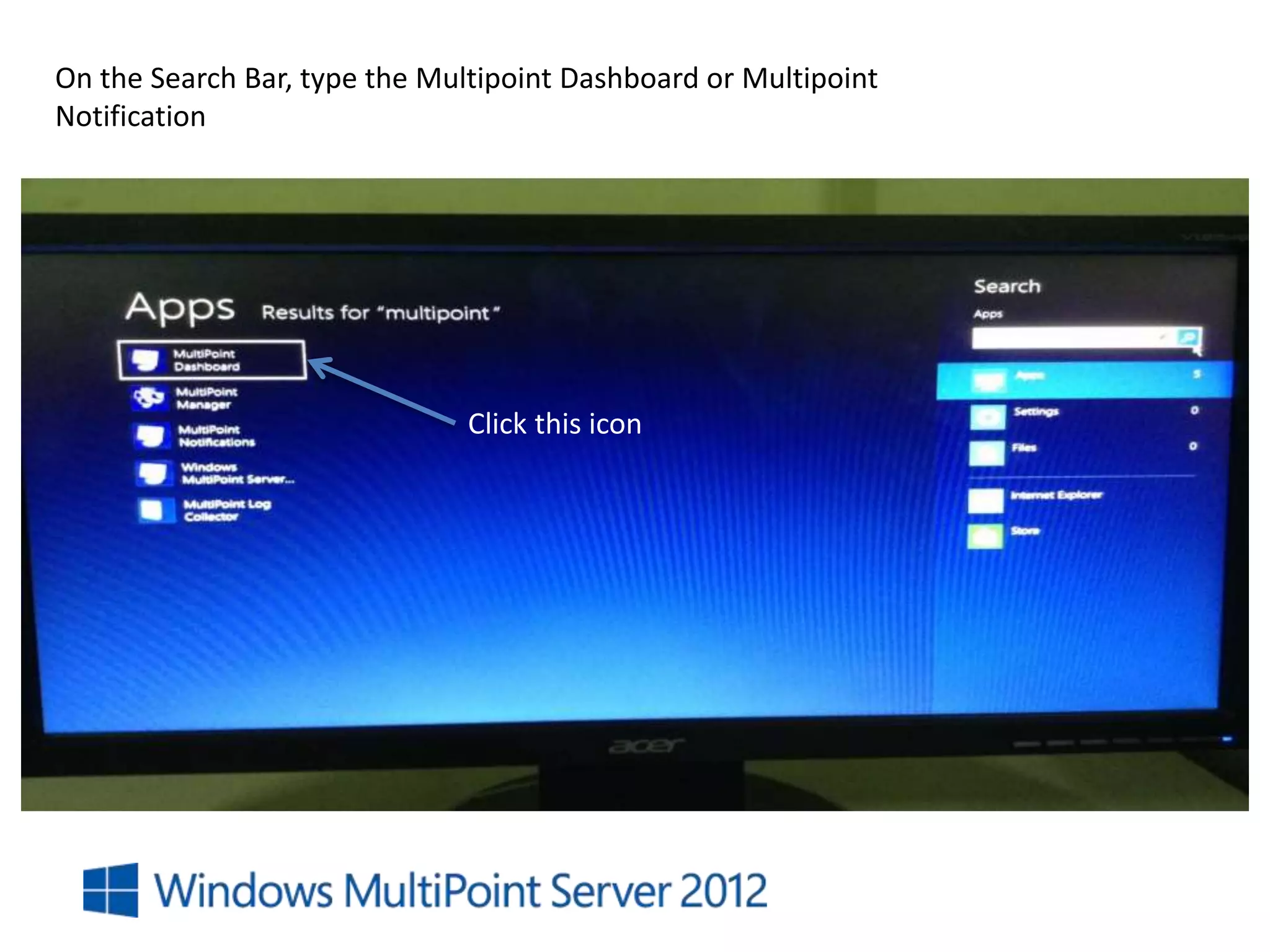
On the Search Bar, type the Multipoint Dashboard or Multipoint
Notification
Double
click to this
icon
Move the
Mouse Cursor
to the upper
right corner of
the screen to
show the
Charms Bar
then click on
the Search
Icon
Click this icon
This is the User Interface of Multipoint
Dashboard
Main Toolbar of Multipoint Dashboard
Log of Users
Help
Exit
HOME SYSTEMS
Blocking
Web Limiting
Projection
Application
IM
Assist
Desktops
Hardware
View
Settings
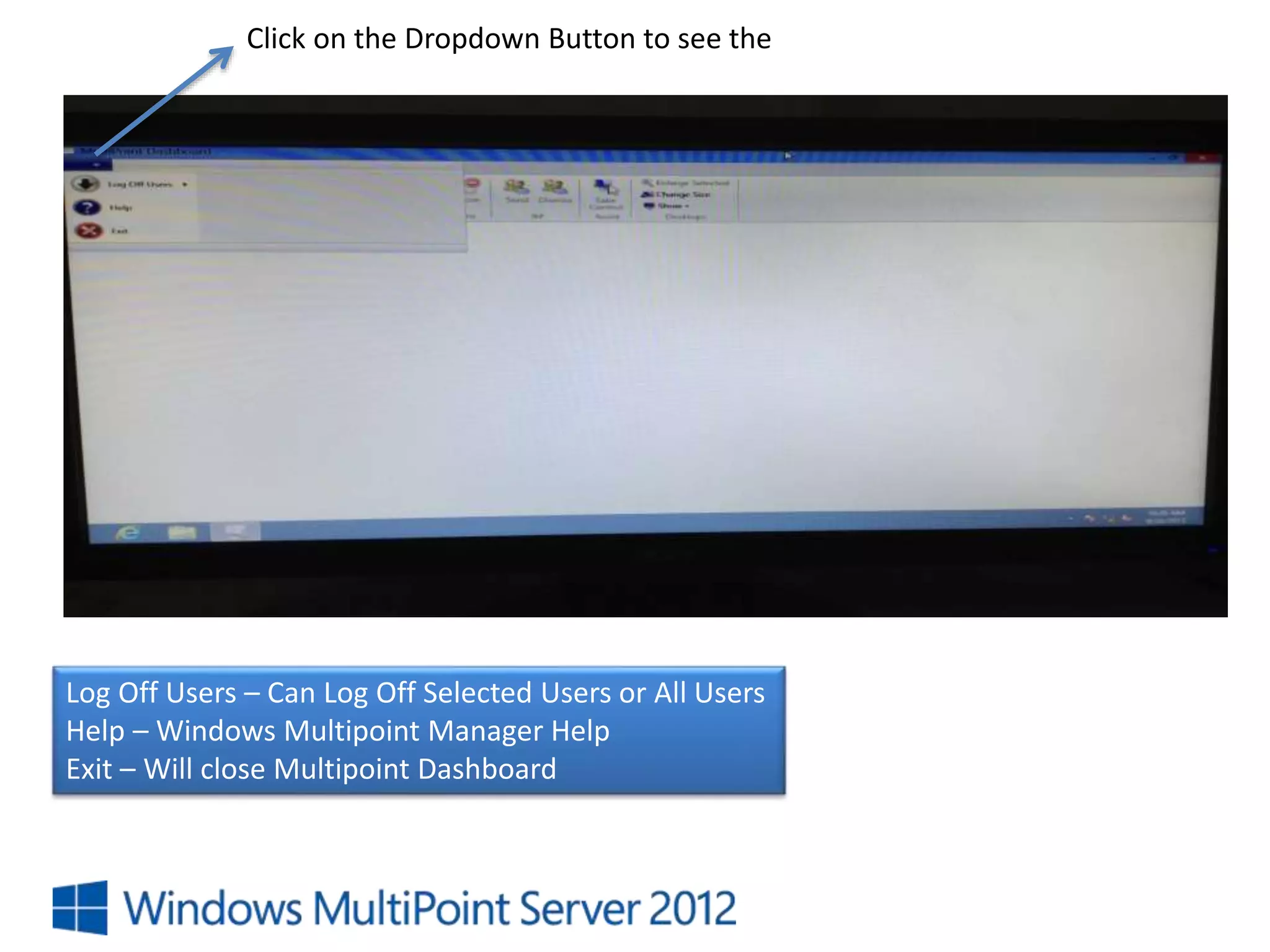
Click on the Dropdown Button to see the
Log Off Users – Can Log Off Selected Users or All Users
Help – Windows Multipoint Manager Help
Exit – Will close Multipoint Dashboard
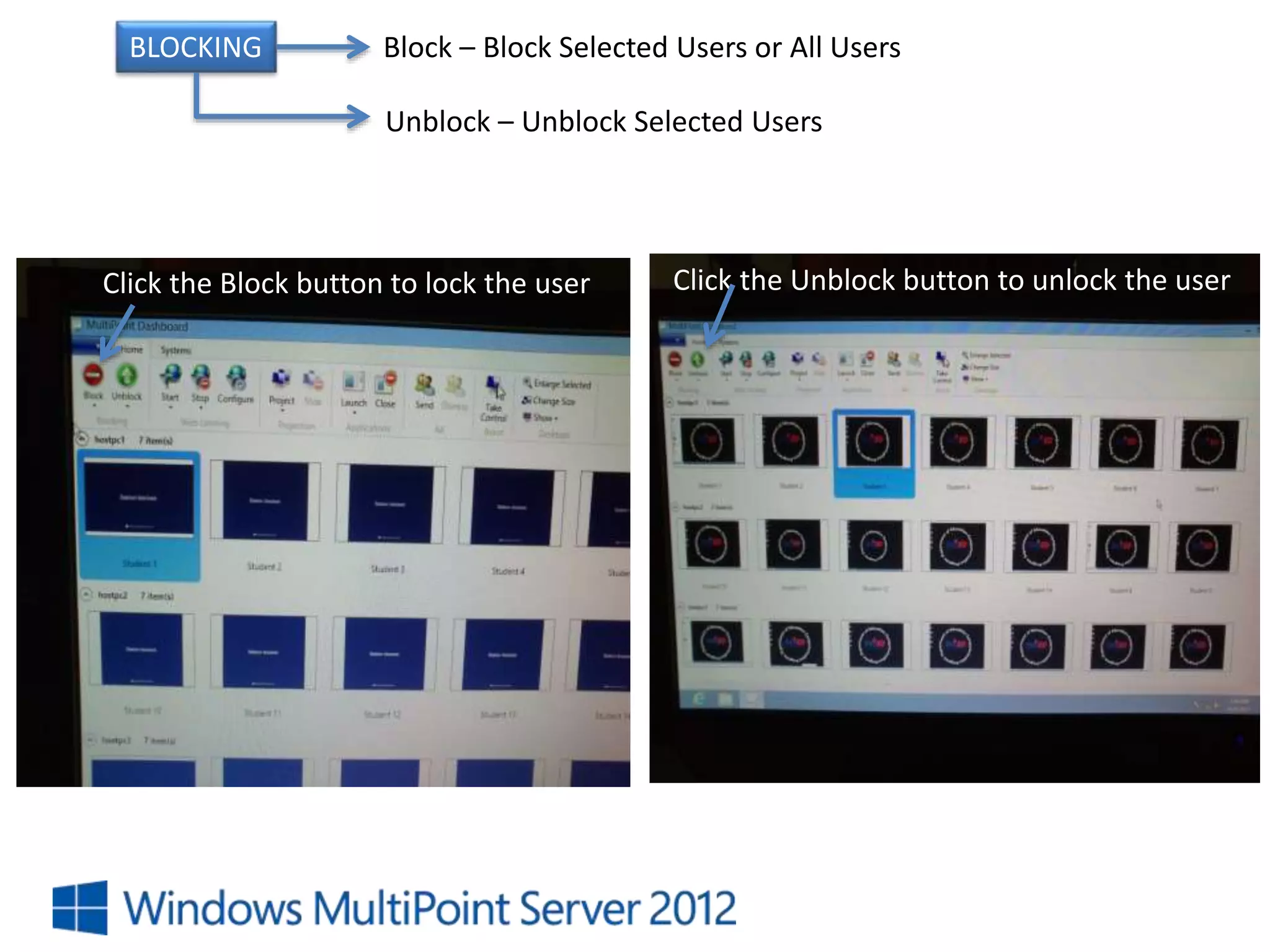
BLOCKING Block – Block Selected Users or All Users
Unblock – Unblock Selected Users
Click the Block button to lock the user Click the Unblock button to unlock the user
WEB LIMITING
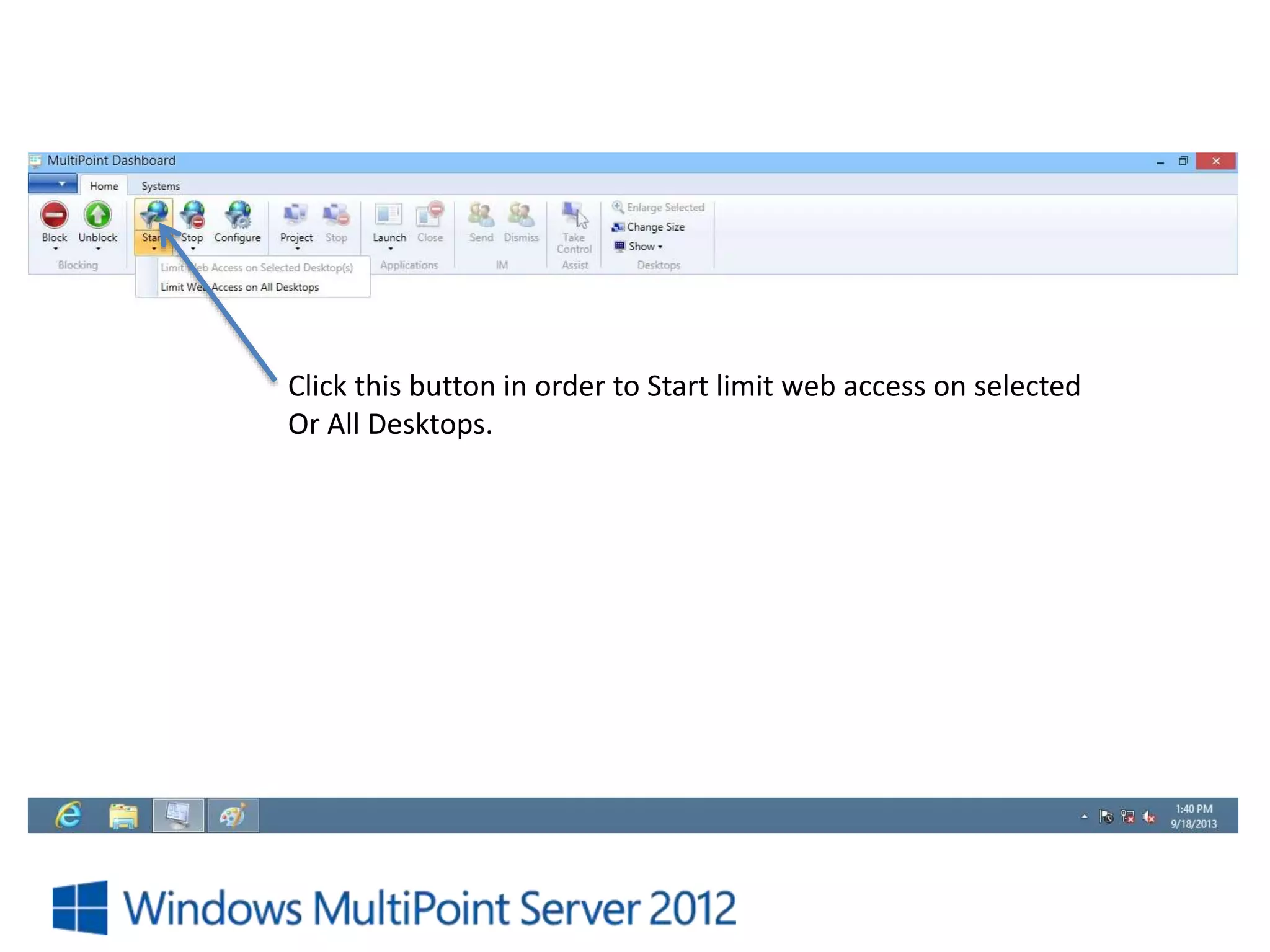
• START – limit web access on selected and all desktops
• STOP – stop limiting web access on selected and all desktops
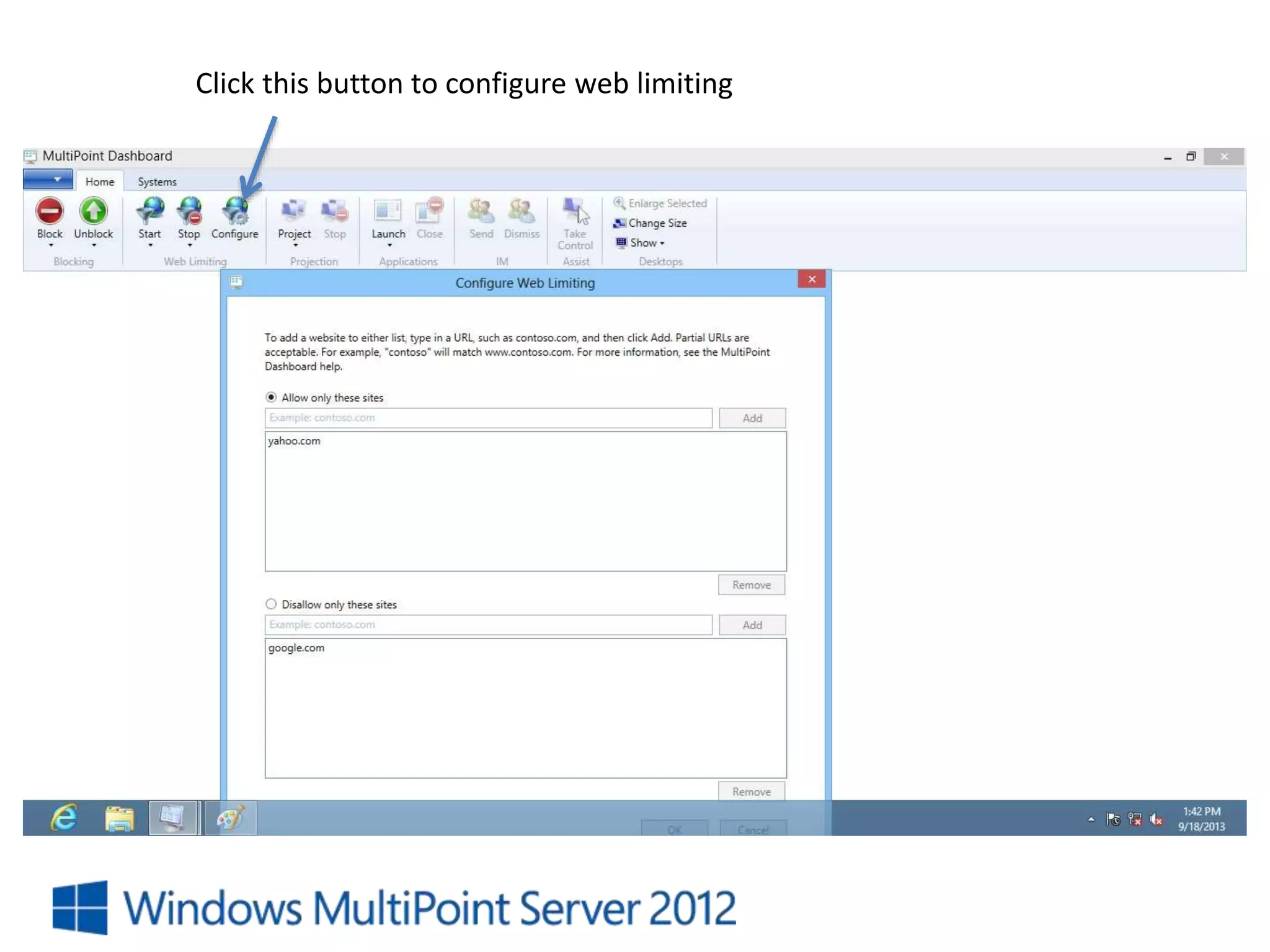
• CONFIGURE – approve or restrict websites manually on selected and all desktops
Click this button in order to Start limit web access on selected
Or All Desktops.
Click this button in order to Stop limit web access on selected
Or All Desktops.
Click this button to configure web limiting
PROJECTION Project – will allow Teacher to show his/her desktop to Students
Stop – will allow Teacher to stop showing his/her desktop to Students
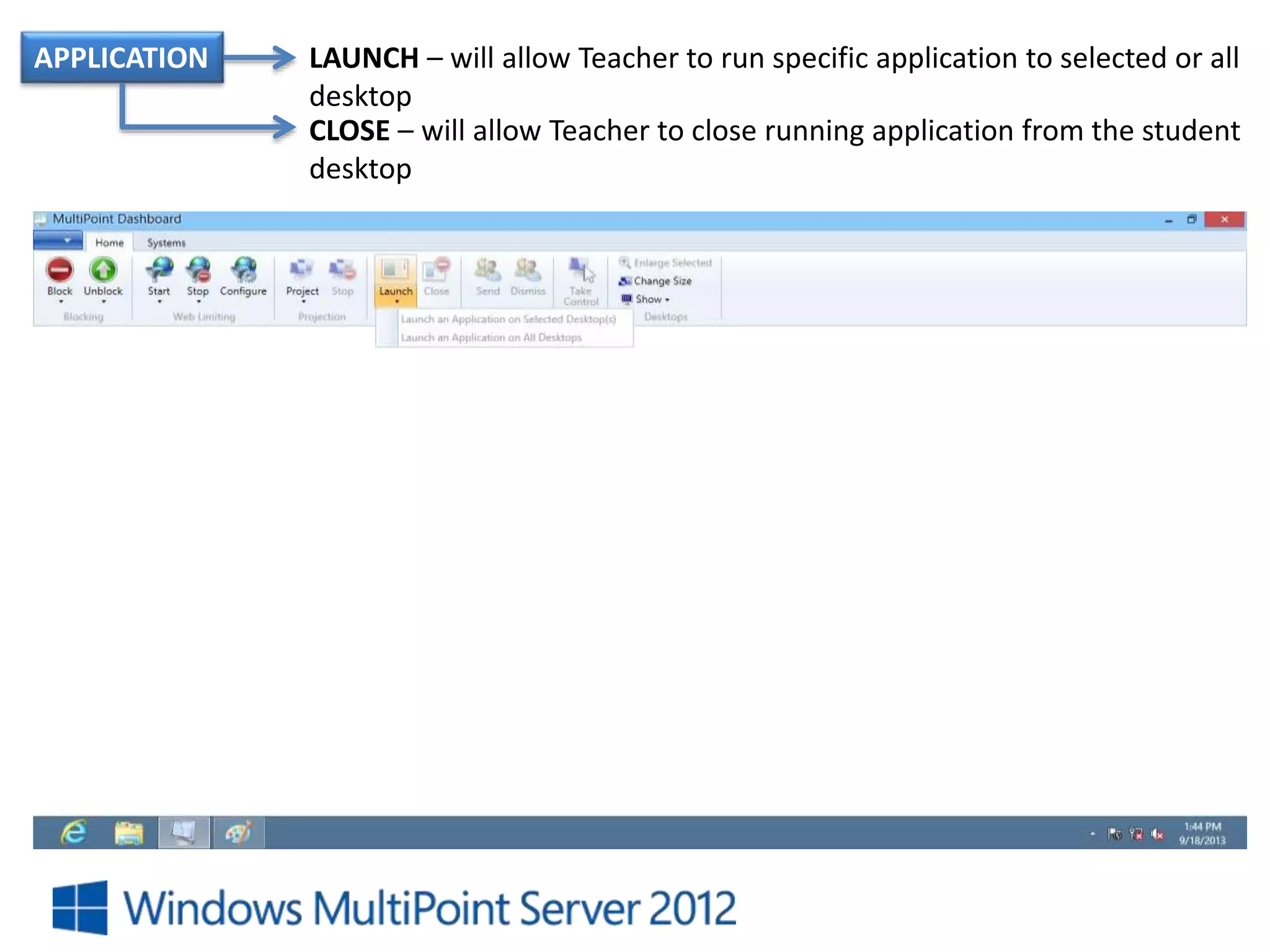
APPLICATION LAUNCH – will allow Teacher to run specific application to selected or all
desktop
CLOSE – will allow Teacher to close running application from the student
desktop
IM SEND – allow Teacher to send message to one student only
DISMISS – will allow Teacher to close IM
ASSIST TAKE CONTROL – allow Teacher to take control the desktop of student
DESKTOP Enlarge Selected – Enlarge selected Student Desktop
Change Size – Resize selected Student Desktop
Show – Show all Desktop
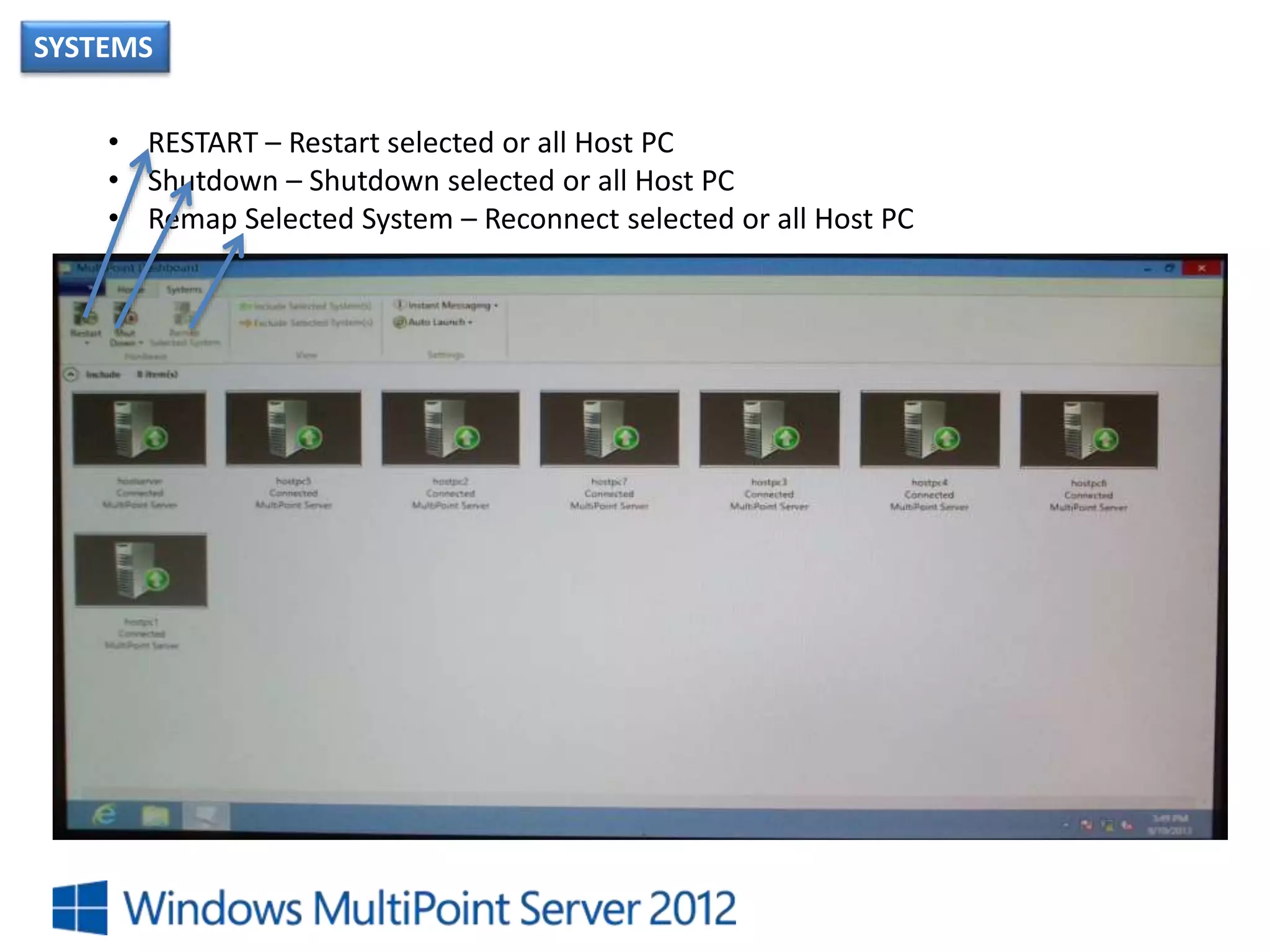
SYSTEMS
• RESTART – Restart selected or all Host PC
• Shutdown – Shutdown selected or all Host PC
• Remap Selected System – Reconnect selected or all Host PC

2 Multipoint Server 2012.pptx

  • 2.
    Windows solutions thatallow multiple users, each with their own independent and familiar Windows experience, to simultaneously share one computer. User stations, consisting of a monitor, keyboard, and mouse, are directly connected to the host computer through USB or Network cable via switch hub. MultiPoint Server enables multiple users to share one computer, it can provide a low-cost alternative to traditional computing scenarios where each user has their own computer. WHAT IS WINDOWS MULTIPOINT SERVER 2012?
  • 3.
    Multipoint Dashboard/Notification an applicationthat allows specific non-administrator users to monitor and interact with user desktops
  • 4.
    How to accessMultipoint Dashboard/Notification Double click to this icon
  • 5.
    Note: If youcannot find the Multipoint Dashboard Shortcut or icon in desktop, you can use search option to access it Double click to this icon Move the Mouse Cursor to the upper right corner of the screen to show the Charms Bar then click on the Search Icon
  • 6.
    On the SearchBar, type the Multipoint Dashboard or Multipoint Notification Double click to this icon Move the Mouse Cursor to the upper right corner of the screen to show the Charms Bar then click on the Search Icon Click this icon
  • 7.
    This is theUser Interface of Multipoint Dashboard
  • 8.
    Main Toolbar ofMultipoint Dashboard Log of Users Help Exit HOME SYSTEMS Blocking Web Limiting Projection Application IM Assist Desktops Hardware View Settings
  • 9.
    Click on theDropdown Button to see the Log Off Users – Can Log Off Selected Users or All Users Help – Windows Multipoint Manager Help Exit – Will close Multipoint Dashboard
  • 10.
    BLOCKING Block –Block Selected Users or All Users Unblock – Unblock Selected Users Click the Block button to lock the user Click the Unblock button to unlock the user
  • 11.
    WEB LIMITING • START– limit web access on selected and all desktops • STOP – stop limiting web access on selected and all desktops • CONFIGURE – approve or restrict websites manually on selected and all desktops
  • 12.
    Click this buttonin order to Start limit web access on selected Or All Desktops.
  • 13.
    Click this buttonin order to Stop limit web access on selected Or All Desktops.
  • 14.
    Click this buttonto configure web limiting
  • 15.
    PROJECTION Project –will allow Teacher to show his/her desktop to Students Stop – will allow Teacher to stop showing his/her desktop to Students
  • 16.
    APPLICATION LAUNCH –will allow Teacher to run specific application to selected or all desktop CLOSE – will allow Teacher to close running application from the student desktop
  • 17.
    IM SEND –allow Teacher to send message to one student only DISMISS – will allow Teacher to close IM
  • 18.
    ASSIST TAKE CONTROL– allow Teacher to take control the desktop of student
  • 19.
    DESKTOP Enlarge Selected– Enlarge selected Student Desktop Change Size – Resize selected Student Desktop Show – Show all Desktop
  • 20.
    SYSTEMS • RESTART –Restart selected or all Host PC • Shutdown – Shutdown selected or all Host PC • Remap Selected System – Reconnect selected or all Host PC