R for Libraries
Data Exploration
Outline for Today
• R Packages
• Getting data into R
• Exploring your data
Packages
• Users write their own function libraries and release them as
R Packages.
Packages
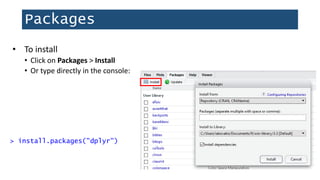
• To install
• Click on Packages > Install
• Or type directly in the console:
> install.packages("dplyr")
Packages
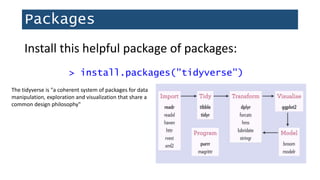
> install.packages("tidyverse")
Install this helpful package of packages:
The tidyverse is "a coherent system of packages for data
manipulation, exploration and visualization that share a
common design philosophy"
Packages
> install.packages("dplyr")
> install.packages("readxl")
> install.packages("stringr")
> install.packages("ggplot2")
Installing tidyverse giving you trouble? Just
install these for now:
Packages
> library("tidyverse")
After installing a package, you must load it into your R session
Error: could not find function "select"
> select(books, SUBJECT)
Reading data into R
• When you read a file into R, you must save it as an object. In other
words, create a copy of it in R’s working memory.
• When you manipulate the data, you are manipulating that object in
the R environment, not the data file itself.
• You have to write the data frame to disk if you want to create an
actual file; e.g. use functions write.table() or
write.csv()
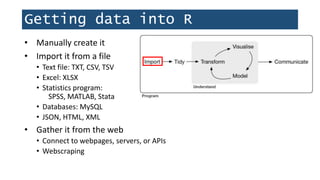
Getting data into R
• Manually create it
• Import it from a file
• Text file: TXT, CSV, TSV
• Excel: XLSX
• Statistics program:
SPSS, MATLAB, Stata
• Databases: MySQL
• JSON, HTML, XML
• Gather it from the web
• Connect to webpages, servers, or APIs
• Webscraping
Set your working directory
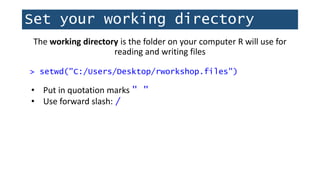
The working directory is the folder on your computer R will use for
reading and writing files
> setwd("C:/Users/Desktop/rworkshop.files")
• Put in quotation marks " "
• Use forward slash: /
Set your working directory
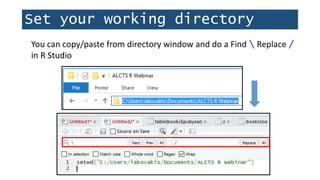
You can copy/paste from directory window and do a Find  Replace /
in R Studio
Set your working directory
> getwd()
[1] "C:/Users/iakovakis/Desktop/r.workshop.files"
Print the current working directory to the console:
Set your working directory
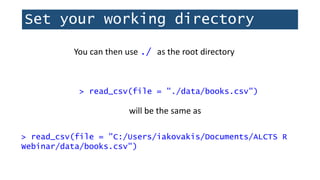
You can then use ./ as the root directory
> read_csv(file = "./data/books.csv")
will be the same as
> read_csv(file = "C:/Users/iakovakis/Documents/ALCTS R
Webinar/data/books.csv")
Reading tabular data
Main functions for reading tabular data:
• read_csv(): reads comma-separated values files
Structure of text data files
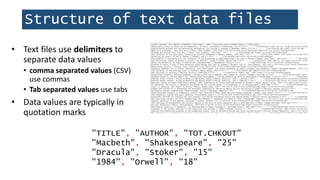
"TITLE", "AUTHOR", "TOT.CHKOUT"
"Macbeth", "Shakespeare", "25"
"Dracula", "Stoker", "15"
"1984", "Orwell", "18"
• Text files use delimiters to
separate data values
• comma separated values (CSV)
use commas
• Tab separated values use tabs
• Data values are typically in
quotation marks
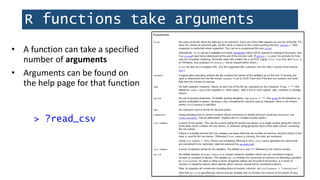
R functions take arguments
• A function can take a specified
number of arguments
• Arguments can be found on
the help page for that function
> ?read_csv
Reading tabular data
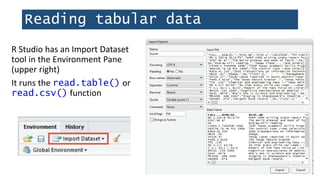
R Studio has an Import Dataset
tool in the Environment Pane
(upper right)
It runs the read.table() or
read.csv() function
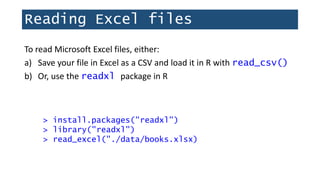
Reading Excel files
To read Microsoft Excel files, either:
a) Save your file in Excel as a CSV and load it in R with read_csv()
b) Or, use the readxl package in R
> install.packages("readxl")
> library("readxl")
> read_excel("./data/books.xlsx)
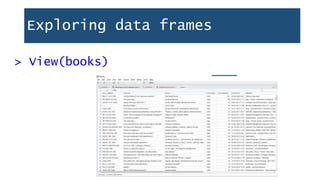
Exploring data frames
> View(books)
Exploring data frames
> dim(books)
[1] 4000 12
> nrow(books)
[1] 4000
> ncol(books)
[1] 12
Dimensions:
4,000 rows, 12 columns
Number of rows
Number of columns
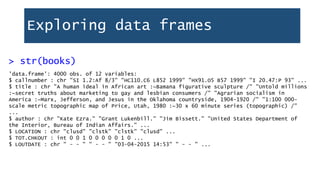
Exploring data frames
'data.frame': 4000 obs. of 12 variables:
$ callnumber : chr "SI 1.2:Af 8/3" "HC110.C6 L852 1999" "HX91.O5 B57 1999" "I 20.47:P 93" ...
$ title : chr "A human ideal in African art :~Bamana figurative sculpture /" "Untold millions
:~secret truths about marketing to gay and lesbian consumers /" "Agrarian socialism in
America :~Marx, Jefferson, and Jesus in the Oklahoma countryside, 1904-1920 /" "1:100 000-
scale metric topographic map of Price, Utah, 1980 :~30 x 60 minute series (topographic) /"
...
$ author : chr "Kate Ezra." "Grant Lukenbill." "Jim Bissett." "United States Department of
the Interior, Bureau of Indian Affairs." ...
$ LOCATION : chr "clusd" "clstk" "clstk" "clusd" ...
$ TOT.CHKOUT : int 0 0 1 0 0 0 0 0 1 0 ...
$ LOUTDATE : chr " - - " " - - " "03-04-2015 14:53" " - - " ...
> str(books)
Exploring vectors
> str(books$LOCATION)
chr [1:4000] "clstk" "clstk" "clstk" "clstk" "clstk"...
Use the dollar sign $ to specify a variable in a data frame
unique()
unique() returns all the distinct values in a variable
> unique(books$LOCATION)
[1] clcdr clchi clcir clcre clfhd clids cljre cljuv clref clrsd clstk clthe cltxd clua clusd
In this case, it displays all unique book location codes.
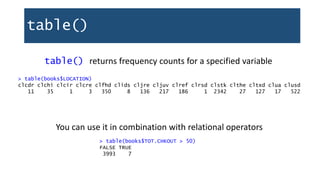
table()
table() returns frequency counts for a specified variable
> table(books$LOCATION)
clcdr clchi clcir clcre clfhd clids cljre cljuv clref clrsd clstk clthe cltxd clua clusd
11 35 1 3 350 8 136 217 186 1 2342 27 127 17 522
> table(books$TOT.CHKOUT > 50)
FALSE TRUE
3993 7
You can use it in combination with relational operators
duplicated()
duplicated() will give you a logical vector of duplicated values
> z <- c("111", "222", "111", "333", "444")
> duplicated(z)
[1] FALSE FALSE TRUE FALSE FALSE
> !duplicated(z)
[1] TRUE TRUE FALSE TRUE TRUE
duplicated()
Use duplicated() nested in table() to find out how many
values are dupes
> table(duplicated(z))
FALSE TRUE
4 1
Use which() to identify the duplicated element
> which(duplicated(z))
[1] 3
Data manipulation with dplyr
• dplyr was created by Hadley Wickham
• A "grammar for data manipulation" that simplifies a number of
critical data cleaning and transformation tasks
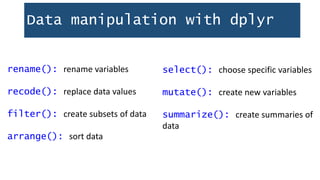
Data manipulation with dplyr
rename(): rename variables
recode(): replace data values
filter(): create subsets of data
arrange(): sort data
select(): choose specific variables
mutate(): create new variables
summarize(): create summaries of
data
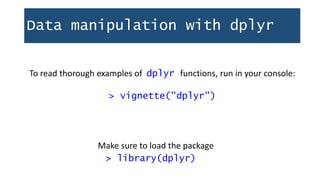
Data manipulation with dplyr
To read thorough examples of dplyr functions, run in your console:
> vignette("dplyr")
> library(dplyr)
Make sure to load the package
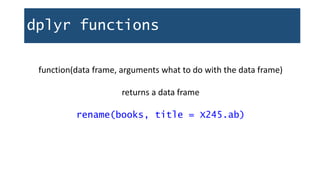
dplyr functions
function(data frame, arguments what to do with the data frame)
returns a data frame
rename(books, title = X245.ab)
dplyr::rename
> names(books)
[1] "CALL...BIBLIO." "X245.ab" "X245.c" "LOCATION"
"TOT.CHKOUT" "LOUTDATE"
[7] "SUBJECT" "ISN" "CALL...ITEM." "X008.Date.One"
"BCODE2" "BCODE1"
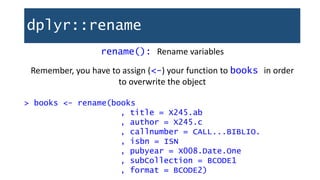
rename(): Rename variables
dplyr::rename
> books <- rename(books
, title = X245.ab
, author = X245.c
, callnumber = CALL...BIBLIO.
, isbn = ISN
, pubyear = X008.Date.One
, subCollection = BCODE1
, format = BCODE2)
Remember, you have to assign (<-) your function to books in order
to overwrite the object
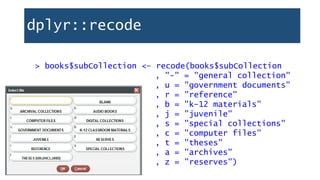
dplyr::recode
recode(): replace data values
First, use unique() to see all elements in a variable
> unique(books$subCollection)
[1] "u" "-" "j" "r" "b" "a" "s" "c" "t" "z"
dplyr::recode
> books$subCollection <- recode(books$subCollection
, "-" = "general collection"
, u = "government documents"
, r = "reference"
, b = "k-12 materials"
, j = "juvenile"
, s = "special collections"
, c = "computer files"
, t = "theses"
, a = "archives"
, z = "reserves")
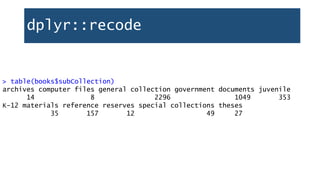
dplyr::recode
> table(books$subCollection)
archives computer files general collection government documents juvenile
14 8 2296 1049 353
K-12 materials reference reserves special collections theses
35 157 12 49 27
Subsetting data frames
In the same way you use brackets [] to subset vectors, you also use
them to subset data frames.
> scale <- c("do", "re", "mi", "fa", "so")
> scale[1]
[1] "do"
However, vectors have only one direction, but dataframes have two.
myDataFrame[row, column]
Subsetting data frames
> books[5, 2]
[1] "Fear of intimacy / "
Can also use column names:
> books[5, c("title", "TOT.CHKOUT")]
title TOT.CHKOUT
5 Fear of intimacy / 7
Subsetting data frames
Subsetting with brackets is good to know, but the dplyr package
provides a much easier way with filter()
dplyr::filter
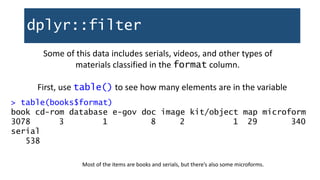
Some of this data includes serials, videos, and other types of
materials classified in the format column.
Most of the items are books and serials, but there’s also some microforms.
> table(books$format)
book cd-rom database e-gov doc image kit/object map microform
3078 3 1 8 2 1 29 340
serial
538
First, use table() to see how many elements are in the variable
dplyr::filter
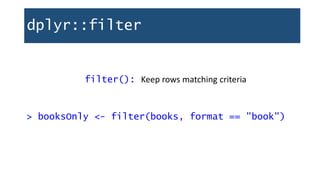
filter(): Keep rows matching criteria
> booksOnly <- filter(books, format == "book")
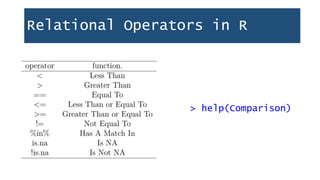
Relational Operators in R
> help(Comparison)
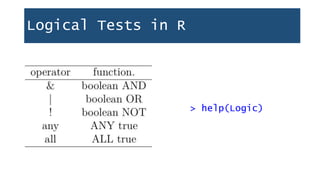
Logical Tests in R
> help(Logic)
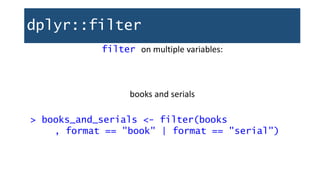
dplyr::filter
filter on multiple variables:
books and serials
> books_and_serials <- filter(books
, format == "book" | format == "serial")
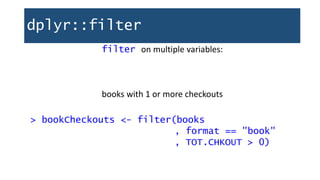
dplyr::filter
filter on multiple variables:
books with 1 or more checkouts
> bookCheckouts <- filter(books
, format == "book"
, TOT.CHKOUT > 0)
dplyr::filter
How many are there?
> nrow(bookCheckouts)
[1] 3616
What percentage is that of all books?
> nrow(bookCheckouts)/nrow(booksOnly) * 100
[1] 63.93762
…not bad!
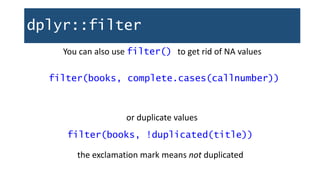
dplyr::filter
You can also use filter() to get rid of NA values
filter(books, complete.cases(callnumber))
or duplicate values
filter(books, !duplicated(title))
the exclamation mark means not duplicated
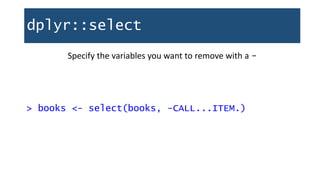
dplyr::select
select(): Keep (or remove) only the variables you mention
> booksTitleCheckouts <- select(books, title,
TOT.CHKOUT)
> dim(booksTitleCheckouts)
[1] 10000 2
dplyr::select
Specify the variables you want to remove with a -
> books <- select(books, -CALL...ITEM.)
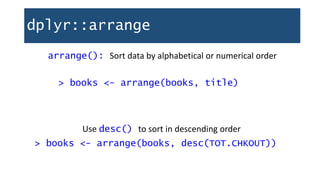
dplyr::arrange
arrange(): Sort data by alphabetical or numerical order
> books <- arrange(books, title)
Use desc() to sort in descending order
> books <- arrange(books, desc(TOT.CHKOUT))
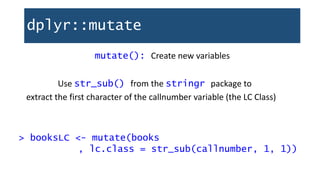
dplyr::mutate
mutate(): Create new variables
> booksLC <- mutate(books
, lc.class = str_sub(callnumber, 1, 1))
extract the first character of the callnumber variable (the LC Class)
Use str_sub() from the stringr package to
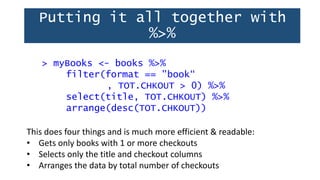
Putting it all together with
%>%
> myBooks <- books %>%
filter(format == "book“
, TOT.CHKOUT > 0) %>%
select(title, TOT.CHKOUT) %>%
arrange(desc(TOT.CHKOUT))
This does four things and is much more efficient & readable:
• Gets only books with 1 or more checkouts
• Selects only the title and checkout columns
• Arranges the data by total number of checkouts
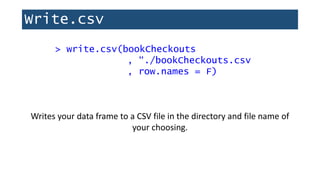
Write.csv
> write.csv(bookCheckouts
, “./bookCheckouts.csv
, row.names = F)
Writes your data frame to a CSV file in the directory and file name of
your choosing.
Thank you

1.R_For_Libraries_Session_2_-_Data_Exploration.pptx

  • 1.
  • 2.
    Outline for Today •R Packages • Getting data into R • Exploring your data
  • 3.
    Packages • Users writetheir own function libraries and release them as R Packages.
  • 4.
    Packages • To install •Click on Packages > Install • Or type directly in the console: > install.packages("dplyr")
  • 5.
    Packages > install.packages("tidyverse") Install thishelpful package of packages: The tidyverse is "a coherent system of packages for data manipulation, exploration and visualization that share a common design philosophy"
  • 6.
    Packages > install.packages("dplyr") > install.packages("readxl") >install.packages("stringr") > install.packages("ggplot2") Installing tidyverse giving you trouble? Just install these for now:
  • 7.
    Packages > library("tidyverse") After installinga package, you must load it into your R session Error: could not find function "select" > select(books, SUBJECT)
  • 8.
    Reading data intoR • When you read a file into R, you must save it as an object. In other words, create a copy of it in R’s working memory. • When you manipulate the data, you are manipulating that object in the R environment, not the data file itself. • You have to write the data frame to disk if you want to create an actual file; e.g. use functions write.table() or write.csv()
  • 9.
    Getting data intoR • Manually create it • Import it from a file • Text file: TXT, CSV, TSV • Excel: XLSX • Statistics program: SPSS, MATLAB, Stata • Databases: MySQL • JSON, HTML, XML • Gather it from the web • Connect to webpages, servers, or APIs • Webscraping
  • 10.
    Set your workingdirectory The working directory is the folder on your computer R will use for reading and writing files > setwd("C:/Users/Desktop/rworkshop.files") • Put in quotation marks " " • Use forward slash: /
  • 11.
    Set your workingdirectory You can copy/paste from directory window and do a Find Replace / in R Studio
  • 12.
    Set your workingdirectory > getwd() [1] "C:/Users/iakovakis/Desktop/r.workshop.files" Print the current working directory to the console:
  • 13.
    Set your workingdirectory You can then use ./ as the root directory > read_csv(file = "./data/books.csv") will be the same as > read_csv(file = "C:/Users/iakovakis/Documents/ALCTS R Webinar/data/books.csv")
  • 14.
    Reading tabular data Mainfunctions for reading tabular data: • read_csv(): reads comma-separated values files
  • 15.
    Structure of textdata files "TITLE", "AUTHOR", "TOT.CHKOUT" "Macbeth", "Shakespeare", "25" "Dracula", "Stoker", "15" "1984", "Orwell", "18" • Text files use delimiters to separate data values • comma separated values (CSV) use commas • Tab separated values use tabs • Data values are typically in quotation marks
  • 16.
    R functions takearguments • A function can take a specified number of arguments • Arguments can be found on the help page for that function > ?read_csv
  • 17.
    Reading tabular data RStudio has an Import Dataset tool in the Environment Pane (upper right) It runs the read.table() or read.csv() function
  • 18.
    Reading Excel files Toread Microsoft Excel files, either: a) Save your file in Excel as a CSV and load it in R with read_csv() b) Or, use the readxl package in R > install.packages("readxl") > library("readxl") > read_excel("./data/books.xlsx)
  • 19.
  • 20.
    Exploring data frames >dim(books) [1] 4000 12 > nrow(books) [1] 4000 > ncol(books) [1] 12 Dimensions: 4,000 rows, 12 columns Number of rows Number of columns
  • 21.
    Exploring data frames 'data.frame':4000 obs. of 12 variables: $ callnumber : chr "SI 1.2:Af 8/3" "HC110.C6 L852 1999" "HX91.O5 B57 1999" "I 20.47:P 93" ... $ title : chr "A human ideal in African art :~Bamana figurative sculpture /" "Untold millions :~secret truths about marketing to gay and lesbian consumers /" "Agrarian socialism in America :~Marx, Jefferson, and Jesus in the Oklahoma countryside, 1904-1920 /" "1:100 000- scale metric topographic map of Price, Utah, 1980 :~30 x 60 minute series (topographic) /" ... $ author : chr "Kate Ezra." "Grant Lukenbill." "Jim Bissett." "United States Department of the Interior, Bureau of Indian Affairs." ... $ LOCATION : chr "clusd" "clstk" "clstk" "clusd" ... $ TOT.CHKOUT : int 0 0 1 0 0 0 0 0 1 0 ... $ LOUTDATE : chr " - - " " - - " "03-04-2015 14:53" " - - " ... > str(books)
  • 22.
    Exploring vectors > str(books$LOCATION) chr[1:4000] "clstk" "clstk" "clstk" "clstk" "clstk"... Use the dollar sign $ to specify a variable in a data frame
  • 23.
    unique() unique() returns allthe distinct values in a variable > unique(books$LOCATION) [1] clcdr clchi clcir clcre clfhd clids cljre cljuv clref clrsd clstk clthe cltxd clua clusd In this case, it displays all unique book location codes.
  • 24.
    table() table() returns frequencycounts for a specified variable > table(books$LOCATION) clcdr clchi clcir clcre clfhd clids cljre cljuv clref clrsd clstk clthe cltxd clua clusd 11 35 1 3 350 8 136 217 186 1 2342 27 127 17 522 > table(books$TOT.CHKOUT > 50) FALSE TRUE 3993 7 You can use it in combination with relational operators
  • 25.
    duplicated() duplicated() will giveyou a logical vector of duplicated values > z <- c("111", "222", "111", "333", "444") > duplicated(z) [1] FALSE FALSE TRUE FALSE FALSE > !duplicated(z) [1] TRUE TRUE FALSE TRUE TRUE
  • 26.
    duplicated() Use duplicated() nestedin table() to find out how many values are dupes > table(duplicated(z)) FALSE TRUE 4 1 Use which() to identify the duplicated element > which(duplicated(z)) [1] 3
  • 27.
    Data manipulation withdplyr • dplyr was created by Hadley Wickham • A "grammar for data manipulation" that simplifies a number of critical data cleaning and transformation tasks
  • 28.
    Data manipulation withdplyr rename(): rename variables recode(): replace data values filter(): create subsets of data arrange(): sort data select(): choose specific variables mutate(): create new variables summarize(): create summaries of data
  • 29.
    Data manipulation withdplyr To read thorough examples of dplyr functions, run in your console: > vignette("dplyr") > library(dplyr) Make sure to load the package
  • 30.
    dplyr functions function(data frame,arguments what to do with the data frame) returns a data frame rename(books, title = X245.ab)
  • 31.
    dplyr::rename > names(books) [1] "CALL...BIBLIO.""X245.ab" "X245.c" "LOCATION" "TOT.CHKOUT" "LOUTDATE" [7] "SUBJECT" "ISN" "CALL...ITEM." "X008.Date.One" "BCODE2" "BCODE1"
  • 32.
    rename(): Rename variables dplyr::rename >books <- rename(books , title = X245.ab , author = X245.c , callnumber = CALL...BIBLIO. , isbn = ISN , pubyear = X008.Date.One , subCollection = BCODE1 , format = BCODE2) Remember, you have to assign (<-) your function to books in order to overwrite the object
  • 33.
    dplyr::recode recode(): replace datavalues First, use unique() to see all elements in a variable > unique(books$subCollection) [1] "u" "-" "j" "r" "b" "a" "s" "c" "t" "z"
  • 34.
    dplyr::recode > books$subCollection <-recode(books$subCollection , "-" = "general collection" , u = "government documents" , r = "reference" , b = "k-12 materials" , j = "juvenile" , s = "special collections" , c = "computer files" , t = "theses" , a = "archives" , z = "reserves")
  • 35.
    dplyr::recode > table(books$subCollection) archives computerfiles general collection government documents juvenile 14 8 2296 1049 353 K-12 materials reference reserves special collections theses 35 157 12 49 27
  • 36.
    Subsetting data frames Inthe same way you use brackets [] to subset vectors, you also use them to subset data frames. > scale <- c("do", "re", "mi", "fa", "so") > scale[1] [1] "do" However, vectors have only one direction, but dataframes have two. myDataFrame[row, column]
  • 37.
    Subsetting data frames >books[5, 2] [1] "Fear of intimacy / " Can also use column names: > books[5, c("title", "TOT.CHKOUT")] title TOT.CHKOUT 5 Fear of intimacy / 7
  • 38.
    Subsetting data frames Subsettingwith brackets is good to know, but the dplyr package provides a much easier way with filter()
  • 39.
    dplyr::filter Some of thisdata includes serials, videos, and other types of materials classified in the format column. Most of the items are books and serials, but there’s also some microforms. > table(books$format) book cd-rom database e-gov doc image kit/object map microform 3078 3 1 8 2 1 29 340 serial 538 First, use table() to see how many elements are in the variable
  • 40.
    dplyr::filter filter(): Keep rowsmatching criteria > booksOnly <- filter(books, format == "book")
  • 41.
    Relational Operators inR > help(Comparison)
  • 42.
    Logical Tests inR > help(Logic)
  • 43.
    dplyr::filter filter on multiplevariables: books and serials > books_and_serials <- filter(books , format == "book" | format == "serial")
  • 44.
    dplyr::filter filter on multiplevariables: books with 1 or more checkouts > bookCheckouts <- filter(books , format == "book" , TOT.CHKOUT > 0)
  • 45.
    dplyr::filter How many arethere? > nrow(bookCheckouts) [1] 3616 What percentage is that of all books? > nrow(bookCheckouts)/nrow(booksOnly) * 100 [1] 63.93762 …not bad!
  • 46.
    dplyr::filter You can alsouse filter() to get rid of NA values filter(books, complete.cases(callnumber)) or duplicate values filter(books, !duplicated(title)) the exclamation mark means not duplicated
  • 47.
    dplyr::select select(): Keep (orremove) only the variables you mention > booksTitleCheckouts <- select(books, title, TOT.CHKOUT) > dim(booksTitleCheckouts) [1] 10000 2
  • 48.
    dplyr::select Specify the variablesyou want to remove with a - > books <- select(books, -CALL...ITEM.)
  • 49.
    dplyr::arrange arrange(): Sort databy alphabetical or numerical order > books <- arrange(books, title) Use desc() to sort in descending order > books <- arrange(books, desc(TOT.CHKOUT))
  • 50.
    dplyr::mutate mutate(): Create newvariables > booksLC <- mutate(books , lc.class = str_sub(callnumber, 1, 1)) extract the first character of the callnumber variable (the LC Class) Use str_sub() from the stringr package to
  • 51.
    Putting it alltogether with %>% > myBooks <- books %>% filter(format == "book“ , TOT.CHKOUT > 0) %>% select(title, TOT.CHKOUT) %>% arrange(desc(TOT.CHKOUT)) This does four things and is much more efficient & readable: • Gets only books with 1 or more checkouts • Selects only the title and checkout columns • Arranges the data by total number of checkouts
  • 52.
    Write.csv > write.csv(bookCheckouts , “./bookCheckouts.csv ,row.names = F) Writes your data frame to a CSV file in the directory and file name of your choosing.
  • 53.