Quick 10 steps to create a portrait video By Fa’amalua Tipi
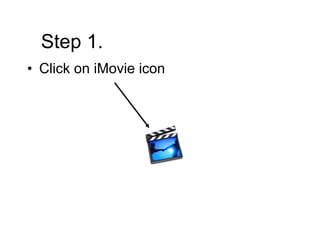
Step 1. Click on iMovie icon
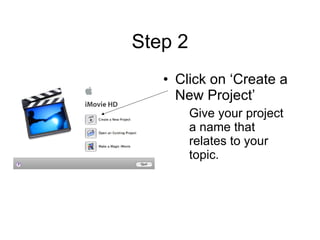
Step 2 Click on ‘Create a New Project’ Give your project a name that relates to your topic.
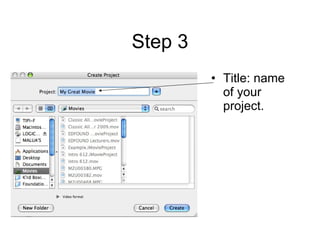
Step 3 Title: name of your project.
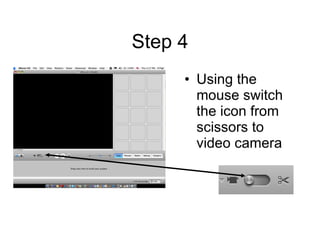
Step 4 Using the mouse switch the icon from scissors to video camera
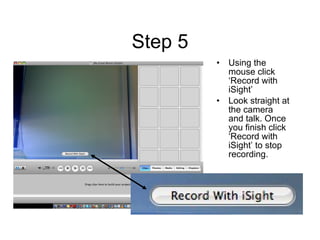
Step 5 Using the mouse click ‘Record with iSight’  Look straight at the camera and talk. Once you finish click ‘Record with iSight’ to stop recording.
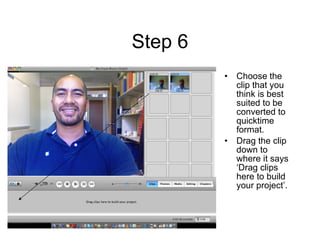
Step 6 Choose the clip that you think is best suited to be converted to quicktime format. Drag the clip down to where it says ‘Drag clips here to build your project’.
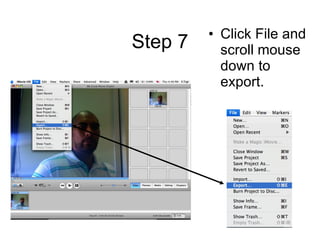
Step 7 Click File and scroll mouse down to export.
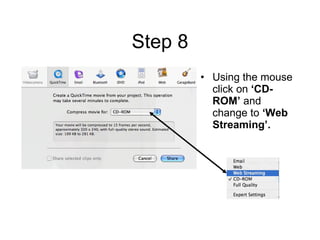
Step 8 Using the mouse click on  ‘CD-ROM’  and change to  ‘Web Streaming’.
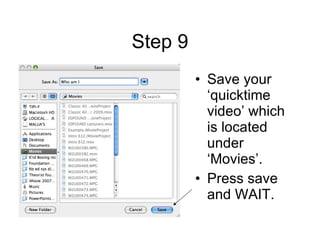
Step 9 Save your ‘quicktime video’ which is located under ‘Movies’. Press save and WAIT.
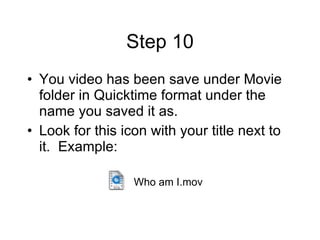
Step 10 You video has been save under Movie folder in Quicktime format under the name you saved it as. Look for this icon with your title next to it.  Example: Who am I.mov

10 Steps To Quicktime

  • 1.
    Quick 10 stepsto create a portrait video By Fa’amalua Tipi
  • 2.
    Step 1. Clickon iMovie icon
  • 3.
    Step 2 Clickon ‘Create a New Project’ Give your project a name that relates to your topic.
  • 4.
    Step 3 Title:name of your project.
  • 5.
    Step 4 Usingthe mouse switch the icon from scissors to video camera
  • 6.
    Step 5 Usingthe mouse click ‘Record with iSight’ Look straight at the camera and talk. Once you finish click ‘Record with iSight’ to stop recording.
  • 7.
    Step 6 Choosethe clip that you think is best suited to be converted to quicktime format. Drag the clip down to where it says ‘Drag clips here to build your project’.
  • 8.
    Step 7 ClickFile and scroll mouse down to export.
  • 9.
    Step 8 Usingthe mouse click on ‘CD-ROM’ and change to ‘Web Streaming’.
  • 10.
    Step 9 Saveyour ‘quicktime video’ which is located under ‘Movies’. Press save and WAIT.
  • 11.
    Step 10 Youvideo has been save under Movie folder in Quicktime format under the name you saved it as. Look for this icon with your title next to it. Example: Who am I.mov