iOS Human Interface
Guideline
The high expectations for quality and functionality.
Topics
Overviews

User Interactions

System Capabilities

Visual Design

Icons

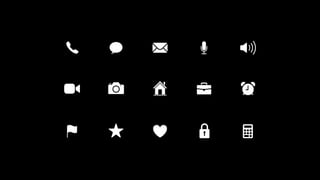
Design Glyphs

Workshop
Overview
Deference

Clarity

Depth
iOS Design Theme
Overview
Deference
iOS Design Theme
The content is paramount
The UI doesn’t compete with the content
Overview
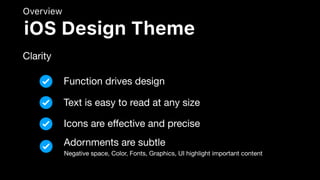
Clarity
iOS Design Theme
Function drives design
Text is easy to read at any size
Icons are effective and precise
Adornments are subtle
Negative space, Color, Fonts, Graphics, UI highlight important content
Overview
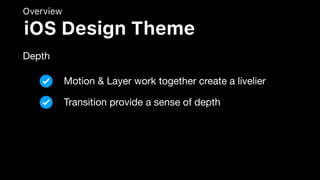
Depth
iOS Design Theme
Motion & Layer work together create a livelier
Transition provide a sense of depth
Aesthetic Integrity

Consistency

Direct Manipulation

Feedback

Metaphors

User Control
Overview
Design Principle
Help people perform a
serious task can keep them
focused by using subtle
Design Principle
Aesthetic Integrity
Unobtrusive graphics
Design Principle
Aesthetic Integrity
Standard controls
Design Principle
Aesthetic Integrity
Predictable behaviors
Design Principle
Aesthetic Integrity
Use system-provided
interface elements
Design Principle
Consistency
Well-known icons
Design Principle
Consistency
Standard text styles
Design Principle
Consistency
Uniform terminology
Design Principle
Consistency
Engage people and
facilitates understanding
Design Principle
Direct Manipulation
Rotate the device
Design Principle
Direct Manipulation
Use gestures to affect
onscreen content
Design Principle
Direct Manipulation
Uniform terminology
Design Principle
Direct Manipulation
Feedback acknowledges
actions and shows results
to keep people informed
Design Principle
Feedback
Tapped
Design Principle
Feedback
Progress indicators
Design Principle
Feedback
Animation and sound
Design Principle
Feedback
People learn more quickly when an
app’s virtual objects and actions
are metaphors for familiar
experiences
Design Principle
Metaphors
Drag and swipe
content
Design Principle
Metaphors
Toggle switches
Design Principle
Metaphors
Move sliders
Design Principle
Metaphors
Flick through pages
Design Principle
Metaphors
The best apps find the correct
balance between enabling users
and avoiding unwanted outcomes.
Design Principle
User Control
Keeping interactive
elements familiar and
predictable
Design Principle
User Control
Confirming
destructive actions
Design Principle
User Control
Make it easy to cancel
operations, even when
they’re already underway.
Design Principle
User Control
User Interaction
3D Touch

Accessibility

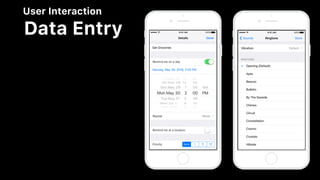
Data Entry

Drag and Drop

First Launch Experience

Gesture

Navigation
User Interaction
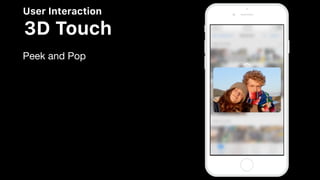
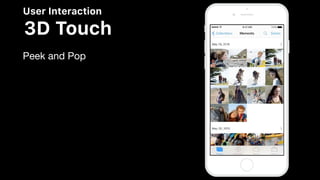
3D Touch
Peek and Pop
User Interaction
3D Touch
Peek and Pop
User Interaction
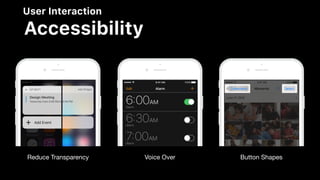
Accessibility
Reduce Transparency Voice Over Button Shapes
User Interaction
Data Entry
User Interaction
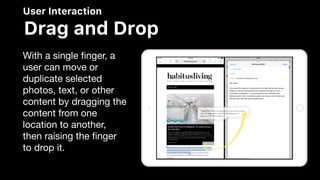
Drag and Drop
With a single finger, a
user can move or
duplicate selected
photos, text, or other
content by dragging the
content from one
location to another,
then raising the finger
to drop it.
User Interaction
Gesture
Tap

Double Tab

Drag

Flick

Swipe

Pinch

Touch and Hold

Shake
User Interaction
Navigation
Hierarchical navigation

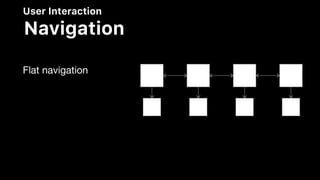
Flat navigation

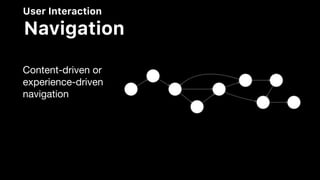
Content-driven or experience-driven navigation
User Interaction
Navigation
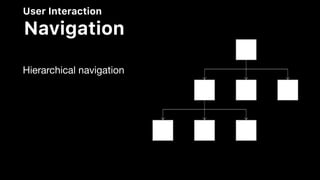
Hierarchical navigation
User Interaction
Navigation
Flat navigation
User Interaction
Navigation
Content-driven or
experience-driven
navigation
System Capabilities
Multitasking

Notifications

Printing

Quick Look

Screenshots

Siri
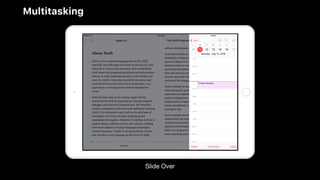
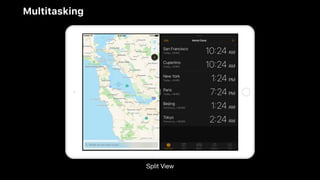
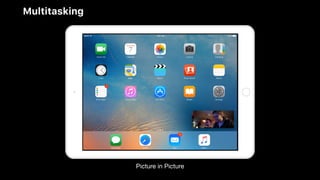
Multitasking
Slide Over
Multitasking
Split View
Multitasking
Picture in Picture
System Capabilities
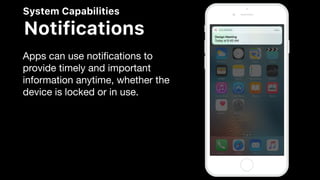
Notifications
Apps can use notifications to
provide timely and important
information anytime, whether the
device is locked or in use.
System Capabilities
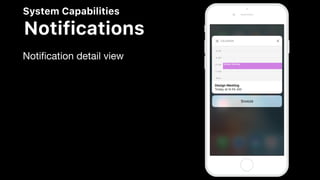
Notifications
Notification detail view
System Capabilities
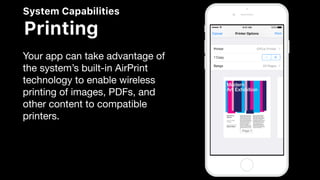
Printing
Your app can take advantage of
the system’s built-in AirPrint
technology to enable wireless
printing of images, PDFs, and
other content to compatible
printers.
System Capabilities
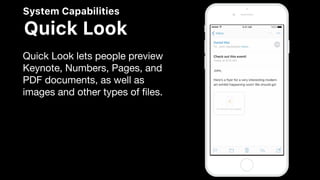
Quick Look
Quick Look lets people preview
Keynote, Numbers, Pages, and
PDF documents, as well as
images and other types of files.
System Capabilities
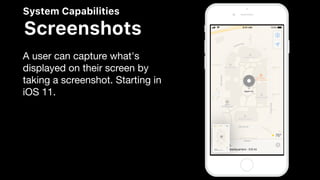
Screenshots
A user can capture what's
displayed on their screen by
taking a screenshot. Starting in
iOS 11.
System Capabilities
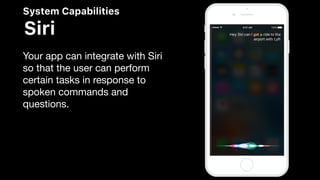
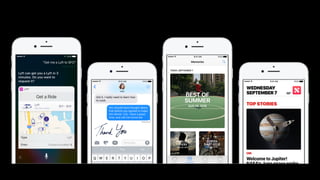
Siri
Your app can integrate with Siri
so that the user can perform
certain tasks in response to
spoken commands and
questions.
System Capabilities
Multitasking

Notifications

Printing

Quick Look

Screenshots

Siri
Visual Design
Animation

Branding

Color

Layout

Typography
Visual Design
Animation
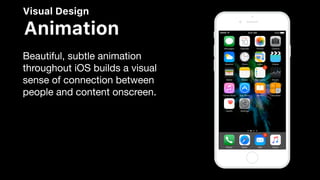
Beautiful, subtle animation
throughout iOS builds a visual
sense of connection between
people and content onscreen.
Visual Design
Animation
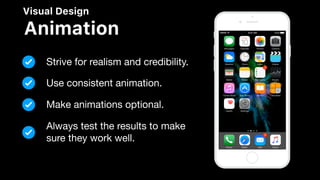
Strive for realism and credibility.
Use consistent animation.
Make animations optional.
Always test the results to make
sure they work well.
Visual Design
Branding
Successful branding involves
more than just adding brand
assets to your app. but not so
much that it becomes a
distraction.
Visual Design
Branding
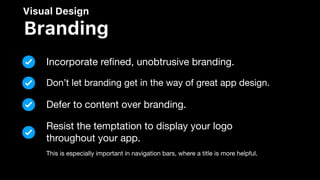
Incorporate refined, unobtrusive branding.
Don’t let branding get in the way of great app design.
Defer to content over branding.
Resist the temptation to display your logo
throughout your app.
This is especially important in navigation bars, where a title is more helpful.
Visual Design
Color
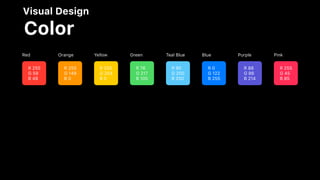
R 255
G 59
B 48
R 255
G 149
B 0
R 255
G 204
B 0
R 76
G 217
B 100
R 90
G 200
B 250
R 0
G 122
B 255
R 88
G 86
B 214
R 255
G 45
B 85
PinkPurpleBlueTeal BlueGreenYellowOrangeRed
Visual Design
Color
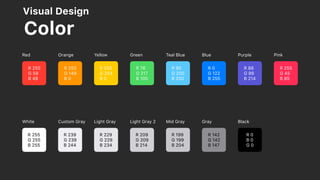
R 255
G 59
B 48
R 255
G 149
B 0
R 255
G 204
B 0
R 76
G 217
B 100
R 90
G 200
B 250
R 0
G 122
B 255
R 88
G 86
B 214
R 255
G 45
B 85
R 255
G 255
B 255
R 239
G 239
B 244
R 229
G 229
B 234
R 209
G 209
B 214
R 199
G 199
B 204
R 142
G 142
B 147
R 0
B 0
G 0
BlackGrayMid GrayLight Gray 2Light GrayCustom GrayWhite
PinkPurpleBlueTeal BlueGreenYellowOrangeRed
Visual Design
Color
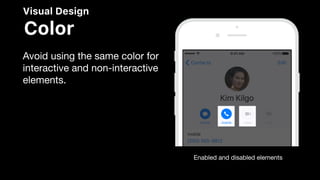
Enabled and disabled elements
Avoid using the same color for
interactive and non-interactive
elements.
Visual Design
Color
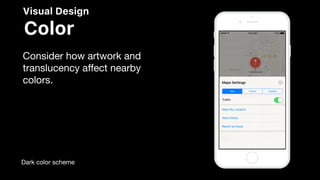
Dark color scheme
Consider how artwork and
translucency affect nearby
colors.
Visual Design
Color
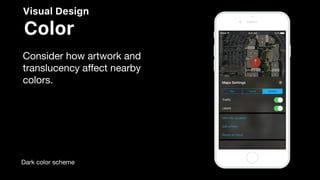
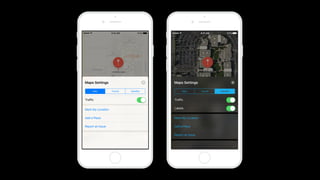
Dark color scheme
Consider how artwork and
translucency affect nearby
colors.
Visual Design
Color
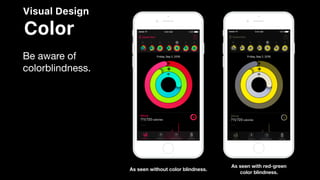
Be aware of
colorblindness.
As seen with red-green
color blindness.
As seen without color blindness.
Visual Design
Color
Consider how your use of color
might be perceived in other
countries and cultures.
Visual Design
Color
Use sufficient color contrast
ratios.
Standard minimum
contrast ratio of 4.5:1,
although 7:1
Visual Design
Color
Color Management
Apply color profiles to your images.
Standard RGB (sRGB) or P3
Provide color space-specific image and color
variations when the experience calls for it.
Visual Design
Color
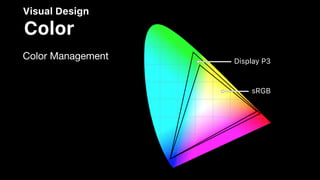
Color Management
•
Display P3•
sRGB
•
Display P3•
sRGB
Visual Design
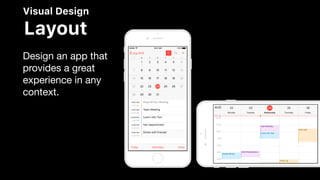
Layout
Design an app that
provides a great
experience in any
context.
Visual Design
Typography
San Francisco (SF)
Visual Design
Typography
Visual Design
Typography
San Francisco (SF)

Use SF Pro Text for sizes below 20pt.
Use SF Pro Display for sizes 20pt or greater.
Icons
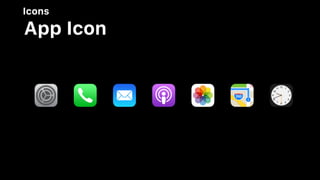
App Icon

Custom Icons

System Icons

Design Glyphs
Icons
Icons
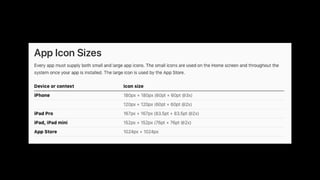
App Icon
Beautiful, subtle animation
throughout iOS builds a visual
sense of connection between
people and content onscreen.
Icons
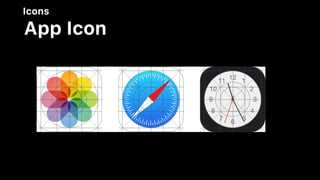
App Icon
Icons
App Icon
Icons
App Icon
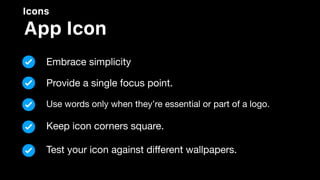
Embrace simplicity
Provide a single focus point.
Use words only when they’re essential or part of a logo.
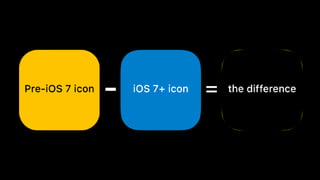
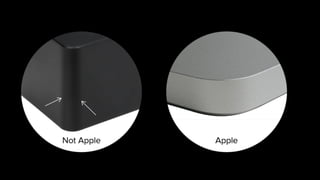
Keep icon corners square.
Test your icon against different wallpapers.
Icons
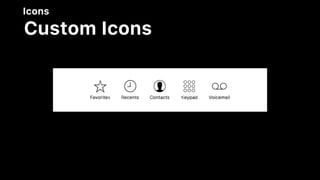
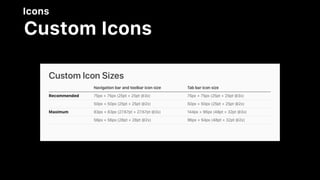
Custom Icons
Icons
Custom Icons
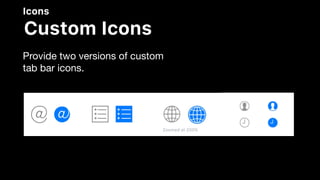
Provide two versions of custom
tab bar icons.
Icons
Custom Icons
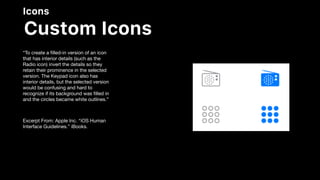
“To create a filled-in version of an icon
that has interior details (such as the
Radio icon) invert the details so they
retain their prominence in the selected
version. The Keypad icon also has
interior details, but the selected version
would be confusing and hard to
recognize if its background was filled in
and the circles became white outlines.”

Excerpt From: Apple Inc. “iOS Human
Interface Guidelines.” iBooks.
Icons
Custom Icons
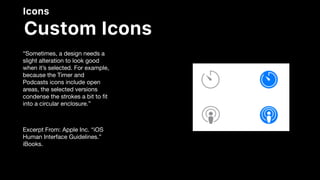
“Sometimes, a design needs a
slight alteration to look good
when it’s selected. For example,
because the Timer and
Podcasts icons include open
areas, the selected versions
condense the strokes a bit to fit
into a circular enclosure.”

Excerpt From: Apple Inc. “iOS
Human Interface Guidelines.”
iBooks.
Icons
Custom Icons
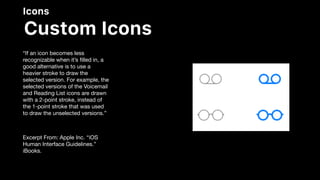
“If an icon becomes less
recognizable when it’s filled in, a
good alternative is to use a
heavier stroke to draw the
selected version. For example, the
selected versions of the Voicemail
and Reading List icons are drawn
with a 2-point stroke, instead of
the 1-point stroke that was used
to draw the unselected versions.”

Excerpt From: Apple Inc. “iOS
Human Interface Guidelines.”
iBooks.
Icons
Custom Icons
Icons
Custom Icons
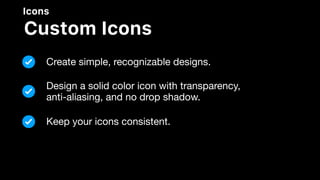
Create simple, recognizable designs.
Design a solid color icon with transparency, 

anti-aliasing, and no drop shadow.
Keep your icons consistent.
Icons
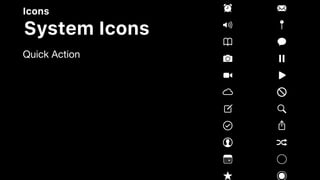
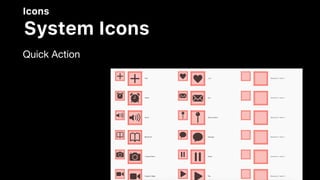
System Icons
Navigation Bar 

Toolbar

Tab Bar

Quick Action
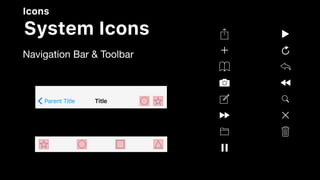
Icons
System Icons
Navigation Bar & Toolbar
TitleParent Title
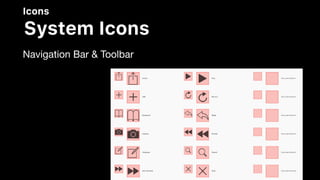
Icons
System Icons
Navigation Bar & Toolbar
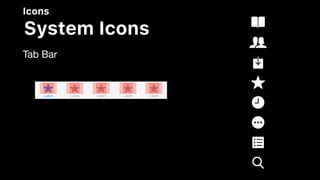
Icons
System Icons
Tab Bar
LabelLabelLabelLabelLabel
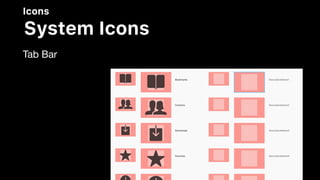
Icons
System Icons
Tab Bar
Icons
System Icons
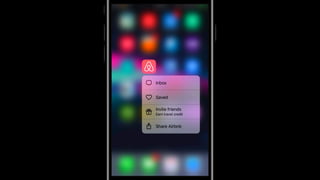
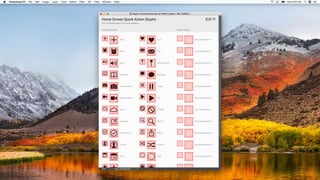
Quick Action
Icons
System Icons
Quick Action
Icons
Design Glyphs
Design Glyphs
Design Glyphs
Design Glyphs
Design Glyphs
Design Glyphs
Design Glyphs
Icons
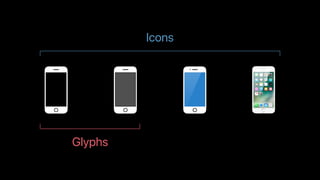
Glyphs
Icons
Simplified form
Universal symbology
Quickly readable in context
Effective Glyphs
Delicious
Delicious
Delicious
Delicious
Delicious
Where are glyphs used?
Design Considerations
Optical weight
Lines
Positioning
Lines
Positioning
Crafting Glyphs
Crafting Glyphs
Build as a set
Test in context
Preview on device
How do I get started?
In-app
Light
Heavy
System spaces
Recap
Recap
Simplify and think globally
Build as sets and test in context
Harmonize with type
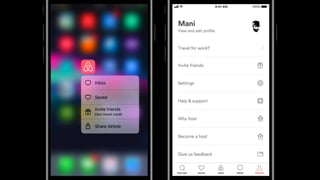
Adapt for system spaces
Workshop
Design Icon

iOS Human Interface Design Guideline Part 1