How to upload the result on
sdms
SDMS Training
www.regmaeducation.com
info@regmasolution.com
Regma EducationPrivate Limited
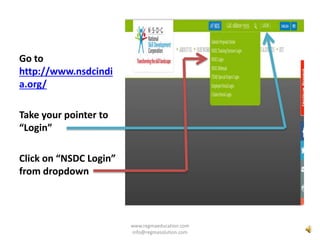
Go to
http://www.nsdcindi
a.org/
Take your pointer to
“Login”
Click on “NSDC Login”
from dropdown
www.regmaeducation.com
info@regmasolution.com
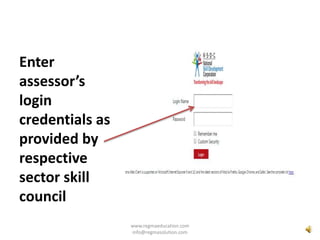
Enter
assessor’s
login
credentials as
provided by
respective
sector skill
council
www.regmaeducation.com
info@regmasolution.com
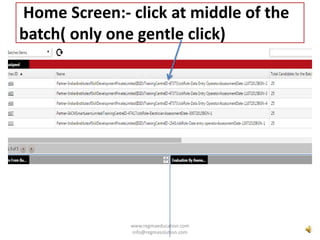
Home Screen:- click at middle of the
batch( only one gentle click)
www.regmaeducation.com
info@regmasolution.com
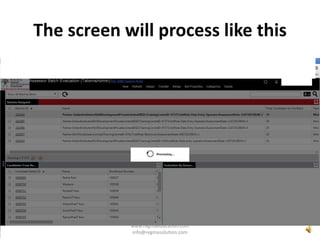
The screen will process like this
www.regmaeducation.com
info@regmasolution.com
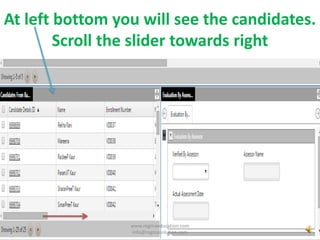
At left bottom you will see the candidates.
Scroll the slider towards right
www.regmaeducation.com
info@regmasolution.com
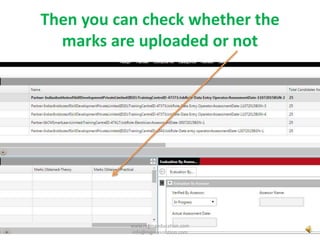
Then you can check whether the
marks are uploaded or not
www.regmaeducation.com
info@regmasolution.com
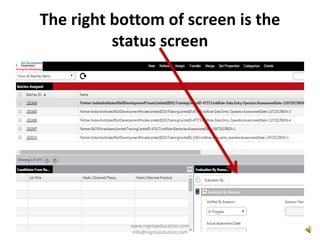
The right bottom of screen is the
status screen
www.regmaeducation.com
info@regmasolution.com
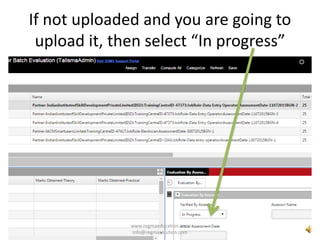
If not uploaded and you are going to
upload it, then select “In progress”
www.regmaeducation.com
info@regmasolution.com
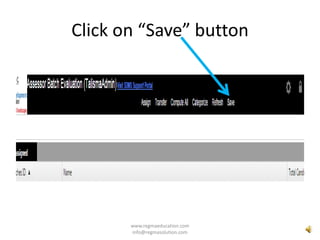
Click on “Save” button
www.regmaeducation.com
info@regmasolution.com
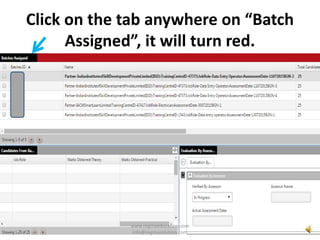
Click on the tab anywhere on “Batch
Assigned”, it will turn red.
www.regmaeducation.com
info@regmasolution.com
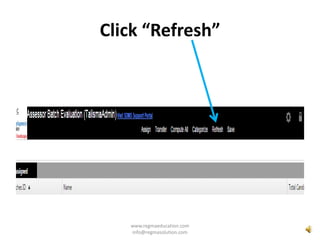
Click “Refresh”
www.regmaeducation.com
info@regmasolution.com
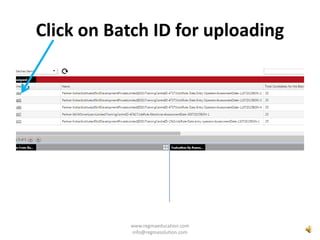
Click on Batch ID for uploading
www.regmaeducation.com
info@regmasolution.com
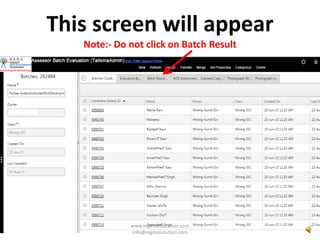
This screen will appear
Note:- Do not click on Batch Result
www.regmaeducation.com
info@regmasolution.com
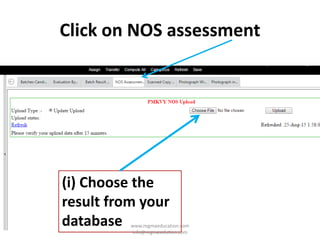
Click on NOS assessment
(i) Choose the
result from your
database www.regmaeducation.com
info@regmasolution.com
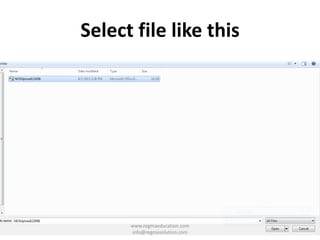
Select file like this
www.regmaeducation.com
info@regmasolution.com
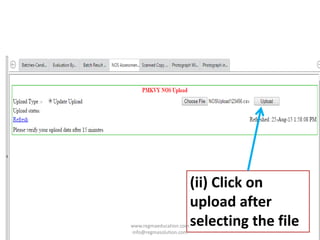
(ii) Click on
upload after
selecting the filewww.regmaeducation.com
info@regmasolution.com
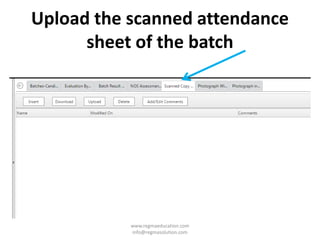
Upload the scanned attendance
sheet of the batch
www.regmaeducation.com
info@regmasolution.com
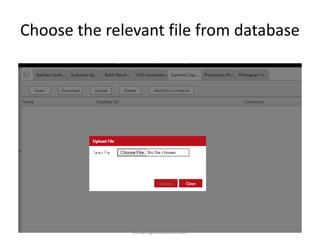
Choose the relevant file from database
www.regmaeducation.com
info@regmasolution.com
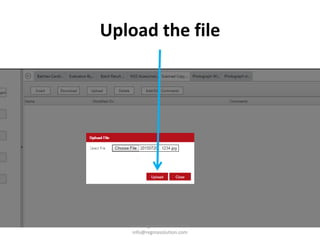
Upload the file
www.regmaeducation.com
info@regmasolution.com
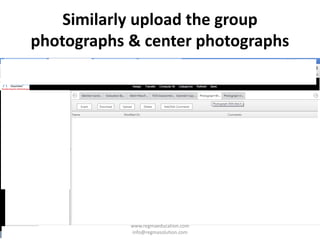
Similarly upload the group
photographs & center photographs
www.regmaeducation.com
info@regmasolution.com
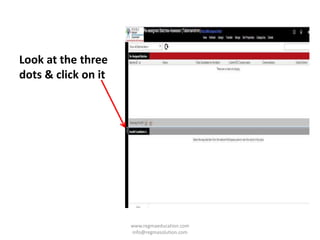
Look at the three
dots & click on it
www.regmaeducation.com
info@regmasolution.com
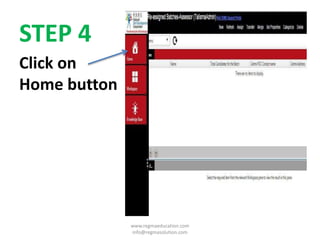
STEP 4
Click on
Home button
www.regmaeducation.com
info@regmasolution.com
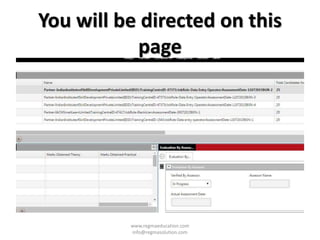
You will be directed on this
page
www.regmaeducation.com
info@regmasolution.com
WAIT FOR FEW MINUTES
Keep patience
www.regmaeducation.com
info@regmasolution.com
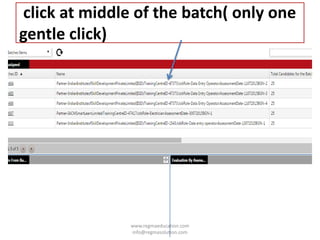
click at middle of the batch( only one
gentle click)
www.regmaeducation.com
info@regmasolution.com
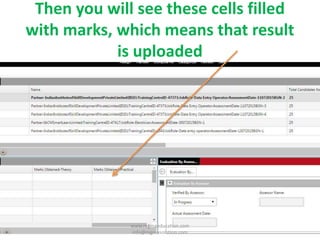
Then you will see these cells filled
with marks, which means that result
is uploaded
www.regmaeducation.com
info@regmasolution.com
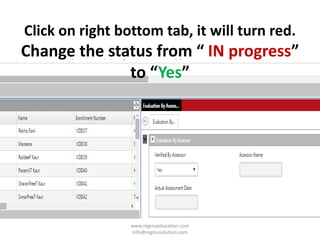
Click on right bottom tab, it will turn red.
Change the status from “ IN progress”
to “Yes”
www.regmaeducation.com
info@regmasolution.com
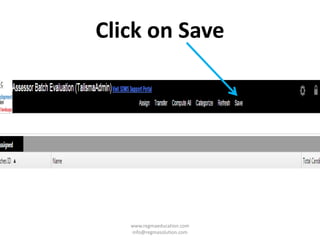
Click on Save
www.regmaeducation.com
info@regmasolution.com
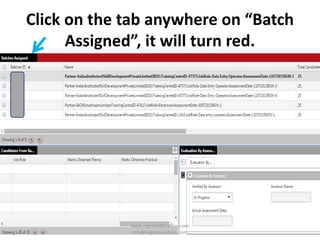
Click on the tab anywhere on “Batch
Assigned”, it will turn red.
www.regmaeducation.com
info@regmasolution.com
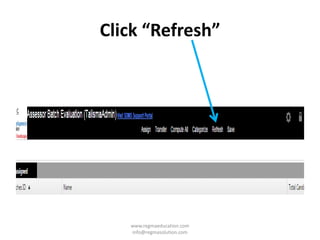
Click “Refresh”
www.regmaeducation.com
info@regmasolution.com
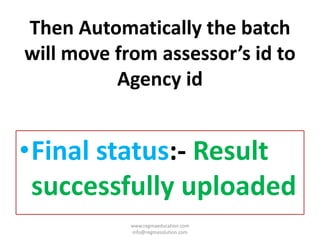
Then Automatically the batch
will move from assessor’s id to
Agency id
•Final status:- Result
successfully uploaded
www.regmaeducation.com
info@regmasolution.com
Thank You
www.regmaeducation.com
info@regmasolution.com
Mail us on info@regmaeducation.com, if
you want more presentations….

Sdms how to upload batch