IRESS Expert
Using Screener to get data
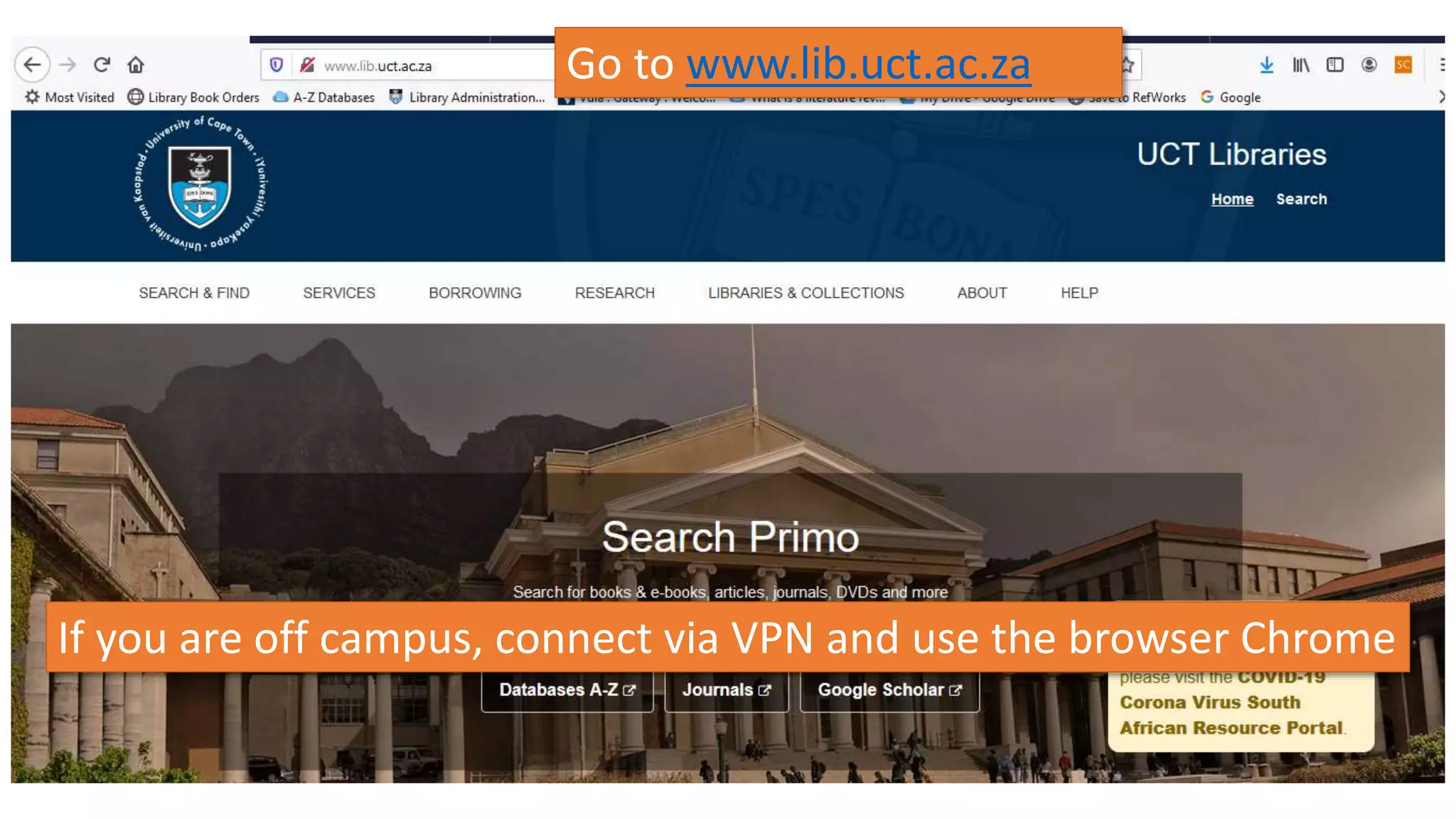
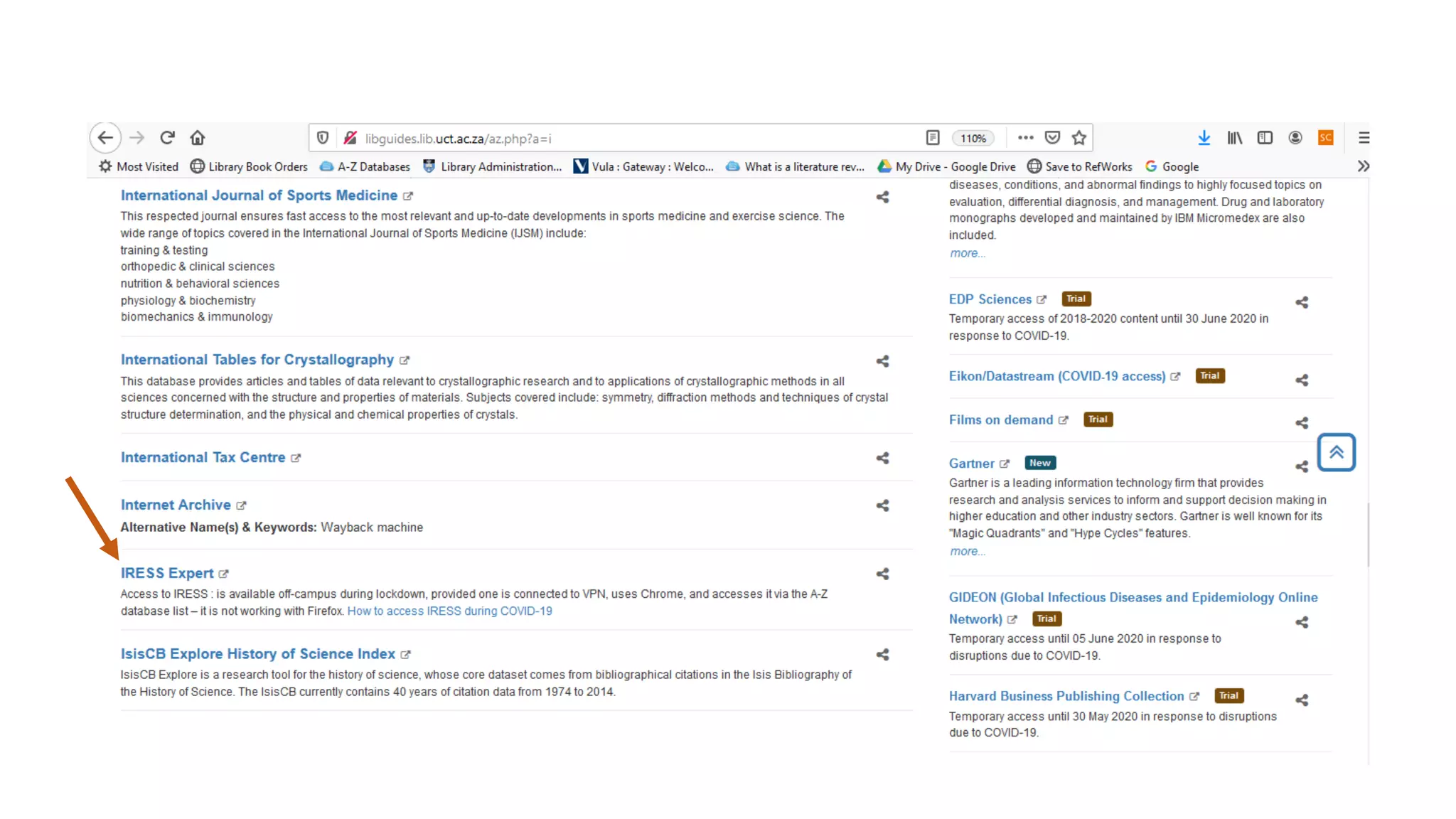
Go to www.lib.uct.ac.za
If you are off campus, connect via VPN and use the browser Chrome
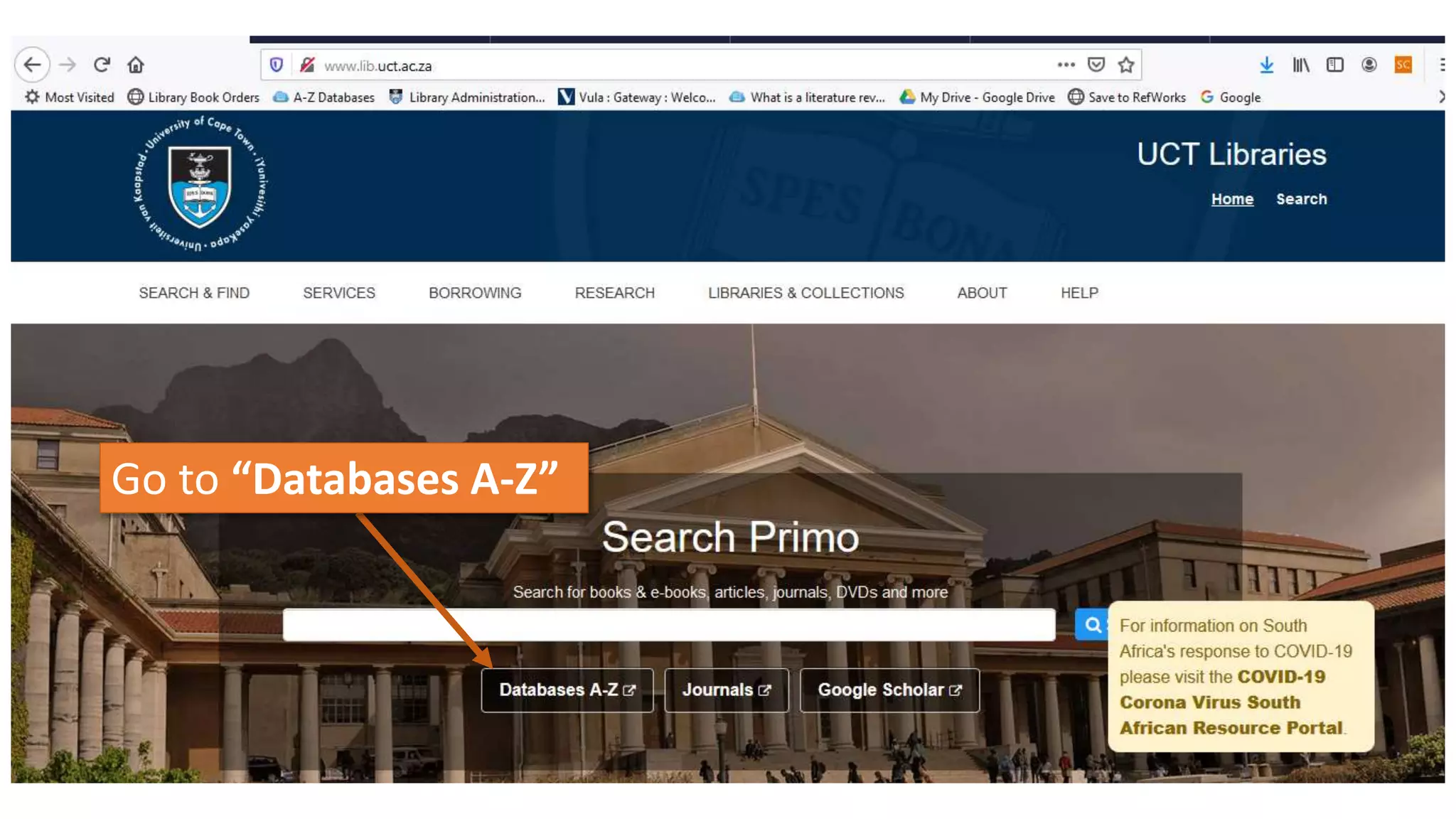
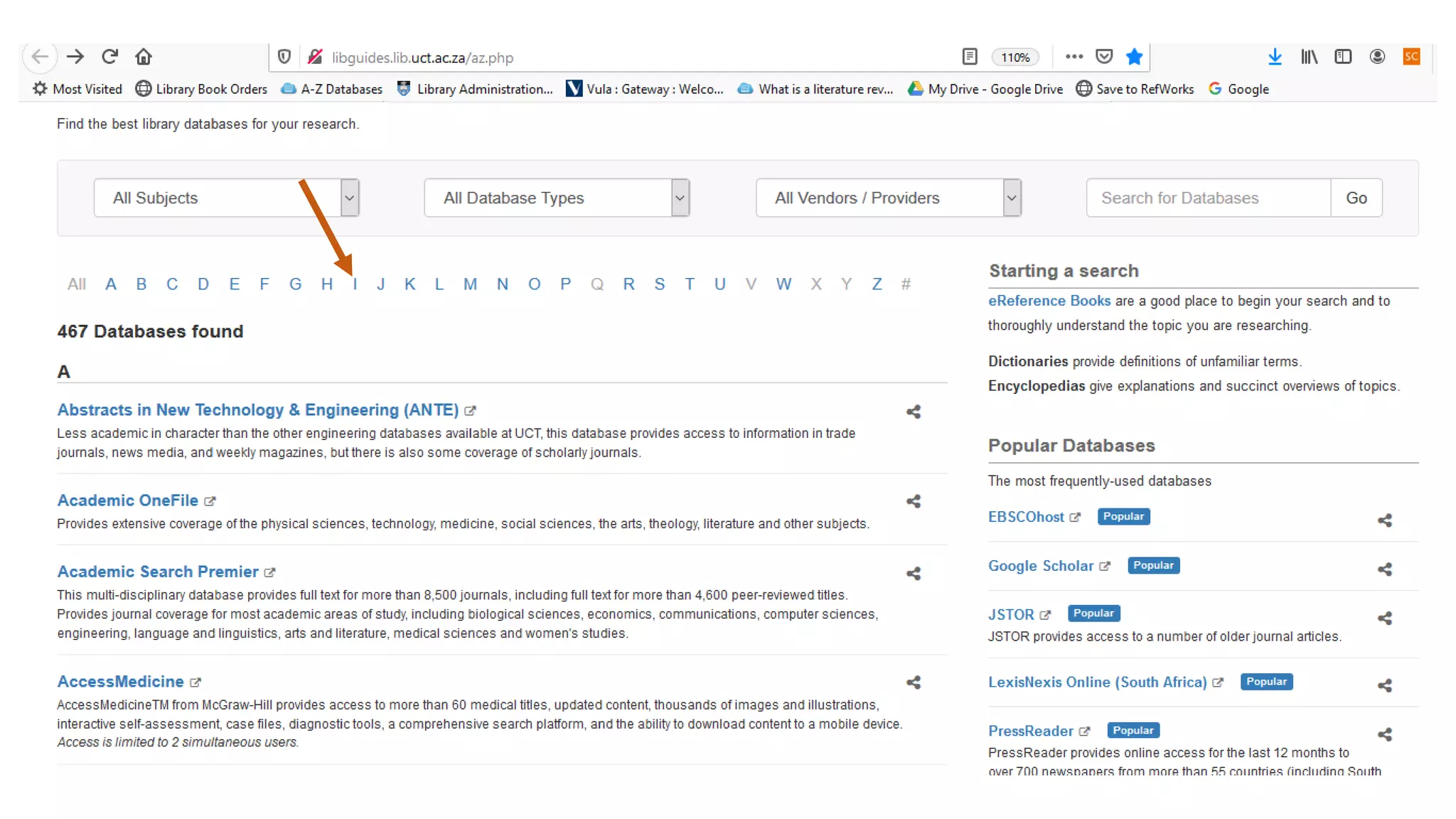
Go to “Databases A-Z”
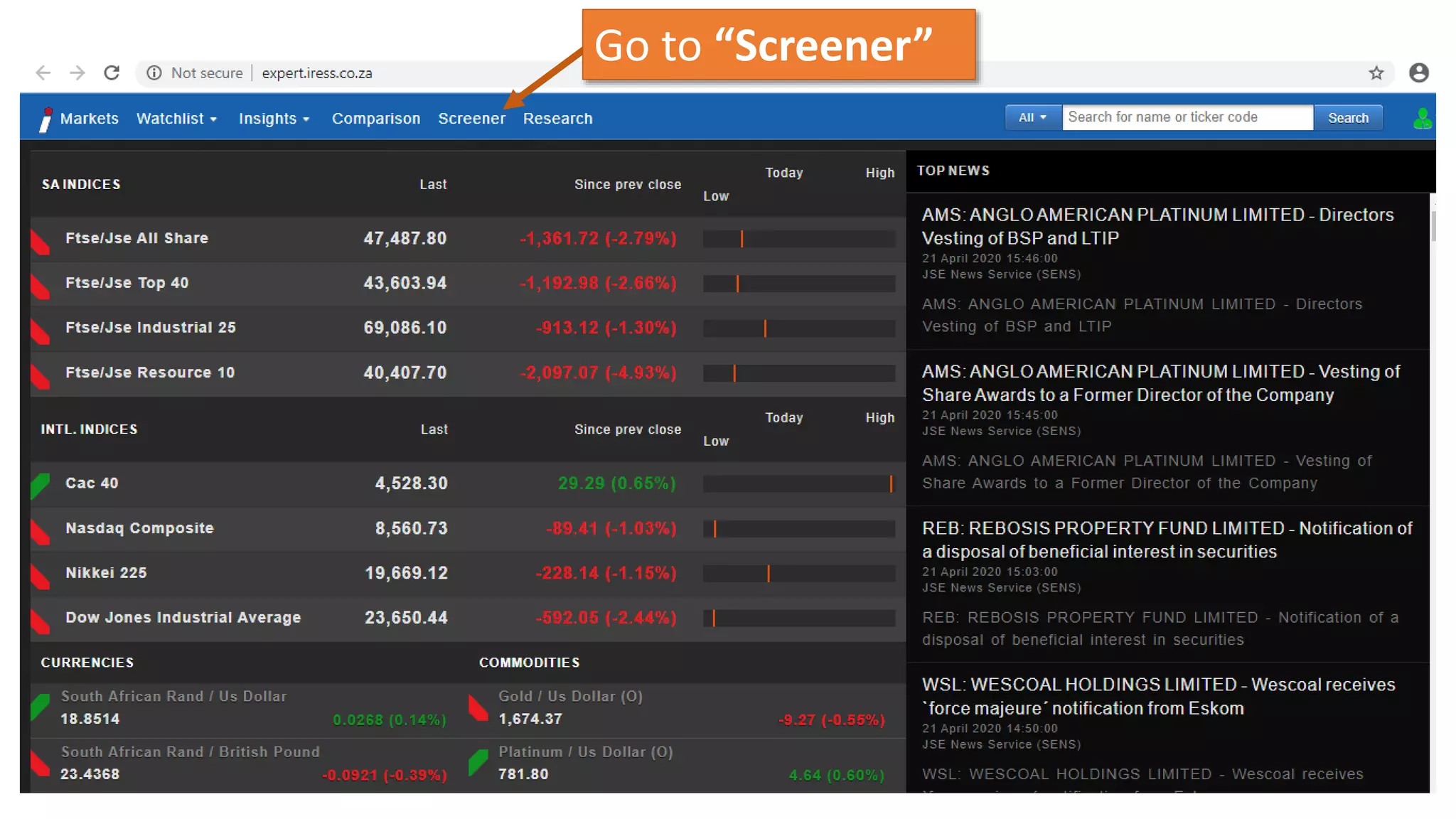
Go to “Screener”
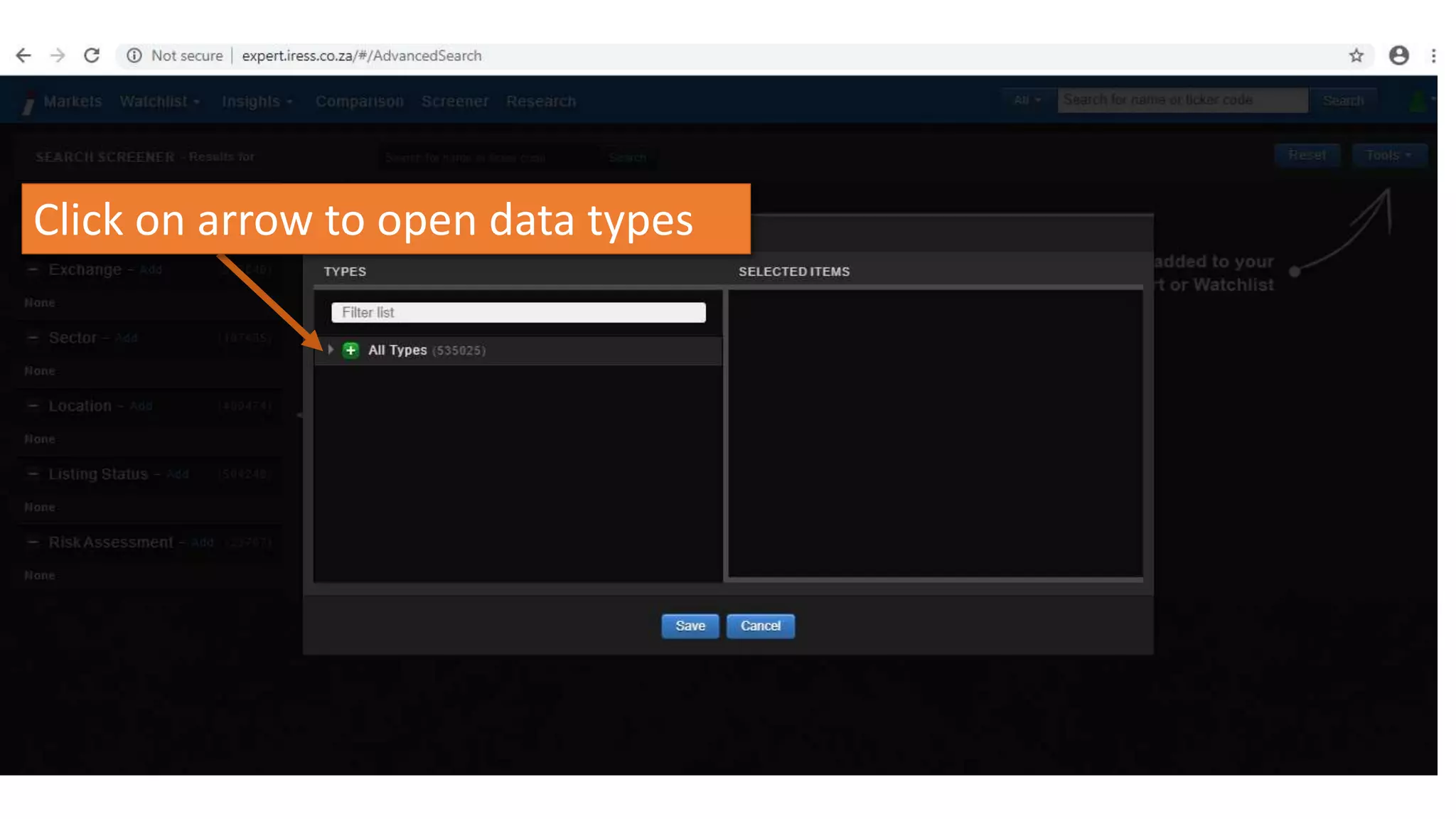
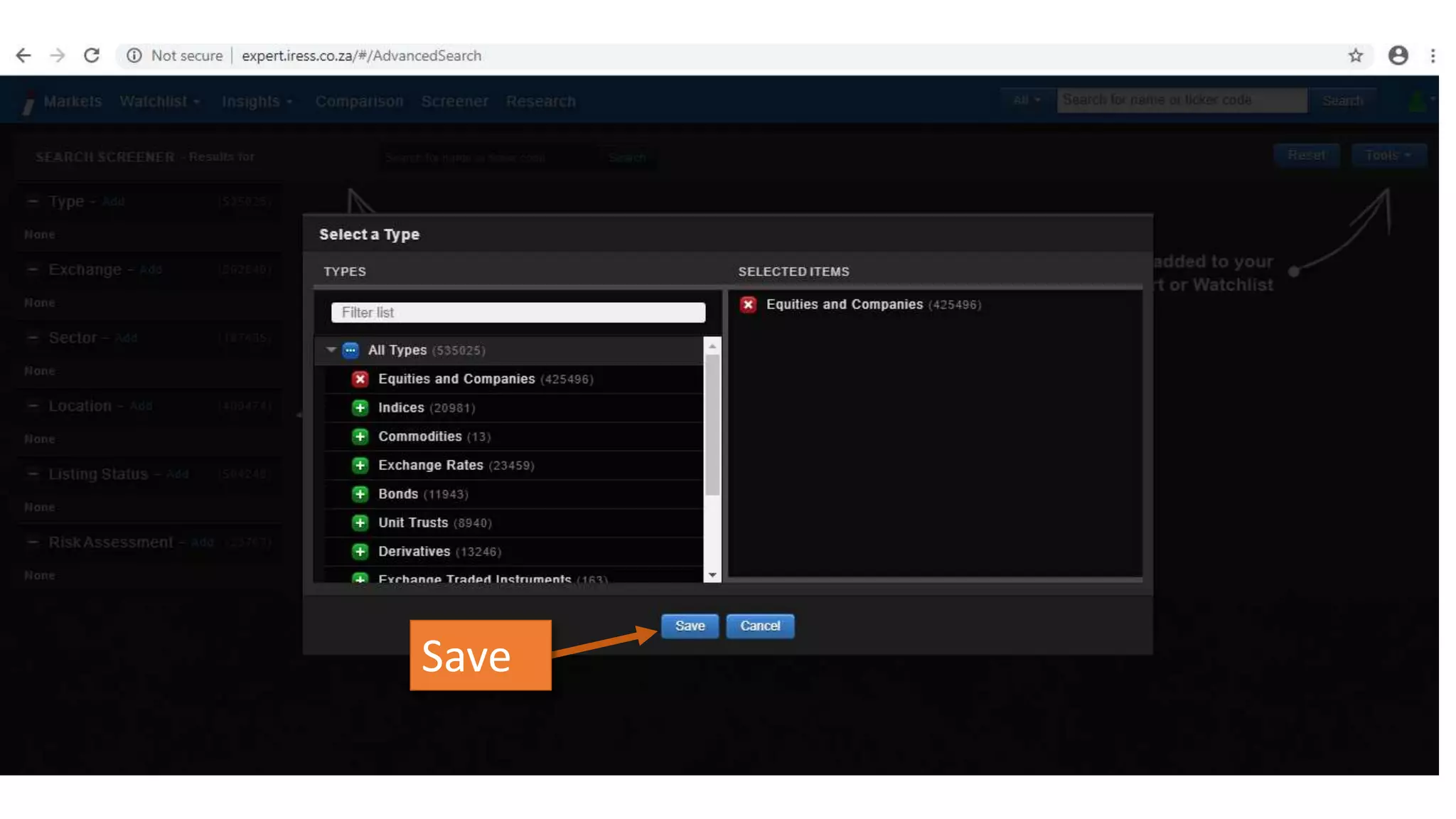
Select data type
Click on arrow to open data types
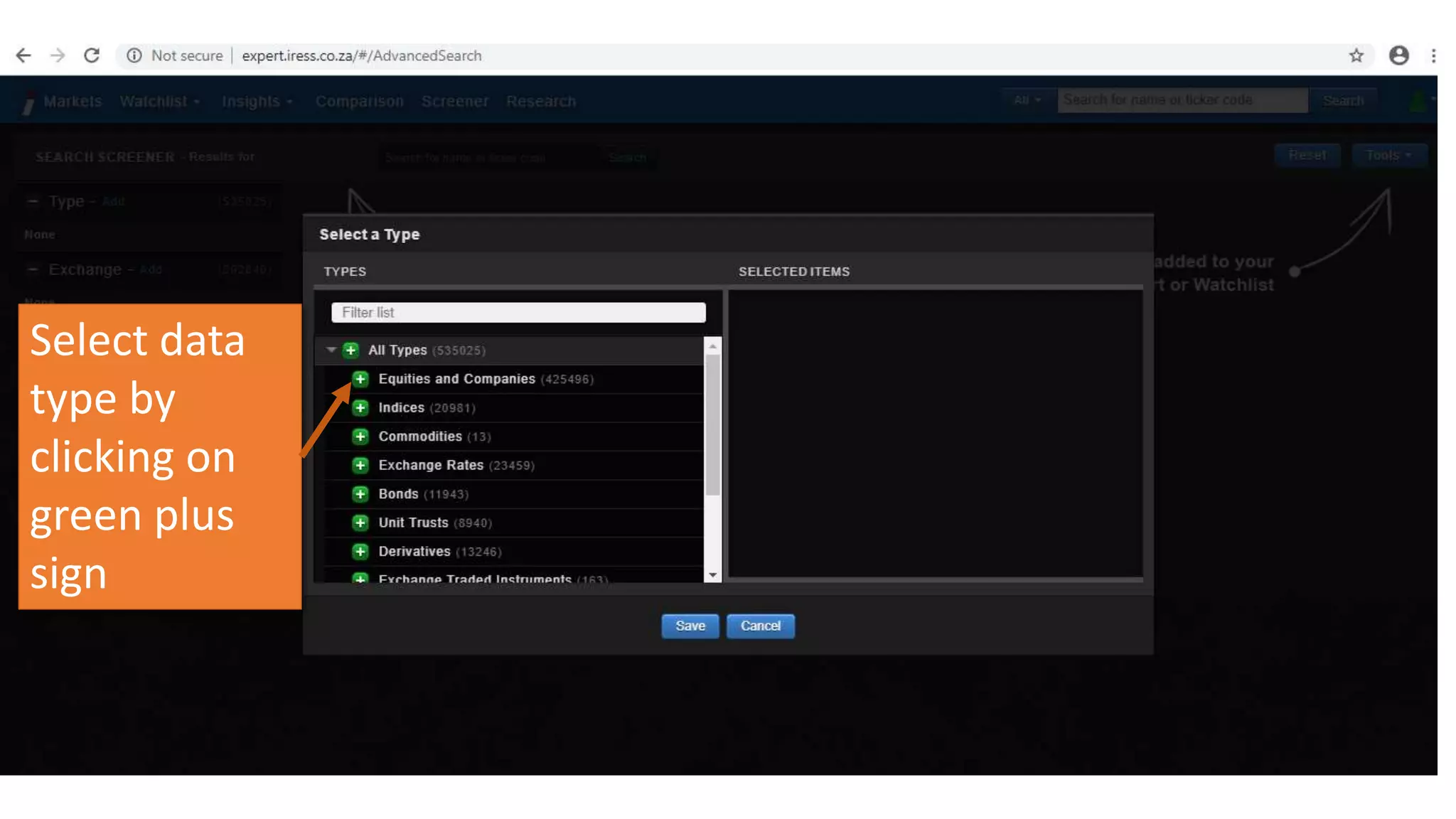
Select data
type by
clicking on
green plus
sign
Save
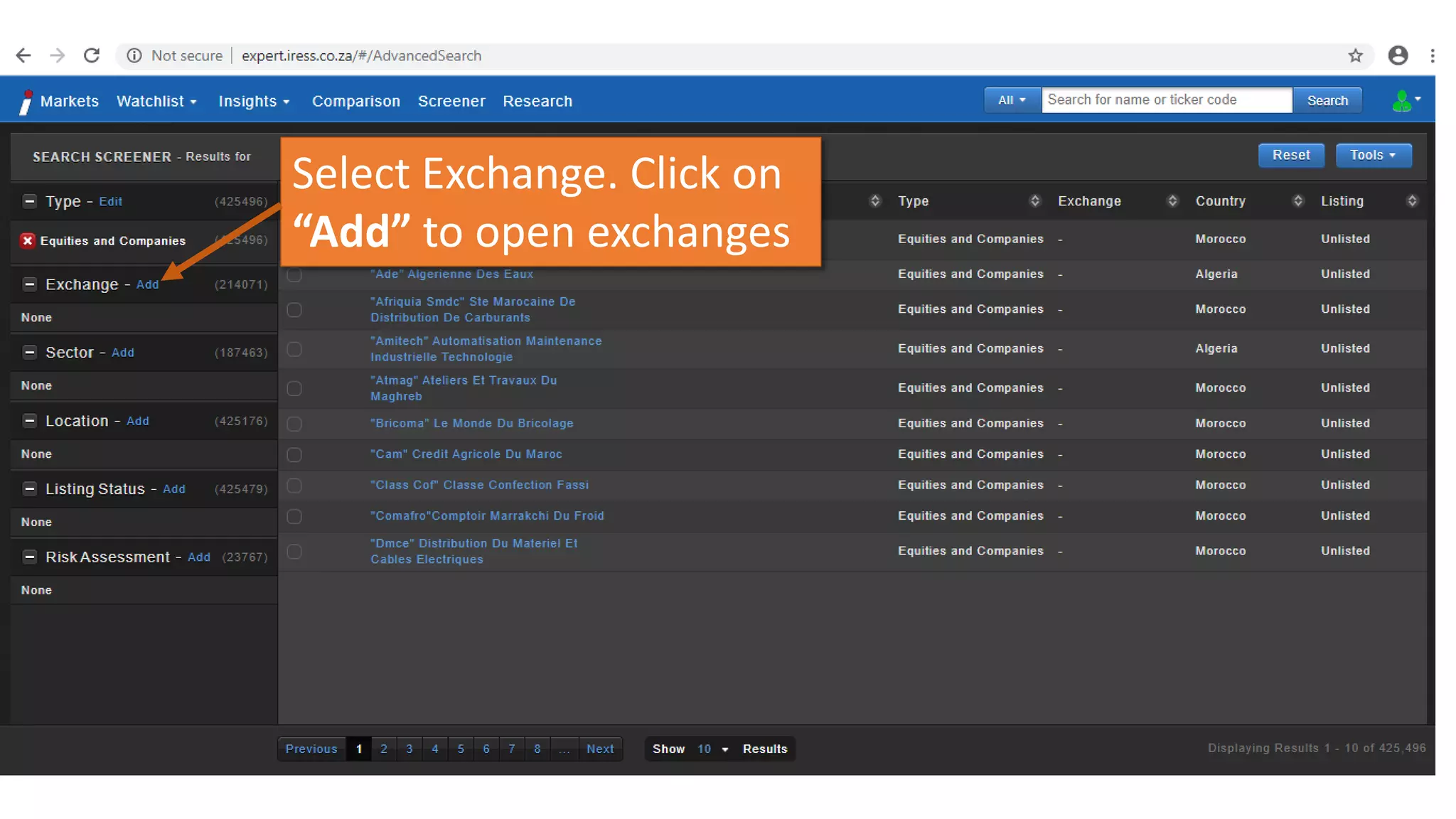
Select Exchange. Click on
“Add” to open exchanges
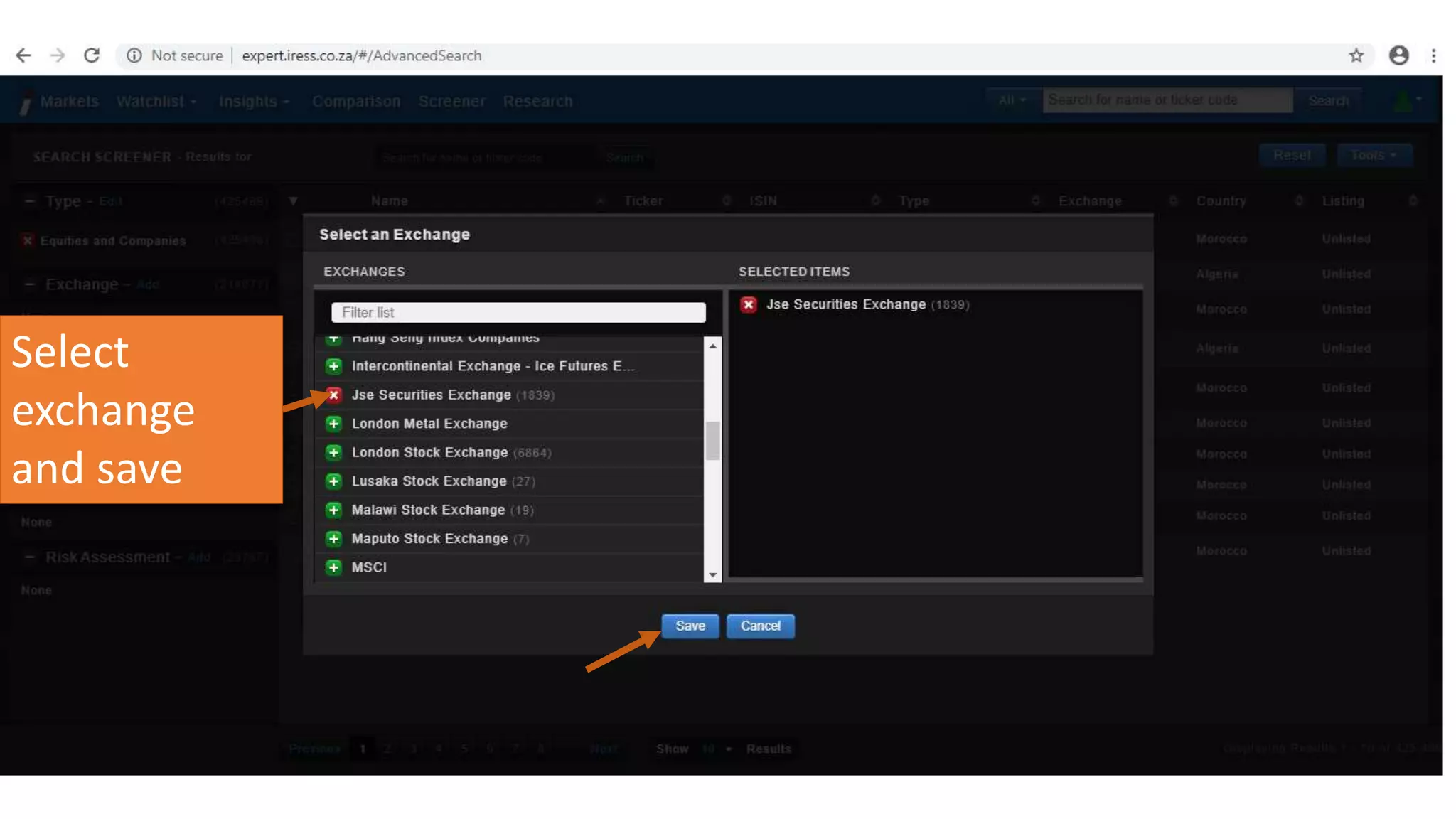
Select
exchange
and save
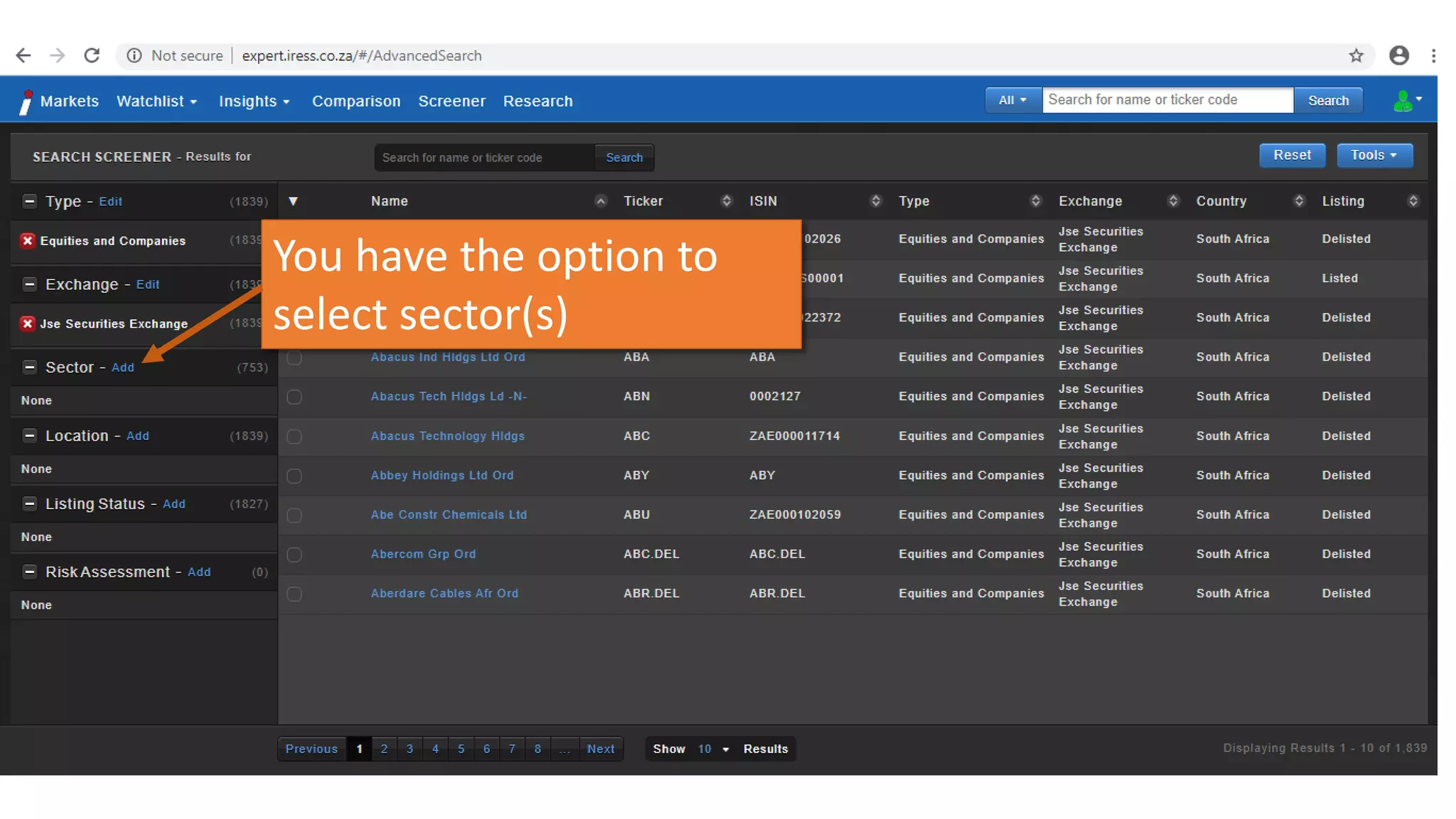
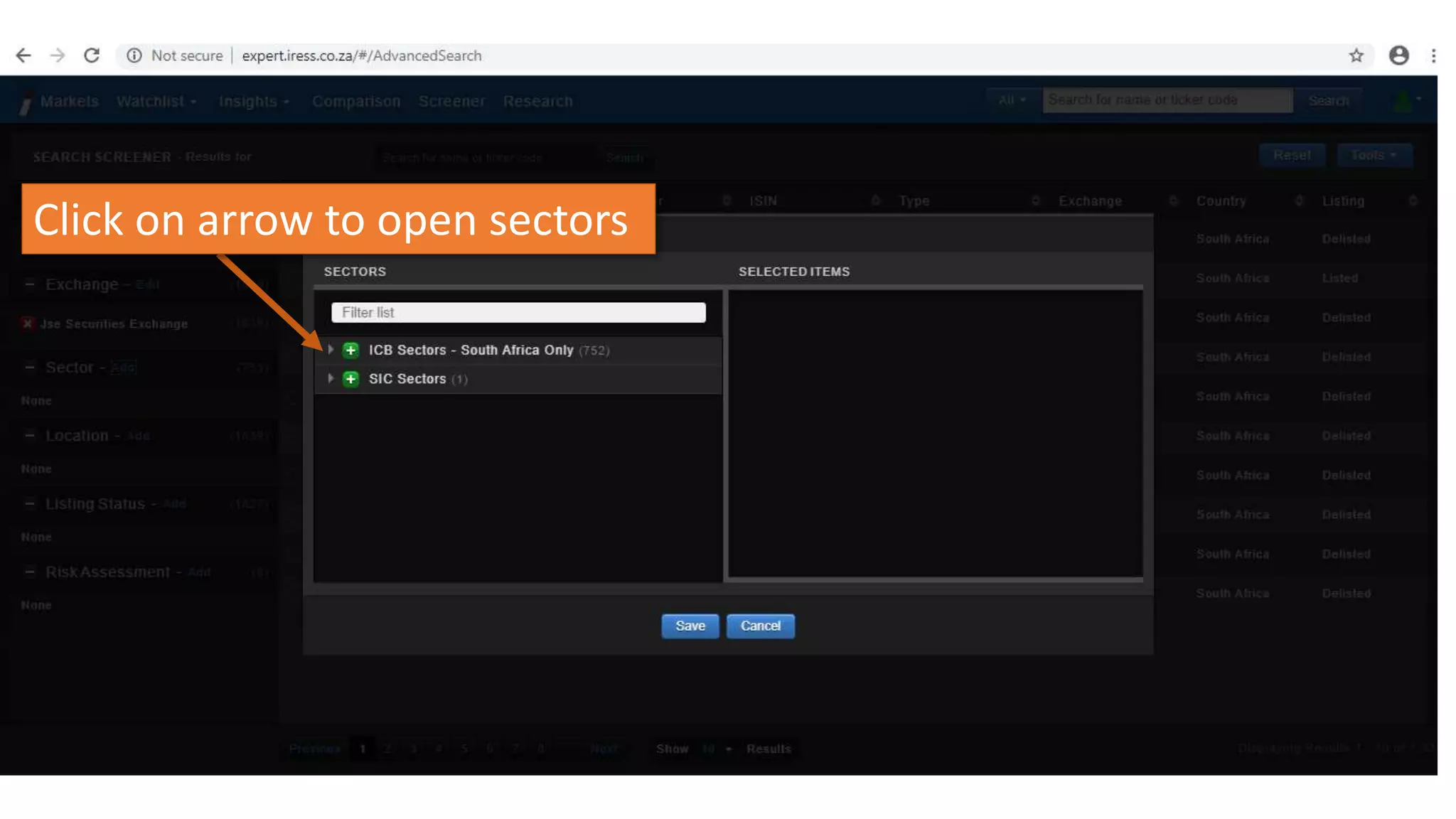
You have the option to
select sector(s)
Click on arrow to open sectors
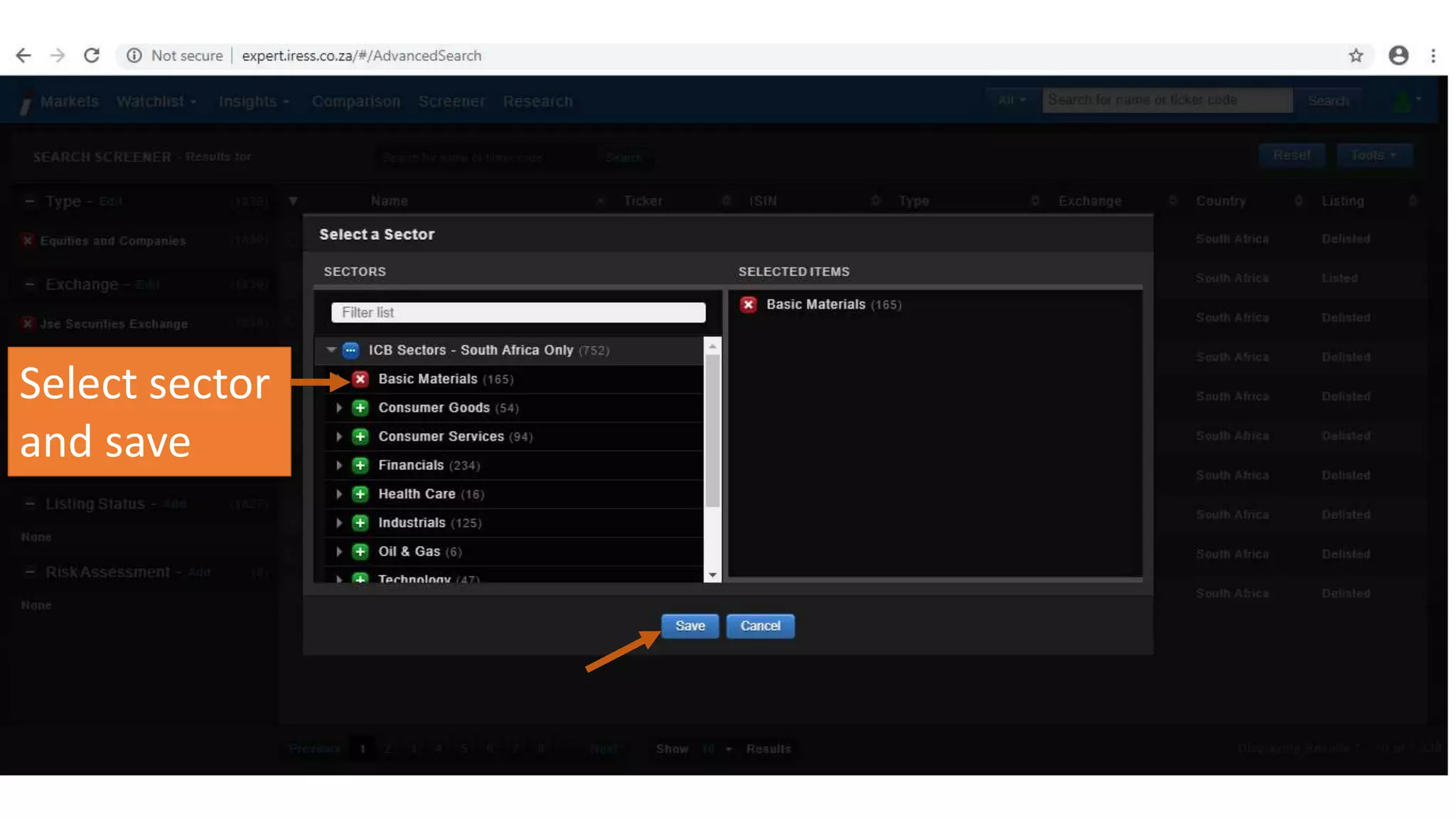
Select sector
and save
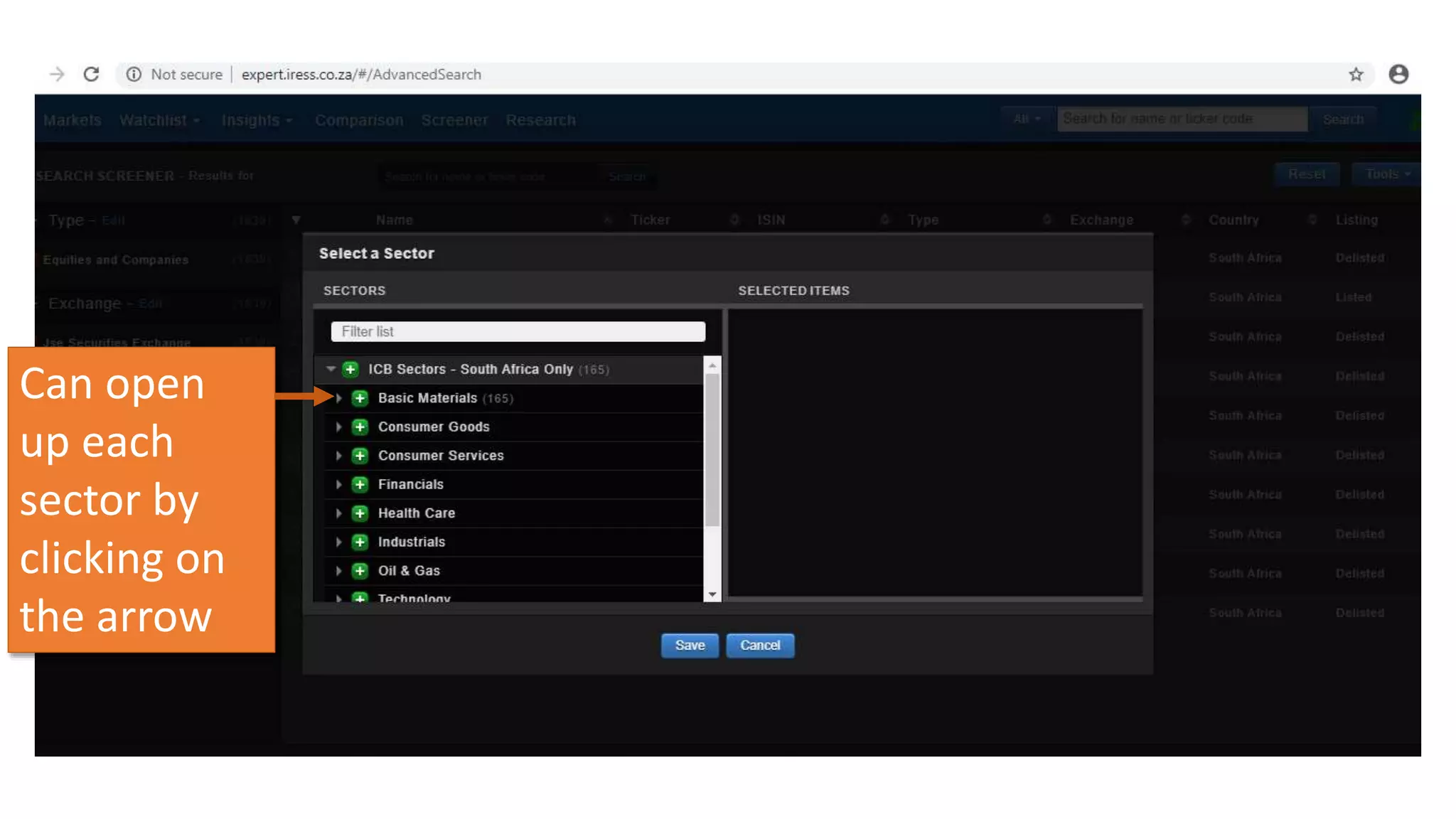
Can open
up each
sector by
clicking on
the arrow
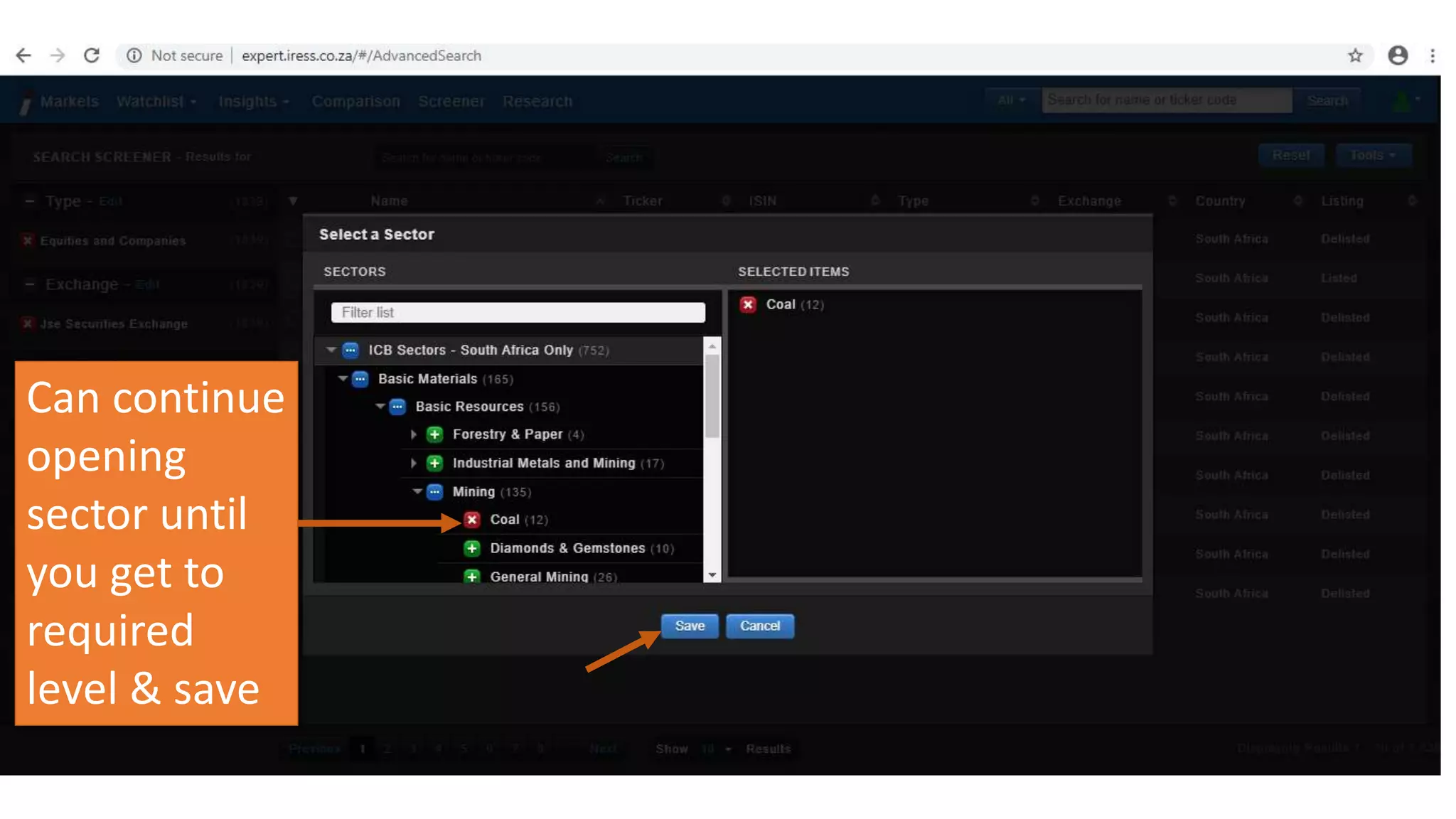
Can continue
opening
sector until
you get to
required
level & save
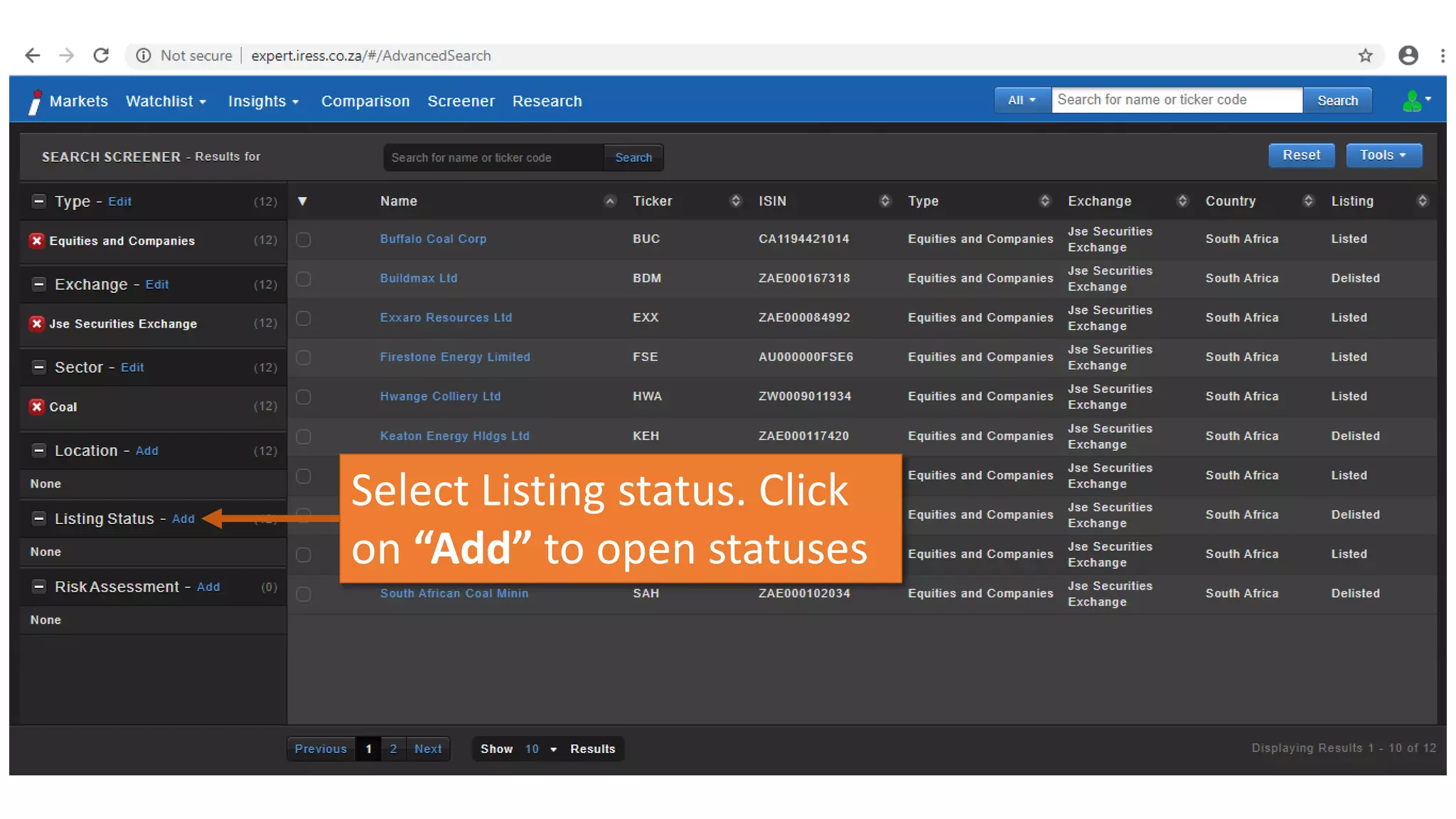
Select Listing status. Click
on “Add” to open statuses
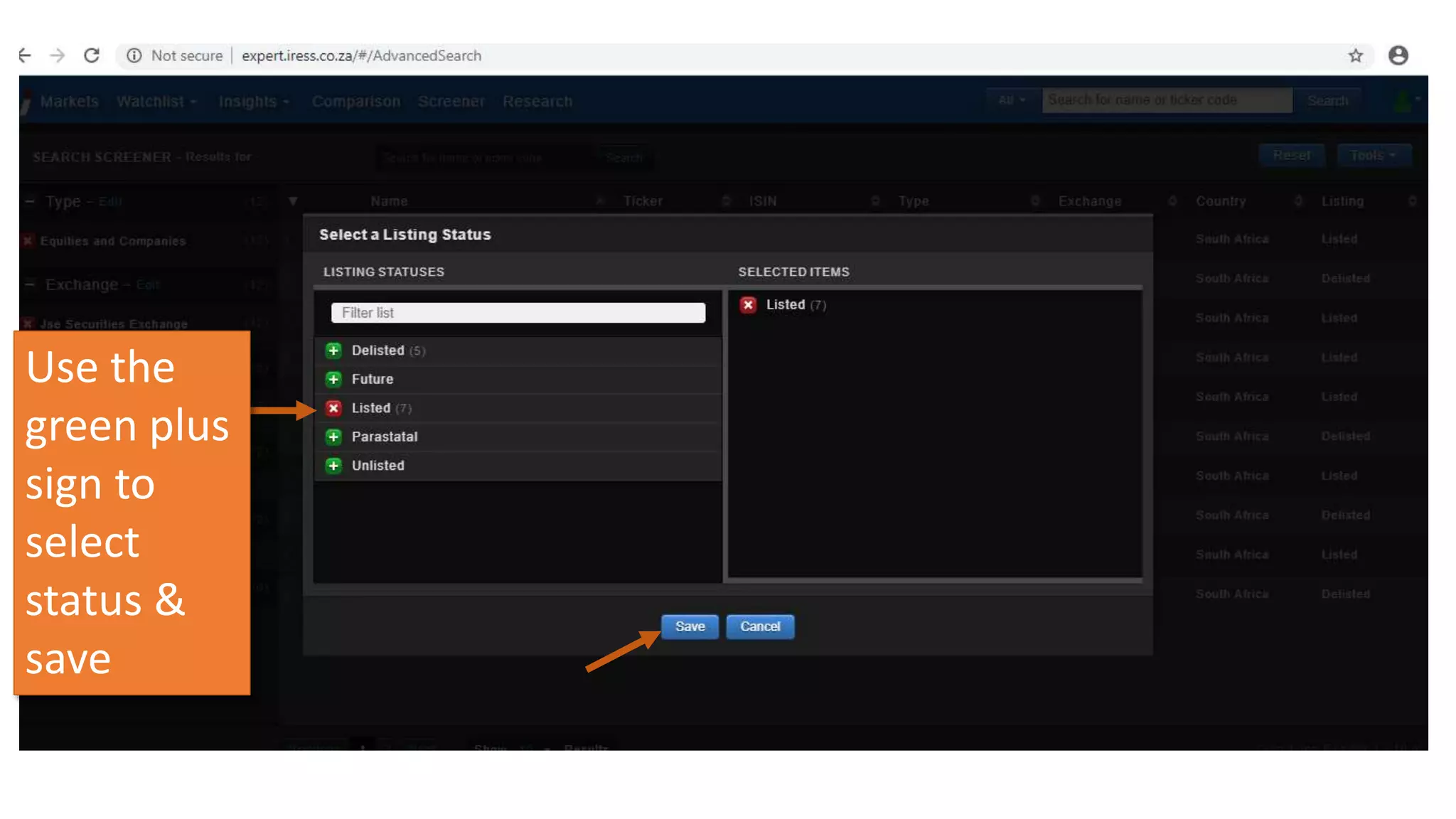
Use the
green plus
sign to
select
status &
save
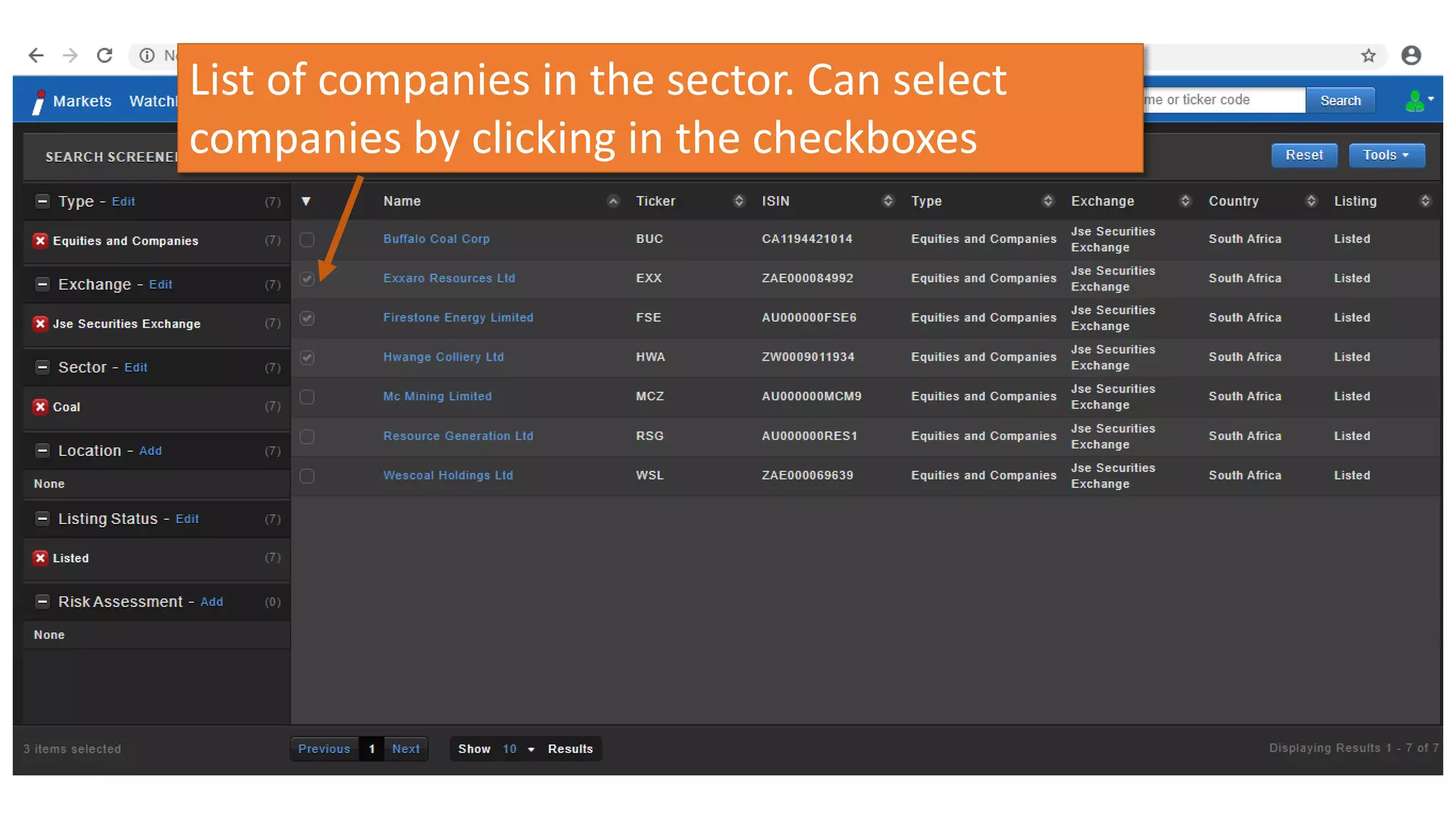
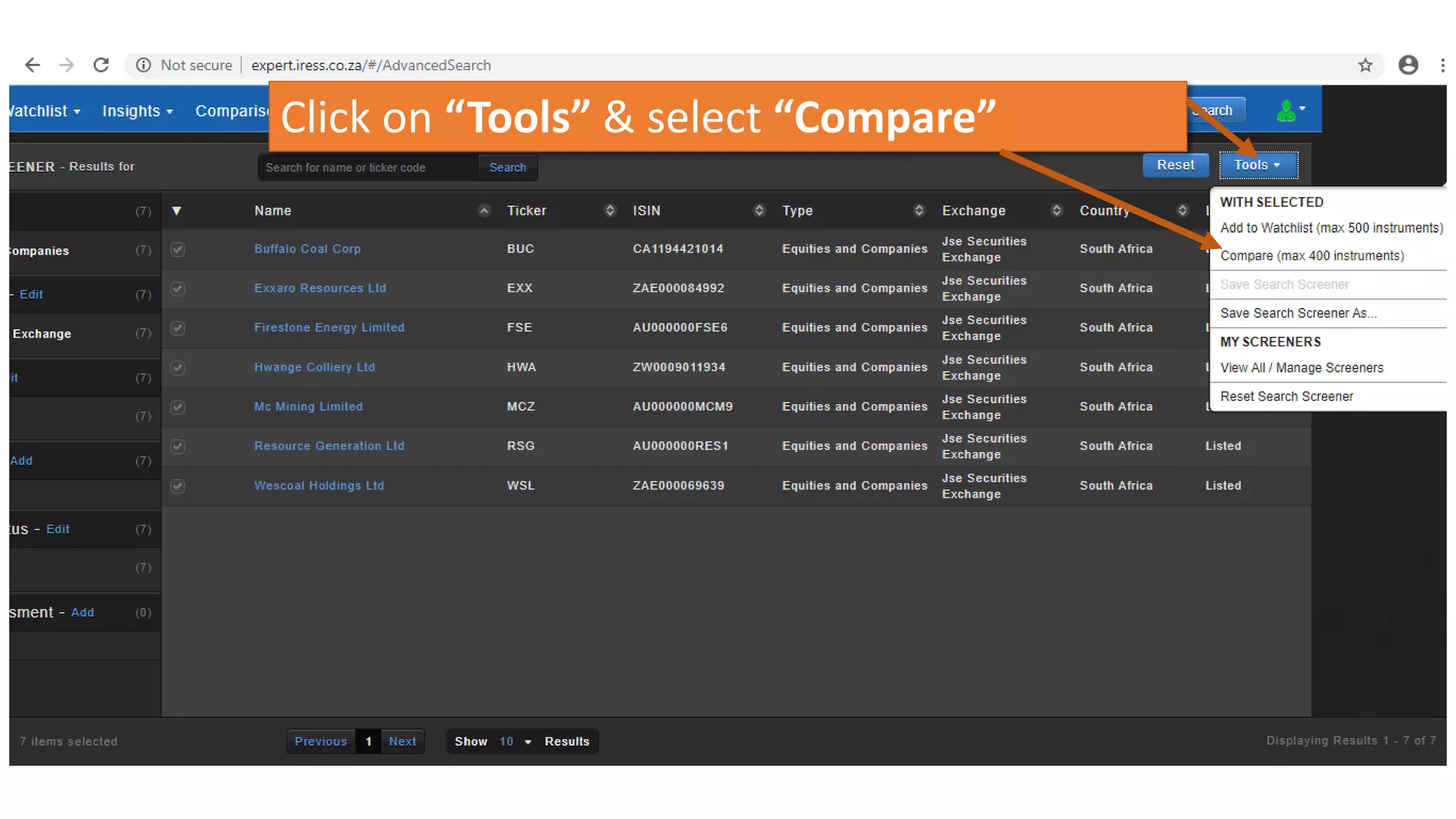
List of companies in the sector. Can select
companies by clicking in the checkboxes
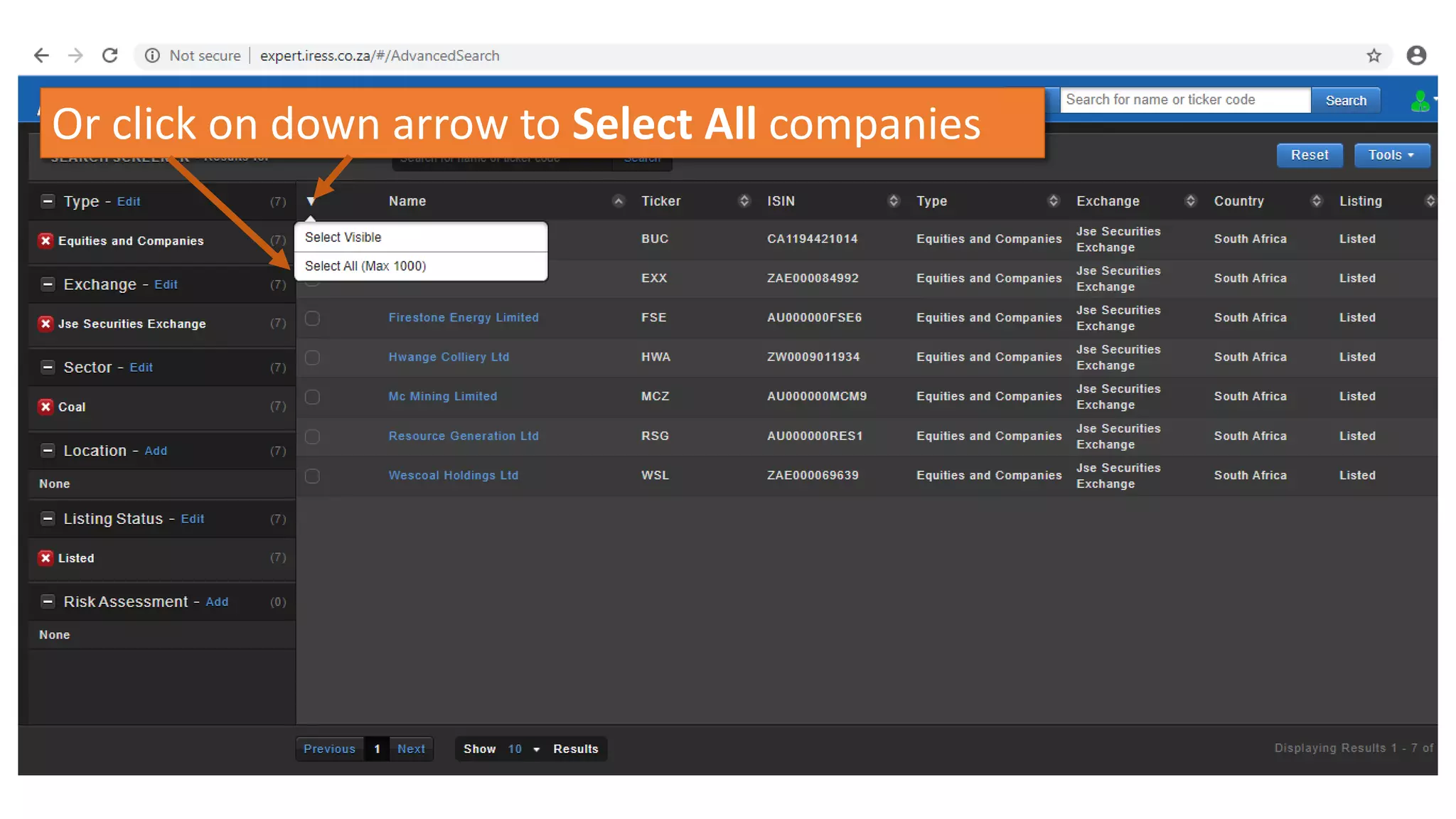
Or click on down arrow to Select All companies
Click on “Tools” & select “Compare”
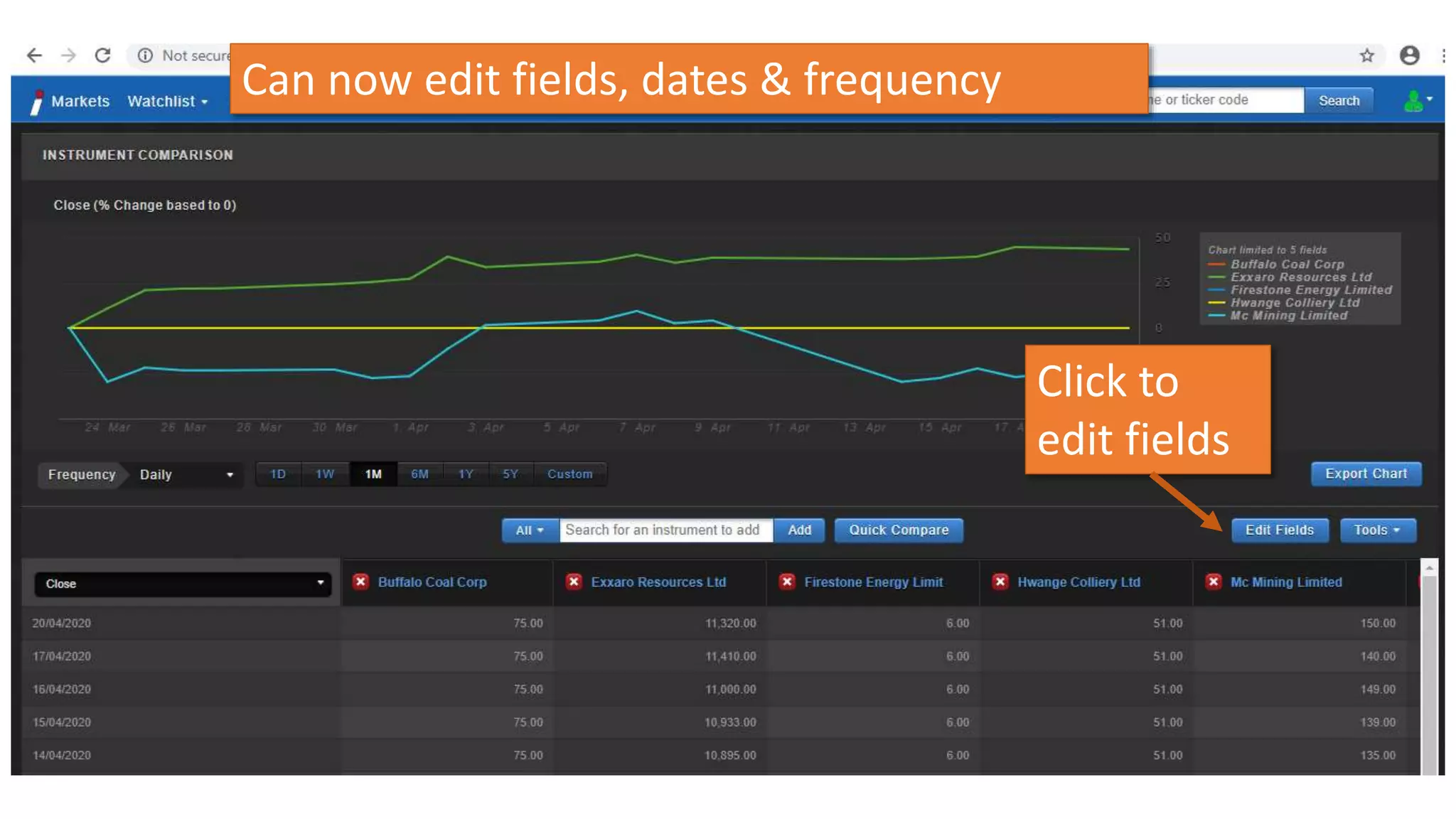
Can now edit fields, dates & frequency
Click to
edit fields
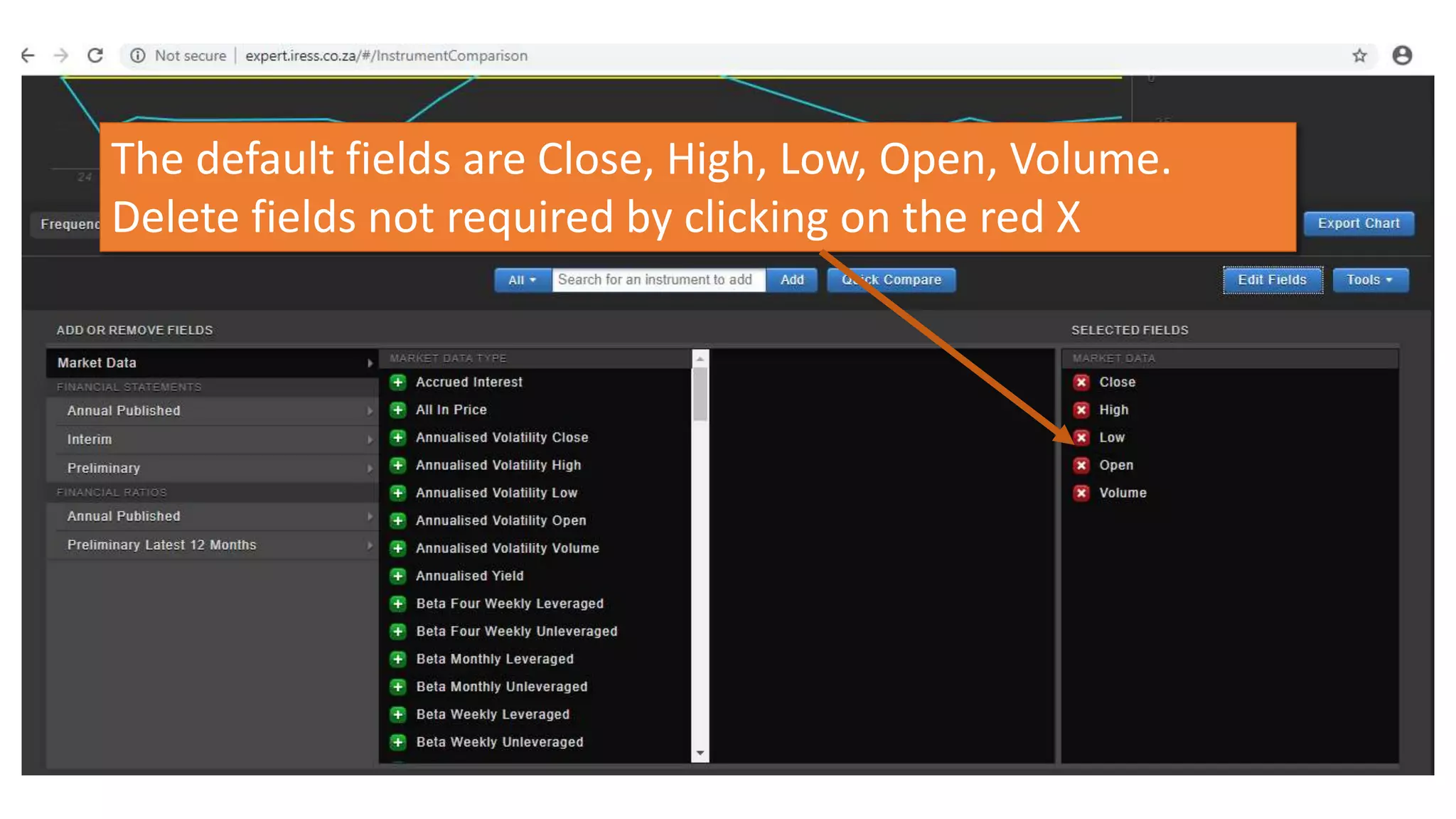
The default fields are Close, High, Low, Open, Volume.
Delete fields not required by clicking on the red X
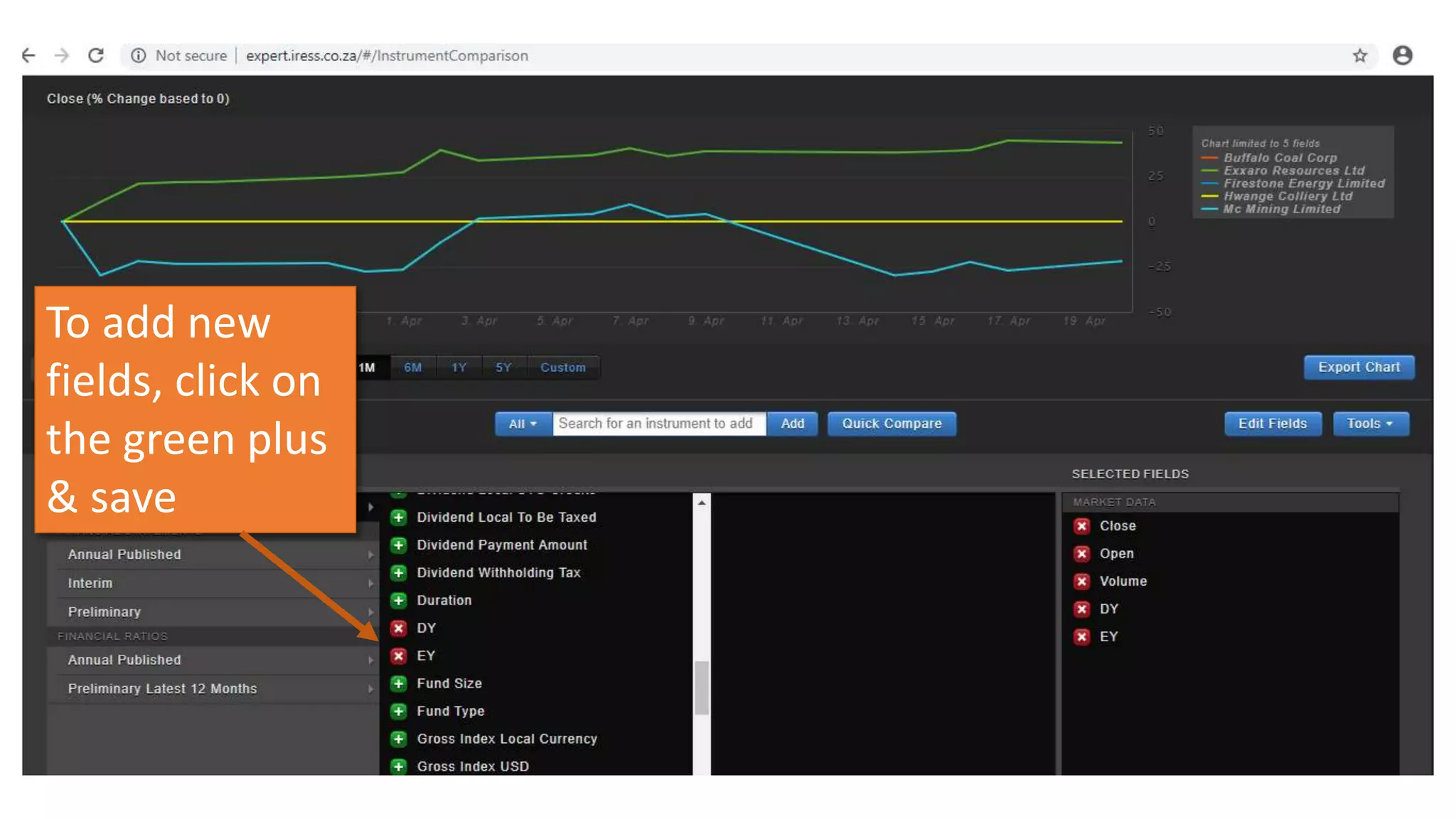
To add new
fields, click on
the green plus
& save
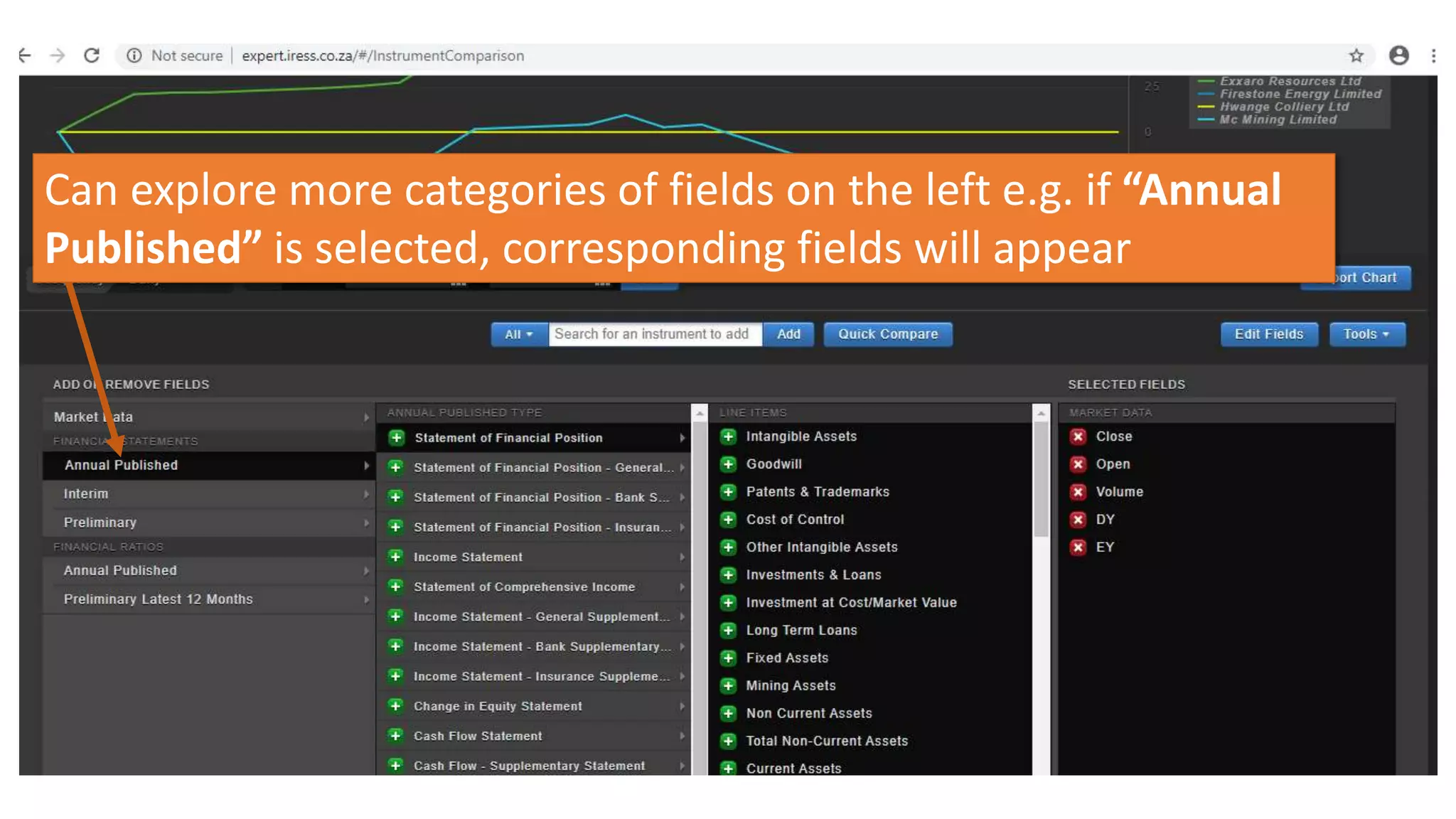
Can explore more categories of fields on the left e.g. if “Annual
Published” is selected, corresponding fields will appear
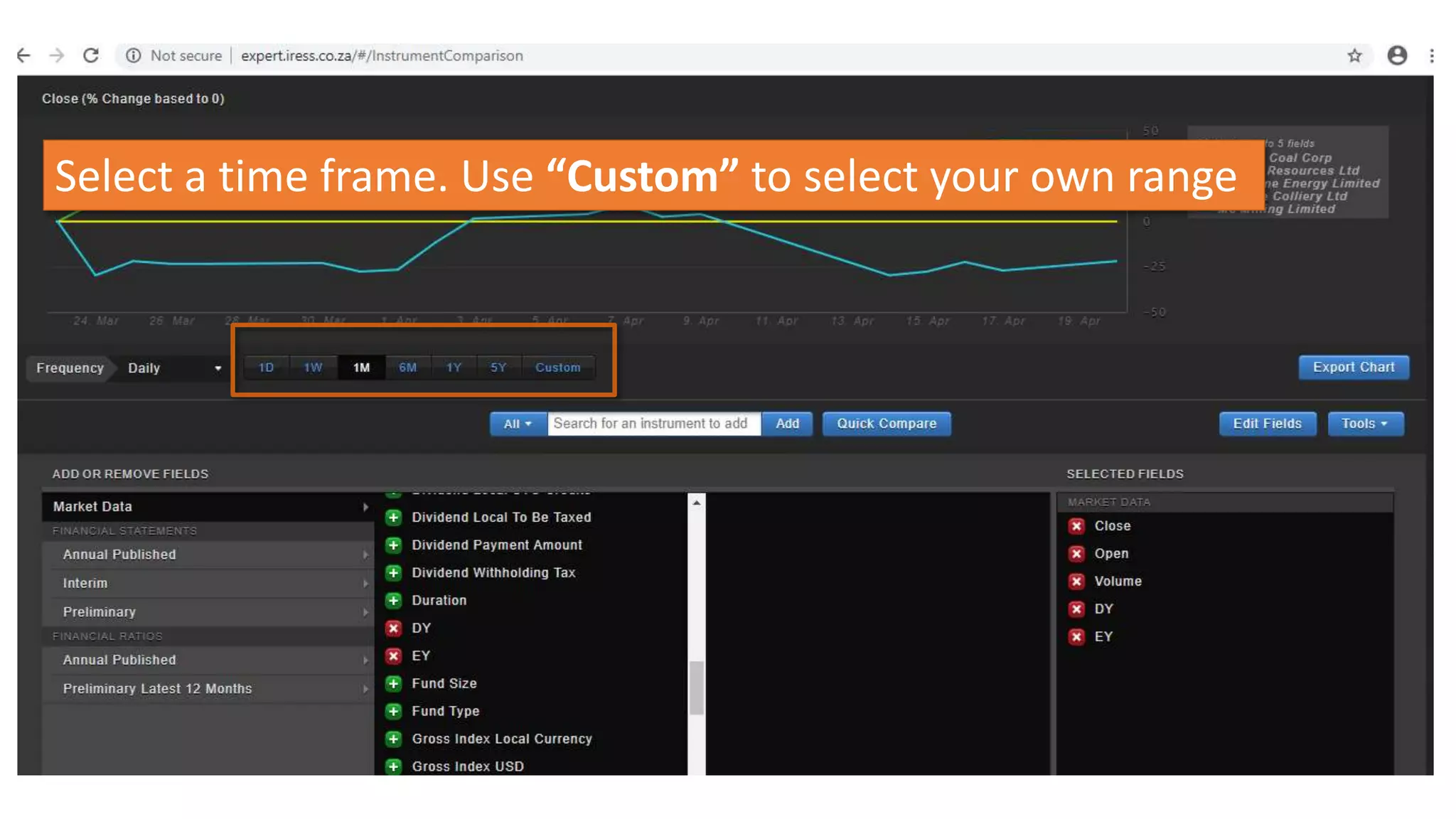
Select a time frame. Use “Custom” to select your own range
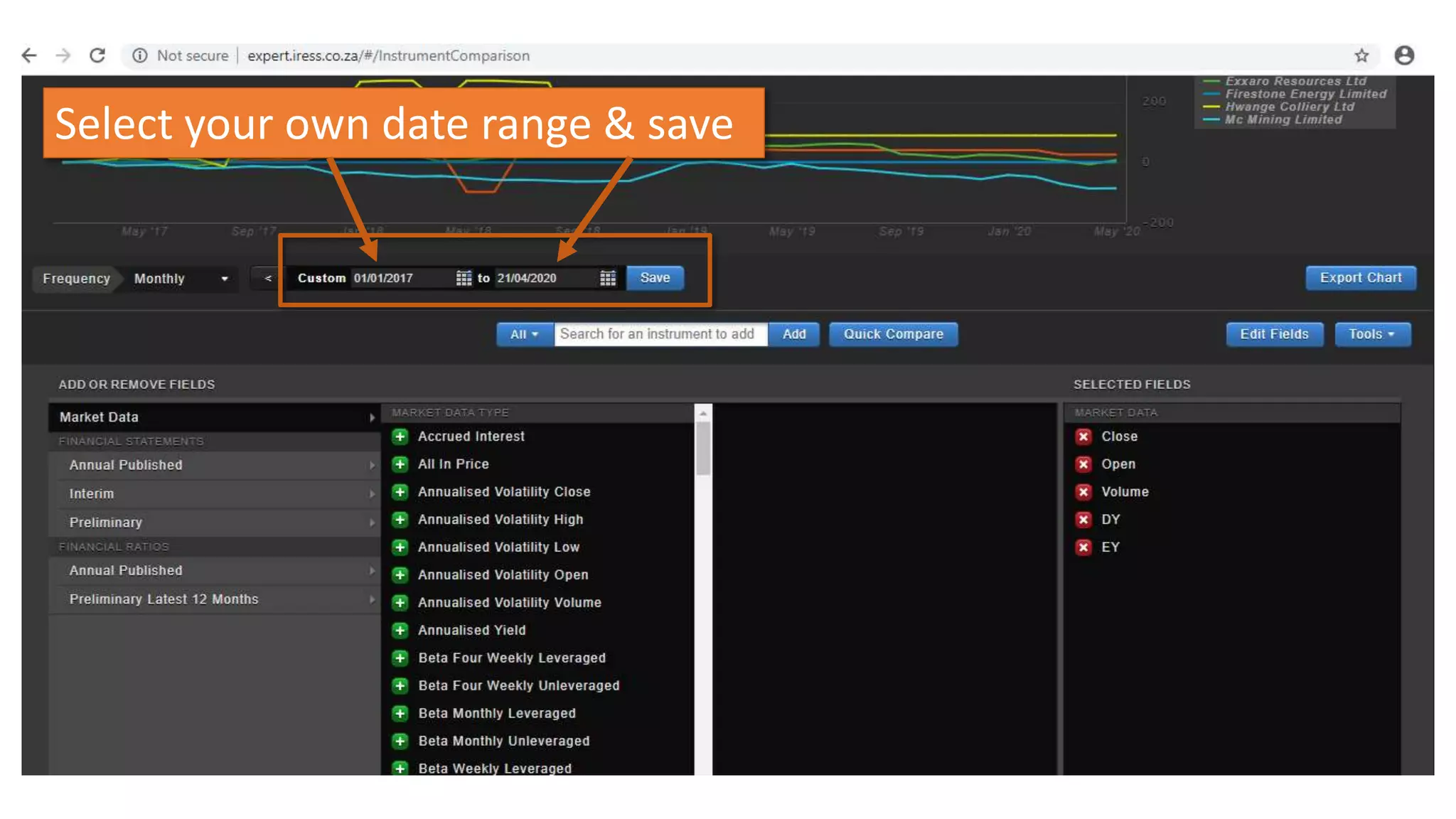
Select your own date range & save
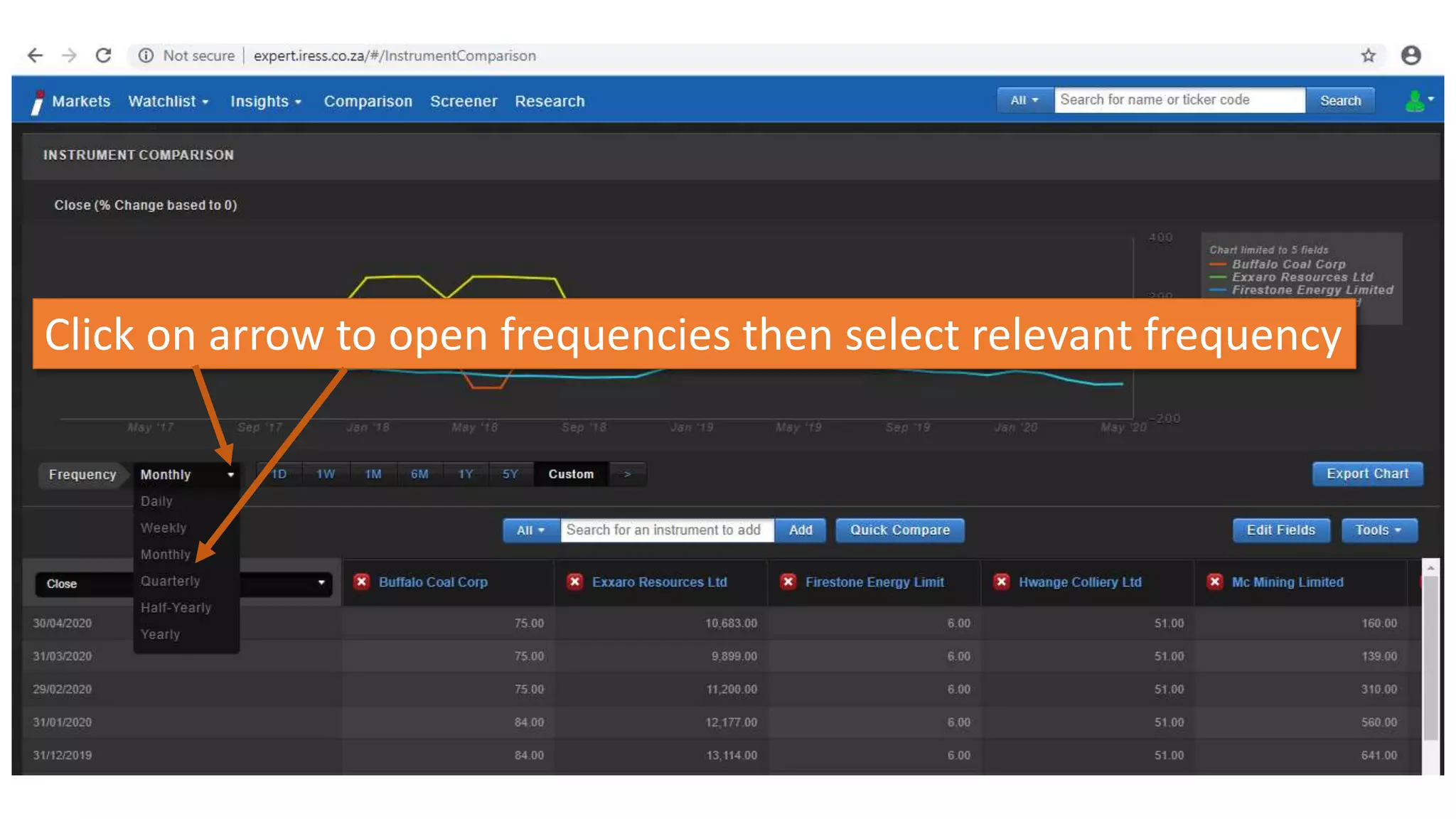
Click on arrow to open frequencies then select relevant frequency
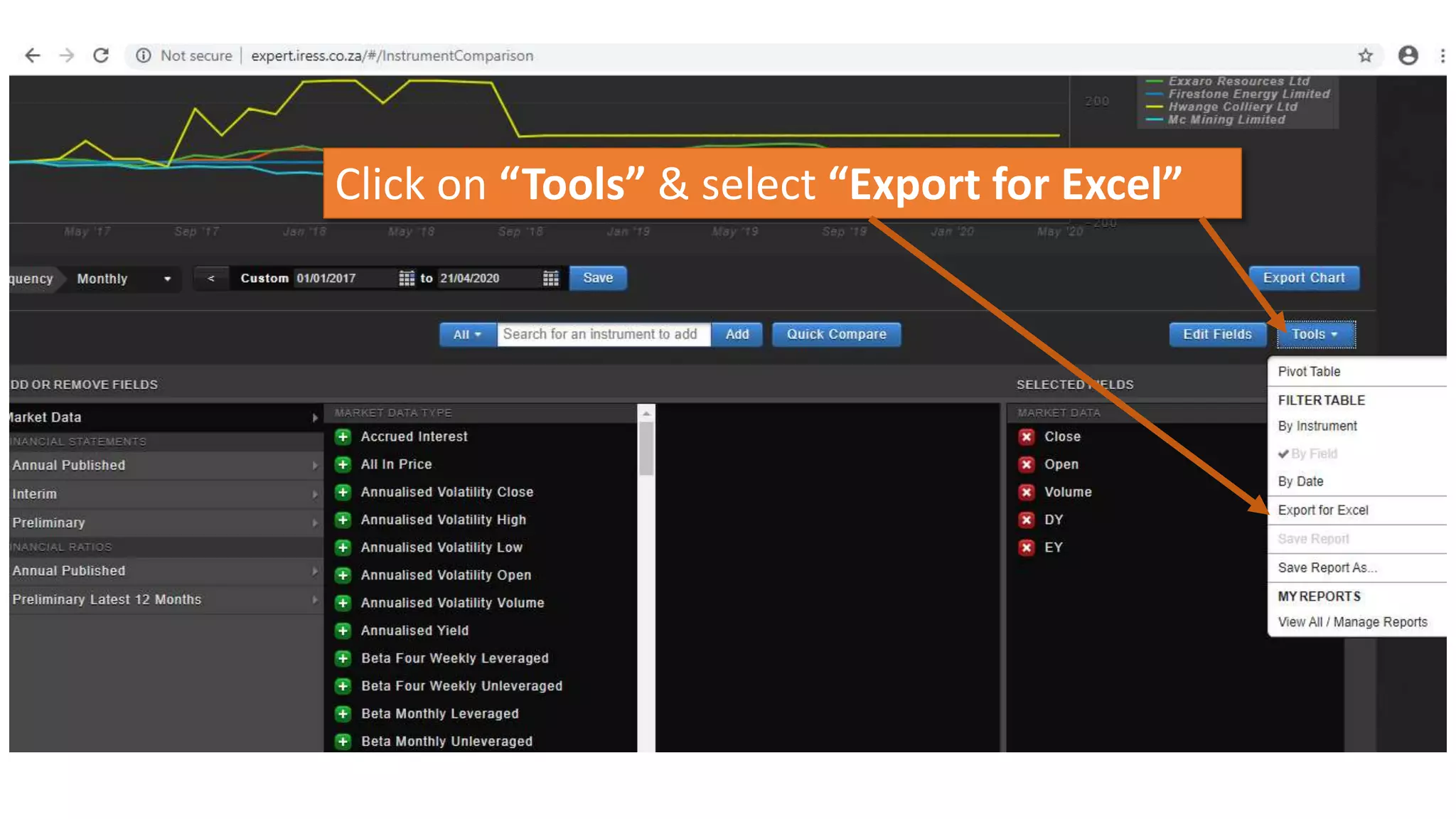
Click on “Tools” & select “Export for Excel”
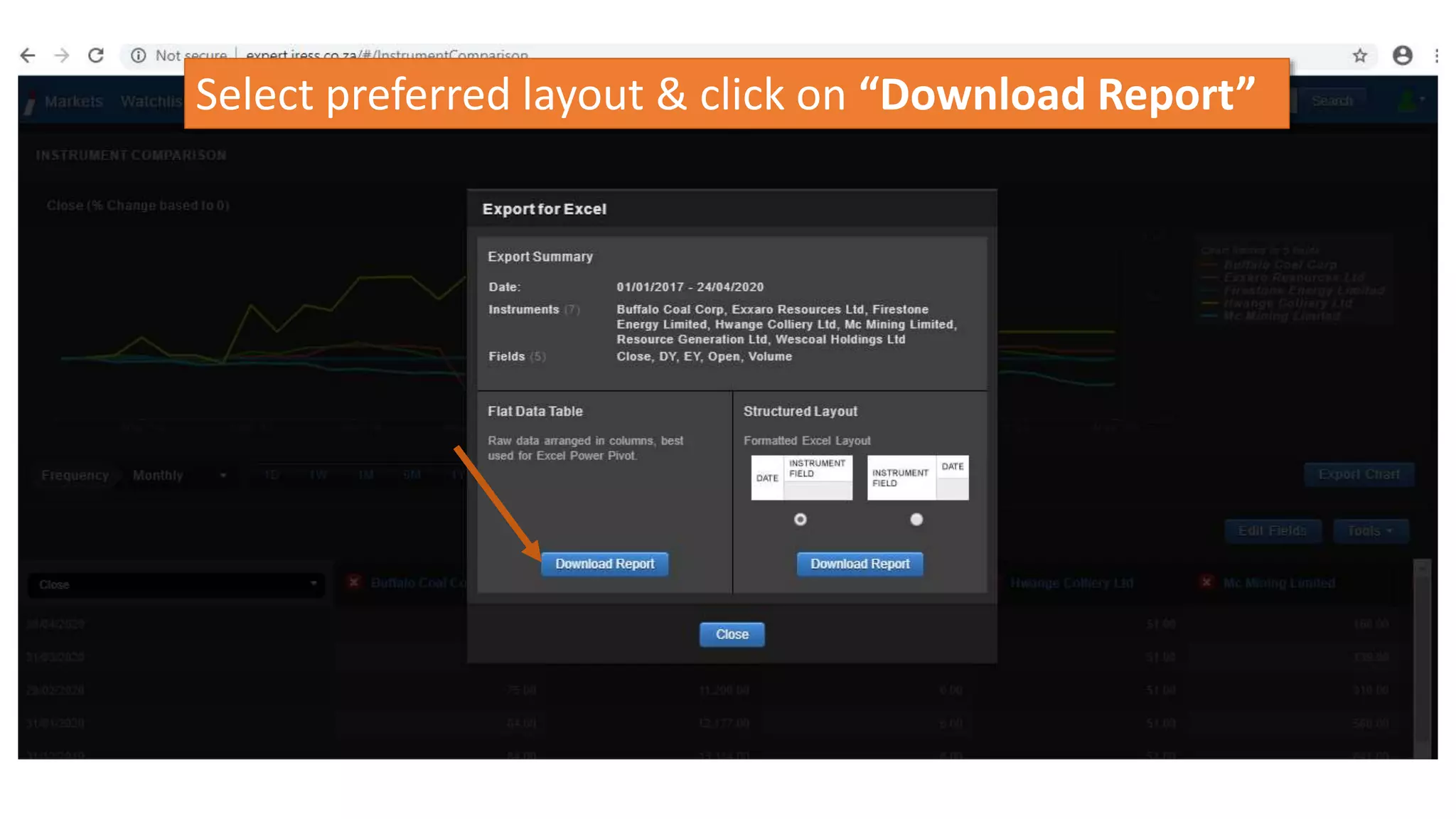
Select preferred layout & click on “Download Report”
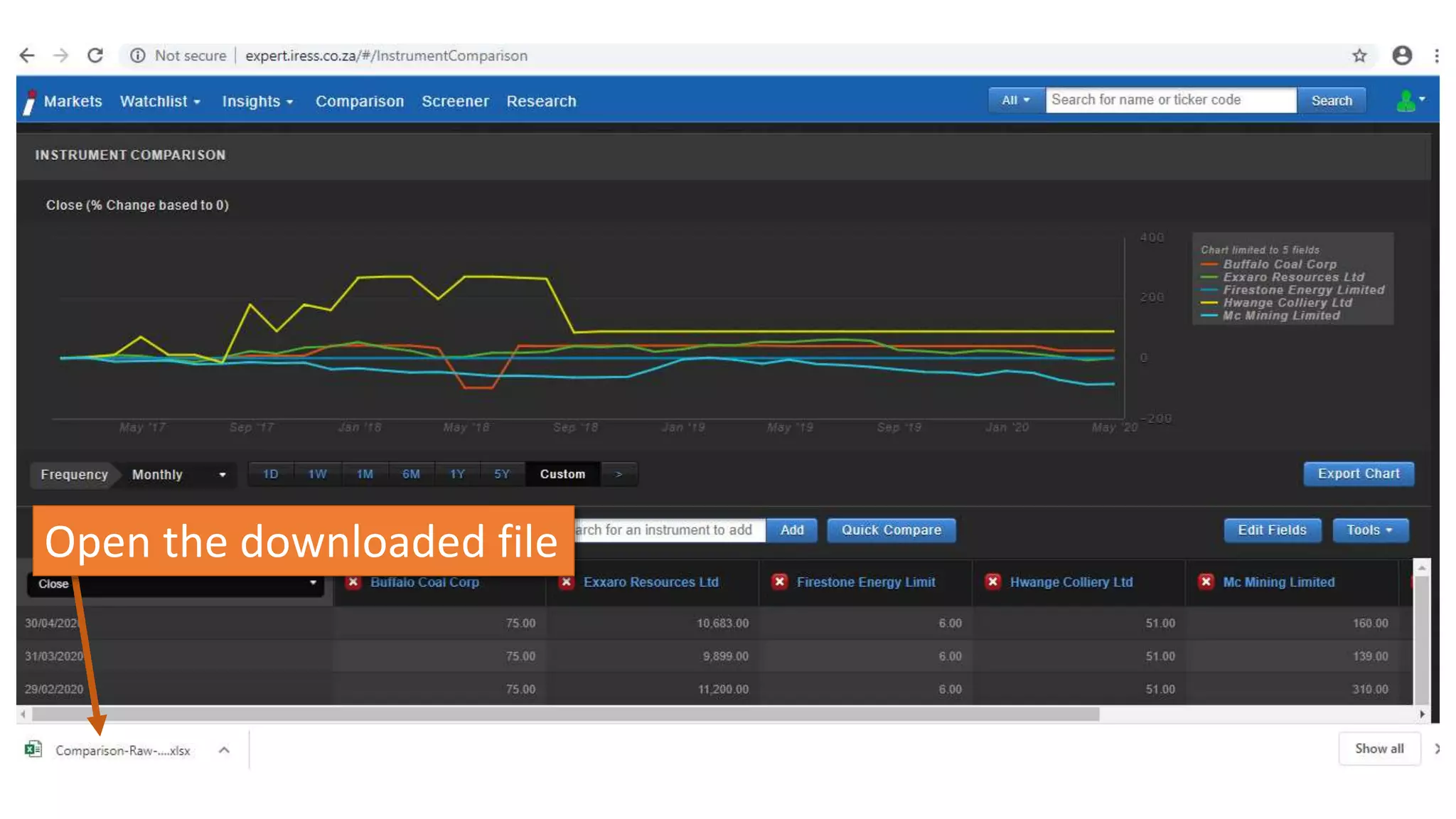
Open the downloaded file
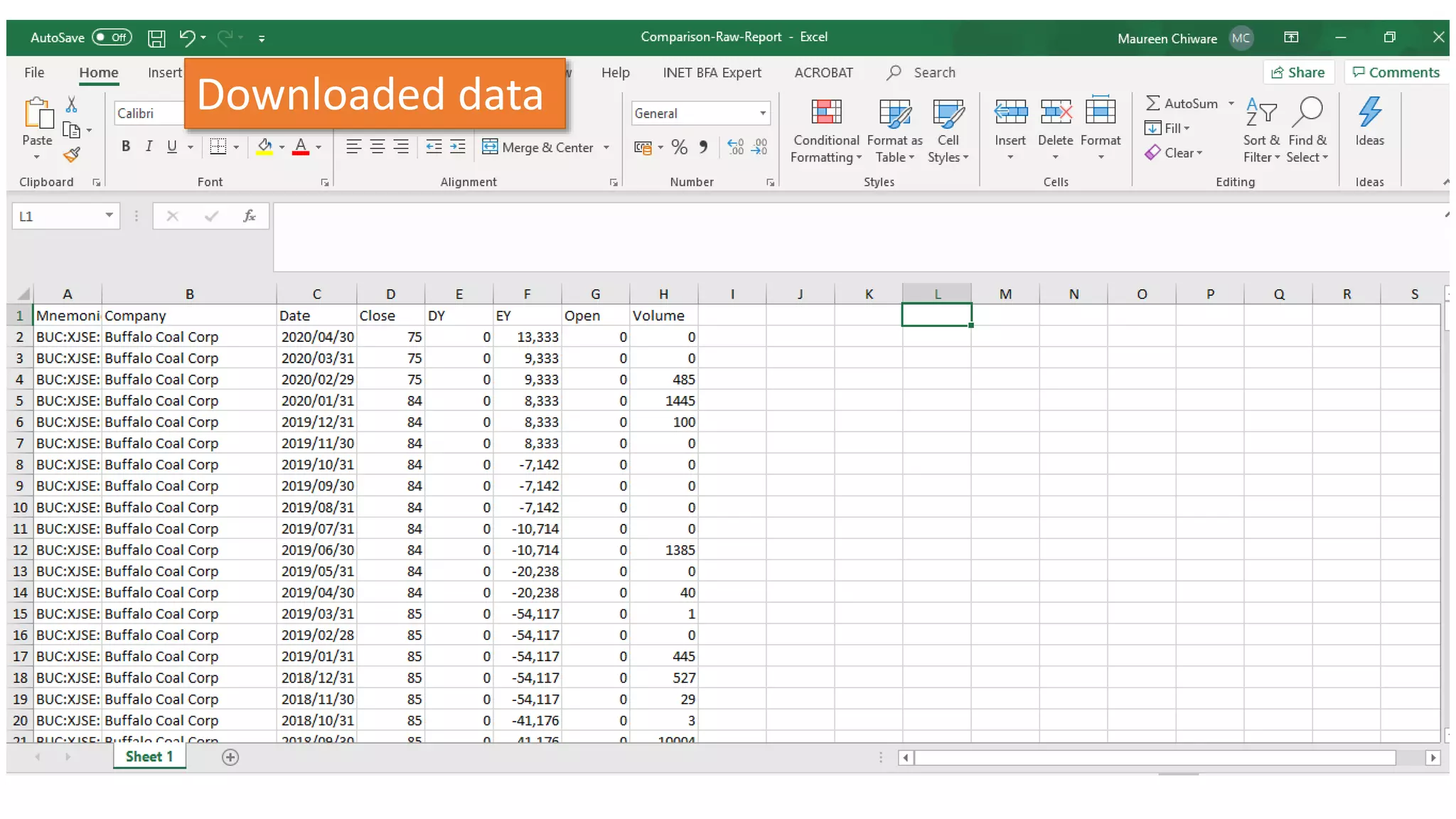
Downloaded data
maureen.chiware@uct.ac.za

IRESS Expert: Using screener to get data

Editor's Notes

  • #14 If you want, you can select Sector
  • #17 NB that you can get granular with the sectors. Continue opening up until you get to the level you want
  • #18 You can continue opening up basic metal until you get to coal for example
  • #21 You can select the companies you are interested in by clicking in the checkbox