

UNIVERSITY OF PORTLAND
GitLab Presentation
https://git.campus.up.edu
Information Services
©2015
1
TOPICS COVERED……
 Using GitLab on Windows.
 Using GitLab on Linux (Clone & Push).
 Using GitLab on Linux (Add & Push).
 GitLab Resources.
 Questions.
2
©2015
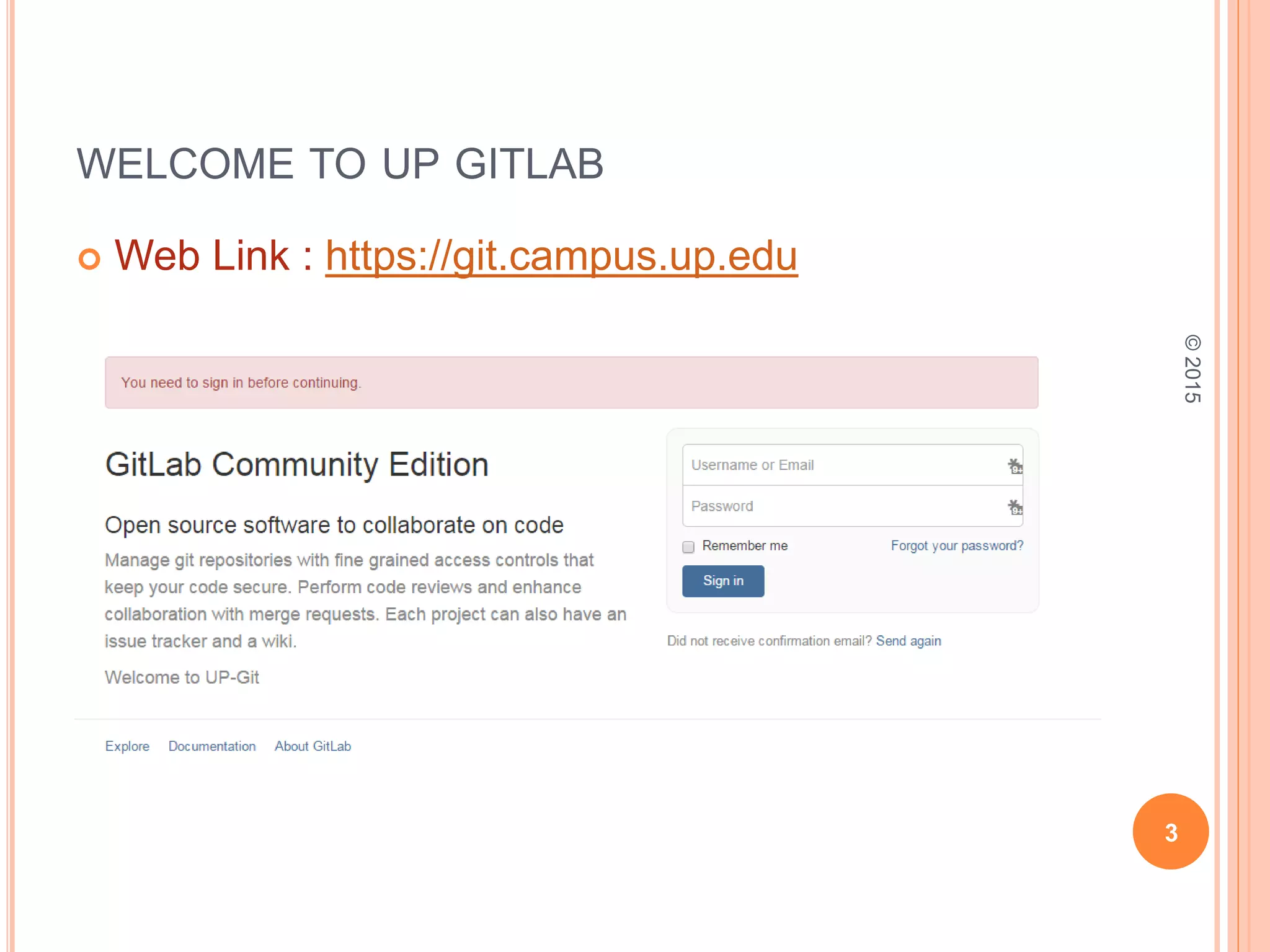
WELCOME TO UP GITLAB
 Web Link : https://git.campus.up.edu
3
©2015
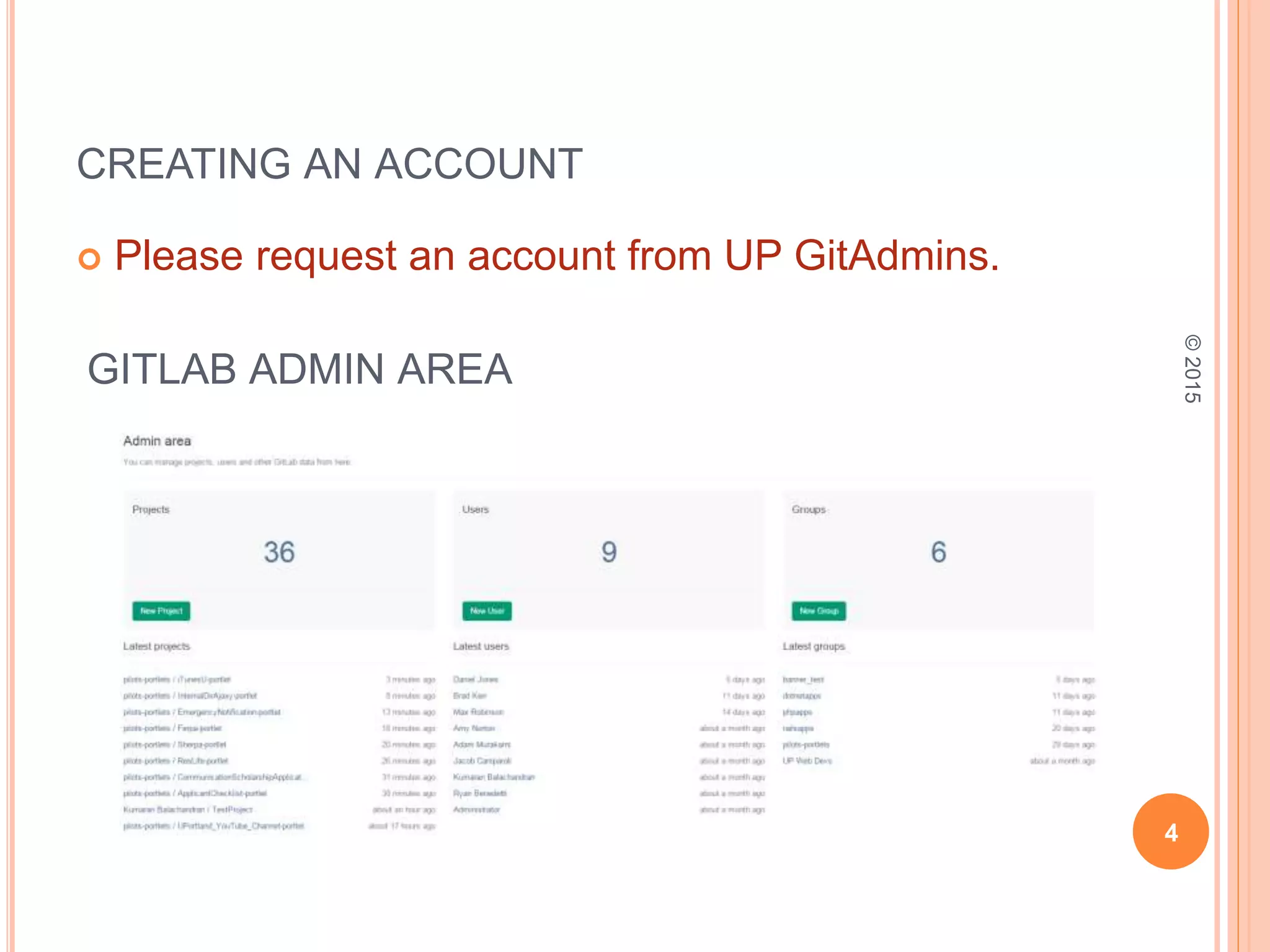
CREATING AN ACCOUNT
 Please request an account from UP GitAdmins.
GITLAB ADMIN AREA
4
©2015
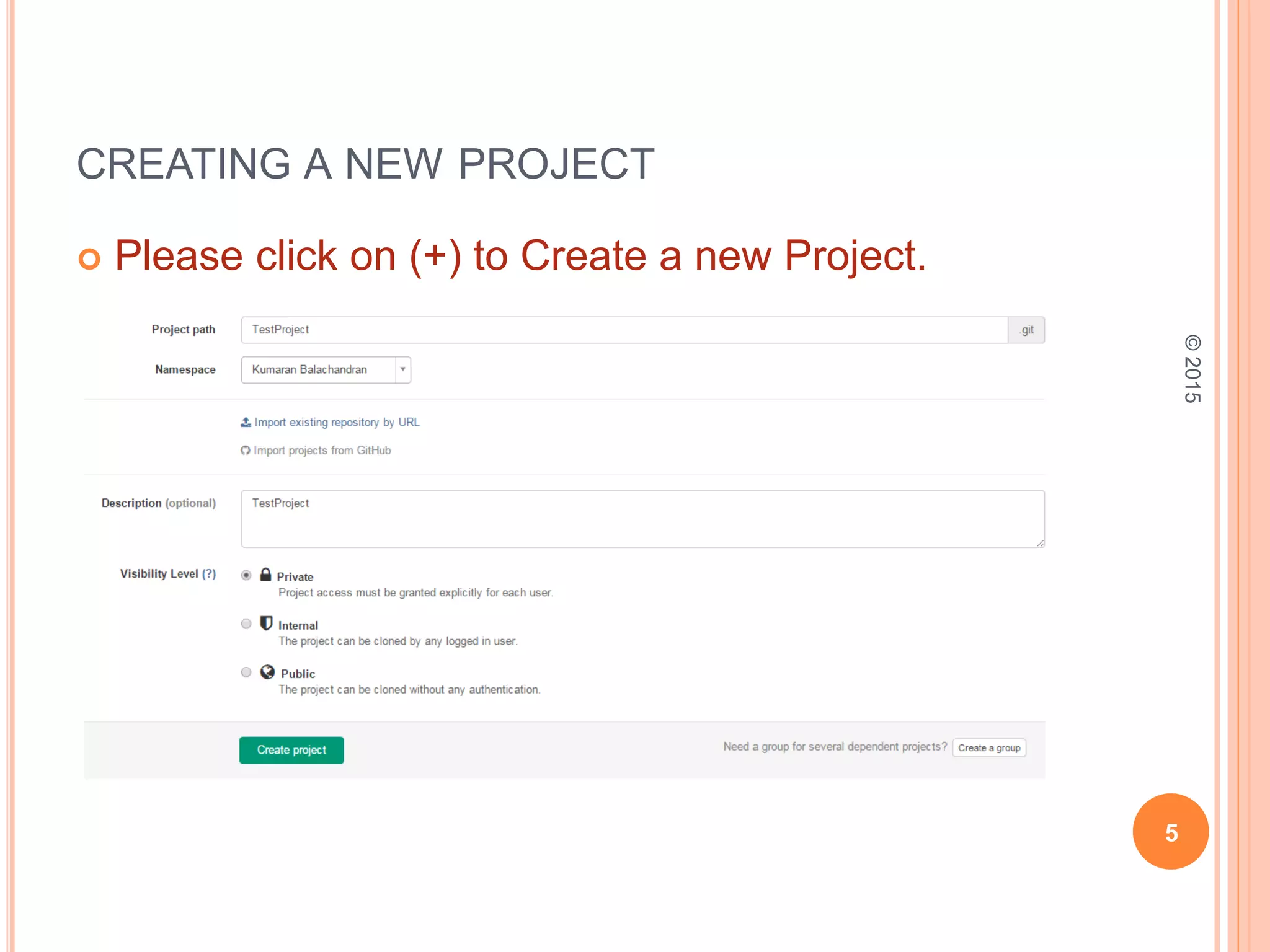
CREATING A NEW PROJECT
 Please click on (+) to Create a new Project.
5
©2015
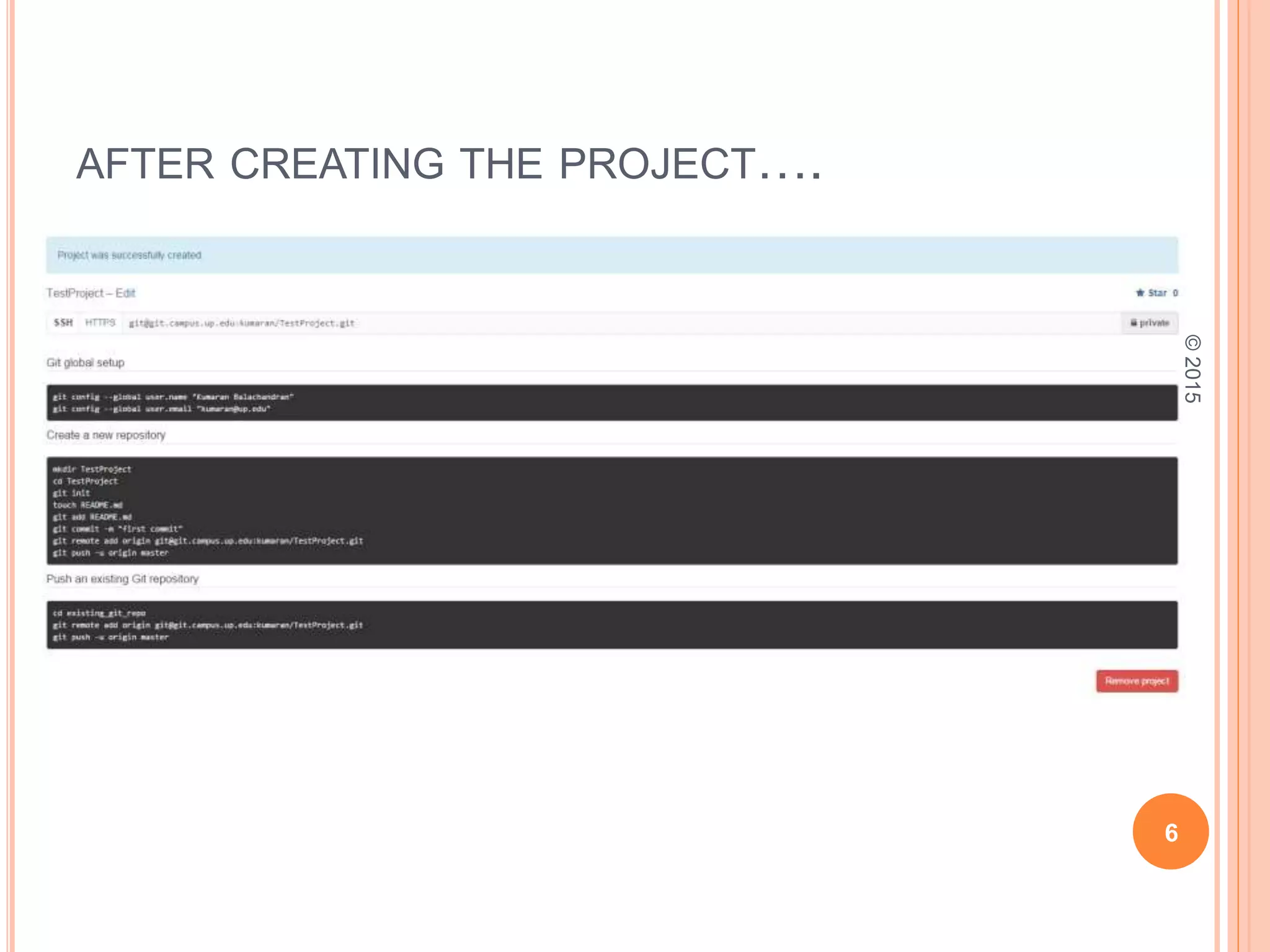
AFTER CREATING THE PROJECT….
6
©2015
USING GITLAB ON WINDOWS
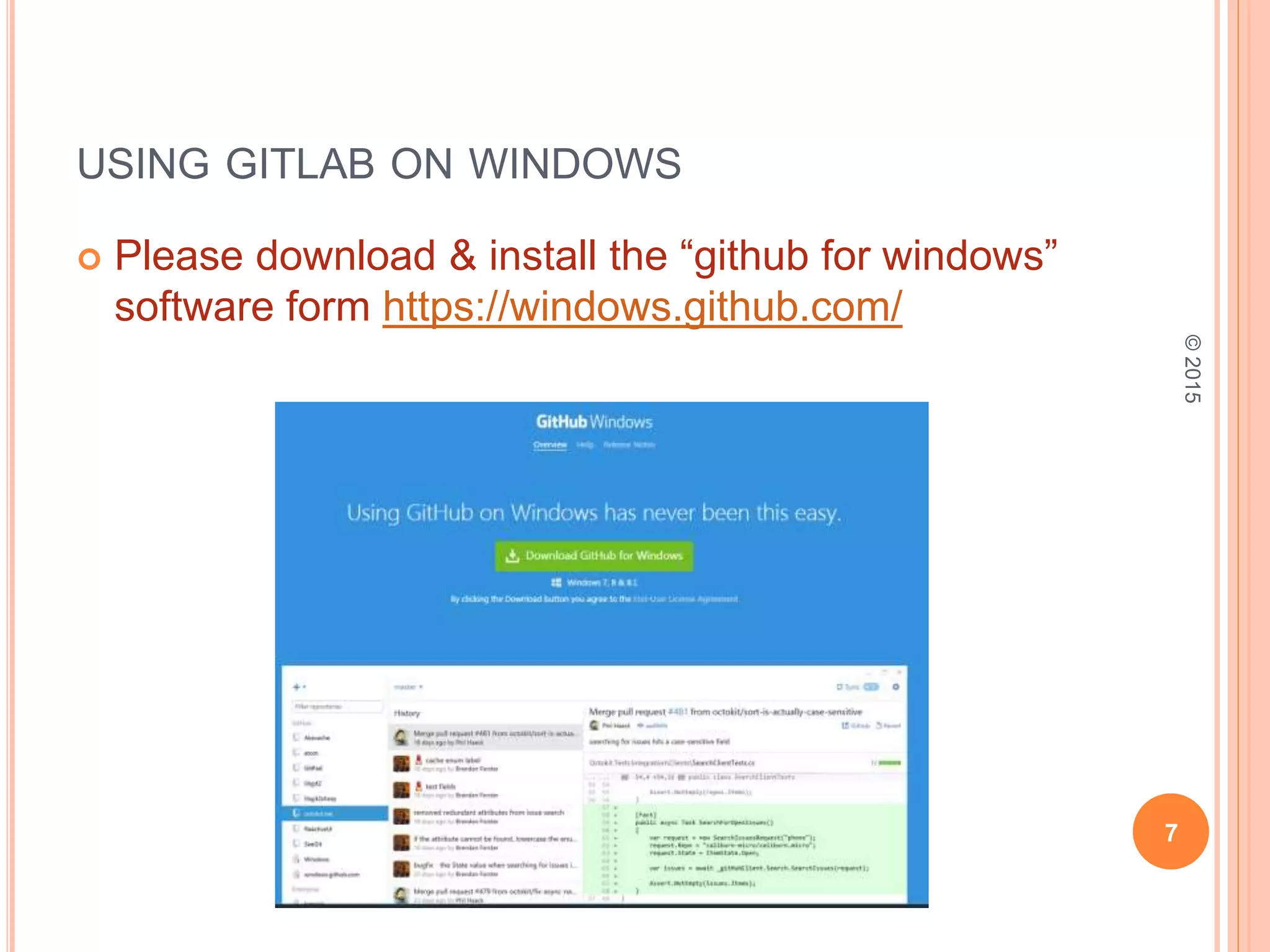
 Please download & install the “github for windows”
software form https://windows.github.com/
7
©2015
USING GITLAB ON WINDOWS
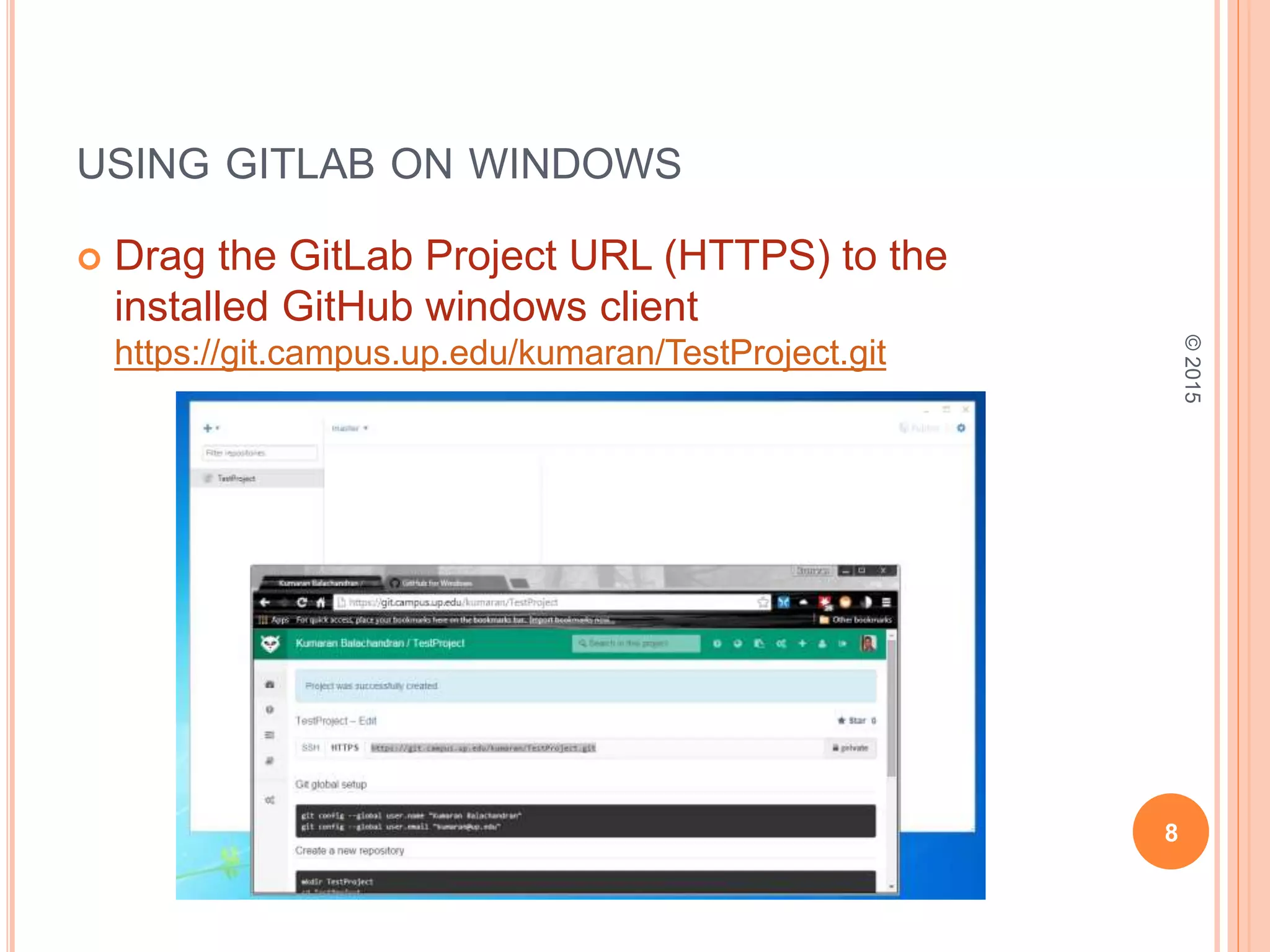
 Drag the GitLab Project URL (HTTPS) to the
installed GitHub windows client
https://git.campus.up.edu/kumaran/TestProject.git
8
©2015
USING GITLAB ON WINDOWS
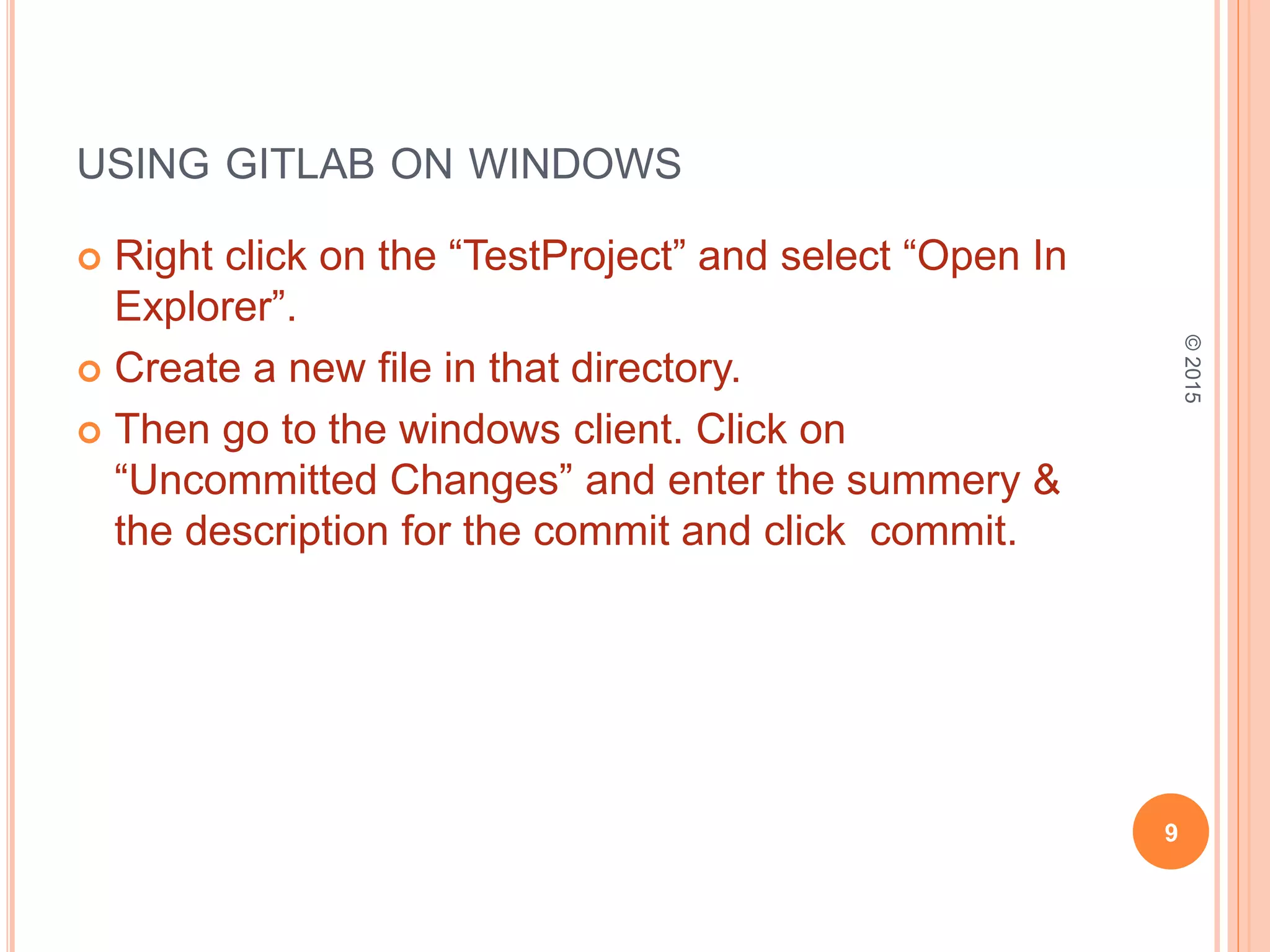
 Right click on the “TestProject” and select “Open In
Explorer”.
 Create a new file in that directory.
 Then go to the windows client. Click on
“Uncommitted Changes” and enter the summery &
the description for the commit and click commit.
9
©2015
USING GITLAB ON WINDOWS
10
©2015
USING GITLAB ON WINDOWS
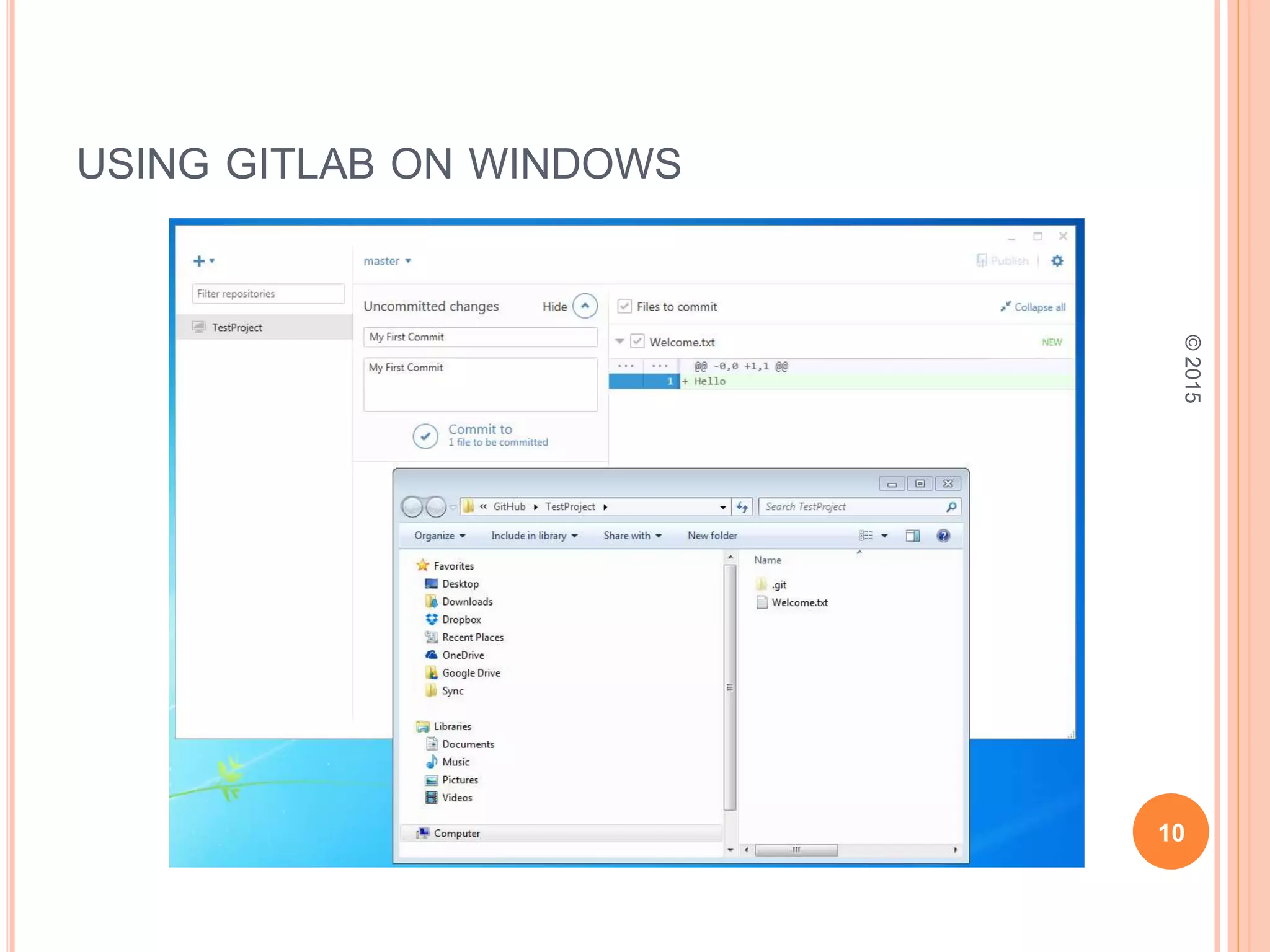
 Finally Click on Publish Button to push to the
GitLab.
11
©2015
USING GITLAB ON LINUX (CLONE & PUSH)
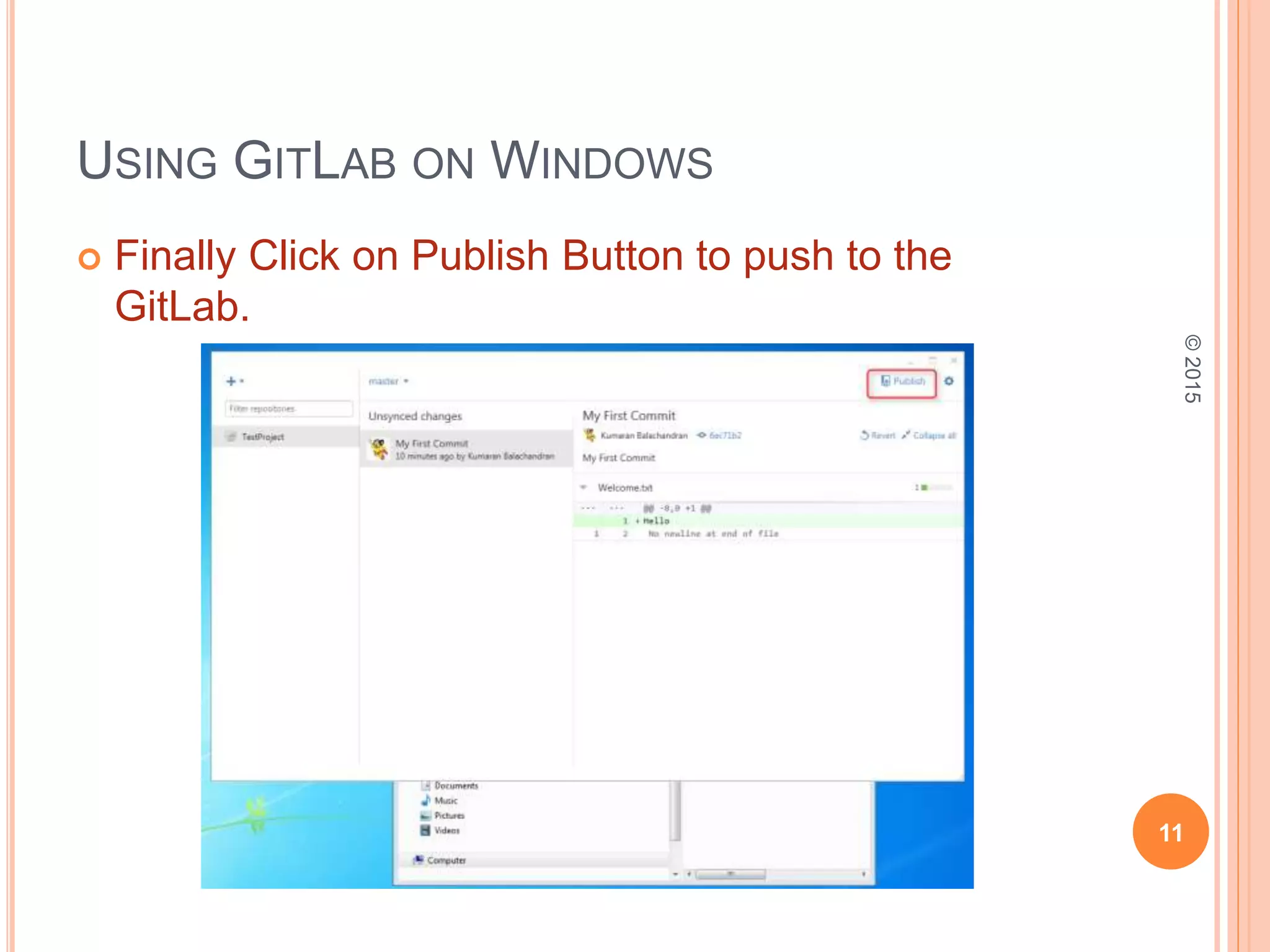
 First create the project in GitLab.
12
©2015
USING GITLAB ON LINUX (CLONE & PUSH)
 Login to the Linux machine.
 Clone the GitLab repo.
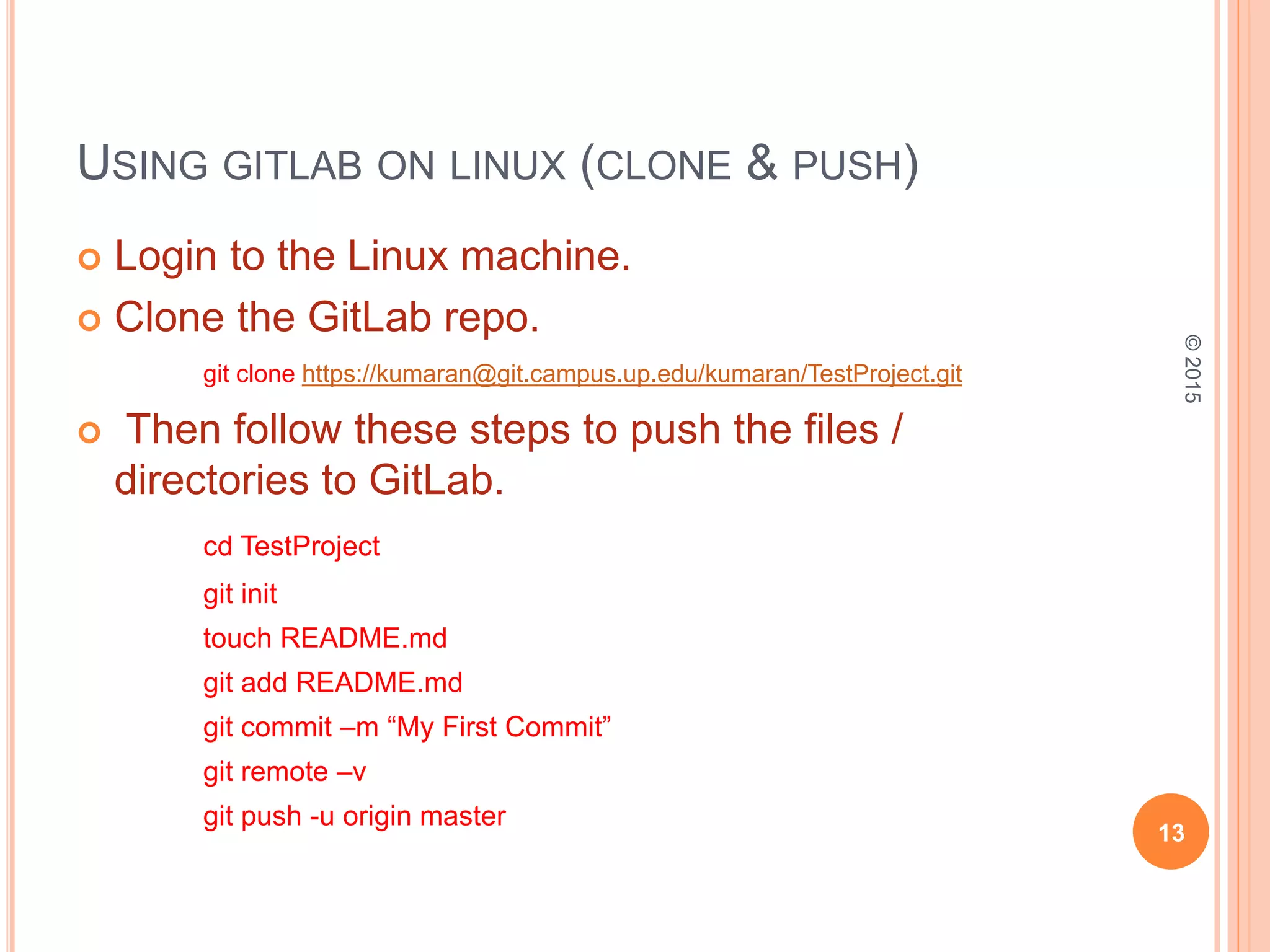
git clone https://kumaran@git.campus.up.edu/kumaran/TestProject.git
 Then follow these steps to push the files /
directories to GitLab.
cd TestProject
git init
touch README.md
git add README.md
git commit –m “My First Commit”
git remote –v
git push -u origin master
13
©2015
USING GITLAB ON LINUX (ADD & PUSH)
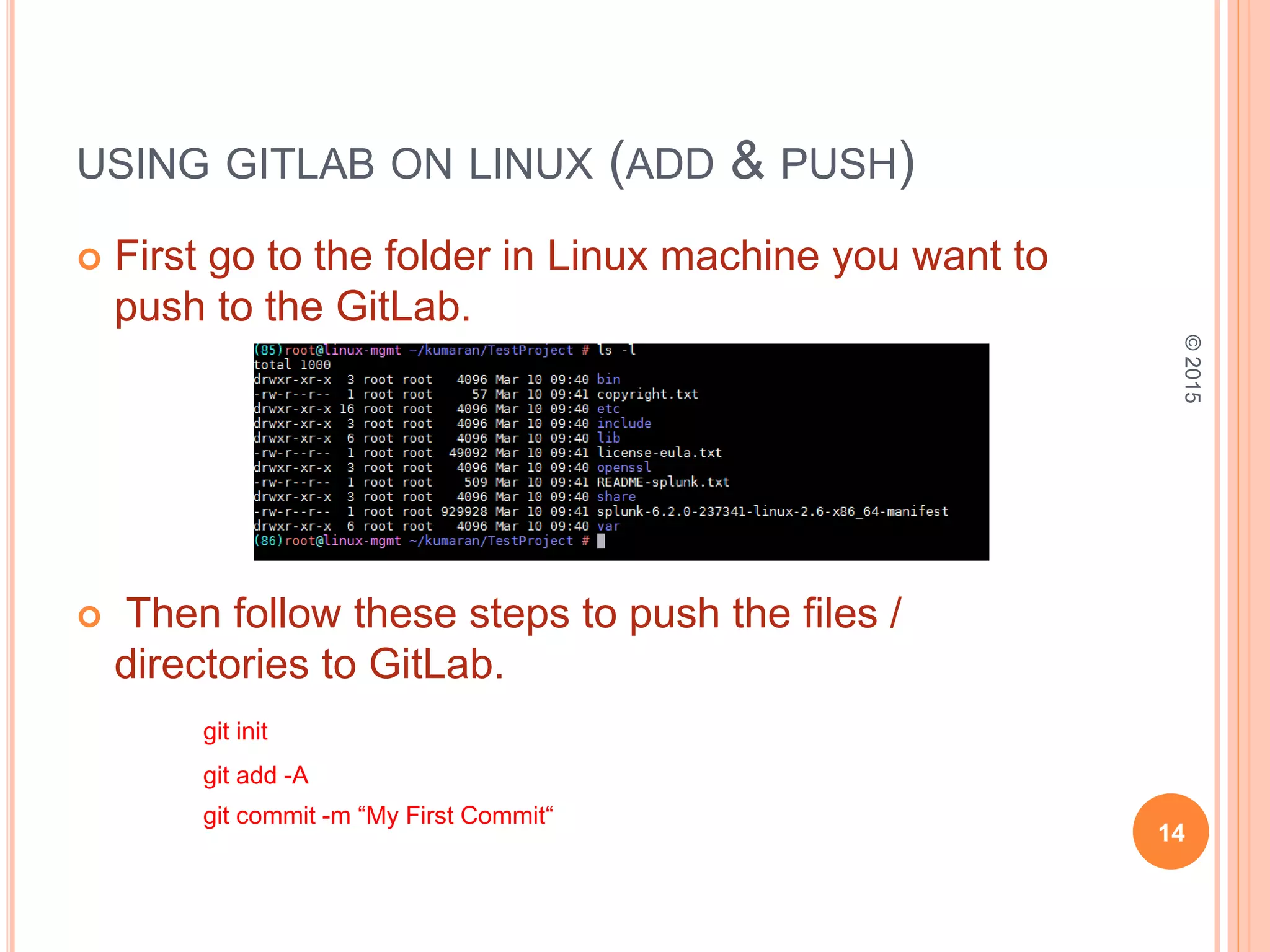
 First go to the folder in Linux machine you want to
push to the GitLab.
 Then follow these steps to push the files /
directories to GitLab.
git init
git add -A
git commit -m “My First Commit“
14
©2015
USING GITLAB ON LINUX (ADD & PUSH)
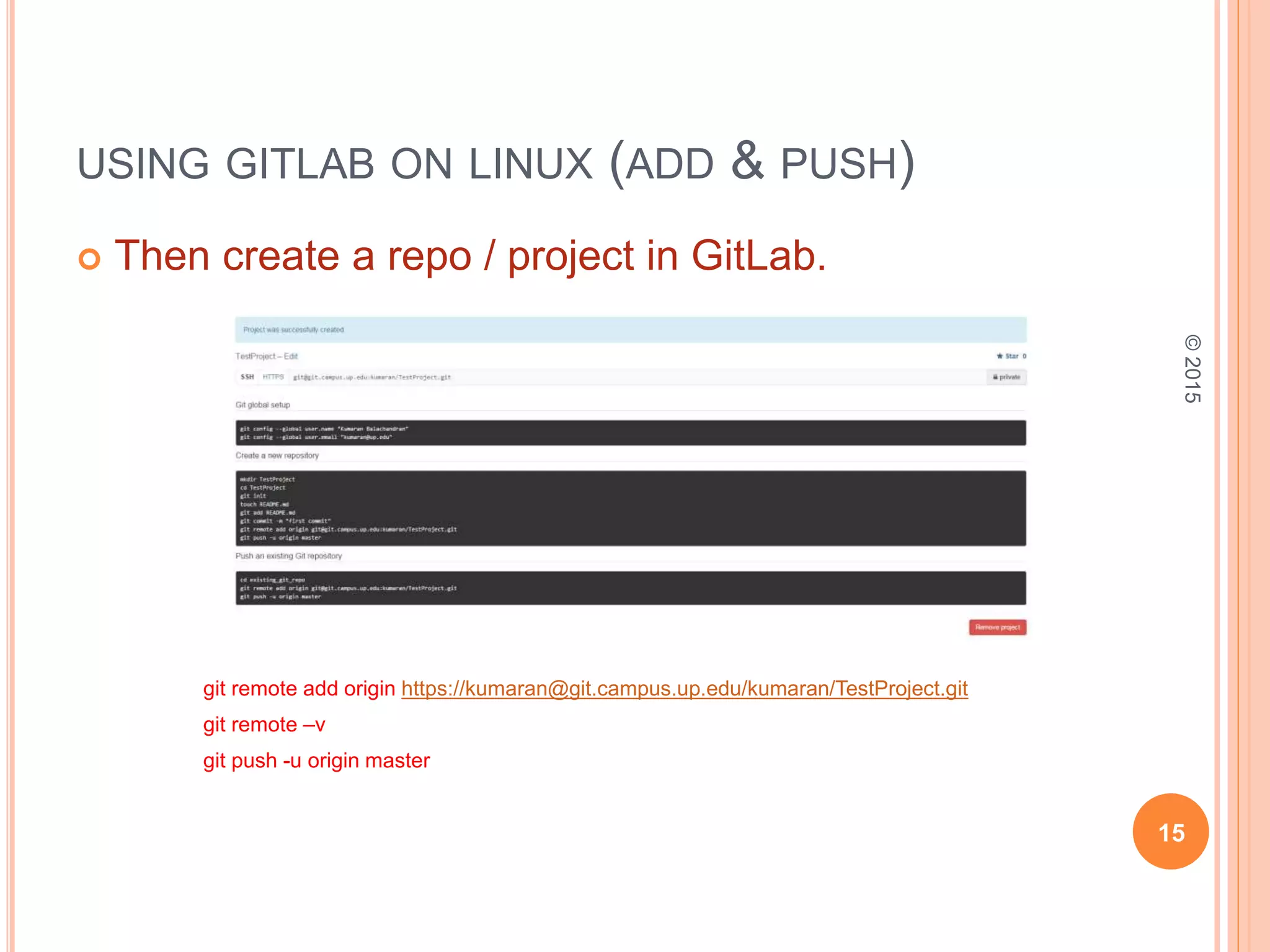
 Then create a repo / project in GitLab.
git remote add origin https://kumaran@git.campus.up.edu/kumaran/TestProject.git
git remote –v
git push -u origin master
15
©2015
GITLAB RESOURCES
 Try Git https://try.github.io/levels/1/challenges/1
 Git Immersion http://gitimmersion.com/index.html
 Using GitLab on Windows https://vimeo.com/121723571
 Using GitLab on Linux (Clone & Push) https://vimeo.com/121750023
 Using GitLab on Linux (Add & Push) https://vimeo.com/121750131
 Presentation : http://www.slideshare.net/heykumaran
 Videos : https://vimeo.com/heykumaran
16
©2015
MY RESOURCES
17
©2015
18
Kumaran Balachandran
©2015

Up GitLab Presentation 2015

  • 1.
    UNIVERSITY OF PORTLAND GitLabPresentation https://git.campus.up.edu Information Services ©2015 1
  • 2.
    TOPICS COVERED……  UsingGitLab on Windows.  Using GitLab on Linux (Clone & Push).  Using GitLab on Linux (Add & Push).  GitLab Resources.  Questions. 2 ©2015
  • 3.
    WELCOME TO UPGITLAB  Web Link : https://git.campus.up.edu 3 ©2015
  • 4.
    CREATING AN ACCOUNT Please request an account from UP GitAdmins. GITLAB ADMIN AREA 4 ©2015
  • 5.
    CREATING A NEWPROJECT  Please click on (+) to Create a new Project. 5 ©2015
  • 6.
    AFTER CREATING THEPROJECT…. 6 ©2015
  • 7.
    USING GITLAB ONWINDOWS  Please download & install the “github for windows” software form https://windows.github.com/ 7 ©2015
  • 8.
    USING GITLAB ONWINDOWS  Drag the GitLab Project URL (HTTPS) to the installed GitHub windows client https://git.campus.up.edu/kumaran/TestProject.git 8 ©2015
  • 9.
    USING GITLAB ONWINDOWS  Right click on the “TestProject” and select “Open In Explorer”.  Create a new file in that directory.  Then go to the windows client. Click on “Uncommitted Changes” and enter the summery & the description for the commit and click commit. 9 ©2015
  • 10.
    USING GITLAB ONWINDOWS 10 ©2015
  • 11.
    USING GITLAB ONWINDOWS  Finally Click on Publish Button to push to the GitLab. 11 ©2015
  • 12.
    USING GITLAB ONLINUX (CLONE & PUSH)  First create the project in GitLab. 12 ©2015
  • 13.
    USING GITLAB ONLINUX (CLONE & PUSH)  Login to the Linux machine.  Clone the GitLab repo. git clone https://kumaran@git.campus.up.edu/kumaran/TestProject.git  Then follow these steps to push the files / directories to GitLab. cd TestProject git init touch README.md git add README.md git commit –m “My First Commit” git remote –v git push -u origin master 13 ©2015
  • 14.
    USING GITLAB ONLINUX (ADD & PUSH)  First go to the folder in Linux machine you want to push to the GitLab.  Then follow these steps to push the files / directories to GitLab. git init git add -A git commit -m “My First Commit“ 14 ©2015
  • 15.
    USING GITLAB ONLINUX (ADD & PUSH)  Then create a repo / project in GitLab. git remote add origin https://kumaran@git.campus.up.edu/kumaran/TestProject.git git remote –v git push -u origin master 15 ©2015
  • 16.
    GITLAB RESOURCES  TryGit https://try.github.io/levels/1/challenges/1  Git Immersion http://gitimmersion.com/index.html  Using GitLab on Windows https://vimeo.com/121723571  Using GitLab on Linux (Clone & Push) https://vimeo.com/121750023  Using GitLab on Linux (Add & Push) https://vimeo.com/121750131  Presentation : http://www.slideshare.net/heykumaran  Videos : https://vimeo.com/heykumaran 16 ©2015 MY RESOURCES
  • 17.
  • 18.