Tom Pool
BlueArray
Command Line Hacks For SEO
@cptntommy
https://www.slideshare.net/TomPool
Who Am I?
@cptntommy
Technical SEO Manager
@ BlueArray
#BrightonSEO @cptntommy
Look after
technical
output for all
clients @
BlueArray
@cptntommy@cptntommy
This means I get to work on
loads of different clients, doing
loads of different tasks
@cptntommy@cptntommy
Checking Response
Codes
@cptntommy@cptntommy
Tech Audits
@cptntommy@cptntommy
Analysis Of
@cptntommy@cptntommy
Keywords
@cptntommy@cptntommy
Keyword Gap
@cptntommy@cptntommy
Server Log Files
@cptntommy@cptntommy
Crawl Data
@cptntommy@cptntommy
The Problem Is...

@cptntommy
Command Line Hacks For SEO
Insert picture of hours ticking away?
Full screen
Each of
these tasks
takes a lot
of time
@cptntommy@cptntommy
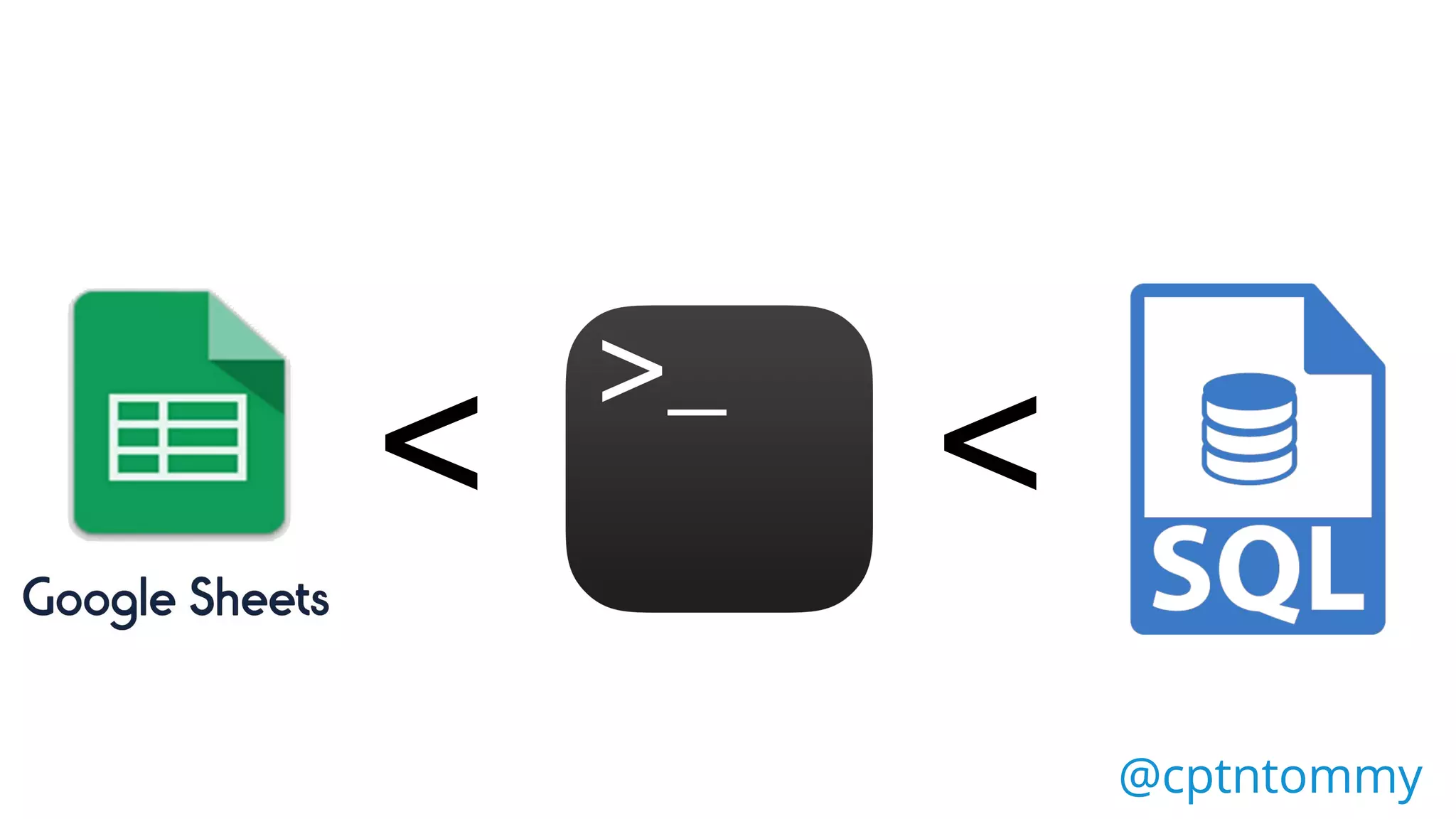
< <?
@cptntommy@cptntommy
< <
@cptntommy@cptntommy
Command Line
Hacks for SEO
@cptntommy@cptntommy
Terminal
What Is Command
Line?
@cptntommy@cptntommy
It is a basic interface between
you and the computer
@cptntommy@cptntommy
What Is Command Line?
The following references are
related to Mac OS’s Terminal
application.

@cptntommy@cptntommy
What Commands Do I
Use?
@cptntommy@cptntommy
CURL
SORT
CAT
SPLIT
SED
AWK
@cptntommy@cptntommy
Keyword Analysis
Keyword Gap Analysis
Checking Response Codes
Log File Analysis
Crawling & Analysis
@cptntommy@cptntommy
curl
What is curl?
@cptntommy@cptntommy
“curl is a tool to transfer data
from or to a server”
@cptntommy@cptntommy
“curl is a tool to transfer data
from or to a server”
@cptntommy@cptntommy
*Examples shown are not the full usage, for full info check out the manual page
(man curl)
Checking Response Codes
@cptntommy@cptntommy
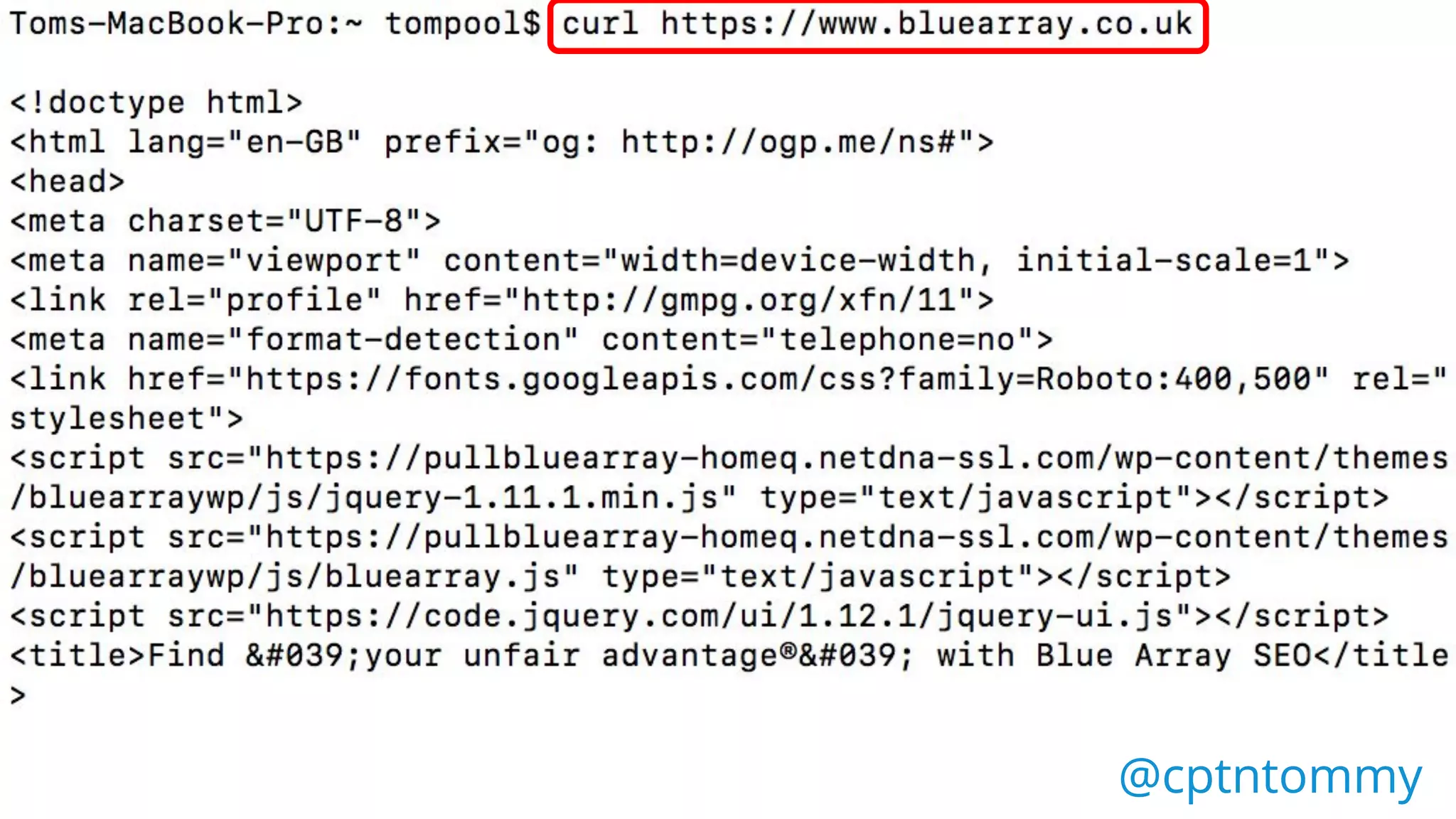
Toms-MacBook-Pro:~ tompool$
https://www.bluearray.co.uk
@cptntommy@cptntommy
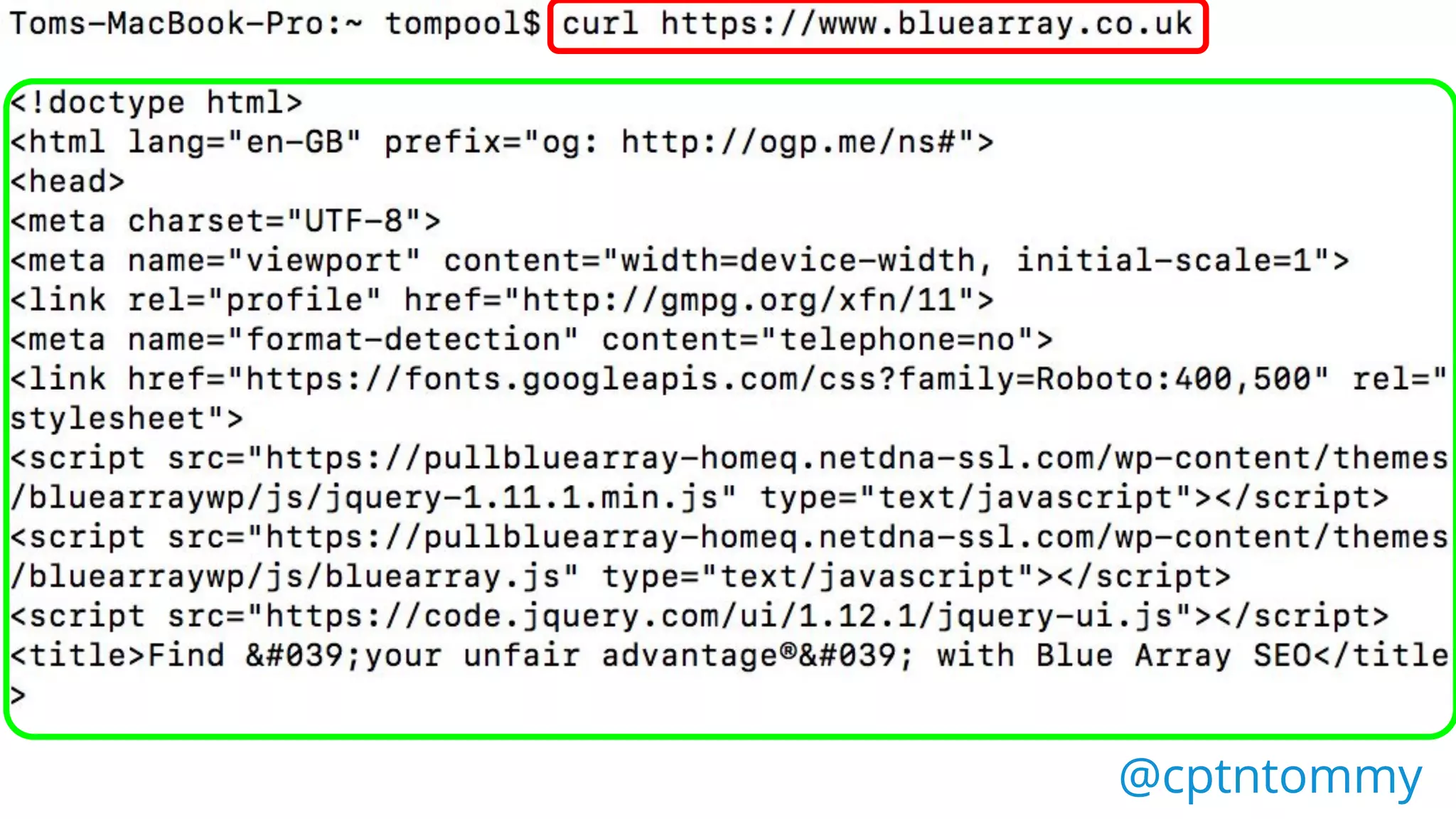
Toms-MacBook-Pro:~ tompool$
https://www.bluearray.co.ukcurl
@cptntommy@cptntommy
Toms-MacBook-Pro:~ tompool$
https://www.bluearray.co.ukhttps://www.bluearray.co.ukcurl
@cptntommy@cptntommy
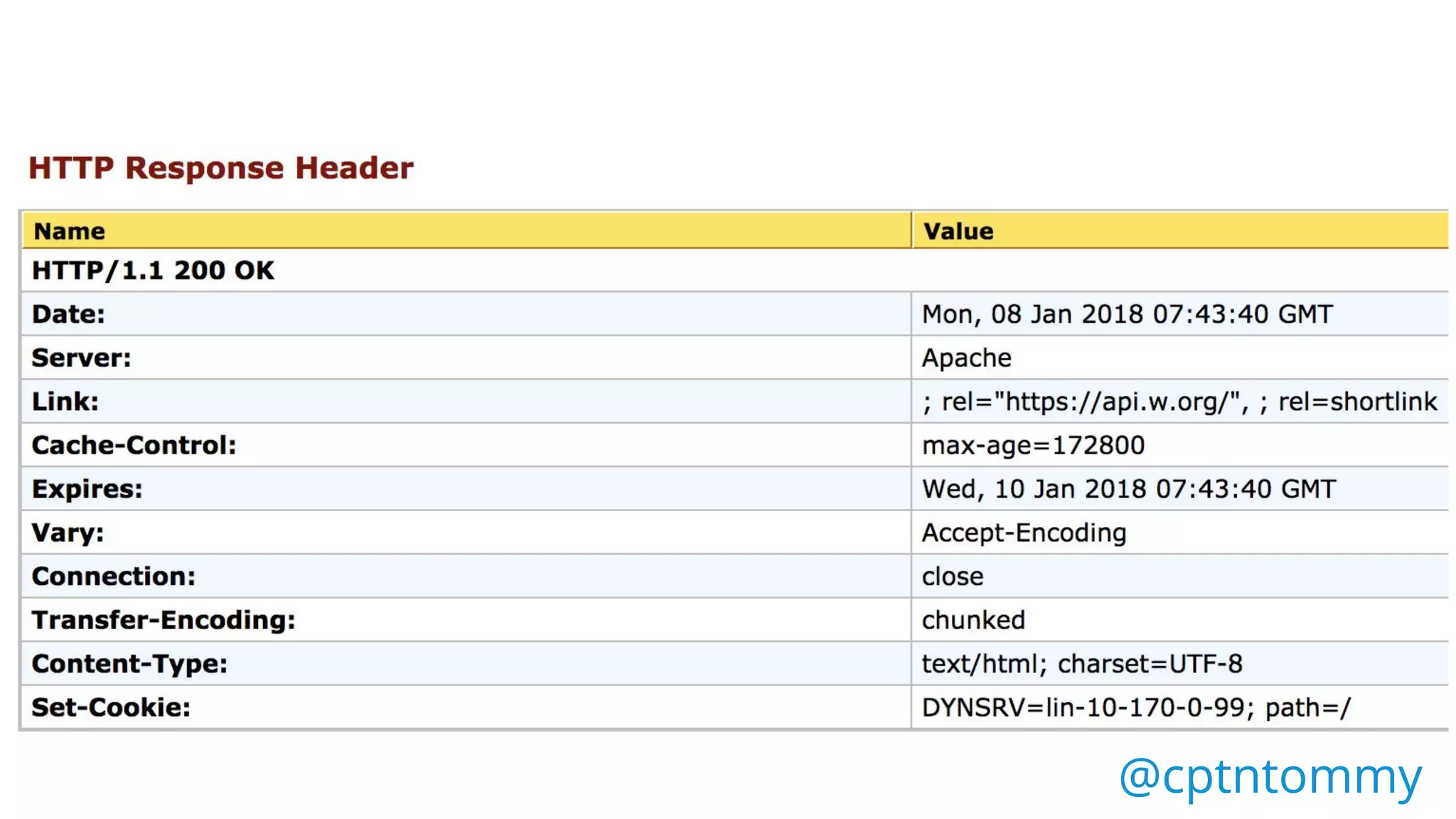
What If I Just Want To See The
HTTP Header?
@cptntommy
@cptntommy@cptntommy
curl
@cptntommy@cptntommy
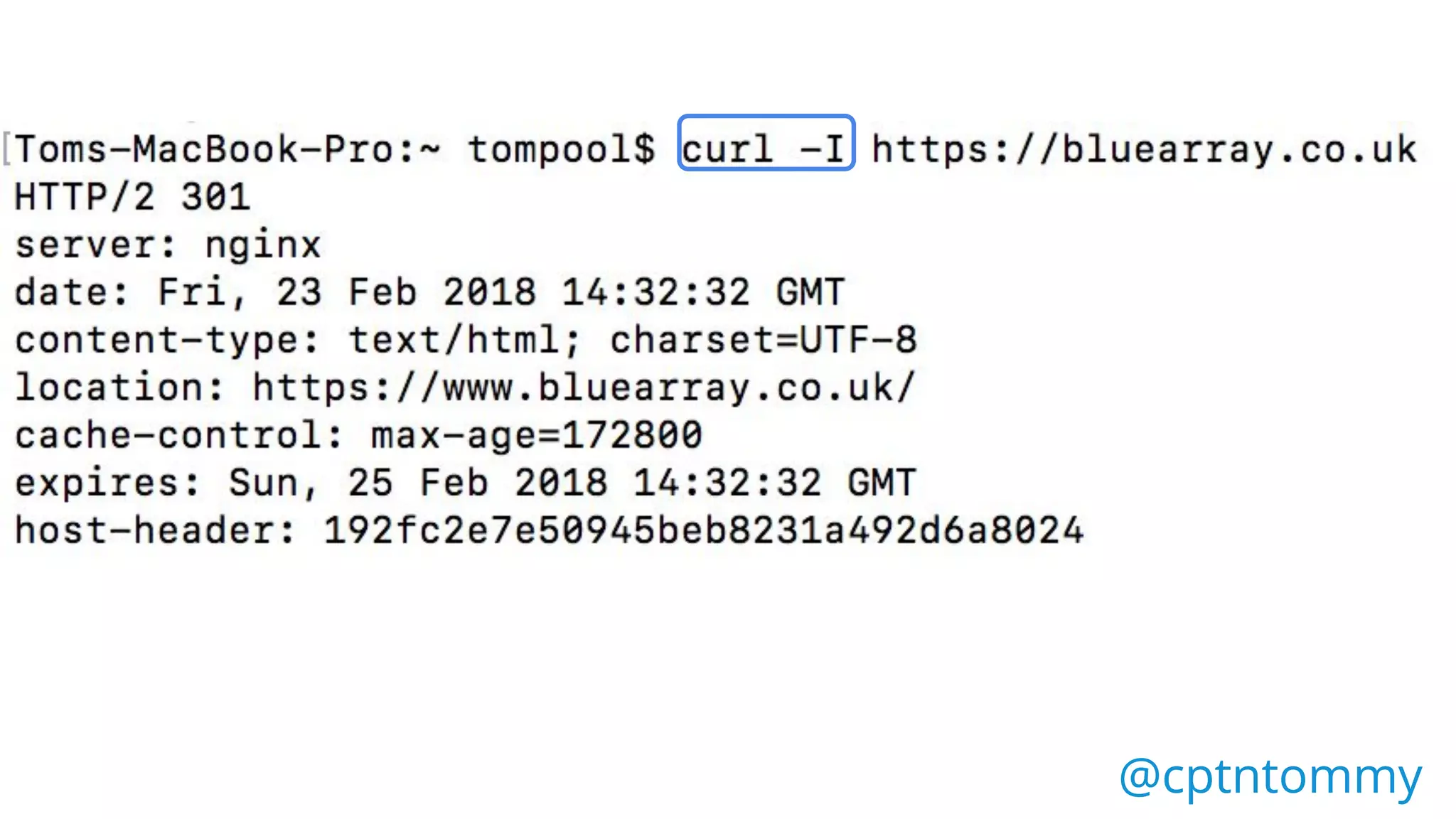
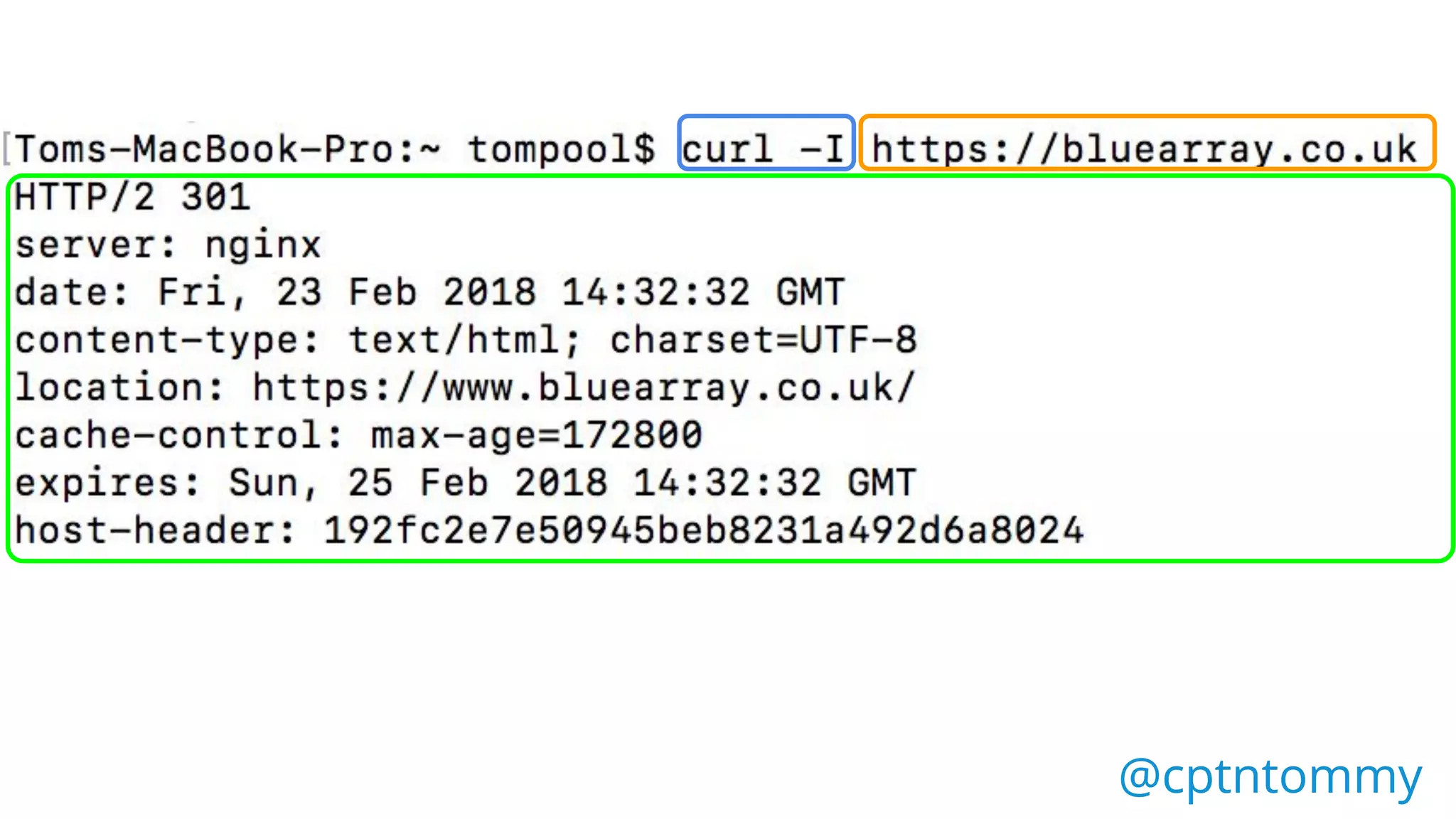
curl -I
@cptntommy@cptntommy
Modifier - Just The HTTP
Header!
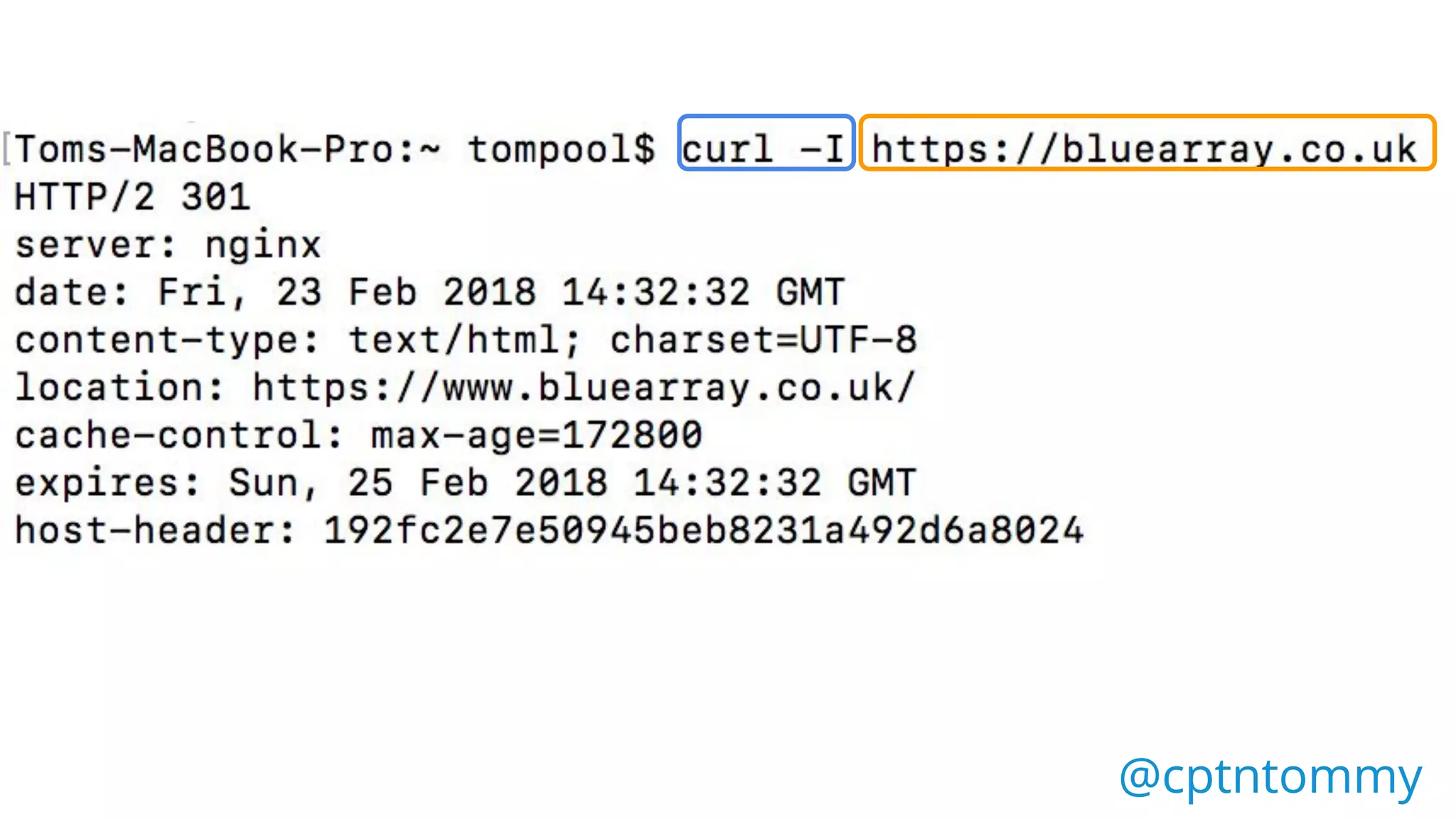
curl -I https://bluearray.co.uk
@cptntommy@cptntommy
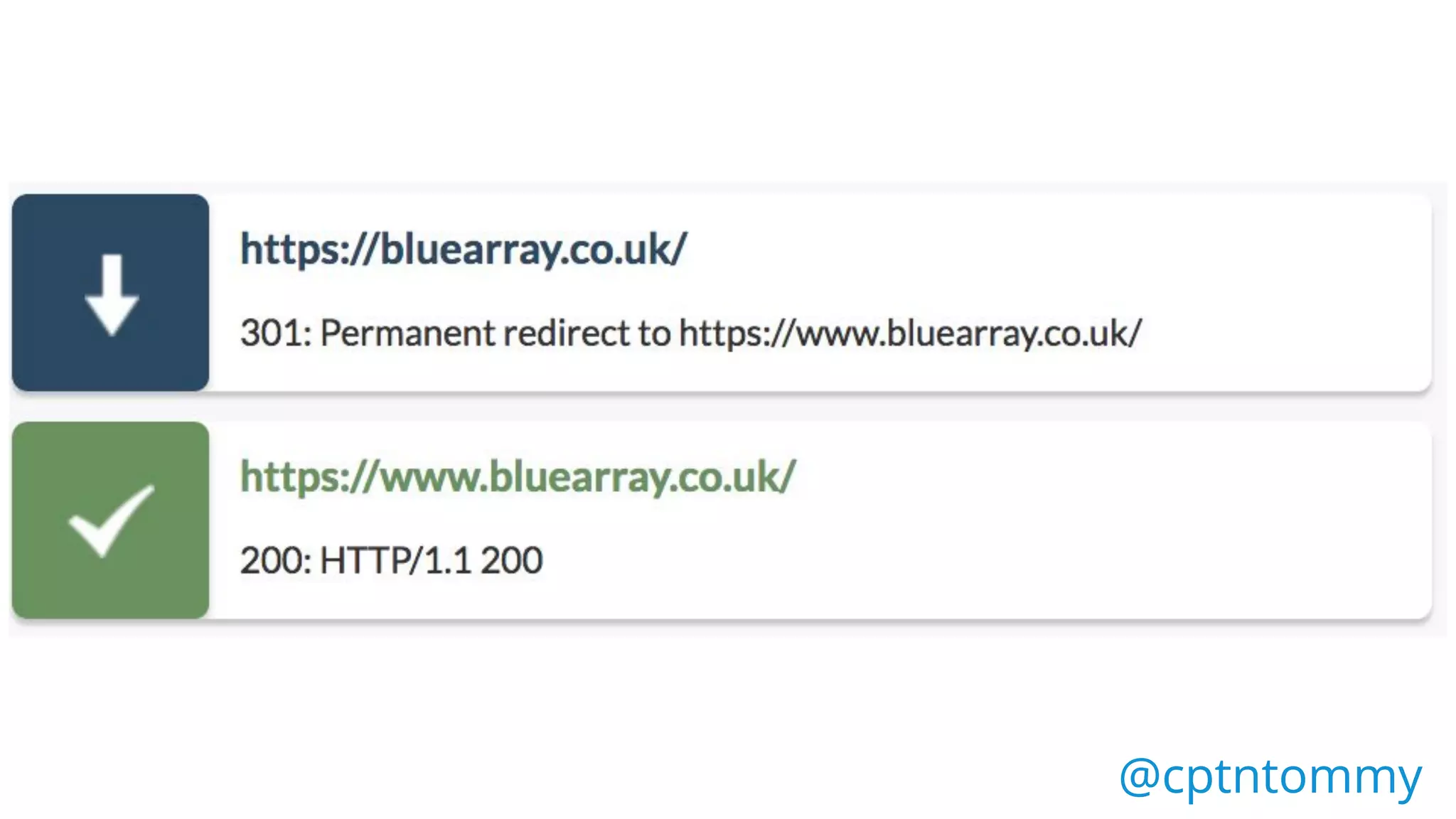
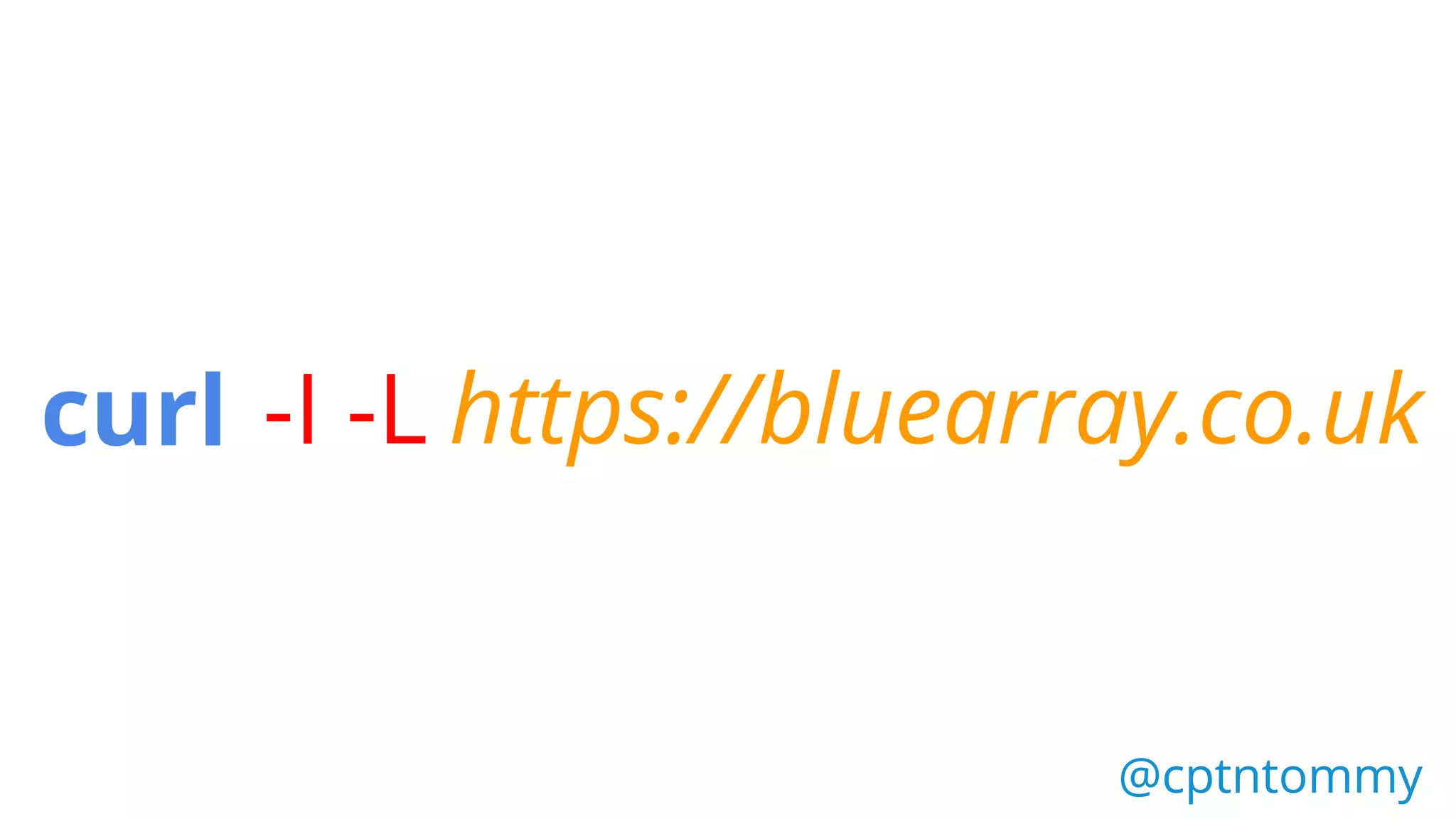
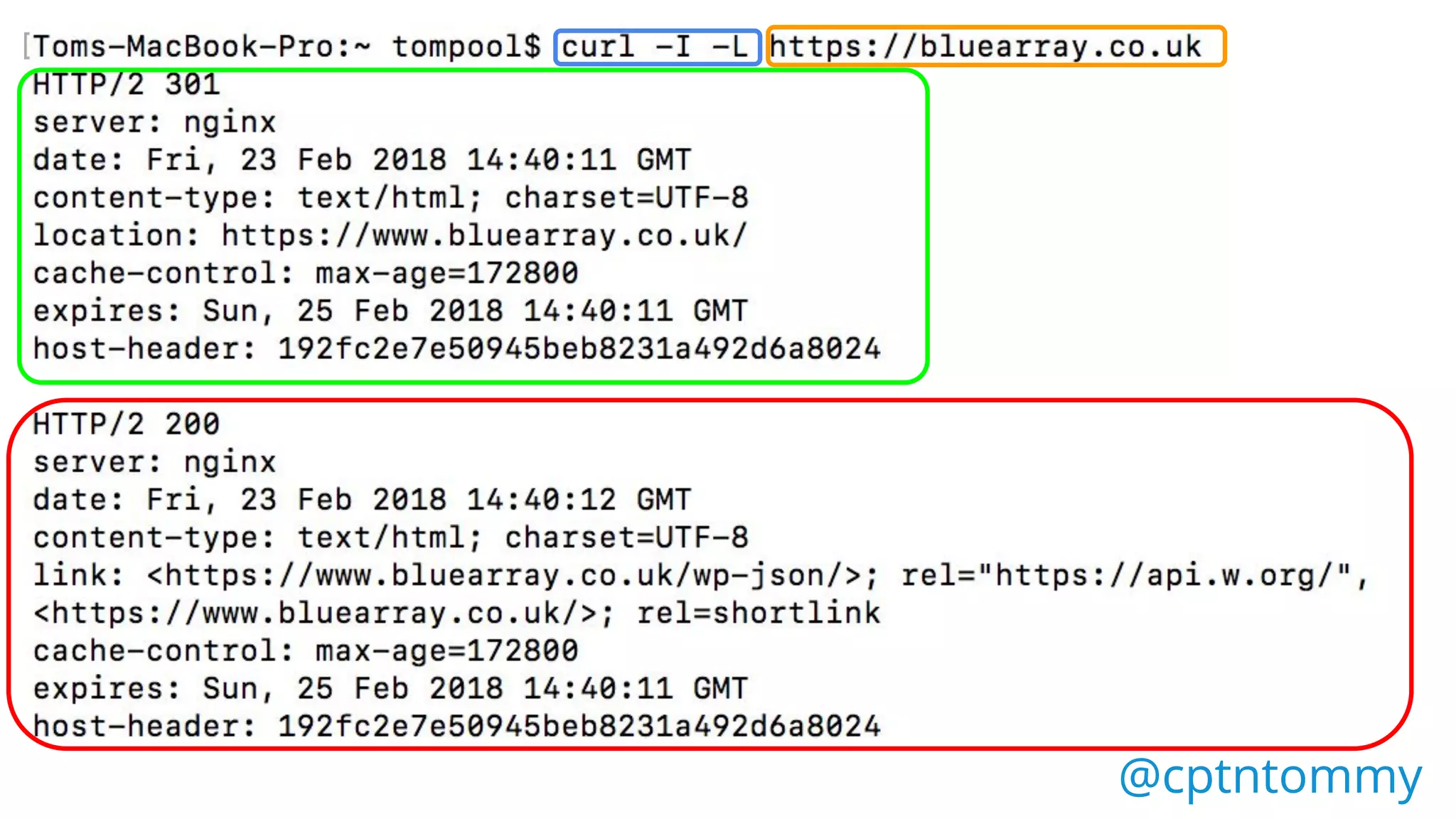
curl -I -L
@cptntommy@cptntommy
curl -I -L https://bluearray.co.uk
@cptntommy@cptntommy
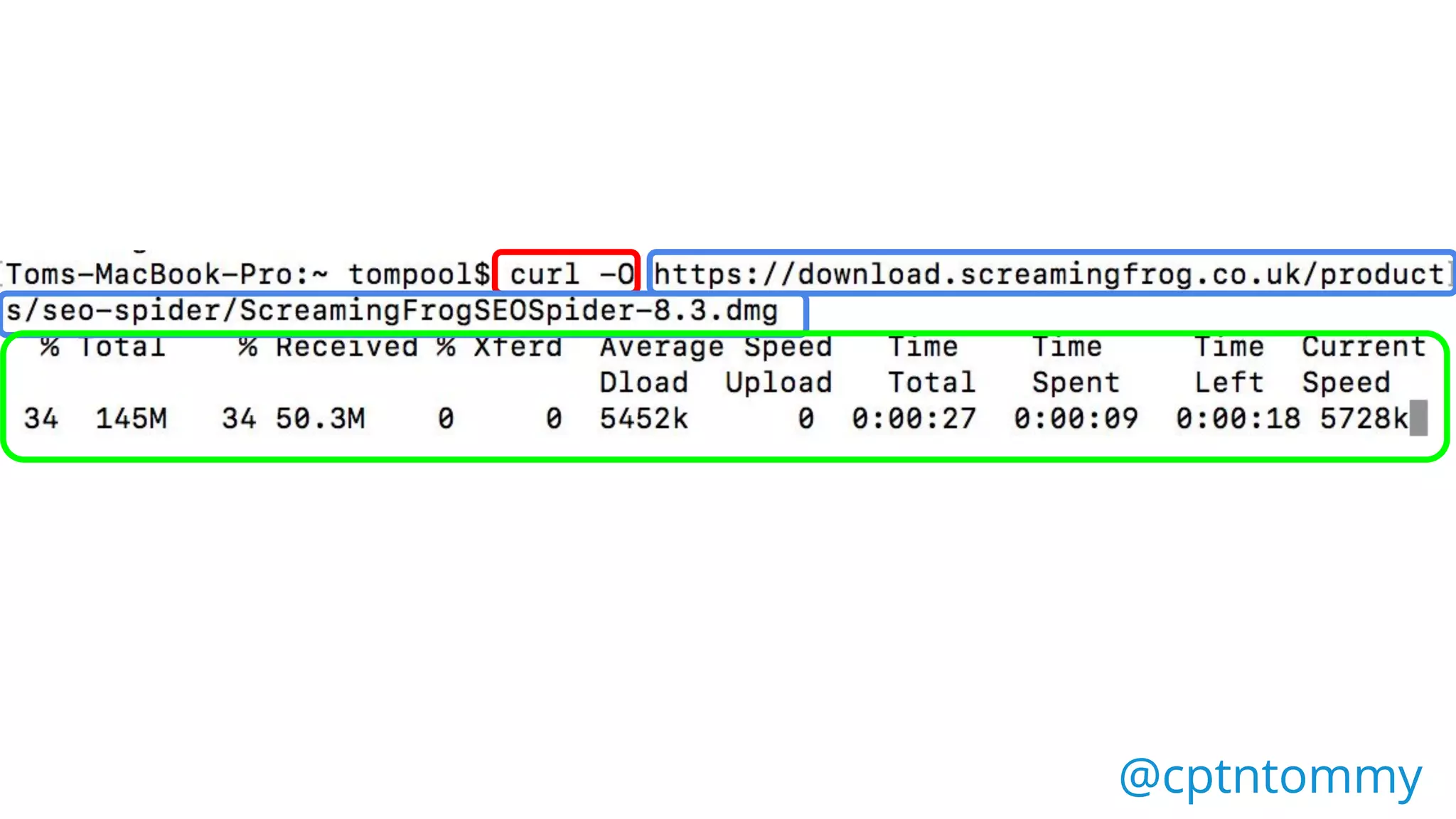
curl-O
@cptntommy@cptntommy
curl-O
https://download.screami
ngfrog.co.uk/products/seo
-spider/ScreamingFrogSEO
Spider-8.3.dmg
@cptntommy@cptntommy
Here we have used CURL TO:
Download Files,
Check HTML,
Check HTTP Header &
Follow Redirects
@cptntommy@cptntommy
sort
Sort ‘sorts’
@cptntommy@cptntommy
Sort - A-Z
@cptntommy@cptntommy
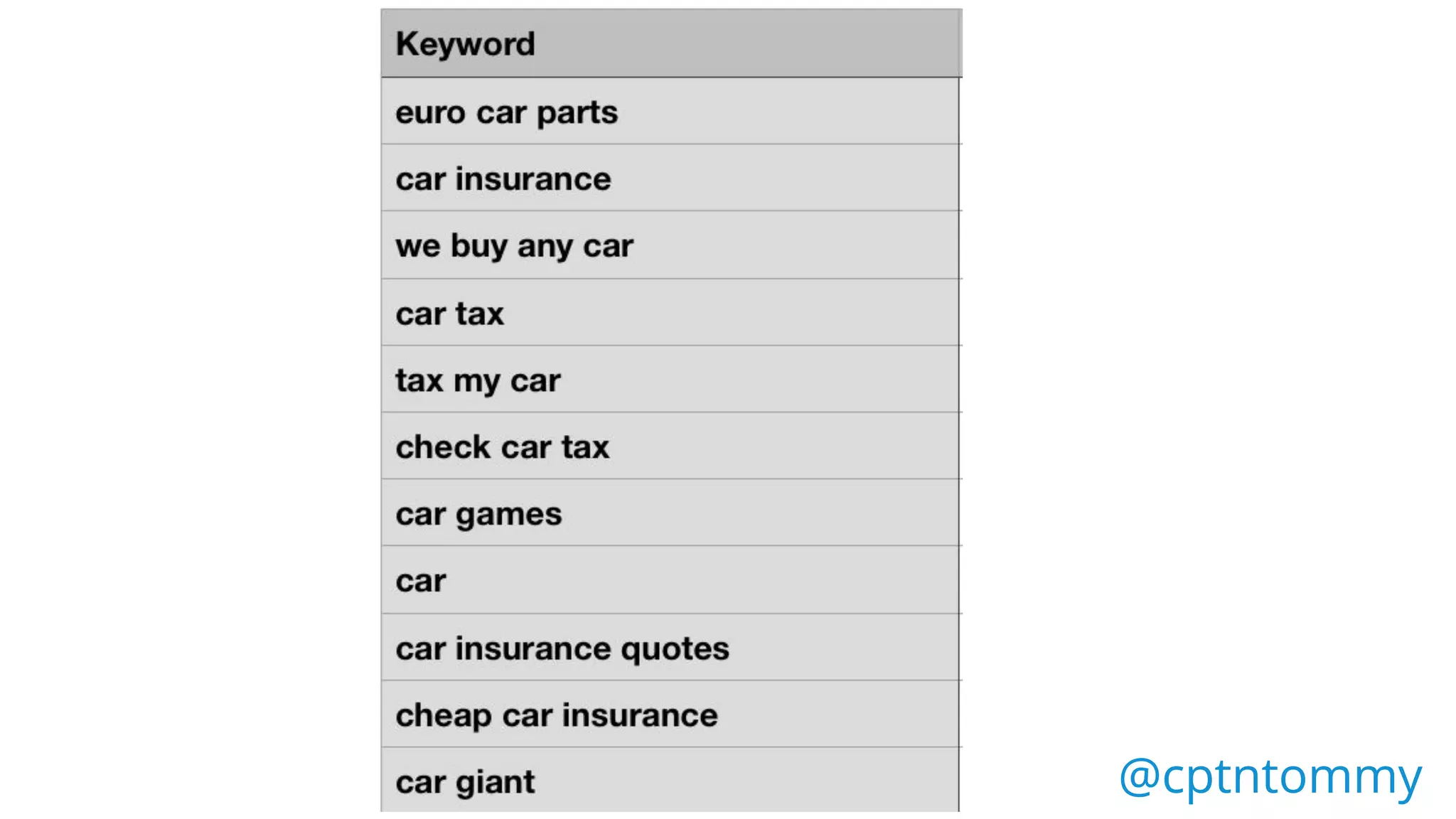
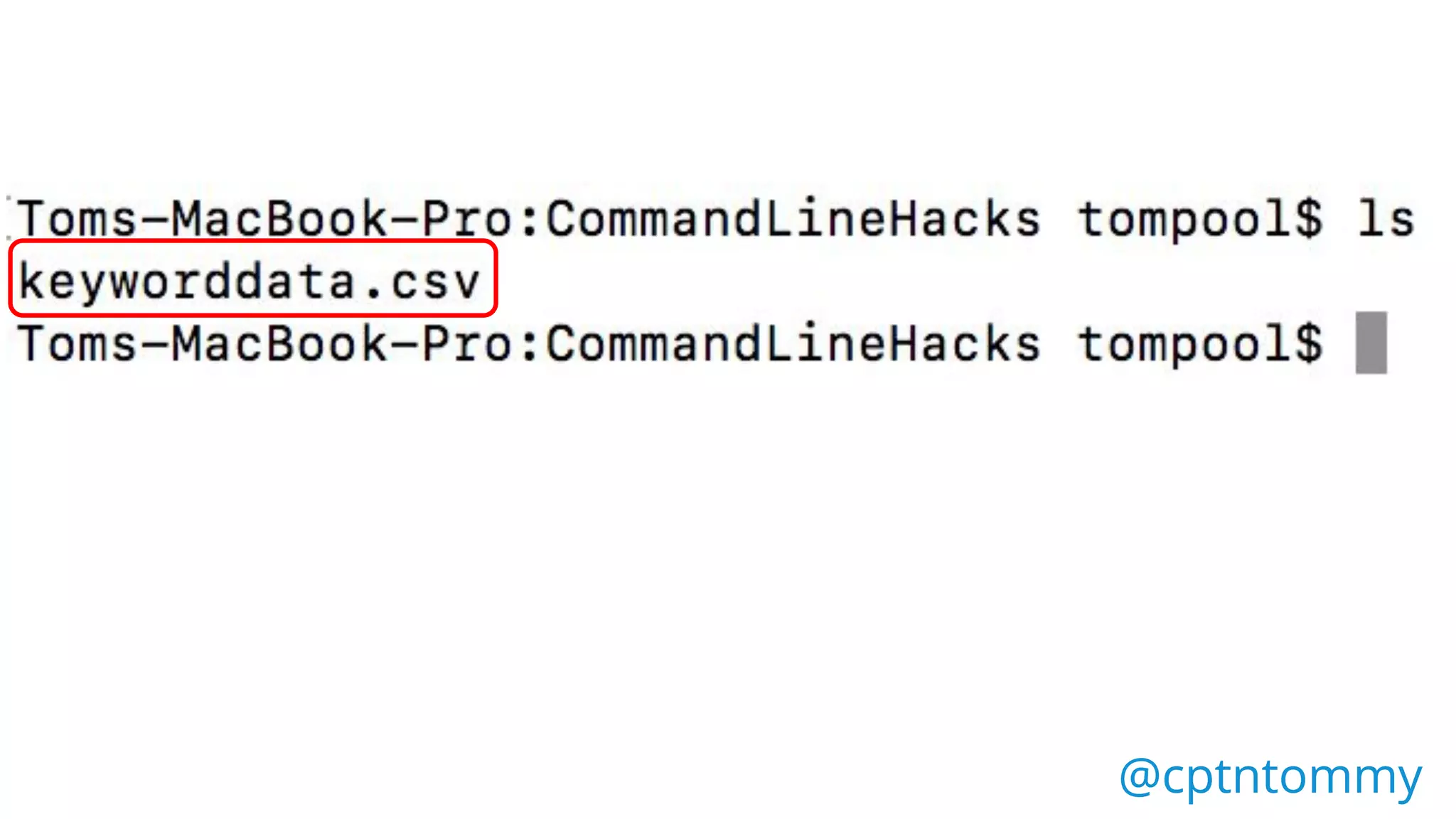
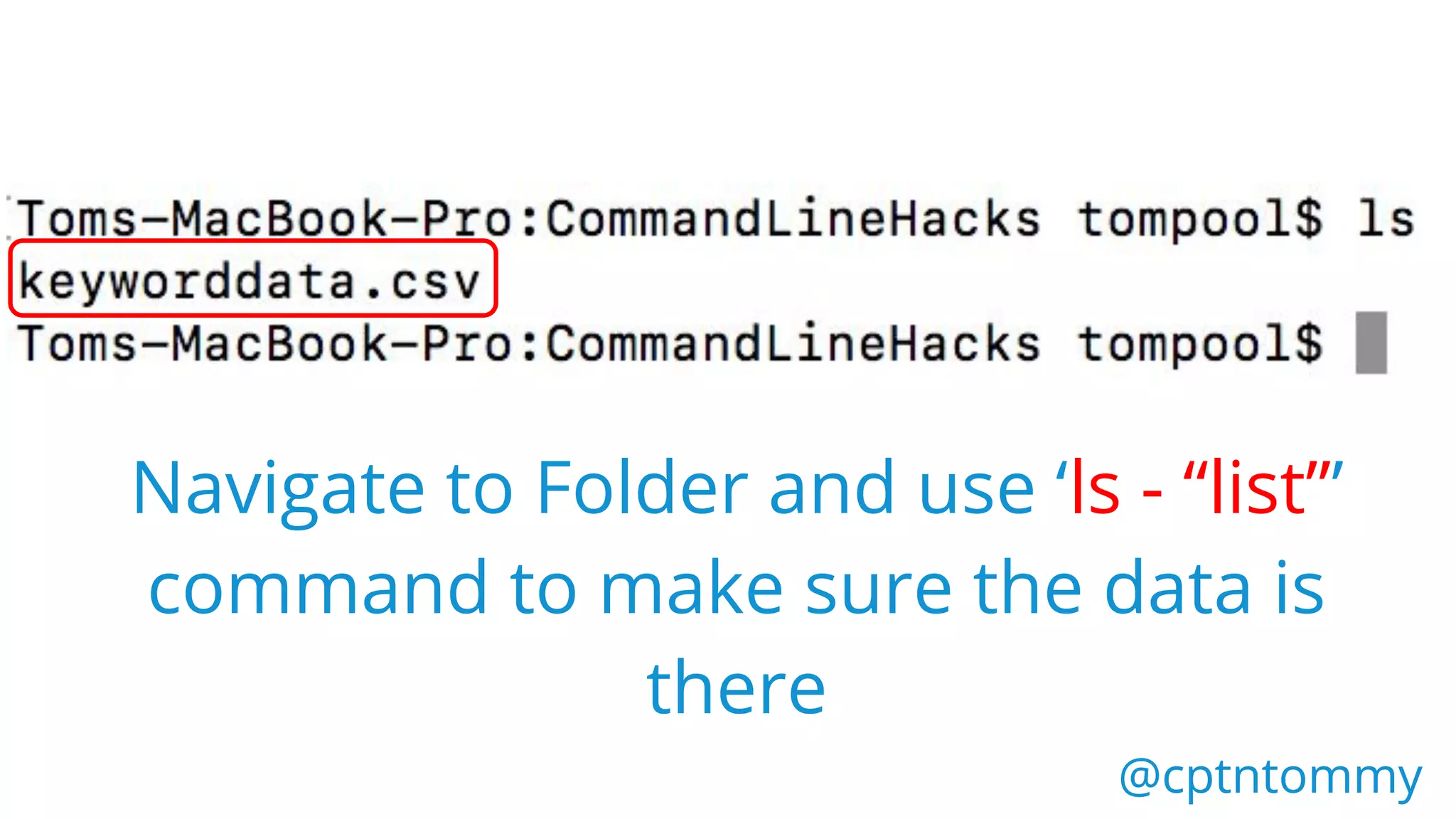
Navigate to Folder and use ‘ls - “list”’
command to make sure the data is
there
@cptntommy@cptntommy
Then run the sort command
@cptntommy@cptntommy
sort
@cptntommy@cptntommy
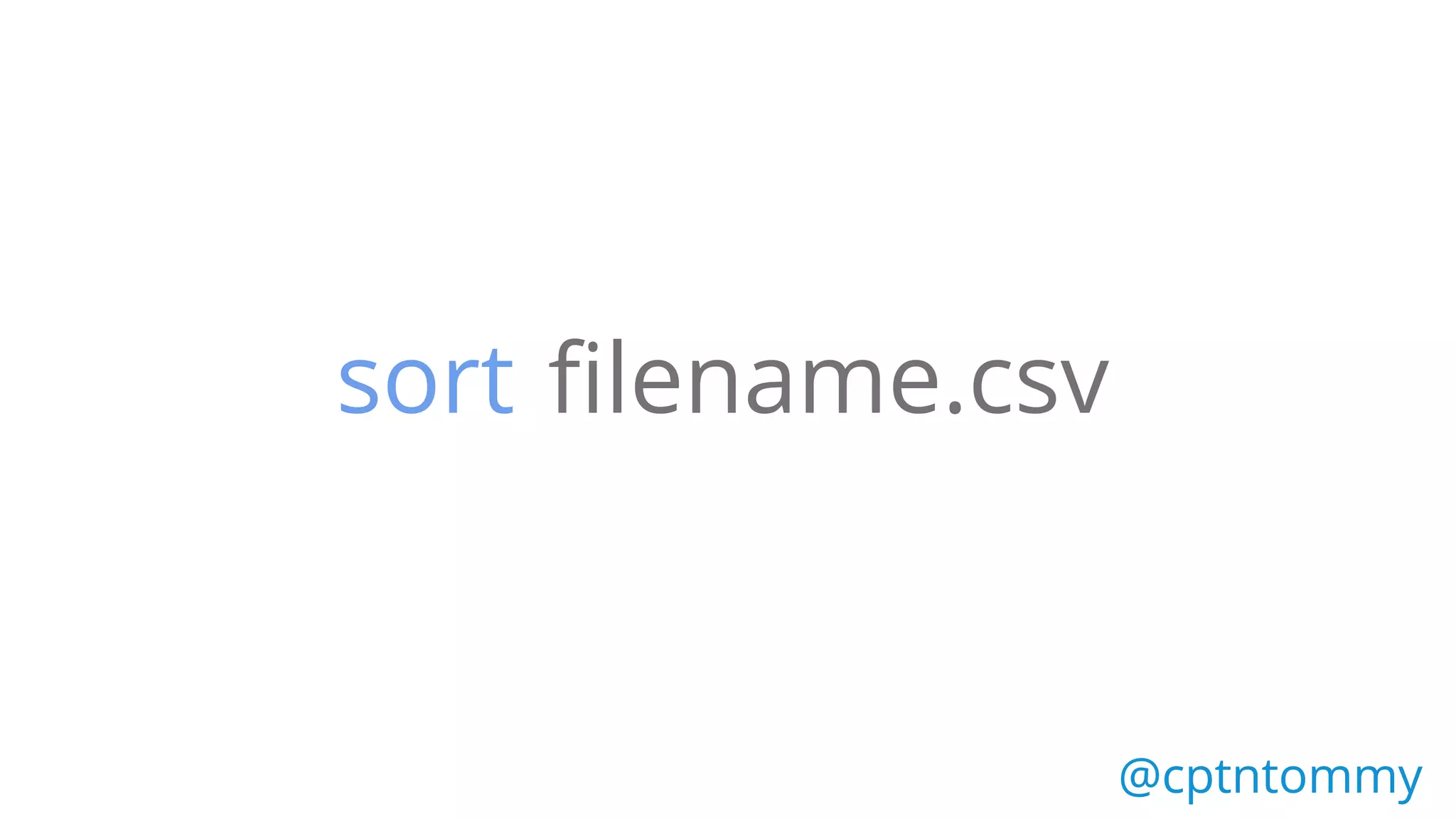
filename.csvsort
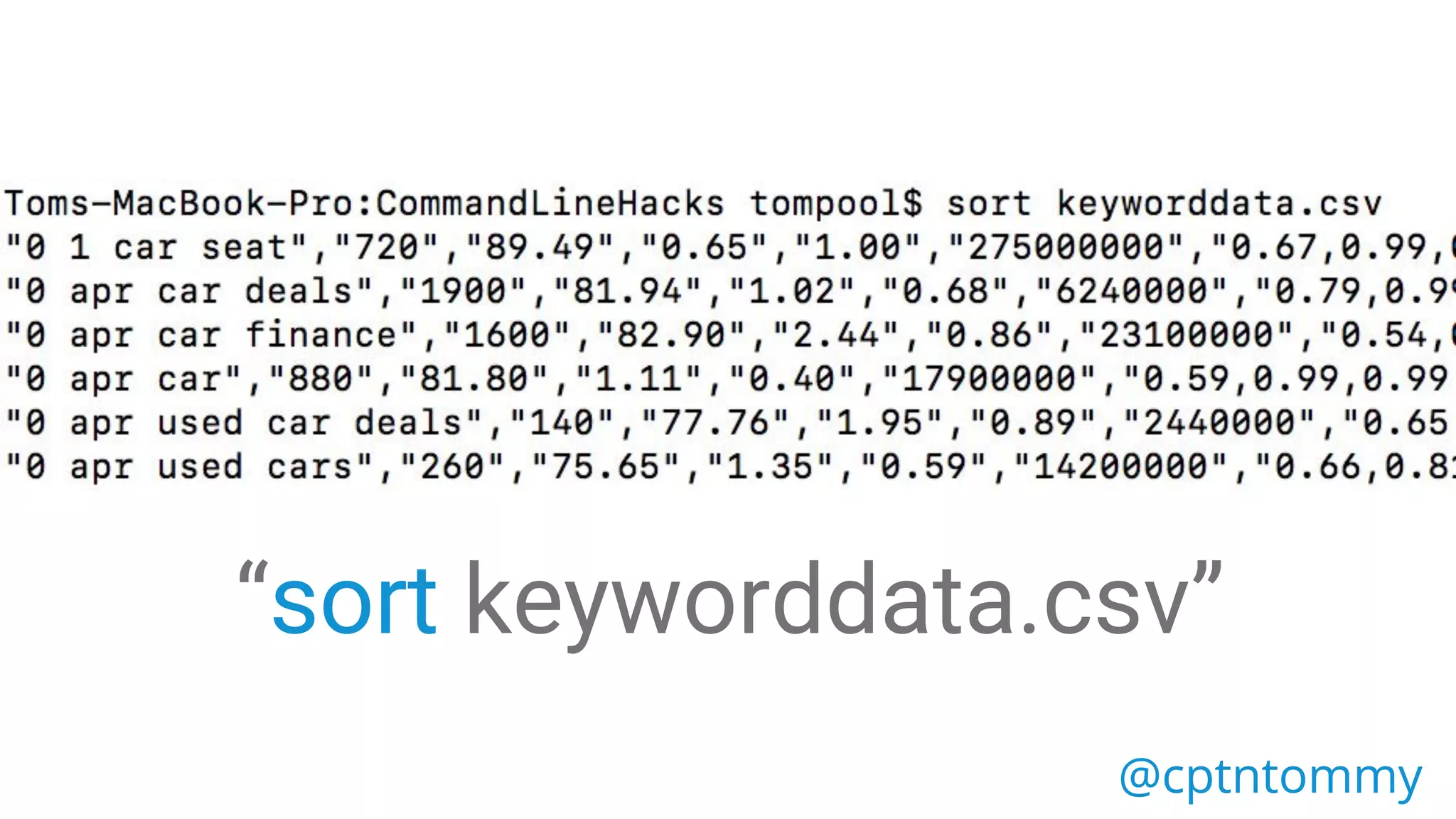
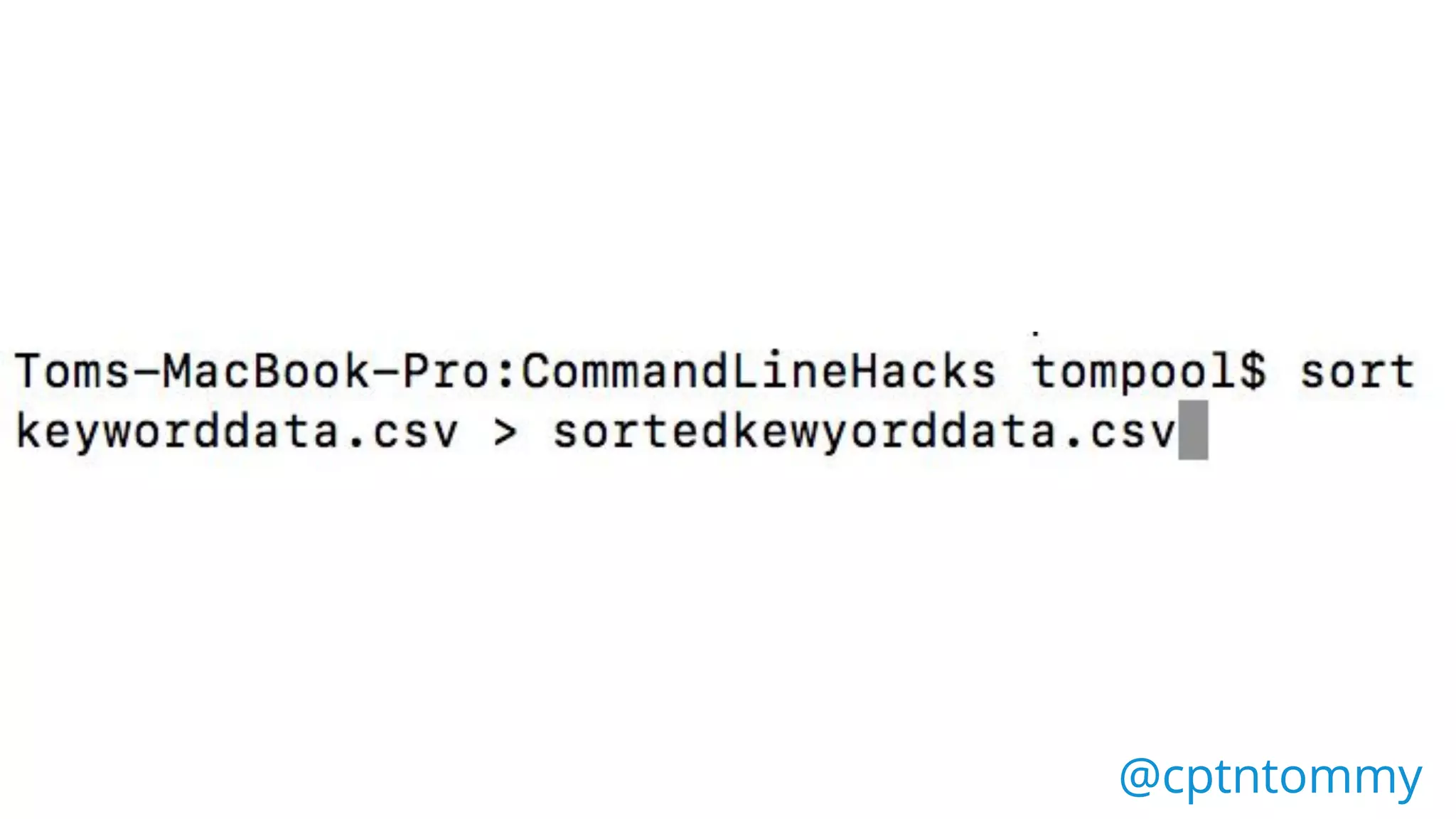
“sort keyworddata.csv”
@cptntommy@cptntommy
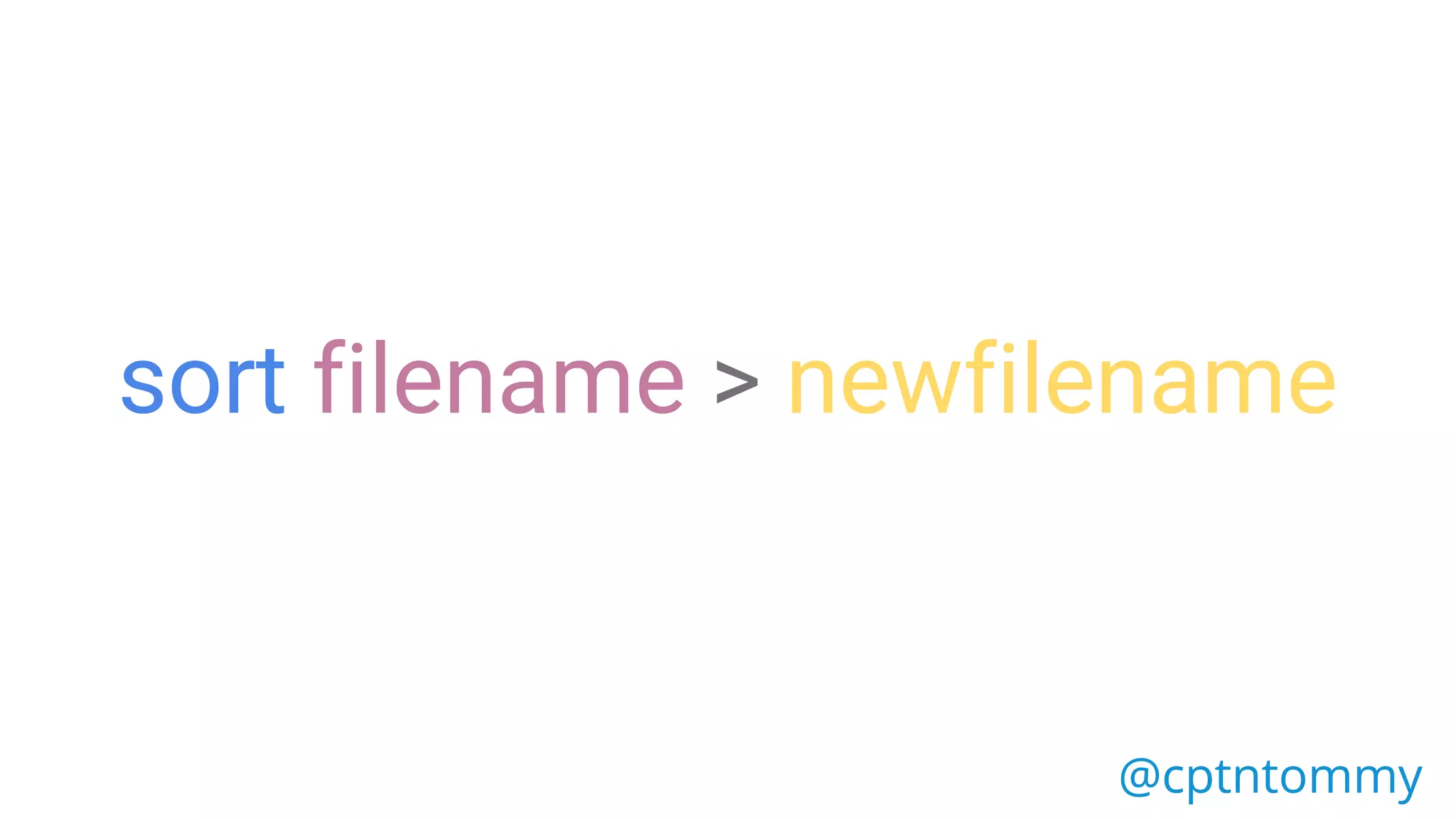
sort filename > newfilename
@cptntommy@cptntommy
Did It Work?
head/tail
WTF is Head/Tail?
@cptntommy@cptntommy
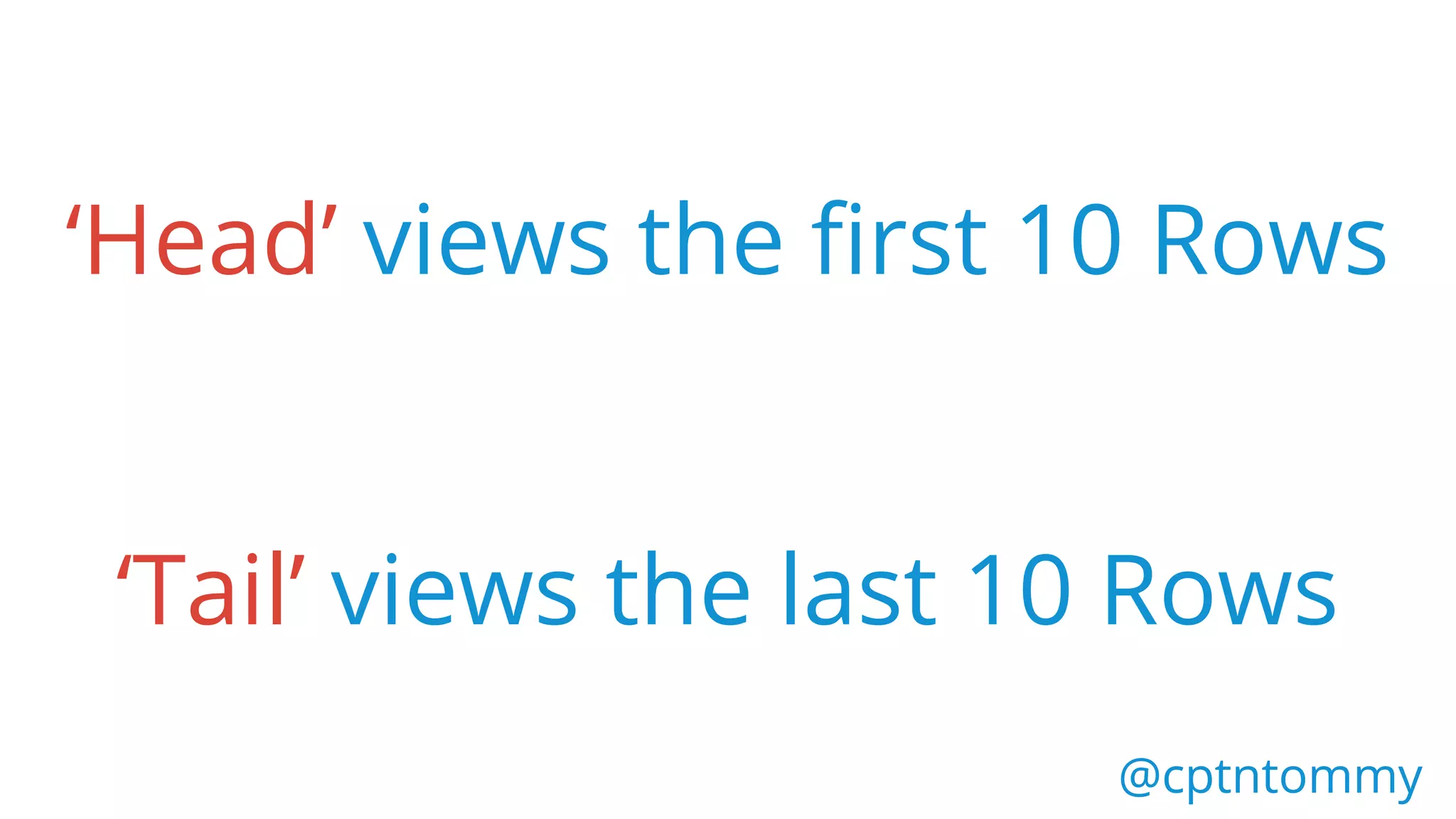
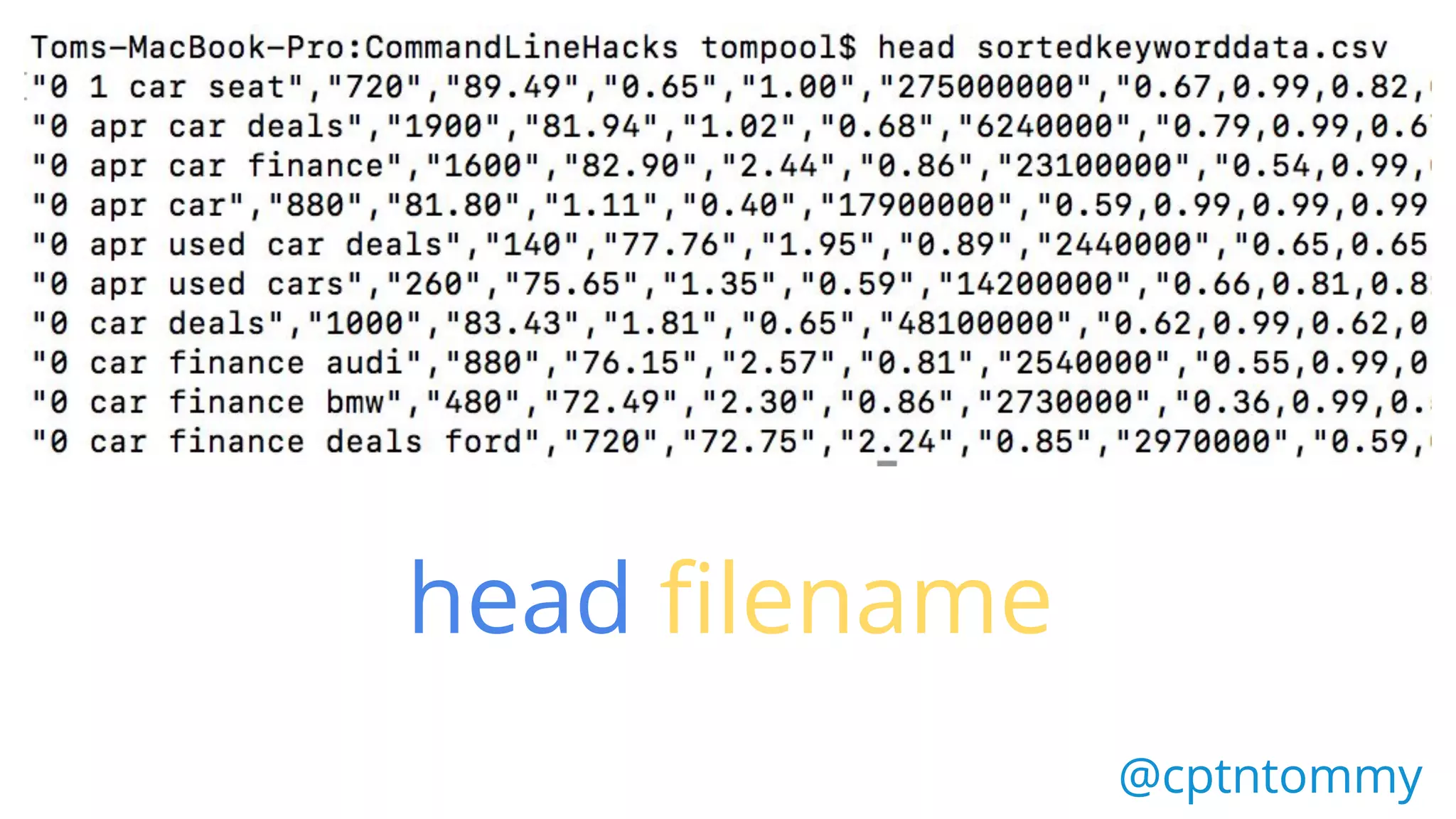
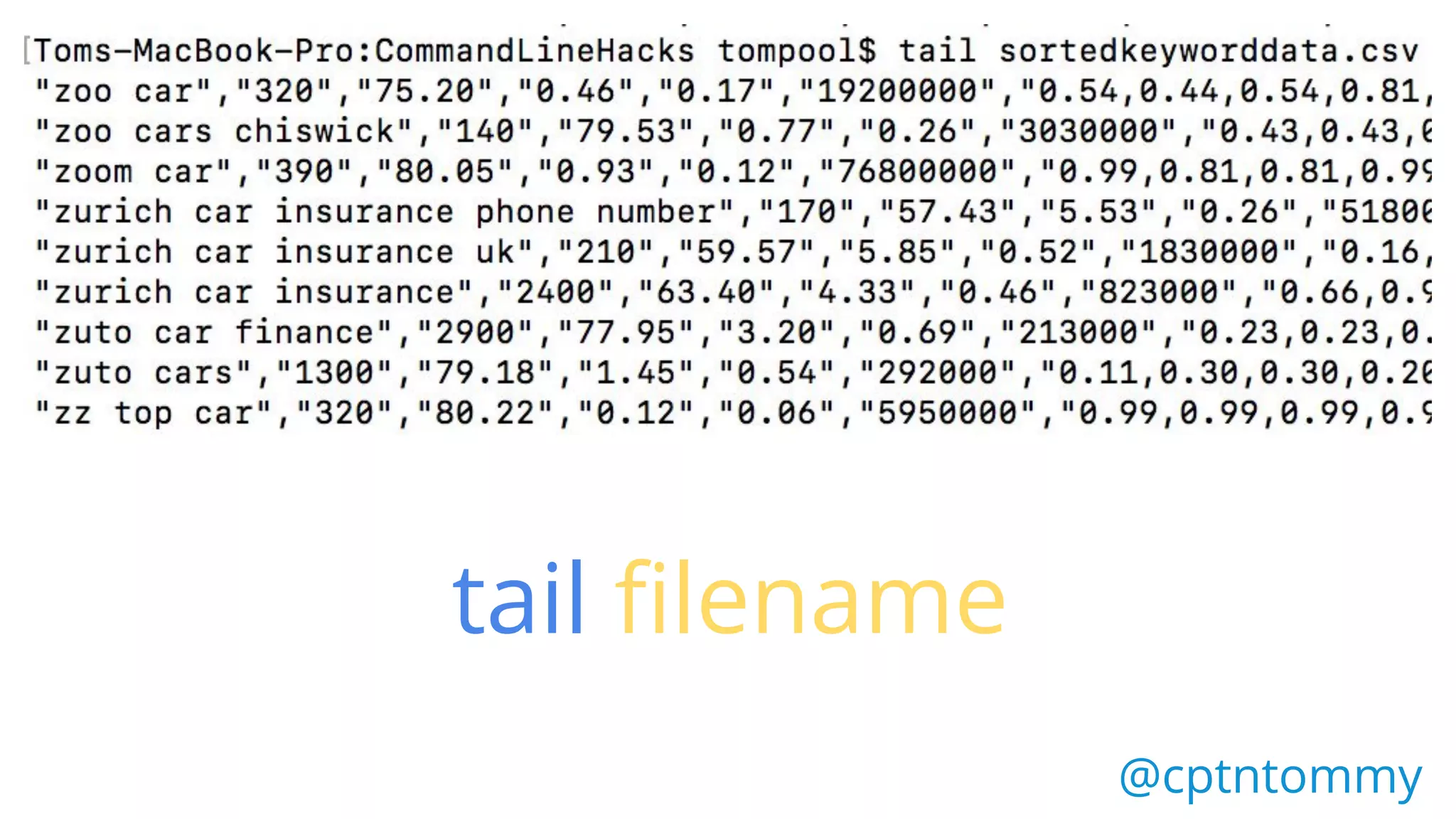
‘Head’ views the first 10 Rows
‘Tail’ views the last 10 Rows
@cptntommy@cptntommy
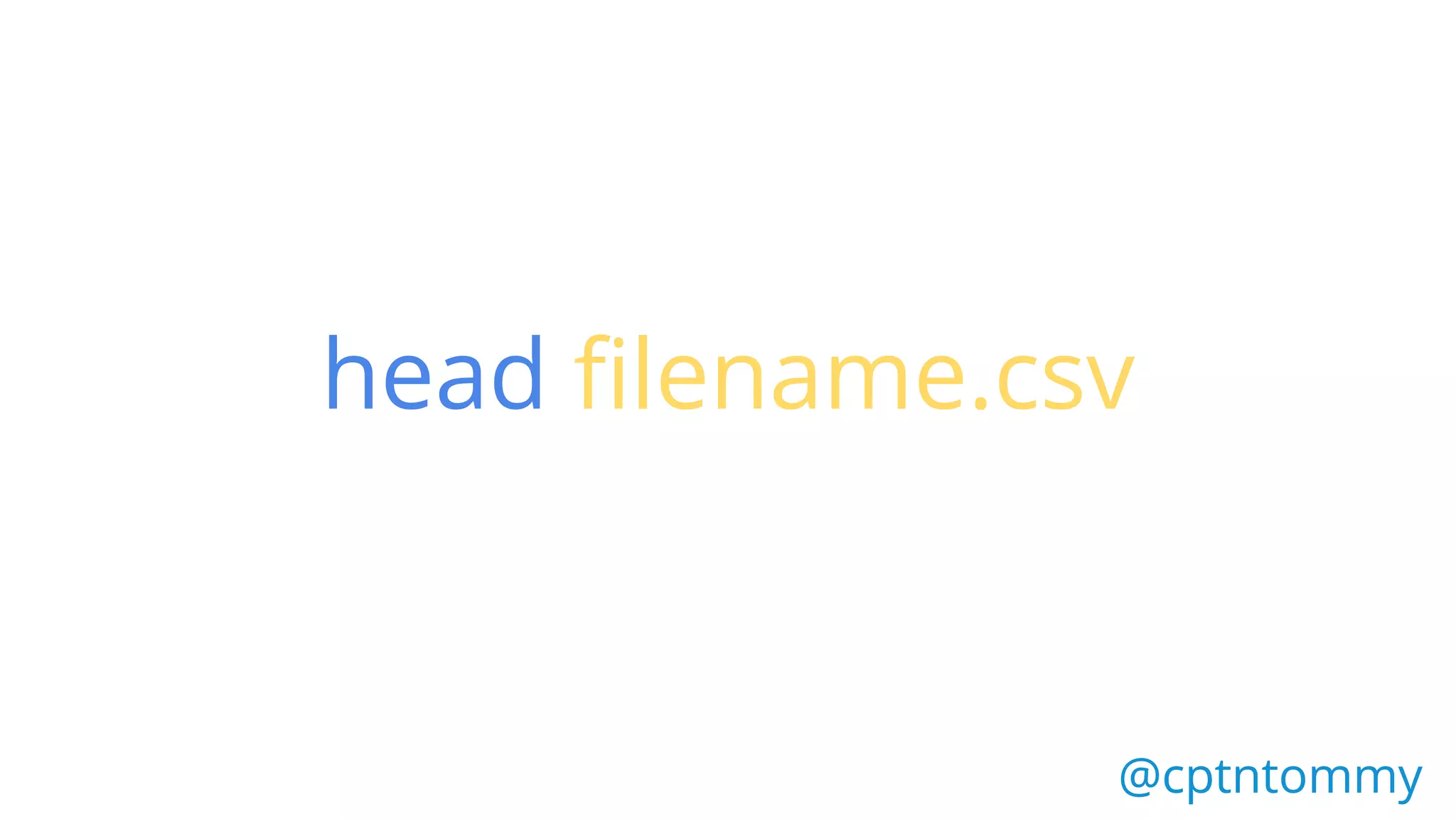
head filename.csv
@cptntommy@cptntommy
head filename
@cptntommy@cptntommy
tail filename
@cptntommy
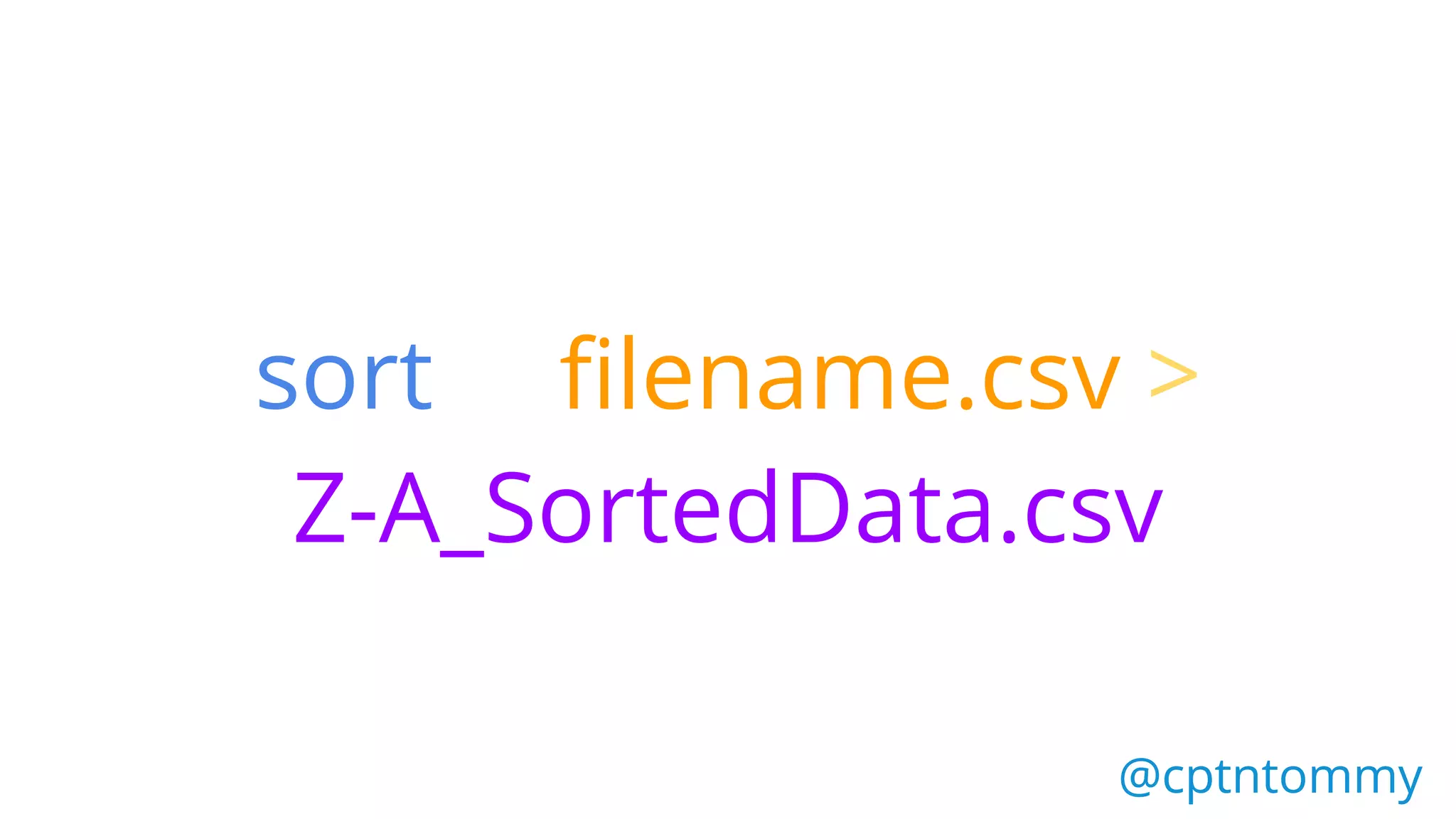
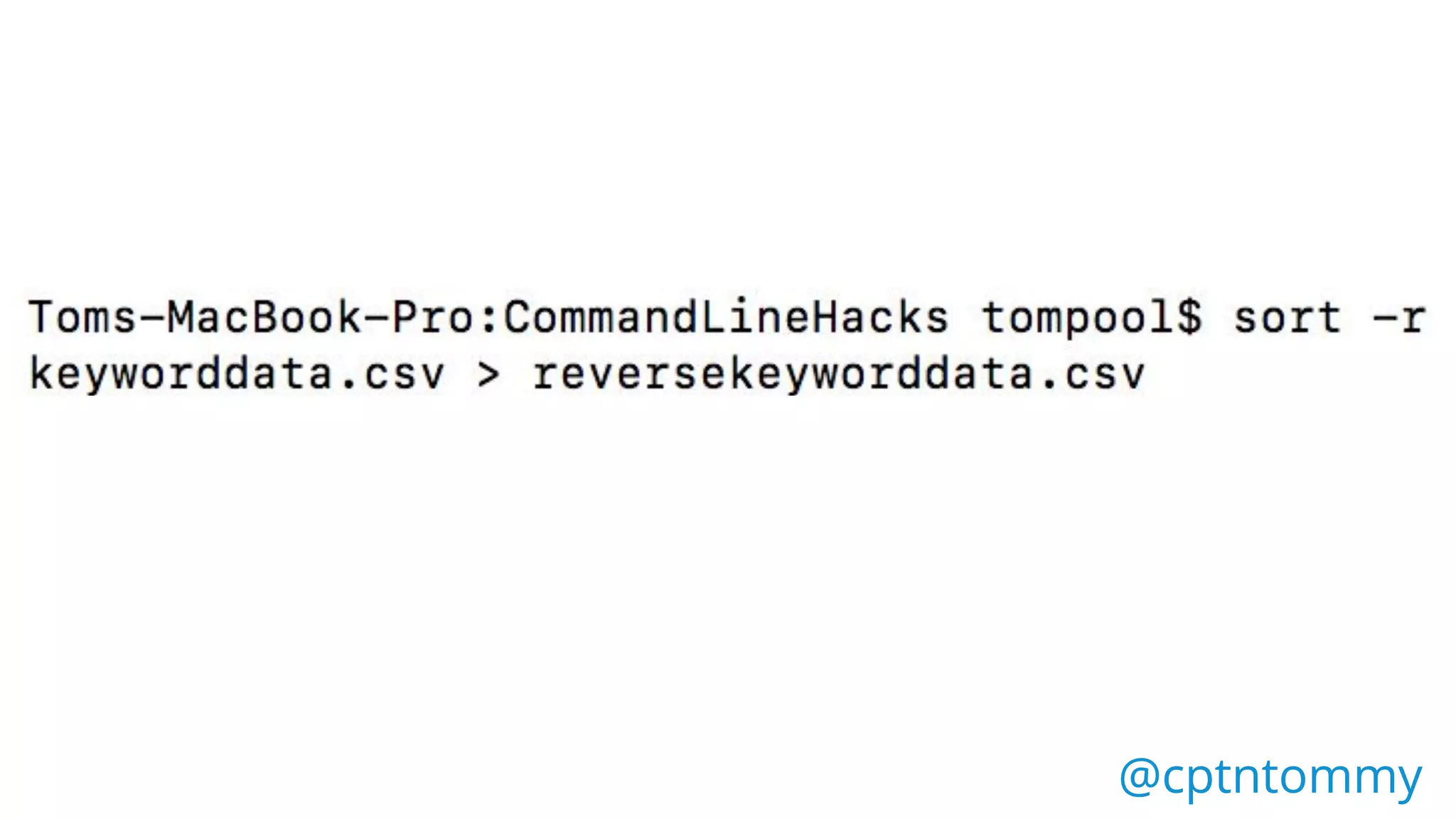
Sort - Z-A
sort filename.csv >
Z-A_SortedData.csv
@cptntommy@cptntommy
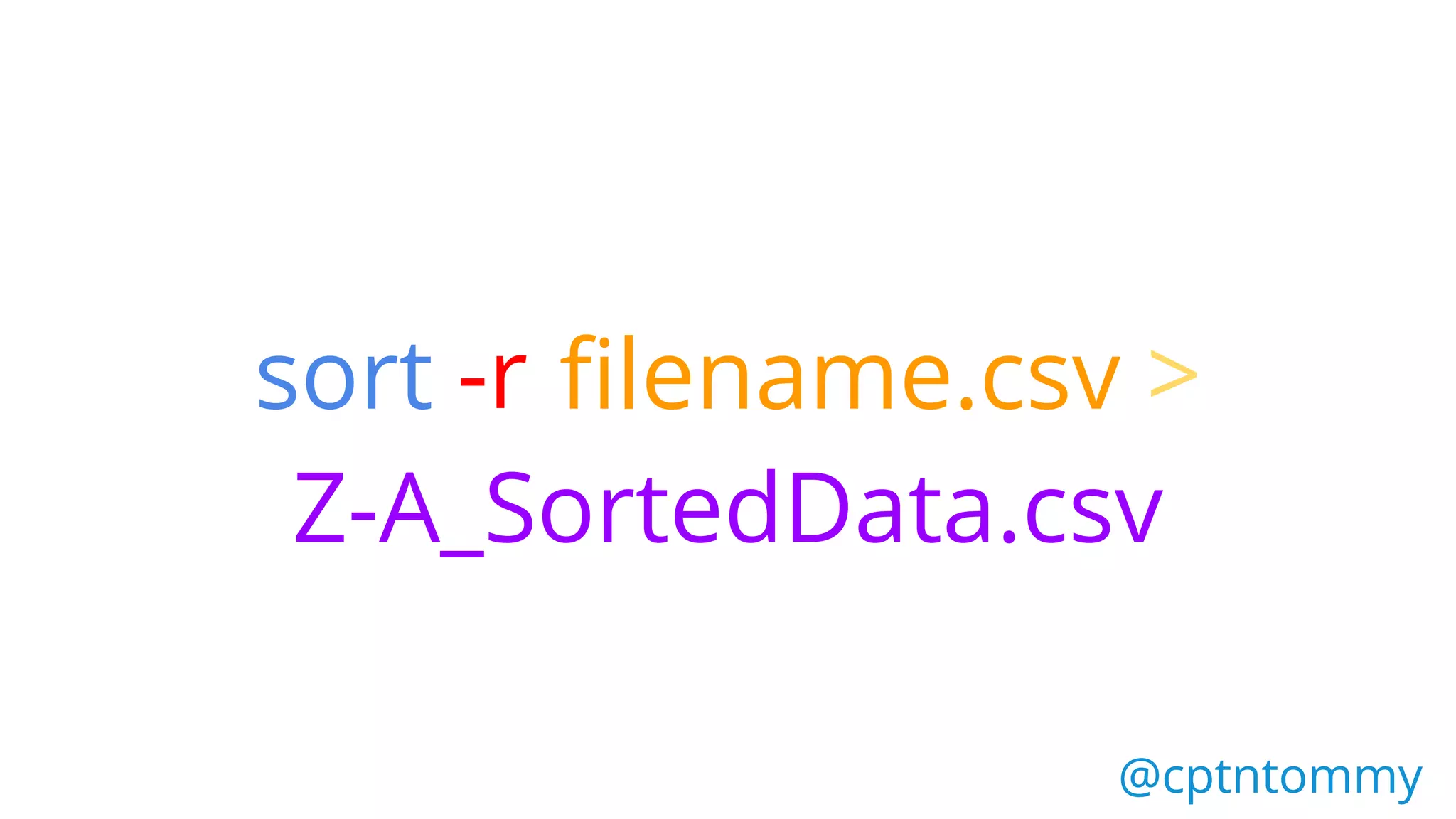
sort filename.csv >
Z-A_SortedData.csv
@cptntommy@cptntommy
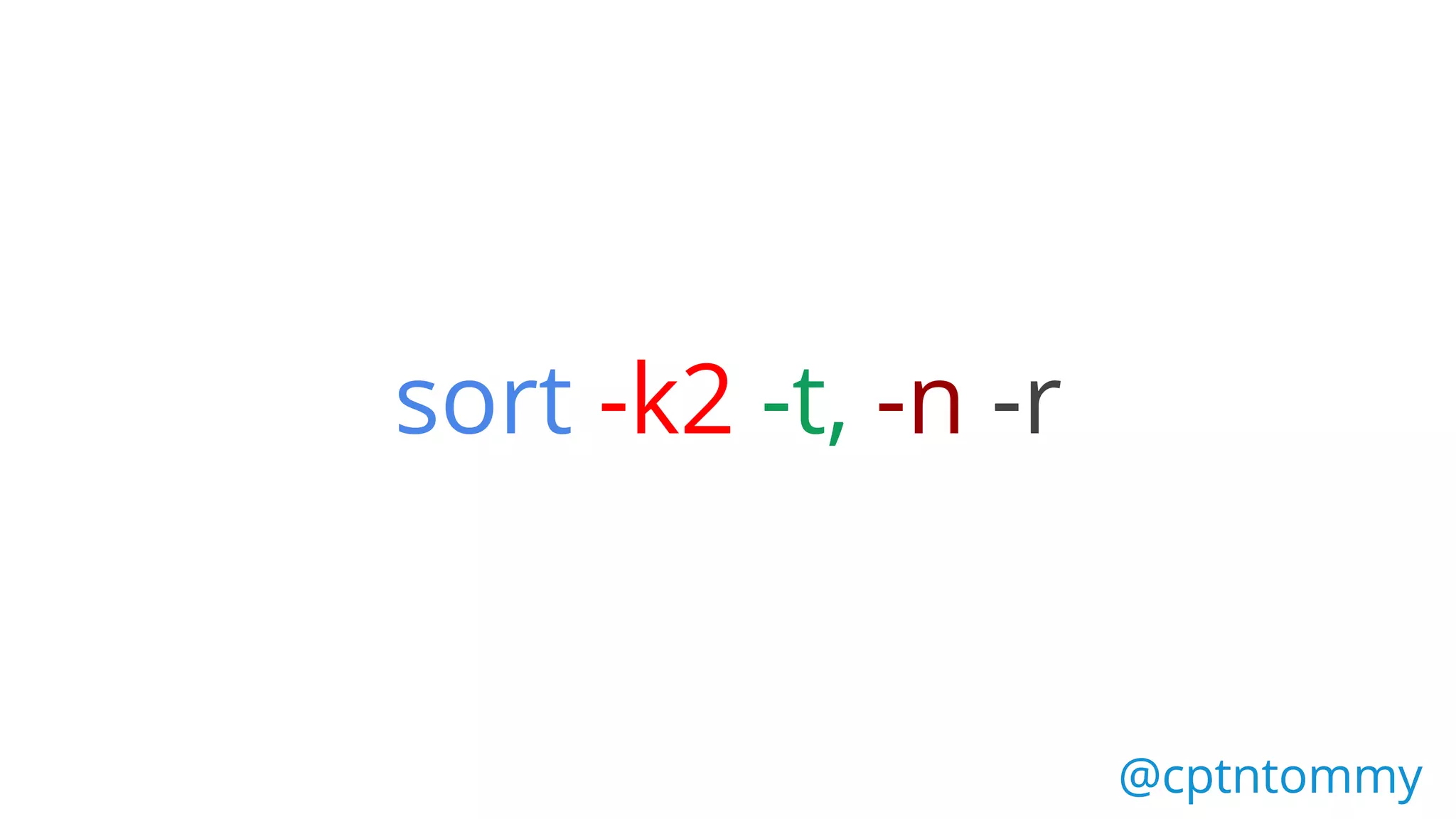
-r
@cptntommy@cptntommy
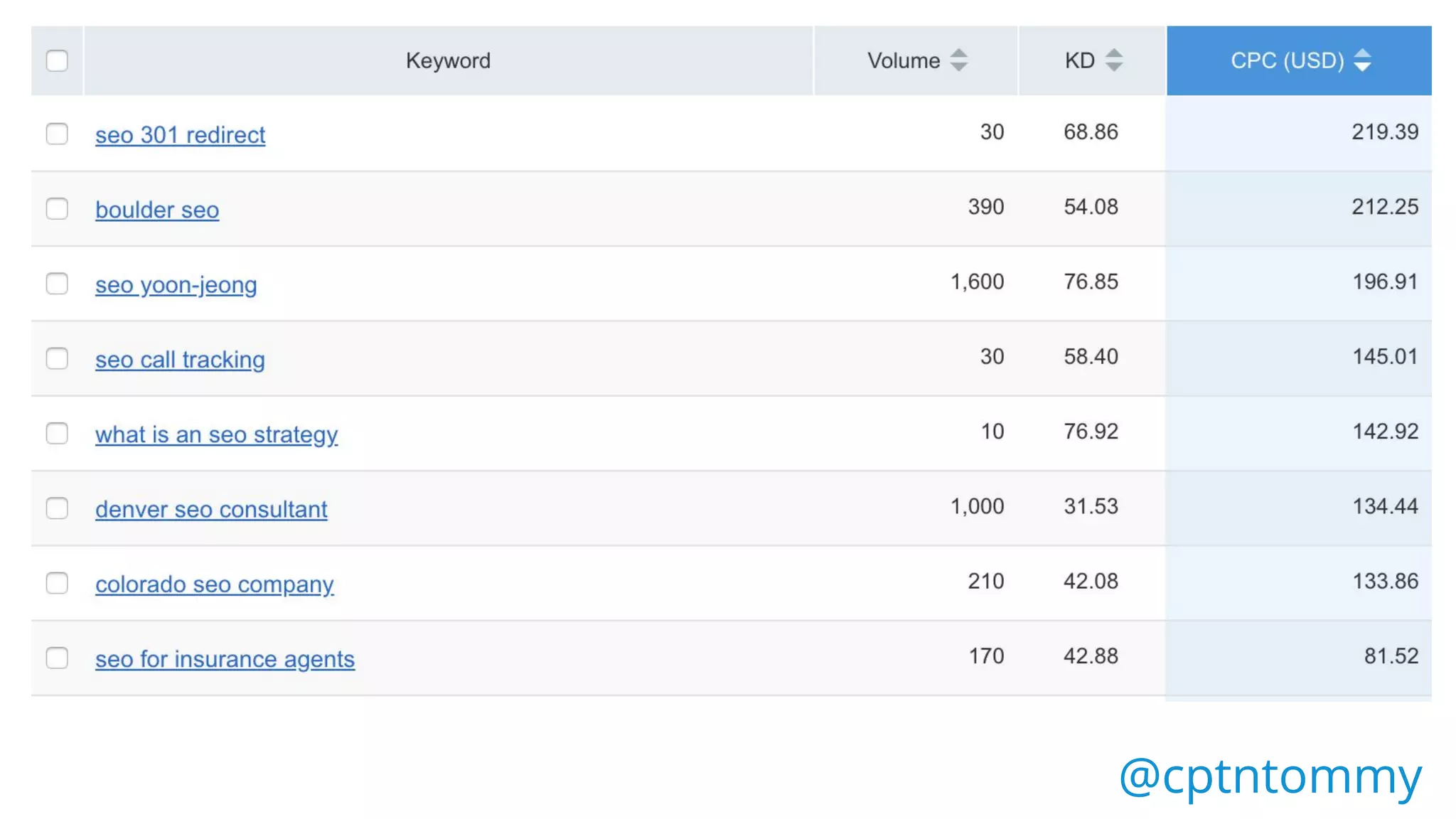
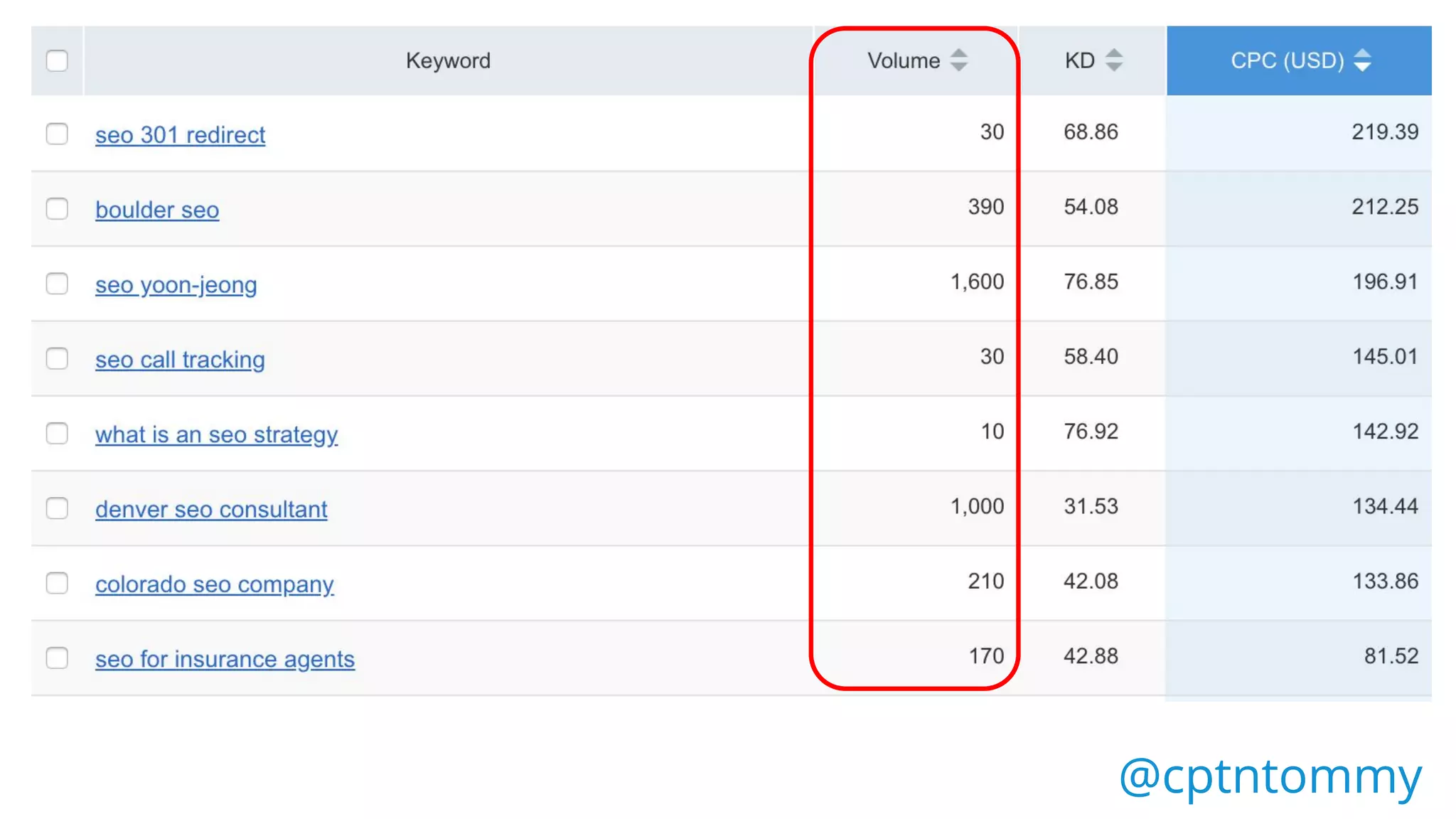
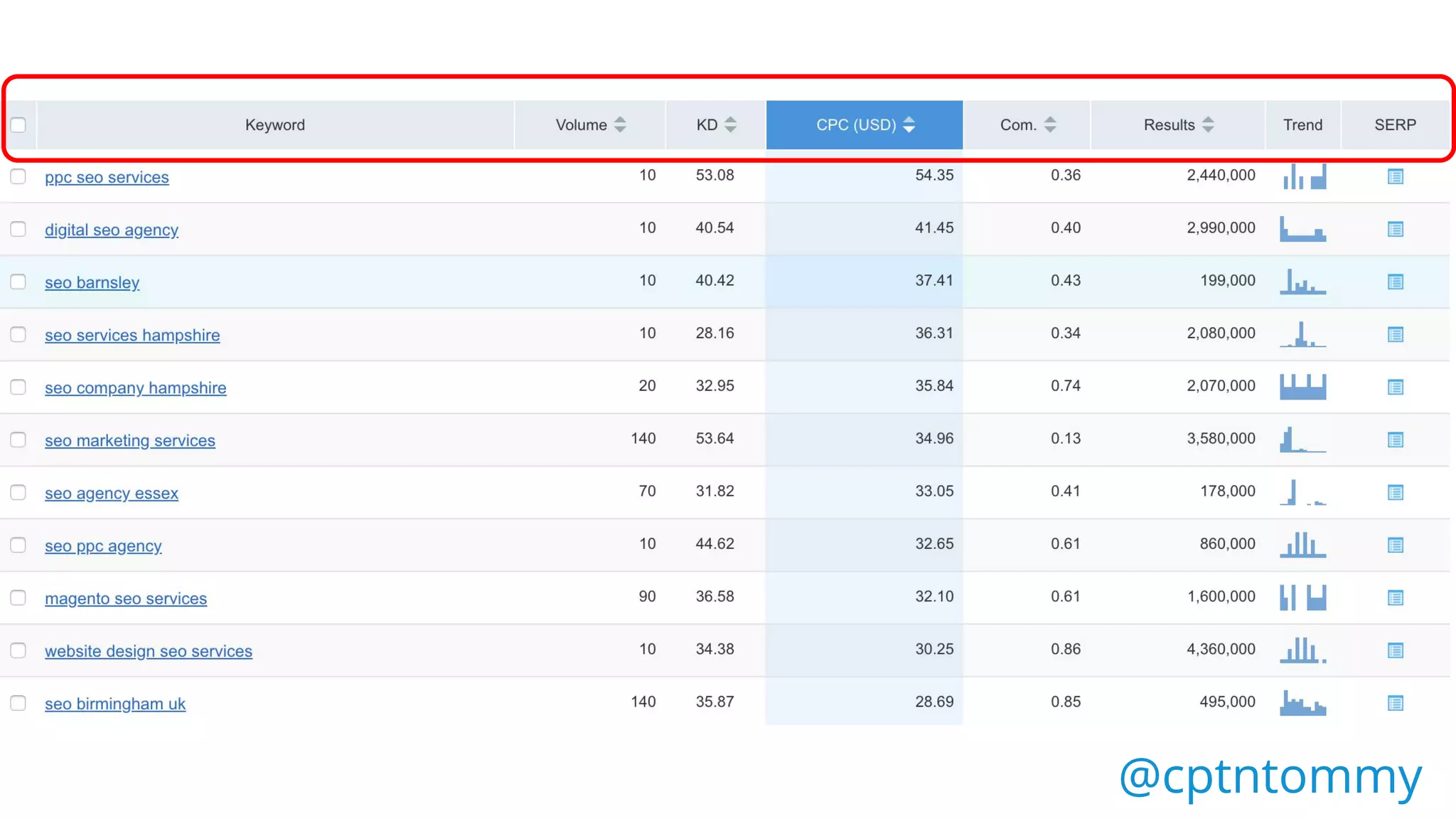
Sort - By Volume
@cptntommy@cptntommy
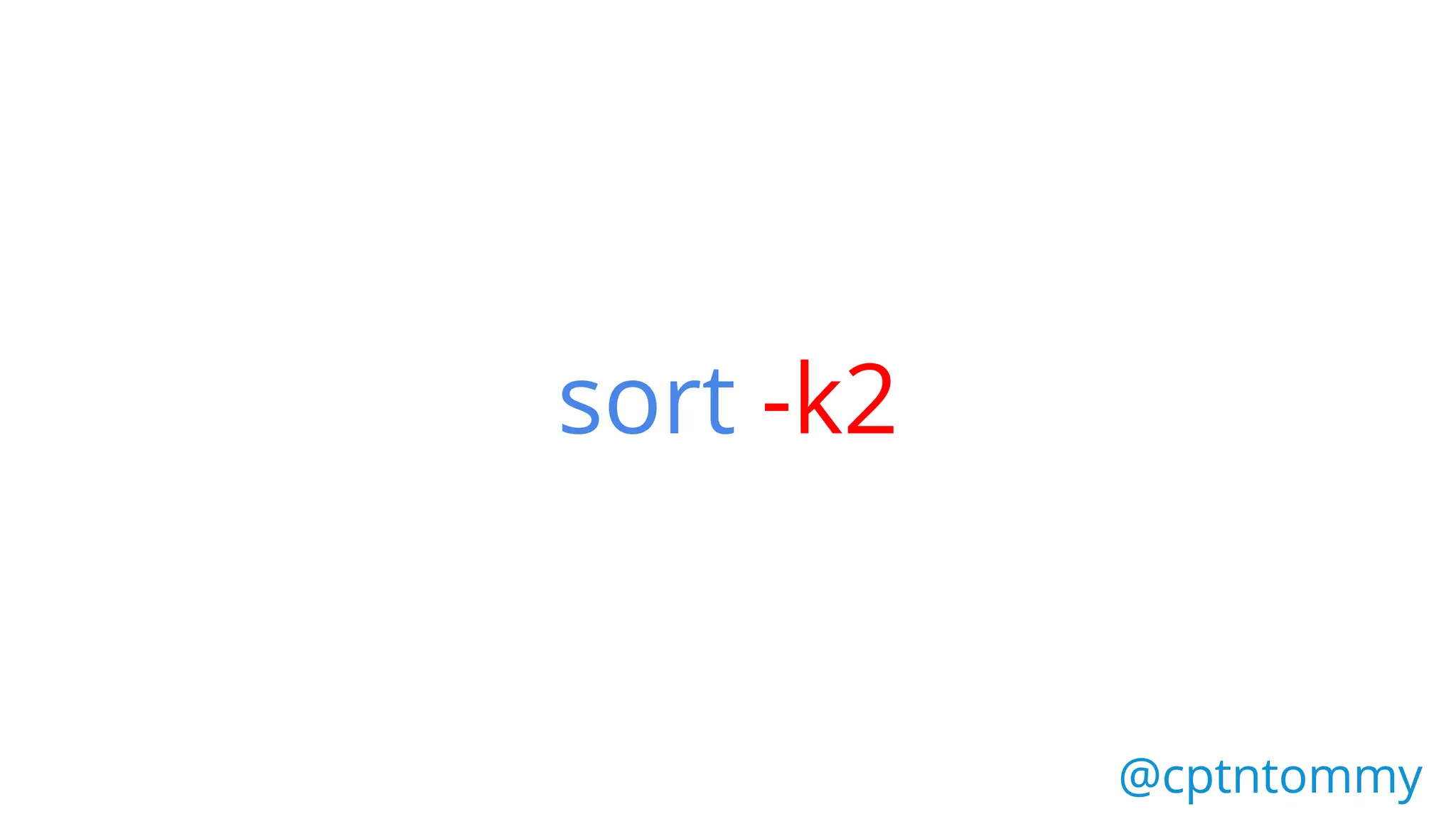
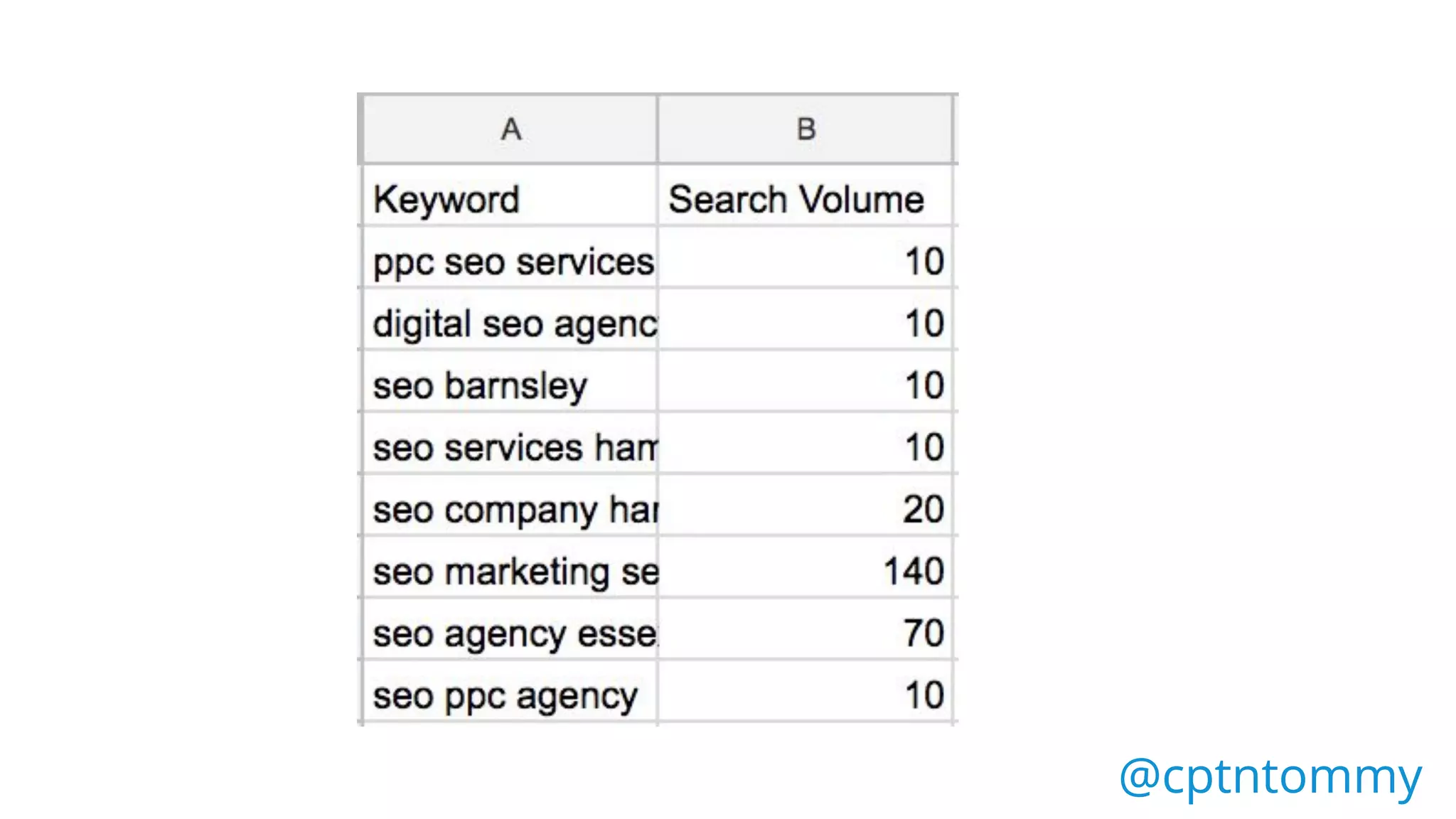
We want to sort by the
second column
@cptntommy@cptntommy
sort
@cptntommy@cptntommy
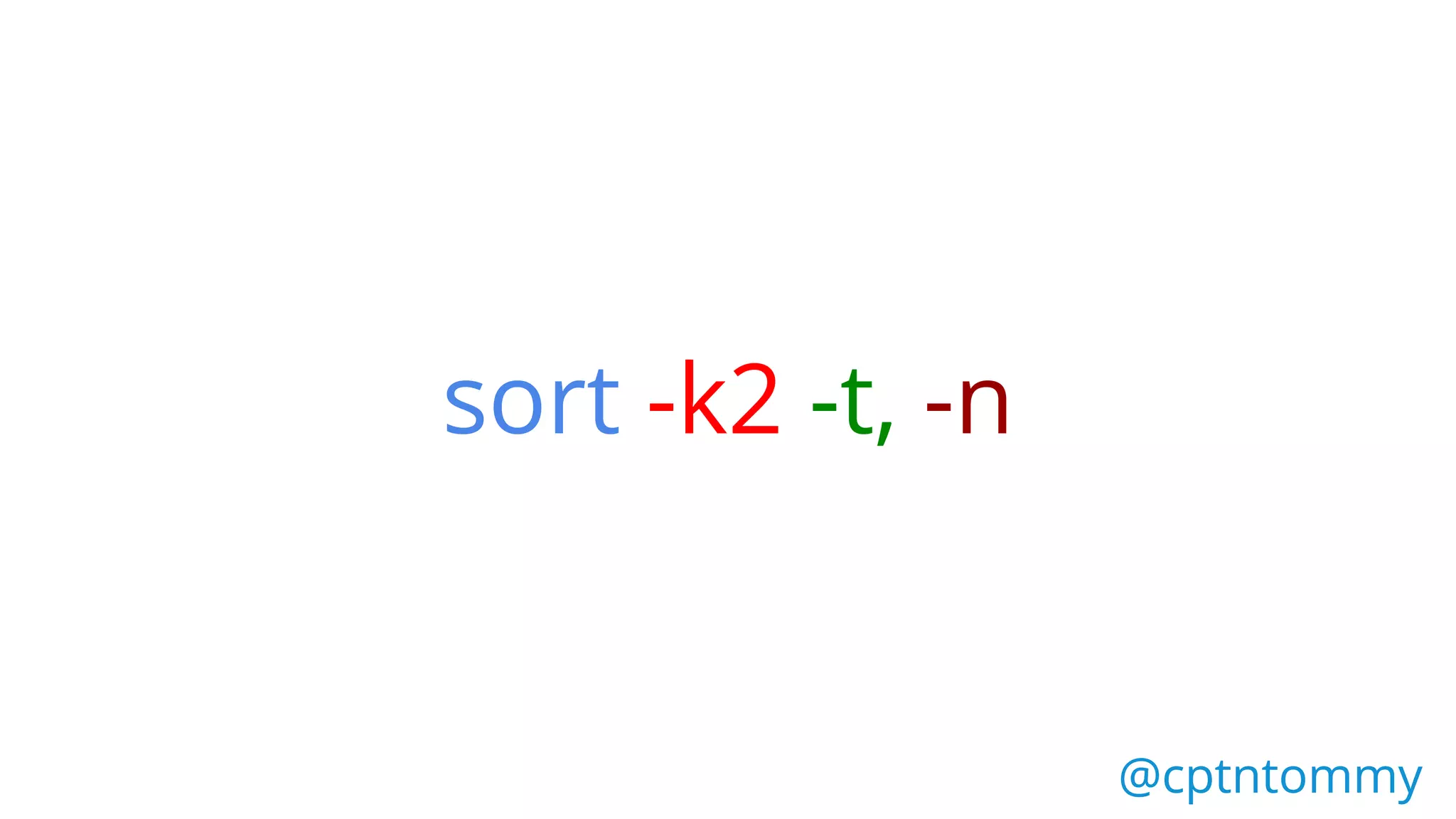
sort -k2
@cptntommy@cptntommy
sort -k2 -t,
@cptntommy@cptntommy
sort -k2 -t, -n
@cptntommy@cptntommy
sort -k2 -t, -n -r
@cptntommy@cptntommy
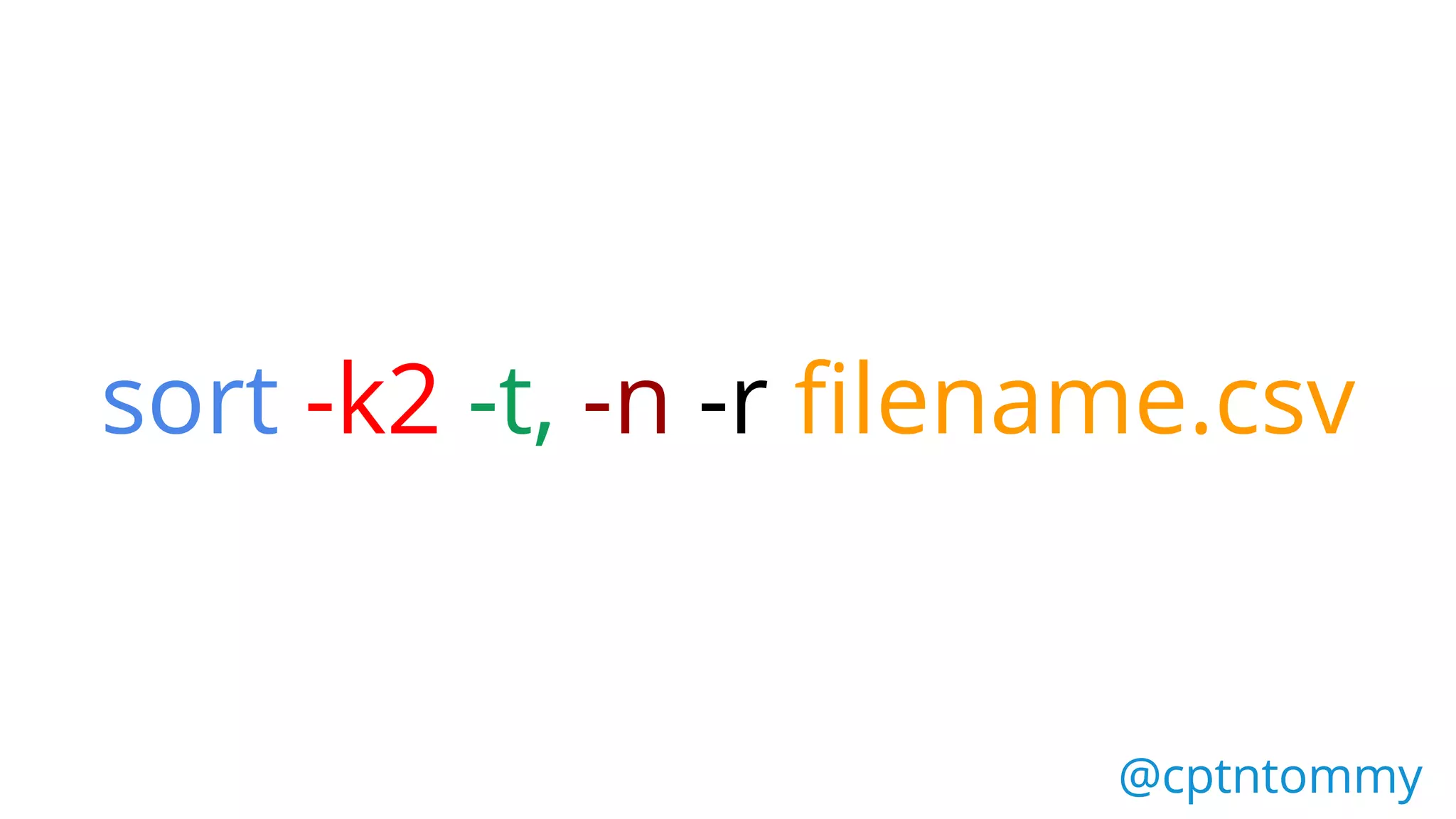
sort -k2 -t, -n -r filename.csv
@cptntommy@cptntommy
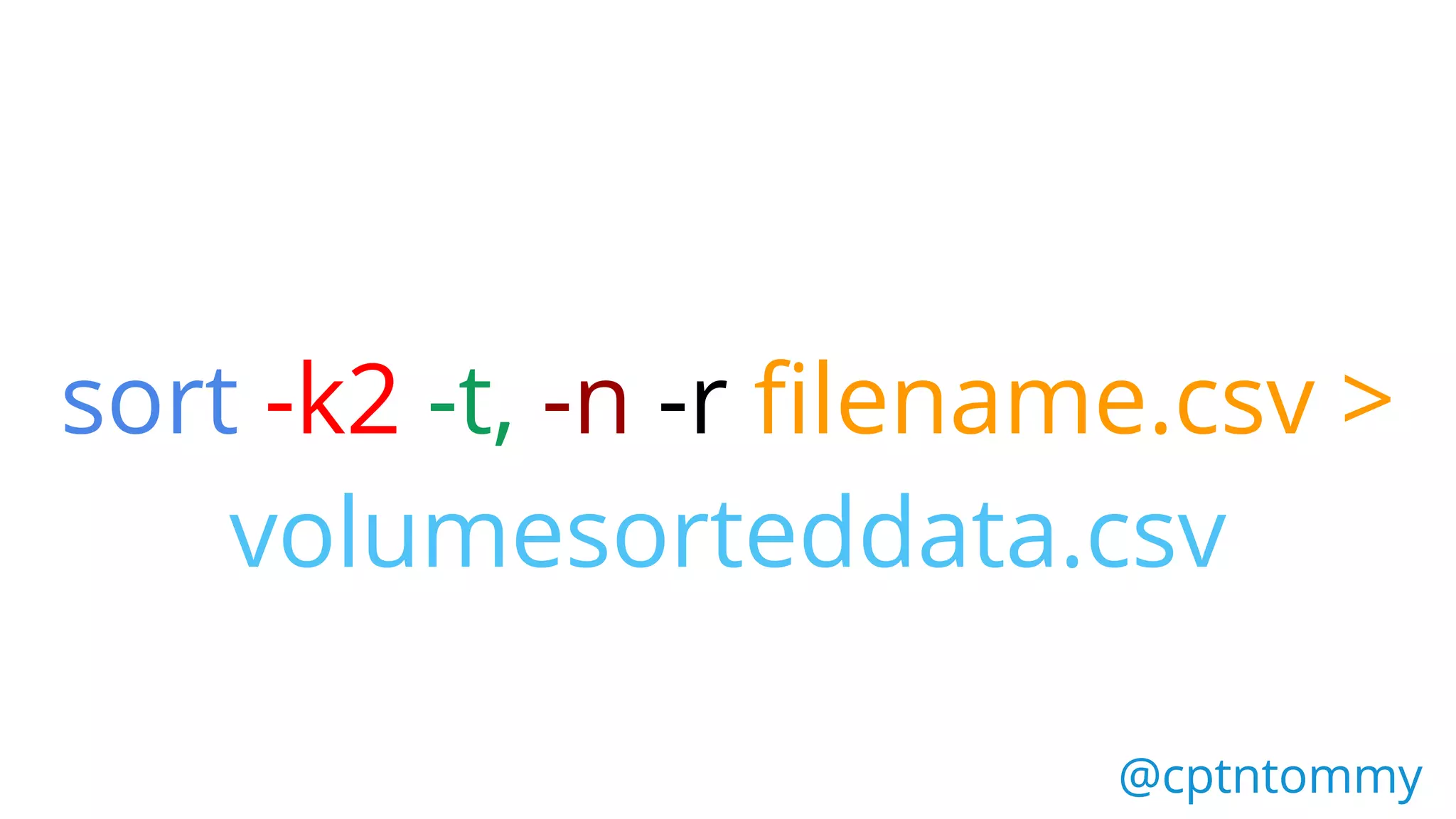
sort -k2 -t, -n -r filename.csv >
volumesorteddata.csv
@cptntommy@cptntommy
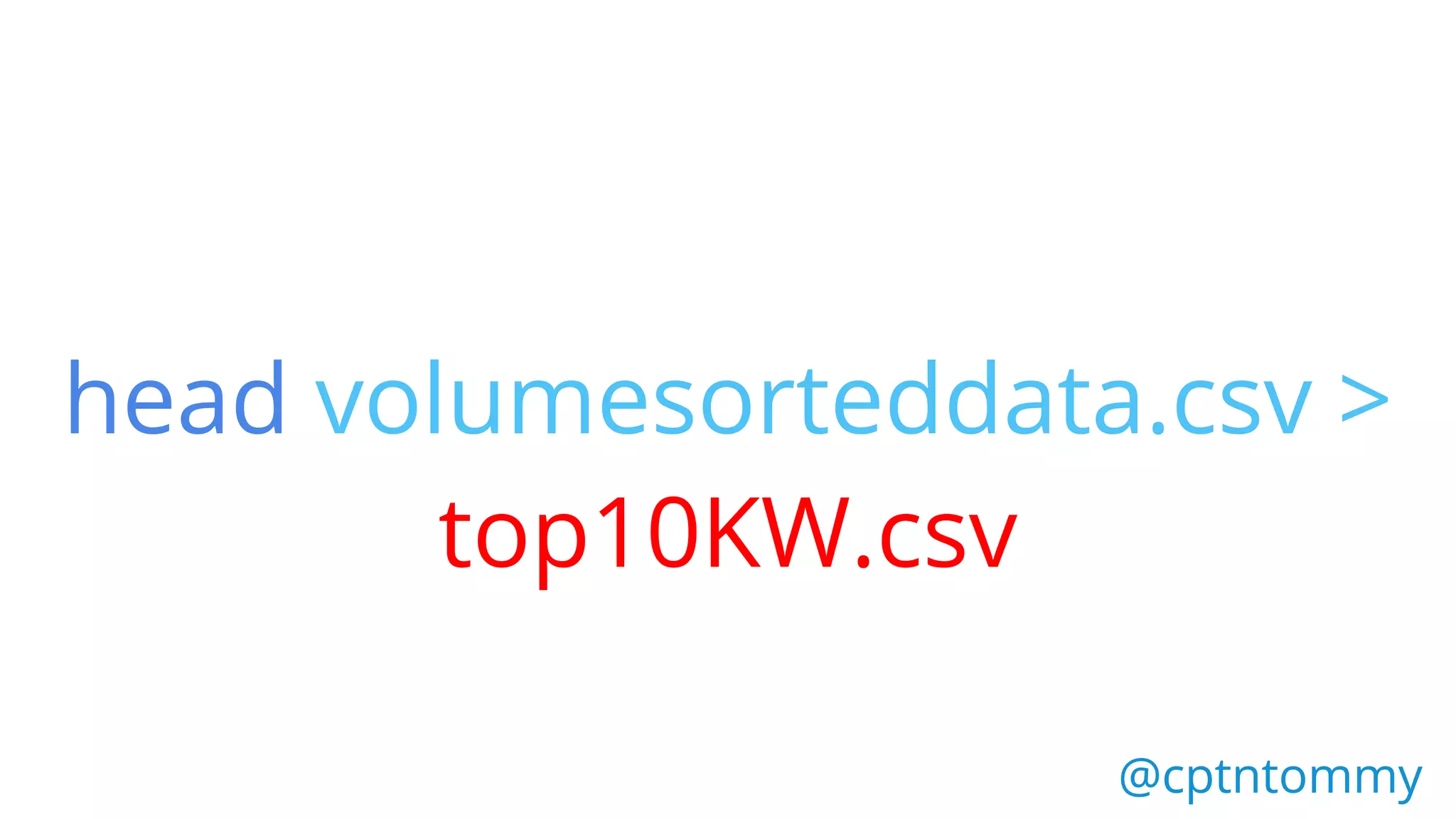
head volumesorteddata.csv >
top10KW.csv
@cptntommy@cptntommy
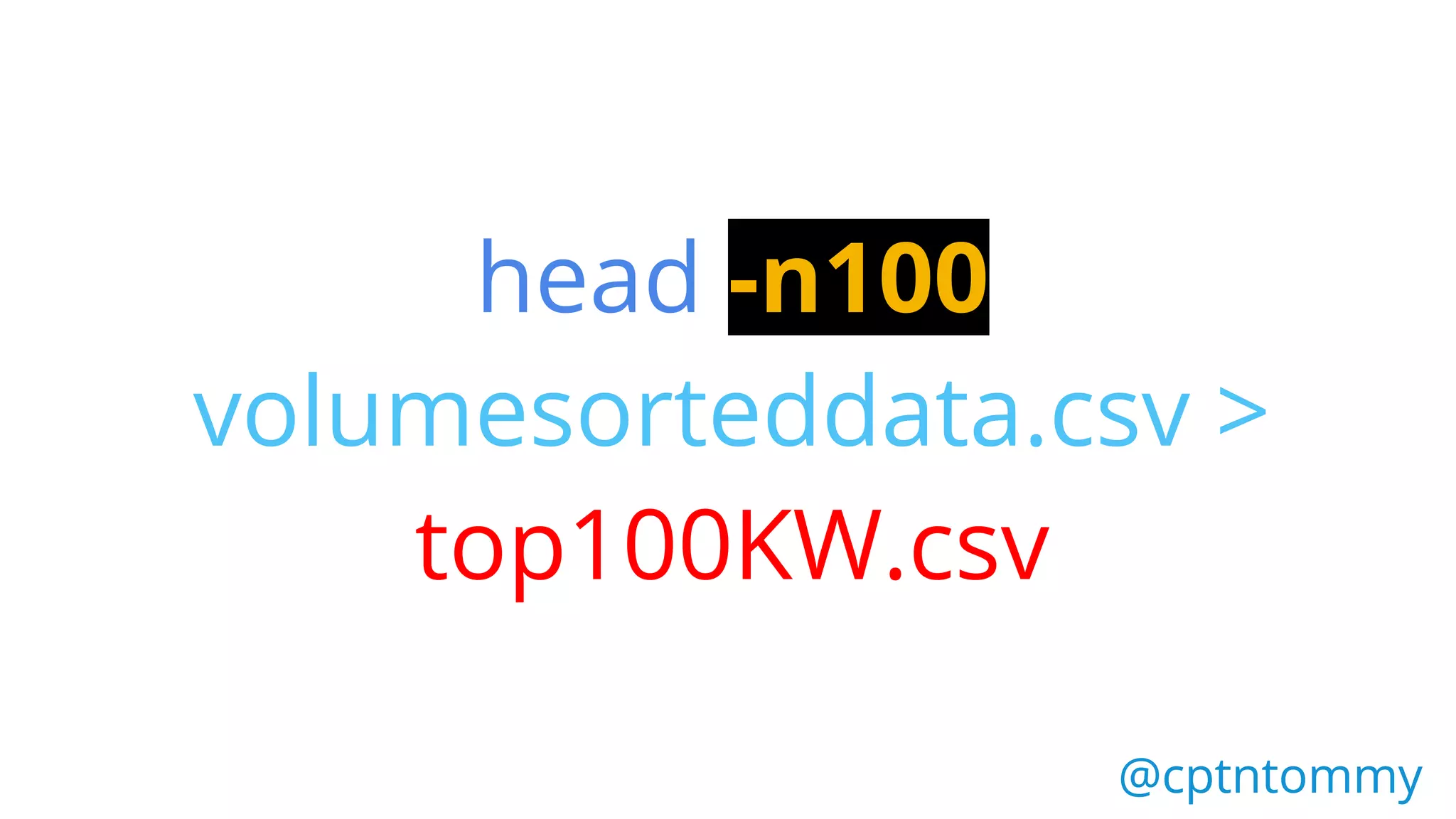
head -n100
volumesorteddata.csv >
top100KW.csv
@cptntommy@cptntommy
Here sort has been used to:
Sort by Number,
Sort by A-Z,
Sort by Z-A
@cptntommy@cptntommy
We have also used head/tail to;
Extract the top 10,
Top 100
Save these to a file
@cptntommy@cptntommy
Title
@cptntommy@cptntommy
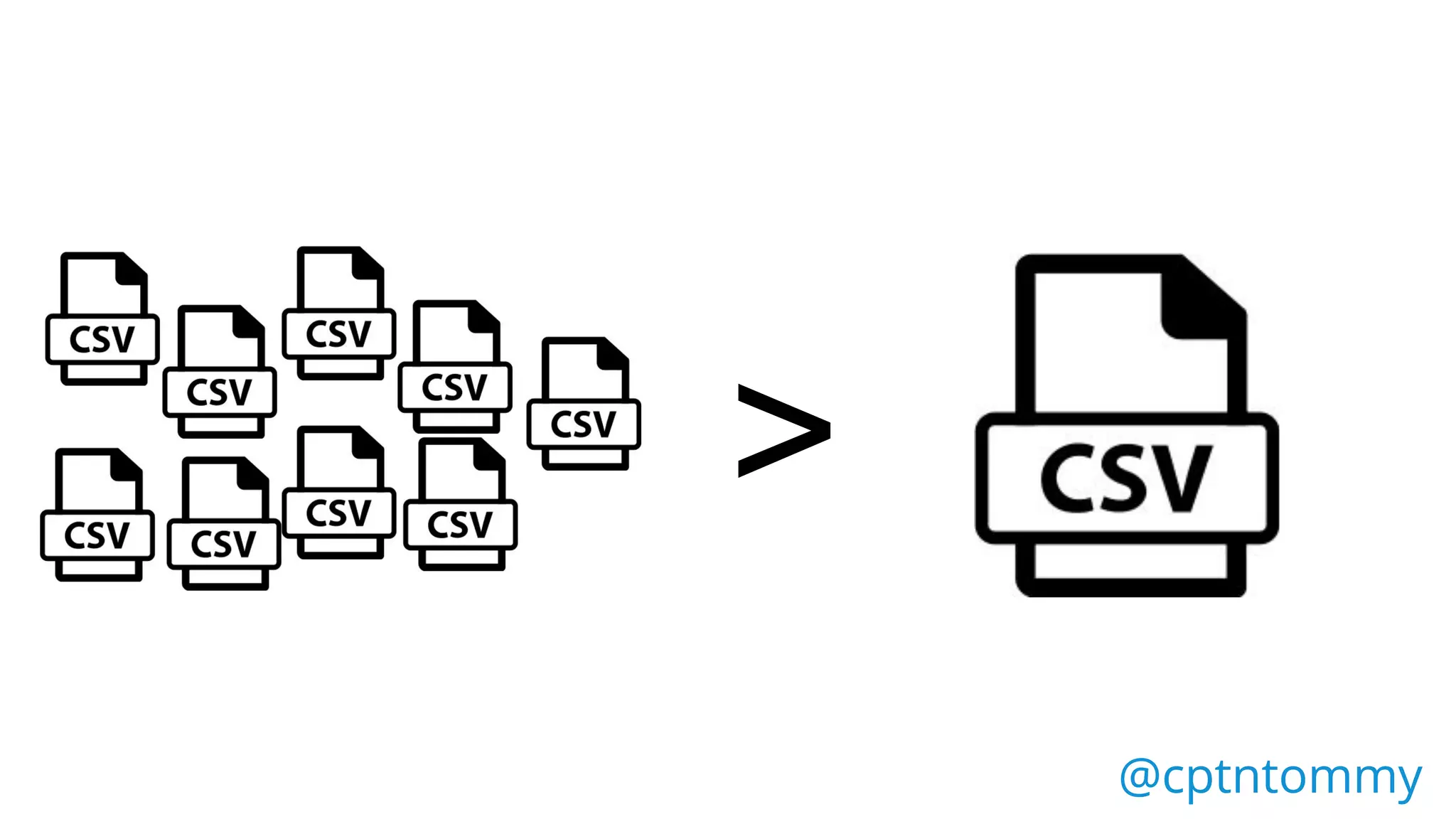
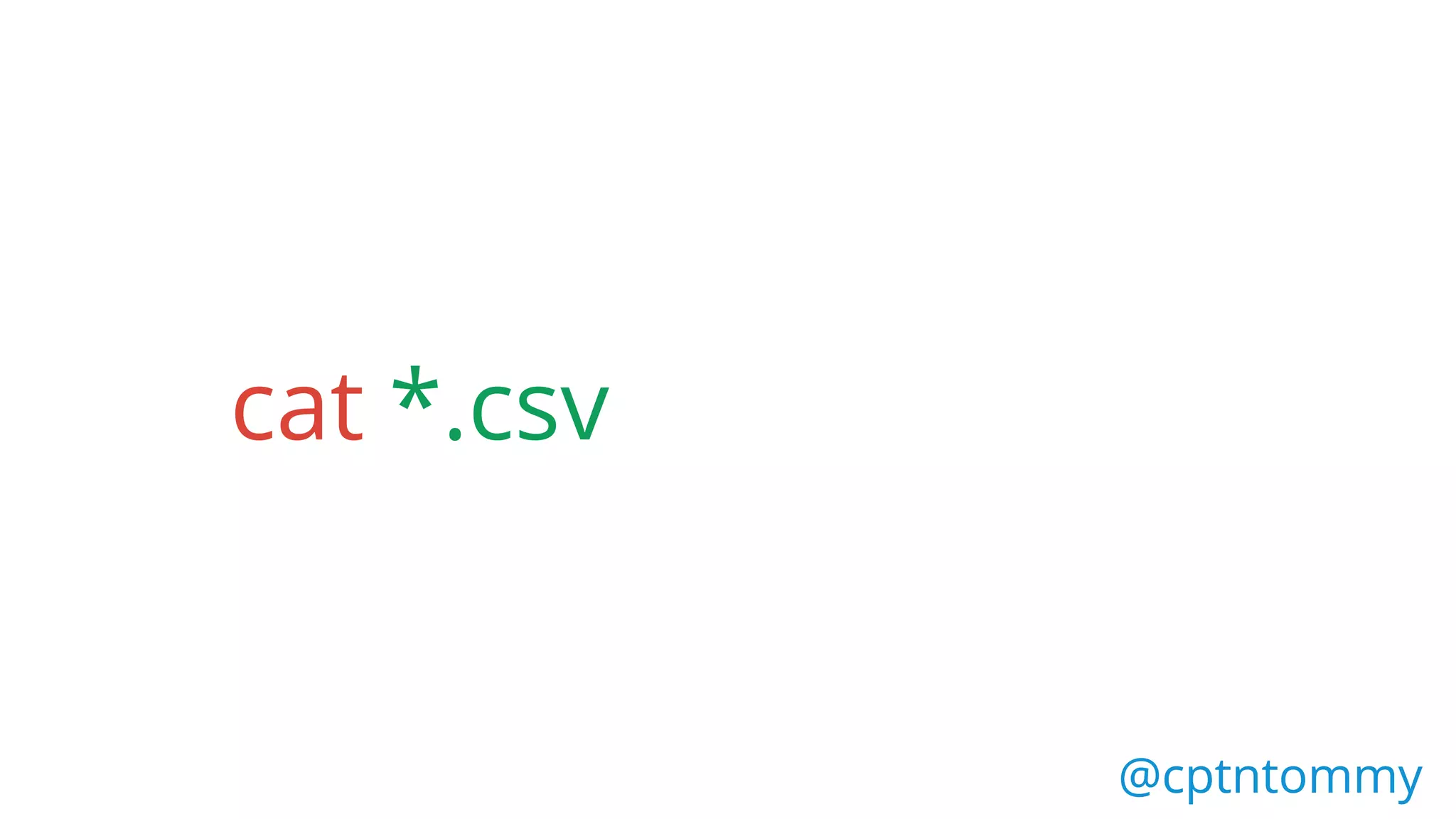
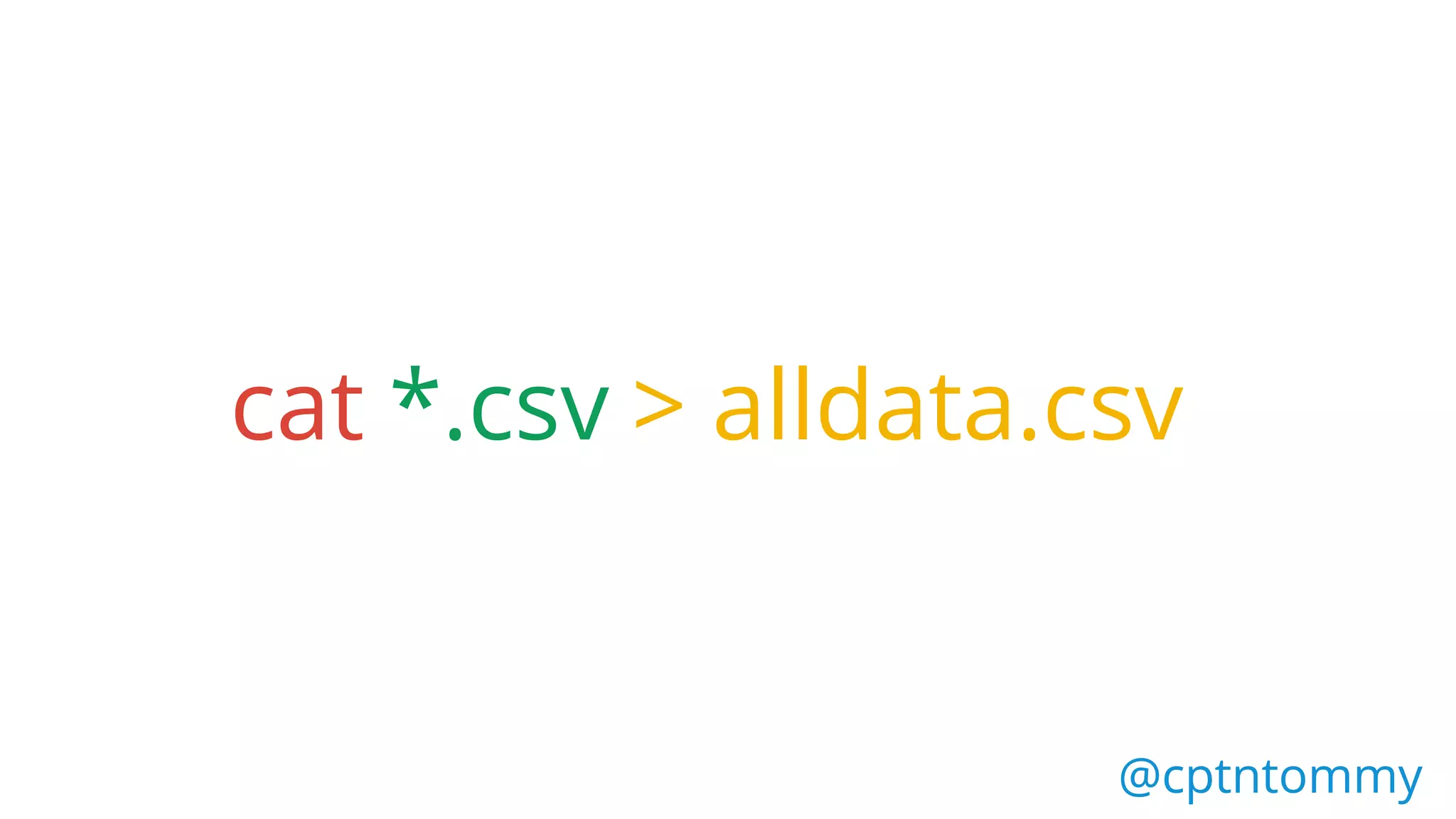
cat - short for “concatenate”
@cptntommy@cptntommy
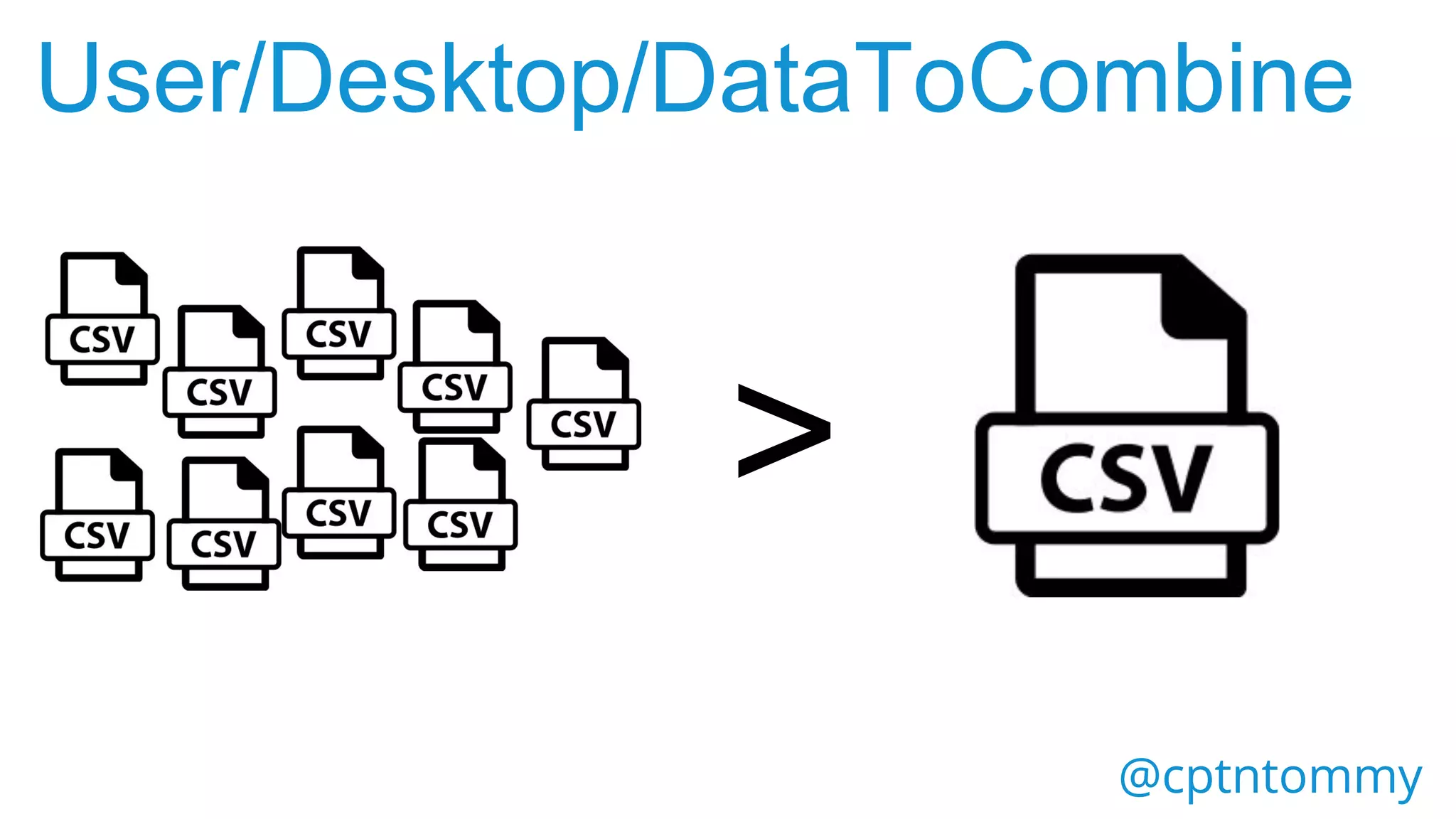
Used to display, combine &
create files
@cptntommy@cptntommy
>
@cptntommy@cptntommy
cat
@cptntommy@cptntommy
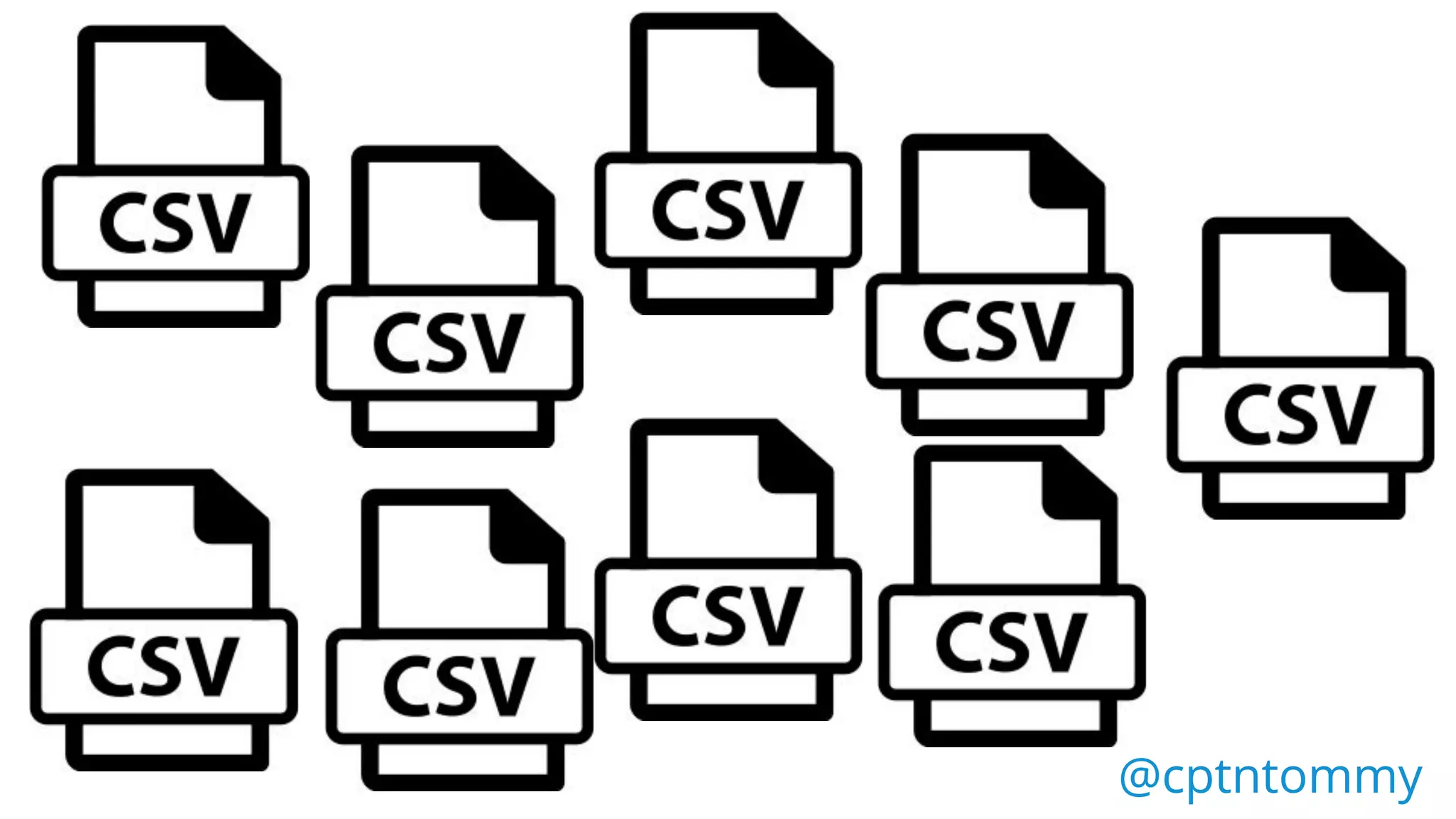
cat *.csv
@cptntommy@cptntommy
cat *.csv > alldata.csv
@cptntommy@cptntommy
>
User/Desktop/DataToCombine
sed
@cptntommy@cptntommy
Short for "stream editor",
allows you to filter and
transform text.
@cptntommy@cptntommy
Adding text to rows
@cptntommy
@cptntommy@cptntommy
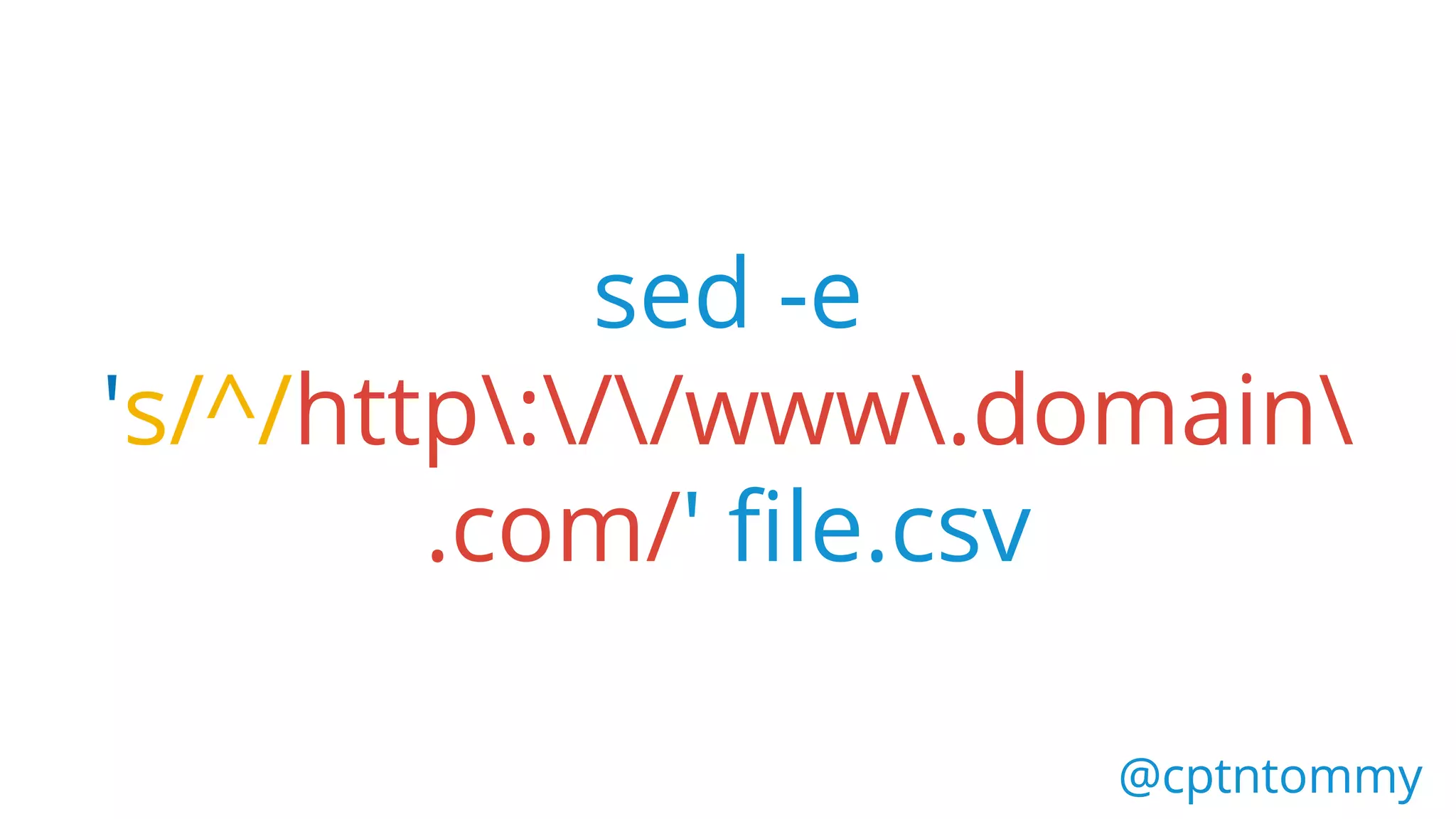
Use sed to add protocol &
domain at start of each line
@cptntommy@cptntommy
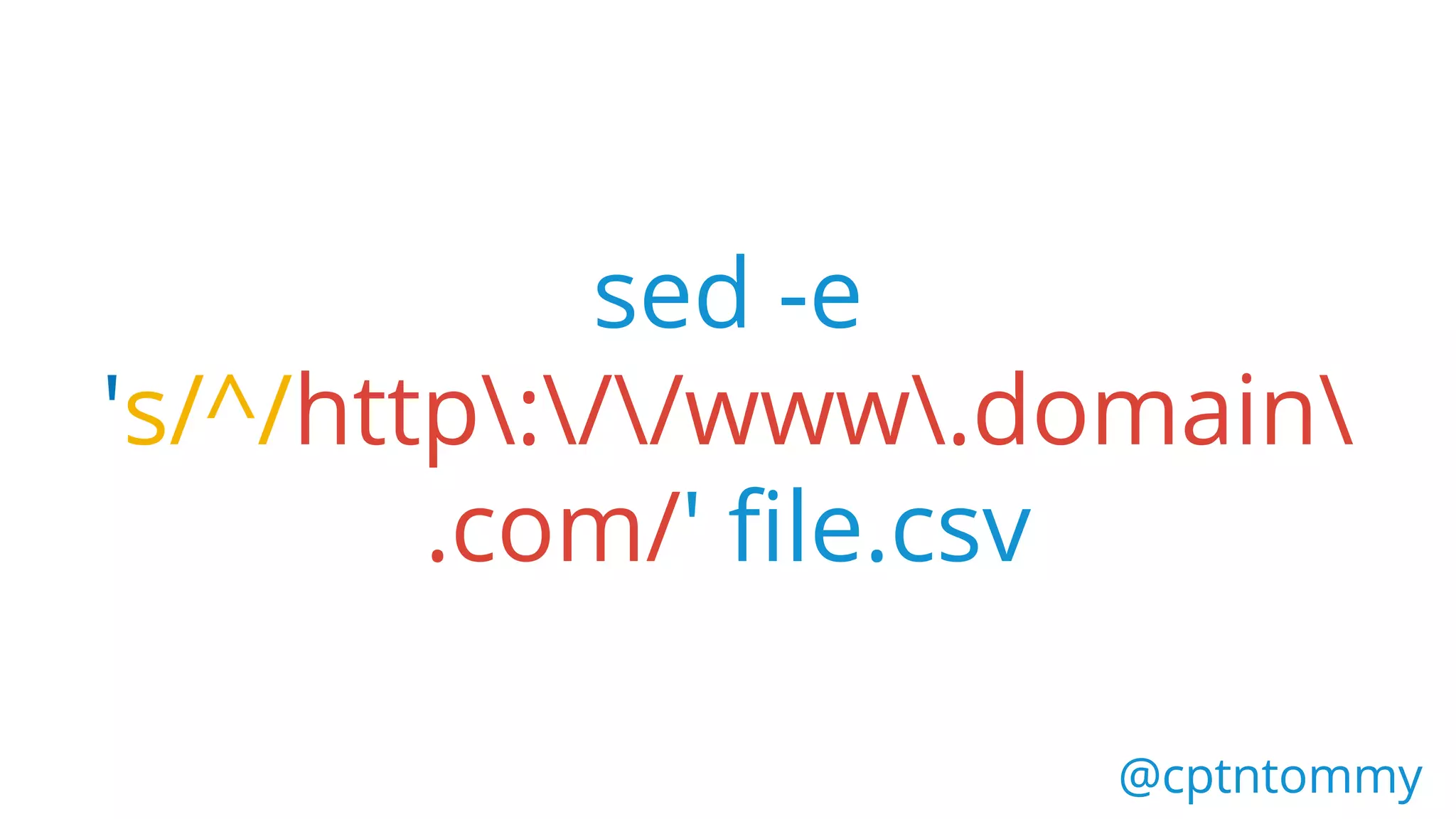
sed -e
's/^/http://www.domain
.com/' file.csv
@cptntommy@cptntommy
REGEX!!
@cptntommy@cptntommy
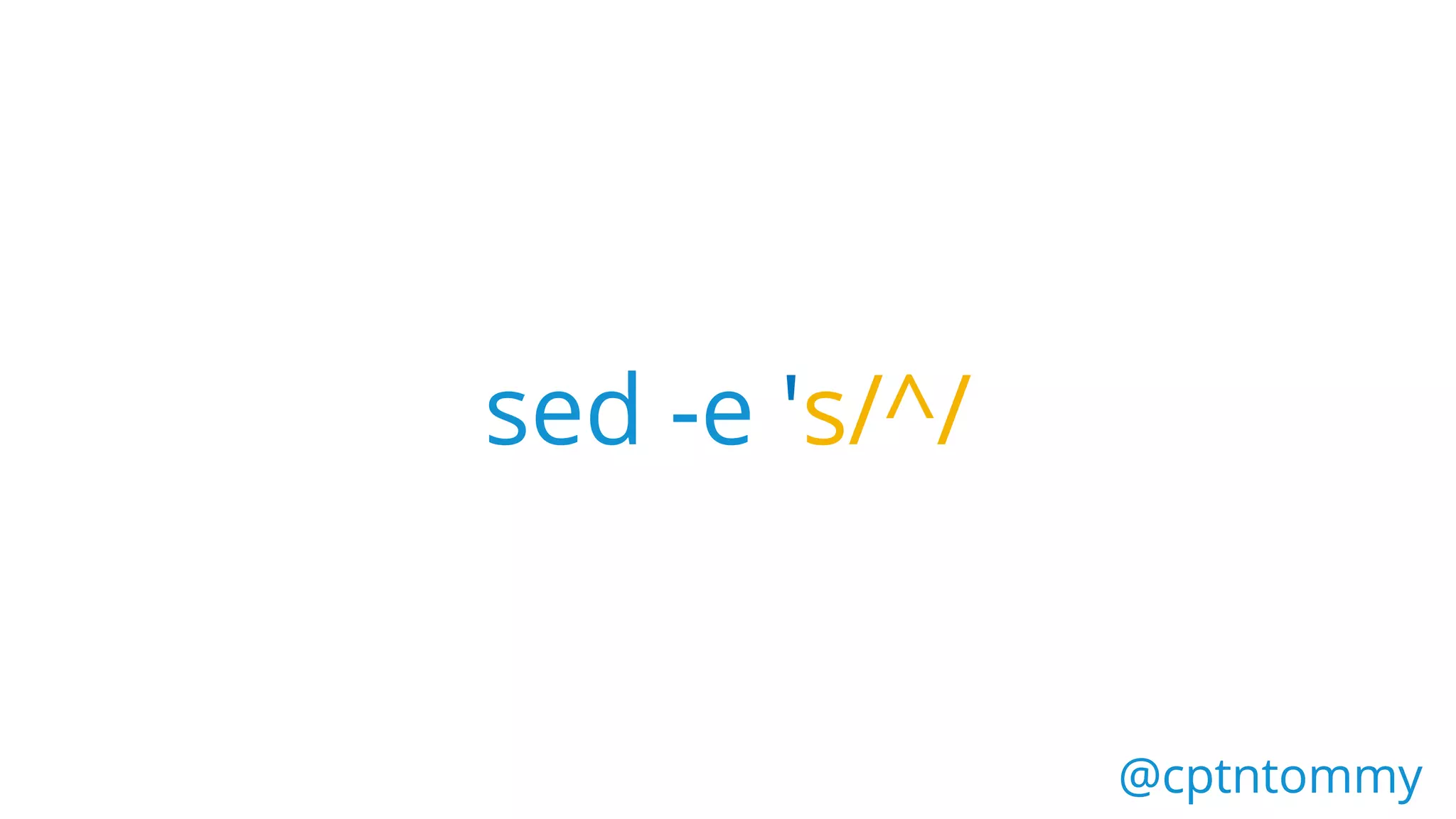
sed -e 's/^/
@cptntommy@cptntommy
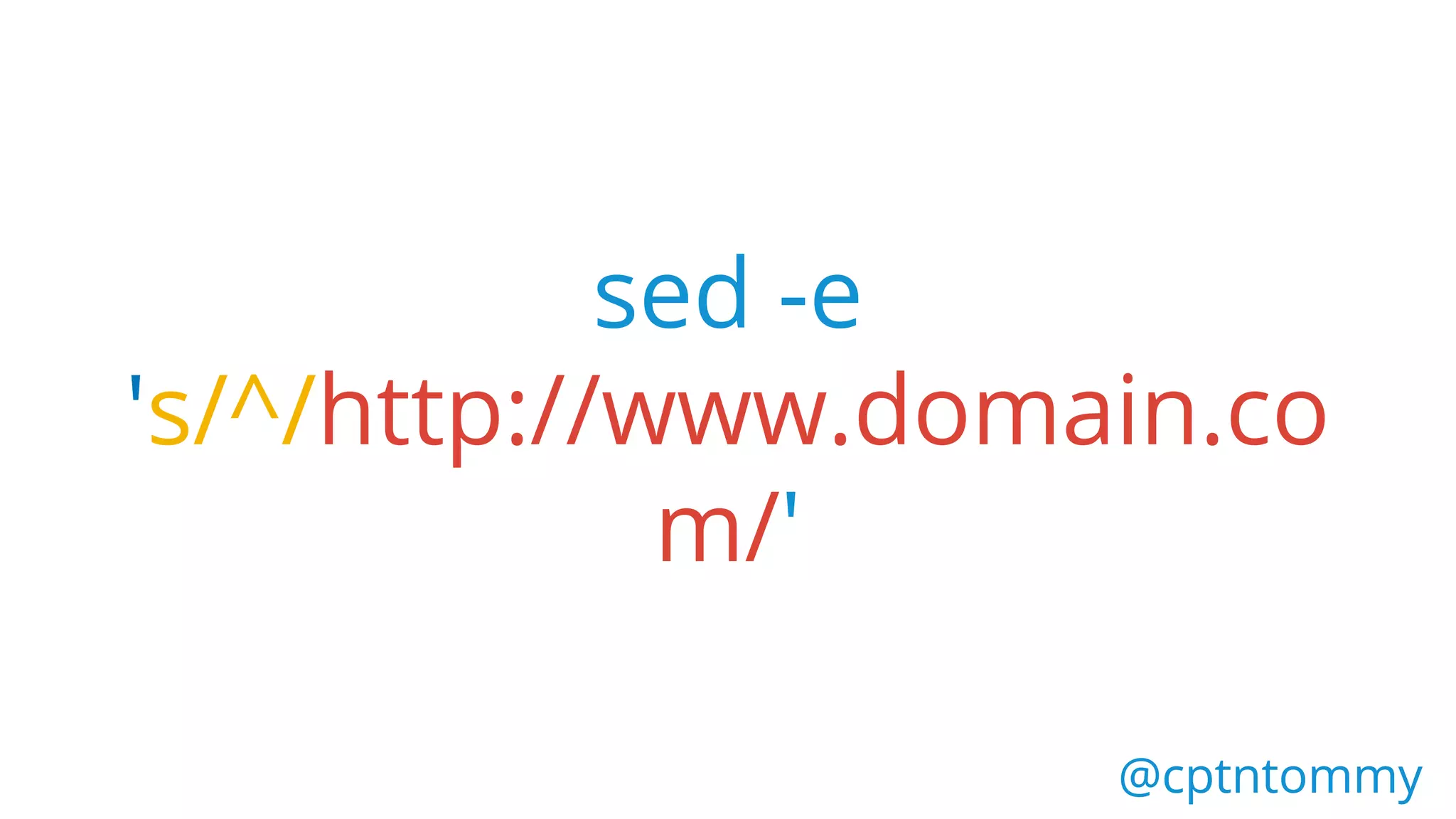
sed -e
's/^/http://www.domain.co
m/'
@cptntommy@cptntommy
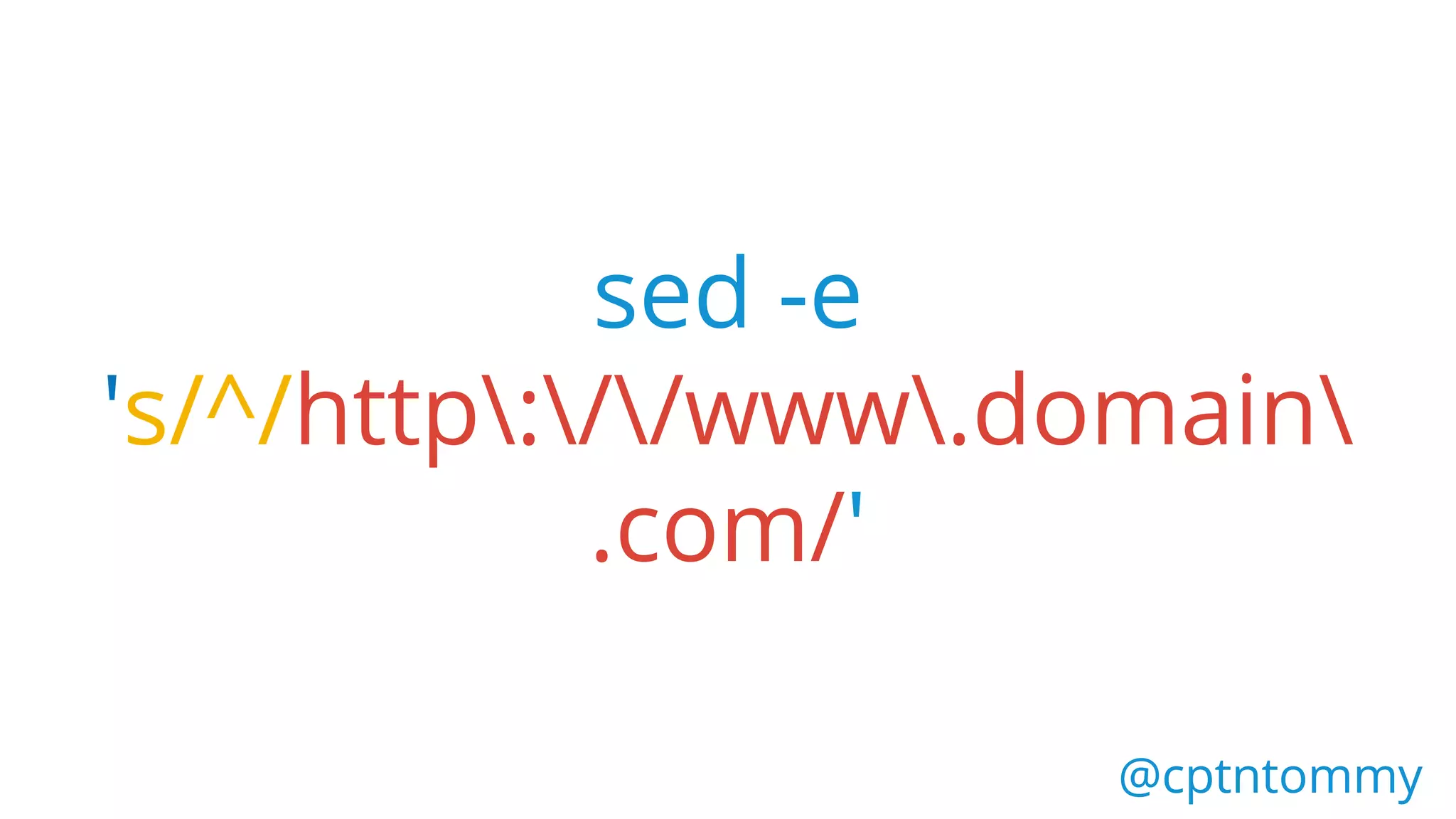
sed -e
's/^/http://www.domain
.com/'
@cptntommy@cptntommy
sed -e
's/^/http://www.domain
.com/' file.csv
@cptntommy@cptntommy
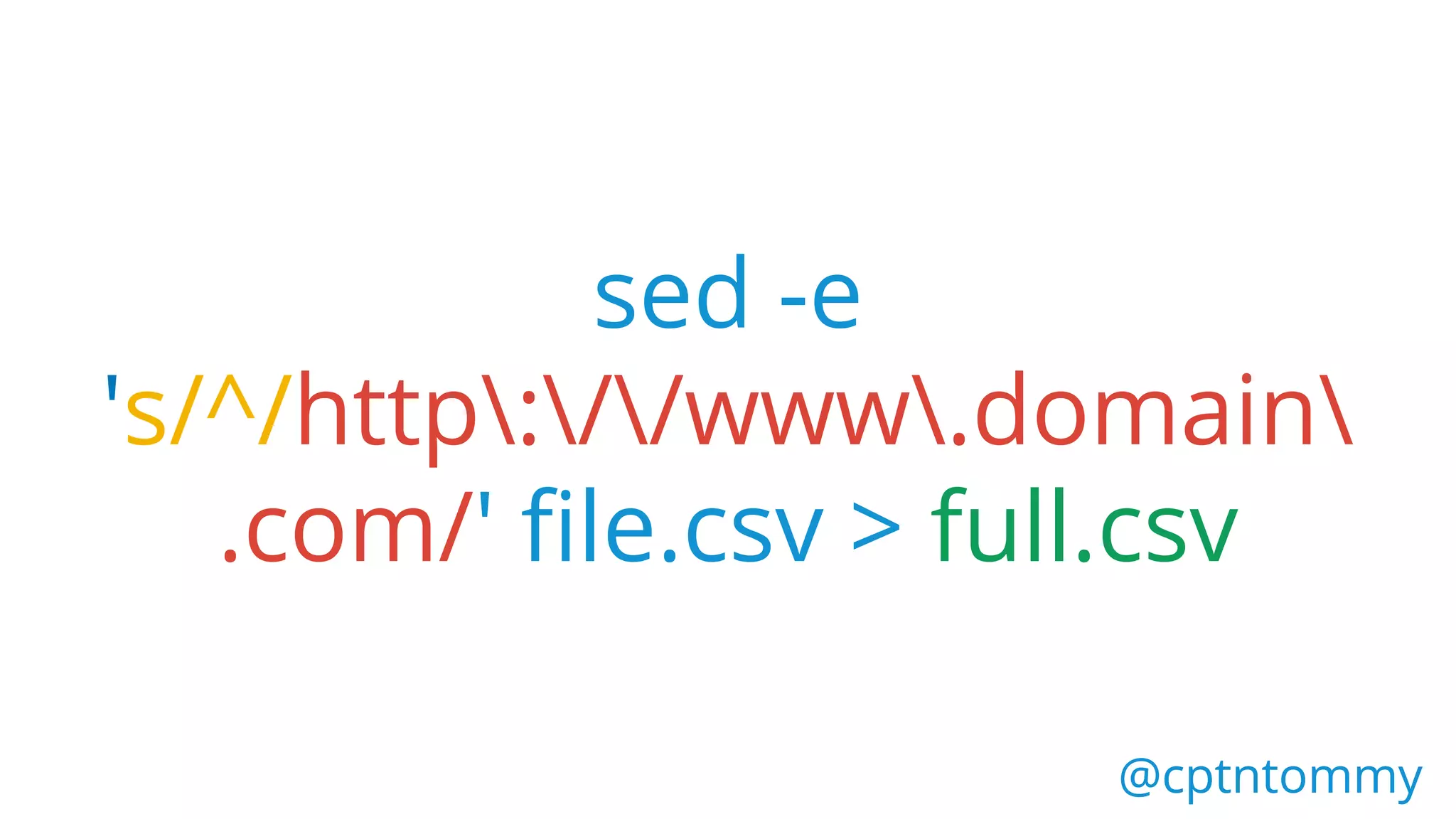
sed -e
's/^/http://www.domain
.com/' file.csv > full.csv
@cptntommy@cptntommy
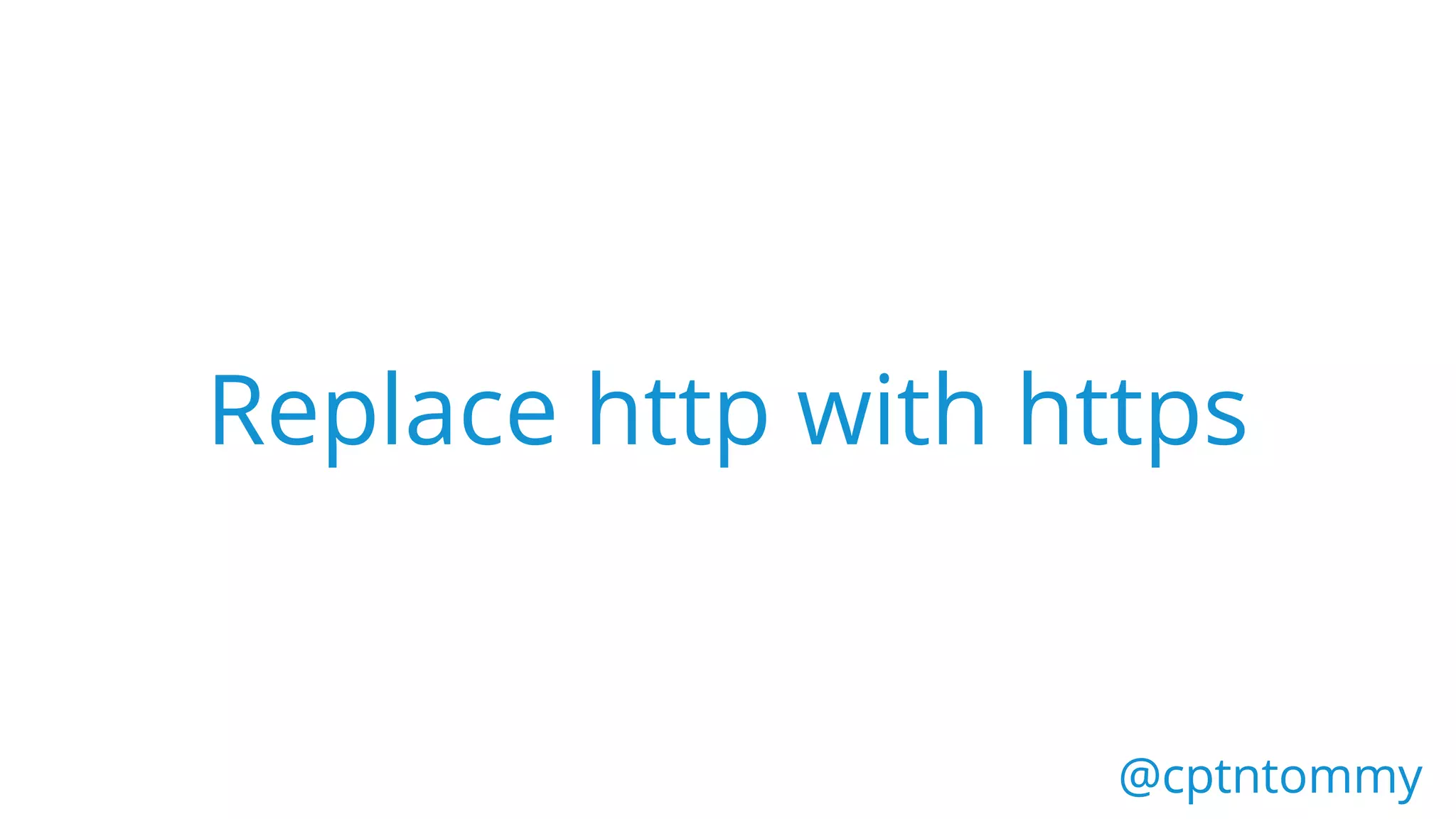
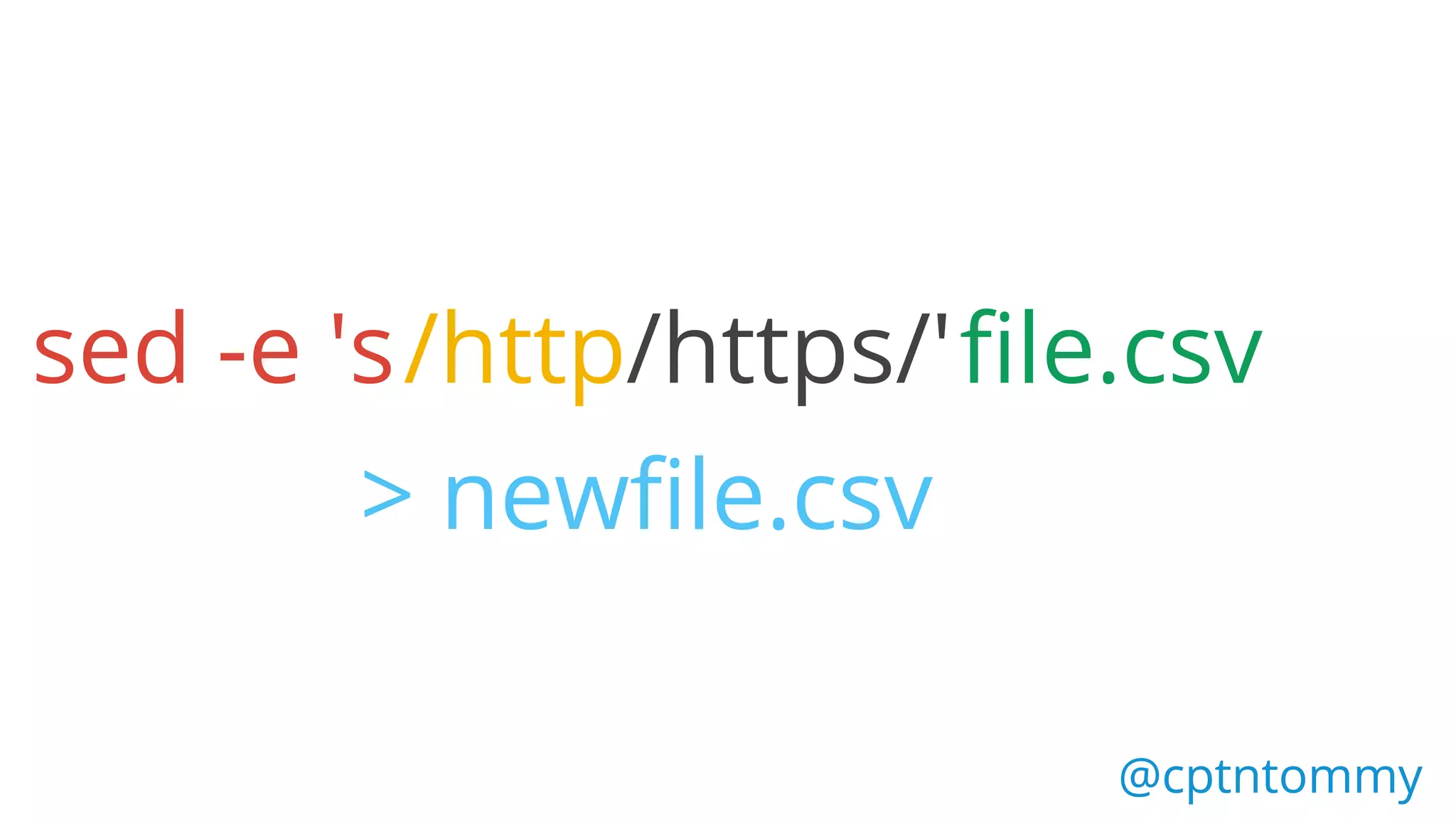
use sed to find & replace
@cptntommy@cptntommy
Replace http with https
@cptntommy@cptntommy
sed -e 's/http file.csv
> newfile.csv
/https/'
@cptntommy
@cptntommy@cptntommy
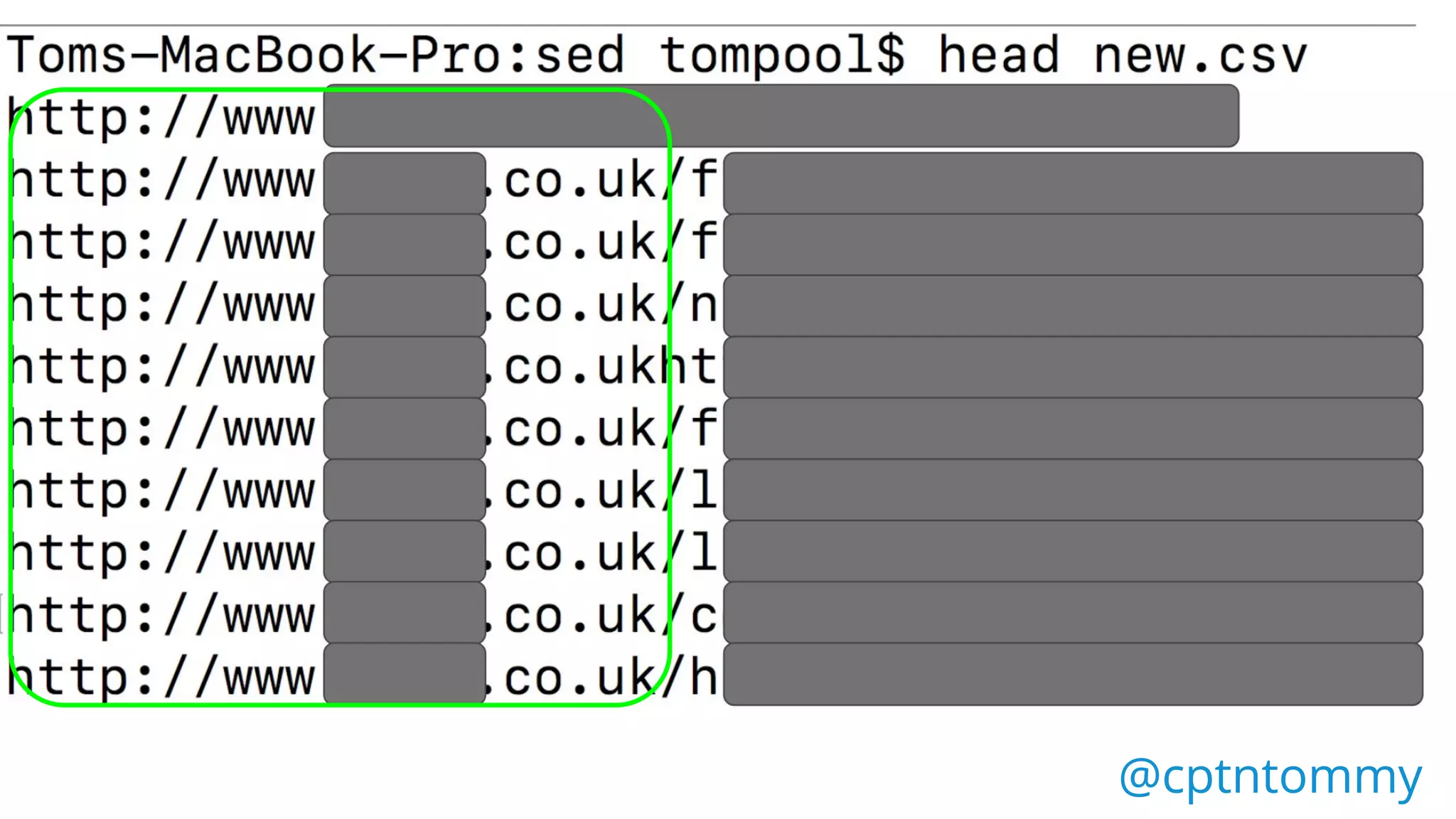
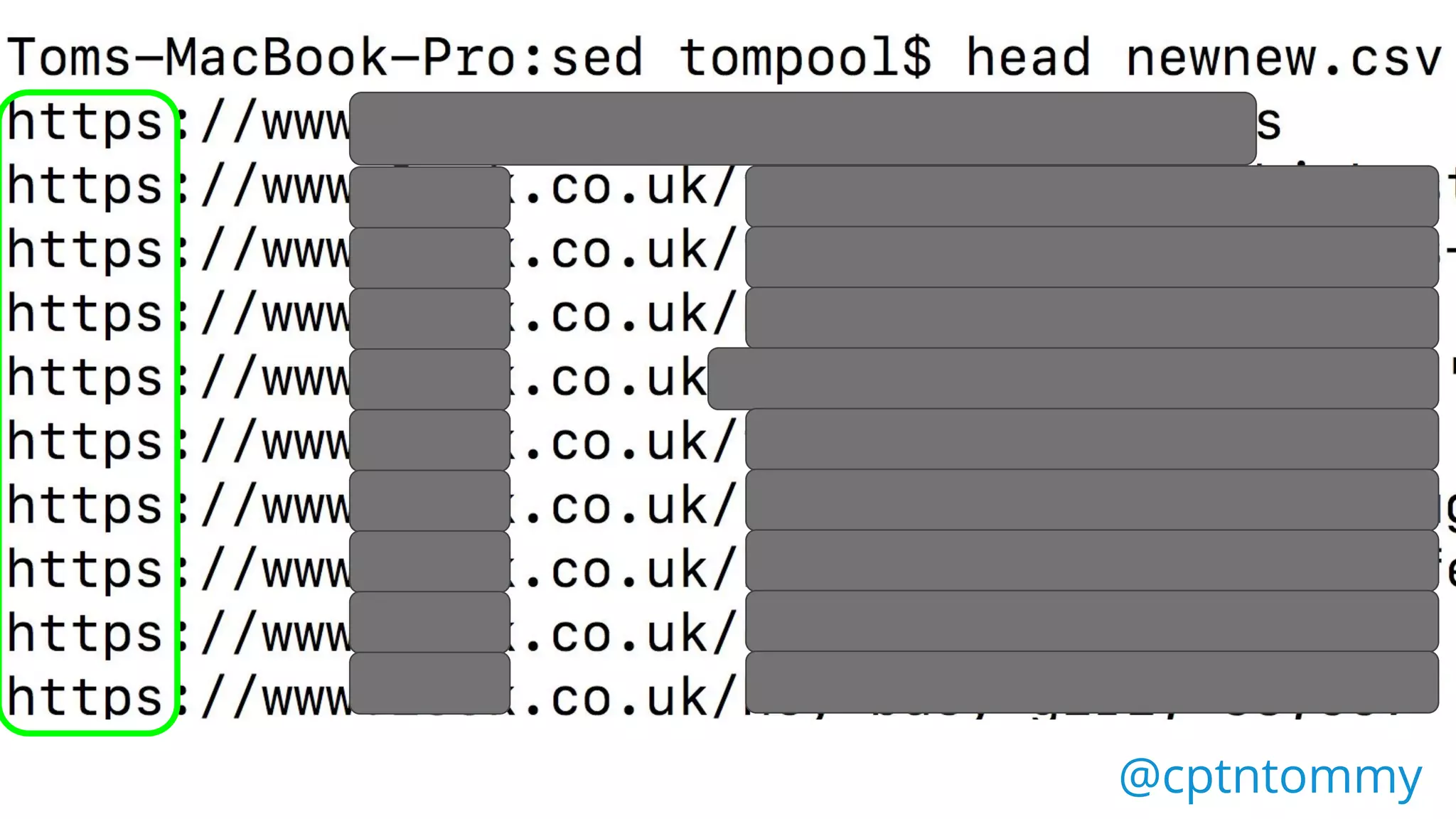
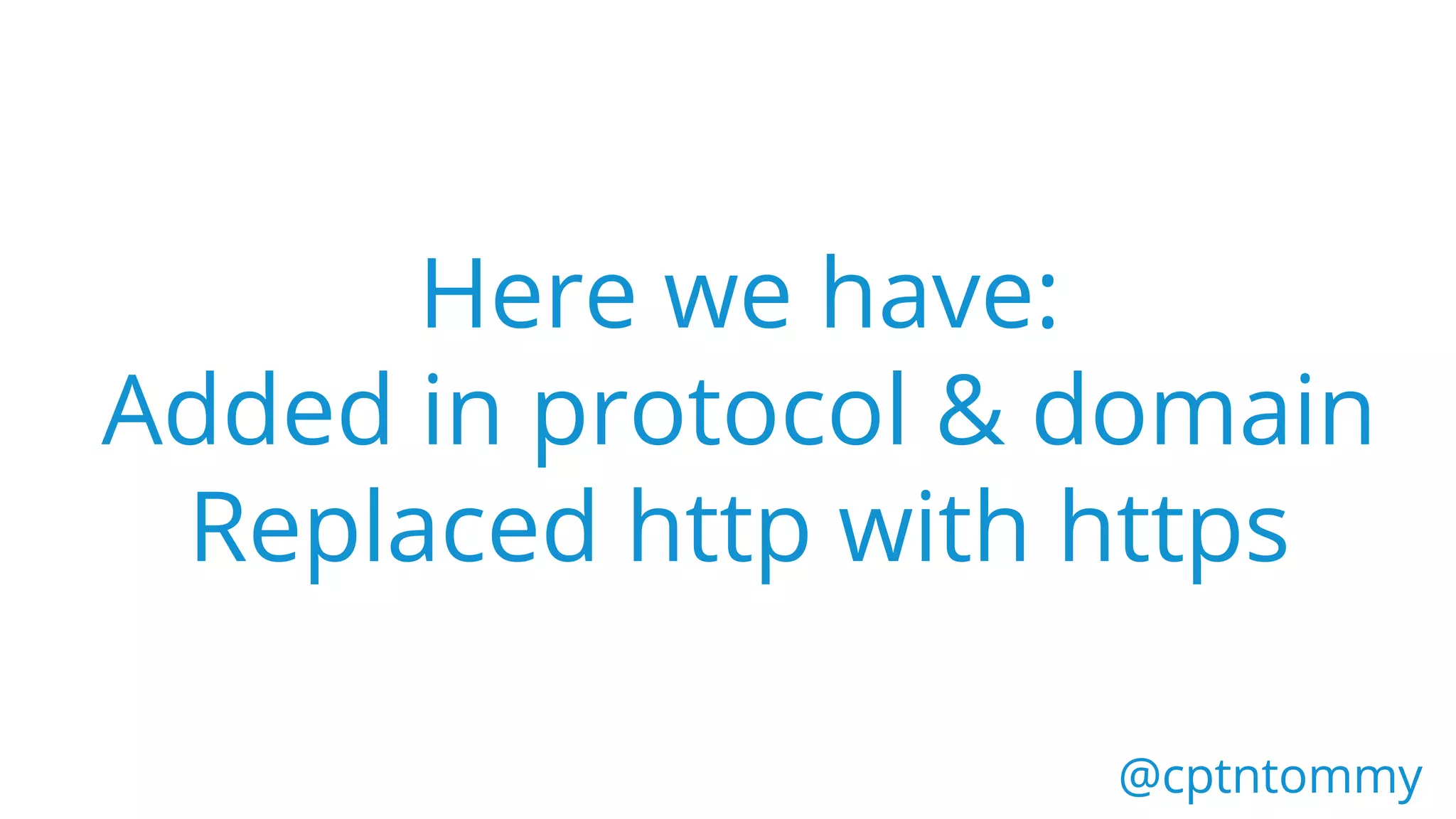
Here we have:
Added in protocol & domain
Replaced http with https
awk
@cptntommy@cptntommy
Programming language,
used to process text
@cptntommy@cptntommy
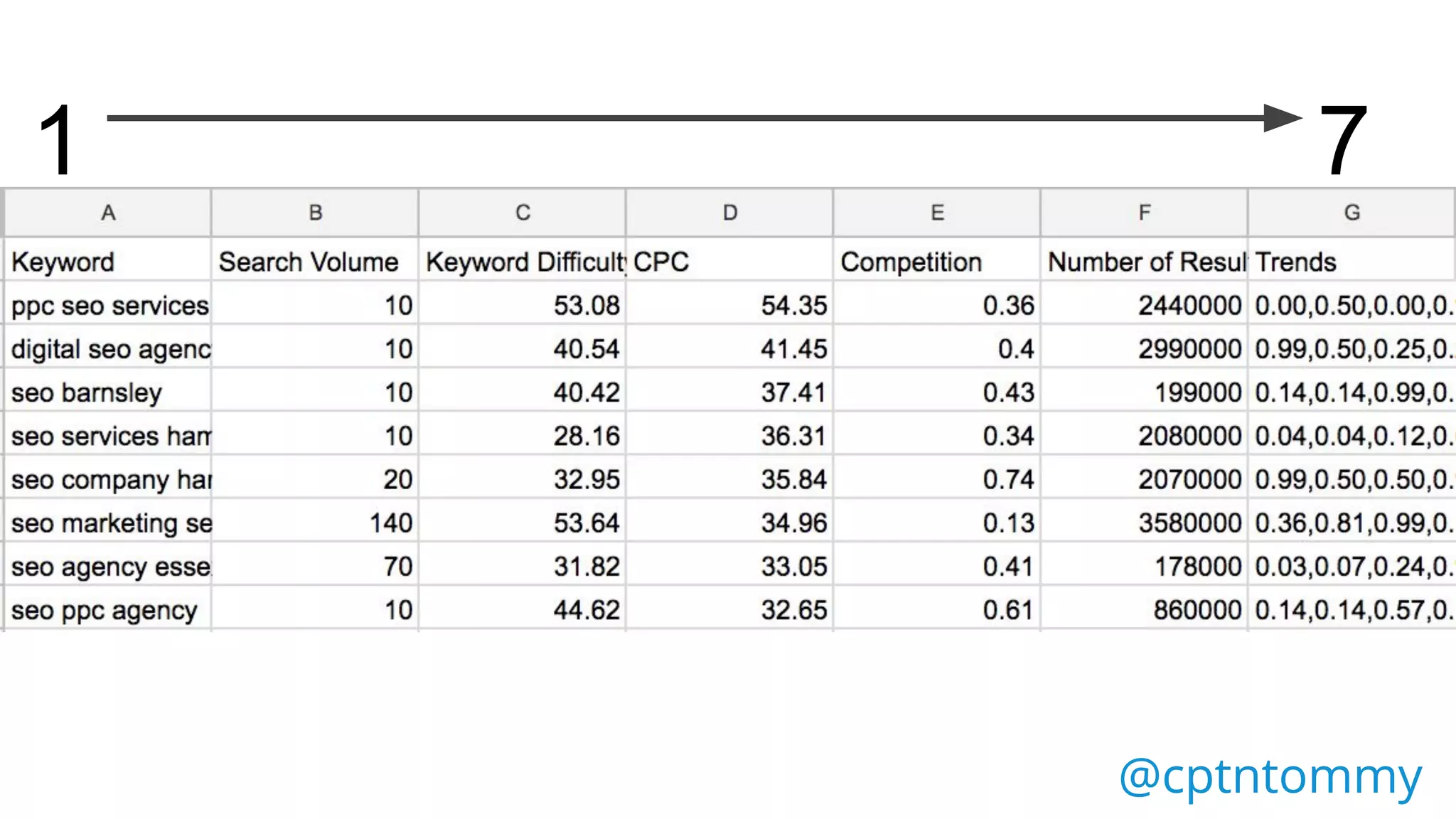
Following example is one of
the easier applications of
awk
@cptntommy@cptntommy
1 7
@cptntommy@cptntommy
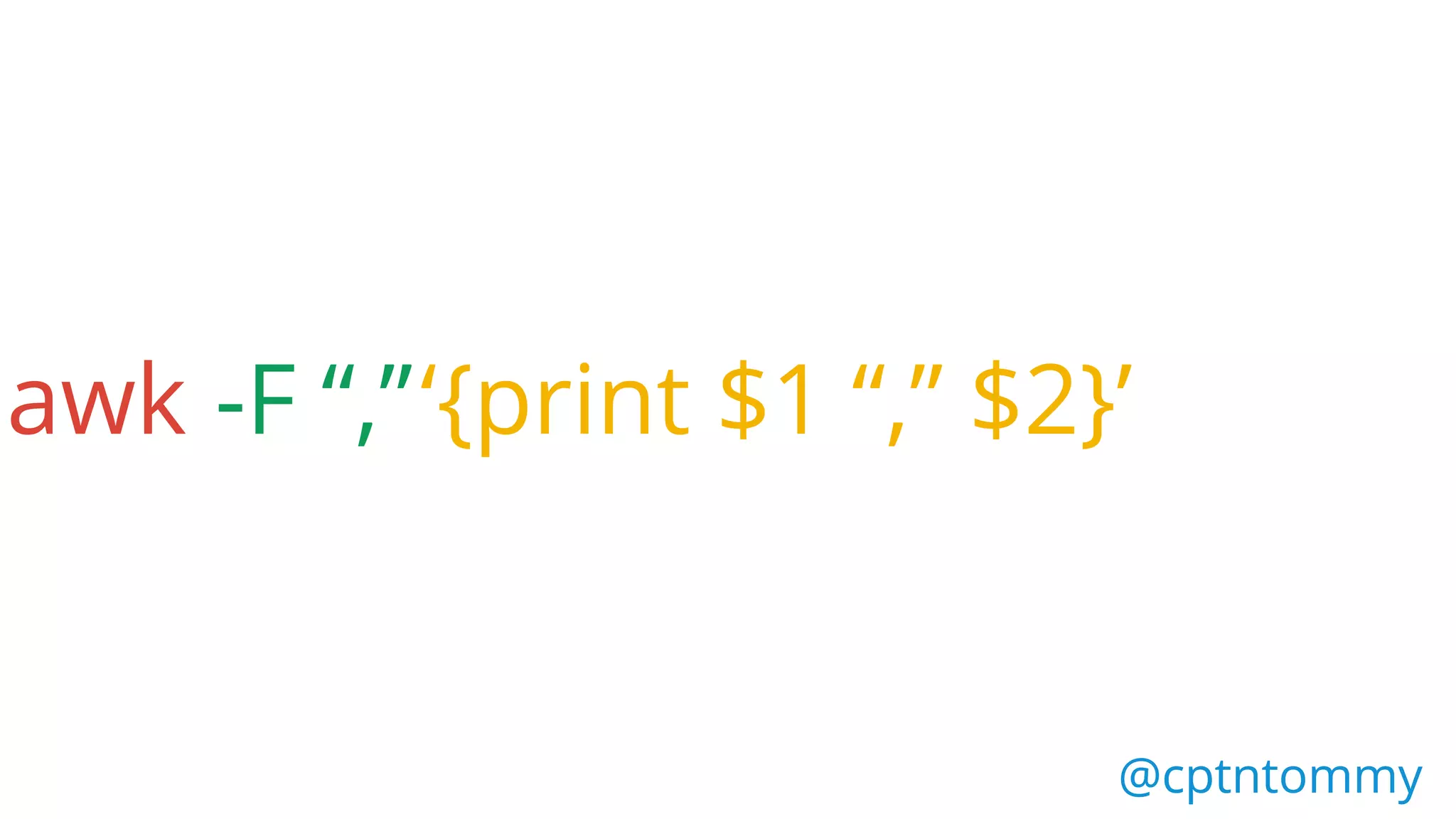
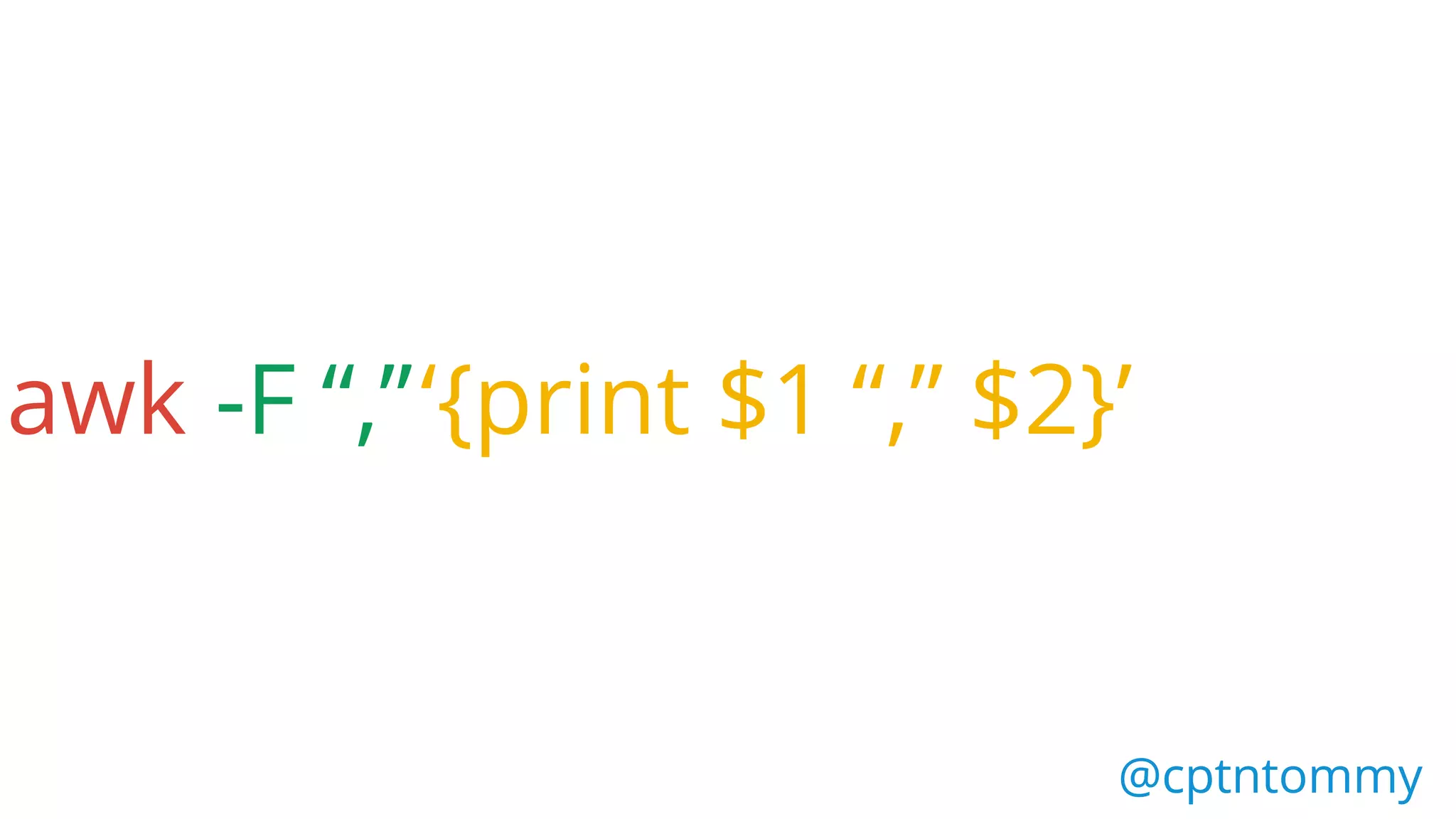
awk -F “,”
@cptntommy@cptntommy
awk -F “,”‘{print $1 “,” $2}’
@cptntommy@cptntommy
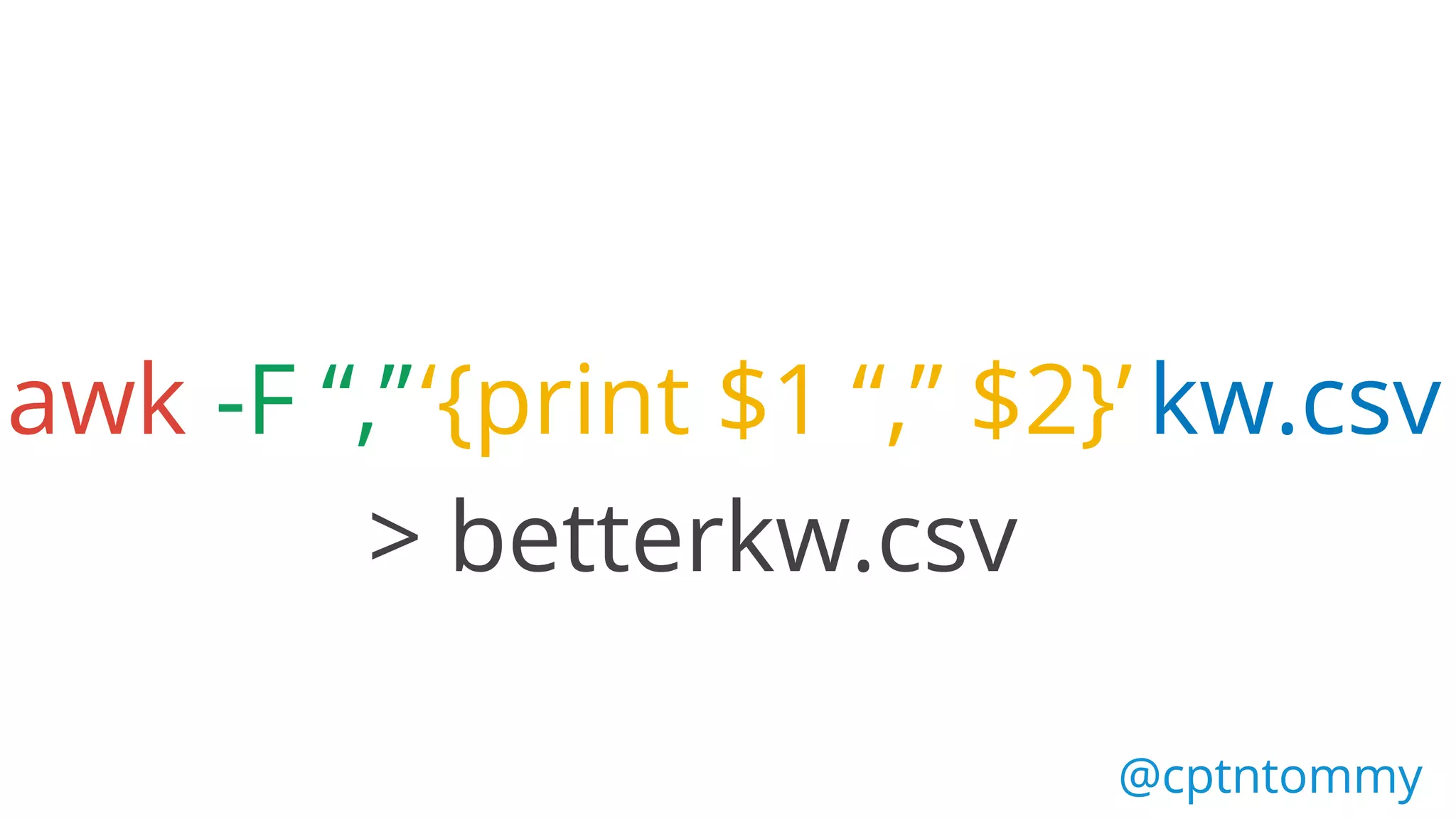
awk -F “,”‘{print $1 “,” $2}’ kw.csv
> betterkw.csv
@cptntommy
@cptntommy@cptntommy
awk -F “,”‘{print $1 “,” $2}’
@cptntommy@cptntommy
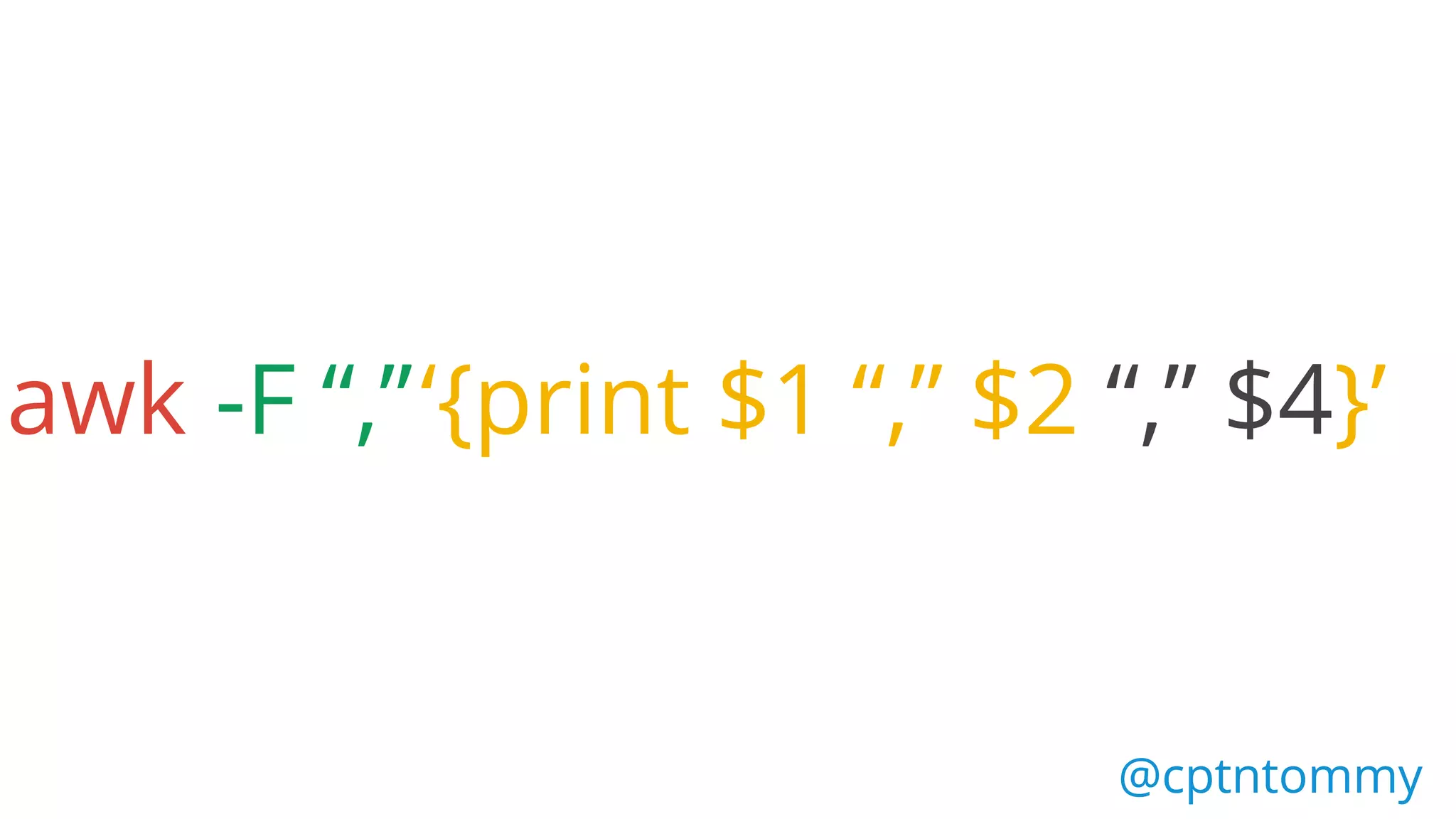
awk -F “,”‘{print $1 “,” $2 “,” $4}’
@cptntommy@cptntommy
How to
combine
all this?
Log File
Analysis
@cptntommy
@cptntommy
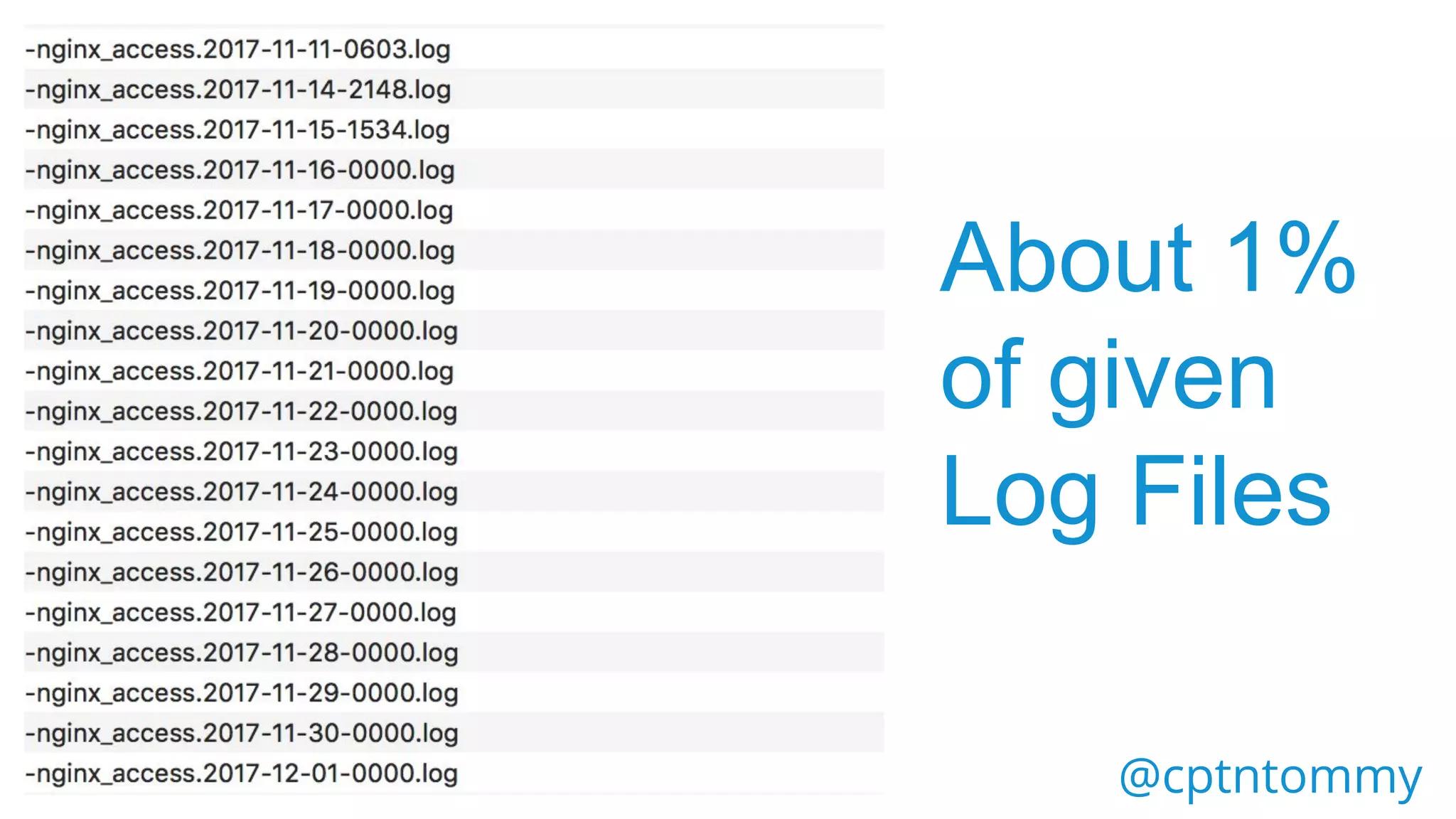
About 1%
of given
Log Files
@cptntommy
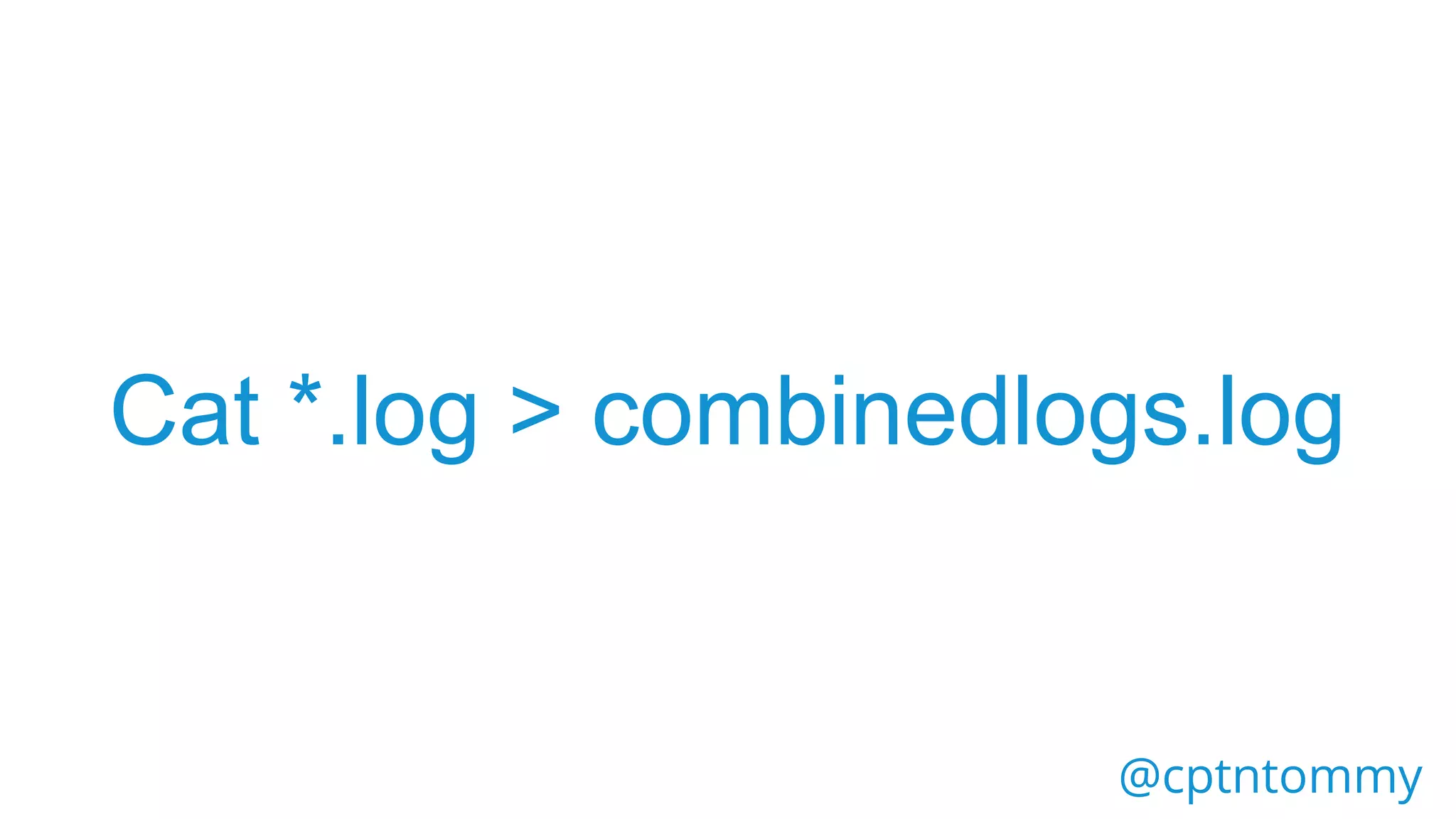
1.cat
Combine
files
together
@cptntommy
Cat *.log > combinedlogs.log
@cptntommy
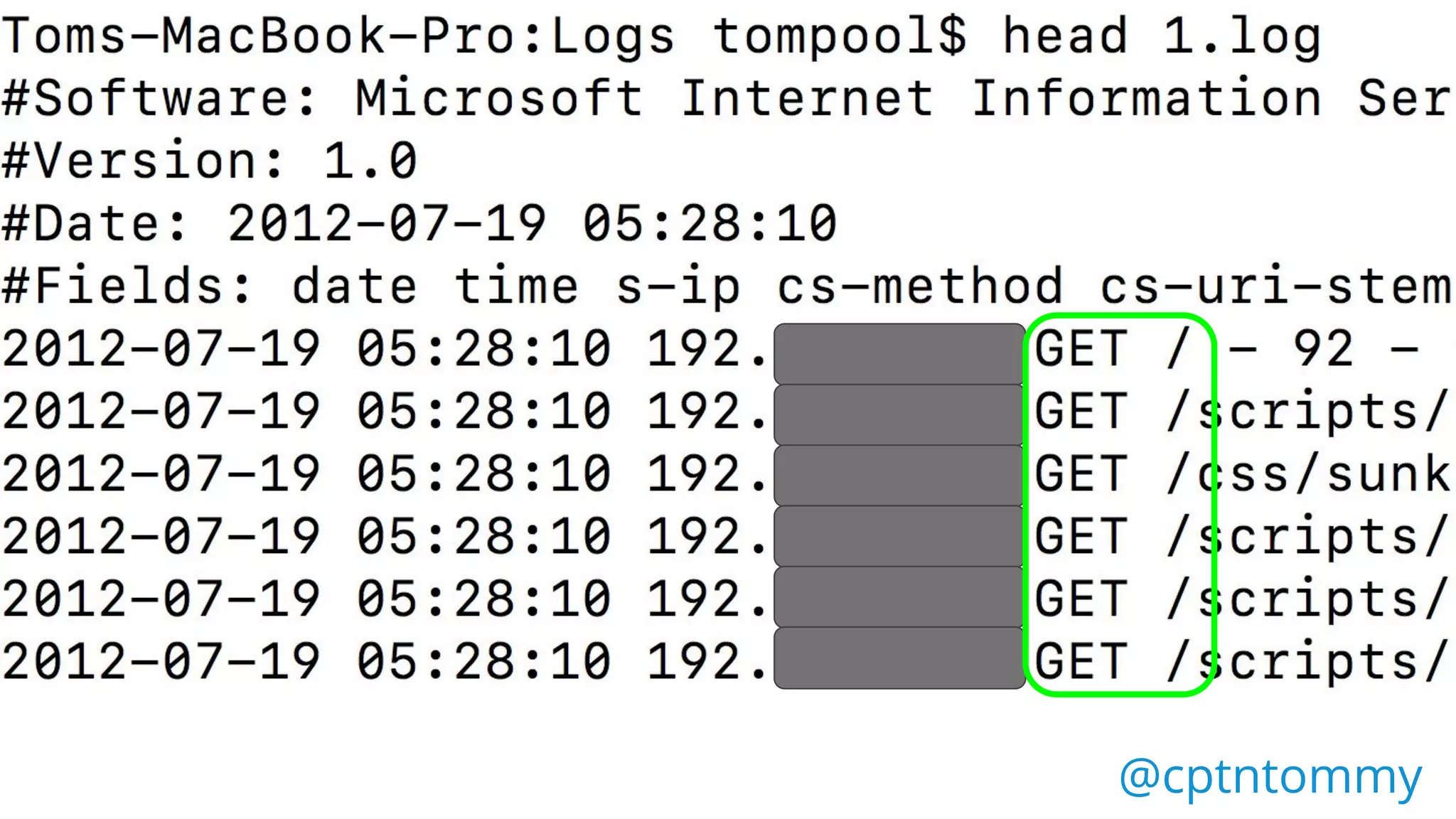
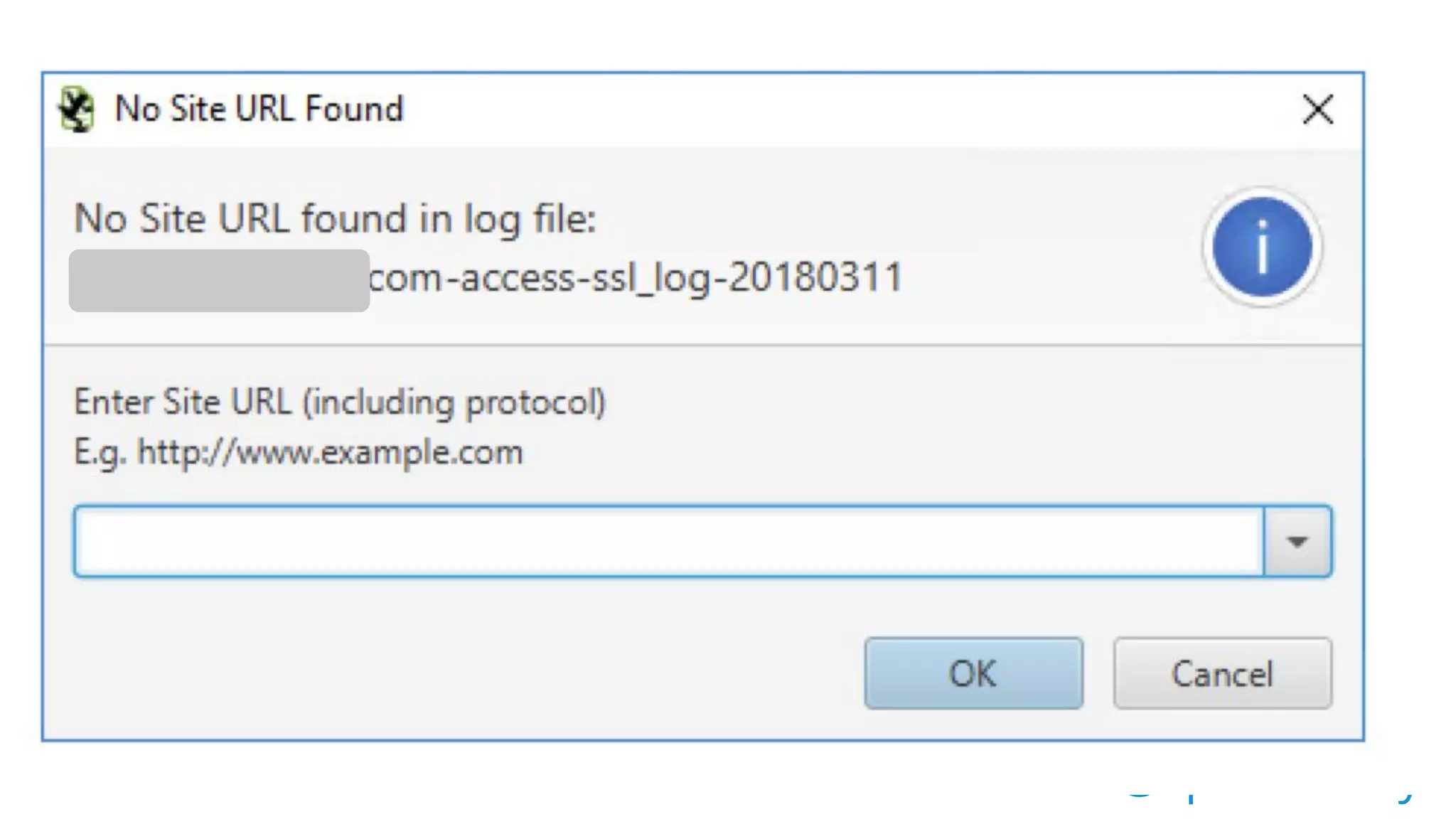
2. Use sed to add in full domain
name to log file
@cptntommy
@cptntommy
@cptntommy
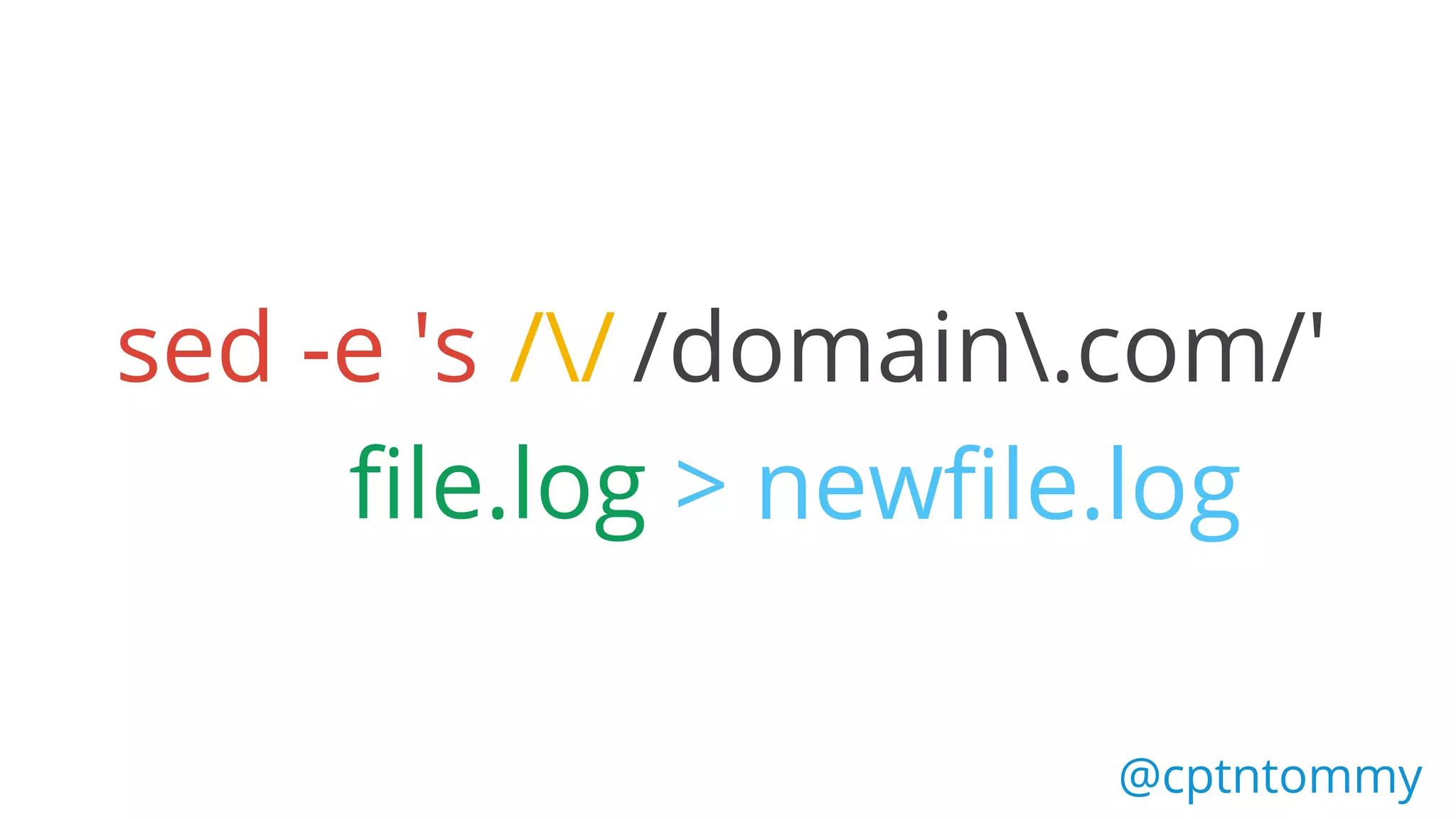
sed -e 's //
file.log > newfile.log
/domain.com/'
@cptntommy
sed -e 's
Search
@cptntommy
sed -e 's //
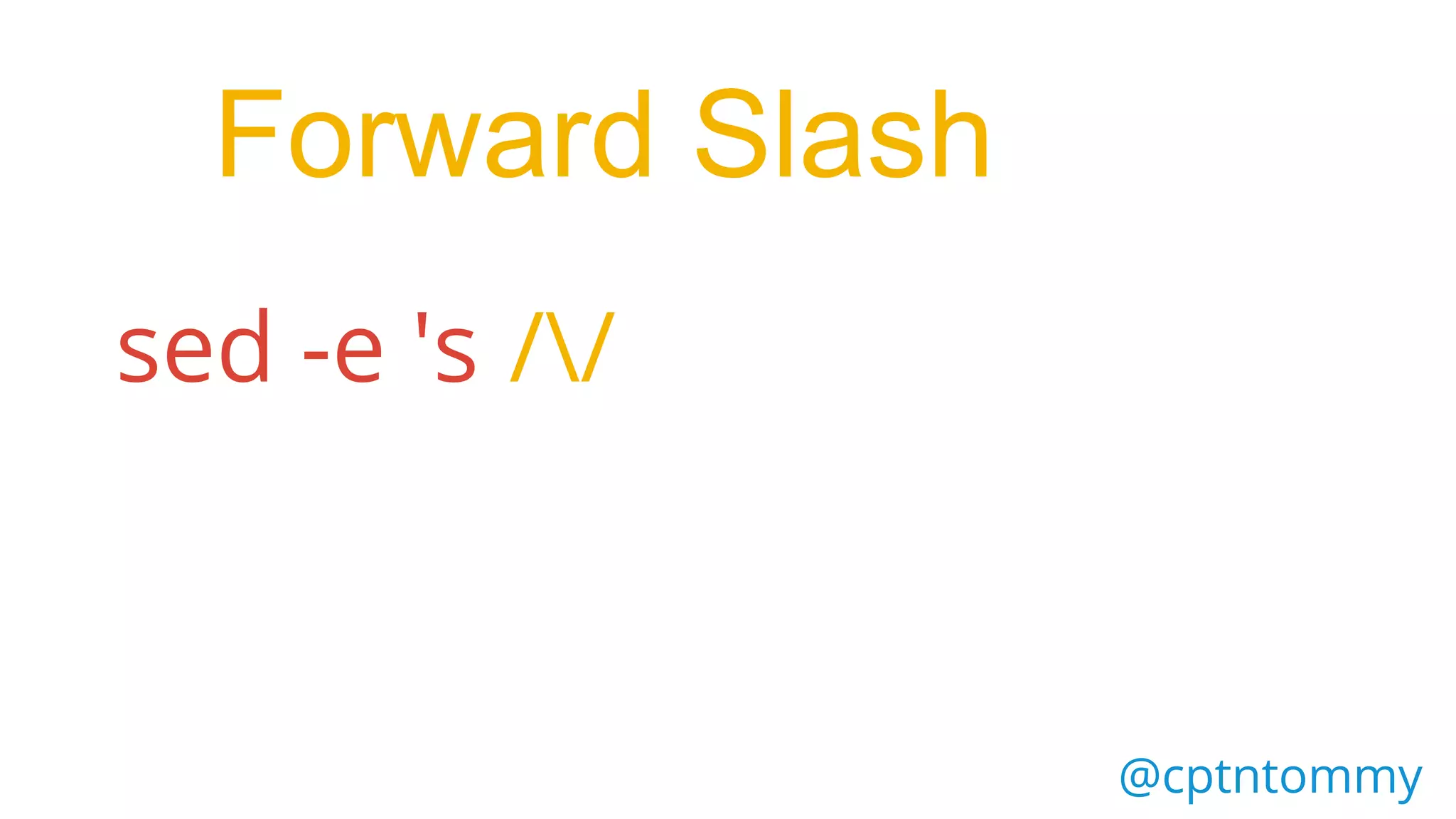
Forward Slash
@cptntommy
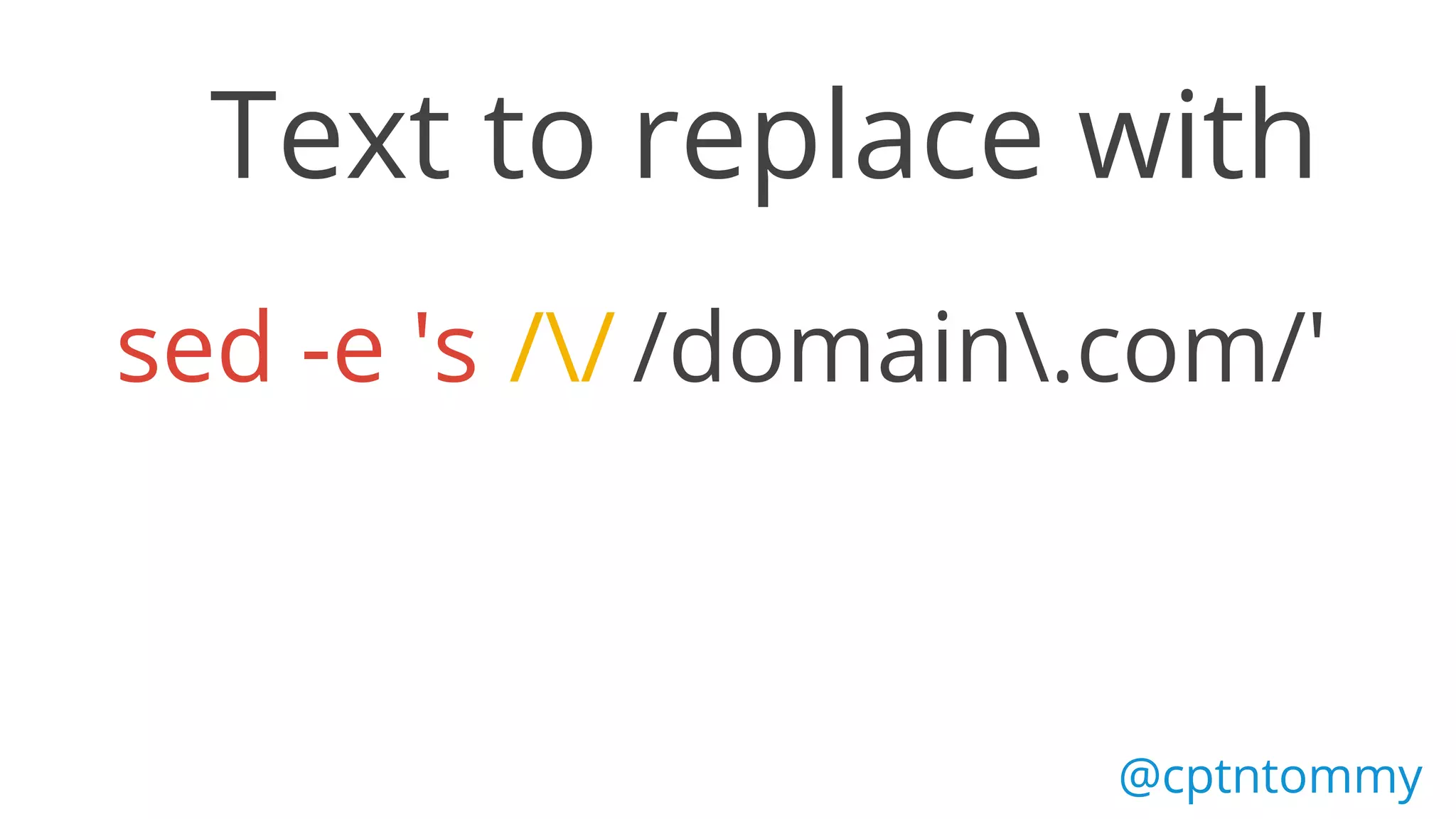
sed -e 's // /domain.com/'
Text to replace with
@cptntommy
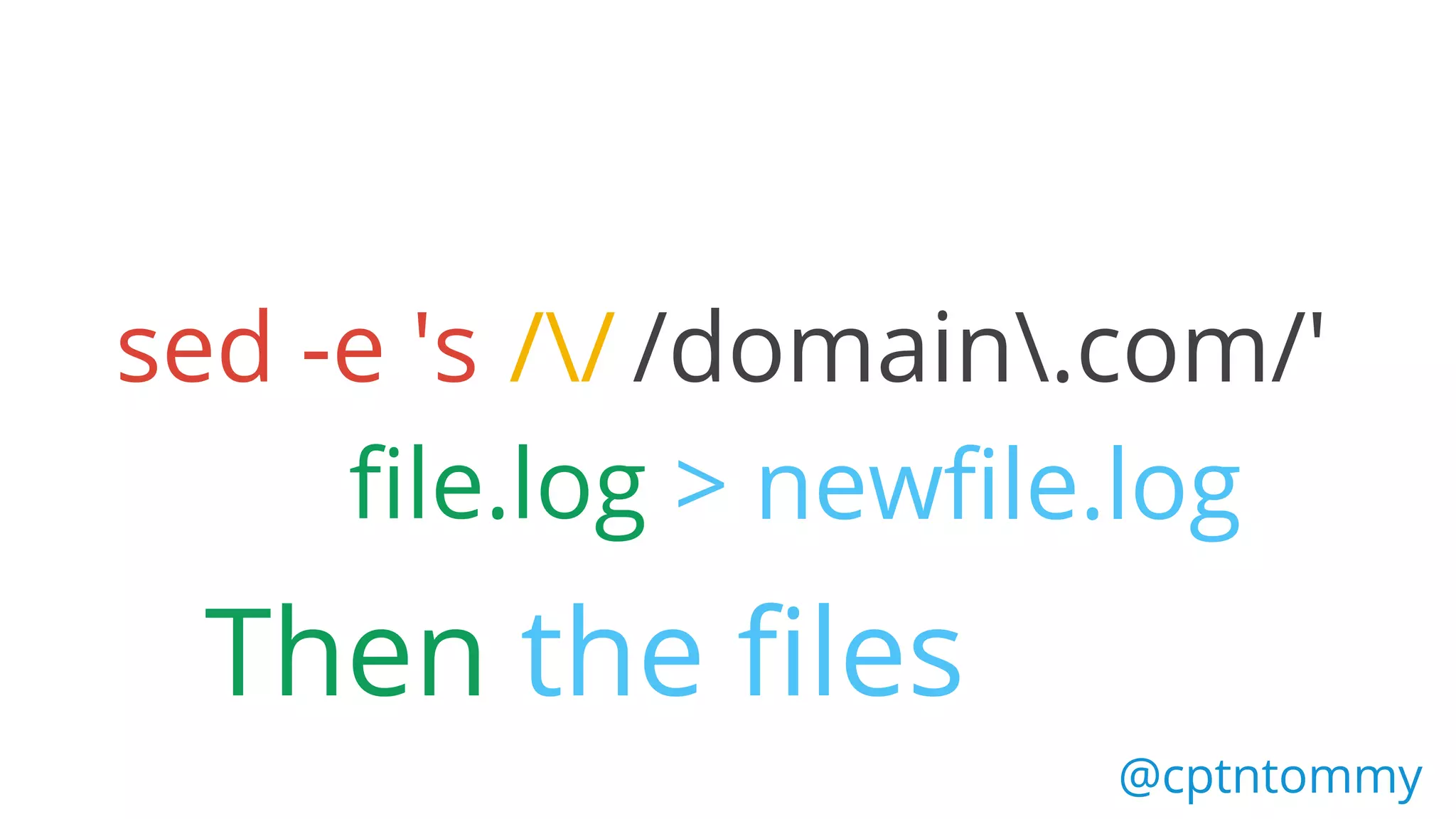
sed -e 's //
file.log > newfile.log
/domain.com/'
Then the files
@cptntommy
3.Extract 404 errors
(awk)
@cptntommy
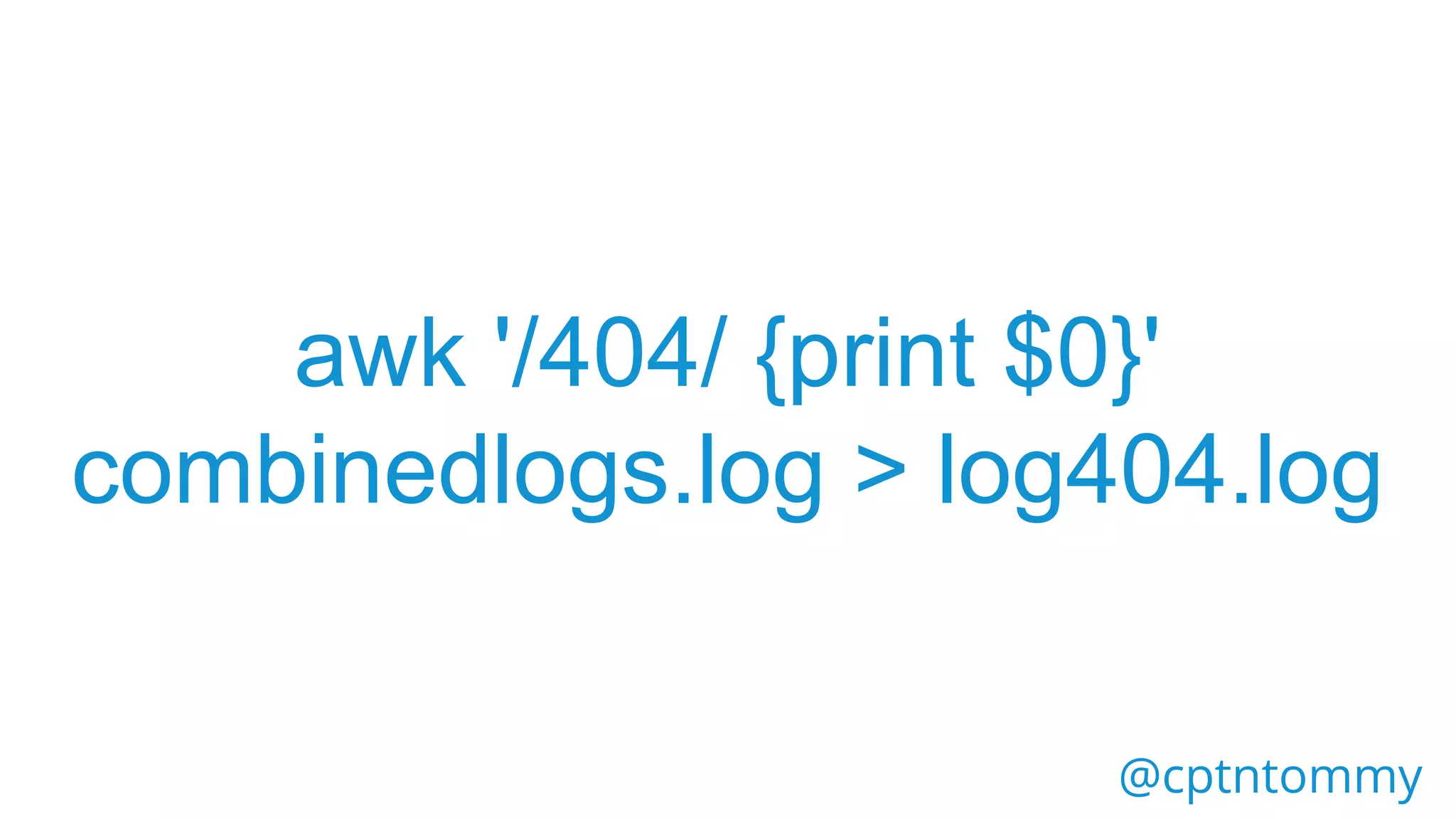
awk '/404/ {print $0}'
combinedlogs.log > log404.log
@cptntommy
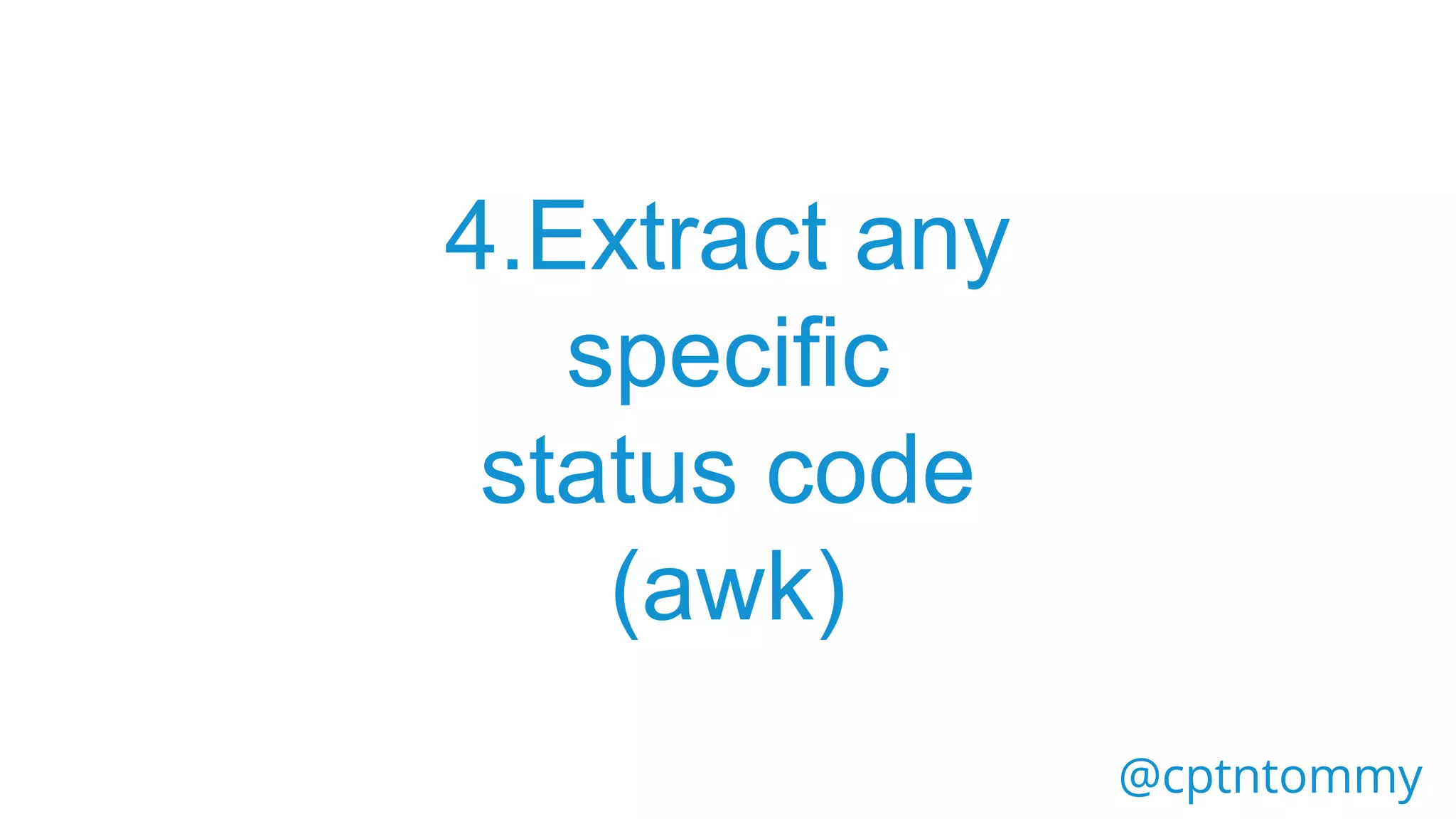
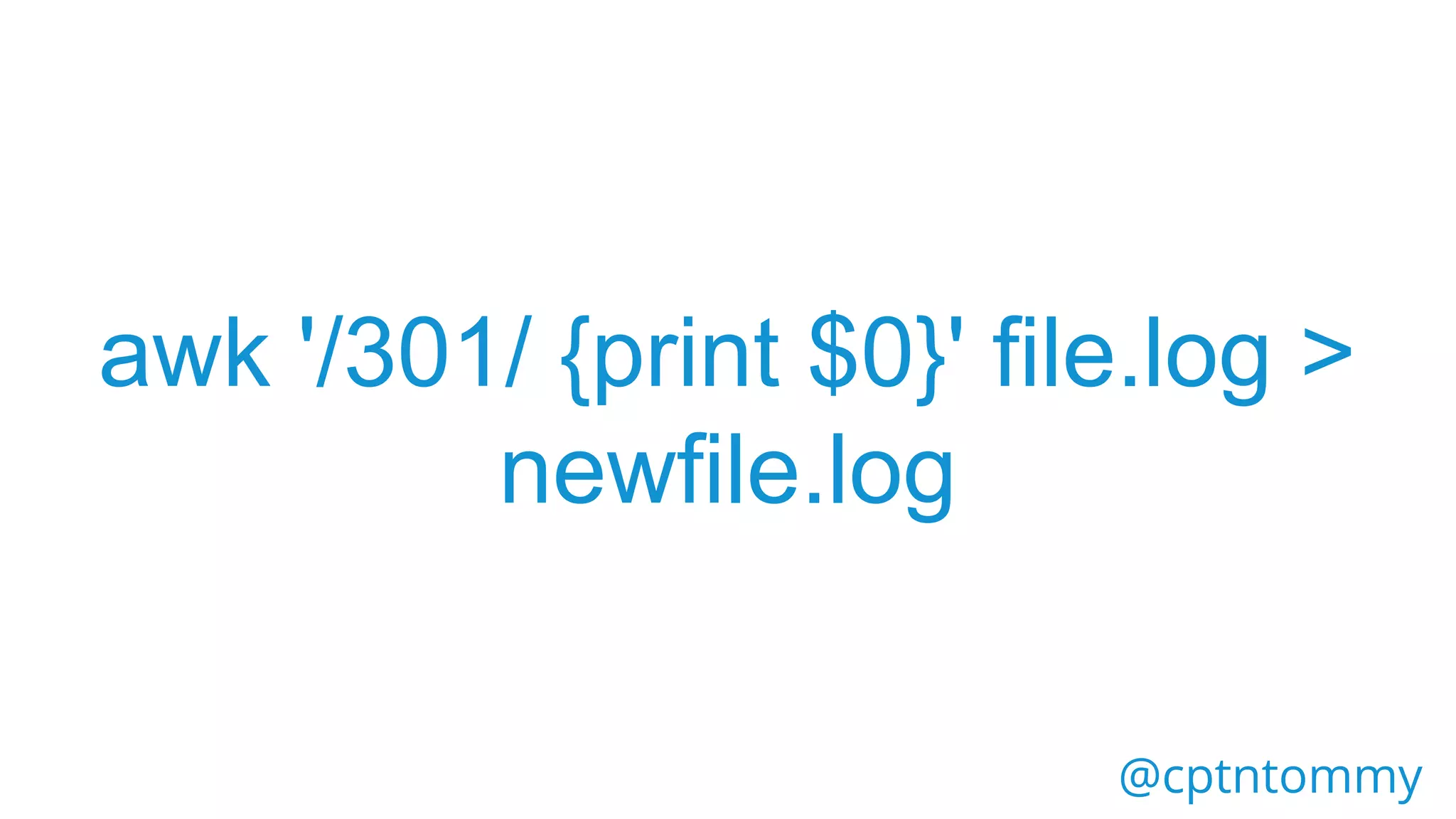
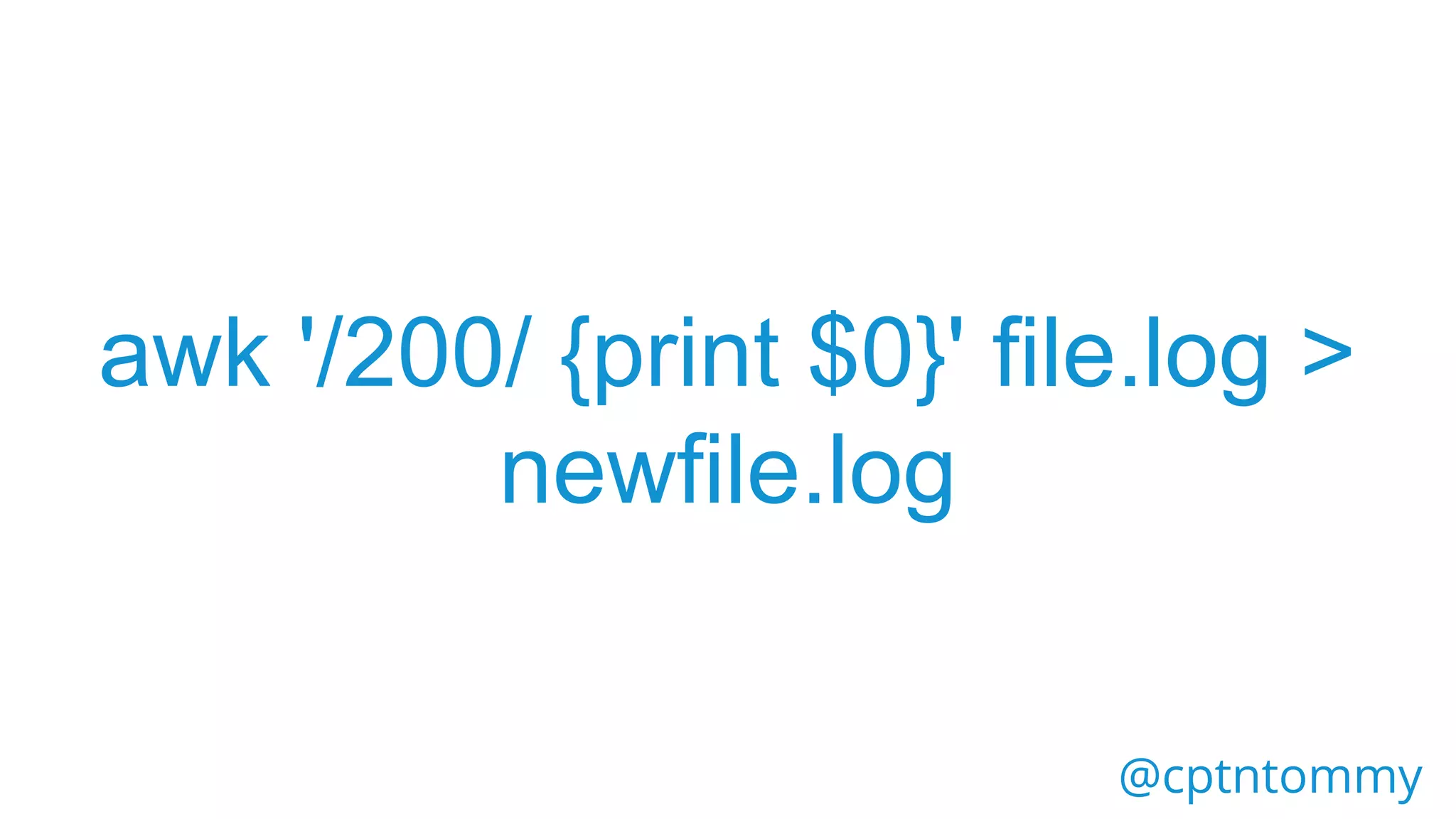
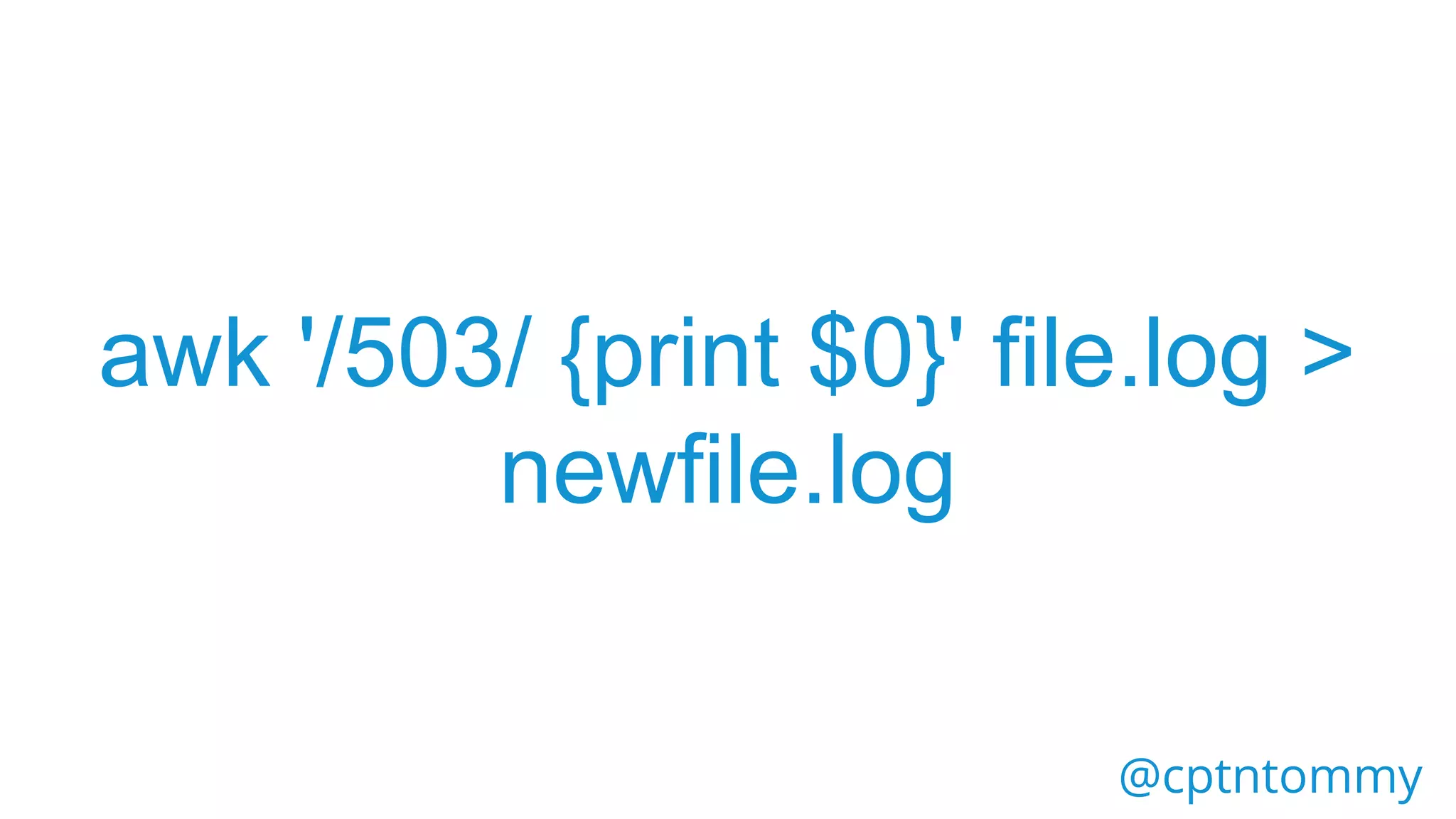
4.Extract any
specific
status code
(awk)
@cptntommy
awk '/301/ {print $0}' file.log >
newfile.log
@cptntommy
awk '/200/ {print $0}' file.log >
newfile.log
@cptntommy
awk '/503/ {print $0}' file.log >
newfile.log
@cptntommy
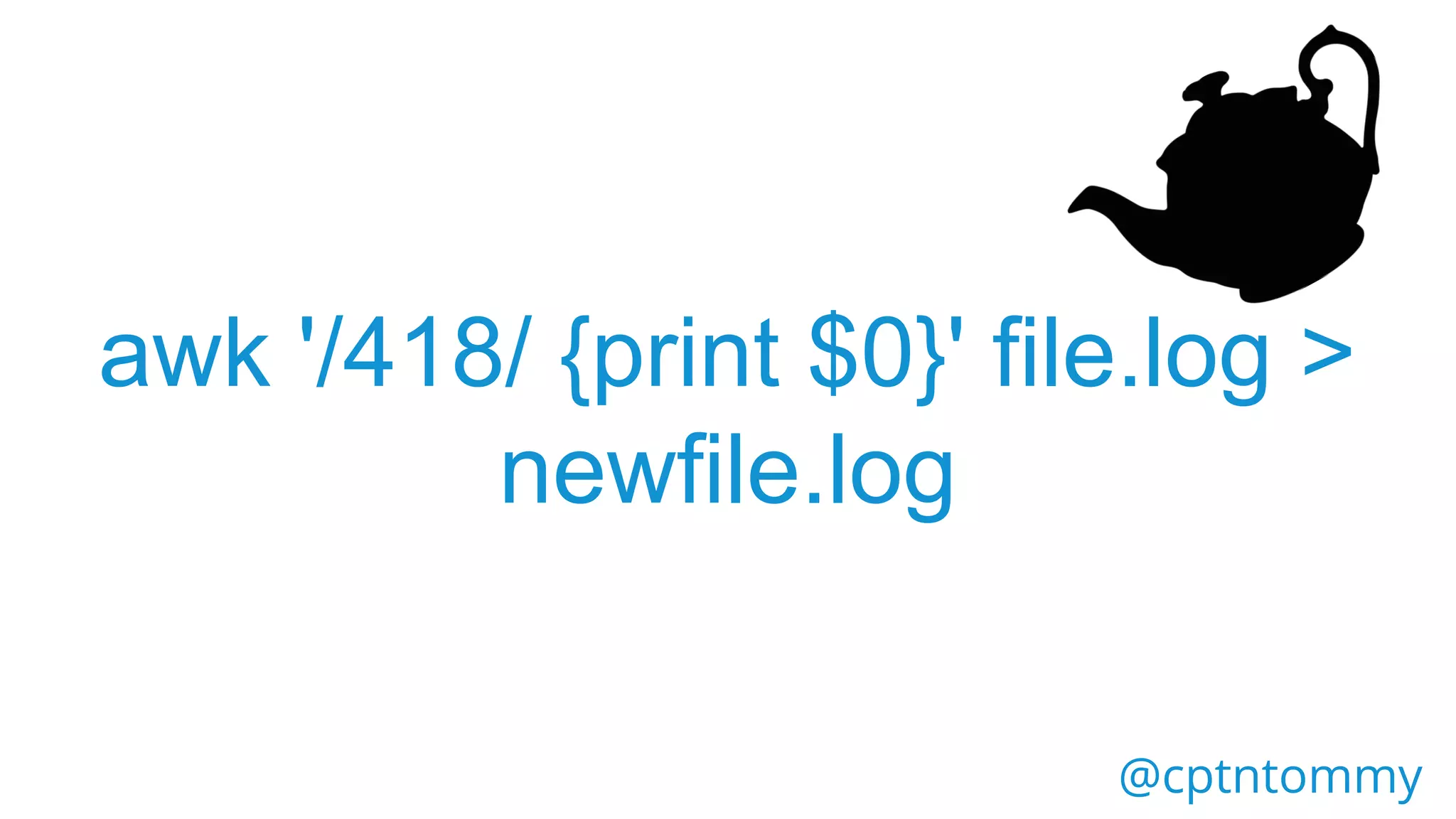
awk '/418/ {print $0}' file.log >
newfile.log
@cptntommy
5. Extract all
Googlebot/
Mobile Bot
hits (awk)
@cptntommy
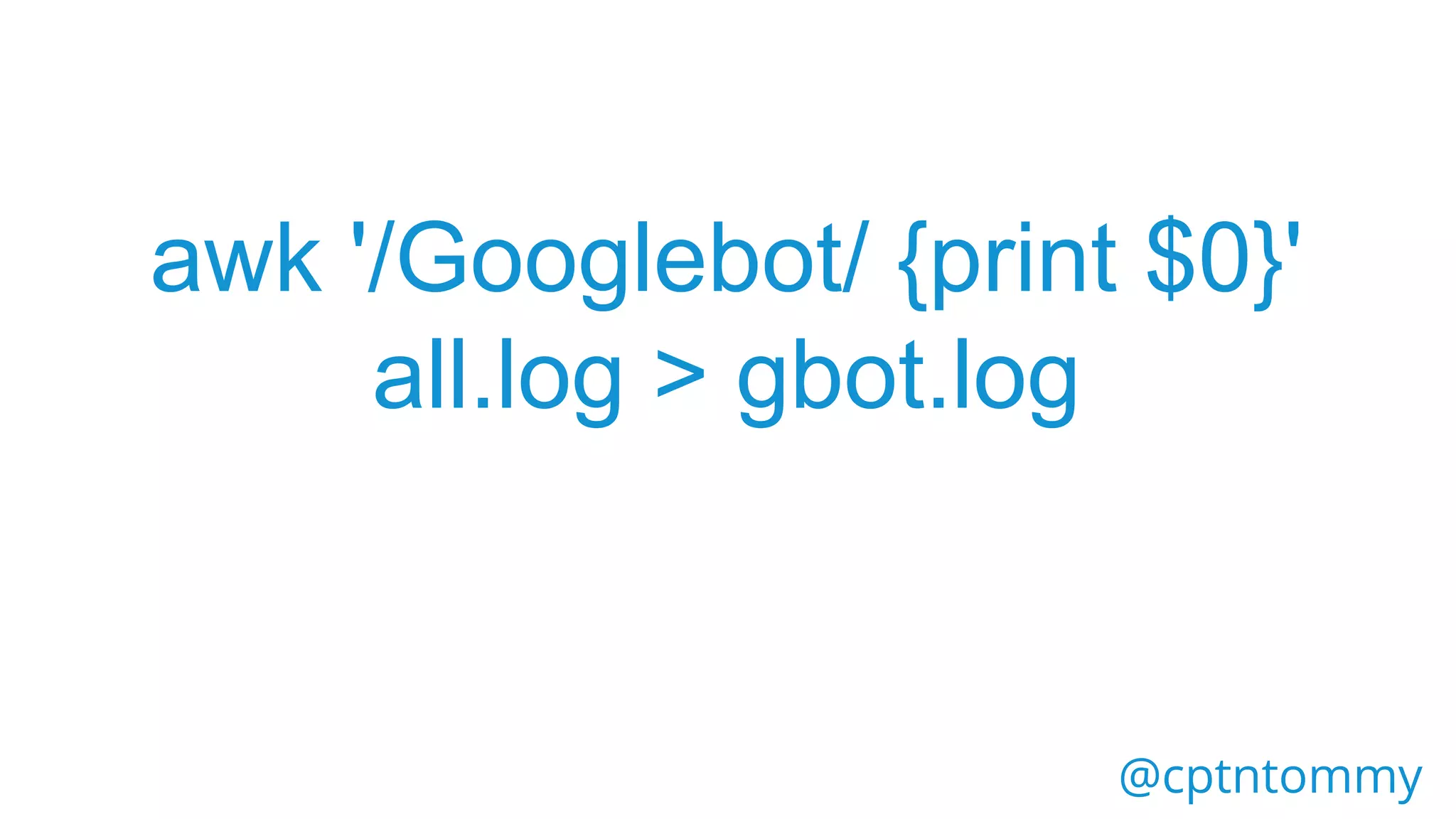
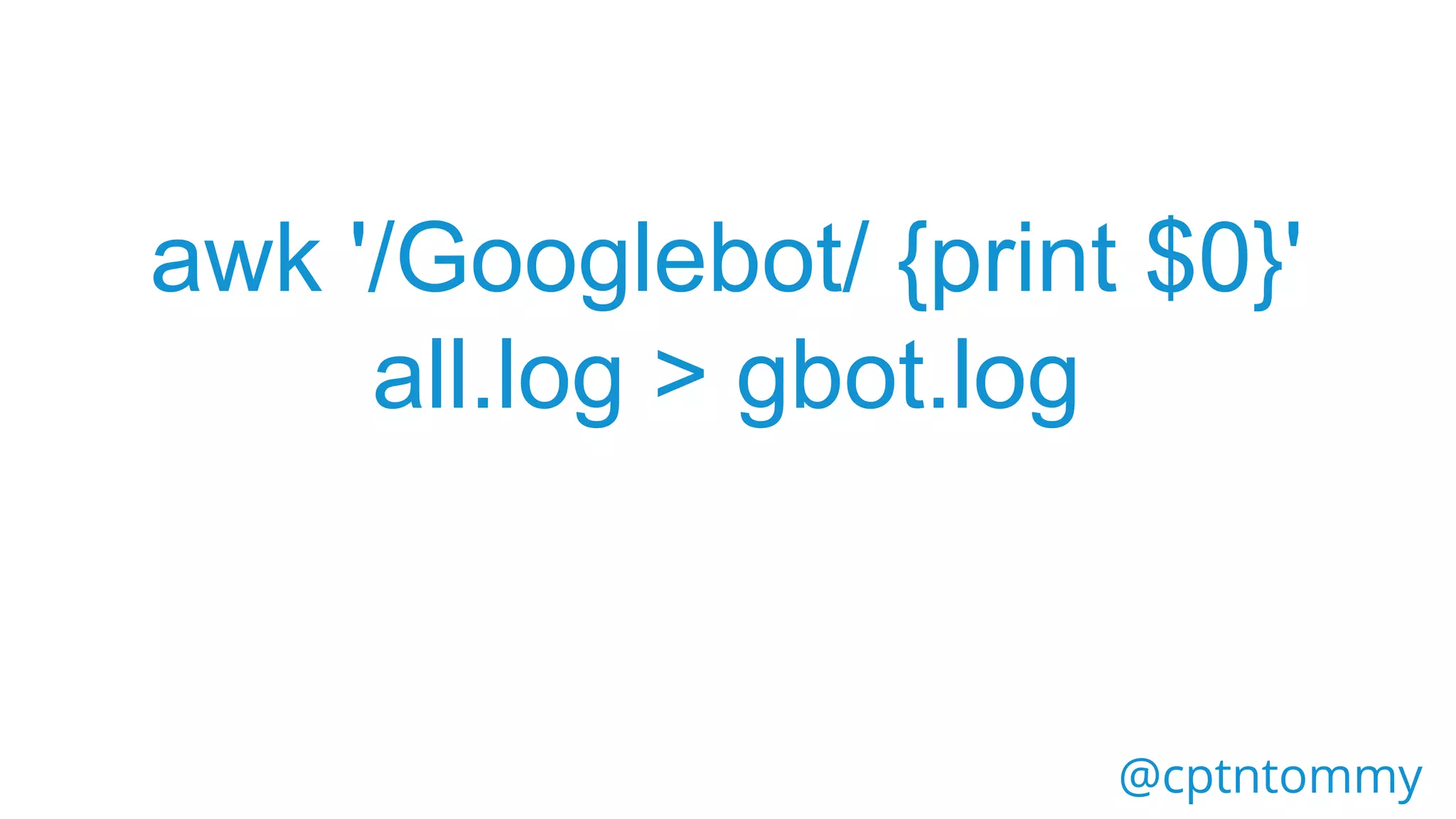
awk '/Googlebot/ {print $0}'
all.log > gbot.log
@cptntommy
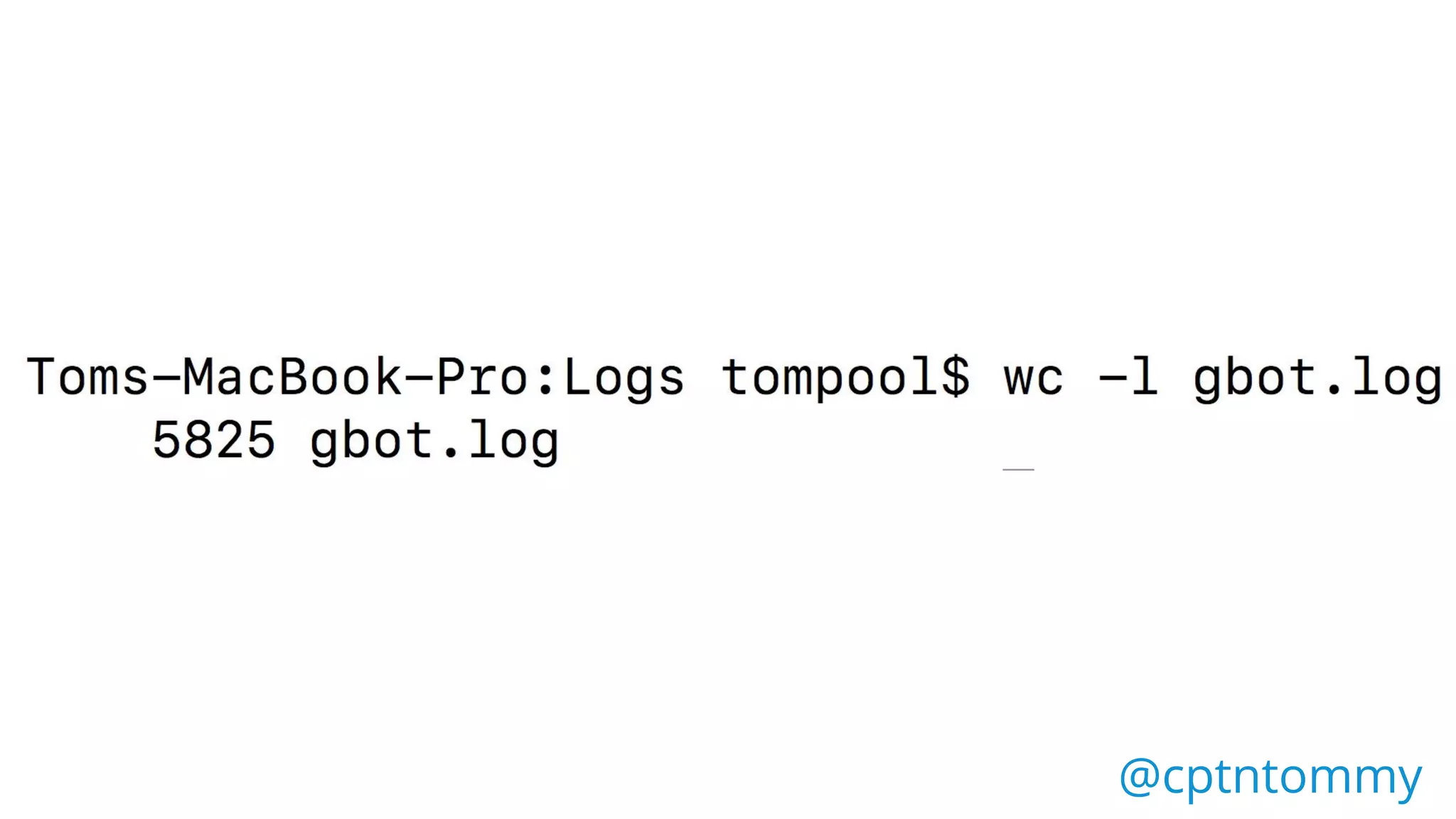
What if you wanted to know
how many hits each bot had,
without opening the file?
@cptntommy
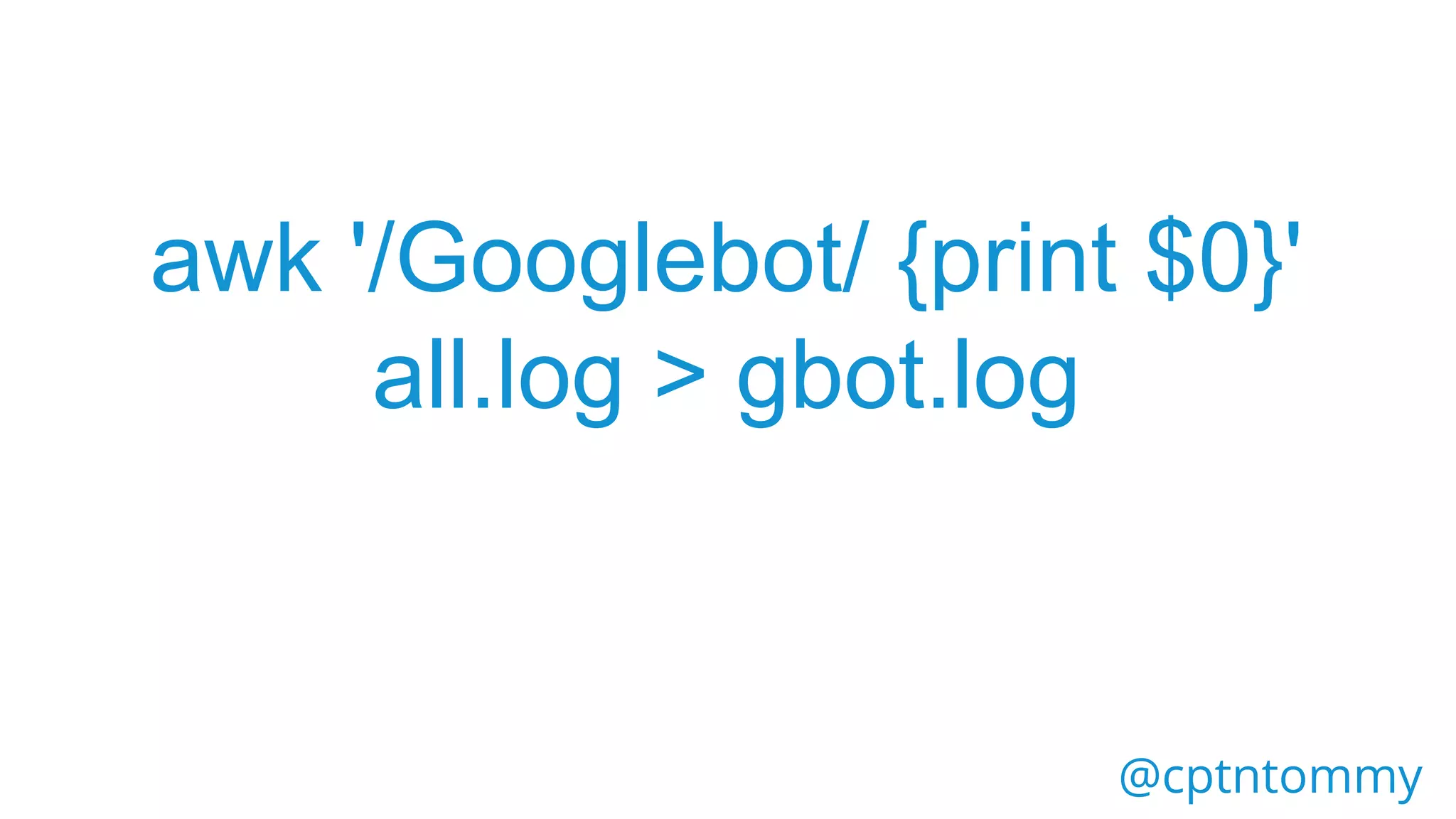
awk '/Googlebot/ {print $0}'
all.log > gbot.log
@cptntommy
wc
@cptntommy
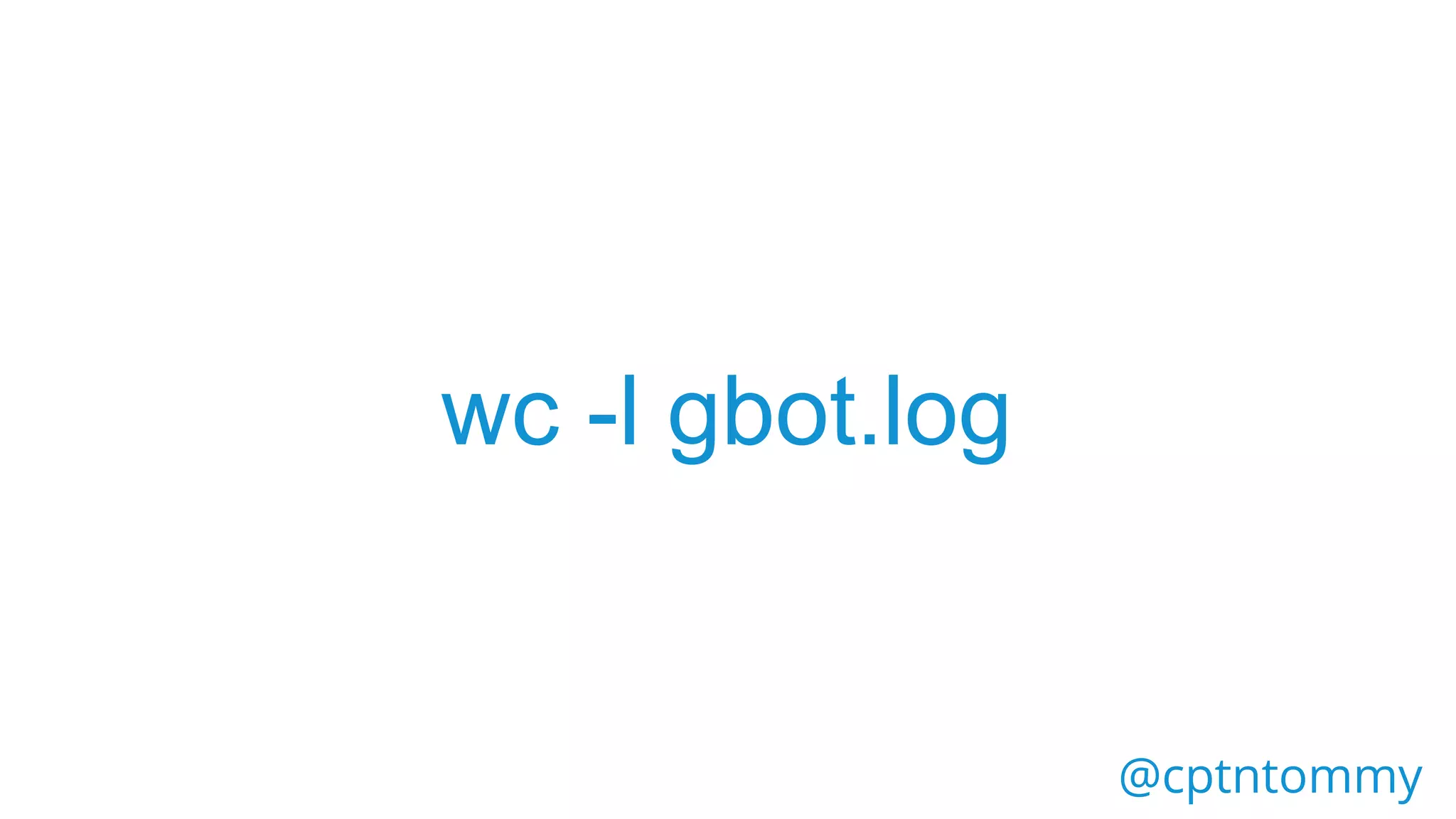
wc -l gbot.log
@cptntommy
@cptntommy
6. Extract all hits of a specific
URL, or all img requests, all css
requests, all with modification of
1 command
@cptntommy
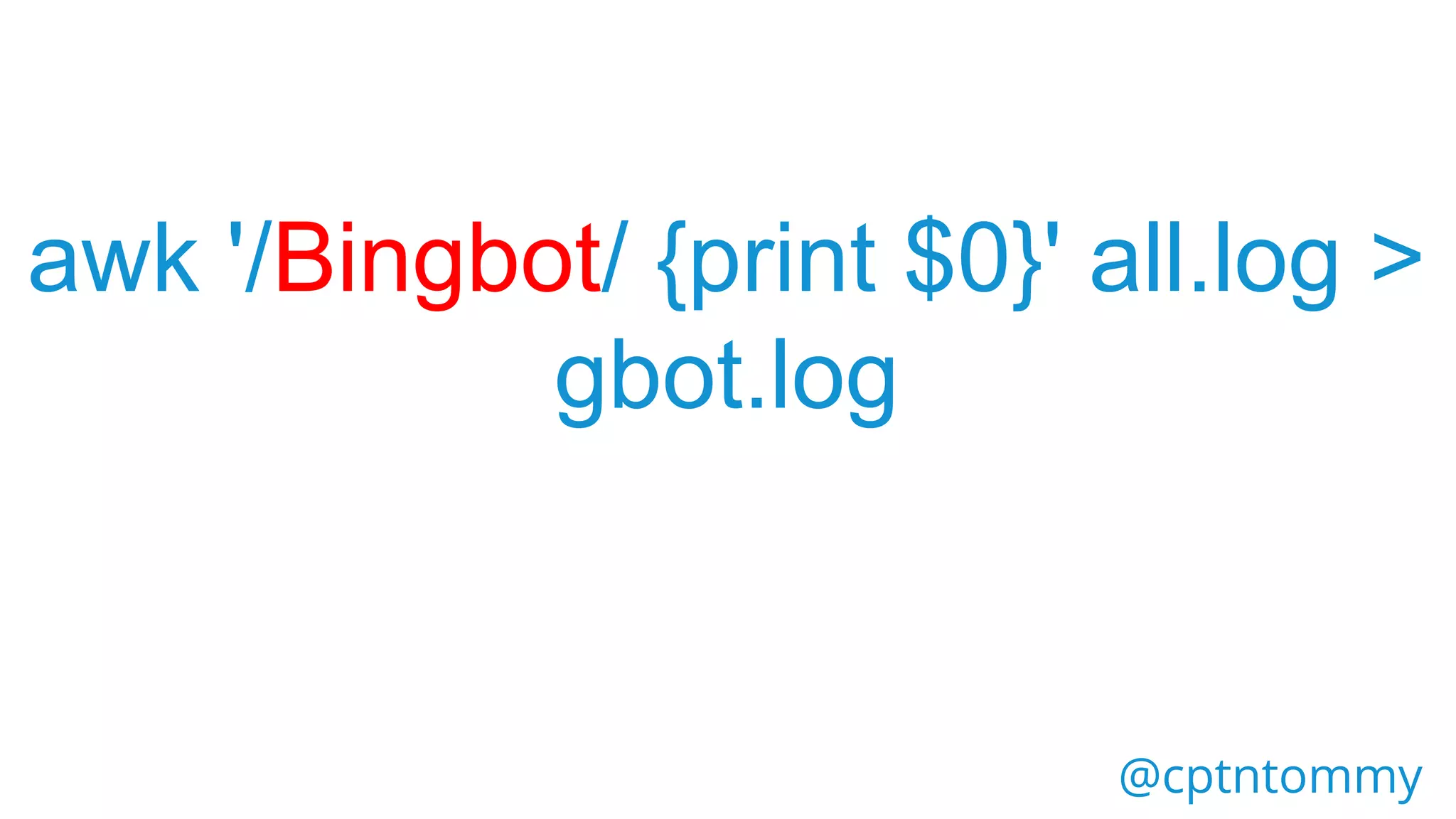
Replace ‘Googlebot’ with
‘BingBot’, ‘anybot’...
@cptntommy
awk '/Googlebot/ {print $0}'
all.log > gbot.log
@cptntommy
awk '/Bingbot/ {print $0}' all.log >
gbot.log
@cptntommy
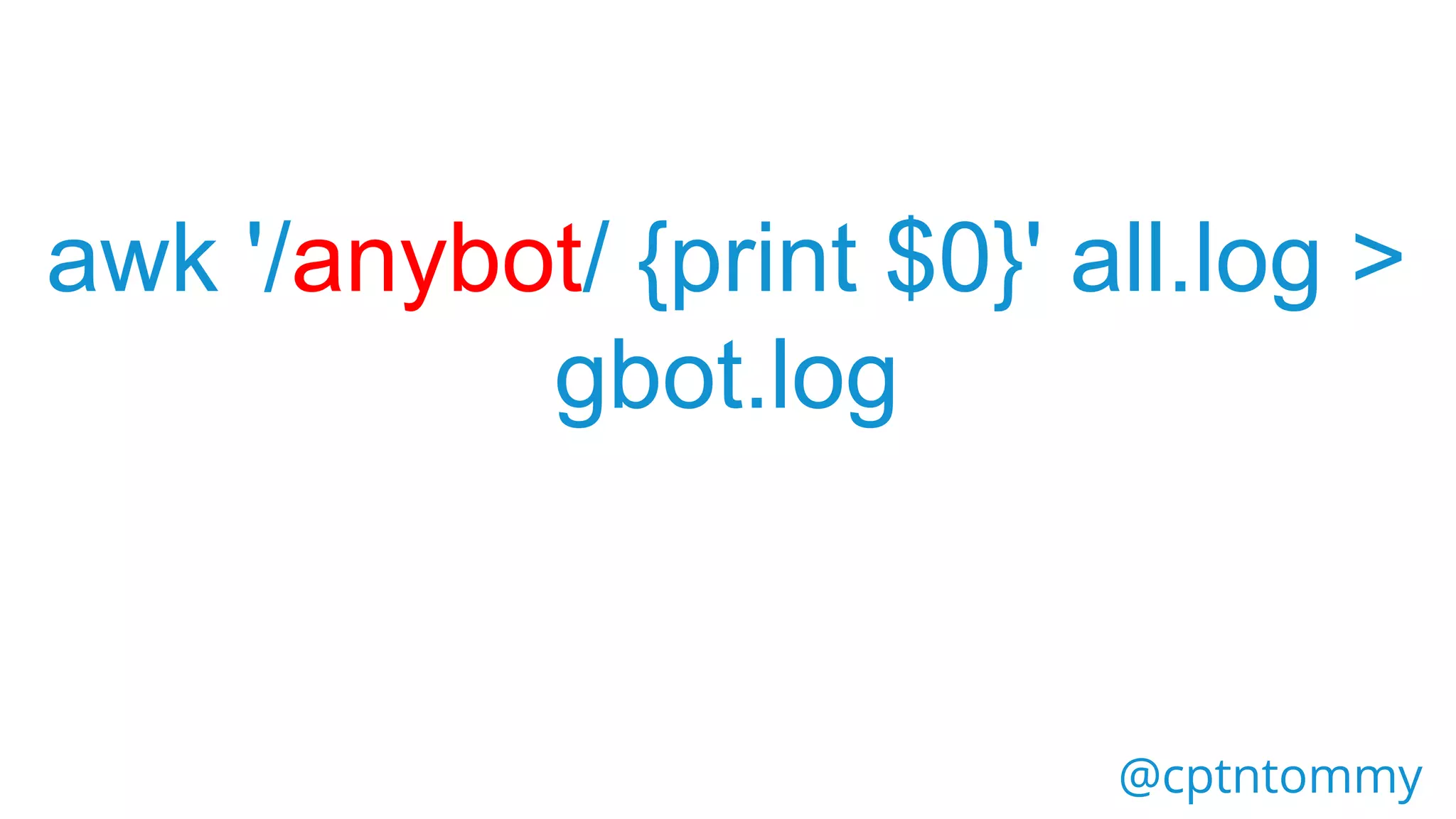
awk '/anybot/ {print $0}' all.log >
gbot.log
@cptntommy
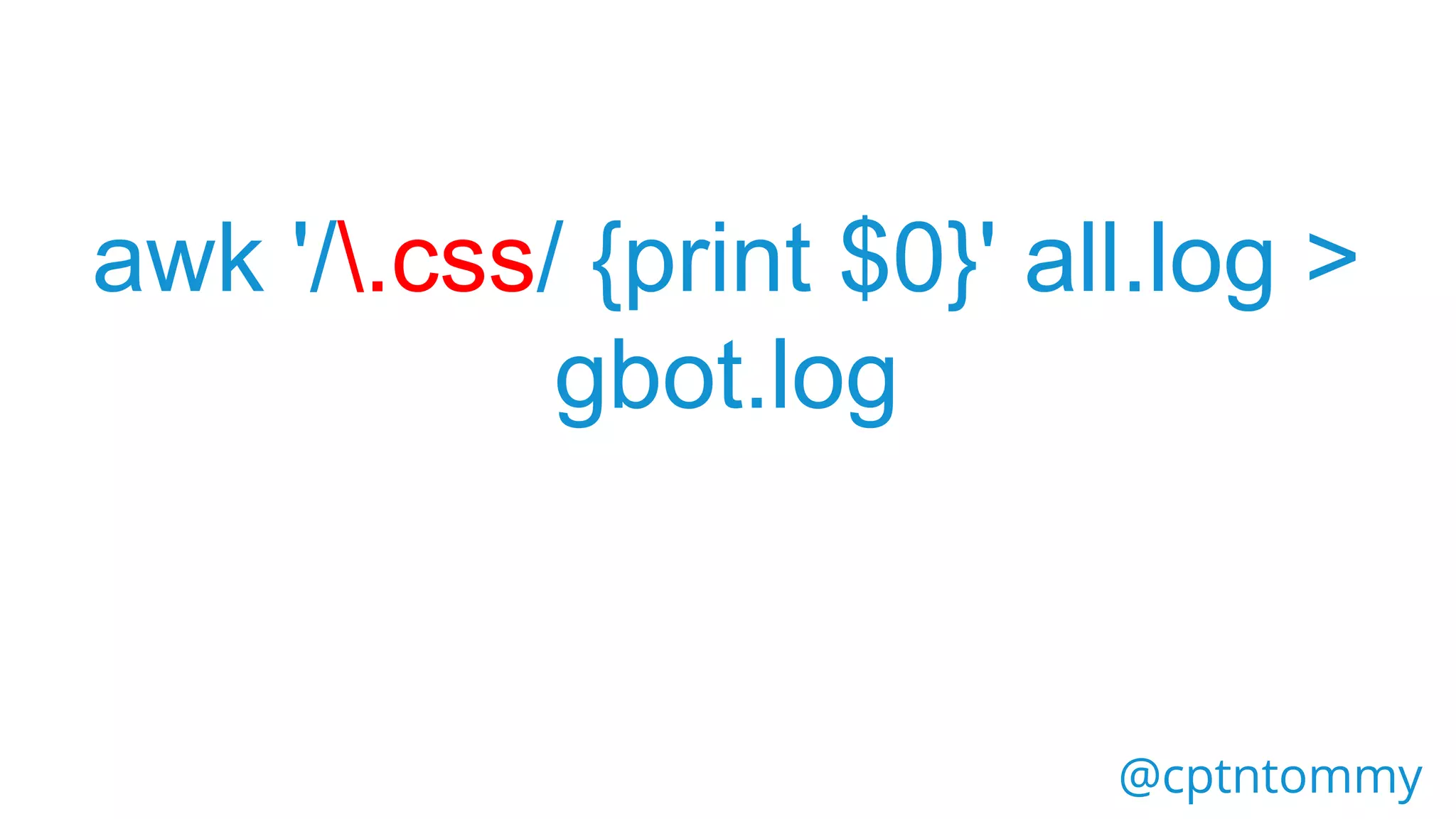
awk '/.css/ {print $0}' all.log >
gbot.log
@cptntommy
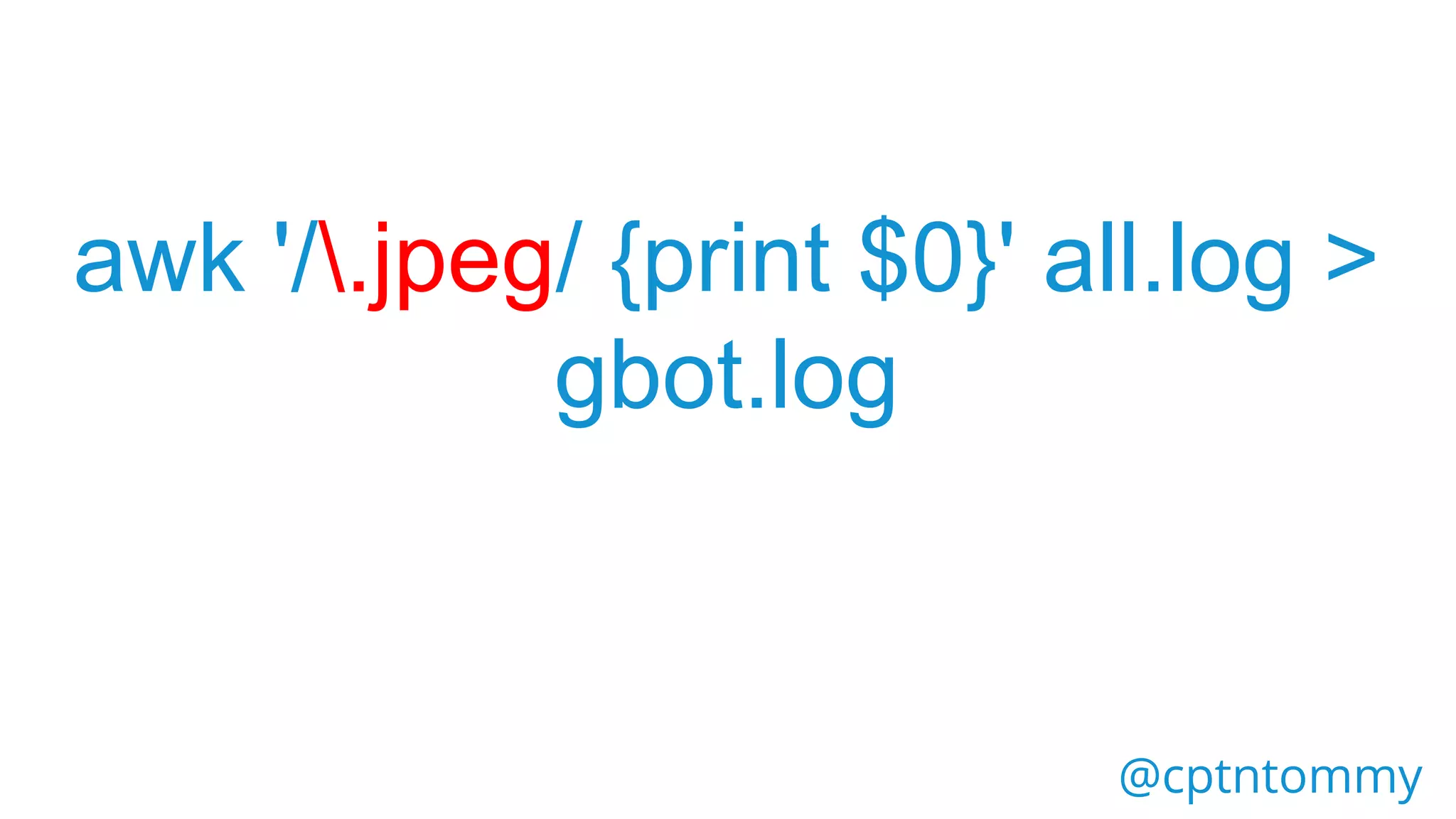
awk '/.jpeg/ {print $0}' all.log >
gbot.log
@cptntommy
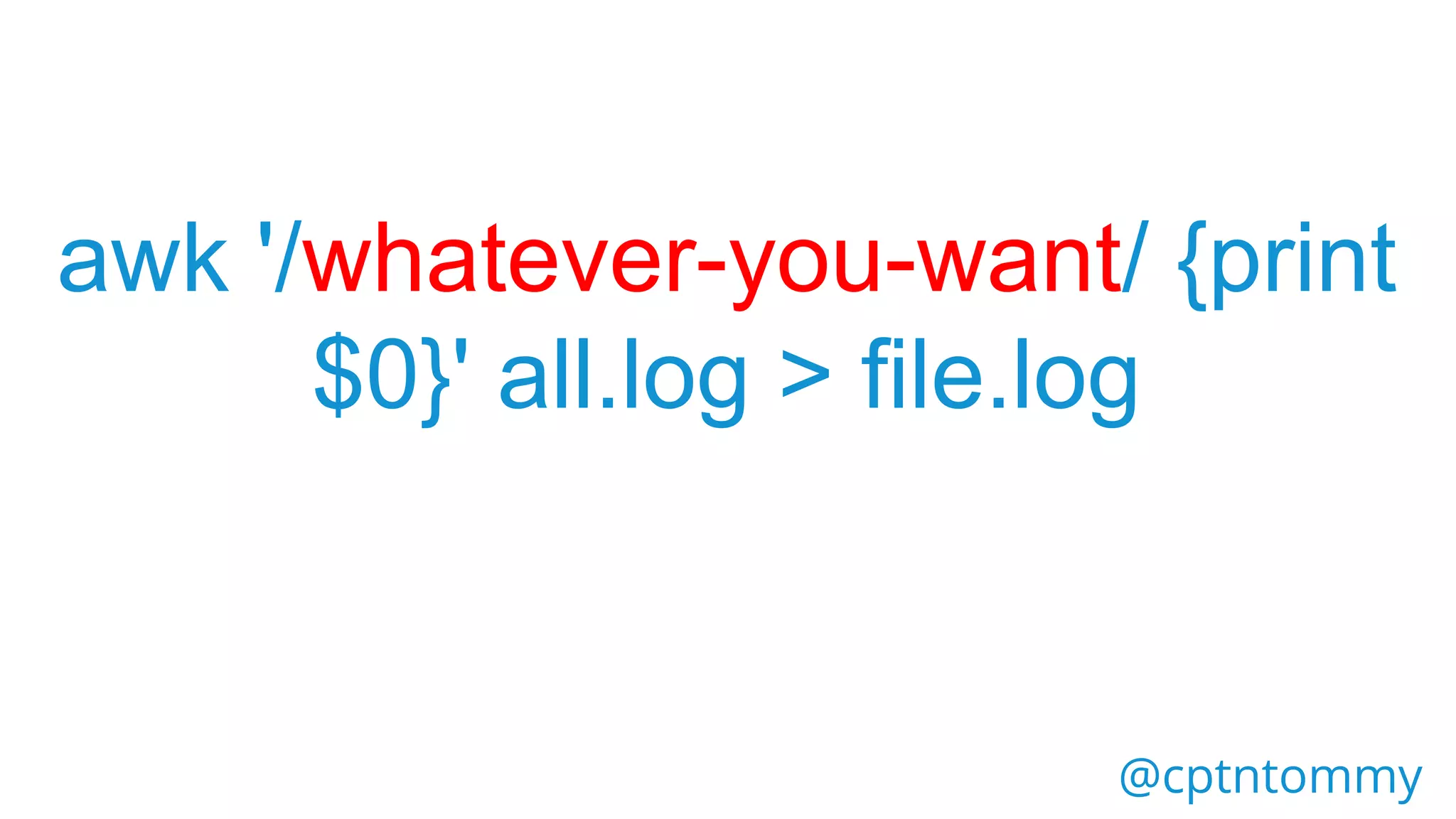
awk '/whatever-you-want/ {print
$0}' all.log > file.log
@cptntommy
This Barely
Scratches
the
Surface
@cptntommy
So, To Recap
You can now
hack:
@cptntommy
Server Logs
@cptntommy
Keyword data
@cptntommy
.csv files
@cptntommy
Extract columns
of data
@cptntommy
Sort data
@cptntommy
General SEO Shit
@cptntommy
And
@cptntommy
#BrightonSEO @cptntommy
Thanks!
@cptntommy

Command Line Hacks For SEO - Brighton April 2018 - Tom Pool