SAP NetWeaver Gateway
RFC & BOR Generators (Read Only)
May 2012


           A Branded Service provided by SAP Customer Solution Adoption
Objectives


                         At the end of this module, you will be able to:
                          Create a read-only Gateway Service based on a Remote Function
                           Module or an Object in the Business Object Repository (BOR)
                          Expose a Gateway Service for consumption
                          Test your Gateway Service from a browser


© 2012 SAP AG. All rights reserved.                                                        2
Agenda

 Remote Function Calls and Business Object Repository Overview
 Understanding Gateway Data and Consumption Models
 Developing Gateway Service based on a Remote Function Module or an Object
  in the Business Object Repository
    1. Create a Gateway Data Model in the ABAP Development Workbench
    2. Map your selected RFMs to Gateway Service operations using the Gateway Model
       Generator
    3. Define the interface of the Gateway Service Operation based on the fields in the RFM
    4. Generate the Gateway Data Model
    5. Associate the Gateway Data Model with a Gateway Consumption Model
    6. Associate the Gateway Service with a System Alias
    7. Test your Gateway Service in a browser


© 2012 SAP AG. All rights reserved.                                                           3
Agenda

 Remote Function Calls and Business Object Repository Overview
 Understanding Gateway Data and Consumption Models
 Developing Gateway Service based on a Remote Function Module or an Object
  in the Business Object Repository
    1. Create a Gateway Data Model in the ABAP Development Workbench
    2. Map your selected RFMs to Gateway Service operations using the Gateway Model
       Generator
    3. Define the interface of the Gateway Service Operation based on the fields in the RFM
    4. Generate the Gateway Data Model
    5. Associate the Gateway Data Model with a Gateway Consumption Model
    6. Associate the Gateway Service with a System Alias
    7. Test your Gateway Service in a browser


© 2012 SAP AG. All rights reserved.                                                           4
Overview – Remote Function Modules

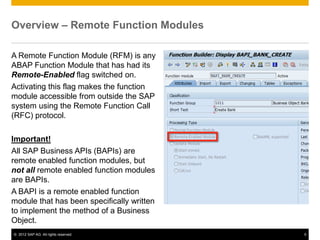
A Remote Function Module (RFM) is any
ABAP Function Module that has had its
Remote-Enabled flag switched on.
Activating this flag makes the function
module accessible from outside the SAP
system using the Remote Function Call
(RFC) protocol.

Important!
All SAP Business APIs (BAPIs) are
remote enabled function modules, but
not all remote enabled function modules
are BAPIs.
A BAPI is a remote enabled function
module that has been specifically written
to implement the method of a Business
Object.
© 2012 SAP AG. All rights reserved.         5
Overview – Business Object Repository (BOR)

The BOR arranges BAPIs into
Business Objects
Objects contain methods, events, key
fields, and attributes
 Methods are usually mapped to BAPIs
 Key fields are mandatory fields used to
  identify an object instance
 Events are used to notify others of some
  business event
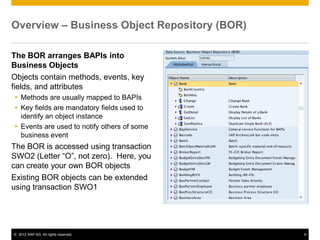
The BOR is accessed using transaction
SWO2 (Letter “O”, not zero). Here, you
can create your own BOR objects
Existing BOR objects can be extended
using transaction SWO1


© 2012 SAP AG. All rights reserved.           6
Agenda

 Remote Function Calls and Business Object Repository Overview
 Understanding Gateway Data and Consumption Models
 Developing Gateway Service based on a Remote Function Module or an Object
  in the Business Object Repository
    1. Create a Gateway Data Model in the ABAP Development Workbench
    2. Map your selected RFMs to Gateway Service operations using the Gateway Model
       Generator
    3. Define the interface of the Gateway Service Operation based on the fields in the RFM
    4. Generate the Gateway Data Model
    5. Associate the Gateway Data Model with a Gateway Consumption Model
    6. Associate the Gateway Service with a System Alias
    7. Test your Gateway Service in a browser


© 2012 SAP AG. All rights reserved.                                                           7
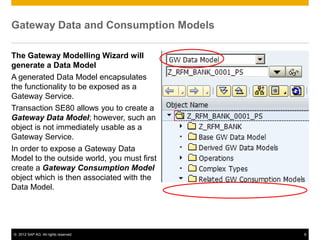
Gateway Data and Consumption Models

The Gateway Modelling Wizard will
generate a Data Model
A generated Data Model encapsulates
the functionality to be exposed as a
Gateway Service.
Transaction SE80 allows you to create a
Gateway Data Model; however, such an
object is not immediately usable as a
Gateway Service.
In order to expose a Gateway Data
Model to the outside world, you must first
create a Gateway Consumption Model
object which is then associated with the
Data Model.


© 2012 SAP AG. All rights reserved.          8
Agenda

 Remote Function Calls and Business Object Repository Overview
 Understanding Gateway Data and Consumption Models
 Developing Gateway Service based on a Remote Function Module or an Object
  in the Business Object Repository
    1. Create a Gateway Data Model in the ABAP Development Workbench
    2. Map your selected RFMs to Gateway Service operations using the Gateway Model
       Generator
    3. Define the interface of the Gateway Service Operation based on the fields in the RFM
    4. Generate the Gateway Data Model
    5. Associate the Gateway Data Model with a Gateway Consumption Model
    6. Associate the Gateway Service with a System Alias
    7. Test your Gateway Service in a browser


© 2012 SAP AG. All rights reserved.                                                           9
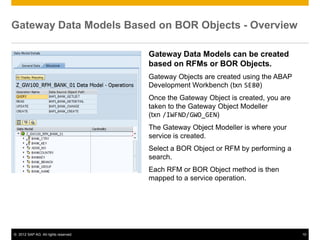
Gateway Data Models Based on BOR Objects - Overview

                                      Gateway Data Models can be created
                                      based on RFMs or BOR Objects.
                                      Gateway Objects are created using the ABAP
                                      Development Workbench (txn SE80)
                                      Once the Gateway Object is created, you are
                                      taken to the Gateway Object Modeller
                                      (txn /IWFND/GWO_GEN)
                                      The Gateway Object Modeller is where your
                                      service is created.
                                      Select a BOR Object or RFM by performing a
                                      search.
                                      Each RFM or BOR Object method is then
                                      mapped to a service operation.


© 2012 SAP AG. All rights reserved.                                                 10
Agenda

 Remote Function Calls and Business Object Repository Overview
 Understanding Gateway Data and Consumption Models
 Developing Gateway Service based on a Remote Function Module or an Object
  in the Business Object Repository
    1. Create a Gateway Data Model in the ABAP Development Workbench
    2. Map your selected RFMs to Gateway Service operations using the Gateway Model
       Generator
    3. Define the interface of the Gateway Service Operation based on the fields in the RFM
    4. Generate the Gateway Data Model
    5. Associate the Gateway Data Model with a Gateway Consumption Model
    6. Associate the Gateway Service with a System Alias
    7. Test your Gateway Service in a browser


© 2012 SAP AG. All rights reserved.                                                           11
Step 1) Create A Gateway Data Model – 1/2

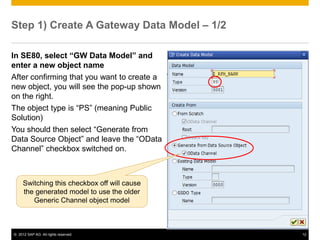
In SE80, select “GW Data Model” and
enter a new object name
After confirming that you want to create a
new object, you will see the pop-up shown
on the right.
The object type is “PS” (meaning Public
Solution)
You should then select “Generate from
Data Source Object” and leave the “OData
Channel” checkbox switched on.


     Switching this checkbox off will cause
     the generated model to use the older
        Generic Channel object model


© 2012 SAP AG. All rights reserved.           12
Step 1) Create A Gateway Data Model – 2/2

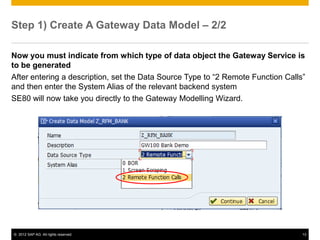
Now you must indicate from which type of data object the Gateway Service is
to be generated
After entering a description, set the Data Source Type to “2 Remote Function Calls”
and then enter the System Alias of the relevant backend system
SE80 will now take you directly to the Gateway Modelling Wizard.


© 2012 SAP AG. All rights reserved.                                               13
Agenda

 Remote Function Calls and Business Object Repository Overview
 Understanding Gateway Data and Consumption Models
 Developing Gateway Service based on a Remote Function Module or an Object
  in the Business Object Repository
    1. Create a Gateway Data Model in the ABAP Development Workbench
    2. Map your selected RFMs to Gateway Service operations using the Gateway Model
       Generator
    3. Define the interface of the Gateway Service Operation based on the fields in the RFM
    4. Generate the Gateway Data Model
    5. Associate the Gateway Data Model with a Gateway Consumption Model
    6. Associate the Gateway Service with a System Alias
    7. Test your Gateway Service in a browser


© 2012 SAP AG. All rights reserved.                                                           14
Step 2) Map RFM to Gateway Service Operation – 1/2

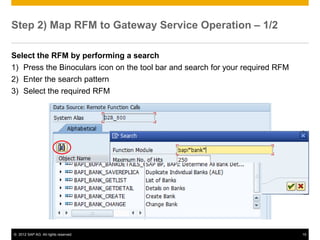
Select the RFM by performing a search
1) Press the Binoculars icon on the tool bar and search for your required RFM
2) Enter the search pattern
3) Select the required RFM


© 2012 SAP AG. All rights reserved.                                             15
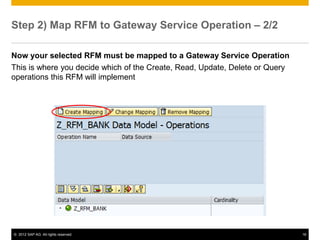
Step 2) Map RFM to Gateway Service Operation – 2/2

Now your selected RFM must be mapped to a Gateway Service Operation
This is where you decide which of the Create, Read, Update, Delete or Query
operations this RFM will implement


© 2012 SAP AG. All rights reserved.                                           16
Agenda

 Remote Function Calls and Business Object Repository Overview
 Understanding Gateway Data and Consumption Models
 Developing Gateway Service based on a Remote Function Module or an Object
  in the Business Object Repository
    1. Create a Gateway Data Model in the ABAP Development Workbench
    2. Map your selected RFMs to Gateway Service operations using the Gateway Model
       Generator
    3. Define the interface of the Gateway Service Operation based on the fields in the RFM
    4. Generate the Gateway Data Model
    5. Associate the Gateway Data Model with a Gateway Consumption Model
    6. Associate the Gateway Service with a System Alias
    7. Test your Gateway Service in a browser


© 2012 SAP AG. All rights reserved.                                                           17
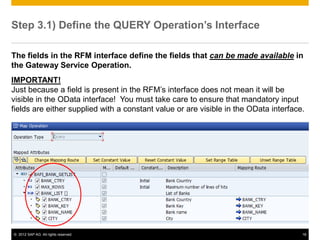
Step 3.1) Define the QUERY Operation’s Interface

The fields in the RFM interface define the fields that can be made available in
the Gateway Service Operation.
IMPORTANT!
Just because a field is present in the RFM’s interface does not mean it will be
visible in the OData interface! You must take care to ensure that mandatory input
fields are either supplied with a constant value or are visible in the OData interface.


© 2012 SAP AG. All rights reserved.                                                   18
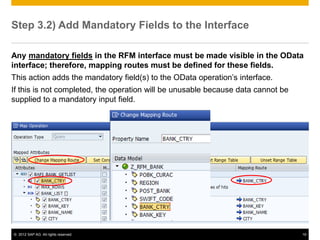
Step 3.2) Add Mandatory Fields to the Interface

Any mandatory fields in the RFM interface must be made visible in the OData
interface; therefore, mapping routes must be defined for these fields.
This action adds the mandatory field(s) to the OData operation’s interface.
If this is not completed, the operation will be unusable because data cannot be
supplied to a mandatory input field.


© 2012 SAP AG. All rights reserved.                                               19
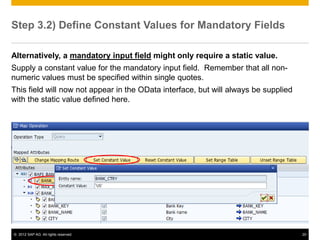
Step 3.2) Define Constant Values for Mandatory Fields

Alternatively, a mandatory input field might only require a static value.
Supply a constant value for the mandatory input field. Remember that all non-
numeric values must be specified within single quotes.
This field will now not appear in the OData interface, but will always be supplied
with the static value defined here.


© 2012 SAP AG. All rights reserved.                                                  20
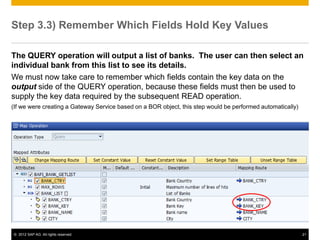
Step 3.3) Remember Which Fields Hold Key Values

The QUERY operation will output a list of banks. The user can then select an
individual bank from this list to see its details.
We must now take care to remember which fields contain the key data on the
output side of the QUERY operation, because these fields must then be used to
supply the key data required by the subsequent READ operation.
(If we were creating a Gateway Service based on a BOR object, this step would be performed automatically)


© 2012 SAP AG. All rights reserved.                                                                         21
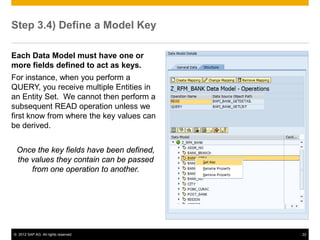
Step 3.4) Define a Model Key

Each Data Model must have one or
more fields defined to act as keys.
For instance, when you perform a
QUERY, you receive multiple Entities in
an Entity Set. We cannot then perform a
subsequent READ operation unless we
first know from where the key values can
be derived.


 Once the key fields have been defined,
 the values they contain can be passed
     from one operation to another.


© 2012 SAP AG. All rights reserved.        22
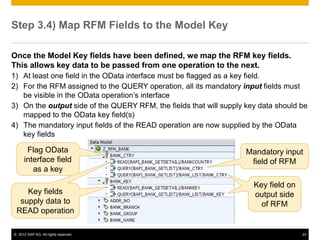
Step 3.4) Map RFM Fields to the Model Key

Once the Model Key fields have been defined, we map the RFM key fields.
This allows key data to be passed from one operation to the next.
1) At least one field in the OData interface must be flagged as a key field.
2) For the RFM assigned to the QUERY operation, all its mandatory input fields must
   be visible in the OData operation’s interface
3) On the output side of the QUERY RFM, the fields that will supply key data should be
   mapped to the OData key field(s)
4) The mandatory input fields of the READ operation are now supplied by the OData
   key fields

       Flag OData                                                   Mandatory input
      interface field                                                field of RFM
         as a key
                                                                      Key field on
    Key fields                                                        output side
  supply data to                                                        of RFM
 READ operation

© 2012 SAP AG. All rights reserved.                                                  23
Agenda

 Remote Function Calls and Business Object Repository Overview
 Understanding Gateway Data and Consumption Models
 Developing Gateway Service based on a Remote Function Module or an Object
  in the Business Object Repository
    1. Create a Gateway Data Model in the ABAP Development Workbench
    2. Map your selected RFMs to Gateway Service operations using the Gateway Model
       Generator
    3. Define the interface of the Gateway Service Operation based on the fields in the RFM
    4. Generate the Gateway Data Model
    5. Associate the Gateway Data Model with a Gateway Consumption Model
    6. Associate the Gateway Service with a System Alias
    7. Test your Gateway Service in a browser


© 2012 SAP AG. All rights reserved.                                                           24
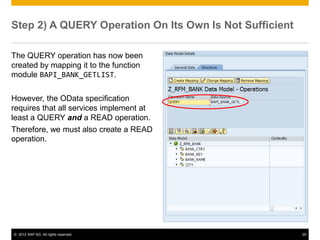
Step 2) A QUERY Operation On Its Own Is Not Sufficient

The QUERY operation has now been
created by mapping it to the function
module BAPI_BANK_GETLIST.

However, the OData specification
requires that all services implement at
least a QUERY and a READ operation.
Therefore, we must also create a READ
operation.


© 2012 SAP AG. All rights reserved.                      25
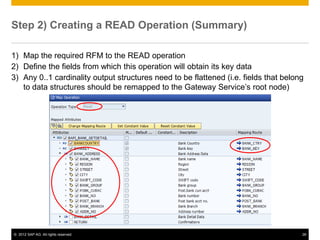
Step 2) Creating a READ Operation (Summary)

1) Map the required RFM to the READ operation
2) Define the fields from which this operation will obtain its key data
3) Any 0..1 cardinality output structures need to be flattened (i.e. fields that belong
   to data structures should be remapped to the Gateway Service’s root node)


© 2012 SAP AG. All rights reserved.                                                   26
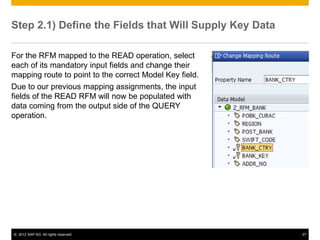
Step 2.1) Define the Fields that Will Supply Key Data

For the RFM mapped to the READ operation, select
each of its mandatory input fields and change their
mapping route to point to the correct Model Key field.
Due to our previous mapping assignments, the input
fields of the READ RFM will now be populated with
data coming from the output side of the QUERY
operation.


© 2012 SAP AG. All rights reserved.                      27
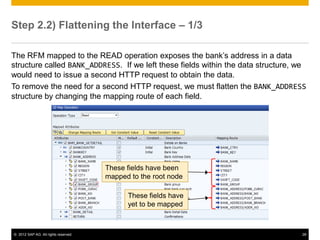
Step 2.2) Flattening the Interface – 1/3

The RFM mapped to the READ operation exposes the bank’s address in a data
structure called BANK_ADDRESS. If we left these fields within the data structure, we
would need to issue a second HTTP request to obtain the data.
To remove the need for a second HTTP request, we must flatten the BANK_ADDRESS
structure by changing the mapping route of each field.


                                      These fields have been
                                      mapped to the root node

                                            These fields have
                                            yet to be mapped


© 2012 SAP AG. All rights reserved.                                               28
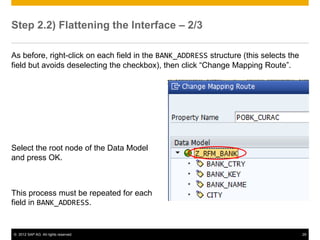
Step 2.2) Flattening the Interface – 2/3

As before, right-click on each field in the BANK_ADDRESS structure (this selects the
field but avoids deselecting the checkbox), then click “Change Mapping Route”.


Select the root node of the Data Model
and press OK.


This process must be repeated for each
field in BANK_ADDRESS.


© 2012 SAP AG. All rights reserved.                                                    29
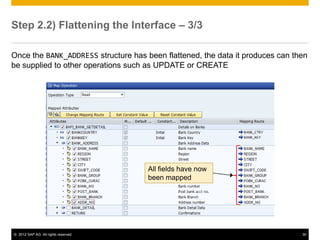
Step 2.2) Flattening the Interface – 3/3

Once the BANK_ADDRESS structure has been flattened, the data it produces can then
be supplied to other operations such as UPDATE or CREATE


                                      All fields have now
                                      been mapped


© 2012 SAP AG. All rights reserved.                                            30
Agenda

 Remote Function Calls and Business Object Repository Overview
 Understanding Gateway Data and Consumption Models
 Developing Gateway Service based on a Remote Function Module or an Object
  in the Business Object Repository
    1. Create a Gateway Data Model in the ABAP Development Workbench
    2. Map your selected RFMs to Gateway Service operations using the Gateway Model
       Generator
    3. Define the interface of the Gateway Service Operation based on the fields in the RFM
    4. Generate the Gateway Data Model
    5. Associate the Gateway Data Model with a Gateway Consumption Model
    6. Associate the Gateway Service with a System Alias
    7. Test your Gateway Service in a browser


© 2012 SAP AG. All rights reserved.                                                           31
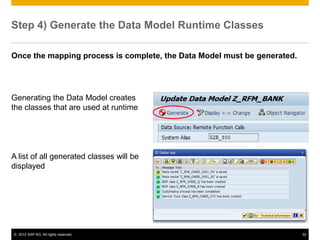
Step 4) Generate the Data Model Runtime Classes

Once the mapping process is complete, the Data Model must be generated.


Generating the Data Model creates
the classes that are used at runtime


A list of all generated classes will be
displayed


© 2012 SAP AG. All rights reserved.                                       32
Agenda

 Remote Function Calls and Business Object Repository Overview
 Understanding Gateway Data and Consumption Models
 Developing Gateway Service based on a Remote Function Module or an Object
  in the Business Object Repository
    1. Create a Gateway Data Model in the ABAP Development Workbench
    2. Map your selected RFMs to Gateway Service operations using the Gateway Model
       Generator
    3. Define the interface of the Gateway Service Operation based on the fields in the RFM
    4. Generate the Gateway Data Model
    5. Associate the Gateway Data Model with a Gateway Consumption Model
    6. Associate the Gateway Service with a System Alias
    7. Test your Gateway Service in a browser


© 2012 SAP AG. All rights reserved.                                                           33
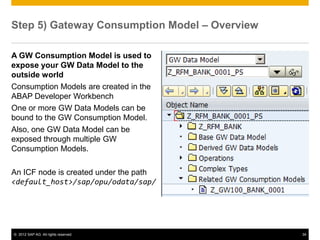
Step 5) Gateway Consumption Model – Overview

A GW Consumption Model is used to
expose your GW Data Model to the
outside world
Consumption Models are created in the
ABAP Developer Workbench
One or more GW Data Models can be
bound to the GW Consumption Model.
Also, one GW Data Model can be
exposed through multiple GW
Consumption Models.

An ICF node is created under the path
<default_host>/sap/opu/odata/sap/


© 2012 SAP AG. All rights reserved.            34
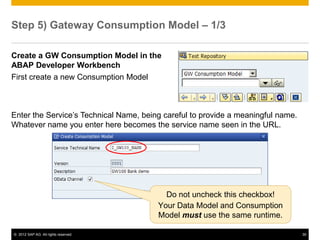
Step 5) Gateway Consumption Model – 1/3

Create a GW Consumption Model in the
ABAP Developer Workbench
First create a new Consumption Model


Enter the Service’s Technical Name, being careful to provide a meaningful name.
Whatever name you enter here becomes the service name seen in the URL.


                                          Do not uncheck this checkbox!
                                        Your Data Model and Consumption
                                        Model must use the same runtime.

© 2012 SAP AG. All rights reserved.                                               35
Step 5) Gateway Consumption Model – 2/3

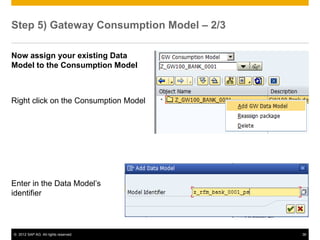
Now assign your existing Data
Model to the Consumption Model


Right click on the Consumption Model


Enter in the Data Model’s
identifier


© 2012 SAP AG. All rights reserved.       36
Step 5) Gateway Consumption Model – 3/3

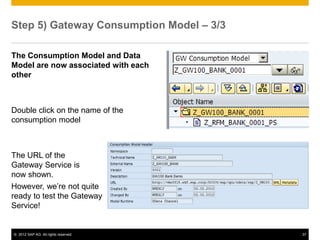
The Consumption Model and Data
Model are now associated with each
other


Double click on the name of the
consumption model


The URL of the
Gateway Service is
now shown.
However, we’re not quite
ready to test the Gateway
Service!


© 2012 SAP AG. All rights reserved.       37
Agenda

 Remote Function Calls and Business Object Repository Overview
 Understanding Gateway Data and Consumption Models
 Developing Gateway Service based on a Remote Function Module or an Object
  in the Business Object Repository
    1. Create a Gateway Data Model in the ABAP Development Workbench
    2. Map your selected RFMs to Gateway Service operations using the Gateway Model
       Generator
    3. Define the interface of the Gateway Service Operation based on the fields in the RFM
    4. Generate the Gateway Data Model
    5. Associate the Gateway Data Model with a Gateway Consumption Model
    6. Associate the Gateway Service with a System Alias
    7. Test your Gateway Service in a browser


© 2012 SAP AG. All rights reserved.                                                           38
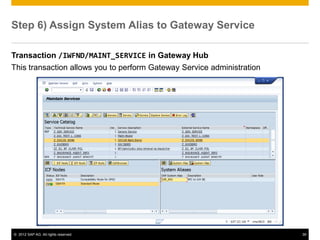
Step 6) Assign System Alias to Gateway Service

Transaction /IWFND/MAINT_SERVICE in Gateway Hub
This transaction allows you to perform Gateway Service administration


© 2012 SAP AG. All rights reserved.                                     39
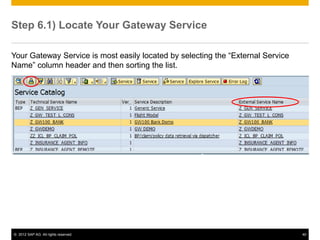
Step 6.1) Locate Your Gateway Service

Your Gateway Service is most easily located by selecting the “External Service
Name” column header and then sorting the list.


© 2012 SAP AG. All rights reserved.                                              40
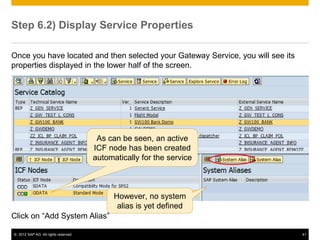
Step 6.2) Display Service Properties

Once you have located and then selected your Gateway Service, you will see its
properties displayed in the lower half of the screen.


                                       As can be seen, an active
                                      ICF node has been created
                                      automatically for the service


                                            However, no system
                                             alias is yet defined
Click on “Add System Alias”

© 2012 SAP AG. All rights reserved.                                              41
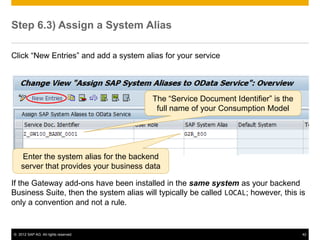
Step 6.3) Assign a System Alias

Click “New Entries” and add a system alias for your service


                                         The “Service Document Identifier” is the
                                          full name of your Consumption Model


    Enter the system alias for the backend
    server that provides your business data

If the Gateway add-ons have been installed in the same system as your backend
Business Suite, then the system alias will typically be called LOCAL; however, this is
only a convention and not a rule.


© 2012 SAP AG. All rights reserved.                                                  42
Agenda

 Remote Function Calls and Business Object Repository Overview
 Understanding Gateway Data and Consumption Models
 Developing Gateway Service based on a Remote Function Module or an Object
  in the Business Object Repository
    1. Create a Gateway Data Model in the ABAP Development Workbench
    2. Map your selected RFMs to Gateway Service operations using the Gateway Model
       Generator
    3. Define the interface of the Gateway Service Operation based on the fields in the RFM
    4. Generate the Gateway Data Model
    5. Associate the Gateway Data Model with a Gateway Consumption Model
    6. Associate the Gateway Service with a System Alias
    7. Test your Gateway Service in a browser


© 2012 SAP AG. All rights reserved.                                                           43
Step 7) Test Your Gateway Service – Overview

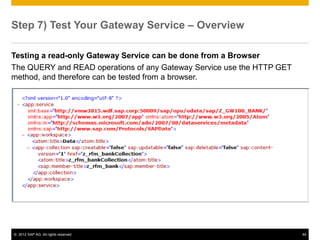
Testing a read-only Gateway Service can be done from a Browser
The QUERY and READ operations of any Gateway Service use the HTTP GET
method, and therefore can be tested from a browser.


© 2012 SAP AG. All rights reserved.                                     44
Step 7.1) Invoke Gateway Service From a Browser

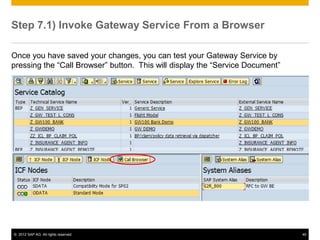
Once you have saved your changes, you can test your Gateway Service by
pressing the “Call Browser” button. This will display the “Service Document”


© 2012 SAP AG. All rights reserved.                                            45
Step 7.2) The Gateway Service Document – 1/2

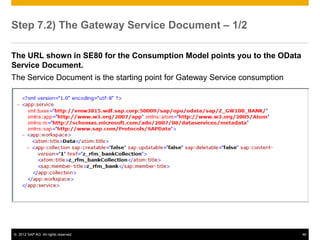
The URL shown in SE80 for the Consumption Model points you to the OData
Service Document.
The Service Document is the starting point for Gateway Service consumption


© 2012 SAP AG. All rights reserved.                                          46
Step 7.2) The Gateway Service Document – 2/2

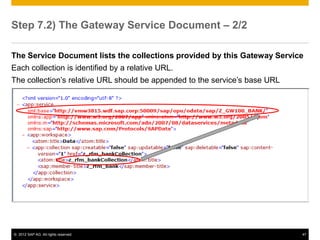
The Service Document lists the collections provided by this Gateway Service
Each collection is identified by a relative URL.
The collection’s relative URL should be appended to the service’s base URL


© 2012 SAP AG. All rights reserved.                                          47
Step 7.3) Testing the QUERY Operation – 1/4

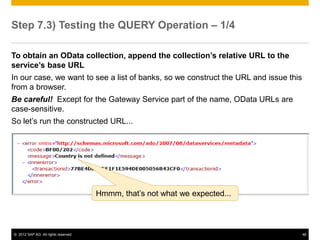
To obtain an OData collection, append the collection’s relative URL to the
service’s base URL
In our case, we want to see a list of banks, so we construct the URL and issue this
from a browser.
Be careful! Except for the Gateway Service part of the name, OData URLs are
case-sensitive.
So let’s run the constructed URL...


                                      Hmmm, that’s not what we expected...


© 2012 SAP AG. All rights reserved.                                                   48
Step 7.3) Testing the QUERY Operation – 2/4

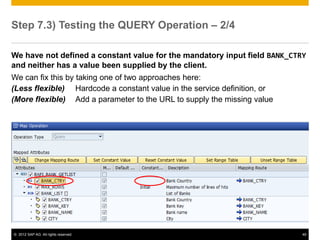
We have not defined a constant value for the mandatory input field BANK_CTRY
and neither has a value been supplied by the client.
We can fix this by taking one of two approaches here:
(Less flexible) Hardcode a constant value in the service definition, or
(More flexible) Add a parameter to the URL to supply the missing value


© 2012 SAP AG. All rights reserved.                                        49
Step 7.3) Testing the QUERY Operation – 3/4

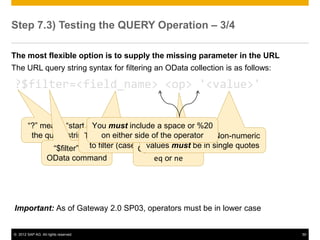
The most flexible option is to supply the missing parameter in the URL
The URL query string syntax for filtering an OData collection is as follows:

?$filter=<field_name> <op> '<value>'


        “?” means “start ofYou must include a space or %20
         the query string” field on which wethe operator Non-numeric
                          The on either side of wish value.
                                              Comparison
               “$filter” is thefilter (case-sensitive!)
                            to              Operator such as in single quotes
                                              values must be
                   OData command             eq or ne


Important: As of Gateway 2.0 SP03, operators must be in lower case


© 2012 SAP AG. All rights reserved.                                             50
Step 7.3) Testing the QUERY Operation – 4/4

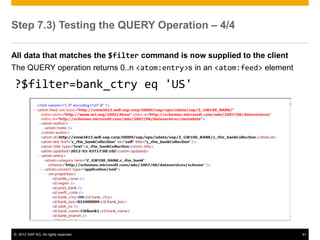
All data that matches the $filter command is now supplied to the client
The QUERY operation returns 0..n <atom:entry>s in an <atom:feed> element

?$filter=bank_ctry eq 'US'


© 2012 SAP AG. All rights reserved.                                        51
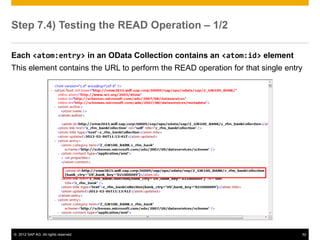
Step 7.4) Testing the READ Operation – 1/2

Each <atom:entry> in an OData Collection contains an <atom:id> element
This element contains the URL to perform the READ operation for that single entry


© 2012 SAP AG. All rights reserved.                                             52
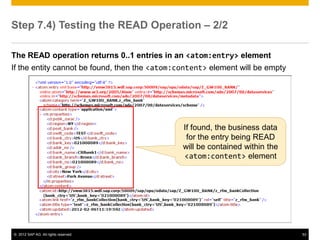
Step 7.4) Testing the READ Operation – 2/2

The READ operation returns 0..1 entries in an <atom:entry> element
If the entity cannot be found, then the <atom:content> element will be empty


                                               If found, the business data
                                                for the entry being READ
                                               will be contained within the
                                               <atom:content> element


© 2012 SAP AG. All rights reserved.                                            53
Summary


                         You should now be able to:
                          Create a read-only Gateway Service based on a Remote Function
                           Module or an Object in the Business Object Repository (BOR)
                          Expose a Gateway Service for consumption
                          Test your Gateway Service from a browser


© 2012 SAP AG. All rights reserved.                                                        54

SAP NetWeaver Gateway - RFC & BOR Generators

  • 1.
    SAP NetWeaver Gateway RFC& BOR Generators (Read Only) May 2012 A Branded Service provided by SAP Customer Solution Adoption
  • 2.
    Objectives At the end of this module, you will be able to:  Create a read-only Gateway Service based on a Remote Function Module or an Object in the Business Object Repository (BOR)  Expose a Gateway Service for consumption  Test your Gateway Service from a browser © 2012 SAP AG. All rights reserved. 2
  • 3.
    Agenda  Remote FunctionCalls and Business Object Repository Overview  Understanding Gateway Data and Consumption Models  Developing Gateway Service based on a Remote Function Module or an Object in the Business Object Repository 1. Create a Gateway Data Model in the ABAP Development Workbench 2. Map your selected RFMs to Gateway Service operations using the Gateway Model Generator 3. Define the interface of the Gateway Service Operation based on the fields in the RFM 4. Generate the Gateway Data Model 5. Associate the Gateway Data Model with a Gateway Consumption Model 6. Associate the Gateway Service with a System Alias 7. Test your Gateway Service in a browser © 2012 SAP AG. All rights reserved. 3
  • 4.
    Agenda  Remote FunctionCalls and Business Object Repository Overview  Understanding Gateway Data and Consumption Models  Developing Gateway Service based on a Remote Function Module or an Object in the Business Object Repository 1. Create a Gateway Data Model in the ABAP Development Workbench 2. Map your selected RFMs to Gateway Service operations using the Gateway Model Generator 3. Define the interface of the Gateway Service Operation based on the fields in the RFM 4. Generate the Gateway Data Model 5. Associate the Gateway Data Model with a Gateway Consumption Model 6. Associate the Gateway Service with a System Alias 7. Test your Gateway Service in a browser © 2012 SAP AG. All rights reserved. 4
  • 5.
    Overview – RemoteFunction Modules A Remote Function Module (RFM) is any ABAP Function Module that has had its Remote-Enabled flag switched on. Activating this flag makes the function module accessible from outside the SAP system using the Remote Function Call (RFC) protocol. Important! All SAP Business APIs (BAPIs) are remote enabled function modules, but not all remote enabled function modules are BAPIs. A BAPI is a remote enabled function module that has been specifically written to implement the method of a Business Object. © 2012 SAP AG. All rights reserved. 5
  • 6.
    Overview – BusinessObject Repository (BOR) The BOR arranges BAPIs into Business Objects Objects contain methods, events, key fields, and attributes  Methods are usually mapped to BAPIs  Key fields are mandatory fields used to identify an object instance  Events are used to notify others of some business event The BOR is accessed using transaction SWO2 (Letter “O”, not zero). Here, you can create your own BOR objects Existing BOR objects can be extended using transaction SWO1 © 2012 SAP AG. All rights reserved. 6
  • 7.
    Agenda  Remote FunctionCalls and Business Object Repository Overview  Understanding Gateway Data and Consumption Models  Developing Gateway Service based on a Remote Function Module or an Object in the Business Object Repository 1. Create a Gateway Data Model in the ABAP Development Workbench 2. Map your selected RFMs to Gateway Service operations using the Gateway Model Generator 3. Define the interface of the Gateway Service Operation based on the fields in the RFM 4. Generate the Gateway Data Model 5. Associate the Gateway Data Model with a Gateway Consumption Model 6. Associate the Gateway Service with a System Alias 7. Test your Gateway Service in a browser © 2012 SAP AG. All rights reserved. 7
  • 8.
    Gateway Data andConsumption Models The Gateway Modelling Wizard will generate a Data Model A generated Data Model encapsulates the functionality to be exposed as a Gateway Service. Transaction SE80 allows you to create a Gateway Data Model; however, such an object is not immediately usable as a Gateway Service. In order to expose a Gateway Data Model to the outside world, you must first create a Gateway Consumption Model object which is then associated with the Data Model. © 2012 SAP AG. All rights reserved. 8
  • 9.
    Agenda  Remote FunctionCalls and Business Object Repository Overview  Understanding Gateway Data and Consumption Models  Developing Gateway Service based on a Remote Function Module or an Object in the Business Object Repository 1. Create a Gateway Data Model in the ABAP Development Workbench 2. Map your selected RFMs to Gateway Service operations using the Gateway Model Generator 3. Define the interface of the Gateway Service Operation based on the fields in the RFM 4. Generate the Gateway Data Model 5. Associate the Gateway Data Model with a Gateway Consumption Model 6. Associate the Gateway Service with a System Alias 7. Test your Gateway Service in a browser © 2012 SAP AG. All rights reserved. 9
  • 10.
    Gateway Data ModelsBased on BOR Objects - Overview Gateway Data Models can be created based on RFMs or BOR Objects. Gateway Objects are created using the ABAP Development Workbench (txn SE80) Once the Gateway Object is created, you are taken to the Gateway Object Modeller (txn /IWFND/GWO_GEN) The Gateway Object Modeller is where your service is created. Select a BOR Object or RFM by performing a search. Each RFM or BOR Object method is then mapped to a service operation. © 2012 SAP AG. All rights reserved. 10
  • 11.
    Agenda  Remote FunctionCalls and Business Object Repository Overview  Understanding Gateway Data and Consumption Models  Developing Gateway Service based on a Remote Function Module or an Object in the Business Object Repository 1. Create a Gateway Data Model in the ABAP Development Workbench 2. Map your selected RFMs to Gateway Service operations using the Gateway Model Generator 3. Define the interface of the Gateway Service Operation based on the fields in the RFM 4. Generate the Gateway Data Model 5. Associate the Gateway Data Model with a Gateway Consumption Model 6. Associate the Gateway Service with a System Alias 7. Test your Gateway Service in a browser © 2012 SAP AG. All rights reserved. 11
  • 12.
    Step 1) CreateA Gateway Data Model – 1/2 In SE80, select “GW Data Model” and enter a new object name After confirming that you want to create a new object, you will see the pop-up shown on the right. The object type is “PS” (meaning Public Solution) You should then select “Generate from Data Source Object” and leave the “OData Channel” checkbox switched on. Switching this checkbox off will cause the generated model to use the older Generic Channel object model © 2012 SAP AG. All rights reserved. 12
  • 13.
    Step 1) CreateA Gateway Data Model – 2/2 Now you must indicate from which type of data object the Gateway Service is to be generated After entering a description, set the Data Source Type to “2 Remote Function Calls” and then enter the System Alias of the relevant backend system SE80 will now take you directly to the Gateway Modelling Wizard. © 2012 SAP AG. All rights reserved. 13
  • 14.
    Agenda  Remote FunctionCalls and Business Object Repository Overview  Understanding Gateway Data and Consumption Models  Developing Gateway Service based on a Remote Function Module or an Object in the Business Object Repository 1. Create a Gateway Data Model in the ABAP Development Workbench 2. Map your selected RFMs to Gateway Service operations using the Gateway Model Generator 3. Define the interface of the Gateway Service Operation based on the fields in the RFM 4. Generate the Gateway Data Model 5. Associate the Gateway Data Model with a Gateway Consumption Model 6. Associate the Gateway Service with a System Alias 7. Test your Gateway Service in a browser © 2012 SAP AG. All rights reserved. 14
  • 15.
    Step 2) MapRFM to Gateway Service Operation – 1/2 Select the RFM by performing a search 1) Press the Binoculars icon on the tool bar and search for your required RFM 2) Enter the search pattern 3) Select the required RFM © 2012 SAP AG. All rights reserved. 15
  • 16.
    Step 2) MapRFM to Gateway Service Operation – 2/2 Now your selected RFM must be mapped to a Gateway Service Operation This is where you decide which of the Create, Read, Update, Delete or Query operations this RFM will implement © 2012 SAP AG. All rights reserved. 16
  • 17.
    Agenda  Remote FunctionCalls and Business Object Repository Overview  Understanding Gateway Data and Consumption Models  Developing Gateway Service based on a Remote Function Module or an Object in the Business Object Repository 1. Create a Gateway Data Model in the ABAP Development Workbench 2. Map your selected RFMs to Gateway Service operations using the Gateway Model Generator 3. Define the interface of the Gateway Service Operation based on the fields in the RFM 4. Generate the Gateway Data Model 5. Associate the Gateway Data Model with a Gateway Consumption Model 6. Associate the Gateway Service with a System Alias 7. Test your Gateway Service in a browser © 2012 SAP AG. All rights reserved. 17
  • 18.
    Step 3.1) Definethe QUERY Operation’s Interface The fields in the RFM interface define the fields that can be made available in the Gateway Service Operation. IMPORTANT! Just because a field is present in the RFM’s interface does not mean it will be visible in the OData interface! You must take care to ensure that mandatory input fields are either supplied with a constant value or are visible in the OData interface. © 2012 SAP AG. All rights reserved. 18
  • 19.
    Step 3.2) AddMandatory Fields to the Interface Any mandatory fields in the RFM interface must be made visible in the OData interface; therefore, mapping routes must be defined for these fields. This action adds the mandatory field(s) to the OData operation’s interface. If this is not completed, the operation will be unusable because data cannot be supplied to a mandatory input field. © 2012 SAP AG. All rights reserved. 19
  • 20.
    Step 3.2) DefineConstant Values for Mandatory Fields Alternatively, a mandatory input field might only require a static value. Supply a constant value for the mandatory input field. Remember that all non- numeric values must be specified within single quotes. This field will now not appear in the OData interface, but will always be supplied with the static value defined here. © 2012 SAP AG. All rights reserved. 20
  • 21.
    Step 3.3) RememberWhich Fields Hold Key Values The QUERY operation will output a list of banks. The user can then select an individual bank from this list to see its details. We must now take care to remember which fields contain the key data on the output side of the QUERY operation, because these fields must then be used to supply the key data required by the subsequent READ operation. (If we were creating a Gateway Service based on a BOR object, this step would be performed automatically) © 2012 SAP AG. All rights reserved. 21
  • 22.
    Step 3.4) Definea Model Key Each Data Model must have one or more fields defined to act as keys. For instance, when you perform a QUERY, you receive multiple Entities in an Entity Set. We cannot then perform a subsequent READ operation unless we first know from where the key values can be derived. Once the key fields have been defined, the values they contain can be passed from one operation to another. © 2012 SAP AG. All rights reserved. 22
  • 23.
    Step 3.4) MapRFM Fields to the Model Key Once the Model Key fields have been defined, we map the RFM key fields. This allows key data to be passed from one operation to the next. 1) At least one field in the OData interface must be flagged as a key field. 2) For the RFM assigned to the QUERY operation, all its mandatory input fields must be visible in the OData operation’s interface 3) On the output side of the QUERY RFM, the fields that will supply key data should be mapped to the OData key field(s) 4) The mandatory input fields of the READ operation are now supplied by the OData key fields Flag OData Mandatory input interface field field of RFM as a key Key field on Key fields output side supply data to of RFM READ operation © 2012 SAP AG. All rights reserved. 23
  • 24.
    Agenda  Remote FunctionCalls and Business Object Repository Overview  Understanding Gateway Data and Consumption Models  Developing Gateway Service based on a Remote Function Module or an Object in the Business Object Repository 1. Create a Gateway Data Model in the ABAP Development Workbench 2. Map your selected RFMs to Gateway Service operations using the Gateway Model Generator 3. Define the interface of the Gateway Service Operation based on the fields in the RFM 4. Generate the Gateway Data Model 5. Associate the Gateway Data Model with a Gateway Consumption Model 6. Associate the Gateway Service with a System Alias 7. Test your Gateway Service in a browser © 2012 SAP AG. All rights reserved. 24
  • 25.
    Step 2) AQUERY Operation On Its Own Is Not Sufficient The QUERY operation has now been created by mapping it to the function module BAPI_BANK_GETLIST. However, the OData specification requires that all services implement at least a QUERY and a READ operation. Therefore, we must also create a READ operation. © 2012 SAP AG. All rights reserved. 25
  • 26.
    Step 2) Creatinga READ Operation (Summary) 1) Map the required RFM to the READ operation 2) Define the fields from which this operation will obtain its key data 3) Any 0..1 cardinality output structures need to be flattened (i.e. fields that belong to data structures should be remapped to the Gateway Service’s root node) © 2012 SAP AG. All rights reserved. 26
  • 27.
    Step 2.1) Definethe Fields that Will Supply Key Data For the RFM mapped to the READ operation, select each of its mandatory input fields and change their mapping route to point to the correct Model Key field. Due to our previous mapping assignments, the input fields of the READ RFM will now be populated with data coming from the output side of the QUERY operation. © 2012 SAP AG. All rights reserved. 27
  • 28.
    Step 2.2) Flatteningthe Interface – 1/3 The RFM mapped to the READ operation exposes the bank’s address in a data structure called BANK_ADDRESS. If we left these fields within the data structure, we would need to issue a second HTTP request to obtain the data. To remove the need for a second HTTP request, we must flatten the BANK_ADDRESS structure by changing the mapping route of each field. These fields have been mapped to the root node These fields have yet to be mapped © 2012 SAP AG. All rights reserved. 28
  • 29.
    Step 2.2) Flatteningthe Interface – 2/3 As before, right-click on each field in the BANK_ADDRESS structure (this selects the field but avoids deselecting the checkbox), then click “Change Mapping Route”. Select the root node of the Data Model and press OK. This process must be repeated for each field in BANK_ADDRESS. © 2012 SAP AG. All rights reserved. 29
  • 30.
    Step 2.2) Flatteningthe Interface – 3/3 Once the BANK_ADDRESS structure has been flattened, the data it produces can then be supplied to other operations such as UPDATE or CREATE All fields have now been mapped © 2012 SAP AG. All rights reserved. 30
  • 31.
    Agenda  Remote FunctionCalls and Business Object Repository Overview  Understanding Gateway Data and Consumption Models  Developing Gateway Service based on a Remote Function Module or an Object in the Business Object Repository 1. Create a Gateway Data Model in the ABAP Development Workbench 2. Map your selected RFMs to Gateway Service operations using the Gateway Model Generator 3. Define the interface of the Gateway Service Operation based on the fields in the RFM 4. Generate the Gateway Data Model 5. Associate the Gateway Data Model with a Gateway Consumption Model 6. Associate the Gateway Service with a System Alias 7. Test your Gateway Service in a browser © 2012 SAP AG. All rights reserved. 31
  • 32.
    Step 4) Generatethe Data Model Runtime Classes Once the mapping process is complete, the Data Model must be generated. Generating the Data Model creates the classes that are used at runtime A list of all generated classes will be displayed © 2012 SAP AG. All rights reserved. 32
  • 33.
    Agenda  Remote FunctionCalls and Business Object Repository Overview  Understanding Gateway Data and Consumption Models  Developing Gateway Service based on a Remote Function Module or an Object in the Business Object Repository 1. Create a Gateway Data Model in the ABAP Development Workbench 2. Map your selected RFMs to Gateway Service operations using the Gateway Model Generator 3. Define the interface of the Gateway Service Operation based on the fields in the RFM 4. Generate the Gateway Data Model 5. Associate the Gateway Data Model with a Gateway Consumption Model 6. Associate the Gateway Service with a System Alias 7. Test your Gateway Service in a browser © 2012 SAP AG. All rights reserved. 33
  • 34.
    Step 5) GatewayConsumption Model – Overview A GW Consumption Model is used to expose your GW Data Model to the outside world Consumption Models are created in the ABAP Developer Workbench One or more GW Data Models can be bound to the GW Consumption Model. Also, one GW Data Model can be exposed through multiple GW Consumption Models. An ICF node is created under the path <default_host>/sap/opu/odata/sap/ © 2012 SAP AG. All rights reserved. 34
  • 35.
    Step 5) GatewayConsumption Model – 1/3 Create a GW Consumption Model in the ABAP Developer Workbench First create a new Consumption Model Enter the Service’s Technical Name, being careful to provide a meaningful name. Whatever name you enter here becomes the service name seen in the URL. Do not uncheck this checkbox! Your Data Model and Consumption Model must use the same runtime. © 2012 SAP AG. All rights reserved. 35
  • 36.
    Step 5) GatewayConsumption Model – 2/3 Now assign your existing Data Model to the Consumption Model Right click on the Consumption Model Enter in the Data Model’s identifier © 2012 SAP AG. All rights reserved. 36
  • 37.
    Step 5) GatewayConsumption Model – 3/3 The Consumption Model and Data Model are now associated with each other Double click on the name of the consumption model The URL of the Gateway Service is now shown. However, we’re not quite ready to test the Gateway Service! © 2012 SAP AG. All rights reserved. 37
  • 38.
    Agenda  Remote FunctionCalls and Business Object Repository Overview  Understanding Gateway Data and Consumption Models  Developing Gateway Service based on a Remote Function Module or an Object in the Business Object Repository 1. Create a Gateway Data Model in the ABAP Development Workbench 2. Map your selected RFMs to Gateway Service operations using the Gateway Model Generator 3. Define the interface of the Gateway Service Operation based on the fields in the RFM 4. Generate the Gateway Data Model 5. Associate the Gateway Data Model with a Gateway Consumption Model 6. Associate the Gateway Service with a System Alias 7. Test your Gateway Service in a browser © 2012 SAP AG. All rights reserved. 38
  • 39.
    Step 6) AssignSystem Alias to Gateway Service Transaction /IWFND/MAINT_SERVICE in Gateway Hub This transaction allows you to perform Gateway Service administration © 2012 SAP AG. All rights reserved. 39
  • 40.
    Step 6.1) LocateYour Gateway Service Your Gateway Service is most easily located by selecting the “External Service Name” column header and then sorting the list. © 2012 SAP AG. All rights reserved. 40
  • 41.
    Step 6.2) DisplayService Properties Once you have located and then selected your Gateway Service, you will see its properties displayed in the lower half of the screen. As can be seen, an active ICF node has been created automatically for the service However, no system alias is yet defined Click on “Add System Alias” © 2012 SAP AG. All rights reserved. 41
  • 42.
    Step 6.3) Assigna System Alias Click “New Entries” and add a system alias for your service The “Service Document Identifier” is the full name of your Consumption Model Enter the system alias for the backend server that provides your business data If the Gateway add-ons have been installed in the same system as your backend Business Suite, then the system alias will typically be called LOCAL; however, this is only a convention and not a rule. © 2012 SAP AG. All rights reserved. 42
  • 43.
    Agenda  Remote FunctionCalls and Business Object Repository Overview  Understanding Gateway Data and Consumption Models  Developing Gateway Service based on a Remote Function Module or an Object in the Business Object Repository 1. Create a Gateway Data Model in the ABAP Development Workbench 2. Map your selected RFMs to Gateway Service operations using the Gateway Model Generator 3. Define the interface of the Gateway Service Operation based on the fields in the RFM 4. Generate the Gateway Data Model 5. Associate the Gateway Data Model with a Gateway Consumption Model 6. Associate the Gateway Service with a System Alias 7. Test your Gateway Service in a browser © 2012 SAP AG. All rights reserved. 43
  • 44.
    Step 7) TestYour Gateway Service – Overview Testing a read-only Gateway Service can be done from a Browser The QUERY and READ operations of any Gateway Service use the HTTP GET method, and therefore can be tested from a browser. © 2012 SAP AG. All rights reserved. 44
  • 45.
    Step 7.1) InvokeGateway Service From a Browser Once you have saved your changes, you can test your Gateway Service by pressing the “Call Browser” button. This will display the “Service Document” © 2012 SAP AG. All rights reserved. 45
  • 46.
    Step 7.2) TheGateway Service Document – 1/2 The URL shown in SE80 for the Consumption Model points you to the OData Service Document. The Service Document is the starting point for Gateway Service consumption © 2012 SAP AG. All rights reserved. 46
  • 47.
    Step 7.2) TheGateway Service Document – 2/2 The Service Document lists the collections provided by this Gateway Service Each collection is identified by a relative URL. The collection’s relative URL should be appended to the service’s base URL © 2012 SAP AG. All rights reserved. 47
  • 48.
    Step 7.3) Testingthe QUERY Operation – 1/4 To obtain an OData collection, append the collection’s relative URL to the service’s base URL In our case, we want to see a list of banks, so we construct the URL and issue this from a browser. Be careful! Except for the Gateway Service part of the name, OData URLs are case-sensitive. So let’s run the constructed URL... Hmmm, that’s not what we expected... © 2012 SAP AG. All rights reserved. 48
  • 49.
    Step 7.3) Testingthe QUERY Operation – 2/4 We have not defined a constant value for the mandatory input field BANK_CTRY and neither has a value been supplied by the client. We can fix this by taking one of two approaches here: (Less flexible) Hardcode a constant value in the service definition, or (More flexible) Add a parameter to the URL to supply the missing value © 2012 SAP AG. All rights reserved. 49
  • 50.
    Step 7.3) Testingthe QUERY Operation – 3/4 The most flexible option is to supply the missing parameter in the URL The URL query string syntax for filtering an OData collection is as follows: ?$filter=<field_name> <op> '<value>' “?” means “start ofYou must include a space or %20 the query string” field on which wethe operator Non-numeric The on either side of wish value. Comparison “$filter” is thefilter (case-sensitive!) to Operator such as in single quotes values must be OData command eq or ne Important: As of Gateway 2.0 SP03, operators must be in lower case © 2012 SAP AG. All rights reserved. 50
  • 51.
    Step 7.3) Testingthe QUERY Operation – 4/4 All data that matches the $filter command is now supplied to the client The QUERY operation returns 0..n <atom:entry>s in an <atom:feed> element ?$filter=bank_ctry eq 'US' © 2012 SAP AG. All rights reserved. 51
  • 52.
    Step 7.4) Testingthe READ Operation – 1/2 Each <atom:entry> in an OData Collection contains an <atom:id> element This element contains the URL to perform the READ operation for that single entry © 2012 SAP AG. All rights reserved. 52
  • 53.
    Step 7.4) Testingthe READ Operation – 2/2 The READ operation returns 0..1 entries in an <atom:entry> element If the entity cannot be found, then the <atom:content> element will be empty If found, the business data for the entry being READ will be contained within the <atom:content> element © 2012 SAP AG. All rights reserved. 53
  • 54.
    Summary You should now be able to:  Create a read-only Gateway Service based on a Remote Function Module or an Object in the Business Object Repository (BOR)  Expose a Gateway Service for consumption  Test your Gateway Service from a browser © 2012 SAP AG. All rights reserved. 54