AWS Transfer Family (SFTP, FTP, FTPS) – Step by Step Implementation Process
 Setup the prerequisites for AWS transfer for SFTP
1. S3 bucket
2. EC2 instances (Linux and Windows)
 Create an AWS IAM role and policy
1. Edit the policy to provide the S3 access
 Create the SFTP server
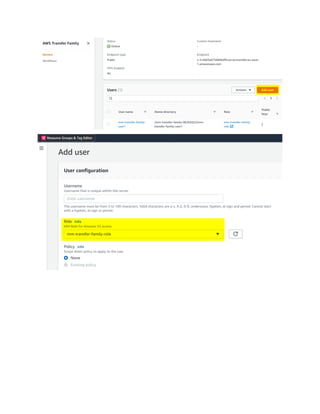
1. Create users
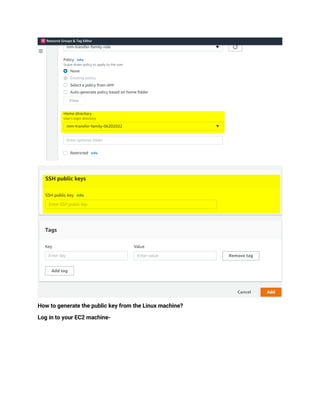
2. Create and assign public keys
 Test the file transfer from both the Linux and Windows’ SFTP clients
AWS Transfer Family Architecture Diagram
1. Create a bucket with the default properties
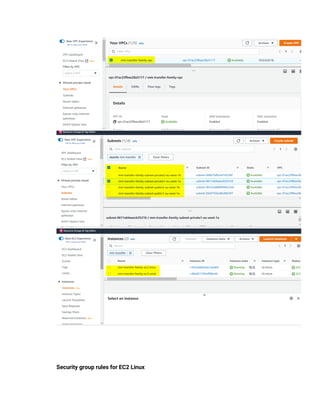
2. Create VPC and two EC2 instances (Linux and Windows) with SSH and RDP
Security group rules for EC2 Linux
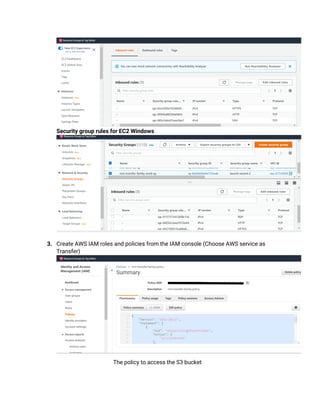
Security group rules for EC2 Windows
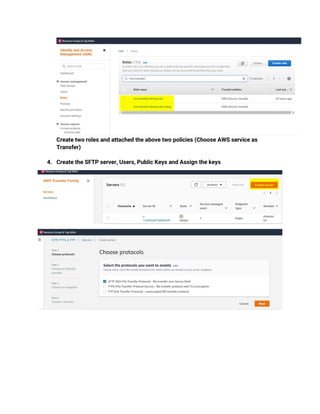
3. Create AWS IAM roles and policies from the IAM console (Choose AWS service as
Transfer)
The policy to access the S3 bucket
{
"Version": "2012-10-17",
"Statement": [
{
"Sid": "AllowListingOfUserFolder",
"Action": [
"s3:ListBucket"
],
"Effect": "Allow",
"Resource": [
"arn:aws:s3:::mm-transfer-family-06202022"
]
},
{
"Sid": "HomeDirObjectAccess",
"Effect": "Allow",
"Action": [
"s3:PutObject",
"s3:GetObject",
"s3:DeleteObject",
"s3:DeleteObjectVersion",
"s3:GetBucketLocation",
"s3:GetObjectVersion",
"s3:GetObjectACL",
"s3:PutObjectACL"
],
"Resource": "arn:aws:s3:::mm-transfer-family-06202022/*"
}
]
}
The policy to access the cloud watch logs
{
"Version": "2012-10-17",
"Statement": [
{
"Sid": "VisualEditor0",
"Effect": "Allow",
"Action": [
"logs:CreateLogStream",
"logs:DescribeLogStreams",
"logs:CreateLogGroup",
"logs:PutLogEvents"
],
"Resource": "arn:aws:logs:*:*:log-group:/aws/transfer/*"
}
]
}
Create two roles and attached the above two policies (Choose AWS service as
Transfer)
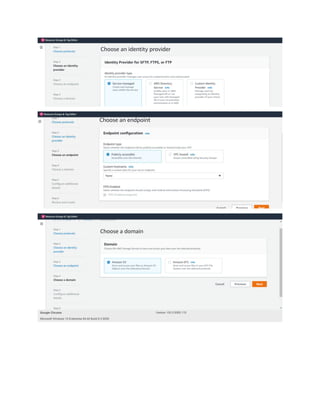
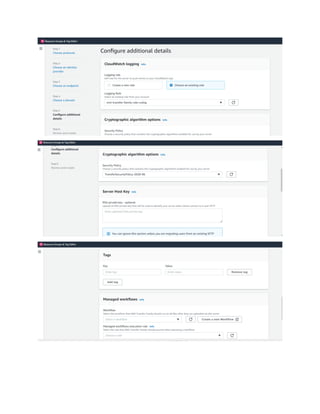
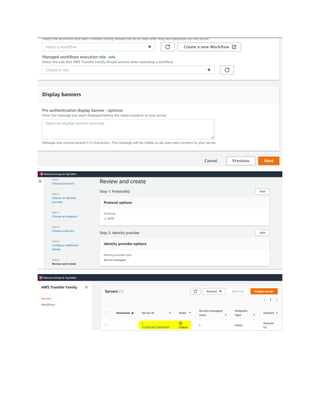
4. Create the SFTP server, Users, Public Keys and Assign the keys
How to generate the public key from the Linux machine?
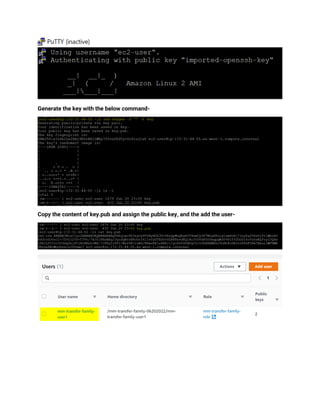
Log in to your EC2 machine-
Generate the key with the below command-
Copy the content of key.pub and assign the public key, and the add the user-
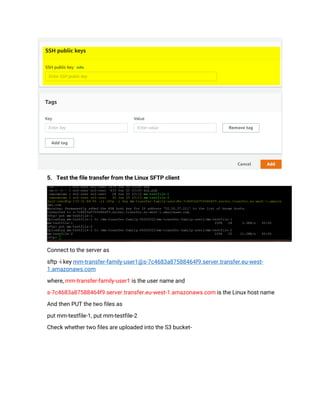
5. Test the file transfer from the Linux SFTP client
Connect to the server as
sftp -i key mm-transfer-family-user1@s-7c4683a87588464f9.server.transfer.eu-west-
1.amazonaws.com
where, mm-transfer-family-user1 is the user name and
s-7c4683a87588464f9.server.transfer.eu-west-1.amazonaws.com is the Linux host name
And then PUT the two files as
put mm-testfile-1, put mm-testfile-2
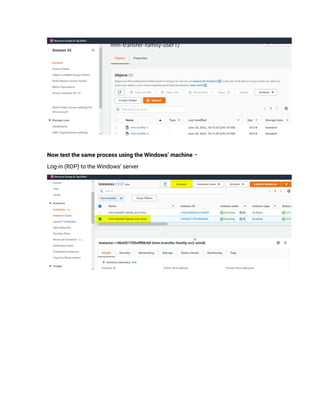
Check whether two files are uploaded into the S3 bucket-
Now test the same process using the Windows’ machine –
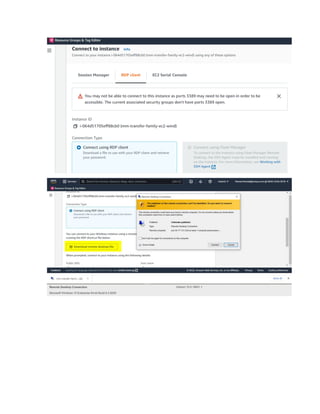
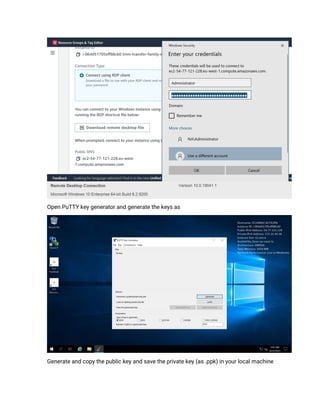
Log-in (RDP) to the Windows’ server
Open PuTTY key generator and generate the keys as
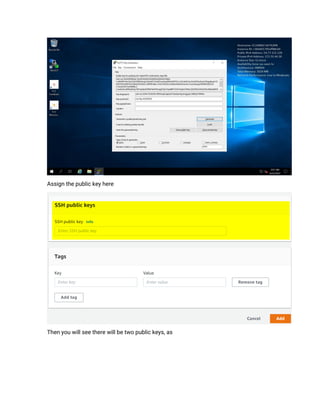
Generate and copy the public key and save the private key (as .ppk) in your local machine
Assign the public key here
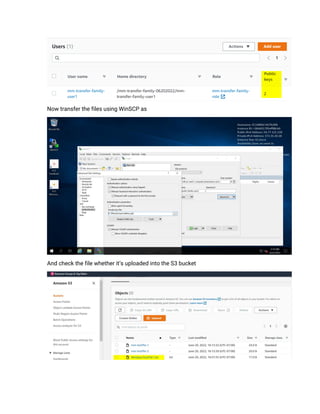
Then you will see there will be two public keys, as
Now transfer the files using WinSCP as
And check the file whether it’s uploaded into the S3 bucket
AWS TransferFamily

AWS TransferFamily

  • 1.
    AWS Transfer Family(SFTP, FTP, FTPS) – Step by Step Implementation Process  Setup the prerequisites for AWS transfer for SFTP 1. S3 bucket 2. EC2 instances (Linux and Windows)  Create an AWS IAM role and policy 1. Edit the policy to provide the S3 access  Create the SFTP server 1. Create users 2. Create and assign public keys  Test the file transfer from both the Linux and Windows’ SFTP clients AWS Transfer Family Architecture Diagram
  • 2.
    1. Create abucket with the default properties 2. Create VPC and two EC2 instances (Linux and Windows) with SSH and RDP
  • 3.
    Security group rulesfor EC2 Linux
  • 4.
    Security group rulesfor EC2 Windows 3. Create AWS IAM roles and policies from the IAM console (Choose AWS service as Transfer) The policy to access the S3 bucket
  • 5.
    { "Version": "2012-10-17", "Statement": [ { "Sid":"AllowListingOfUserFolder", "Action": [ "s3:ListBucket" ], "Effect": "Allow", "Resource": [ "arn:aws:s3:::mm-transfer-family-06202022" ] }, { "Sid": "HomeDirObjectAccess", "Effect": "Allow", "Action": [ "s3:PutObject", "s3:GetObject", "s3:DeleteObject", "s3:DeleteObjectVersion", "s3:GetBucketLocation", "s3:GetObjectVersion", "s3:GetObjectACL", "s3:PutObjectACL" ], "Resource": "arn:aws:s3:::mm-transfer-family-06202022/*" }
  • 6.
    ] } The policy toaccess the cloud watch logs { "Version": "2012-10-17", "Statement": [ { "Sid": "VisualEditor0", "Effect": "Allow", "Action": [ "logs:CreateLogStream", "logs:DescribeLogStreams", "logs:CreateLogGroup", "logs:PutLogEvents" ], "Resource": "arn:aws:logs:*:*:log-group:/aws/transfer/*" } ] }
  • 7.
    Create two rolesand attached the above two policies (Choose AWS service as Transfer) 4. Create the SFTP server, Users, Public Keys and Assign the keys
  • 12.
    How to generatethe public key from the Linux machine? Log in to your EC2 machine-
  • 13.
    Generate the keywith the below command- Copy the content of key.pub and assign the public key, and the add the user-
  • 14.
    5. Test thefile transfer from the Linux SFTP client Connect to the server as sftp -i key mm-transfer-family-user1@s-7c4683a87588464f9.server.transfer.eu-west- 1.amazonaws.com where, mm-transfer-family-user1 is the user name and s-7c4683a87588464f9.server.transfer.eu-west-1.amazonaws.com is the Linux host name And then PUT the two files as put mm-testfile-1, put mm-testfile-2 Check whether two files are uploaded into the S3 bucket-
  • 15.
    Now test thesame process using the Windows’ machine – Log-in (RDP) to the Windows’ server
  • 17.
    Open PuTTY keygenerator and generate the keys as Generate and copy the public key and save the private key (as .ppk) in your local machine
  • 18.
    Assign the publickey here Then you will see there will be two public keys, as
  • 19.
    Now transfer thefiles using WinSCP as And check the file whether it’s uploaded into the S3 bucket