Copyright © 2017 Splunk Inc.
Splunk User Group
Edinburgh
Awesome
Dashboarding &
UF Vs. HF
February 2017
Introduction - Harry McLaren
2
● Alumnus of Edinburgh Napier
● Senior Security Consultant at ECS
– Role: Specialist Splunk Consultant & Enablement Lead
– Specialism: Enterprise Security (SIEM) / Complex Deployments
● Splunk User Group Edinburgh: Leader / Founder
Introduction to ECS
3
Strategic Splunk Partner - UK
– Type: Security / IT Operations / Managed Services
– Awards: Splunk Revolution Award & Splunk Partner of the Year 2016
4
Agenda
• Housekeeping: Overview & House Rules
• Presentation & Demo: Creating Awesome Dashboards
• Group Discussion: Sharing Dashboarding Tips & Tricks
• Presentation: Universal vs. Heavy vs. Intermediate Forwarders
• Group Discussion: Latest Splunk Challenges / Solutions
5
Splunk [Official] User Group
“The overall goal is to create an authentic, ongoing
user group experience for our users, where
they contribute and get involved”
● User Lead Technical Discussions
● Sharing Environment
● Build Trust
● No Sales!
6
Creating Awesome
Dashboards
Robert Williamson
Robert Williamson
Alumnus of Edinburgh Napier university
IBM - Security Specialist
ECS - SOC Analyst, Senior SOC Analyst and Security
Consultant
8
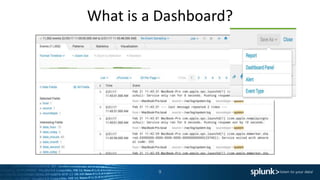
What is a Dashboard?
9
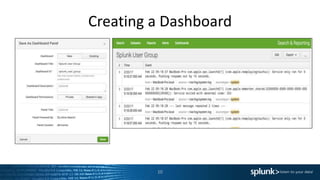
Creating a Dashboard
10
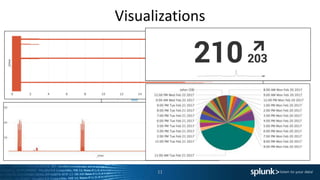
Visualizations
11
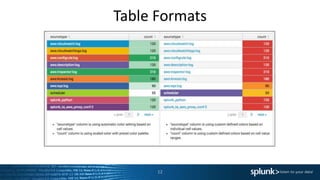
Table Formats
12
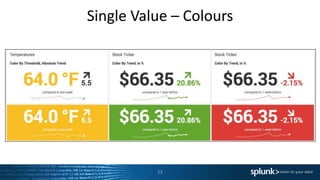
Single Value – Colours
13
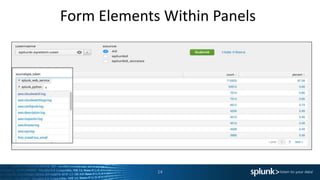
Form Elements Within Panels
14
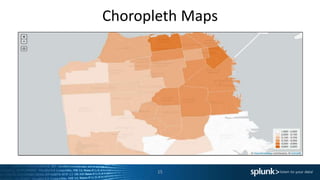
Choropleth Maps
15
I Could go on... But how is it done?
16
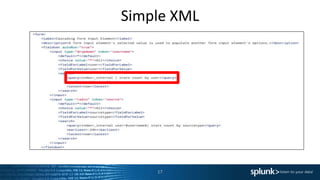
Simple XML
17
18
Dashboard
Competition
Grab you phone and go to:
http://splunk.com/shake
20
Sharing Dashboarding
Tips & Tricks
Group Discussion
Universal Vs. Heavy
Forwarders
Harry McLaren
Based on Darren Dance’s Blog
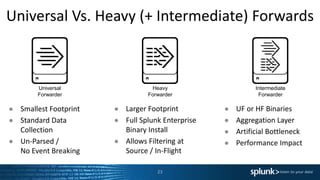
Universal Vs. Heavy (+ Intermediate) Forwards
23
Universal
Forwarder
Heavy
Forwarder
Intermediate
Forwarder
● Smallest Footprint
● Standard Data
Collection
● Un-Parsed /
No Event Breaking
● Larger Footprint
● Full Splunk Enterprise
Binary Install
● Allows Filtering at
Source / In-Flight
● UF or HF Binaries
● Aggregation Layer
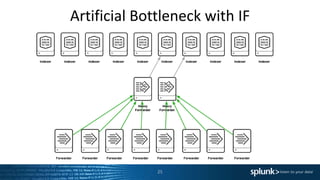
● Artificial Bottleneck
● Performance Impact
Heavy Forwarders Are[n’t] Awesome!
The use of Heavy Forwarders were once commonly advised, but times change…
● Previous advice for using Heavy Forwarders
– Filtering of data is best done at source and HF are required as UF cannot parse.
– Use for aggregation layer for central management of data flows.
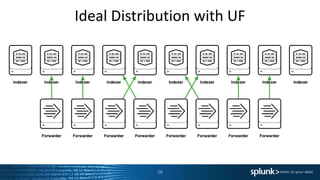
‣ Can cause data imbalance on the indexing tier that will reduce search performance.
● Reasons for NOT using Heavy Forwarder
– Filter data at the Indexers. Greater use of compute resources / more performant.
– Reduces network usage / IO by a significant degree.
– Reduces the time from event generation to search availability.
– Segmentation doesn’t always reduce threat vector for application exploitation.
24
Artificial Bottleneck with IF
25
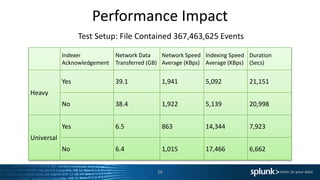
Performance Impact
Test Setup: File Contained 367,463,625 Events
26
Indexer
Acknowledgement
Network Data
Transferred (GB)
Network Speed
Average (KBps)
Indexing Speed
Average (KBps)
Duration
(Secs)
Heavy
Yes 39.1 1,941 5,092 21,151
No 38.4 1,922 5,139 20,998
Universal
Yes 6.5 863 14,344 7,923
No 6.4 1,015 17,466 6,662
Performance Impact
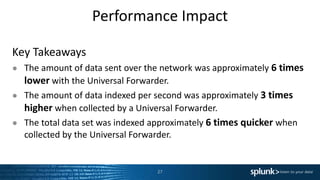
Key Takeaways
● The amount of data sent over the network was approximately 6 times
lower with the Universal Forwarder.
● The amount of data indexed per second was approximately 3 times
higher when collected by a Universal Forwarder.
● The total data set was indexed approximately 6 times quicker when
collected by the Universal Forwarder.
27
Ideal Distribution with UF
28
What About Network Segmentation?
● Limited Reduction to Application Threat Vector (UF > IF > IX)
– If the Splunk software on the IF are vulnerable, then the same exploit could be
used to pivot into the next network layer anyway.
● Network Load
– If using a HF to aggregate the forwarder traffic, the additional network load
could be upwards of 6x more than if UF directly to Indexers (Raw Vs. Parsed
Data)
29
Exceptions to UF > HF
Some exceptions to using Universal Forwarders over Heavy Forwarders
● Special App Requirements
– DB Connect / eStreamer / Opsec LEA / Etc.
● Modify In-Flight Events (Parsed Data Stream)
– Change data before it leaves a specific environment (pattern replacement).
● Routing Based on Event Contents
– Route data based on criteria such as source or type of event.
30
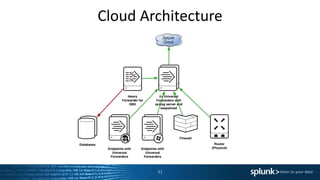
Cloud Architecture
31
Any Questions?
32
Updates Announced at .conf 2016
● Introducing Splunk Enterprise 6.5 - Available Now
‣ Splunk ML Toolkit: Guided workbench and SPL extensions to help you create and
operationalize your own custom analytics based on your choice of algorithms.
‣ Tables: New feature that lets you create and analyse tabular data views without
using SPL.
‣ Hadoop Data Roll: Gives you another way to reduce historical data storage costs
while keeping full search capability.
● Premium Apps - New Releases:
– Splunk Enterprise Security [Minor Release]
– Splunk IT Service Intelligence [Major Release]
– Splunk User Behaviour Analytics [Major Release]
33
Get Involved!
● Splunk User Group Edinburgh
– https://usergroups.splunk.com/group/splunk-user-group-edinburgh.html
– https://www.linkedin.com/groups/12013212
● Splunk’s Slack Group
– Register via www.splunk402.com/chat
– Channel: #edinburgh
● Present & Share at the User Group?
Connect:
‣ Harry McLaren | harry.mclaren@ecs.co.uk | @cyberharibu | harrymclaren.co.uk
‣ ECS | enquiries@ecs.co.uk | @ECS_IT | ecs.co.uk
34
Thank You

Splunk Dashboarding & Universal Vs. Heavy Forwarders

  • 1.
    Copyright © 2017Splunk Inc. Splunk User Group Edinburgh Awesome Dashboarding & UF Vs. HF February 2017
  • 2.
    Introduction - HarryMcLaren 2 ● Alumnus of Edinburgh Napier ● Senior Security Consultant at ECS – Role: Specialist Splunk Consultant & Enablement Lead – Specialism: Enterprise Security (SIEM) / Complex Deployments ● Splunk User Group Edinburgh: Leader / Founder
  • 3.
    Introduction to ECS 3 StrategicSplunk Partner - UK – Type: Security / IT Operations / Managed Services – Awards: Splunk Revolution Award & Splunk Partner of the Year 2016
  • 4.
  • 5.
    Agenda • Housekeeping: Overview& House Rules • Presentation & Demo: Creating Awesome Dashboards • Group Discussion: Sharing Dashboarding Tips & Tricks • Presentation: Universal vs. Heavy vs. Intermediate Forwarders • Group Discussion: Latest Splunk Challenges / Solutions 5
  • 6.
    Splunk [Official] UserGroup “The overall goal is to create an authentic, ongoing user group experience for our users, where they contribute and get involved” ● User Lead Technical Discussions ● Sharing Environment ● Build Trust ● No Sales! 6
  • 7.
  • 8.
    Robert Williamson Alumnus ofEdinburgh Napier university IBM - Security Specialist ECS - SOC Analyst, Senior SOC Analyst and Security Consultant 8
  • 9.
    What is aDashboard? 9
  • 10.
  • 11.
  • 12.
  • 13.
    Single Value –Colours 13
  • 14.
  • 15.
  • 16.
    I Could goon... But how is it done? 16
  • 17.
  • 18.
  • 19.
  • 20.
    Grab you phoneand go to: http://splunk.com/shake 20
  • 21.
    Sharing Dashboarding Tips &Tricks Group Discussion
  • 22.
    Universal Vs. Heavy Forwarders HarryMcLaren Based on Darren Dance’s Blog
  • 23.
    Universal Vs. Heavy(+ Intermediate) Forwards 23 Universal Forwarder Heavy Forwarder Intermediate Forwarder ● Smallest Footprint ● Standard Data Collection ● Un-Parsed / No Event Breaking ● Larger Footprint ● Full Splunk Enterprise Binary Install ● Allows Filtering at Source / In-Flight ● UF or HF Binaries ● Aggregation Layer ● Artificial Bottleneck ● Performance Impact
  • 24.
    Heavy Forwarders Are[n’t]Awesome! The use of Heavy Forwarders were once commonly advised, but times change… ● Previous advice for using Heavy Forwarders – Filtering of data is best done at source and HF are required as UF cannot parse. – Use for aggregation layer for central management of data flows. ‣ Can cause data imbalance on the indexing tier that will reduce search performance. ● Reasons for NOT using Heavy Forwarder – Filter data at the Indexers. Greater use of compute resources / more performant. – Reduces network usage / IO by a significant degree. – Reduces the time from event generation to search availability. – Segmentation doesn’t always reduce threat vector for application exploitation. 24
  • 25.
  • 26.
    Performance Impact Test Setup:File Contained 367,463,625 Events 26 Indexer Acknowledgement Network Data Transferred (GB) Network Speed Average (KBps) Indexing Speed Average (KBps) Duration (Secs) Heavy Yes 39.1 1,941 5,092 21,151 No 38.4 1,922 5,139 20,998 Universal Yes 6.5 863 14,344 7,923 No 6.4 1,015 17,466 6,662
  • 27.
    Performance Impact Key Takeaways ●The amount of data sent over the network was approximately 6 times lower with the Universal Forwarder. ● The amount of data indexed per second was approximately 3 times higher when collected by a Universal Forwarder. ● The total data set was indexed approximately 6 times quicker when collected by the Universal Forwarder. 27
  • 28.
  • 29.
    What About NetworkSegmentation? ● Limited Reduction to Application Threat Vector (UF > IF > IX) – If the Splunk software on the IF are vulnerable, then the same exploit could be used to pivot into the next network layer anyway. ● Network Load – If using a HF to aggregate the forwarder traffic, the additional network load could be upwards of 6x more than if UF directly to Indexers (Raw Vs. Parsed Data) 29
  • 30.
    Exceptions to UF> HF Some exceptions to using Universal Forwarders over Heavy Forwarders ● Special App Requirements – DB Connect / eStreamer / Opsec LEA / Etc. ● Modify In-Flight Events (Parsed Data Stream) – Change data before it leaves a specific environment (pattern replacement). ● Routing Based on Event Contents – Route data based on criteria such as source or type of event. 30
  • 31.
  • 32.
  • 33.
    Updates Announced at.conf 2016 ● Introducing Splunk Enterprise 6.5 - Available Now ‣ Splunk ML Toolkit: Guided workbench and SPL extensions to help you create and operationalize your own custom analytics based on your choice of algorithms. ‣ Tables: New feature that lets you create and analyse tabular data views without using SPL. ‣ Hadoop Data Roll: Gives you another way to reduce historical data storage costs while keeping full search capability. ● Premium Apps - New Releases: – Splunk Enterprise Security [Minor Release] – Splunk IT Service Intelligence [Major Release] – Splunk User Behaviour Analytics [Major Release] 33
  • 34.
    Get Involved! ● SplunkUser Group Edinburgh – https://usergroups.splunk.com/group/splunk-user-group-edinburgh.html – https://www.linkedin.com/groups/12013212 ● Splunk’s Slack Group – Register via www.splunk402.com/chat – Channel: #edinburgh ● Present & Share at the User Group? Connect: ‣ Harry McLaren | harry.mclaren@ecs.co.uk | @cyberharibu | harrymclaren.co.uk ‣ ECS | enquiries@ecs.co.uk | @ECS_IT | ecs.co.uk 34
  • 35.

Editor's Notes

  • #12 Simple visualizations that could be done on excel index=_internal | timechart count Bar chart = timechart count – XML - <option name="charting.chart">bar</option> Single value = <single> <title>Chart with drilldown</title> <search> <query>index=_internal | head 1000 | timechart count</query> </search> </single> Column = <option name="charting.chart">column</option> Pie chart = <option name="charting.chart">pie</option>
  • #13 Only available on 6.5 </search> <format type="color" field="sourcetype"> <colorPalette type="sharedList"></colorPalette> <scale type="category"></scale> </format> <format type="color" field="count"> <colorPalette type="minMidMax" maxColor="#31A35F" minColor="#FFFFFF"></colorPalette> <scale type="minMidMax"></scale
  • #14 Available for 6.3 onwards <single> <title>Color By Threshold, Absolute Trend</title> <search> <query>| inputlookup sf-temperatures.csv | eval _time=strptime(DATE, "%Y%m%d") | timechart avg(TMAX) AS tmax span=7d | eval tmax = tmax/10/5*9+32</query> <earliest>1403420400</earliest> <latest>1433228400</latest> </search> <option name="trendColorInterpretation">standard</option> <option name="trendDisplayMode">absolute</option> <option name="trendInterval">-7d</option> <option name="colorBy">value</option> <option name="colorMode">none</option> <option name="numberPrecision">0.0</option> <option name="rangeColors">["0x0E31EB","0x6db7c6","0xf7bc38","0xf58f39","0xd93f3c"]</option> <option name="rangeValues">[0,60,70,80]</option> <option name="showTrendIndicator">1</option> <option name="showSparkline">1</option> <option name="useColors">1</option> <option name="useThousandSeparators">1</option> <option name="height">143</option> <option name="underLabel">compared to last week</option> <option name="drilldown">none</option> <option name="unit">°F</option> <option name="unitPosition">after</option> </single>
  • #15 Available from 6.2 onwards Description Set multiple tokens within form inputs to drive multiple searches, better labeling, and more. Key use cases include: Set tokens for both label and value to use throughout your dashboard. Use this to create a special empty/null choice that includes a unique token transformation. Use the selection of a given form input to unset other tokens on the page. Create a "simple" time range picker dropdown input that sets a unique earliest and latest token. Set multiple tokens based on search results. How it Works Ability to set/unset multiple tokens within a form input is only available via the XML editor. Functional gets triggered on a user selected change event, <change>. Add conditions if you want to set/unset specific tokens and values based on user selection. conditions can be based on user selected values, <condition value="last_24hr">. conditions can be based on user selected labels, <condition label="Last 24 hours">. wildcard (partial matching) is NOT support in conditions. asterisk ("*") is interpreted as all other values, <condition value="*">. Note - conditions are not supported for multiselect and checkbox form inputs (any multivalue input). You have the following click information available for use in set/unset, $label$, $value$. For dynamic choices where you run a search, you can set tokens based on search results, $row.field_name. set and unset syntax works identical to contextual drilldown. <set token="my_token_value">$value$</set> <set token="my_token_label">$label$</set> <set token="my_token">field=$value|s$</set> <set token="my_token" prefix="(" suffix=")" delimiter=" OR ">field=$value|s$</set> <set token="my_token">$row.sourcetype$</set> <unset token="showTable"/> Use a static choice "ANY" to represent an empty/null value, where it searches for events both with and without the existence of the field.
  • #16 Available from 6.3 onwards – Uses http://www.openstreetmap.org/ Color Modes Not all maps are created equal. Depending on the use case, you will want to use one of three color modes: 1) Sequential: One color, different shades. Choose this to show the distribution of a variable across a geographic region. 2) Divergent: Two colors, different shades, converging at a white neutral point. Choose this to show how much a variable is above or below a neutral point.</li> 3) Categorical: Different colors, one per category. Choose this to color areas of your maps according to different distinct values.</li> | lookup geo_sf_neighborhoods latitude AS location.lat, longitude AS location.long OUTPUT featureId AS neighborhood
  • #19 https://splunkbase.splunk.com/app/1603/