Pre-Hack series
June 2016
DragonBoard™ 410c
Workshop
Author: Robert Wolff
Who am I?
● Robert Wolff
● Engineer - Technical Writer for 96Boards at Linaro
▣ University of California, San Diego - 2015
▣ Electrical Engineering - Digital Signal Processing
▣ Qualcomm Institute - Coursera IoT Specialization
Twitter: @sdrobertw
Email: Robert.wolff@linaro.org
Github: https://github.com/sdrobertw
Author: Robert Wolff
Qualcomm Institute - Calit2 @ UCSD
● Coursera IoT specialization - Six Courses
● Focused on DragonBoard 410c
● History of IoT
● Board bring up
● Sensing and Actuation
● Communications Technologies
● Multimedia Technologies
● Capstone - Self sustainable DB410c
workstation/surveillance
● https://www.coursera.org/specializations/internet-of-things
Author: Robert Wolff
Today’s Outline
● Introductions - Linaro and 96Boards
● DragonBoard 410c
○ What is it, how can I use it?
○ Board layout and components
● Resources
○ Software and Documentation
● “Hands-on” Preparations
○ Debian and Android preparations
○ Low speed expansion header
○ Other components
● Demos
○ GPIO and I2C
Author: Robert Wolff
What is Linaro?
➢ Founded June 2010
● Unites the Industry and Open Source community
● Work together on key projects
● Deliver great tools
● Reduce industry wide fragmentation and redundant effort
● Provide common software foundations
● http://www.linaro.org/about/
● https://en.wikipedia.org/wiki/Linaro
Author: Robert Wolff
What is 96Boards?
➢ Founded February 2015
● Series of open hardware specifications
● ARM 32-bit and 64-bit developer boards
● Community enabled open source software development
● http://www.96boards.org
Twitter: @96Boards
Author: Robert Wolff
About the DragonBoard 410c
Author: Robert Wolff
➢ Single Board Computer (SBC)
▣ A full computer built on a single printed circuit board (PCB)
▣ Includes: Microprocessor, Memory, I/O, and more
essentials…
▣ Demonstration, development, education, embedded
controllers
▣ Generally does not rely on expansion slots
What is the DragonBoard 410c?
Author: Robert Wolff
Important Board Components
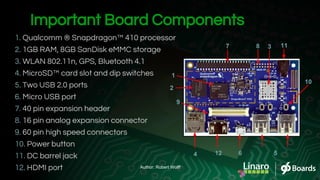
1. Qualcomm ® Snapdragon™ 410 processor
2. 1GB RAM, 8GB SanDisk eMMC storage
3. WLAN 802.11n, GPS, Bluetooth 4.1
4. MicroSD™ card slot and dip switches
5. Two USB 2.0 ports
6. Micro USB port
7. 40 pin expansion header
8. 16 pin analog expansion connector
9. 60 pin high speed connectors
10. Power button
11. DC barrel jack
12. HDMI port
512
9
7
6
8 11
2
3
10
1
4
Author: Robert Wolff
Important Board Components
Author: Robert Wolff
Important Board Components
Author: Robert Wolff
Important Board Components
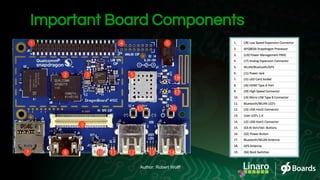
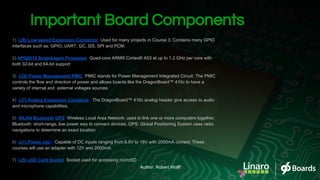
1) (J8) Low-speed Expansion Connector: Used for many projects in Course 3. Contains many GPIO
interfaces such as: GPIO, UART, I2C, I2S, SPI and PCM.
2) APQ8016 Snapdragon Processor: Quad-core ARM® Cortex® A53 at up to 1.2 GHz per core with
both 32-bit and 64-bit support
3) (U9) Power Management PMIC: PMIC stands for Power Management Integrated Circuit. The PMIC
controls the flow and direction of power and allows boards like the DragonBoard™ 410c to have a
variety of internal and external voltages sources.
4) (J7) Analog Expansion Connector: The DragonBoard™ 410c analog header give access to audio
and microphone capabilities.
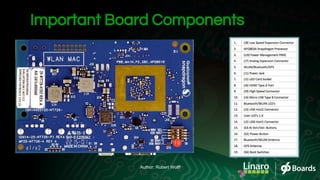
5) WLAN/Bluetooth/GPS: Wireless Local Area Network: used to link one or more computers together,
Bluetooth: short-range, low power way to connect devices, GPS: Global Positioning System uses radio
navigations to determine an exact location.
6) (J1) Power Jack: Capable of DC inputs ranging from 6.5V to 18V with 2000mA current. These
courses will use an adapter with 12V and 2000mA.
7) (J5) uSD Card Socket: Socket used for accessing microSD
Author: Robert Wolff
Important Board Components
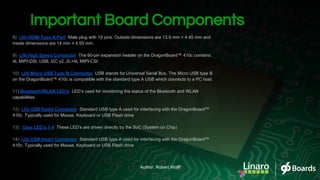
8) (J6) HDMI Type A Port: Male plug with 19 pins. Outside dimensions are 13.9 mm × 4.45 mm and
inside dimensions are 14 mm × 4.55 mm.
9) (J9) High Speed Connector: The 60-pin expansion header on the DragonBoard™ 410c contains:
4L MIPI-DSI, USB, I2C x2, 2L+4L MIPI-CSI
10) (J4) Micro USB Type B Connector: USB stands for Universal Serial Bus. The Micro USB type B
on the DragonBoard™ 410c is compatible with the standard type A USB which connects to a PC host.
11) Bluetooth/WLAN LED’s: LED’s used for monitoring the status of the Bluetooth and WLAN
capabilities
12) (J3) USB Host2 Connector: Standard USB type A used for interfacing with the DragonBoard™
410c. Typically used for Mouse, Keyboard or USB Flash drive
13) : User LED’s 1-4: These LED’s are driven directly by the SoC (System on Chip)
14) (J2) USB Host1 Connector: Standard USB type A used for interfacing with the DragonBoard™
410c. Typically used for Mouse, Keyboard or USB Flash drive
Author: Robert Wolff
Important Board Components
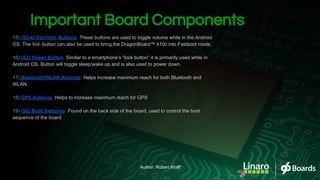
15) (S3-4) Vol+/Vol- Buttons: These buttons are used to toggle volume while in the Android
OS. The Vol- button can also be used to bring the DragonBoard™ 410c into Fastboot mode.
16) (S2) Power Button: Similar to a smartphone’s “lock button” it is primarily used while in
Android OS. Button will toggle sleep/wake up and is also used to power down.
17) Bluetooth/WLAN Antenna: Helps increase maximum reach for both Bluetooth and
WLAN.
18) GPS Antenna: Helps to increase maximum reach for GPS
19) (S6) Boot Switches: Found on the back side of the board, used to control the boot
sequence of the board.
Author: Robert Wolff
● Next generation robotics
● Cameras
● Medical devices
● Vending machines
● Smart buildings
● Digital signage
● Casino gaming consoles
● Much more...
Uses for the DragonBoard 410c
Author: Robert Wolff
Uses for the DragonBoard 410c
● Snapdragon Cargo
● Snapdragon Rover
● Snapdragon Drone
○ Flight™
➢ Control motors
➢ Feedback loops
➢ Interrupts
➢ Read security inputs
➢ Link
Author: Robert
Wolff
Resources
Author: Robert Wolff
● Android
● Debian
● OpenEmbedded
● Windows 10 IoT Core
● Ubuntu Core
● More to come...
Software
Author: Robert Wolff
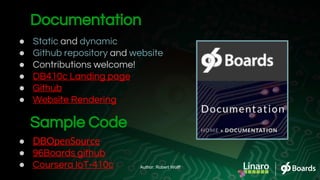
Documentation
● Static and dynamic
● Github repository and website
● Contributions welcome!
● DB410c Landing page
● Github
● Website Rendering
Sample Code
● DBOpenSource
● 96Boards github
● Coursera IoT-410c Author: Robert Wolff
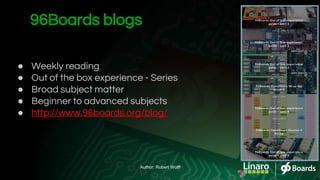
96Boards blogs
● Weekly reading
● Out of the box experience - Series
● Broad subject matter
● Beginner to advanced subjects
● http://www.96boards.org/blog/
Author: Robert Wolff
● Real time chat / video
● Linaro and 96Boards developers
● Coffee hour - fun and informative
● Interactive
● Weekly countdown!
● YouTube Channel
Open Hours
Author: Robert Wolff
Open Hours
● Wrap up software in a complete filesystem
● Contains all necessities to run code, runtime,
system tools, system libraries - anything can
install on a server.
● Always runs the same regardless of
environment it is running in.
Guest: Bill Fletcher, Linaro - Field Engineering
➢ https://www.docker.com/what-docker
Author: Robert Wolff
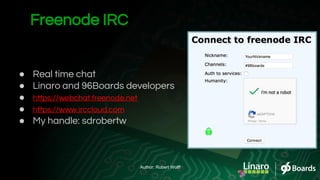
● Real time chat
● Linaro and 96Boards developers
● https://webchat.freenode.net
● https://www.irccloud.com
● My handle: sdrobertw
Freenode IRC
Author: Robert Wolff
● Community and Developers
● Forum topic search
● FAQ available
● DragonBoard 410c Forum
Forums
Author: Robert Wolff
● Documentation:
○ DB410c Landing page
○ Github
○ Website Rendering
● 96Boards Blogs
○ http://www.96boards.org/blog/
● Open Hours
○ Weekly countdown!
○ YouTube Channel
● Forums
○ DragonBoard 410c Forum
Resources on one page
Author: Robert Wolff
“Hands on” preparations
Operating Systems and Debugging
Author: Robert Wolff
SD Card Method
● Download image
● Follow SD card install instructions
Download and Install Debian
SD Card Method
● Download image
● Follow SD card install instructions
ADB and Fastboot set up: https://www.youtube.com/watch?v=W_zlydVBftA
Download and Install Android
Author: Robert Wolff
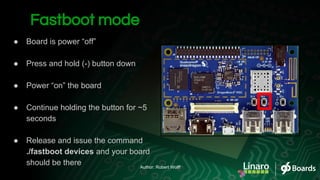
Fastboot mode
● Board is power “off”
● Press and hold (-) button down
● Power “on” the board
● Continue holding the button for ~5
seconds
● Release and issue the command
./fastboot devices and your board
should be there Author: Robert Wolff
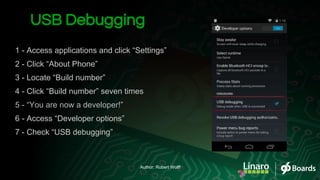
USB Debugging
1 - Access applications and click “Settings”
2 - Click “About Phone”
3 - Locate “Build number”
4 - Click “Build number” seven times
5 - “You are now a developer!”
6 - Access “Developer options”
7 - Check “USB debugging”
Author: Robert Wolff
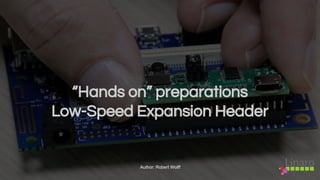
“Hands on” preparations
Low-Speed Expansion Header
Author: Robert Wolff
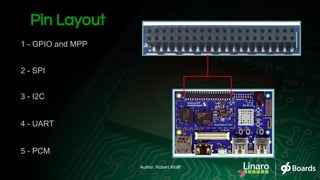
Pin Layout
2 - SPI
3 - I2C
4 - UART
1 - GPIO and MPP
5 - PCM
Author: Robert Wolff
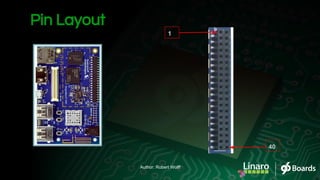
Pin Layout
1
40
Author: Robert Wolff
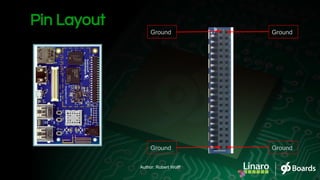
Pin Layout
Ground Ground
GroundGround
Author: Robert Wolff
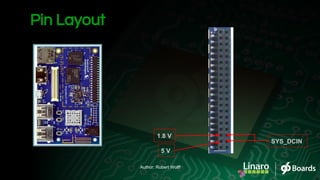
Pin Layout
1.8 V
SYS_DCIN
5 V
Author: Robert Wolff
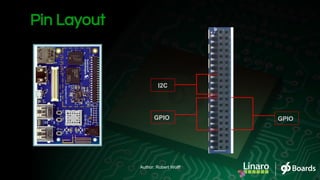
Pin Layout
GPIO GPIO
I2C
Author: Robert Wolff
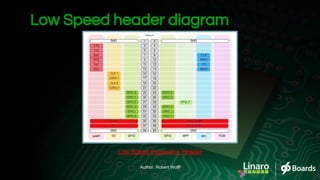
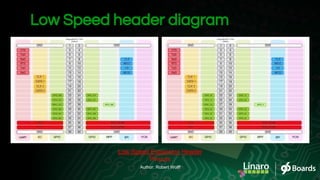
Low Speed header diagram
Low Speed Expansion Header
Author: Robert Wolff
“Hands on” preparations
Mezzanine Boards
Author: Robert Wolff
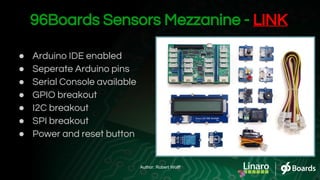
96Boards Sensors Mezzanine - LINK
● Arduino IDE enabled
● Seperate Arduino pins
● Serial Console available
● GPIO breakout
● I2C breakout
● SPI breakout
● Power and reset button
Author: Robert Wolff
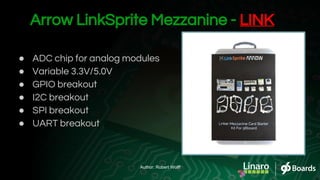
Arrow LinkSprite Mezzanine - LINK
● ADC chip for analog modules
● Variable 3.3V/5.0V
● GPIO breakout
● I2C breakout
● SPI breakout
● UART breakout
Author: Robert Wolff
Demo 1: Access GPIO through Terminal
Author: Robert Wolff
Low Speed header diagram
Low Speed Expansion Header
Pinouts
Author: Robert Wolff
1. Update & Upgrade system
$ sudo apt-get update
$ sudo apt-get upgrade
$ sudo apt-get dist-upgrade
2. Super user to GPIO folder
$ sudo su
# cd /sys/class/gpio
3. Export, direction, value…
# echo GPIO_# > export
# cd gpio(GPIO_#)
# echo “out/in” > direction
# echo 0/1 > value
4. Profit!!! (Next we look at libraries)
Demo #1 on one page - LINK
Author: Robert Wolff
Demo 2: Access GPIO with Libraries
Author: Robert Wolff
1. Update & Upgrade system
$ sudo apt-get update
$ sudo apt-get upgrade
$ sudo apt-get dist-upgrade -u
2. Install Libraries
$ sudo apt-get install libsoc-dev libmraa0 libmraa-dev libump0 libupm-dev
3. Install Dependencies
$ sudo apt-get install git
4. Clone sample code
$ git clone https://github.com/davidmandala/library_test.git
5. Compile and run
$ cd library_test
$ gcc AC-ledSOC.c -o AC-ledSOC -lsoc
$ sudo ./AC-ledSOC
6. Profit!!! (Next we look at I2C)
Demo #2 on one page - LINK
Author: Robert Wolff
Demo 3: Access I2C with Libraries
Author: Robert Wolff
1. Update & Upgrade system
$ sudo apt-get update
$ sudo apt-get upgrade
$ sudo apt-get dist-upgrade -u
2. Install Libraries
$ sudo apt-get install libmraa0 libmraa-dev libump0 libupm-dev
3. Install Dependencies
$ sudo apt-get install git
4. Clone sample code
$ git clone https://github.com/96boards/Starter_Kit_for_96Boards
5. Compile and run
$ cd Starter_Kit_for_96Boards
$ make
$ sudo ./rgb_lcd_demo
6. Profit!!! (Next we look at I2C)
Demo #3 on one page - LINK
Author: Robert Wolff
./adb root
./adb remount
mount -o rw,remount /system
exit out of adb shell
./adb pull /etc/init.qcom.post_boot.sh
(add to the post_boot.sh)
set -A pins 938 915 1017 926 937 930 914 971 901 936 935
for i in 0 1 2 3 4 5 6 7 8 9 10
do
echo ${pins[i]} > /sys/class/gpio/export
chmod 777 /sys/class/gpio/gpio${pins[i]}
chmod 777 /sys/class/gpio/gpio${pins[i]}/value
chmod 777 /sys/class/gpio/gpio${pins[i]}/direction
done
./adb push init.qcom.post_boot.sh /etc/init.qcom.post_boot.sh
./adb reboot
./adb root
./adb shell
cd /sys/class/gpio (to check if they’re their)
GPIO Access with Android OS
Author: Robert Wolff

Dragon board 410c workshop - slideshow

  • 1.
    Pre-Hack series June 2016 DragonBoard™410c Workshop Author: Robert Wolff
  • 2.
    Who am I? ●Robert Wolff ● Engineer - Technical Writer for 96Boards at Linaro ▣ University of California, San Diego - 2015 ▣ Electrical Engineering - Digital Signal Processing ▣ Qualcomm Institute - Coursera IoT Specialization Twitter: @sdrobertw Email: Robert.wolff@linaro.org Github: https://github.com/sdrobertw Author: Robert Wolff
  • 3.
    Qualcomm Institute -Calit2 @ UCSD ● Coursera IoT specialization - Six Courses ● Focused on DragonBoard 410c ● History of IoT ● Board bring up ● Sensing and Actuation ● Communications Technologies ● Multimedia Technologies ● Capstone - Self sustainable DB410c workstation/surveillance ● https://www.coursera.org/specializations/internet-of-things Author: Robert Wolff
  • 4.
    Today’s Outline ● Introductions- Linaro and 96Boards ● DragonBoard 410c ○ What is it, how can I use it? ○ Board layout and components ● Resources ○ Software and Documentation ● “Hands-on” Preparations ○ Debian and Android preparations ○ Low speed expansion header ○ Other components ● Demos ○ GPIO and I2C Author: Robert Wolff
  • 5.
    What is Linaro? ➢Founded June 2010 ● Unites the Industry and Open Source community ● Work together on key projects ● Deliver great tools ● Reduce industry wide fragmentation and redundant effort ● Provide common software foundations ● http://www.linaro.org/about/ ● https://en.wikipedia.org/wiki/Linaro Author: Robert Wolff
  • 6.
    What is 96Boards? ➢Founded February 2015 ● Series of open hardware specifications ● ARM 32-bit and 64-bit developer boards ● Community enabled open source software development ● http://www.96boards.org Twitter: @96Boards Author: Robert Wolff
  • 7.
    About the DragonBoard410c Author: Robert Wolff
  • 8.
    ➢ Single BoardComputer (SBC) ▣ A full computer built on a single printed circuit board (PCB) ▣ Includes: Microprocessor, Memory, I/O, and more essentials… ▣ Demonstration, development, education, embedded controllers ▣ Generally does not rely on expansion slots What is the DragonBoard 410c? Author: Robert Wolff
  • 9.
    Important Board Components 1.Qualcomm ® Snapdragon™ 410 processor 2. 1GB RAM, 8GB SanDisk eMMC storage 3. WLAN 802.11n, GPS, Bluetooth 4.1 4. MicroSD™ card slot and dip switches 5. Two USB 2.0 ports 6. Micro USB port 7. 40 pin expansion header 8. 16 pin analog expansion connector 9. 60 pin high speed connectors 10. Power button 11. DC barrel jack 12. HDMI port 512 9 7 6 8 11 2 3 10 1 4 Author: Robert Wolff
  • 10.
  • 11.
  • 12.
    Important Board Components 1)(J8) Low-speed Expansion Connector: Used for many projects in Course 3. Contains many GPIO interfaces such as: GPIO, UART, I2C, I2S, SPI and PCM. 2) APQ8016 Snapdragon Processor: Quad-core ARM® Cortex® A53 at up to 1.2 GHz per core with both 32-bit and 64-bit support 3) (U9) Power Management PMIC: PMIC stands for Power Management Integrated Circuit. The PMIC controls the flow and direction of power and allows boards like the DragonBoard™ 410c to have a variety of internal and external voltages sources. 4) (J7) Analog Expansion Connector: The DragonBoard™ 410c analog header give access to audio and microphone capabilities. 5) WLAN/Bluetooth/GPS: Wireless Local Area Network: used to link one or more computers together, Bluetooth: short-range, low power way to connect devices, GPS: Global Positioning System uses radio navigations to determine an exact location. 6) (J1) Power Jack: Capable of DC inputs ranging from 6.5V to 18V with 2000mA current. These courses will use an adapter with 12V and 2000mA. 7) (J5) uSD Card Socket: Socket used for accessing microSD Author: Robert Wolff
  • 13.
    Important Board Components 8)(J6) HDMI Type A Port: Male plug with 19 pins. Outside dimensions are 13.9 mm × 4.45 mm and inside dimensions are 14 mm × 4.55 mm. 9) (J9) High Speed Connector: The 60-pin expansion header on the DragonBoard™ 410c contains: 4L MIPI-DSI, USB, I2C x2, 2L+4L MIPI-CSI 10) (J4) Micro USB Type B Connector: USB stands for Universal Serial Bus. The Micro USB type B on the DragonBoard™ 410c is compatible with the standard type A USB which connects to a PC host. 11) Bluetooth/WLAN LED’s: LED’s used for monitoring the status of the Bluetooth and WLAN capabilities 12) (J3) USB Host2 Connector: Standard USB type A used for interfacing with the DragonBoard™ 410c. Typically used for Mouse, Keyboard or USB Flash drive 13) : User LED’s 1-4: These LED’s are driven directly by the SoC (System on Chip) 14) (J2) USB Host1 Connector: Standard USB type A used for interfacing with the DragonBoard™ 410c. Typically used for Mouse, Keyboard or USB Flash drive Author: Robert Wolff
  • 14.
    Important Board Components 15)(S3-4) Vol+/Vol- Buttons: These buttons are used to toggle volume while in the Android OS. The Vol- button can also be used to bring the DragonBoard™ 410c into Fastboot mode. 16) (S2) Power Button: Similar to a smartphone’s “lock button” it is primarily used while in Android OS. Button will toggle sleep/wake up and is also used to power down. 17) Bluetooth/WLAN Antenna: Helps increase maximum reach for both Bluetooth and WLAN. 18) GPS Antenna: Helps to increase maximum reach for GPS 19) (S6) Boot Switches: Found on the back side of the board, used to control the boot sequence of the board. Author: Robert Wolff
  • 15.
    ● Next generationrobotics ● Cameras ● Medical devices ● Vending machines ● Smart buildings ● Digital signage ● Casino gaming consoles ● Much more... Uses for the DragonBoard 410c Author: Robert Wolff
  • 16.
    Uses for theDragonBoard 410c ● Snapdragon Cargo ● Snapdragon Rover ● Snapdragon Drone ○ Flight™ ➢ Control motors ➢ Feedback loops ➢ Interrupts ➢ Read security inputs ➢ Link Author: Robert Wolff
  • 17.
  • 18.
    ● Android ● Debian ●OpenEmbedded ● Windows 10 IoT Core ● Ubuntu Core ● More to come... Software Author: Robert Wolff
  • 19.
    Documentation ● Static anddynamic ● Github repository and website ● Contributions welcome! ● DB410c Landing page ● Github ● Website Rendering Sample Code ● DBOpenSource ● 96Boards github ● Coursera IoT-410c Author: Robert Wolff
  • 20.
    96Boards blogs ● Weeklyreading ● Out of the box experience - Series ● Broad subject matter ● Beginner to advanced subjects ● http://www.96boards.org/blog/ Author: Robert Wolff
  • 21.
    ● Real timechat / video ● Linaro and 96Boards developers ● Coffee hour - fun and informative ● Interactive ● Weekly countdown! ● YouTube Channel Open Hours Author: Robert Wolff
  • 22.
    Open Hours ● Wrapup software in a complete filesystem ● Contains all necessities to run code, runtime, system tools, system libraries - anything can install on a server. ● Always runs the same regardless of environment it is running in. Guest: Bill Fletcher, Linaro - Field Engineering ➢ https://www.docker.com/what-docker Author: Robert Wolff
  • 23.
    ● Real timechat ● Linaro and 96Boards developers ● https://webchat.freenode.net ● https://www.irccloud.com ● My handle: sdrobertw Freenode IRC Author: Robert Wolff
  • 24.
    ● Community andDevelopers ● Forum topic search ● FAQ available ● DragonBoard 410c Forum Forums Author: Robert Wolff
  • 25.
    ● Documentation: ○ DB410cLanding page ○ Github ○ Website Rendering ● 96Boards Blogs ○ http://www.96boards.org/blog/ ● Open Hours ○ Weekly countdown! ○ YouTube Channel ● Forums ○ DragonBoard 410c Forum Resources on one page Author: Robert Wolff
  • 26.
    “Hands on” preparations OperatingSystems and Debugging Author: Robert Wolff
  • 27.
    SD Card Method ●Download image ● Follow SD card install instructions Download and Install Debian SD Card Method ● Download image ● Follow SD card install instructions ADB and Fastboot set up: https://www.youtube.com/watch?v=W_zlydVBftA Download and Install Android Author: Robert Wolff
  • 28.
    Fastboot mode ● Boardis power “off” ● Press and hold (-) button down ● Power “on” the board ● Continue holding the button for ~5 seconds ● Release and issue the command ./fastboot devices and your board should be there Author: Robert Wolff
  • 29.
    USB Debugging 1 -Access applications and click “Settings” 2 - Click “About Phone” 3 - Locate “Build number” 4 - Click “Build number” seven times 5 - “You are now a developer!” 6 - Access “Developer options” 7 - Check “USB debugging” Author: Robert Wolff
  • 30.
    “Hands on” preparations Low-SpeedExpansion Header Author: Robert Wolff
  • 31.
    Pin Layout 2 -SPI 3 - I2C 4 - UART 1 - GPIO and MPP 5 - PCM Author: Robert Wolff
  • 32.
  • 33.
  • 34.
    Pin Layout 1.8 V SYS_DCIN 5V Author: Robert Wolff
  • 35.
  • 36.
    Low Speed headerdiagram Low Speed Expansion Header Author: Robert Wolff
  • 37.
    “Hands on” preparations MezzanineBoards Author: Robert Wolff
  • 38.
    96Boards Sensors Mezzanine- LINK ● Arduino IDE enabled ● Seperate Arduino pins ● Serial Console available ● GPIO breakout ● I2C breakout ● SPI breakout ● Power and reset button Author: Robert Wolff
  • 39.
    Arrow LinkSprite Mezzanine- LINK ● ADC chip for analog modules ● Variable 3.3V/5.0V ● GPIO breakout ● I2C breakout ● SPI breakout ● UART breakout Author: Robert Wolff
  • 40.
    Demo 1: AccessGPIO through Terminal Author: Robert Wolff
  • 41.
    Low Speed headerdiagram Low Speed Expansion Header Pinouts Author: Robert Wolff
  • 42.
    1. Update &Upgrade system $ sudo apt-get update $ sudo apt-get upgrade $ sudo apt-get dist-upgrade 2. Super user to GPIO folder $ sudo su # cd /sys/class/gpio 3. Export, direction, value… # echo GPIO_# > export # cd gpio(GPIO_#) # echo “out/in” > direction # echo 0/1 > value 4. Profit!!! (Next we look at libraries) Demo #1 on one page - LINK Author: Robert Wolff
  • 43.
    Demo 2: AccessGPIO with Libraries Author: Robert Wolff
  • 44.
    1. Update &Upgrade system $ sudo apt-get update $ sudo apt-get upgrade $ sudo apt-get dist-upgrade -u 2. Install Libraries $ sudo apt-get install libsoc-dev libmraa0 libmraa-dev libump0 libupm-dev 3. Install Dependencies $ sudo apt-get install git 4. Clone sample code $ git clone https://github.com/davidmandala/library_test.git 5. Compile and run $ cd library_test $ gcc AC-ledSOC.c -o AC-ledSOC -lsoc $ sudo ./AC-ledSOC 6. Profit!!! (Next we look at I2C) Demo #2 on one page - LINK Author: Robert Wolff
  • 45.
    Demo 3: AccessI2C with Libraries Author: Robert Wolff
  • 46.
    1. Update &Upgrade system $ sudo apt-get update $ sudo apt-get upgrade $ sudo apt-get dist-upgrade -u 2. Install Libraries $ sudo apt-get install libmraa0 libmraa-dev libump0 libupm-dev 3. Install Dependencies $ sudo apt-get install git 4. Clone sample code $ git clone https://github.com/96boards/Starter_Kit_for_96Boards 5. Compile and run $ cd Starter_Kit_for_96Boards $ make $ sudo ./rgb_lcd_demo 6. Profit!!! (Next we look at I2C) Demo #3 on one page - LINK Author: Robert Wolff
  • 47.
    ./adb root ./adb remount mount-o rw,remount /system exit out of adb shell ./adb pull /etc/init.qcom.post_boot.sh (add to the post_boot.sh) set -A pins 938 915 1017 926 937 930 914 971 901 936 935 for i in 0 1 2 3 4 5 6 7 8 9 10 do echo ${pins[i]} > /sys/class/gpio/export chmod 777 /sys/class/gpio/gpio${pins[i]} chmod 777 /sys/class/gpio/gpio${pins[i]}/value chmod 777 /sys/class/gpio/gpio${pins[i]}/direction done ./adb push init.qcom.post_boot.sh /etc/init.qcom.post_boot.sh ./adb reboot ./adb root ./adb shell cd /sys/class/gpio (to check if they’re their) GPIO Access with Android OS Author: Robert Wolff