Windows Form Application
Prepared By: Moutasm Tamimi
Using C# language
Microsoft visual studio
version 2008-2010-2012-2014
Part 1 & 2
Training in 2017
Speaker Information
 Moutasm tamimi
Independent consultant , IT Researcher , CEO at ITG7
Instructor of: Project Development.
DBMS.
.NET applications.
Digital marketing.
Email: tamimi@itg7.com
LinkedIn: click here.
concepts
 Windows Forms (WinForms) is a graphical (GUI) class
library included as a part of Microsoft .NET
Framework,[1] providing a platform to write rich client
applications for desktop, laptop, and tablet PCs.[2] While it is
seen as a replacement for the earlier and more
complex C++ based Microsoft Foundation Class Library, it
does not offer a comparable paradigm[3] and only acts as a
platform for the user interface tier in a multi-tier solution.
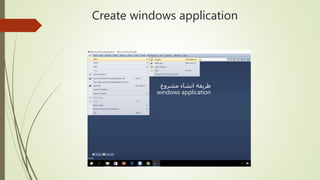
Create windows application
‫مشروع‬ ‫انشاء‬ ‫طريقة‬
windows application
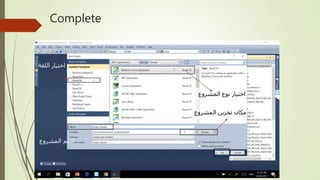
Complete
‫اللغة‬ ‫اختيار‬
‫المشروع‬ ‫نوع‬ ‫اختيار‬
‫المشروع‬ ‫اسم‬
‫المشروع‬ ‫تخزين‬ ‫مكان‬
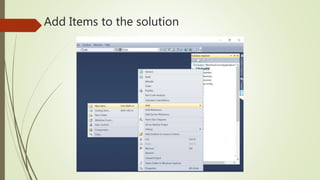
Add Items to the solution
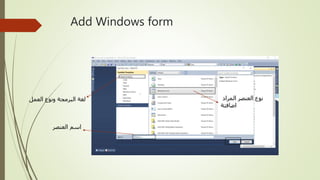
Add Windows form
‫العمل‬ ‫ونوع‬ ‫البرمجة‬ ‫لغة‬
‫العنصر‬ ‫اسم‬
‫المراد‬ ‫العنصر‬ ‫نوع‬
‫اضافتة‬
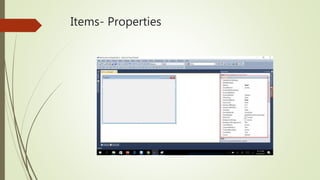
Items- Properties
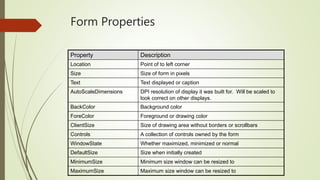
Form Properties
Property Description
Location Point of to left corner
Size Size of form in pixels
Text Text displayed or caption
AutoScaleDimensions DPI resolution of display it was built for. Will be scaled to
look correct on other displays.
BackColor Background color
ForeColor Foreground or drawing color
ClientSize Size of drawing area without borders or scrollbars
Controls A collection of controls owned by the form
WindowState Whether maximized, minimized or normal
DefaultSize Size when initially created
MinimumSize Minimum size window can be resized to
MaximumSize Maximum size window can be resized to
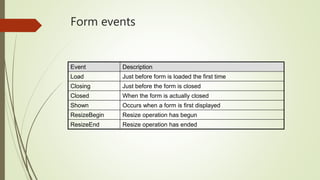
Form events
Event Description
Load Just before form is loaded the first time
Closing Just before the form is closed
Closed When the form is actually closed
Shown Occurs when a form is first displayed
ResizeBegin Resize operation has begun
ResizeEnd Resize operation has ended
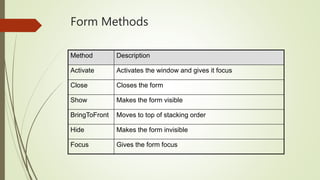
Form Methods
Method Description
Activate Activates the window and gives it focus
Close Closes the form
Show Makes the form visible
BringToFront Moves to top of stacking order
Hide Makes the form invisible
Focus Gives the form focus
13
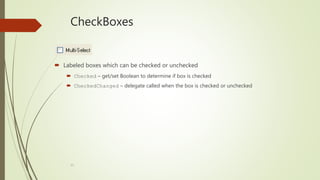
CheckBoxes
 Labeled boxes which can be checked or unchecked
 Checked – get/set Boolean to determine if box is checked
 CheckedChanged – delegate called when the box is checked or unchecked
14
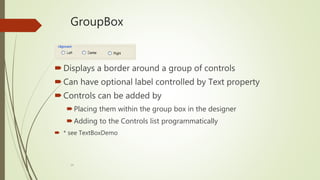
GroupBox
Displays a border around a group of controls
Can have optional label controlled by Text property
Controls can be added by
Placing them within the group box in the designer
Adding to the Controls list programmatically
 * see TextBoxDemo
15
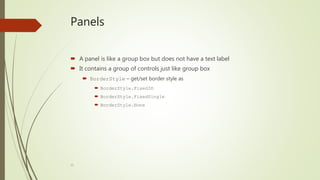
Panels
 A panel is like a group box but does not have a text label
 It contains a group of controls just like group box
 BorderStyle – get/set border style as
 BorderStyle.Fixed3D
 BorderStyle.FixedSingle
 BorderStyle.None
16
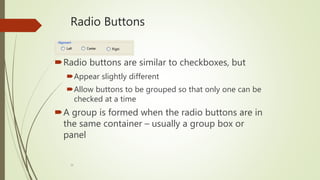
Radio Buttons
Radio buttons are similar to checkboxes, but
Appear slightly different
Allow buttons to be grouped so that only one can be
checked at a time
A group is formed when the radio buttons are in
the same container – usually a group box or
panel
17
Radio Buttons
 Checked – get/set Boolean indicating if the button is checked
 CheckedChanged – delegate invoked when the button is checked or unchecked
18
TextBox
This is a single line or multi-line text editor
Multiline – get/set Boolean to make multiline
AcceptsReturn – in a multiline box, if true then pressing
Return will create a new line. If false then the button
referenced by the AcceptButton property of the form,
will be clicked.
PasswordChar – if this is set to a char, then the box
becomes a password box
19
TextBox
 ReadOnly – if true, the control is grayed out and will not accept user input
 ScrollBars – determines which scrollbars will be used: ScrollBars.None, Vertical,
Horizontal, Both
 TextAlign – get/set HorizontalAlignment.Left, Center, or Right
 TextChanged – event raised when the text is changed
20
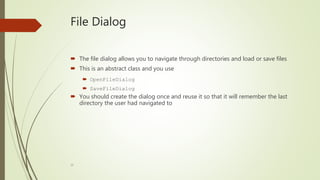
File Dialog
 The file dialog allows you to navigate through directories and load or save files
 This is an abstract class and you use
 OpenFileDialog
 SaveFileDialog
 You should create the dialog once and reuse it so that it will remember the last
directory the user had navigated to
21
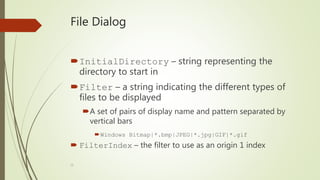
File Dialog
InitialDirectory – string representing the
directory to start in
Filter – a string indicating the different types of
files to be displayed
A set of pairs of display name and pattern separated by
vertical bars
Windows Bitmap|*.bmp|JPEG|*.jpg|GIF|*.gif
 FilterIndex – the filter to use as an origin 1 index
22
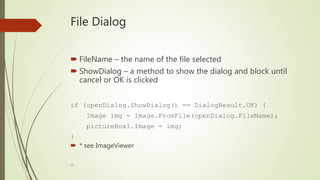
File Dialog
 FileName – the name of the file selected
 ShowDialog – a method to show the dialog and block until
cancel or OK is clicked
if (openDialog.ShowDialog() == DialogResult.OK) {
Image img = Image.FromFile(openDialog.FileName);
pictureBox1.Image = img;
}
 * see ImageViewer
23
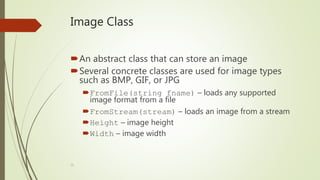
Image Class
An abstract class that can store an image
Several concrete classes are used for image types
such as BMP, GIF, or JPG
FromFile(string fname) – loads any supported
image format from a file
FromStream(stream) – loads an image from a stream
Height – image height
Width – image width
24
PictureBox Class
This displays an image
Image – assigned an Image object to display
SizeMode – determines what to do if the image does not
fit into the window
Normal
StretchImage
AutoSize
CenterImage
Zoom
25
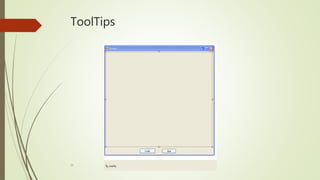
ToolTips
 These are the small pop-up boxes which explain the purpose of a control
 To use
 Create a new tooltip in the designer
 Drop the tooltip onto the form
 The tooltip will appear on a tray below the form
26
ToolTips
27
ToolTips
 After the tooltip appears in the tray, a new tooltip property appears for every
component
 This can be assigned different text for each component
 That text will be displayed when the mouse hovers over that component
28
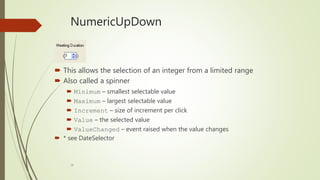
NumericUpDown
 This allows the selection of an integer from a limited range
 Also called a spinner
 Minimum – smallest selectable value
 Maximum – largest selectable value
 Increment – size of increment per click
 Value – the selected value
 ValueChanged – event raised when the value changes
 * see DateSelector
29
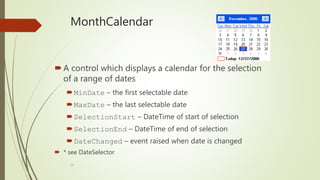
MonthCalendar
A control which displays a calendar for the selection
of a range of dates
MinDate – the first selectable date
MaxDate – the last selectable date
SelectionStart – DateTime of start of selection
SelectionEnd – DateTime of end of selection
DateChanged – event raised when date is changed
 * see DateSelector
30
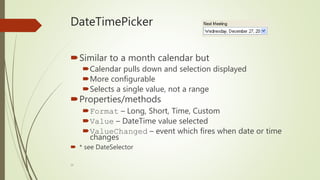
DateTimePicker
Similar to a month calendar but
Calendar pulls down and selection displayed
More configurable
Selects a single value, not a range
Properties/methods
Format – Long, Short, Time, Custom
Value – DateTime value selected
ValueChanged – event which fires when date or time
changes
 * see DateSelector
31
System.DateTime Structure
 A structure representing a date and time
 Constructors
 DateTime(int d, int m, int y)
 DateTime(int d, int m, int y, int h, int m, int s)
 Properties
 Now – returns a DateTime object set to the current local time
32
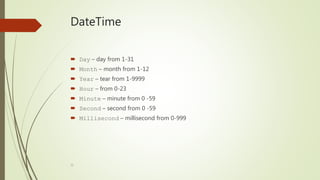
DateTime
 Day – day from 1-31
 Month – month from 1-12
 Year – tear from 1-9999
 Hour – from 0-23
 Minute – minute from 0 -59
 Second – second from 0 -59
 Millisecond – millisecond from 0-999
33
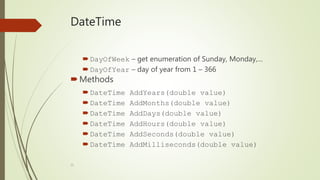
DateTime
DayOfWeek – get enumeration of Sunday, Monday,…
DayOfYear – day of year from 1 – 366
Methods
DateTime AddYears(double value)
DateTime AddMonths(double value)
DateTime AddDays(double value)
DateTime AddHours(double value)
DateTime AddSeconds(double value)
DateTime AddMilliseconds(double value)
34
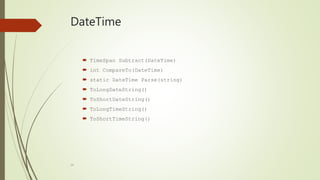
DateTime
 TimeSpan Subtract(DateTime)
 int CompareTo(DateTime)
 static DateTime Parse(string)
 ToLongDateString()
 ToShortDateString()
 ToLongTimeString()
 ToShortTimeString()
35
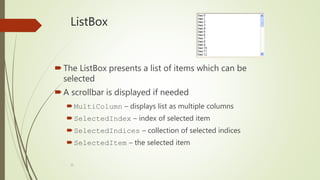
ListBox
The ListBox presents a list of items which can be
selected
A scrollbar is displayed if needed
MultiColumn – displays list as multiple columns
SelectedIndex – index of selected item
SelectedIndices – collection of selected indices
SelectedItem – the selected item
36
ListBox
SelectedItems – collection of selected items
SelectionMode – how items can be selected
None – no selection
One – single selection
MultiSimple – each click selects additional item
MultiExtended – uses shift and control keys
Sorted – if true the items will be sorted alphabetically
37
ListBox
 Items – a collection of items in the list box
 ClearSelected – method to clear selection
 GetSelected – returns true if the parameter passed is selected
 SelectedIndexChanged – event when selection changes
 * see ListBoxDemo
38
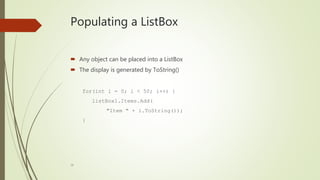
Populating a ListBox
 Any object can be placed into a ListBox
 The display is generated by ToString()
for(int i = 0; i < 50; i++) {
listBox1.Items.Add(
"Item " + i.ToString());
}
39
ComboBox
 A combo box is like a list but lets you displays a selected value.
 The list pulls down when a selection is being made.
 Options allow the selected text to be editable or to require it to be selected from
the drop-down list
40
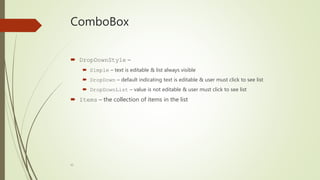
ComboBox
 DropDownStyle –
 Simple – text is editable & list always visible
 DropDown – default indicating text is editable & user must click to see list
 DropDownList – value is not editable & user must click to see list
 Items – the collection of items in the list
41
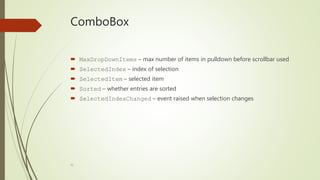
ComboBox
 MaxDropDownItems – max number of items in pulldown before scrollbar used
 SelectedIndex – index of selection
 SelectedItem – selected item
 Sorted – whether entries are sorted
 SelectedIndexChanged – event raised when selection changes
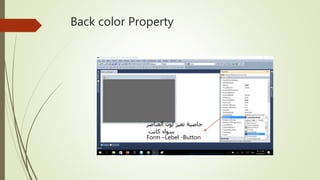
Back color Property
‫العناصر‬ ‫لون‬ ‫تغير‬ ‫خاصية‬
‫كانت‬ ‫سواء‬
Form –Lebel -Button
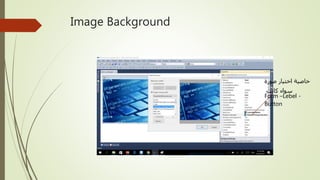
Image Background
‫صورة‬ ‫اختيار‬ ‫خاصية‬
‫كانت‬ ‫سواء‬
Form –Lebel -
Button
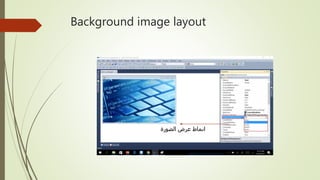
Background image layout
‫الصورة‬ ‫عرض‬ ‫انماط‬
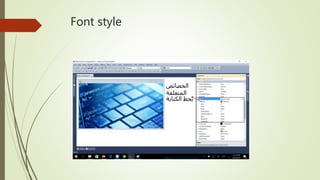
Font style
‫الخصائص‬
‫المتعلقة‬
‫الكتاب‬ ‫بخظ‬‫ة‬
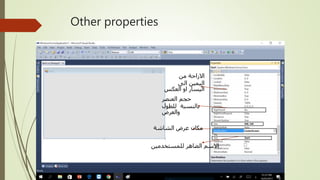
Other properties
‫من‬ ‫االزاحة‬
‫الى‬ ‫اليمين‬
‫العكس‬ ‫او‬ ‫اليسار‬
‫العنصر‬ ‫حجم‬
‫للطول‬ ‫بالنسبة‬
‫والعرض‬
‫للمستخدمين‬ ‫الضاهر‬ ‫االسم‬
‫الشاشة‬ ‫عرض‬ ‫مكان‬
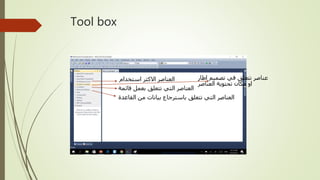
Tool box
‫استخدام‬ ‫االكثر‬ ‫العناصر‬
‫قائمة‬ ‫بعمل‬ ‫تتعلق‬ ‫التي‬ ‫العناصر‬
‫القاعدة‬ ‫من‬ ‫بيانات‬ ‫باسترجاع‬ ‫تتعلق‬ ‫التي‬ ‫العناصر‬
‫اطار‬ ‫تصميم‬ ‫في‬ ‫تتعلق‬ ‫عناصر‬
‫العناصر‬ ‫تحتوية‬ ‫مكان‬ ‫او‬
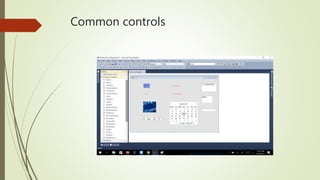
Common controls
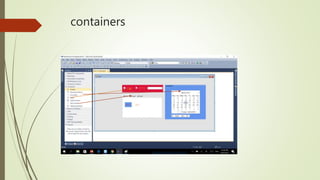
containers
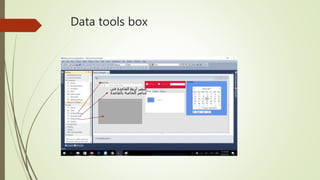
Data tools box
‫في‬ ‫القاعدة‬ ‫لربط‬ ‫عنصر‬
‫بالقاعدة‬ ‫الخاصة‬ ‫عناصر‬
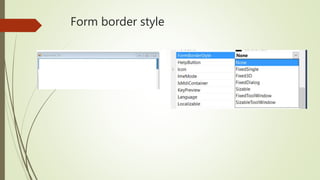
Form border style
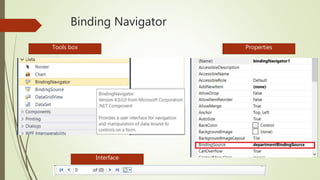
Binding Navigator
Tools box Properties
Interface
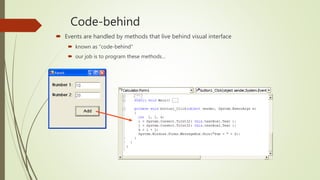
Code-behind
 Events are handled by methods that live behind visual interface
 known as "code-behind"
 our job is to program these methods…
Windows Form Application
Prepared By: Moutasm Tamimi
Using C# language
Microsoft visual studio
version 2008-2010-2012-2014
Part 2
Code Behind Window application C#
Speaker Information
 Moutasm tamimi
Independent consultant
CEO: ITG7
Instructor of: Project Development.
DBMS.
.NET applications.
Digital marketing.
Email: tamimi@itg7.com
LinkedIn: click here.
How to access to the code behind
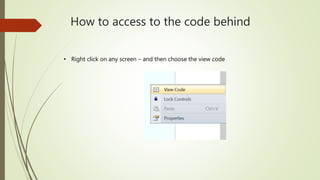
• Right click on any screen – and then choose the view code
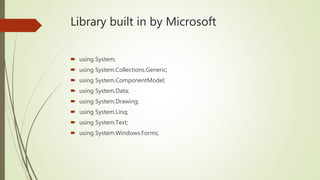
Library built in by Microsoft
 using System;
 using System.Collections.Generic;
 using System.ComponentModel;
 using System.Data;
 using System.Drawing;
 using System.Linq;
 using System.Text;
 using System.Windows.Forms;
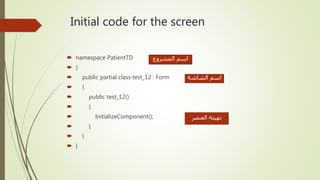
Initial code for the screen
 namespace PatientTD
 {
 public partial class test_12 : Form
 {
 public test_12()
 {
 InitializeComponent();
 }
 }
 }
‫المشروع‬ ‫اسم‬
‫الشاشة‬ ‫اسم‬
‫العنصر‬ ‫تهيئة‬
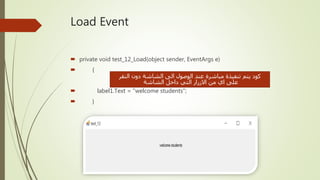
Load Event
 private void test_12_Load(object sender, EventArgs e)
 {
 label1.Text = "welcome students";
 }
‫النقر‬ ‫دون‬ ‫الشاشة‬ ‫الى‬ ‫الوصول‬ ‫عند‬ ‫مباشرة‬ ‫تنفيذة‬ ‫يتم‬ ‫كود‬
‫الشاشة‬ ‫داخل‬ ‫التي‬ ‫االزرار‬ ‫من‬ ‫اي‬ ‫على‬
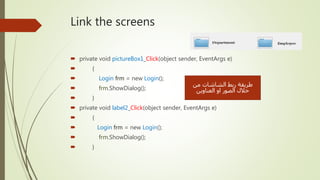
Link the screens
 private void pictureBox1_Click(object sender, EventArgs e)
 {
 Login frm = new Login();
 frm.ShowDialog();
 }
 private void label2_Click(object sender, EventArgs e)
 {
 Login frm = new Login();
 frm.ShowDialog();
 }
‫من‬ ‫الشاشات‬ ‫ربط‬ ‫طريقة‬
‫العناوين‬ ‫او‬ ‫الصور‬ ‫خالل‬
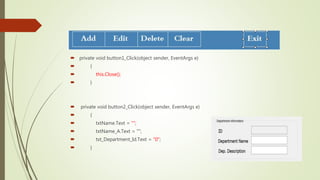
 private void button1_Click(object sender, EventArgs e)
 {
 this.Close();
 }
 private void button2_Click(object sender, EventArgs e)
 {
 txtName.Text = "";
 txtName_A.Text = "";
 txt_Department_Id.Text = "0";
 }
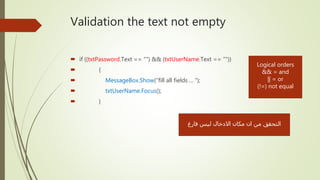
Validation the text not empty
 if ((txtPassword.Text == "") && (txtUserName.Text == ""))
 {
 MessageBox.Show("fill all fields ... ");
 txtUserName.Focus();
 }
‫فارغ‬ ‫ليس‬ ‫االدخال‬ ‫مكان‬ ‫ان‬ ‫من‬ ‫التحقق‬
Logical orders
&& = and
|| = or
(!=) not equal
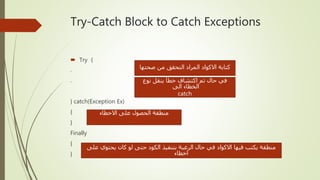
Try-Catch Block to Catch Exceptions
 Try {
.
.
} catch(Exception Ex)
{
}
Finally
{
}
‫صحتها‬ ‫من‬ ‫التحقق‬ ‫المراد‬ ‫االكواد‬ ‫كتابة‬
‫نوع‬ ‫ينقل‬ ‫خطأ‬ ‫اكتشاف‬ ‫تم‬ ‫حال‬ ‫في‬
‫الى‬ ‫الخطاء‬
catch
‫االخطاء‬ ‫على‬ ‫الحصول‬ ‫منطقة‬
‫على‬ ‫يحتوي‬ ‫كان‬ ‫لو‬ ‫حتى‬ ‫الكود‬ ‫بتنفيذ‬ ‫الرغبة‬ ‫حال‬ ‫في‬ ‫االكواد‬ ‫فيها‬ ‫يكتب‬ ‫منطقة‬
‫اخطاء‬
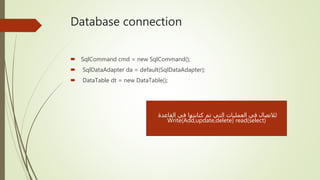
Database connection
 SqlCommand cmd = new SqlCommand();
 SqlDataAdapter da = default(SqlDataAdapter);
 DataTable dt = new DataTable();
‫القاعدة‬ ‫في‬ ‫كتابتها‬ ‫تم‬ ‫التي‬ ‫العمليات‬ ‫في‬ ‫لالتصال‬
Write(Add,update,delete) read(select)
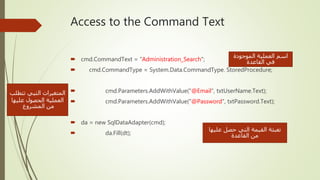
Access to the Command Text
 cmd.CommandText = "Administration_Search";
 cmd.CommandType = System.Data.CommandType. StoredProcedure;
 cmd.Parameters.AddWithValue("@Email", txtUserName.Text);
 cmd.Parameters.AddWithValue("@Password", txtPassword.Text);
 da = new SqlDataAdapter(cmd);
 da.Fill(dt);
‫الموجودة‬ ‫العملية‬ ‫اسم‬
‫القاعدة‬ ‫في‬
‫تتطلب‬ ‫التيي‬ ‫المتغيرات‬
‫عليها‬ ‫الحصول‬ ‫العملية‬
‫المشروع‬ ‫من‬
‫عليها‬ ‫حصل‬ ‫التي‬ ‫القيمة‬ ‫تعبئة‬
‫القاعدة‬ ‫من‬
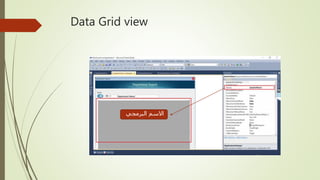
Data Grid view
‫البرمجي‬ ‫االسم‬
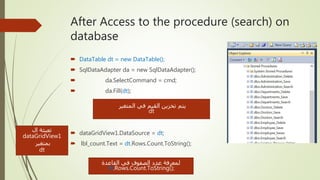
After Access to the procedure (search) on
database
 DataTable dt = new DataTable();
 SqlDataAdapter da = new SqlDataAdapter();
 da.SelectCommand = cmd;
 da.Fill(dt);
 dataGridView1.DataSource = dt;
 lbl_count.Text = dt.Rows.Count.ToString();
‫المتغير‬ ‫في‬ ‫القيم‬ ‫تخزين‬ ‫يتم‬
dt
‫ال‬ ‫تعبئة‬
dataGridView1
‫بمتغير‬
dt
‫القاعدة‬ ‫في‬ ‫الصفوف‬ ‫عدد‬ ‫لمعرفة‬
dt.Rows.Count.ToString();
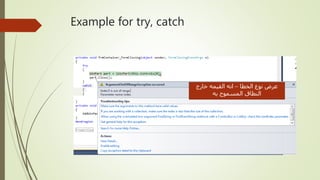
Example for try, catch
‫الخطا‬ ‫نوع‬ ‫عرض‬–‫خارج‬ ‫القيمه‬ ‫انه‬
‫به‬ ‫المسموح‬ ‫النطاق‬
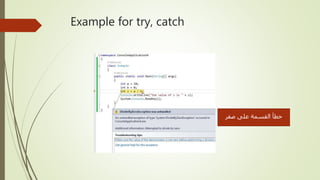
Example for try, catch
‫صفر‬ ‫على‬ ‫القسمة‬ ‫خطأ‬
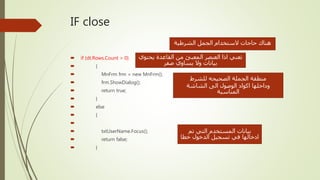
IF close
 if (dt.Rows.Count > 0)
 {
 MnFrm frm = new MnFrm();
 frm.ShowDialog();
 return true;
 }
 else
 {

 txtUserName.Focus();
 return false;
 }
‫الشرطية‬ ‫الجمل‬ ‫الستخدام‬ ‫حاجات‬ ‫هناك‬
‫يحتوي‬ ‫القاعدة‬ ‫من‬ ‫المعبئ‬ ‫العنصر‬ ‫اذا‬ ‫تعني‬
‫صفر‬ ‫يساوي‬ ‫وال‬ ‫بيانات‬
‫للشرط‬ ‫الصحيحه‬ ‫الجملة‬ ‫منطقة‬
‫الشاشة‬ ‫الى‬ ‫الوصول‬ ‫اكواد‬ ‫وداخلها‬
‫المناسبة‬
‫تم‬ ‫التي‬ ‫المستخدم‬ ‫بيانات‬
‫خطا‬ ‫الدخول‬ ‫تسجيل‬ ‫في‬ ‫ادخالها‬
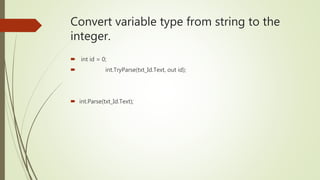
Convert variable type from string to the
integer.
 int id = 0;
 int.TryParse(txt_Id.Text, out id);
 int.Parse(txt_Id.Text);
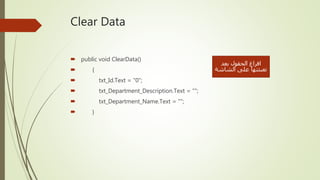
Clear Data
 public void ClearData()
 {
 txt_Id.Text = "0";
 txt_Department_Description.Text = "";
 txt_Department_Name.Text = "";
 }
‫بعد‬ ‫الحقول‬ ‫افراغ‬
‫الشاشة‬ ‫على‬ ‫تعبئتها‬
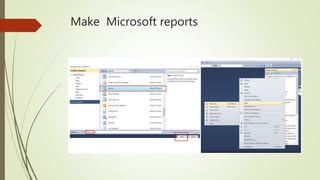
Make Microsoft reports
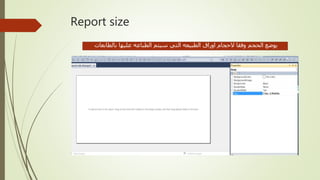
Report size
‫بالطابعات‬ ‫عليها‬ ‫الطباعه‬ ‫سيتم‬ ‫التي‬ ‫الطبيعه‬ ‫اوراق‬ ‫الحجام‬ ‫وفقا‬ ‫الحجم‬ ‫يوضع‬
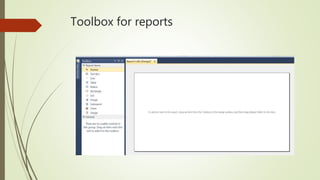
Toolbox for reports
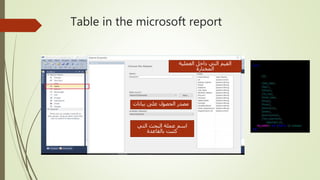
Table in the microsoft report
‫بيانات‬ ‫على‬ ‫الحصول‬ ‫مصدر‬
‫التي‬ ‫البحث‬ ‫عملة‬ ‫اسم‬
‫بالقاعدة‬ ‫كتبت‬
‫العملية‬ ‫داخل‬ ‫التي‬ ‫القيم‬
‫المختارة‬
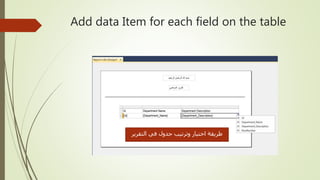
Add data Item for each field on the table
‫التقرير‬ ‫في‬ ‫جدول‬ ‫وترتيب‬ ‫اختيار‬ ‫طريقة‬
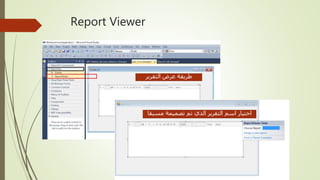
Report Viewer
‫التقرير‬ ‫عرض‬ ‫طريقة‬
‫مسبقا‬ ‫تصميمة‬ ‫تم‬ ‫الذي‬ ‫التقرير‬ ‫اسم‬ ‫اختيار‬
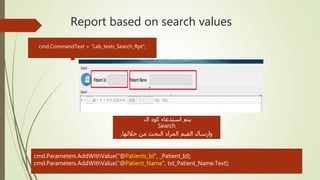
Report based on search values

‫ال‬ ‫كود‬ ‫استدعاء‬ ‫يتم‬
Search
,‫خاللها‬ ‫من‬ ‫البحث‬ ‫المراد‬ ‫القيم‬ ‫وارسال‬
cmd.CommandText = "Lab_tests_Search_Rpt";
cmd.Parameters.AddWithValue("@Patients_Id", _Patient_Id);
cmd.Parameters.AddWithValue("@Patient_Name", txt_Patient_Name.Text);
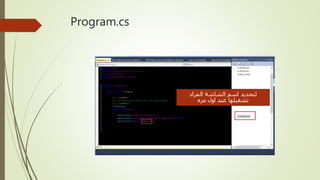
Program.cs
‫المراد‬ ‫الشاشة‬ ‫اسم‬ ‫لتحديد‬
‫مره‬ ‫اول‬ ‫عند‬ ‫تشغيلها‬
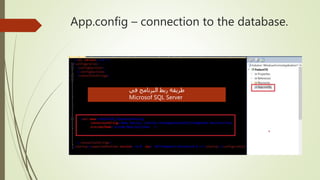
App.config – connection to the database.
‫في‬ ‫البرنامج‬ ‫ربط‬ ‫طريقة‬
Microsof SQL Server
C# Books
C# Customers
Windows Form Application
Prepared By: Moutasm Tamimi
Using C# language
Microsoft visual studio
version 2008-2010-2012-2014
Part 1 & 2

Windows form application - C# Training

  • 1.
    Windows Form Application PreparedBy: Moutasm Tamimi Using C# language Microsoft visual studio version 2008-2010-2012-2014 Part 1 & 2 Training in 2017
  • 2.
    Speaker Information  Moutasmtamimi Independent consultant , IT Researcher , CEO at ITG7 Instructor of: Project Development. DBMS. .NET applications. Digital marketing. Email: tamimi@itg7.com LinkedIn: click here.
  • 4.
    concepts  Windows Forms(WinForms) is a graphical (GUI) class library included as a part of Microsoft .NET Framework,[1] providing a platform to write rich client applications for desktop, laptop, and tablet PCs.[2] While it is seen as a replacement for the earlier and more complex C++ based Microsoft Foundation Class Library, it does not offer a comparable paradigm[3] and only acts as a platform for the user interface tier in a multi-tier solution.
  • 5.
    Create windows application ‫مشروع‬‫انشاء‬ ‫طريقة‬ windows application
  • 6.
    Complete ‫اللغة‬ ‫اختيار‬ ‫المشروع‬ ‫نوع‬‫اختيار‬ ‫المشروع‬ ‫اسم‬ ‫المشروع‬ ‫تخزين‬ ‫مكان‬
  • 7.
    Add Items tothe solution
  • 8.
    Add Windows form ‫العمل‬‫ونوع‬ ‫البرمجة‬ ‫لغة‬ ‫العنصر‬ ‫اسم‬ ‫المراد‬ ‫العنصر‬ ‫نوع‬ ‫اضافتة‬
  • 9.
  • 10.
    Form Properties Property Description LocationPoint of to left corner Size Size of form in pixels Text Text displayed or caption AutoScaleDimensions DPI resolution of display it was built for. Will be scaled to look correct on other displays. BackColor Background color ForeColor Foreground or drawing color ClientSize Size of drawing area without borders or scrollbars Controls A collection of controls owned by the form WindowState Whether maximized, minimized or normal DefaultSize Size when initially created MinimumSize Minimum size window can be resized to MaximumSize Maximum size window can be resized to
  • 11.
    Form events Event Description LoadJust before form is loaded the first time Closing Just before the form is closed Closed When the form is actually closed Shown Occurs when a form is first displayed ResizeBegin Resize operation has begun ResizeEnd Resize operation has ended
  • 12.
    Form Methods Method Description ActivateActivates the window and gives it focus Close Closes the form Show Makes the form visible BringToFront Moves to top of stacking order Hide Makes the form invisible Focus Gives the form focus
  • 13.
    13 CheckBoxes  Labeled boxeswhich can be checked or unchecked  Checked – get/set Boolean to determine if box is checked  CheckedChanged – delegate called when the box is checked or unchecked
  • 14.
    14 GroupBox Displays a borderaround a group of controls Can have optional label controlled by Text property Controls can be added by Placing them within the group box in the designer Adding to the Controls list programmatically  * see TextBoxDemo
  • 15.
    15 Panels  A panelis like a group box but does not have a text label  It contains a group of controls just like group box  BorderStyle – get/set border style as  BorderStyle.Fixed3D  BorderStyle.FixedSingle  BorderStyle.None
  • 16.
    16 Radio Buttons Radio buttonsare similar to checkboxes, but Appear slightly different Allow buttons to be grouped so that only one can be checked at a time A group is formed when the radio buttons are in the same container – usually a group box or panel
  • 17.
    17 Radio Buttons  Checked– get/set Boolean indicating if the button is checked  CheckedChanged – delegate invoked when the button is checked or unchecked
  • 18.
    18 TextBox This is asingle line or multi-line text editor Multiline – get/set Boolean to make multiline AcceptsReturn – in a multiline box, if true then pressing Return will create a new line. If false then the button referenced by the AcceptButton property of the form, will be clicked. PasswordChar – if this is set to a char, then the box becomes a password box
  • 19.
    19 TextBox  ReadOnly –if true, the control is grayed out and will not accept user input  ScrollBars – determines which scrollbars will be used: ScrollBars.None, Vertical, Horizontal, Both  TextAlign – get/set HorizontalAlignment.Left, Center, or Right  TextChanged – event raised when the text is changed
  • 20.
    20 File Dialog  Thefile dialog allows you to navigate through directories and load or save files  This is an abstract class and you use  OpenFileDialog  SaveFileDialog  You should create the dialog once and reuse it so that it will remember the last directory the user had navigated to
  • 21.
    21 File Dialog InitialDirectory –string representing the directory to start in Filter – a string indicating the different types of files to be displayed A set of pairs of display name and pattern separated by vertical bars Windows Bitmap|*.bmp|JPEG|*.jpg|GIF|*.gif  FilterIndex – the filter to use as an origin 1 index
  • 22.
    22 File Dialog  FileName– the name of the file selected  ShowDialog – a method to show the dialog and block until cancel or OK is clicked if (openDialog.ShowDialog() == DialogResult.OK) { Image img = Image.FromFile(openDialog.FileName); pictureBox1.Image = img; }  * see ImageViewer
  • 23.
    23 Image Class An abstractclass that can store an image Several concrete classes are used for image types such as BMP, GIF, or JPG FromFile(string fname) – loads any supported image format from a file FromStream(stream) – loads an image from a stream Height – image height Width – image width
  • 24.
    24 PictureBox Class This displaysan image Image – assigned an Image object to display SizeMode – determines what to do if the image does not fit into the window Normal StretchImage AutoSize CenterImage Zoom
  • 25.
    25 ToolTips  These arethe small pop-up boxes which explain the purpose of a control  To use  Create a new tooltip in the designer  Drop the tooltip onto the form  The tooltip will appear on a tray below the form
  • 26.
  • 27.
    27 ToolTips  After thetooltip appears in the tray, a new tooltip property appears for every component  This can be assigned different text for each component  That text will be displayed when the mouse hovers over that component
  • 28.
    28 NumericUpDown  This allowsthe selection of an integer from a limited range  Also called a spinner  Minimum – smallest selectable value  Maximum – largest selectable value  Increment – size of increment per click  Value – the selected value  ValueChanged – event raised when the value changes  * see DateSelector
  • 29.
    29 MonthCalendar A control whichdisplays a calendar for the selection of a range of dates MinDate – the first selectable date MaxDate – the last selectable date SelectionStart – DateTime of start of selection SelectionEnd – DateTime of end of selection DateChanged – event raised when date is changed  * see DateSelector
  • 30.
    30 DateTimePicker Similar to amonth calendar but Calendar pulls down and selection displayed More configurable Selects a single value, not a range Properties/methods Format – Long, Short, Time, Custom Value – DateTime value selected ValueChanged – event which fires when date or time changes  * see DateSelector
  • 31.
    31 System.DateTime Structure  Astructure representing a date and time  Constructors  DateTime(int d, int m, int y)  DateTime(int d, int m, int y, int h, int m, int s)  Properties  Now – returns a DateTime object set to the current local time
  • 32.
    32 DateTime  Day –day from 1-31  Month – month from 1-12  Year – tear from 1-9999  Hour – from 0-23  Minute – minute from 0 -59  Second – second from 0 -59  Millisecond – millisecond from 0-999
  • 33.
    33 DateTime DayOfWeek – getenumeration of Sunday, Monday,… DayOfYear – day of year from 1 – 366 Methods DateTime AddYears(double value) DateTime AddMonths(double value) DateTime AddDays(double value) DateTime AddHours(double value) DateTime AddSeconds(double value) DateTime AddMilliseconds(double value)
  • 34.
    34 DateTime  TimeSpan Subtract(DateTime) int CompareTo(DateTime)  static DateTime Parse(string)  ToLongDateString()  ToShortDateString()  ToLongTimeString()  ToShortTimeString()
  • 35.
    35 ListBox The ListBox presentsa list of items which can be selected A scrollbar is displayed if needed MultiColumn – displays list as multiple columns SelectedIndex – index of selected item SelectedIndices – collection of selected indices SelectedItem – the selected item
  • 36.
    36 ListBox SelectedItems – collectionof selected items SelectionMode – how items can be selected None – no selection One – single selection MultiSimple – each click selects additional item MultiExtended – uses shift and control keys Sorted – if true the items will be sorted alphabetically
  • 37.
    37 ListBox  Items –a collection of items in the list box  ClearSelected – method to clear selection  GetSelected – returns true if the parameter passed is selected  SelectedIndexChanged – event when selection changes  * see ListBoxDemo
  • 38.
    38 Populating a ListBox Any object can be placed into a ListBox  The display is generated by ToString() for(int i = 0; i < 50; i++) { listBox1.Items.Add( "Item " + i.ToString()); }
  • 39.
    39 ComboBox  A combobox is like a list but lets you displays a selected value.  The list pulls down when a selection is being made.  Options allow the selected text to be editable or to require it to be selected from the drop-down list
  • 40.
    40 ComboBox  DropDownStyle – Simple – text is editable & list always visible  DropDown – default indicating text is editable & user must click to see list  DropDownList – value is not editable & user must click to see list  Items – the collection of items in the list
  • 41.
    41 ComboBox  MaxDropDownItems –max number of items in pulldown before scrollbar used  SelectedIndex – index of selection  SelectedItem – selected item  Sorted – whether entries are sorted  SelectedIndexChanged – event raised when selection changes
  • 42.
    Back color Property ‫العناصر‬‫لون‬ ‫تغير‬ ‫خاصية‬ ‫كانت‬ ‫سواء‬ Form –Lebel -Button
  • 43.
    Image Background ‫صورة‬ ‫اختيار‬‫خاصية‬ ‫كانت‬ ‫سواء‬ Form –Lebel - Button
  • 44.
    Background image layout ‫الصورة‬‫عرض‬ ‫انماط‬
  • 45.
  • 46.
    Other properties ‫من‬ ‫االزاحة‬ ‫الى‬‫اليمين‬ ‫العكس‬ ‫او‬ ‫اليسار‬ ‫العنصر‬ ‫حجم‬ ‫للطول‬ ‫بالنسبة‬ ‫والعرض‬ ‫للمستخدمين‬ ‫الضاهر‬ ‫االسم‬ ‫الشاشة‬ ‫عرض‬ ‫مكان‬
  • 47.
    Tool box ‫استخدام‬ ‫االكثر‬‫العناصر‬ ‫قائمة‬ ‫بعمل‬ ‫تتعلق‬ ‫التي‬ ‫العناصر‬ ‫القاعدة‬ ‫من‬ ‫بيانات‬ ‫باسترجاع‬ ‫تتعلق‬ ‫التي‬ ‫العناصر‬ ‫اطار‬ ‫تصميم‬ ‫في‬ ‫تتعلق‬ ‫عناصر‬ ‫العناصر‬ ‫تحتوية‬ ‫مكان‬ ‫او‬
  • 48.
  • 49.
  • 50.
    Data tools box ‫في‬‫القاعدة‬ ‫لربط‬ ‫عنصر‬ ‫بالقاعدة‬ ‫الخاصة‬ ‫عناصر‬
  • 51.
  • 52.
    Binding Navigator Tools boxProperties Interface
  • 53.
    Code-behind  Events arehandled by methods that live behind visual interface  known as "code-behind"  our job is to program these methods…
  • 54.
    Windows Form Application PreparedBy: Moutasm Tamimi Using C# language Microsoft visual studio version 2008-2010-2012-2014 Part 2
  • 55.
    Code Behind Windowapplication C#
  • 56.
    Speaker Information  Moutasmtamimi Independent consultant CEO: ITG7 Instructor of: Project Development. DBMS. .NET applications. Digital marketing. Email: tamimi@itg7.com LinkedIn: click here.
  • 58.
    How to accessto the code behind • Right click on any screen – and then choose the view code
  • 59.
    Library built inby Microsoft  using System;  using System.Collections.Generic;  using System.ComponentModel;  using System.Data;  using System.Drawing;  using System.Linq;  using System.Text;  using System.Windows.Forms;
  • 60.
    Initial code forthe screen  namespace PatientTD  {  public partial class test_12 : Form  {  public test_12()  {  InitializeComponent();  }  }  } ‫المشروع‬ ‫اسم‬ ‫الشاشة‬ ‫اسم‬ ‫العنصر‬ ‫تهيئة‬
  • 61.
    Load Event  privatevoid test_12_Load(object sender, EventArgs e)  {  label1.Text = "welcome students";  } ‫النقر‬ ‫دون‬ ‫الشاشة‬ ‫الى‬ ‫الوصول‬ ‫عند‬ ‫مباشرة‬ ‫تنفيذة‬ ‫يتم‬ ‫كود‬ ‫الشاشة‬ ‫داخل‬ ‫التي‬ ‫االزرار‬ ‫من‬ ‫اي‬ ‫على‬
  • 62.
    Link the screens private void pictureBox1_Click(object sender, EventArgs e)  {  Login frm = new Login();  frm.ShowDialog();  }  private void label2_Click(object sender, EventArgs e)  {  Login frm = new Login();  frm.ShowDialog();  } ‫من‬ ‫الشاشات‬ ‫ربط‬ ‫طريقة‬ ‫العناوين‬ ‫او‬ ‫الصور‬ ‫خالل‬
  • 63.
     private voidbutton1_Click(object sender, EventArgs e)  {  this.Close();  }  private void button2_Click(object sender, EventArgs e)  {  txtName.Text = "";  txtName_A.Text = "";  txt_Department_Id.Text = "0";  }
  • 64.
    Validation the textnot empty  if ((txtPassword.Text == "") && (txtUserName.Text == ""))  {  MessageBox.Show("fill all fields ... ");  txtUserName.Focus();  } ‫فارغ‬ ‫ليس‬ ‫االدخال‬ ‫مكان‬ ‫ان‬ ‫من‬ ‫التحقق‬ Logical orders && = and || = or (!=) not equal
  • 65.
    Try-Catch Block toCatch Exceptions  Try { . . } catch(Exception Ex) { } Finally { } ‫صحتها‬ ‫من‬ ‫التحقق‬ ‫المراد‬ ‫االكواد‬ ‫كتابة‬ ‫نوع‬ ‫ينقل‬ ‫خطأ‬ ‫اكتشاف‬ ‫تم‬ ‫حال‬ ‫في‬ ‫الى‬ ‫الخطاء‬ catch ‫االخطاء‬ ‫على‬ ‫الحصول‬ ‫منطقة‬ ‫على‬ ‫يحتوي‬ ‫كان‬ ‫لو‬ ‫حتى‬ ‫الكود‬ ‫بتنفيذ‬ ‫الرغبة‬ ‫حال‬ ‫في‬ ‫االكواد‬ ‫فيها‬ ‫يكتب‬ ‫منطقة‬ ‫اخطاء‬
  • 66.
    Database connection  SqlCommandcmd = new SqlCommand();  SqlDataAdapter da = default(SqlDataAdapter);  DataTable dt = new DataTable(); ‫القاعدة‬ ‫في‬ ‫كتابتها‬ ‫تم‬ ‫التي‬ ‫العمليات‬ ‫في‬ ‫لالتصال‬ Write(Add,update,delete) read(select)
  • 67.
    Access to theCommand Text  cmd.CommandText = "Administration_Search";  cmd.CommandType = System.Data.CommandType. StoredProcedure;  cmd.Parameters.AddWithValue("@Email", txtUserName.Text);  cmd.Parameters.AddWithValue("@Password", txtPassword.Text);  da = new SqlDataAdapter(cmd);  da.Fill(dt); ‫الموجودة‬ ‫العملية‬ ‫اسم‬ ‫القاعدة‬ ‫في‬ ‫تتطلب‬ ‫التيي‬ ‫المتغيرات‬ ‫عليها‬ ‫الحصول‬ ‫العملية‬ ‫المشروع‬ ‫من‬ ‫عليها‬ ‫حصل‬ ‫التي‬ ‫القيمة‬ ‫تعبئة‬ ‫القاعدة‬ ‫من‬
  • 68.
  • 69.
    After Access tothe procedure (search) on database  DataTable dt = new DataTable();  SqlDataAdapter da = new SqlDataAdapter();  da.SelectCommand = cmd;  da.Fill(dt);  dataGridView1.DataSource = dt;  lbl_count.Text = dt.Rows.Count.ToString(); ‫المتغير‬ ‫في‬ ‫القيم‬ ‫تخزين‬ ‫يتم‬ dt ‫ال‬ ‫تعبئة‬ dataGridView1 ‫بمتغير‬ dt ‫القاعدة‬ ‫في‬ ‫الصفوف‬ ‫عدد‬ ‫لمعرفة‬ dt.Rows.Count.ToString();
  • 70.
    Example for try,catch ‫الخطا‬ ‫نوع‬ ‫عرض‬–‫خارج‬ ‫القيمه‬ ‫انه‬ ‫به‬ ‫المسموح‬ ‫النطاق‬
  • 71.
    Example for try,catch ‫صفر‬ ‫على‬ ‫القسمة‬ ‫خطأ‬
  • 72.
    IF close  if(dt.Rows.Count > 0)  {  MnFrm frm = new MnFrm();  frm.ShowDialog();  return true;  }  else  {   txtUserName.Focus();  return false;  } ‫الشرطية‬ ‫الجمل‬ ‫الستخدام‬ ‫حاجات‬ ‫هناك‬ ‫يحتوي‬ ‫القاعدة‬ ‫من‬ ‫المعبئ‬ ‫العنصر‬ ‫اذا‬ ‫تعني‬ ‫صفر‬ ‫يساوي‬ ‫وال‬ ‫بيانات‬ ‫للشرط‬ ‫الصحيحه‬ ‫الجملة‬ ‫منطقة‬ ‫الشاشة‬ ‫الى‬ ‫الوصول‬ ‫اكواد‬ ‫وداخلها‬ ‫المناسبة‬ ‫تم‬ ‫التي‬ ‫المستخدم‬ ‫بيانات‬ ‫خطا‬ ‫الدخول‬ ‫تسجيل‬ ‫في‬ ‫ادخالها‬
  • 73.
    Convert variable typefrom string to the integer.  int id = 0;  int.TryParse(txt_Id.Text, out id);  int.Parse(txt_Id.Text);
  • 74.
    Clear Data  publicvoid ClearData()  {  txt_Id.Text = "0";  txt_Department_Description.Text = "";  txt_Department_Name.Text = "";  } ‫بعد‬ ‫الحقول‬ ‫افراغ‬ ‫الشاشة‬ ‫على‬ ‫تعبئتها‬
  • 75.
  • 76.
    Report size ‫بالطابعات‬ ‫عليها‬‫الطباعه‬ ‫سيتم‬ ‫التي‬ ‫الطبيعه‬ ‫اوراق‬ ‫الحجام‬ ‫وفقا‬ ‫الحجم‬ ‫يوضع‬
  • 77.
  • 78.
    Table in themicrosoft report ‫بيانات‬ ‫على‬ ‫الحصول‬ ‫مصدر‬ ‫التي‬ ‫البحث‬ ‫عملة‬ ‫اسم‬ ‫بالقاعدة‬ ‫كتبت‬ ‫العملية‬ ‫داخل‬ ‫التي‬ ‫القيم‬ ‫المختارة‬
  • 79.
    Add data Itemfor each field on the table ‫التقرير‬ ‫في‬ ‫جدول‬ ‫وترتيب‬ ‫اختيار‬ ‫طريقة‬
  • 80.
    Report Viewer ‫التقرير‬ ‫عرض‬‫طريقة‬ ‫مسبقا‬ ‫تصميمة‬ ‫تم‬ ‫الذي‬ ‫التقرير‬ ‫اسم‬ ‫اختيار‬
  • 81.
    Report based onsearch values  ‫ال‬ ‫كود‬ ‫استدعاء‬ ‫يتم‬ Search ,‫خاللها‬ ‫من‬ ‫البحث‬ ‫المراد‬ ‫القيم‬ ‫وارسال‬ cmd.CommandText = "Lab_tests_Search_Rpt"; cmd.Parameters.AddWithValue("@Patients_Id", _Patient_Id); cmd.Parameters.AddWithValue("@Patient_Name", txt_Patient_Name.Text);
  • 82.
    Program.cs ‫المراد‬ ‫الشاشة‬ ‫اسم‬‫لتحديد‬ ‫مره‬ ‫اول‬ ‫عند‬ ‫تشغيلها‬
  • 83.
    App.config – connectionto the database. ‫في‬ ‫البرنامج‬ ‫ربط‬ ‫طريقة‬ Microsof SQL Server
  • 84.
  • 85.
  • 86.
    Windows Form Application PreparedBy: Moutasm Tamimi Using C# language Microsoft visual studio version 2008-2010-2012-2014 Part 1 & 2