Window Controls in C#.Net
MessageBox Class
MessageBox Class
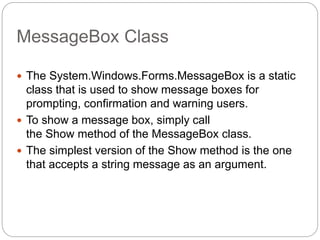
 The System.Windows.Forms.MessageBox is a static
class that is used to show message boxes for
prompting, confirmation and warning users.
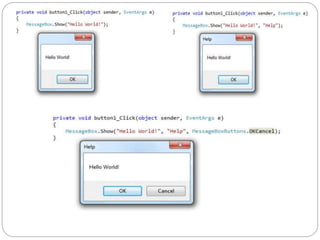
 To show a message box, simply call
the Show method of the MessageBox class.
 The simplest version of the Show method is the one
that accepts a string message as an argument.
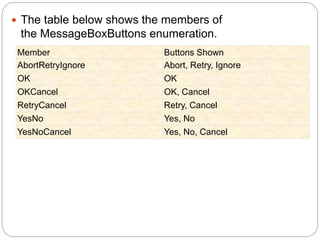
 The table below shows the members of
the MessageBoxButtons enumeration.
Member Buttons Shown
AbortRetryIgnore Abort, Retry, Ignore
OK OK
OKCancel OK, Cancel
RetryCancel Retry, Cancel
YesNo Yes, No
YesNoCancel Yes, No, Cancel
Form In C# window Application
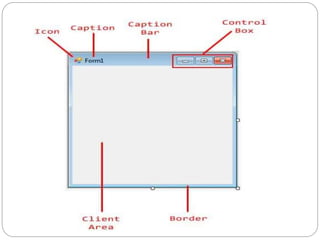
Windows Form
 Windows Forms (or simply forms) are the windows
you see in a Windows Application. You can create
multiple forms in a single application.
 Each form inherits the properties and methods of
the System.Windows.Forms.Form class.
 The namespaceSystem.Windows.Forms contains
components you will need for creating forms and
controls.
Button Control
Button control
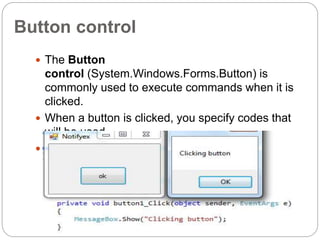
 The Button
control (System.Windows.Forms.Button) is
commonly used to execute commands when it is
clicked.
 When a button is clicked, you specify codes that
will be used.
 Buttons are typically used to confirm or cancel an
action, to perform different actions, and to open
some more dialogs.
Label control
Label & LinkLabel control
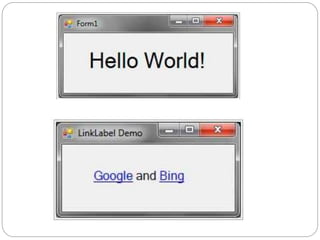
 The Label control (System.Windows.Forms.Label) is
used to add text to a form that can be used to show
messages, or add labels to identify what other
controls' functionality is. Drag a label control from the
toolbox to the form.
 By default, it will have an initial text.
 A LinkLabel control is a label control that can
display a hyperlink.
TextBox Control
Textbox control
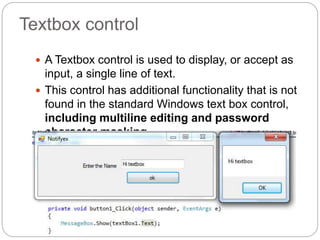
 A Textbox control is used to display, or accept as
input, a single line of text.
 This control has additional functionality that is not
found in the standard Windows text box control,
including multiline editing and password
character masking.
RichTextBox Control
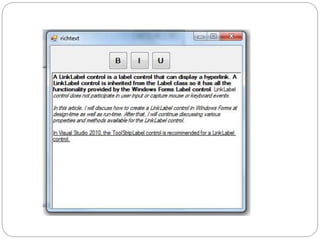
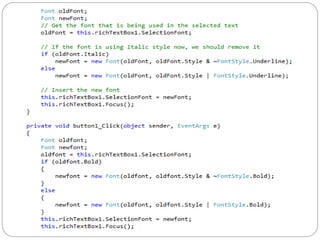
RichTextBox Control
 The RichTextBox control (System.Windows.Forms.
RichTextBox) is similar to a TextBox control, but it
allows you to format different parts of the text inside
it.
 The TextBox control is typically used to accept text
input from the user while the RichTextBox control is
used to show formatted text and save it in Rich Text
Format (RTF).
CheckBox And RadioButton
Control
CheckBox And RadioButton
Control
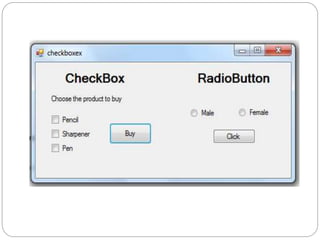
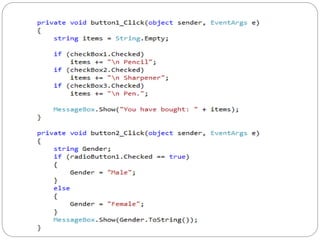
 CheckBox
 Checkboxes allow the user to make multiple
selections from a number of options.
 CheckBox to give the user an option, such as
true/false or yes/no.
 You can click a check box to select it and click it
again to deselect it.
 RadioButton
 A radio button or option button enables the user to
select a single option from a group of choices when
paired with other RadioButton controls.
 When a user clicks on a radio button, it becomes
checked, and all other radio buttons with same
group become unchecked
NumericUpDown ,PictureBox
,ProgressBar,ComboBox
,MonthlyCalendar And DateTimePicker
Control
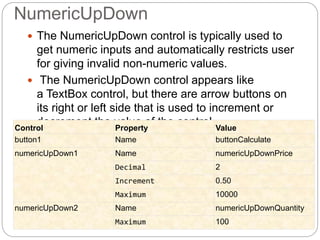
NumericUpDown
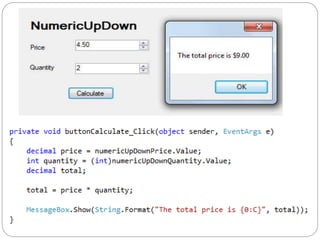
 The NumericUpDown control is typically used to
get numeric inputs and automatically restricts user
for giving invalid non-numeric values.
 The NumericUpDown control appears like
a TextBox control, but there are arrow buttons on
its right or left side that is used to increment or
decrement the value of the control.Control Property Value
button1 Name buttonCalculate
numericUpDown1 Name numericUpDownPrice
Decimal 2
Increment 0.50
Maximum 10000
numericUpDown2 Name numericUpDownQuantity
Maximum 100
PictureBox Control
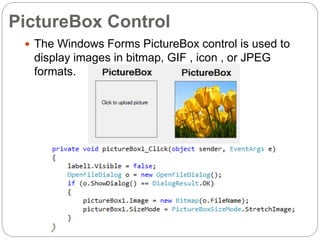
 The Windows Forms PictureBox control is used to
display images in bitmap, GIF , icon , or JPEG
formats.
ComboBox control
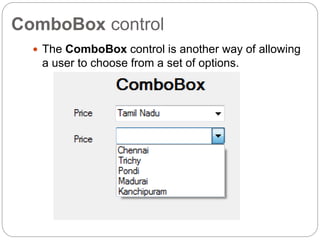
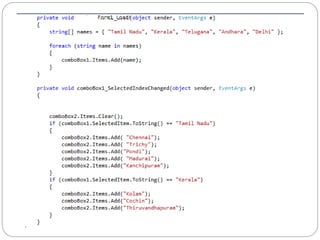
 The ComboBox control is another way of allowing
a user to choose from a set of options.
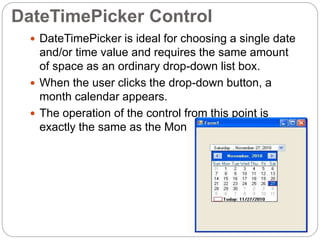
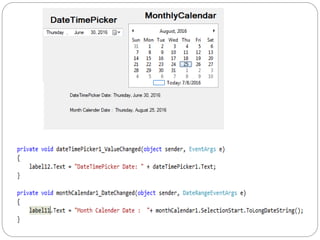
DateTimePicker Control
 DateTimePicker is ideal for choosing a single date
and/or time value and requires the same amount
of space as an ordinary drop-down list box.
 When the user clicks the drop-down button, a
month calendar appears.
 The operation of the control from this point is
exactly the same as the MonthCalendar control.
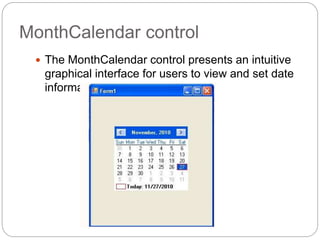
MonthCalendar control
 The MonthCalendar control presents an intuitive
graphical interface for users to view and set date
information
ProgressBar Control
WebBrowser Control
Web Browser Control
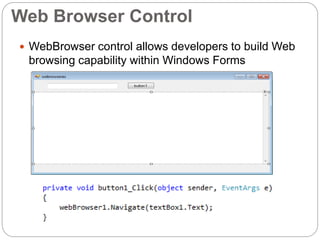
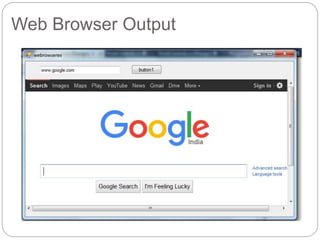
 WebBrowser control allows developers to build Web
browsing capability within Windows Forms
applications.
Web Browser Output
Dialog Controls
 ColorDialog Control
 FontDialog Control
 FolderBrowserDialog Control
 OpenFileDialog Control
 SaveFileDialog control
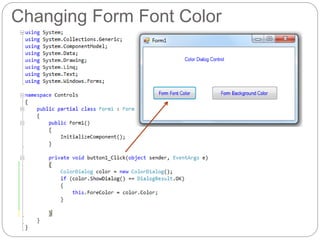
The ColorDialog Control
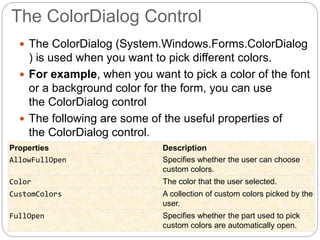
 The ColorDialog (System.Windows.Forms.ColorDialog
) is used when you want to pick different colors.
 For example, when you want to pick a color of the font
or a background color for the form, you can use
the ColorDialog control
 The following are some of the useful properties of
the ColorDialog control.
Properties Description
AllowFullOpen Specifies whether the user can choose
custom colors.
Color The color that the user selected.
CustomColors A collection of custom colors picked by the
user.
FullOpen Specifies whether the part used to pick
custom colors are automatically open.
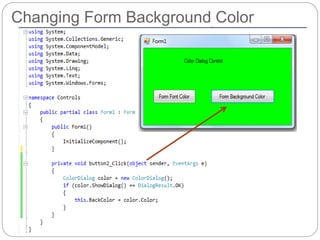
Changing Form Background Color
Changing Form Font Color
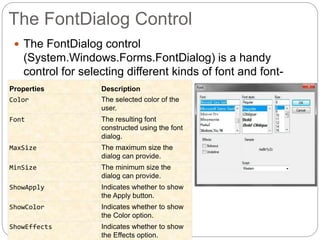
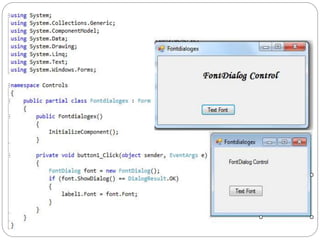
The FontDialog Control
 The FontDialog control
(System.Windows.Forms.FontDialog) is a handy
control for selecting different kinds of font and font-
related properties.Properties Description
Color The selected color of the
user.
Font The resulting font
constructed using the font
dialog.
MaxSize The maximum size the
dialog can provide.
MinSize The minimum size the
dialog can provide.
ShowApply Indicates whether to show
the Apply button.
ShowColor Indicates whether to show
the Color option.
ShowEffects Indicates whether to show
the Effects option.
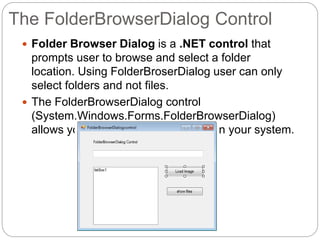
The FolderBrowserDialog Control
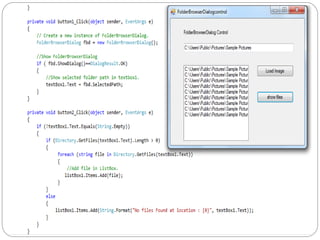
 Folder Browser Dialog is a .NET control that
prompts user to browse and select a folder
location. Using FolderBroserDialog user can only
select folders and not files.
 The FolderBrowserDialog control
(System.Windows.Forms.FolderBrowserDialog)
allows you to browse for a directory in your system.
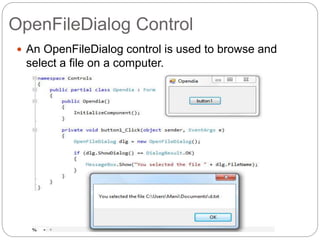
OpenFileDialog Control
 An OpenFileDialog control is used to browse and
select a file on a computer.
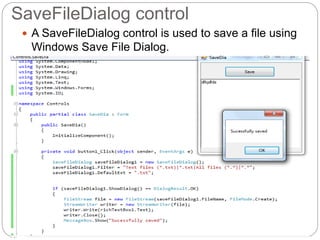
SaveFileDialog control
 A SaveFileDialog control is used to save a file using
Windows Save File Dialog.
Windowforms controls c#

Windowforms controls c#

  • 1.
  • 3.
  • 4.
    MessageBox Class  TheSystem.Windows.Forms.MessageBox is a static class that is used to show message boxes for prompting, confirmation and warning users.  To show a message box, simply call the Show method of the MessageBox class.  The simplest version of the Show method is the one that accepts a string message as an argument.
  • 6.
     The tablebelow shows the members of the MessageBoxButtons enumeration. Member Buttons Shown AbortRetryIgnore Abort, Retry, Ignore OK OK OKCancel OK, Cancel RetryCancel Retry, Cancel YesNo Yes, No YesNoCancel Yes, No, Cancel
  • 8.
    Form In C#window Application
  • 9.
    Windows Form  WindowsForms (or simply forms) are the windows you see in a Windows Application. You can create multiple forms in a single application.  Each form inherits the properties and methods of the System.Windows.Forms.Form class.  The namespaceSystem.Windows.Forms contains components you will need for creating forms and controls.
  • 11.
  • 12.
    Button control  TheButton control (System.Windows.Forms.Button) is commonly used to execute commands when it is clicked.  When a button is clicked, you specify codes that will be used.  Buttons are typically used to confirm or cancel an action, to perform different actions, and to open some more dialogs.
  • 13.
  • 14.
    Label & LinkLabelcontrol  The Label control (System.Windows.Forms.Label) is used to add text to a form that can be used to show messages, or add labels to identify what other controls' functionality is. Drag a label control from the toolbox to the form.  By default, it will have an initial text.  A LinkLabel control is a label control that can display a hyperlink.
  • 16.
  • 17.
    Textbox control  ATextbox control is used to display, or accept as input, a single line of text.  This control has additional functionality that is not found in the standard Windows text box control, including multiline editing and password character masking.
  • 18.
  • 19.
    RichTextBox Control  TheRichTextBox control (System.Windows.Forms. RichTextBox) is similar to a TextBox control, but it allows you to format different parts of the text inside it.  The TextBox control is typically used to accept text input from the user while the RichTextBox control is used to show formatted text and save it in Rich Text Format (RTF).
  • 22.
  • 23.
    CheckBox And RadioButton Control CheckBox  Checkboxes allow the user to make multiple selections from a number of options.  CheckBox to give the user an option, such as true/false or yes/no.  You can click a check box to select it and click it again to deselect it.  RadioButton  A radio button or option button enables the user to select a single option from a group of choices when paired with other RadioButton controls.  When a user clicks on a radio button, it becomes checked, and all other radio buttons with same group become unchecked
  • 26.
  • 27.
    NumericUpDown  The NumericUpDowncontrol is typically used to get numeric inputs and automatically restricts user for giving invalid non-numeric values.  The NumericUpDown control appears like a TextBox control, but there are arrow buttons on its right or left side that is used to increment or decrement the value of the control.Control Property Value button1 Name buttonCalculate numericUpDown1 Name numericUpDownPrice Decimal 2 Increment 0.50 Maximum 10000 numericUpDown2 Name numericUpDownQuantity Maximum 100
  • 29.
    PictureBox Control  TheWindows Forms PictureBox control is used to display images in bitmap, GIF , icon , or JPEG formats.
  • 30.
    ComboBox control  TheComboBox control is another way of allowing a user to choose from a set of options.
  • 32.
    DateTimePicker Control  DateTimePickeris ideal for choosing a single date and/or time value and requires the same amount of space as an ordinary drop-down list box.  When the user clicks the drop-down button, a month calendar appears.  The operation of the control from this point is exactly the same as the MonthCalendar control.
  • 33.
    MonthCalendar control  TheMonthCalendar control presents an intuitive graphical interface for users to view and set date information
  • 35.
  • 36.
  • 37.
    Web Browser Control WebBrowser control allows developers to build Web browsing capability within Windows Forms applications.
  • 38.
  • 39.
  • 40.
     ColorDialog Control FontDialog Control  FolderBrowserDialog Control  OpenFileDialog Control  SaveFileDialog control
  • 41.
    The ColorDialog Control The ColorDialog (System.Windows.Forms.ColorDialog ) is used when you want to pick different colors.  For example, when you want to pick a color of the font or a background color for the form, you can use the ColorDialog control  The following are some of the useful properties of the ColorDialog control. Properties Description AllowFullOpen Specifies whether the user can choose custom colors. Color The color that the user selected. CustomColors A collection of custom colors picked by the user. FullOpen Specifies whether the part used to pick custom colors are automatically open.
  • 42.
  • 43.
  • 44.
    The FontDialog Control The FontDialog control (System.Windows.Forms.FontDialog) is a handy control for selecting different kinds of font and font- related properties.Properties Description Color The selected color of the user. Font The resulting font constructed using the font dialog. MaxSize The maximum size the dialog can provide. MinSize The minimum size the dialog can provide. ShowApply Indicates whether to show the Apply button. ShowColor Indicates whether to show the Color option. ShowEffects Indicates whether to show the Effects option.
  • 46.
    The FolderBrowserDialog Control Folder Browser Dialog is a .NET control that prompts user to browse and select a folder location. Using FolderBroserDialog user can only select folders and not files.  The FolderBrowserDialog control (System.Windows.Forms.FolderBrowserDialog) allows you to browse for a directory in your system.
  • 48.
    OpenFileDialog Control  AnOpenFileDialog control is used to browse and select a file on a computer.
  • 49.
    SaveFileDialog control  ASaveFileDialog control is used to save a file using Windows Save File Dialog.