1
Hello,Windows Forms
Hello,Windows Forms
PRESENTED BY
Minu Puranik
And
Vivekananthan Murugesan
Summer 2002
2
Console V/S Windows Applications
 Compiler switch names “target”.
 For console we write
/target:exe
 For console we write
/target:winexe
 Console Application gets keyboard input through
Console.Read
Console.ReadLine
 Windows Forms Applications gets keyboard(and other) input through “EVENTS”
3
Building your first application – Steps
Involved
Involved
 Run Microsoft Visual Studio.NET.
4
Building your first application – Steps
Involved
Involved
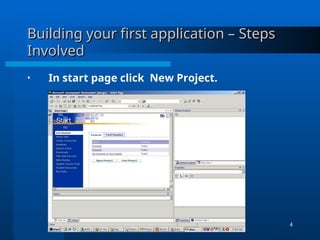
• In start page click New Project.
5
Building your first application – Steps
Involved
Involved
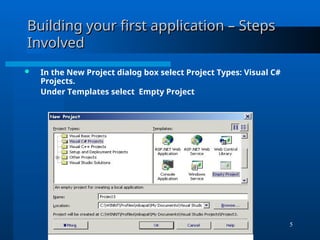
 In the New Project dialog box select Project Types: Visual C#
Projects.
Under Templates select Empty Project
6
Building your first application – Steps
Involved
Involved
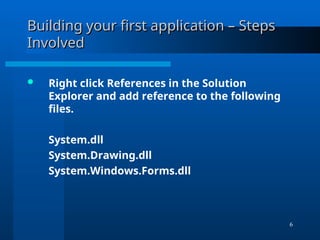
 Right click References in the Solution
Explorer and add reference to the following
files.
System.dll
System.Drawing.dll
System.Windows.Forms.dll
7
Building your first application – Steps
Involved
Involved
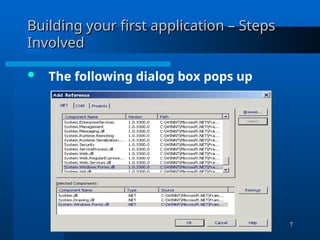
 The following dialog box pops up
8
Building your first application – Steps
Involved
Involved
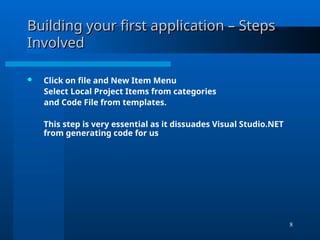
 Click on file and New Item Menu
Select Local Project Items from categories
and Code File from templates.
This step is very essential as it dissuades Visual Studio.NET
from generating code for us
9
Building your first application – Steps
Involved
Involved
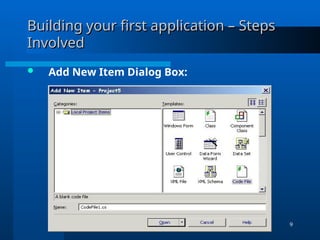
 Add New Item Dialog Box:
10
Building your first application – Steps
Involved
Involved
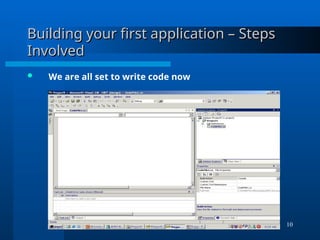
 We are all set to write code now
11
The Message Box
The Message Box
 MessageBox class
- Displays a Message Box that contains
Text,Buttons and Symbols that inform and
instruct the
user.
 MessageBox is derived from Object
- Inherits a few methods implemented by
Object
 MessageBox implements static method Show
12
MessageBox
MessageBox
The Show method has 12 different versions.
 Here a few ways of using the Show method
- DialogResult Show(string strTxt);
- DialogResult Show(string strTxt, string strCaption);
- DialogResult Show(string strTxt, string strCaption
MessageBoxButtons mbb);
- DialogResult Show(string strTxt, string strCaption
MessageBoxButtons mbb, MessageBoxIcon mbi);
13
Message Box
Message Box
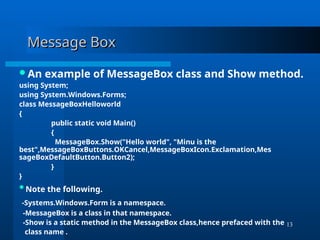
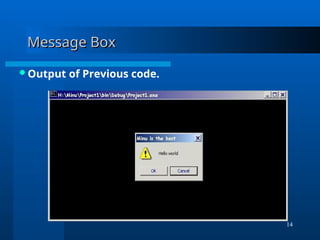
An example of MessageBox class and Show method.
using System;
using System.Windows.Forms;
class MessageBoxHelloworld
{
public static void Main()
{
MessageBox.Show("Hello world", "Minu is the
best",MessageBoxButtons.OKCancel,MessageBoxIcon.Exclamation,Mes
sageBoxDefaultButton.Button2);
}
}
Note the following.
-Systems.Windows.Form is a namespace.
-MessageBox is a class in that namespace.
-Show is a static method in the MessageBox class,hence prefaced with the
class name .
14
Message Box
Message Box
Output of Previous code.
15
Message Box
Message Box
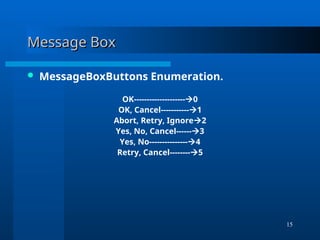
 MessageBoxButtons Enumeration.
OK--------------------0
OK, Cancel-----------1
Abort, Retry, Ignore2
Yes, No, Cancel------3
Yes, No---------------4
Retry, Cancel--------5
16
Message Box
Message Box
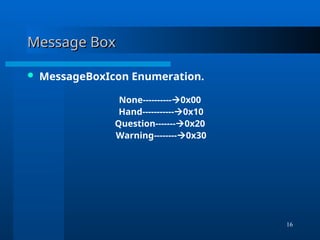
 MessageBoxIcon Enumeration.
None----------0x00
Hand-----------0x10
Question-------0x20
Warning--------0x30
17
Message Box
Message Box
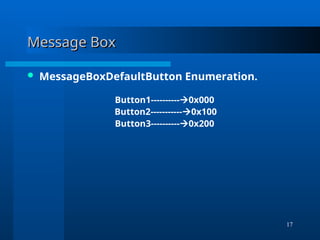
 MessageBoxDefaultButton Enumeration.
Button1----------0x000
Button2-----------0x100
Button3----------0x200
18
Message Box
Message Box
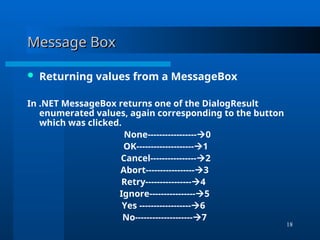
 Returning values from a MessageBox
In .NET MessageBox returns one of the DialogResult
enumerated values, again corresponding to the button
which was clicked.
None-----------------0
OK--------------------1
Cancel----------------2
Abort-----------------3
Retry----------------4
Ignore----------------5
Yes ------------------6
No--------------------7
19
Message Box
Message Box
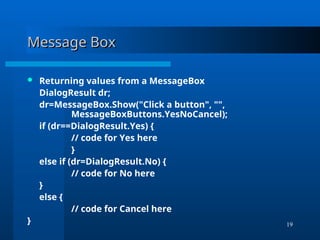
 Returning values from a MessageBox
DialogResult dr;
dr=MessageBox.Show("Click a button", "",
MessageBoxButtons.YesNoCancel);
if (dr==DialogResult.Yes) {
// code for Yes here
}
else if (dr=DialogResult.No) {
// code for No here
}
else {
// code for Cancel here
}
20
The Form
The Form
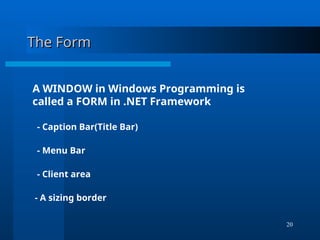
A WINDOW in Windows Programming is
called a FORM in .NET Framework
- Caption Bar(Title Bar)
- Menu Bar
- Client area
- A sizing border
21
The Form
The Form
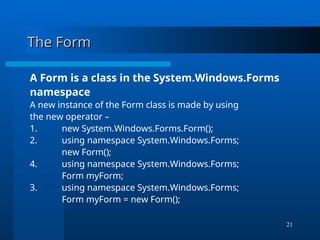
A Form is a class in the System.Windows.Forms
namespace
A new instance of the Form class is made by using
the new operator –
1. new System.Windows.Forms.Form();
2. using namespace System.Windows.Forms;
new Form();
4. using namespace System.Windows.Forms;
Form myForm;
3. using namespace System.Windows.Forms;
Form myForm = new Form();
22
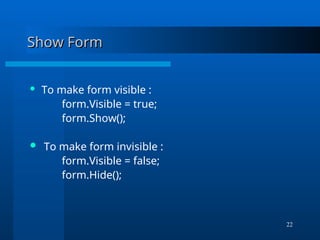
Show Form
Show Form
 To make form visible :
form.Visible = true;
form.Show();
 To make form invisible :
form.Visible = false;
form.Hide();
23
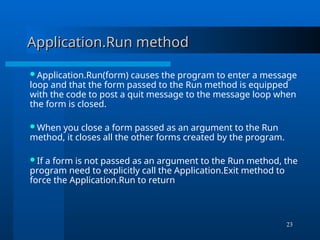
Application.Run method
Application.Run(form) causes the program to enter a message
loop and that the form passed to the Run method is equipped
with the code to post a quit message to the message loop when
the form is closed.
When you close a form passed as an argument to the Run
method, it closes all the other forms created by the program.
If a form is not passed as an argument to the Run method, the
program need to explicitly call the Application.Exit method to
force the Application.Run to return
24
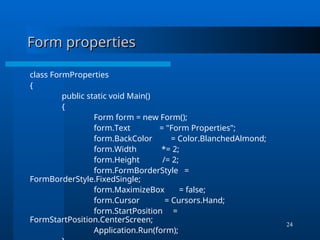
Form properties
Form properties
class FormProperties
{
public static void Main()
{
Form form = new Form();
form.Text = "Form Properties";
form.BackColor = Color.BlanchedAlmond;
form.Width *= 2;
form.Height /= 2;
form.FormBorderStyle =
FormBorderStyle.FixedSingle;
form.MaximizeBox = false;
form.Cursor = Cursors.Hand;
form.StartPosition =
FormStartPosition.CenterScreen;
Application.Run(form);
25
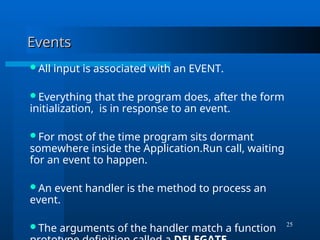
Events
Events
All input is associated with an EVENT.
Everything that the program does, after the form
initialization, is in response to an event.
For most of the time program sits dormant
somewhere inside the Application.Run call, waiting
for an event to happen.
An event handler is the method to process an
event.
The arguments of the handler match a function
26
Handling the Paint Event
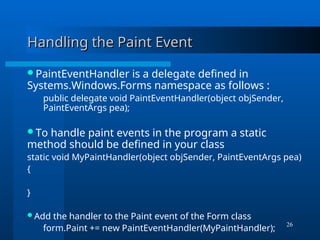
PaintEventHandler is a delegate defined in
Systems.Windows.Forms namespace as follows :
public delegate void PaintEventHandler(object objSender,
PaintEventArgs pea);
To handle paint events in the program a static
method should be defined in your class
static void MyPaintHandler(object objSender, PaintEventArgs pea)
{
}
Add the handler to the Paint event of the Form class
form.Paint += new PaintEventHandler(MyPaintHandler);
27
Inheriting Form class
Customization
Extensibility
28
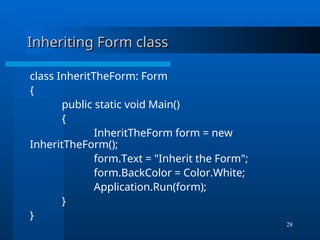
Inheriting Form class
class InheritTheForm: Form
{
public static void Main()
{
InheritTheForm form = new
InheritTheForm();
form.Text = "Inherit the Form";
form.BackColor = Color.White;
Application.Run(form);
}
}
29
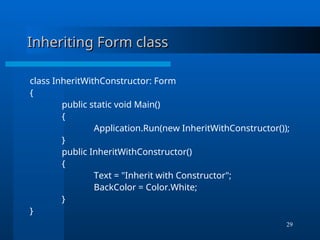
Inheriting Form class
class InheritWithConstructor: Form
{
public static void Main()
{
Application.Run(new InheritWithConstructor());
}
public InheritWithConstructor()
{
Text = "Inherit with Constructor";
BackColor = Color.White;
}
}
30
Inheriting Form class
One advantage of inheriting from Form class is that not only
the derived class has access to the Form classes public functions
but also to its protected ones.
One such protected method is OnPaint.
We don’t want to call this method but override it.
If we override OnPaint we don’t need to install a Paint event
handler.
protected override void OnPaint(PaintEventArgs pea)
{ base.OnPaint(pea);
Graphics grfx = pea.Graphics;
grfx.DrawString("Hello, Windows Forms!", Font,
Brushes.Black, 0, 0);
}
31
Inheriting Form class
class HelloWorld: Form
{
public static void Main()
{
Application.Run(new HelloWorld());
}
public HelloWorld()
{
Text = "Hello World";
BackColor = Color.White;
}
protected override void OnPaint(PaintEventArgs pea)
{ Graphics grfx = pea.Graphics;
grfx.DrawString("Hello, Windows Forms!", Font,
Brushes.Black, 0, 0);
}
}
Windows form applicationWindows form application

  • 1.
    1 Hello,Windows Forms Hello,Windows Forms PRESENTEDBY Minu Puranik And Vivekananthan Murugesan Summer 2002
  • 2.
    2 Console V/S WindowsApplications Console V/S Windows Applications  Compiler switch names “target”.  For console we write /target:exe  For console we write /target:winexe  Console Application gets keyboard input through Console.Read Console.ReadLine  Windows Forms Applications gets keyboard(and other) input through “EVENTS”
  • 3.
    3 Building your firstapplication – Steps Building your first application – Steps Involved Involved  Run Microsoft Visual Studio.NET.
  • 4.
    4 Building your firstapplication – Steps Building your first application – Steps Involved Involved • In start page click New Project.
  • 5.
    5 Building your firstapplication – Steps Building your first application – Steps Involved Involved  In the New Project dialog box select Project Types: Visual C# Projects. Under Templates select Empty Project
  • 6.
    6 Building your firstapplication – Steps Building your first application – Steps Involved Involved  Right click References in the Solution Explorer and add reference to the following files. System.dll System.Drawing.dll System.Windows.Forms.dll
  • 7.
    7 Building your firstapplication – Steps Building your first application – Steps Involved Involved  The following dialog box pops up
  • 8.
    8 Building your firstapplication – Steps Building your first application – Steps Involved Involved  Click on file and New Item Menu Select Local Project Items from categories and Code File from templates. This step is very essential as it dissuades Visual Studio.NET from generating code for us
  • 9.
    9 Building your firstapplication – Steps Building your first application – Steps Involved Involved  Add New Item Dialog Box:
  • 10.
    10 Building your firstapplication – Steps Building your first application – Steps Involved Involved  We are all set to write code now
  • 11.
    11 The Message Box TheMessage Box  MessageBox class - Displays a Message Box that contains Text,Buttons and Symbols that inform and instruct the user.  MessageBox is derived from Object - Inherits a few methods implemented by Object  MessageBox implements static method Show
  • 12.
    12 MessageBox MessageBox The Show methodhas 12 different versions.  Here a few ways of using the Show method - DialogResult Show(string strTxt); - DialogResult Show(string strTxt, string strCaption); - DialogResult Show(string strTxt, string strCaption MessageBoxButtons mbb); - DialogResult Show(string strTxt, string strCaption MessageBoxButtons mbb, MessageBoxIcon mbi);
  • 13.
    13 Message Box Message Box Anexample of MessageBox class and Show method. using System; using System.Windows.Forms; class MessageBoxHelloworld { public static void Main() { MessageBox.Show("Hello world", "Minu is the best",MessageBoxButtons.OKCancel,MessageBoxIcon.Exclamation,Mes sageBoxDefaultButton.Button2); } } Note the following. -Systems.Windows.Form is a namespace. -MessageBox is a class in that namespace. -Show is a static method in the MessageBox class,hence prefaced with the class name .
  • 14.
  • 15.
    15 Message Box Message Box MessageBoxButtons Enumeration. OK--------------------0 OK, Cancel-----------1 Abort, Retry, Ignore2 Yes, No, Cancel------3 Yes, No---------------4 Retry, Cancel--------5
  • 16.
    16 Message Box Message Box MessageBoxIcon Enumeration. None----------0x00 Hand-----------0x10 Question-------0x20 Warning--------0x30
  • 17.
    17 Message Box Message Box MessageBoxDefaultButton Enumeration. Button1----------0x000 Button2-----------0x100 Button3----------0x200
  • 18.
    18 Message Box Message Box Returning values from a MessageBox In .NET MessageBox returns one of the DialogResult enumerated values, again corresponding to the button which was clicked. None-----------------0 OK--------------------1 Cancel----------------2 Abort-----------------3 Retry----------------4 Ignore----------------5 Yes ------------------6 No--------------------7
  • 19.
    19 Message Box Message Box Returning values from a MessageBox DialogResult dr; dr=MessageBox.Show("Click a button", "", MessageBoxButtons.YesNoCancel); if (dr==DialogResult.Yes) { // code for Yes here } else if (dr=DialogResult.No) { // code for No here } else { // code for Cancel here }
  • 20.
    20 The Form The Form AWINDOW in Windows Programming is called a FORM in .NET Framework - Caption Bar(Title Bar) - Menu Bar - Client area - A sizing border
  • 21.
    21 The Form The Form AForm is a class in the System.Windows.Forms namespace A new instance of the Form class is made by using the new operator – 1. new System.Windows.Forms.Form(); 2. using namespace System.Windows.Forms; new Form(); 4. using namespace System.Windows.Forms; Form myForm; 3. using namespace System.Windows.Forms; Form myForm = new Form();
  • 22.
    22 Show Form Show Form To make form visible : form.Visible = true; form.Show();  To make form invisible : form.Visible = false; form.Hide();
  • 23.
    23 Application.Run method Application.Run method Application.Run(form)causes the program to enter a message loop and that the form passed to the Run method is equipped with the code to post a quit message to the message loop when the form is closed. When you close a form passed as an argument to the Run method, it closes all the other forms created by the program. If a form is not passed as an argument to the Run method, the program need to explicitly call the Application.Exit method to force the Application.Run to return
  • 24.
    24 Form properties Form properties classFormProperties { public static void Main() { Form form = new Form(); form.Text = "Form Properties"; form.BackColor = Color.BlanchedAlmond; form.Width *= 2; form.Height /= 2; form.FormBorderStyle = FormBorderStyle.FixedSingle; form.MaximizeBox = false; form.Cursor = Cursors.Hand; form.StartPosition = FormStartPosition.CenterScreen; Application.Run(form);
  • 25.
    25 Events Events All input isassociated with an EVENT. Everything that the program does, after the form initialization, is in response to an event. For most of the time program sits dormant somewhere inside the Application.Run call, waiting for an event to happen. An event handler is the method to process an event. The arguments of the handler match a function
  • 26.
    26 Handling the PaintEvent Handling the Paint Event PaintEventHandler is a delegate defined in Systems.Windows.Forms namespace as follows : public delegate void PaintEventHandler(object objSender, PaintEventArgs pea); To handle paint events in the program a static method should be defined in your class static void MyPaintHandler(object objSender, PaintEventArgs pea) { } Add the handler to the Paint event of the Form class form.Paint += new PaintEventHandler(MyPaintHandler);
  • 27.
    27 Inheriting Form class InheritingForm class Customization Extensibility
  • 28.
    28 Inheriting Form class InheritingForm class class InheritTheForm: Form { public static void Main() { InheritTheForm form = new InheritTheForm(); form.Text = "Inherit the Form"; form.BackColor = Color.White; Application.Run(form); } }
  • 29.
    29 Inheriting Form class InheritingForm class class InheritWithConstructor: Form { public static void Main() { Application.Run(new InheritWithConstructor()); } public InheritWithConstructor() { Text = "Inherit with Constructor"; BackColor = Color.White; } }
  • 30.
    30 Inheriting Form class InheritingForm class One advantage of inheriting from Form class is that not only the derived class has access to the Form classes public functions but also to its protected ones. One such protected method is OnPaint. We don’t want to call this method but override it. If we override OnPaint we don’t need to install a Paint event handler. protected override void OnPaint(PaintEventArgs pea) { base.OnPaint(pea); Graphics grfx = pea.Graphics; grfx.DrawString("Hello, Windows Forms!", Font, Brushes.Black, 0, 0); }
  • 31.
    31 Inheriting Form class InheritingForm class class HelloWorld: Form { public static void Main() { Application.Run(new HelloWorld()); } public HelloWorld() { Text = "Hello World"; BackColor = Color.White; } protected override void OnPaint(PaintEventArgs pea) { Graphics grfx = pea.Graphics; grfx.DrawString("Hello, Windows Forms!", Font, Brushes.Black, 0, 0); } }