Demo Projects:
• Employee Information Form (Using advance controls)
What will you learn?
• Using following controls:
o Masked Textbox
o Multiline Textbox
o ComboBox, ListBox
o DateTimePicker
o NumericUpDown
o RadioButton
• Adding Items to ComboBox
Dynamically
• Enabling Autocomplete
• Getting Selected items form ComboBox, ListBox and CheckBoxList
• Clearing or resetting all these controls to default values.
Windows Forms for Beginners
www.dotnetvideotutorial.com
Employee Information Form (Using advance controls)
Using following controls:
Textbox
Multiline Textbox
ListBox, CheckBoxList
NumericUpDown
Adding Items to ComboBox, ListBox and CheckBoxList Statically and
Autocomplete feature in ComboBox
Getting Selected items form ComboBox, ListBox and CheckBoxList
Clearing or resetting all these controls to default values.
Bhushan Mulmule
bhushan.mulmule@gmail.com
www.dotnetvideotutorial.com
Windows Forms for Beginners
Part 3
Statically and
Getting Selected items form ComboBox, ListBox and CheckBoxList
Bhushan Mulmule
bhushan.mulmule@gmail.com
www.dotnetvideotutorial.com
Windows Forms for Beginners
www.dotnetvideotutorial.com
Project 1: Employee Information Form
Using Advance Controls
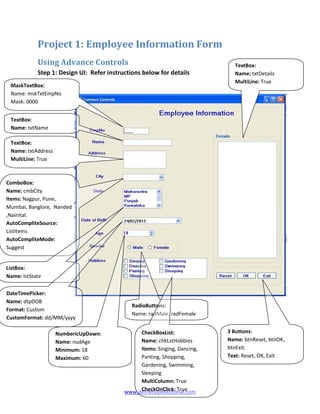
Step 1: Design UI: Refer instructions below for details
TextBox:
Name: txtAddress
MultiLine: True
ComboBox:
Name: cmbCity
Items: Nagpur, Pune,
Mumbai, Banglore, Nanded
,Nainital.
AutoCompliteSource:
ListItems
AutoCompliteMode:
Suggest
ListBox:
Name: lstState
DateTimePicker:
Name: dtpDOB
Format: Custom
CustomFormat: dd/MM/yyyy
NumbericUpDown:
Name: nudAge
Minimum: 18
Maximum: 60
RadioButtons:
Name: radMale, radFemale
CheckBoxList:
Name: chkLstHobbies
Items: Singing, Dancing,
Panting, Shopping,
Gardening, Swimming,
Sleeping
MultiColumn: True
CheckOnClick: True
TextBox:
Name: txtDetails
MultiLine: True
TextBox:
Name: txtName
3 Buttons:
Name: btnReset, btnOK,
btnExit.
Text: Reset, OK, Exit
MaskTextBox:
Name: mskTxtEmpNo
Mask: 0000
www.dotnetvideotutorial.com
Instructions:
• MaskedTextBox allows defining format for input using Mask property.
o Mask = 0000: To make it compulsory to user to enter 4 digit employee
number.
• Multiline property of textbox need to be set to true in order to enter multiple
lines in textbox
• ComboBox allows user to select item from predefined list
o Items property holds multiple items. When you will click on Items
property Collection Editor Window will open where you can add multiple
items (one item per line)
o AutoCompleteSource and AutoCompleteMode enables AutoComplete
feature of combobox. So that user can type in ComboBox and can select
item from matching suggestion list.
• ListBox is same as ComboBox except it displays multiple items as list.
o Items property can be used to populate control same as ComboBox.
o In this example we are populating it dynamically by writing function
PopulateStates and calling it from Form_Load Event
• DateTimePicker enables user to select date visually.
o Format property provides various predefined formats for date
o CustomFormat property allows to define custom format.
o To use CustomFormat; Format property need to set to CustomFormat
• NumericUpdown enables user to select numeric value from predefined range
o Minimum and Maximum properties need to be set
• Radio buttons for gender has to be in group box to specify that they are in same
group and only one should get selected out of them.
• CheckBoxList allows to select multiple items easily from predefined list
o We can populate it statically using item property or dynamically using
code as for ListBox.
o We will populate it using items property
o We will also
• Details textbox is nothing but textbox with multiline property set to true.
o To show all the details on this textbox first we will collect all the
information in string and then will assign it to details textbox.
www.dotnetvideotutorial.com
o Note: Strings are immutable and creates new object with every
concatenation. So this can be done better using StringBuilder Class.
(When you need to concatenate string number of times you should use
StringBuilder Class) Read about it and try to implement same thing using
StringBuilder class after finishing this walkthrough.
Step 3: Add event handlers for buttons
1. Double Click on Form to go to code window. Create function PopulateStates
outside form_load event
private void PopulateStates()
{
lstStates.Items.Add("Maharashtra");
lstStates.Items.Add("MP");
lstStates.Items.Add("Punjab");
lstStates.Items.Add("Karnataka");
lstStates.Items.Add("Goa");
}
2. Call PopulateSates from Form_Load Event
private void frmEmployeeDetails_Load(object sender, EventArgs e)
{
PopulateStates();
}
3. Double click on OK button:
private void btnOK_Click(object sender, EventArgs e)
{
string details;
details = "EmpNo: " + mskTxtEmpNo.Text;
details += "rnName: " + txtName.Text;
details += "rnAddress: " + txtAddress.Text;
details += "rnCity: " + cmbCity.SelectedItem;
details += "rnState: " + lstState.SelectedItem;
details += "rnDOB: " + dtpDOB.Value.ToShortDateString();
details += "rnAge: " + numAge.Value.ToString();
string gender = radMale.Checked ? "Male" : "Female";
details += "rnGender: " + gender;
www.dotnetvideotutorial.com
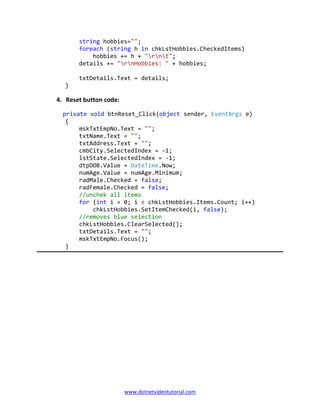
string hobbies="";
foreach (string h in chkLstHobbies.CheckedItems)
hobbies += h + "rnt";
details += "rnHobbies: " + hobbies;
txtDetails.Text = details;
}
4. Reset button code:
private void btnReset_Click(object sender, EventArgs e)
{
mskTxtEmpNo.Text = "";
txtName.Text = "";
txtAddress.Text = "";
cmbCity.SelectedIndex = -1;
lstState.SelectedIndex = -1;
dtpDOB.Value = DateTime.Now;
numAge.Value = numAge.Minimum;
radMale.Checked = false;
radFemale.Checked = false;
//unchek all items
for (int i = 0; i < chkLstHobbies.Items.Count; i++)
chkLstHobbies.SetItemChecked(i, false);
//removes blue selection
chkLstHobbies.ClearSelected();
txtDetails.Text = "";
mskTxtEmpNo.Focus();
}

Windows Forms For Beginners Part - 3

  • 1.
    Demo Projects: • EmployeeInformation Form (Using advance controls) What will you learn? • Using following controls: o Masked Textbox o Multiline Textbox o ComboBox, ListBox o DateTimePicker o NumericUpDown o RadioButton • Adding Items to ComboBox Dynamically • Enabling Autocomplete • Getting Selected items form ComboBox, ListBox and CheckBoxList • Clearing or resetting all these controls to default values. Windows Forms for Beginners www.dotnetvideotutorial.com Employee Information Form (Using advance controls) Using following controls: Textbox Multiline Textbox ListBox, CheckBoxList NumericUpDown Adding Items to ComboBox, ListBox and CheckBoxList Statically and Autocomplete feature in ComboBox Getting Selected items form ComboBox, ListBox and CheckBoxList Clearing or resetting all these controls to default values. Bhushan Mulmule bhushan.mulmule@gmail.com www.dotnetvideotutorial.com Windows Forms for Beginners Part 3 Statically and Getting Selected items form ComboBox, ListBox and CheckBoxList Bhushan Mulmule bhushan.mulmule@gmail.com www.dotnetvideotutorial.com Windows Forms for Beginners
  • 2.
    www.dotnetvideotutorial.com Project 1: EmployeeInformation Form Using Advance Controls Step 1: Design UI: Refer instructions below for details TextBox: Name: txtAddress MultiLine: True ComboBox: Name: cmbCity Items: Nagpur, Pune, Mumbai, Banglore, Nanded ,Nainital. AutoCompliteSource: ListItems AutoCompliteMode: Suggest ListBox: Name: lstState DateTimePicker: Name: dtpDOB Format: Custom CustomFormat: dd/MM/yyyy NumbericUpDown: Name: nudAge Minimum: 18 Maximum: 60 RadioButtons: Name: radMale, radFemale CheckBoxList: Name: chkLstHobbies Items: Singing, Dancing, Panting, Shopping, Gardening, Swimming, Sleeping MultiColumn: True CheckOnClick: True TextBox: Name: txtDetails MultiLine: True TextBox: Name: txtName 3 Buttons: Name: btnReset, btnOK, btnExit. Text: Reset, OK, Exit MaskTextBox: Name: mskTxtEmpNo Mask: 0000
  • 3.
    www.dotnetvideotutorial.com Instructions: • MaskedTextBox allowsdefining format for input using Mask property. o Mask = 0000: To make it compulsory to user to enter 4 digit employee number. • Multiline property of textbox need to be set to true in order to enter multiple lines in textbox • ComboBox allows user to select item from predefined list o Items property holds multiple items. When you will click on Items property Collection Editor Window will open where you can add multiple items (one item per line) o AutoCompleteSource and AutoCompleteMode enables AutoComplete feature of combobox. So that user can type in ComboBox and can select item from matching suggestion list. • ListBox is same as ComboBox except it displays multiple items as list. o Items property can be used to populate control same as ComboBox. o In this example we are populating it dynamically by writing function PopulateStates and calling it from Form_Load Event • DateTimePicker enables user to select date visually. o Format property provides various predefined formats for date o CustomFormat property allows to define custom format. o To use CustomFormat; Format property need to set to CustomFormat • NumericUpdown enables user to select numeric value from predefined range o Minimum and Maximum properties need to be set • Radio buttons for gender has to be in group box to specify that they are in same group and only one should get selected out of them. • CheckBoxList allows to select multiple items easily from predefined list o We can populate it statically using item property or dynamically using code as for ListBox. o We will populate it using items property o We will also • Details textbox is nothing but textbox with multiline property set to true. o To show all the details on this textbox first we will collect all the information in string and then will assign it to details textbox.
  • 4.
    www.dotnetvideotutorial.com o Note: Stringsare immutable and creates new object with every concatenation. So this can be done better using StringBuilder Class. (When you need to concatenate string number of times you should use StringBuilder Class) Read about it and try to implement same thing using StringBuilder class after finishing this walkthrough. Step 3: Add event handlers for buttons 1. Double Click on Form to go to code window. Create function PopulateStates outside form_load event private void PopulateStates() { lstStates.Items.Add("Maharashtra"); lstStates.Items.Add("MP"); lstStates.Items.Add("Punjab"); lstStates.Items.Add("Karnataka"); lstStates.Items.Add("Goa"); } 2. Call PopulateSates from Form_Load Event private void frmEmployeeDetails_Load(object sender, EventArgs e) { PopulateStates(); } 3. Double click on OK button: private void btnOK_Click(object sender, EventArgs e) { string details; details = "EmpNo: " + mskTxtEmpNo.Text; details += "rnName: " + txtName.Text; details += "rnAddress: " + txtAddress.Text; details += "rnCity: " + cmbCity.SelectedItem; details += "rnState: " + lstState.SelectedItem; details += "rnDOB: " + dtpDOB.Value.ToShortDateString(); details += "rnAge: " + numAge.Value.ToString(); string gender = radMale.Checked ? "Male" : "Female"; details += "rnGender: " + gender;
  • 5.
    www.dotnetvideotutorial.com string hobbies=""; foreach (stringh in chkLstHobbies.CheckedItems) hobbies += h + "rnt"; details += "rnHobbies: " + hobbies; txtDetails.Text = details; } 4. Reset button code: private void btnReset_Click(object sender, EventArgs e) { mskTxtEmpNo.Text = ""; txtName.Text = ""; txtAddress.Text = ""; cmbCity.SelectedIndex = -1; lstState.SelectedIndex = -1; dtpDOB.Value = DateTime.Now; numAge.Value = numAge.Minimum; radMale.Checked = false; radFemale.Checked = false; //unchek all items for (int i = 0; i < chkLstHobbies.Items.Count; i++) chkLstHobbies.SetItemChecked(i, false); //removes blue selection chkLstHobbies.ClearSelected(); txtDetails.Text = ""; mskTxtEmpNo.Focus(); }