Version Control System
Prepared by
Md. Shafiuzzaman
Lecturer, Dept. of CSE, JUST
What is version control
Md. Shafiuzzaman2
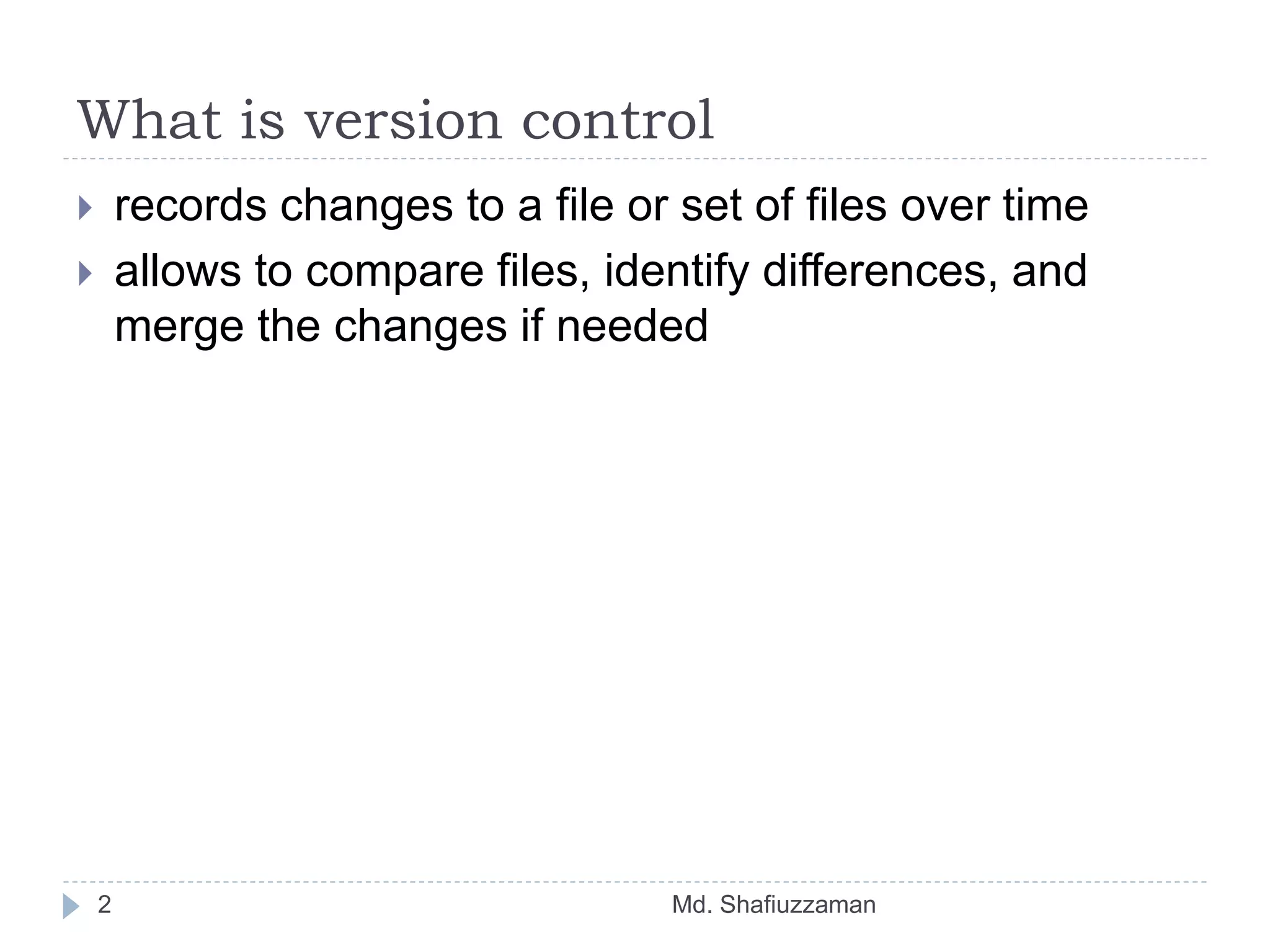
 records changes to a file or set of files over time
 allows to compare files, identify differences, and
merge the changes if needed
Examples
Md. Shafiuzzaman3
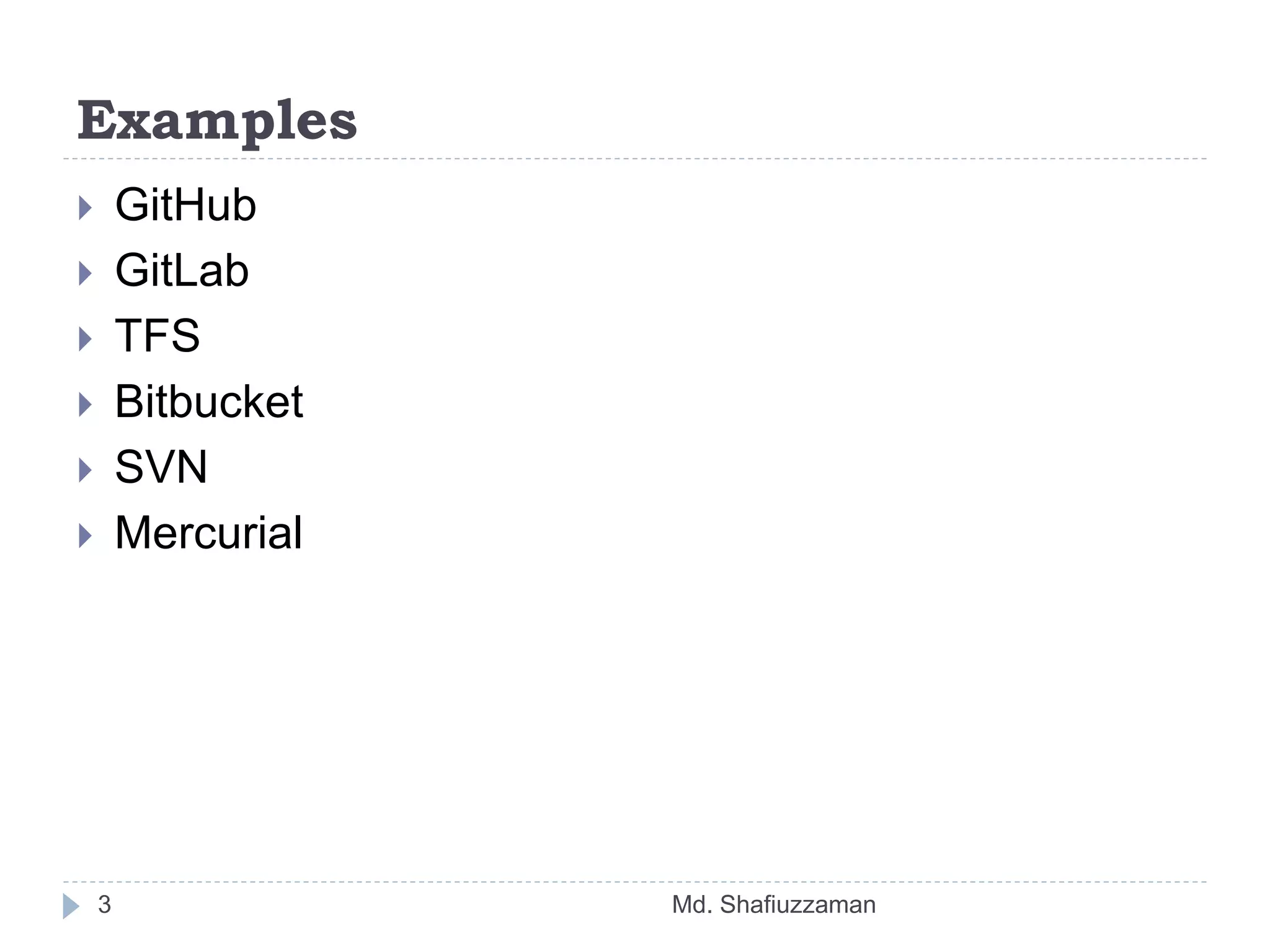
 GitHub
 GitLab
 TFS
 Bitbucket
 SVN
 Mercurial
What is GitHub?
Md. Shafiuzzaman4
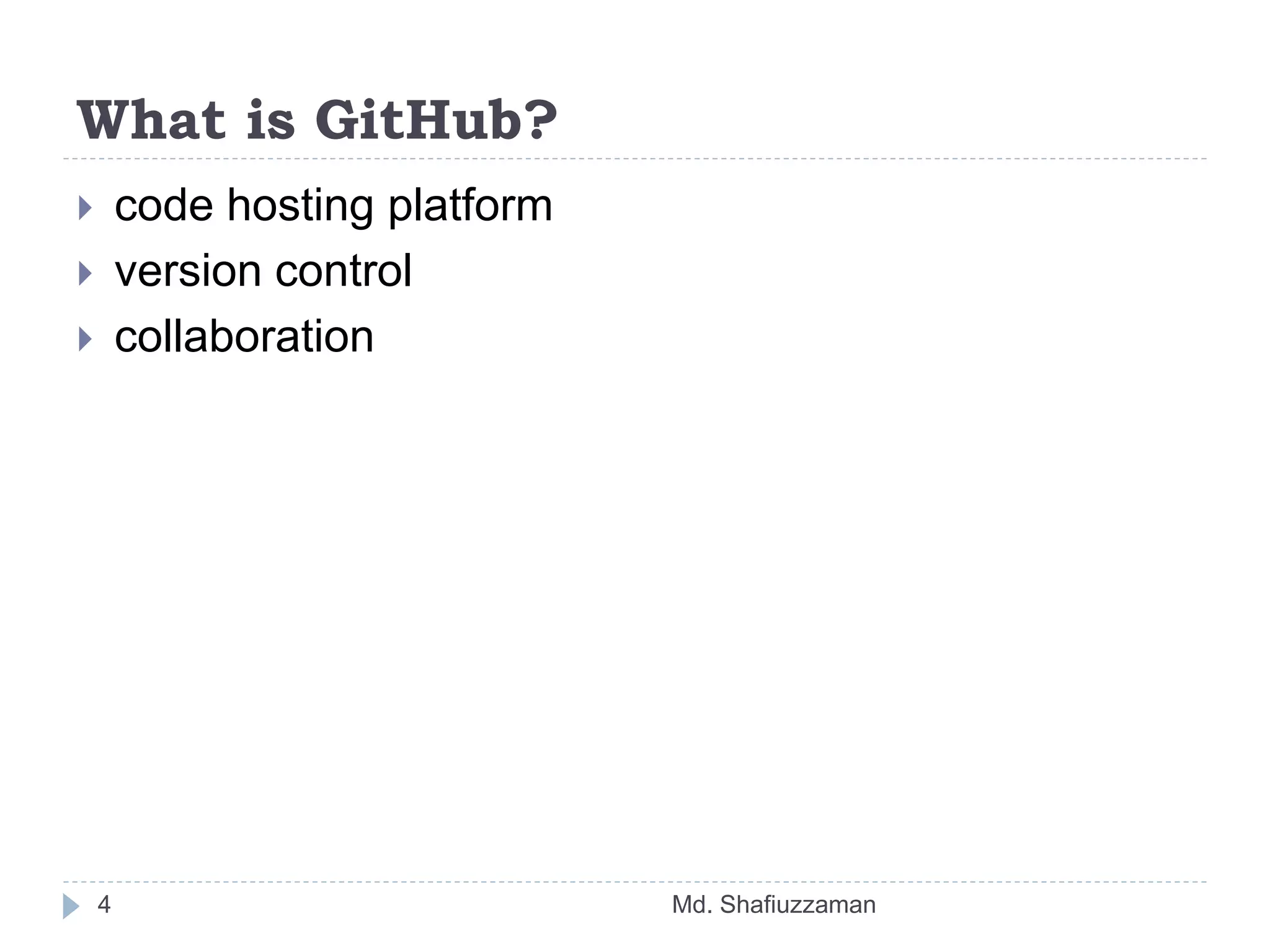
 code hosting platform
 version control
 collaboration
Words People Use When They Talk About
Git
Md. Shafiuzzaman5
 Repositories
 Branches
 Commits
 Pull Requests
Git-Specific Commands
Md. Shafiuzzaman6
 git init
 git config
 git help
 git status
 git add
 git commit
 git branch
 git checkout
 git merge
 git push
 git pull
Create Account in GitHub
Md. Shafiuzzaman7
 www.github.com
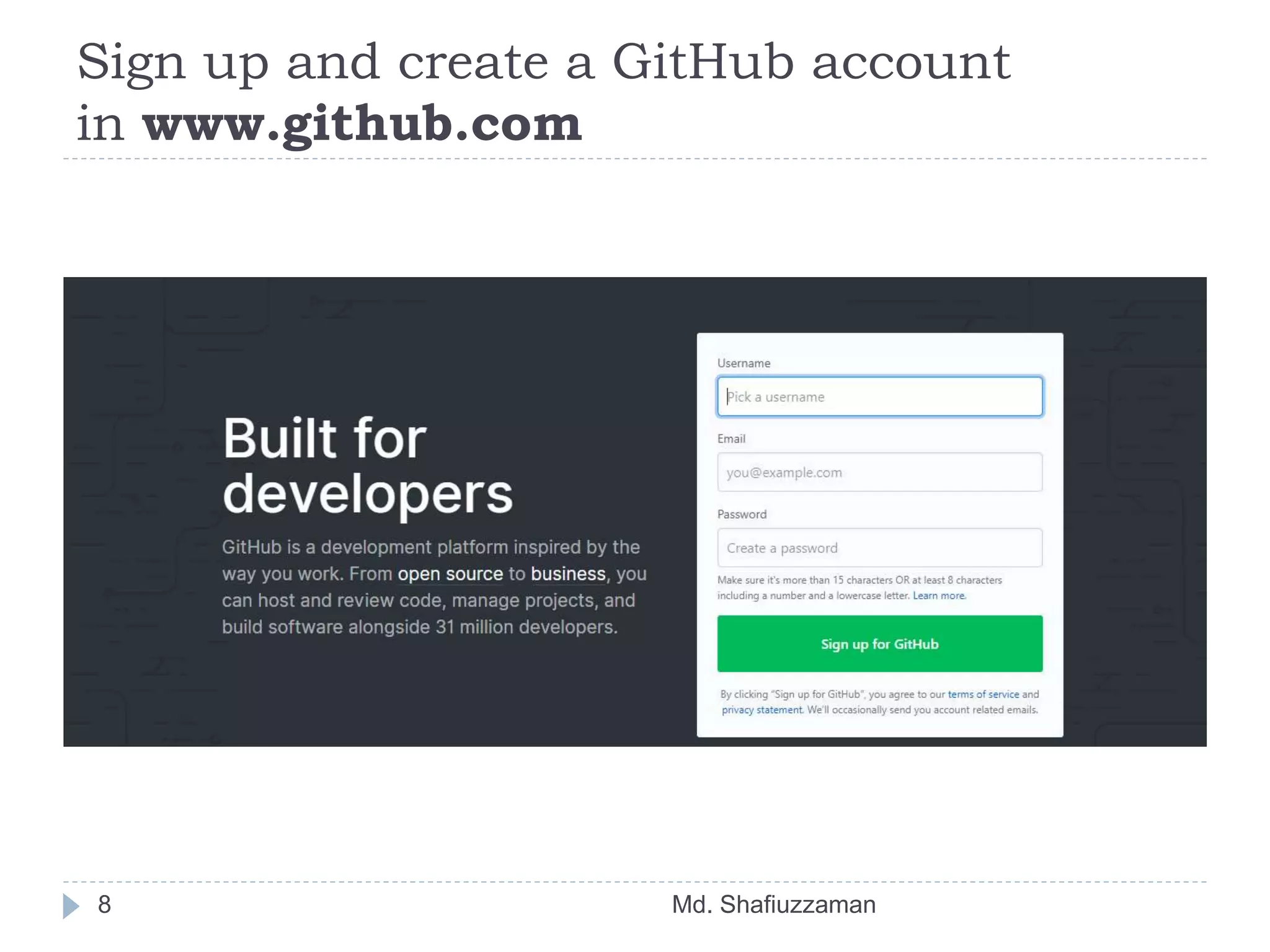
Sign up and create a GitHub account
in www.github.com
Md. Shafiuzzaman8
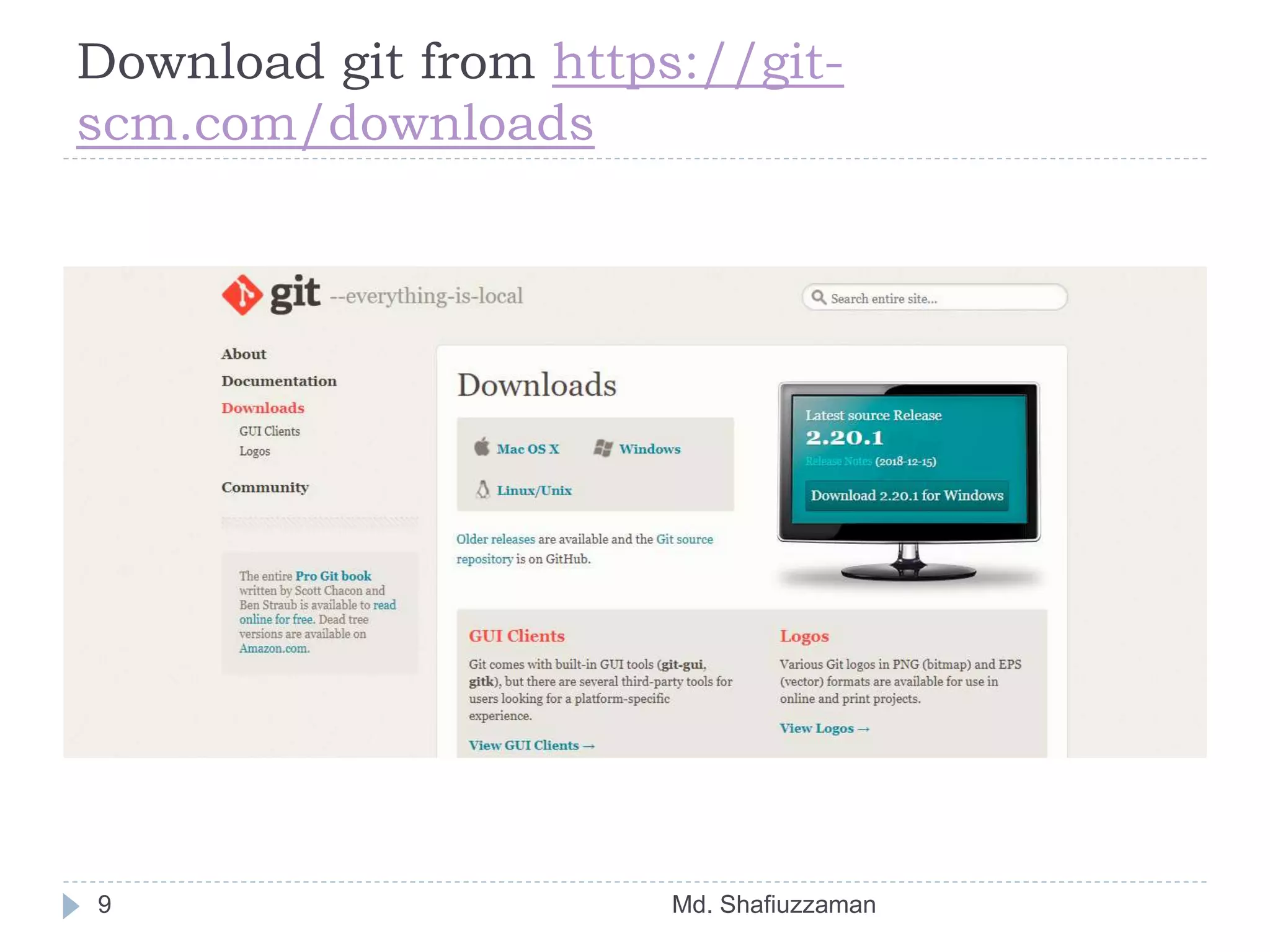
Download git from https://git-
scm.com/downloads
Md. Shafiuzzaman9
Integrate with Android Studio
Md. Shafiuzzaman10
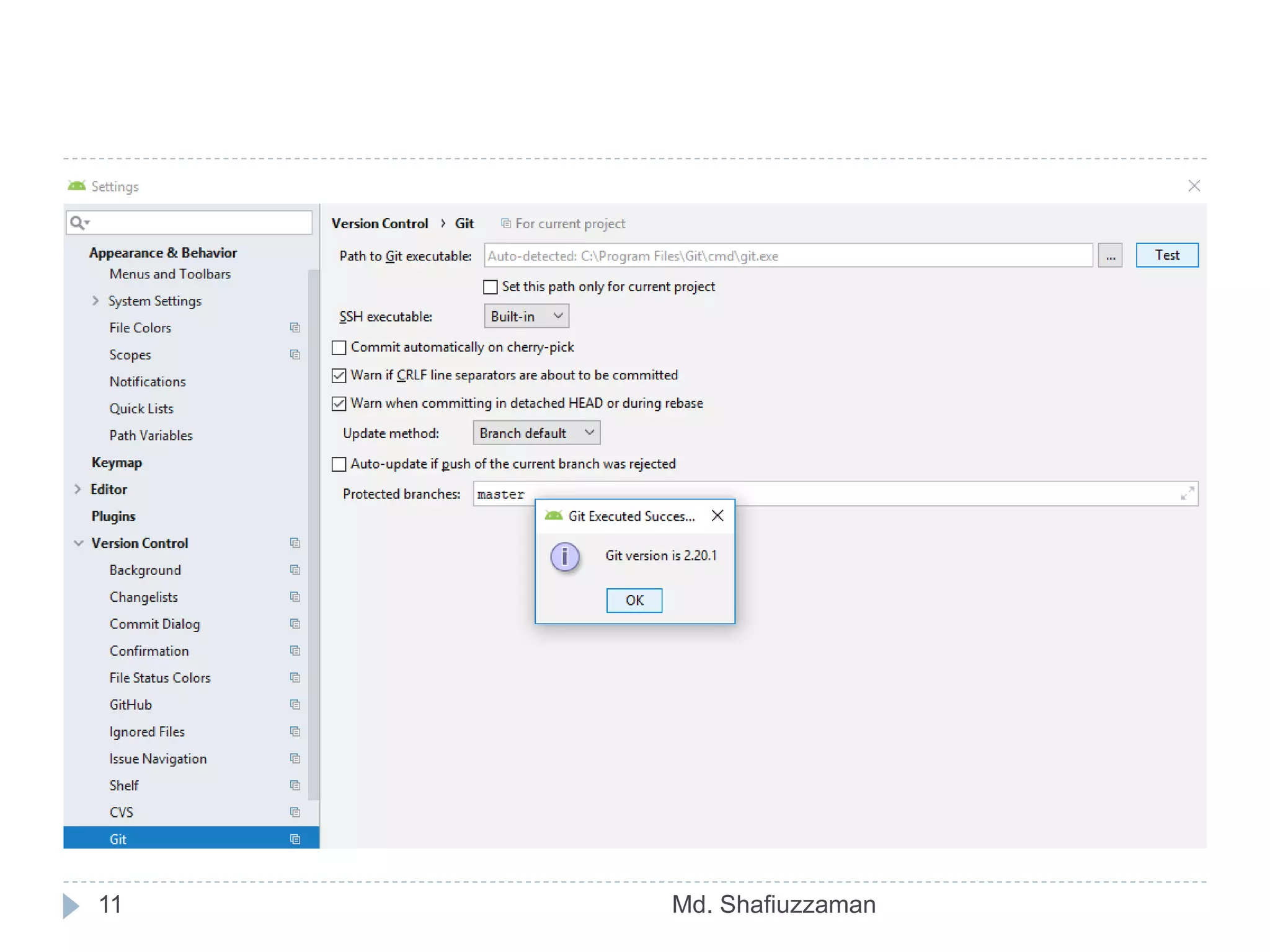
 Open the project in android studio and go to File ->
Settings -> Version Control -> Git.
 Click on test button to test “path to Git executables”
 If successful message is shown everything is ok,
else navigate to git.exe from where you installed git
and test again.
11 Md. Shafiuzzaman
Integrate with Android Studio
Md. Shafiuzzaman12
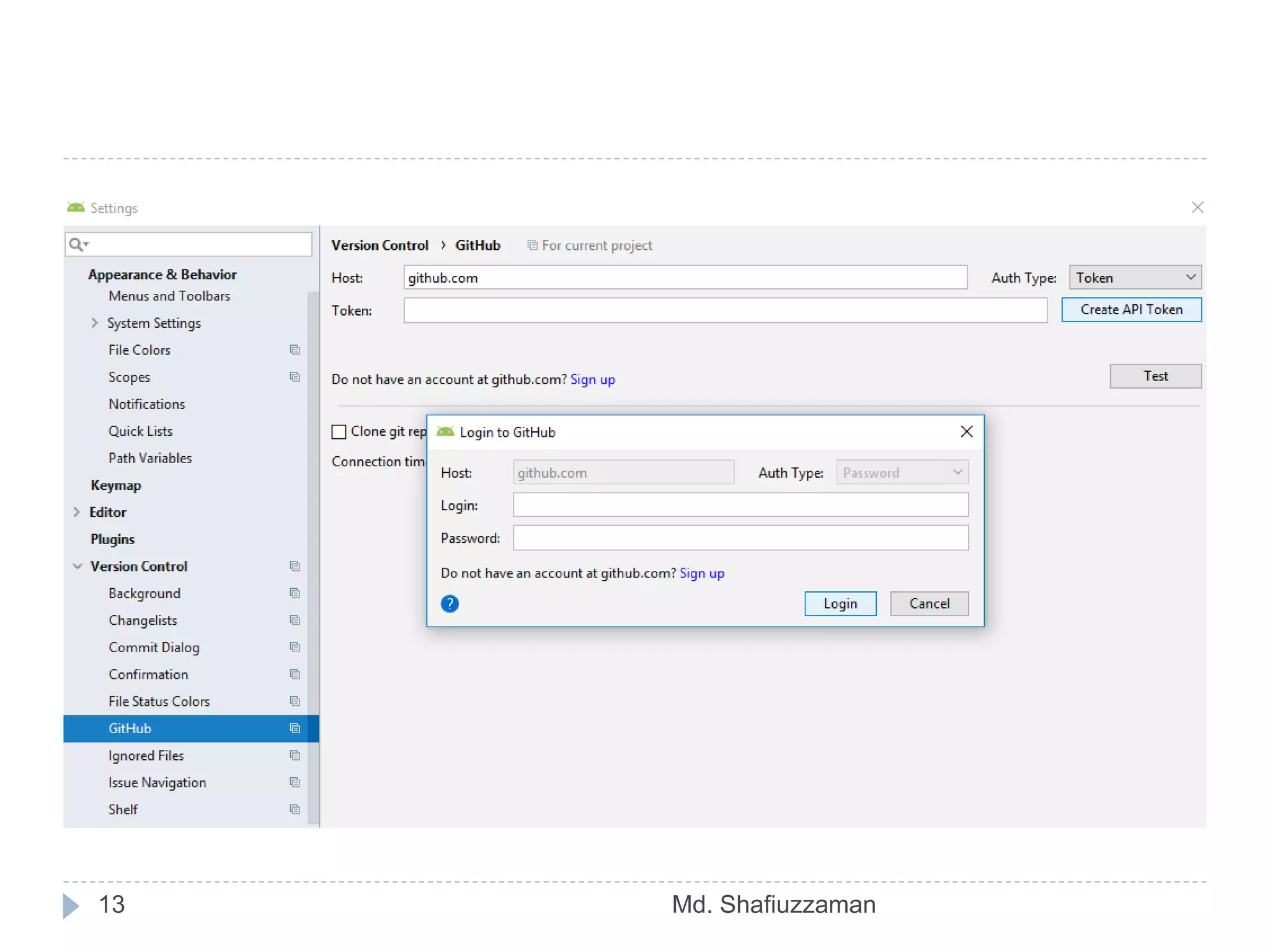
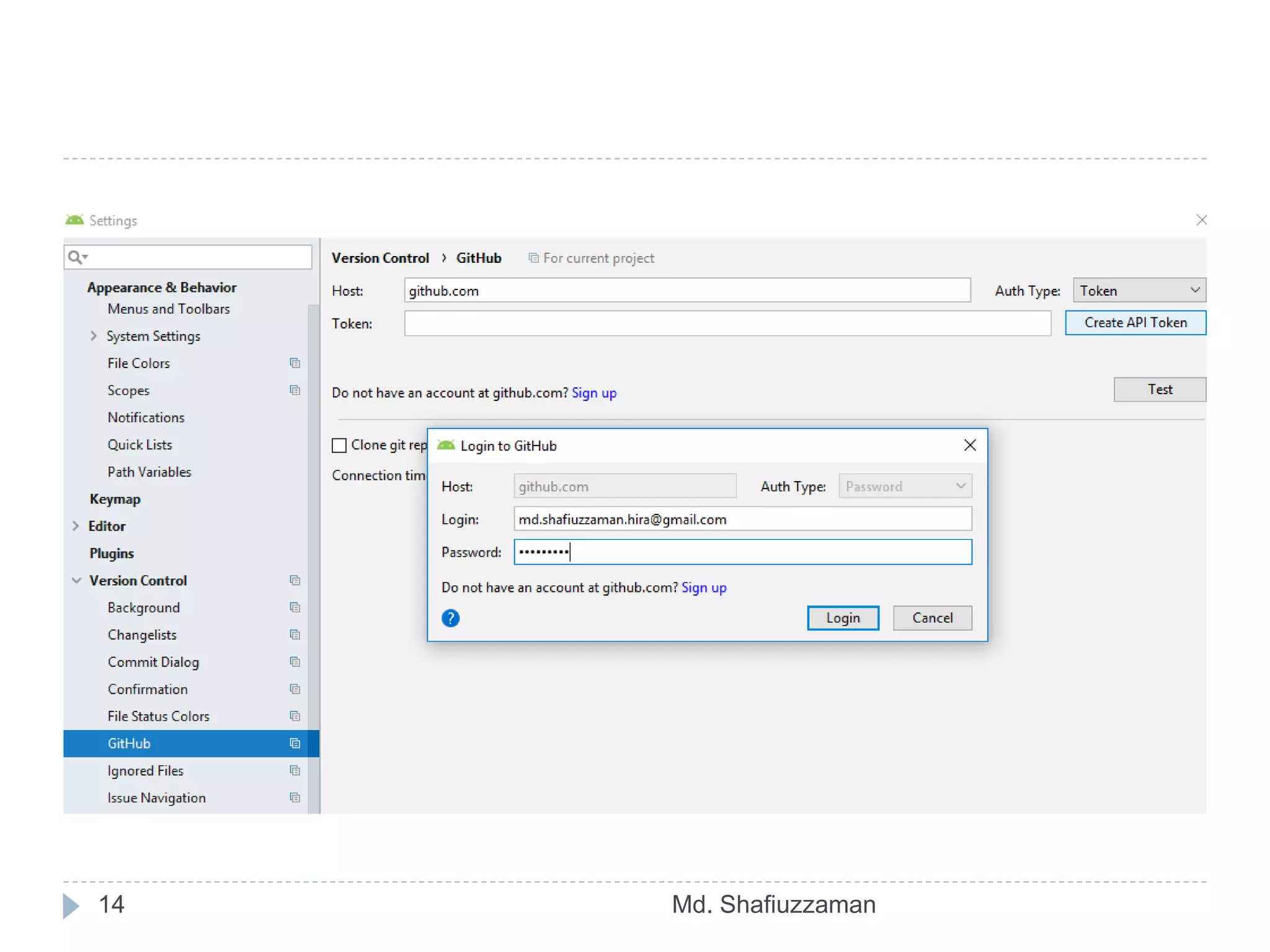
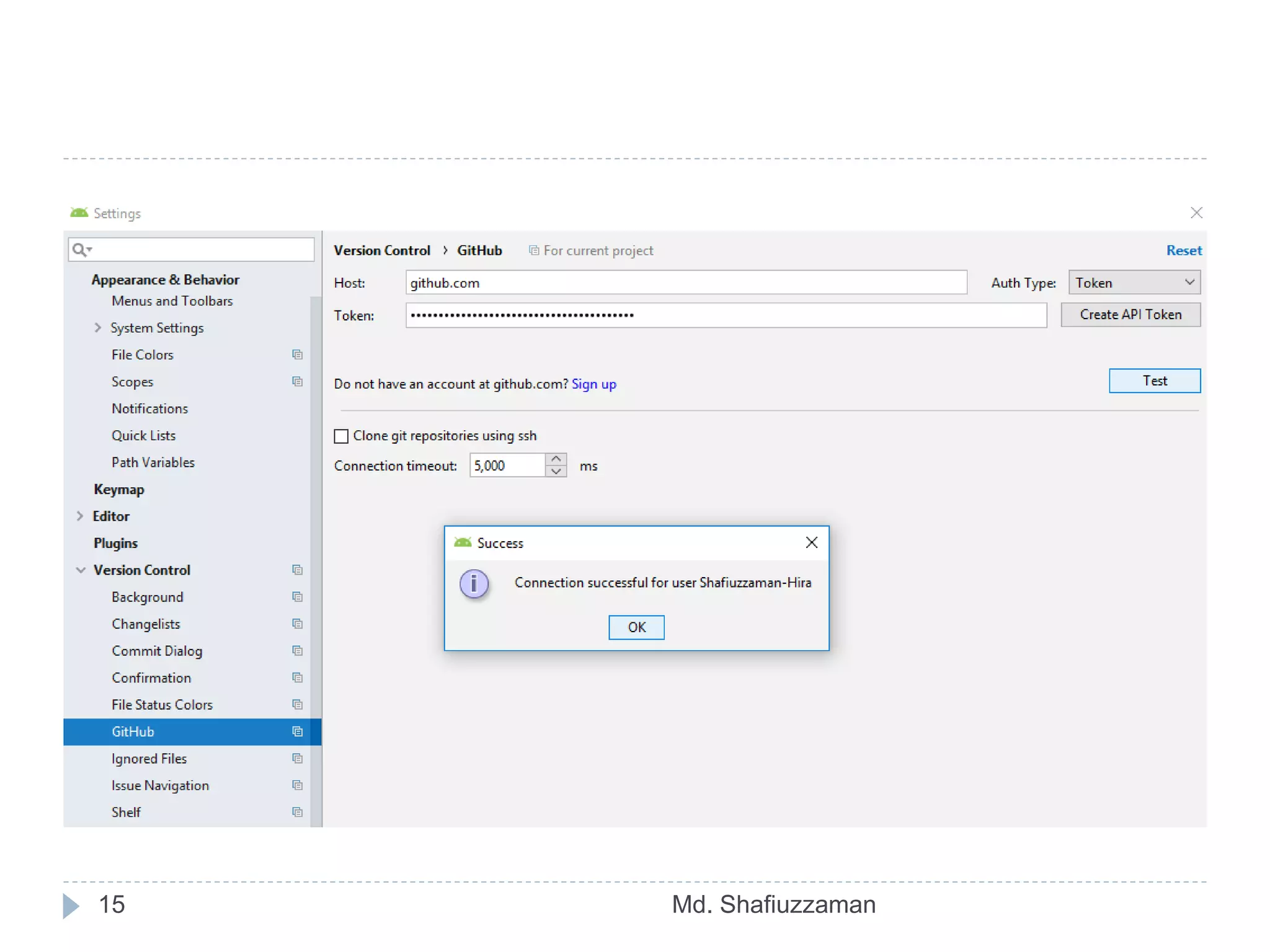
 Go to File -> Settings -> Version Control ->
GitHub
 Enter your email and password used to create
GitHub account and click on OK button.
13 Md. Shafiuzzaman
14 Md. Shafiuzzaman
15 Md. Shafiuzzaman
Integrate with Android Studio
Md. Shafiuzzaman16
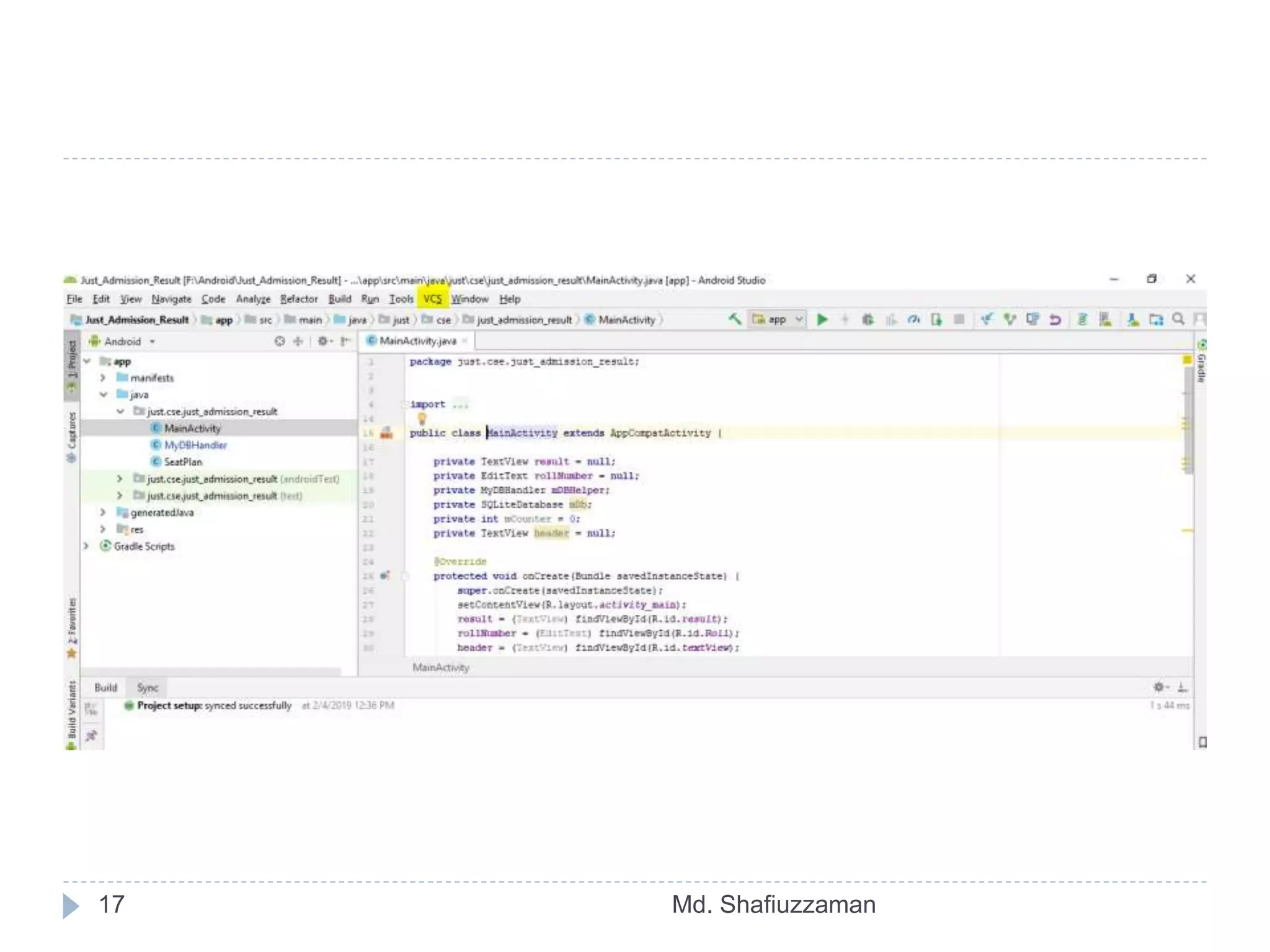
 Go to VCS -> Import into Version Control -> Share
Project on GitHub.
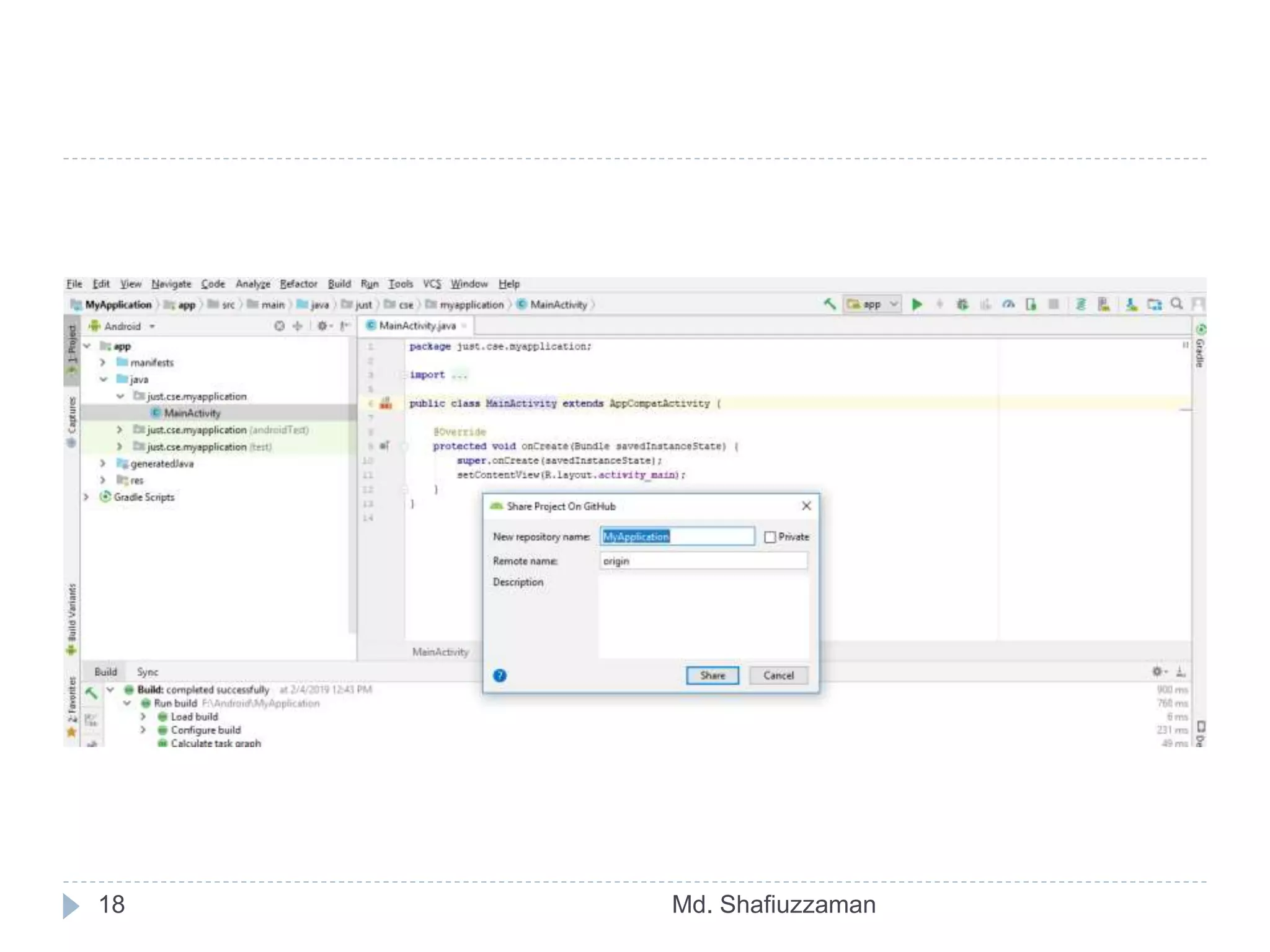
 Enter Repository name, Description and
click Share button.
17 Md. Shafiuzzaman
18 Md. Shafiuzzaman
19 Md. Shafiuzzaman
20 Md. Shafiuzzaman
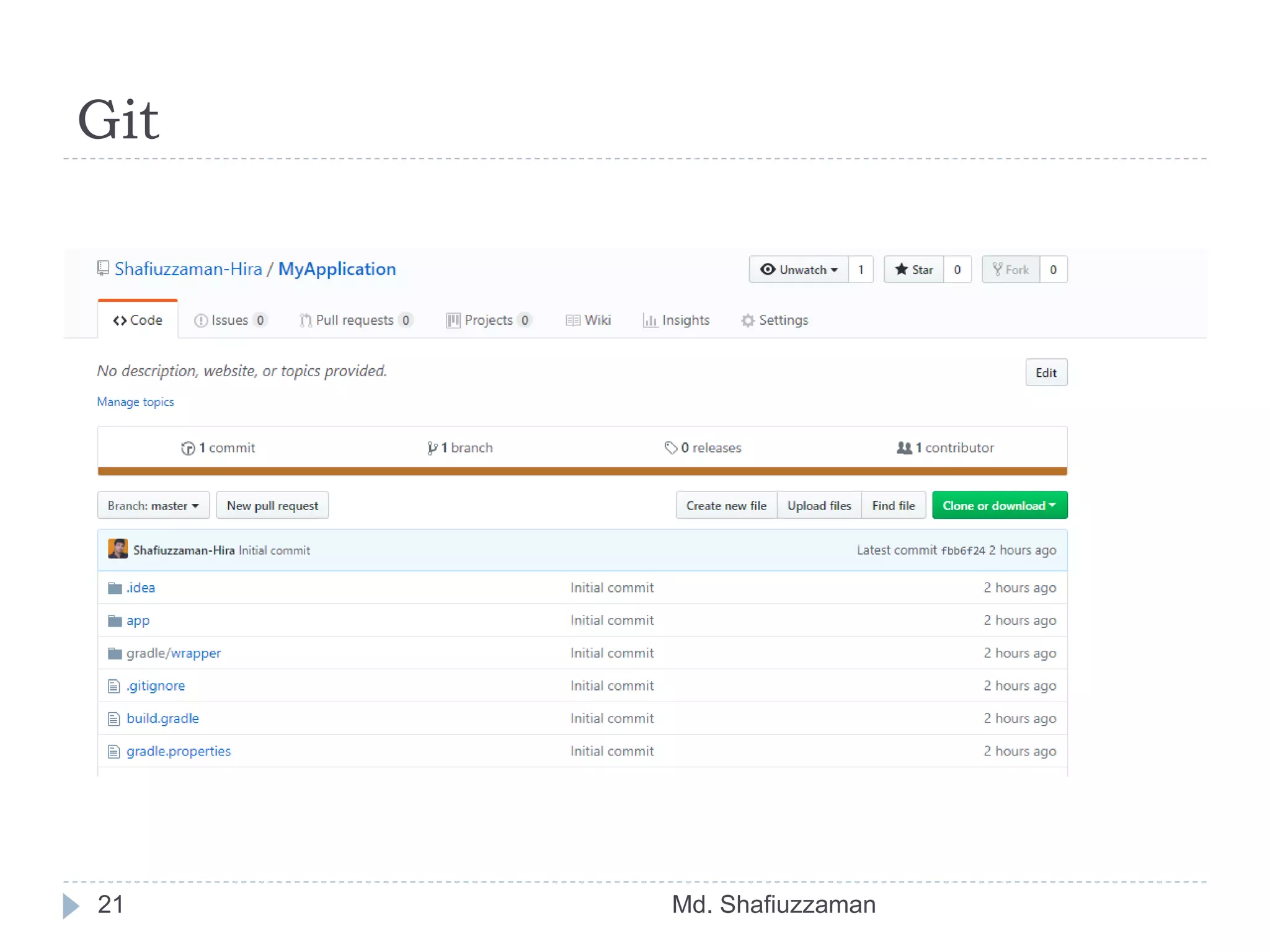
Git
Md. Shafiuzzaman21
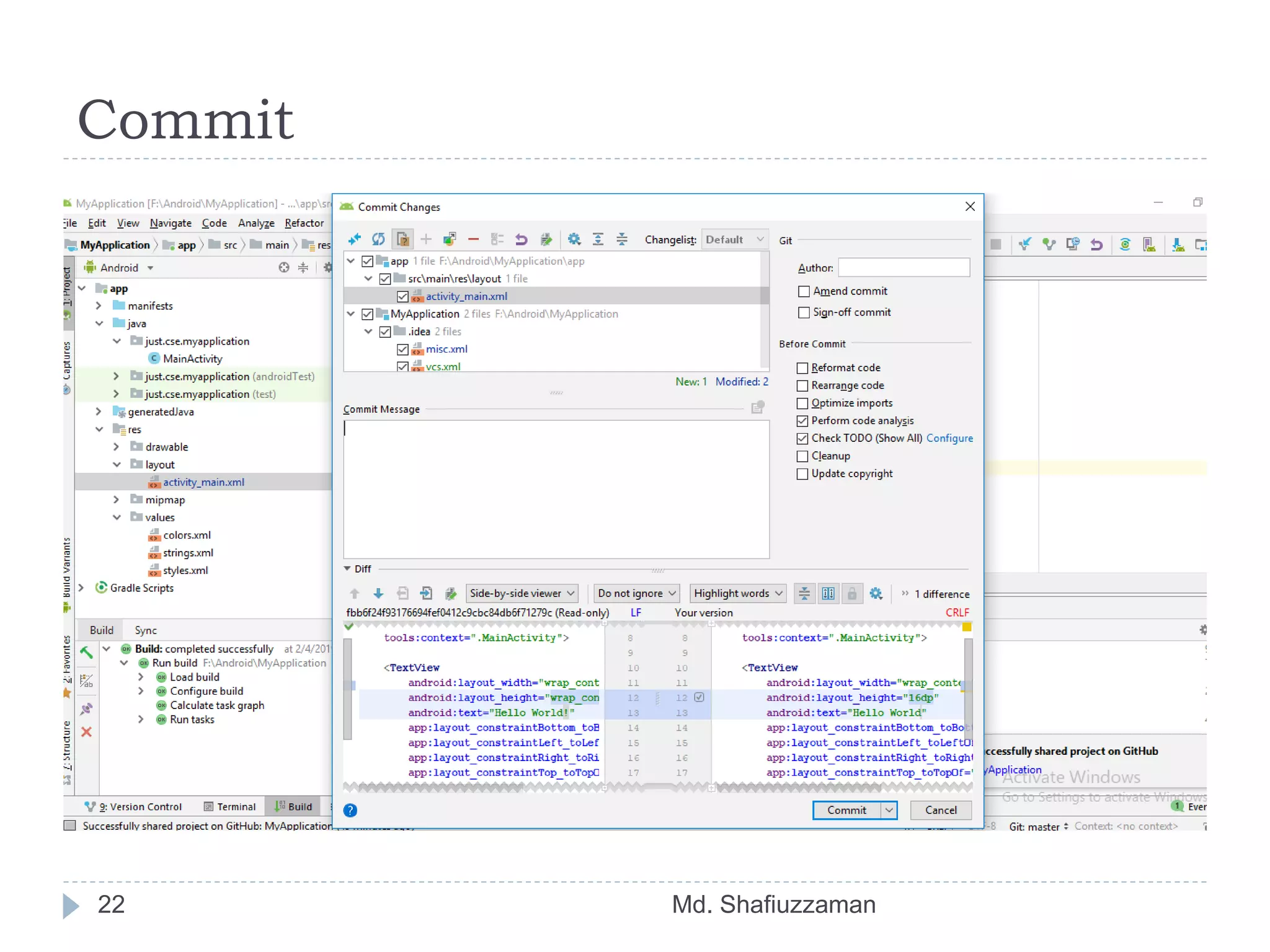
Commit
22 Md. Shafiuzzaman
Summary
Md. Shafiuzzaman23
 Sign up and create a GitHub account in www.github.com.
 Download git from https://git-scm.com/downloads and install it in your
system.
 Open the project in android studio and go to File -> Settings -> Version
Control -> Git.
 Click on test button to test "path to Git executables". If successful message
is shown everything is ok, else navigate to git.exe from where you installed
git and test again.
 Go to File -> Settings -> Version Control -> GitHub. Enter your email and
password used to create GitHub account and click on OK button.
 Then go to VCS -> Import into Version Control -> Share Project on
GitHub. Enter Repository name, Description and click Share button.
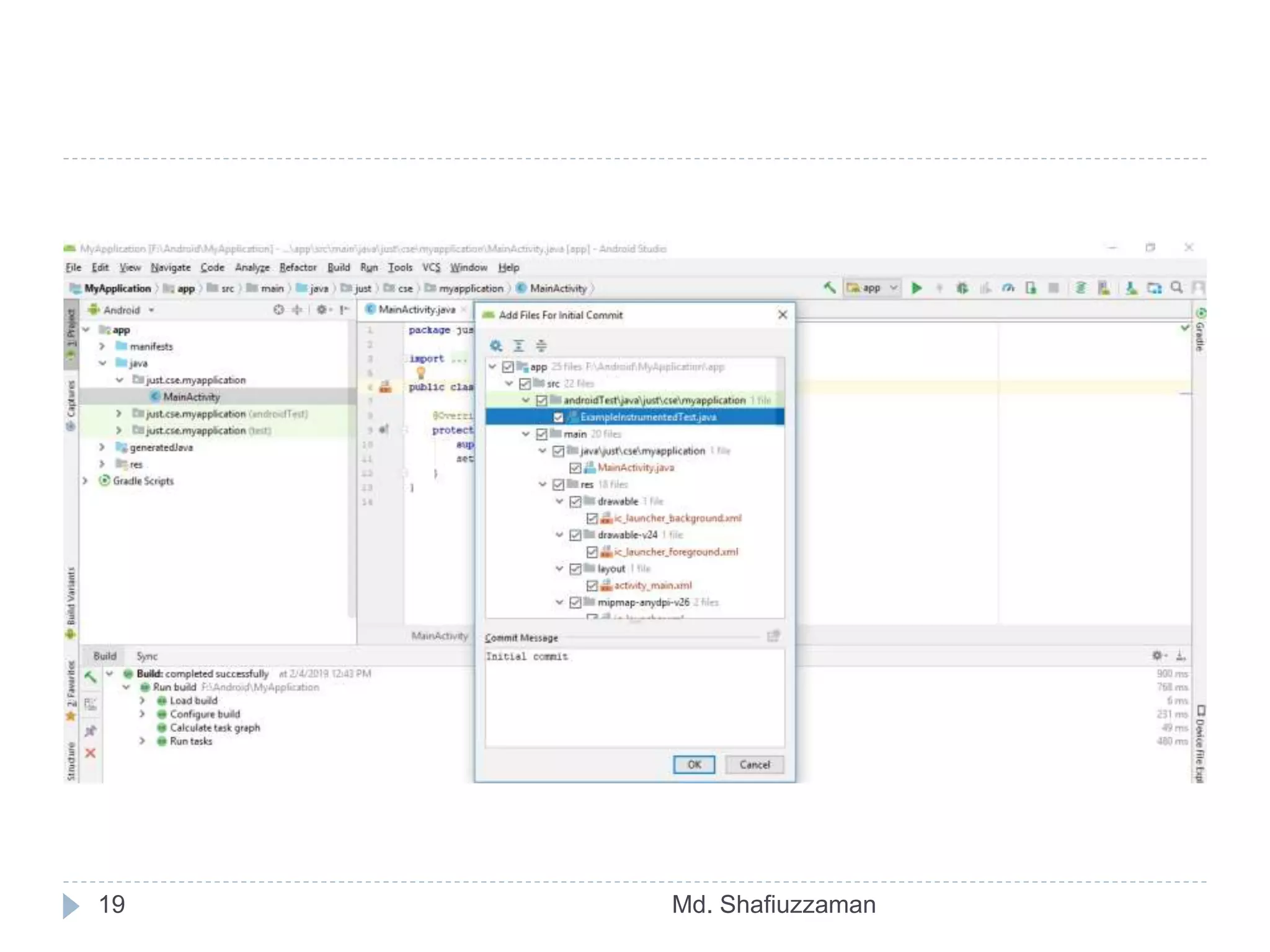
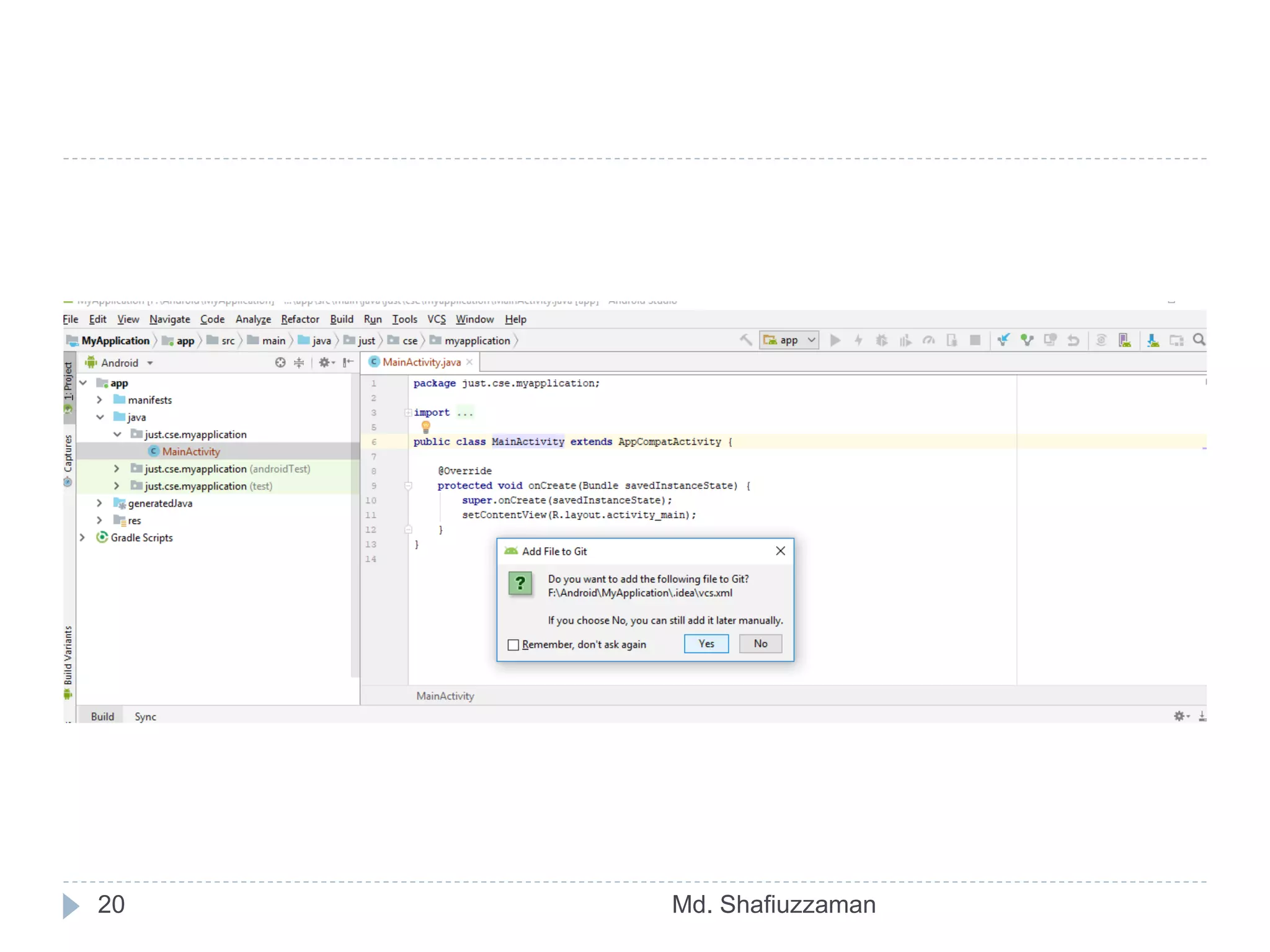
 In the next window check all files inorder to add files for initial commit and
click OK.
 Now the project will be uploaded to the GitHub repository and when
uploading is finished we will get a message in android studio showing
"Successfully shared project on GitHub". Click on the link provided in that
message to go to GitHub repository.
Md. Shafiuzzaman24
 Any Question?

Version Control System

  • 1.
    Version Control System Preparedby Md. Shafiuzzaman Lecturer, Dept. of CSE, JUST
  • 2.
    What is versioncontrol Md. Shafiuzzaman2  records changes to a file or set of files over time  allows to compare files, identify differences, and merge the changes if needed
  • 3.
    Examples Md. Shafiuzzaman3  GitHub GitLab  TFS  Bitbucket  SVN  Mercurial
  • 4.
    What is GitHub? Md.Shafiuzzaman4  code hosting platform  version control  collaboration
  • 5.
    Words People UseWhen They Talk About Git Md. Shafiuzzaman5  Repositories  Branches  Commits  Pull Requests
  • 6.
    Git-Specific Commands Md. Shafiuzzaman6 git init  git config  git help  git status  git add  git commit  git branch  git checkout  git merge  git push  git pull
  • 7.
    Create Account inGitHub Md. Shafiuzzaman7  www.github.com
  • 8.
    Sign up andcreate a GitHub account in www.github.com Md. Shafiuzzaman8
  • 9.
    Download git fromhttps://git- scm.com/downloads Md. Shafiuzzaman9
  • 10.
    Integrate with AndroidStudio Md. Shafiuzzaman10  Open the project in android studio and go to File -> Settings -> Version Control -> Git.  Click on test button to test “path to Git executables”  If successful message is shown everything is ok, else navigate to git.exe from where you installed git and test again.
  • 11.
  • 12.
    Integrate with AndroidStudio Md. Shafiuzzaman12  Go to File -> Settings -> Version Control -> GitHub  Enter your email and password used to create GitHub account and click on OK button.
  • 13.
  • 14.
  • 15.
  • 16.
    Integrate with AndroidStudio Md. Shafiuzzaman16  Go to VCS -> Import into Version Control -> Share Project on GitHub.  Enter Repository name, Description and click Share button.
  • 17.
  • 18.
  • 19.
  • 20.
  • 21.
  • 22.
  • 23.
    Summary Md. Shafiuzzaman23  Signup and create a GitHub account in www.github.com.  Download git from https://git-scm.com/downloads and install it in your system.  Open the project in android studio and go to File -> Settings -> Version Control -> Git.  Click on test button to test "path to Git executables". If successful message is shown everything is ok, else navigate to git.exe from where you installed git and test again.  Go to File -> Settings -> Version Control -> GitHub. Enter your email and password used to create GitHub account and click on OK button.  Then go to VCS -> Import into Version Control -> Share Project on GitHub. Enter Repository name, Description and click Share button.  In the next window check all files inorder to add files for initial commit and click OK.  Now the project will be uploaded to the GitHub repository and when uploading is finished we will get a message in android studio showing "Successfully shared project on GitHub". Click on the link provided in that message to go to GitHub repository.
  • 24.