EMILIO FER G. VILLA
Teacher I
LearningTarget
Apply the guidelines and
utilize the tools in the
appropriate use of Microsoft
PowerPoint for effective
classroom presentation.
TargetPPSTIndicator
 KRA 2. Objective 8
Applied
strategies
a range of
that maintain
successful
learning
environments that motivate learners
to work productively by assuming
responsibility for their own learning.
 KRA 3. Objective 9
Designed, adapted and
implemented teaching strategies that
are responsive to learners with
disabilities, giftedness and talents.
TargetPPSTIndicator
 KRA 3. Objective 11
Adapted and implemented learning
programs that ensure relevance and
responsiveness to the needs of all
learners.
TargetPPSTIndicator
Essential Question
How can we utilize
PowerPoint effectively
in the classroom?
Whattolearn?
01
02
Fonts
03
FontSize
04
CAPSandItalics
05
T
emplate
Colors
PowerpointSlide 06
PowerpointLayout 07
Illustrations
08
Bullets
09
Animations
10
PowerPointSlide
01
PowerPointSlide
Highlight key points or
reinforce what the facilitator
is saying.
PowerPointSlide
Should be short and to the
point, including only
keywords and phrases for
visual reinforcement.
PowerPointSlide
To fit your presentation on
most screens, text, and
images should be placed
within 95% of the
PowerPoint slide.
PowerPointLayout
02
PowerPointLayout
Headings, subheadings, and
logos should show up in the
same spot on each frame.
PowerPointLayout
Margins, fonts, font size, and
colors should be consistent
with graphics located in the
same general position on
each frame.
PowerPointLayout
Lines, boxes, borders, and
open space should also be
consistent throughout.
Fonts
03
Fonts
Font Style should be readable.
Recommended fonts:
Arial, Tahoma, Verdana
(Sans Serif)
Fonts
Standardize the font
throughout.
Fonts
 Don’tSacrifice Readability for Style
 DON’T SACRIFICE READABILITY FOR
STYLE
 Don’t Sacrifice Readability forStyle
 D O N ’ T S A C R I F I C E
R E A D A B I L I T Y F O R
S T Y L E
FontSize
04
FontSize
 The larger, the better. Remember, your
slides must be readable, even at the back
of the room.
 This is a good title size
Verdana 40 point
 A good subtitle or bullet point size
Verdana 32 point
 Content text should be no smaller than
Verdana 24 point
 This font size is not recommended for content. Verdana 12 point.
FontSize
 Combining small font sizes with bold or
italics is not recommended:
 What does this say? Garamond Font, Italic, Bold 12pt.
 This is very difficult to read. Times Font, Bold, 12pt.
TIPS Presentation: 3/8/2004 Dawn Thomas, CRM
 Thispoint could be lost. Century Gothic Font, Bold, Italic, 14pt.
 No one will be able to read this. Gill Sans Font, Condensed Bold, 12pt
Small fonts are okay for a footer, such as:
FontSize
CAPS andItalics
05
CAPS
DO NOT USE ALL CAPITAL
LETTERS
 Makes text hard to read
 Conceals acronyms
 Denies their use for EMPHASIS
Italics
 Used for “quotes”
 Used to highlight thoughts
or ideas
 Used for book, journal, or
magazine titles
T
emplate
06
Template
 Use a set of font and color scheme.
 Different styles are disconcerting to the
audience
 You want the audience to focus on what
you present, not the way you present.
 Use the same Background on each slide.
Colors
07
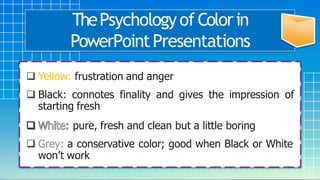
ThePsychologyof Colorin
PowerPointPresentations
 Blue: calming and conservative
 Green: stimulates interaction and puts people at ease
 Red: Handle with care in presentations
 Purple: represents wisdom and spirituality
 Yellow: frustration and anger
 Black: connotes finality and gives the impression of
starting fresh
pure, fresh and clean but a little boring
 Grey: a conservative color; good when Black or White
won’t work
ThePsychologyof Colorin
PowerPointPresentations
Colors
 Reds and oranges are high-energy but can
be difficult to stay focused on.
 Greens, blues, and browns are mellower,
but not as attention grabbing.
 Reds and Greens can be difficult to see for
those who are color blind.
Avoid these combinations:
Dark Yellow on Green
Orange on Green
Red on Green
Green on Blue
Purple on Blue
Colors
Colors
Large Hall Events
 Avoid White Backgrounds
 The white screen can be blinding
in a dark room
 Dark Slides with Light Colored
Text Work Best
TheColorW
heel
 Colors separated by
another color are
adjacent colors
 Adjacent colors
harmonize with one
another (Green and
Yellow)
 Colors directly opposite
one another are said to
CLASH
 Clashing colors provide
readability
– Orange on Blue
TheColorW
heel
BackgroundColors
This is a good mix
of colors.
Readable!
This is a bad mix
of colors. Low
contrast.
Unreadable!
This is a good mix
of colors.
Readable!
This is a bad mix
of colors. Avoid
bright colors on
white.
Unreadable!
Illustrations
08
Illustrations
 Use only when needed, otherwise they
become distracters instead of
communicators.
 They should relate to the message and help
make a point.
 Simple diagrams are great communicators.
Bullets
09
Bullets
Limit each slide to one idea.
Use bullet points to cover
components of each idea.
Bullets
 Keep each bullet to 1 line, 2 at the most.
 Limit the number of bullets in a screen to
6, 4 if there is a large title, logo, picture,
etc.
 If you crowd too much text, the
audience won’t read it.
Bullets
Butterfly Life Cycle
The life cycle of a butterfly is truly
amazing. Butterflies have four life stages,
the egg, the larva (caterpillar), the
pupa (chrysalis), and the adult
butterfly. Each of the four stages are very
unique to individual species of butterflies
which is part of what makes watching and
raising butterflies so much fun.
Butterfly Life Cycle
 Egg
 larva (caterpillar)
 pupa (chrysalis
 adult butterfly
Animations andTransitions
10
AnimationsandTransitions
Use the same animation and
transition throughout the entire
presentation.
Pointsto Remember
Pointsto Remember
 Limit Bullet Points to a few words
 Limit each slide to 1 idea
 Limit each bullet point to only a few
words
 Limit animation
each
text
 Keep bullet points brief
 Use the same background for
slide
 Use dark slides with light colored
in large hall events
Pointsto Remember
To make a slide stand out,
change the font,
background, or add
animation.
YOU
Do not use the media to
hide you.
Remember, only you can prevent
“Death by PowerPoint”
YOU
Designer
improves slides by automatically
generating design ideas to
choose from.
Click the
Microsoft Office
Icon or open any
browser and type
office.com
RecordyourPresentation
01
RUBBER
PEN
HIGHLIGHTER
COLOR SECTION
ExportyourPresentation
as a VideoFile
02
Essential Question
How can we utilize
PowerPoint effectively
in the classroom?
Activity
Make a 3-5 minute video
lesson using Microsoft
PowerPoint integrating the
guidelines and utilizing
Microsoft PowerPoint tools.
References
 https://www.mcgill.ca/skillsets/files/s
killsets/powerpointguidelines.pdf
 https://presentationteam.com/psychol
ogy-of-color-in-powerpoint-
presentations/
 https://iu.pressbooks.pub/semesterch
ecklist/chapter/recording-in-ppt
 https://www.youtube.com/watch?v=2
m60HT3OMOI

Utilizing PowerPoint.pptx

Editor's Notes

  • #18 Complementary colors – opposite colors
  • #70 Death by powerpoint- bad and boring presentation