BLOG EDITOR
Using OneNote and Word as a Blog Editor.
PROBLEM STATEMENT
Over the years I’ve created for good, bad or indifferent reasons
multiple blogs. Of course I didn’t stick to one platform, I thought it
would be cool to try out a variety of hosts.
Each host came with their own native blog editor but I didn’t stop
there, I decided to try out multiple blog editors.
I’ve managed to Wheedle my blogs down to five (with my O365 blog
soon to go). So now I want to get too one blog editor for all five
(eventually four) blogs. Which one to choose?
First some quick details….
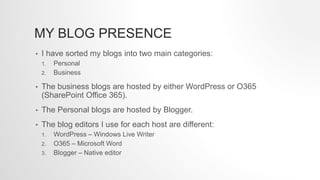
MY BLOG PRESENCE
• I have sorted my blogs into two main categories:
1. Personal
2. Business
• The business blogs are hosted by either WordPress or O365
(SharePoint Office 365).
• The Personal blogs are hosted by Blogger.
• The blog editors I use for each host are different:
1. WordPress – Windows Live Writer
2. O365 – Microsoft Word
3. Blogger – Native editor
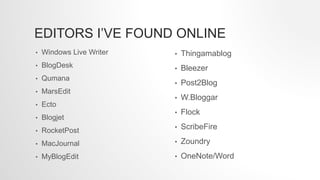
EDITORS I’VE FOUND ONLINE
• Windows Live Writer
• BlogDesk
• Qumana
• MarsEdit
• Ecto
• Blogjet
• RocketPost
• MacJournal
• MyBlogEdit
• Thingamablog
• Bleezer
• Post2Blog
• W.Bloggar
• Flock
• ScribeFire
• Zoundry
• OneNote/Word
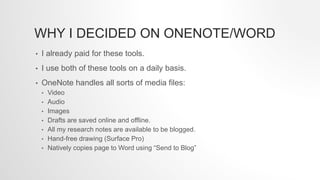
WHY I DECIDED ON ONENOTE/WORD
• I already paid for these tools.
• I use both of these tools on a daily basis.
• OneNote handles all sorts of media files:
• Video
• Audio
• Images
• Drafts are saved online and offline.
• All my research notes are available to be blogged.
• Hand-free drawing (Surface Pro)
• Natively copies page to Word using “Send to Blog”
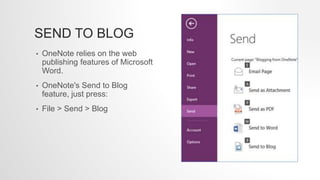
SEND TO BLOG
• OneNote relies on the web
publishing features of Microsoft
Word.
• OneNote's Send to Blog
feature, just press:
• File > Send > Blog
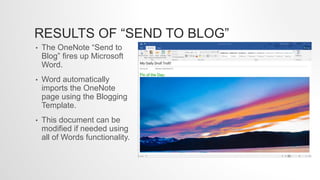
RESULTS OF “SEND TO BLOG”
• The OneNote “Send to
Blog” fires up Microsoft
Word.
• Word automatically
imports the OneNote
page using the Blogging
Template.
• This document can be
modified if needed using
all of Words functionality.
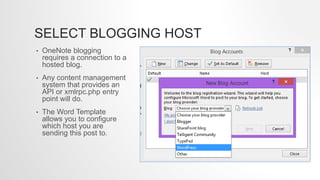
SELECT BLOGGING HOST
• OneNote blogging
requires a connection to a
hosted blog.
• Any content management
system that provides an
API or xmlrpc.php entry
point will do.
• The Word Template
allows you to configure
which host you are
sending this post to.
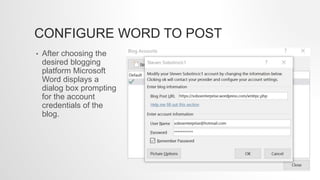
CONFIGURE WORD TO POST
• After choosing the
desired blogging
platform Microsoft
Word displays a
dialog box prompting
for the account
credentials of the
blog.
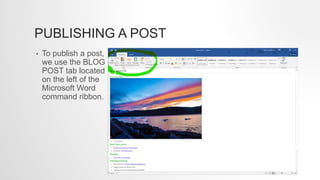
PUBLISHING A POST
• To publish a post,
we use the BLOG
POST tab located
on the left of the
Microsoft Word
command ribbon.
MY BLOGS
• Pondering the Imponderables
• SharePoint (O365)
• Steven Sobotincic Photography
• Travel Adventures
• Recipes for hiking and camping
REFERENCES
Materials I used for research on this presentation.
ONLINE REFERENCE
• Elegant Themes.
• Free Blog Editors.
• Blog Marketing.
• Help Blogging with Word.
• Blogging from OneNote.
• 8 Tips on Using OneNote for Blogging.

Using OneNote and Microsoft Word as a blog editor

  • 1.
    BLOG EDITOR Using OneNoteand Word as a Blog Editor.
  • 2.
    PROBLEM STATEMENT Over theyears I’ve created for good, bad or indifferent reasons multiple blogs. Of course I didn’t stick to one platform, I thought it would be cool to try out a variety of hosts. Each host came with their own native blog editor but I didn’t stop there, I decided to try out multiple blog editors. I’ve managed to Wheedle my blogs down to five (with my O365 blog soon to go). So now I want to get too one blog editor for all five (eventually four) blogs. Which one to choose? First some quick details….
  • 3.
    MY BLOG PRESENCE •I have sorted my blogs into two main categories: 1. Personal 2. Business • The business blogs are hosted by either WordPress or O365 (SharePoint Office 365). • The Personal blogs are hosted by Blogger. • The blog editors I use for each host are different: 1. WordPress – Windows Live Writer 2. O365 – Microsoft Word 3. Blogger – Native editor
  • 4.
    EDITORS I’VE FOUNDONLINE • Windows Live Writer • BlogDesk • Qumana • MarsEdit • Ecto • Blogjet • RocketPost • MacJournal • MyBlogEdit • Thingamablog • Bleezer • Post2Blog • W.Bloggar • Flock • ScribeFire • Zoundry • OneNote/Word
  • 5.
    WHY I DECIDEDON ONENOTE/WORD • I already paid for these tools. • I use both of these tools on a daily basis. • OneNote handles all sorts of media files: • Video • Audio • Images • Drafts are saved online and offline. • All my research notes are available to be blogged. • Hand-free drawing (Surface Pro) • Natively copies page to Word using “Send to Blog”
  • 6.
    SEND TO BLOG •OneNote relies on the web publishing features of Microsoft Word. • OneNote's Send to Blog feature, just press: • File > Send > Blog
  • 7.
    RESULTS OF “SENDTO BLOG” • The OneNote “Send to Blog” fires up Microsoft Word. • Word automatically imports the OneNote page using the Blogging Template. • This document can be modified if needed using all of Words functionality.
  • 8.
    SELECT BLOGGING HOST •OneNote blogging requires a connection to a hosted blog. • Any content management system that provides an API or xmlrpc.php entry point will do. • The Word Template allows you to configure which host you are sending this post to.
  • 9.
    CONFIGURE WORD TOPOST • After choosing the desired blogging platform Microsoft Word displays a dialog box prompting for the account credentials of the blog.
  • 10.
    PUBLISHING A POST •To publish a post, we use the BLOG POST tab located on the left of the Microsoft Word command ribbon.
  • 11.
    MY BLOGS • Ponderingthe Imponderables • SharePoint (O365) • Steven Sobotincic Photography • Travel Adventures • Recipes for hiking and camping
  • 12.
    REFERENCES Materials I usedfor research on this presentation.
  • 13.
    ONLINE REFERENCE • ElegantThemes. • Free Blog Editors. • Blog Marketing. • Help Blogging with Word. • Blogging from OneNote. • 8 Tips on Using OneNote for Blogging.