www.izeno.comCopyright 2010@iZeno Pte Ltd
Installing iZeno SMS Module
Version 1 for SugarCRM 6updated on 25 Nov 2011
Benny Ng
Director Business Development
iZeno Pte Ltd
Copyright 2010@iZeno Pte LtdPage  2
Installation of SMS Module
 Sign up for trials via this URL: http://www.izeno.com.sg/index.php/products/sms-solutions/sms-trial
 You will be given a module to download with valid SMS credits worth of 2 USD.
 Rates table for SMS is available at this URL:
 http://www.izeno.com.sg/index.php/products/sms-solutions/sms-rate-table
 Please make sure that your current system is running on Sugar 6.
 Login as a admin user.
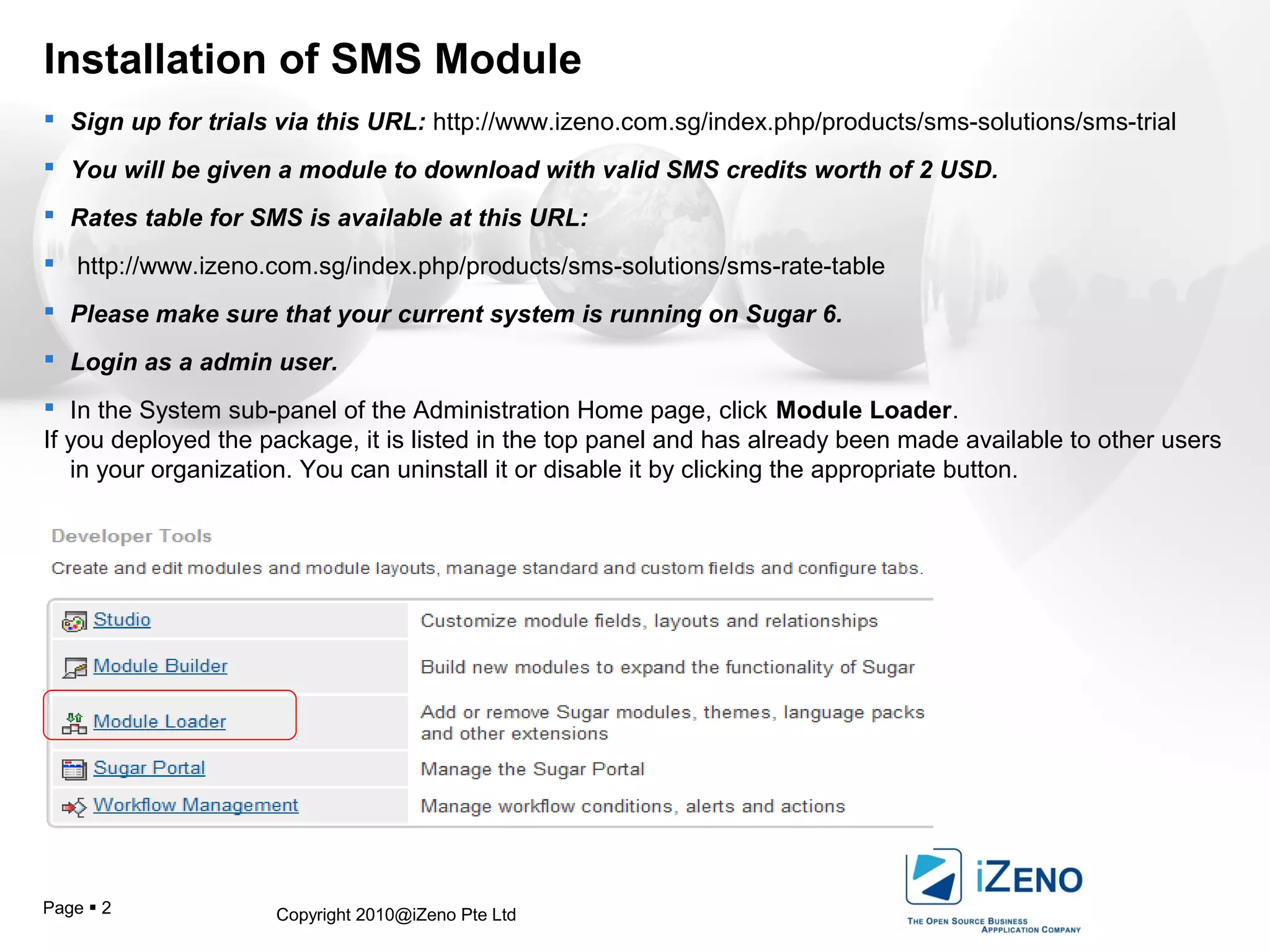
 In the System sub-panel of the Administration Home page, click Module Loader.
If you deployed the package, it is listed in the top panel and has already been made available to other users
in your organization. You can uninstall it or disable it by clicking the appropriate button.
Copyright 2010@iZeno Pte LtdPage  3
Installation of SMS Module
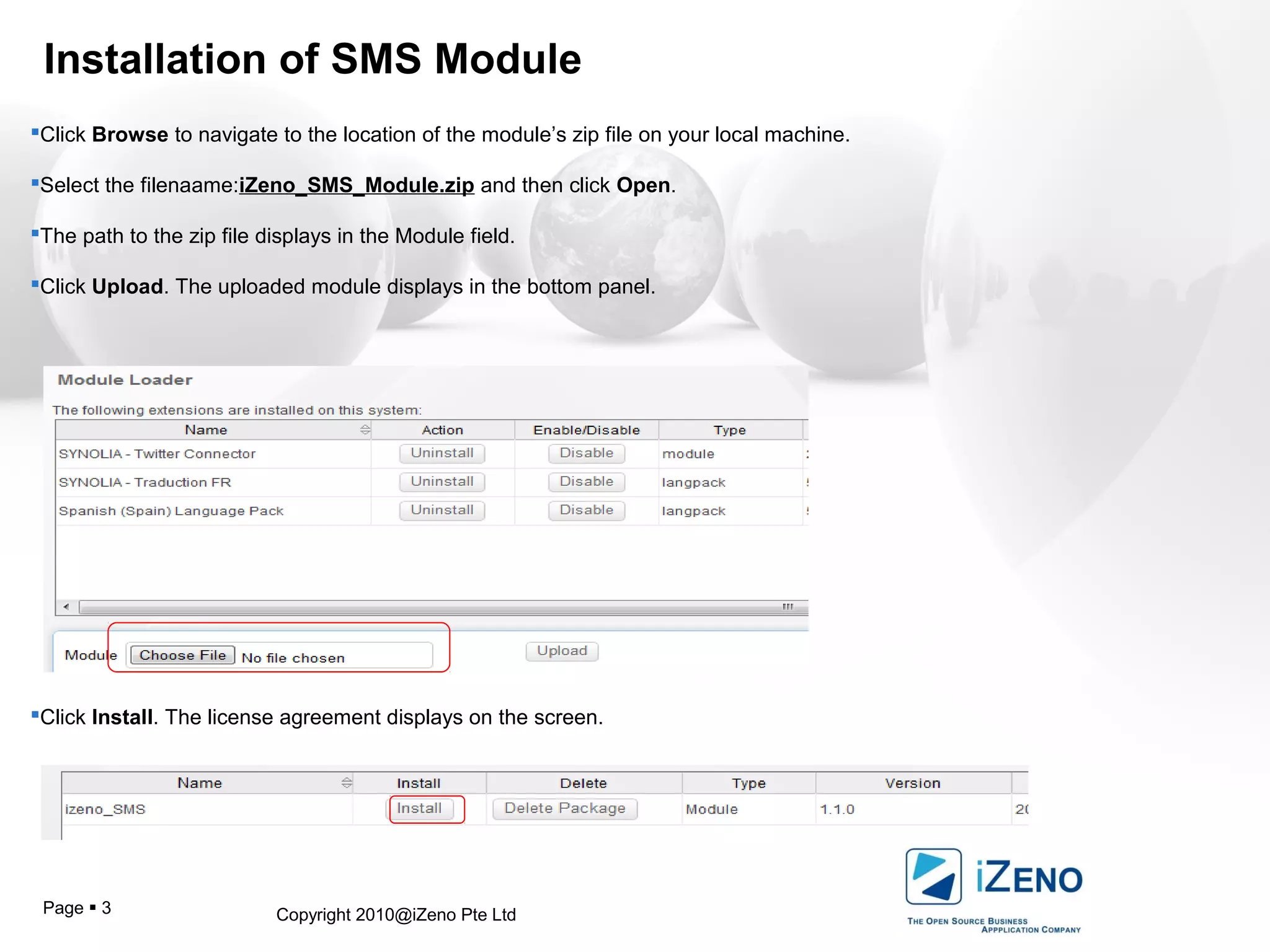
Click Browse to navigate to the location of the module’s zip file on your local machine.
Select the filenaame:iZeno_SMS_Module.zip and then click Open.
The path to the zip file displays in the Module field.
Click Upload. The uploaded module displays in the bottom panel.
Click Install. The license agreement displays on the screen.
Copyright 2010@iZeno Pte LtdPage  4
Installation of SMS Module
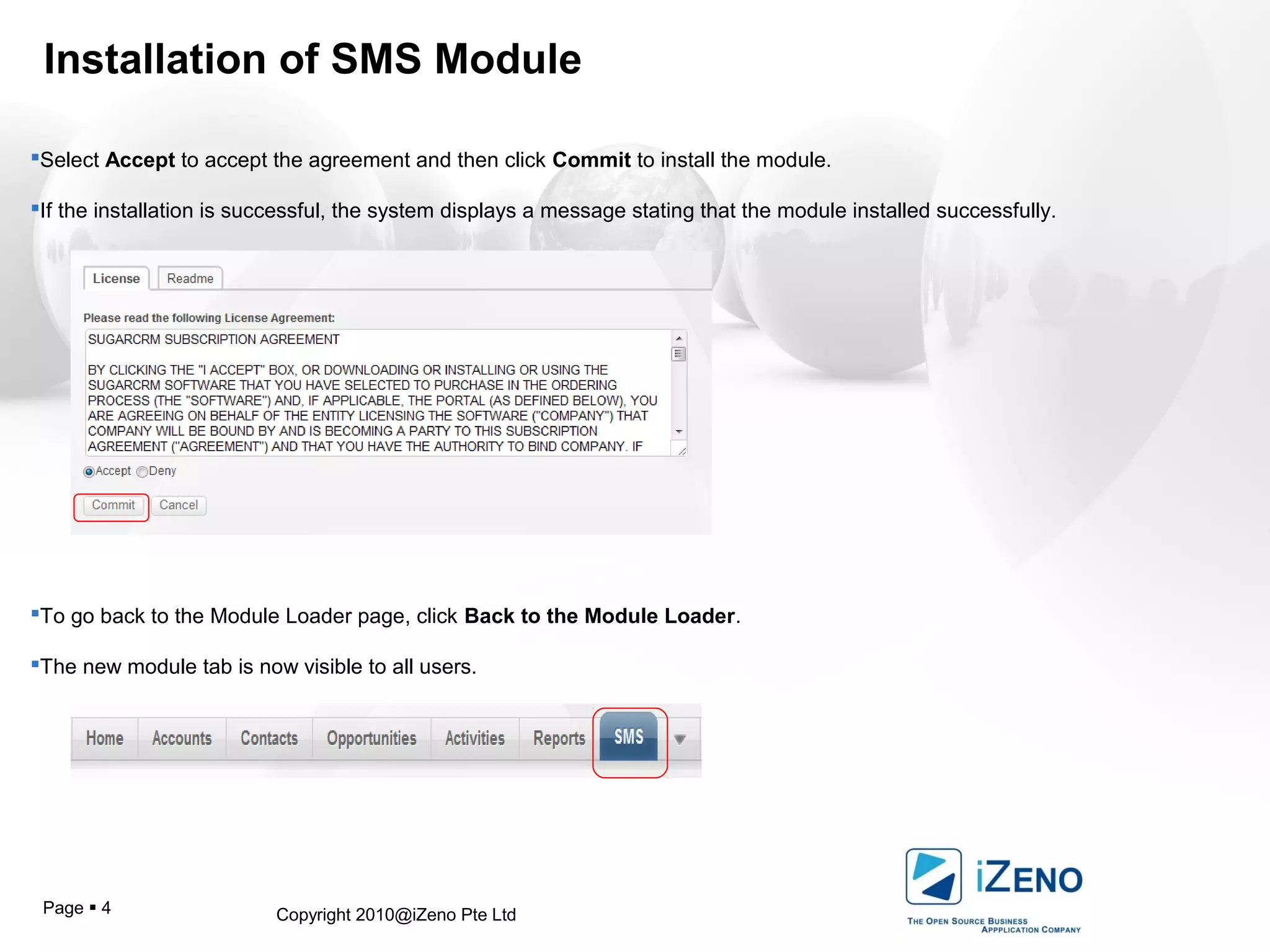
Select Accept to accept the agreement and then click Commit to install the module.
If the installation is successful, the system displays a message stating that the module installed successfully.
To go back to the Module Loader page, click Back to the Module Loader.
The new module tab is now visible to all users.
Copyright 2010@iZeno Pte LtdPage  5
Configuration of SMS Module
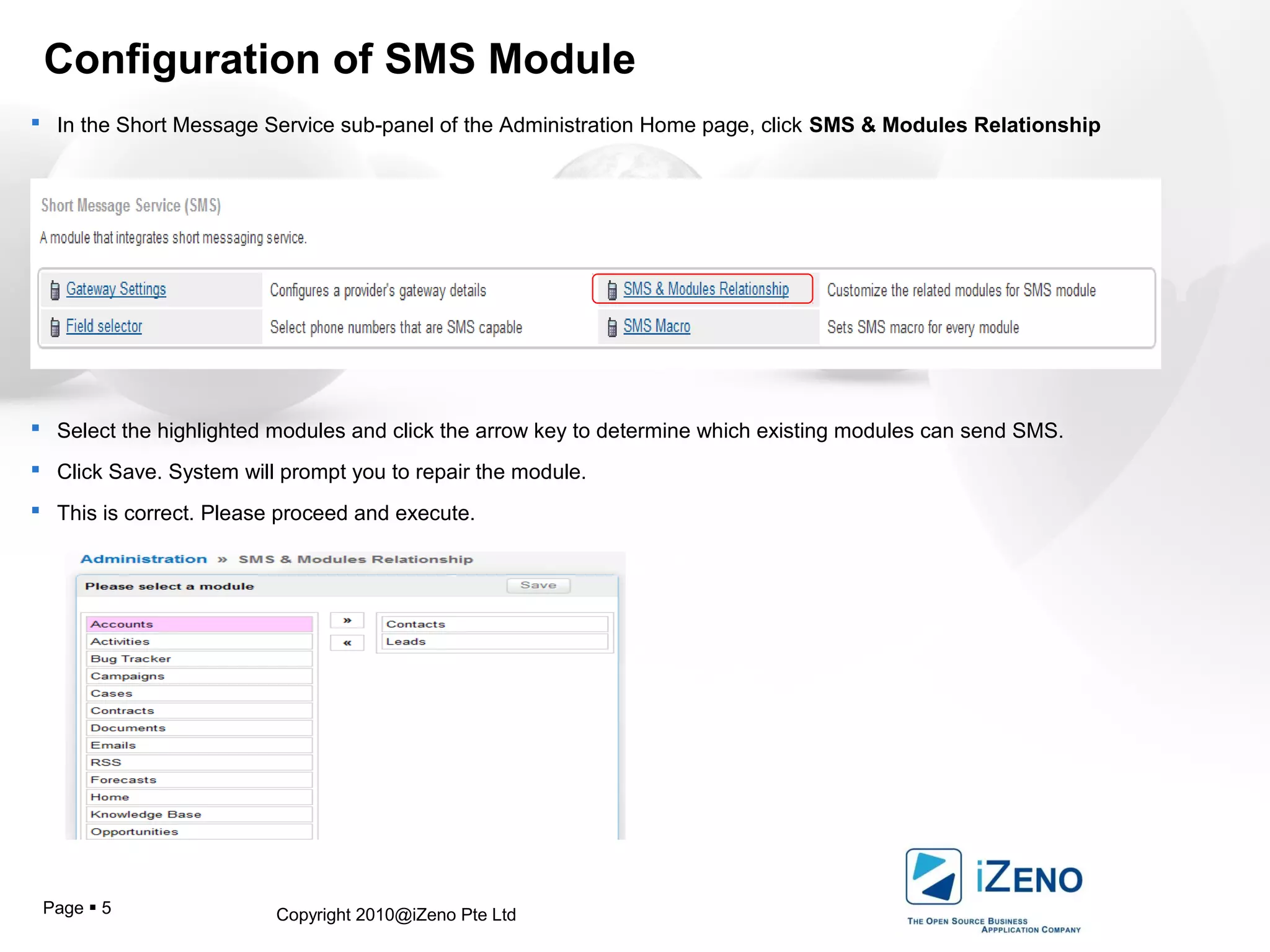
 In the Short Message Service sub-panel of the Administration Home page, click SMS & Modules Relationship
 Select the highlighted modules and click the arrow key to determine which existing modules can send SMS.
 Click Save. System will prompt you to repair the module.
 This is correct. Please proceed and execute.
Copyright 2010@iZeno Pte LtdPage  6
Configuration of SMS Module
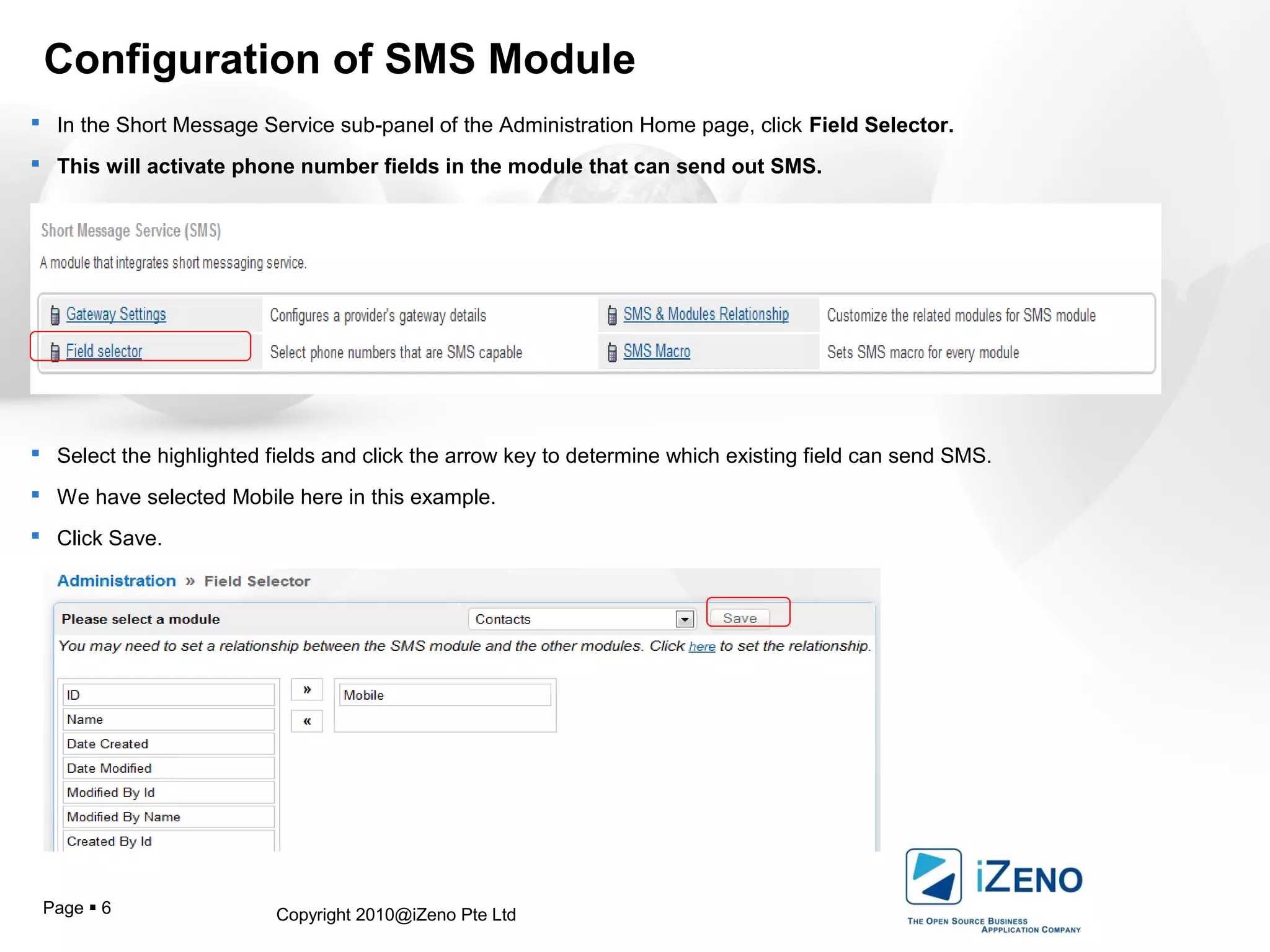
 In the Short Message Service sub-panel of the Administration Home page, click Field Selector.
 This will activate phone number fields in the module that can send out SMS.
 Select the highlighted fields and click the arrow key to determine which existing field can send SMS.
 We have selected Mobile here in this example.
 Click Save.
Copyright 2010@iZeno Pte LtdPage  7
Configuration of SMS Module
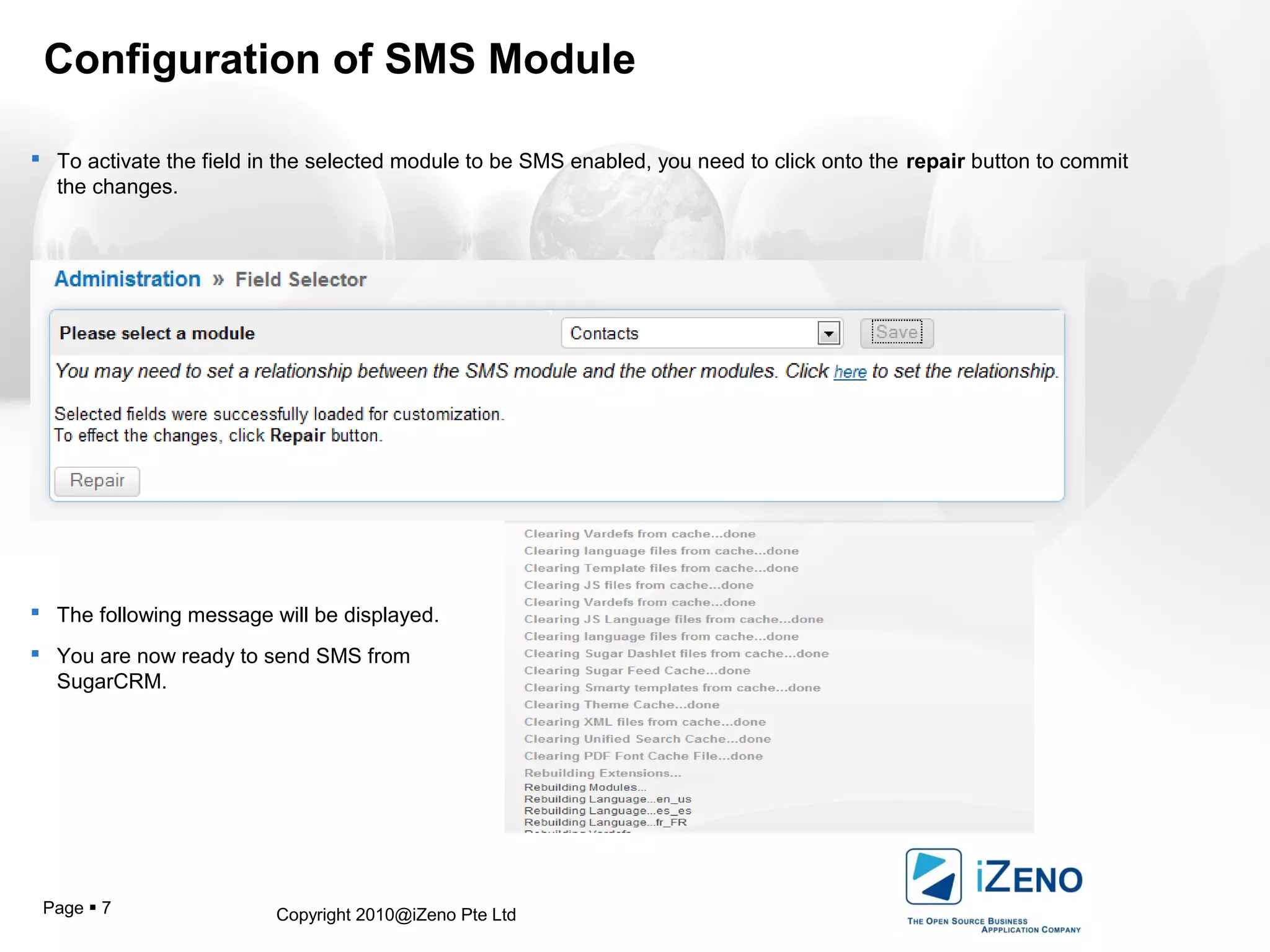
 To activate the field in the selected module to be SMS enabled, you need to click onto the repair button to commit
the changes.
 The following message will be displayed.
 You are now ready to send SMS from
SugarCRM.
Copyright 2010@iZeno Pte LtdPage  8
Create and send SMS to single contact
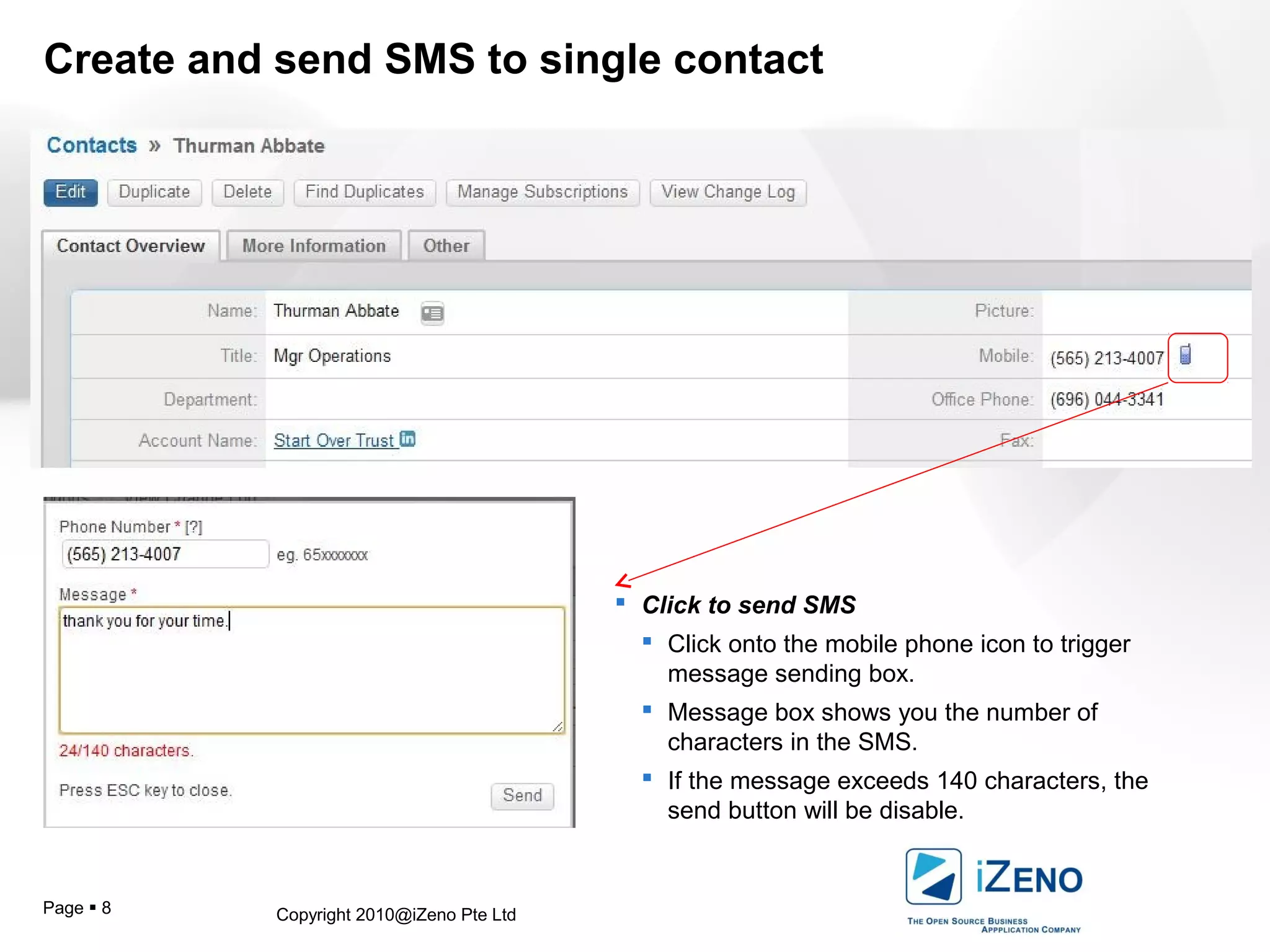
 Click to send SMS
 Click onto the mobile phone icon to trigger
message sending box.
 Message box shows you the number of
characters in the SMS.
 If the message exceeds 140 characters, the
send button will be disable.
Copyright 2010@iZeno Pte LtdPage  9
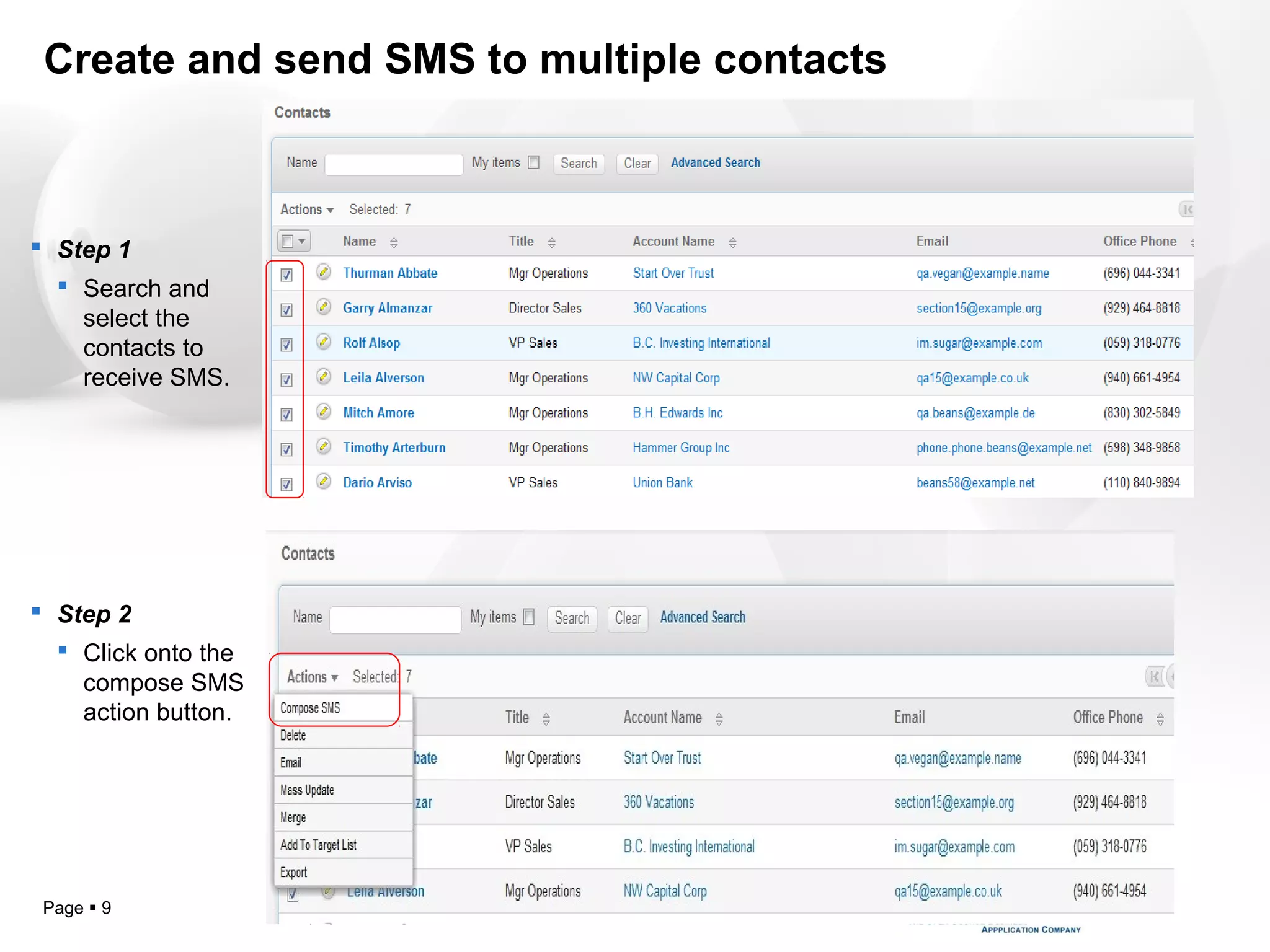
Create and send SMS to multiple contacts
 Step 1
 Search and
select the
contacts to
receive SMS.
 Step 2
 Click onto the
compose SMS
action button.
Copyright 2010@iZeno Pte LtdPage  10
Create and send SMS to multiple contacts
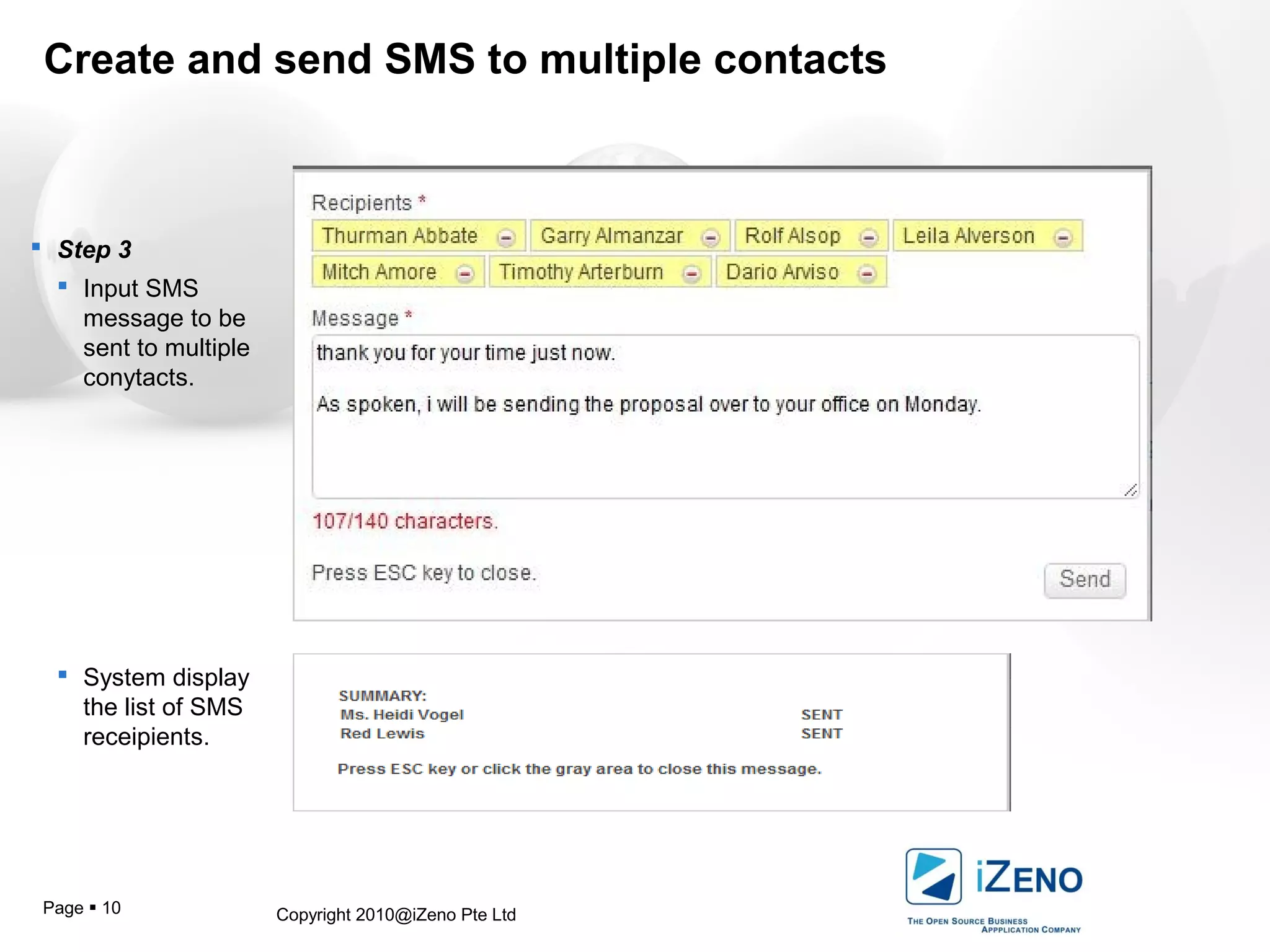
 Step 3
 Input SMS
message to be
sent to multiple
conytacts.
 System display
the list of SMS
receipients.
Copyright 2010@iZeno Pte LtdPage  11
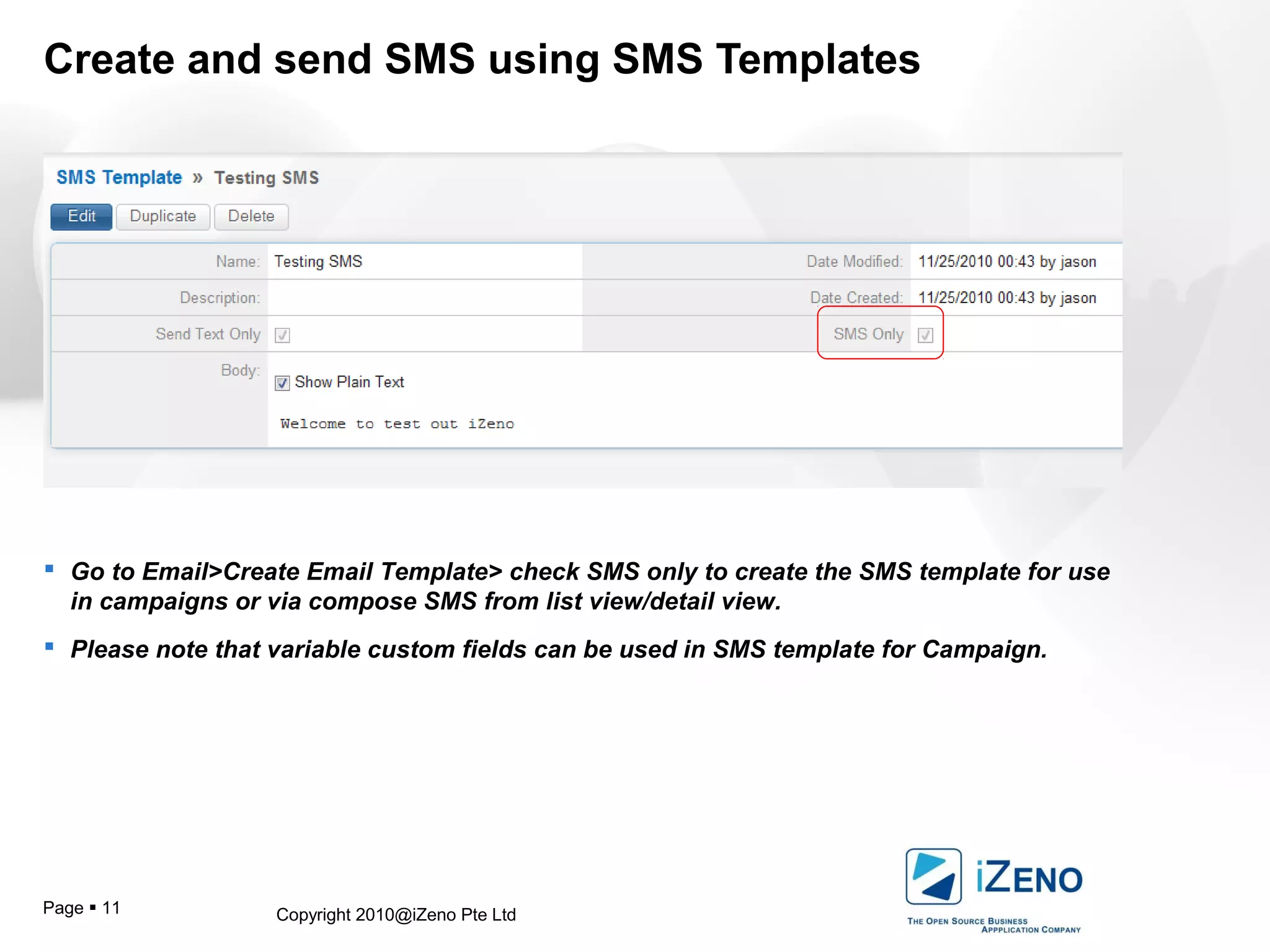
Create and send SMS using SMS Templates
 Go to Email>Create Email Template> check SMS only to create the SMS template for use
in campaigns or via compose SMS from list view/detail view.
 Please note that variable custom fields can be used in SMS template for Campaign.
Copyright 2010@iZeno Pte LtdPage  12
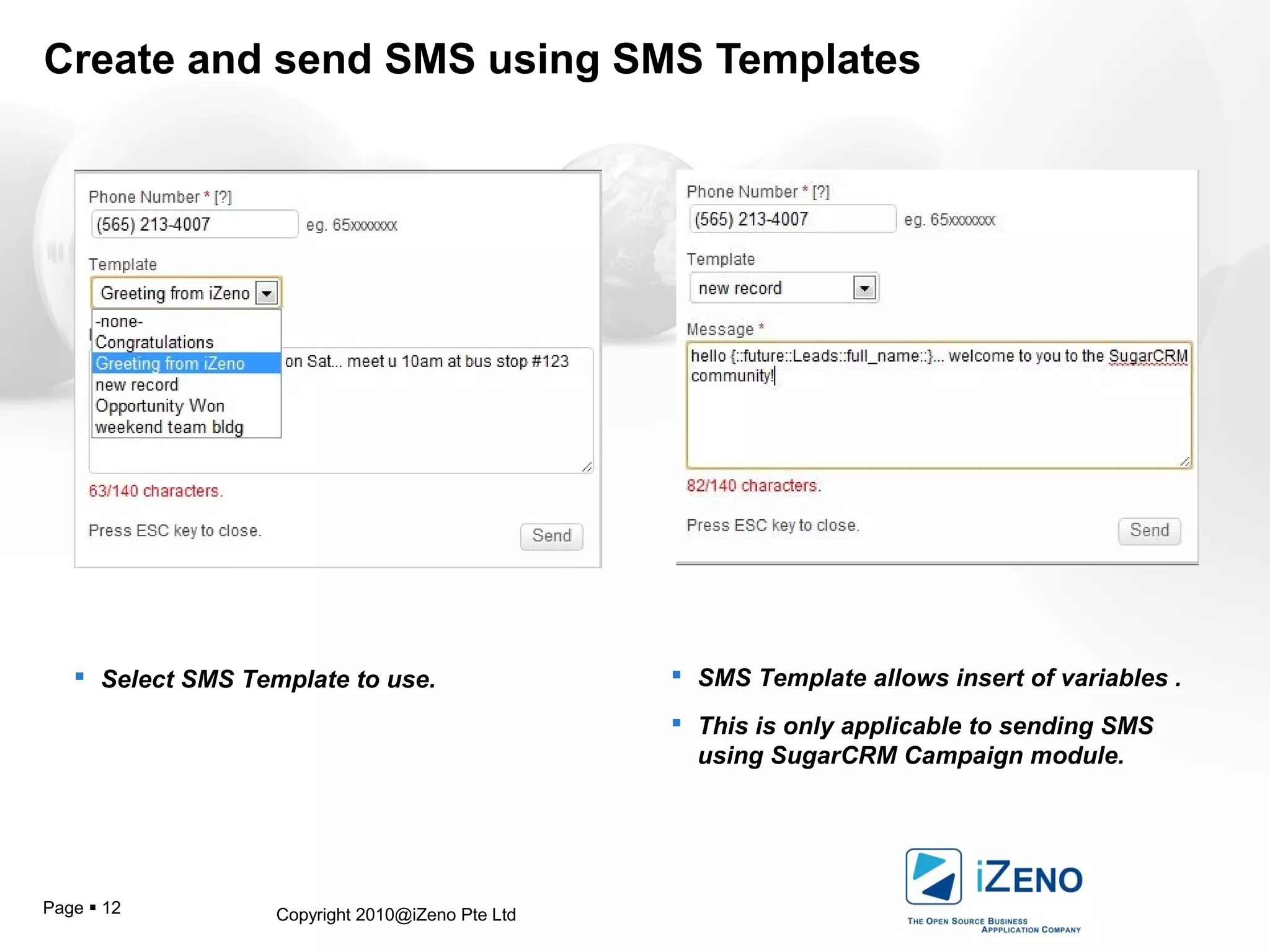
Create and send SMS using SMS Templates
 Select SMS Template to use.  SMS Template allows insert of variables .
 This is only applicable to sending SMS
using SugarCRM Campaign module.
Copyright 2010@iZeno Pte LtdPage  13
Sending SMS Campaign from SugarCRM
Using the Campaign Wizard
http://www.sugarcrm.com/crm/support/documentation/SugarProfessional/6.1/-docs-Application_Guides-
Sugar_Professional_Application_Guide_6.1.0GA-Campaigns.html#1277195
You can use the Campaign Wizard to guide you through the process of creating a campaign.
To create a campaign using the Campaign Wizard
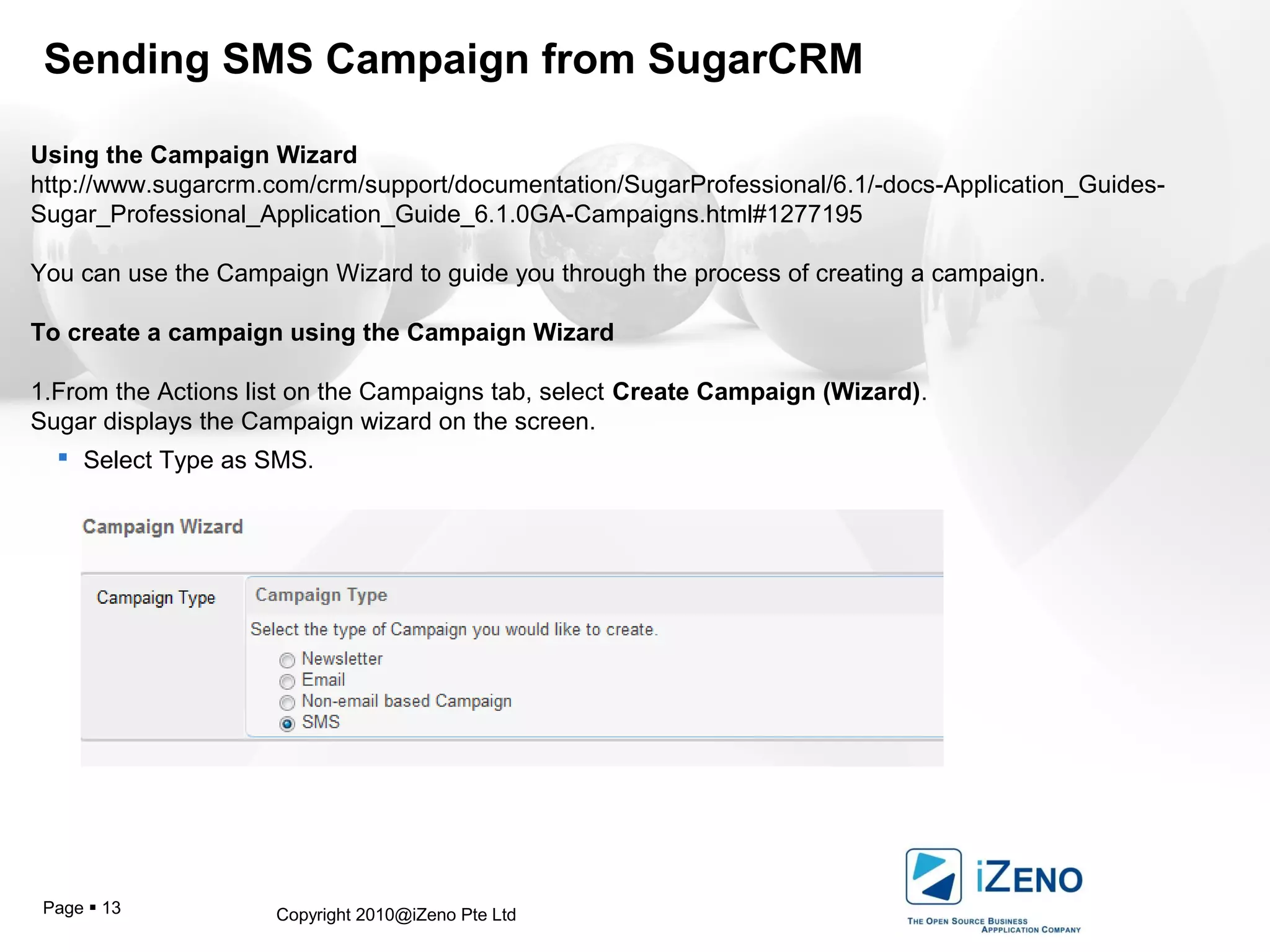
1.From the Actions list on the Campaigns tab, select Create Campaign (Wizard).
Sugar displays the Campaign wizard on the screen.
 Select Type as SMS.
Copyright 2010@iZeno Pte LtdPage  14
Sending SMS Campaign from SugarCRM
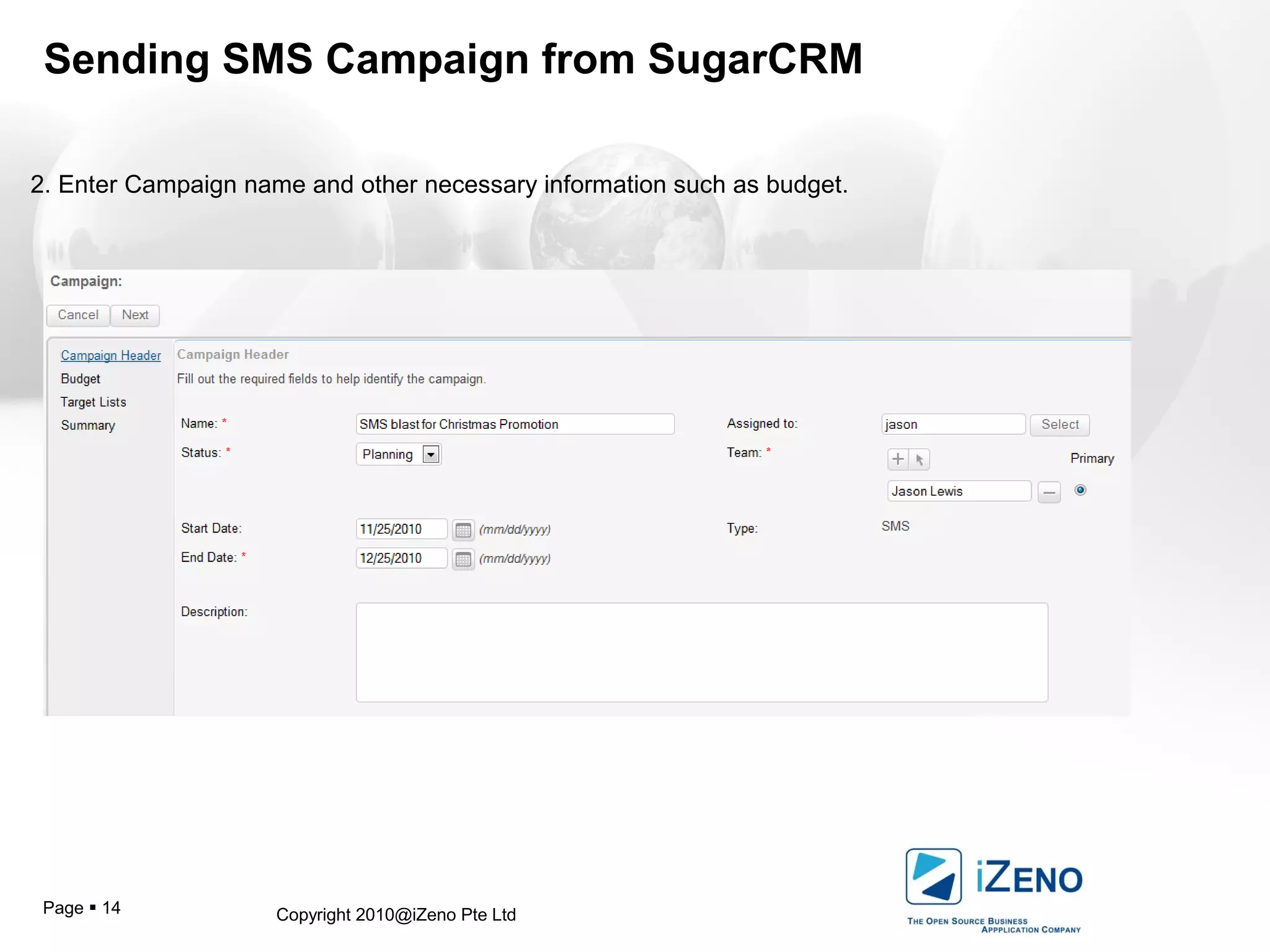
2. Enter Campaign name and other necessary information such as budget.
Copyright 2010@iZeno Pte LtdPage  15
Sending SMS Campaign from SugarCRM
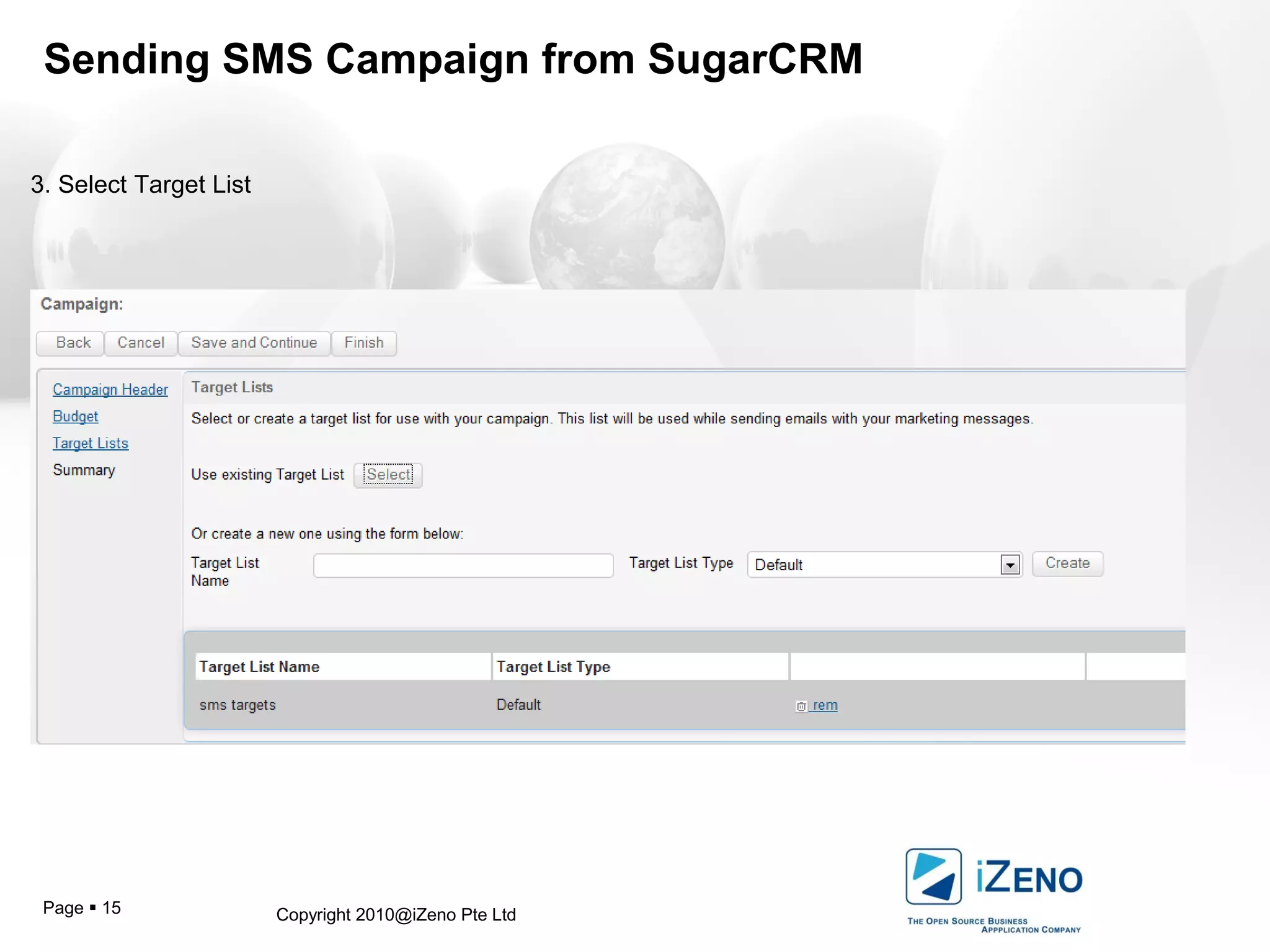
3. Select Target List
Copyright 2010@iZeno Pte LtdPage  16
Sending SMS Campaign from SugarCRM
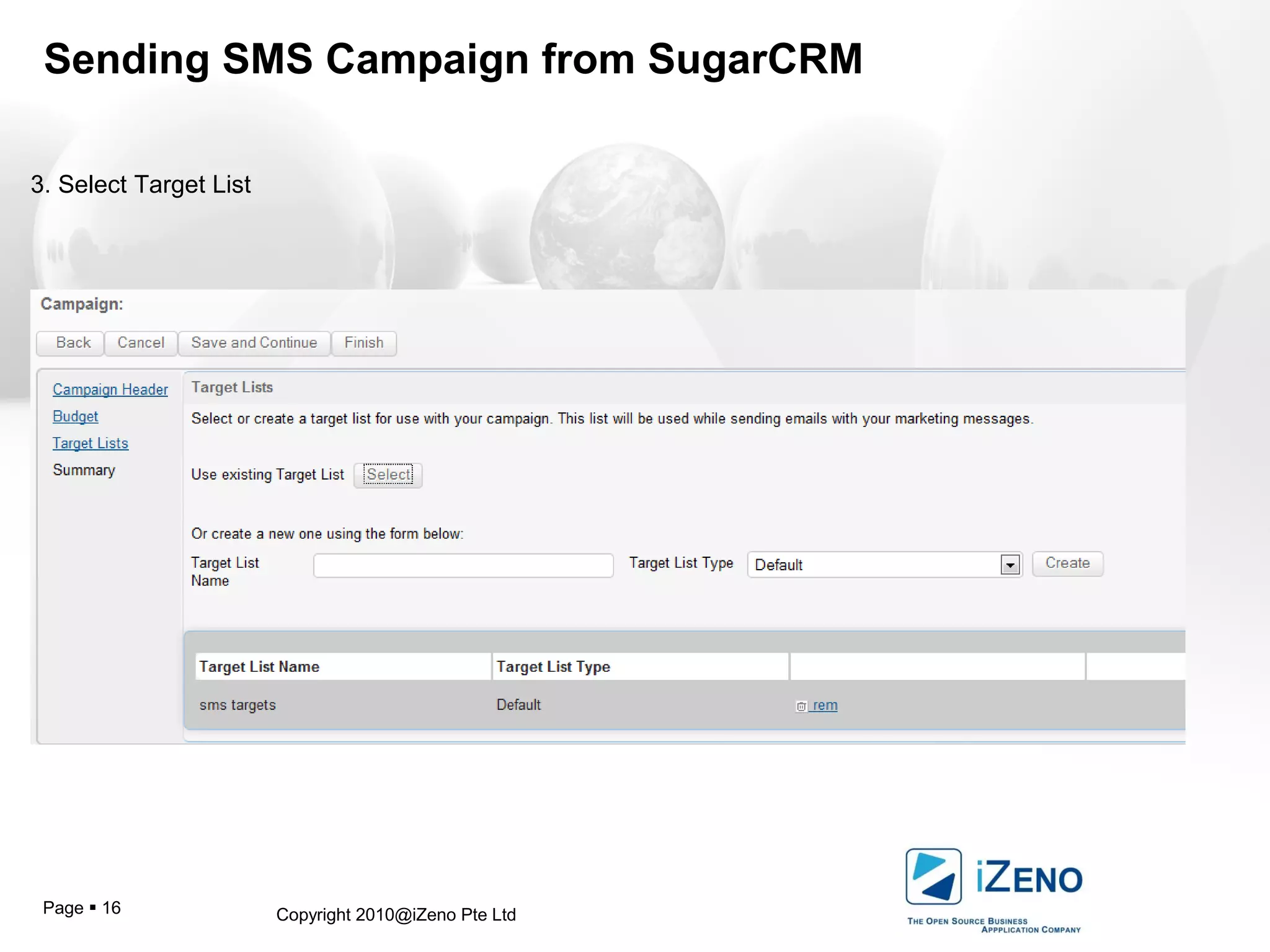
3. Select Target List
Copyright 2010@iZeno Pte LtdPage  17
Sending SMS Campaign from SugarCRM
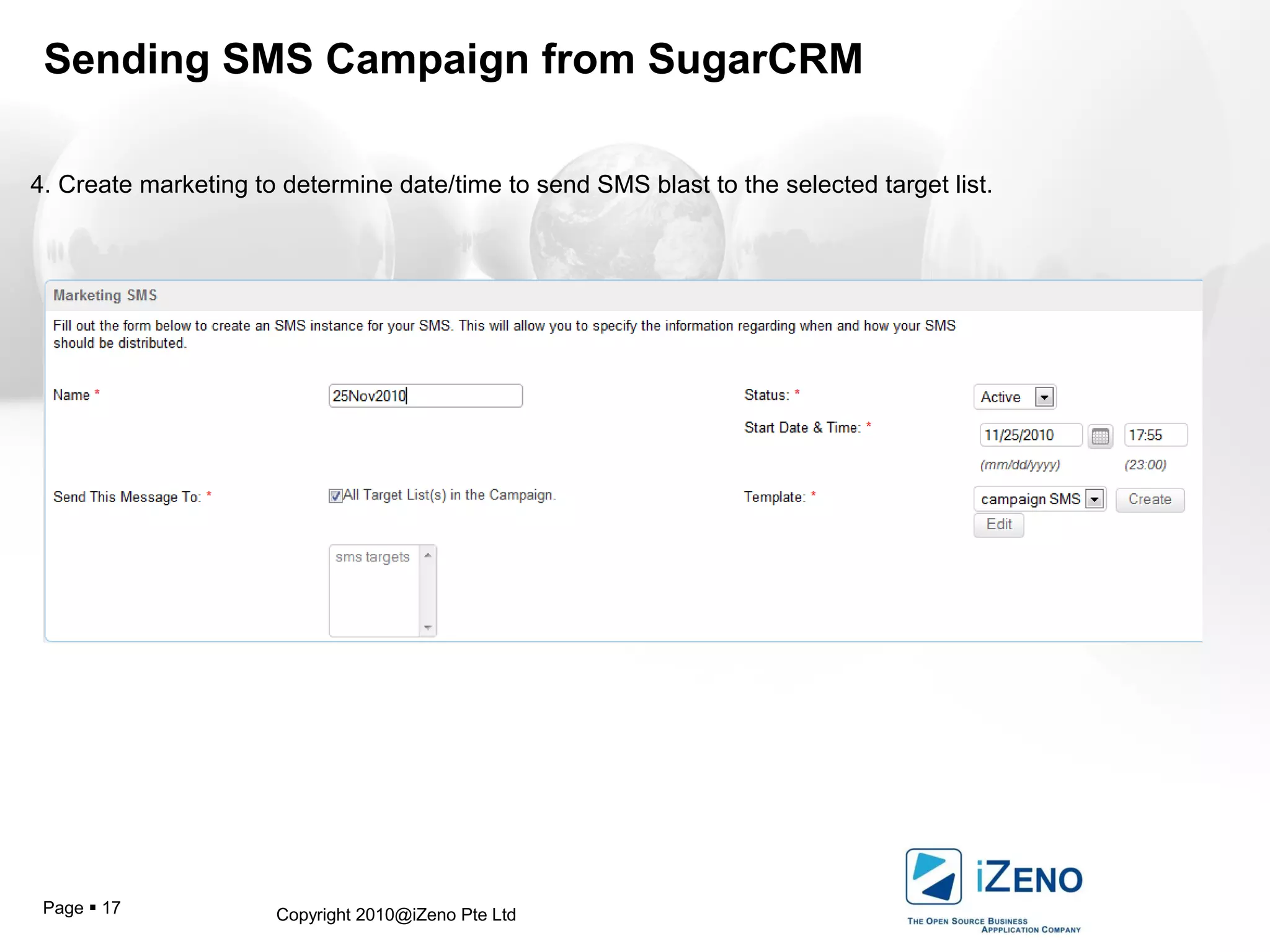
4. Create marketing to determine date/time to send SMS blast to the selected target list.
Copyright 2010@iZeno Pte LtdPage  18
Sending SMS Campaign from SugarCRM
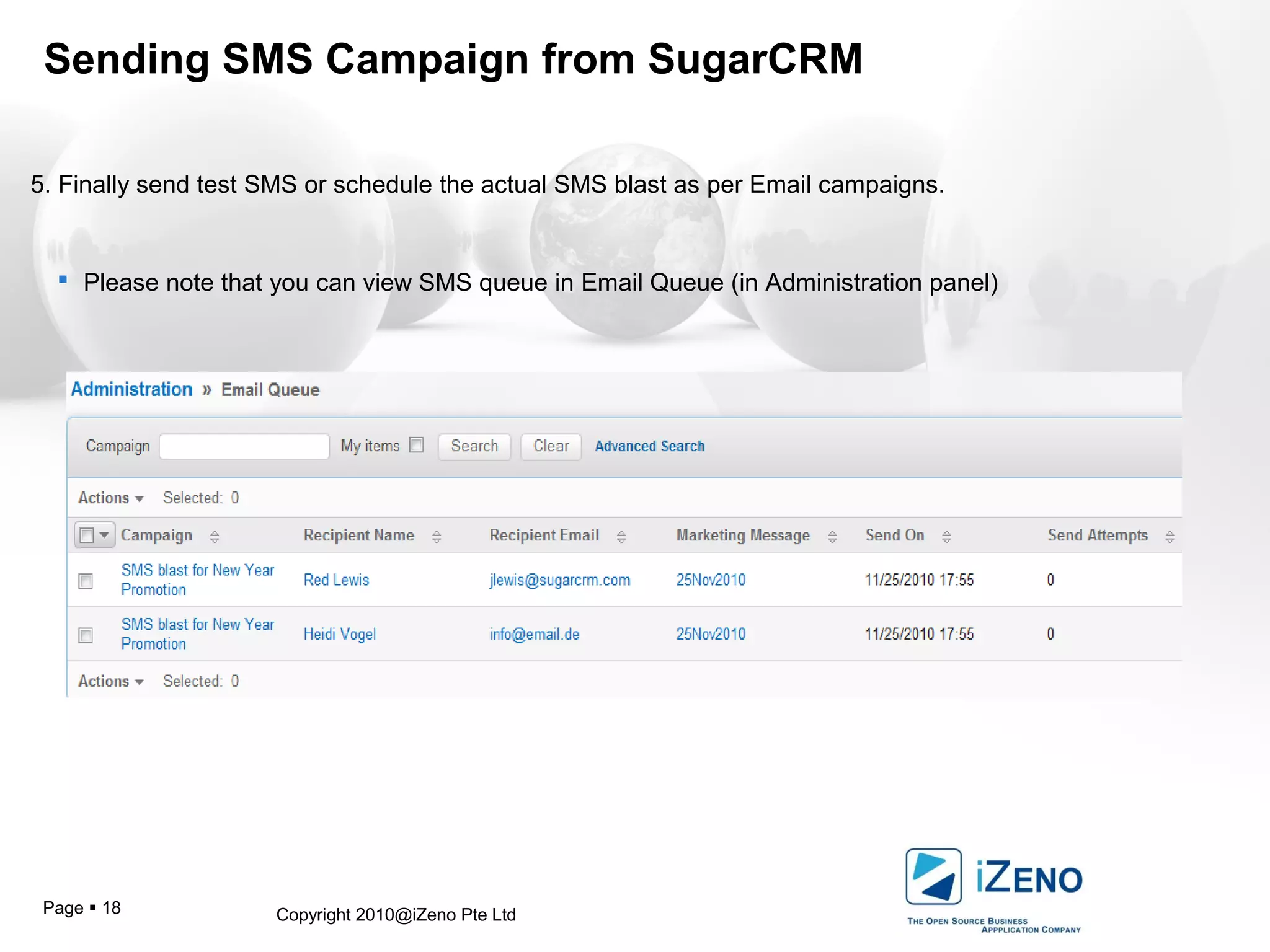
5. Finally send test SMS or schedule the actual SMS blast as per Email campaigns.
 Please note that you can view SMS queue in Email Queue (in Administration panel)
Copyright 2010@iZeno Pte LtdPage  19
Sending SMS Campaign from SugarCRM
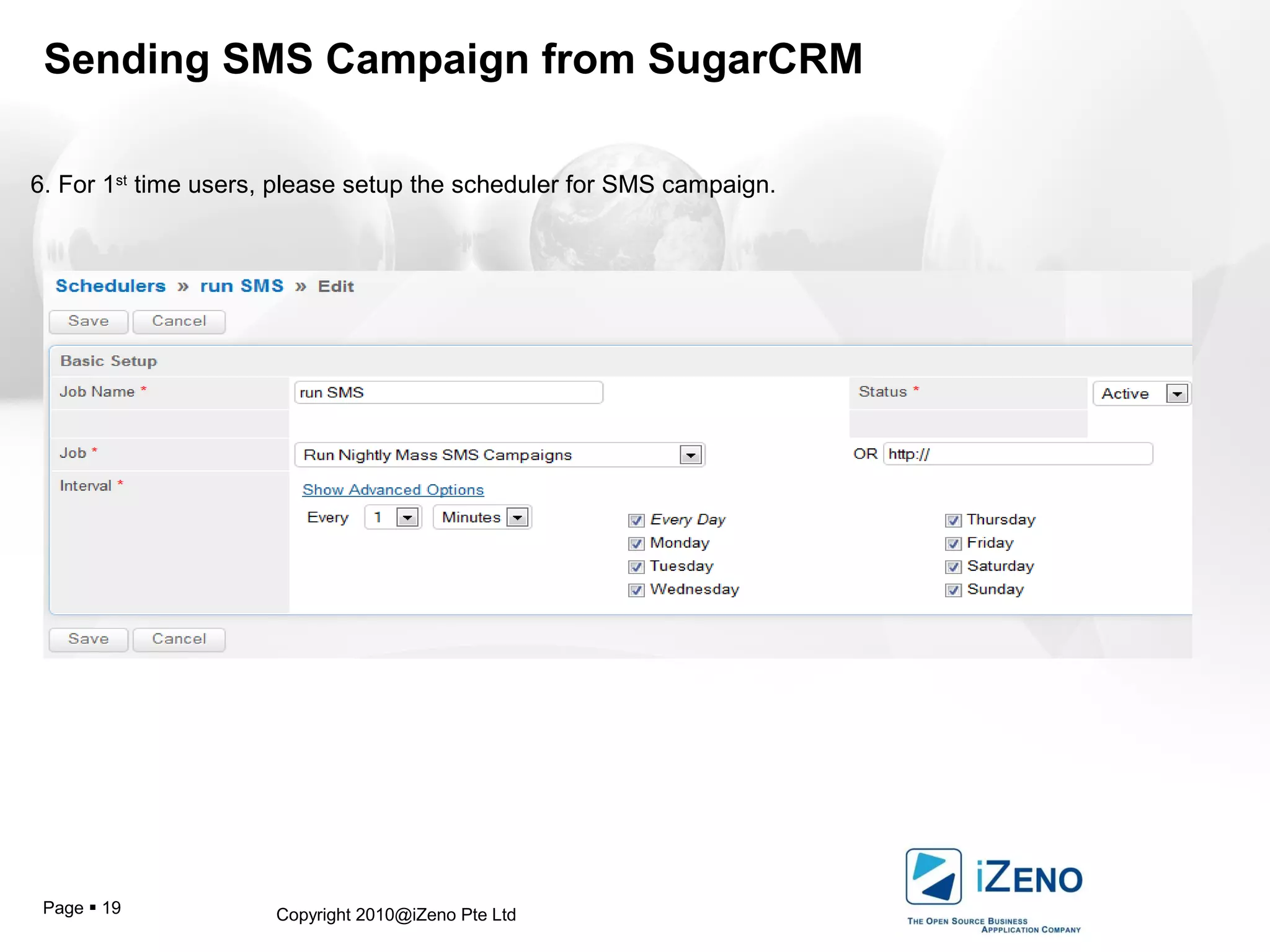
6. For 1st
time users, please setup the scheduler for SMS campaign.
Copyright 2010@iZeno Pte LtdPage  20
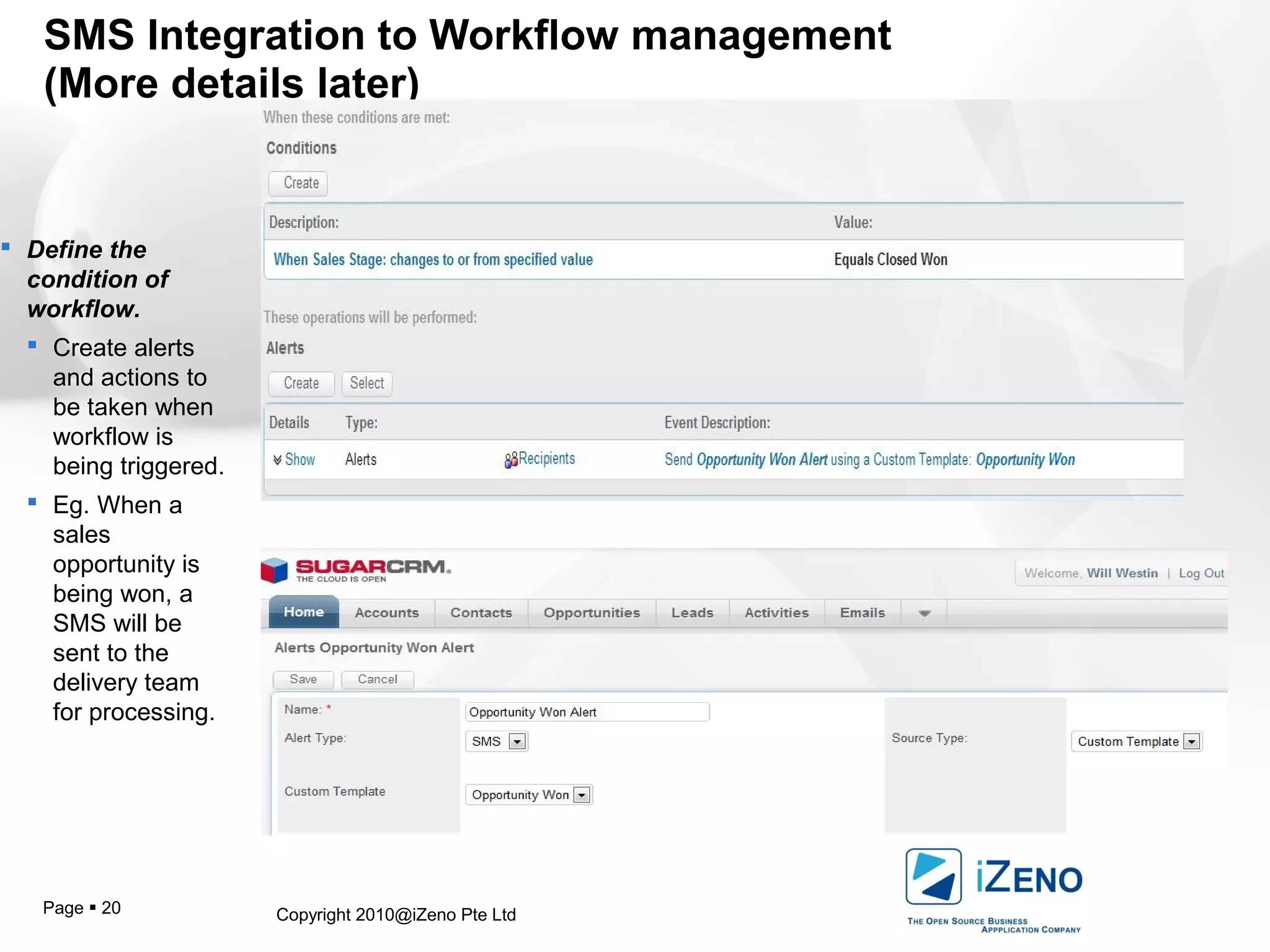
SMS Integration to Workflow management
(More details later)
 Define the
condition of
workflow.
 Create alerts
and actions to
be taken when
workflow is
being triggered.
 Eg. When a
sales
opportunity is
being won, a
SMS will be
sent to the
delivery team
for processing.
Copyright 2010@iZeno Pte LtdPage  21
Value Propositions of iZENO SMS Module for SugarCRM
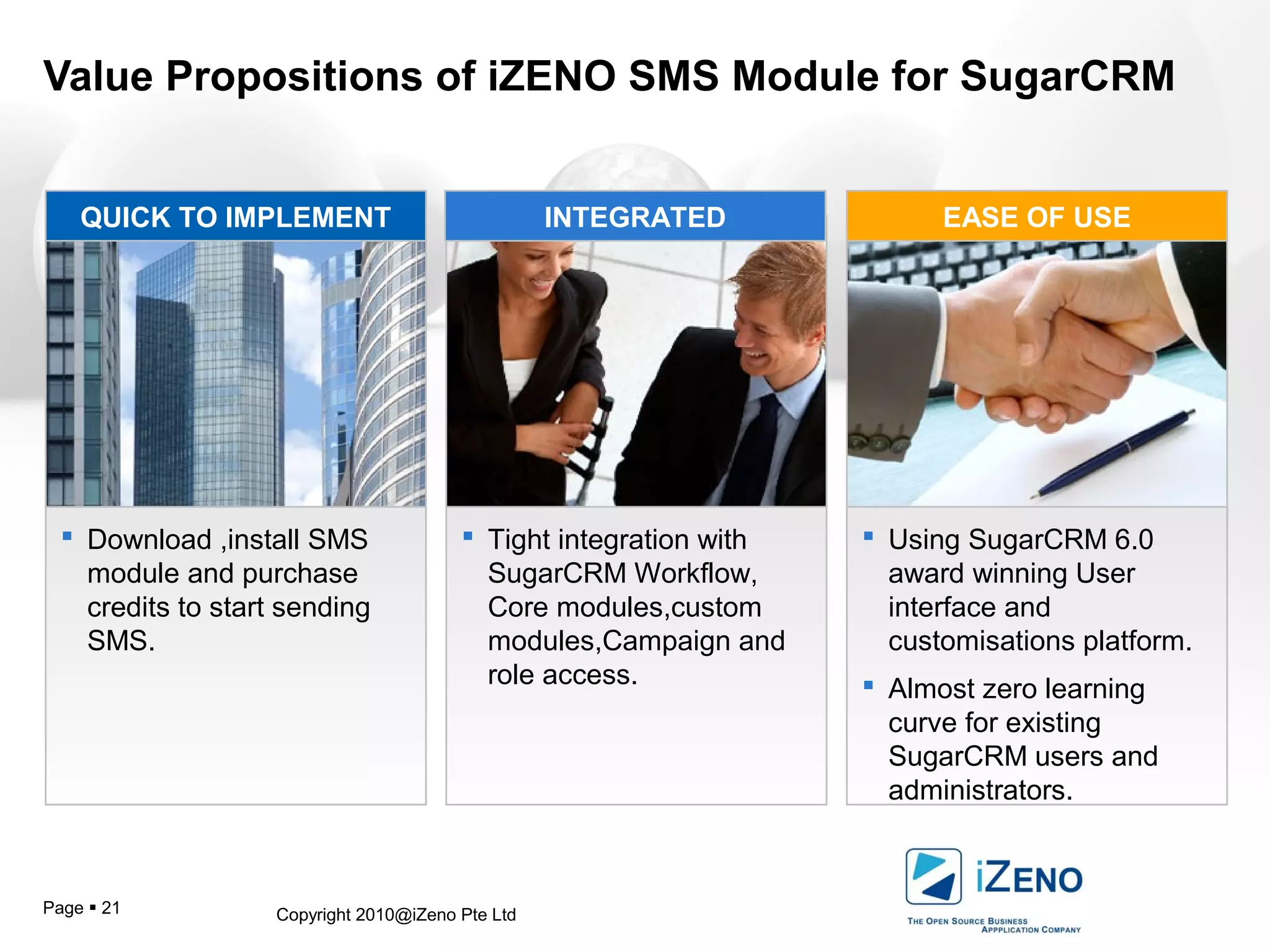
 Download ,install SMS
module and purchase
credits to start sending
SMS.
 Tight integration with
SugarCRM Workflow,
Core modules,custom
modules,Campaign and
role access.
 Using SugarCRM 6.0
award winning User
interface and
customisations platform.
 Almost zero learning
curve for existing
SugarCRM users and
administrators.
QUICK TO IMPLEMENT INTEGRATED EASE OF USE
Copyright 2010@iZeno Pte LtdPage  22
Do You Have
Any Questions?
Need clarifications?
Email To benny.ng@izeno.com.sg
Copyright 2010@iZeno Pte LtdPage  23
THANK YOU VERY MUCH
LIVE DEMO NOW!!!

Using iZeno SMS Module for SugarCRM

  • 1.
    www.izeno.comCopyright 2010@iZeno PteLtd Installing iZeno SMS Module Version 1 for SugarCRM 6updated on 25 Nov 2011 Benny Ng Director Business Development iZeno Pte Ltd
  • 2.
    Copyright 2010@iZeno PteLtdPage  2 Installation of SMS Module  Sign up for trials via this URL: http://www.izeno.com.sg/index.php/products/sms-solutions/sms-trial  You will be given a module to download with valid SMS credits worth of 2 USD.  Rates table for SMS is available at this URL:  http://www.izeno.com.sg/index.php/products/sms-solutions/sms-rate-table  Please make sure that your current system is running on Sugar 6.  Login as a admin user.  In the System sub-panel of the Administration Home page, click Module Loader. If you deployed the package, it is listed in the top panel and has already been made available to other users in your organization. You can uninstall it or disable it by clicking the appropriate button.
  • 3.
    Copyright 2010@iZeno PteLtdPage  3 Installation of SMS Module Click Browse to navigate to the location of the module’s zip file on your local machine. Select the filenaame:iZeno_SMS_Module.zip and then click Open. The path to the zip file displays in the Module field. Click Upload. The uploaded module displays in the bottom panel. Click Install. The license agreement displays on the screen.
  • 4.
    Copyright 2010@iZeno PteLtdPage  4 Installation of SMS Module Select Accept to accept the agreement and then click Commit to install the module. If the installation is successful, the system displays a message stating that the module installed successfully. To go back to the Module Loader page, click Back to the Module Loader. The new module tab is now visible to all users.
  • 5.
    Copyright 2010@iZeno PteLtdPage  5 Configuration of SMS Module  In the Short Message Service sub-panel of the Administration Home page, click SMS & Modules Relationship  Select the highlighted modules and click the arrow key to determine which existing modules can send SMS.  Click Save. System will prompt you to repair the module.  This is correct. Please proceed and execute.
  • 6.
    Copyright 2010@iZeno PteLtdPage  6 Configuration of SMS Module  In the Short Message Service sub-panel of the Administration Home page, click Field Selector.  This will activate phone number fields in the module that can send out SMS.  Select the highlighted fields and click the arrow key to determine which existing field can send SMS.  We have selected Mobile here in this example.  Click Save.
  • 7.
    Copyright 2010@iZeno PteLtdPage  7 Configuration of SMS Module  To activate the field in the selected module to be SMS enabled, you need to click onto the repair button to commit the changes.  The following message will be displayed.  You are now ready to send SMS from SugarCRM.
  • 8.
    Copyright 2010@iZeno PteLtdPage  8 Create and send SMS to single contact  Click to send SMS  Click onto the mobile phone icon to trigger message sending box.  Message box shows you the number of characters in the SMS.  If the message exceeds 140 characters, the send button will be disable.
  • 9.
    Copyright 2010@iZeno PteLtdPage  9 Create and send SMS to multiple contacts  Step 1  Search and select the contacts to receive SMS.  Step 2  Click onto the compose SMS action button.
  • 10.
    Copyright 2010@iZeno PteLtdPage  10 Create and send SMS to multiple contacts  Step 3  Input SMS message to be sent to multiple conytacts.  System display the list of SMS receipients.
  • 11.
    Copyright 2010@iZeno PteLtdPage  11 Create and send SMS using SMS Templates  Go to Email>Create Email Template> check SMS only to create the SMS template for use in campaigns or via compose SMS from list view/detail view.  Please note that variable custom fields can be used in SMS template for Campaign.
  • 12.
    Copyright 2010@iZeno PteLtdPage  12 Create and send SMS using SMS Templates  Select SMS Template to use.  SMS Template allows insert of variables .  This is only applicable to sending SMS using SugarCRM Campaign module.
  • 13.
    Copyright 2010@iZeno PteLtdPage  13 Sending SMS Campaign from SugarCRM Using the Campaign Wizard http://www.sugarcrm.com/crm/support/documentation/SugarProfessional/6.1/-docs-Application_Guides- Sugar_Professional_Application_Guide_6.1.0GA-Campaigns.html#1277195 You can use the Campaign Wizard to guide you through the process of creating a campaign. To create a campaign using the Campaign Wizard 1.From the Actions list on the Campaigns tab, select Create Campaign (Wizard). Sugar displays the Campaign wizard on the screen.  Select Type as SMS.
  • 14.
    Copyright 2010@iZeno PteLtdPage  14 Sending SMS Campaign from SugarCRM 2. Enter Campaign name and other necessary information such as budget.
  • 15.
    Copyright 2010@iZeno PteLtdPage  15 Sending SMS Campaign from SugarCRM 3. Select Target List
  • 16.
    Copyright 2010@iZeno PteLtdPage  16 Sending SMS Campaign from SugarCRM 3. Select Target List
  • 17.
    Copyright 2010@iZeno PteLtdPage  17 Sending SMS Campaign from SugarCRM 4. Create marketing to determine date/time to send SMS blast to the selected target list.
  • 18.
    Copyright 2010@iZeno PteLtdPage  18 Sending SMS Campaign from SugarCRM 5. Finally send test SMS or schedule the actual SMS blast as per Email campaigns.  Please note that you can view SMS queue in Email Queue (in Administration panel)
  • 19.
    Copyright 2010@iZeno PteLtdPage  19 Sending SMS Campaign from SugarCRM 6. For 1st time users, please setup the scheduler for SMS campaign.
  • 20.
    Copyright 2010@iZeno PteLtdPage  20 SMS Integration to Workflow management (More details later)  Define the condition of workflow.  Create alerts and actions to be taken when workflow is being triggered.  Eg. When a sales opportunity is being won, a SMS will be sent to the delivery team for processing.
  • 21.
    Copyright 2010@iZeno PteLtdPage  21 Value Propositions of iZENO SMS Module for SugarCRM  Download ,install SMS module and purchase credits to start sending SMS.  Tight integration with SugarCRM Workflow, Core modules,custom modules,Campaign and role access.  Using SugarCRM 6.0 award winning User interface and customisations platform.  Almost zero learning curve for existing SugarCRM users and administrators. QUICK TO IMPLEMENT INTEGRATED EASE OF USE
  • 22.
    Copyright 2010@iZeno PteLtdPage  22 Do You Have Any Questions? Need clarifications? Email To benny.ng@izeno.com.sg
  • 23.
    Copyright 2010@iZeno PteLtdPage  23 THANK YOU VERY MUCH LIVE DEMO NOW!!!