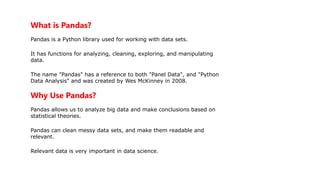
What is Pandas?
Pandasis a Python library used for working with data sets.
It has functions for analyzing, cleaning, exploring, and manipulating
data.
The name "Pandas" has a reference to both "Panel Data", and "Python
Data Analysis" and was created by Wes McKinney in 2008.
Why Use Pandas?
Pandas allows us to analyze big data and make conclusions based on
statistical theories.
Pandas can clean messy data sets, and make them readable and
relevant.
Relevant data is very important in data science.
3.
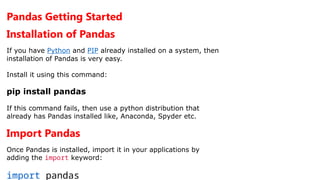
Pandas Getting Started
Installationof Pandas
If you have Python and PIP already installed on a system, then
installation of Pandas is very easy.
Install it using this command:
pip install pandas
If this command fails, then use a python distribution that
already has Pandas installed like, Anaconda, Spyder etc.
Import Pandas
Once Pandas is installed, import it in your applications by
adding the import keyword:
import pandas
4.
Now Pandas isimported and ready to use.
Example:
import pandas
mydataset = {'cars': ["BMW", "Volvo", "Ford"],'passings':
[3, 7, 2]}
myvar = pandas.DataFrame(mydataset)
print(myvar)
Output:
cars passings
0 BMW 3
1 Volvo 7
5.
Pandas as pd:
Pandasis usually imported under the pd alias.
alias: In Python alias are an alternate name for
referring to the same thing.
Create an alias with the as keyword while
importing:
import pandas as pd
Now the Pandas package can be referred to
as pd instead of pandas.
Pandas Series:
What isa Series?
A Pandas Series is like a column in a table.
It is a one-dimensional array holding data of any type.
Example1:
Create a simple Pandas Series from a list:
import pandas as pd
a = [1, 7, 2]
myvar = pd.Series(a)
print(myvar)
OUTPUT:
0 1
1 7
2 2
dtype: int64
Example2:
import pandas as pd
a = [1, 7, 2]
myvar = pd.Series(a)
print(myvar[0])
OUTPUT: 1
8.
Create Labels
With theindex argument, you can name your own
labels.
Example:
Create your own labels:
import pandas as pd
a = [1, 7, 2]
myvar = pd.Series(a, index=["x", "y", "z"])
print(myvar)
OUTPUT:
x 1
y 7
z 2
dtype: int64
9.
Pandas DataFrames:
What isa DataFrame?
A Pandas DataFrame is a 2 dimensional data structure, like a 2 dimensional
array, or a table with rows and columns.
Example:
Create a simple Pandas DataFrame:
import pandas as pd
data = { "calories":
[420, 380, 390], "duration": [50, 40, 45]}
#load data into a DataFrame object:
df = pd.DataFrame(data)
print(df)
OUTPUT:
calories duration
0 420 50
1 380 40
2 390 45
10.
Named Indexes:
With theindex argument, you can name your own indexes.
Example
Add a list of names to give each row a name:
import pandas as pd
data = {
"calories": [420, 380, 390],
"duration": [50, 40, 45]
}
df = pd.DataFrame(data, index =
["day1", "day2", "day3"])
print(df)
OUTPUT:
calories duration
day1 420 50
day2 380 40
day3 390 45
11.
Pandas Read CSV:
ReadCSV Files:
A simple way to store big data sets is to use CSV
files (comma separated files).
CSV files contains plain text and is a well know
format that can be read by everyone including
Pandas.
In our examples we will be using a CSV file called
'data.csv'.
Download data.csv. or Open data.csv
12.
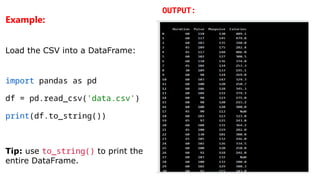
Example:
Load the CSVinto a DataFrame:
import pandas as pd
df = pd.read_csv('data.csv')
print(df.to_string())
Tip: use to_string() to print the
entire DataFrame.
OUTPUT:
13.
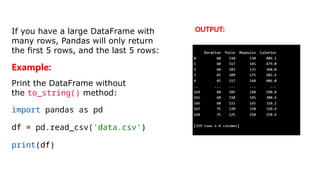
If you havea large DataFrame with
many rows, Pandas will only return
the first 5 rows, and the last 5 rows:
Example:
Print the DataFrame without
the to_string() method:
import pandas as pd
df = pd.read_csv('data.csv')
print(df)
OUTPUT:
14.
Creating GUI usingtkinter:
Introduction to tkinter:
GUI(Graphical User Interface) using Tkinter.
What is Tkinter?
Tkinter is a Python Package for creating GUI applications.
Python has a lot of GUI frameworks, but Tkinter is the only
framework that’s built into the Python standard library.
Tkinter has several strengths; it’s cross-platform, so the
same code works on Windows, macOS, and Linux.
15.
Getting Started withTkinter:
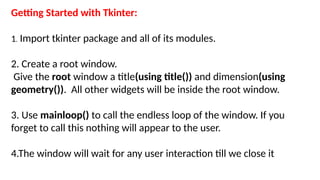
1. Import tkinter package and all of its modules.
2. Create a root window.
Give the root window a title(using title()) and dimension(using
geometry()). All other widgets will be inside the root window.
3. Use mainloop() to call the endless loop of the window. If you
forget to call this nothing will appear to the user.
4.The window will wait for any user interaction till we close it
16.
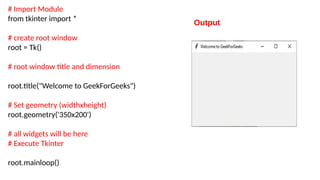
# Import Module
fromtkinter import *
# create root window
root = Tk()
# root window title and dimension
root.title("Welcome to GeekForGeeks")
# Set geometry (widthxheight)
root.geometry('350x200')
# all widgets will be here
# Execute Tkinter
root.mainloop()
Output
![Now Pandas is imported and ready to use.
Example:
import pandas
mydataset = {'cars': ["BMW", "Volvo", "Ford"],'passings':
[3, 7, 2]}
myvar = pandas.DataFrame(mydataset)
print(myvar)
Output:
cars passings
0 BMW 3
1 Volvo 7](https://image.slidesharecdn.com/unit5introductiontobuilt-inpackagesinpython-250328100924-091c0ac3/85/Unit-5-Introduction-to-Built-in-Packages-in-python-pptx-4-320.jpg)

![Example:
import pandas as pd
mydataset = {'cars': ["BMW", "Volvo", "Ford"] 'passings': [3, 7, 2]}
myvar = pd.DataFrame(mydataset)
print(myvar)
OUTPUT:
cars passings
0 BMW 3
1 Volvo 7
2 Ford 2](https://image.slidesharecdn.com/unit5introductiontobuilt-inpackagesinpython-250328100924-091c0ac3/85/Unit-5-Introduction-to-Built-in-Packages-in-python-pptx-6-320.jpg)
![Pandas Series:
What is a Series?
A Pandas Series is like a column in a table.
It is a one-dimensional array holding data of any type.
Example1:
Create a simple Pandas Series from a list:
import pandas as pd
a = [1, 7, 2]
myvar = pd.Series(a)
print(myvar)
OUTPUT:
0 1
1 7
2 2
dtype: int64
Example2:
import pandas as pd
a = [1, 7, 2]
myvar = pd.Series(a)
print(myvar[0])
OUTPUT: 1](https://image.slidesharecdn.com/unit5introductiontobuilt-inpackagesinpython-250328100924-091c0ac3/85/Unit-5-Introduction-to-Built-in-Packages-in-python-pptx-7-320.jpg)
![Create Labels
With the index argument, you can name your own
labels.
Example:
Create your own labels:
import pandas as pd
a = [1, 7, 2]
myvar = pd.Series(a, index=["x", "y", "z"])
print(myvar)
OUTPUT:
x 1
y 7
z 2
dtype: int64](https://image.slidesharecdn.com/unit5introductiontobuilt-inpackagesinpython-250328100924-091c0ac3/85/Unit-5-Introduction-to-Built-in-Packages-in-python-pptx-8-320.jpg)
![Pandas DataFrames:
What is a DataFrame?
A Pandas DataFrame is a 2 dimensional data structure, like a 2 dimensional
array, or a table with rows and columns.
Example:
Create a simple Pandas DataFrame:
import pandas as pd
data = { "calories":
[420, 380, 390], "duration": [50, 40, 45]}
#load data into a DataFrame object:
df = pd.DataFrame(data)
print(df)
OUTPUT:
calories duration
0 420 50
1 380 40
2 390 45](https://image.slidesharecdn.com/unit5introductiontobuilt-inpackagesinpython-250328100924-091c0ac3/85/Unit-5-Introduction-to-Built-in-Packages-in-python-pptx-9-320.jpg)
![Named Indexes:
With the index argument, you can name your own indexes.
Example
Add a list of names to give each row a name:
import pandas as pd
data = {
"calories": [420, 380, 390],
"duration": [50, 40, 45]
}
df = pd.DataFrame(data, index =
["day1", "day2", "day3"])
print(df)
OUTPUT:
calories duration
day1 420 50
day2 380 40
day3 390 45](https://image.slidesharecdn.com/unit5introductiontobuilt-inpackagesinpython-250328100924-091c0ac3/85/Unit-5-Introduction-to-Built-in-Packages-in-python-pptx-10-320.jpg)