Enterprise ERP
Year To Date (YTD) Budget Report
Navigating to YTD
Budget Report
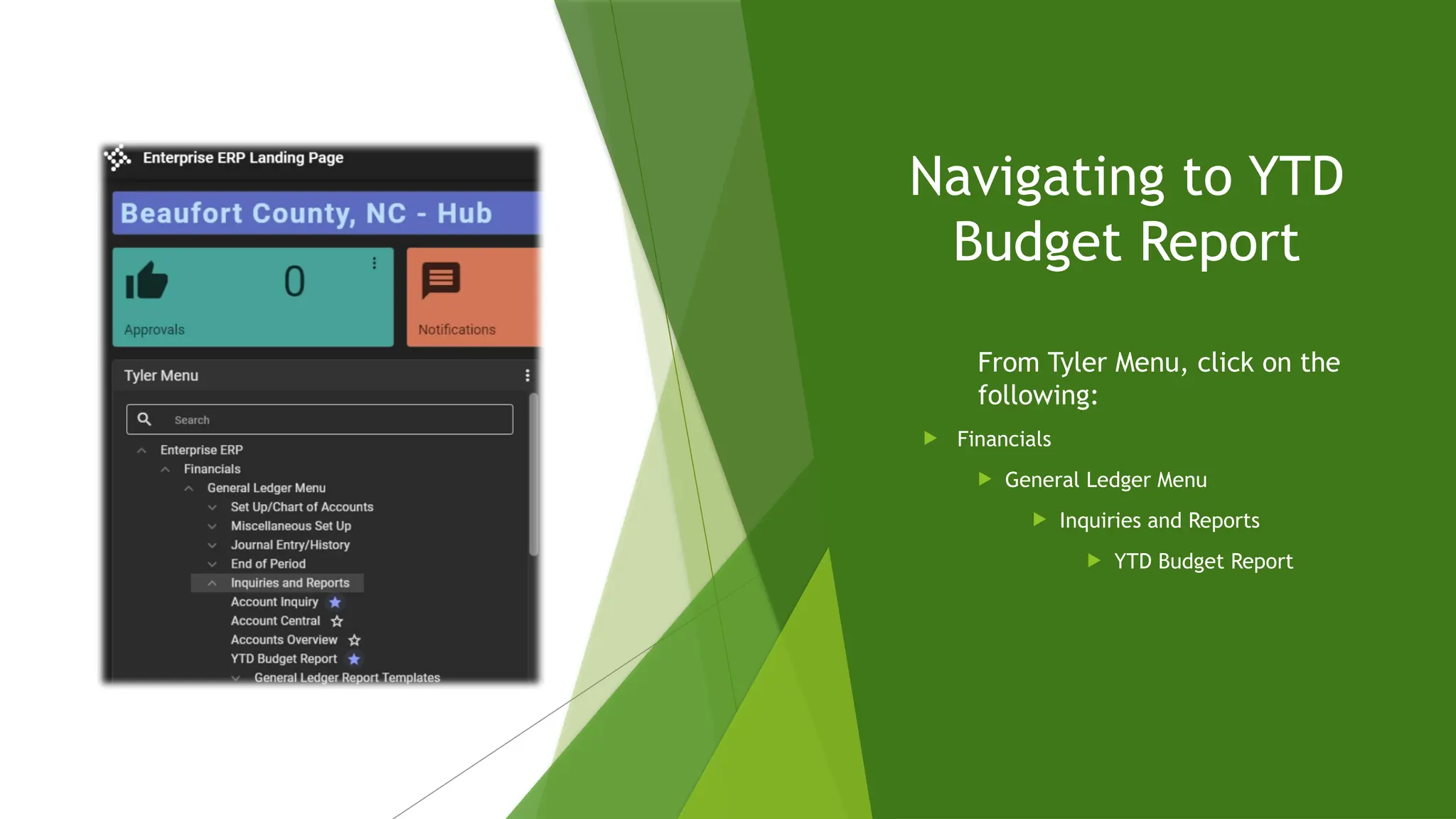
From Tyler Menu, click on the
following:
 Financials
 General Ledger Menu
 Inquiries and Reports
 YTD Budget Report
Completing your
search
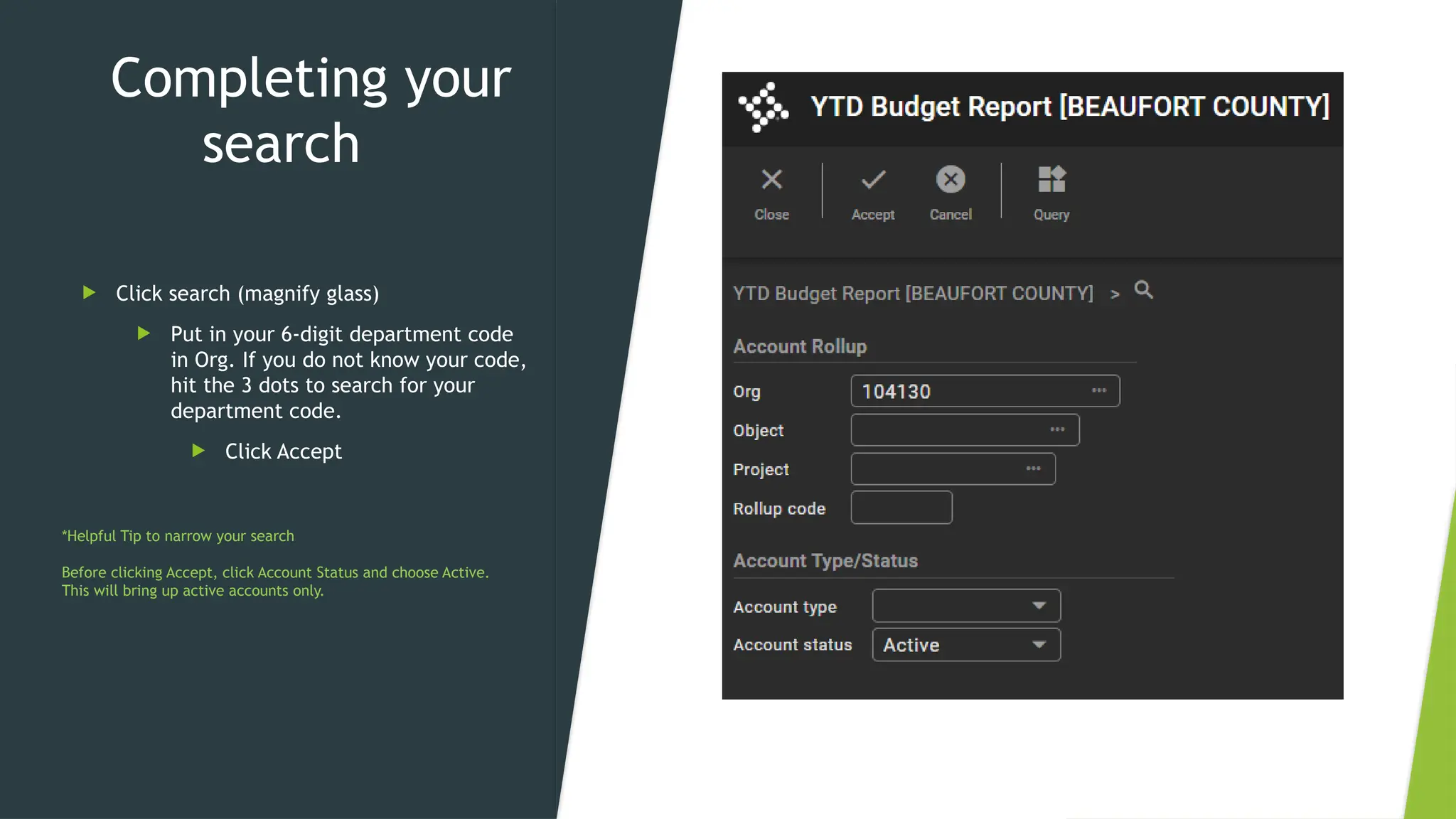
 Click search (magnify glass)
 Put in your 6-digit department code
in Org. If you do not know your code,
hit the 3 dots to search for your
department code.
 Click Accept
*Helpful Tip to narrow your search
Before clicking Accept, click Account Status and choose Active.
This will bring up active accounts only.
Navigating to Report Options
Click on Report Options at
the top right of your
screen
Defining Report
Options
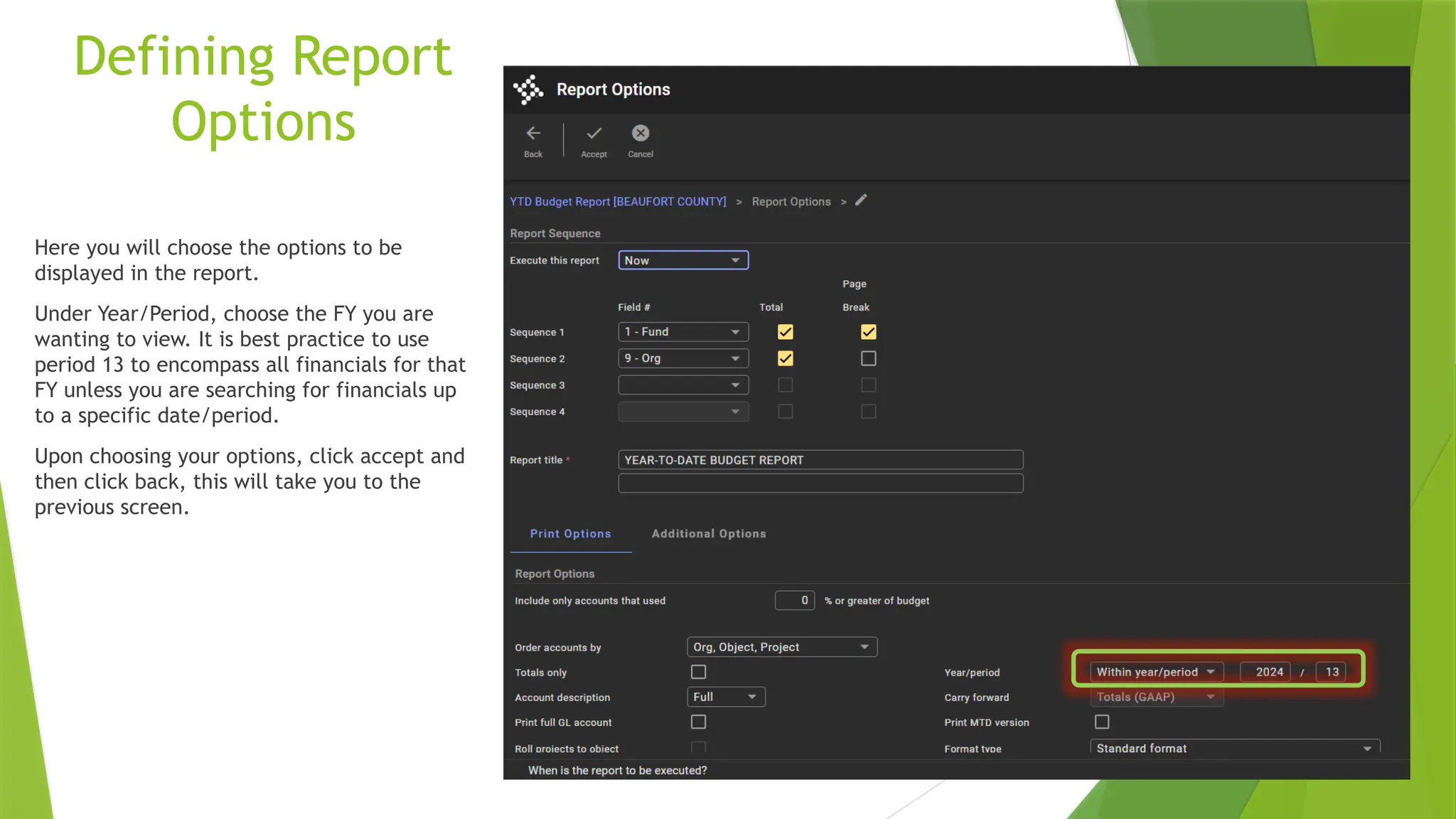
Here you will choose the options to be
displayed in the report.
Under Year/Period, choose the FY you are
wanting to view. It is best practice to use
period 13 to encompass all financials for that
FY unless you are searching for financials up
to a specific date/period.
Upon choosing your options, click accept and
then click back, this will take you to the
previous screen.
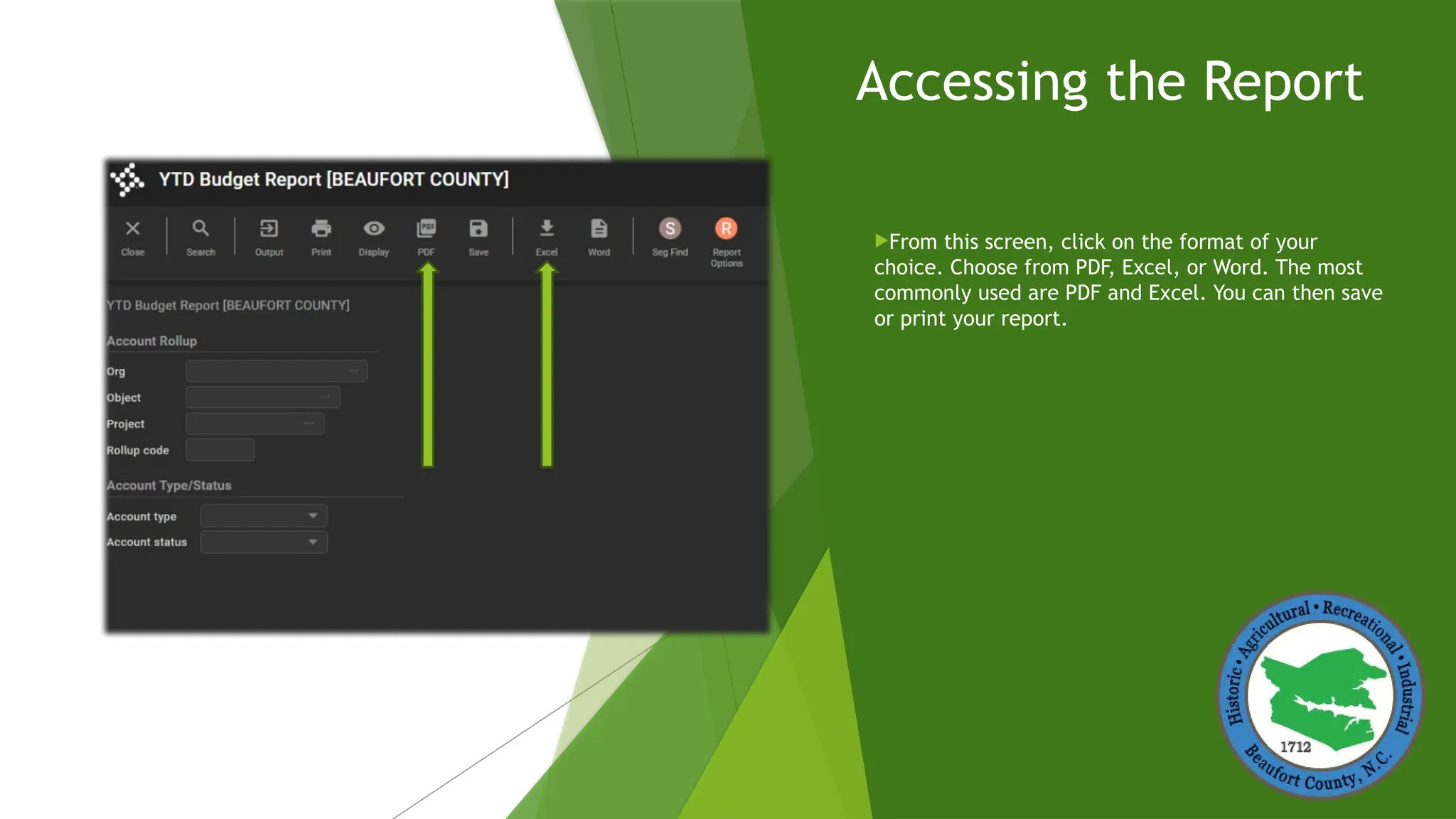
Accessing the Report
From this screen, click on the format of your
choice. Choose from PDF, Excel, or Word. The most
commonly used are PDF and Excel. You can then save
or print your report.

Tyler Technologies : Enterprise ERP.pptx

  • 1.
    Enterprise ERP Year ToDate (YTD) Budget Report
  • 2.
    Navigating to YTD BudgetReport From Tyler Menu, click on the following:  Financials  General Ledger Menu  Inquiries and Reports  YTD Budget Report
  • 3.
    Completing your search  Clicksearch (magnify glass)  Put in your 6-digit department code in Org. If you do not know your code, hit the 3 dots to search for your department code.  Click Accept *Helpful Tip to narrow your search Before clicking Accept, click Account Status and choose Active. This will bring up active accounts only.
  • 4.
    Navigating to ReportOptions Click on Report Options at the top right of your screen
  • 5.
    Defining Report Options Here youwill choose the options to be displayed in the report. Under Year/Period, choose the FY you are wanting to view. It is best practice to use period 13 to encompass all financials for that FY unless you are searching for financials up to a specific date/period. Upon choosing your options, click accept and then click back, this will take you to the previous screen.
  • 6.
    Accessing the Report Fromthis screen, click on the format of your choice. Choose from PDF, Excel, or Word. The most commonly used are PDF and Excel. You can then save or print your report.