This Place Matters Australia
User Guide www.historypin.com/project/61-this-place-matters
This Place Matters Australia: About the Project
About the Project
	
Share your stories, photos, videos and audio clips and help the National Trust celebrate the Places That Matter!
All members of the community are invited to pin their stories, photos, videos and audio clips of places that matter to them. As long as the place currently
exists, we want any information on why it matters. Anything matters to us if it does to you - it can be because you grew up there, were kissed for the first
time there, or just believe the place is important historically or culturally.
So pin the places that matter – your houses, gardens, shops, orchards, markets, landscapes, stations and schools and have a look at what matters to
us all.
To Pin the Places That Matter to you, or to comment on Places that Matter to others, just use this Guide...
Creating a Historypin account and logging in
You can log in through your Google, Twitter or Facebook accounts. Don't have an account? Let us help you set one up!
Exploring Projects
What is a Project and how do I use them?
How to pin your Places That Matter
So, pin your place through the This Place Matters Australia project www.historypin.com/project/61-this-place-matters and in the photo/video/audio
description tell us ‘This Place Matters because…'
About our History Mysteries
These Places Matter but we need some help finding out why. Is it because of who lived here or what happened here? See if you can answer our questions
and share these fascinating with everyone. Just view the History Mysteries on the This Place Matters Australia project
www.historypin.com/project/61-this-place-matters/mysteries/index/
This Place Matters Australia is a National Trusts of Australia Project
The National Trust is an independent, not-for-profit organisation and the premier heritage and conservation organisation in Australia. Since 1945 we
have been actively working towards conserving and protecting our heritage for future generations of the community to enjoy. The National Trust’s
mission is to inspire the community to appreciate, conserve and celebrate its natural, cultural and Indigenous heritage.
Creating an account and logging in
This Place Matters Australia User Guide: Creating an account and logging in
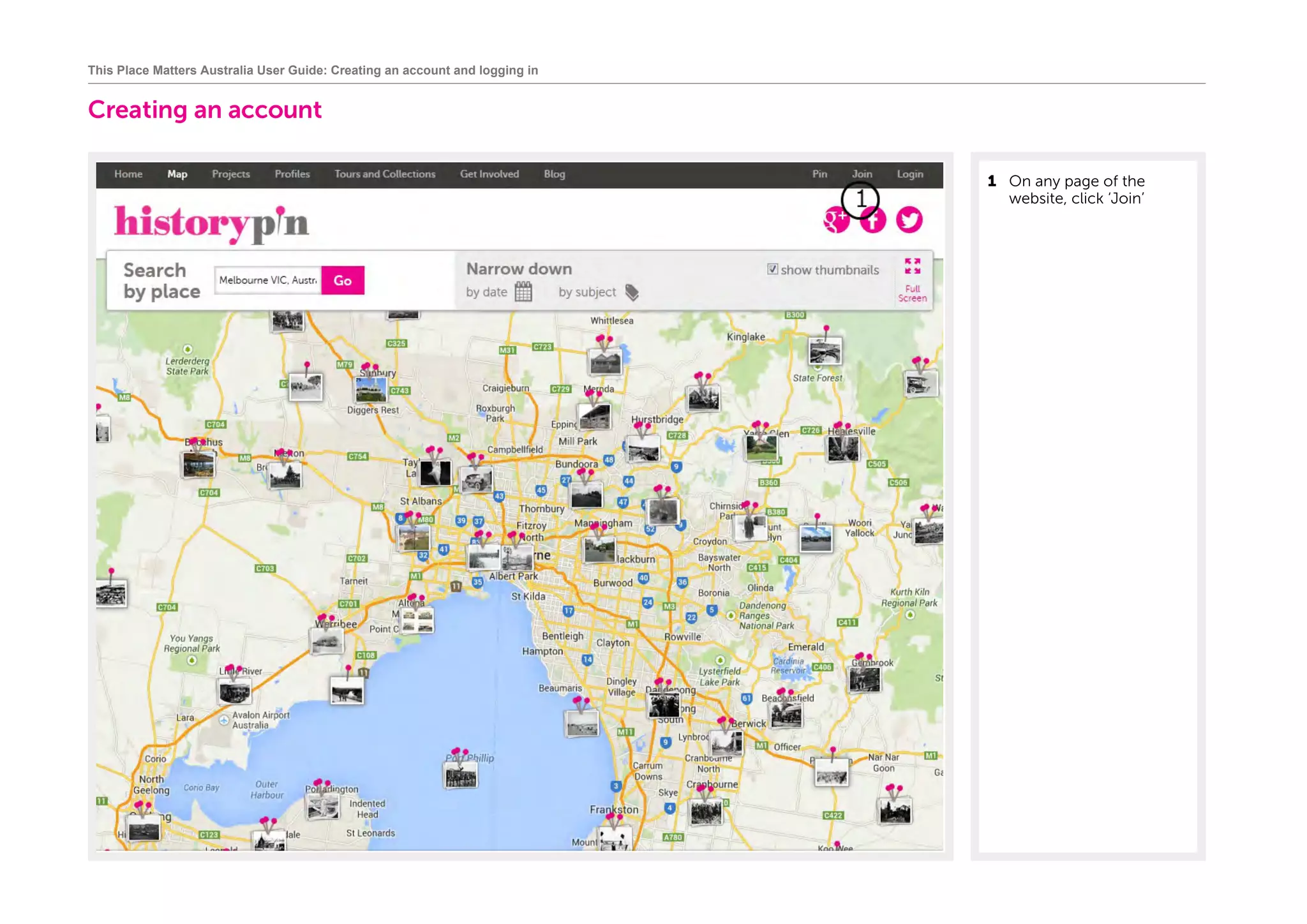
Creating an account
1	 On any page of the
website, click ‘Join’
Creating an account
	
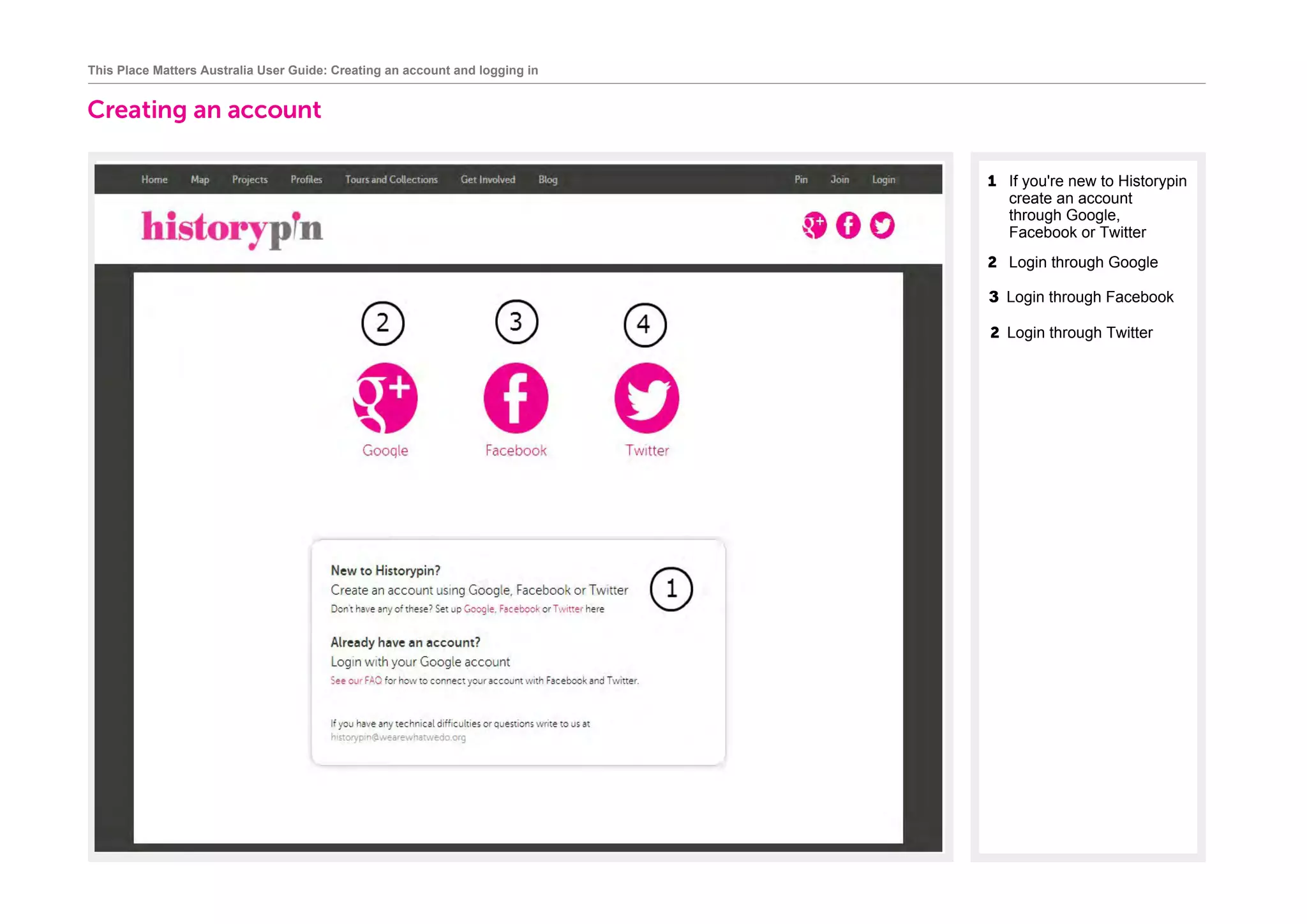
1 If you're new to Historypin
create an account
through Google,
Facebook or Twitter	
2 Login through Google
This Place Matters Australia User Guide: Creating an account and logging in
3 Login through Facebook
2 Login through Twitter
Creating an account
		
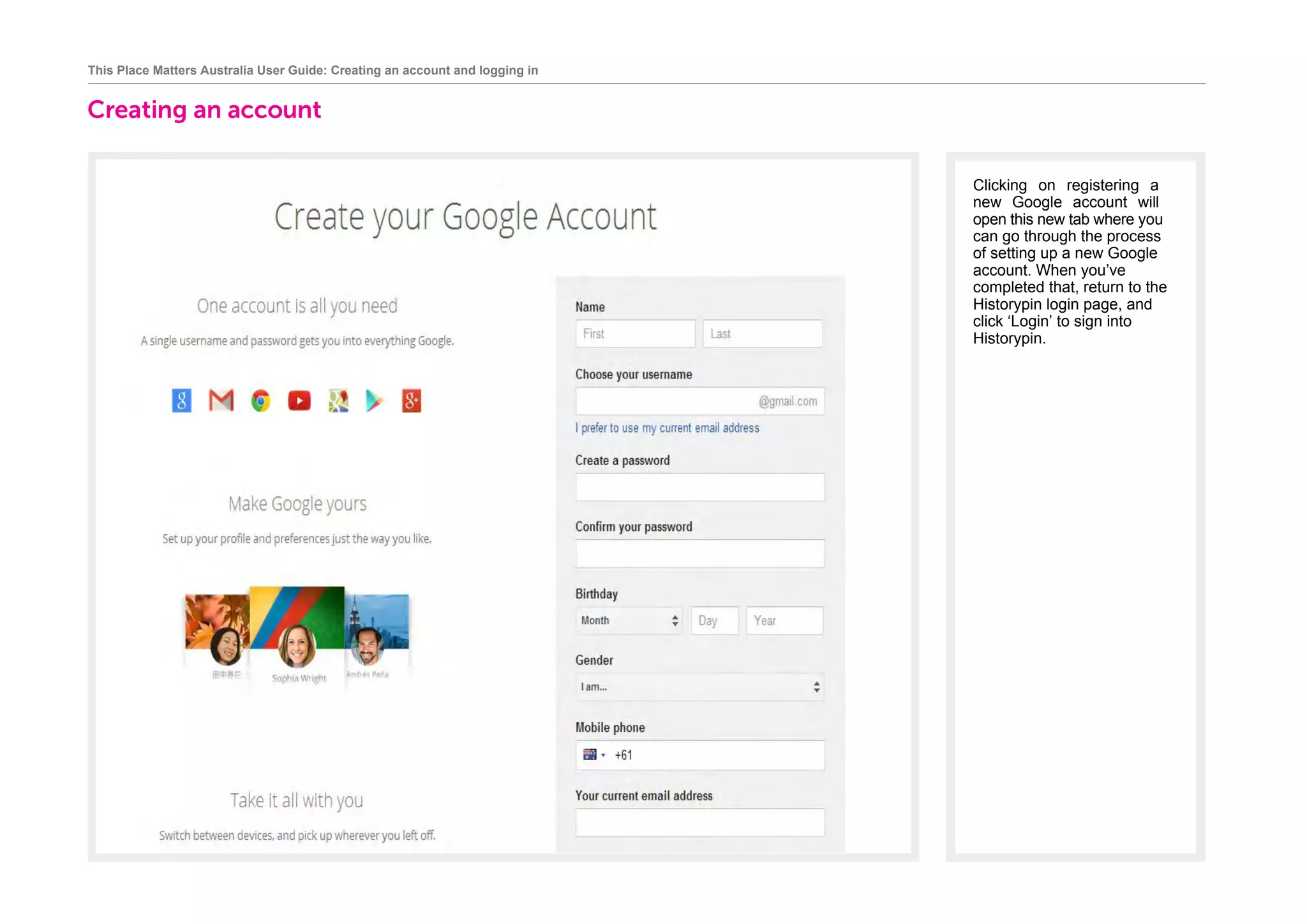
Clicking on registering a
new Google account will
open this new tab where you
can go through the process
of setting up a new Google
account. When you’ve
completed that, return to the
Historypin login page, and
click ‘Login’ to sign into
Historypin.
This Place Matters Australia User Guide: Creating an account and logging in
Creating an account
		
This Place Matters Australia User Guide: Creating an account and logging in
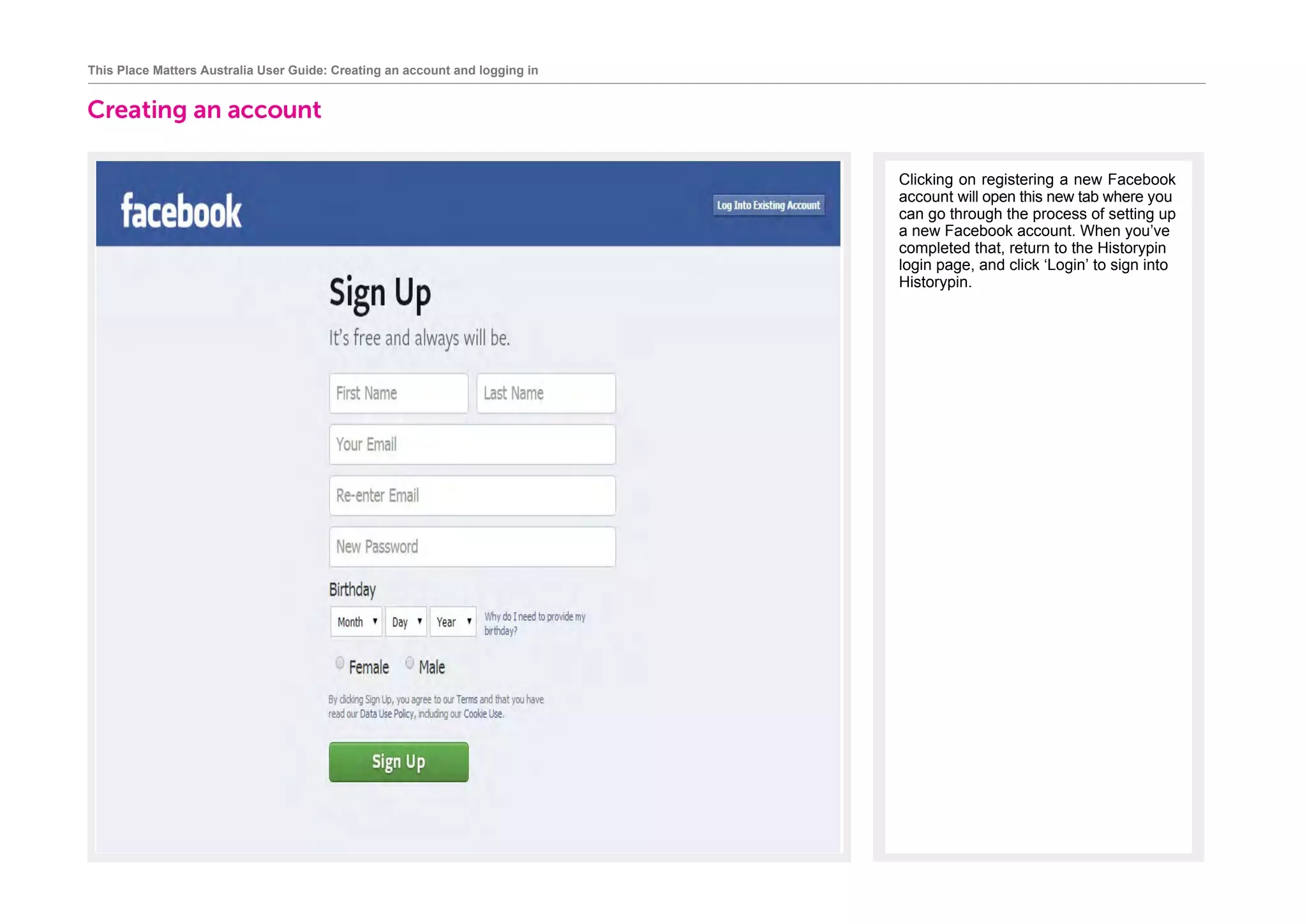
Clicking on registering a new Facebook
account will open this new tab where you
can go through the process of setting up
a new Facebook account. When you’ve
completed that, return to the Historypin
login page, and click ‘Login’ to sign into
Historypin.
Creating an account
		
This Place Matters Australia User Guide: Creating an account and logging in
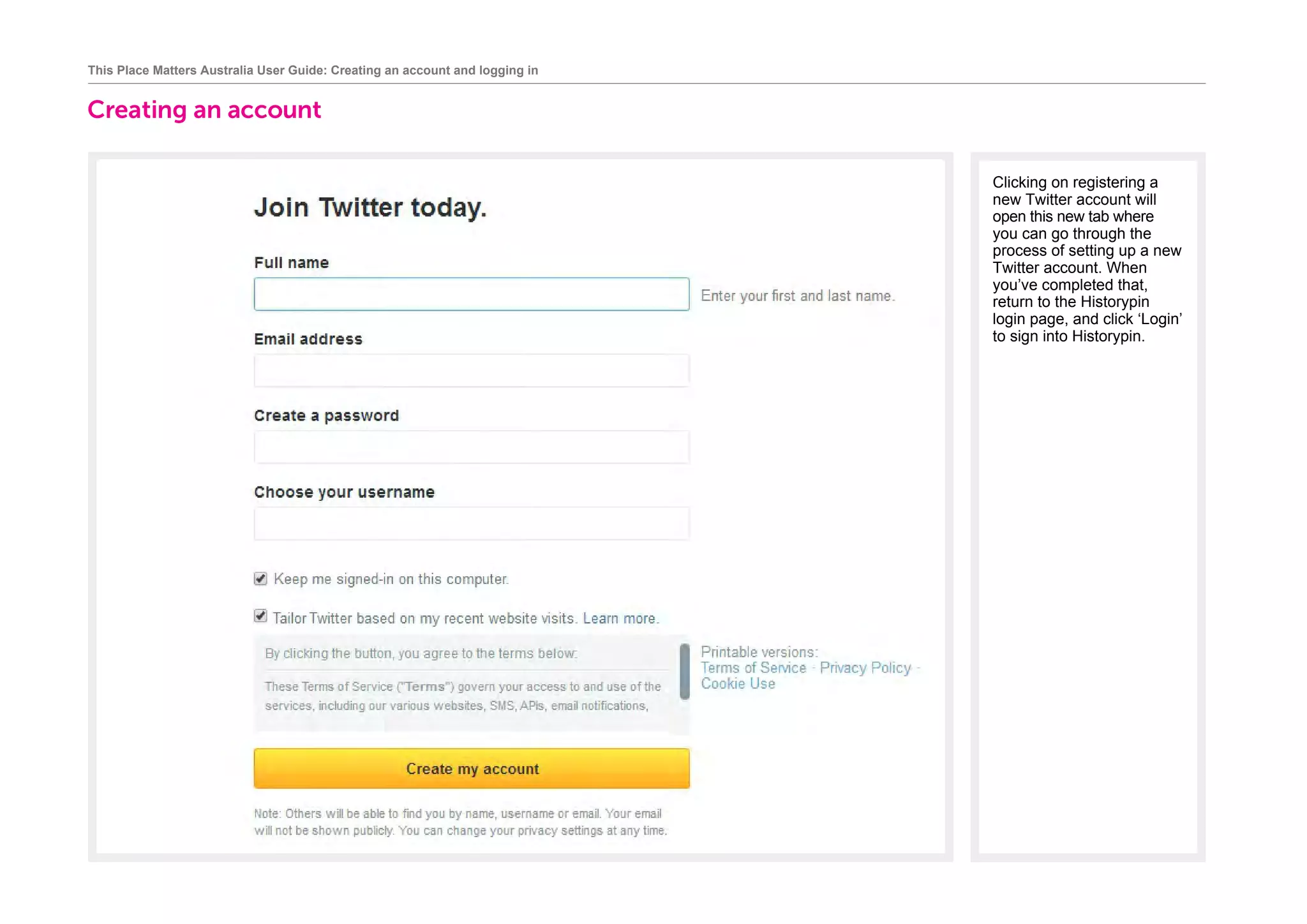
Clicking on registering a
new Twitter account will
open this new tab where
you can go through the
process of setting up a new
Twitter account. When
you’ve completed that,
return to the Historypin
login page, and click ‘Login’
to sign into Historypin.
Logging in
		
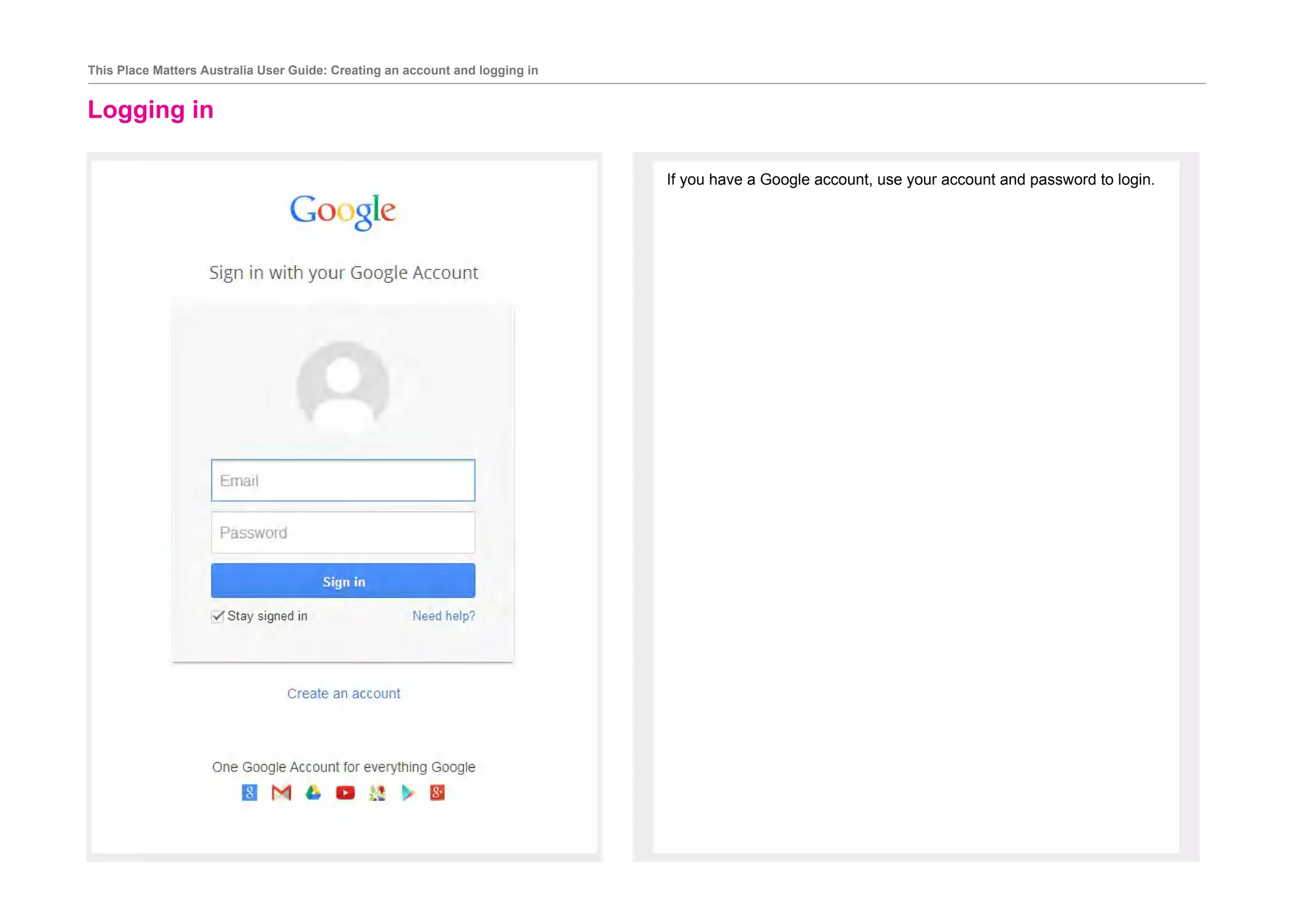
If you have a Google account, use your account and password to login.
This Place Matters Australia User Guide: Creating an account and logging in
Logging in
		
This Place Matters Australia User Guide: Creating an account and logging in
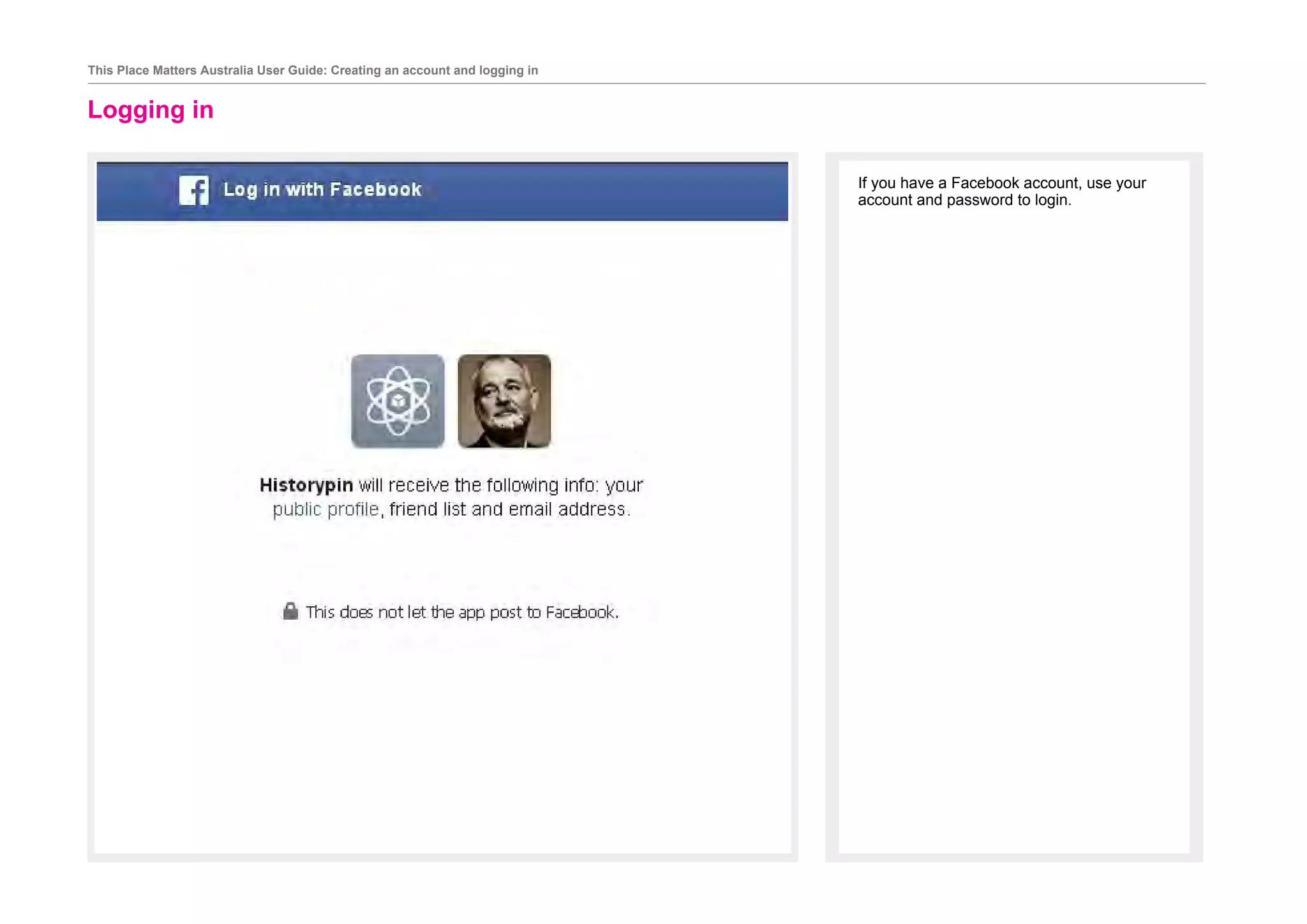
If you have a Facebook account, use your
account and password to login.
Logging in
		
This Place Matters Australia User Guide: Creating an account and logging in
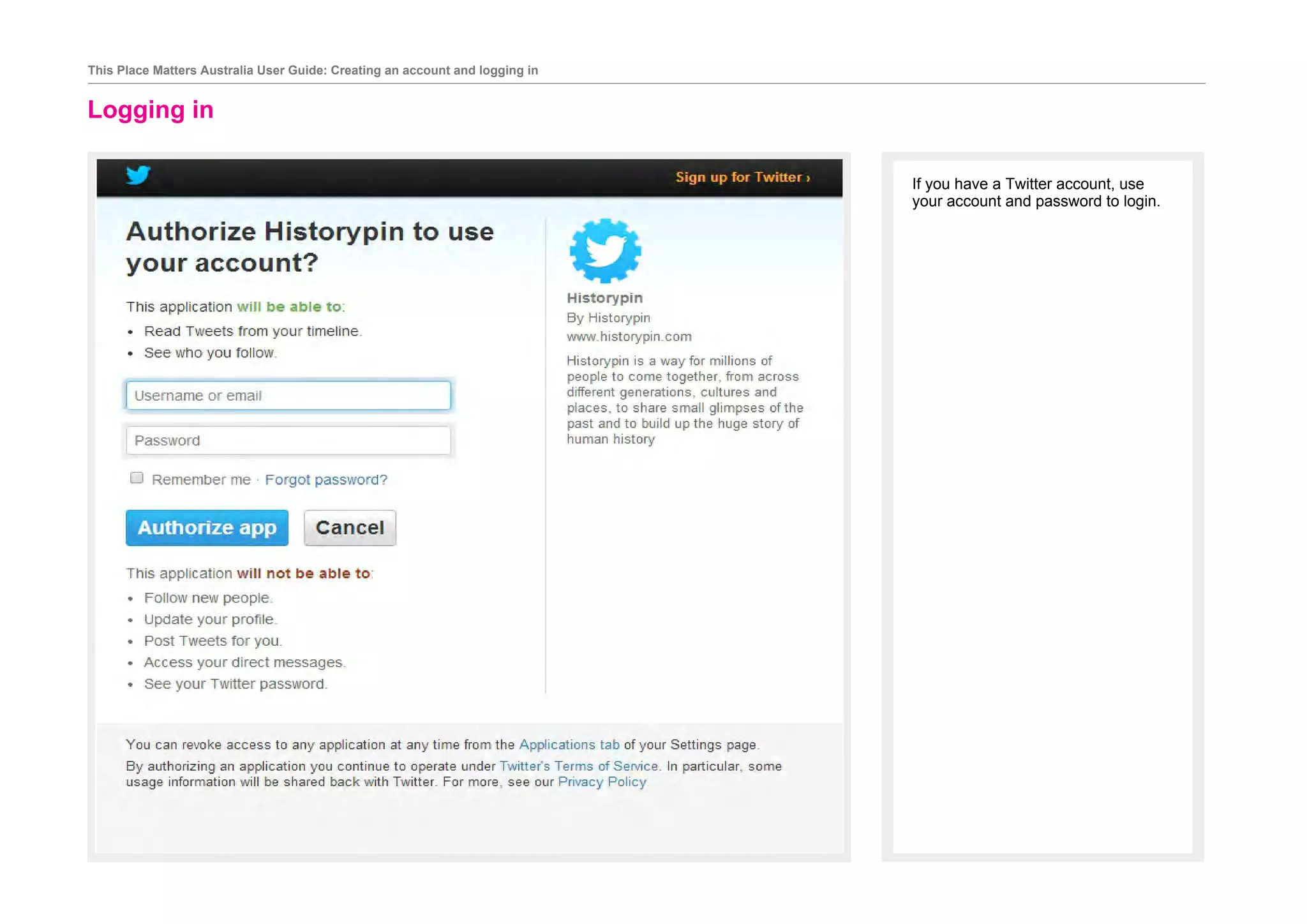
If you have a Twitter account, use
your account and password to login.
Projects
Exploring the projects
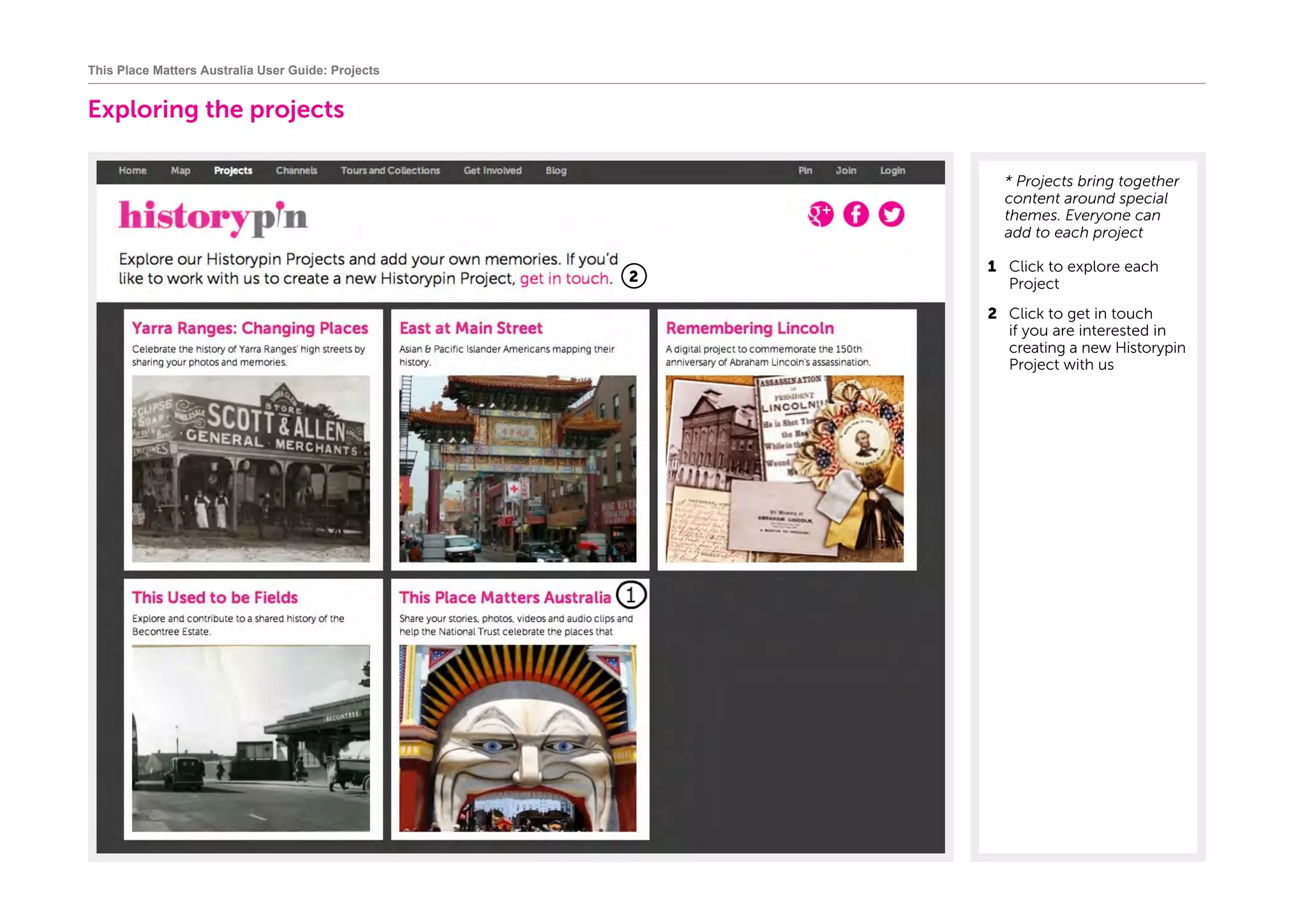
	* Projects bring together
content around special
themes. Everyone can
add to each project
1	 Click to explore each
Project
2	 Click to get in touch
if you are interested in
creating a new Historypin
Project with us
This Place Matters Australia User Guide: Projects
1
2
Exploring the projects		
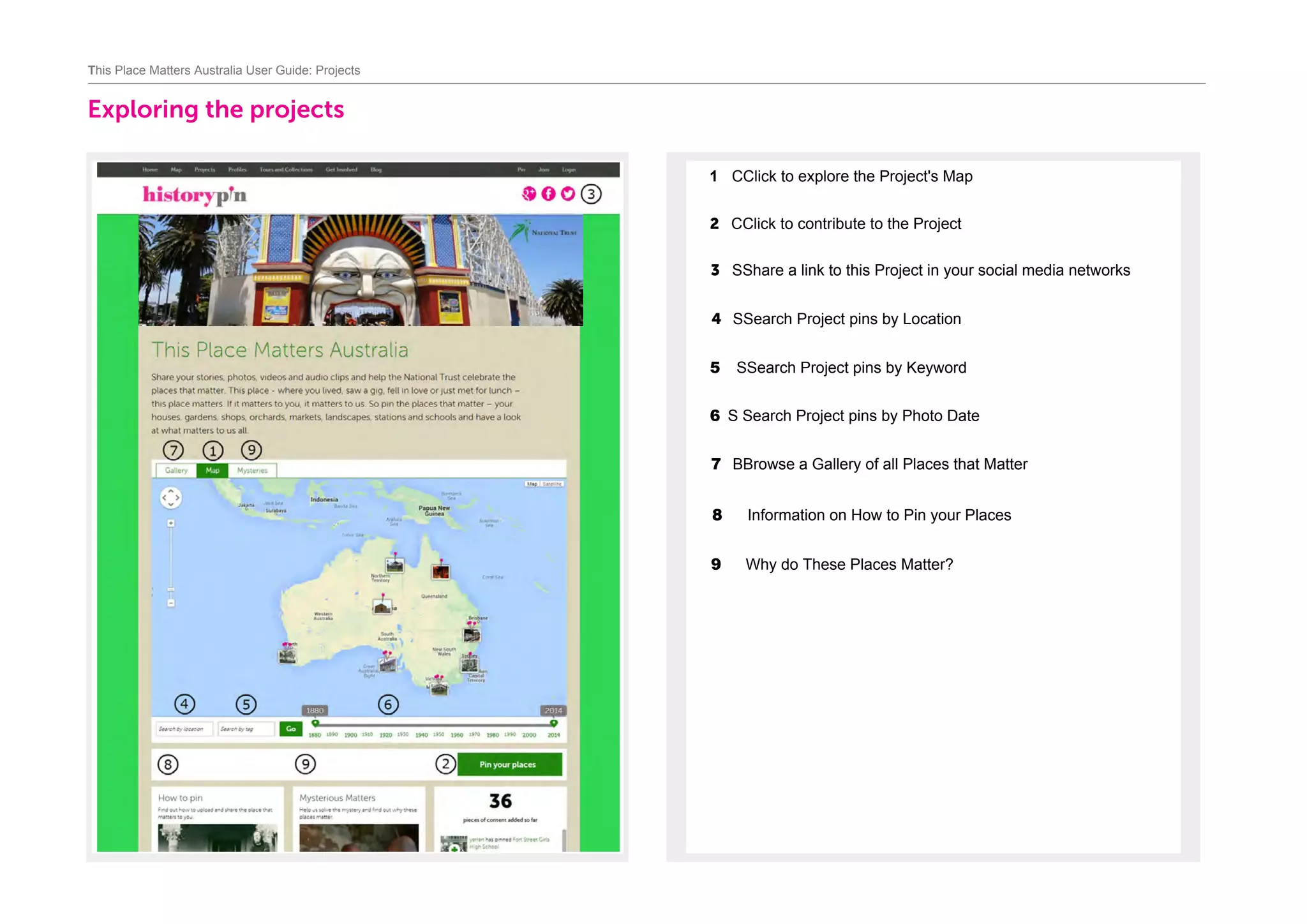
1 CClick to explore the Project's Map	
2 CClick to contribute to the Project	
3 SShare a link to this Project in your social media networks	
4 SSearch Project pins by Location
This Place Matters Australia User Guide: Projects
5 SSearch Project pins by Keyword
6 S Search Project pins by Photo Date
7 BBrowse a Gallery of all Places that Matter
8 Information on How to Pin your Places
9 Why do These Places Matter?
Pinning
This Place Matters Australia User Guide: Pinning
Pinning
	
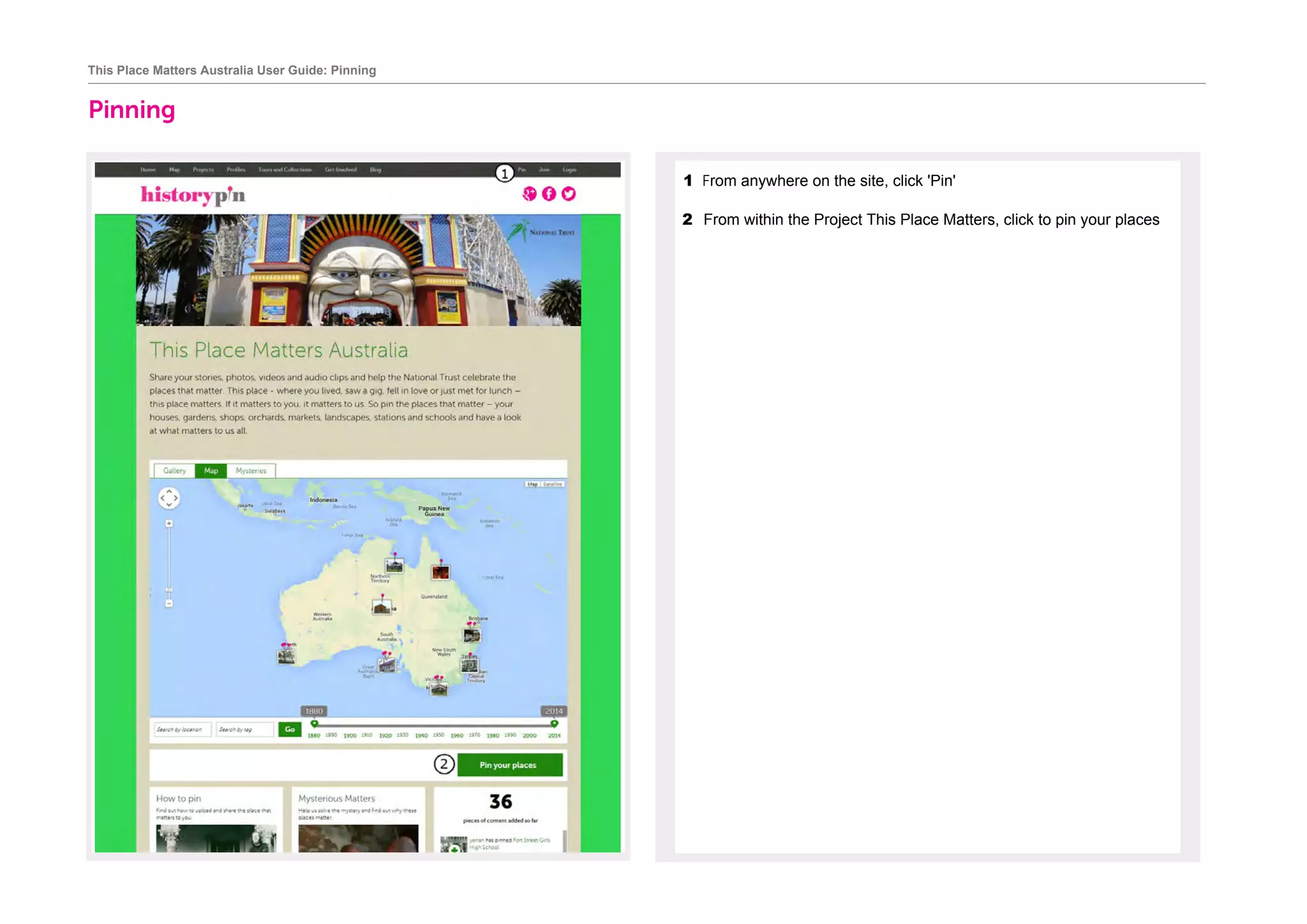
1 From anywhere on the site, click 'Pin'
2 From within the Project This Place Matters, click to pin your places
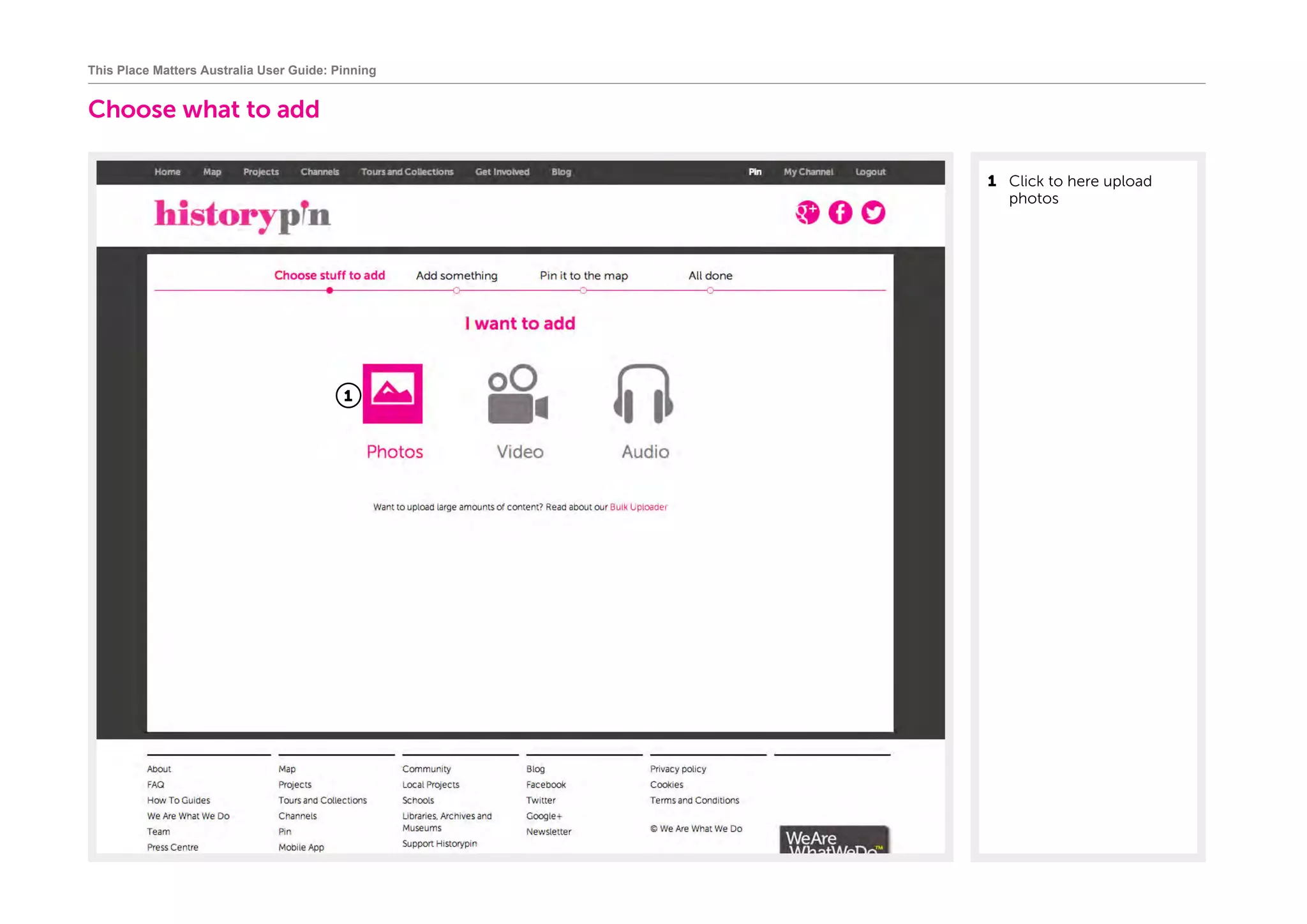
Choose what to add
1	 Click to here upload
photos
This Place Matters Australia User Guide: Pinning
1
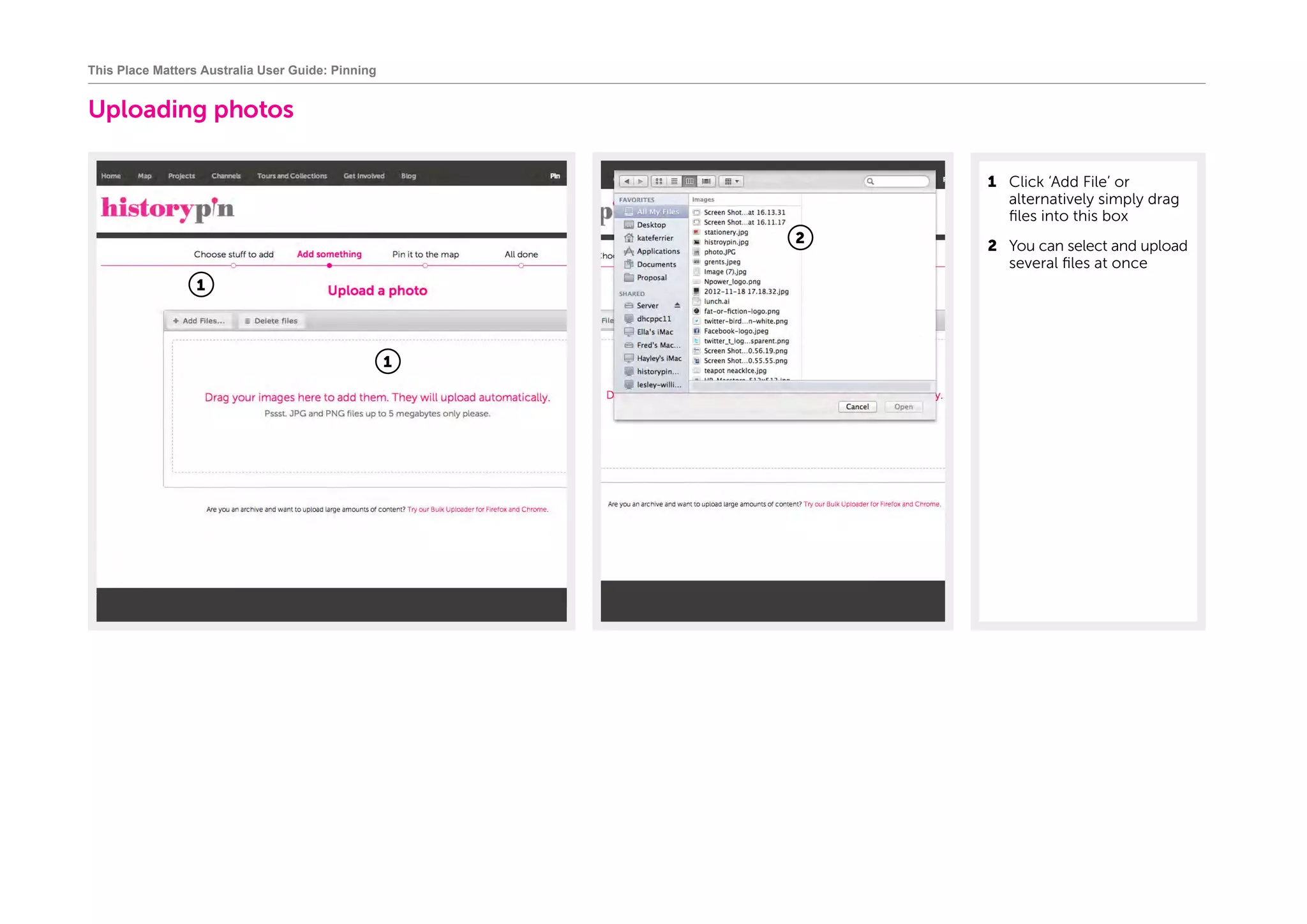
Uploading photos
1	 Click ‘Add File’ or
alternatively simply drag
files into this box
2	 You can select and upload
several files at once
This Place Matters Australia User Guide: Pinning
1
1
2
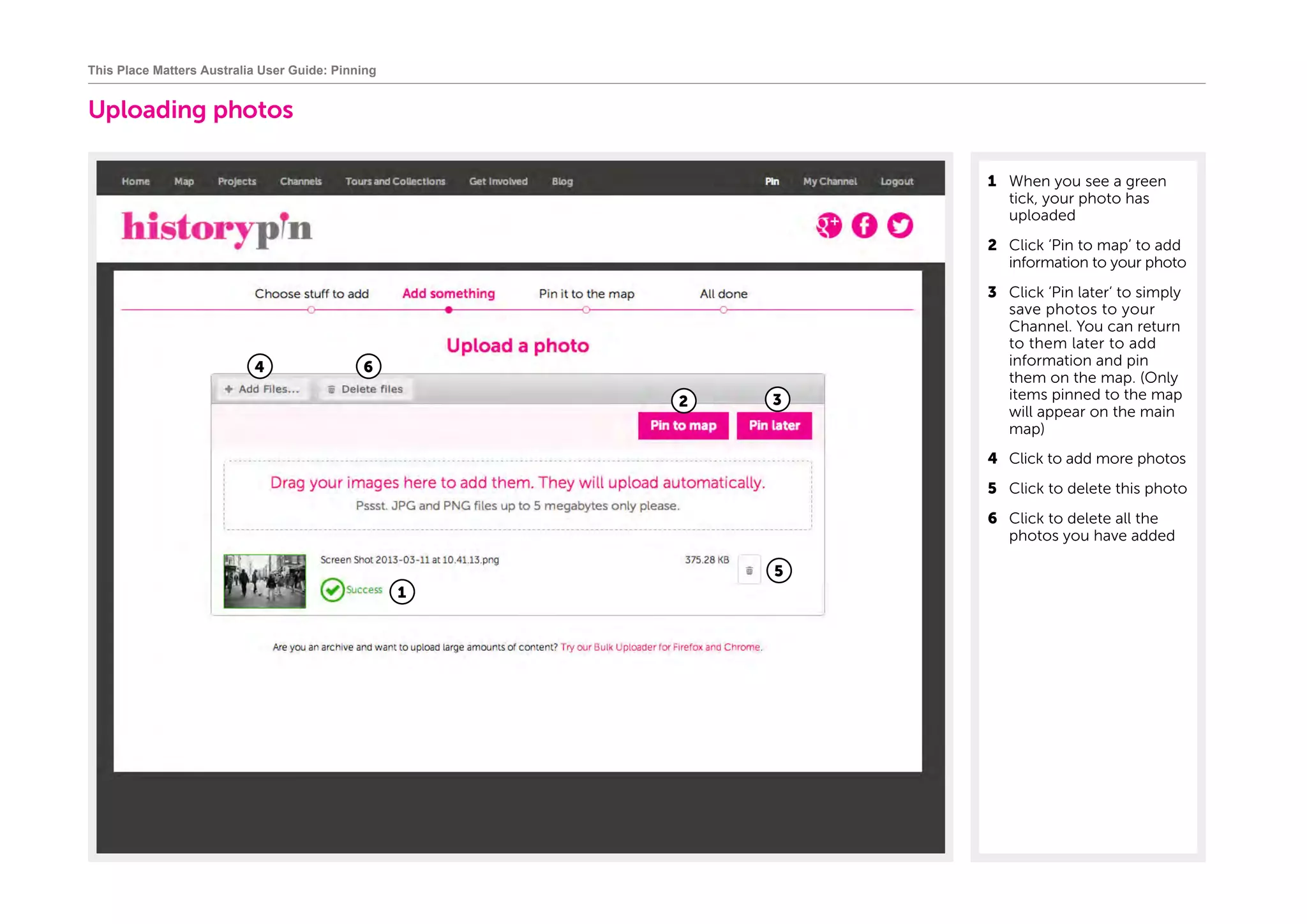
Uploading photos
1	 When you see a green
tick, your photo has
uploaded
2	 Click ‘Pin to map’ to add
information to your photo
3	 Click ‘Pin later‘ to simply
save photos to your
Channel. You can return
to them later to add
information and pin
them on the map. (Only
items pinned to the map
will appear on the main
map)
4	 Click to add more photos
5	 Click to delete this photo
6	 Click to delete all the
photos you have added
This Place Matters Australia User Guide: Pinning
1
2
4 6
5
3
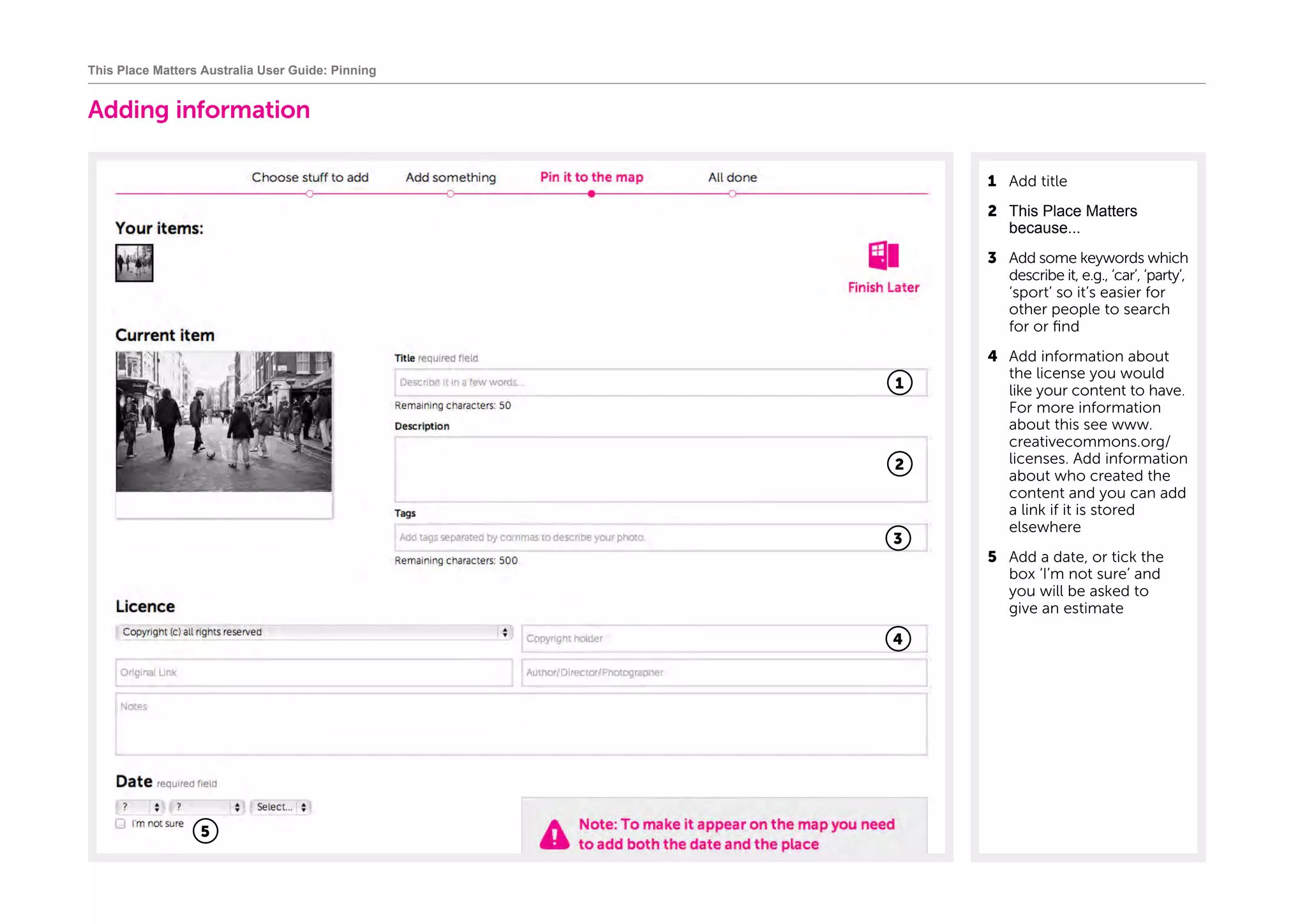
Adding information
1	 Add title	
2 This Place Matters
because...
3	 Add some keywords which
describe it, e.g., ‘car’, ‘party’,
‘sport’ so it’s easier for
other people to search
for or find
4	 Add information about
the license you would
like your content to have.
For more information
about this see www.
creativecommons.org/
licenses. Add information
about who created the
content and you can add
a link if it is stored
elsewhere
5	 Add a date, or tick the
box ‘I’m not sure’ and
you will be asked to
give an estimate
This Place Matters Australia User Guide: Pinning
1
3
4
2
5
Adding information
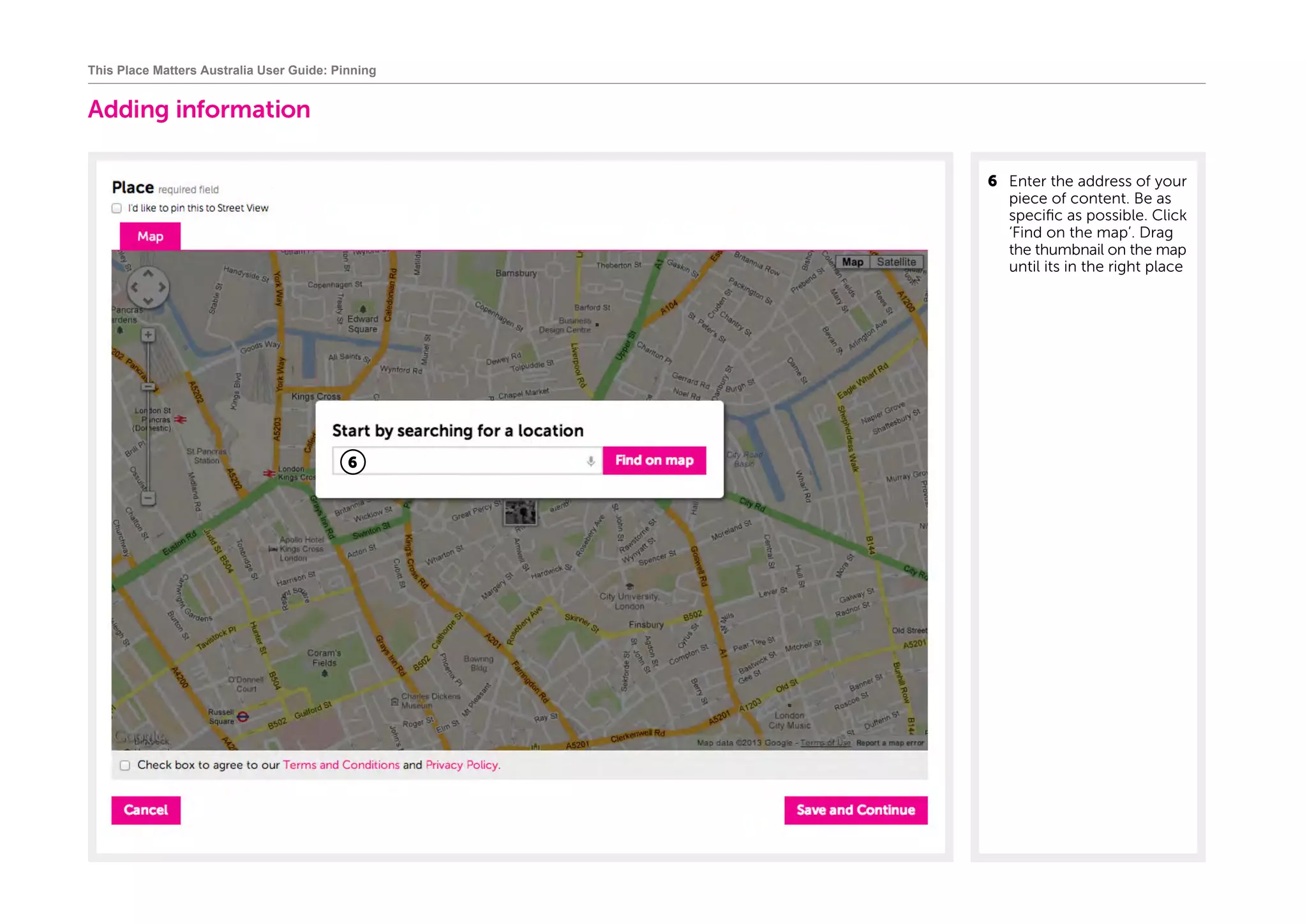
6	 Enter the address of your
piece of content. Be as
specific as possible. Click
‘Find on the map’. Drag
the thumbnail on the map
until its in the right place
This Place Matters Australia User Guide: Pinning
6
Adding information
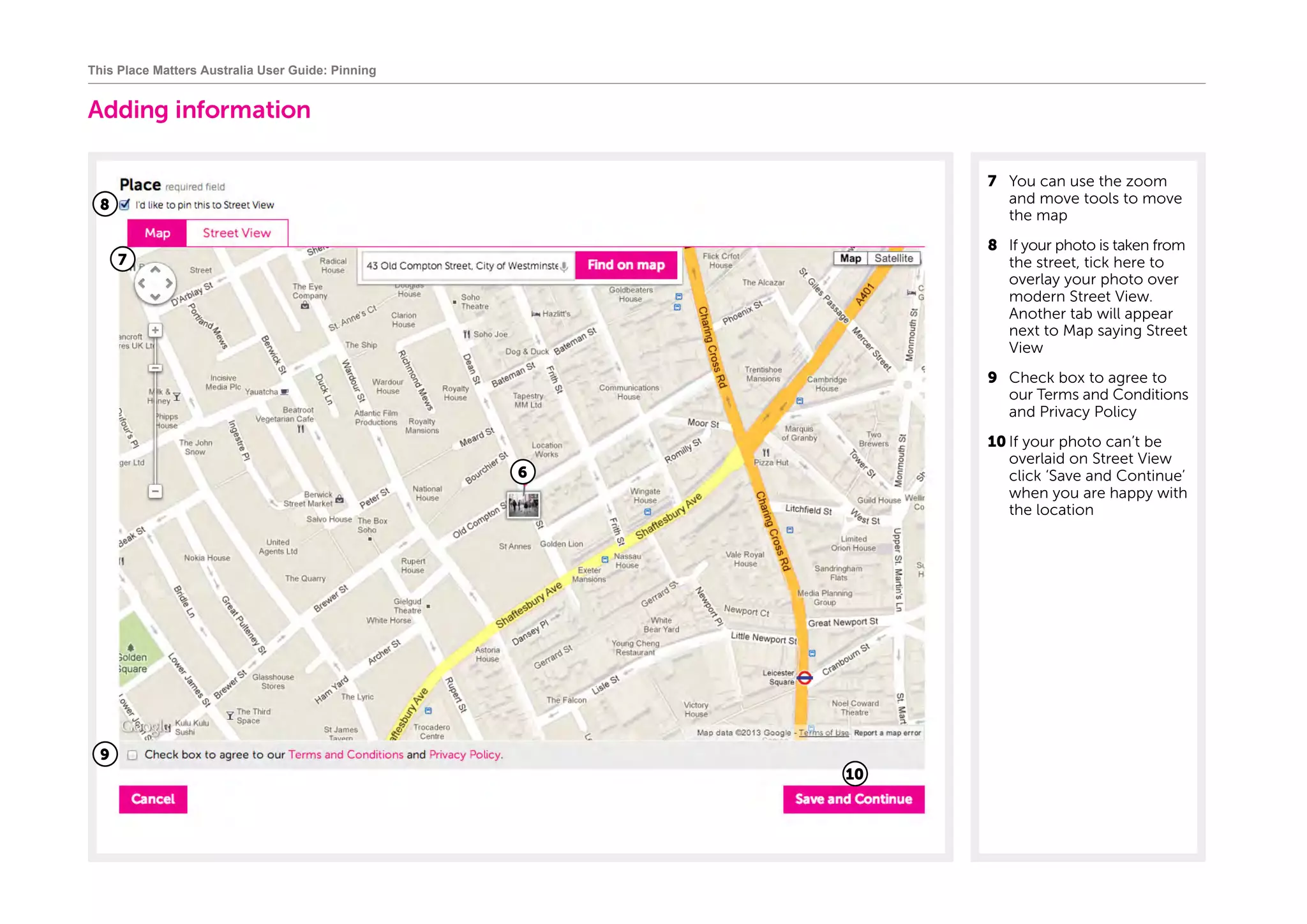
7	 You can use the zoom
and move tools to move
the map
8	 If your photo is taken from
the street, tick here to
overlay your photo over
modern Street View.
Another tab will appear
next to Map saying Street
View
9	 Check box to agree to
our Terms and Conditions
and Privacy Policy
10	If your photo can’t be
overlaid on Street View
click ‘Save and Continue’
when you are happy with
the location
This Place Matters Australia User Guide: Pinning
8
7
6
9
10
Overlaying on Street View
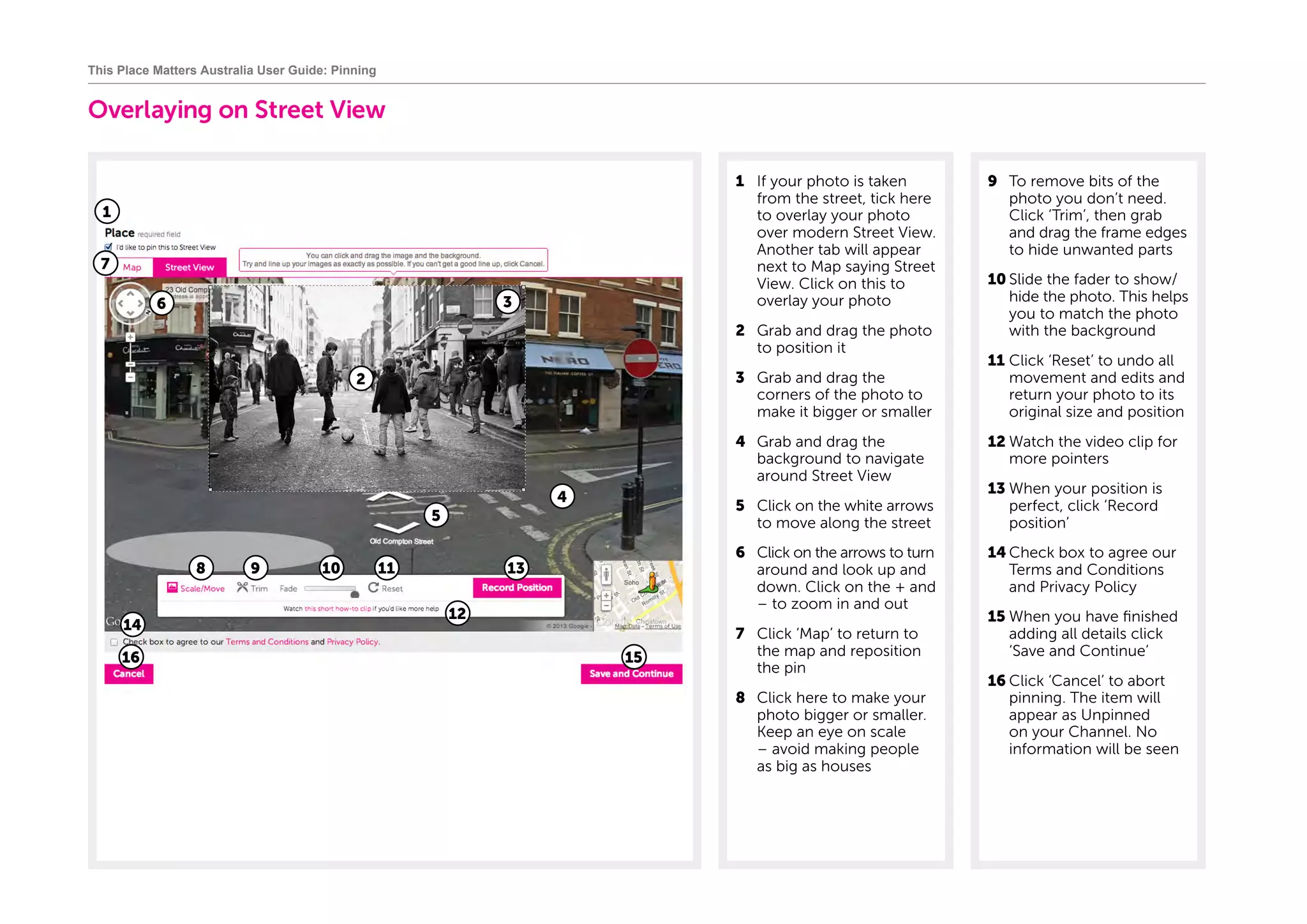
1	 If your photo is taken
from the street, tick here
to overlay your photo
over modern Street View.
Another tab will appear
next to Map saying Street
View. Click on this to
overlay your photo
2	 Grab and drag the photo
to position it
3	 Grab and drag the
corners of the photo to
make it bigger or smaller
4	 Grab and drag the
background to navigate
around Street View
5	 Click on the white arrows
to move along the street
6	 Click on the arrows to turn
around and look up and
down. Click on the + and
– to zoom in and out
7	 Click ‘Map’ to return to
the map and reposition
the pin
8	 Click here to make your
photo bigger or smaller.
Keep an eye on scale
– avoid making people
as big as houses
9	 To remove bits of the
photo you don’t need.
Click ‘Trim’, then grab
and drag the frame edges
to hide unwanted parts
10	Slide the fader to show/
hide the photo. This helps
you to match the photo
with the background
11	Click ‘Reset’ to undo all
movement and edits and
return your photo to its
original size and position
12	Watch the video clip for
more pointers
13	When your position is
perfect, click ‘Record
position’
14	Check box to agree our
Terms and Conditions
and Privacy Policy
15	When you have finished
adding all details click
‘Save and Continue’
16	Click ‘Cancel’ to abort
pinning. The item will
appear as Unpinned
on your Channel. No
information will be seen
This Place Matters Australia User Guide: Pinning
1
3
5
4
6
8 9 10 11
7
1516
14
2
13
12
Pinning video or audio
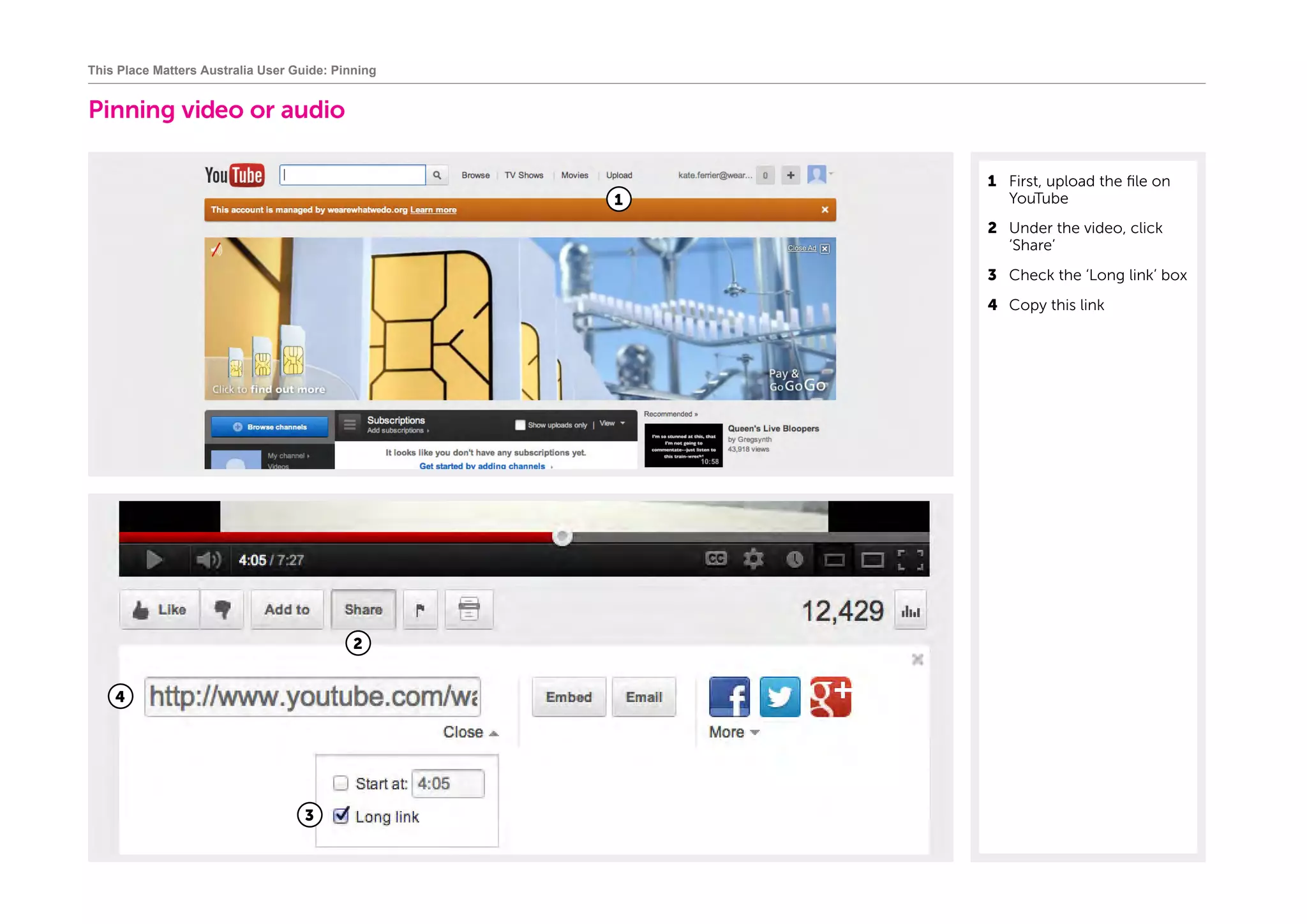
1	 First, upload the file on
YouTube
2	 Under the video, click
‘Share’
3	 Check the ‘Long link’ box
4	 Copy this link
This Place Matters Australia User Guide: Pinning
2
1
3
4
Pinning video or audio
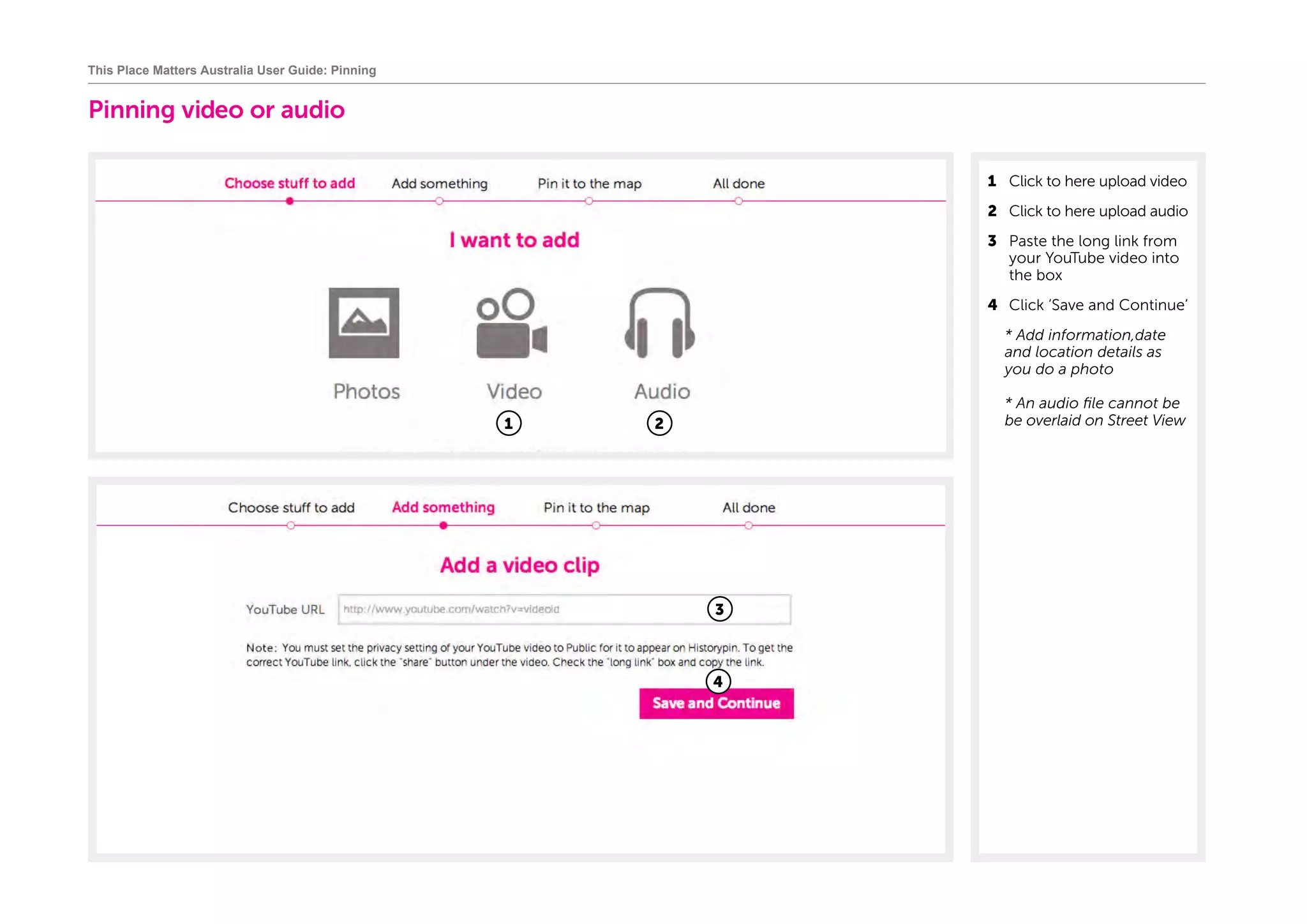
1	 Click to here upload video
2	 Click to here upload audio
3	 Paste the long link from
your YouTube video into
the box
4	 Click ‘Save and Continue’
	* Add information,date
and location details as
you do a photo
	* An audio file cannot be
be overlaid on Street View
This Place Matters Australia User Guide: Pinning
3
1
4
2
All done
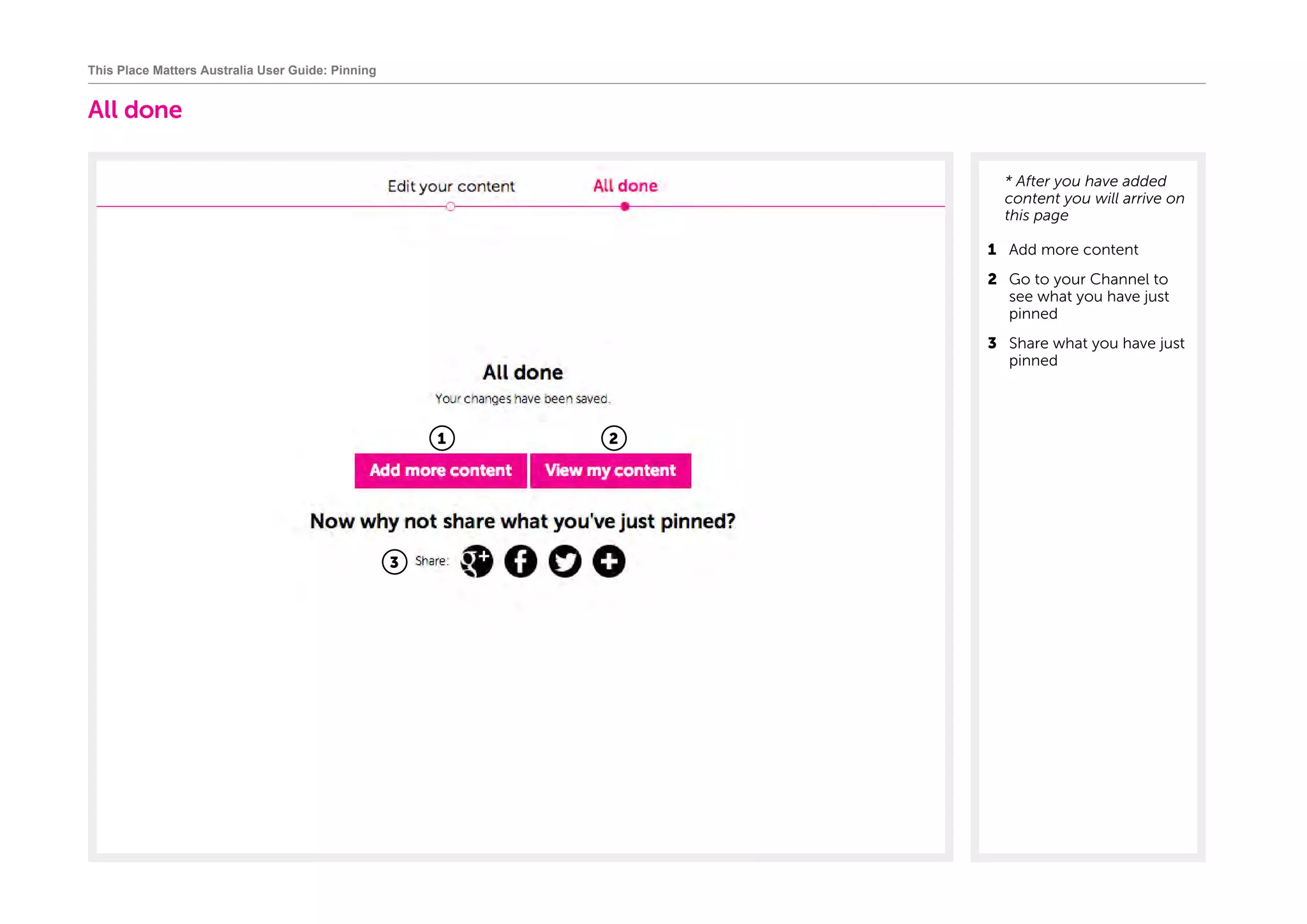
	* After you have added
content you will arrive on
this page
1	 Add more content
2	 Go to your Channel to
see what you have just
pinned
3	 Share what you have just
pinned
This Place Matters Australia User Guide: Pinning
1 2
3

This place matters australia user guide web

  • 1.
    This Place MattersAustralia User Guide www.historypin.com/project/61-this-place-matters
  • 2.
    This Place MattersAustralia: About the Project About the Project Share your stories, photos, videos and audio clips and help the National Trust celebrate the Places That Matter! All members of the community are invited to pin their stories, photos, videos and audio clips of places that matter to them. As long as the place currently exists, we want any information on why it matters. Anything matters to us if it does to you - it can be because you grew up there, were kissed for the first time there, or just believe the place is important historically or culturally. So pin the places that matter – your houses, gardens, shops, orchards, markets, landscapes, stations and schools and have a look at what matters to us all. To Pin the Places That Matter to you, or to comment on Places that Matter to others, just use this Guide... Creating a Historypin account and logging in You can log in through your Google, Twitter or Facebook accounts. Don't have an account? Let us help you set one up! Exploring Projects What is a Project and how do I use them? How to pin your Places That Matter So, pin your place through the This Place Matters Australia project www.historypin.com/project/61-this-place-matters and in the photo/video/audio description tell us ‘This Place Matters because…' About our History Mysteries These Places Matter but we need some help finding out why. Is it because of who lived here or what happened here? See if you can answer our questions and share these fascinating with everyone. Just view the History Mysteries on the This Place Matters Australia project www.historypin.com/project/61-this-place-matters/mysteries/index/ This Place Matters Australia is a National Trusts of Australia Project The National Trust is an independent, not-for-profit organisation and the premier heritage and conservation organisation in Australia. Since 1945 we have been actively working towards conserving and protecting our heritage for future generations of the community to enjoy. The National Trust’s mission is to inspire the community to appreciate, conserve and celebrate its natural, cultural and Indigenous heritage.
  • 3.
    Creating an accountand logging in
  • 4.
    This Place MattersAustralia User Guide: Creating an account and logging in Creating an account 1 On any page of the website, click ‘Join’
  • 5.
    Creating an account 1If you're new to Historypin create an account through Google, Facebook or Twitter 2 Login through Google This Place Matters Australia User Guide: Creating an account and logging in 3 Login through Facebook 2 Login through Twitter
  • 6.
    Creating an account Clickingon registering a new Google account will open this new tab where you can go through the process of setting up a new Google account. When you’ve completed that, return to the Historypin login page, and click ‘Login’ to sign into Historypin. This Place Matters Australia User Guide: Creating an account and logging in
  • 7.
    Creating an account ThisPlace Matters Australia User Guide: Creating an account and logging in Clicking on registering a new Facebook account will open this new tab where you can go through the process of setting up a new Facebook account. When you’ve completed that, return to the Historypin login page, and click ‘Login’ to sign into Historypin.
  • 8.
    Creating an account ThisPlace Matters Australia User Guide: Creating an account and logging in Clicking on registering a new Twitter account will open this new tab where you can go through the process of setting up a new Twitter account. When you’ve completed that, return to the Historypin login page, and click ‘Login’ to sign into Historypin.
  • 9.
    Logging in If youhave a Google account, use your account and password to login. This Place Matters Australia User Guide: Creating an account and logging in
  • 10.
    Logging in This PlaceMatters Australia User Guide: Creating an account and logging in If you have a Facebook account, use your account and password to login.
  • 11.
    Logging in This PlaceMatters Australia User Guide: Creating an account and logging in If you have a Twitter account, use your account and password to login.
  • 12.
  • 13.
    Exploring the projects *Projects bring together content around special themes. Everyone can add to each project 1 Click to explore each Project 2 Click to get in touch if you are interested in creating a new Historypin Project with us This Place Matters Australia User Guide: Projects 1 2
  • 14.
    Exploring the projects 1CClick to explore the Project's Map 2 CClick to contribute to the Project 3 SShare a link to this Project in your social media networks 4 SSearch Project pins by Location This Place Matters Australia User Guide: Projects 5 SSearch Project pins by Keyword 6 S Search Project pins by Photo Date 7 BBrowse a Gallery of all Places that Matter 8 Information on How to Pin your Places 9 Why do These Places Matter?
  • 15.
  • 16.
    This Place MattersAustralia User Guide: Pinning Pinning 1 From anywhere on the site, click 'Pin' 2 From within the Project This Place Matters, click to pin your places
  • 17.
    Choose what toadd 1 Click to here upload photos This Place Matters Australia User Guide: Pinning 1
  • 18.
    Uploading photos 1 Click‘Add File’ or alternatively simply drag files into this box 2 You can select and upload several files at once This Place Matters Australia User Guide: Pinning 1 1 2
  • 19.
    Uploading photos 1 Whenyou see a green tick, your photo has uploaded 2 Click ‘Pin to map’ to add information to your photo 3 Click ‘Pin later‘ to simply save photos to your Channel. You can return to them later to add information and pin them on the map. (Only items pinned to the map will appear on the main map) 4 Click to add more photos 5 Click to delete this photo 6 Click to delete all the photos you have added This Place Matters Australia User Guide: Pinning 1 2 4 6 5 3
  • 20.
    Adding information 1 Addtitle 2 This Place Matters because... 3 Add some keywords which describe it, e.g., ‘car’, ‘party’, ‘sport’ so it’s easier for other people to search for or find 4 Add information about the license you would like your content to have. For more information about this see www. creativecommons.org/ licenses. Add information about who created the content and you can add a link if it is stored elsewhere 5 Add a date, or tick the box ‘I’m not sure’ and you will be asked to give an estimate This Place Matters Australia User Guide: Pinning 1 3 4 2 5
  • 21.
    Adding information 6 Enterthe address of your piece of content. Be as specific as possible. Click ‘Find on the map’. Drag the thumbnail on the map until its in the right place This Place Matters Australia User Guide: Pinning 6
  • 22.
    Adding information 7 Youcan use the zoom and move tools to move the map 8 If your photo is taken from the street, tick here to overlay your photo over modern Street View. Another tab will appear next to Map saying Street View 9 Check box to agree to our Terms and Conditions and Privacy Policy 10 If your photo can’t be overlaid on Street View click ‘Save and Continue’ when you are happy with the location This Place Matters Australia User Guide: Pinning 8 7 6 9 10
  • 23.
    Overlaying on StreetView 1 If your photo is taken from the street, tick here to overlay your photo over modern Street View. Another tab will appear next to Map saying Street View. Click on this to overlay your photo 2 Grab and drag the photo to position it 3 Grab and drag the corners of the photo to make it bigger or smaller 4 Grab and drag the background to navigate around Street View 5 Click on the white arrows to move along the street 6 Click on the arrows to turn around and look up and down. Click on the + and – to zoom in and out 7 Click ‘Map’ to return to the map and reposition the pin 8 Click here to make your photo bigger or smaller. Keep an eye on scale – avoid making people as big as houses 9 To remove bits of the photo you don’t need. Click ‘Trim’, then grab and drag the frame edges to hide unwanted parts 10 Slide the fader to show/ hide the photo. This helps you to match the photo with the background 11 Click ‘Reset’ to undo all movement and edits and return your photo to its original size and position 12 Watch the video clip for more pointers 13 When your position is perfect, click ‘Record position’ 14 Check box to agree our Terms and Conditions and Privacy Policy 15 When you have finished adding all details click ‘Save and Continue’ 16 Click ‘Cancel’ to abort pinning. The item will appear as Unpinned on your Channel. No information will be seen This Place Matters Australia User Guide: Pinning 1 3 5 4 6 8 9 10 11 7 1516 14 2 13 12
  • 24.
    Pinning video oraudio 1 First, upload the file on YouTube 2 Under the video, click ‘Share’ 3 Check the ‘Long link’ box 4 Copy this link This Place Matters Australia User Guide: Pinning 2 1 3 4
  • 25.
    Pinning video oraudio 1 Click to here upload video 2 Click to here upload audio 3 Paste the long link from your YouTube video into the box 4 Click ‘Save and Continue’ * Add information,date and location details as you do a photo * An audio file cannot be be overlaid on Street View This Place Matters Australia User Guide: Pinning 3 1 4 2
  • 26.
    All done * Afteryou have added content you will arrive on this page 1 Add more content 2 Go to your Channel to see what you have just pinned 3 Share what you have just pinned This Place Matters Australia User Guide: Pinning 1 2 3