Social Marketing that Performs
Fast Guide to Dominate CSS
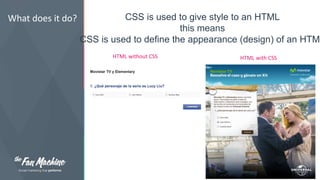
What does it do? CSS is used to give style to an HTML 
this means 
CSS is used to define the appearance (design) of an HTML 
HTML without CSS HTML with CSS
How does it work? 
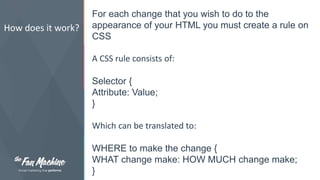
For each change that you wish to do to the 
appearance of your HTML you must create a rule on 
CSS 
A CSS rule consists of: 
Selector { 
Attribute: Value; 
} 
Which can be translated to: 
WHERE to make the change { 
WHAT change make: HOW MUCH change make; 
}
Components 
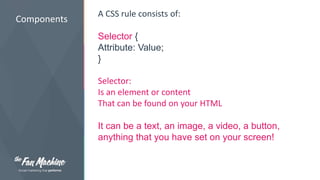
A CSS rule consists of: 
Selector { 
Attribute: Value; 
} 
Selector: 
Is an element or content 
That can be found on your HTML 
It can be a text, an image, a video, a button, 
anything that you have set on your screen!
Components 
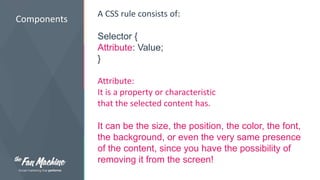
A CSS rule consists of: 
Selector { 
Attribute: Value; 
} 
Attribute: 
It is a property or characteristic 
that the selected content has. 
It can be the size, the position, the color, the font, 
the background, or even the very same presence 
of the content, since you have the possibility of 
removing it from the screen!
Components 
A CSS rule consists of: 
Selector { 
Attribute: Value; 
} 
Value: 
Is the meassure in which a value is specified. 
This definition can be expressed as a 
percentage, an amount of pixels, a hexadecimal 
combination, a url, or any otherone depending on 
which was the selected attribute.
How do I apply it 
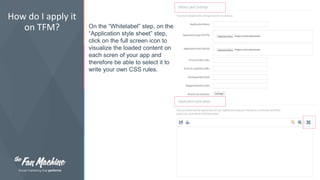
on TFM? On the “Whitelabel” step, on the 
“Application style sheet” step, 
click on the full screen icon to 
visualize the loaded content on 
each scren of your app and 
therefore be able to select it to 
write your own CSS rules.
How do I apply it 
on TFM? 
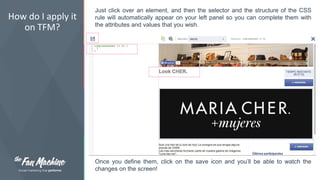
Just click over an element, and then the selector and the structure of the CSS 
rule will automatically appear on your left panel so you can complete them with 
the attributes and values that you wish. 
Once you define them, click on the save icon and you’ll be able to watch the 
changes on the screen!
Some Examples
Examples To remove a content: 
Selector { 
Display: none; 
} 
Attention: 
When applying this change all the content that 
was written under the deleted selector will be 
moved upwards.
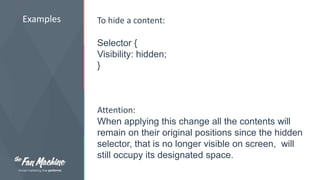
Examples To hide a content: 
Selector { 
Visibility: hidden; 
} 
Attention: 
When applying this change all the contents will 
remain on their original positions since the hidden 
selector, that is no longer visible on screen, will 
still occupy its designated space.
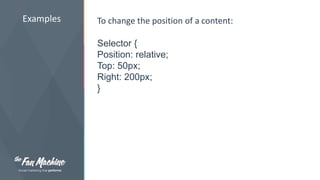
Examples To change the position of a content: 
Selector { 
Position: relative; 
Top: 50px; 
Right: 200px; 
}
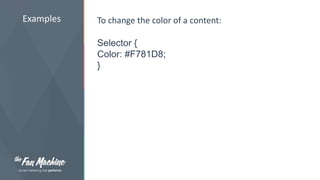
Examples To change the color of a content: 
Selector { 
Color: #F781D8; 
}
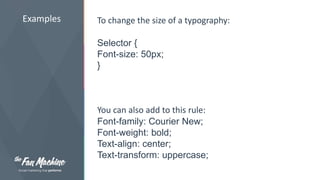
Examples To change the size of a typography: 
Selector { 
Font-size: 50px; 
} 
You can also add to this rule: 
Font-family: Courier New; 
Font-weight: bold; 
Text-align: center; 
Text-transform: uppercase;
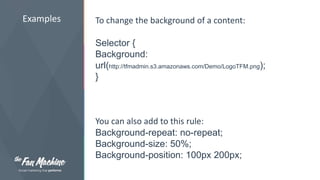
Examples To change the background of a content: 
Selector { 
Background: 
url(http://tfmadmin.s3.amazonaws.com/Demo/LogoTFM.png); 
} 
You can also add to this rule: 
Background-repeat: no-repeat; 
Background-size: 50%; 
Background-position: 100px 200px;
Examples 
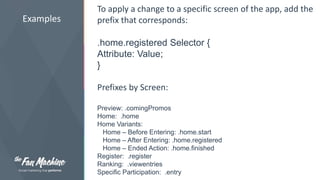
To apply a change to a specific screen of the app, add the 
prefix that corresponds: 
.home.registered Selector { 
Attribute: Value; 
} 
Prefixes by Screen: 
Preview: .comingPromos 
Home: .home 
Home Variants: 
Home – Before Entering: .home.start 
Home – After Entering: .home.registered 
Home – Ended Action: .home.finished 
Register: .register 
Ranking: .viewentries 
Specific Participation: .entry
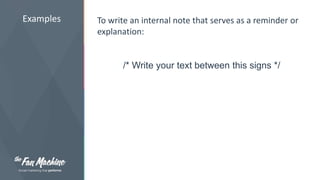
Examples To write an internal note that serves as a reminder or 
explanation: 
/* Write your text between this signs */
For more information, contact: 
support@thefanmachine.com

Fast Guide to Dominate CSS

  • 1.
  • 2.
    Fast Guide toDominate CSS
  • 3.
    What does itdo? CSS is used to give style to an HTML this means CSS is used to define the appearance (design) of an HTML HTML without CSS HTML with CSS
  • 4.
    How does itwork? For each change that you wish to do to the appearance of your HTML you must create a rule on CSS A CSS rule consists of: Selector { Attribute: Value; } Which can be translated to: WHERE to make the change { WHAT change make: HOW MUCH change make; }
  • 5.
    Components A CSSrule consists of: Selector { Attribute: Value; } Selector: Is an element or content That can be found on your HTML It can be a text, an image, a video, a button, anything that you have set on your screen!
  • 6.
    Components A CSSrule consists of: Selector { Attribute: Value; } Attribute: It is a property or characteristic that the selected content has. It can be the size, the position, the color, the font, the background, or even the very same presence of the content, since you have the possibility of removing it from the screen!
  • 7.
    Components A CSSrule consists of: Selector { Attribute: Value; } Value: Is the meassure in which a value is specified. This definition can be expressed as a percentage, an amount of pixels, a hexadecimal combination, a url, or any otherone depending on which was the selected attribute.
  • 8.
    How do Iapply it on TFM? On the “Whitelabel” step, on the “Application style sheet” step, click on the full screen icon to visualize the loaded content on each scren of your app and therefore be able to select it to write your own CSS rules.
  • 9.
    How do Iapply it on TFM? Just click over an element, and then the selector and the structure of the CSS rule will automatically appear on your left panel so you can complete them with the attributes and values that you wish. Once you define them, click on the save icon and you’ll be able to watch the changes on the screen!
  • 10.
  • 11.
    Examples To removea content: Selector { Display: none; } Attention: When applying this change all the content that was written under the deleted selector will be moved upwards.
  • 12.
    Examples To hidea content: Selector { Visibility: hidden; } Attention: When applying this change all the contents will remain on their original positions since the hidden selector, that is no longer visible on screen, will still occupy its designated space.
  • 13.
    Examples To changethe position of a content: Selector { Position: relative; Top: 50px; Right: 200px; }
  • 14.
    Examples To changethe color of a content: Selector { Color: #F781D8; }
  • 15.
    Examples To changethe size of a typography: Selector { Font-size: 50px; } You can also add to this rule: Font-family: Courier New; Font-weight: bold; Text-align: center; Text-transform: uppercase;
  • 16.
    Examples To changethe background of a content: Selector { Background: url(http://tfmadmin.s3.amazonaws.com/Demo/LogoTFM.png); } You can also add to this rule: Background-repeat: no-repeat; Background-size: 50%; Background-position: 100px 200px;
  • 17.
    Examples To applya change to a specific screen of the app, add the prefix that corresponds: .home.registered Selector { Attribute: Value; } Prefixes by Screen: Preview: .comingPromos Home: .home Home Variants: Home – Before Entering: .home.start Home – After Entering: .home.registered Home – Ended Action: .home.finished Register: .register Ranking: .viewentries Specific Participation: .entry
  • 18.
    Examples To writean internal note that serves as a reminder or explanation: /* Write your text between this signs */
  • 19.
    For more information,contact: support@thefanmachine.com