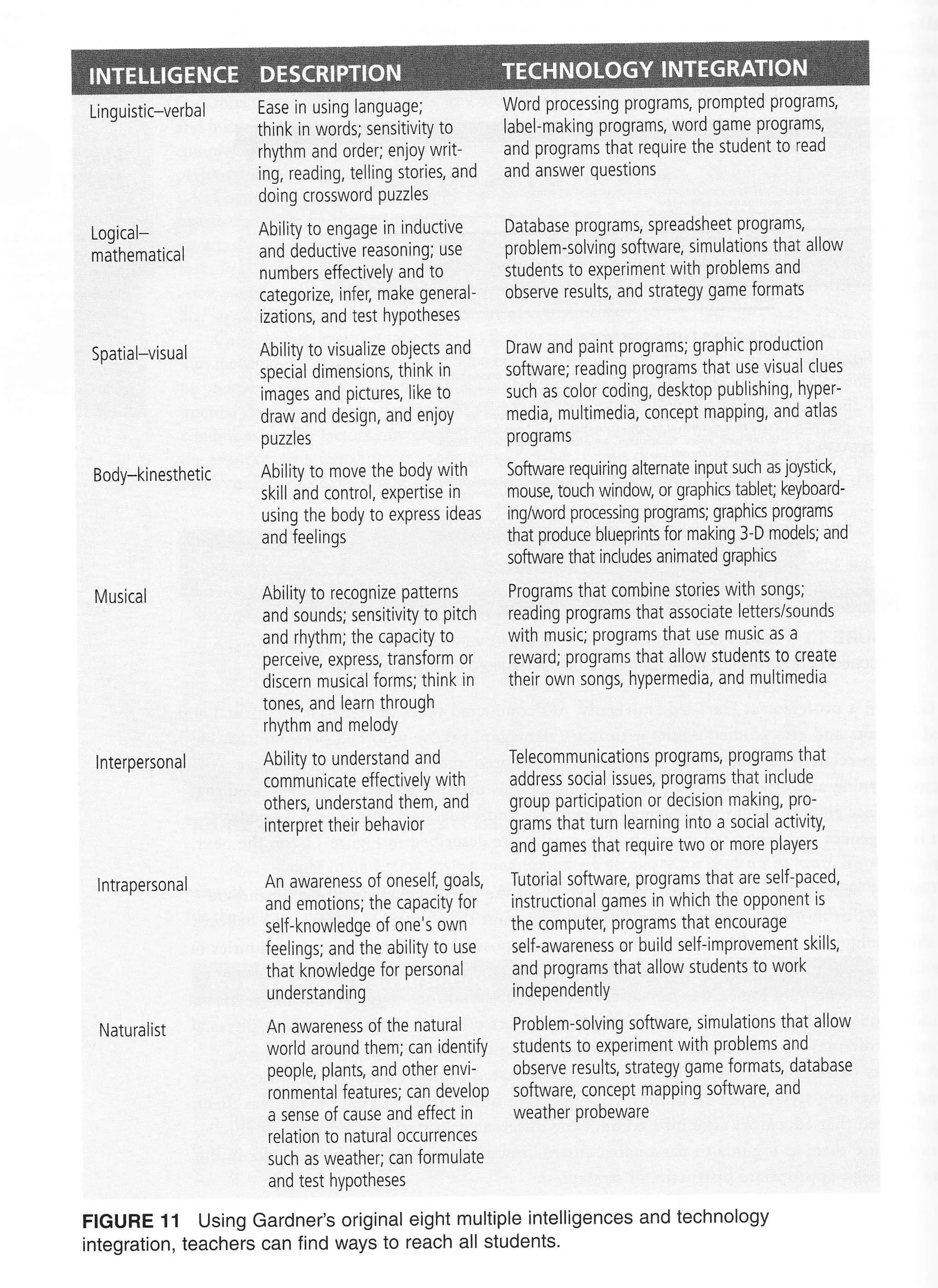
Li ng uistic-verba I
Logical-
mathematical
Naturalist
Spatial-visual
Body-ki nesthetic
Musical
I nterpersonal
lntrapersonal
FIGURE 11 Using Gardner's original eight multiple intelligences and technology
integration, teachers can find ways to reach all students'
Ease in using language;
think in words; sensitivitY to
rhythm and order; enjoY writ-
ing, reading, telling stories, and
doing crossword puzzles
Ability to engage in inductive
and deductive reasoning; use
numbers effectively and to
categorize, infer, make general-
izations, and test hypotheses
Abllity to visualize objects and
special dimensions, think in
images and pictures, like to
draw and design, and enjoy
puzzles
Ability to move the body with
skill and control, expertise in
using the body to express ideas
and feelings
Ability to recognize patterns
and sounds; sensitivitY to Pitch
and rhythm; the capacity to
perceive, express, transform or
discern musical forms; think in
tones, and learn through
rhythm and melody
Ability to understand and
communicate effectively with
others, understand them, and
interpret their behavior
An awareness of oneself goals,
and emotions; the capacitY for
self-knowledge of one's own
feelings; and the ability to use
that knowledge for personal
understanding
An awareness of the natural
world around them; can identifY
people, plants, and other envi-
ronmental features; can develoP
a sense of cause and effect in
relation to natural occurrences
such as weather; can formulate
and test hypotheses
Word processing programs, prompted programs,
label-making programs, word game programs,
and programs that require the student to read
and answer questions
Database programs, spreadsheet programs,
problem-solving software, simulations that allow
students to experiment with problems and
observe results, and strategy game formats
Draw and paint programs; graphic production
software; reading programs that use visual clues
such as color coding, desktop publishing, hyper-
media, multimedia, concept mapping, and atlas
pr0grams
Software requiring alternate input such as joystick,
mouse, touch window or graphics tablet; keyboard-
ing/word processing programs; graphics programs
that produce blueprlnts for making 3-D models; and
software that includes animated graphics
Programs that combine stories with songs;
reading programs that associate lettersisounds
with music; programs that use music as a
reward; programs that allow students to create
their own songs, hypermedia, and multrmedia
Telecommunications programs, programs that
address social issues, programs that include
group participation or decision making, pro-
grams that turn learning into a social activity,
and games that require two or more players
Tutorial software, programs that are self-paced,
instructional games in which the opponent is
the computer, programs that encourage
self-awareness or build self-improvement skills,
and programs that allow students to work
independently
Problem-solving software, simulations that allow
students to experiment with problems and
observe results, strategy game formats, database
software, concept mapping software, and
weather probeware
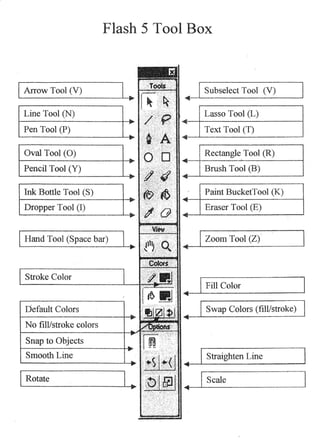
Flash 5 Tool Box
Subselect Tool (V)
Line Tool (N)
Pen Tool (P)
Oval Tool (O)
Pencil Tool (Y)
Ink Bottle Tool (S)
Dropper Tool (I)
Hand Tool (Space bar)
Rotate
@lsm
Stroke Color
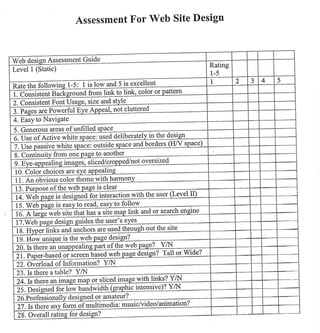
Assessment For Web Site Design
Web desien Assessment G"tdg
Level I (Static)
excellent
1. Consistent Bac *om tint to link, color or
2. ConsisGnt Font lJsage, size and
are Powerful EYe A l, not cluttered
4. Easy to Navigate
icenetous areas of unfilied
e
: outside space and borders
& Contin"itv from one page to aqglhg
imases. sliced/ not oversized
10. Color choices are
t t. en oUvious color theme wlth harmon
of the web page is clear
foiinteraction with the user
is easv to read, easY to follorv
il
17.Web desien zuides the user's e
i& HvD
ue is the web Page design?
of the web Page? Y4l
M"r-based or scree4 !3!e4j{eb isn? Tall or Wide?
n. Overtoad of Informutiq"?-ffl
2:. ts there a table? YA{
toFroressionilry d"tigqg4 rI,*utgr?
28. Overall ratingfor design?
White space in web design
Source: Webmastering BASICS by Knowlton, Hunt and Bates; Thomson Course
Technology.
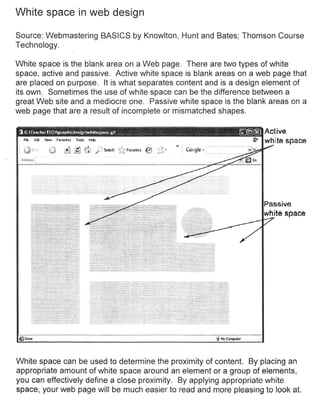
White space is the blank area on a Web page. There are two types of white
space, active and passive. Active white space is blank areas on a web page that
are placed on purpose. lt is what separates content and is a design element of
its own. Sometimes the use of white space can be the difference between a
great Web site and a mediocre one. Passive white space is the blank areas on a
web page that are a result of incomplete or mismatched shapes.
white space
ite space
White space can be used to determine the proximity of content. By placing an
appropriate amount of white space around an element or a group of elements,
you can effectively define a close proximity. By applying appropriate white
space, your web page will be much easier to read and more pleasing to look at.
wwww
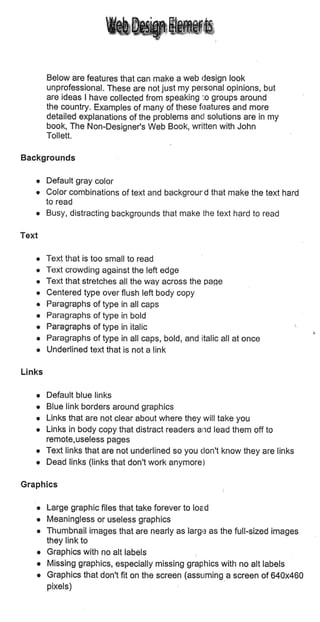
Below are features that can make a web rlesign look
unprofessional. These are not just my personal opinions, but
are ideas I have collected from speaking io groups around
the country. Examples of many of these fr:atures and more
detailed explanations of the problems ancl solutions are in my
book, The Non-Designer's Web Book, written with John
Tollett.
Backgrounds
o Default gray color
r Color combinations of text and backgrourd that make the text hard
to read
r Busy, distracting backgrounds that make the text hard to read
Text
o Text that is too small to read
r Text crowding against the left edge
o Text that stretches all the way across the page
o Centered type over flush left body copy
e Paragraphs of type in all caps
r Paragraphs of type in bold
o Paragraphs of type in italic
o Paragraphs of type in all caps, bold, and italic all at once
e Underlined text that is not a link
Links
o Default blue links
o Blue link borders around graphics
e Links that are not clear about where they will take you
o Links in body copy that distract readers aird lead them off to
remote,useless pages
o Text links that are not underlined so you clon't know they are links
o Dead links (links that don't work anymore)
Graphics
r Large graphic files that take forever to loed
o Meaningless or useless graphics
r Thumbnail images that are nearly as larg{l as the full-sized images
they link to
r Graphics with no alt labels :
e Missing graphics, especially missing graphics with no alt labels
o Graphics that don't fit on the screen (assuming a screen of 640x460
pixels)
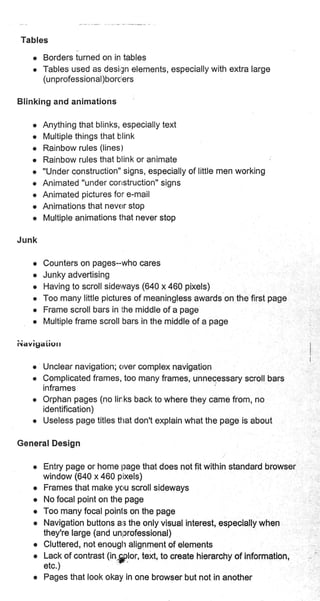
Tables
o Borders iurned on in tables
r Tables used as desirSn elements, especially with extra large
(unprofessional)borc ers
Blinking and animations
r Anything that blinks, especially text
r Multiple things that blink
o Rainbow rules (lines)
o Rainbow rules that blink or animate l
o "Under construction" signs, especially of little men working
o Animated "under corrstruction" signs
o Animated pictures for e-mail
o Animations that never stop
e Multiple animations that never stop
Junk
o Counters on pages-who cares
o Junky advertising
o Having to scroll sideways (640 x 460 pixels)
o Too many little pictures of meaningless awards on the first page
o Frame scroll bars in the middle of a page
o Multiple frame scroll bars in the middle of a page
iiavigaiiorr
e Unclear navigation; clver complex navigation
r Complicated frames, too many frames, unnecessary scroll bars
inframes
r Orphan pages (no lir:ks back to where they came from, no
identification)
r Useless page titles ttrat don't explain what the page is about
General Design
r Entry page or home page that does not fit within standard browser
window (640 x 460 pixels)
o Frames that make yc,u scroll sideways
o No focal point on the page
o Too many focal poinls on the page
o Navigation buttons ar; the only visual interest, especially when
they're large (and unprofessional)
o Cluttered, not enough alignment of elements
o Lack of contrast (ingilor, text, to create hierarchy of information,
etc.)
r Pages that look okay in one browser but not in another
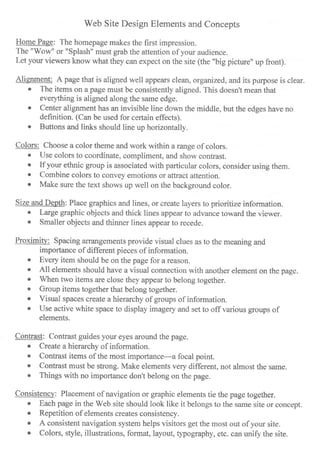
Web Site Design Elements and Concepts
Home Page: The homepage makes the first impression.
The "Wow" or "Splash" must grab the attention of your audience.
Let your viewers know what they can expect on the site (the "big picture" up front).
Alignment: A page that is aligned well appears clean, organized, and its purpose is clear"
o The items on a page must be consistently aligned. This doesn't mean that
everything is aligned along the same edge.
o Center alignment has an invisible line down the middle, but the edges have no
definition. (Can be used for certain effects).
o Buttons and links should line up horizontally.
Colors: Choose a color theme and work within a range of colors.
. Use colors to coordinate, compliment, and show contrast.
o If your ethnic group is associated with particular colors, consider using them.
r Cornbine colors to convey emotions or attract attention.
o Make sure the text shows up well on the background color.
Size and Depth: Place graphics and lines, or create layers to prioritize information.
o Large graphic objects and thicl< lines appear to advance toward the viewer.
r Smaller objects and thinner lines appear to recede.
Proximitv: Spacing arrangements provide visual clues as to the meaning and
importance of different pieces of information.
. Every item should be on the page for a reason
c All elements should have a visual connection with another element on the page.
o When two items are close they appear to belong together.
o Group items together that belong together.
o Visual spaces create a hierarchy of groups of information.
o Use active white space to display imagery and set to off various groups of
elements.
Contrast: Contrast guides your eyes around the page.
o Create a hierarchy of information.
o Contrast items of the most importance-a focal point.
o Contrast must be strong. Make elements very different, not almost the same.
o Things with no importance don't belong on the page.
Consistency: Placement of navigation or graphic elements tie the page together.
o Each page in the Web site should look like it belongs to the same site or concept.
o Repetition of elements creates consistency.
o A consistent navigation system helps visitors get the most out of your site.
o Colors, style, illustrations, format, layout, typography, etc. can unifr the site.
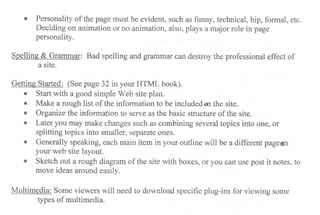
r Personality of the page must be evident, such as funny, technical, hip, formal, etc.
Deciding on animation or no animation, also, plays a major role in page
personality.
$pelling & Grammar: Bad spelling eurd grammar can destroy the professional effect of
a site.
Getting Started: (See page 32 in your HTML book).
o Start with a good simple Web site plan.
r Make a rough list of the information to be includedm the site.
r Organizethe inforrnation to serve as the basic structure of the site.
o Later you may rnake changes such as combining several topics into one, or
splitting topics into smaller, separate ones.
r Generally speaking, each main item in your outline will be a different pageon
your web site layout.
r Sketch out a rough diagram of the site with boxes, or you oan use post it notes, to
move ideas around easily.
Multimedia: Some viewers will need to download specific plug-ins for viewing some
types of multimedia.

Technology intelligences

  • 1.
    Li ng uistic-verbaI Logical- mathematical Naturalist Spatial-visual Body-ki nesthetic Musical I nterpersonal lntrapersonal FIGURE 11 Using Gardner's original eight multiple intelligences and technology integration, teachers can find ways to reach all students' Ease in using language; think in words; sensitivitY to rhythm and order; enjoY writ- ing, reading, telling stories, and doing crossword puzzles Ability to engage in inductive and deductive reasoning; use numbers effectively and to categorize, infer, make general- izations, and test hypotheses Abllity to visualize objects and special dimensions, think in images and pictures, like to draw and design, and enjoy puzzles Ability to move the body with skill and control, expertise in using the body to express ideas and feelings Ability to recognize patterns and sounds; sensitivitY to Pitch and rhythm; the capacity to perceive, express, transform or discern musical forms; think in tones, and learn through rhythm and melody Ability to understand and communicate effectively with others, understand them, and interpret their behavior An awareness of oneself goals, and emotions; the capacitY for self-knowledge of one's own feelings; and the ability to use that knowledge for personal understanding An awareness of the natural world around them; can identifY people, plants, and other envi- ronmental features; can develoP a sense of cause and effect in relation to natural occurrences such as weather; can formulate and test hypotheses Word processing programs, prompted programs, label-making programs, word game programs, and programs that require the student to read and answer questions Database programs, spreadsheet programs, problem-solving software, simulations that allow students to experiment with problems and observe results, and strategy game formats Draw and paint programs; graphic production software; reading programs that use visual clues such as color coding, desktop publishing, hyper- media, multimedia, concept mapping, and atlas pr0grams Software requiring alternate input such as joystick, mouse, touch window or graphics tablet; keyboard- ing/word processing programs; graphics programs that produce blueprlnts for making 3-D models; and software that includes animated graphics Programs that combine stories with songs; reading programs that associate lettersisounds with music; programs that use music as a reward; programs that allow students to create their own songs, hypermedia, and multrmedia Telecommunications programs, programs that address social issues, programs that include group participation or decision making, pro- grams that turn learning into a social activity, and games that require two or more players Tutorial software, programs that are self-paced, instructional games in which the opponent is the computer, programs that encourage self-awareness or build self-improvement skills, and programs that allow students to work independently Problem-solving software, simulations that allow students to experiment with problems and observe results, strategy game formats, database software, concept mapping software, and weather probeware
  • 2.
    Flash 5 ToolBox Subselect Tool (V) Line Tool (N) Pen Tool (P) Oval Tool (O) Pencil Tool (Y) Ink Bottle Tool (S) Dropper Tool (I) Hand Tool (Space bar) Rotate @lsm Stroke Color
  • 3.
    Assessment For WebSite Design Web desien Assessment G"tdg Level I (Static) excellent 1. Consistent Bac *om tint to link, color or 2. ConsisGnt Font lJsage, size and are Powerful EYe A l, not cluttered 4. Easy to Navigate icenetous areas of unfilied e : outside space and borders & Contin"itv from one page to aqglhg imases. sliced/ not oversized 10. Color choices are t t. en oUvious color theme wlth harmon of the web page is clear foiinteraction with the user is easv to read, easY to follorv il 17.Web desien zuides the user's e i& HvD ue is the web Page design? of the web Page? Y4l M"r-based or scree4 !3!e4j{eb isn? Tall or Wide? n. Overtoad of Informutiq"?-ffl 2:. ts there a table? YA{ toFroressionilry d"tigqg4 rI,*utgr? 28. Overall ratingfor design?
  • 4.
    White space inweb design Source: Webmastering BASICS by Knowlton, Hunt and Bates; Thomson Course Technology. White space is the blank area on a Web page. There are two types of white space, active and passive. Active white space is blank areas on a web page that are placed on purpose. lt is what separates content and is a design element of its own. Sometimes the use of white space can be the difference between a great Web site and a mediocre one. Passive white space is the blank areas on a web page that are a result of incomplete or mismatched shapes. white space ite space White space can be used to determine the proximity of content. By placing an appropriate amount of white space around an element or a group of elements, you can effectively define a close proximity. By applying appropriate white space, your web page will be much easier to read and more pleasing to look at.
  • 5.
    wwww Below are featuresthat can make a web rlesign look unprofessional. These are not just my personal opinions, but are ideas I have collected from speaking io groups around the country. Examples of many of these fr:atures and more detailed explanations of the problems ancl solutions are in my book, The Non-Designer's Web Book, written with John Tollett. Backgrounds o Default gray color r Color combinations of text and backgrourd that make the text hard to read r Busy, distracting backgrounds that make the text hard to read Text o Text that is too small to read r Text crowding against the left edge o Text that stretches all the way across the page o Centered type over flush left body copy e Paragraphs of type in all caps r Paragraphs of type in bold o Paragraphs of type in italic o Paragraphs of type in all caps, bold, and italic all at once e Underlined text that is not a link Links o Default blue links o Blue link borders around graphics e Links that are not clear about where they will take you o Links in body copy that distract readers aird lead them off to remote,useless pages o Text links that are not underlined so you clon't know they are links o Dead links (links that don't work anymore) Graphics r Large graphic files that take forever to loed o Meaningless or useless graphics r Thumbnail images that are nearly as larg{l as the full-sized images they link to r Graphics with no alt labels : e Missing graphics, especially missing graphics with no alt labels o Graphics that don't fit on the screen (assuming a screen of 640x460 pixels)
  • 6.
    Tables o Borders iurnedon in tables r Tables used as desirSn elements, especially with extra large (unprofessional)borc ers Blinking and animations r Anything that blinks, especially text r Multiple things that blink o Rainbow rules (lines) o Rainbow rules that blink or animate l o "Under construction" signs, especially of little men working o Animated "under corrstruction" signs o Animated pictures for e-mail o Animations that never stop e Multiple animations that never stop Junk o Counters on pages-who cares o Junky advertising o Having to scroll sideways (640 x 460 pixels) o Too many little pictures of meaningless awards on the first page o Frame scroll bars in the middle of a page o Multiple frame scroll bars in the middle of a page iiavigaiiorr e Unclear navigation; clver complex navigation r Complicated frames, too many frames, unnecessary scroll bars inframes r Orphan pages (no lir:ks back to where they came from, no identification) r Useless page titles ttrat don't explain what the page is about General Design r Entry page or home page that does not fit within standard browser window (640 x 460 pixels) o Frames that make yc,u scroll sideways o No focal point on the page o Too many focal poinls on the page o Navigation buttons ar; the only visual interest, especially when they're large (and unprofessional) o Cluttered, not enough alignment of elements o Lack of contrast (ingilor, text, to create hierarchy of information, etc.) r Pages that look okay in one browser but not in another
  • 7.
    Web Site DesignElements and Concepts Home Page: The homepage makes the first impression. The "Wow" or "Splash" must grab the attention of your audience. Let your viewers know what they can expect on the site (the "big picture" up front). Alignment: A page that is aligned well appears clean, organized, and its purpose is clear" o The items on a page must be consistently aligned. This doesn't mean that everything is aligned along the same edge. o Center alignment has an invisible line down the middle, but the edges have no definition. (Can be used for certain effects). o Buttons and links should line up horizontally. Colors: Choose a color theme and work within a range of colors. . Use colors to coordinate, compliment, and show contrast. o If your ethnic group is associated with particular colors, consider using them. r Cornbine colors to convey emotions or attract attention. o Make sure the text shows up well on the background color. Size and Depth: Place graphics and lines, or create layers to prioritize information. o Large graphic objects and thicl< lines appear to advance toward the viewer. r Smaller objects and thinner lines appear to recede. Proximitv: Spacing arrangements provide visual clues as to the meaning and importance of different pieces of information. . Every item should be on the page for a reason c All elements should have a visual connection with another element on the page. o When two items are close they appear to belong together. o Group items together that belong together. o Visual spaces create a hierarchy of groups of information. o Use active white space to display imagery and set to off various groups of elements. Contrast: Contrast guides your eyes around the page. o Create a hierarchy of information. o Contrast items of the most importance-a focal point. o Contrast must be strong. Make elements very different, not almost the same. o Things with no importance don't belong on the page. Consistency: Placement of navigation or graphic elements tie the page together. o Each page in the Web site should look like it belongs to the same site or concept. o Repetition of elements creates consistency. o A consistent navigation system helps visitors get the most out of your site. o Colors, style, illustrations, format, layout, typography, etc. can unifr the site.
  • 8.
    r Personality ofthe page must be evident, such as funny, technical, hip, formal, etc. Deciding on animation or no animation, also, plays a major role in page personality. $pelling & Grammar: Bad spelling eurd grammar can destroy the professional effect of a site. Getting Started: (See page 32 in your HTML book). o Start with a good simple Web site plan. r Make a rough list of the information to be includedm the site. r Organizethe inforrnation to serve as the basic structure of the site. o Later you may rnake changes such as combining several topics into one, or splitting topics into smaller, separate ones. r Generally speaking, each main item in your outline will be a different pageon your web site layout. r Sketch out a rough diagram of the site with boxes, or you oan use post it notes, to move ideas around easily. Multimedia: Some viewers will need to download specific plug-ins for viewing some types of multimedia.