System
Administration
and Maintenance
IT 311
About the Course:
The course focuses on system
administrator concepts and how
information technology services can be
implemented and provided in the
organization's IT infrastructure.
https://en.wikiversity.org/wiki/System_administration#Typical_usage
https://su.edu.ye/ce/wp-content/uploads/sites/3/2021/12/System-Administration-Maintenance.pdf
Introduction
 What is System Administration?
 User Account Management
Hardware Management
 Data Backups
 Software Installation/Maintenance
 System Monitoring
What is System Administration?
System administration is typically done
by information technology experts for or
within an organization.
Their job is to ensure that all related
computer systems and services keep
working.
A system administrator, or sysadmin, is a
person responsible to maintain and operate
a computer system or network for a
company or other organization.
 System administrators are often members
of an information technology department.
The duties of a system administrator are wide-
ranging, and vary from one organization to another.
System administrators are usually charged with
installing, supporting, and maintaining servers or
other computer systems, and planning for and
responding to service outages and other problems.
Other duties may include scripting or light
programming, project management for systems-
related projects, supervising or training
computer operators, and being the equivalent of
a handyman for computer problems beyond the
knowledge of technical support staff.
It is common for systems administrators
and systems analysts charged with
developing and maintaining computer
processes to identify operational and
developmental systems.
Related Fields:
Many organizations staff other jobs related to systems
administration. In a larger company, these may all be
separate positions within a computer support or
Information Services (IS) department. In a smaller group
they may be shared by a few sysadmins, or even a single
person.
Related Fields:
 A database administrator (DBA) maintains a database
system, and is responsible for the integrity of the data and
the efficiency and performance of the system.
 A network administrator maintains network infrastructure such
as switches and routers, and diagnoses problems with these or
with the behavior of network-attached computers.
A security administrator is a specialist in computer and network
security, including the administration of security devices such as
firewalls, as well as consulting on general security measures.
Related Fields:
 Technical support staff respond to individual users'
difficulties with computer systems, provide instructions
and sometimes training, and diagnose and solve common
problems.
 A computer operator performs routine maintenance and
upkeep, such as changing backup tapes.
Related Fields:
 A systems analyst documents, trouble shoots, and
develops existing and new computer and work processes
and systems.
In some organizations, a person may begin as a member of
technical support staff or a computer operator, then gain
experience on the job to be promoted to a sysadmin position and
afterwards an IT Manager.
Duties of a system administrator
A system administrator's responsibilities typically
include:
Morning checks of systems/software.
Performing backups of data.
Applying operating system updates, and configuration
changes.
Installing and configuring new hardware/software.
Duties of a system administrator
System performance tuning.
Keeping the network up and running.
In larger organizations, some tasks listed above may be
divided among different system administrators or members
of different organizational groups. For example, a dedicated
individual may apply all system upgrades, a Quality
Assurance (QA) team may perform testing and validation,
and one or more technical writers may be responsible for all
technical documentation written for a company.
In smaller organizations, a system administrator can also
perform any number of duties elsewhere associated with
other fields like:
Technical support
Database administration (DBA)
Network administration/analyst and specialist
Application analyst
Security administration
Programming
System administrators, in larger organizations, also tend not to be system
architects, system engineers, or system designers, however, like many roles in
this field, demarcations between systems administration and these other roles
are often not well defined in smaller organizations. However, even in larger
organizations, senior systems administrators often have skills in these other
areas as a result of their working experience.
In smaller organizations, IT/computing specialties are less often discerned in
detail, and the term "system administrator" is used in a rather generic way —
they are the people who know how the computer systems work and can
respond when something fails.
Being an administrator
The primary goal of being a system administrator is to be as lazy
as possible. Not lazy in the sense that you do no work, but lazy in
the sense that you get the computer to do the hard and repetitive
jobs, and you do the thinking jobs.
The primary goal of being a system administrator is to be as lazy
as possible. Not lazy in the sense that you do no work, but lazy in
the sense that you get the computer to do the hard and repetitive
jobs, and you do the thinking jobs.
History of System Administrator
A sysadmin emerged from the Unix-enabled explosion in mini-computer
capabilities in the mid-to-late 1970s, peaked 1980 to 2005, and has been
in decline as outsourcing of enterprise platforms took hold
During its lifetime, the occupation matured and professionalized, as
indicated by the SAGE-AU Body of Knowledge.
 it also splintered, with continual change in the focus of technology -
from minis to micros, from star networks to LANs and WANs and VPNs,
from terminals to workstations to PCs to handhelds, from uniprocessors
to multi-processor configs
History of System Administrator
The decline of the sysadmin has been hastened by reduction of the
magic of a guild-member, via the luster of a profession, and the
respectability of a trade, all the way down to the blind following of
structured clerical recipes.
Even more depressing is the way that IT costs have spiraled, as the
savings that arise from paying low wages for dumbed-down jobs
have been eaten up by the need for vastly greater numbers of people
who see little of the whole, and understand less than they see.
User Account Management
A large part of a sys admins job involves troubleshooting
and problem solving.
 A user is anyone who holds an Identity Manager system
account. Identity Manager stores a range of data for each
user. Collectively, this information forms a user’s Identity
Manager identity.
User Account Management
Identity Manager categorizes user data in four areas:
1. Identity
2. Assignments
3. Security
4. Attributes
User Account Management
Identity
- The Identity area defines a user’s account ID, name,
contact information, governing organization, and Identity
Manager account password. It also identifies the resources
to which the user has access, and the password policy
governing each resource account.
The following figure illustrates the IDENTITY AREA
of the Create User page.
User Account Management
Assignments
-In Identity Manager terminology, a user who is assigned
extended capabilities is an Identity Manager administrator.
-The Security area establishes these extended
administrative capabilities for the user, through assignment
of:
1. Admin roles — Combine a specific, unique set of capabilities and controlled
organizations, facilitating coordinated assignment to administrative users.
2. Capabilities — Enable rights in the Identity Manager system. Each Identity
Manager administrator is assigned one or more capabilities, frequently aligned
with job responsibilities.
3. Controlled organizations — Assigns organizations that this user has rights to
manage as an administrator. He can manage objects in the assigned
organization and in any organizations below that organization in the hierarchy.
User Account Management
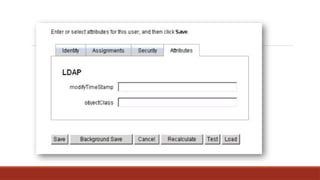
Attributes
- The Attributes area defines account attributes associated
with assigned resources. Listed attributes are categorized by
assigned resource, and differ depending on which resources
are assigned.
Accounts Area

The Identity Manager accounts area lets you manage Identity Manager users. To
access this area, select Accounts from the Administrator Interface.

The accounts list shows all Identity Manager user accounts. Accounts are grouped in
organizations and virtual organizations, which are represented hierarchically in folders.

You can sort the accounts list by full name (Name), user last name (Last Name), or user
first name (First Name).

https://docs.oracle.com/cd/E19944-01/819-4481/IDM_admin_users.html
Figure 4. Accounts List
ACTIONS LISTS IN THE ACCOUNTS
AREA

Use the actions lists (located at the top and bottom of the accounts area)
to perform a range of actions. Actions list selections are divided among:
1. New Actions — Create users, organizations, and directory junctions.
2. User Actions — Edit, view, and change status of users; change and reset
passwords; delete, enable, disable, unlock, move, update, and rename users;
and run a user audit report.
3. Organization Actions — Perform a range of organization and user actions.
Working with User Accounts

From the Administrator Interface Accounts area, you can perform a
range of actions on these system objects.
1. Users — View, create, edit, move, rename, deprovision, enable,
disable, update, unlock, delete, unassign, unlink, and audit
2. Passwords — Change and reset
3. Organizations — Create, edit, refresh, and delete
4. Directory Junctions — Create
HARDWARE MANAGEMENT
something of an umbrella term that describes any
tangible, physical company technology asset,
including those currently in use, those in storage, and
support equipment.
HARDWARE MANAGEMENT
With this definition in mind, hardware assets are generally
grouped into four primary categories:
1. End-user devices
- End-user devices refer to any company hardware used directly
by employees in their day-to-day work. This includes computers,
tablets, smart phones, SIM cards, and more. Hardware assets also
encompass personal devices used to perform business tasks
within an organization.
2. Network/telecom hardware
Network and telecom hardware is support equipment
that helps facilitate digital and analog communication.
This includes routers, load balancers, switches, and
telephone- and video-conferencing systems.
3. Data-center equipment
Data-center equipment describes all hardware that
allows data centers to function effectively, including
servers, utilities, and security devices.
4. Peripherals
Peripherals are the significant support equipment
found throughout the modern-office environment.
Peripherals may include scanners, printers, monitors,
keyboards, headsets, projectors, and even cables and
adaptors.
DATA BACK-UPS
Data backup is the practice of copying data from a
primary to a secondary location, to protect it in case of
a disaster, accident or malicious action.
Data is the lifeblood of modern organizations, and
losing data can cause massive damage and disrupt
business operations. This is why backing up your data
is critical for all businesses, large and small.
Data Backup Options
Removable Media
-Removable media is portable, and can be stored in a
safe deposit box or off-site location, providing an
extra layer of security in case of a disaster.
- such as CDs, DVDs, and flash drives, has long been a
popular method of data protection
Data Backup Options
Redundancy
-Redundancy is a vital aspect of data backup, as it
involves creating multiple copies of your data to
ensure its safety and accessibility.
Data Backup Options
External Hard Drive
-External hard drives are portable, allowing you to
easily move and store your data off-site for added
security.
Data Backup Options
Hardware Appliances
- Hardware appliances can provide a comprehensive,
all-in-one backup solution for businesses and may
include features such as data deduplication,
encryption, and automated backup scheduling.
Data Backup Options
Backup Software
-Backup software is an essential component of any
data backup strategy, as it helps automate and
streamline the backup process.
- Cloud Backup Services, Encryption, compression,
multiple back-up destinations
Software
Installation/Maintenance
The computer system can be divided roughly into
four components:
1. Hardware
2. Operating System
3. Application Software
4. Users
Operating System
provides basic programming instructions to the computer
hardware. The operating system is program code that makes
it possible for you to start the basic functions of a computer,
view text on the computer’s display, store information,
access and modify information, log on to a network,
connect to the Internet, and run software applications.
OS main functions:
FUNCTION 1. PROVIDE A USER INTERFACE
-Performing housekeeping procedures requested by the user, often
concerning secondary storage devices, such as reorganizing a hard drive,
deleting files, copying files, and changing the system date
FUNCTION 2. MANAGE FILES
-Managing files on hard drives, DVD drives, CD drives, floppy drives, and
other drives
-Creating, storing, retrieving, deleting, and moving files
OS main functions:
FUNCTION 3. MANAGE HARDWARE
-Managing the BIOS (programs permanently stored on hardware
devices)
- Managing memory, which is a temporary place to store data and
instructions as they are being processed
- Diagnosing problems with software and hardware
OS main functions:
FUNCTION 4. MANAGE APPLICATIONS
-Installing and uninstalling applications
- Running applications and managing the interface to the hardware
on behalf of an application
An operating system contains the following
basic components:
The application programming interface (API), software that
resides between the application software and the operating system
kernel, which is the main program code in the operating system.
 The basic input/output system (BIOS) , a program that verifies
hardware and establishes basic communications with components
such as the monitor and disk drives. The BIOS usually loads other
operating system components on startup and houses a real-time
clock for the date and time.
An operating system contains the following
basic components:
The operating system kernel, the core of the operating system that coordinates
operating system functions, such as control of memory and storage. The kernel
communicates with the BIOS, device drivers, and the API to perform these
functions. It also interfaces with the resource managers.
 Resource managers, programs that manage computer memory and central
processor use.
 Device driver, programs that take requests from the API via the kernel and
translate them into commands to manipulate specific hardware devices, such as
keyboards, monitors, disk drives, and printers. The OS also includes optional
specialized drivers for other functions and devices, such as sound.
System Requirements
Every operating system requires its own set of system
requirements depending on the particular functionalities
of the operating system. In most cases contemporary
operating systems require greater system requirements
compared to their predecessors. For example,
Windows 8
Processor: 1 gigahertz (GHz) or faster with support for
PAE, NX, and SSE2
RAM: 1 gigabyte (GB) (32-bit) or 2 GB (64-bit)
Hard disk space: 16 GB (32-bit) or 20 GB (64-bit)
Graphics card: Microsoft DirectX 9 graphics device with
WDDM driver
Windows Vista Home Basic
- 1 GHz 32-bit (x86) or 64-bit (x64) processor
- 512 MB of system memory
- 20 GB hard drive with at least 15 GB of available space
- Support for DirectX 9 graphics and 32 MB of graphics
memory
- DVD-ROM drive
-Audio Output
What does NTFS and FAT stand for?
NTFS is a high-performance and self-healing file system
proprietary to Windows XP Vista 2008 2003 2000 NT &
Windows 7, Windows 8, which supports file-level security,
compression and auditing.
It also supports large volumes and powerful storage solution
such as RAID. The most important features of NTFS are data
integrity and the ability to encrypt files and folders to protect
your sensitive data
What does NTFS and FAT stand for?
FAT- File Allocation Table (FAT) file system is a simple
file system originally designed for small disks and
simple folder structures. The FAT file system is named
for its method of organization, the file allocation
table, which resides at the beginning of the volume.
To protect the volume, two copies of the table are
kept, in case one becomes damaged.
1.3 Disc start up
What is a startup disk?
A boot disk (sometimes called a startup disk) is a type of
removable media, such as a floppy disk or a CD that contains
startup files that your computer can use to start Windows. The
startup files are also stored on your computer's hard disk, but if
those startup files become damaged, you can use the files on a
boot disk to start Windows.
https://www.studocu.com/row/document/mount-kenya-university/software-engineering/bit2103-hardware-and-software-
installation-and-support/11952362
BOOT MEDIA USED FOR THE
INSTALLATION
The boot device most likely will be the DVD or CD
drive.
 You can use an external drive that connects to the
PC by way of a USB port.
 To enter BIOS setup, you press a key, such as F2 or
Del
Computer hardware
 refers to the physical components of a computer such as the monitor,
Keyboard, Mouse, system unit etc.
 Hardware units (Devices) of a computer can be categorized into five
units;
I. Input unit
II. Out p u t
III. Ce n t r a l processing unit (CPU) or processor
IV. Main Memory
V. Secondary storage/Backing Storage
POWER REQUIREMENTS
The power supply converts the alternating current (AC) line from your
socket to the direct current (DC) needed by the personal computer.
 Power supplies, often referred to as "switching power supplies", use
switcher technology to convert the AC input to lower DC voltages. The
typical voltages supplied are:
3.3 volts
5 volts
12 volts
 The main specification of a power supply is in watts.
Signs of Power Supply Failure
 Computer turns on for some time then it suddenly turns
off.
 Random black & blue screen crashes
 Random Computer Crashes and Restarts.
 Display Issues
 Strange noises from the PC case
 PC won’t start, but the case fans spin.
Types of connectors and Ports
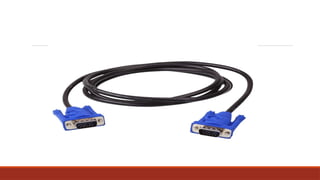
VGA Cable - Also known as D-sub cable, analog video
cable (Visual Display Analog)
 Connect one end to: computer monitor, television (PC
input port) Connect other end to: VGA port on computer
 VGA cable is a lead used for transmitting video signals,
and it is most commonly used to link computers with
monitors.
Types of connectors and Ports
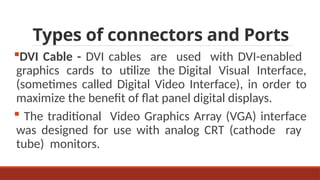
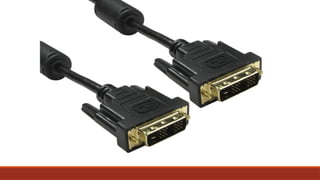
DVI Cable - DVI cables are used with DVI-enabled
graphics cards to utilize the Digital Visual Interface,
(sometimes called Digital Video Interface), in order to
maximize the benefit of flat panel digital displays.
 The traditional Video Graphics Array (VGA) interface
was designed for use with analog CRT (cathode ray
tube) monitors.
Types of connectors and Ports
HDMI Cable - Connect other end to: HDMI port on
computer
 HDMI® (High-Definition Multimedia Interface) is
an interface standard used for audiovisual
equipment, such as high-definition television and
home theater systems.
Types of connectors and Ports
PS/2 Cable - Connect one end to: PS/2 keyboard,
PS/2 mouse
 A PS/2 connector is a plug and socket system used
for connecting keyboards and mice to PC computers.
Types of connectors and Ports
Ethernet Cable - Also known as RJ-45 cable
 Connect one end to: router, network switch Connect
other end to: Ethernet port on computer.
 Types of Ethernet Cable:
1. Straight-Through Wired Cables
2. Cross-Over Wired Cables
Types of connectors and Ports
3.5mm Audio Cable - Also known as phone connector
(since 3.5mm jacks are often found on mobile phones too)
 Green audio port: computer speakers or headphones
Pink audio port: microphone
Blue audio port: MP3 player, CD player, DVD player,
turntable, electric guitar etc (line-in port to play and
record sounds from the above devices)
Types of connectors and Ports
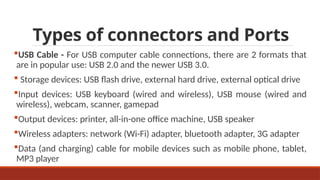
USB Cable - For USB computer cable connections, there are 2 formats that
are in popular use: USB 2.0 and the newer USB 3.0.
 Storage devices: USB flash drive, external hard drive, external optical drive
Input devices: USB keyboard (wired and wireless), USB mouse (wired and
wireless), webcam, scanner, gamepad
Output devices: printer, all-in-one office machine, USB speaker
Wireless adapters: network (Wi-Fi) adapter, bluetooth adapter, 3G adapter
Data (and charging) cable for mobile devices such as mobile phone, tablet,
MP3 player
Types of connectors and Ports
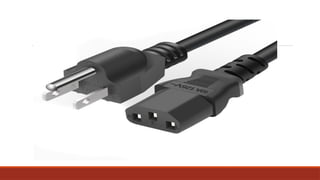
Computer Power Cord- Connect other end to: power
supply unit (see image below), computer monitor
Devices driver
A driver is a small piece of software that tells the operating system
and other software how to communicate with a piece of hardware.
 For example, all printers come accompanied with drivers to install
that tell the operating system exactly how to print information on
the page. Sound card drivers tell your software exactly how to
translate data into audio signals that the card can output to a set
of speakers. The same applies to video cards, keyboards, monitors,
etc.
Disk Partitioning
A partition is a segment of the hard disk, created by dividing the
disk logically into discrete units. You create partitions for a number
of reasons: say, to organize your applications and operating system
on drive C while storing your data on drive D.
You might also partition a disk for more technical reasons, such as
to run multiple OSes on the same machine.
Formatting
 Reasons why you might want to format a hard drive:
1. Clean installation of windows
2. Get rid of the virus or malware
 Formatting is the process of deleting all the data on the hard
drive.
Disk space
 Alternatively referred to as disk capacity, disk space is the total
amount of bytes that a disk drive or disc is capable of holding.
 Typically, the storage device is the computer's hard drive, but it
can also be a USB thumb drive, a CD or DVD, a memory stick/card,
or a Floppy disk.
 Disk space is usually measured in kilobytes (KB), megabytes (MB),
gigabytes (GB), or terabytes (TB). For example, a hard drive that is
500GB is capable of holding 500 Gigabytes of information
Memory Capacity
 RAM is an acronym for RANDOM ACCESS MEMORY, a type of
computer memory that can be accessed randomly; that is, any
byte of memory can be accessed without touching the preceding
bytes.
Software customization
 Task bar - The Taskbar contains two major items: the Start menu
and the System Tray (systray).
The Start menu is on the left side of the Taskbar and is easily
identifiable: it is a button that has the word Start on it.
The System Tray is located on the right side of the Taskbar and
contains only a clock by default, but other Windows utilities (for
example, screensavers or virus-protection utilities)
Antivirus
A computer virus is a small, deviously ingenious program that
replicates itself to other computers, generally causing those
computers to behave abnormally.
 Generally speaking, a virus’s main function is to reproduce.
 The process of running an antivirus program on a computer is
known as inoculating the computer against a virus.
Resolving hardware conflicts
 The following behaviour of your PC:
1. It runs noticeably slower
2. It spontaneously reboots
3. Other hardware stops working properly or at all
4. It fails to Shutdown
5. It will not boot, or
6. It crashes.
Resolving hardware conflicts
 possible solutions for these issues:
1. Update the drivers for the new hardware
2. Move the card to a different slot in your PC
3. Disable On board Devices
4. Update the BIOS on your motherboard
5. Try the card in a different PC and check if it works correctly
there.
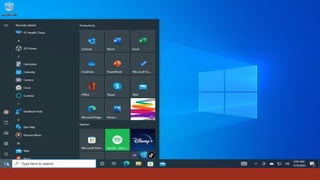
UNIT II: Desktop, Servers, and
Services
Desktop management is the process of systematically
managing all computers in an organization, including
desktop, laptop, tablet, and other end-user computing
devices. Desktop management is part of the larger field of
systems management, which includes all of the IT systems
and services utilized by an organization.
UNIT II: Desktop, Servers, and
Services
Because information is becoming such a valuable resource
of the digital firm, the infrastructure used to care for the
resource takes on added importance.
With the proliferation of computing devices such as laptop
computers, smartphones, and tablet computers, people
want the ability to access information wherever they are
whenever they want it. Data centers help give them those
opportunities.
Storage, Input, and Output
Technology
Secondary Storage Technology
Besides the primary storage areas of ROM and RAM, other
storage devices include the hard disk drives in almost every
computer, removable disks, and magnetic tape storage.
These are referred to as secondary storage. The kind of
storage necessary is dictated by the computer’s size and
how it’s used. As with most other components, the cost is
dropping significantly while the technology is improving all
the time.
Storage, Input, and Output
Technology
Solid state drives (SSDs) are used in smaller PCs,
smartphones, and tablets. They are smaller in physical size
while allowing storage of much more data.
Storage, Input, and Output
Technology
USB flash drives are a convenient way to store data but
more importantly, give you a way to take it with you
wherever you go. Flash drives come in a variety of storage
sizes and you simply plug them into a USB port on any
computing device to access the contents.
Storage, Input, and Output
Technology
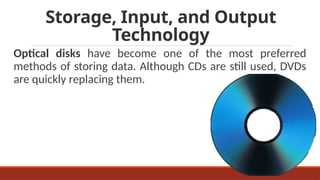
Optical disks have become one of the most preferred
methods of storing data. Although CDs are still used, DVDs
are quickly replacing them.
Contemporary Hardware
Trends
The network is the computer. Louis Gertsner, former CEO of
IBM, uttered this phrase as far back as the mid-1990s. It’s
even truer now than it was back then. We’re no longer
content to view data in a plain-text format on paper. We
want to enhance our communications with graphics, video,
and audio. We don’t want four or five different computing
devices but everything all rolled into one package. And, we
want all of it accessible wherever we are whenever we want
it.
Contemporary Hardware
Trends
The Mobile Digital Platform
One of the most dynamic hardware trends to appear for personal
and business use is the increased use of cellphones and
smartphones for computing tasks. People are no longer tied to a
desktop PC or laptop computer to transmit data, surf the Web,
send email and instant messages, or access data on corporate
systems. Netbooks, tablet computers, and digital e-book readers,
such as the Amazon Kindle, are also taking on computing tasks that
used to require a full-size computer.
Contemporary Hardware
Trends
Consumerization of IT and BYOD
The consumerization of IT explains the technology along with
BYOD, bring your own device. But, along with bringing their own
devices, employees are bringing a new set of problems to the
doorstep of their organization’s IT department. The most prevalent
problem is securing the business’s core information systems from
threats posed by malware and data theft. Access to the corporate
network must continue to be protected while still giving employees
fairly easy access to data, information, and applications.
Nanotechnology and
Quantum Computing
One way chip makers are overcoming size barriers is
to use nanotechnology to create computer chips that
are thousands of times smaller than their
predecessors. That enables manufacturers to make
more powerful, smaller chips for cell phones, iPod-like
devices, and PDAs while increasing computing
capacity.
Virtualization
Virtualization. It’s the process of running multiple
operating systems and application programs on one
machine and increasing the overall utilization rates of
the device. Instead of having ten servers running ten
different applications, virtualization consolidates the
programs onto one or two servers.
Cloud Computing
Cloud Computing is the
delivery of computing services
—including servers, storage,
databases, networking,
software, analytics, and
intelligence—over the internet
(“the cloud”) to offer faster
innovation, flexible resources,
and economies of scale.
Cloud Computing Platform
Three Types Of Services:
Cloud infrastructure as a service: allows customers to
process and store data, and use networking and other
resources available from the cloud.
Cloud platform as a service: the service provider
offers infrastructure and programming tools to
customers so they can develop and test applications.
Cloud Computing Platform
Cloud software as a service: the vendor provides
software programs on a subscription fee basis. Google
apps is a great example of cloud software as a service
because they provide easy access to common
business applications through Web browsers.
What is network
configuration?
Network configuration is the process of assigning network
settings, policies, flows, and controls. In a virtual network,
it’s easier to make network configuration changes because
physical network devices appliances are replaced by
software, removing the need for extensive manual
configuration.
What is network
configuration?
Network configuration can also be automated and managed via a
centralized configuration manager network configuration manager,
further reducing manual IT workload and making it easier to:
Maintain a network
Make configuration changes
Relaunch devices
Track and report data
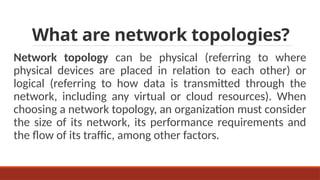
What are network topologies?
Network topology can be physical (referring to where
physical devices are placed in relation to each other) or
logical (referring to how data is transmitted through the
network, including any virtual or cloud resources). When
choosing a network topology, an organization must consider
the size of its network, its performance requirements and
the flow of its traffic, among other factors.
What are network topologies?
Common network topologies include:
 Bus: Every node in the network is connected along a
linear path. This simple topology is used most often for
small networks.
Ring: Nodes are connected in a loop, and traffic may flow
in one direction or in both directions. Ring networks tend
to be cost-effective, but not as scalable or stable as other
network topologies.
What are network topologies?
Star: A central node connects to all other nodes in the
network. This is a common and stable topology that’s often
used for local area networks (LANs).
Mesh: Nodes are linked in such a way that multiple paths
between nodes are possible. This type of network topology
increases the resiliency of the network, but also increases
cost. A network may be fully meshed (all nodes connecting
to all other nodes) or partially meshed (only some nodes
having multiple connections to other nodes).
How can you check your
network configuration?
In a command-line environment, the commands ipconfig
(for Windows network configuration) and ifconfig (for Linux
network configuration, as well as Mac OSX and other Linux-
like environments) allow you to view information about
your network configuration and to configure your networks
interface.
Remote Administration
Remote administration can be broadly defined as any
method of controlling, monitoring a networked device from
a remote location. Software that allows remote
administration is known as Remote Administration Tools.
 So RAT gives someone access to remotely access your
device as you are doing it physically but from any other
location. With these tools, another person can access your
files, camera, and can even turn off your device.
Who uses Remote
Administration Tools?
Sometimes when our system has a fault then a technical
guy accesses our computer remotely through the internet
and removes the fault.
 It is used by hackers to get access to your computer and
steal important information from it and harm your data.
Usually, hackers attach a malicious code with some kind of
game or movie which when downloaded by you comes in
your system, and then hackers can easily access your
system.
Installation of RAT
Manually: You can install legitimate RAT manually to your
system, or someone who knows how to install it. Whereas
hackers have their own techniques to install RAT on your
system.
Stealthy: Hackers attach these programs with a file on the
internet like movie or game. When you download it the
malicious software also gets installed to your System and
can be accessed.
Common tasks for which
remote administration is used
SHUTDOWN
•Shutting down
•rebooting another computer over a network.
 ACCESSING PERIPHERALS
•Using a network device, like printer
•Retrieving streaming data, much like a CCTV system.
Common tasks for which
remote administration is used
 MODIFYING
•Editing another computer's Registry settings
•modifying system services, and
•Installing software on another machine.
VIEWING
• Remotely assisting others
•Supervising computer or internet usage
Common tasks for which
remote administration is used
HACKING
• Computers infected with malware such as Trojans
sometimes open back doors into computer systems which
allows malicious users to hack into and control the
computer. Such users may then add, delete, modify or
execute files on the computer to their own ends.
Tips on How to Avoid RAT
Be careful when you are using the internet and
downloading files online.
Always Enable your Anti-Viruses.
Don’t allow any malicious file to your system.
Update your anti-virus from time to time.
UNIT III: System Start-up and
Shutdown
System startup refers to the procedure for starting the computer
software, namely the operating system, and other programs. System
startup does not refer to installing the system for the first time.
System startup involves several steps:
resetting the system
placing system files on the system disk, if the files do not already
reside there
starting the system using an autoboot or interactive sequence
UNIT III: System Start-up and
Shutdown
Shut down is closing all programs in preparation to
turn off a computer's power. The operating system is
the last program to be closed as part of a computer's
shut down process.
What is a bootstrap program?
A bootstrap program is the first code that is executed
when the computer system is started. The entire
operating system depends on the bootstrap program
to work correctly as it loads the operating system.
A figure that demonstrates the use of the bootstrap
program is as follows −
In the above image, the bootstrap program is a part of
ROM which is the non-volatile memory. The operating
system is loaded into the RAM by the bootstrap
program after the start of the computer system. Then
the operating system starts the device drivers.
The bootstrapping process does not require any outside
input to start. Any software can be loaded as required by
the operating system rather than loading all the software
automatically.
 The bootstrapping process is performed as a chain i.e. at
each stage, it is the responsibility of the simpler and smaller
program to load and execute the much more complicated
and larger program. This means that the computer system
improves in increments by itself.
Bootstrapping Process
Without bootstrapping, the computer user would
have to download all the software components,
including the ones not frequently required.
With bootstrapping, only those software components
need to be downloaded that are legitimately required
and all extraneous components are not required. This
process frees up a lot of space in the memory and
consequently saves a lot of time.
Benefits of Bootstrapping
Without bootstrapping, the computer user would
have to download all the software components,
including the ones not frequently required.
With bootstrapping, only those software components
need to be downloaded that are legitimately required
and all extraneous components are not required. This
process frees up a lot of space in the memory and
consequently saves a lot of time.
Benefits of Bootstrapping
The program that starts the “chain reaction” which ends with the
entire operating system being loaded is known as the boot loader (or
bootstrap loader).
The term creatively came from early designers imagining that before a
computer “runs” it must have it’s “boots strapped”. The boot loader’s
only job is to load other software for the operating system to start.
Often, multiple-stage boot loaders are used, in which several small
programs of increasing complexity sequentially summon one after the
other, until the last of them loads the operating system.
Boot Loader
The boot device is the device from which the
operating system is loaded. Typically, the BIOS will
allow the user to configure a boot order. If the boot
order is set to:
1. CD Drive
2.Hard Disk Drive
3. Network
Boot Devices
Restarting (or rebooting) puts the computer through a
process that shuts it down and then starts it back up
again.
Restarting
The hard drive is an important part of computer parts, a storage
device that provides always saving data even after the power
supply interrupted. A partition is an area of a hard disk that can
be formatted and assigned a drive letter, (The terms volume and
partition are often used interchangeably).
Your system partition is typically labeled with the letter C. Letters
A and B are reserved for removable drives or floppy disk drives.
UNIT III: What is a partition or volume?
 unallocated disk space(unformatted space that is
not part of an existing partition
or volume) or
 free space within an extended partition on the hard
disk.
How to create partitions?
A system partition is a primary partition that contains
the hardware-related files and the
Boot folder (the boot loader, a piece of software
responsible for booting the OS.), these
tell the computer where to look to start Windows.
How to create partitions?
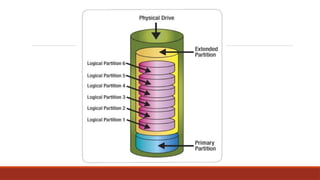
1. Primary
2. Extended
3. Logical.
The total data storage space of a PC HDD can contain at
most four primary partitions, or alternatively three
primary partitions and an extended partition.
Types of partitioning
Primary and Extended are the basic divisions
(partitions) of the hard disk, later this extended can be
divided into any number of logical partitions.
Types of partitioning
1. Primary Partition:
The primary partition contains the used operating system (such
as Windows) in addition to any files or other data (such as My
documents, Program files), a primary partition is in which an
Operating System can be installed, hard disk may contain a
maximum of 4primary partitions, primary partition must be
formatted with appropriate file system before install the
operating system, only primary partition can be set as active.
Types of partitioning
2. Extended Partition:
Extended partition cannot be used directly unless partition
it to multiple logical drives.
We can consider the extended section as the container that
contains several logical partitions, and cannot use the
extended section for data storing, but it must be divided
into a number of logical partitions that are used for data
storing.
Types of partitioning
3. Logical Partition:
Logical partitions cannot exist unless within the
extended partition, and logical partitions can contain
ordinary files and data, logical drive cannot be set as
active.
You can use several programs to partition your hard
drive, such as the Fdisk.
Types of partitioning
You can repartition your hard disk by using the Shrink
feature in Disk Management. You can shrink an
existing partition or volume to create unallocated disk
space, from which you can create a new partition or
volume.
Repartitioning hard disk
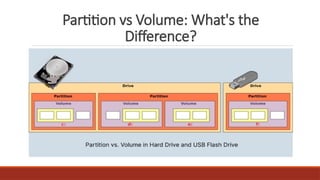
A volume is the part of the disk that the user uses and/or can
interact with easily. So, it is clear that despite partition, volume
is not raw and without format. It is highly important to
understand volume is formatted and has a specific file system.
Not only does disk volume contain a file system, but also it has
named a size specifically. In computer sciences, a formatted
storage device is called a volume which can be divided into
several logical partitions.
What Is a Disk Volume?
Partition vs Volume: What's the
Difference?
A volume is a single accessible storage area with a
single file system.
A partition is a logical division of a hard disk.
Both are the units of data storage, but a volume is not
the same thing as a partition.
Partition vs Volume: What's the
Difference?
Printing is a process for mass reproducing text and
images using a master form or template.
Printing
The Printing Architecture is one of the major components from
Windows architecture. It consists of a print spooler and a set of
printer drivers. The applications can create print jobs and send
them to the printers by calling device-independent Win32 printing
and GDI functions.
Printer drivers include a user interface component that allows
users to control a printer's selectable options (Paper Size, Number
of copies, Coloration, Pages per sheet, etc.).
Printing Architecture
The printing process is divided into three groups of steps:
1. Client processes
2. Spooler processes
3. Printer processes
Printing Process
Each process performs some operations and passes the print job to
another process.
For example, user fires a print document from an application, the client
process starts the creation of print job by calling the GDI, and after
completing the creation of print job, it sends to the spooler. The spooler
will perform some operations on that print job and sends to the printer
process. The printer processes receive the print job from the spooler
process and translate the print language into a bitmap, and then it prints.
Printing Process
A user sends a print job from an application. The
application calls the Graphics Device Interface (GDI).
If print output is produced in RAW format, the GDI is not
used. The GDI calls the printer driver for information,
which the GDI uses to create a job in printer language.
The GDI delivers the job to the spooler.
Client Processes
The Graphics Device Interface (GDI) is a legacy
component of Microsoft Windows responsible for
representing graphical objects and transmitting them to
output devices such as monitors and printers.
GDI interacts with device drivers on behalf of applications
and enables applications to use graphics and formatted
text on both the video display and the printer.
Client Processes
Print Spooler is software built into the Windows operating system that
temporarily stores print jobs in the computer's memory until the
printer is ready to print them.
It is a special process that manages access to printers by multiple users.
For most users, the function of the Spooler is transparent. They
generate a job for a printer and go to the printer to pick up the output.
The Spooler permits users to continue working without waiting for a
print job to finish printing.
Spooler Processes
The Spooler has two roles:
1. It spools print jobs by directing the output from a user's
process to a print file. It creates an entry in the print queue for
the job.
It despools print jobs by emptying the print queue, one job at a
time per printer, as the assigned printer becomes available.
Spooler Processes
Operational Spooler parameters include the following:
 Up to 600 print files can be maintained on the queue.
60 files can be generated simultaneously per user process.
Up to 1500 form queues can be assigned across the system.
125 copies can be generated by a single print request.
Up to 1000 printers are supported.
Spooler Processes
Most commands also accept the parenthetical (P option to send the output of a
command to the printer.
A print job is actually a request for the Spooler to handle the output from the
process.
The Spooler collects the output intended for the printer and places it in a
temporary print file.
The Spooler maintains a queue to handle all requests on a first-come, first-
served basis. Each entry in the print queue identifies the print file and its
destination.
Basic Operation of the Spooler
For each entry in the queue the Spooler determines if the
assigned printer is available to handle the job.
If the printer is available, the job is printed immediately. If
the printer is unavailable, this means that either the printer
is currently printing a job or the printer is off- line.
In both cases, the Spooler holds the print job in the queue
until the printer is ready to take the job.
Basic Operation of the Spooler
The printer receives the print job from the print
spooler.
The printer translates the print language into a
bitmap, which it then prints.
Printer Processes
Print providers are responsible for directing print jobs to local or
remote print devices.
They are also responsible for print queue management operations,
such as starting, stopping, and enumerating a server's print queues.
Print providers define a high-level, machine-independent,
Operating System-independent view of a print server. All print
providers implement a common set of print provider capabilities.
Introduction to Print Providers
Print Queue Management: Adding, deleting, opening, closing,
enumerating, and setting parameters for print queues. Also,
providing notification of changes to a print queue's state.
Printer Driver Management: Adding, deleting, enumerating, and
specifying a directory for printer drivers.
Print Job Creation: Starting and ending a document, starting and
ending a document page, writing the job's data stream to a port,
reading printer status information.
Print Provider Capabilities
Forms Management: Adding, deleting, enumerating, and setting
parameters for print forms.
Print Processor Management: Adding, deleting, enumerating, specifying
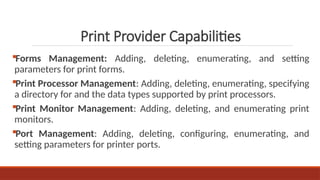
a directory for and the data types supported by print processors.
Print Monitor Management: Adding, deleting, and enumerating print
monitors.
Port Management: Adding, deleting, configuring, enumerating, and
setting parameters for printer ports.
Print Provider Capabilities
Forms Management: Adding, deleting, enumerating, and setting parameters for
print forms.
Print Processor Management: Adding, deleting, enumerating, specifying a
directory for and the data types supported by print processors.
Print Monitor Management: Adding, deleting, and enumerating print monitors.
Port Management: Adding, deleting, configuring, enumerating, and setting
parameters for printer ports.
Registry Management: Creating, deleting, and enumerating registry keys and
values associated with a print provider.
Print Provider Capabilities
Forms Management: Adding, deleting, enumerating, and setting parameters for
print forms.
Print Processor Management: Adding, deleting, enumerating, specifying a
directory for and the data types supported by print processors.
Print Monitor Management: Adding, deleting, and enumerating print monitors.
Port Management: Adding, deleting, configuring, enumerating, and setting
parameters for printer ports.
Registry Management: Creating, deleting, and enumerating registry keys and
values associated with a print provider.
Print Provider Capabilities
Laser Printers
Solid Ink Printers
LED Printers
Business Inkjet Printers
Home Inkjet Printers
Multifunction Printers
Dot Matrix Printers
3D Printers
TYPES OF PRINTERS
Laser Printers
The laser printer was developed by Xerox in the 1960s
when the idea of using a laser to draw images onto a
copier drum was first considered. Laser printers are
still widely used in large offices as they are traditionally
more efficient than inkjet printers.
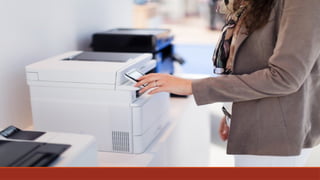
Office Printers
Solid Ink Printers
Solid ink printers utilize a unique form of ink technology, designed to save space and money on
packaging. The printers melt solid ink sticks during the printing process – a method that can help
produce more vibrant tones.
Advantages:
● Environmentally-friendly
● Produces vibrant tones
● Made from non-toxic vegetable oils
● Compact design
● Consumables require less storage
Office Printers
LED Printers
LED printers are similar to laser printers but use a light emitting diode rather than a
laser to create images on the print drum or belt. Due to their fewer moving parts –
LED printers are often considered more efficient and reliable than laser printers. Our
most popular LED printers are produced by OKI.
Advantages:
● Reliable and efficient
● Cheaper to manufacture than laser printers
● Often include free warranty extensions
Office Printers
Business Inkjet Printers
Utilizing inkjet technology on a large scale to accommodate
the needs of a busy office with heavy reliance on printed
output, inkjet printers are enduringly popular due to their
reliability and robust nature.
Office Printers
Inkjet
Inkjet printers are one of the most common types of printers
used in both professional and domestic settings. Developed
in the 1950s, inkjet printing technology is still hugely popular
today due to its numerous advantages and minimal
drawbacks.
Home Office Printers
Inkjet
Inkjet printers are one of the most common types of printers
used in both professional and domestic settings. Developed
in the 1950s, inkjet printing technology is still hugely popular
today due to its numerous advantages and minimal
drawbacks.
Home Office Printers
Low-Cost Inkjet Printers
Combining the high-quality print capabilities of inkjet
technology with lower cost-per page functionality: low cost
inkjet printers are well-suited to professional and domestic
users working on a budget.
Home Office Printers
Low-Cost Inkjet Printers
Combining the high-quality print capabilities of inkjet
technology with lower cost-per page functionality: low cost
inkjet printers are well-suited to professional and domestic
users working on a budget.
Home Office Printers
Multifunction
Sometimes known as all-in-one printers, multifunction
printers are often capable of performing printing, copying,
scanning, and faxing tasks. This can simplify the completion
of multiple tasks within an office or domestic environment,
with no need for more than one unit.
Home Office Printers
All-in-One Inkjets
Combining the technology of inkjet printing with the
functionality of a multifunction printer: all-in-one inkjet
printers are capable of providing full service to a busy office
environment whilst retaining the high-quality prints that
inkjet is known for.
Home Office Printers
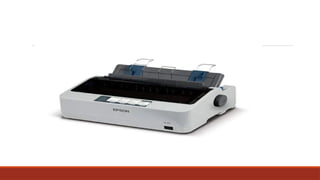
Dot matrix printers
It is the oldest established type of printers still available on
the market. Images and text are drawn out in tiny dots when
a print head strikes an ink-soaked cloth against the paper in
the required pattern or formation.
Home Office Printers
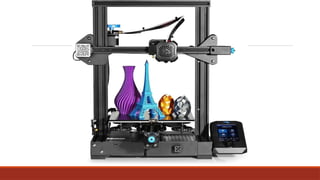
3D
One of the most exciting developments in printing
technology history, 3D printing is becoming more affordable
for professional and domestic users. Modern 3D printers are
capable of producing 3D objects and items using high quality
resin.
Home Office Printers
System-Administration-and-Maintenance.pptx

System-Administration-and-Maintenance.pptx

  • 1.
  • 2.
    About the Course: Thecourse focuses on system administrator concepts and how information technology services can be implemented and provided in the organization's IT infrastructure. https://en.wikiversity.org/wiki/System_administration#Typical_usage https://su.edu.ye/ce/wp-content/uploads/sites/3/2021/12/System-Administration-Maintenance.pdf
  • 3.
    Introduction  What isSystem Administration?  User Account Management Hardware Management  Data Backups  Software Installation/Maintenance  System Monitoring
  • 4.
    What is SystemAdministration? System administration is typically done by information technology experts for or within an organization. Their job is to ensure that all related computer systems and services keep working.
  • 5.
    A system administrator,or sysadmin, is a person responsible to maintain and operate a computer system or network for a company or other organization.  System administrators are often members of an information technology department.
  • 6.
    The duties ofa system administrator are wide- ranging, and vary from one organization to another. System administrators are usually charged with installing, supporting, and maintaining servers or other computer systems, and planning for and responding to service outages and other problems.
  • 7.
    Other duties mayinclude scripting or light programming, project management for systems- related projects, supervising or training computer operators, and being the equivalent of a handyman for computer problems beyond the knowledge of technical support staff.
  • 8.
    It is commonfor systems administrators and systems analysts charged with developing and maintaining computer processes to identify operational and developmental systems.
  • 9.
    Related Fields: Many organizationsstaff other jobs related to systems administration. In a larger company, these may all be separate positions within a computer support or Information Services (IS) department. In a smaller group they may be shared by a few sysadmins, or even a single person.
  • 10.
    Related Fields:  Adatabase administrator (DBA) maintains a database system, and is responsible for the integrity of the data and the efficiency and performance of the system.  A network administrator maintains network infrastructure such as switches and routers, and diagnoses problems with these or with the behavior of network-attached computers. A security administrator is a specialist in computer and network security, including the administration of security devices such as firewalls, as well as consulting on general security measures.
  • 11.
    Related Fields:  Technicalsupport staff respond to individual users' difficulties with computer systems, provide instructions and sometimes training, and diagnose and solve common problems.  A computer operator performs routine maintenance and upkeep, such as changing backup tapes.
  • 12.
    Related Fields:  Asystems analyst documents, trouble shoots, and develops existing and new computer and work processes and systems. In some organizations, a person may begin as a member of technical support staff or a computer operator, then gain experience on the job to be promoted to a sysadmin position and afterwards an IT Manager.
  • 13.
    Duties of asystem administrator A system administrator's responsibilities typically include: Morning checks of systems/software. Performing backups of data. Applying operating system updates, and configuration changes. Installing and configuring new hardware/software.
  • 14.
    Duties of asystem administrator System performance tuning. Keeping the network up and running.
  • 15.
    In larger organizations,some tasks listed above may be divided among different system administrators or members of different organizational groups. For example, a dedicated individual may apply all system upgrades, a Quality Assurance (QA) team may perform testing and validation, and one or more technical writers may be responsible for all technical documentation written for a company.
  • 16.
    In smaller organizations,a system administrator can also perform any number of duties elsewhere associated with other fields like: Technical support Database administration (DBA) Network administration/analyst and specialist Application analyst Security administration Programming
  • 17.
    System administrators, inlarger organizations, also tend not to be system architects, system engineers, or system designers, however, like many roles in this field, demarcations between systems administration and these other roles are often not well defined in smaller organizations. However, even in larger organizations, senior systems administrators often have skills in these other areas as a result of their working experience. In smaller organizations, IT/computing specialties are less often discerned in detail, and the term "system administrator" is used in a rather generic way — they are the people who know how the computer systems work and can respond when something fails.
  • 18.
    Being an administrator Theprimary goal of being a system administrator is to be as lazy as possible. Not lazy in the sense that you do no work, but lazy in the sense that you get the computer to do the hard and repetitive jobs, and you do the thinking jobs. The primary goal of being a system administrator is to be as lazy as possible. Not lazy in the sense that you do no work, but lazy in the sense that you get the computer to do the hard and repetitive jobs, and you do the thinking jobs.
  • 19.
    History of SystemAdministrator A sysadmin emerged from the Unix-enabled explosion in mini-computer capabilities in the mid-to-late 1970s, peaked 1980 to 2005, and has been in decline as outsourcing of enterprise platforms took hold During its lifetime, the occupation matured and professionalized, as indicated by the SAGE-AU Body of Knowledge.  it also splintered, with continual change in the focus of technology - from minis to micros, from star networks to LANs and WANs and VPNs, from terminals to workstations to PCs to handhelds, from uniprocessors to multi-processor configs
  • 20.
    History of SystemAdministrator The decline of the sysadmin has been hastened by reduction of the magic of a guild-member, via the luster of a profession, and the respectability of a trade, all the way down to the blind following of structured clerical recipes. Even more depressing is the way that IT costs have spiraled, as the savings that arise from paying low wages for dumbed-down jobs have been eaten up by the need for vastly greater numbers of people who see little of the whole, and understand less than they see.
  • 21.
    User Account Management Alarge part of a sys admins job involves troubleshooting and problem solving.  A user is anyone who holds an Identity Manager system account. Identity Manager stores a range of data for each user. Collectively, this information forms a user’s Identity Manager identity.
  • 22.
    User Account Management IdentityManager categorizes user data in four areas: 1. Identity 2. Assignments 3. Security 4. Attributes
  • 23.
    User Account Management Identity -The Identity area defines a user’s account ID, name, contact information, governing organization, and Identity Manager account password. It also identifies the resources to which the user has access, and the password policy governing each resource account.
  • 24.
    The following figureillustrates the IDENTITY AREA of the Create User page.
  • 25.
    User Account Management Assignments -InIdentity Manager terminology, a user who is assigned extended capabilities is an Identity Manager administrator. -The Security area establishes these extended administrative capabilities for the user, through assignment of:
  • 26.
    1. Admin roles— Combine a specific, unique set of capabilities and controlled organizations, facilitating coordinated assignment to administrative users. 2. Capabilities — Enable rights in the Identity Manager system. Each Identity Manager administrator is assigned one or more capabilities, frequently aligned with job responsibilities. 3. Controlled organizations — Assigns organizations that this user has rights to manage as an administrator. He can manage objects in the assigned organization and in any organizations below that organization in the hierarchy.
  • 28.
    User Account Management Attributes -The Attributes area defines account attributes associated with assigned resources. Listed attributes are categorized by assigned resource, and differ depending on which resources are assigned.
  • 30.
    Accounts Area  The IdentityManager accounts area lets you manage Identity Manager users. To access this area, select Accounts from the Administrator Interface.  The accounts list shows all Identity Manager user accounts. Accounts are grouped in organizations and virtual organizations, which are represented hierarchically in folders.  You can sort the accounts list by full name (Name), user last name (Last Name), or user first name (First Name).  https://docs.oracle.com/cd/E19944-01/819-4481/IDM_admin_users.html
  • 31.
  • 32.
    ACTIONS LISTS INTHE ACCOUNTS AREA  Use the actions lists (located at the top and bottom of the accounts area) to perform a range of actions. Actions list selections are divided among: 1. New Actions — Create users, organizations, and directory junctions. 2. User Actions — Edit, view, and change status of users; change and reset passwords; delete, enable, disable, unlock, move, update, and rename users; and run a user audit report. 3. Organization Actions — Perform a range of organization and user actions.
  • 33.
    Working with UserAccounts  From the Administrator Interface Accounts area, you can perform a range of actions on these system objects. 1. Users — View, create, edit, move, rename, deprovision, enable, disable, update, unlock, delete, unassign, unlink, and audit 2. Passwords — Change and reset 3. Organizations — Create, edit, refresh, and delete 4. Directory Junctions — Create
  • 35.
    HARDWARE MANAGEMENT something ofan umbrella term that describes any tangible, physical company technology asset, including those currently in use, those in storage, and support equipment.
  • 36.
    HARDWARE MANAGEMENT With thisdefinition in mind, hardware assets are generally grouped into four primary categories: 1. End-user devices - End-user devices refer to any company hardware used directly by employees in their day-to-day work. This includes computers, tablets, smart phones, SIM cards, and more. Hardware assets also encompass personal devices used to perform business tasks within an organization.
  • 37.
    2. Network/telecom hardware Networkand telecom hardware is support equipment that helps facilitate digital and analog communication. This includes routers, load balancers, switches, and telephone- and video-conferencing systems.
  • 38.
    3. Data-center equipment Data-centerequipment describes all hardware that allows data centers to function effectively, including servers, utilities, and security devices.
  • 39.
    4. Peripherals Peripherals arethe significant support equipment found throughout the modern-office environment. Peripherals may include scanners, printers, monitors, keyboards, headsets, projectors, and even cables and adaptors.
  • 40.
    DATA BACK-UPS Data backupis the practice of copying data from a primary to a secondary location, to protect it in case of a disaster, accident or malicious action. Data is the lifeblood of modern organizations, and losing data can cause massive damage and disrupt business operations. This is why backing up your data is critical for all businesses, large and small.
  • 41.
    Data Backup Options RemovableMedia -Removable media is portable, and can be stored in a safe deposit box or off-site location, providing an extra layer of security in case of a disaster. - such as CDs, DVDs, and flash drives, has long been a popular method of data protection
  • 42.
    Data Backup Options Redundancy -Redundancyis a vital aspect of data backup, as it involves creating multiple copies of your data to ensure its safety and accessibility.
  • 43.
    Data Backup Options ExternalHard Drive -External hard drives are portable, allowing you to easily move and store your data off-site for added security.
  • 44.
    Data Backup Options HardwareAppliances - Hardware appliances can provide a comprehensive, all-in-one backup solution for businesses and may include features such as data deduplication, encryption, and automated backup scheduling.
  • 45.
    Data Backup Options BackupSoftware -Backup software is an essential component of any data backup strategy, as it helps automate and streamline the backup process. - Cloud Backup Services, Encryption, compression, multiple back-up destinations
  • 46.
    Software Installation/Maintenance The computer systemcan be divided roughly into four components: 1. Hardware 2. Operating System 3. Application Software 4. Users
  • 48.
    Operating System provides basicprogramming instructions to the computer hardware. The operating system is program code that makes it possible for you to start the basic functions of a computer, view text on the computer’s display, store information, access and modify information, log on to a network, connect to the Internet, and run software applications.
  • 49.
    OS main functions: FUNCTION1. PROVIDE A USER INTERFACE -Performing housekeeping procedures requested by the user, often concerning secondary storage devices, such as reorganizing a hard drive, deleting files, copying files, and changing the system date FUNCTION 2. MANAGE FILES -Managing files on hard drives, DVD drives, CD drives, floppy drives, and other drives -Creating, storing, retrieving, deleting, and moving files
  • 50.
    OS main functions: FUNCTION3. MANAGE HARDWARE -Managing the BIOS (programs permanently stored on hardware devices) - Managing memory, which is a temporary place to store data and instructions as they are being processed - Diagnosing problems with software and hardware
  • 51.
    OS main functions: FUNCTION4. MANAGE APPLICATIONS -Installing and uninstalling applications - Running applications and managing the interface to the hardware on behalf of an application
  • 52.
    An operating systemcontains the following basic components: The application programming interface (API), software that resides between the application software and the operating system kernel, which is the main program code in the operating system.  The basic input/output system (BIOS) , a program that verifies hardware and establishes basic communications with components such as the monitor and disk drives. The BIOS usually loads other operating system components on startup and houses a real-time clock for the date and time.
  • 53.
    An operating systemcontains the following basic components: The operating system kernel, the core of the operating system that coordinates operating system functions, such as control of memory and storage. The kernel communicates with the BIOS, device drivers, and the API to perform these functions. It also interfaces with the resource managers.  Resource managers, programs that manage computer memory and central processor use.  Device driver, programs that take requests from the API via the kernel and translate them into commands to manipulate specific hardware devices, such as keyboards, monitors, disk drives, and printers. The OS also includes optional specialized drivers for other functions and devices, such as sound.
  • 54.
    System Requirements Every operatingsystem requires its own set of system requirements depending on the particular functionalities of the operating system. In most cases contemporary operating systems require greater system requirements compared to their predecessors. For example,
  • 55.
    Windows 8 Processor: 1gigahertz (GHz) or faster with support for PAE, NX, and SSE2 RAM: 1 gigabyte (GB) (32-bit) or 2 GB (64-bit) Hard disk space: 16 GB (32-bit) or 20 GB (64-bit) Graphics card: Microsoft DirectX 9 graphics device with WDDM driver
  • 56.
    Windows Vista HomeBasic - 1 GHz 32-bit (x86) or 64-bit (x64) processor - 512 MB of system memory - 20 GB hard drive with at least 15 GB of available space - Support for DirectX 9 graphics and 32 MB of graphics memory - DVD-ROM drive -Audio Output
  • 57.
    What does NTFSand FAT stand for? NTFS is a high-performance and self-healing file system proprietary to Windows XP Vista 2008 2003 2000 NT & Windows 7, Windows 8, which supports file-level security, compression and auditing. It also supports large volumes and powerful storage solution such as RAID. The most important features of NTFS are data integrity and the ability to encrypt files and folders to protect your sensitive data
  • 58.
    What does NTFSand FAT stand for? FAT- File Allocation Table (FAT) file system is a simple file system originally designed for small disks and simple folder structures. The FAT file system is named for its method of organization, the file allocation table, which resides at the beginning of the volume. To protect the volume, two copies of the table are kept, in case one becomes damaged.
  • 59.
    1.3 Disc startup What is a startup disk? A boot disk (sometimes called a startup disk) is a type of removable media, such as a floppy disk or a CD that contains startup files that your computer can use to start Windows. The startup files are also stored on your computer's hard disk, but if those startup files become damaged, you can use the files on a boot disk to start Windows. https://www.studocu.com/row/document/mount-kenya-university/software-engineering/bit2103-hardware-and-software- installation-and-support/11952362
  • 60.
    BOOT MEDIA USEDFOR THE INSTALLATION The boot device most likely will be the DVD or CD drive.  You can use an external drive that connects to the PC by way of a USB port.  To enter BIOS setup, you press a key, such as F2 or Del
  • 62.
    Computer hardware  refersto the physical components of a computer such as the monitor, Keyboard, Mouse, system unit etc.  Hardware units (Devices) of a computer can be categorized into five units; I. Input unit II. Out p u t III. Ce n t r a l processing unit (CPU) or processor IV. Main Memory V. Secondary storage/Backing Storage
  • 63.
    POWER REQUIREMENTS The powersupply converts the alternating current (AC) line from your socket to the direct current (DC) needed by the personal computer.  Power supplies, often referred to as "switching power supplies", use switcher technology to convert the AC input to lower DC voltages. The typical voltages supplied are: 3.3 volts 5 volts 12 volts  The main specification of a power supply is in watts.
  • 65.
    Signs of PowerSupply Failure  Computer turns on for some time then it suddenly turns off.  Random black & blue screen crashes  Random Computer Crashes and Restarts.  Display Issues  Strange noises from the PC case  PC won’t start, but the case fans spin.
  • 66.
    Types of connectorsand Ports VGA Cable - Also known as D-sub cable, analog video cable (Visual Display Analog)  Connect one end to: computer monitor, television (PC input port) Connect other end to: VGA port on computer  VGA cable is a lead used for transmitting video signals, and it is most commonly used to link computers with monitors.
  • 68.
    Types of connectorsand Ports DVI Cable - DVI cables are used with DVI-enabled graphics cards to utilize the Digital Visual Interface, (sometimes called Digital Video Interface), in order to maximize the benefit of flat panel digital displays.  The traditional Video Graphics Array (VGA) interface was designed for use with analog CRT (cathode ray tube) monitors.
  • 70.
    Types of connectorsand Ports HDMI Cable - Connect other end to: HDMI port on computer  HDMI® (High-Definition Multimedia Interface) is an interface standard used for audiovisual equipment, such as high-definition television and home theater systems.
  • 72.
    Types of connectorsand Ports PS/2 Cable - Connect one end to: PS/2 keyboard, PS/2 mouse  A PS/2 connector is a plug and socket system used for connecting keyboards and mice to PC computers.
  • 74.
    Types of connectorsand Ports Ethernet Cable - Also known as RJ-45 cable  Connect one end to: router, network switch Connect other end to: Ethernet port on computer.  Types of Ethernet Cable: 1. Straight-Through Wired Cables 2. Cross-Over Wired Cables
  • 76.
    Types of connectorsand Ports 3.5mm Audio Cable - Also known as phone connector (since 3.5mm jacks are often found on mobile phones too)  Green audio port: computer speakers or headphones Pink audio port: microphone Blue audio port: MP3 player, CD player, DVD player, turntable, electric guitar etc (line-in port to play and record sounds from the above devices)
  • 78.
    Types of connectorsand Ports USB Cable - For USB computer cable connections, there are 2 formats that are in popular use: USB 2.0 and the newer USB 3.0.  Storage devices: USB flash drive, external hard drive, external optical drive Input devices: USB keyboard (wired and wireless), USB mouse (wired and wireless), webcam, scanner, gamepad Output devices: printer, all-in-one office machine, USB speaker Wireless adapters: network (Wi-Fi) adapter, bluetooth adapter, 3G adapter Data (and charging) cable for mobile devices such as mobile phone, tablet, MP3 player
  • 80.
    Types of connectorsand Ports Computer Power Cord- Connect other end to: power supply unit (see image below), computer monitor
  • 82.
    Devices driver A driveris a small piece of software that tells the operating system and other software how to communicate with a piece of hardware.  For example, all printers come accompanied with drivers to install that tell the operating system exactly how to print information on the page. Sound card drivers tell your software exactly how to translate data into audio signals that the card can output to a set of speakers. The same applies to video cards, keyboards, monitors, etc.
  • 84.
    Disk Partitioning A partitionis a segment of the hard disk, created by dividing the disk logically into discrete units. You create partitions for a number of reasons: say, to organize your applications and operating system on drive C while storing your data on drive D. You might also partition a disk for more technical reasons, such as to run multiple OSes on the same machine.
  • 86.
    Formatting  Reasons whyyou might want to format a hard drive: 1. Clean installation of windows 2. Get rid of the virus or malware  Formatting is the process of deleting all the data on the hard drive.
  • 87.
    Disk space  Alternativelyreferred to as disk capacity, disk space is the total amount of bytes that a disk drive or disc is capable of holding.  Typically, the storage device is the computer's hard drive, but it can also be a USB thumb drive, a CD or DVD, a memory stick/card, or a Floppy disk.  Disk space is usually measured in kilobytes (KB), megabytes (MB), gigabytes (GB), or terabytes (TB). For example, a hard drive that is 500GB is capable of holding 500 Gigabytes of information
  • 89.
    Memory Capacity  RAMis an acronym for RANDOM ACCESS MEMORY, a type of computer memory that can be accessed randomly; that is, any byte of memory can be accessed without touching the preceding bytes.
  • 90.
    Software customization  Taskbar - The Taskbar contains two major items: the Start menu and the System Tray (systray). The Start menu is on the left side of the Taskbar and is easily identifiable: it is a button that has the word Start on it. The System Tray is located on the right side of the Taskbar and contains only a clock by default, but other Windows utilities (for example, screensavers or virus-protection utilities)
  • 93.
    Antivirus A computer virusis a small, deviously ingenious program that replicates itself to other computers, generally causing those computers to behave abnormally.  Generally speaking, a virus’s main function is to reproduce.  The process of running an antivirus program on a computer is known as inoculating the computer against a virus.
  • 94.
    Resolving hardware conflicts The following behaviour of your PC: 1. It runs noticeably slower 2. It spontaneously reboots 3. Other hardware stops working properly or at all 4. It fails to Shutdown 5. It will not boot, or 6. It crashes.
  • 95.
    Resolving hardware conflicts possible solutions for these issues: 1. Update the drivers for the new hardware 2. Move the card to a different slot in your PC 3. Disable On board Devices 4. Update the BIOS on your motherboard 5. Try the card in a different PC and check if it works correctly there.
  • 96.
    UNIT II: Desktop,Servers, and Services Desktop management is the process of systematically managing all computers in an organization, including desktop, laptop, tablet, and other end-user computing devices. Desktop management is part of the larger field of systems management, which includes all of the IT systems and services utilized by an organization.
  • 97.
    UNIT II: Desktop,Servers, and Services Because information is becoming such a valuable resource of the digital firm, the infrastructure used to care for the resource takes on added importance. With the proliferation of computing devices such as laptop computers, smartphones, and tablet computers, people want the ability to access information wherever they are whenever they want it. Data centers help give them those opportunities.
  • 98.
    Storage, Input, andOutput Technology Secondary Storage Technology Besides the primary storage areas of ROM and RAM, other storage devices include the hard disk drives in almost every computer, removable disks, and magnetic tape storage. These are referred to as secondary storage. The kind of storage necessary is dictated by the computer’s size and how it’s used. As with most other components, the cost is dropping significantly while the technology is improving all the time.
  • 99.
    Storage, Input, andOutput Technology Solid state drives (SSDs) are used in smaller PCs, smartphones, and tablets. They are smaller in physical size while allowing storage of much more data.
  • 100.
    Storage, Input, andOutput Technology USB flash drives are a convenient way to store data but more importantly, give you a way to take it with you wherever you go. Flash drives come in a variety of storage sizes and you simply plug them into a USB port on any computing device to access the contents.
  • 101.
    Storage, Input, andOutput Technology Optical disks have become one of the most preferred methods of storing data. Although CDs are still used, DVDs are quickly replacing them.
  • 102.
    Contemporary Hardware Trends The networkis the computer. Louis Gertsner, former CEO of IBM, uttered this phrase as far back as the mid-1990s. It’s even truer now than it was back then. We’re no longer content to view data in a plain-text format on paper. We want to enhance our communications with graphics, video, and audio. We don’t want four or five different computing devices but everything all rolled into one package. And, we want all of it accessible wherever we are whenever we want it.
  • 103.
    Contemporary Hardware Trends The MobileDigital Platform One of the most dynamic hardware trends to appear for personal and business use is the increased use of cellphones and smartphones for computing tasks. People are no longer tied to a desktop PC or laptop computer to transmit data, surf the Web, send email and instant messages, or access data on corporate systems. Netbooks, tablet computers, and digital e-book readers, such as the Amazon Kindle, are also taking on computing tasks that used to require a full-size computer.
  • 104.
    Contemporary Hardware Trends Consumerization ofIT and BYOD The consumerization of IT explains the technology along with BYOD, bring your own device. But, along with bringing their own devices, employees are bringing a new set of problems to the doorstep of their organization’s IT department. The most prevalent problem is securing the business’s core information systems from threats posed by malware and data theft. Access to the corporate network must continue to be protected while still giving employees fairly easy access to data, information, and applications.
  • 105.
    Nanotechnology and Quantum Computing Oneway chip makers are overcoming size barriers is to use nanotechnology to create computer chips that are thousands of times smaller than their predecessors. That enables manufacturers to make more powerful, smaller chips for cell phones, iPod-like devices, and PDAs while increasing computing capacity.
  • 106.
    Virtualization Virtualization. It’s theprocess of running multiple operating systems and application programs on one machine and increasing the overall utilization rates of the device. Instead of having ten servers running ten different applications, virtualization consolidates the programs onto one or two servers.
  • 107.
    Cloud Computing Cloud Computingis the delivery of computing services —including servers, storage, databases, networking, software, analytics, and intelligence—over the internet (“the cloud”) to offer faster innovation, flexible resources, and economies of scale.
  • 108.
    Cloud Computing Platform ThreeTypes Of Services: Cloud infrastructure as a service: allows customers to process and store data, and use networking and other resources available from the cloud. Cloud platform as a service: the service provider offers infrastructure and programming tools to customers so they can develop and test applications.
  • 109.
    Cloud Computing Platform Cloudsoftware as a service: the vendor provides software programs on a subscription fee basis. Google apps is a great example of cloud software as a service because they provide easy access to common business applications through Web browsers.
  • 110.
    What is network configuration? Networkconfiguration is the process of assigning network settings, policies, flows, and controls. In a virtual network, it’s easier to make network configuration changes because physical network devices appliances are replaced by software, removing the need for extensive manual configuration.
  • 111.
    What is network configuration? Networkconfiguration can also be automated and managed via a centralized configuration manager network configuration manager, further reducing manual IT workload and making it easier to: Maintain a network Make configuration changes Relaunch devices Track and report data
  • 112.
    What are networktopologies? Network topology can be physical (referring to where physical devices are placed in relation to each other) or logical (referring to how data is transmitted through the network, including any virtual or cloud resources). When choosing a network topology, an organization must consider the size of its network, its performance requirements and the flow of its traffic, among other factors.
  • 113.
    What are networktopologies? Common network topologies include:  Bus: Every node in the network is connected along a linear path. This simple topology is used most often for small networks. Ring: Nodes are connected in a loop, and traffic may flow in one direction or in both directions. Ring networks tend to be cost-effective, but not as scalable or stable as other network topologies.
  • 114.
    What are networktopologies? Star: A central node connects to all other nodes in the network. This is a common and stable topology that’s often used for local area networks (LANs). Mesh: Nodes are linked in such a way that multiple paths between nodes are possible. This type of network topology increases the resiliency of the network, but also increases cost. A network may be fully meshed (all nodes connecting to all other nodes) or partially meshed (only some nodes having multiple connections to other nodes).
  • 116.
    How can youcheck your network configuration? In a command-line environment, the commands ipconfig (for Windows network configuration) and ifconfig (for Linux network configuration, as well as Mac OSX and other Linux- like environments) allow you to view information about your network configuration and to configure your networks interface.
  • 117.
    Remote Administration Remote administrationcan be broadly defined as any method of controlling, monitoring a networked device from a remote location. Software that allows remote administration is known as Remote Administration Tools.  So RAT gives someone access to remotely access your device as you are doing it physically but from any other location. With these tools, another person can access your files, camera, and can even turn off your device.
  • 118.
    Who uses Remote AdministrationTools? Sometimes when our system has a fault then a technical guy accesses our computer remotely through the internet and removes the fault.  It is used by hackers to get access to your computer and steal important information from it and harm your data. Usually, hackers attach a malicious code with some kind of game or movie which when downloaded by you comes in your system, and then hackers can easily access your system.
  • 119.
    Installation of RAT Manually:You can install legitimate RAT manually to your system, or someone who knows how to install it. Whereas hackers have their own techniques to install RAT on your system. Stealthy: Hackers attach these programs with a file on the internet like movie or game. When you download it the malicious software also gets installed to your System and can be accessed.
  • 120.
    Common tasks forwhich remote administration is used SHUTDOWN •Shutting down •rebooting another computer over a network.  ACCESSING PERIPHERALS •Using a network device, like printer •Retrieving streaming data, much like a CCTV system.
  • 121.
    Common tasks forwhich remote administration is used  MODIFYING •Editing another computer's Registry settings •modifying system services, and •Installing software on another machine. VIEWING • Remotely assisting others •Supervising computer or internet usage
  • 122.
    Common tasks forwhich remote administration is used HACKING • Computers infected with malware such as Trojans sometimes open back doors into computer systems which allows malicious users to hack into and control the computer. Such users may then add, delete, modify or execute files on the computer to their own ends.
  • 124.
    Tips on Howto Avoid RAT Be careful when you are using the internet and downloading files online. Always Enable your Anti-Viruses. Don’t allow any malicious file to your system. Update your anti-virus from time to time.
  • 125.
    UNIT III: SystemStart-up and Shutdown System startup refers to the procedure for starting the computer software, namely the operating system, and other programs. System startup does not refer to installing the system for the first time. System startup involves several steps: resetting the system placing system files on the system disk, if the files do not already reside there starting the system using an autoboot or interactive sequence
  • 126.
    UNIT III: SystemStart-up and Shutdown Shut down is closing all programs in preparation to turn off a computer's power. The operating system is the last program to be closed as part of a computer's shut down process.
  • 127.
    What is abootstrap program? A bootstrap program is the first code that is executed when the computer system is started. The entire operating system depends on the bootstrap program to work correctly as it loads the operating system. A figure that demonstrates the use of the bootstrap program is as follows −
  • 129.
    In the aboveimage, the bootstrap program is a part of ROM which is the non-volatile memory. The operating system is loaded into the RAM by the bootstrap program after the start of the computer system. Then the operating system starts the device drivers.
  • 130.
    The bootstrapping processdoes not require any outside input to start. Any software can be loaded as required by the operating system rather than loading all the software automatically.  The bootstrapping process is performed as a chain i.e. at each stage, it is the responsibility of the simpler and smaller program to load and execute the much more complicated and larger program. This means that the computer system improves in increments by itself. Bootstrapping Process
  • 131.
    Without bootstrapping, thecomputer user would have to download all the software components, including the ones not frequently required. With bootstrapping, only those software components need to be downloaded that are legitimately required and all extraneous components are not required. This process frees up a lot of space in the memory and consequently saves a lot of time. Benefits of Bootstrapping
  • 132.
    Without bootstrapping, thecomputer user would have to download all the software components, including the ones not frequently required. With bootstrapping, only those software components need to be downloaded that are legitimately required and all extraneous components are not required. This process frees up a lot of space in the memory and consequently saves a lot of time. Benefits of Bootstrapping
  • 133.
    The program thatstarts the “chain reaction” which ends with the entire operating system being loaded is known as the boot loader (or bootstrap loader). The term creatively came from early designers imagining that before a computer “runs” it must have it’s “boots strapped”. The boot loader’s only job is to load other software for the operating system to start. Often, multiple-stage boot loaders are used, in which several small programs of increasing complexity sequentially summon one after the other, until the last of them loads the operating system. Boot Loader
  • 134.
    The boot deviceis the device from which the operating system is loaded. Typically, the BIOS will allow the user to configure a boot order. If the boot order is set to: 1. CD Drive 2.Hard Disk Drive 3. Network Boot Devices
  • 135.
    Restarting (or rebooting)puts the computer through a process that shuts it down and then starts it back up again. Restarting
  • 136.
    The hard driveis an important part of computer parts, a storage device that provides always saving data even after the power supply interrupted. A partition is an area of a hard disk that can be formatted and assigned a drive letter, (The terms volume and partition are often used interchangeably). Your system partition is typically labeled with the letter C. Letters A and B are reserved for removable drives or floppy disk drives. UNIT III: What is a partition or volume?
  • 137.
     unallocated diskspace(unformatted space that is not part of an existing partition or volume) or  free space within an extended partition on the hard disk. How to create partitions?
  • 138.
    A system partitionis a primary partition that contains the hardware-related files and the Boot folder (the boot loader, a piece of software responsible for booting the OS.), these tell the computer where to look to start Windows. How to create partitions?
  • 139.
    1. Primary 2. Extended 3.Logical. The total data storage space of a PC HDD can contain at most four primary partitions, or alternatively three primary partitions and an extended partition. Types of partitioning
  • 140.
    Primary and Extendedare the basic divisions (partitions) of the hard disk, later this extended can be divided into any number of logical partitions. Types of partitioning
  • 141.
    1. Primary Partition: Theprimary partition contains the used operating system (such as Windows) in addition to any files or other data (such as My documents, Program files), a primary partition is in which an Operating System can be installed, hard disk may contain a maximum of 4primary partitions, primary partition must be formatted with appropriate file system before install the operating system, only primary partition can be set as active. Types of partitioning
  • 142.
    2. Extended Partition: Extendedpartition cannot be used directly unless partition it to multiple logical drives. We can consider the extended section as the container that contains several logical partitions, and cannot use the extended section for data storing, but it must be divided into a number of logical partitions that are used for data storing. Types of partitioning
  • 143.
    3. Logical Partition: Logicalpartitions cannot exist unless within the extended partition, and logical partitions can contain ordinary files and data, logical drive cannot be set as active. You can use several programs to partition your hard drive, such as the Fdisk. Types of partitioning
  • 145.
    You can repartitionyour hard disk by using the Shrink feature in Disk Management. You can shrink an existing partition or volume to create unallocated disk space, from which you can create a new partition or volume. Repartitioning hard disk
  • 147.
    A volume isthe part of the disk that the user uses and/or can interact with easily. So, it is clear that despite partition, volume is not raw and without format. It is highly important to understand volume is formatted and has a specific file system. Not only does disk volume contain a file system, but also it has named a size specifically. In computer sciences, a formatted storage device is called a volume which can be divided into several logical partitions. What Is a Disk Volume?
  • 149.
    Partition vs Volume:What's the Difference?
  • 150.
    A volume isa single accessible storage area with a single file system. A partition is a logical division of a hard disk. Both are the units of data storage, but a volume is not the same thing as a partition. Partition vs Volume: What's the Difference?
  • 151.
    Printing is aprocess for mass reproducing text and images using a master form or template. Printing
  • 152.
    The Printing Architectureis one of the major components from Windows architecture. It consists of a print spooler and a set of printer drivers. The applications can create print jobs and send them to the printers by calling device-independent Win32 printing and GDI functions. Printer drivers include a user interface component that allows users to control a printer's selectable options (Paper Size, Number of copies, Coloration, Pages per sheet, etc.). Printing Architecture
  • 153.
    The printing processis divided into three groups of steps: 1. Client processes 2. Spooler processes 3. Printer processes Printing Process
  • 154.
    Each process performssome operations and passes the print job to another process. For example, user fires a print document from an application, the client process starts the creation of print job by calling the GDI, and after completing the creation of print job, it sends to the spooler. The spooler will perform some operations on that print job and sends to the printer process. The printer processes receive the print job from the spooler process and translate the print language into a bitmap, and then it prints. Printing Process
  • 155.
    A user sendsa print job from an application. The application calls the Graphics Device Interface (GDI). If print output is produced in RAW format, the GDI is not used. The GDI calls the printer driver for information, which the GDI uses to create a job in printer language. The GDI delivers the job to the spooler. Client Processes
  • 156.
    The Graphics DeviceInterface (GDI) is a legacy component of Microsoft Windows responsible for representing graphical objects and transmitting them to output devices such as monitors and printers. GDI interacts with device drivers on behalf of applications and enables applications to use graphics and formatted text on both the video display and the printer. Client Processes
  • 157.
    Print Spooler issoftware built into the Windows operating system that temporarily stores print jobs in the computer's memory until the printer is ready to print them. It is a special process that manages access to printers by multiple users. For most users, the function of the Spooler is transparent. They generate a job for a printer and go to the printer to pick up the output. The Spooler permits users to continue working without waiting for a print job to finish printing. Spooler Processes
  • 158.
    The Spooler hastwo roles: 1. It spools print jobs by directing the output from a user's process to a print file. It creates an entry in the print queue for the job. It despools print jobs by emptying the print queue, one job at a time per printer, as the assigned printer becomes available. Spooler Processes
  • 159.
    Operational Spooler parametersinclude the following:  Up to 600 print files can be maintained on the queue. 60 files can be generated simultaneously per user process. Up to 1500 form queues can be assigned across the system. 125 copies can be generated by a single print request. Up to 1000 printers are supported. Spooler Processes
  • 160.
    Most commands alsoaccept the parenthetical (P option to send the output of a command to the printer. A print job is actually a request for the Spooler to handle the output from the process. The Spooler collects the output intended for the printer and places it in a temporary print file. The Spooler maintains a queue to handle all requests on a first-come, first- served basis. Each entry in the print queue identifies the print file and its destination. Basic Operation of the Spooler
  • 161.
    For each entryin the queue the Spooler determines if the assigned printer is available to handle the job. If the printer is available, the job is printed immediately. If the printer is unavailable, this means that either the printer is currently printing a job or the printer is off- line. In both cases, the Spooler holds the print job in the queue until the printer is ready to take the job. Basic Operation of the Spooler
  • 162.
    The printer receivesthe print job from the print spooler. The printer translates the print language into a bitmap, which it then prints. Printer Processes
  • 163.
    Print providers areresponsible for directing print jobs to local or remote print devices. They are also responsible for print queue management operations, such as starting, stopping, and enumerating a server's print queues. Print providers define a high-level, machine-independent, Operating System-independent view of a print server. All print providers implement a common set of print provider capabilities. Introduction to Print Providers
  • 164.
    Print Queue Management:Adding, deleting, opening, closing, enumerating, and setting parameters for print queues. Also, providing notification of changes to a print queue's state. Printer Driver Management: Adding, deleting, enumerating, and specifying a directory for printer drivers. Print Job Creation: Starting and ending a document, starting and ending a document page, writing the job's data stream to a port, reading printer status information. Print Provider Capabilities
  • 165.
    Forms Management: Adding,deleting, enumerating, and setting parameters for print forms. Print Processor Management: Adding, deleting, enumerating, specifying a directory for and the data types supported by print processors. Print Monitor Management: Adding, deleting, and enumerating print monitors. Port Management: Adding, deleting, configuring, enumerating, and setting parameters for printer ports. Print Provider Capabilities
  • 166.
    Forms Management: Adding,deleting, enumerating, and setting parameters for print forms. Print Processor Management: Adding, deleting, enumerating, specifying a directory for and the data types supported by print processors. Print Monitor Management: Adding, deleting, and enumerating print monitors. Port Management: Adding, deleting, configuring, enumerating, and setting parameters for printer ports. Registry Management: Creating, deleting, and enumerating registry keys and values associated with a print provider. Print Provider Capabilities
  • 167.
    Forms Management: Adding,deleting, enumerating, and setting parameters for print forms. Print Processor Management: Adding, deleting, enumerating, specifying a directory for and the data types supported by print processors. Print Monitor Management: Adding, deleting, and enumerating print monitors. Port Management: Adding, deleting, configuring, enumerating, and setting parameters for printer ports. Registry Management: Creating, deleting, and enumerating registry keys and values associated with a print provider. Print Provider Capabilities
  • 168.
    Laser Printers Solid InkPrinters LED Printers Business Inkjet Printers Home Inkjet Printers Multifunction Printers Dot Matrix Printers 3D Printers TYPES OF PRINTERS
  • 169.
    Laser Printers The laserprinter was developed by Xerox in the 1960s when the idea of using a laser to draw images onto a copier drum was first considered. Laser printers are still widely used in large offices as they are traditionally more efficient than inkjet printers. Office Printers
  • 171.
    Solid Ink Printers Solidink printers utilize a unique form of ink technology, designed to save space and money on packaging. The printers melt solid ink sticks during the printing process – a method that can help produce more vibrant tones. Advantages: ● Environmentally-friendly ● Produces vibrant tones ● Made from non-toxic vegetable oils ● Compact design ● Consumables require less storage Office Printers
  • 173.
    LED Printers LED printersare similar to laser printers but use a light emitting diode rather than a laser to create images on the print drum or belt. Due to their fewer moving parts – LED printers are often considered more efficient and reliable than laser printers. Our most popular LED printers are produced by OKI. Advantages: ● Reliable and efficient ● Cheaper to manufacture than laser printers ● Often include free warranty extensions Office Printers
  • 175.
    Business Inkjet Printers Utilizinginkjet technology on a large scale to accommodate the needs of a busy office with heavy reliance on printed output, inkjet printers are enduringly popular due to their reliability and robust nature. Office Printers
  • 177.
    Inkjet Inkjet printers areone of the most common types of printers used in both professional and domestic settings. Developed in the 1950s, inkjet printing technology is still hugely popular today due to its numerous advantages and minimal drawbacks. Home Office Printers
  • 178.
    Inkjet Inkjet printers areone of the most common types of printers used in both professional and domestic settings. Developed in the 1950s, inkjet printing technology is still hugely popular today due to its numerous advantages and minimal drawbacks. Home Office Printers
  • 179.
    Low-Cost Inkjet Printers Combiningthe high-quality print capabilities of inkjet technology with lower cost-per page functionality: low cost inkjet printers are well-suited to professional and domestic users working on a budget. Home Office Printers
  • 180.
    Low-Cost Inkjet Printers Combiningthe high-quality print capabilities of inkjet technology with lower cost-per page functionality: low cost inkjet printers are well-suited to professional and domestic users working on a budget. Home Office Printers
  • 181.
    Multifunction Sometimes known asall-in-one printers, multifunction printers are often capable of performing printing, copying, scanning, and faxing tasks. This can simplify the completion of multiple tasks within an office or domestic environment, with no need for more than one unit. Home Office Printers
  • 182.
    All-in-One Inkjets Combining thetechnology of inkjet printing with the functionality of a multifunction printer: all-in-one inkjet printers are capable of providing full service to a busy office environment whilst retaining the high-quality prints that inkjet is known for. Home Office Printers
  • 183.
    Dot matrix printers Itis the oldest established type of printers still available on the market. Images and text are drawn out in tiny dots when a print head strikes an ink-soaked cloth against the paper in the required pattern or formation. Home Office Printers
  • 185.
    3D One of themost exciting developments in printing technology history, 3D printing is becoming more affordable for professional and domestic users. Modern 3D printers are capable of producing 3D objects and items using high quality resin. Home Office Printers