Structure of Bacterial Cell Membrane
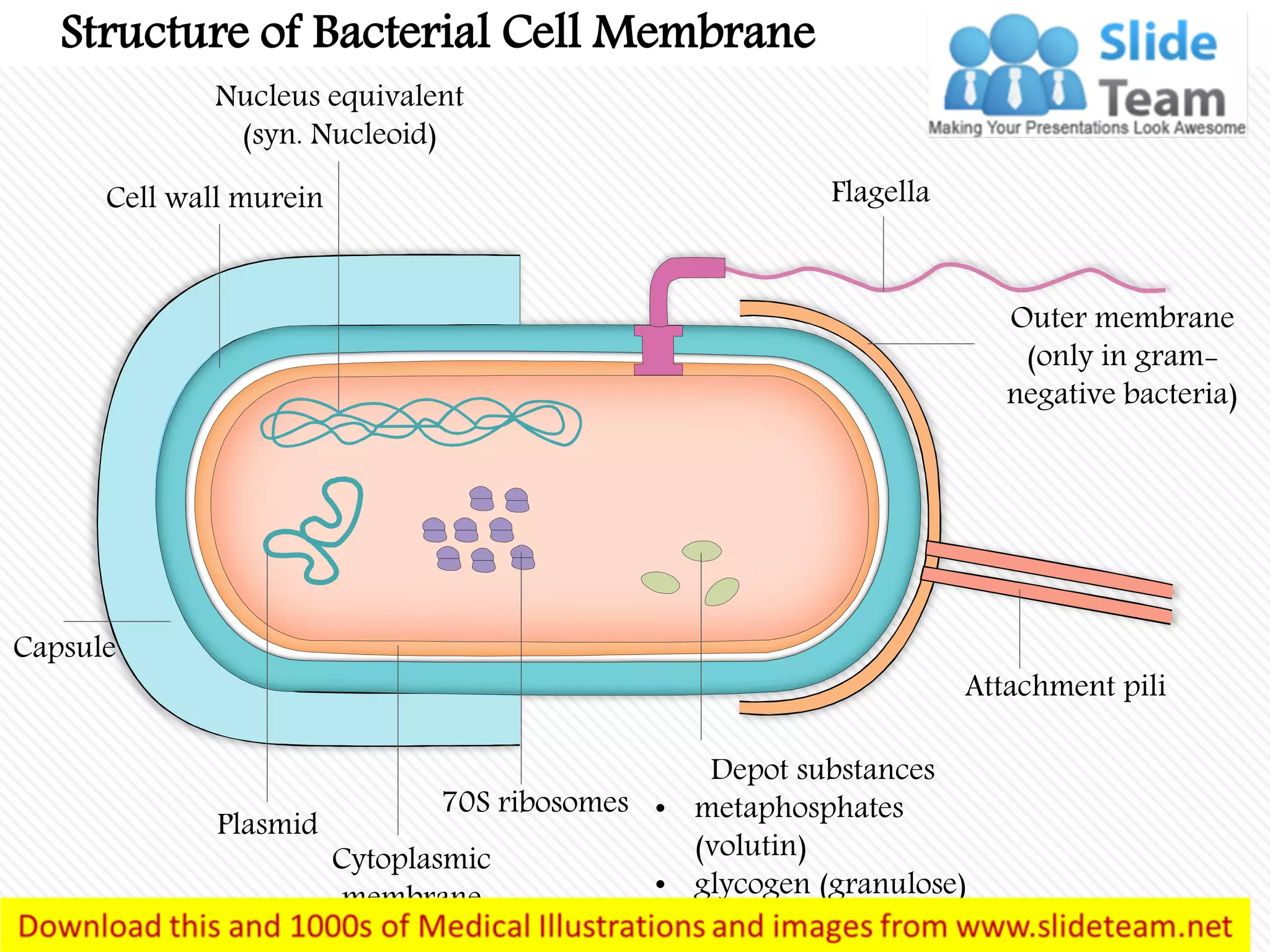
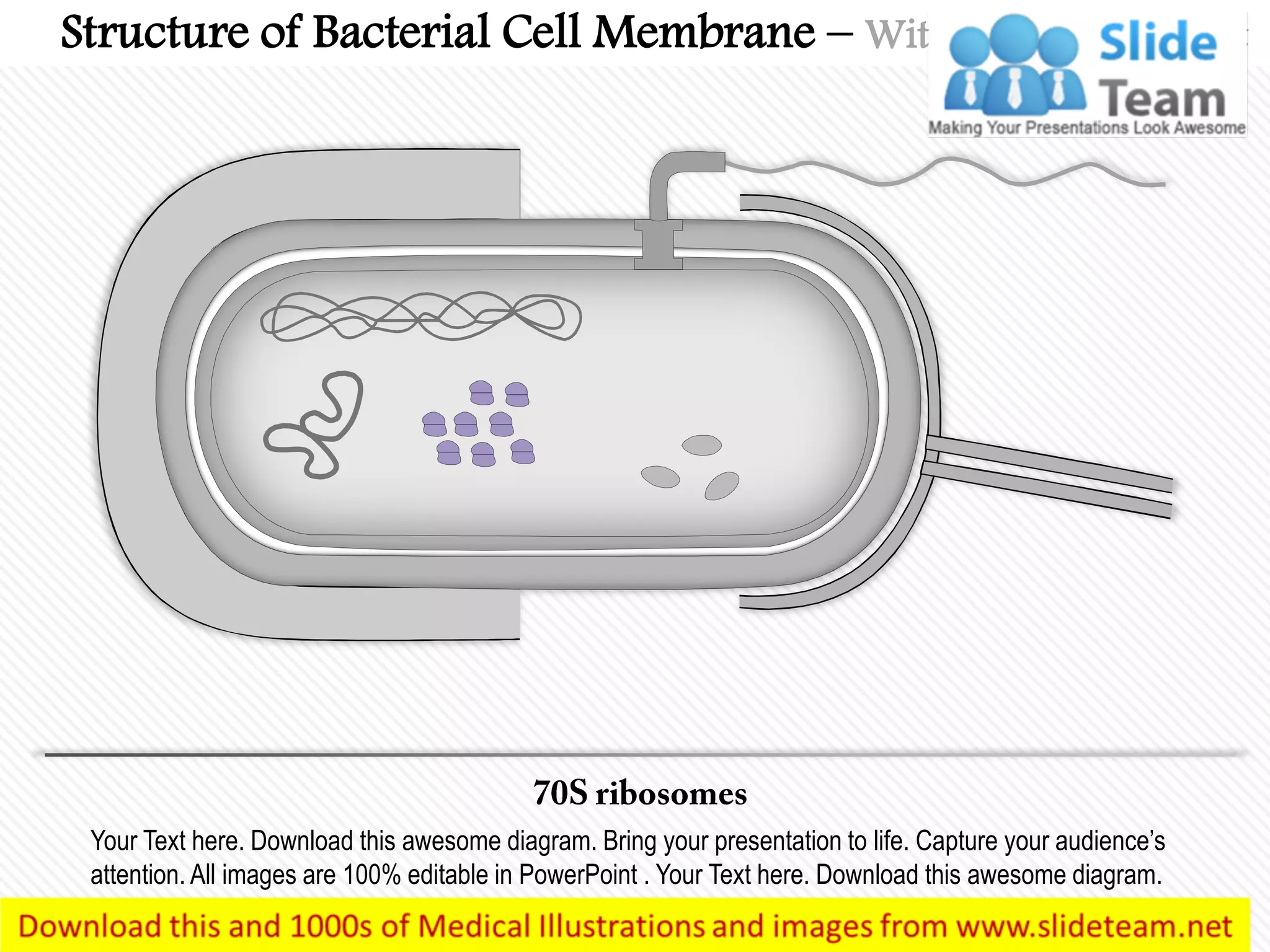
Flagella
Nucleus equivalent
(syn. Nucleoid)
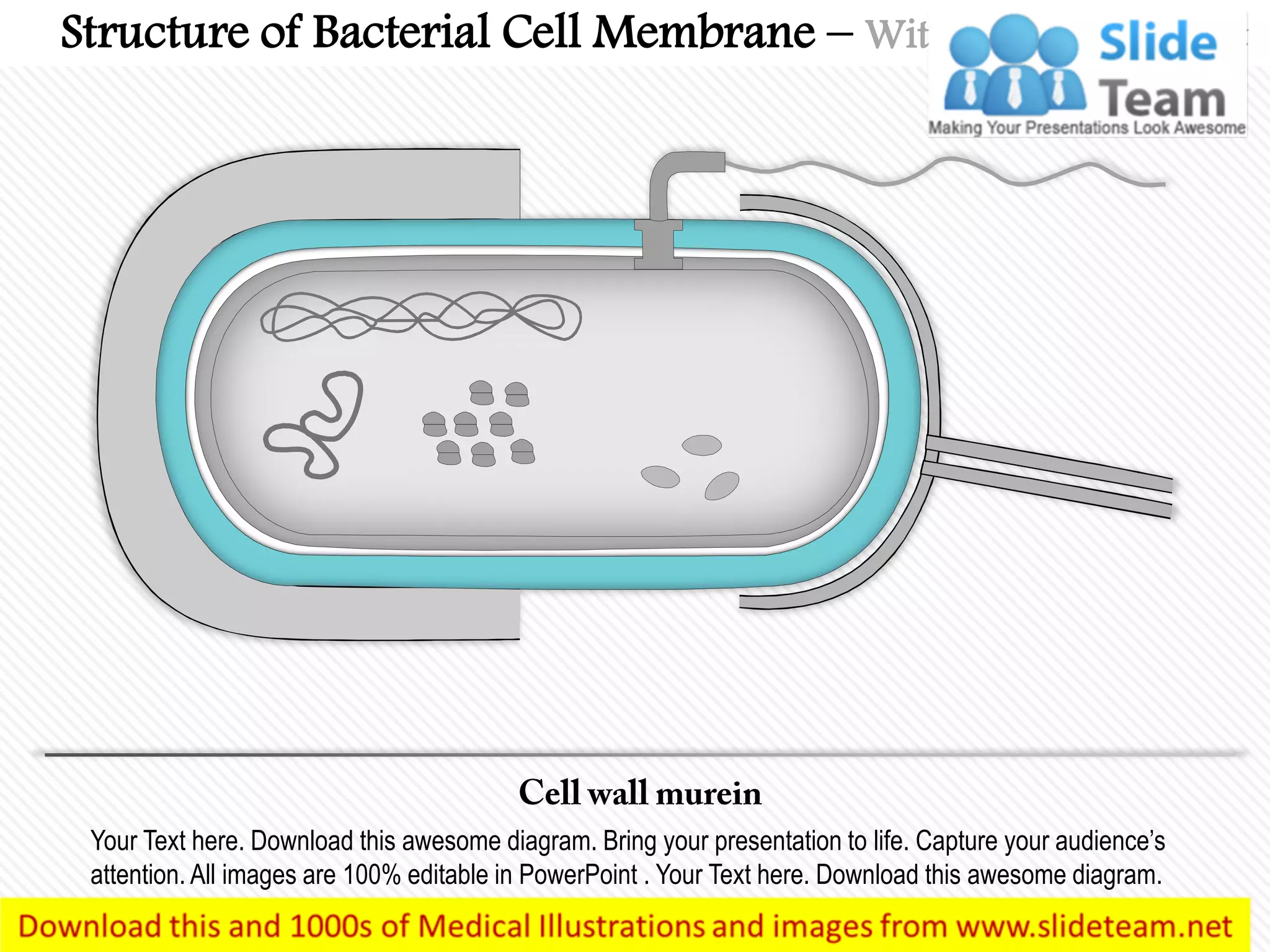
Cell wall murein
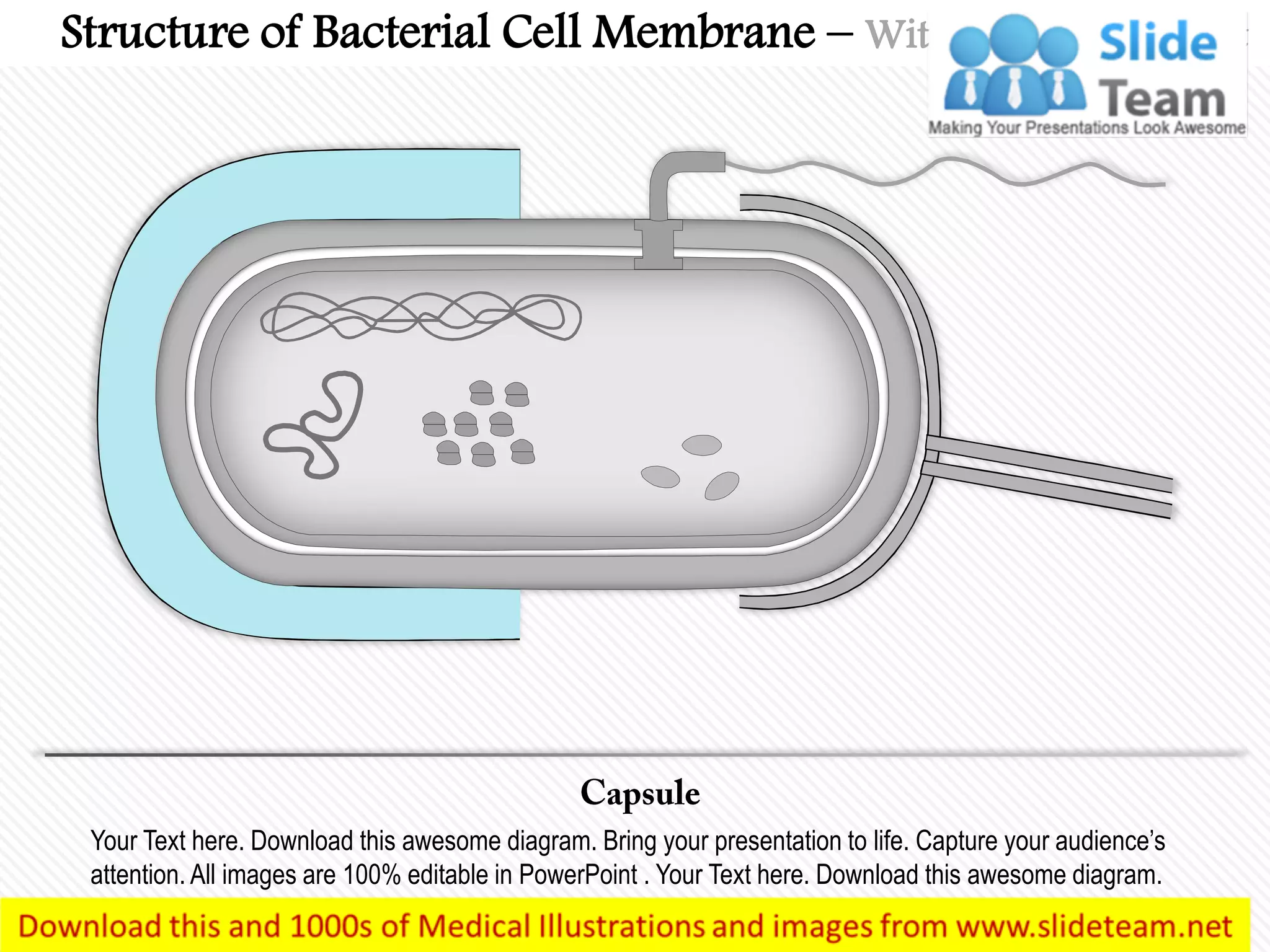
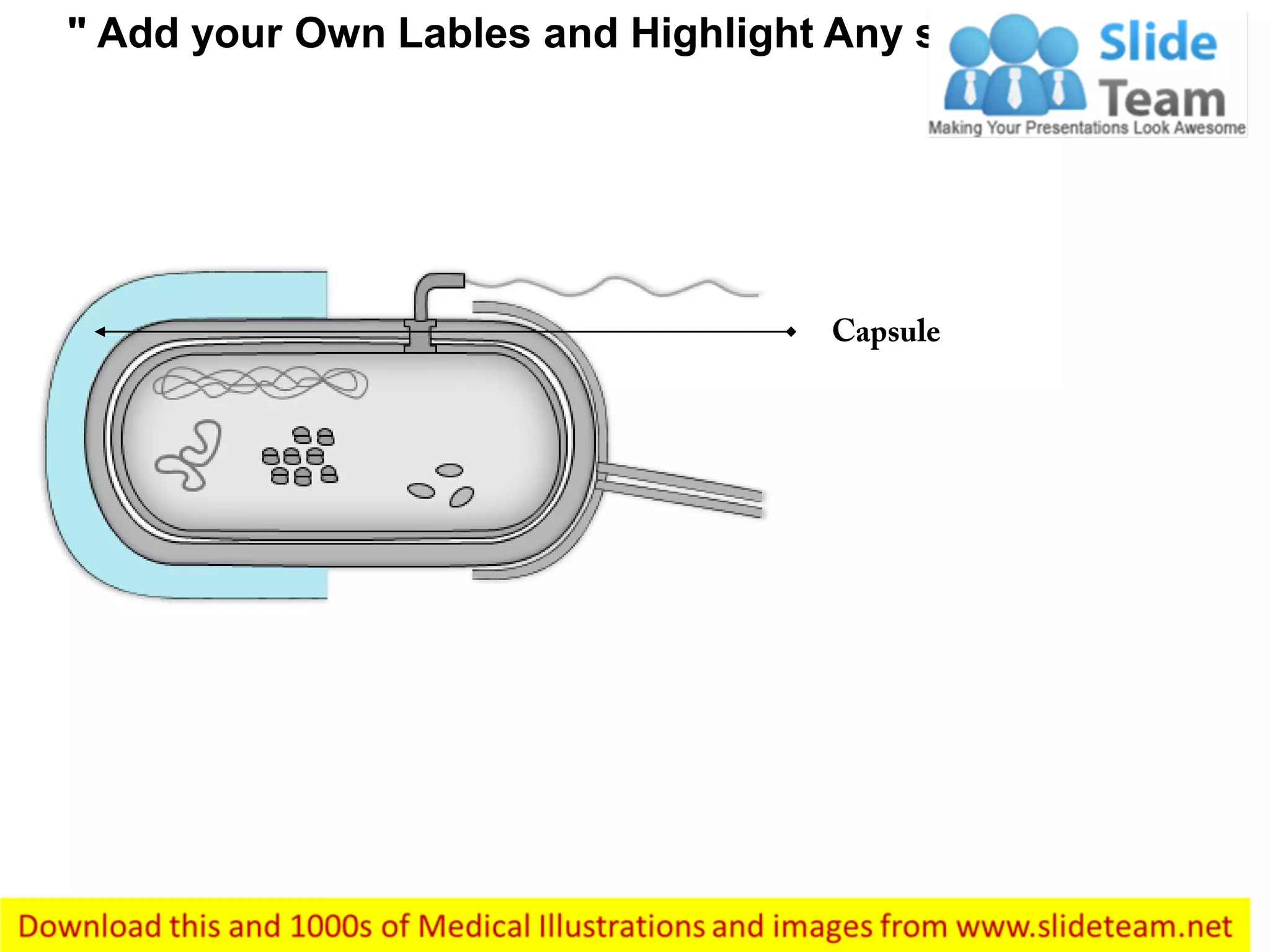
Capsule
Plasmid
Cytoplasmic
membrane
70S ribosomes
Depot substances
• metaphosphates
(volutin)
• glycogen (granulose)
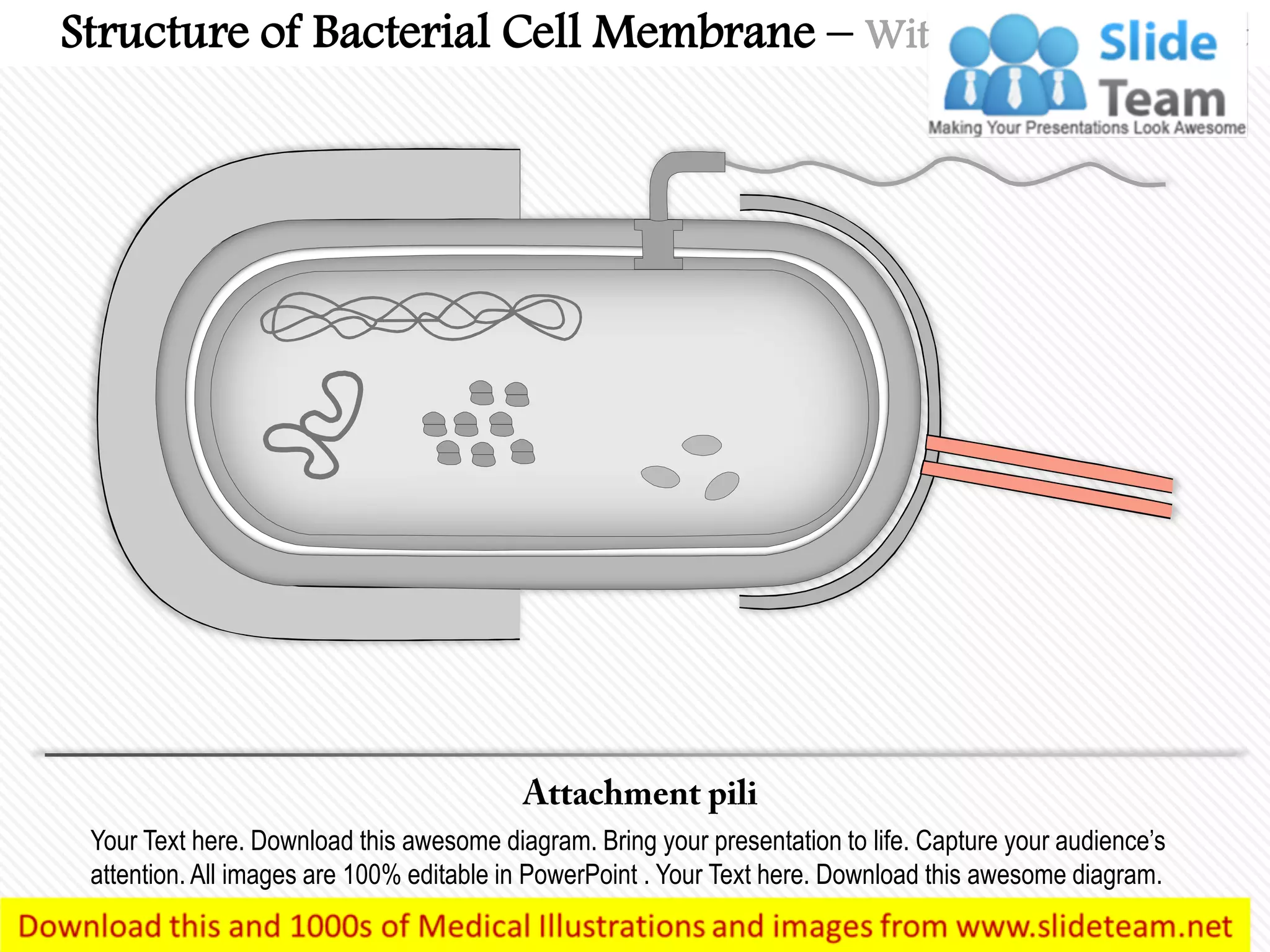
Attachment pili
Outer membrane
(only in gram-
negative bacteria)
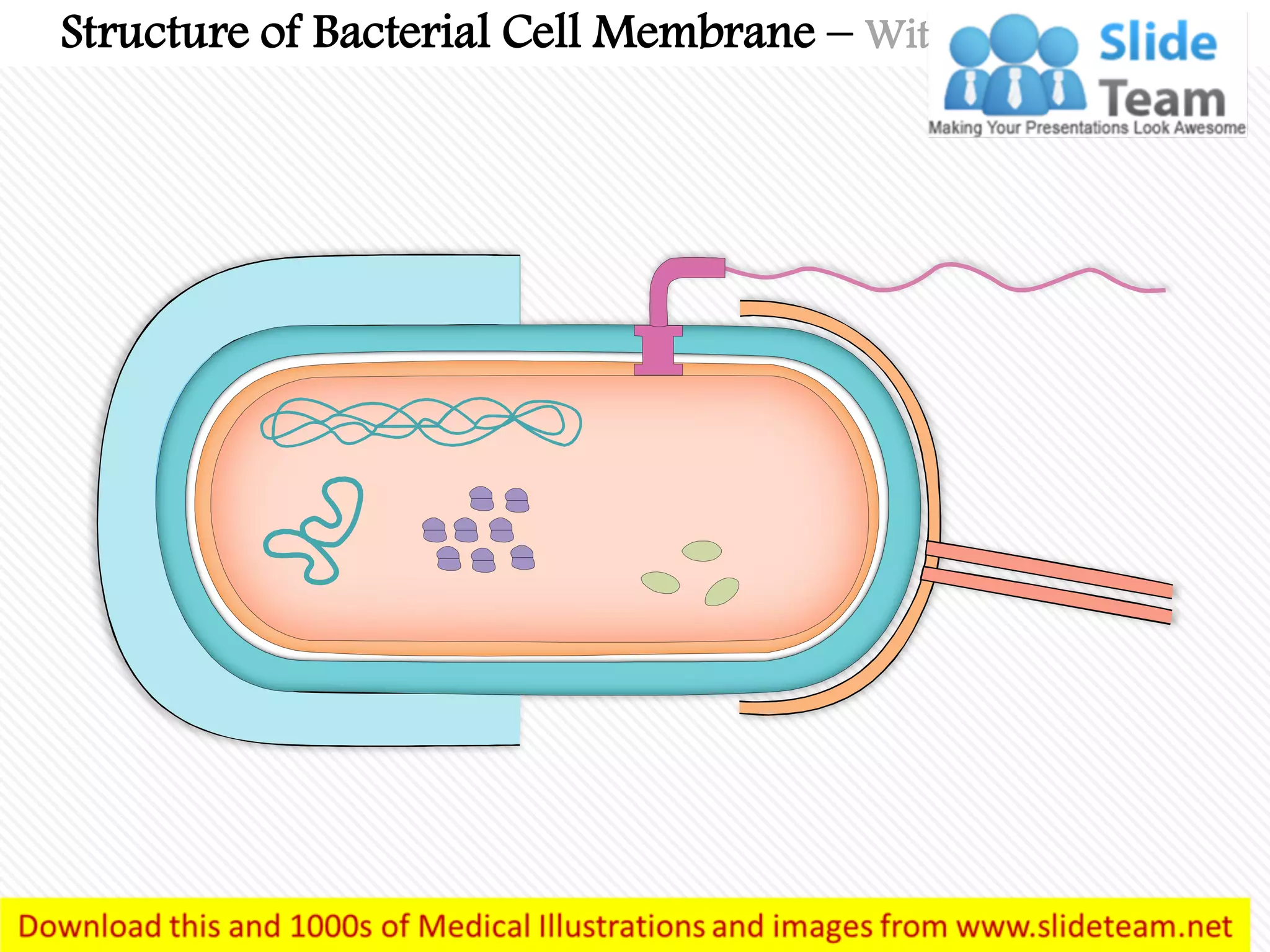
Structure of Bacterial Cell Membrane – With Labels Removed
Your Text here. Download this awesome diagram. Bring your presentation to life. Capture your audience’s
attention. All images are 100% editable in PowerPoint . Your Text here. Download this awesome diagram.
Structure of Bacterial Cell Membrane – With Highlighted Part
Your Text here. Download this awesome diagram. Bring your presentation to life. Capture your audience’s
attention. All images are 100% editable in PowerPoint . Your Text here. Download this awesome diagram.
Structure of Bacterial Cell Membrane – With Highlighted Part
Your Text here. Download this awesome diagram. Bring your presentation to life. Capture your audience’s
attention. All images are 100% editable in PowerPoint . Your Text here. Download this awesome diagram.
Structure of Bacterial Cell Membrane – With Highlighted Part
Your Text here. Download this awesome diagram. Bring your presentation to life. Capture your audience’s
attention. All images are 100% editable in PowerPoint . Your Text here. Download this awesome diagram.
Structure of Bacterial Cell Membrane – With Highlighted Part
" Add your Own Lables and Highlight Any section"
This image is 100% editable in PowerPoint
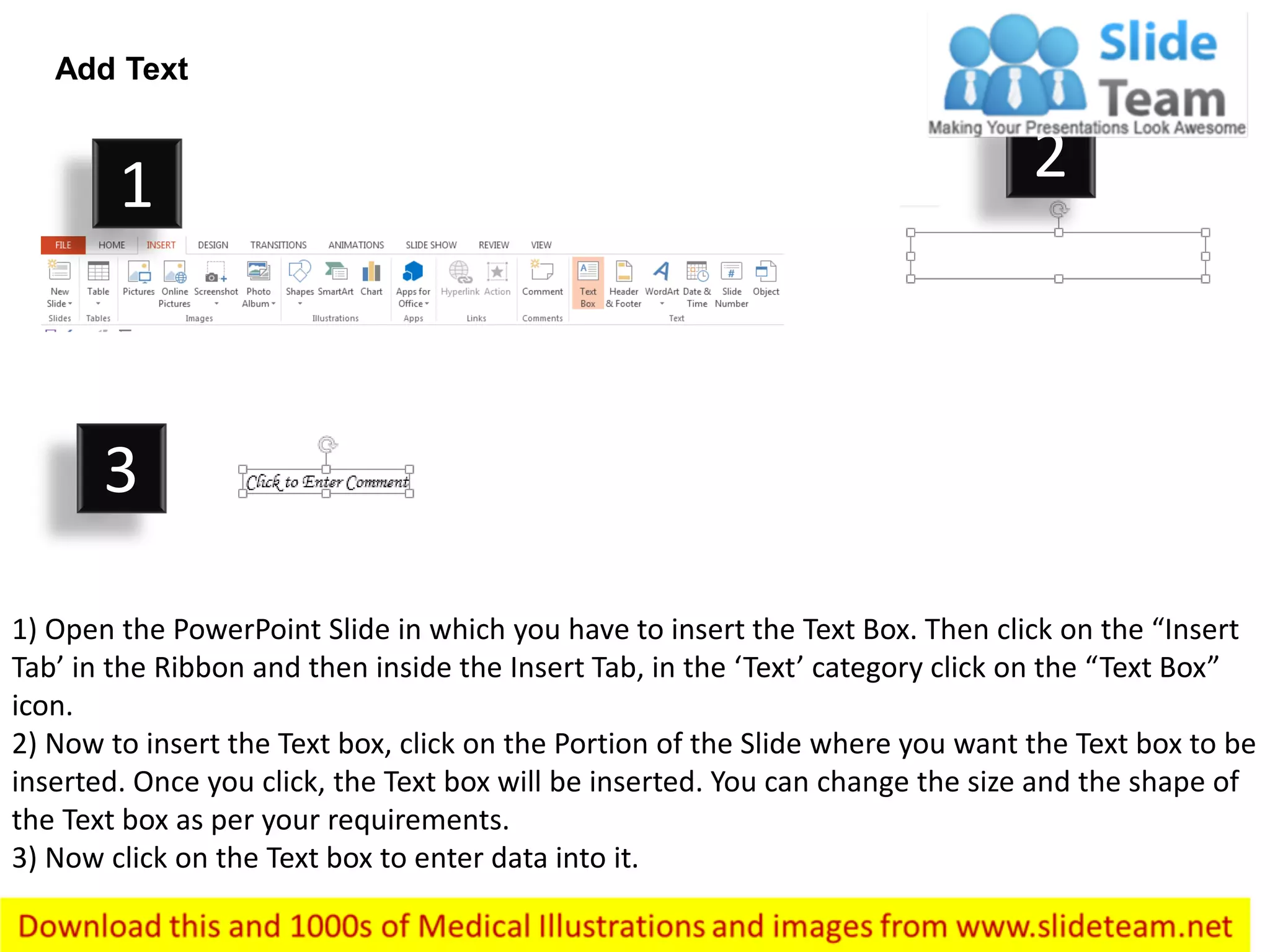
Add Text
1) Open the PowerPoint Slide in which you have to insert the Text Box. Then click on the “Insert
Tab’ in the Ribbon and then inside the Insert Tab, in the ‘Text’ category click on the “Text Box”
icon.
2) Now to insert the Text box, click on the Portion of the Slide where you want the Text box to be
inserted. Once you click, the Text box will be inserted. You can change the size and the shape of
the Text box as per your requirements.
3) Now click on the Text box to enter data into it.
1 2
3
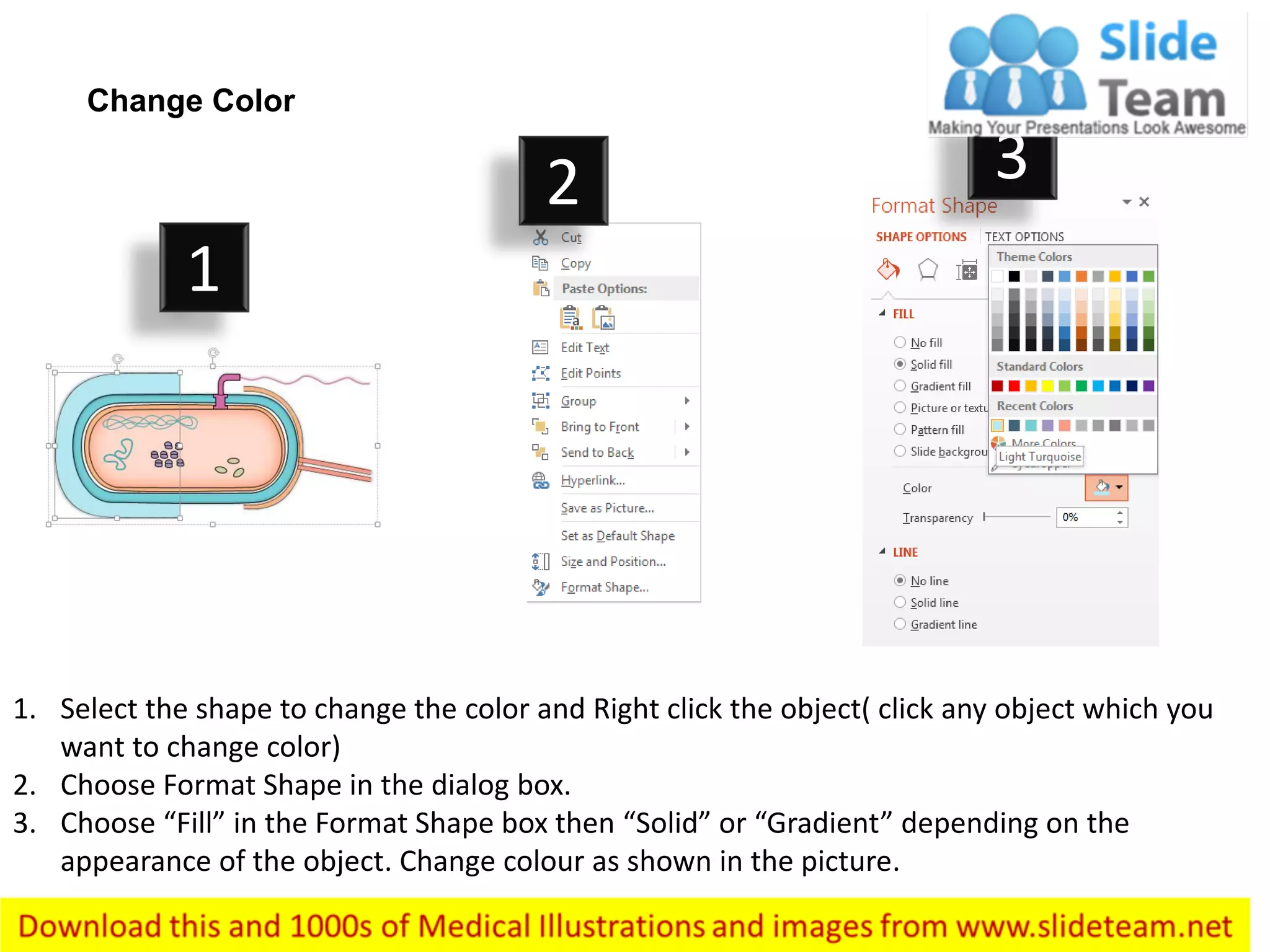
1. Select the shape to change the color and Right click the object( click any object which you
want to change color)
2. Choose Format Shape in the dialog box.
3. Choose “Fill” in the Format Shape box then “Solid” or “Gradient” depending on the
appearance of the object. Change colour as shown in the picture.
Change Color
1
2 3
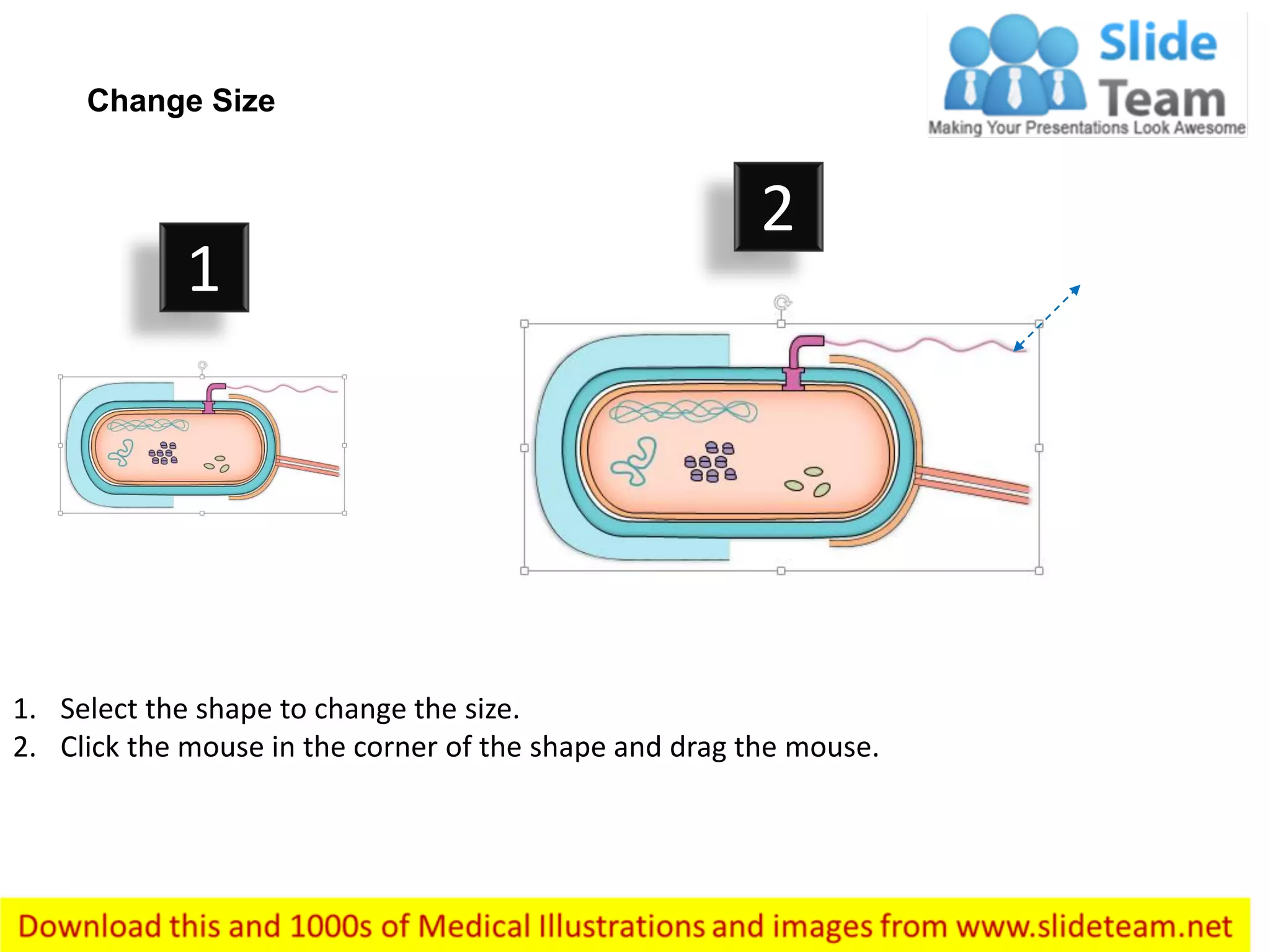
1. Select the shape to change the size.
2. Click the mouse in the corner of the shape and drag the mouse.
Change Size
1
2

Structure of the bacterial cell membrane medical images for power point

  • 1.
    Structure of BacterialCell Membrane Flagella Nucleus equivalent (syn. Nucleoid) Cell wall murein Capsule Plasmid Cytoplasmic membrane 70S ribosomes Depot substances • metaphosphates (volutin) • glycogen (granulose) Attachment pili Outer membrane (only in gram- negative bacteria)
  • 2.
    Structure of BacterialCell Membrane – With Labels Removed
  • 3.
    Your Text here.Download this awesome diagram. Bring your presentation to life. Capture your audience’s attention. All images are 100% editable in PowerPoint . Your Text here. Download this awesome diagram. Structure of Bacterial Cell Membrane – With Highlighted Part
  • 4.
    Your Text here.Download this awesome diagram. Bring your presentation to life. Capture your audience’s attention. All images are 100% editable in PowerPoint . Your Text here. Download this awesome diagram. Structure of Bacterial Cell Membrane – With Highlighted Part
  • 5.
    Your Text here.Download this awesome diagram. Bring your presentation to life. Capture your audience’s attention. All images are 100% editable in PowerPoint . Your Text here. Download this awesome diagram. Structure of Bacterial Cell Membrane – With Highlighted Part
  • 6.
    Your Text here.Download this awesome diagram. Bring your presentation to life. Capture your audience’s attention. All images are 100% editable in PowerPoint . Your Text here. Download this awesome diagram. Structure of Bacterial Cell Membrane – With Highlighted Part
  • 7.
    " Add yourOwn Lables and Highlight Any section"
  • 8.
    This image is100% editable in PowerPoint
  • 9.
    Add Text 1) Openthe PowerPoint Slide in which you have to insert the Text Box. Then click on the “Insert Tab’ in the Ribbon and then inside the Insert Tab, in the ‘Text’ category click on the “Text Box” icon. 2) Now to insert the Text box, click on the Portion of the Slide where you want the Text box to be inserted. Once you click, the Text box will be inserted. You can change the size and the shape of the Text box as per your requirements. 3) Now click on the Text box to enter data into it. 1 2 3
  • 10.
    1. Select theshape to change the color and Right click the object( click any object which you want to change color) 2. Choose Format Shape in the dialog box. 3. Choose “Fill” in the Format Shape box then “Solid” or “Gradient” depending on the appearance of the object. Change colour as shown in the picture. Change Color 1 2 3
  • 11.
    1. Select theshape to change the size. 2. Click the mouse in the corner of the shape and drag the mouse. Change Size 1 2