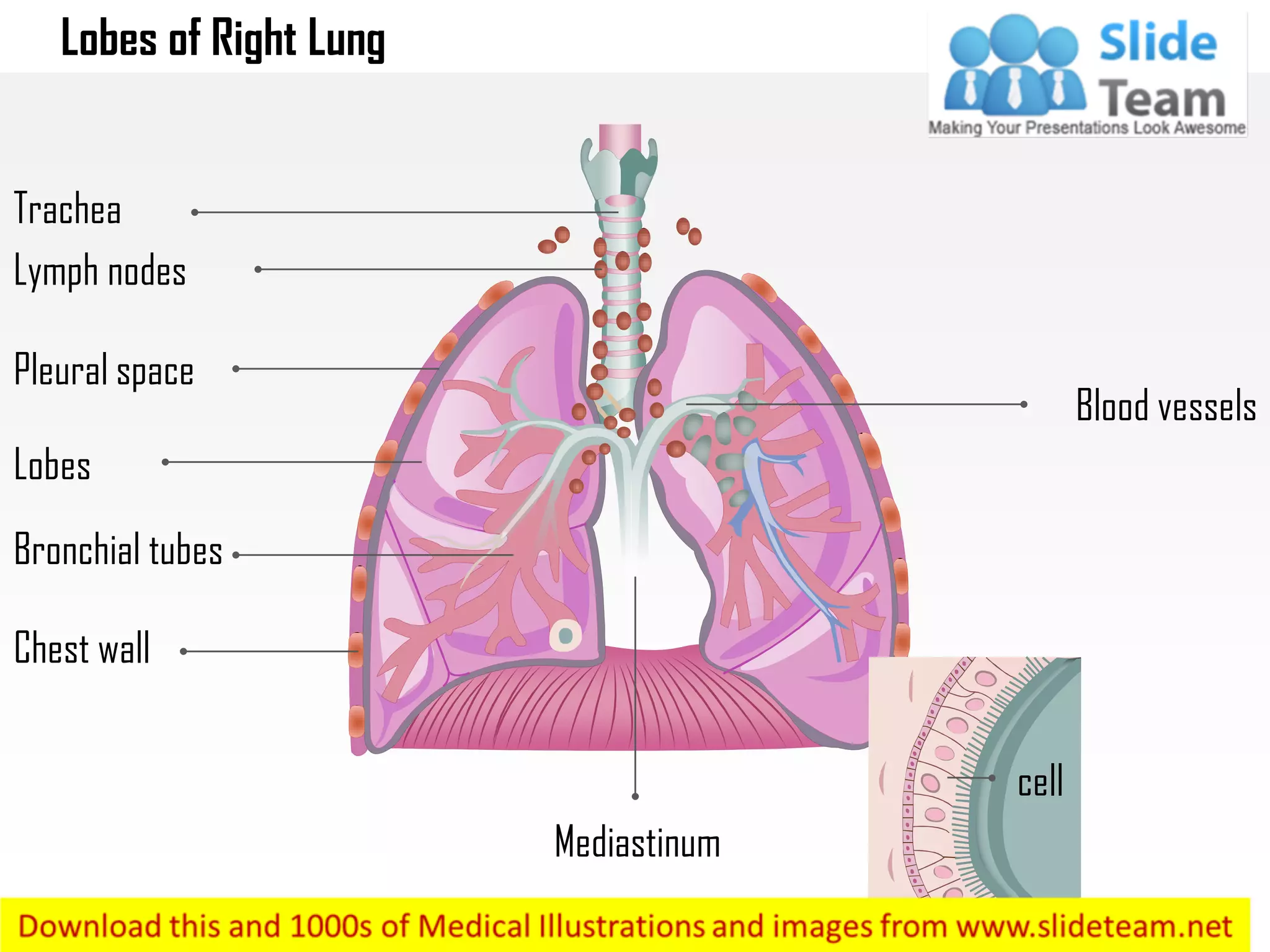
Lobes of Right Lung
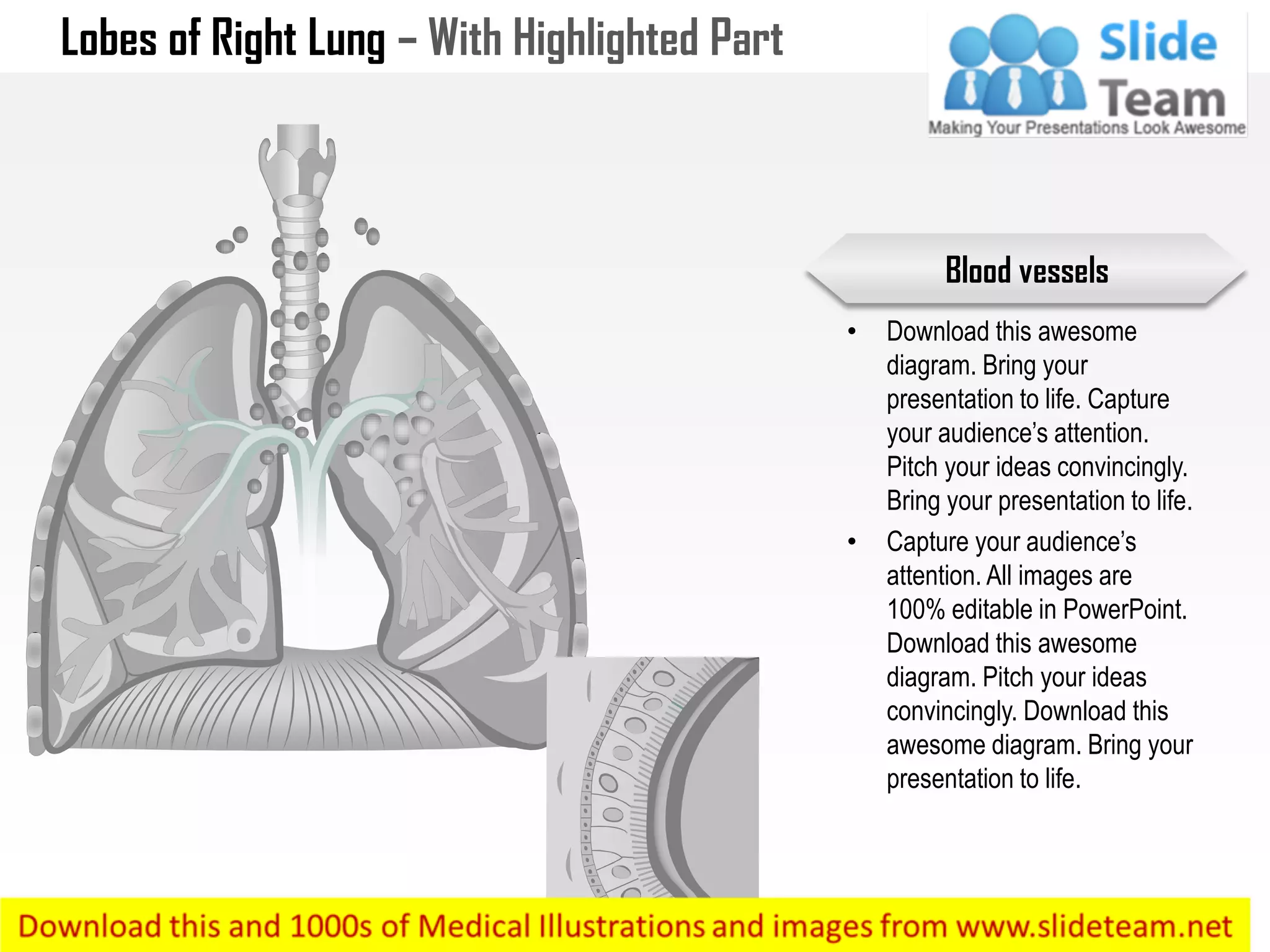
Blood vessels
cell
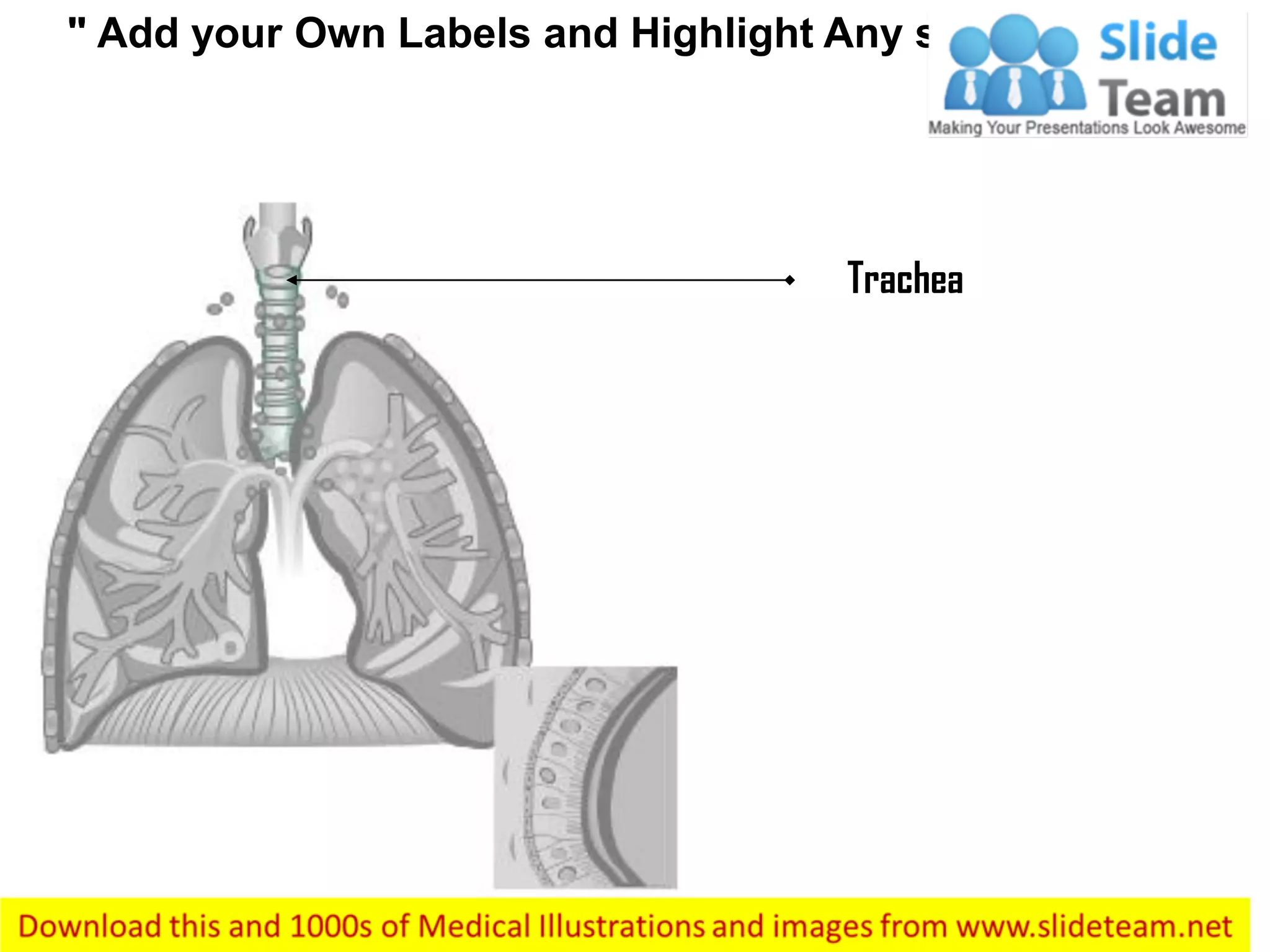
Trachea
Lymph nodes
Pleural space
Lobes
Bronchial tubes
Chest wall
Mediastinum
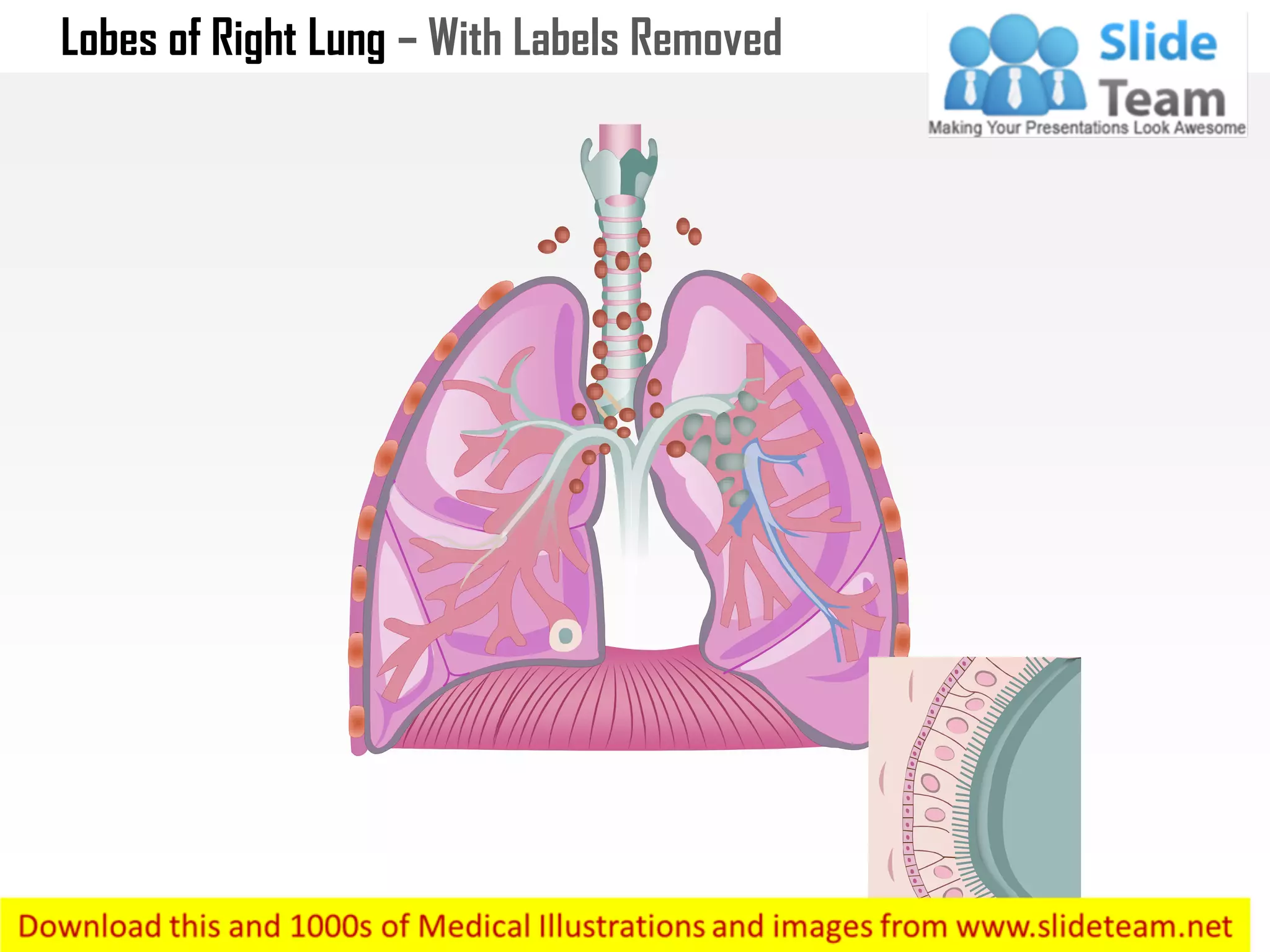
Lobes of Right Lung – With Labels Removed
Lobes of Right Lung – With Highlighted Part
• Download this awesome
diagram. Bring your
presentation to life. Capture
your audience’s attention.
Pitch your ideas convincingly.
Bring your presentation to life.
• Capture your audience’s
attention. All images are
100% editable in PowerPoint.
Download this awesome
diagram. Pitch your ideas
convincingly. Download this
awesome diagram. Bring your
presentation to life.
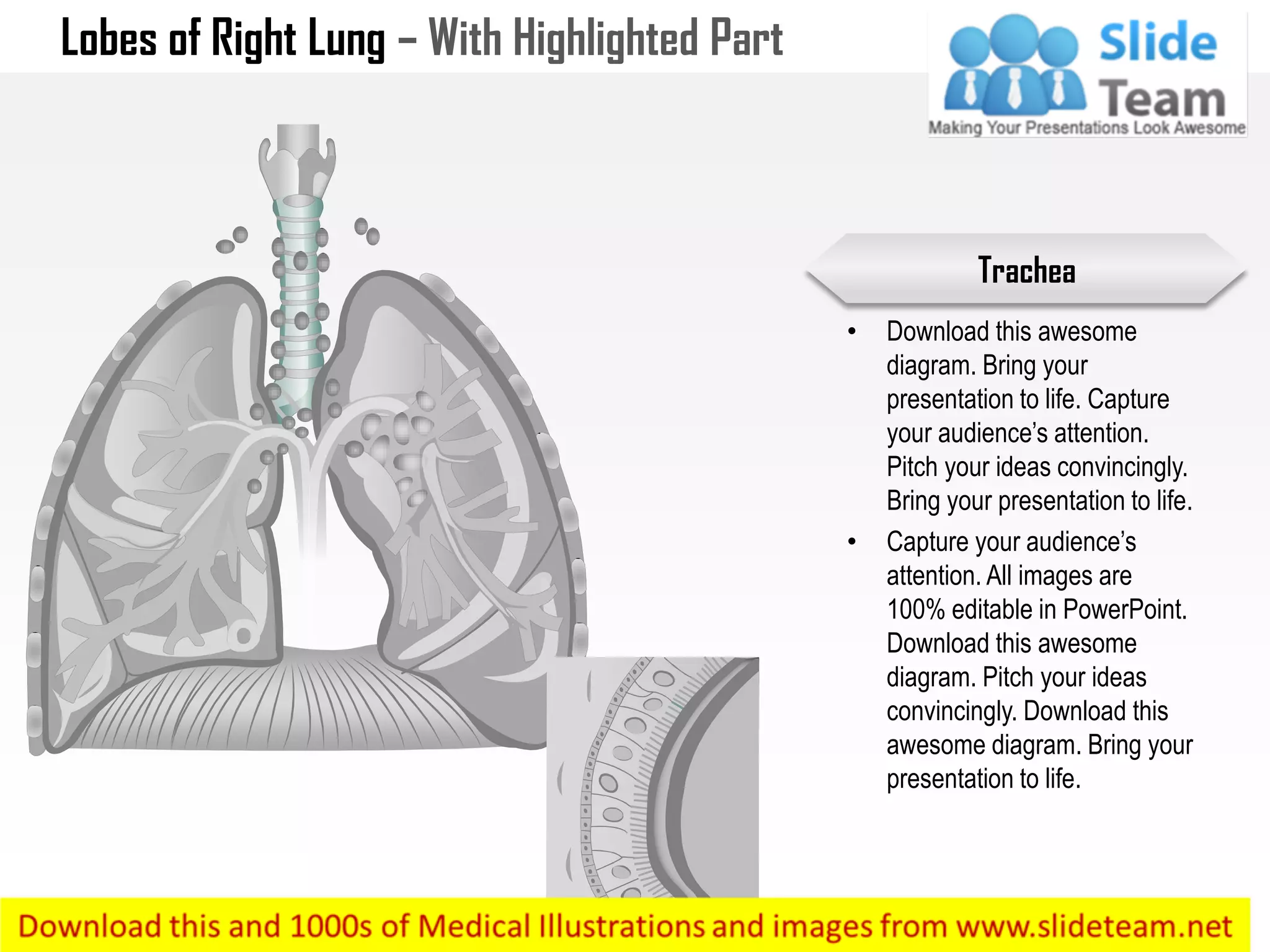
Trachea
Lobes of Right Lung – With Highlighted Part
• Download this awesome
diagram. Bring your
presentation to life. Capture
your audience’s attention.
Pitch your ideas convincingly.
Bring your presentation to life.
• Capture your audience’s
attention. All images are
100% editable in PowerPoint.
Download this awesome
diagram. Pitch your ideas
convincingly. Download this
awesome diagram. Bring your
presentation to life.
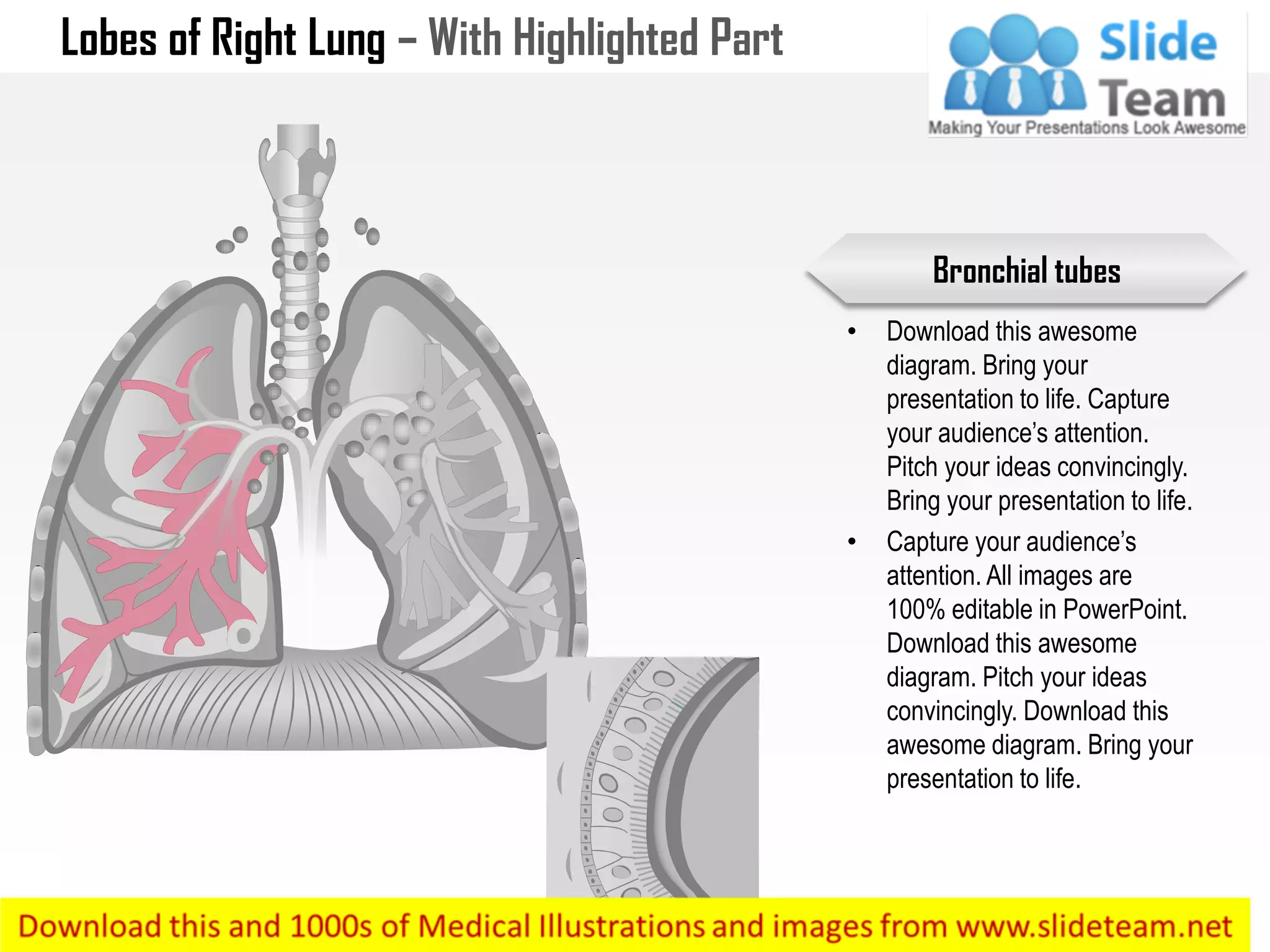
Bronchial tubes
Lobes of Right Lung – With Highlighted Part
• Download this awesome
diagram. Bring your
presentation to life. Capture
your audience’s attention.
Pitch your ideas convincingly.
Bring your presentation to life.
• Capture your audience’s
attention. All images are
100% editable in PowerPoint.
Download this awesome
diagram. Pitch your ideas
convincingly. Download this
awesome diagram. Bring your
presentation to life.
Blood vessels
" Add your Own Labels and Highlight Any section"
Trachea
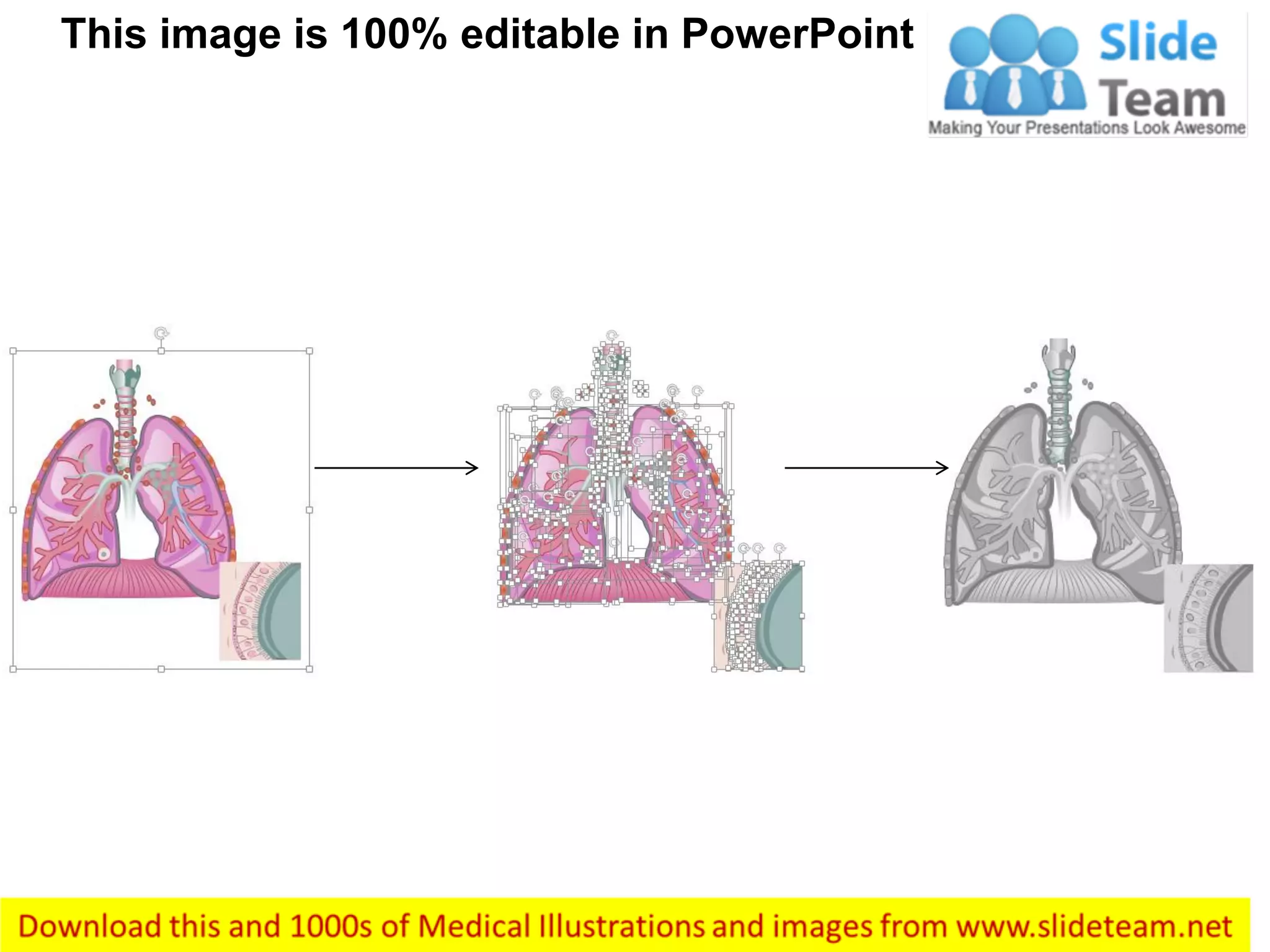
This image is 100% editable in PowerPoint
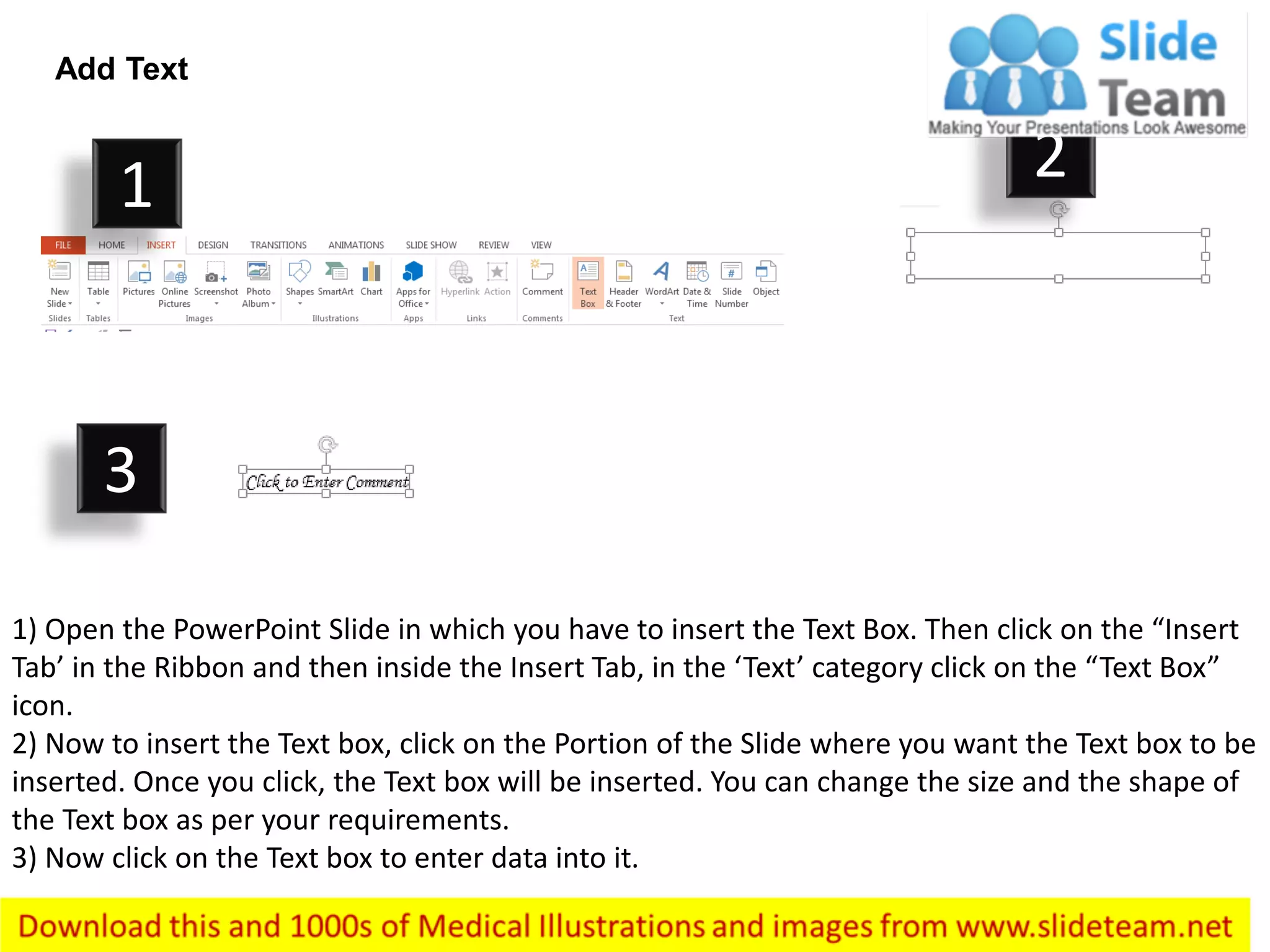
Add Text
1) Open the PowerPoint Slide in which you have to insert the Text Box. Then click on the “Insert
Tab’ in the Ribbon and then inside the Insert Tab, in the ‘Text’ category click on the “Text Box”
icon.
2) Now to insert the Text box, click on the Portion of the Slide where you want the Text box to be
inserted. Once you click, the Text box will be inserted. You can change the size and the shape of
the Text box as per your requirements.
3) Now click on the Text box to enter data into it.
1 2
3
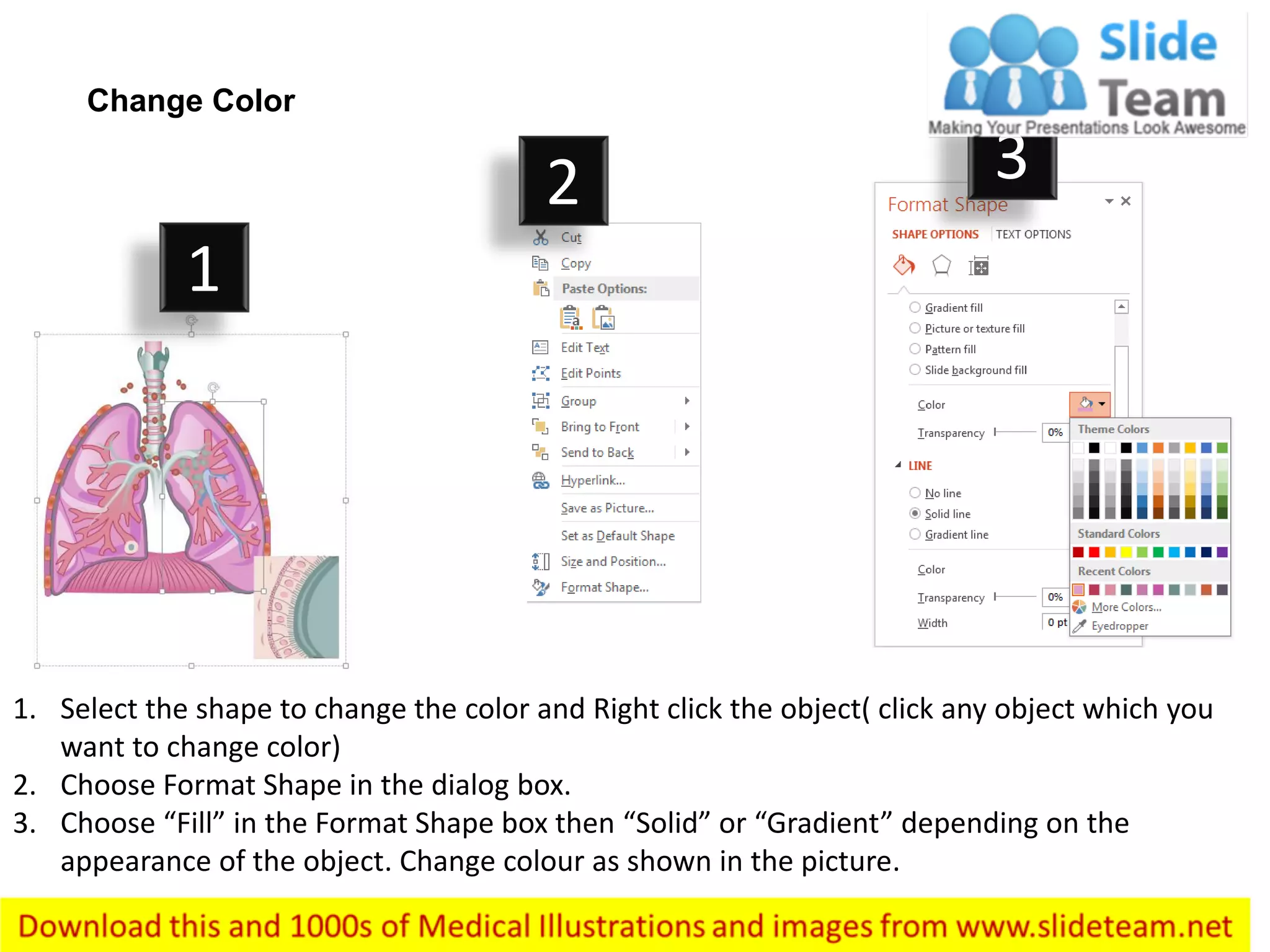
1. Select the shape to change the color and Right click the object( click any object which you
want to change color)
2. Choose Format Shape in the dialog box.
3. Choose “Fill” in the Format Shape box then “Solid” or “Gradient” depending on the
appearance of the object. Change colour as shown in the picture.
Change Color
1
2 3
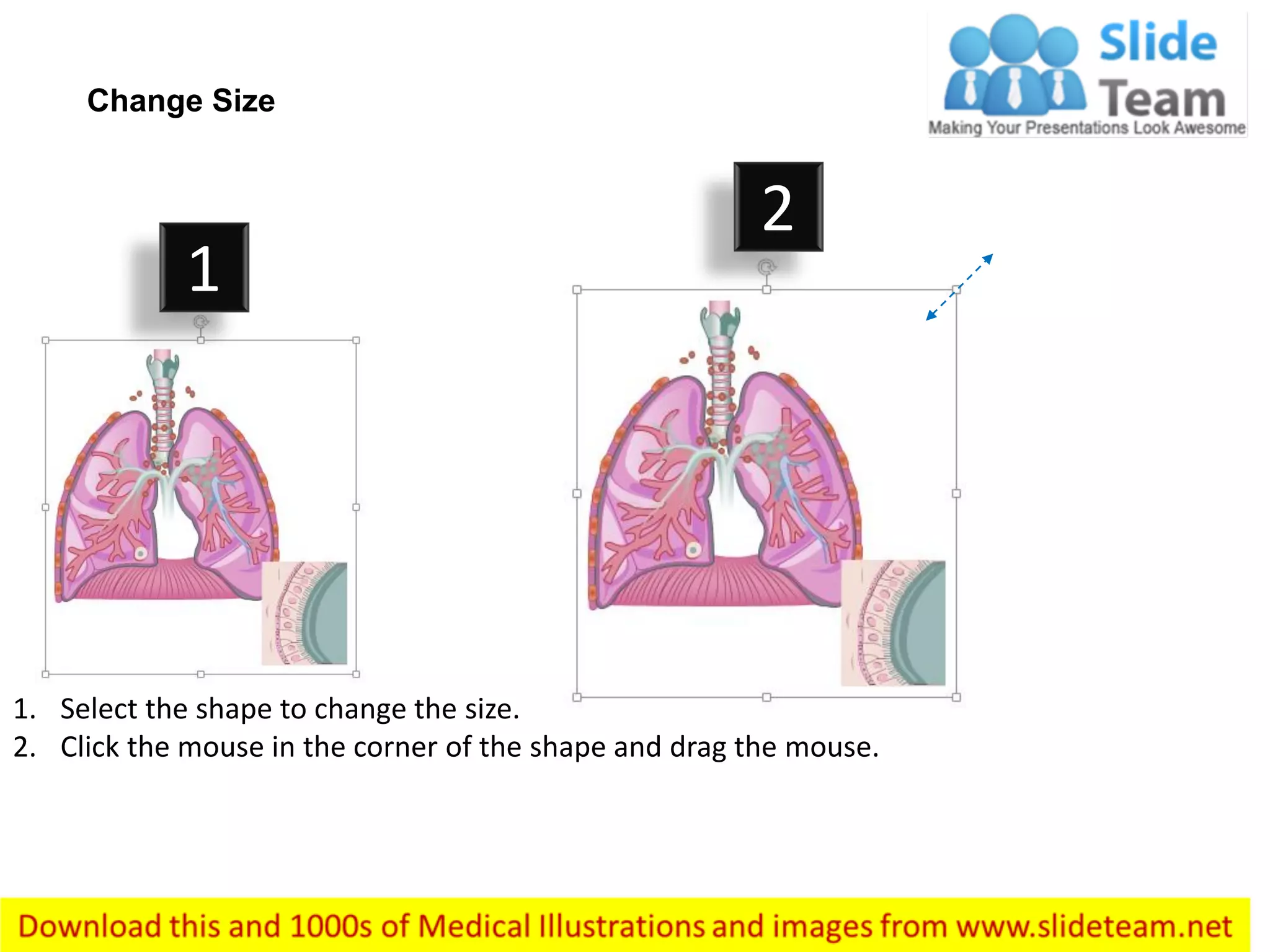
1. Select the shape to change the size.
2. Click the mouse in the corner of the shape and drag the mouse.
Change Size
1
2

Lobes of right lung medical images for power point

  • 1.
    Lobes of RightLung Blood vessels cell Trachea Lymph nodes Pleural space Lobes Bronchial tubes Chest wall Mediastinum
  • 2.
    Lobes of RightLung – With Labels Removed
  • 3.
    Lobes of RightLung – With Highlighted Part • Download this awesome diagram. Bring your presentation to life. Capture your audience’s attention. Pitch your ideas convincingly. Bring your presentation to life. • Capture your audience’s attention. All images are 100% editable in PowerPoint. Download this awesome diagram. Pitch your ideas convincingly. Download this awesome diagram. Bring your presentation to life. Trachea
  • 4.
    Lobes of RightLung – With Highlighted Part • Download this awesome diagram. Bring your presentation to life. Capture your audience’s attention. Pitch your ideas convincingly. Bring your presentation to life. • Capture your audience’s attention. All images are 100% editable in PowerPoint. Download this awesome diagram. Pitch your ideas convincingly. Download this awesome diagram. Bring your presentation to life. Bronchial tubes
  • 5.
    Lobes of RightLung – With Highlighted Part • Download this awesome diagram. Bring your presentation to life. Capture your audience’s attention. Pitch your ideas convincingly. Bring your presentation to life. • Capture your audience’s attention. All images are 100% editable in PowerPoint. Download this awesome diagram. Pitch your ideas convincingly. Download this awesome diagram. Bring your presentation to life. Blood vessels
  • 6.
    " Add yourOwn Labels and Highlight Any section" Trachea
  • 7.
    This image is100% editable in PowerPoint
  • 8.
    Add Text 1) Openthe PowerPoint Slide in which you have to insert the Text Box. Then click on the “Insert Tab’ in the Ribbon and then inside the Insert Tab, in the ‘Text’ category click on the “Text Box” icon. 2) Now to insert the Text box, click on the Portion of the Slide where you want the Text box to be inserted. Once you click, the Text box will be inserted. You can change the size and the shape of the Text box as per your requirements. 3) Now click on the Text box to enter data into it. 1 2 3
  • 9.
    1. Select theshape to change the color and Right click the object( click any object which you want to change color) 2. Choose Format Shape in the dialog box. 3. Choose “Fill” in the Format Shape box then “Solid” or “Gradient” depending on the appearance of the object. Change colour as shown in the picture. Change Color 1 2 3
  • 10.
    1. Select theshape to change the size. 2. Click the mouse in the corner of the shape and drag the mouse. Change Size 1 2