Creating a Digital Graffiti Tag
1. Go to http://www.graffiticreator.net/
2. At the bottom of the features box click on one of these font names Chrome5 | MindGem | Potent | JediMind |
   Bubbles | Oldschool | Flava | Throwup | Wavy (these are different fonts you can use to create graffiti tags).
3. In the “type in your text field” enter your text. It can be your name, a nickname etc. as long as it is appropriate
   for school and not gang-related.
4. Play with the width, height, and rotation bars until you like your tag
5. Click on the different boxes labeled bubbles, 3d, stripes etc. to customize your tag. After you click on a box, you
   can click on a color from the color wheel to change the feature.
6. Play until you love your graffiti tag
7. Click the “fn/windows” button and the “prnt screen” button at the same time.


8.    Open up MS Paint
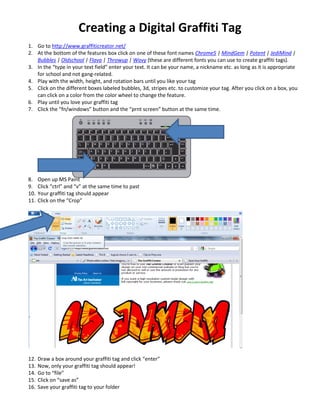
9.    Click “ctrl” and “v” at the same time to past
10.   Your graffiti tag should appear
11.   Click on the “Crop”


12.   Draw a box around your graffiti tag and click “enter”
13.   Now, only your graffiti tag should appear!
14.   Go to “file”
15.   Click on “save as”
16.   Save your graffiti tag to your folder
Step 1  creating a digital graffiti tag

Step 1 creating a digital graffiti tag

  • 1.
    Creating a DigitalGraffiti Tag 1. Go to http://www.graffiticreator.net/ 2. At the bottom of the features box click on one of these font names Chrome5 | MindGem | Potent | JediMind | Bubbles | Oldschool | Flava | Throwup | Wavy (these are different fonts you can use to create graffiti tags). 3. In the “type in your text field” enter your text. It can be your name, a nickname etc. as long as it is appropriate for school and not gang-related. 4. Play with the width, height, and rotation bars until you like your tag 5. Click on the different boxes labeled bubbles, 3d, stripes etc. to customize your tag. After you click on a box, you can click on a color from the color wheel to change the feature. 6. Play until you love your graffiti tag 7. Click the “fn/windows” button and the “prnt screen” button at the same time. 8. Open up MS Paint 9. Click “ctrl” and “v” at the same time to past 10. Your graffiti tag should appear 11. Click on the “Crop” 12. Draw a box around your graffiti tag and click “enter” 13. Now, only your graffiti tag should appear! 14. Go to “file” 15. Click on “save as” 16. Save your graffiti tag to your folder