Spring Integration
超入門
まずはどんなものか触ってみよう!
@yasutkga
はじめに
なぜ、このスライドを作ったか
 「なんだか難しそうだ」という根拠のない感覚を打ち消すため
 Spring Integration を導入する場合に「学習コストが~」と導入を拒否される現実を
緩和するため
対象読者
 Spring Integration を全く知らない人
 Spring Integration に興味はあっても、調査が後回しになっている人
注意
 間違いや認識の違いがありましたら、指摘頂ければ幸いです
Agenda
 Spring Integration とは
 簡単なアプリケーションの作成
 STS3 の integration-graph を利用
 Spring Integration の Java DSL を利用
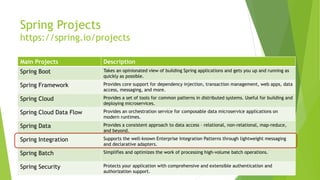
Main Projects Description
Spring Boot Takes an opinionated view of building Spring applications and gets you up and running as
quickly as possible.
Spring Framework Provides core support for dependency injection, transaction management, web apps, data
access, messaging, and more.
Spring Cloud Provides a set of tools for common patterns in distributed systems. Useful for building and
deploying microservices.
Spring Cloud Data Flow Provides an orchestration service for composable data microservice applications on
modern runtimes.
Spring Data Provides a consistent approach to data access – relational, non-relational, map-reduce,
and beyond.
Spring Integration Supports the well-known Enterprise Integration Patterns through lightweight messaging
and declarative adapters.
Spring Batch Simplifies and optimizes the work of processing high-volume batch operations.
Spring Security Protects your application with comprehensive and extensible authentication and
authorization support.
Spring Projects
https://spring.io/projects
Spring Integration
https://spring.io/projects/spring-integration
 Enterprise Integration Pattern の実装
 Message
 Endpoint
 Channel
 Aggregator
 Filter
 Transformer
 REST/HTTP, FTP/SFTP, TCP/UDP, JMS, Email etc.
Spring Integration : https://spring.io/projects/spring-integration
Enterprise Integration Pattern : https://www.enterpriseintegrationpatterns.com/
どういうときに使うの?
 同期・非同期メッセージング、リソース間を接続したいとき
 サポートされている Endpoint が多いので作らなくて良い
 とはいえ、要件に適合しているかは要チェック
 Pipe and Filters Pattern によりソフトウェアの構造をシンプルにしたいとき
 接続プロトコルの変更などに対応しやすい
 処理を変更・追加しやすい
 業務特化の Adapter を部品化して再利用しやすい
Integration Endpoints : https://docs.spring.io/spring-integration/docs/current/reference/html/index.html
Pattern-Oriented Software Architecture : https://en.wikipedia.org/wiki/Pattern-Oriented_Software_Architecture
前提環境
 Windows
 Pleiades 2020-12 Java Full Edition
 追加プラグイン:Spring Tools 3 Add-On for Spring Tools 4.3.9.16.RELEASE
簡単な
アプリケーション
の作成
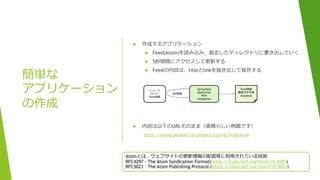
 作成するアプリケーション
 Feed(Atom)を読み込み、指定したディレクトリに書き出していく
 5秒間隔にアクセスして更新する
 Feedの内容は、titleとlinkを抜き出して保存する
 内容は以下のURLそのまま(素晴らしい例題です)
https://spring.pleiades.io/projects/spring-integration
Atomとは、ウェブサイトの更新情報の配信等に利用されている技術
RFC4297 - The Atom Syndication Format(https://tools.ietf.org/html/rfc4287)
RFC5023 – The Atom Publishing Protocol (https://tools.ietf.org/html/rfc5023)
ニュース
サイト
Feed情報
Spring Boot
Application
With
integration
Feed情報
出力ファイル
title@link
5秒間隔
手順は3つのみ
1. プロジェクトの作成
2. お絵描きと設定
3. 数行の実装
 [ファイル] → [新規] → [その他] → [Spring Boot] → [Spring スターター・プロジェクト]
 Spring スターター・プロジェクト
 名前:integration-demo
 グループ:com.example.integ
 成果物:integration-demo
 パッケージ:com.example.integ.demo
 Spring スターター・プロジェクト依存関係
 Spring Boot バージョン:2.4.5
 Spring Integration を選択
プロジェクトの作成
動作確認済み Spring Boot バージョン
2.4.5, 2.3.10.RELEASE, 2.2.13.RELEASE, 2.2.4.RELEASE
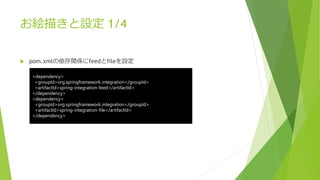
お絵描きと設定 1/4
 pom.xmlの依存関係にfeedとfileを設定
<dependency>
<groupId>org.springframework.integration</groupId>
<artifactId>spring-integration-feed</artifactId>
</dependency>
<dependency>
<groupId>org.springframework.integration</groupId>
<artifactId>spring-integration-file</artifactId>
</dependency>
お絵描きと設定 2/4
 設定ファイルの作成
 [ファイル] → [新規] → [その他] → [Spring] → [Spring Bean 構成ファイル]
 src/main/resources/integration.xml を作成
 Integration.xml ファイルを開く
 [名前空間] を3つ選択して保存
 Int
 Int-feed
 Int-file
お絵描きと設定 3/4
 [integration-graph] で絵を描く(integration.xmlファイルを開く)1/2
 コンポーネントを配置
 feed から “inbound-channel-adapter”
 ファイル から “outbound-channel-adapter”
 変換 から “transformer”
 コンポーネント間をつなぐ
 “接続” を選択してコンポーネントを繋げる(channelは自動的に配置される)
feed transformer file
 [integration-graph] で絵を描く(integration.xmlファイルを開く)2/2
 コンポーネント毎の設定(コンポーネントをダブルクリックして、プロパティウィンドウを開く)
1. feed - inbound-channel-adapter
 id:news
 url:https://www.j-cast.com/atom.xml
2. ファイル – outbound-channel-adapter
 id:file
 charset:UTF-8
 directory:C:temp
 filename-generator-expression:’jcast-news’
 mode:APPEND
3. 変換 – transformer
 expression:payload.title + ‘@’ + payload.link + ‘#{systemProperties[‘line.separator’]}’
お絵描きと設定 4/4
1.feed 2.ファイル
3.変換
数行の実装
 Integration.xml に poller 設定追加
 IntegrationDemoApplication.java の書き換え
<int-feed:inbound-channel-adapter
id="news" channel="channel1" url="https://www.j-cast.com/atom.xml">
<int:poller fixed-rate="5000" />
</int-feed:inbound-channel-adapter>
@SpringBootApplication
@ImportResource("/integration.xml")
public class IntegrationDemoApplication {
public static void main(String[] args) throws Exception {
ConfigurableApplicationContext context =
new SpringApplication(IntegrationDemoApplication.class).run(args);
System.out.println(“Hit enter to terminate.”); // main を終了しないようにする
System.in.read();
context.close();
}
}
完成したので実行する
 実行
 IntegrationDemoApplication.java を選択して右クリック
 [実行] → [Spring Boot アプリケーション]
 “C:tempjcast-news” ファイルが出力され、5秒間隔で Feed 情報の取得が繰り返される
※コンソールウィンドウ内でリターンをするとアプリケーションが終了する
XML定義は、もう少し簡素に書ける
 Channelを経由しなくてもシンプルに書けるが、integration-graphでは書けない
<int-feed:inbound-channel-adapter
id="news" channel="channel1" url="https://www.j-cast.com/atom.xml">
<int:poller fixed-rate="5000" />
</int-feed:inbound-channel-adapter>
<int-file:outbound-channel-adapter channel="channel2" id="file" charset="UTF-8“
directory="C:temp" mode="APPEND“ filename-generator-expression="'jcast-news'">
</int-file:outbound-channel-adapter>
<int:transformer input-channel="channel1"
output-channel="channel2"
expression="payload.title + '@' + payload.link + '#{systemProperties['line.separator']}'">
</int:transformer>
<int:channel id="channel1"></int:channel>
<int:channel id="channel2"></int:channel>
<int-feed:inbound-channel-adapter id="news" url="https://www.j-cast.com/atom.xml">
<int:poller fixed-rate="5000" />
</int-feed:inbound-channel-adapter>
<int:transformer input-channel="news"
expression="payload.title + '@' + payload.link + '#{systemProperties['line.separator']}'"
output-channel="file" />
<int-file:outbound-channel-adapter id="file" mode="APPEND" charset="UTF-8"
directory="C:temp" filename-generator-expression="'jcast-news'" />
XMLタグ数:6
XMLタグ数:4
Spring Integration の Java DSL を使って
みよう
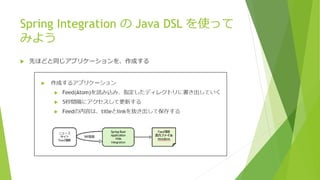
 先ほどと同じアプリケーションを、作成する
手順は3つのみ
 プロジェクトの作成
 pom.xmlの設定
 Configuration, Application の実装
 [ファイル] → [新規] → [その他] → [Spring Boot] → [Spring スターター・プロジェクト]
 Spring スターター・プロジェクト
 名前:integration-demo2
 グループ:com.example.integ
 成果物:integration-demo2
 パッケージ:com.example.integ.demo2
 Spring スターター・プロジェクト依存関係
 Spring Boot バージョン:2.4.5
 Spring Integration を選択
プロジェクトの作成
pom.xml の設定
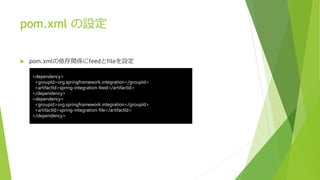
 pom.xmlの依存関係にfeedとfileを設定
<dependency>
<groupId>org.springframework.integration</groupId>
<artifactId>spring-integration-feed</artifactId>
</dependency>
<dependency>
<groupId>org.springframework.integration</groupId>
<artifactId>spring-integration-file</artifactId>
</dependency>
Configuration, Application の実装
 IntegrationDemo2Application.java の書き換え
@SpringBootApplication
public class IntegrationDemo2Application {
public static void main(String[] args) throws Exception {
ConfigurableApplicationContext context =
new SpringApplication(IntegrationDemo2Application.class).run(args);
System.out.println(“Hit enter to terminate.”); // main を終了しないようにする
System.in.read();
context.close();
}
}
<point>
XMLとは異なり、”@ImportResource” が必要ない
Configuration, Application の実装
Part.1
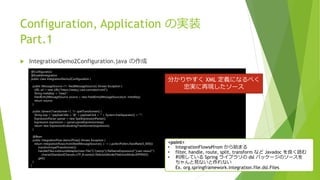
 IntegrationDemo2Configuration.java の作成
@Configuration
@EnableIntegration
public class IntegrationDemo2Configuration {
public MessageSource<?> feedMessageSource() throws Exception {
URL url = new URL("https://www.j-cast.com/atom.xml");
String metaKey = "news";
FeedEntryMessageSource source = new FeedEntryMessageSource(url, metaKey);
return source;
}
public GenericTransformer<?, ?> spelTransformer() {
String exp = "payload.title + '@' + payload.link + '" + System.lineSeparator() + "'";
ExpressionParser parser = new SpelExpressionParser();
Expression expression = parser.parseExpression(exp);
return new ExpressionEvaluatingTransformer(expression);
}
@Bean
public IntegrationFlow demo2Flow() throws Exception {
return IntegrationFlows.from(feedMessageSource(), c -> c.poller(Pollers.fixedRate(5_000)))
.transform(spelTransformer())
.handle(Files.outboundAdapter(new File("C:temp")).fileNameExpression("'jcast-news2'")
.charset(StandardCharsets.UTF_8.name()).fileExistsMode(FileExistsMode.APPEND))
.get();
}
}
<point>
• IntegrationFlows#from から始まる
• filter, handle, route, split, transform など Javadoc を良く読む
• 利用している Spring ライブラリの dsl パッケージのソースを
ちゃんと見ないと作れない
Ex. org.springframework.integration.file.dsl.Files
分かりやすく XML 定義になるべく
忠実に再現したソース
完成したので実行する
 実行
 IntegrationDemo2Application.java を選択して右クリック
 [実行] → [Spring Boot アプリケーション]
 “C:tempjcast-news2” ファイルが出力され、5秒間隔で Feed 情報の取得が繰り返される
※コンソールウィンドウ内でリターンをするとアプリケーションが終了する
Configuration, Application の実装
Part.2
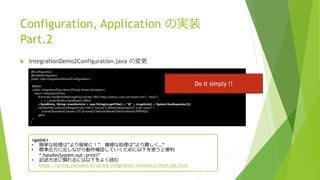
 IntegrationDemo2Configuration.java の変更
@Configuration
@EnableIntegration
public class IntegrationDemo2Configuration {
@Bean
public IntegrationFlow demo3Flow() throws Exception {
return IntegrationFlows
.from(new FeedEntryMessageSource(new URL("https://www.j-cast.com/atom.xml"), "news"),
c -> c.poller(Pollers.fixedRate(5_000)))
.<SyndEntry, String>transform(m-> new String(m.getTitle() + "@" + m.getLink() + System.lineSeparator()))
.handle(Files.outboundAdapter(new File("C:temp")).fileNameExpression("'jcast-news2'")
.charset(StandardCharsets.UTF_8.name()).fileExistsMode(FileExistsMode.APPEND))
.get();
}
}
<point>
• 簡単な処理は”より簡単に!”、複雑な処理は”より難しく…”
• 標準出力に出しながら動作確認していくために以下を使うと便利
“.handle(System.out::print)”
• 記述方法に慣れるには以下をよく読む
https://spring.pleiades.io/spring-integration/reference/html/dsl.html
Do it simply !!
小ネタ
 Eclipse で pom.xml がエラーになったら、Eclipse を再起動しよう
 今までエラーが無かった pom.xml がエラーと言われることがある。
 典型的なエラーは、”The element type "groupId" must be terminated by the
matching end-tag "</groupId>”
 SpringBootApplication の DEBUG ログを出力する
 /src/main/resources/application.properties
 logging.level.root=DEBUG
 /src/main/resources/application.yml
 logging:
level:
root: DEBUG
小ネタ
 SpringBootApplication のバナーを消す
 /src/main/resources/application.properties
 spring.main.banner-mode=off
 /src/main/resources/application.yml
 spring:
main:
banner-mode: “off”
 Eclipse から SpringBootApplication を起動すると DEBUG ログに
javax.management.InstanceNotFoundException が発生している原因
 Eclipse の実行構成で”JMXを使用可能にする”にチェックがついているため、リモー
トでJMXを確認する必要が無ければチェックを外す。チェックを外しても、ローカル
からJXM確認することは可能

Spring Integration 超入門

  • 1.
  • 2.
    はじめに なぜ、このスライドを作ったか  「なんだか難しそうだ」という根拠のない感覚を打ち消すため  SpringIntegration を導入する場合に「学習コストが~」と導入を拒否される現実を 緩和するため 対象読者  Spring Integration を全く知らない人  Spring Integration に興味はあっても、調査が後回しになっている人 注意  間違いや認識の違いがありましたら、指摘頂ければ幸いです
  • 3.
    Agenda  Spring Integrationとは  簡単なアプリケーションの作成  STS3 の integration-graph を利用  Spring Integration の Java DSL を利用
  • 4.
    Main Projects Description SpringBoot Takes an opinionated view of building Spring applications and gets you up and running as quickly as possible. Spring Framework Provides core support for dependency injection, transaction management, web apps, data access, messaging, and more. Spring Cloud Provides a set of tools for common patterns in distributed systems. Useful for building and deploying microservices. Spring Cloud Data Flow Provides an orchestration service for composable data microservice applications on modern runtimes. Spring Data Provides a consistent approach to data access – relational, non-relational, map-reduce, and beyond. Spring Integration Supports the well-known Enterprise Integration Patterns through lightweight messaging and declarative adapters. Spring Batch Simplifies and optimizes the work of processing high-volume batch operations. Spring Security Protects your application with comprehensive and extensible authentication and authorization support. Spring Projects https://spring.io/projects
  • 5.
    Spring Integration https://spring.io/projects/spring-integration  EnterpriseIntegration Pattern の実装  Message  Endpoint  Channel  Aggregator  Filter  Transformer  REST/HTTP, FTP/SFTP, TCP/UDP, JMS, Email etc. Spring Integration : https://spring.io/projects/spring-integration Enterprise Integration Pattern : https://www.enterpriseintegrationpatterns.com/
  • 6.
    どういうときに使うの?  同期・非同期メッセージング、リソース間を接続したいとき  サポートされているEndpoint が多いので作らなくて良い  とはいえ、要件に適合しているかは要チェック  Pipe and Filters Pattern によりソフトウェアの構造をシンプルにしたいとき  接続プロトコルの変更などに対応しやすい  処理を変更・追加しやすい  業務特化の Adapter を部品化して再利用しやすい Integration Endpoints : https://docs.spring.io/spring-integration/docs/current/reference/html/index.html Pattern-Oriented Software Architecture : https://en.wikipedia.org/wiki/Pattern-Oriented_Software_Architecture
  • 7.
    前提環境  Windows  Pleiades2020-12 Java Full Edition  追加プラグイン:Spring Tools 3 Add-On for Spring Tools 4.3.9.16.RELEASE
  • 8.
    簡単な アプリケーション の作成  作成するアプリケーション  Feed(Atom)を読み込み、指定したディレクトリに書き出していく 5秒間隔にアクセスして更新する  Feedの内容は、titleとlinkを抜き出して保存する  内容は以下のURLそのまま(素晴らしい例題です) https://spring.pleiades.io/projects/spring-integration Atomとは、ウェブサイトの更新情報の配信等に利用されている技術 RFC4297 - The Atom Syndication Format(https://tools.ietf.org/html/rfc4287) RFC5023 – The Atom Publishing Protocol (https://tools.ietf.org/html/rfc5023) ニュース サイト Feed情報 Spring Boot Application With integration Feed情報 出力ファイル title@link 5秒間隔
  • 9.
  • 10.
     [ファイル] →[新規] → [その他] → [Spring Boot] → [Spring スターター・プロジェクト]  Spring スターター・プロジェクト  名前:integration-demo  グループ:com.example.integ  成果物:integration-demo  パッケージ:com.example.integ.demo  Spring スターター・プロジェクト依存関係  Spring Boot バージョン:2.4.5  Spring Integration を選択 プロジェクトの作成 動作確認済み Spring Boot バージョン 2.4.5, 2.3.10.RELEASE, 2.2.13.RELEASE, 2.2.4.RELEASE
  • 11.
  • 12.
    お絵描きと設定 2/4  設定ファイルの作成 [ファイル] → [新規] → [その他] → [Spring] → [Spring Bean 構成ファイル]  src/main/resources/integration.xml を作成  Integration.xml ファイルを開く  [名前空間] を3つ選択して保存  Int  Int-feed  Int-file
  • 13.
    お絵描きと設定 3/4  [integration-graph]で絵を描く(integration.xmlファイルを開く)1/2  コンポーネントを配置  feed から “inbound-channel-adapter”  ファイル から “outbound-channel-adapter”  変換 から “transformer”  コンポーネント間をつなぐ  “接続” を選択してコンポーネントを繋げる(channelは自動的に配置される) feed transformer file
  • 14.
     [integration-graph] で絵を描く(integration.xmlファイルを開く)2/2 コンポーネント毎の設定(コンポーネントをダブルクリックして、プロパティウィンドウを開く) 1. feed - inbound-channel-adapter  id:news  url:https://www.j-cast.com/atom.xml 2. ファイル – outbound-channel-adapter  id:file  charset:UTF-8  directory:C:temp  filename-generator-expression:’jcast-news’  mode:APPEND 3. 変換 – transformer  expression:payload.title + ‘@’ + payload.link + ‘#{systemProperties[‘line.separator’]}’ お絵描きと設定 4/4 1.feed 2.ファイル 3.変換
  • 15.
    数行の実装  Integration.xml にpoller 設定追加  IntegrationDemoApplication.java の書き換え <int-feed:inbound-channel-adapter id="news" channel="channel1" url="https://www.j-cast.com/atom.xml"> <int:poller fixed-rate="5000" /> </int-feed:inbound-channel-adapter> @SpringBootApplication @ImportResource("/integration.xml") public class IntegrationDemoApplication { public static void main(String[] args) throws Exception { ConfigurableApplicationContext context = new SpringApplication(IntegrationDemoApplication.class).run(args); System.out.println(“Hit enter to terminate.”); // main を終了しないようにする System.in.read(); context.close(); } }
  • 16.
    完成したので実行する  実行  IntegrationDemoApplication.javaを選択して右クリック  [実行] → [Spring Boot アプリケーション]  “C:tempjcast-news” ファイルが出力され、5秒間隔で Feed 情報の取得が繰り返される ※コンソールウィンドウ内でリターンをするとアプリケーションが終了する
  • 17.
    XML定義は、もう少し簡素に書ける  Channelを経由しなくてもシンプルに書けるが、integration-graphでは書けない <int-feed:inbound-channel-adapter id="news" channel="channel1"url="https://www.j-cast.com/atom.xml"> <int:poller fixed-rate="5000" /> </int-feed:inbound-channel-adapter> <int-file:outbound-channel-adapter channel="channel2" id="file" charset="UTF-8“ directory="C:temp" mode="APPEND“ filename-generator-expression="'jcast-news'"> </int-file:outbound-channel-adapter> <int:transformer input-channel="channel1" output-channel="channel2" expression="payload.title + '@' + payload.link + '#{systemProperties['line.separator']}'"> </int:transformer> <int:channel id="channel1"></int:channel> <int:channel id="channel2"></int:channel> <int-feed:inbound-channel-adapter id="news" url="https://www.j-cast.com/atom.xml"> <int:poller fixed-rate="5000" /> </int-feed:inbound-channel-adapter> <int:transformer input-channel="news" expression="payload.title + '@' + payload.link + '#{systemProperties['line.separator']}'" output-channel="file" /> <int-file:outbound-channel-adapter id="file" mode="APPEND" charset="UTF-8" directory="C:temp" filename-generator-expression="'jcast-news'" /> XMLタグ数:6 XMLタグ数:4
  • 18.
    Spring Integration のJava DSL を使って みよう  先ほどと同じアプリケーションを、作成する
  • 19.
  • 20.
     [ファイル] →[新規] → [その他] → [Spring Boot] → [Spring スターター・プロジェクト]  Spring スターター・プロジェクト  名前:integration-demo2  グループ:com.example.integ  成果物:integration-demo2  パッケージ:com.example.integ.demo2  Spring スターター・プロジェクト依存関係  Spring Boot バージョン:2.4.5  Spring Integration を選択 プロジェクトの作成
  • 21.
  • 22.
    Configuration, Application の実装 IntegrationDemo2Application.java の書き換え @SpringBootApplication public class IntegrationDemo2Application { public static void main(String[] args) throws Exception { ConfigurableApplicationContext context = new SpringApplication(IntegrationDemo2Application.class).run(args); System.out.println(“Hit enter to terminate.”); // main を終了しないようにする System.in.read(); context.close(); } } <point> XMLとは異なり、”@ImportResource” が必要ない
  • 23.
    Configuration, Application の実装 Part.1 IntegrationDemo2Configuration.java の作成 @Configuration @EnableIntegration public class IntegrationDemo2Configuration { public MessageSource<?> feedMessageSource() throws Exception { URL url = new URL("https://www.j-cast.com/atom.xml"); String metaKey = "news"; FeedEntryMessageSource source = new FeedEntryMessageSource(url, metaKey); return source; } public GenericTransformer<?, ?> spelTransformer() { String exp = "payload.title + '@' + payload.link + '" + System.lineSeparator() + "'"; ExpressionParser parser = new SpelExpressionParser(); Expression expression = parser.parseExpression(exp); return new ExpressionEvaluatingTransformer(expression); } @Bean public IntegrationFlow demo2Flow() throws Exception { return IntegrationFlows.from(feedMessageSource(), c -> c.poller(Pollers.fixedRate(5_000))) .transform(spelTransformer()) .handle(Files.outboundAdapter(new File("C:temp")).fileNameExpression("'jcast-news2'") .charset(StandardCharsets.UTF_8.name()).fileExistsMode(FileExistsMode.APPEND)) .get(); } } <point> • IntegrationFlows#from から始まる • filter, handle, route, split, transform など Javadoc を良く読む • 利用している Spring ライブラリの dsl パッケージのソースを ちゃんと見ないと作れない Ex. org.springframework.integration.file.dsl.Files 分かりやすく XML 定義になるべく 忠実に再現したソース
  • 24.
    完成したので実行する  実行  IntegrationDemo2Application.javaを選択して右クリック  [実行] → [Spring Boot アプリケーション]  “C:tempjcast-news2” ファイルが出力され、5秒間隔で Feed 情報の取得が繰り返される ※コンソールウィンドウ内でリターンをするとアプリケーションが終了する
  • 25.
    Configuration, Application の実装 Part.2 IntegrationDemo2Configuration.java の変更 @Configuration @EnableIntegration public class IntegrationDemo2Configuration { @Bean public IntegrationFlow demo3Flow() throws Exception { return IntegrationFlows .from(new FeedEntryMessageSource(new URL("https://www.j-cast.com/atom.xml"), "news"), c -> c.poller(Pollers.fixedRate(5_000))) .<SyndEntry, String>transform(m-> new String(m.getTitle() + "@" + m.getLink() + System.lineSeparator())) .handle(Files.outboundAdapter(new File("C:temp")).fileNameExpression("'jcast-news2'") .charset(StandardCharsets.UTF_8.name()).fileExistsMode(FileExistsMode.APPEND)) .get(); } } <point> • 簡単な処理は”より簡単に!”、複雑な処理は”より難しく…” • 標準出力に出しながら動作確認していくために以下を使うと便利 “.handle(System.out::print)” • 記述方法に慣れるには以下をよく読む https://spring.pleiades.io/spring-integration/reference/html/dsl.html Do it simply !!
  • 26.
    小ネタ  Eclipse でpom.xml がエラーになったら、Eclipse を再起動しよう  今までエラーが無かった pom.xml がエラーと言われることがある。  典型的なエラーは、”The element type "groupId" must be terminated by the matching end-tag "</groupId>”  SpringBootApplication の DEBUG ログを出力する  /src/main/resources/application.properties  logging.level.root=DEBUG  /src/main/resources/application.yml  logging: level: root: DEBUG
  • 27.
    小ネタ  SpringBootApplication のバナーを消す /src/main/resources/application.properties  spring.main.banner-mode=off  /src/main/resources/application.yml  spring: main: banner-mode: “off”  Eclipse から SpringBootApplication を起動すると DEBUG ログに javax.management.InstanceNotFoundException が発生している原因  Eclipse の実行構成で”JMXを使用可能にする”にチェックがついているため、リモー トでJMXを確認する必要が無ければチェックを外す。チェックを外しても、ローカル からJXM確認することは可能