![© 2009 S3Edge Inc. All Rights Reserved. 2
Scenario
• Employees carrying laptops that they are authorized for
should be allowed entry after due verification.
• Step1: Configure SpotLight server [not shown in video]
– Upload employee details including pictures into SpotLight.
– Tag laptop with an RFID tag. Associate with owner using SpotLight.
– Synchronize the data with the handheld.
– Issue the handheld to the security guard.
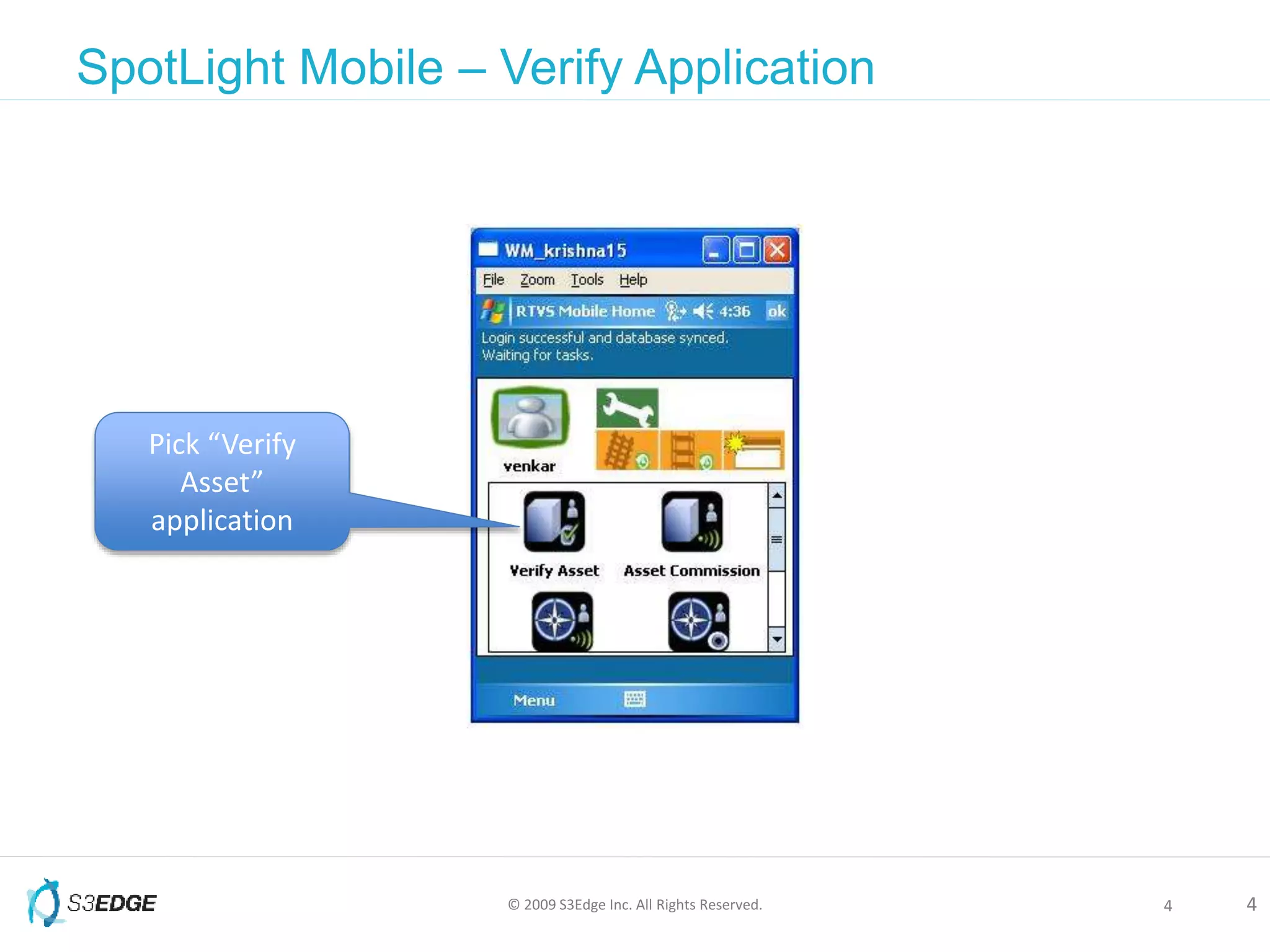
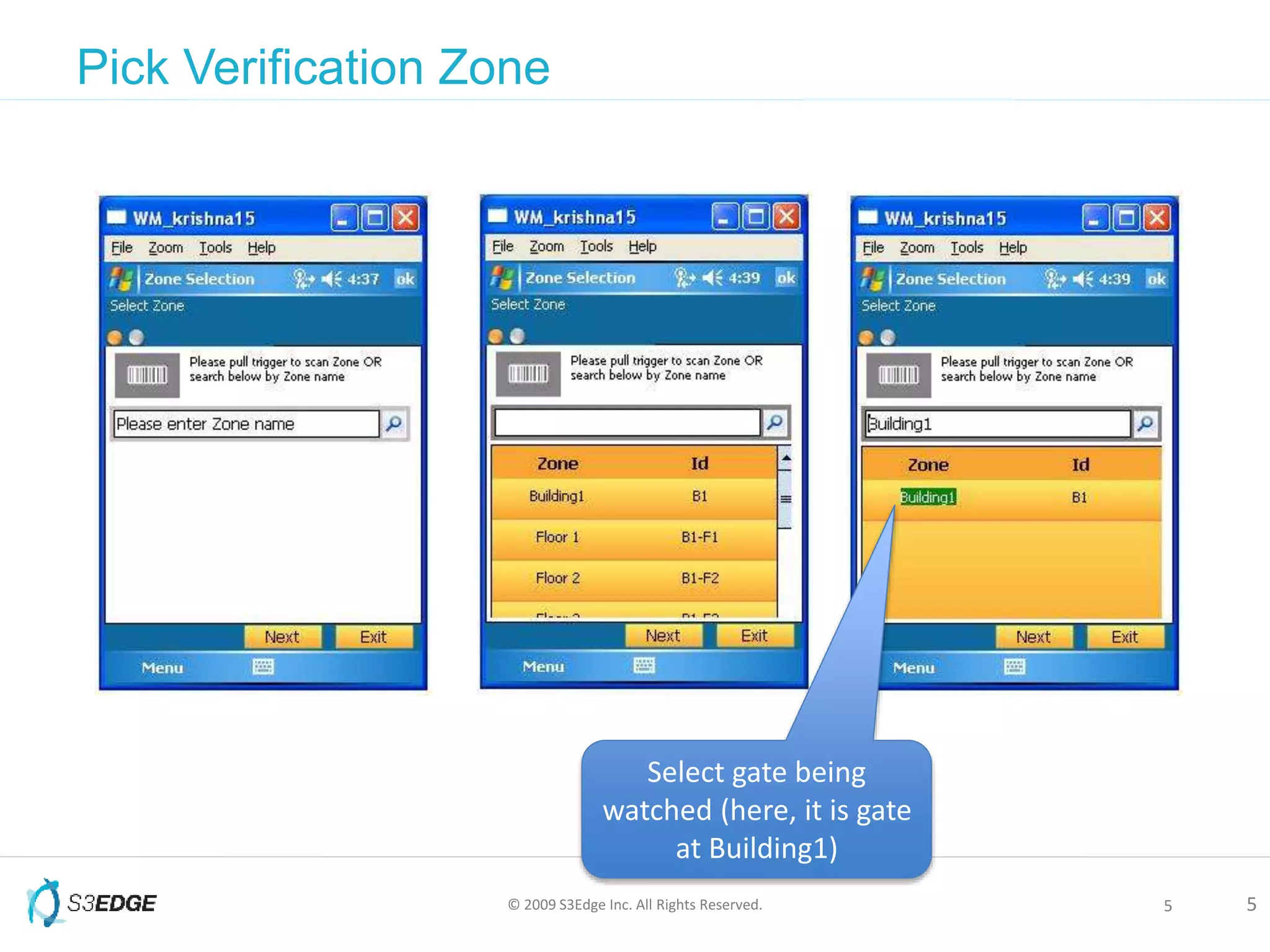
• Step2: Start verification process [video]
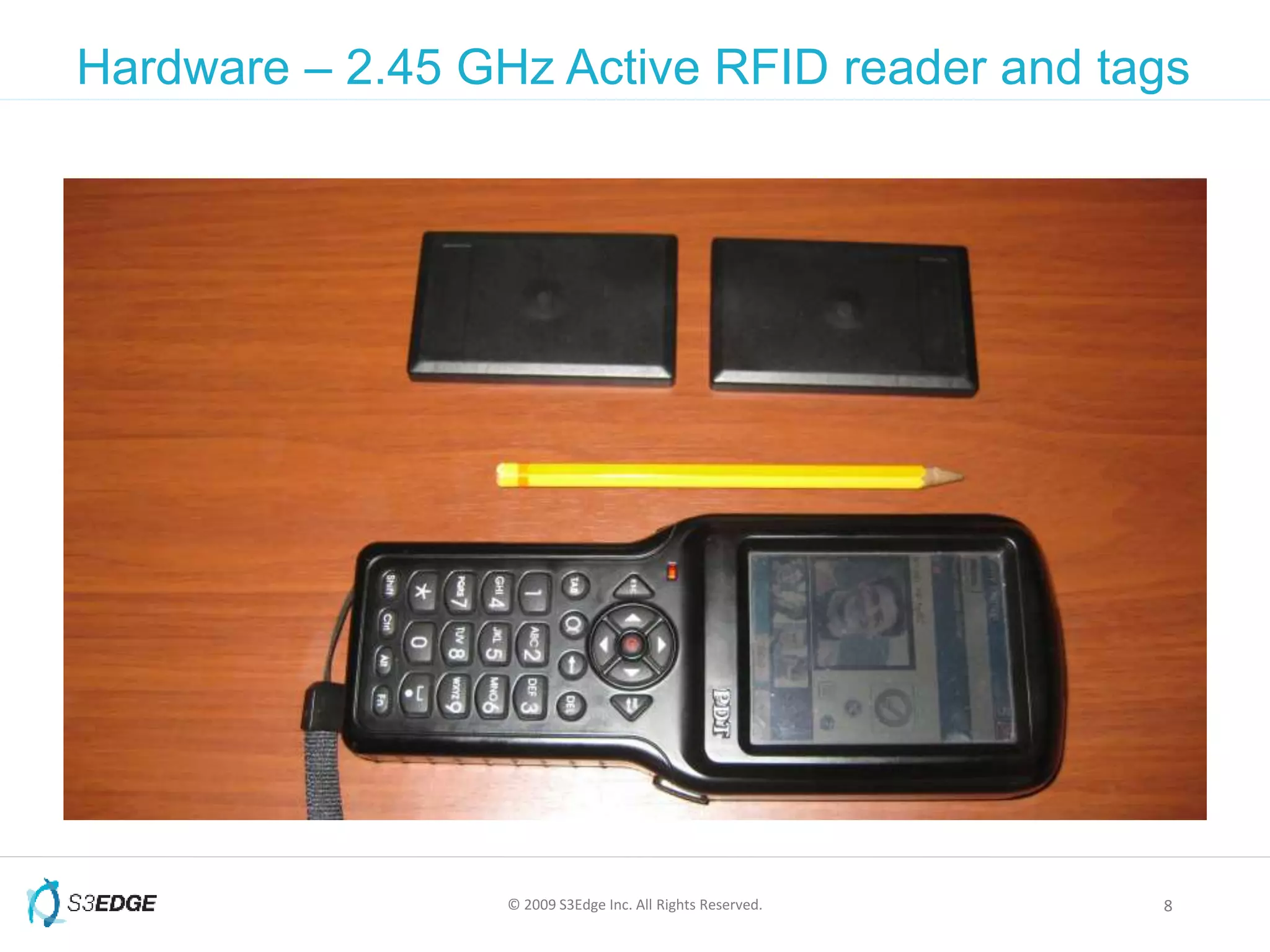
– When a car approaches the entry/exit gate, pictures of the laptop
owners automatically pop in the handheld (even if the laptop is in
the car boot).
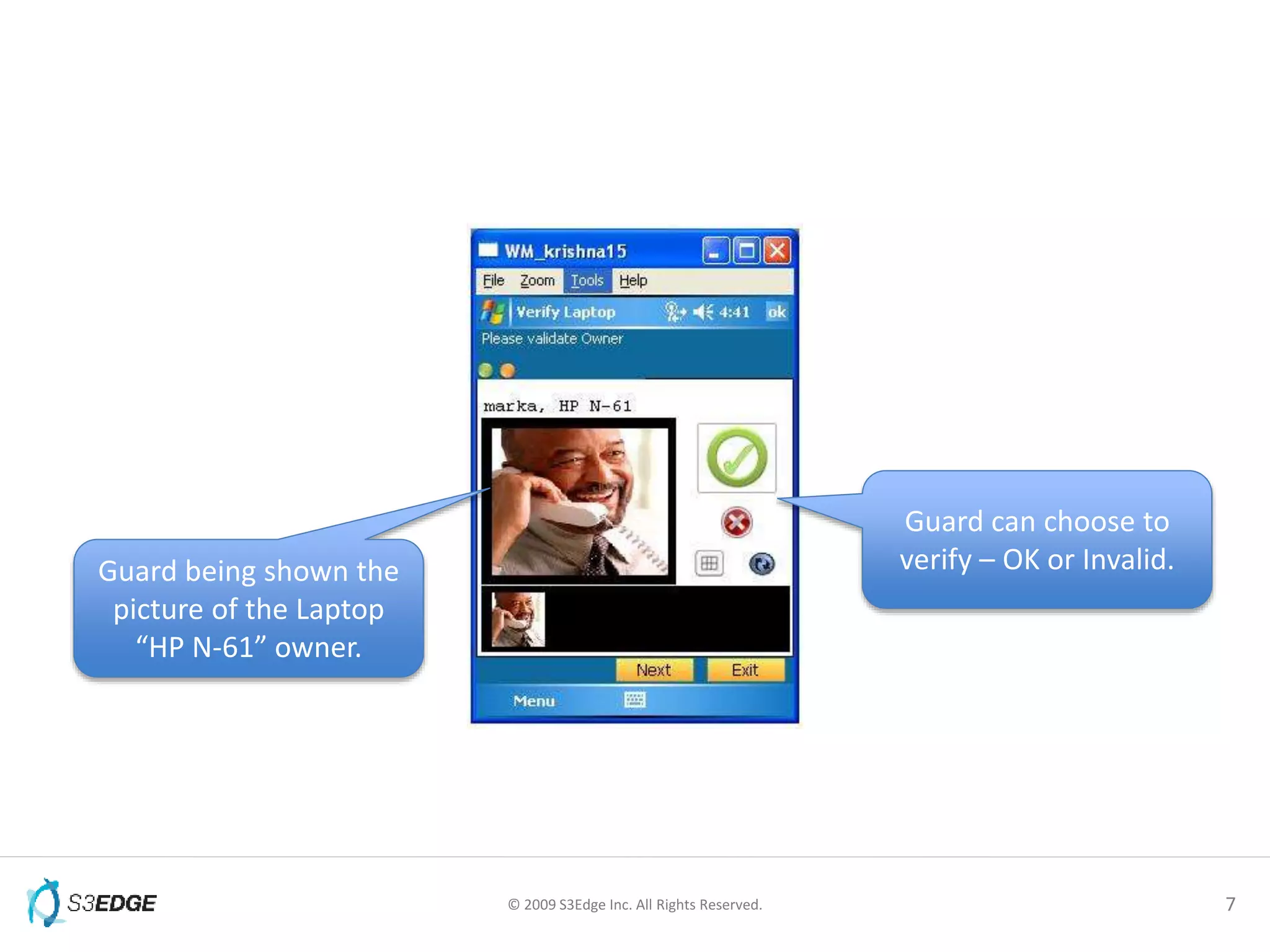
– Guard verifies the picture in the handheld, with the person in the
laptop and
• Hits “Verified-OK” if the owner matches.
• Hits “Verified-Invalid” if there is a mismatch.
– Information is recorded for display in the SpotLight portal and
reports](https://image.slidesharecdn.com/spotlightforlaptoptracking-100412231638-phpapp02/75/Spotlight-For-Laptop-Tracking-2-2048.jpg)



This document outlines a scenario for verifying employees carrying laptops at entry/exit points using RFID tags and a mobile application. The scenario involves: 1) Configuring a SpotLight server to store employee and laptop details including photos; 2) Associating RFID tags on laptops with their owners; 3) Synchronizing this data to a handheld device used by security guards; 4) When a car approaches a gate, the guard's device displays photos of possible laptop owners to verify against the person and laptop in the car; 5) The guard indicates if the verification was successful or not using the mobile app.


![Vibe Coding vs. Spec-Driven Development [Free Meetup]](https://cdn.slidesharecdn.com/ss_thumbnails/vibecodingvsspecdrivendevelopment-251209105622-43f455e7-thumbnail.jpg?width=640&height=640&fit=bounds)


