Technical Workshops
Advanced User Training

Jeff Blake

May 17, 2011
Agenda
      Assumptions
      Building Apps
      Users and Roles
      Splunk By Example – Deconstructing the Demo
      Support and Community


Copyright © 2011, Splunk Inc.      2                Listen to your data.
Assumptions
You Are in This Session Because….

      • You have developed advanced searches with Splunk to manipulate
         and present data
      • You have mastered sourcetyping and extracting fields
      • You have built reports beyond | timechart count
      • You have created dashboards of some kind
      • You have http://www.splunk.com/base/Documentation bookmarked
      • You have seen all of the Splunk Ninja videos


Copyright © 2011, Splunk Inc.         4                    Listen to your data.
Building Apps
What is An App, Anyway?
• Terminology
   • Apps – A workspace that solves a specific use case with a navigable view
   • Add-on – A reusable Splunk component that does not contain a view
• Example
   • Splunk for Cisco Security is an App
   • The collection of field extractions/sourcetypes/transforms/eventypes that
     map raw firewall logs is an Add-on


Copyright © 2011, Splunk Inc.          6                     Listen to your data.
What You Need to Create an App
• Some data
• Add-ons (Use ours or build your own)
• Splunk Objects
   • Saved Searches
   • Reports
   • Dashboards
   • Views
• Text Editor (Komodo Edit, Text Wrangler, vi, Notepad) for Advanced XML
• Web development tools (Firebug, etc)


Copyright © 2011, Splunk Inc.         7                      Listen to your data.
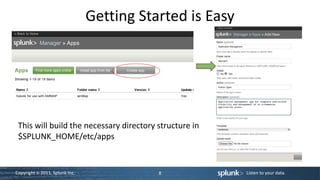
Getting Started is Easy


 This will build the necessary directory structure in
 $SPLUNK_HOME/etc/apps


Copyright © 2011, Splunk Inc.              8              Listen to your data.
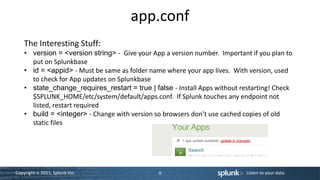
app.conf
    The Interesting Stuff:
    • version = <version string> - Give your App a version number. Important if you plan to
      put on Splunkbase
    • id = <appid> - Must be same as folder name where your app lives. With version, used
      to check for App updates on Splunkbase
    • state_change_requires_restart = true | false - Install Apps without restarting! Check
      $SPLUNK_HOME/etc/system/default/apps.conf. If Splunk touches any endpoint not
      listed, restart required
    • build = <integer> - Change with version so browsers don’t use cached copies of old
      static files


Copyright © 2011, Splunk Inc.                  9                            Listen to your data.
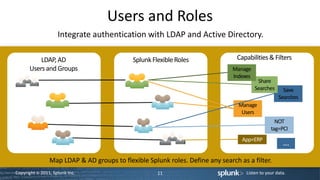
Users and Roles
Users and Roles
                     Integrate authentication with LDAP and Active Directory.

           LDAP, AD                          Splunk Flexible Roles               Capabilities & Filters
       Users and Groups                                                         Manage
                                                                                Indexes
                                                                                            Share
                                                                                           Searches     Save
                                                                                                      Searches
Problem Investigation                   Problem Investigation                Problem Investigation
                                                                                  Manage
                                                                                   Users
                                                                                                   NOT
                                                                                                 tag=PCI
                                                                                   App=ERP
                                                                                                       …
                 Map LDAP & AD groups to flexible Splunk roles. Define any search as a filter.
 Copyright © 2011, Splunk Inc.                        11                             Listen to your data.
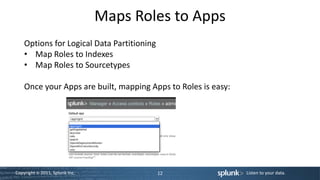
Maps Roles to Apps
    Options for Logical Data Partitioning
    • Map Roles to Indexes
    • Map Roles to Sourcetypes

    Once your Apps are built, mapping Apps to Roles is easy:


Copyright © 2011, Splunk Inc.               12                 Listen to your data.
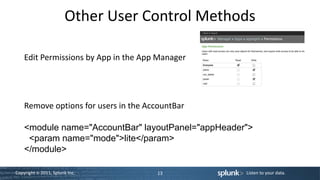
Other User Control Methods

    Edit Permissions by App in the App Manager


    Remove options for users in the AccountBar

    <module name="AccountBar" layoutPanel="appHeader">
     <param name="mode">lite</param>
    </module>

Copyright © 2011, Splunk Inc.         13            Listen to your data.
Splunk By Example
Basic UI Customization
*Disclaimer
      The App and Splunk Web customizations that we will show in this
      presentation are by no means comprehensive
      Please see the Developer Manual for more detail


  http://www.splunk.com/base/Documentation/latest/Developer/


Copyright © 2011, Splunk Inc.        15                   Listen to your data.
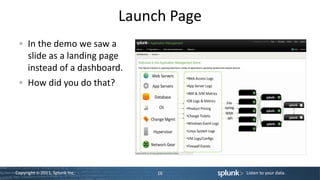
Launch Page
      In the demo we saw a
      slide as a landing page
      instead of a dashboard.
      How did you do that?
                                          Screenshot here


Copyright © 2011, Splunk Inc.        16                     Listen to your data.
Where Stuff Lives
      $SPLUNK_HOME/etc/apps/your_app_name
      $SPLUNK_HOME/etc/apps/your_app_name/default
      – Put all Splunk configuration files for you App here
      $SPLUNK_HOME/etc/apps/your_app_name/default/data/ui/nav
      – Contains default.xml, defines navigation menus
      $SPLUNK_HOME/etc/apps/your_app_name/default/data/ui/views
      – All dashboard and view xml files live here
      $SPLUNK_HOME/etc/apps/your_app_name/default/appserver
      – Add images, CSS, or HTML


Copyright © 2011, Splunk Inc.               17                Listen to your data.
Where Stuff Lives, Cont.
      $SPLUNK_HOME/etc/apps/your_app_name/bin
      – Custom scripts or executables for your App
      $SPLUNK_HOME/etc/apps/your_app_name/local
      – For users and admins to edit default configurations
      $SPLUNK_HOME/etc/apps/your_app_name/metadata
      – Stores object permissions


Copyright © 2011, Splunk Inc.              18                 Listen to your data.
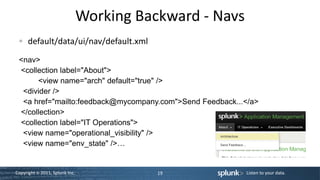
Working Backward - Navs
      default/data/ui/nav/default.xml
 <nav>
 <collection label="About">
      <view name="arch" default="true" />
  <divider />
  <a href="mailto:feedback@mycompany.com">Send Feedback...</a>
 </collection>
 <collection label="IT Operations">
  <view name="operational_visibility" />
  <view name="env_state" />…


Copyright © 2011, Splunk Inc.              19             Listen to your data.
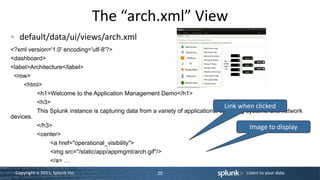
The “arch.xml” View
   default/data/ui/views/arch.xml
<?xml version='1.0' encoding='utf-8'?>
<dashboard>
<label>Architecture</label>
 <row>
     <html>
         <h1>Welcome to the Application Management Demo</h1>
         <h3>
                                                                                  Link when clicked
         This Splunk instance is capturing data from a variety of applications, operating systems and network
devices.
         </h3>                                                                             Image to display
         <center>
              <a href="operational_visibility">
              <img src="/static/app/appmgmt/arch.gif"/>
              </a> …
 Copyright © 2011, Splunk Inc.                        20                                Listen to your data.
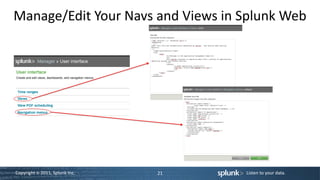
Manage/Edit Your Navs and Views in Splunk Web


Copyright © 2011, Splunk Inc.   21   Listen to your data.
Other Customization Options
      App Icon – create your own icon to show on Home screen
      – $SPLUNK_HOME/etc/apps/your_app_name/appserver/static/appIcon.png
      Custom Cascading Style Sheets (CSS) - background colors, fonts,
      logos, buttons, navigation, menus, etc
      – Default:
        $SPLUNK_HOME/share/splunk/search_mrsparkle/exposed/css/skins/defau
        lt/default.css
      – Create your application.css in
        $SPLUNK_HOME/etc/app/your_app_name/appserver/static
      – See Splunk Apps (Splunk for *NIX, Splunk for Windows, etc) for examples


Copyright © 2011, Splunk Inc.            22                      Listen to your data.
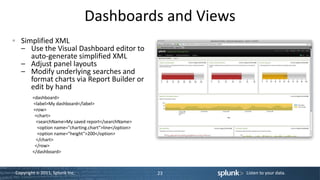
Dashboards and Views
  Simplified XML
  – Use the Visual Dashboard editor to
     auto-generate simplified XML
  – Adjust panel layouts
  – Modify underlying searches and
     format charts via Report Builder or
     edit by hand
        <dashboard>
        <label>My dashboard</label>
        <row>
         <chart>
         <searchName>My saved report</searchName>
          <option name="charting.chart">line</option>
          <option name="height">200</option>
         </chart>
         </row>
        </dashboard>


Copyright © 2011, Splunk Inc.                           23   Listen to your data.
Dashboards and Views
  Advanced XML
  – Provides extended customization and control over simplified XML
  – All pages and dashboards in Splunk are composed of one or many
    modules
  – Each module contains params that control module specific
    configurations
  Check out available modules
  – http://localhost:8000/modules

  View any Splunk page in Advanced XML
  – http://localhost:8000/en-US/app/<app_name>/<dashboard_name>?showsource=true


Copyright © 2011, Splunk Inc.               24                          Listen to your data.
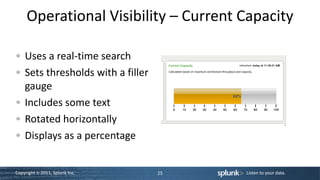
Operational Visibility – Current Capacity

    Uses a real-time search
    Sets thresholds with a filler
    gauge
    Includes some text
    Rotated horizontally
    Displays as a percentage


Copyright © 2011, Splunk Inc.       25   Listen to your data.
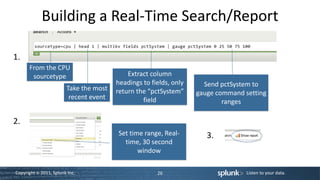
Building a Real-Time Search/Report

1.
      From the CPU
       sourcetype                           Extract column
                                        headings to fields, only     Send pctSystem to
                        Take the most   return the “pctSystem”     gauge command setting
                         recent event            field                     ranges

2.
                                        Set time range, Real-         3.
                                          time, 30 second
                                               window

Copyright © 2011, Splunk Inc.                         26                          Listen to your data.
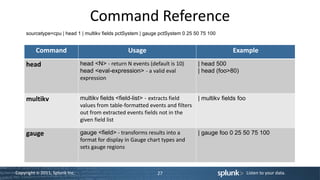
Command Reference
     sourcetype=cpu | head 1 | multikv fields pctSystem | gauge pctSystem 0 25 50 75 100


         Command                                   Usage                                       Example
     head                       head <N> - return N events (default is 10)       | head 500
                                head <eval-expression> - a valid eval            | head (foo>80)
                                expression


     multikv                    multikv fields <field-list> - extracts field     | multikv fields foo
                                values from table-formatted events and filters
                                out from extracted events fields not in the
                                given field list

     gauge                      gauge <field> - transforms results into a        | gauge foo 0 25 50 75 100
                                format for display in Gauge chart types and
                                sets gauge regions


Copyright © 2011, Splunk Inc.                                  27                                       Listen to your data.
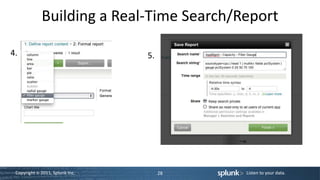
Building a Real-Time Search/Report

4.                               5.


 Copyright © 2011, Splunk Inc.        28   Listen to your data.
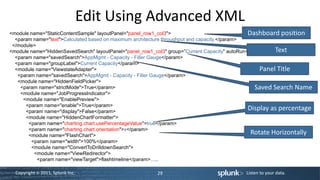
Edit Using Advanced XML
<module name="StaticContentSample" layoutPanel="panel_row1_col3">                               Dashboard position
  <param name="text">Calculated based on maximum architecture throughput and capacity.</param>
 </module>
<module name="HiddenSavedSearch" layoutPanel="panel_row1_col3" group=”Current Capacity" autoRun="True">   Text
  <param name="savedSearch">AppMgmt - Capacity - Filler Gauge</param>
  <param name="groupLabel">Current Capacity</param>
  <module name="ViewstateAdapter">                                                                   Panel Title
   <param name="savedSearch">AppMgmt - Capacity - Filler Gauge</param>
   <module name="HiddenFieldPicker">
    <param name="strictMode">True</param>                                                          Saved Search Name
    <module name="JobProgressIndicator">
     <module name="EnablePreview">
      <param name="enable">True</param>
      <param name="display">False</param>
                                                                                                Display as percentage
      <module name="HiddenChartFormatter">
       <param name="charting.chart.usePercentageValue">true</param>
       <param name="charting.chart.orientation">x</param>
       <module name="FlashChart">
                                                                                                 Rotate Horizontally
        <param name="width">100%</param>
        <module name="ConvertToDrilldownSearch">
         <module name="ViewRedirector">
           <param name="viewTarget">flashtimeline</param>…..

  Copyright © 2011, Splunk Inc.                          29                                Listen to your data.
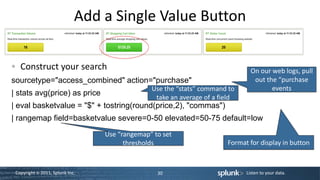
Add a Single Value Button

   Construct your search                                                       On our web logs, pull
sourcetype="access_combined" action="purchase"                                  out the “purchase
                                               Use the “stats” command to             events
| stats avg(price) as price
                                                take an average of a field
| eval basketvalue = "$" + tostring(round(price,2), "commas")
| rangemap field=basketvalue severe=0-50 elevated=50-75 default=low
                                 Use “rangemap” to set
                                       thresholds                      Format for display in button


 Copyright © 2011, Splunk Inc.                   30                          Listen to your data.
Command Reference
 sourcetype="access_combined" action="purchase” | stats avg(price) as price | eval basketvalue = "$" + tostring(round(price,2),
 "commas") | rangemap field=basketvalue severe=0-50 elevated=50-75 default=low


               Command                                        Usage                                                Example

          stats                      stats (stats-function(field) [as field]) + [by               | stats avg(foo) as foobar by bar
                                     field-list] – provides statistics grouped
                                     optionally by field


stats functions - avg() , c() , count() , dc() , distinct_count() , first() , last() , list() , max() , median() , min() , mode() , p<in>() , perc<int>() ,
per_day() , per_hour() , per_minute() , per_second() , range() , stdev() , stdevp() , sum() , sumsq() , values() , var() , varp()


    Copyright © 2011, Splunk Inc.                                            31                                           Listen to your data.
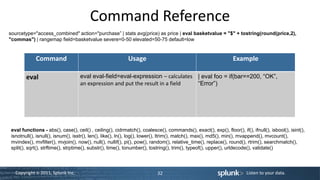
Command Reference
sourcetype="access_combined" action="purchase” | stats avg(price) as price | eval basketvalue = "$" + tostring(round(price,2),
"commas") | rangemap field=basketvalue severe=0-50 elevated=50-75 default=low


             Command                                        Usage                                               Example

        eval                       eval eval-field=eval-expression – calculates | eval foo = if(bar==200, “OK”,
                                   an expression and put the result in a field  “Error”)


 eval functions - abs(), case(), ceil() , ceiling(), cidrmatch(), coalesce(), commands(), exact(), exp(), floor(), if(), ifnull(), isbool(), isint(),
 isnotnull(), isnull(), isnum(), isstr(), len(), like(), ln(), log(), lower(), ltrim(), match(), max(), md5(), min(), mvappend(), mvcount(),
 mvindex(), mvfilter(), mvjoin(), now(), null(), nullif(), pi(), pow(), random(), relative_time(), replace(), round(), rtrim(), searchmatch(),
 split(), sqrt(), strftime(), strptime(), substr(), time(), tonumber(), tostring(), trim(), typeof(), upper(), urldecode(), validate()


   Copyright © 2011, Splunk Inc.                                          32                                           Listen to your data.
Command Reference
sourcetype="access_combined" action="purchase” | stats avg(price) as price | eval basketvalue = "$" + tostring(round(price,2),
"commas") | rangemap field=basketvalue severe=0-50 elevated=50-75 default=low


            Command                                   Usage                                          Example

        rangemap                   rangemap field=<string>                           | rangemap field=foo low=0-10
                                   (<attrn>=<number>-<number>) +                     elevated=11-20 severe=21-30
                                   [default=<string>] – sets range field to the      default=low
                                   name of the ranges that match


 Note: Splunk ships with CSS that defines colors for low, elevated, and severe. You can customize CSS for
 these values.


   Copyright © 2011, Splunk Inc.                                   33                                      Listen to your data.
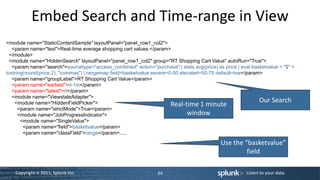
Embed Search and Time-range in View
<module name="StaticContentSample" layoutPanel="panel_row1_col2">
   <param name="text">Real-time average shopping cart values.</param>
 </module>
 <module name="HiddenSearch" layoutPanel="panel_row1_col2" group="RT Shopping Cart Value" autoRun="True">
   <param name="search">sourcetype="access_combined" action="purchase" | stats avg(price) as price | eval basketvalue = "$" +
tostring(round(price,2), "commas") | rangemap field=basketvalue severe=0-50 elevated=50-75 default=low</param>
   <param name="groupLabel">RT Shopping Cart Value</param>
   <param name="earliest">rt-1m</param>
   <param name="latest">rt</param>
   <module name="ViewstateAdapter">
                                                                                                             Our Search
    <module name="HiddenFieldPicker">                                   Real-time 1 minute
      <param name="strictMode">True</param>
      <module name="JobProgressIndicator">                                     window
       <module name="SingleValue">
        <param name="field">basketvalue</param>
        <param name="classField">range</param>.....

                                                                                             Use the “basketvalue”
                                                                                                      field

    Copyright © 2011, Splunk Inc.                                34                                     Listen to your data.
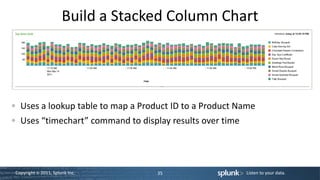
Build a Stacked Column Chart


  Uses a lookup table to map a Product ID to a Product Name
  Uses “timechart” command to display results over time


Copyright © 2011, Splunk Inc.      35                     Listen to your data.
Use a Lookup Table


• In props.conf                     • In lookup directory, prod_lookup.csv
 [access_combined]                    product_id,product_name,price,tdf_price,call_
 LOOKUP-prod = prod_id_lookup         flwrs_price
 product_id OUTPUT product_name,      RP-LI-02,Chocolate Dreams
 price, tdf_price, call_flwrs_price   Confections,379,299,319

• In transforms.conf
 [prod_id_lookup]
 filename = prod_lookup.csv
Copyright © 2011, Splunk Inc.           36                     Listen to your data.
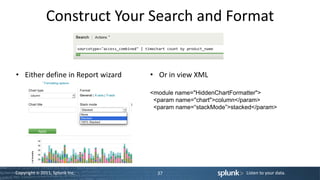
Construct Your Search and Format


• Either define in Report wizard   • Or in view XML

                                   <module name="HiddenChartFormatter">
                                    <param name="chart">column</param>
                                    <param name=“stackMode”>stacked</param>


Copyright © 2011, Splunk Inc.        37                          Listen to your data.
Command Reference
                                    sourcetype="access_combined” | timechart count by product_name


              Command                                       Usage                                               Example

         timechart                  timechart [agg=<stats-agg-term>]                           | timechart span=1m avg(foo) by
                                    [<bucketing-option> ]* (<single-agg> [by                   bar
                                    <split-by-clause>] )


timechart functions (same as stats) - avg() , c() , count() , dc() , distinct_count() , first() , last() , list() , max() , median() , min() , mode() ,
p<in>() , perc<int>() , per_day() , per_hour() , per_minute() , per_second() , range() , stdev() , stdevp() , sum() , sumsq() , values() , var() ,
varp()


    Copyright © 2011, Splunk Inc.                                          38                                          Listen to your data.
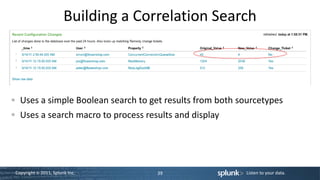
Building a Correlation Search


  Uses a simple Boolean search to get results from both sourcetypes
  Uses a search macro to process results and display


Copyright © 2011, Splunk Inc.        39                  Listen to your data.
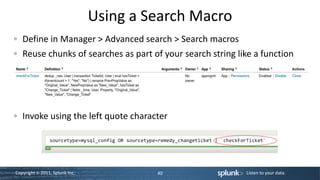
Using a Search Macro
   Define in Manager > Advanced search > Search macros
   Reuse chunks of searches as part of your search string like a function


   Invoke using the left quote character


Copyright © 2011, Splunk Inc.            40                 Listen to your data.
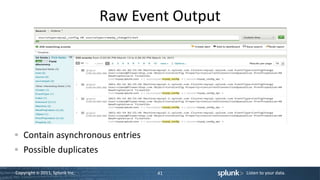
Raw Event Output


   Contain asynchronous entries
   Possible duplicates

Copyright © 2011, Splunk Inc.          41          Listen to your data.
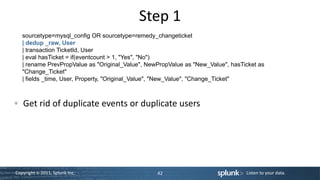
Step 1
   sourcetype=mysql_config OR sourcetype=remedy_changeticket
   | dedup _raw, User
   | transaction TicketId, User
   | eval hasTicket = if(eventcount > 1, "Yes", "No")
   | rename PrevPropValue as "Original_Value", NewPropValue as "New_Value", hasTicket as
   "Change_Ticket"
   | fields _time, User, Property, "Original_Value", "New_Value", "Change_Ticket"


   Get rid of duplicate events or duplicate users


Copyright © 2011, Splunk Inc.                     42                             Listen to your data.
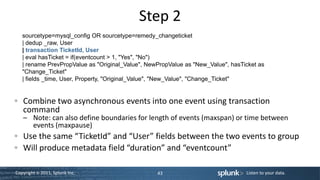
Step 2
   sourcetype=mysql_config OR sourcetype=remedy_changeticket
   | dedup _raw, User
   | transaction TicketId, User
   | eval hasTicket = if(eventcount > 1, "Yes", "No")
   | rename PrevPropValue as "Original_Value", NewPropValue as "New_Value", hasTicket as
   "Change_Ticket"
   | fields _time, User, Property, "Original_Value", "New_Value", "Change_Ticket"


   Combine two asynchronous events into one event using transaction
   command
   – Note: can also define boundaries for length of events (maxspan) or time between
     events (maxpause)
   Use the same “TicketId” and “User” fields between the two events to group
   Will produce metadata field “duration” and “eventcount”

Copyright © 2011, Splunk Inc.                     43                             Listen to your data.
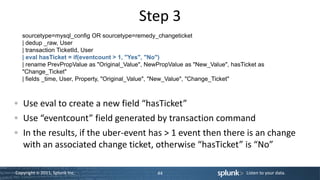
Step 3
   sourcetype=mysql_config OR sourcetype=remedy_changeticket
   | dedup _raw, User
   | transaction TicketId, User
   | eval hasTicket = if(eventcount > 1, "Yes", "No")
   | rename PrevPropValue as "Original_Value", NewPropValue as "New_Value", hasTicket as
   "Change_Ticket"
   | fields _time, User, Property, "Original_Value", "New_Value", "Change_Ticket"


   Use eval to create a new field “hasTicket”
   Use “eventcount” field generated by transaction command
   In the results, if the uber-event has > 1 event then there is an change
   with an associated change ticket, otherwise “hasTicket” is “No”

Copyright © 2011, Splunk Inc.                     44                             Listen to your data.
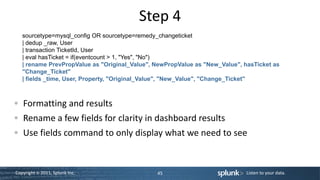
Step 4
   sourcetype=mysql_config OR sourcetype=remedy_changeticket
   | dedup _raw, User
   | transaction TicketId, User
   | eval hasTicket = if(eventcount > 1, "Yes", "No")
   | rename PrevPropValue as "Original_Value", NewPropValue as "New_Value", hasTicket as
   "Change_Ticket"
   | fields _time, User, Property, "Original_Value", "New_Value", "Change_Ticket"


   Formatting and results
   Rename a few fields for clarity in dashboard results
   Use fields command to only display what we need to see


Copyright © 2011, Splunk Inc.                  45                            Listen to your data.
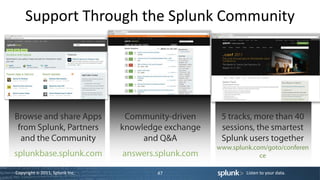
Support and Community
Support Through the Splunk Community
      Splunkbase


Copyright © 2011, Splunk Inc.   47   Listen to your data.
Where to Go for Help
   Documentation
   – http://www.splunk.com/base/Documentation
   Technical Support
   – http://www.splunk.com/support
   Videos
   – http://www.splunk.com/videos
   Education
   – http://www.splunk.com/goto/education
   Professional Services


Copyright © 2011, Splunk Inc.            48            Listen to your data.
Technical Workshops
Advanced User Training

Thank you

SplunkLive 2011 Advanced Session

  • 1.
    Technical Workshops Advanced UserTraining Jeff Blake May 17, 2011
  • 2.
    Agenda Assumptions Building Apps Users and Roles Splunk By Example – Deconstructing the Demo Support and Community Copyright © 2011, Splunk Inc. 2 Listen to your data.
  • 3.
  • 4.
    You Are inThis Session Because…. • You have developed advanced searches with Splunk to manipulate and present data • You have mastered sourcetyping and extracting fields • You have built reports beyond | timechart count • You have created dashboards of some kind • You have http://www.splunk.com/base/Documentation bookmarked • You have seen all of the Splunk Ninja videos Copyright © 2011, Splunk Inc. 4 Listen to your data.
  • 5.
  • 6.
    What is AnApp, Anyway? • Terminology • Apps – A workspace that solves a specific use case with a navigable view • Add-on – A reusable Splunk component that does not contain a view • Example • Splunk for Cisco Security is an App • The collection of field extractions/sourcetypes/transforms/eventypes that map raw firewall logs is an Add-on Copyright © 2011, Splunk Inc. 6 Listen to your data.
  • 7.
    What You Needto Create an App • Some data • Add-ons (Use ours or build your own) • Splunk Objects • Saved Searches • Reports • Dashboards • Views • Text Editor (Komodo Edit, Text Wrangler, vi, Notepad) for Advanced XML • Web development tools (Firebug, etc) Copyright © 2011, Splunk Inc. 7 Listen to your data.
  • 8.
    Getting Started isEasy This will build the necessary directory structure in $SPLUNK_HOME/etc/apps Copyright © 2011, Splunk Inc. 8 Listen to your data.
  • 9.
    app.conf The Interesting Stuff: • version = <version string> - Give your App a version number. Important if you plan to put on Splunkbase • id = <appid> - Must be same as folder name where your app lives. With version, used to check for App updates on Splunkbase • state_change_requires_restart = true | false - Install Apps without restarting! Check $SPLUNK_HOME/etc/system/default/apps.conf. If Splunk touches any endpoint not listed, restart required • build = <integer> - Change with version so browsers don’t use cached copies of old static files Copyright © 2011, Splunk Inc. 9 Listen to your data.
  • 10.
  • 11.
    Users and Roles Integrate authentication with LDAP and Active Directory. LDAP, AD Splunk Flexible Roles Capabilities & Filters Users and Groups Manage Indexes Share Searches Save Searches Problem Investigation Problem Investigation Problem Investigation Manage Users NOT tag=PCI App=ERP … Map LDAP & AD groups to flexible Splunk roles. Define any search as a filter. Copyright © 2011, Splunk Inc. 11 Listen to your data.
  • 12.
    Maps Roles toApps Options for Logical Data Partitioning • Map Roles to Indexes • Map Roles to Sourcetypes Once your Apps are built, mapping Apps to Roles is easy: Copyright © 2011, Splunk Inc. 12 Listen to your data.
  • 13.
    Other User ControlMethods Edit Permissions by App in the App Manager Remove options for users in the AccountBar <module name="AccountBar" layoutPanel="appHeader"> <param name="mode">lite</param> </module> Copyright © 2011, Splunk Inc. 13 Listen to your data.
  • 14.
    Splunk By Example BasicUI Customization
  • 15.
    *Disclaimer The App and Splunk Web customizations that we will show in this presentation are by no means comprehensive Please see the Developer Manual for more detail http://www.splunk.com/base/Documentation/latest/Developer/ Copyright © 2011, Splunk Inc. 15 Listen to your data.
  • 16.
    Launch Page In the demo we saw a slide as a landing page instead of a dashboard. How did you do that? Screenshot here Copyright © 2011, Splunk Inc. 16 Listen to your data.
  • 17.
    Where Stuff Lives $SPLUNK_HOME/etc/apps/your_app_name $SPLUNK_HOME/etc/apps/your_app_name/default – Put all Splunk configuration files for you App here $SPLUNK_HOME/etc/apps/your_app_name/default/data/ui/nav – Contains default.xml, defines navigation menus $SPLUNK_HOME/etc/apps/your_app_name/default/data/ui/views – All dashboard and view xml files live here $SPLUNK_HOME/etc/apps/your_app_name/default/appserver – Add images, CSS, or HTML Copyright © 2011, Splunk Inc. 17 Listen to your data.
  • 18.
    Where Stuff Lives,Cont. $SPLUNK_HOME/etc/apps/your_app_name/bin – Custom scripts or executables for your App $SPLUNK_HOME/etc/apps/your_app_name/local – For users and admins to edit default configurations $SPLUNK_HOME/etc/apps/your_app_name/metadata – Stores object permissions Copyright © 2011, Splunk Inc. 18 Listen to your data.
  • 19.
    Working Backward -Navs default/data/ui/nav/default.xml <nav> <collection label="About"> <view name="arch" default="true" /> <divider /> <a href="mailto:feedback@mycompany.com">Send Feedback...</a> </collection> <collection label="IT Operations"> <view name="operational_visibility" /> <view name="env_state" />… Copyright © 2011, Splunk Inc. 19 Listen to your data.
  • 20.
    The “arch.xml” View default/data/ui/views/arch.xml <?xml version='1.0' encoding='utf-8'?> <dashboard> <label>Architecture</label> <row> <html> <h1>Welcome to the Application Management Demo</h1> <h3> Link when clicked This Splunk instance is capturing data from a variety of applications, operating systems and network devices. </h3> Image to display <center> <a href="operational_visibility"> <img src="/static/app/appmgmt/arch.gif"/> </a> … Copyright © 2011, Splunk Inc. 20 Listen to your data.
  • 21.
    Manage/Edit Your Navsand Views in Splunk Web Copyright © 2011, Splunk Inc. 21 Listen to your data.
  • 22.
    Other Customization Options App Icon – create your own icon to show on Home screen – $SPLUNK_HOME/etc/apps/your_app_name/appserver/static/appIcon.png Custom Cascading Style Sheets (CSS) - background colors, fonts, logos, buttons, navigation, menus, etc – Default: $SPLUNK_HOME/share/splunk/search_mrsparkle/exposed/css/skins/defau lt/default.css – Create your application.css in $SPLUNK_HOME/etc/app/your_app_name/appserver/static – See Splunk Apps (Splunk for *NIX, Splunk for Windows, etc) for examples Copyright © 2011, Splunk Inc. 22 Listen to your data.
  • 23.
    Dashboards and Views Simplified XML – Use the Visual Dashboard editor to auto-generate simplified XML – Adjust panel layouts – Modify underlying searches and format charts via Report Builder or edit by hand <dashboard> <label>My dashboard</label> <row> <chart> <searchName>My saved report</searchName> <option name="charting.chart">line</option> <option name="height">200</option> </chart> </row> </dashboard> Copyright © 2011, Splunk Inc. 23 Listen to your data.
  • 24.
    Dashboards and Views Advanced XML – Provides extended customization and control over simplified XML – All pages and dashboards in Splunk are composed of one or many modules – Each module contains params that control module specific configurations Check out available modules – http://localhost:8000/modules View any Splunk page in Advanced XML – http://localhost:8000/en-US/app/<app_name>/<dashboard_name>?showsource=true Copyright © 2011, Splunk Inc. 24 Listen to your data.
  • 25.
    Operational Visibility –Current Capacity Uses a real-time search Sets thresholds with a filler gauge Includes some text Rotated horizontally Displays as a percentage Copyright © 2011, Splunk Inc. 25 Listen to your data.
  • 26.
    Building a Real-TimeSearch/Report 1. From the CPU sourcetype Extract column headings to fields, only Send pctSystem to Take the most return the “pctSystem” gauge command setting recent event field ranges 2. Set time range, Real- 3. time, 30 second window Copyright © 2011, Splunk Inc. 26 Listen to your data.
  • 27.
    Command Reference sourcetype=cpu | head 1 | multikv fields pctSystem | gauge pctSystem 0 25 50 75 100 Command Usage Example head head <N> - return N events (default is 10) | head 500 head <eval-expression> - a valid eval | head (foo>80) expression multikv multikv fields <field-list> - extracts field | multikv fields foo values from table-formatted events and filters out from extracted events fields not in the given field list gauge gauge <field> - transforms results into a | gauge foo 0 25 50 75 100 format for display in Gauge chart types and sets gauge regions Copyright © 2011, Splunk Inc. 27 Listen to your data.
  • 28.
    Building a Real-TimeSearch/Report 4. 5. Copyright © 2011, Splunk Inc. 28 Listen to your data.
  • 29.
    Edit Using AdvancedXML <module name="StaticContentSample" layoutPanel="panel_row1_col3"> Dashboard position <param name="text">Calculated based on maximum architecture throughput and capacity.</param> </module> <module name="HiddenSavedSearch" layoutPanel="panel_row1_col3" group=”Current Capacity" autoRun="True"> Text <param name="savedSearch">AppMgmt - Capacity - Filler Gauge</param> <param name="groupLabel">Current Capacity</param> <module name="ViewstateAdapter"> Panel Title <param name="savedSearch">AppMgmt - Capacity - Filler Gauge</param> <module name="HiddenFieldPicker"> <param name="strictMode">True</param> Saved Search Name <module name="JobProgressIndicator"> <module name="EnablePreview"> <param name="enable">True</param> <param name="display">False</param> Display as percentage <module name="HiddenChartFormatter"> <param name="charting.chart.usePercentageValue">true</param> <param name="charting.chart.orientation">x</param> <module name="FlashChart"> Rotate Horizontally <param name="width">100%</param> <module name="ConvertToDrilldownSearch"> <module name="ViewRedirector"> <param name="viewTarget">flashtimeline</param>….. Copyright © 2011, Splunk Inc. 29 Listen to your data.
  • 30.
    Add a SingleValue Button Construct your search On our web logs, pull sourcetype="access_combined" action="purchase" out the “purchase Use the “stats” command to events | stats avg(price) as price take an average of a field | eval basketvalue = "$" + tostring(round(price,2), "commas") | rangemap field=basketvalue severe=0-50 elevated=50-75 default=low Use “rangemap” to set thresholds Format for display in button Copyright © 2011, Splunk Inc. 30 Listen to your data.
  • 31.
    Command Reference sourcetype="access_combined"action="purchase” | stats avg(price) as price | eval basketvalue = "$" + tostring(round(price,2), "commas") | rangemap field=basketvalue severe=0-50 elevated=50-75 default=low Command Usage Example stats stats (stats-function(field) [as field]) + [by | stats avg(foo) as foobar by bar field-list] – provides statistics grouped optionally by field stats functions - avg() , c() , count() , dc() , distinct_count() , first() , last() , list() , max() , median() , min() , mode() , p<in>() , perc<int>() , per_day() , per_hour() , per_minute() , per_second() , range() , stdev() , stdevp() , sum() , sumsq() , values() , var() , varp() Copyright © 2011, Splunk Inc. 31 Listen to your data.
  • 32.
    Command Reference sourcetype="access_combined" action="purchase”| stats avg(price) as price | eval basketvalue = "$" + tostring(round(price,2), "commas") | rangemap field=basketvalue severe=0-50 elevated=50-75 default=low Command Usage Example eval eval eval-field=eval-expression – calculates | eval foo = if(bar==200, “OK”, an expression and put the result in a field “Error”) eval functions - abs(), case(), ceil() , ceiling(), cidrmatch(), coalesce(), commands(), exact(), exp(), floor(), if(), ifnull(), isbool(), isint(), isnotnull(), isnull(), isnum(), isstr(), len(), like(), ln(), log(), lower(), ltrim(), match(), max(), md5(), min(), mvappend(), mvcount(), mvindex(), mvfilter(), mvjoin(), now(), null(), nullif(), pi(), pow(), random(), relative_time(), replace(), round(), rtrim(), searchmatch(), split(), sqrt(), strftime(), strptime(), substr(), time(), tonumber(), tostring(), trim(), typeof(), upper(), urldecode(), validate() Copyright © 2011, Splunk Inc. 32 Listen to your data.
  • 33.
    Command Reference sourcetype="access_combined" action="purchase”| stats avg(price) as price | eval basketvalue = "$" + tostring(round(price,2), "commas") | rangemap field=basketvalue severe=0-50 elevated=50-75 default=low Command Usage Example rangemap rangemap field=<string> | rangemap field=foo low=0-10 (<attrn>=<number>-<number>) + elevated=11-20 severe=21-30 [default=<string>] – sets range field to the default=low name of the ranges that match Note: Splunk ships with CSS that defines colors for low, elevated, and severe. You can customize CSS for these values. Copyright © 2011, Splunk Inc. 33 Listen to your data.
  • 34.
    Embed Search andTime-range in View <module name="StaticContentSample" layoutPanel="panel_row1_col2"> <param name="text">Real-time average shopping cart values.</param> </module> <module name="HiddenSearch" layoutPanel="panel_row1_col2" group="RT Shopping Cart Value" autoRun="True"> <param name="search">sourcetype="access_combined" action="purchase" | stats avg(price) as price | eval basketvalue = "$" + tostring(round(price,2), "commas") | rangemap field=basketvalue severe=0-50 elevated=50-75 default=low</param> <param name="groupLabel">RT Shopping Cart Value</param> <param name="earliest">rt-1m</param> <param name="latest">rt</param> <module name="ViewstateAdapter"> Our Search <module name="HiddenFieldPicker"> Real-time 1 minute <param name="strictMode">True</param> <module name="JobProgressIndicator"> window <module name="SingleValue"> <param name="field">basketvalue</param> <param name="classField">range</param>..... Use the “basketvalue” field Copyright © 2011, Splunk Inc. 34 Listen to your data.
  • 35.
    Build a StackedColumn Chart Uses a lookup table to map a Product ID to a Product Name Uses “timechart” command to display results over time Copyright © 2011, Splunk Inc. 35 Listen to your data.
  • 36.
    Use a LookupTable • In props.conf • In lookup directory, prod_lookup.csv [access_combined] product_id,product_name,price,tdf_price,call_ LOOKUP-prod = prod_id_lookup flwrs_price product_id OUTPUT product_name, RP-LI-02,Chocolate Dreams price, tdf_price, call_flwrs_price Confections,379,299,319 • In transforms.conf [prod_id_lookup] filename = prod_lookup.csv Copyright © 2011, Splunk Inc. 36 Listen to your data.
  • 37.
    Construct Your Searchand Format • Either define in Report wizard • Or in view XML <module name="HiddenChartFormatter"> <param name="chart">column</param> <param name=“stackMode”>stacked</param> Copyright © 2011, Splunk Inc. 37 Listen to your data.
  • 38.
    Command Reference sourcetype="access_combined” | timechart count by product_name Command Usage Example timechart timechart [agg=<stats-agg-term>] | timechart span=1m avg(foo) by [<bucketing-option> ]* (<single-agg> [by bar <split-by-clause>] ) timechart functions (same as stats) - avg() , c() , count() , dc() , distinct_count() , first() , last() , list() , max() , median() , min() , mode() , p<in>() , perc<int>() , per_day() , per_hour() , per_minute() , per_second() , range() , stdev() , stdevp() , sum() , sumsq() , values() , var() , varp() Copyright © 2011, Splunk Inc. 38 Listen to your data.
  • 39.
    Building a CorrelationSearch Uses a simple Boolean search to get results from both sourcetypes Uses a search macro to process results and display Copyright © 2011, Splunk Inc. 39 Listen to your data.
  • 40.
    Using a SearchMacro Define in Manager > Advanced search > Search macros Reuse chunks of searches as part of your search string like a function Invoke using the left quote character Copyright © 2011, Splunk Inc. 40 Listen to your data.
  • 41.
    Raw Event Output Contain asynchronous entries Possible duplicates Copyright © 2011, Splunk Inc. 41 Listen to your data.
  • 42.
    Step 1 sourcetype=mysql_config OR sourcetype=remedy_changeticket | dedup _raw, User | transaction TicketId, User | eval hasTicket = if(eventcount > 1, "Yes", "No") | rename PrevPropValue as "Original_Value", NewPropValue as "New_Value", hasTicket as "Change_Ticket" | fields _time, User, Property, "Original_Value", "New_Value", "Change_Ticket" Get rid of duplicate events or duplicate users Copyright © 2011, Splunk Inc. 42 Listen to your data.
  • 43.
    Step 2 sourcetype=mysql_config OR sourcetype=remedy_changeticket | dedup _raw, User | transaction TicketId, User | eval hasTicket = if(eventcount > 1, "Yes", "No") | rename PrevPropValue as "Original_Value", NewPropValue as "New_Value", hasTicket as "Change_Ticket" | fields _time, User, Property, "Original_Value", "New_Value", "Change_Ticket" Combine two asynchronous events into one event using transaction command – Note: can also define boundaries for length of events (maxspan) or time between events (maxpause) Use the same “TicketId” and “User” fields between the two events to group Will produce metadata field “duration” and “eventcount” Copyright © 2011, Splunk Inc. 43 Listen to your data.
  • 44.
    Step 3 sourcetype=mysql_config OR sourcetype=remedy_changeticket | dedup _raw, User | transaction TicketId, User | eval hasTicket = if(eventcount > 1, "Yes", "No") | rename PrevPropValue as "Original_Value", NewPropValue as "New_Value", hasTicket as "Change_Ticket" | fields _time, User, Property, "Original_Value", "New_Value", "Change_Ticket" Use eval to create a new field “hasTicket” Use “eventcount” field generated by transaction command In the results, if the uber-event has > 1 event then there is an change with an associated change ticket, otherwise “hasTicket” is “No” Copyright © 2011, Splunk Inc. 44 Listen to your data.
  • 45.
    Step 4 sourcetype=mysql_config OR sourcetype=remedy_changeticket | dedup _raw, User | transaction TicketId, User | eval hasTicket = if(eventcount > 1, "Yes", "No") | rename PrevPropValue as "Original_Value", NewPropValue as "New_Value", hasTicket as "Change_Ticket" | fields _time, User, Property, "Original_Value", "New_Value", "Change_Ticket" Formatting and results Rename a few fields for clarity in dashboard results Use fields command to only display what we need to see Copyright © 2011, Splunk Inc. 45 Listen to your data.
  • 46.
  • 47.
    Support Through theSplunk Community Splunkbase Copyright © 2011, Splunk Inc. 47 Listen to your data.
  • 48.
    Where to Gofor Help Documentation – http://www.splunk.com/base/Documentation Technical Support – http://www.splunk.com/support Videos – http://www.splunk.com/videos Education – http://www.splunk.com/goto/education Professional Services Copyright © 2011, Splunk Inc. 48 Listen to your data.
  • 49.

Editor's Notes

  • #7 Once you have been awed by the power of Splunk to search on any data in your world (and others), you generally want organize things in a way that will get relevant information into the hands of the right people. Whether this is creating a place for those pesky developers to look at their logs, providing the security team with a trail of evidence, or impressing your boss with pie charts.
  • #8 You may or may not already have searches, reports, and dashboards that you would like to include in an App. If not, that’s ok, you’ll just need to build them as you build your App.
  • #10 Most of this stuff is pretty straightforward; name, author, description. In Splunk 4.2 we introduce version checking so Splunk will tell you if there is a newer version of your app available on Splunkbase. Also, no Splunk restart!
  • #12 One of the main reasons people create Apps, besides logical organization of data, is to keep users from accessing certain types of data
  • #13 Each case is different. We’ve found that logical organization of data into different indexes that map to one or many roles seems to be the best way to go. You can also map roles to sourcetypes but unless you are looking at only a few sourcetypes, this could become unmanageable. Logical partitioning is the hard part. Mapping Roles to Apps is easy. Just go to Manager -&gt; Access Controls -&gt; Roles
  • #14 The second option must be done in Advanced XML. We’ll cover that later.
  • #18 When you create and App via the App Manager and name it, you end up with this directory structure.
  • #19 When you create and App via the App Manager and name it, you end up with this directory structure.
  • #20 You can see that we’ve set the “arch” view (the architecture slide) as the default and added a link as well. You can further customize Navs with options for views, saved searches, and reports.
  • #21 We’ll get into other ways to edit views with advanced xml a bit later. This is just a gif that we’ve placed in a specific directory.
  • #22 Others: Customize login screen, event display, add HTML with a ServerSideInclude, put in an external website with IFrameInclude module.
  • #23 Others: Customize login screen, event display, add HTML with a ServerSideInclude, put in an external website with IFrameInclude module.
  • #24 The next screen we saw in the demo incorporated several real-time and historical charts. Let’s take a closer look at how to build these.
  • #26 Let’s pull apart the real-time search and corresponding gauge on the Operational Visibility dashboard showing real-time capacity. This might be a good time to note that simply for portability reasons, the demo embellishes a bit but by no means exaggerates what Splunk would be capable of when architected correctly. If you want to demo this alongside, you will need some kind of real-time data flowing into Splunk. CPU output sampled once per second from the *NIX app or Windows app would work fine.
  • #27 We’re using the search app and the reporting wizard to help with creating and saving our gauge. We can also embed searches directly into views but in this case we’ll just reference our report by it’s name.
  • #28 Note: not all options for each command are listed. See search reference.
  • #31 Single value buttons can simply display values or, when used with the rangemap command, change colors based upon thresholds.
  • #32 Note: see search reference for complete function description
  • #33 Note: see search reference for complete function descriptions
  • #34 Note: see search reference for complete function descriptions
  • #36 Hands down the prettiest report in the demo.
  • #37 We see the field product_id in our event but would like to map this to the actual product name for reporting purposes and to make the results more readable.
  • #38 Once the lookup table is setup, the search is pretty simple. Now that you are getting fancy, you can either define your report format in the wizard or directly in view xml.
  • #39 Note: see search reference for complete usage and function descriptions
  • #40 The portion of the demo where we find a change to our database config with no change ticket uses a correlation search.