Introductory Level Tutorials
  Parts, Assemblies and Drawings
             Paul Tran, CSWP, CSWI
        Sr. Certified SolidWorks Instructor
Table of Contents
                                                                        Introduction
   Table of Contents


Copyrights Notices
Disclaimer
Trademarks

Introduction:          SolidWorks 2010 User Interface                           X
                             The 3 references planes                            XI
                             The toolbars                                       XI
                             The system feedback symbols                        XIII
                             The status bar                                     XIV
                             2D sketch examples                                 XV
                             3D feature examples                                XVI


                       Setting the System Parameters

Chapter 1:             The system settings                                      1-1
                       The system options                                       1-1
                             The general options                                1-2
                             The drawings options                               1-2
                             The display type options                           1-3
                             The area hatch options                             1-3
                             The colors options                                 1-4
                             The sketch options                                 1-4
                             The relations / snaps options                      1-5
                             The display / selection options                    1-5
                             The performance options                            1-6
                             The large assembly mode options                    1-6
                             The external references options                    1-7
                             The default templates options                      1-7
                             The file location options                          1-8
                             The feature manager options                        1-8
                             The spin box increment options                     1-9
                             The view rotation options                          1-9
                             The backups / recover options                      1-10
                             The hole wizards / toolbox options                 1-10


                                       VII
Table of Contents
                                                                    Introduction
  Table of Contents

                            The file explorer options                       1-11
                            The search options                              1-11
                            The collaboration / advanced option             1-12
                      Questions for review                                  1-13

Chapter 2:            Document Templates                                    2-1
                      Document properties                                   2-1
                            The drafting standard options                   2-2
                            The annotations options                         2-2
                            The dimensions options                          2-3
                            The virtual sharp options                       2-3
                            The tables options                              2-4
                            The bill of materials options                   2-4
                            The detailing options                           2-5
                            The grid / snap options                         2-5
                            The units options                               2-6
                            The colors options                              2-6
                            The material properties options                 2-7
                            The image quality                               2-7
                            The plane display options                       2-8
                            The dimXpert options                            2-8
                            The size dimension options                      2-9
                            The location dimension                          2-9
                            The chain dimension options                     2-10
                            The geometric tolerance                         2-10
                            The chamfer controls options                    2-11
                            The display options                             2-11
                      Saving the document template settings                 2-12
                      Questions for review                                  2-13


                      Basic Modeling Topics

Chapter 3:            Basic Solid Modeling – Extrude Options                3-1
                      Tools needed                                          3-2
                            Starting a new part                             3-3
                            Changing the background color                   3-4
                            Starting a new sketch                           3-5
                            Sketching the first profile                     3-6
                            Adding geometric relation or constraints        3-7
                            Adding dimensions                               3-9


                                      VIII
Table of Contents
                                                                    Introduction
  Table of Contents

                            The status of a sketch                          3-10
                            Hiding the sketch relation symbols              3-11
                            Exploring the different extrude options         3-15
                            Adding fillets                                  3-19
                      Questions for review                                  3-21
                      Exercise: Extrude Options                             3-22

Chapter 4:            Basic Solid Modeling – Extrude and Revolve            4-1
                            Tools needed                                    4-2
                            Sketching the first profile                     4-3
                            Extruding the first solid                       4-3
                            Cutting the bore holes                          4-5
                            Using mirror                                    4-6
                            Adding fillets                                  4-8
                            Creating the sub-components                     4-9
                            Revolving the base                              4-9
                            Adding chamfers                                 4-10
                            Using the straight slot command                 4-13
                            Create a blind cut                              4-15
                            Adding holes                                    4-16
                            Adding more fillets                             4-17
                      Questions for review                                  4-19
                      Exercise: Extrude Boss and Cut                        4-20

Chapter 5:            Revolve Parts – Ball Joint Arm                        5-1
                      Tools needed                                          5-2
                            Creating the base profile                       5-3
                            Revolving the base                              5-3
                            Mirroring a features                            5-5
                            Adding fillets                                  5-6
                      Questions for review                                  5-7
                      Exercise: Flat head Screw Driver                      5-8

                      Derived Sketches – Center Ball Joint                  5-9
                      Tools needed                                          5-10
                            Creating the base profile                       5-11
                            Revolving the base                              5-11
                            Creating a new plane                            5-12
                            Making a derived sketch                         5-12
                            Positioning the derived sketch                  5-13
                            Adding fillets                                  5-14
                      Questions for review                                  5-15
                      Exercise: Revolve Parts                               5-16

                                       IX
Table of Contents
                                                                        Introduction
  Table of Contents

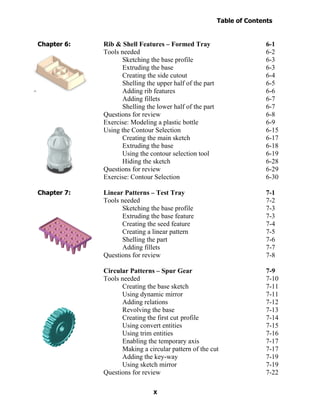
Chapter 6:            Rib & Shell Features – Formed Tray                        6-1
                      Tools needed                                              6-2
                            Sketching the base profile                          6-3
                            Extruding the base                                  6-3
                            Creating the side cutout                            6-4
                            Shelling the upper half of the part                 6-5
                            Adding rib features                                 6-6
                            Adding fillets                                      6-7
                            Shelling the lower half of the part                 6-7
                      Questions for review                                      6-8
                      Exercise: Modeling a plastic bottle                       6-9
                      Using the Contour Selection                               6-15
                            Creating the main sketch                            6-17
                            Extruding the base                                  6-18
                            Using the contour selection tool                    6-19
                            Hiding the sketch                                   6-28
                      Questions for review                                      6-29
                      Exercise: Contour Selection                               6-30

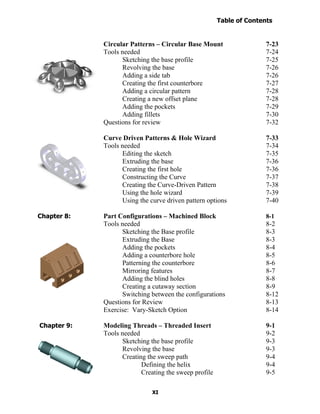
Chapter 7:            Linear Patterns – Test Tray                               7-1
                      Tools needed                                              7-2
                            Sketching the base profile                          7-3
                            Extruding the base feature                          7-3
                            Creating the seed feature                           7-4
                            Creating a linear pattern                           7-5
                            Shelling the part                                   7-6
                            Adding fillets                                      7-7
                      Questions for review                                      7-8

                      Circular Patterns – Spur Gear                             7-9
                      Tools needed                                              7-10
                            Creating the base sketch                            7-11
                            Using dynamic mirror                                7-11
                            Adding relations                                    7-12
                            Revolving the base                                  7-13
                            Creating the first cut profile                      7-14
                            Using convert entities                              7-15
                            Using trim entities                                 7-16
                            Enabling the temporary axis                         7-17
                            Making a circular pattern of the cut                7-17
                            Adding the key-way                                  7-19
                            Using sketch mirror                                 7-19
                      Questions for review                                      7-22

                                        X
Table of Contents
                                                                      Introduction
  Table of Contents

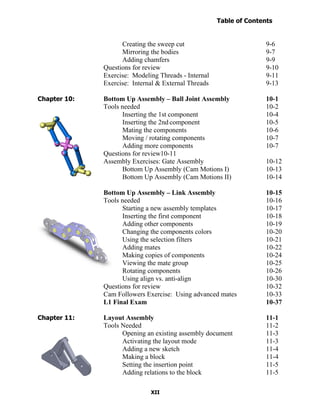
                      Circular Patterns – Circular Base Mount                 7-23
                      Tools needed                                            7-24
                            Sketching the base profile                        7-25
                            Revolving the base                                7-26
                            Adding a side tab                                 7-26
                            Creating the first counterbore                    7-27
                            Adding a circular pattern                         7-28
                            Creating a new offset plane                       7-28
                            Adding the pockets                                7-29
                            Adding fillets                                    7-30
                      Questions for review                                    7-32

                      Curve Driven Patterns & Hole Wizard                     7-33
                      Tools needed                                            7-34
                            Editing the sketch                                7-35
                            Extruding the base                                7-36
                            Creating the first hole                           7-36
                            Constructing the Curve                            7-37
                            Creating the Curve-Driven Pattern                 7-38
                            Using the hole wizard                             7-39
                            Using the curve driven pattern options            7-40

Chapter 8:            Part Configurations – Machined Block                    8-1
                      Tools needed                                            8-2
                            Sketching the Base profile                        8-3
                            Extruding the Base                                8-3
                            Adding the pockets                                8-4
                            Adding a counterbore hole                         8-5
                            Patterning the counterbore                        8-6
                            Mirroring features                                8-7
                            Adding the blind holes                            8-8
                            Creating a cutaway section                        8-9
                            Switching between the configurations              8-12
                      Questions for Review                                    8-13
                      Exercise: Vary-Sketch Option                            8-14

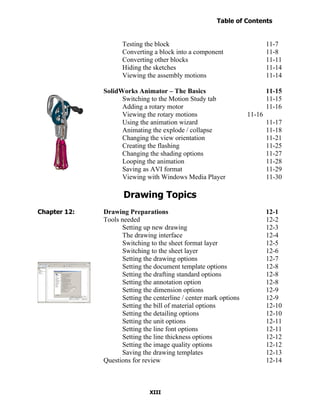
Chapter 9:            Modeling Threads – Threaded Insert                      9-1
                      Tools needed                                            9-2
                            Sketching the base profile                        9-3
                            Revolving the base                                9-3
                            Creating the sweep path                           9-4
                                   Defining the helix                         9-4
                                   Creating the sweep profile                 9-5

                                       XI
Table of Contents
                                                                    Introduction
  Table of Contents

                            Creating the sweep cut                          9-6
                            Mirroring the bodies                            9-7
                            Adding chamfers                                 9-9
                      Questions for review                                  9-10
                      Exercise: Modeling Threads - Internal                 9-11
                      Exercise: Internal & External Threads                 9-13

Chapter 10:           Bottom Up Assembly – Ball Joint Assembly              10-1
                      Tools needed                                          10-2
                            Inserting the 1st component                     10-4
                            Inserting the 2nd component                     10-5
                            Mating the components                           10-6
                            Moving / rotating components                    10-7
                            Adding more components                          10-7
                      Questions for review10-11
                      Assembly Exercises: Gate Assembly                     10-12
                            Bottom Up Assembly (Cam Motions I)              10-13
                            Bottom Up Assembly (Cam Motions II)             10-14

                      Bottom Up Assembly – Link Assembly                    10-15
                      Tools needed                                          10-16
                            Starting a new assembly templates               10-17
                            Inserting the first component                   10-18
                            Adding other components                         10-19
                            Changing the components colors                  10-20
                            Using the selection filters                     10-21
                            Adding mates                                    10-22
                            Making copies of components                     10-24
                            Viewing the mate group                          10-25
                            Rotating components                             10-26
                            Using align vs. anti-align                      10-30
                      Questions for review                                  10-32
                      Cam Followers Exercise: Using advanced mates          10-33
                      L1 Final Exam                                         10-37

Chapter 11:           Layout Assembly                                       11-1
                      Tools Needed                                          11-2
                            Opening an existing assembly document           11-3
                            Activating the layout mode                      11-3
                            Adding a new sketch                             11-4
                            Making a block                                  11-4
                            Setting the insertion point                     11-5
                            Adding relations to the block                   11-5

                                      XII
Table of Contents
                                                                     Introduction
  Table of Contents

                            Testing the block                                      11-7
                            Converting a block into a component                    11-8
                            Converting other blocks                                11-11
                            Hiding the sketches                                    11-14
                            Viewing the assembly motions                           11-14

                      SolidWorks Animator – The Basics                             11-15
                            Switching to the Motion Study tab                      11-15
                            Adding a rotary motor                                  11-16
                            Viewing the rotary motions                     11-16
                            Using the animation wizard                             11-17
                            Animating the explode / collapse                       11-18
                            Changing the view orientation                          11-21
                            Creating the flashing                                  11-25
                            Changing the shading options                           11-27
                            Looping the animation                                  11-28
                            Saving as AVI format                                   11-29
                            Viewing with Windows Media Player                      11-30

                             Drawing Topics
Chapter 12:           Drawing Preparations                                         12-1
                      Tools needed                                                 12-2
                            Setting up new drawing                                 12-3
                            The drawing interface                                  12-4
                            Switching to the sheet format layer                    12-5
                            Switching to the sheet layer                           12-6
                            Setting the drawing options                            12-7
                            Setting the document template options                  12-8
                            Setting the drafting standard options                  12-8
                            Setting the annotation option                          12-8
                            Setting the dimension options                          12-9
                            Setting the centerline / center mark options           12-9
                            Setting the bill of material options                   12-10
                            Setting the detailing options                          12-10
                            Setting the unit options                               12-11
                            Setting the line font options                          12-11
                            Setting the line thickness options                     12-12
                            Setting the image quality options                      12-12
                            Saving the drawing templates                           12-13
                      Questions for review                                         12-14


                                      XIII
Table of Contents
                                                                    Introduction
  Table of Contents

Chapter 13:           Assembly Drawings – Links Assembly                          13-1
                      Tools needed                                                13-2
                            Creating a new drawing format                         13-3
                            Editing the format / title block                      13-5
                            Editing the sheet layer                               13-6
                            Changing the drawing paper color                      13-6
                            Browsing the documents                                13-7
                            Adding the exploded view                              13-9
                            Creating the isometric views                          13-11
                            Setting the custom scale to drawing views             13-12
                            Changing to the shaded view                           13-12
                            Inserting the bill of material (BOM)                  13-13
                            Modifying the bill of material                        13-15
                            Reversing the column headers                          13-16
                            Adding balloons                                       13-17
                            Using circular split line balloons                    13-18
                      Questions for review                                        13-19
                      Assembly Drawing Exercises                                  13-20

                      Assembly Drawing – Alternate Position View                  13-23
                      Tools needed                                                13-24
                            Setting up a new drawing                              13-25
                            Setting the custom view scale                         13-27
                            Creating an alternate position view                   13-28
                            Using the alternate position view and configuration   13-30
                            Adding custom text / annotation                       13-31
                            Creating the isometric exploded view                  13-32
                            Using auto balloons                                   13-33
                            Adding a bill of material                             13-34
                      Questions for review                                        13-35

Chapter 14:           Drawing Views – Machined Block                              14-1
                      Tools needed                                                14-2
                            Setting up a new drawing format                       14-3
                            Editing the format / title block                      14-4
                            Modifying existing text                               14-6
                            Adding new text                                       14-6
                            Using the view Palette                                14-7
                            Dragging and dropping from the view Palette           14-8
                            Adding an isometric views                             14-9
                            Moving the drawing views                              14-10
                            Breaking the alignment of the views                   14-11
                            Adding a detail views                                 14-12

                                      XIV
Table of Contents
                                                                      Introduction
  Table of Contents

                            Adding a projected views                          14-13
                            Adding an auxiliary views                         14-14
                            Adding a cross section views                      14-15
                            Showing / hiding the hidden lines                 14-16
                            Creating the broken-out-section views             14-16
                            Changing configurations                           14-18
                            Adding cross hatch and hatch patterns             14-19
                            Modifying the cross hatch properties              14-20
                            Using geometric tolerances and flag notes         14-22
                            Using the modifying and hole symbols              14-23
                            ANSI symbols description                          14-24

                      Detailing – Machined Block Details                      14-26
                      Tools needed                                            14-27
                             Inserting the model dimensions                   14-28
                             Re-arranging the dimensions                      14-29
                             Adding center marks                              14-31
                             Adding datum feature symbols                     14-32
                             Using the hole callouts                          14-34
                             Adding the geometric tolerances                  14-34
                             Tolerances / precisions                          14-38
                             Adding surface finishes                          14-40
                             Adding notes                                     14-41
                             Changing the document fonts                      14-42
                      Questions for review                                    14-44
                      Exercise 1 Modeling and Detailing                       14-45
                      Exercise 2 Modeling and Detailing                       14-46
                      Fastener Callouts                                       14-47
                      Thread Nomenclature                                     14-48
                      Reference reading: GD&T for Parts and Assemblies        14-49

Chapter 15:           Sheet Metal Drawings – Post Cap                         15-1
                      Tools needed                                            15-2
                            Starting a new drawing sheet                      15-3
                            Inserting the 3 standard views                    15-4
                            Creating the isometric and flat pattern views     15-5
                            Adding a detail view                              15-6
                            Adding the ordinate dimensions                    15-7
                            Inserting the model dimensions                    15-7
                            Adding dimensions to other views                  15-8
                            Creating an isometric flat pattern                15-9
                            Showing the bend lines                            15-10


                                       XV
Table of Contents
                                                                  Introduction
  Table of Contents

                      2D to 3D - Convert AutoCAD into SolidWorks           15-11
                      Tools needed                                         15-12
                            Importing an AutoCAD drawing into SolidWorks   15-13
                            Importing options for DXF / DWG                15-14
                            The 2D to 3D toolbar                           15-15
                            Converting the sketches                        15-16
                            Aligning the views                             15-19
                            Creating the base extrude                      15-20
                            Converting the cut features                    15-22
                            Hiding the sketches                            15-25
                      Questions for review                                 15-27
                      Exercise: Modeling and Detailing                     15-28

Chapter 16:           e-Drawings – Soft Lock Assembly                      16-1
                      Tools needed                                         16-2
                            Saving a SolidWorks drawing as an eDrawing     16-3
                            The eDrawing user interface                    16-4
                            The eDrawing toolbar                           16-5
                            The markup toolbar                             16-6
                            Playing the animation                          16-6
                            Self executable file type                      16-7
                            3D drawing view                                16-8
                            New 3D drawing View                            16-9
                            Saving the drawing view state                  16-10

Chapter 17:           Part I Configurations: – Button Assembly             17-1
                      Tools needed                                         17-2
                             Part Configurations                           17-3
                             Changing the pitch of the spring              17-3
                             Assembly configurations                       17-5
                             Changing the mate conditions                  17-6
                             Drawing configurations                        17-7
                             Switching the configurations                  17-8

                      Part II Part, Assembly & Drawing Configs.: - Wheel   17-9
                      Tools needed                                         17-10
                             Opening the existing file                     17-11
                             Adding new part configurations                17-11
                             Changing the number of spokes                 17-12
                             Viewing the part configurations               17-13
                             Assembly configurations                       17-14
                             Inserting the Sub-Assemblies                  17-16
                             Adding mates to the sub-assembly              17-17

                                     XVI
Introduction
  Table of Contents

                            Viewing the assembly configurations                   17-19
                            Starting a new drawing                                17-20
                            Creating the drawing views                            17-21
                            Creating an aligned section view                      17-22
                            Changing the configurations in a drawing              17-25
                            Adding the annotations in a drawing                   17-25

Chapter 18:           Part –Design Tables                                         18-1
                      Tools needed                                                18-2
                            Part – design tables                                  18-3
                            Opening the an existing part                          18-3
                            Inserting a new design table                          18-4
                            Transferring dimensions to the design table           18-5
                            Using the excel-based formulas                        18-5
                            Inserting features into the design table              18-7
                            Viewing the configs. generated by the design table    18-8

                      Assembly – Design Tables                                    18-9
                            Creating a new assembly design table                  18-10
                            Defining the column headers                           18-11
                            Entering the excel-based parameters                   18-13
                            Viewing the configs. generated by the design table    18-14
                      Level 2 final exam                                          18-15
                      Table of U.S Measures                                       18-17
                      Table of U.S Measures                                       18-18

CSWP Core Preparation Practice

                      Preparation materials for the CSWP-Core examination         19-1
                            Part modeling and modifications                       19-2
                            Configurations and design tables                      19-20
                            Bottom up assembly                                    19-26

Student Testimonials:

                      Some of the actual student testimonials after completing the
                      training courses from the Author. All documents are filed at local
                      SolidWorks resellers.

SolidWorks 2010 Quick-Guides:

                      Quick Reference Guide to SolidWorks 2010 Command Icons and
                      Toolbars.


                                      XVII

Solidworks 2010 book title

  • 1.
    Introductory Level Tutorials Parts, Assemblies and Drawings Paul Tran, CSWP, CSWI Sr. Certified SolidWorks Instructor
  • 2.
    Table of Contents Introduction Table of Contents Copyrights Notices Disclaimer Trademarks Introduction: SolidWorks 2010 User Interface X The 3 references planes XI The toolbars XI The system feedback symbols XIII The status bar XIV 2D sketch examples XV 3D feature examples XVI Setting the System Parameters Chapter 1: The system settings 1-1 The system options 1-1 The general options 1-2 The drawings options 1-2 The display type options 1-3 The area hatch options 1-3 The colors options 1-4 The sketch options 1-4 The relations / snaps options 1-5 The display / selection options 1-5 The performance options 1-6 The large assembly mode options 1-6 The external references options 1-7 The default templates options 1-7 The file location options 1-8 The feature manager options 1-8 The spin box increment options 1-9 The view rotation options 1-9 The backups / recover options 1-10 The hole wizards / toolbox options 1-10 VII
  • 3.
    Table of Contents Introduction Table of Contents The file explorer options 1-11 The search options 1-11 The collaboration / advanced option 1-12 Questions for review 1-13 Chapter 2: Document Templates 2-1 Document properties 2-1 The drafting standard options 2-2 The annotations options 2-2 The dimensions options 2-3 The virtual sharp options 2-3 The tables options 2-4 The bill of materials options 2-4 The detailing options 2-5 The grid / snap options 2-5 The units options 2-6 The colors options 2-6 The material properties options 2-7 The image quality 2-7 The plane display options 2-8 The dimXpert options 2-8 The size dimension options 2-9 The location dimension 2-9 The chain dimension options 2-10 The geometric tolerance 2-10 The chamfer controls options 2-11 The display options 2-11 Saving the document template settings 2-12 Questions for review 2-13 Basic Modeling Topics Chapter 3: Basic Solid Modeling – Extrude Options 3-1 Tools needed 3-2 Starting a new part 3-3 Changing the background color 3-4 Starting a new sketch 3-5 Sketching the first profile 3-6 Adding geometric relation or constraints 3-7 Adding dimensions 3-9 VIII
  • 4.
    Table of Contents Introduction Table of Contents The status of a sketch 3-10 Hiding the sketch relation symbols 3-11 Exploring the different extrude options 3-15 Adding fillets 3-19 Questions for review 3-21 Exercise: Extrude Options 3-22 Chapter 4: Basic Solid Modeling – Extrude and Revolve 4-1 Tools needed 4-2 Sketching the first profile 4-3 Extruding the first solid 4-3 Cutting the bore holes 4-5 Using mirror 4-6 Adding fillets 4-8 Creating the sub-components 4-9 Revolving the base 4-9 Adding chamfers 4-10 Using the straight slot command 4-13 Create a blind cut 4-15 Adding holes 4-16 Adding more fillets 4-17 Questions for review 4-19 Exercise: Extrude Boss and Cut 4-20 Chapter 5: Revolve Parts – Ball Joint Arm 5-1 Tools needed 5-2 Creating the base profile 5-3 Revolving the base 5-3 Mirroring a features 5-5 Adding fillets 5-6 Questions for review 5-7 Exercise: Flat head Screw Driver 5-8 Derived Sketches – Center Ball Joint 5-9 Tools needed 5-10 Creating the base profile 5-11 Revolving the base 5-11 Creating a new plane 5-12 Making a derived sketch 5-12 Positioning the derived sketch 5-13 Adding fillets 5-14 Questions for review 5-15 Exercise: Revolve Parts 5-16 IX
  • 5.
    Table of Contents Introduction Table of Contents Chapter 6: Rib & Shell Features – Formed Tray 6-1 Tools needed 6-2 Sketching the base profile 6-3 Extruding the base 6-3 Creating the side cutout 6-4 Shelling the upper half of the part 6-5 Adding rib features 6-6 Adding fillets 6-7 Shelling the lower half of the part 6-7 Questions for review 6-8 Exercise: Modeling a plastic bottle 6-9 Using the Contour Selection 6-15 Creating the main sketch 6-17 Extruding the base 6-18 Using the contour selection tool 6-19 Hiding the sketch 6-28 Questions for review 6-29 Exercise: Contour Selection 6-30 Chapter 7: Linear Patterns – Test Tray 7-1 Tools needed 7-2 Sketching the base profile 7-3 Extruding the base feature 7-3 Creating the seed feature 7-4 Creating a linear pattern 7-5 Shelling the part 7-6 Adding fillets 7-7 Questions for review 7-8 Circular Patterns – Spur Gear 7-9 Tools needed 7-10 Creating the base sketch 7-11 Using dynamic mirror 7-11 Adding relations 7-12 Revolving the base 7-13 Creating the first cut profile 7-14 Using convert entities 7-15 Using trim entities 7-16 Enabling the temporary axis 7-17 Making a circular pattern of the cut 7-17 Adding the key-way 7-19 Using sketch mirror 7-19 Questions for review 7-22 X
  • 6.
    Table of Contents Introduction Table of Contents Circular Patterns – Circular Base Mount 7-23 Tools needed 7-24 Sketching the base profile 7-25 Revolving the base 7-26 Adding a side tab 7-26 Creating the first counterbore 7-27 Adding a circular pattern 7-28 Creating a new offset plane 7-28 Adding the pockets 7-29 Adding fillets 7-30 Questions for review 7-32 Curve Driven Patterns & Hole Wizard 7-33 Tools needed 7-34 Editing the sketch 7-35 Extruding the base 7-36 Creating the first hole 7-36 Constructing the Curve 7-37 Creating the Curve-Driven Pattern 7-38 Using the hole wizard 7-39 Using the curve driven pattern options 7-40 Chapter 8: Part Configurations – Machined Block 8-1 Tools needed 8-2 Sketching the Base profile 8-3 Extruding the Base 8-3 Adding the pockets 8-4 Adding a counterbore hole 8-5 Patterning the counterbore 8-6 Mirroring features 8-7 Adding the blind holes 8-8 Creating a cutaway section 8-9 Switching between the configurations 8-12 Questions for Review 8-13 Exercise: Vary-Sketch Option 8-14 Chapter 9: Modeling Threads – Threaded Insert 9-1 Tools needed 9-2 Sketching the base profile 9-3 Revolving the base 9-3 Creating the sweep path 9-4 Defining the helix 9-4 Creating the sweep profile 9-5 XI
  • 7.
    Table of Contents Introduction Table of Contents Creating the sweep cut 9-6 Mirroring the bodies 9-7 Adding chamfers 9-9 Questions for review 9-10 Exercise: Modeling Threads - Internal 9-11 Exercise: Internal & External Threads 9-13 Chapter 10: Bottom Up Assembly – Ball Joint Assembly 10-1 Tools needed 10-2 Inserting the 1st component 10-4 Inserting the 2nd component 10-5 Mating the components 10-6 Moving / rotating components 10-7 Adding more components 10-7 Questions for review10-11 Assembly Exercises: Gate Assembly 10-12 Bottom Up Assembly (Cam Motions I) 10-13 Bottom Up Assembly (Cam Motions II) 10-14 Bottom Up Assembly – Link Assembly 10-15 Tools needed 10-16 Starting a new assembly templates 10-17 Inserting the first component 10-18 Adding other components 10-19 Changing the components colors 10-20 Using the selection filters 10-21 Adding mates 10-22 Making copies of components 10-24 Viewing the mate group 10-25 Rotating components 10-26 Using align vs. anti-align 10-30 Questions for review 10-32 Cam Followers Exercise: Using advanced mates 10-33 L1 Final Exam 10-37 Chapter 11: Layout Assembly 11-1 Tools Needed 11-2 Opening an existing assembly document 11-3 Activating the layout mode 11-3 Adding a new sketch 11-4 Making a block 11-4 Setting the insertion point 11-5 Adding relations to the block 11-5 XII
  • 8.
    Table of Contents Introduction Table of Contents Testing the block 11-7 Converting a block into a component 11-8 Converting other blocks 11-11 Hiding the sketches 11-14 Viewing the assembly motions 11-14 SolidWorks Animator – The Basics 11-15 Switching to the Motion Study tab 11-15 Adding a rotary motor 11-16 Viewing the rotary motions 11-16 Using the animation wizard 11-17 Animating the explode / collapse 11-18 Changing the view orientation 11-21 Creating the flashing 11-25 Changing the shading options 11-27 Looping the animation 11-28 Saving as AVI format 11-29 Viewing with Windows Media Player 11-30 Drawing Topics Chapter 12: Drawing Preparations 12-1 Tools needed 12-2 Setting up new drawing 12-3 The drawing interface 12-4 Switching to the sheet format layer 12-5 Switching to the sheet layer 12-6 Setting the drawing options 12-7 Setting the document template options 12-8 Setting the drafting standard options 12-8 Setting the annotation option 12-8 Setting the dimension options 12-9 Setting the centerline / center mark options 12-9 Setting the bill of material options 12-10 Setting the detailing options 12-10 Setting the unit options 12-11 Setting the line font options 12-11 Setting the line thickness options 12-12 Setting the image quality options 12-12 Saving the drawing templates 12-13 Questions for review 12-14 XIII
  • 9.
    Table of Contents Introduction Table of Contents Chapter 13: Assembly Drawings – Links Assembly 13-1 Tools needed 13-2 Creating a new drawing format 13-3 Editing the format / title block 13-5 Editing the sheet layer 13-6 Changing the drawing paper color 13-6 Browsing the documents 13-7 Adding the exploded view 13-9 Creating the isometric views 13-11 Setting the custom scale to drawing views 13-12 Changing to the shaded view 13-12 Inserting the bill of material (BOM) 13-13 Modifying the bill of material 13-15 Reversing the column headers 13-16 Adding balloons 13-17 Using circular split line balloons 13-18 Questions for review 13-19 Assembly Drawing Exercises 13-20 Assembly Drawing – Alternate Position View 13-23 Tools needed 13-24 Setting up a new drawing 13-25 Setting the custom view scale 13-27 Creating an alternate position view 13-28 Using the alternate position view and configuration 13-30 Adding custom text / annotation 13-31 Creating the isometric exploded view 13-32 Using auto balloons 13-33 Adding a bill of material 13-34 Questions for review 13-35 Chapter 14: Drawing Views – Machined Block 14-1 Tools needed 14-2 Setting up a new drawing format 14-3 Editing the format / title block 14-4 Modifying existing text 14-6 Adding new text 14-6 Using the view Palette 14-7 Dragging and dropping from the view Palette 14-8 Adding an isometric views 14-9 Moving the drawing views 14-10 Breaking the alignment of the views 14-11 Adding a detail views 14-12 XIV
  • 10.
    Table of Contents Introduction Table of Contents Adding a projected views 14-13 Adding an auxiliary views 14-14 Adding a cross section views 14-15 Showing / hiding the hidden lines 14-16 Creating the broken-out-section views 14-16 Changing configurations 14-18 Adding cross hatch and hatch patterns 14-19 Modifying the cross hatch properties 14-20 Using geometric tolerances and flag notes 14-22 Using the modifying and hole symbols 14-23 ANSI symbols description 14-24 Detailing – Machined Block Details 14-26 Tools needed 14-27 Inserting the model dimensions 14-28 Re-arranging the dimensions 14-29 Adding center marks 14-31 Adding datum feature symbols 14-32 Using the hole callouts 14-34 Adding the geometric tolerances 14-34 Tolerances / precisions 14-38 Adding surface finishes 14-40 Adding notes 14-41 Changing the document fonts 14-42 Questions for review 14-44 Exercise 1 Modeling and Detailing 14-45 Exercise 2 Modeling and Detailing 14-46 Fastener Callouts 14-47 Thread Nomenclature 14-48 Reference reading: GD&T for Parts and Assemblies 14-49 Chapter 15: Sheet Metal Drawings – Post Cap 15-1 Tools needed 15-2 Starting a new drawing sheet 15-3 Inserting the 3 standard views 15-4 Creating the isometric and flat pattern views 15-5 Adding a detail view 15-6 Adding the ordinate dimensions 15-7 Inserting the model dimensions 15-7 Adding dimensions to other views 15-8 Creating an isometric flat pattern 15-9 Showing the bend lines 15-10 XV
  • 11.
    Table of Contents Introduction Table of Contents 2D to 3D - Convert AutoCAD into SolidWorks 15-11 Tools needed 15-12 Importing an AutoCAD drawing into SolidWorks 15-13 Importing options for DXF / DWG 15-14 The 2D to 3D toolbar 15-15 Converting the sketches 15-16 Aligning the views 15-19 Creating the base extrude 15-20 Converting the cut features 15-22 Hiding the sketches 15-25 Questions for review 15-27 Exercise: Modeling and Detailing 15-28 Chapter 16: e-Drawings – Soft Lock Assembly 16-1 Tools needed 16-2 Saving a SolidWorks drawing as an eDrawing 16-3 The eDrawing user interface 16-4 The eDrawing toolbar 16-5 The markup toolbar 16-6 Playing the animation 16-6 Self executable file type 16-7 3D drawing view 16-8 New 3D drawing View 16-9 Saving the drawing view state 16-10 Chapter 17: Part I Configurations: – Button Assembly 17-1 Tools needed 17-2 Part Configurations 17-3 Changing the pitch of the spring 17-3 Assembly configurations 17-5 Changing the mate conditions 17-6 Drawing configurations 17-7 Switching the configurations 17-8 Part II Part, Assembly & Drawing Configs.: - Wheel 17-9 Tools needed 17-10 Opening the existing file 17-11 Adding new part configurations 17-11 Changing the number of spokes 17-12 Viewing the part configurations 17-13 Assembly configurations 17-14 Inserting the Sub-Assemblies 17-16 Adding mates to the sub-assembly 17-17 XVI
  • 12.
    Introduction Tableof Contents Viewing the assembly configurations 17-19 Starting a new drawing 17-20 Creating the drawing views 17-21 Creating an aligned section view 17-22 Changing the configurations in a drawing 17-25 Adding the annotations in a drawing 17-25 Chapter 18: Part –Design Tables 18-1 Tools needed 18-2 Part – design tables 18-3 Opening the an existing part 18-3 Inserting a new design table 18-4 Transferring dimensions to the design table 18-5 Using the excel-based formulas 18-5 Inserting features into the design table 18-7 Viewing the configs. generated by the design table 18-8 Assembly – Design Tables 18-9 Creating a new assembly design table 18-10 Defining the column headers 18-11 Entering the excel-based parameters 18-13 Viewing the configs. generated by the design table 18-14 Level 2 final exam 18-15 Table of U.S Measures 18-17 Table of U.S Measures 18-18 CSWP Core Preparation Practice Preparation materials for the CSWP-Core examination 19-1 Part modeling and modifications 19-2 Configurations and design tables 19-20 Bottom up assembly 19-26 Student Testimonials: Some of the actual student testimonials after completing the training courses from the Author. All documents are filed at local SolidWorks resellers. SolidWorks 2010 Quick-Guides: Quick Reference Guide to SolidWorks 2010 Command Icons and Toolbars. XVII