PowerPoint SmartArt
Graphics
The complete ready-to-use collection
Overview of SmartArt graphics
A SmartArt graphic is a visual representation of your information and ideas. You can create SmartArt graphics
by choosing from among many different layouts to quickly, easily, and effectively communicate your message.
SmartArt graphics, especially combined with other features such as themes, help you create designer-quality
illustrations with only a few clicks of your mouse.
You can create a SmartArt graphic in Excel, PowerPoint, Word, or in an e-mail message in Outlook. Other
Office programs do not enable SmartArt graphic creation, but you can copy and paste SmartArt graphics as
images into those programs.
You can change the look of your SmartArt graphic by changing the fill of its shape or text; by adding effects,
such as shadows, reflections, glows, or soft edges; or by adding three-dimensional (3-D) effects, such as bevels
or rotations.
Because PowerPoint presentations often contain slides with bulleted lists, when you are working in
PowerPoint, you can convert slide text to a SmartArt graphic. You can also quickly convert pictures on a slide
to a SmartArt graphic, using one of the new, photo-centric SmartArt graphic layouts. In addition, you can add
animation to a SmartArt graphic in your PowerPoint presentations.
“
”
Source: PowerPoint Help
PowerPoint SmartArt Graphics - The complete ready-to-use collection 2
Contents
PowerPoint SmartArt Graphics - The complete ready-to-use collection 3
01 – List 4 02 - Process 40 03 – Cycle 82
04 – Hierarchy 99 05 – Relationship 112 06 – Matrix 129
07 – Pyramid 134 08 – Miscellaneous 139
List
- 01 -
PowerPoint SmartArt Graphics - The complete ready-to-use collection
List // Basic Block List
Use to show
non-sequential
or grouped
blocks of
information.
Maximizes both
horizontal and
vertical display
space for shapes.
PowerPoint SmartArt Graphics - The complete ready-to-use collection 5
Lorem
Ipsum
Lorem
Ipsum
Lorem
Ipsum
Lorem
Ipsum
Lorem
Ipsum
Lorem
Ipsum
Lorem
Ipsum
Lorem
Ipsum
Lorem
Ipsum
List // Alternating Hexagons
Use to represent
a series of
interconnected
ideas. Level 1
text appears
inside the
hexagons. Level
2 text appears
outside the
shapes.
PowerPoint SmartArt Graphics - The complete ready-to-use collection 6
Lorem
Ipsum
Lorem Ipsum
Lorem
Ipsum
Lorem Ipsum
Lorem
Ipsum
Lorem Ipsum
List // Picture Caption List
Use to show
non-sequential
or grouped
blocks of
information. The
top shapes are
designed to
contain pictures
and pictures are
emphasized over
text. Works well
for pictures with
short text
captions.
PowerPoint SmartArt Graphics - The complete ready-to-use collection 7
Lorem Ipsum Lorem Ipsum Lorem Ipsum
Lorem Ipsum Lorem Ipsum
List // Lined List
Use to show
large amounts of
text divided into
categories and
subcategories.
Works well with
multiple levels of
text. Text at the
same level is
separated by
lines.
PowerPoint SmartArt Graphics - The complete ready-to-use collection 8
Lorem Ipsum
Some text here Some text here
Some text here
Lorem Ipsum
Some text here
Some text here
Lorem Ipsum
Some text here
Some text here
Lorem Ipsum
Some text here
Some text here
Lorem Ipsum
Some text here
Some text here
Lorem Ipsum
Some text here
Some text here
List // Vertical Bullet List
Use to show
non-sequential
or grouped
blocks of
information.
Works well for
lists with long
headings or top
level
information.
PowerPoint SmartArt Graphics - The complete ready-to-use collection 9
Lorem Ipsum
•Some text here
•Some text here
Lorem Ipsum
•Some text here
•Some text here
Lorem Ipsum
•Some text here
•Some text here
Lorem Ipsum
•Some text here
•Some text here
Lorem Ipsum
•Some text here
•Some text here
List // Vertical Box List
Use to show
several groups of
information,
especially groups
with large
amounts of Level
2 text. A good
choice for
bulleted lists of
information.
PowerPoint SmartArt Graphics - The complete ready-to-use collection 10
•Some text here
•Some text here
Lorem Ipsum
•Some text here
•Some text here
Lorem Ipsum
•Some text here
•Some text here
Lorem Ipsum
•Some text here
•Some text here
Lorem Ipsum
•Some text here
•Some text here
Lorem Ipsum
List // Vertical Bracket List
Use to show
grouped blocks
of information.
Works well with
large amounts of
Level 2 text.
PowerPoint SmartArt Graphics - The complete ready-to-use collection 11
Lorem Ipsum
•Some text here
•Some text here
Lorem Ipsum
•Some text here
•Some text here
Lorem Ipsum
•Some text here
•Some text here
Lorem Ipsum
•Some text here
•Some text here
Lorem Ipsum
•Some text here
•Some text here
List // Varying Width List
Use for
emphasizing
items of different
weights. Good
for large
amounts of Level
1 text. The
width of each
shape is
independently
determined
based on its text.
PowerPoint SmartArt Graphics - The complete ready-to-use collection 12
Lorem Ipsum with very large width
Lorem Ipsum with large width
Lorem Ipsum medium
Lorem Ipsum lower
Lorem Ipsum
List // Tab List
Use to show
non-sequential
or grouped
blocks of
information.
Works well for
lists with a small
amount of Level
1 text. The first
Level 2 displays
next to the Level
1 text and the
remaining Level
2 text appears
beneath the
Level 1 text.
PowerPoint SmartArt Graphics - The complete ready-to-use collection 13
Some headline here
Lorem Ipsum
• Some text here
• Some text here
• And again here
Lorem Ipsum
Lorem Ipsum
Lorem Ipsum
Lorem Ipsum
List // Horizontal Bullet List
Use to show
non-sequential
or grouped lists
of information.
Works well with
large amounts of
text. All text has
the same level of
emphasis, and
direction is not
implied.
PowerPoint SmartArt Graphics - The complete ready-to-use collection 14
Lorem Ipsum
• Some text
here
• Some text
here
• Some text
here
• Some text
here
Lorem Ipsum
• Some text
here
• Some text
here
• Some text
here
• Some text
here
Lorem Ipsum
• Some text
here
• Some text
here
• Some text
here
• Some text
here
Lorem Ipsum
• Some text
here
• Some text
here
• Some text
here
• Some text
here
List // Square Accent List
Use to show lists
of information
divided into
categories. Level
2 text appears
beside a small
square shape.
Works well with
large amounts of
Level 2 text.
PowerPoint SmartArt Graphics - The complete ready-to-use collection 15
Lorem Ipsum
Some text here
Some text here
Some text here
Some text here
Lorem Ipsum
Some text here
Some text here
Some text here
Some text here
Lorem Ipsum
Some text here
Some text here
Some text here
Some text here
List // Picture Accent List
Use to show
grouped or
related
information. The
small shapes on
the upper
corners are
designed to
contain pictures.
Emphasizes Level
2 text over Level
1 text, and is a
good choice for
large amounts of
Level 2 text.
PowerPoint SmartArt Graphics - The complete ready-to-use collection 16
Lorem
Ipsum
•Some
text here
•Some
text here
•Some
text here
•Some
text here
Lorem
Ipsum
•Some
text here
•Some
text here
•Some
text here
•Some
text here
Lorem
Ipsum
•Some
text here
•Some
text here
•Some
text here
•Some
text here
Lorem
Ipsum
•Some
text here
•Some
text here
•Some
text here
•Some
text here
List // Bending Picture Accent List
Use to show
non-sequential
or grouped
blocks of
information. The
small circular
shapes are
designed to
contain pictures.
Works well for
illustrating both
Level 1 and Level
2 text.
Maximizes both
horizontal and
vertical display
space for shapes.
PowerPoint SmartArt Graphics - The complete ready-to-use collection 17
•Some text here
•Some text here
Lorem
Ipsum
•Some text here
•Some text here
Lorem
Ipsum
•Some text here
•Some text here
Lorem
Ipsum
•Some text here
•Some text here
Lorem
Ipsum
•Some text here
•Some text here
Lorem
Ipsum
List // Stacked List
Use to show
groups of
information or
steps in a task,
process, or
workflow.
Circular shapes
contain Level 1
text, and the
corresponding
rectangles
contain Level 2
text. Works well
for numerous
details and
minimal Level 1
text.
PowerPoint SmartArt Graphics - The complete ready-to-use collection 18
Some
text here
Some
text here
Some
text here
Some
text here
Lorem
Ipsum Some
text here
Some
text here
Some
text here
Some
text here
Lorem
Ipsum Some
text here
Some
text here
Some
text here
Some
text here
Lorem
Ipsum Some
text here
Some
text here
Some
text here
Some
text here
Lorem
Ipsum
List // Grouped List
Use to show groups
and sub-groups of
information, or steps
and sub-steps in a
task, process, or
workflow. Level 1 text
corresponds to the
top level horizontal
shapes, and Level 2
text corresponds to
vertical sub-steps
under each related
top level shape.
Works well for
emphasizing sub-
groups or sub-steps,
hierarchical
information, or
multiple lists of
information.
PowerPoint SmartArt Graphics - The complete ready-to-use collection 19
Lorem
Ipsum
Some text
here
Some text
here
Some text
here
Lorem
Ipsum
Some text
here
Some text
here
Lorem
Ipsum
Some text
here
Lorem
Ipsum
Some text
here
Some text
here
Some text
here
Some text
here
Lorem
Ipsum
Some text
here
Some text
here
List // Horizontal Picture List
Use to show
non-sequential
or grouped
information with
an emphasis on
related pictures.
The top shapes
are designed to
contain pictures.
PowerPoint SmartArt Graphics - The complete ready-to-use collection 20
Lorem
Ipsum
• Some
text here
• Some
text here
Lorem
Ipsum
• Some
text here
• Some
text here
Lorem
Ipsum
• Some
text here
• Some
text here
Lorem
Ipsum
• Some
text here
• Some
text here
Lorem
Ipsum
• Some
text here
• Some
text here
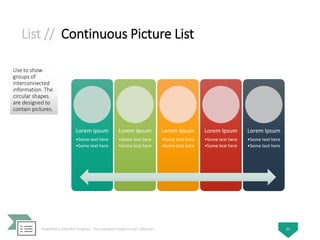
List // Continuous Picture List
Use to show
groups of
interconnected
information. The
circular shapes
are designed to
contain pictures.
PowerPoint SmartArt Graphics - The complete ready-to-use collection 21
Lorem Ipsum
•Some text here
•Some text here
Lorem Ipsum
•Some text here
•Some text here
Lorem Ipsum
•Some text here
•Some text here
Lorem Ipsum
•Some text here
•Some text here
Lorem Ipsum
•Some text here
•Some text here
List // Picture Strips
Use to show a
series of pictures
from top to
bottom with
Level 1 text
beside each.
PowerPoint SmartArt Graphics - The complete ready-to-use collection 22
Lorem Ipsum
•Some text here
•Some text here
•Some text here
•Some text here
Lorem Ipsum
•Some text here
•Some text here
•Some text here
•Some text here
Lorem Ipsum
•Some text here
•Some text here
•Some text here
•Some text here
Lorem Ipsum
•Some text here
•Some text here
•Some text here
•Some text here
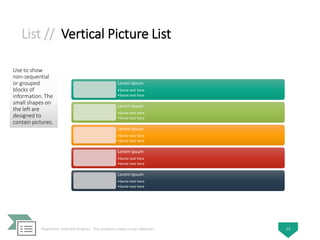
List // Vertical Picture List
Use to show
non-sequential
or grouped
blocks of
information. The
small shapes on
the left are
designed to
contain pictures.
PowerPoint SmartArt Graphics - The complete ready-to-use collection 23
Lorem Ipsum
•Some text here
•Some text here
Lorem Ipsum
•Some text here
•Some text here
Lorem Ipsum
•Some text here
•Some text here
Lorem Ipsum
•Some text here
•Some text here
Lorem Ipsum
•Some text here
•Some text here
List // Alternating Picture Blocks
Use to show a
series of pictures
from top to
bottom. Text
appears
alternately on
the right or left
of the picture.
PowerPoint SmartArt Graphics - The complete ready-to-use collection 24
Lorem Ipsum
•Some text here
•Some text here
Lorem Ipsum
•Some text here
•Some text here
Lorem Ipsum
•Some text here
•Some text here
Lorem Ipsum
•Some text here
•Some text here
Lorem Ipsum
•Some text here
•Some text here
List // Vertical Picture Accent List
Use to show
non-sequential
or grouped
blocks of
information. The
small circles are
designed to
contain pictures.
PowerPoint SmartArt Graphics - The complete ready-to-use collection 25
Lorem Ipsum
•Some text here
•Some text here
Lorem Ipsum
•Some text here
•Some text here
Lorem Ipsum
•Some text here
•Some text here
Lorem Ipsum
•Some text here
•Some text here
Lorem Ipsum
•Some text here
•Some text here
List // Title Picture Accent List
Use to show lists
of information
with an accent
picture for each
Level 2 text.
Level 1 text
displays in a
separate box at
the top of the
list.
PowerPoint SmartArt Graphics - The complete ready-to-use collection 26
Lorem Ipsum
Some text here
Some text here
Some text here
Some text here
Lorem Ipsum
Some text here
Some text here
Some text here
Some text here
List // Vertical Block List
Use to show
groups of
information or
steps in a task,
process, or
workflow. Works
well with large
amounts of Level
2 text. A good
choice for text
with a main
point and
multiple sub-
points.
PowerPoint SmartArt Graphics - The complete ready-to-use collection 27
• Some text here
• Some text here
Lorem Ipsum
• Some text here
• Some text here
Lorem Ipsum
• Some text here
• Some text here
Lorem Ipsum
• Some text here
• Some text here
Lorem Ipsum
• Some text here
• Some text here
Lorem Ipsum
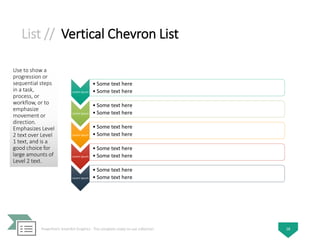
List // Vertical Chevron List
Use to show a
progression or
sequential steps
in a task,
process, or
workflow, or to
emphasize
movement or
direction.
Emphasizes Level
2 text over Level
1 text, and is a
good choice for
large amounts of
Level 2 text.
PowerPoint SmartArt Graphics - The complete ready-to-use collection 28
Lorem Ipsum
• Some text here
• Some text here
Lorem Ipsum
• Some text here
• Some text here
Lorem Ipsum
• Some text here
• Some text here
Lorem Ipsum
• Some text here
• Some text here
Lorem Ipsum
• Some text here
• Some text here
List // Vertical Accent List
Use to show lists
of information.
Level 2 text
appears in
rectangular
shapes over
vertical
chevrons.
Emphasizes Level
2 text over Level
1 text, and is a
good choice for
medium
amounts of Level
2 text.
PowerPoint SmartArt Graphics - The complete ready-to-use collection 29
Lorem Ipsum
Some text here
Some text here
Lorem Ipsum
Some text here
Some text here
Lorem Ipsum
Some text here
Some text here
List // Vertical Arrow List
Use to show a
progression or
sequential steps
in a task,
process, or
workflow that
move toward a
common goal.
Works well for
bulleted lists of
information.
PowerPoint SmartArt Graphics - The complete ready-to-use collection 30
•Some text here
•Some text here
Lorem Ipsum
•Some text here
•Some text here
Lorem Ipsum
•Some text here
•Some text here
Lorem Ipsum
•Some text here
•Some text here
Lorem Ipsum
•Some text here
•Some text here
Lorem Ipsum
List // Trapezoid List
Use to show
grouped or
related
information of
equal value.
Works well with
large amounts of
text.
PowerPoint SmartArt Graphics - The complete ready-to-use collection 31
Lorem Ipsum
•Some text here
•Some text here
•Some text here
•Some text here
Lorem Ipsum
•Some text here
•Some text here
•Some text here
•Some text here
Lorem Ipsum
•Some text here
•Some text here
•Some text here
•Some text here
Lorem Ipsum
•Some text here
•Some text here
•Some text here
•Some text here
Lorem Ipsum
•Some text here
•Some text here
•Some text here
•Some text here
List // Descending Block List
Use to show
groups of related
ideas or lists of
information. The
text shapes
decrease in
height
sequentially, and
the Level 1 text
displays
vertically.
PowerPoint SmartArt Graphics - The complete ready-to-use collection 32
Lorem
Ipsum
Lorem
Ipsum
Lorem
Ipsum
Lorem
Ipsum
Lorem
Ipsum
Some
text here
Some
text here
Some
text here
Some
text here
Some
text here
Some
text here
Some
text here
Some
text here
Some
text here
Some
text here
Some
text here
Some
text here
Some
text here
Some
text here
Some
text here
Some
text here
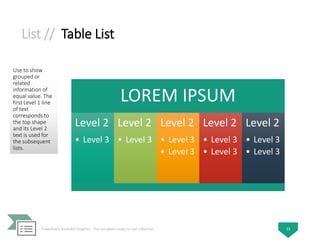
List // Table List
Use to show
grouped or
related
information of
equal value. The
first Level 1 line
of text
corresponds to
the top shape
and its Level 2
text is used for
the subsequent
lists.
PowerPoint SmartArt Graphics - The complete ready-to-use collection 33
LOREM IPSUM
Level 2
• Level 3
Level 2
• Level 3
Level 2
• Level 3
• Level 3
Level 2
• Level 3
• Level 3
Level 2
• Level 3
• Level 3
List // Vertical Curved List
Use to show a
curved list of
information. To
add pictures to
the accent circle
shapes, apply a
picture fill.
PowerPoint SmartArt Graphics - The complete ready-to-use collection 34
Lorem Ipsum
• Some text here
• Some text here
Lorem Ipsum
• Some text here
• Some text here
Lorem Ipsum
• Some text here
• Some text here
Lorem Ipsum
• Some text here
• Some text here
Lorem Ipsum
• Some text here
• Some text here
List // Target List
Use to show
interrelated or
overlapping
information.
Each of the first
seven lines of
Level 1 text
appears in the
rectangular
shape. Unused
text does not
appear, but
remains
available if you
switch layouts.
Works well with
both Level 1 and
Level 2 text.
PowerPoint SmartArt Graphics - The complete ready-to-use collection 35
Lorem Ipsum
Lorem Ipsum
Lorem Ipsum
Lorem Ipsum
Lorem Ipsum
• Some text here
• Some text here
• Some text here
• Some text here
• Some text here
• Some text here
• Some text here
• Some text here
• Some text here
• Some text here
List // Hierarchy List
Use to show
hierarchical
relationships
progressing
across groups.
Can also be used
to group or list
information.
PowerPoint SmartArt Graphics - The complete ready-to-use collection 36
Lorem
Ipsum
Some
text here
Some
text here
Some
text here
Lorem
Ipsum
Some
text here
Some
text here
Some
text here
Lorem
Ipsum
Some
text here
Some
text here
Some
text here
Lorem
Ipsum
Some
text here
Some
text here
Some
text here
Lorem
Ipsum
Some
text here
Some
text here
Some
text here
List // Vertical Circle List
Use to show
sequential or
grouped data.
Works best for
Level 1 text,
which displays
next to a large
circular shape.
Lower levels of
text are
separated with
smaller circular
shapes.
PowerPoint SmartArt Graphics - The complete ready-to-use collection 37
Lorem Ipsum
Some text here
Some text here
Lorem Ipsum
Some text here
Some text here
Lorem Ipsum
Some text here
Some text here
List // Table Hierarchy
Use to show
groups of
information built
from top to
bottom, and the
hierarchies
within each
group. This
layout does not
contain
connecting lines.
PowerPoint SmartArt Graphics - The complete ready-to-use collection 38
Lorem
Ipsum
Level
2
Level
3
Level 2
Level
3
Level
3
Lorem Ipsum
Level 2
Level 3
Level
4
Level
4
Level 2
Level
3
Level
3
Lorem
Ipsum
Level
2
Level
3
Level 2
Level
3
Level
3
Lorem
Ipsum
Level
2
Level
3
Level 2
Level
3
Level
3
List // Architecture Layout
Use to show
hierarchical
relationships
that build from
the bottom up.
This layout works
well for showing
architectural
components or
objects that
build on other
objects.
PowerPoint SmartArt Graphics - The complete ready-to-use collection 39
Lorem
Ipsum
Level
2
Level
3
Level 2
Level
3
Level
3
Lorem
Ipsum
Level
2
Level
3
Level 2
Level
3
Level
3
Lorem
Ipsum
Level
2
Level
3
Level 2
Level
3
Level
3
Lorem
Ipsum
Level
2
Level
3
Level 2
Level
3
Level
3
Process
- 02 -
PowerPoint SmartArt Graphics - The complete ready-to-use collection
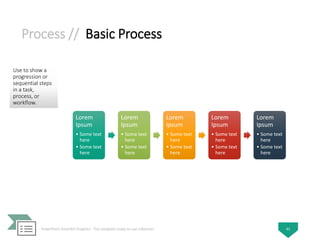
Process // Basic Process
Use to show a
progression or
sequential steps
in a task,
process, or
workflow.
PowerPoint SmartArt Graphics - The complete ready-to-use collection 41
Lorem
Ipsum
• Some text
here
• Some text
here
Lorem
Ipsum
• Some text
here
• Some text
here
Lorem
Ipsum
• Some text
here
• Some text
here
Lorem
Ipsum
• Some text
here
• Some text
here
Lorem
Ipsum
• Some text
here
• Some text
here
Process // Step Up Process
Use to show an
ascending series
of steps or lists
of information.
PowerPoint SmartArt Graphics - The complete ready-to-use collection 42
Lorem Ipsum
•Some text here
•Some text here
Lorem Ipsum
•Some text here
•Some text here
Lorem Ipsum
•Some text here
•Some text here
Lorem Ipsum
•Some text here
•Some text here
Lorem Ipsum
•Some text here
•Some text here
Process // Step Down Process
Use to show a
descending
process with
multiple steps
and sub-steps.
Works best with
small amounts of
text.
PowerPoint SmartArt Graphics - The complete ready-to-use collection 43
Lorem
Ipsum
• Some text here
• Some text here
Lorem
Ipsum
• Some text here
• Some text here
Lorem
Ipsum
• Some text here
• Some text here
Lorem
Ipsum
• Some text here
• Some text here
Lorem
Ipsum
• Some text here
• Some text here
Process // Accent Process
Use to show a
progression, a
timeline, or
sequential steps
in a task,
process, or
workflow. Works
well for
illustrating both
Level 1 and Level
2 text.
PowerPoint SmartArt Graphics - The complete ready-to-use collection 44
Lorem Ipsum
•Some text
here
•Some text
here
Lorem Ipsum
•Some text
here
•Some text
here
Lorem Ipsum
•Some text
here
•Some text
here
Lorem Ipsum
•Some text
here
•Some text
here
Lorem Ipsum
•Some text
here
•Some text
here
Process // Picture Accent Process
Use to show
sequential steps
in a task,
process, or
workflow. The
rectangular
shapes in the
background are
designed to
contain pictures.
PowerPoint SmartArt Graphics - The complete ready-to-use collection 45
Lorem Ipsum
•Some text here
•Some text here
Lorem Ipsum
•Some text here
•Some text here
Lorem Ipsum
•Some text here
•Some text here
Lorem Ipsum
•Some text here
•Some text here
Lorem Ipsum
•Some text here
•Some text here
Process // Alternating Flow
Use to show
groups of
information or
sequential steps
in a task,
process, or
workflow.
Emphasizes the
interaction or
relationships
among the
groups of
information.
PowerPoint SmartArt Graphics - The complete ready-to-use collection 46
•Some text here
•Some text here
Lorem Ipsum
•Some text here
•Some text here
Lorem Ipsum
•Some text here
•Some text here
Lorem Ipsum
•Some text here
•Some text here
Lorem Ipsum
•Some text here
•Some text here
Lorem Ipsum
Process // Increasing Circle Process
Use to show a
series of steps,
with the interior
of the circle
increasing with
each step.
Limited to seven
Level 1 steps but
unlimited Level 2
items. Works
well with large
amounts of Level
2 text.
PowerPoint SmartArt Graphics - The complete ready-to-use collection 47
Some text here
Some text here
Some text here
Some text here
Lorem Ipsum
Some text here
Some text here
Some text here
Some text here
Lorem Ipsum
Some text here
Some text here
Some text here
Some text here
Lorem Ipsum
Some text here
Some text here
Some text here
Some text here
Lorem Ipsum
Process // Pie Process
Use to show
steps in a
process with
each pie slice
increasing in size
up to seven
shapes. Level 1
text displays
vertically.
PowerPoint SmartArt Graphics - The complete ready-to-use collection 48
Lorem
Ipsum
Some
text
here
Some
text
here
Lorem
Ipsum
Some
text
here
Some
text
here
Lorem
Ipsum
Some
text
here
Some
text
here
Lorem
Ipsum
Some
text
here
Some
text
here
Lorem
Ipsum
Some
text
here
Some
text
here
Process // Continuous Block Process
Use to show a
progression or
sequential steps
in a task,
process, or
workflow. Works
best with
minimal Level 1
and Level 2 text.
PowerPoint SmartArt Graphics - The complete ready-to-use collection 49
Lorem Ipsum
•Some text here
•Some text here
Lorem Ipsum
•Some text here
•Some text here
Lorem Ipsum
•Some text here
•Some text here
Lorem Ipsum
•Some text here
•Some text here
Lorem Ipsum
•Some text here
•Some text here
Process // Increasing Arrows Process
Use to show
sequential and
overlapping
steps in a
process. Limited
to five Level 1
items. Level 2
can contain large
amounts of text.
PowerPoint SmartArt Graphics - The complete ready-to-use collection 50
Lorem Ipsum
Some text
here
Some text
here
Lorem Ipsum
Some text
here
Some text
here
Lorem Ipsum
Some text
here
Some text
here
Lorem Ipsum
Some text
here
Some text
here
Lorem Ipsum
Some text
here
Some text
here
Process // Interconnected Block Process
Use to show
sequential steps
in a process.
Works best with
small amounts of
Level 1 text and
medium
amounts of Level
2 text.
PowerPoint SmartArt Graphics - The complete ready-to-use collection 51
Some text
here
Some text
here
Some text
here
Some text
here
Lorem Ipsum
Some text
here
Some text
here
Some text
here
Some text
here
Lorem Ipsum
Some text
here
Some text
here
Some text
here
Some text
here
Lorem Ipsum
Some text
here
Some text
here
Some text
here
Some text
here
Lorem Ipsum
Some text
here
Some text
here
Some text
here
Some text
here
Lorem Ipsum
Process // Continuous Arrow Process
Use to show a
timeline or
sequential steps
in a task,
process, or
workflow. Works
best with Level 1
text because
each line of Level
1 text appears
inside the arrow
shape. Level 2
text appears
outside the
arrow shape.
PowerPoint SmartArt Graphics - The complete ready-to-use collection 52
• Some
text
here
• Some
text
here
Lorem
Ipsum
• Some
text
here
• Some
text
here
Lorem
Ipsum
• Some
text
here
• Some
text
here
Lorem
Ipsum
• Some
text
here
• Some
text
here
Lorem
Ipsum
• Some
text
here
• Some
text
here
Lorem
Ipsum
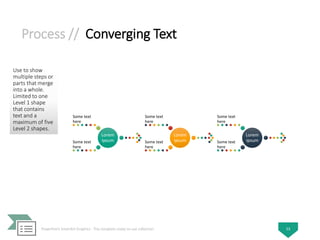
Process // Converging Text
Use to show
multiple steps or
parts that merge
into a whole.
Limited to one
Level 1 shape
that contains
text and a
maximum of five
Level 2 shapes.
PowerPoint SmartArt Graphics - The complete ready-to-use collection 53
Lorem
Ipsum
Some text
here
Some text
here
Lorem
Ipsum
Some text
here
Some text
here
Lorem
Ipsum
Some text
here
Some text
here
Process // Process Arrows
Use to show
information
illustrating a
process or
workflow. Level 1
text appears in
the circular
shapes and Level
2 text appears in
the arrow
shapes. Works
best for minimal
text and to
emphasize
movement or
direction.
PowerPoint SmartArt Graphics - The complete ready-to-use collection 54
• Some text
here
• Some text
here
Lorem
Ipsum
• Some text
here
• Some text
here
Lorem
Ipsum
• Some text
here
• Some text
here
Lorem
Ipsum
• Some text
here
• Some text
here
Lorem
Ipsum
• Some text
here
• Some text
here
Lorem
Ipsum
Process // Circle Accent Timeline
Use to show a
series of events
or timeline
information.
Level 1 text
appears next to
larger circular
shapes. Level 2
text appears next
to smaller
circular shapes.
PowerPoint SmartArt Graphics - The complete ready-to-use collection 55
Process // Basic Timeline
Use to show
sequential steps
in a task,
process, or
workflow, or to
show timeline
information.
Works well with
both Level 1 and
Level 2 text.
PowerPoint SmartArt Graphics - The complete ready-to-use collection 56
Lorem
Ipsum
•Some text here
•Some text here
Lorem
Ipsum
•Some text here
•Some text here
Lorem
Ipsum
•Some text here
•Some text here
Lorem
Ipsum
•Some text here
•Some text here
Lorem
Ipsum
•Some text here
•Some text here
Process // Circle Process
Use to show
sequential steps
in a process.
Limited to eleven
Level 1 shapes
with an
unlimited
number of Level
2 shapes. Works
best with small
amounts of text.
Unused text
does not appear,
but remains
available if you
switch layouts.
PowerPoint SmartArt Graphics - The complete ready-to-use collection 57
Lorem
Ipsum
•Some text here
•Some text here
Lorem
Ipsum
•Some text here
•Some text here
Lorem
Ipsum
•Some text here
•Some text here
Lorem
Ipsum
•Some text here
•Some text here
Lorem
Ipsum
•Some text here
•Some text here
Process // Basic Chevron Process
Use to show a
progression; a
timeline;
sequential steps
in a task,
process, or
workflow; or to
emphasize
movement or
direction. Level 1
text appears
inside an arrow
shape while
Level 2 text
appears below
the arrow
shapes.
PowerPoint SmartArt Graphics - The complete ready-to-use collection 58
Lorem
Ipsum
• Some text
here
• Some text
here
Lorem
Ipsum
• Some text
here
• Some text
here
Lorem
Ipsum
• Some text
here
• Some text
here
Lorem
Ipsum
• Some text
here
• Some text
here
Lorem
Ipsum
• Some text
here
• Some text
here
Process // Chevron Accent Process
Use to show
sequential steps
in a task,
process, or
workflow, or to
emphasize
movement or
direction. Works
best with
minimal Level 1
and Level 2 text.
PowerPoint SmartArt Graphics - The complete ready-to-use collection 59
Lorem Ipsum
• Some text here
• Some text here
Lorem Ipsum
• Some text here
• Some text here
Lorem Ipsum
• Some text here
• Some text here
Lorem Ipsum
• Some text here
• Some text here
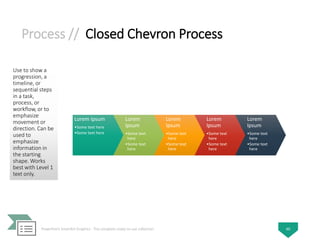
Process // Closed Chevron Process
Use to show a
progression, a
timeline, or
sequential steps
in a task,
process, or
workflow, or to
emphasize
movement or
direction. Can be
used to
emphasize
information in
the starting
shape. Works
best with Level 1
text only.
PowerPoint SmartArt Graphics - The complete ready-to-use collection 60
Lorem Ipsum
•Some text here
•Some text here
Lorem
Ipsum
•Some text
here
•Some text
here
Lorem
Ipsum
•Some text
here
•Some text
here
Lorem
Ipsum
•Some text
here
•Some text
here
Lorem
Ipsum
•Some text
here
•Some text
here
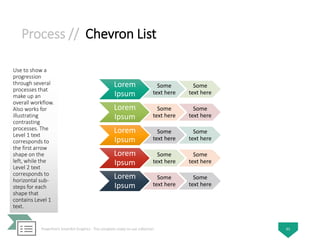
Process // Chevron List
Use to show a
progression
through several
processes that
make up an
overall workflow.
Also works for
illustrating
contrasting
processes. The
Level 1 text
corresponds to
the first arrow
shape on the
left, while the
Level 2 text
corresponds to
horizontal sub-
steps for each
shape that
contains Level 1
text.
PowerPoint SmartArt Graphics - The complete ready-to-use collection 61
Lorem
Ipsum
Some
text here
Some
text here
Lorem
Ipsum
Some
text here
Some
text here
Lorem
Ipsum
Some
text here
Some
text here
Lorem
Ipsum
Some
text here
Some
text here
Lorem
Ipsum
Some
text here
Some
text here
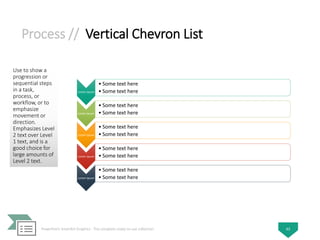
Process // Vertical Chevron List
Use to show a
progression or
sequential steps
in a task,
process, or
workflow, or to
emphasize
movement or
direction.
Emphasizes Level
2 text over Level
1 text, and is a
good choice for
large amounts of
Level 2 text.
PowerPoint SmartArt Graphics - The complete ready-to-use collection 62
Lorem Ipsum
• Some text here
• Some text here
Lorem Ipsum
• Some text here
• Some text here
Lorem Ipsum
• Some text here
• Some text here
Lorem Ipsum
• Some text here
• Some text here
Lorem Ipsum
• Some text here
• Some text here
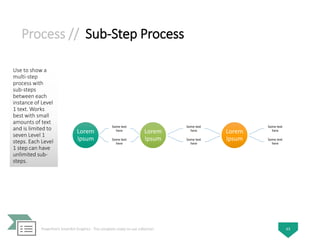
Process // Sub-Step Process
Use to show a
multi-step
process with
sub-steps
between each
instance of Level
1 text. Works
best with small
amounts of text
and is limited to
seven Level 1
steps. Each Level
1 step can have
unlimited sub-
steps.
PowerPoint SmartArt Graphics - The complete ready-to-use collection 63
Lorem
Ipsum
Some text
here
Some text
here
Lorem
Ipsum
Some text
here
Some text
here
Lorem
Ipsum
Some text
here
Some text
here
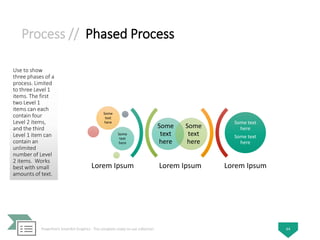
Process // Phased Process
Use to show
three phases of a
process. Limited
to three Level 1
items. The first
two Level 1
items can each
contain four
Level 2 items,
and the third
Level 1 item can
contain an
unlimited
number of Level
2 items. Works
best with small
amounts of text.
PowerPoint SmartArt Graphics - The complete ready-to-use collection 64
Lorem Ipsum Lorem Ipsum
Some
text
here
Some
text
here
Some
text
here
Some
text
here
Some text
here
Some text
here
Lorem Ipsum
Process // Random to Result Process
Use to show,
through a series
of steps, how
several chaotic
ideas can result
in a unified goal
or idea. Supports
multiple items of
Level 1 text, but
the first and last
Level 1
corresponding
shapes are fixed.
Works best with
small amounts of
Level 1 text and
medium
amounts of Level
2 text.
PowerPoint SmartArt Graphics - The complete ready-to-use collection 65
Lorem Ipsum
•Some text here
•Some text here
Lorem Ipsum
•Some text here
•Some text here
Lorem Ipsum
•Some text here
•Some text here
Lorem Ipsum
•Some text here
•Some text here
Lorem
Ipsum
•Some text here
•Some text here
Process // Vertical Process
Use to show a
progression or
sequential steps
in a task,
process, or
workflow from
top to bottom.
Works best with
Level 1 text,
since the vertical
space is limited.
PowerPoint SmartArt Graphics - The complete ready-to-use collection 66
Lorem Ipsum
•Some text here
•Some text here
Lorem Ipsum
•Some text here
•Some text here
Lorem Ipsum
•Some text here
•Some text here
Lorem Ipsum
•Some text here
•Some text here
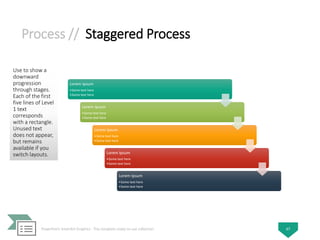
Process // Staggered Process
Use to show a
downward
progression
through stages.
Each of the first
five lines of Level
1 text
corresponds
with a rectangle.
Unused text
does not appear,
but remains
available if you
switch layouts.
PowerPoint SmartArt Graphics - The complete ready-to-use collection 67
Lorem Ipsum
•Some text here
•Some text here
Lorem Ipsum
•Some text here
•Some text here
Lorem Ipsum
•Some text here
•Some text here
Lorem Ipsum
•Some text here
•Some text here
Lorem Ipsum
•Some text here
•Some text here
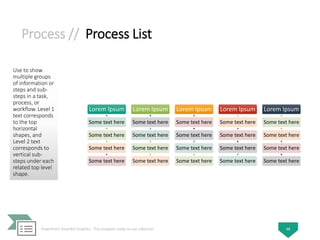
Process // Process List
Use to show
multiple groups
of information or
steps and sub-
steps in a task,
process, or
workflow. Level 1
text corresponds
to the top
horizontal
shapes, and
Level 2 text
corresponds to
vertical sub-
steps under each
related top level
shape.
PowerPoint SmartArt Graphics - The complete ready-to-use collection 68
Lorem Ipsum
Some text here
Some text here
Some text here
Some text here
Lorem Ipsum
Some text here
Some text here
Some text here
Some text here
Lorem Ipsum
Some text here
Some text here
Some text here
Some text here
Lorem Ipsum
Some text here
Some text here
Some text here
Some text here
Lorem Ipsum
Some text here
Some text here
Some text here
Some text here
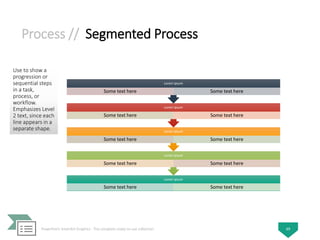
Process // Segmented Process
Use to show a
progression or
sequential steps
in a task,
process, or
workflow.
Emphasizes Level
2 text, since each
line appears in a
separate shape.
PowerPoint SmartArt Graphics - The complete ready-to-use collection 69
Lorem Ipsum
Some text here Some text here
Lorem Ipsum
Some text here Some text here
Lorem Ipsum
Some text here Some text here
Lorem Ipsum
Some text here Some text here
Lorem Ipsum
Some text here Some text here
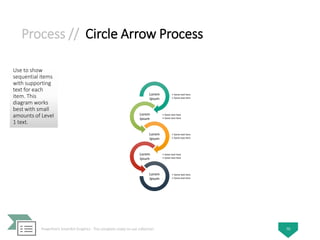
Process // Circle Arrow Process
Use to show
sequential items
with supporting
text for each
item. This
diagram works
best with small
amounts of Level
1 text.
PowerPoint SmartArt Graphics - The complete ready-to-use collection 70
• Some text here
• Some text here
Lorem
Ipsum
• Some text here
• Some text here
Lorem
Ipsum
• Some text here
• Some text here
Lorem
Ipsum
• Some text here
• Some text here
Lorem
Ipsum
• Some text here
• Some text here
Lorem
Ipsum
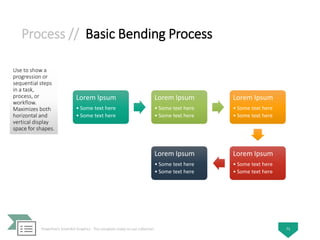
Process // Basic Bending Process
Use to show a
progression or
sequential steps
in a task,
process, or
workflow.
Maximizes both
horizontal and
vertical display
space for shapes.
PowerPoint SmartArt Graphics - The complete ready-to-use collection 71
Lorem Ipsum
• Some text here
• Some text here
Lorem Ipsum
• Some text here
• Some text here
Lorem Ipsum
• Some text here
• Some text here
Lorem Ipsum
• Some text here
• Some text here
Lorem Ipsum
• Some text here
• Some text here
Process // Repeating Bending Process
Use to show a
progression or
sequential steps
in a task,
process, or
workflow.
Maximizes both
horizontal and
vertical display
space for shapes.
PowerPoint SmartArt Graphics - The complete ready-to-use collection 72
Lorem Ipsum
•Some text here
•Some text here
Lorem Ipsum
•Some text here
•Some text here
Lorem Ipsum
•Some text here
•Some text here
Lorem Ipsum
•Some text here
•Some text here
Lorem Ipsum
•Some text here
•Some text here
Process // Vertical Bending Process
Use to show a
progression or
sequential steps
in a task,
process, or
workflow.
Maximizes both
horizontal and
vertical display
space for shapes.
Places more
emphasis on the
interrelationship
s among the
shapes than on
direction or
movement.
PowerPoint SmartArt Graphics - The complete ready-to-use collection 73
Lorem Ipsum
• Some text here
• Some text here
Lorem Ipsum
• Some text here
• Some text here
Lorem Ipsum
• Some text here
• Some text here
Lorem Ipsum
• Some text here
• Some text here
Lorem Ipsum
• Some text here
• Some text here
Process // Detailed Process
Use with large
amounts of Level
2 text to show a
progression
through stages.
PowerPoint SmartArt Graphics - The complete ready-to-use collection 74
Lorem
Ipsum
Some
text here
Some
text here
Lorem
Ipsum
Some
text here
Some
text here
Lorem
Ipsum
Some
text here
Some
text here
Lorem
Ipsum
Some
text here
Some
text here
Lorem
Ipsum
Some
text here
Some
text here
Process // Ascending Picture Accent Process
Use to show an
ascending series
of pictures with
descriptive text.
Works best with
a small amount
of text.
PowerPoint SmartArt Graphics - The complete ready-to-use collection 75
Lorem Ipsum
• Some text here
• Some text here
Lorem Ipsum
• Some text here
• Some text here
Lorem Ipsum
• Some text here
• Some text here
Lorem Ipsum
• Some text here
• Some text here
Process // Upward Arrow
Use to show a
progression or
steps that trend
upward in a task,
process, or
workflow. Each
of the first five
lines of Level 1
text corresponds
to a point on the
arrow. Works
best with
minimal text.
Unused text
does not appear,
but remains
available if you
switch layouts.
PowerPoint SmartArt Graphics - The complete ready-to-use collection 76
Lorem Ipsum
• Some text
here
• Some text
here
Lorem Ipsum
• Some text here
• Some text here
Lorem Ipsum
• Some text here
• Some text here
Lorem Ipsum
• Some text here
• Some text here
Lorem Ipsum
• Some text here
• Some text here
Process // Descending Process
Use to show a
descending
series of events.
The first Level 1
text is at the top
of arrow, and the
last Level 1 text
displays at the
bottom of the
arrow. Only the
first seven Level
1 items appear.
Works best with
small to medium
amounts of text.
PowerPoint SmartArt Graphics - The complete ready-to-use collection 77
Lorem Ipsum
•Some text here
•Some text here
Lorem Ipsum
•Some text here
•Some text here
Lorem Ipsum
•Some text here
•Some text here
Lorem Ipsum
•Some text here
•Some text here
Lorem Ipsum
•Some text here
•Some text here
Process // Circular Bending Process
Use to show a
long or non-
linear sequence
or steps in a task,
process, or
workflow. Works
best with Level 1
text only.
Maximizes both
horizontal and
vertical display
space for shapes.
PowerPoint SmartArt Graphics - The complete ready-to-use collection 78
Lorem Ipsum
•Some text here
•Some text here
Lorem Ipsum
• Some text here
• Some text here
Lorem Ipsum
• Some text here
• Some text here
Lorem Ipsum
• Some text here
• Some text here
Lorem Ipsum
•Some text here
•Some text here
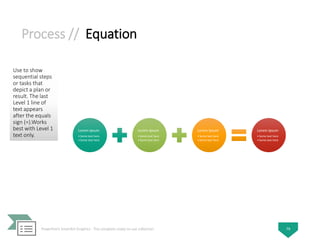
Process // Equation
Use to show
sequential steps
or tasks that
depict a plan or
result. The last
Level 1 line of
text appears
after the equals
sign (=).Works
best with Level 1
text only.
PowerPoint SmartArt Graphics - The complete ready-to-use collection 79
Lorem Ipsum
• Some text here
• Some text here
Lorem Ipsum
• Some text here
• Some text here
Lorem Ipsum
• Some text here
• Some text here
Lorem Ipsum
• Some text here
• Some text here
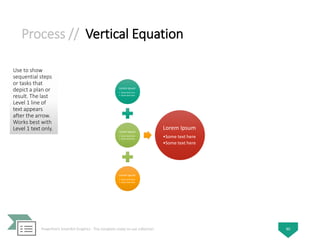
Process // Vertical Equation
Use to show
sequential steps
or tasks that
depict a plan or
result. The last
Level 1 line of
text appears
after the arrow.
Works best with
Level 1 text only.
PowerPoint SmartArt Graphics - The complete ready-to-use collection 80
Lorem Ipsum
• Some text here
• Some text here
Lorem Ipsum
• Some text here
• Some text here
Lorem Ipsum
• Some text here
• Some text here
Lorem Ipsum
•Some text here
•Some text here
Process // Arrow Ribbon
Use to show
either related or
contrasting
concepts with
some
connection, such
as opposing
forces. The first
two lines of Level
1 text are used
for text in the
arrows. Unused
text does not
appear, but
remains
available if you
switch layouts.
PowerPoint SmartArt Graphics - The complete ready-to-use collection 81
Lorem Ipsum
• Some text here
• Some text here
Lorem Ipsum
• Some text here
• Some text here
Cycle
- 03 -
PowerPoint SmartArt Graphics - The complete ready-to-use collection
Cycle // Basic Cycle
Use to represent
a continuing
sequence of
stages, tasks, or
events in a
circular flow.
Emphasizes the
stages or steps
rather than the
connecting
arrows or flow.
Works best with
Level 1 text only.
PowerPoint SmartArt Graphics - The complete ready-to-use collection 83
Lorem Ipsum
• Some text here
• Some text here
Lorem Ipsum
• Some text here
• Some text here
Lorem Ipsum
• Some text here
• Some text here
Lorem Ipsum
• Some text here
• Some text here
Lorem Ipsum
• Some text here
• Some text here
Cycle // Text Cycle
Use to represent
a continuing
sequence of
stages, tasks, or
events in a
circular flow.
Emphasizes the
stages or steps
rather than the
connecting
arrows or flow.
Works best with
Level 1 text only.
PowerPoint SmartArt Graphics - The complete ready-to-use collection 84
Lorem Ipsum
•Some text
here
•Some text
here
Lorem Ipsum
•Some text
here
•Some text
here
Lorem Ipsum
•Some text
here
•Some text
here
Lorem Ipsum
•Some text
here
•Some text
here
Lorem Ipsum
•Some text
here
•Some text
here
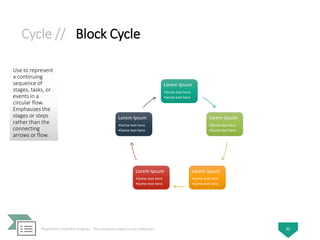
Cycle // Block Cycle
Use to represent
a continuing
sequence of
stages, tasks, or
events in a
circular flow.
Emphasizes the
stages or steps
rather than the
connecting
arrows or flow.
PowerPoint SmartArt Graphics - The complete ready-to-use collection 85
Lorem Ipsum
•Some text here
•Some text here
Lorem Ipsum
•Some text here
•Some text here
Lorem Ipsum
•Some text here
•Some text here
Lorem Ipsum
•Some text here
•Some text here
Lorem Ipsum
•Some text here
•Some text here
Cycle // Nondirectional Cycle
Use to represent
a continuing
sequence of
stages, tasks, or
events in a
circular flow.
Each shape has
the same level of
importance.
Works well when
direction does
not need to be
indicated.
PowerPoint SmartArt Graphics - The complete ready-to-use collection 86
Lorem Ipsum
•Some text here
•Some text here
Lorem Ipsum
•Some text here
•Some text here
Lorem Ipsum
•Some text here
•Some text here
Lorem Ipsum
•Some text here
•Some text here
Lorem Ipsum
•Some text here
•Some text here
Cycle // Continuous Cycle
Use to represent
a continuing
sequence of
stages, tasks, or
events in a
circular flow.
Emphasizes the
connection
between all
components.
Works best with
Level 1 text only.
PowerPoint SmartArt Graphics - The complete ready-to-use collection 87
Lorem Ipsum
•Some text here
•Some text here
Lorem Ipsum
•Some text here
•Some text here
Lorem Ipsum
•Some text here
•Some text here
Lorem Ipsum
•Some text here
•Some text here
Lorem Ipsum
•Some text here
•Some text here
Cycle // Multidirectional Cycle
Use to represent
a continuing
sequence of
stages, tasks, or
events that can
occur in any
direction.
PowerPoint SmartArt Graphics - The complete ready-to-use collection 88
Lorem Ipsum
• Some text here
• Some text here
Lorem Ipsum
• Some text here
• Some text here
Lorem Ipsum
• Some text here
• Some text here
Lorem Ipsum
• Some text here
• Some text here
Lorem Ipsum
• Some text here
• Some text here
Cycle // Segmented Cycle
Use to show a
progression or a
sequence of
stages, tasks, or
events in a
circular flow.
Emphasizes the
interconnected
pieces. Each of
the first seven
lines of Level 1
text corresponds
to a wedge or
pie shape.
Unused text
does not appear,
but remains
available if you
switch layouts.
PowerPoint SmartArt Graphics - The complete ready-to-use collection 89
Lorem Ipsum
•Some text here
•Some text here
Lorem Ipsum
•Some text here
•Some text here
Lorem Ipsum
•Some text here
•Some text here
Lorem Ipsum
•Some text here
•Some text here
Lorem Ipsum
•Some text here
•Some text here
Cycle // Basic Pie
Use to show how
individual parts
form a whole.
The first seven
lines of Level 1
text correspond
to the evenly
distributed
wedge or pie
shapes. The top
Level 1 text
shape appears
outside of the
rest of the pie for
emphasis.
Unused text
does not appear,
but remains
available if you
switch layouts.
PowerPoint SmartArt Graphics - The complete ready-to-use collection 90
Lorem Ipsum
•Some text here
•Some text here
Lorem Ipsum
•Some text here
•Some text here
Lorem Ipsum
•Some text here
•Some text here
Lorem Ipsum
•Some text here
•Some text here
Lorem Ipsum
•Some text here
•Some text here
Cycle // Hexagon Radial
Use to show a
sequential
process that
relates to a
central idea or
theme. Limited
to six Level 2
shapes. Works
best with small
amounts of text.
Unused text
does not appear,
but remains
available if you
switch layouts.
PowerPoint SmartArt Graphics - The complete ready-to-use collection 91
Lorem Ipsum
Some text
here
•Some text here
•Some text here
Some text
here
Some text
here
Some text
here
•Some text here
•Some text here
Some text
here
Some text
here
Cycle // Radial Cycle
Use to show the
relationship to a
central idea.
Emphasizes both
information in the
center circle and how
information in the
outer ring of circles
contributes to the
central idea. The first
Level 1 line of text
corresponds to the
central circle, and its
Level 2 text
corresponds to the
outer ring of circles.
Unused text does not
appear, but remains
available if you switch
layouts.
PowerPoint SmartArt Graphics - The complete ready-to-use collection 92
Lorem
Ipsum
Some
text
here
Some
text
here
Some
text
here
Some
text
here
Some
text
here
Cycle // Basic Radial
Use to show the
relationship to a
central idea in a
cycle. The first
line of Level 1
text corresponds
to the central
shape, and its
Level 2 text
corresponds to
the surrounding
circular shapes.
Unused text
does not appear,
but remains
available if you
switch layouts.
PowerPoint SmartArt Graphics - The complete ready-to-use collection 93
Lorem
Ipsum
Some
text
here
Some
text
here
Some
text
here
Some
text
here
Some
text
here
Cycle // Diverging Radial
Use to show
relationships to a
central idea in a
cycle. The first
Level 1 line of
text corresponds
to the central
circular shape.
Emphasizes the
surrounding
circles rather
than the central
idea. Unused
text does not
appear, but
remains
available if you
switch layouts.
PowerPoint SmartArt Graphics - The complete ready-to-use collection 94
Lorem
Ipsum
Some
text
here
Some
text
here
Some
text
here
Some
text
here
Some
text
here
Cycle // Radial Venn
Use to show
both overlapping
relationships and
the relationship
to a central idea
in a cycle. The
first line of Level
1 text
corresponds to
the central
shape and the
lines of Level 2
text correspond
to the
surrounding
circular shapes.
Unused text
does not appear,
but remains
available if you
switch layouts.
PowerPoint SmartArt Graphics - The complete ready-to-use collection 95
Lorem
Ipsum
Some
text
here
Some
text
here
Some
text
here
Some
text
here
Some
text
here
Cycle // Cycle Matrix
Use to show the
relationship to a
central idea in a
cyclical
progression.
Each of the first
four lines of
Level 1 text
corresponds to a
wedge or pie
shape, and Level
2 text appears in
a rectangular
shape to the side
of the wedge or
pie shape.
Unused text
does not appear,
but remains
available if you
switch layouts.
PowerPoint SmartArt Graphics - The complete ready-to-use collection 96
•Some text here
•Some text here
•Some text here
•Some text here
•Some text here
•Some text here
•Some text here
•Some text here
•Some text here
•Some text here
•Some text here
•Some text here
Lorem
Ipsum
Lorem
Ipsum
Lorem
Ipsum
Lorem
Ipsum
Cycle // Gear
Use to show
interlocking
ideas. Each of
the first three
lines of Level 1
text corresponds
to a gear shape,
and their
corresponding
Level 2 text
appears in
rectangles next
to the gear
shape. Unused
text does not
appear, but
remains
available if you
switch layouts.
PowerPoint SmartArt Graphics - The complete ready-to-use collection 97
Lorem Ipsum
•Some text here
•Some text here
•Some text here
Lorem
Ipsum
•Some text here
•Some text here
•Some text here
Lorem
Ipsum
•Some text here
•Some text here
•Some text here
Cycle // Radial Cluster
Use to show data
that relates to a
central idea or
theme. The top
Level 1 text
appears in the
center. Level 2
text appears in
surrounding
shapes. Can
contain up to
seven Level 2
shapes. Unused
text does not
appear, but
remains
available if you
switch layouts.
Works best with
small amounts of
text.
PowerPoint SmartArt Graphics - The complete ready-to-use collection 98
Lorem
Ipsum
Some
text
here
Some
text
here
Some
text
here
Hierarchy
- 04 -
PowerPoint SmartArt Graphics - The complete ready-to-use collection
Hierarchy // Organization Chart
Use to show
hierarchical
information or
reporting
relationships in
an organization.
The assistant
shape and the
Org Chart
hanging layouts
are available
with this layout.
PowerPoint SmartArt Graphics - The complete ready-to-use collection 100
Lorem
Ipsum
Some text
here
Some text
here
Some text
here
Some text
here
Some text
here
Some text
here
Some text
here
Lorem
Ipsum
Some text
here
Some text
here
Some text
here
Some text
here
Some text
here
Hierarchy // Picture Organization Chart
Use to show
hierarchical
information or
reporting
relationships in
an organization,
with
corresponding
pictures. The
assistant shape
and the Org
Chart hanging
layouts are
available with
this layout.
PowerPoint SmartArt Graphics - The complete ready-to-use collection 101
Lorem
Ipsum
Some
text here
Some
text here
Some
text here
Some
text here
Some
text here
Some
text here
Some
text here
Lorem
Ipsum
Some
text here
Some
text here
Some
text here
Some
text here
Some
text here
Hierarchy //
Name and Title Organization
Chart
Use to show
hierarchical
information or
reporting
relationships in
an organization.
To enter text in
the title box,
type directly in
the smaller
rectangular
shape. The
assistant shape
and Org Chart
hanging layouts
are available
with this layout.
PowerPoint SmartArt Graphics - The complete ready-to-use collection 102
Lorem Ipsum
Some text
here
Some text
here
Some text
here
Some text
here
Some text
here
Lorem Ipsum
Some text
here
Some text
here
Some text
here
Some text
here
Some text
here
Hierarchy // Half Circle Organization Chart
Use to show
hierarchical
information or
reporting
relationships in
an organization.
The assistant
shapes and Org
Chart hanging
layouts are
available with
this layout.
PowerPoint SmartArt Graphics - The complete ready-to-use collection 103
Lorem Ipsum
Some text here
Some text here
Some text here
Some text here
Some text here
Some text here Some text here
Lorem Ipsum
Some text here Some text here
Some text here
Some text here
Some text here
Hierarchy // Circle Picture Hierarchy
Use to show
hierarchical
information or
reporting
relationships in
an organization.
Pictures appear
in circles and
corresponding
text appears next
to the pictures.
PowerPoint SmartArt Graphics - The complete ready-to-use collection 104
Lorem
Ipsum
Some
text here
Some
text here
Some
text here
Some
text here
Some
text here
Some
text here
Some
text here
Hierarchy // Hierarchy
Use to show
hierarchical
relationships
progressing from
top to bottom.
PowerPoint SmartArt Graphics - The complete ready-to-use collection 105
Lorem
Ipsum
Some
text here
Some
text here
Some
text here
Some
text here
Some
text here
Some
text here
Some
text here
Hierarchy // Labeled Hierarchy
Use to show
hierarchical
relationships
progressing from
top to bottom
and grouped
hierarchically.
Emphasizes
heading or level
1 text. The first
line of Level 1
text appears in
the shape at the
beginning of the
hierarchy, and all
subsequent lines
of Level 1 text
appear to the
left of the long
rectangles.
PowerPoint SmartArt Graphics - The complete ready-to-use collection 106
Lorem Ipsum
•Some text here
•Some text here
•Some text here
Lorem Ipsum
•Some text here
•Some text here
Lorem
Ipsum
Some
text here
Some
text here
Some
text here
Some
text here
Some
text here
Some
text here
Hierarchy // Table Hierarchy
Use to show
groups of
information built
from top to
bottom, and the
hierarchies
within each
group. This
layout does not
contain
connecting lines.
PowerPoint SmartArt Graphics - The complete ready-to-use collection 107
Lorem Ipsum
Some text here
Some text
here
Some text
here
Some text
here
Some text
here
Some text
here
Some text
here
Hierarchy // Horizontal Organization Chart
Use to show
hierarchical
information
horizontally or
reporting
relationships in
an organization.
The assistant
shape and the
Org Chart
hanging layouts
are available
with this layout.
PowerPoint SmartArt Graphics - The complete ready-to-use collection 108
Lorem Ipsum
Some text here
Some text here
Some text here Some text here
Some text here
Some text here Some text here
Hierarchy // Horizontal Multilevel Hierarchy
Use to show
large amounts of
hierarchical
information
progressing
horizontally. The
top of the
hierarchy is
displayed
vertically. This
layout supports
many levels in
the hierarchy.
PowerPoint SmartArt Graphics - The complete ready-to-use collection 109
Lorem
Ipsum
Some text here
Some text here
Some text here Some text here
Some text here
Some text here Some text here
Hierarchy // Horizontal Hierarchy
Use to show
hierarchical
relationships
progressing
horizontally.
Works well for
decision trees.
PowerPoint SmartArt Graphics - The complete ready-to-use collection 110
Lorem
Ipsum
Some text
here
Some text
here
Some text
here
Some text
here
Some text
here
Some text
here
Some text
here
Hierarchy // Horizontal Labeled Hierarchy
Use to show
hierarchical
relationships
progressing
horizontally and
grouped
hierarchically.
Emphasizes
heading or level
1 text. The first
line of Level 1
text appears in
the shape at the
beginning of the
hierarchy, and
the second and
all subsequent
lines of Level 1
text appear at
the top of the
tall rectangles.
PowerPoint SmartArt Graphics - The complete ready-to-use collection 111
Lorem Ipsum
•Some text here
•Some text here
•Some text here
Lorem Ipsum
•Some text here
•Some text here
Lorem
Ipsum
Some text
here
Some text
here
Some text
here
Some text
here
Some text
here
Some text
here
Relationship
- 05 -
PowerPoint SmartArt Graphics - The complete ready-to-use collection
Relationship // Balance
Use to compare or
show the relationship
between two ideas.
Each of the first two
lines of Level 1 text
corresponds to text at
the top of one side of
the center point.
Emphasizes Level 2
text, which is limited to
four shapes on each
side of the center
point. The balance tips
towards the side with
the most shapes
containing Level 2 text.
Unused text does not
appear, but remains
available if you switch
layouts.
PowerPoint SmartArt Graphics - The complete ready-to-use collection 113
Lorem
Ipsum
Lorem
Ipsum
Relationship // Circle Relationship
Use to show the
relationship to or
from a central
idea. Level 2 text
is added non-
sequentially and
is limited to five
items. There can
only be one
Level 1 item.
PowerPoint SmartArt Graphics - The complete ready-to-use collection 114
Lorem Ipsum
Some
text
here
Some
text
here
Some
text
here
Some
text
here
Lorem
Ipsum
Relationship // Funnel
Use to show the
filtering of
information or
how parts merge
into a whole.
Emphasizes the
final outcome.
Can contain up
to four lines of
Level 1 text; the
last of these four
Level 1 text lines
appears below
the funnel and
the other lines
correspond to a
circular shape.
Unused text
does not appear,
but remains
available if you
switch layouts.
PowerPoint SmartArt Graphics - The complete ready-to-use collection 115
Lorem Ipsum
•Some text here
•Some text here
Some
text
here
Some
text
here
Some
text
here
Relationship // Opposing Ideas
Use to show two
opposing or
contrasting
ideas. Can have
one or two Level
1 items. Each
Level 1 text can
contain multiple
sub-levels.
Works well with
large amounts of
text.
PowerPoint SmartArt Graphics - The complete ready-to-use collection 116
Some text here
Some text here
Some text here
Some text here
Some text here
Some text here
Some text here
Some text here
Some text here
Some text here
Lorem
Ipsum
Lorem
Ipsum
Relationship // Plus and Minus
Use to show the
pros and cons of
two ideas. Each
Level 1 text can
contain multiple
sub-levels.
Works well with
large amounts of
text. Limited to
two Level 1
items.
PowerPoint SmartArt Graphics - The complete ready-to-use collection 117
Lorem Ipsum
• Some text here
• Some text here
• Some text here
• Some text here
• Some text here
Lorem Ipsum
• Some text here
• Some text here
• Some text here
• Some text here
• Some text here
Relationship // Reverse List
Use to change
between two
items. Only the
first two items of
text display, and
each item can
contain a large
amount of text.
Works well to
show a change
between two
items or shift in
order.
PowerPoint SmartArt Graphics - The complete ready-to-use collection 118
Lorem Ipsum
•Some text here
•Some text here
•Some text here
•Some text here
•Some text here
Lorem Ipsum
•Some text here
•Some text here
•Some text here
•Some text here
•Some text here
Relationship // Counterbalance Arrows
Use to show two
opposing ideas
or concepts.
Each of the first
two lines of Level
1 text
corresponds to
an arrow and
works well with
Level 2 text.
Unused text
does not appear,
but remains
available if you
switch layouts.
PowerPoint SmartArt Graphics - The complete ready-to-use collection 119
Lorem Ipsum
•Some text here
•Some text here
•Some text here
•Some text here
•Some text here
Lorem Ipsum
•Some text here
•Some text here
•Some text here
•Some text here
•Some text here
Relationship // Converging Arrows
Use to show
ideas or
concepts that
converge to a
central point.
Works best with
Level 1 text only.
PowerPoint SmartArt Graphics - The complete ready-to-use collection 120
Lorem
Ipsum
•Some text
here
•Some text
here
Lorem Ipsum
•Some text here
•Some text here
Lorem
Ipsum
•Some text
here
•Some text
here
Lorem Ipsum
•Some text here
•Some text here
Relationship // Diverging Arrows
Use to show
ideas or
concepts that
progress
outward from a
central source.
Works best with
Level 1 text only.
PowerPoint SmartArt Graphics - The complete ready-to-use collection 121
Lorem
Ipsum
•Some text
here
•Some text
here
Lorem Ipsum
•Some text here
•Some text here
Lorem
Ipsum
•Some text
here
•Some text
here
Lorem Ipsum
•Some text here
•Some text here
Relationship // Opposing Arrows
Use to show two
opposing ideas,
or ideas that
diverge from a
central point.
Each of the first
two lines of Level
1 text
corresponds to
an arrow.
Unused text
does not appear,
but remains
available if you
switch layouts.
PowerPoint SmartArt Graphics - The complete ready-to-use collection 122
Lorem Ipsum
• Some text here
• Some text here
• Some text here
• Some text here
Lorem Ipsum
• Some text here
• Some text here
• Some text here
• Some text here
Relationship // Basic Target
Use to show
containment,
gradations, or
hierarchical
relationships.
The first five
lines of Level 1
text are
associated with a
circle. Unused
text does not
appear, but
remains
available if you
switch layouts.
PowerPoint SmartArt Graphics - The complete ready-to-use collection 123
Lorem Ipsum
•Some text here
•Some text here
Lorem Ipsum
•Some text here
•Some text here
Lorem Ipsum
•Some text here
•Some text here
Lorem Ipsum
•Some text here
•Some text here
Relationship // Basic Venn
Use to show
overlapping or
interconnected
relationships. The
first seven lines of
Level 1 text
correspond with a
circle. If there are
four or fewer lines of
Level 1 text, the text
is inside the circles.
If there are more
than four lines of
Level 1 text, the text
is outside of the
circles. Unused text
does not appear, but
remains available if
you switch layouts.
PowerPoint SmartArt Graphics - The complete ready-to-use collection 124
Lorem Ipsum
• Some text here
• Some text here
• Some text here
Lorem Ipsum
• Some text here
• Some text here
• Some text here
Lorem Ipsum
• Some text here
• Some text here
• Some text here
Lorem Ipsum
• Some text here
• Some text here
• Some text here
Relationship // Linear Venn
Use to show
overlapping
relationships in a
sequence. Works
best with Level 1
text only.
PowerPoint SmartArt Graphics - The complete ready-to-use collection 125
Lorem
Ipsum
• Some text here
• Some text here
• Some text here
Lorem
Ipsum
• Some text here
• Some text here
• Some text here
Lorem
Ipsum
• Some text here
• Some text here
• Some text here
Lorem
Ipsum
• Some text here
• Some text here
• Some text here
Relationship // Stacked Venn
Use to show
overlapping
relationships. A
good choice for
emphasizing
growth or
gradation. Works
best with Level 1
text only. The
first seven lines
of Level 1 text
correspond to a
circular shape.
Unused text
does not appear,
but remains
available if you
switch layouts.
PowerPoint SmartArt Graphics - The complete ready-to-use collection 126
Lorem Ipsum
Lorem Ipsum
Lorem Ipsum
Lorem Ipsum
Relationship // Radial Venn
Use to show
both overlapping
relationships and
the relationship
to a central idea
in a cycle. The
first line of Level
1 text
corresponds to
the central
shape and the
lines of Level 2
text correspond
to the
surrounding
circular shapes.
Unused text
does not appear,
but remains
available if you
switch layouts.
PowerPoint SmartArt Graphics - The complete ready-to-use collection 127
Lorem
Ipsum
Some
text
here
Some
text
here
Some
text
here
Some
text
here
Some
text
here
Relationship // Interconnected Rings
Use to show
overlapping or
interconnected
ideas or
concepts. The
first seven lines
of Level 1 text
correspond with
a circle. Unused
text does not
appear, but
remains
available if you
switch layouts.
PowerPoint SmartArt Graphics - The complete ready-to-use collection 128
Lorem Ipsum
•Some text here
•Some text here
•Some text here
Lorem Ipsum
•Some text here
•Some text here
•Some text here
Lorem Ipsum
•Some text here
•Some text here
•Some text here
Lorem Ipsum
•Some text here
•Some text here
•Some text here
Lorem Ipsum
•Some text here
•Some text here
•Some text here
Matrix
- 06 -
PowerPoint SmartArt Graphics - The complete ready-to-use collection
Matrix // Basic Matrix
Use to show the
relationship of
components to a
whole in
quadrants. The
first four lines of
Level 1 text
appear in the
quadrants.
Unused text
does not appear,
but remains
available if you
switch layouts.
PowerPoint SmartArt Graphics - The complete ready-to-use collection 130
Lorem Ipsum
•Some text here
•Some text here
•Some text here
Lorem Ipsum
•Some text here
•Some text here
•Some text here
Lorem Ipsum
•Some text here
•Some text here
•Some text here
Lorem Ipsum
•Some text here
•Some text here
•Some text here
Matrix // Titled Matrix
Use to show the
relationships of
four quadrants
to a whole. The
first line of Level
1 text
corresponds to
the central
shape, and the
first four lines of
Level 2 text
appear in the
quadrants.
Unused text
does not appear,
but remains
available if you
switch layouts.
PowerPoint SmartArt Graphics - The complete ready-to-use collection 131
Some text here
• Some text here
• Some text here
• Some text here
Some text here
• Some text here
• Some text here
• Some text here
Some text here
• Some text here
• Some text here
• Some text here
Some text here
• Some text here
• Some text here
• Some text here
Lorem Ipsum
Matrix // Grid Matrix
Use to show the
placement of
concepts along
two axes.
Emphasizes the
individual
components
rather than the
whole. The first
four lines of
Level 1 text
appear in the
quadrants.
Unused text
does not appear,
but remains
available if you
switch layouts.
PowerPoint SmartArt Graphics - The complete ready-to-use collection 132
Lorem Ipsum
•Some text here
•Some text here
•Some text here
Lorem Ipsum
•Some text here
•Some text here
•Some text here
Lorem Ipsum
•Some text here
•Some text here
•Some text here
Lorem Ipsum
•Some text here
•Some text here
•Some text here
Matrix // Cycle Matrix
Use to show the
relationship to a
central idea in a
cyclical
progression.
Each of the first
four lines of
Level 1 text
corresponds to a
wedge or pie
shape, and Level
2 text appears in
a rectangular
shape to the side
of the wedge or
pie shape.
Unused text
does not appear,
but remains
available if you
switch layouts.
PowerPoint SmartArt Graphics - The complete ready-to-use collection 133
•Some text here
•Some text here
•Some text here
•Some text here
•Some text here
•Some text here
•Some text here
•Some text here
•Some text here
•Some text here
•Some text here
•Some text here
Lorem
Ipsum
Lorem
Ipsum
Lorem
Ipsum
Lorem
Ipsum
Pyramid
- 07 -
PowerPoint SmartArt Graphics - The complete ready-to-use collection
Pyramid // Basic Pyramid
Use to show
proportional,
interconnected,
or hierarchical
relationships
with the largest
component on
the bottom and
narrowing up.
Level 1 text
appears in the
pyramid
segments and
Level 2 text
appears in
shapes alongside
each segment.
PowerPoint SmartArt Graphics - The complete ready-to-use collection 135
•Some text here
•Some text here
•Some text here
Lorem
Ipsum
•Some text here
•Some text here
•Some text here
Lorem
Ipsum
•Some text here
•Some text here
•Some text here
Lorem Ipsum
•Some text here
•Some text here
•Some text here
Lorem Ipsum
Pyramid // Inverted Pyramid
Use to show
proportional,
interconnected,
or hierarchical
relationships
with the largest
component on
the top and
narrowing down.
Level 1 text
appears in the
pyramid
segments and
Level 2 text
appears in
shapes alongside
each segment.
PowerPoint SmartArt Graphics - The complete ready-to-use collection 136
•Some text here
•Some text here
•Some text here
Lorem Ipsum
•Some text here
•Some text here
•Some text here
Lorem Ipsum
•Some text here
•Some text here
•Some text here
Lorem
Ipsum
•Some text here
•Some text here
•Some text here
Lorem
Ipsum
Pyramid // Pyramid List
Use to show
proportional,
interconnected,
or hierarchical
relationships.
Text appears in
the rectangular
shapes on top of
the pyramid
background.
PowerPoint SmartArt Graphics - The complete ready-to-use collection 137
Lorem Ipsum
• Some text here
• Some text here
• Some text here
Lorem Ipsum
• Some text here
• Some text here
• Some text here
Lorem Ipsum
• Some text here
• Some text here
• Some text here
Lorem Ipsum
• Some text here
• Some text here
• Some text here
Pyramid // Segmented Pyramid
Use to show
containment,
proportional, or
interconnected
relationships.
The first nine
lines of Level 1
text appear in
the triangular
shapes. Unused
text does not
appear, but
remains
available if you
switch layouts.
Works best with
Level 1 text only.
PowerPoint SmartArt Graphics - The complete ready-to-use collection 138
Lorem Ipsum
•Some text here
•Some text here
•Some text here
Lorem Ipsum
•Some text here
•Some text here
•Some text here
Lorem Ipsum
•Some text here
•Some text here
•Some text here
Lorem Ipsum
•Some text here
•Some text here
•Some text here
Miscellaneous
- 08 -
PowerPoint SmartArt Graphics - The complete ready-to-use collection
Misc. // Tabbed Arc
Use to show a
set of related
items arcing over
a common area.
Best with small
amounts of text.
PowerPoint SmartArt Graphics - The complete ready-to-use collection 140
Misc. // Theme Picture Accent
Use to show a
group of pictures
with the first
picture being
centered and the
largest. Can
contain up to six
Level 1 pictures.
Unused pictures
do not appear,
but remain
available if you
switch layouts.
Works best with
small amounts of
text.
PowerPoint SmartArt Graphics - The complete ready-to-use collection 141
Lorem Ipsum
Lorem Ipsum
Lorem Ipsum
Lorem
Ipsum
Lorem Ipsum
Lorem Ipsum
Misc. // Theme Picture Alternating Accent
Use to show a
group of pictures
with the first
picture being the
largest and on
top. Additional
Level 1 pictures
alternate
between squares
and rectangles
with a limit of
nine Level 1
pictures. Works
best with small
amounts of text.
Unused text
does not appear,
but remains
available if you
switch layouts.
PowerPoint SmartArt Graphics - The complete ready-to-use collection 142
Lorem Ipsum
Lorem Ipsum Lorem Ipsum
Misc. // Theme Picture Grid
Use to show a
group of pictures
with the first
picture being the
largest. Can
contain up to
five Level 1
pictures.
Unused pictures
do not appear,
but remain
available if you
switch layouts.
Works best with
small amounts of
corresponding
text.
PowerPoint SmartArt Graphics - The complete ready-to-use collection 143
Lorem Ipsum
Lorem Ipsum Lorem Ipsum
Misc. // Picture Frame
Use to show
pictures and the
corresponding
Level 1 text, both
displayed in an
offset frame.
Works best with
Level 1 text only.
PowerPoint SmartArt Graphics - The complete ready-to-use collection 144
Lorem Ipsum Lorem Ipsum Lorem Ipsum
Lorem Ipsum Lorem Ipsum
Thank You!
Hope you like these templates :)
Free creative PowerPoint
and Impress templates,
charts, diagrams and maps
for your outstanding
presentations
showeet@ymail.com
http://feeds.feedburner.com/showeet
http://pinterest.com/showeet
@showeet
https://www.facebook.com/pages/
Neetwork/240707325947259
http://www.showeet.com
http://www.showeet.com/terms-of-use/
http://www.showeet.com/fr/conditions-utilisation/
http://www.showeet.com/es/condiciones-de-uso/
© Copyright Showeet.com

SmartArt-Graphics-Complete-Collection-4_3.pptx

  • 1.
  • 2.
    Overview of SmartArtgraphics A SmartArt graphic is a visual representation of your information and ideas. You can create SmartArt graphics by choosing from among many different layouts to quickly, easily, and effectively communicate your message. SmartArt graphics, especially combined with other features such as themes, help you create designer-quality illustrations with only a few clicks of your mouse. You can create a SmartArt graphic in Excel, PowerPoint, Word, or in an e-mail message in Outlook. Other Office programs do not enable SmartArt graphic creation, but you can copy and paste SmartArt graphics as images into those programs. You can change the look of your SmartArt graphic by changing the fill of its shape or text; by adding effects, such as shadows, reflections, glows, or soft edges; or by adding three-dimensional (3-D) effects, such as bevels or rotations. Because PowerPoint presentations often contain slides with bulleted lists, when you are working in PowerPoint, you can convert slide text to a SmartArt graphic. You can also quickly convert pictures on a slide to a SmartArt graphic, using one of the new, photo-centric SmartArt graphic layouts. In addition, you can add animation to a SmartArt graphic in your PowerPoint presentations. “ ” Source: PowerPoint Help PowerPoint SmartArt Graphics - The complete ready-to-use collection 2
  • 3.
    Contents PowerPoint SmartArt Graphics- The complete ready-to-use collection 3 01 – List 4 02 - Process 40 03 – Cycle 82 04 – Hierarchy 99 05 – Relationship 112 06 – Matrix 129 07 – Pyramid 134 08 – Miscellaneous 139
  • 4.
    List - 01 - PowerPointSmartArt Graphics - The complete ready-to-use collection
  • 5.
    List // BasicBlock List Use to show non-sequential or grouped blocks of information. Maximizes both horizontal and vertical display space for shapes. PowerPoint SmartArt Graphics - The complete ready-to-use collection 5 Lorem Ipsum Lorem Ipsum Lorem Ipsum Lorem Ipsum Lorem Ipsum Lorem Ipsum Lorem Ipsum Lorem Ipsum Lorem Ipsum
  • 6.
    List // AlternatingHexagons Use to represent a series of interconnected ideas. Level 1 text appears inside the hexagons. Level 2 text appears outside the shapes. PowerPoint SmartArt Graphics - The complete ready-to-use collection 6 Lorem Ipsum Lorem Ipsum Lorem Ipsum Lorem Ipsum Lorem Ipsum Lorem Ipsum
  • 7.
    List // PictureCaption List Use to show non-sequential or grouped blocks of information. The top shapes are designed to contain pictures and pictures are emphasized over text. Works well for pictures with short text captions. PowerPoint SmartArt Graphics - The complete ready-to-use collection 7 Lorem Ipsum Lorem Ipsum Lorem Ipsum Lorem Ipsum Lorem Ipsum
  • 8.
    List // LinedList Use to show large amounts of text divided into categories and subcategories. Works well with multiple levels of text. Text at the same level is separated by lines. PowerPoint SmartArt Graphics - The complete ready-to-use collection 8 Lorem Ipsum Some text here Some text here Some text here Lorem Ipsum Some text here Some text here Lorem Ipsum Some text here Some text here Lorem Ipsum Some text here Some text here Lorem Ipsum Some text here Some text here Lorem Ipsum Some text here Some text here
  • 9.
    List // VerticalBullet List Use to show non-sequential or grouped blocks of information. Works well for lists with long headings or top level information. PowerPoint SmartArt Graphics - The complete ready-to-use collection 9 Lorem Ipsum •Some text here •Some text here Lorem Ipsum •Some text here •Some text here Lorem Ipsum •Some text here •Some text here Lorem Ipsum •Some text here •Some text here Lorem Ipsum •Some text here •Some text here
  • 10.
    List // VerticalBox List Use to show several groups of information, especially groups with large amounts of Level 2 text. A good choice for bulleted lists of information. PowerPoint SmartArt Graphics - The complete ready-to-use collection 10 •Some text here •Some text here Lorem Ipsum •Some text here •Some text here Lorem Ipsum •Some text here •Some text here Lorem Ipsum •Some text here •Some text here Lorem Ipsum •Some text here •Some text here Lorem Ipsum
  • 11.
    List // VerticalBracket List Use to show grouped blocks of information. Works well with large amounts of Level 2 text. PowerPoint SmartArt Graphics - The complete ready-to-use collection 11 Lorem Ipsum •Some text here •Some text here Lorem Ipsum •Some text here •Some text here Lorem Ipsum •Some text here •Some text here Lorem Ipsum •Some text here •Some text here Lorem Ipsum •Some text here •Some text here
  • 12.
    List // VaryingWidth List Use for emphasizing items of different weights. Good for large amounts of Level 1 text. The width of each shape is independently determined based on its text. PowerPoint SmartArt Graphics - The complete ready-to-use collection 12 Lorem Ipsum with very large width Lorem Ipsum with large width Lorem Ipsum medium Lorem Ipsum lower Lorem Ipsum
  • 13.
    List // TabList Use to show non-sequential or grouped blocks of information. Works well for lists with a small amount of Level 1 text. The first Level 2 displays next to the Level 1 text and the remaining Level 2 text appears beneath the Level 1 text. PowerPoint SmartArt Graphics - The complete ready-to-use collection 13 Some headline here Lorem Ipsum • Some text here • Some text here • And again here Lorem Ipsum Lorem Ipsum Lorem Ipsum Lorem Ipsum
  • 14.
    List // HorizontalBullet List Use to show non-sequential or grouped lists of information. Works well with large amounts of text. All text has the same level of emphasis, and direction is not implied. PowerPoint SmartArt Graphics - The complete ready-to-use collection 14 Lorem Ipsum • Some text here • Some text here • Some text here • Some text here Lorem Ipsum • Some text here • Some text here • Some text here • Some text here Lorem Ipsum • Some text here • Some text here • Some text here • Some text here Lorem Ipsum • Some text here • Some text here • Some text here • Some text here
  • 15.
    List // SquareAccent List Use to show lists of information divided into categories. Level 2 text appears beside a small square shape. Works well with large amounts of Level 2 text. PowerPoint SmartArt Graphics - The complete ready-to-use collection 15 Lorem Ipsum Some text here Some text here Some text here Some text here Lorem Ipsum Some text here Some text here Some text here Some text here Lorem Ipsum Some text here Some text here Some text here Some text here
  • 16.
    List // PictureAccent List Use to show grouped or related information. The small shapes on the upper corners are designed to contain pictures. Emphasizes Level 2 text over Level 1 text, and is a good choice for large amounts of Level 2 text. PowerPoint SmartArt Graphics - The complete ready-to-use collection 16 Lorem Ipsum •Some text here •Some text here •Some text here •Some text here Lorem Ipsum •Some text here •Some text here •Some text here •Some text here Lorem Ipsum •Some text here •Some text here •Some text here •Some text here Lorem Ipsum •Some text here •Some text here •Some text here •Some text here
  • 17.
    List // BendingPicture Accent List Use to show non-sequential or grouped blocks of information. The small circular shapes are designed to contain pictures. Works well for illustrating both Level 1 and Level 2 text. Maximizes both horizontal and vertical display space for shapes. PowerPoint SmartArt Graphics - The complete ready-to-use collection 17 •Some text here •Some text here Lorem Ipsum •Some text here •Some text here Lorem Ipsum •Some text here •Some text here Lorem Ipsum •Some text here •Some text here Lorem Ipsum •Some text here •Some text here Lorem Ipsum
  • 18.
    List // StackedList Use to show groups of information or steps in a task, process, or workflow. Circular shapes contain Level 1 text, and the corresponding rectangles contain Level 2 text. Works well for numerous details and minimal Level 1 text. PowerPoint SmartArt Graphics - The complete ready-to-use collection 18 Some text here Some text here Some text here Some text here Lorem Ipsum Some text here Some text here Some text here Some text here Lorem Ipsum Some text here Some text here Some text here Some text here Lorem Ipsum Some text here Some text here Some text here Some text here Lorem Ipsum
  • 19.
    List // GroupedList Use to show groups and sub-groups of information, or steps and sub-steps in a task, process, or workflow. Level 1 text corresponds to the top level horizontal shapes, and Level 2 text corresponds to vertical sub-steps under each related top level shape. Works well for emphasizing sub- groups or sub-steps, hierarchical information, or multiple lists of information. PowerPoint SmartArt Graphics - The complete ready-to-use collection 19 Lorem Ipsum Some text here Some text here Some text here Lorem Ipsum Some text here Some text here Lorem Ipsum Some text here Lorem Ipsum Some text here Some text here Some text here Some text here Lorem Ipsum Some text here Some text here
  • 20.
    List // HorizontalPicture List Use to show non-sequential or grouped information with an emphasis on related pictures. The top shapes are designed to contain pictures. PowerPoint SmartArt Graphics - The complete ready-to-use collection 20 Lorem Ipsum • Some text here • Some text here Lorem Ipsum • Some text here • Some text here Lorem Ipsum • Some text here • Some text here Lorem Ipsum • Some text here • Some text here Lorem Ipsum • Some text here • Some text here
  • 21.
    List // ContinuousPicture List Use to show groups of interconnected information. The circular shapes are designed to contain pictures. PowerPoint SmartArt Graphics - The complete ready-to-use collection 21 Lorem Ipsum •Some text here •Some text here Lorem Ipsum •Some text here •Some text here Lorem Ipsum •Some text here •Some text here Lorem Ipsum •Some text here •Some text here Lorem Ipsum •Some text here •Some text here
  • 22.
    List // PictureStrips Use to show a series of pictures from top to bottom with Level 1 text beside each. PowerPoint SmartArt Graphics - The complete ready-to-use collection 22 Lorem Ipsum •Some text here •Some text here •Some text here •Some text here Lorem Ipsum •Some text here •Some text here •Some text here •Some text here Lorem Ipsum •Some text here •Some text here •Some text here •Some text here Lorem Ipsum •Some text here •Some text here •Some text here •Some text here
  • 23.
    List // VerticalPicture List Use to show non-sequential or grouped blocks of information. The small shapes on the left are designed to contain pictures. PowerPoint SmartArt Graphics - The complete ready-to-use collection 23 Lorem Ipsum •Some text here •Some text here Lorem Ipsum •Some text here •Some text here Lorem Ipsum •Some text here •Some text here Lorem Ipsum •Some text here •Some text here Lorem Ipsum •Some text here •Some text here
  • 24.
    List // AlternatingPicture Blocks Use to show a series of pictures from top to bottom. Text appears alternately on the right or left of the picture. PowerPoint SmartArt Graphics - The complete ready-to-use collection 24 Lorem Ipsum •Some text here •Some text here Lorem Ipsum •Some text here •Some text here Lorem Ipsum •Some text here •Some text here Lorem Ipsum •Some text here •Some text here Lorem Ipsum •Some text here •Some text here
  • 25.
    List // VerticalPicture Accent List Use to show non-sequential or grouped blocks of information. The small circles are designed to contain pictures. PowerPoint SmartArt Graphics - The complete ready-to-use collection 25 Lorem Ipsum •Some text here •Some text here Lorem Ipsum •Some text here •Some text here Lorem Ipsum •Some text here •Some text here Lorem Ipsum •Some text here •Some text here Lorem Ipsum •Some text here •Some text here
  • 26.
    List // TitlePicture Accent List Use to show lists of information with an accent picture for each Level 2 text. Level 1 text displays in a separate box at the top of the list. PowerPoint SmartArt Graphics - The complete ready-to-use collection 26 Lorem Ipsum Some text here Some text here Some text here Some text here Lorem Ipsum Some text here Some text here Some text here Some text here
  • 27.
    List // VerticalBlock List Use to show groups of information or steps in a task, process, or workflow. Works well with large amounts of Level 2 text. A good choice for text with a main point and multiple sub- points. PowerPoint SmartArt Graphics - The complete ready-to-use collection 27 • Some text here • Some text here Lorem Ipsum • Some text here • Some text here Lorem Ipsum • Some text here • Some text here Lorem Ipsum • Some text here • Some text here Lorem Ipsum • Some text here • Some text here Lorem Ipsum
  • 28.
    List // VerticalChevron List Use to show a progression or sequential steps in a task, process, or workflow, or to emphasize movement or direction. Emphasizes Level 2 text over Level 1 text, and is a good choice for large amounts of Level 2 text. PowerPoint SmartArt Graphics - The complete ready-to-use collection 28 Lorem Ipsum • Some text here • Some text here Lorem Ipsum • Some text here • Some text here Lorem Ipsum • Some text here • Some text here Lorem Ipsum • Some text here • Some text here Lorem Ipsum • Some text here • Some text here
  • 29.
    List // VerticalAccent List Use to show lists of information. Level 2 text appears in rectangular shapes over vertical chevrons. Emphasizes Level 2 text over Level 1 text, and is a good choice for medium amounts of Level 2 text. PowerPoint SmartArt Graphics - The complete ready-to-use collection 29 Lorem Ipsum Some text here Some text here Lorem Ipsum Some text here Some text here Lorem Ipsum Some text here Some text here
  • 30.
    List // VerticalArrow List Use to show a progression or sequential steps in a task, process, or workflow that move toward a common goal. Works well for bulleted lists of information. PowerPoint SmartArt Graphics - The complete ready-to-use collection 30 •Some text here •Some text here Lorem Ipsum •Some text here •Some text here Lorem Ipsum •Some text here •Some text here Lorem Ipsum •Some text here •Some text here Lorem Ipsum •Some text here •Some text here Lorem Ipsum
  • 31.
    List // TrapezoidList Use to show grouped or related information of equal value. Works well with large amounts of text. PowerPoint SmartArt Graphics - The complete ready-to-use collection 31 Lorem Ipsum •Some text here •Some text here •Some text here •Some text here Lorem Ipsum •Some text here •Some text here •Some text here •Some text here Lorem Ipsum •Some text here •Some text here •Some text here •Some text here Lorem Ipsum •Some text here •Some text here •Some text here •Some text here Lorem Ipsum •Some text here •Some text here •Some text here •Some text here
  • 32.
    List // DescendingBlock List Use to show groups of related ideas or lists of information. The text shapes decrease in height sequentially, and the Level 1 text displays vertically. PowerPoint SmartArt Graphics - The complete ready-to-use collection 32 Lorem Ipsum Lorem Ipsum Lorem Ipsum Lorem Ipsum Lorem Ipsum Some text here Some text here Some text here Some text here Some text here Some text here Some text here Some text here Some text here Some text here Some text here Some text here Some text here Some text here Some text here Some text here
  • 33.
    List // TableList Use to show grouped or related information of equal value. The first Level 1 line of text corresponds to the top shape and its Level 2 text is used for the subsequent lists. PowerPoint SmartArt Graphics - The complete ready-to-use collection 33 LOREM IPSUM Level 2 • Level 3 Level 2 • Level 3 Level 2 • Level 3 • Level 3 Level 2 • Level 3 • Level 3 Level 2 • Level 3 • Level 3
  • 34.
    List // VerticalCurved List Use to show a curved list of information. To add pictures to the accent circle shapes, apply a picture fill. PowerPoint SmartArt Graphics - The complete ready-to-use collection 34 Lorem Ipsum • Some text here • Some text here Lorem Ipsum • Some text here • Some text here Lorem Ipsum • Some text here • Some text here Lorem Ipsum • Some text here • Some text here Lorem Ipsum • Some text here • Some text here
  • 35.
    List // TargetList Use to show interrelated or overlapping information. Each of the first seven lines of Level 1 text appears in the rectangular shape. Unused text does not appear, but remains available if you switch layouts. Works well with both Level 1 and Level 2 text. PowerPoint SmartArt Graphics - The complete ready-to-use collection 35 Lorem Ipsum Lorem Ipsum Lorem Ipsum Lorem Ipsum Lorem Ipsum • Some text here • Some text here • Some text here • Some text here • Some text here • Some text here • Some text here • Some text here • Some text here • Some text here
  • 36.
    List // HierarchyList Use to show hierarchical relationships progressing across groups. Can also be used to group or list information. PowerPoint SmartArt Graphics - The complete ready-to-use collection 36 Lorem Ipsum Some text here Some text here Some text here Lorem Ipsum Some text here Some text here Some text here Lorem Ipsum Some text here Some text here Some text here Lorem Ipsum Some text here Some text here Some text here Lorem Ipsum Some text here Some text here Some text here
  • 37.
    List // VerticalCircle List Use to show sequential or grouped data. Works best for Level 1 text, which displays next to a large circular shape. Lower levels of text are separated with smaller circular shapes. PowerPoint SmartArt Graphics - The complete ready-to-use collection 37 Lorem Ipsum Some text here Some text here Lorem Ipsum Some text here Some text here Lorem Ipsum Some text here Some text here
  • 38.
    List // TableHierarchy Use to show groups of information built from top to bottom, and the hierarchies within each group. This layout does not contain connecting lines. PowerPoint SmartArt Graphics - The complete ready-to-use collection 38 Lorem Ipsum Level 2 Level 3 Level 2 Level 3 Level 3 Lorem Ipsum Level 2 Level 3 Level 4 Level 4 Level 2 Level 3 Level 3 Lorem Ipsum Level 2 Level 3 Level 2 Level 3 Level 3 Lorem Ipsum Level 2 Level 3 Level 2 Level 3 Level 3
  • 39.
    List // ArchitectureLayout Use to show hierarchical relationships that build from the bottom up. This layout works well for showing architectural components or objects that build on other objects. PowerPoint SmartArt Graphics - The complete ready-to-use collection 39 Lorem Ipsum Level 2 Level 3 Level 2 Level 3 Level 3 Lorem Ipsum Level 2 Level 3 Level 2 Level 3 Level 3 Lorem Ipsum Level 2 Level 3 Level 2 Level 3 Level 3 Lorem Ipsum Level 2 Level 3 Level 2 Level 3 Level 3
  • 40.
    Process - 02 - PowerPointSmartArt Graphics - The complete ready-to-use collection
  • 41.
    Process // BasicProcess Use to show a progression or sequential steps in a task, process, or workflow. PowerPoint SmartArt Graphics - The complete ready-to-use collection 41 Lorem Ipsum • Some text here • Some text here Lorem Ipsum • Some text here • Some text here Lorem Ipsum • Some text here • Some text here Lorem Ipsum • Some text here • Some text here Lorem Ipsum • Some text here • Some text here
  • 42.
    Process // StepUp Process Use to show an ascending series of steps or lists of information. PowerPoint SmartArt Graphics - The complete ready-to-use collection 42 Lorem Ipsum •Some text here •Some text here Lorem Ipsum •Some text here •Some text here Lorem Ipsum •Some text here •Some text here Lorem Ipsum •Some text here •Some text here Lorem Ipsum •Some text here •Some text here
  • 43.
    Process // StepDown Process Use to show a descending process with multiple steps and sub-steps. Works best with small amounts of text. PowerPoint SmartArt Graphics - The complete ready-to-use collection 43 Lorem Ipsum • Some text here • Some text here Lorem Ipsum • Some text here • Some text here Lorem Ipsum • Some text here • Some text here Lorem Ipsum • Some text here • Some text here Lorem Ipsum • Some text here • Some text here
  • 44.
    Process // AccentProcess Use to show a progression, a timeline, or sequential steps in a task, process, or workflow. Works well for illustrating both Level 1 and Level 2 text. PowerPoint SmartArt Graphics - The complete ready-to-use collection 44 Lorem Ipsum •Some text here •Some text here Lorem Ipsum •Some text here •Some text here Lorem Ipsum •Some text here •Some text here Lorem Ipsum •Some text here •Some text here Lorem Ipsum •Some text here •Some text here
  • 45.
    Process // PictureAccent Process Use to show sequential steps in a task, process, or workflow. The rectangular shapes in the background are designed to contain pictures. PowerPoint SmartArt Graphics - The complete ready-to-use collection 45 Lorem Ipsum •Some text here •Some text here Lorem Ipsum •Some text here •Some text here Lorem Ipsum •Some text here •Some text here Lorem Ipsum •Some text here •Some text here Lorem Ipsum •Some text here •Some text here
  • 46.
    Process // AlternatingFlow Use to show groups of information or sequential steps in a task, process, or workflow. Emphasizes the interaction or relationships among the groups of information. PowerPoint SmartArt Graphics - The complete ready-to-use collection 46 •Some text here •Some text here Lorem Ipsum •Some text here •Some text here Lorem Ipsum •Some text here •Some text here Lorem Ipsum •Some text here •Some text here Lorem Ipsum •Some text here •Some text here Lorem Ipsum
  • 47.
    Process // IncreasingCircle Process Use to show a series of steps, with the interior of the circle increasing with each step. Limited to seven Level 1 steps but unlimited Level 2 items. Works well with large amounts of Level 2 text. PowerPoint SmartArt Graphics - The complete ready-to-use collection 47 Some text here Some text here Some text here Some text here Lorem Ipsum Some text here Some text here Some text here Some text here Lorem Ipsum Some text here Some text here Some text here Some text here Lorem Ipsum Some text here Some text here Some text here Some text here Lorem Ipsum
  • 48.
    Process // PieProcess Use to show steps in a process with each pie slice increasing in size up to seven shapes. Level 1 text displays vertically. PowerPoint SmartArt Graphics - The complete ready-to-use collection 48 Lorem Ipsum Some text here Some text here Lorem Ipsum Some text here Some text here Lorem Ipsum Some text here Some text here Lorem Ipsum Some text here Some text here Lorem Ipsum Some text here Some text here
  • 49.
    Process // ContinuousBlock Process Use to show a progression or sequential steps in a task, process, or workflow. Works best with minimal Level 1 and Level 2 text. PowerPoint SmartArt Graphics - The complete ready-to-use collection 49 Lorem Ipsum •Some text here •Some text here Lorem Ipsum •Some text here •Some text here Lorem Ipsum •Some text here •Some text here Lorem Ipsum •Some text here •Some text here Lorem Ipsum •Some text here •Some text here
  • 50.
    Process // IncreasingArrows Process Use to show sequential and overlapping steps in a process. Limited to five Level 1 items. Level 2 can contain large amounts of text. PowerPoint SmartArt Graphics - The complete ready-to-use collection 50 Lorem Ipsum Some text here Some text here Lorem Ipsum Some text here Some text here Lorem Ipsum Some text here Some text here Lorem Ipsum Some text here Some text here Lorem Ipsum Some text here Some text here
  • 51.
    Process // InterconnectedBlock Process Use to show sequential steps in a process. Works best with small amounts of Level 1 text and medium amounts of Level 2 text. PowerPoint SmartArt Graphics - The complete ready-to-use collection 51 Some text here Some text here Some text here Some text here Lorem Ipsum Some text here Some text here Some text here Some text here Lorem Ipsum Some text here Some text here Some text here Some text here Lorem Ipsum Some text here Some text here Some text here Some text here Lorem Ipsum Some text here Some text here Some text here Some text here Lorem Ipsum
  • 52.
    Process // ContinuousArrow Process Use to show a timeline or sequential steps in a task, process, or workflow. Works best with Level 1 text because each line of Level 1 text appears inside the arrow shape. Level 2 text appears outside the arrow shape. PowerPoint SmartArt Graphics - The complete ready-to-use collection 52 • Some text here • Some text here Lorem Ipsum • Some text here • Some text here Lorem Ipsum • Some text here • Some text here Lorem Ipsum • Some text here • Some text here Lorem Ipsum • Some text here • Some text here Lorem Ipsum
  • 53.
    Process // ConvergingText Use to show multiple steps or parts that merge into a whole. Limited to one Level 1 shape that contains text and a maximum of five Level 2 shapes. PowerPoint SmartArt Graphics - The complete ready-to-use collection 53 Lorem Ipsum Some text here Some text here Lorem Ipsum Some text here Some text here Lorem Ipsum Some text here Some text here
  • 54.
    Process // ProcessArrows Use to show information illustrating a process or workflow. Level 1 text appears in the circular shapes and Level 2 text appears in the arrow shapes. Works best for minimal text and to emphasize movement or direction. PowerPoint SmartArt Graphics - The complete ready-to-use collection 54 • Some text here • Some text here Lorem Ipsum • Some text here • Some text here Lorem Ipsum • Some text here • Some text here Lorem Ipsum • Some text here • Some text here Lorem Ipsum • Some text here • Some text here Lorem Ipsum
  • 55.
    Process // CircleAccent Timeline Use to show a series of events or timeline information. Level 1 text appears next to larger circular shapes. Level 2 text appears next to smaller circular shapes. PowerPoint SmartArt Graphics - The complete ready-to-use collection 55
  • 56.
    Process // BasicTimeline Use to show sequential steps in a task, process, or workflow, or to show timeline information. Works well with both Level 1 and Level 2 text. PowerPoint SmartArt Graphics - The complete ready-to-use collection 56 Lorem Ipsum •Some text here •Some text here Lorem Ipsum •Some text here •Some text here Lorem Ipsum •Some text here •Some text here Lorem Ipsum •Some text here •Some text here Lorem Ipsum •Some text here •Some text here
  • 57.
    Process // CircleProcess Use to show sequential steps in a process. Limited to eleven Level 1 shapes with an unlimited number of Level 2 shapes. Works best with small amounts of text. Unused text does not appear, but remains available if you switch layouts. PowerPoint SmartArt Graphics - The complete ready-to-use collection 57 Lorem Ipsum •Some text here •Some text here Lorem Ipsum •Some text here •Some text here Lorem Ipsum •Some text here •Some text here Lorem Ipsum •Some text here •Some text here Lorem Ipsum •Some text here •Some text here
  • 58.
    Process // BasicChevron Process Use to show a progression; a timeline; sequential steps in a task, process, or workflow; or to emphasize movement or direction. Level 1 text appears inside an arrow shape while Level 2 text appears below the arrow shapes. PowerPoint SmartArt Graphics - The complete ready-to-use collection 58 Lorem Ipsum • Some text here • Some text here Lorem Ipsum • Some text here • Some text here Lorem Ipsum • Some text here • Some text here Lorem Ipsum • Some text here • Some text here Lorem Ipsum • Some text here • Some text here
  • 59.
    Process // ChevronAccent Process Use to show sequential steps in a task, process, or workflow, or to emphasize movement or direction. Works best with minimal Level 1 and Level 2 text. PowerPoint SmartArt Graphics - The complete ready-to-use collection 59 Lorem Ipsum • Some text here • Some text here Lorem Ipsum • Some text here • Some text here Lorem Ipsum • Some text here • Some text here Lorem Ipsum • Some text here • Some text here
  • 60.
    Process // ClosedChevron Process Use to show a progression, a timeline, or sequential steps in a task, process, or workflow, or to emphasize movement or direction. Can be used to emphasize information in the starting shape. Works best with Level 1 text only. PowerPoint SmartArt Graphics - The complete ready-to-use collection 60 Lorem Ipsum •Some text here •Some text here Lorem Ipsum •Some text here •Some text here Lorem Ipsum •Some text here •Some text here Lorem Ipsum •Some text here •Some text here Lorem Ipsum •Some text here •Some text here
  • 61.
    Process // ChevronList Use to show a progression through several processes that make up an overall workflow. Also works for illustrating contrasting processes. The Level 1 text corresponds to the first arrow shape on the left, while the Level 2 text corresponds to horizontal sub- steps for each shape that contains Level 1 text. PowerPoint SmartArt Graphics - The complete ready-to-use collection 61 Lorem Ipsum Some text here Some text here Lorem Ipsum Some text here Some text here Lorem Ipsum Some text here Some text here Lorem Ipsum Some text here Some text here Lorem Ipsum Some text here Some text here
  • 62.
    Process // VerticalChevron List Use to show a progression or sequential steps in a task, process, or workflow, or to emphasize movement or direction. Emphasizes Level 2 text over Level 1 text, and is a good choice for large amounts of Level 2 text. PowerPoint SmartArt Graphics - The complete ready-to-use collection 62 Lorem Ipsum • Some text here • Some text here Lorem Ipsum • Some text here • Some text here Lorem Ipsum • Some text here • Some text here Lorem Ipsum • Some text here • Some text here Lorem Ipsum • Some text here • Some text here
  • 63.
    Process // Sub-StepProcess Use to show a multi-step process with sub-steps between each instance of Level 1 text. Works best with small amounts of text and is limited to seven Level 1 steps. Each Level 1 step can have unlimited sub- steps. PowerPoint SmartArt Graphics - The complete ready-to-use collection 63 Lorem Ipsum Some text here Some text here Lorem Ipsum Some text here Some text here Lorem Ipsum Some text here Some text here
  • 64.
    Process // PhasedProcess Use to show three phases of a process. Limited to three Level 1 items. The first two Level 1 items can each contain four Level 2 items, and the third Level 1 item can contain an unlimited number of Level 2 items. Works best with small amounts of text. PowerPoint SmartArt Graphics - The complete ready-to-use collection 64 Lorem Ipsum Lorem Ipsum Some text here Some text here Some text here Some text here Some text here Some text here Lorem Ipsum
  • 65.
    Process // Randomto Result Process Use to show, through a series of steps, how several chaotic ideas can result in a unified goal or idea. Supports multiple items of Level 1 text, but the first and last Level 1 corresponding shapes are fixed. Works best with small amounts of Level 1 text and medium amounts of Level 2 text. PowerPoint SmartArt Graphics - The complete ready-to-use collection 65 Lorem Ipsum •Some text here •Some text here Lorem Ipsum •Some text here •Some text here Lorem Ipsum •Some text here •Some text here Lorem Ipsum •Some text here •Some text here Lorem Ipsum •Some text here •Some text here
  • 66.
    Process // VerticalProcess Use to show a progression or sequential steps in a task, process, or workflow from top to bottom. Works best with Level 1 text, since the vertical space is limited. PowerPoint SmartArt Graphics - The complete ready-to-use collection 66 Lorem Ipsum •Some text here •Some text here Lorem Ipsum •Some text here •Some text here Lorem Ipsum •Some text here •Some text here Lorem Ipsum •Some text here •Some text here
  • 67.
    Process // StaggeredProcess Use to show a downward progression through stages. Each of the first five lines of Level 1 text corresponds with a rectangle. Unused text does not appear, but remains available if you switch layouts. PowerPoint SmartArt Graphics - The complete ready-to-use collection 67 Lorem Ipsum •Some text here •Some text here Lorem Ipsum •Some text here •Some text here Lorem Ipsum •Some text here •Some text here Lorem Ipsum •Some text here •Some text here Lorem Ipsum •Some text here •Some text here
  • 68.
    Process // ProcessList Use to show multiple groups of information or steps and sub- steps in a task, process, or workflow. Level 1 text corresponds to the top horizontal shapes, and Level 2 text corresponds to vertical sub- steps under each related top level shape. PowerPoint SmartArt Graphics - The complete ready-to-use collection 68 Lorem Ipsum Some text here Some text here Some text here Some text here Lorem Ipsum Some text here Some text here Some text here Some text here Lorem Ipsum Some text here Some text here Some text here Some text here Lorem Ipsum Some text here Some text here Some text here Some text here Lorem Ipsum Some text here Some text here Some text here Some text here
  • 69.
    Process // SegmentedProcess Use to show a progression or sequential steps in a task, process, or workflow. Emphasizes Level 2 text, since each line appears in a separate shape. PowerPoint SmartArt Graphics - The complete ready-to-use collection 69 Lorem Ipsum Some text here Some text here Lorem Ipsum Some text here Some text here Lorem Ipsum Some text here Some text here Lorem Ipsum Some text here Some text here Lorem Ipsum Some text here Some text here
  • 70.
    Process // CircleArrow Process Use to show sequential items with supporting text for each item. This diagram works best with small amounts of Level 1 text. PowerPoint SmartArt Graphics - The complete ready-to-use collection 70 • Some text here • Some text here Lorem Ipsum • Some text here • Some text here Lorem Ipsum • Some text here • Some text here Lorem Ipsum • Some text here • Some text here Lorem Ipsum • Some text here • Some text here Lorem Ipsum
  • 71.
    Process // BasicBending Process Use to show a progression or sequential steps in a task, process, or workflow. Maximizes both horizontal and vertical display space for shapes. PowerPoint SmartArt Graphics - The complete ready-to-use collection 71 Lorem Ipsum • Some text here • Some text here Lorem Ipsum • Some text here • Some text here Lorem Ipsum • Some text here • Some text here Lorem Ipsum • Some text here • Some text here Lorem Ipsum • Some text here • Some text here
  • 72.
    Process // RepeatingBending Process Use to show a progression or sequential steps in a task, process, or workflow. Maximizes both horizontal and vertical display space for shapes. PowerPoint SmartArt Graphics - The complete ready-to-use collection 72 Lorem Ipsum •Some text here •Some text here Lorem Ipsum •Some text here •Some text here Lorem Ipsum •Some text here •Some text here Lorem Ipsum •Some text here •Some text here Lorem Ipsum •Some text here •Some text here
  • 73.
    Process // VerticalBending Process Use to show a progression or sequential steps in a task, process, or workflow. Maximizes both horizontal and vertical display space for shapes. Places more emphasis on the interrelationship s among the shapes than on direction or movement. PowerPoint SmartArt Graphics - The complete ready-to-use collection 73 Lorem Ipsum • Some text here • Some text here Lorem Ipsum • Some text here • Some text here Lorem Ipsum • Some text here • Some text here Lorem Ipsum • Some text here • Some text here Lorem Ipsum • Some text here • Some text here
  • 74.
    Process // DetailedProcess Use with large amounts of Level 2 text to show a progression through stages. PowerPoint SmartArt Graphics - The complete ready-to-use collection 74 Lorem Ipsum Some text here Some text here Lorem Ipsum Some text here Some text here Lorem Ipsum Some text here Some text here Lorem Ipsum Some text here Some text here Lorem Ipsum Some text here Some text here
  • 75.
    Process // AscendingPicture Accent Process Use to show an ascending series of pictures with descriptive text. Works best with a small amount of text. PowerPoint SmartArt Graphics - The complete ready-to-use collection 75 Lorem Ipsum • Some text here • Some text here Lorem Ipsum • Some text here • Some text here Lorem Ipsum • Some text here • Some text here Lorem Ipsum • Some text here • Some text here
  • 76.
    Process // UpwardArrow Use to show a progression or steps that trend upward in a task, process, or workflow. Each of the first five lines of Level 1 text corresponds to a point on the arrow. Works best with minimal text. Unused text does not appear, but remains available if you switch layouts. PowerPoint SmartArt Graphics - The complete ready-to-use collection 76 Lorem Ipsum • Some text here • Some text here Lorem Ipsum • Some text here • Some text here Lorem Ipsum • Some text here • Some text here Lorem Ipsum • Some text here • Some text here Lorem Ipsum • Some text here • Some text here
  • 77.
    Process // DescendingProcess Use to show a descending series of events. The first Level 1 text is at the top of arrow, and the last Level 1 text displays at the bottom of the arrow. Only the first seven Level 1 items appear. Works best with small to medium amounts of text. PowerPoint SmartArt Graphics - The complete ready-to-use collection 77 Lorem Ipsum •Some text here •Some text here Lorem Ipsum •Some text here •Some text here Lorem Ipsum •Some text here •Some text here Lorem Ipsum •Some text here •Some text here Lorem Ipsum •Some text here •Some text here
  • 78.
    Process // CircularBending Process Use to show a long or non- linear sequence or steps in a task, process, or workflow. Works best with Level 1 text only. Maximizes both horizontal and vertical display space for shapes. PowerPoint SmartArt Graphics - The complete ready-to-use collection 78 Lorem Ipsum •Some text here •Some text here Lorem Ipsum • Some text here • Some text here Lorem Ipsum • Some text here • Some text here Lorem Ipsum • Some text here • Some text here Lorem Ipsum •Some text here •Some text here
  • 79.
    Process // Equation Useto show sequential steps or tasks that depict a plan or result. The last Level 1 line of text appears after the equals sign (=).Works best with Level 1 text only. PowerPoint SmartArt Graphics - The complete ready-to-use collection 79 Lorem Ipsum • Some text here • Some text here Lorem Ipsum • Some text here • Some text here Lorem Ipsum • Some text here • Some text here Lorem Ipsum • Some text here • Some text here
  • 80.
    Process // VerticalEquation Use to show sequential steps or tasks that depict a plan or result. The last Level 1 line of text appears after the arrow. Works best with Level 1 text only. PowerPoint SmartArt Graphics - The complete ready-to-use collection 80 Lorem Ipsum • Some text here • Some text here Lorem Ipsum • Some text here • Some text here Lorem Ipsum • Some text here • Some text here Lorem Ipsum •Some text here •Some text here
  • 81.
    Process // ArrowRibbon Use to show either related or contrasting concepts with some connection, such as opposing forces. The first two lines of Level 1 text are used for text in the arrows. Unused text does not appear, but remains available if you switch layouts. PowerPoint SmartArt Graphics - The complete ready-to-use collection 81 Lorem Ipsum • Some text here • Some text here Lorem Ipsum • Some text here • Some text here
  • 82.
    Cycle - 03 - PowerPointSmartArt Graphics - The complete ready-to-use collection
  • 83.
    Cycle // BasicCycle Use to represent a continuing sequence of stages, tasks, or events in a circular flow. Emphasizes the stages or steps rather than the connecting arrows or flow. Works best with Level 1 text only. PowerPoint SmartArt Graphics - The complete ready-to-use collection 83 Lorem Ipsum • Some text here • Some text here Lorem Ipsum • Some text here • Some text here Lorem Ipsum • Some text here • Some text here Lorem Ipsum • Some text here • Some text here Lorem Ipsum • Some text here • Some text here
  • 84.
    Cycle // TextCycle Use to represent a continuing sequence of stages, tasks, or events in a circular flow. Emphasizes the stages or steps rather than the connecting arrows or flow. Works best with Level 1 text only. PowerPoint SmartArt Graphics - The complete ready-to-use collection 84 Lorem Ipsum •Some text here •Some text here Lorem Ipsum •Some text here •Some text here Lorem Ipsum •Some text here •Some text here Lorem Ipsum •Some text here •Some text here Lorem Ipsum •Some text here •Some text here
  • 85.
    Cycle // BlockCycle Use to represent a continuing sequence of stages, tasks, or events in a circular flow. Emphasizes the stages or steps rather than the connecting arrows or flow. PowerPoint SmartArt Graphics - The complete ready-to-use collection 85 Lorem Ipsum •Some text here •Some text here Lorem Ipsum •Some text here •Some text here Lorem Ipsum •Some text here •Some text here Lorem Ipsum •Some text here •Some text here Lorem Ipsum •Some text here •Some text here
  • 86.
    Cycle // NondirectionalCycle Use to represent a continuing sequence of stages, tasks, or events in a circular flow. Each shape has the same level of importance. Works well when direction does not need to be indicated. PowerPoint SmartArt Graphics - The complete ready-to-use collection 86 Lorem Ipsum •Some text here •Some text here Lorem Ipsum •Some text here •Some text here Lorem Ipsum •Some text here •Some text here Lorem Ipsum •Some text here •Some text here Lorem Ipsum •Some text here •Some text here
  • 87.
    Cycle // ContinuousCycle Use to represent a continuing sequence of stages, tasks, or events in a circular flow. Emphasizes the connection between all components. Works best with Level 1 text only. PowerPoint SmartArt Graphics - The complete ready-to-use collection 87 Lorem Ipsum •Some text here •Some text here Lorem Ipsum •Some text here •Some text here Lorem Ipsum •Some text here •Some text here Lorem Ipsum •Some text here •Some text here Lorem Ipsum •Some text here •Some text here
  • 88.
    Cycle // MultidirectionalCycle Use to represent a continuing sequence of stages, tasks, or events that can occur in any direction. PowerPoint SmartArt Graphics - The complete ready-to-use collection 88 Lorem Ipsum • Some text here • Some text here Lorem Ipsum • Some text here • Some text here Lorem Ipsum • Some text here • Some text here Lorem Ipsum • Some text here • Some text here Lorem Ipsum • Some text here • Some text here
  • 89.
    Cycle // SegmentedCycle Use to show a progression or a sequence of stages, tasks, or events in a circular flow. Emphasizes the interconnected pieces. Each of the first seven lines of Level 1 text corresponds to a wedge or pie shape. Unused text does not appear, but remains available if you switch layouts. PowerPoint SmartArt Graphics - The complete ready-to-use collection 89 Lorem Ipsum •Some text here •Some text here Lorem Ipsum •Some text here •Some text here Lorem Ipsum •Some text here •Some text here Lorem Ipsum •Some text here •Some text here Lorem Ipsum •Some text here •Some text here
  • 90.
    Cycle // BasicPie Use to show how individual parts form a whole. The first seven lines of Level 1 text correspond to the evenly distributed wedge or pie shapes. The top Level 1 text shape appears outside of the rest of the pie for emphasis. Unused text does not appear, but remains available if you switch layouts. PowerPoint SmartArt Graphics - The complete ready-to-use collection 90 Lorem Ipsum •Some text here •Some text here Lorem Ipsum •Some text here •Some text here Lorem Ipsum •Some text here •Some text here Lorem Ipsum •Some text here •Some text here Lorem Ipsum •Some text here •Some text here
  • 91.
    Cycle // HexagonRadial Use to show a sequential process that relates to a central idea or theme. Limited to six Level 2 shapes. Works best with small amounts of text. Unused text does not appear, but remains available if you switch layouts. PowerPoint SmartArt Graphics - The complete ready-to-use collection 91 Lorem Ipsum Some text here •Some text here •Some text here Some text here Some text here Some text here •Some text here •Some text here Some text here Some text here
  • 92.
    Cycle // RadialCycle Use to show the relationship to a central idea. Emphasizes both information in the center circle and how information in the outer ring of circles contributes to the central idea. The first Level 1 line of text corresponds to the central circle, and its Level 2 text corresponds to the outer ring of circles. Unused text does not appear, but remains available if you switch layouts. PowerPoint SmartArt Graphics - The complete ready-to-use collection 92 Lorem Ipsum Some text here Some text here Some text here Some text here Some text here
  • 93.
    Cycle // BasicRadial Use to show the relationship to a central idea in a cycle. The first line of Level 1 text corresponds to the central shape, and its Level 2 text corresponds to the surrounding circular shapes. Unused text does not appear, but remains available if you switch layouts. PowerPoint SmartArt Graphics - The complete ready-to-use collection 93 Lorem Ipsum Some text here Some text here Some text here Some text here Some text here
  • 94.
    Cycle // DivergingRadial Use to show relationships to a central idea in a cycle. The first Level 1 line of text corresponds to the central circular shape. Emphasizes the surrounding circles rather than the central idea. Unused text does not appear, but remains available if you switch layouts. PowerPoint SmartArt Graphics - The complete ready-to-use collection 94 Lorem Ipsum Some text here Some text here Some text here Some text here Some text here
  • 95.
    Cycle // RadialVenn Use to show both overlapping relationships and the relationship to a central idea in a cycle. The first line of Level 1 text corresponds to the central shape and the lines of Level 2 text correspond to the surrounding circular shapes. Unused text does not appear, but remains available if you switch layouts. PowerPoint SmartArt Graphics - The complete ready-to-use collection 95 Lorem Ipsum Some text here Some text here Some text here Some text here Some text here
  • 96.
    Cycle // CycleMatrix Use to show the relationship to a central idea in a cyclical progression. Each of the first four lines of Level 1 text corresponds to a wedge or pie shape, and Level 2 text appears in a rectangular shape to the side of the wedge or pie shape. Unused text does not appear, but remains available if you switch layouts. PowerPoint SmartArt Graphics - The complete ready-to-use collection 96 •Some text here •Some text here •Some text here •Some text here •Some text here •Some text here •Some text here •Some text here •Some text here •Some text here •Some text here •Some text here Lorem Ipsum Lorem Ipsum Lorem Ipsum Lorem Ipsum
  • 97.
    Cycle // Gear Useto show interlocking ideas. Each of the first three lines of Level 1 text corresponds to a gear shape, and their corresponding Level 2 text appears in rectangles next to the gear shape. Unused text does not appear, but remains available if you switch layouts. PowerPoint SmartArt Graphics - The complete ready-to-use collection 97 Lorem Ipsum •Some text here •Some text here •Some text here Lorem Ipsum •Some text here •Some text here •Some text here Lorem Ipsum •Some text here •Some text here •Some text here
  • 98.
    Cycle // RadialCluster Use to show data that relates to a central idea or theme. The top Level 1 text appears in the center. Level 2 text appears in surrounding shapes. Can contain up to seven Level 2 shapes. Unused text does not appear, but remains available if you switch layouts. Works best with small amounts of text. PowerPoint SmartArt Graphics - The complete ready-to-use collection 98 Lorem Ipsum Some text here Some text here Some text here
  • 99.
    Hierarchy - 04 - PowerPointSmartArt Graphics - The complete ready-to-use collection
  • 100.
    Hierarchy // OrganizationChart Use to show hierarchical information or reporting relationships in an organization. The assistant shape and the Org Chart hanging layouts are available with this layout. PowerPoint SmartArt Graphics - The complete ready-to-use collection 100 Lorem Ipsum Some text here Some text here Some text here Some text here Some text here Some text here Some text here Lorem Ipsum Some text here Some text here Some text here Some text here Some text here
  • 101.
    Hierarchy // PictureOrganization Chart Use to show hierarchical information or reporting relationships in an organization, with corresponding pictures. The assistant shape and the Org Chart hanging layouts are available with this layout. PowerPoint SmartArt Graphics - The complete ready-to-use collection 101 Lorem Ipsum Some text here Some text here Some text here Some text here Some text here Some text here Some text here Lorem Ipsum Some text here Some text here Some text here Some text here Some text here
  • 102.
    Hierarchy // Name andTitle Organization Chart Use to show hierarchical information or reporting relationships in an organization. To enter text in the title box, type directly in the smaller rectangular shape. The assistant shape and Org Chart hanging layouts are available with this layout. PowerPoint SmartArt Graphics - The complete ready-to-use collection 102 Lorem Ipsum Some text here Some text here Some text here Some text here Some text here Lorem Ipsum Some text here Some text here Some text here Some text here Some text here
  • 103.
    Hierarchy // HalfCircle Organization Chart Use to show hierarchical information or reporting relationships in an organization. The assistant shapes and Org Chart hanging layouts are available with this layout. PowerPoint SmartArt Graphics - The complete ready-to-use collection 103 Lorem Ipsum Some text here Some text here Some text here Some text here Some text here Some text here Some text here Lorem Ipsum Some text here Some text here Some text here Some text here Some text here
  • 104.
    Hierarchy // CirclePicture Hierarchy Use to show hierarchical information or reporting relationships in an organization. Pictures appear in circles and corresponding text appears next to the pictures. PowerPoint SmartArt Graphics - The complete ready-to-use collection 104 Lorem Ipsum Some text here Some text here Some text here Some text here Some text here Some text here Some text here
  • 105.
    Hierarchy // Hierarchy Useto show hierarchical relationships progressing from top to bottom. PowerPoint SmartArt Graphics - The complete ready-to-use collection 105 Lorem Ipsum Some text here Some text here Some text here Some text here Some text here Some text here Some text here
  • 106.
    Hierarchy // LabeledHierarchy Use to show hierarchical relationships progressing from top to bottom and grouped hierarchically. Emphasizes heading or level 1 text. The first line of Level 1 text appears in the shape at the beginning of the hierarchy, and all subsequent lines of Level 1 text appear to the left of the long rectangles. PowerPoint SmartArt Graphics - The complete ready-to-use collection 106 Lorem Ipsum •Some text here •Some text here •Some text here Lorem Ipsum •Some text here •Some text here Lorem Ipsum Some text here Some text here Some text here Some text here Some text here Some text here
  • 107.
    Hierarchy // TableHierarchy Use to show groups of information built from top to bottom, and the hierarchies within each group. This layout does not contain connecting lines. PowerPoint SmartArt Graphics - The complete ready-to-use collection 107 Lorem Ipsum Some text here Some text here Some text here Some text here Some text here Some text here Some text here
  • 108.
    Hierarchy // HorizontalOrganization Chart Use to show hierarchical information horizontally or reporting relationships in an organization. The assistant shape and the Org Chart hanging layouts are available with this layout. PowerPoint SmartArt Graphics - The complete ready-to-use collection 108 Lorem Ipsum Some text here Some text here Some text here Some text here Some text here Some text here Some text here
  • 109.
    Hierarchy // HorizontalMultilevel Hierarchy Use to show large amounts of hierarchical information progressing horizontally. The top of the hierarchy is displayed vertically. This layout supports many levels in the hierarchy. PowerPoint SmartArt Graphics - The complete ready-to-use collection 109 Lorem Ipsum Some text here Some text here Some text here Some text here Some text here Some text here Some text here
  • 110.
    Hierarchy // HorizontalHierarchy Use to show hierarchical relationships progressing horizontally. Works well for decision trees. PowerPoint SmartArt Graphics - The complete ready-to-use collection 110 Lorem Ipsum Some text here Some text here Some text here Some text here Some text here Some text here Some text here
  • 111.
    Hierarchy // HorizontalLabeled Hierarchy Use to show hierarchical relationships progressing horizontally and grouped hierarchically. Emphasizes heading or level 1 text. The first line of Level 1 text appears in the shape at the beginning of the hierarchy, and the second and all subsequent lines of Level 1 text appear at the top of the tall rectangles. PowerPoint SmartArt Graphics - The complete ready-to-use collection 111 Lorem Ipsum •Some text here •Some text here •Some text here Lorem Ipsum •Some text here •Some text here Lorem Ipsum Some text here Some text here Some text here Some text here Some text here Some text here
  • 112.
    Relationship - 05 - PowerPointSmartArt Graphics - The complete ready-to-use collection
  • 113.
    Relationship // Balance Useto compare or show the relationship between two ideas. Each of the first two lines of Level 1 text corresponds to text at the top of one side of the center point. Emphasizes Level 2 text, which is limited to four shapes on each side of the center point. The balance tips towards the side with the most shapes containing Level 2 text. Unused text does not appear, but remains available if you switch layouts. PowerPoint SmartArt Graphics - The complete ready-to-use collection 113 Lorem Ipsum Lorem Ipsum
  • 114.
    Relationship // CircleRelationship Use to show the relationship to or from a central idea. Level 2 text is added non- sequentially and is limited to five items. There can only be one Level 1 item. PowerPoint SmartArt Graphics - The complete ready-to-use collection 114 Lorem Ipsum Some text here Some text here Some text here Some text here Lorem Ipsum
  • 115.
    Relationship // Funnel Useto show the filtering of information or how parts merge into a whole. Emphasizes the final outcome. Can contain up to four lines of Level 1 text; the last of these four Level 1 text lines appears below the funnel and the other lines correspond to a circular shape. Unused text does not appear, but remains available if you switch layouts. PowerPoint SmartArt Graphics - The complete ready-to-use collection 115 Lorem Ipsum •Some text here •Some text here Some text here Some text here Some text here
  • 116.
    Relationship // OpposingIdeas Use to show two opposing or contrasting ideas. Can have one or two Level 1 items. Each Level 1 text can contain multiple sub-levels. Works well with large amounts of text. PowerPoint SmartArt Graphics - The complete ready-to-use collection 116 Some text here Some text here Some text here Some text here Some text here Some text here Some text here Some text here Some text here Some text here Lorem Ipsum Lorem Ipsum
  • 117.
    Relationship // Plusand Minus Use to show the pros and cons of two ideas. Each Level 1 text can contain multiple sub-levels. Works well with large amounts of text. Limited to two Level 1 items. PowerPoint SmartArt Graphics - The complete ready-to-use collection 117 Lorem Ipsum • Some text here • Some text here • Some text here • Some text here • Some text here Lorem Ipsum • Some text here • Some text here • Some text here • Some text here • Some text here
  • 118.
    Relationship // ReverseList Use to change between two items. Only the first two items of text display, and each item can contain a large amount of text. Works well to show a change between two items or shift in order. PowerPoint SmartArt Graphics - The complete ready-to-use collection 118 Lorem Ipsum •Some text here •Some text here •Some text here •Some text here •Some text here Lorem Ipsum •Some text here •Some text here •Some text here •Some text here •Some text here
  • 119.
    Relationship // CounterbalanceArrows Use to show two opposing ideas or concepts. Each of the first two lines of Level 1 text corresponds to an arrow and works well with Level 2 text. Unused text does not appear, but remains available if you switch layouts. PowerPoint SmartArt Graphics - The complete ready-to-use collection 119 Lorem Ipsum •Some text here •Some text here •Some text here •Some text here •Some text here Lorem Ipsum •Some text here •Some text here •Some text here •Some text here •Some text here
  • 120.
    Relationship // ConvergingArrows Use to show ideas or concepts that converge to a central point. Works best with Level 1 text only. PowerPoint SmartArt Graphics - The complete ready-to-use collection 120 Lorem Ipsum •Some text here •Some text here Lorem Ipsum •Some text here •Some text here Lorem Ipsum •Some text here •Some text here Lorem Ipsum •Some text here •Some text here
  • 121.
    Relationship // DivergingArrows Use to show ideas or concepts that progress outward from a central source. Works best with Level 1 text only. PowerPoint SmartArt Graphics - The complete ready-to-use collection 121 Lorem Ipsum •Some text here •Some text here Lorem Ipsum •Some text here •Some text here Lorem Ipsum •Some text here •Some text here Lorem Ipsum •Some text here •Some text here
  • 122.
    Relationship // OpposingArrows Use to show two opposing ideas, or ideas that diverge from a central point. Each of the first two lines of Level 1 text corresponds to an arrow. Unused text does not appear, but remains available if you switch layouts. PowerPoint SmartArt Graphics - The complete ready-to-use collection 122 Lorem Ipsum • Some text here • Some text here • Some text here • Some text here Lorem Ipsum • Some text here • Some text here • Some text here • Some text here
  • 123.
    Relationship // BasicTarget Use to show containment, gradations, or hierarchical relationships. The first five lines of Level 1 text are associated with a circle. Unused text does not appear, but remains available if you switch layouts. PowerPoint SmartArt Graphics - The complete ready-to-use collection 123 Lorem Ipsum •Some text here •Some text here Lorem Ipsum •Some text here •Some text here Lorem Ipsum •Some text here •Some text here Lorem Ipsum •Some text here •Some text here
  • 124.
    Relationship // BasicVenn Use to show overlapping or interconnected relationships. The first seven lines of Level 1 text correspond with a circle. If there are four or fewer lines of Level 1 text, the text is inside the circles. If there are more than four lines of Level 1 text, the text is outside of the circles. Unused text does not appear, but remains available if you switch layouts. PowerPoint SmartArt Graphics - The complete ready-to-use collection 124 Lorem Ipsum • Some text here • Some text here • Some text here Lorem Ipsum • Some text here • Some text here • Some text here Lorem Ipsum • Some text here • Some text here • Some text here Lorem Ipsum • Some text here • Some text here • Some text here
  • 125.
    Relationship // LinearVenn Use to show overlapping relationships in a sequence. Works best with Level 1 text only. PowerPoint SmartArt Graphics - The complete ready-to-use collection 125 Lorem Ipsum • Some text here • Some text here • Some text here Lorem Ipsum • Some text here • Some text here • Some text here Lorem Ipsum • Some text here • Some text here • Some text here Lorem Ipsum • Some text here • Some text here • Some text here
  • 126.
    Relationship // StackedVenn Use to show overlapping relationships. A good choice for emphasizing growth or gradation. Works best with Level 1 text only. The first seven lines of Level 1 text correspond to a circular shape. Unused text does not appear, but remains available if you switch layouts. PowerPoint SmartArt Graphics - The complete ready-to-use collection 126 Lorem Ipsum Lorem Ipsum Lorem Ipsum Lorem Ipsum
  • 127.
    Relationship // RadialVenn Use to show both overlapping relationships and the relationship to a central idea in a cycle. The first line of Level 1 text corresponds to the central shape and the lines of Level 2 text correspond to the surrounding circular shapes. Unused text does not appear, but remains available if you switch layouts. PowerPoint SmartArt Graphics - The complete ready-to-use collection 127 Lorem Ipsum Some text here Some text here Some text here Some text here Some text here
  • 128.
    Relationship // InterconnectedRings Use to show overlapping or interconnected ideas or concepts. The first seven lines of Level 1 text correspond with a circle. Unused text does not appear, but remains available if you switch layouts. PowerPoint SmartArt Graphics - The complete ready-to-use collection 128 Lorem Ipsum •Some text here •Some text here •Some text here Lorem Ipsum •Some text here •Some text here •Some text here Lorem Ipsum •Some text here •Some text here •Some text here Lorem Ipsum •Some text here •Some text here •Some text here Lorem Ipsum •Some text here •Some text here •Some text here
  • 129.
    Matrix - 06 - PowerPointSmartArt Graphics - The complete ready-to-use collection
  • 130.
    Matrix // BasicMatrix Use to show the relationship of components to a whole in quadrants. The first four lines of Level 1 text appear in the quadrants. Unused text does not appear, but remains available if you switch layouts. PowerPoint SmartArt Graphics - The complete ready-to-use collection 130 Lorem Ipsum •Some text here •Some text here •Some text here Lorem Ipsum •Some text here •Some text here •Some text here Lorem Ipsum •Some text here •Some text here •Some text here Lorem Ipsum •Some text here •Some text here •Some text here
  • 131.
    Matrix // TitledMatrix Use to show the relationships of four quadrants to a whole. The first line of Level 1 text corresponds to the central shape, and the first four lines of Level 2 text appear in the quadrants. Unused text does not appear, but remains available if you switch layouts. PowerPoint SmartArt Graphics - The complete ready-to-use collection 131 Some text here • Some text here • Some text here • Some text here Some text here • Some text here • Some text here • Some text here Some text here • Some text here • Some text here • Some text here Some text here • Some text here • Some text here • Some text here Lorem Ipsum
  • 132.
    Matrix // GridMatrix Use to show the placement of concepts along two axes. Emphasizes the individual components rather than the whole. The first four lines of Level 1 text appear in the quadrants. Unused text does not appear, but remains available if you switch layouts. PowerPoint SmartArt Graphics - The complete ready-to-use collection 132 Lorem Ipsum •Some text here •Some text here •Some text here Lorem Ipsum •Some text here •Some text here •Some text here Lorem Ipsum •Some text here •Some text here •Some text here Lorem Ipsum •Some text here •Some text here •Some text here
  • 133.
    Matrix // CycleMatrix Use to show the relationship to a central idea in a cyclical progression. Each of the first four lines of Level 1 text corresponds to a wedge or pie shape, and Level 2 text appears in a rectangular shape to the side of the wedge or pie shape. Unused text does not appear, but remains available if you switch layouts. PowerPoint SmartArt Graphics - The complete ready-to-use collection 133 •Some text here •Some text here •Some text here •Some text here •Some text here •Some text here •Some text here •Some text here •Some text here •Some text here •Some text here •Some text here Lorem Ipsum Lorem Ipsum Lorem Ipsum Lorem Ipsum
  • 134.
    Pyramid - 07 - PowerPointSmartArt Graphics - The complete ready-to-use collection
  • 135.
    Pyramid // BasicPyramid Use to show proportional, interconnected, or hierarchical relationships with the largest component on the bottom and narrowing up. Level 1 text appears in the pyramid segments and Level 2 text appears in shapes alongside each segment. PowerPoint SmartArt Graphics - The complete ready-to-use collection 135 •Some text here •Some text here •Some text here Lorem Ipsum •Some text here •Some text here •Some text here Lorem Ipsum •Some text here •Some text here •Some text here Lorem Ipsum •Some text here •Some text here •Some text here Lorem Ipsum
  • 136.
    Pyramid // InvertedPyramid Use to show proportional, interconnected, or hierarchical relationships with the largest component on the top and narrowing down. Level 1 text appears in the pyramid segments and Level 2 text appears in shapes alongside each segment. PowerPoint SmartArt Graphics - The complete ready-to-use collection 136 •Some text here •Some text here •Some text here Lorem Ipsum •Some text here •Some text here •Some text here Lorem Ipsum •Some text here •Some text here •Some text here Lorem Ipsum •Some text here •Some text here •Some text here Lorem Ipsum
  • 137.
    Pyramid // PyramidList Use to show proportional, interconnected, or hierarchical relationships. Text appears in the rectangular shapes on top of the pyramid background. PowerPoint SmartArt Graphics - The complete ready-to-use collection 137 Lorem Ipsum • Some text here • Some text here • Some text here Lorem Ipsum • Some text here • Some text here • Some text here Lorem Ipsum • Some text here • Some text here • Some text here Lorem Ipsum • Some text here • Some text here • Some text here
  • 138.
    Pyramid // SegmentedPyramid Use to show containment, proportional, or interconnected relationships. The first nine lines of Level 1 text appear in the triangular shapes. Unused text does not appear, but remains available if you switch layouts. Works best with Level 1 text only. PowerPoint SmartArt Graphics - The complete ready-to-use collection 138 Lorem Ipsum •Some text here •Some text here •Some text here Lorem Ipsum •Some text here •Some text here •Some text here Lorem Ipsum •Some text here •Some text here •Some text here Lorem Ipsum •Some text here •Some text here •Some text here
  • 139.
    Miscellaneous - 08 - PowerPointSmartArt Graphics - The complete ready-to-use collection
  • 140.
    Misc. // TabbedArc Use to show a set of related items arcing over a common area. Best with small amounts of text. PowerPoint SmartArt Graphics - The complete ready-to-use collection 140
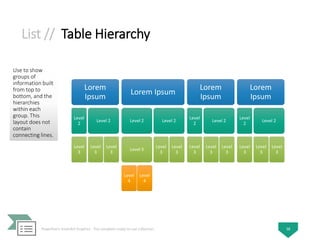
  • 141.
    Misc. // ThemePicture Accent Use to show a group of pictures with the first picture being centered and the largest. Can contain up to six Level 1 pictures. Unused pictures do not appear, but remain available if you switch layouts. Works best with small amounts of text. PowerPoint SmartArt Graphics - The complete ready-to-use collection 141 Lorem Ipsum Lorem Ipsum Lorem Ipsum Lorem Ipsum Lorem Ipsum Lorem Ipsum
  • 142.
    Misc. // ThemePicture Alternating Accent Use to show a group of pictures with the first picture being the largest and on top. Additional Level 1 pictures alternate between squares and rectangles with a limit of nine Level 1 pictures. Works best with small amounts of text. Unused text does not appear, but remains available if you switch layouts. PowerPoint SmartArt Graphics - The complete ready-to-use collection 142 Lorem Ipsum Lorem Ipsum Lorem Ipsum Lorem Ipsum Lorem Ipsum
  • 143.
    Misc. // ThemePicture Grid Use to show a group of pictures with the first picture being the largest. Can contain up to five Level 1 pictures. Unused pictures do not appear, but remain available if you switch layouts. Works best with small amounts of corresponding text. PowerPoint SmartArt Graphics - The complete ready-to-use collection 143 Lorem Ipsum Lorem Ipsum Lorem Ipsum Lorem Ipsum Lorem Ipsum
  • 144.
    Misc. // PictureFrame Use to show pictures and the corresponding Level 1 text, both displayed in an offset frame. Works best with Level 1 text only. PowerPoint SmartArt Graphics - The complete ready-to-use collection 144 Lorem Ipsum Lorem Ipsum Lorem Ipsum Lorem Ipsum Lorem Ipsum
  • 145.
    Thank You! Hope youlike these templates :)
  • 146.
    Free creative PowerPoint andImpress templates, charts, diagrams and maps for your outstanding presentations showeet@ymail.com http://feeds.feedburner.com/showeet http://pinterest.com/showeet @showeet https://www.facebook.com/pages/ Neetwork/240707325947259 http://www.showeet.com http://www.showeet.com/terms-of-use/ http://www.showeet.com/fr/conditions-utilisation/ http://www.showeet.com/es/condiciones-de-uso/ © Copyright Showeet.com

Editor's Notes

  • #2 © Copyright Showeet.com
  • #3 © Copyright Showeet.com
  • #4 © Copyright Showeet.com
  • #5 © Copyright Showeet.com
  • #6 © Copyright Showeet.com
  • #7 © Copyright Showeet.com
  • #8 © Copyright Showeet.com
  • #9 © Copyright Showeet.com
  • #10 © Copyright Showeet.com
  • #11 © Copyright Showeet.com
  • #12 © Copyright Showeet.com
  • #13 © Copyright Showeet.com
  • #14 © Copyright Showeet.com
  • #15 © Copyright Showeet.com
  • #16 © Copyright Showeet.com
  • #17 © Copyright Showeet.com
  • #18 © Copyright Showeet.com
  • #19 © Copyright Showeet.com
  • #20 © Copyright Showeet.com
  • #21 © Copyright Showeet.com
  • #22 © Copyright Showeet.com
  • #23 © Copyright Showeet.com
  • #24 © Copyright Showeet.com
  • #25 © Copyright Showeet.com
  • #26 © Copyright Showeet.com
  • #27 © Copyright Showeet.com
  • #28 © Copyright Showeet.com
  • #29 © Copyright Showeet.com
  • #30 © Copyright Showeet.com
  • #31 © Copyright Showeet.com
  • #32 © Copyright Showeet.com
  • #33 © Copyright Showeet.com
  • #34 © Copyright Showeet.com
  • #35 © Copyright Showeet.com
  • #36 © Copyright Showeet.com
  • #37 © Copyright Showeet.com
  • #38 © Copyright Showeet.com
  • #39 © Copyright Showeet.com
  • #40 © Copyright Showeet.com
  • #41 © Copyright Showeet.com
  • #42 © Copyright Showeet.com
  • #43 © Copyright Showeet.com
  • #44 © Copyright Showeet.com
  • #45 © Copyright Showeet.com
  • #46 © Copyright Showeet.com
  • #47 © Copyright Showeet.com
  • #48 © Copyright Showeet.com
  • #49 © Copyright Showeet.com
  • #50 © Copyright Showeet.com
  • #51 © Copyright Showeet.com
  • #52 © Copyright Showeet.com
  • #53 © Copyright Showeet.com
  • #54 © Copyright Showeet.com
  • #55 © Copyright Showeet.com
  • #56 © Copyright Showeet.com
  • #57 © Copyright Showeet.com
  • #58 © Copyright Showeet.com
  • #59 © Copyright Showeet.com
  • #60 © Copyright Showeet.com
  • #61 © Copyright Showeet.com
  • #62 © Copyright Showeet.com
  • #63 © Copyright Showeet.com
  • #64 © Copyright Showeet.com
  • #65 © Copyright Showeet.com
  • #66 © Copyright Showeet.com
  • #67 © Copyright Showeet.com
  • #68 © Copyright Showeet.com
  • #69 © Copyright Showeet.com
  • #70 © Copyright Showeet.com
  • #71 © Copyright Showeet.com
  • #72 © Copyright Showeet.com
  • #73 © Copyright Showeet.com
  • #74 © Copyright Showeet.com
  • #75 © Copyright Showeet.com
  • #76 © Copyright Showeet.com
  • #77 © Copyright Showeet.com
  • #78 © Copyright Showeet.com
  • #79 © Copyright Showeet.com
  • #80 © Copyright Showeet.com
  • #81 © Copyright Showeet.com
  • #82 © Copyright Showeet.com
  • #83 © Copyright Showeet.com
  • #84 © Copyright Showeet.com
  • #85 © Copyright Showeet.com
  • #86 © Copyright Showeet.com
  • #87 © Copyright Showeet.com
  • #88 © Copyright Showeet.com
  • #89 © Copyright Showeet.com
  • #90 © Copyright Showeet.com
  • #91 © Copyright Showeet.com
  • #92 © Copyright Showeet.com
  • #93 © Copyright Showeet.com
  • #94 © Copyright Showeet.com
  • #95 © Copyright Showeet.com
  • #96 © Copyright Showeet.com
  • #97 © Copyright Showeet.com
  • #98 © Copyright Showeet.com
  • #99 © Copyright Showeet.com
  • #100 © Copyright Showeet.com
  • #101 © Copyright Showeet.com
  • #102 © Copyright Showeet.com
  • #103 © Copyright Showeet.com
  • #104 © Copyright Showeet.com
  • #105 © Copyright Showeet.com
  • #106 © Copyright Showeet.com
  • #107 © Copyright Showeet.com
  • #108 © Copyright Showeet.com
  • #109 © Copyright Showeet.com
  • #110 © Copyright Showeet.com
  • #111 © Copyright Showeet.com
  • #112 © Copyright Showeet.com
  • #113 © Copyright Showeet.com
  • #114 © Copyright Showeet.com
  • #115 © Copyright Showeet.com
  • #116 © Copyright Showeet.com
  • #117 © Copyright Showeet.com
  • #118 © Copyright Showeet.com
  • #119 © Copyright Showeet.com
  • #120 © Copyright Showeet.com
  • #121 © Copyright Showeet.com
  • #122 © Copyright Showeet.com
  • #123 © Copyright Showeet.com
  • #124 © Copyright Showeet.com
  • #125 © Copyright Showeet.com
  • #126 © Copyright Showeet.com
  • #127 © Copyright Showeet.com
  • #128 © Copyright Showeet.com
  • #129 © Copyright Showeet.com
  • #130 © Copyright Showeet.com
  • #131 © Copyright Showeet.com
  • #132 © Copyright Showeet.com
  • #133 © Copyright Showeet.com
  • #134 © Copyright Showeet.com
  • #135 © Copyright Showeet.com
  • #136 © Copyright Showeet.com
  • #137 © Copyright Showeet.com
  • #138 © Copyright Showeet.com
  • #139 © Copyright Showeet.com
  • #140 © Copyright Showeet.com
  • #141 © Copyright Showeet.com
  • #142 © Copyright Showeet.com
  • #143 © Copyright Showeet.com
  • #144 © Copyright Showeet.com
  • #145 © Copyright Showeet.com
  • #146 © Copyright Showeet.com
  • #147 © Copyright Showeet.com