09:
*** Use all slides for a 10-minute countdown - Remove this Text Box
59
58
57
56
55
54
53
52
51
50
49
48
47
46
45
44
43
42
41
40
39
38
37
36
35
34
33
32
31
30
29
28
27
26
25
24
23
22
21
20
19
18
17
16
15
14
13
12
11
10
09
08
07
06
05
04
03
02
01
00
Take a Break!
Be back in
Minutes
08:
*** Delete slide (1) for an 9 - minute countdown - Remove this Text Box
59
58
57
56
55
54
53
52
51
50
49
48
47
46
45
44
43
42
41
40
39
38
37
36
35
34
33
32
31
30
29
28
27
26
25
24
23
22
21
20
19
18
17
16
15
14
13
12
11
10
09
08
07
06
05
04
03
02
01
00
Take a Break!
Be back in
Minutes
07:
*** Delete slide (1 & 2 ) for a 8 - minute countdown - Remove this Text Box
59
58
57
56
55
54
53
52
51
50
49
48
47
46
45
44
43
42
41
40
39
38
37
36
35
34
33
32
31
30
29
28
27
26
25
24
23
22
21
20
19
18
17
16
15
14
13
12
11
10
09
08
07
06
05
04
03
02
01
00
Take a Break!
Be back in
Minutes
06:
*** Delete slides ( 1 – 3 ) for a 7 - minute countdown - Remove this Text Box
59
58
57
56
55
54
53
52
51
50
49
48
47
46
45
44
43
42
41
40
39
38
37
36
35
34
33
32
31
30
29
28
27
26
25
24
23
22
21
20
19
18
17
16
15
14
13
12
11
10
09
08
07
06
05
04
03
02
01
00
Take a Break!
Be back in
Minutes
05:
*** Delete slides ( 1 - 4) for a 6 - minute countdown - Remove this Text Box
59
58
57
56
55
54
53
52
51
50
49
48
47
46
45
44
43
42
41
40
39
38
37
36
35
34
33
32
31
30
29
28
27
26
25
24
23
22
21
20
19
18
17
16
15
14
13
12
11
10
09
08
07
06
05
04
03
02
01
00
Take a Break!
Be back in
Minutes
04:
*** Delete slides ( 1- 5 ) for a 5 - minute countdown - Remove this Text Box
59
58
57
56
55
54
53
52
51
50
49
48
47
46
45
44
43
42
41
40
39
38
37
36
35
34
33
32
31
30
29
28
27
26
25
24
23
22
21
20
19
18
17
16
15
14
13
12
11
10
09
08
07
06
05
04
03
02
01
00
Take a Break!
Be back in
Minutes
03:
*** Delete slides ( 1 - 6 ) for a 4 - minute countdown - Remove this Text Box
59
58
57
56
55
54
53
52
51
50
49
48
47
46
45
44
43
42
41
40
39
38
37
36
35
34
33
32
31
30
29
28
27
26
25
24
23
22
21
20
19
18
17
16
15
14
13
12
11
10
09
08
07
06
05
04
03
02
01
00
Take a Break!
Be back in
Minutes
02:
*** Delete slides ( 1 - 7 ) for a 3 - minute countdown - Remove this Text Box
59
58
57
56
55
54
53
52
51
50
49
48
47
46
45
44
43
42
41
40
39
38
37
36
35
34
33
32
31
30
29
28
27
26
25
24
23
22
21
20
19
18
17
16
15
14
13
12
11
10
09
08
07
06
05
04
03
02
01
00
Take a Break!
Be back in
Minutes
01:
*** Delete slides ( 1 - 8 ) for a 2 - minute countdown - Remove this Text Box
59
58
57
56
55
54
53
52
51
50
49
48
47
46
45
44
43
42
41
40
39
38
37
36
35
34
33
32
31
30
29
28
27
26
25
24
23
22
21
20
19
18
17
16
15
14
13
12
11
10
09
08
07
06
05
04
03
02
01
00
Take a Break!
Be back in
Minutes
00:
*** Delete slides ( 1 - 9 ) for a 1 - minute countdown - Remove this Text Box
59
58
57
56
55
54
53
52
51
50
49
48
47
46
45
44
43
42
41
40
39
38
37
36
35
34
33
32
31
30
29
28
27
26
25
24
23
22
21
20
19
18
17
16
15
14
13
12
11
10
09
08
07
06
05
04
03
02
01
00
Take a Break!
Be back in
Seconds
Welcome Back!
00:00
Please Find Your Seat
*** Optional Ending Slide - Remove this Text Box
Replacing the Logo in this Template
1. Right click on the picture.
2. Choose either Change
Graphic or Change Picture from
the options.
3. Then choose This Device from
the options.
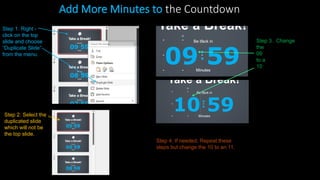
Step 1. Right -
click on the top
slide and choose
“Duplicate Slide”
from the menu.
Step 2. Select the
duplicated slide
which will not be
the top slide.
Step 4. If needed, Repeat these
steps but change the 10 to an 11.
Step 3. Change
the
09
to a
10
Add More Minutes to the Countdown
Choose a Background image for your timer
1. Click on the first thumbnail
to select it.
2. Then, hold down shift on
the keyboard and select
the last thumbnail. This
will select all in between.
3. With all the thumbnails
now selected, right-click
on any selected thumbnail
and hover your mouse
over Layout from the
menu.
4. Last, select a background
from the background
slides available.
The
background
now appears
behind the
countdown.
Step 1. Holding Shift on your keyboard left
mouse click all the thumbnail slides you want
to copy. When they are selected, they will
show up highlighted in yellow.
Step 2. Now right mouse click on any of
the highlighted thumbnail slides and select
copy.
Step 3. Now go to the template you want to
copy the countdown slide to. Right mouse
click between thumbnails where you would
like the slides to be inserted.
Step 4. Click the middle icon in the Paste
Options. This is the keep source formatting
option.
*NOTE* To use the layout from the template you
are copying to, select the first paste option called
“destination Theme *
Copy and Paste Slides into Existing Presentation
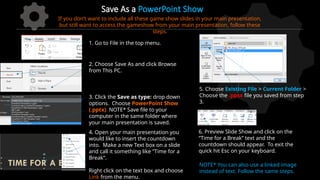
Save As a PowerPoint Show
1. Go to File in the top menu.
2. Choose Save As and click Browse
from This PC.
3. Click the Save as type: drop down
options. Choose PowerPoint Show
(.pptx). NOTE* Save file to your
computer in the same folder where
your main presentation is saved.
If you don’t want to include all these game show slides in your main presentation,
but still want to access the gameshow from your main presentation, follow these
steps.
4. Open your main presentation you
would like to insert the countdown
into. Make a new Text box on a slide
and call it something like “Time for a
Break”.
Right click on the text box and choose
Link from the menu.
5. Choose Existing File > Current Folder >
Choose the .ppsx file you saved from step
3.
6. Preview Slide Show and click on the
“Time for a Break” text and the
countdown should appear. To exit the
quick hit Esc on your keyboard.
NOTE* You can also use a linked image
instead of text. Follow the same steps.
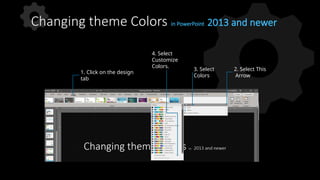
Changing theme Colors in PowerPoint 2013 and newer
1. Click on the design
tab
4. Select
Customize
Colors.
2. Select This
Arrow
3. Select
Colors
All the accents plus the
Text/Background-Dark2 are
what control the colors in this
template.
• Left click on a color drop down to bring
up the colors.
• The top square that is highlighted is the
main color, select it and change its
color.
• Click on More Colors to edit RBG values
and select new colors.
• Create a new name for your theme and
click the save button at the bottom.
Changing theme Colors Continued…
Customize the accent colors
Remove Animation from any slide
1. Go to the slide you would like
to remove the animation from.
2. Hold Ctrl and press a on you
keyboard to select all.
If on a Mac hold Command and
press a.
3. With everything on that slide
selected, go to the animation
menu and select None.
Questions?
More Information?
PresenterMedia.com
support@presentermedia.com
(605) 274-2424

simple_countdown_28762.pptx for simple countdown

  • 1.
    09: *** Use allslides for a 10-minute countdown - Remove this Text Box 59 58 57 56 55 54 53 52 51 50 49 48 47 46 45 44 43 42 41 40 39 38 37 36 35 34 33 32 31 30 29 28 27 26 25 24 23 22 21 20 19 18 17 16 15 14 13 12 11 10 09 08 07 06 05 04 03 02 01 00 Take a Break! Be back in Minutes
  • 2.
    08: *** Delete slide(1) for an 9 - minute countdown - Remove this Text Box 59 58 57 56 55 54 53 52 51 50 49 48 47 46 45 44 43 42 41 40 39 38 37 36 35 34 33 32 31 30 29 28 27 26 25 24 23 22 21 20 19 18 17 16 15 14 13 12 11 10 09 08 07 06 05 04 03 02 01 00 Take a Break! Be back in Minutes
  • 3.
    07: *** Delete slide(1 & 2 ) for a 8 - minute countdown - Remove this Text Box 59 58 57 56 55 54 53 52 51 50 49 48 47 46 45 44 43 42 41 40 39 38 37 36 35 34 33 32 31 30 29 28 27 26 25 24 23 22 21 20 19 18 17 16 15 14 13 12 11 10 09 08 07 06 05 04 03 02 01 00 Take a Break! Be back in Minutes
  • 4.
    06: *** Delete slides( 1 – 3 ) for a 7 - minute countdown - Remove this Text Box 59 58 57 56 55 54 53 52 51 50 49 48 47 46 45 44 43 42 41 40 39 38 37 36 35 34 33 32 31 30 29 28 27 26 25 24 23 22 21 20 19 18 17 16 15 14 13 12 11 10 09 08 07 06 05 04 03 02 01 00 Take a Break! Be back in Minutes
  • 5.
    05: *** Delete slides( 1 - 4) for a 6 - minute countdown - Remove this Text Box 59 58 57 56 55 54 53 52 51 50 49 48 47 46 45 44 43 42 41 40 39 38 37 36 35 34 33 32 31 30 29 28 27 26 25 24 23 22 21 20 19 18 17 16 15 14 13 12 11 10 09 08 07 06 05 04 03 02 01 00 Take a Break! Be back in Minutes
  • 6.
    04: *** Delete slides( 1- 5 ) for a 5 - minute countdown - Remove this Text Box 59 58 57 56 55 54 53 52 51 50 49 48 47 46 45 44 43 42 41 40 39 38 37 36 35 34 33 32 31 30 29 28 27 26 25 24 23 22 21 20 19 18 17 16 15 14 13 12 11 10 09 08 07 06 05 04 03 02 01 00 Take a Break! Be back in Minutes
  • 7.
    03: *** Delete slides( 1 - 6 ) for a 4 - minute countdown - Remove this Text Box 59 58 57 56 55 54 53 52 51 50 49 48 47 46 45 44 43 42 41 40 39 38 37 36 35 34 33 32 31 30 29 28 27 26 25 24 23 22 21 20 19 18 17 16 15 14 13 12 11 10 09 08 07 06 05 04 03 02 01 00 Take a Break! Be back in Minutes
  • 8.
    02: *** Delete slides( 1 - 7 ) for a 3 - minute countdown - Remove this Text Box 59 58 57 56 55 54 53 52 51 50 49 48 47 46 45 44 43 42 41 40 39 38 37 36 35 34 33 32 31 30 29 28 27 26 25 24 23 22 21 20 19 18 17 16 15 14 13 12 11 10 09 08 07 06 05 04 03 02 01 00 Take a Break! Be back in Minutes
  • 9.
    01: *** Delete slides( 1 - 8 ) for a 2 - minute countdown - Remove this Text Box 59 58 57 56 55 54 53 52 51 50 49 48 47 46 45 44 43 42 41 40 39 38 37 36 35 34 33 32 31 30 29 28 27 26 25 24 23 22 21 20 19 18 17 16 15 14 13 12 11 10 09 08 07 06 05 04 03 02 01 00 Take a Break! Be back in Minutes
  • 10.
    00: *** Delete slides( 1 - 9 ) for a 1 - minute countdown - Remove this Text Box 59 58 57 56 55 54 53 52 51 50 49 48 47 46 45 44 43 42 41 40 39 38 37 36 35 34 33 32 31 30 29 28 27 26 25 24 23 22 21 20 19 18 17 16 15 14 13 12 11 10 09 08 07 06 05 04 03 02 01 00 Take a Break! Be back in Seconds
  • 11.
    Welcome Back! 00:00 Please FindYour Seat *** Optional Ending Slide - Remove this Text Box
  • 12.
    Replacing the Logoin this Template 1. Right click on the picture. 2. Choose either Change Graphic or Change Picture from the options. 3. Then choose This Device from the options.
  • 13.
    Step 1. Right- click on the top slide and choose “Duplicate Slide” from the menu. Step 2. Select the duplicated slide which will not be the top slide. Step 4. If needed, Repeat these steps but change the 10 to an 11. Step 3. Change the 09 to a 10 Add More Minutes to the Countdown
  • 14.
    Choose a Backgroundimage for your timer 1. Click on the first thumbnail to select it. 2. Then, hold down shift on the keyboard and select the last thumbnail. This will select all in between. 3. With all the thumbnails now selected, right-click on any selected thumbnail and hover your mouse over Layout from the menu. 4. Last, select a background from the background slides available. The background now appears behind the countdown.
  • 15.
    Step 1. HoldingShift on your keyboard left mouse click all the thumbnail slides you want to copy. When they are selected, they will show up highlighted in yellow. Step 2. Now right mouse click on any of the highlighted thumbnail slides and select copy. Step 3. Now go to the template you want to copy the countdown slide to. Right mouse click between thumbnails where you would like the slides to be inserted. Step 4. Click the middle icon in the Paste Options. This is the keep source formatting option. *NOTE* To use the layout from the template you are copying to, select the first paste option called “destination Theme * Copy and Paste Slides into Existing Presentation
  • 16.
    Save As aPowerPoint Show 1. Go to File in the top menu. 2. Choose Save As and click Browse from This PC. 3. Click the Save as type: drop down options. Choose PowerPoint Show (.pptx). NOTE* Save file to your computer in the same folder where your main presentation is saved. If you don’t want to include all these game show slides in your main presentation, but still want to access the gameshow from your main presentation, follow these steps. 4. Open your main presentation you would like to insert the countdown into. Make a new Text box on a slide and call it something like “Time for a Break”. Right click on the text box and choose Link from the menu. 5. Choose Existing File > Current Folder > Choose the .ppsx file you saved from step 3. 6. Preview Slide Show and click on the “Time for a Break” text and the countdown should appear. To exit the quick hit Esc on your keyboard. NOTE* You can also use a linked image instead of text. Follow the same steps.
  • 17.
    Changing theme Colorsin PowerPoint 2013 and newer 1. Click on the design tab 4. Select Customize Colors. 2. Select This Arrow 3. Select Colors
  • 18.
    All the accentsplus the Text/Background-Dark2 are what control the colors in this template. • Left click on a color drop down to bring up the colors. • The top square that is highlighted is the main color, select it and change its color. • Click on More Colors to edit RBG values and select new colors. • Create a new name for your theme and click the save button at the bottom. Changing theme Colors Continued… Customize the accent colors
  • 19.
    Remove Animation fromany slide 1. Go to the slide you would like to remove the animation from. 2. Hold Ctrl and press a on you keyboard to select all. If on a Mac hold Command and press a. 3. With everything on that slide selected, go to the animation menu and select None.
  • 20.