SIEBEL CASE STUDY ASSIGNMENT
PRESENTATION
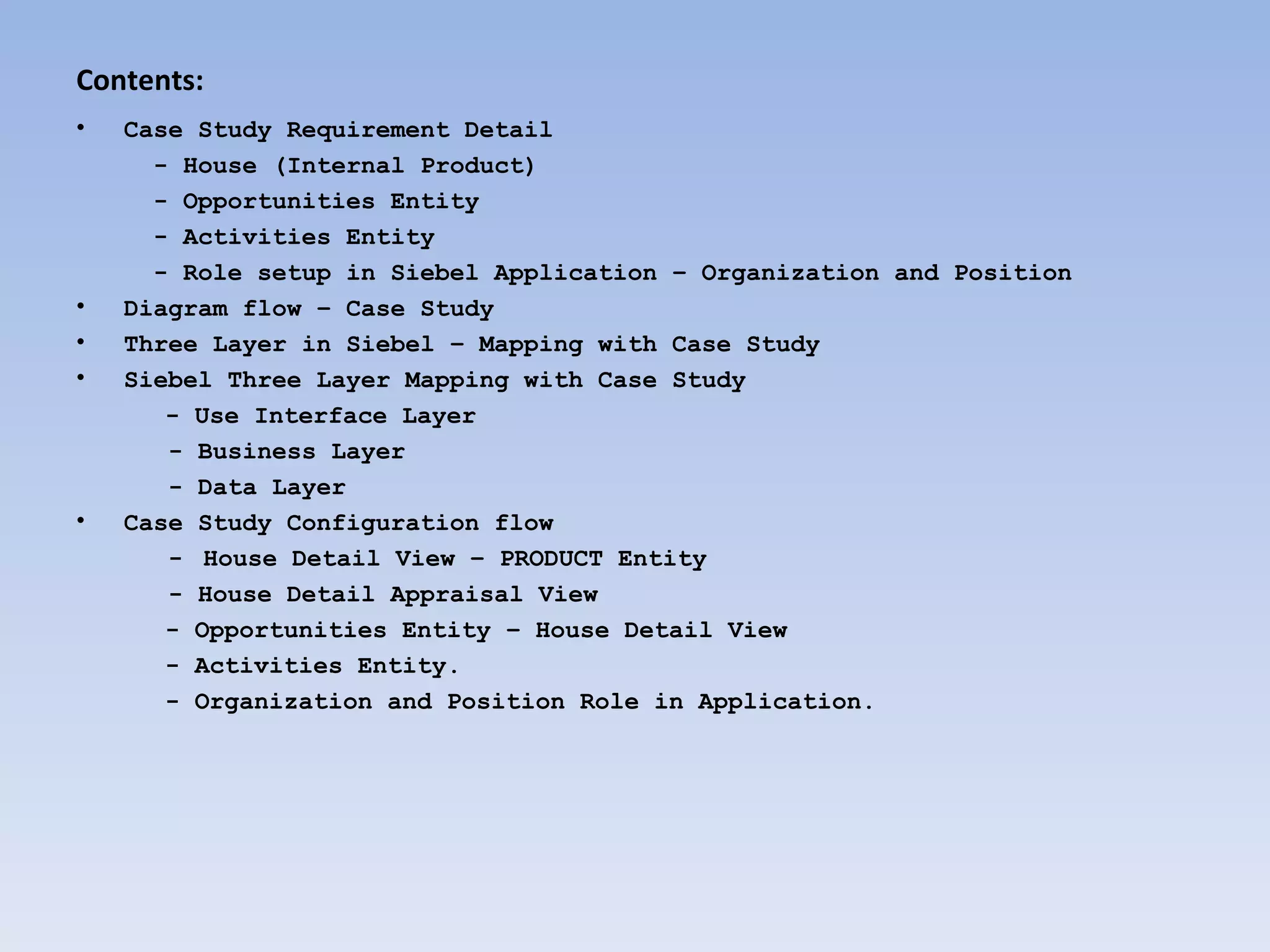
Contents:
•   Case Study Requirement Detail
      - House (Internal Product)
      - Opportunities Entity
      - Activities Entity
      - Role setup in Siebel Application – Organization and Position
•   Diagram flow – Case Study
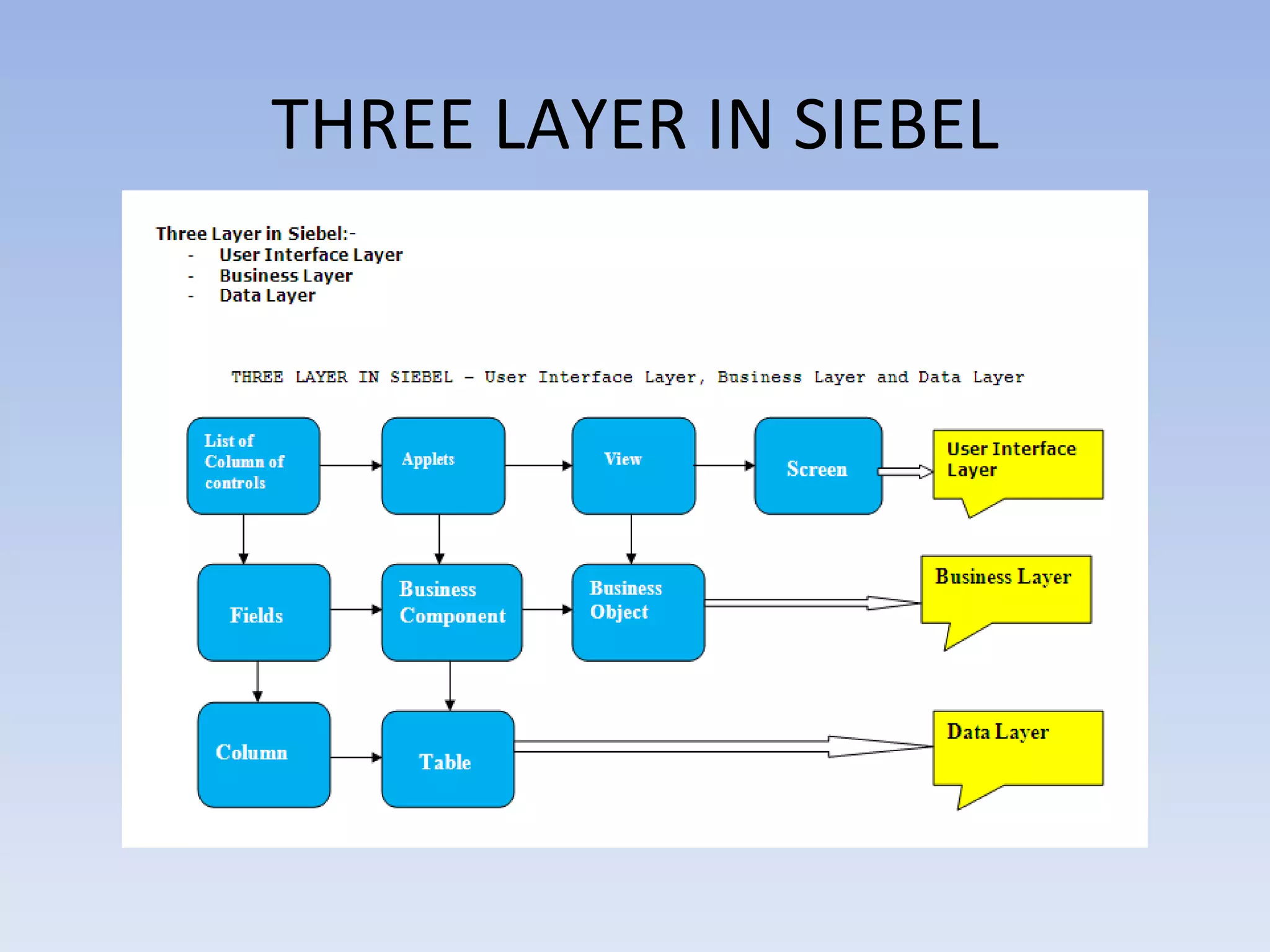
•   Three Layer in Siebel – Mapping with Case Study
•   Siebel Three Layer Mapping with Case Study
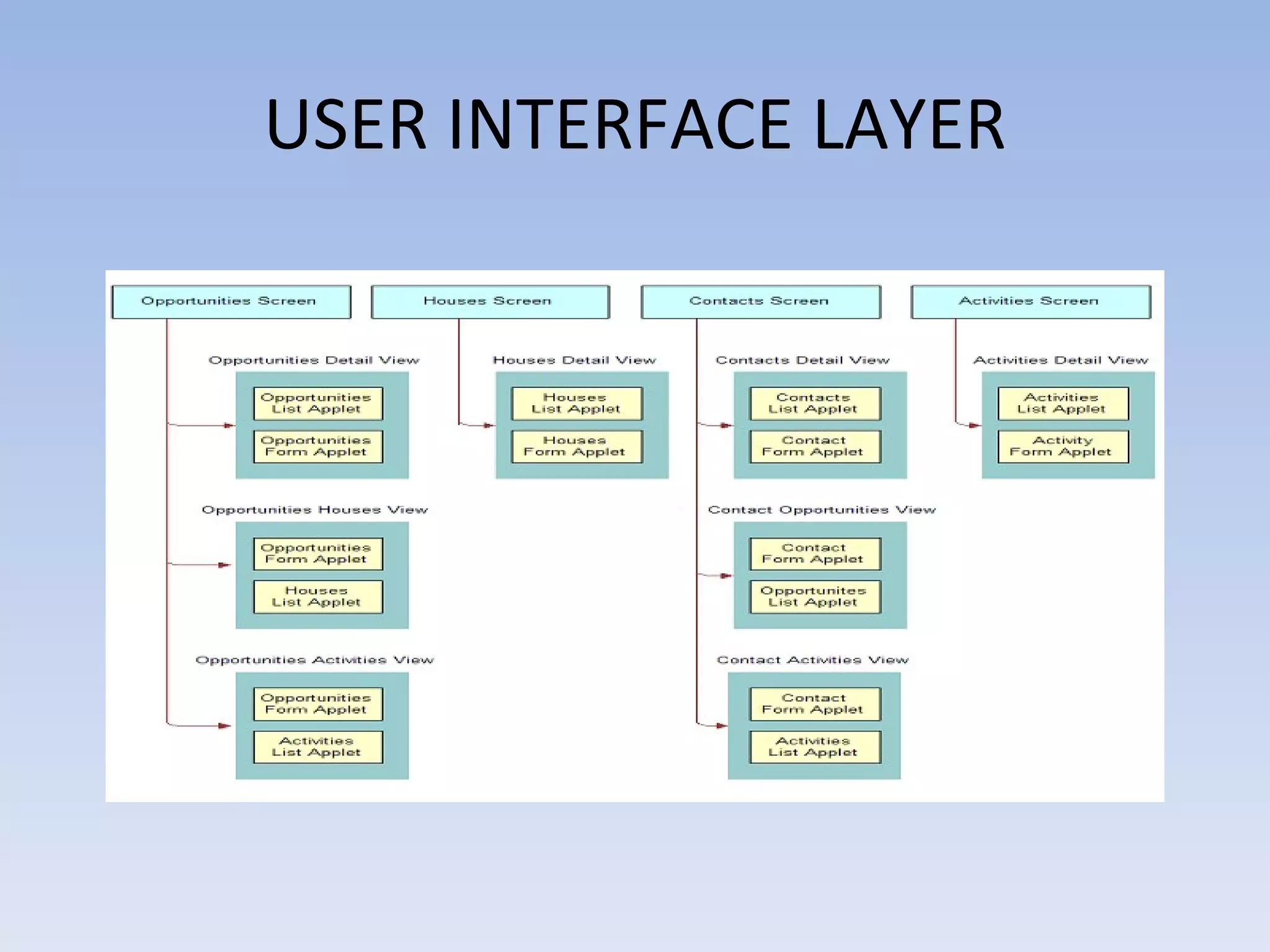
       - Use Interface Layer
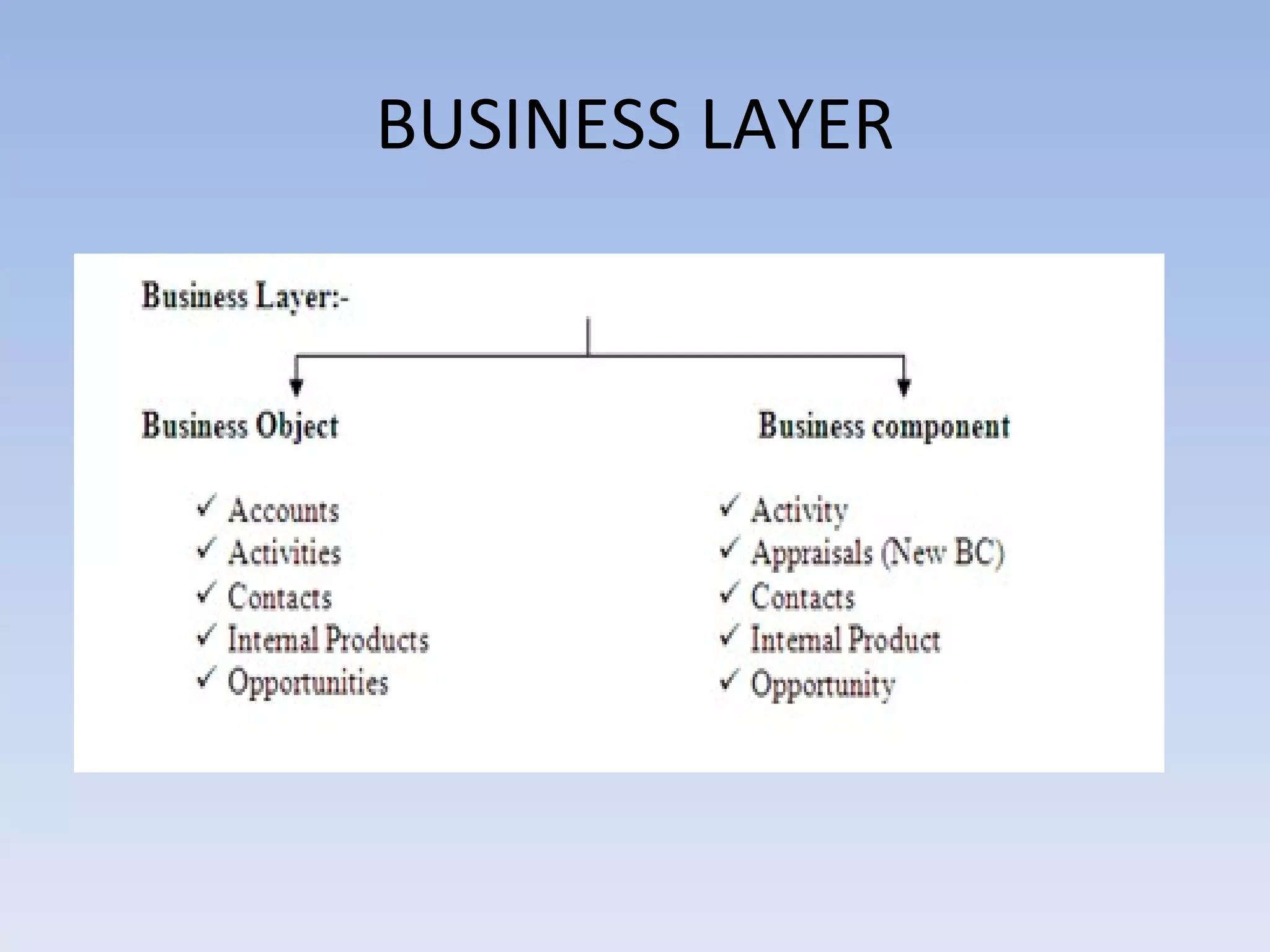
       - Business Layer
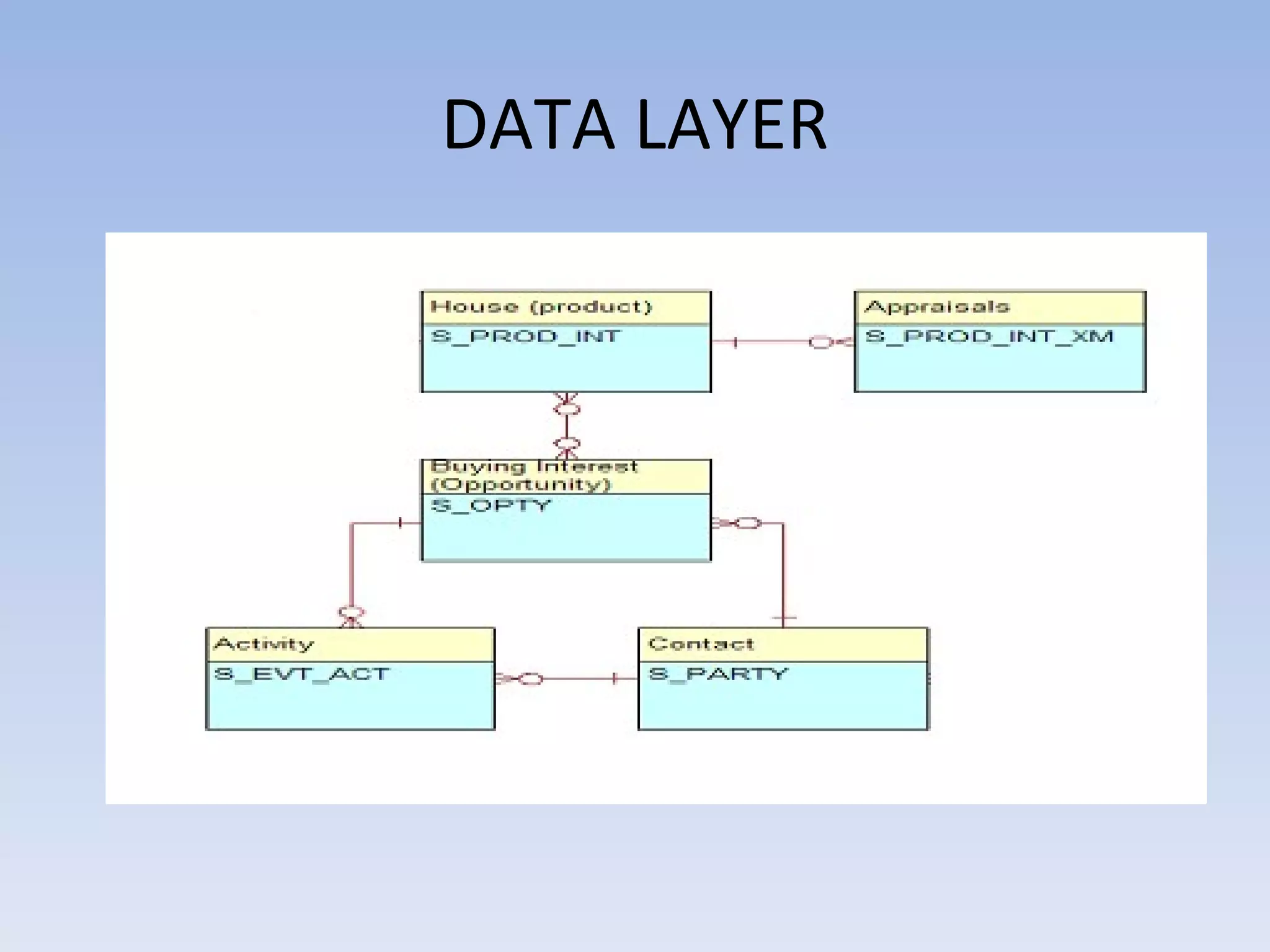
       - Data Layer
•   Case Study Configuration flow
       - House Detail View – PRODUCT Entity
       - House Detail Appraisal View
       - Opportunities Entity – House Detail View
       - Activities Entity.
       - Organization and Position Role in Application.
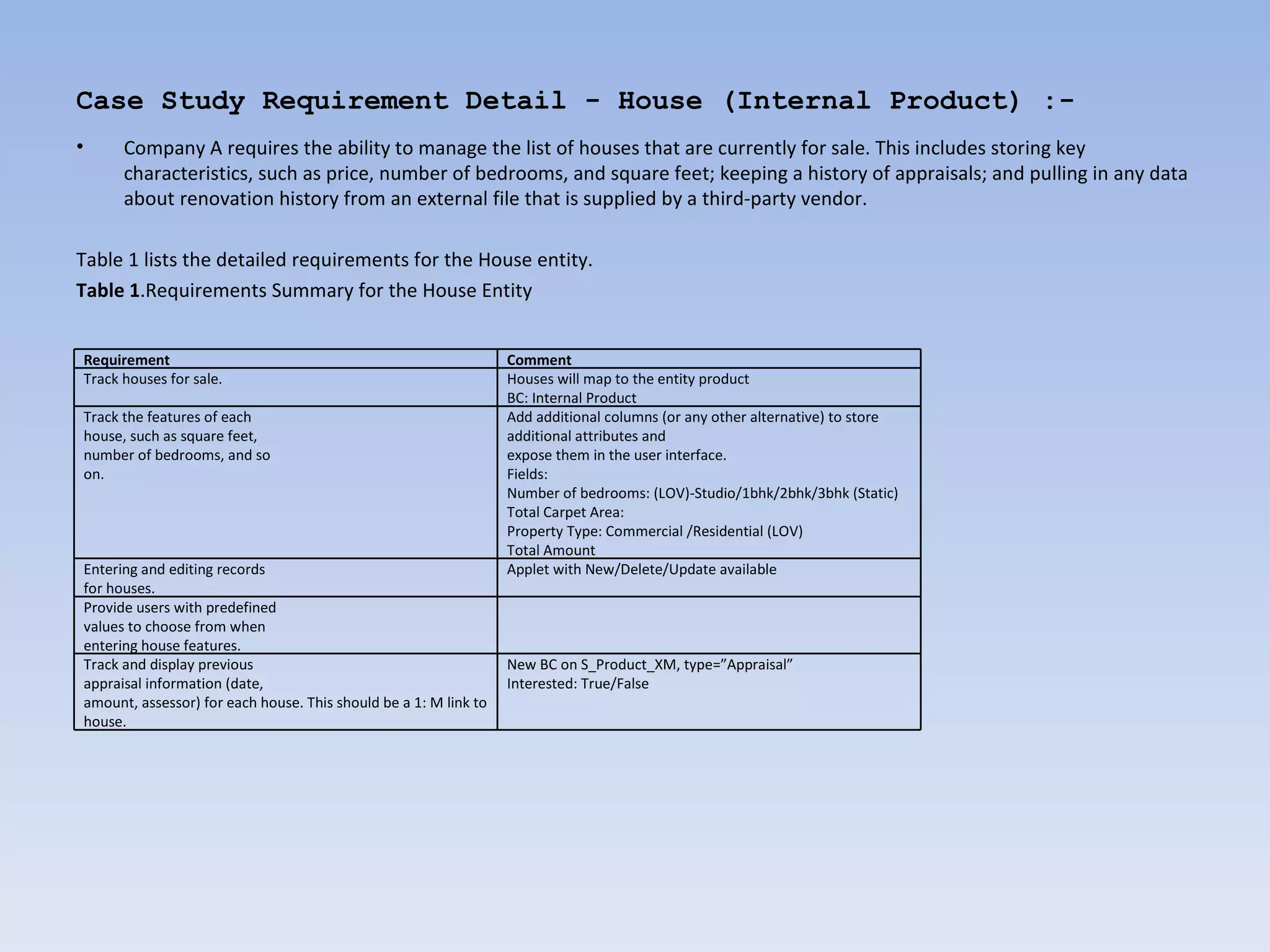
Case Study Requirement Detail - House (Internal Product) :-
•     Company A requires the ability to manage the list of houses that are currently for sale. This includes storing key
      characteristics, such as price, number of bedrooms, and square feet; keeping a history of appraisals; and pulling in any data
      about renovation history from an external file that is supplied by a third-party vendor.

Table 1 lists the detailed requirements for the House entity.
Table 1.Requirements Summary for the House Entity


Requirement                                                       Comment
Track houses for sale.                                            Houses will map to the entity product
                                                                  BC: Internal Product
Track the features of each                                        Add additional columns (or any other alternative) to store
house, such as square feet,                                       additional attributes and
number of bedrooms, and so                                        expose them in the user interface.
on.                                                               Fields:
                                                                  Number of bedrooms: (LOV)-Studio/1bhk/2bhk/3bhk (Static)
                                                                  Total Carpet Area:
                                                                  Property Type: Commercial /Residential (LOV)
                                                                  Total Amount
Entering and editing records                                      Applet with New/Delete/Update available
for houses.
Provide users with predefined
values to choose from when
entering house features.
Track and display previous                                        New BC on S_Product_XM, type=”Appraisal”
appraisal information (date,                                      Interested: True/False
amount, assessor) for each house. This should be a 1: M link to
house.
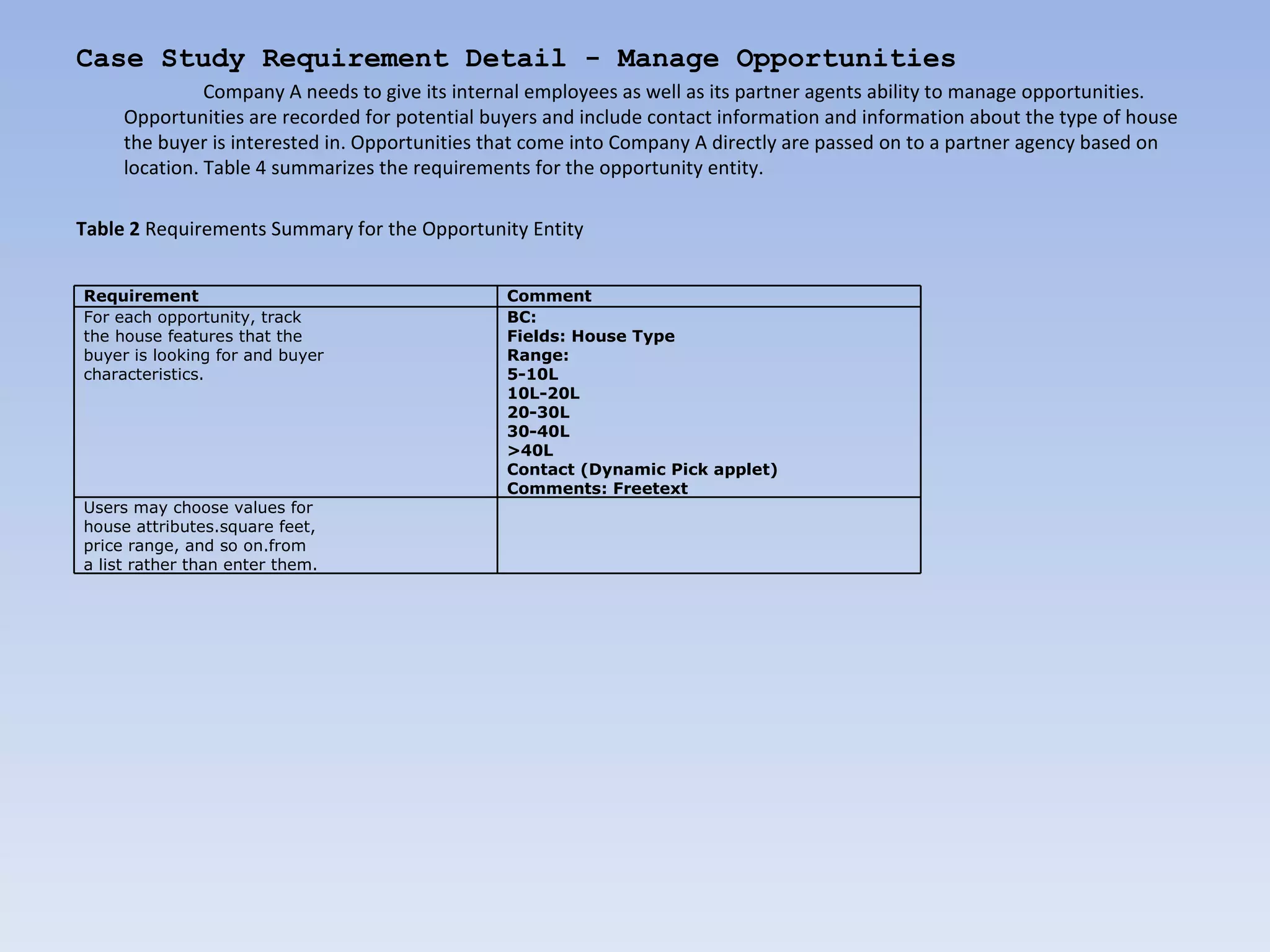
Case Study Requirement Detail - Manage Opportunities
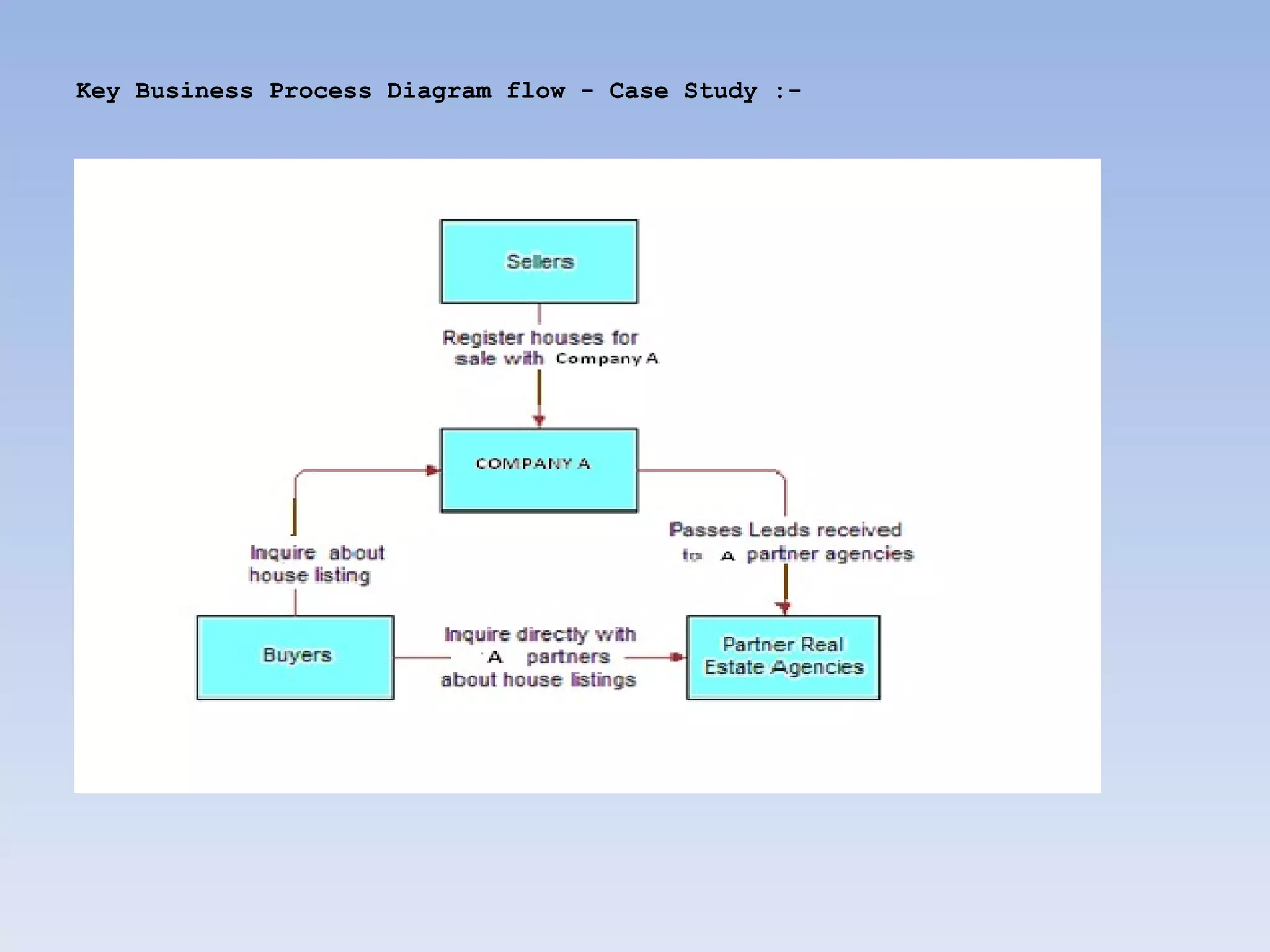
               Company A needs to give its internal employees as well as its partner agents ability to manage opportunities.
     Opportunities are recorded for potential buyers and include contact information and information about the type of house
     the buyer is interested in. Opportunities that come into Company A directly are passed on to a partner agency based on
     location. Table 4 summarizes the requirements for the opportunity entity.

Table 2 Requirements Summary for the Opportunity Entity


Requirement                                     Comment
For each opportunity, track                     BC:
the house features that the                     Fields: House Type
buyer is looking for and buyer                  Range:
characteristics.                                5-10L
                                                10L-20L
                                                20-30L
                                                30-40L
                                                >40L
                                                Contact (Dynamic Pick applet)
                                                Comments: Freetext
Users may choose values for
house attributes.square feet,
price range, and so on.from
a list rather than enter them.
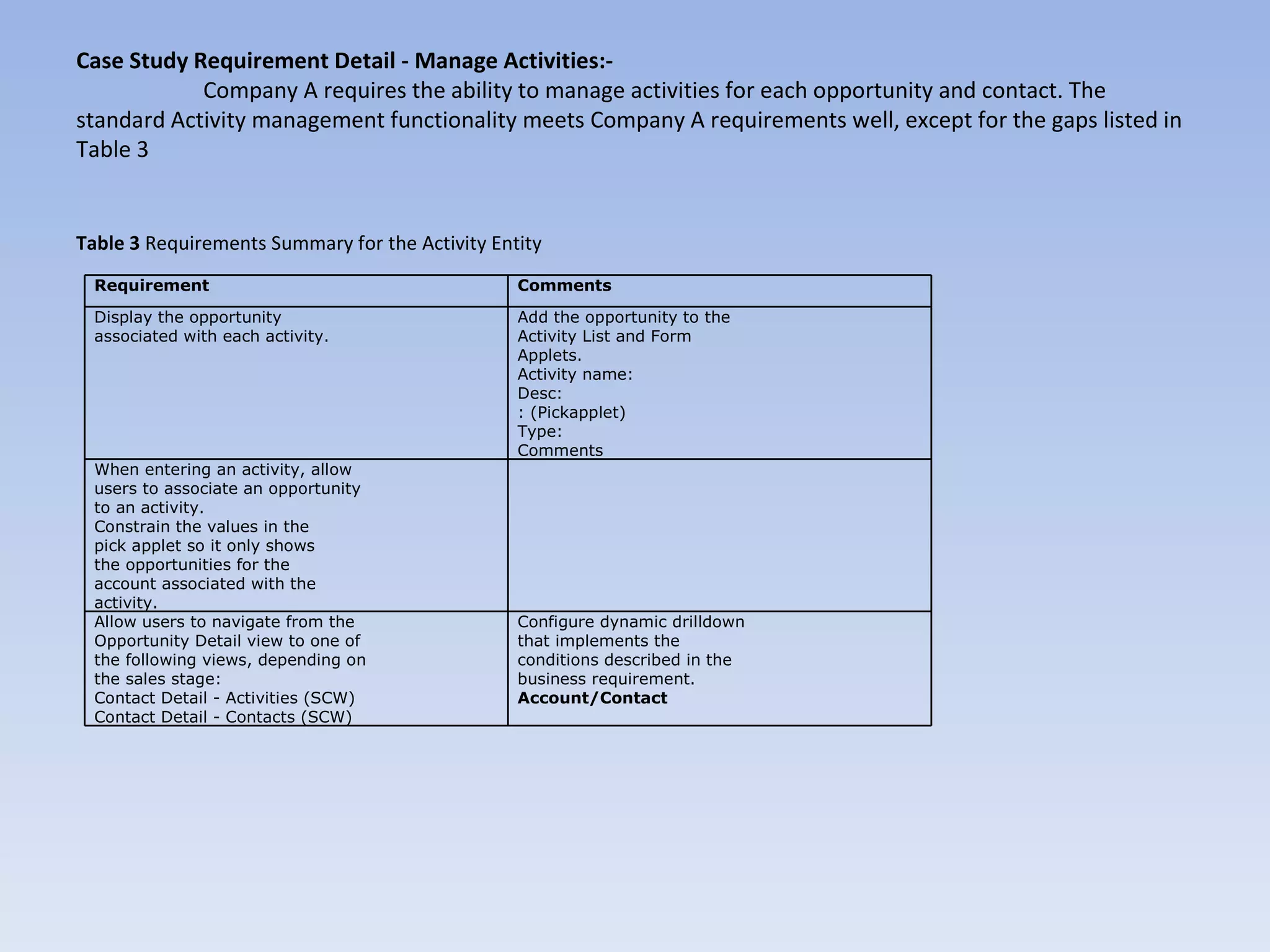
Case Study Requirement Detail - Manage Activities:-
            Company A requires the ability to manage activities for each opportunity and contact. The
standard Activity management functionality meets Company A requirements well, except for the gaps listed in
Table 3


Table 3 Requirements Summary for the Activity Entity
  Requirement                                    Comments

  Display the opportunity                        Add the opportunity to the
  associated with each activity.                 Activity List and Form
                                                 Applets.
                                                 Activity name:
                                                 Desc:
                                                 : (Pickapplet)
                                                 Type:
                                                 Comments
  When entering an activity, allow
  users to associate an opportunity
  to an activity.
  Constrain the values in the
  pick applet so it only shows
  the opportunities for the
  account associated with the
  activity.
  Allow users to navigate from the               Configure dynamic drilldown
  Opportunity Detail view to one of              that implements the
  the following views, depending on              conditions described in the
  the sales stage:                               business requirement.
  Contact Detail - Activities (SCW)              Account/Contact
  Contact Detail - Contacts (SCW)
Case Study Requirement Detail - Additional Requirements:-

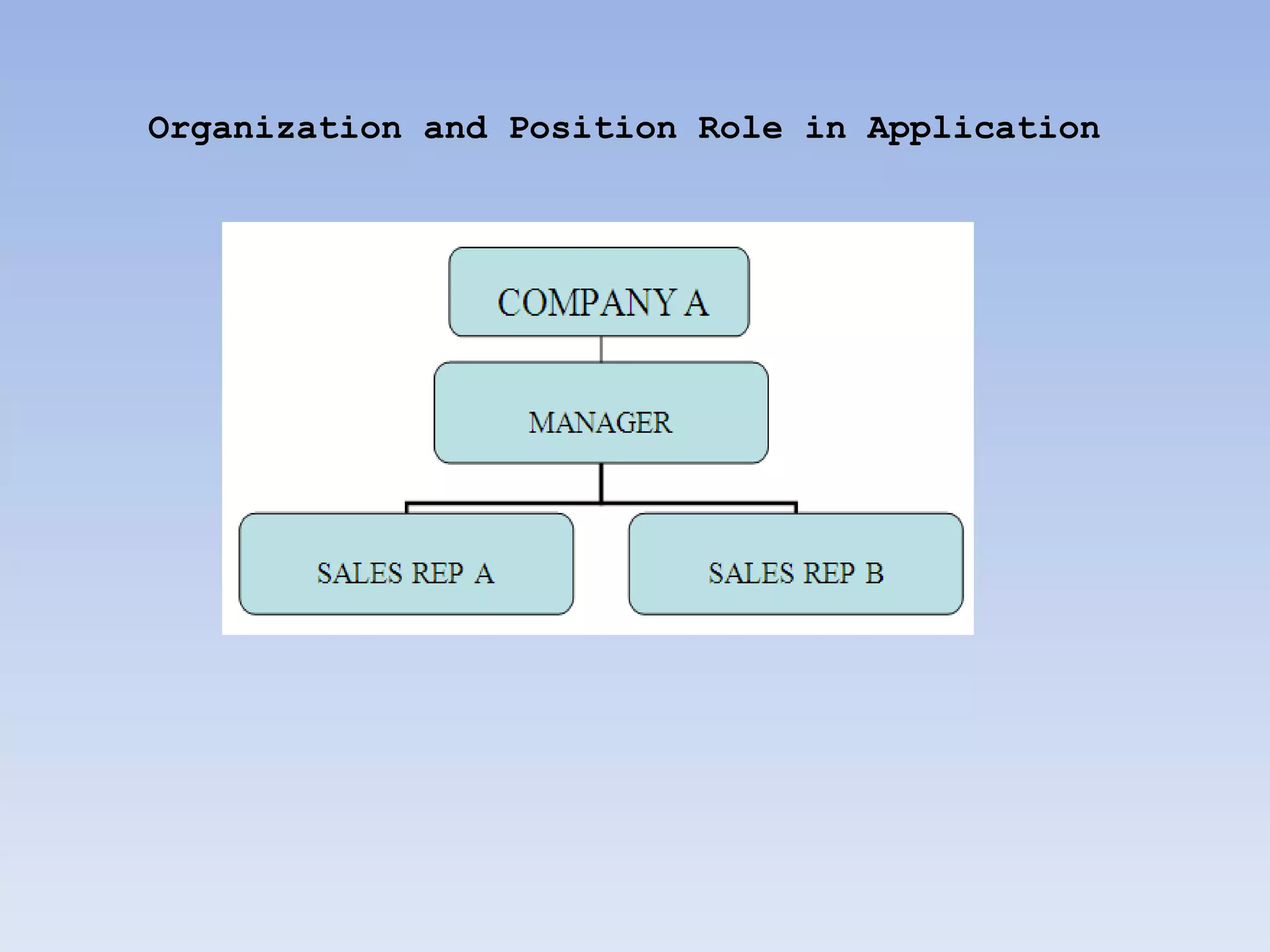
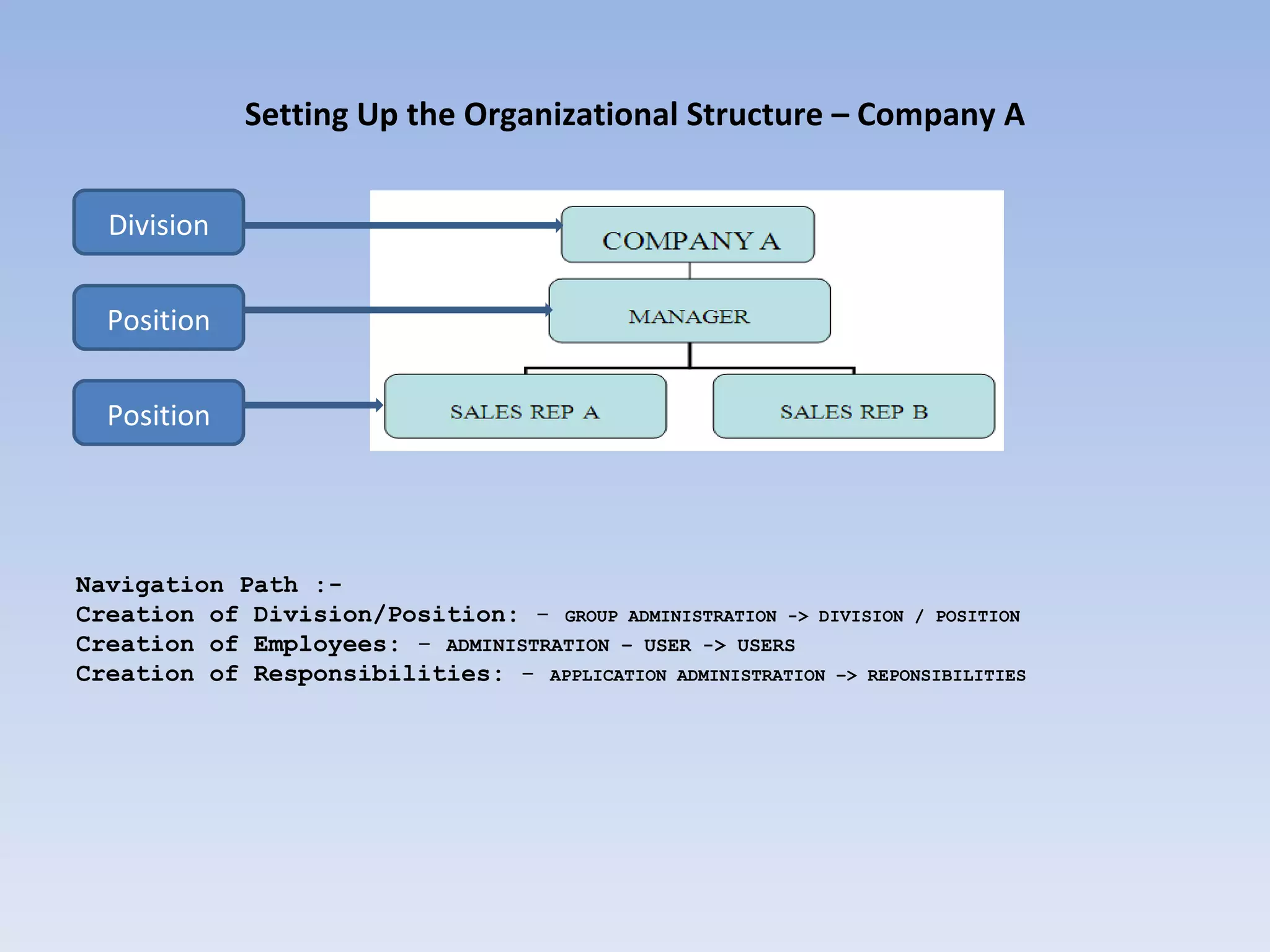
•    Company A has a manager and 2 sales rep. The sales rep work on commissions. Hence, Sales Rep A should not be able to
     see what Sales Rep B has in his opportunities. However, their manager should be able to see all the opportunities that they
     are working on.
•    The views seen by the manager in the application would be different from the one’s seen by the sales rep.
•    For attributes like No of Bedroom, ensure that we have a drop down with values Studio, 1 Bedroom, 2 Bedroom, 3
     Bedroom
•    When a customer shows interest in a house and you select a house as his choice, all the pre-defined features should
     automatically be displayed along with it.
Key Business Process Diagram flow - Case Study :-
THREE LAYER IN SIEBEL
USER INTERFACE LAYER
BUSINESS LAYER
DATA LAYER
Organization and Position Role in Application
Case Study Configuration flow

•   House Detail View – PRODUCT Entity Configuration
•   House Detail APPRAISAL VIEW Configuration
•   OPPORTUNITIES Entity – House Detail View
    Configuration
•   ACTIVITIES Entity Configuration
•   Organization and Position Role in Application
    Configuration
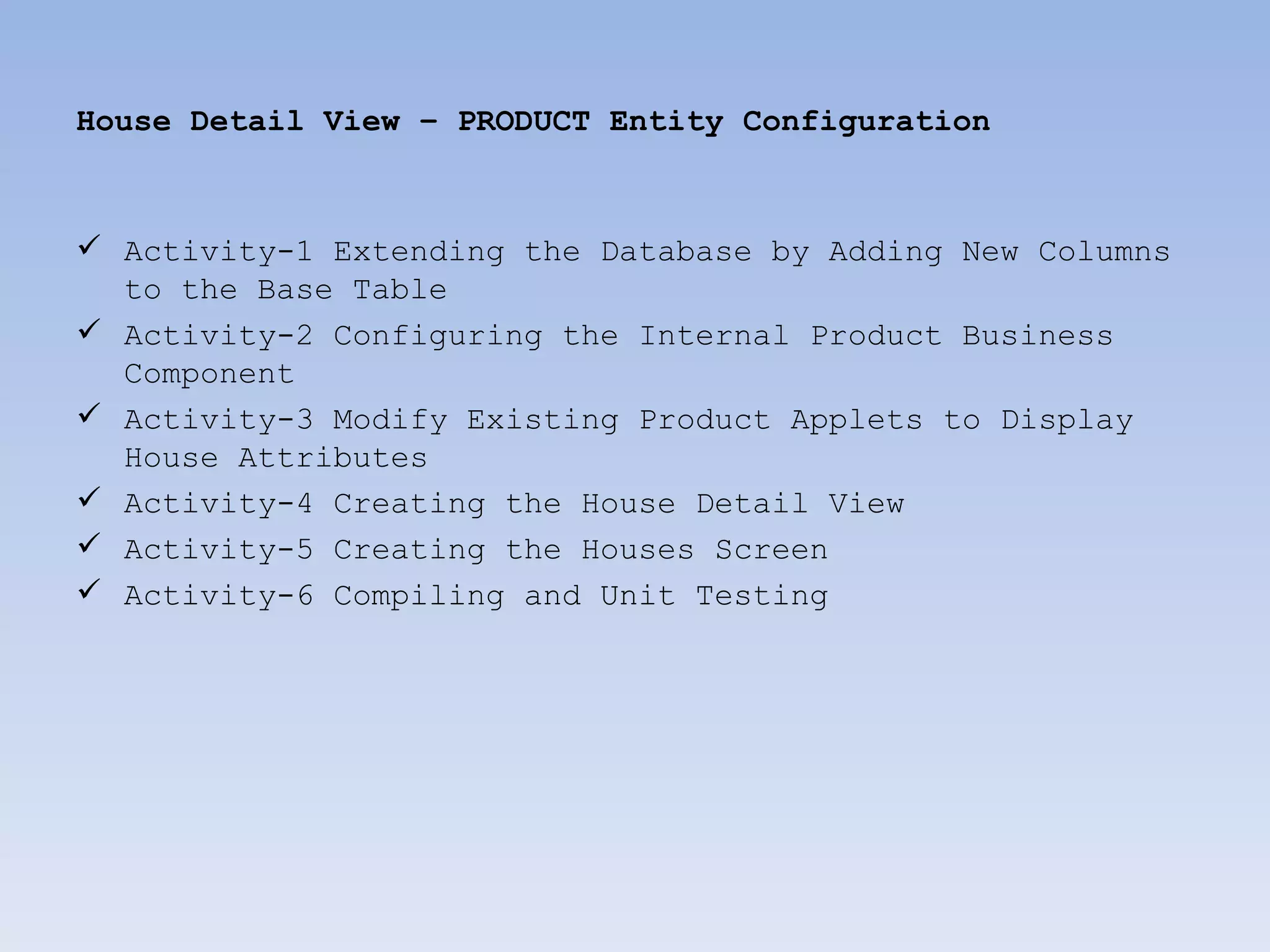
House Detail View – PRODUCT Entity Configuration


 Activity-1 Extending the Database by Adding New Columns
  to the Base Table
 Activity-2 Configuring the Internal Product Business
  Component
 Activity-3 Modify Existing Product Applets to Display
  House Attributes
 Activity-4 Creating the House Detail View
 Activity-5 Creating the Houses Screen
 Activity-6 Compiling and Unit Testing
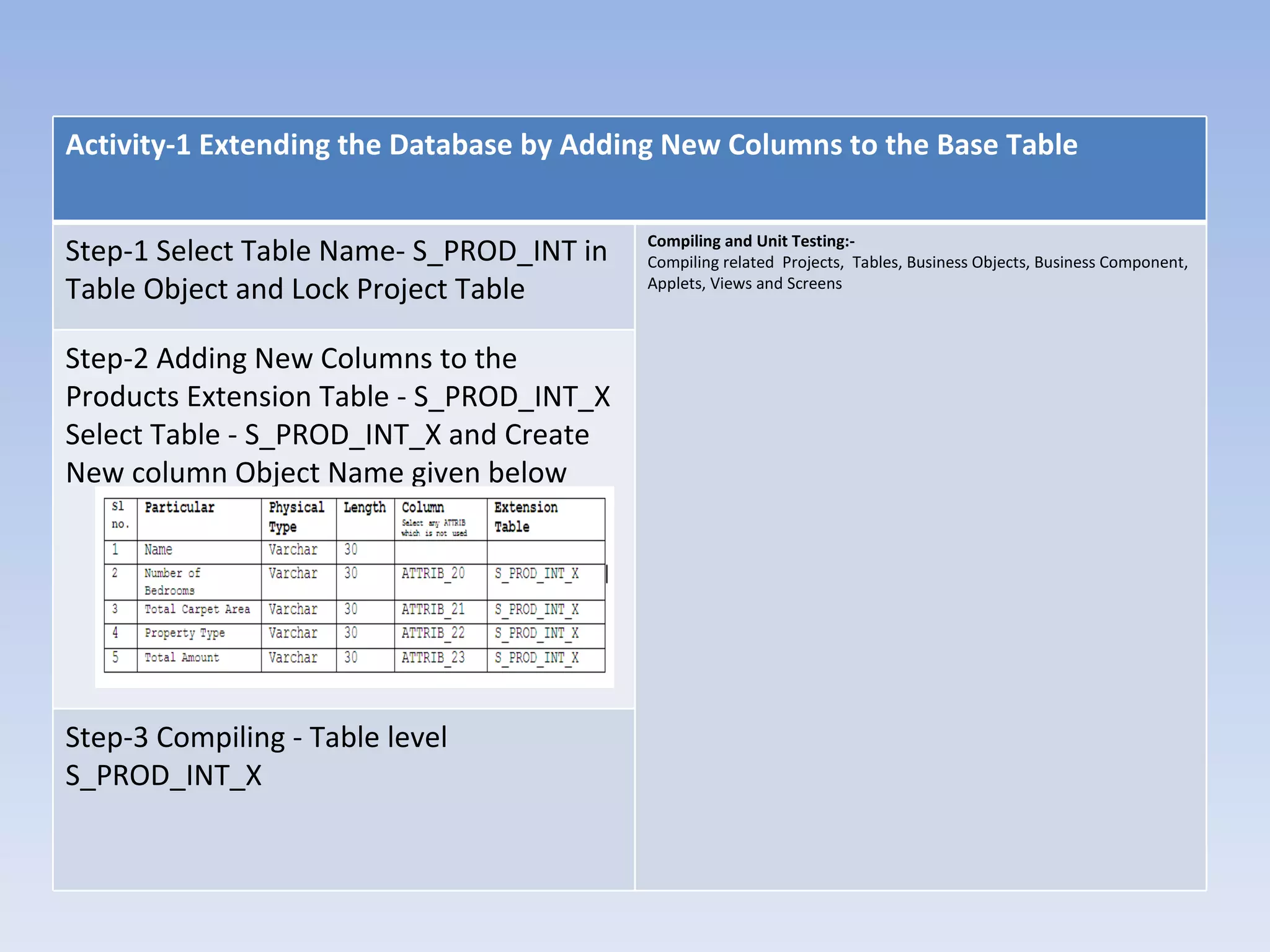
Activity-1 Extending the Database by Adding New Columns to the Base Table

                                          Compiling and Unit Testing:-
Step-1 Select Table Name- S_PROD_INT in   Compiling related Projects, Tables, Business Objects, Business Component,
Table Object and Lock Project Table       Applets, Views and Screens


Step-2 Adding New Columns to the
Products Extension Table - S_PROD_INT_X
Select Table - S_PROD_INT_X and Create
New column Object Name given below


Step-3 Compiling - Table level
S_PROD_INT_X
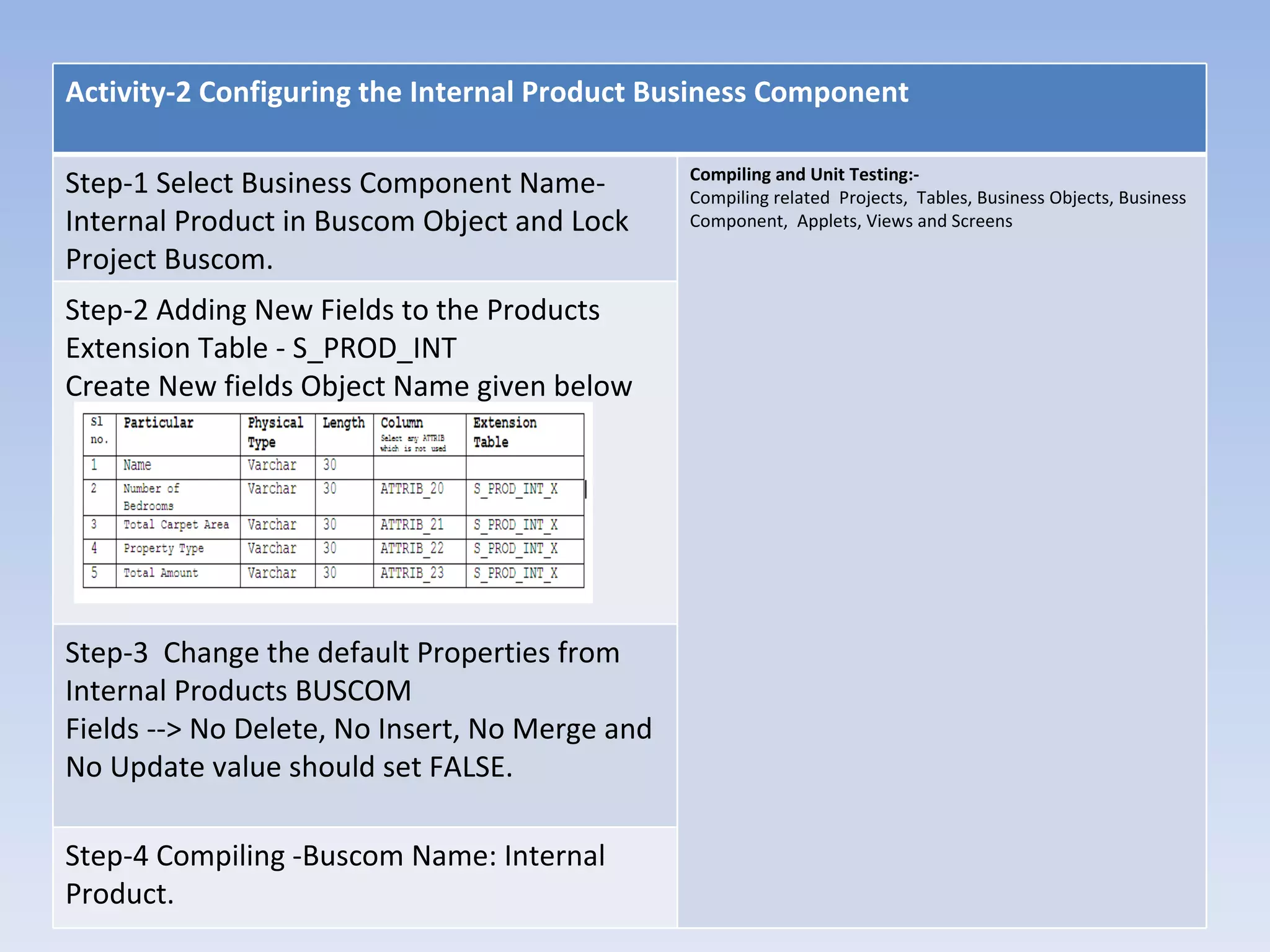
Activity-2 Configuring the Internal Product Business Component

                                                Compiling and Unit Testing:-
Step-1 Select Business Component Name-          Compiling related Projects, Tables, Business Objects, Business
Internal Product in Buscom Object and Lock      Component, Applets, Views and Screens

Project Buscom.
Step-2 Adding New Fields to the Products
Extension Table - S_PROD_INT
Create New fields Object Name given below


Step-3 Change the default Properties from
Internal Products BUSCOM
Fields --> No Delete, No Insert, No Merge and
No Update value should set FALSE.

Step-4 Compiling -Buscom Name: Internal
Product.
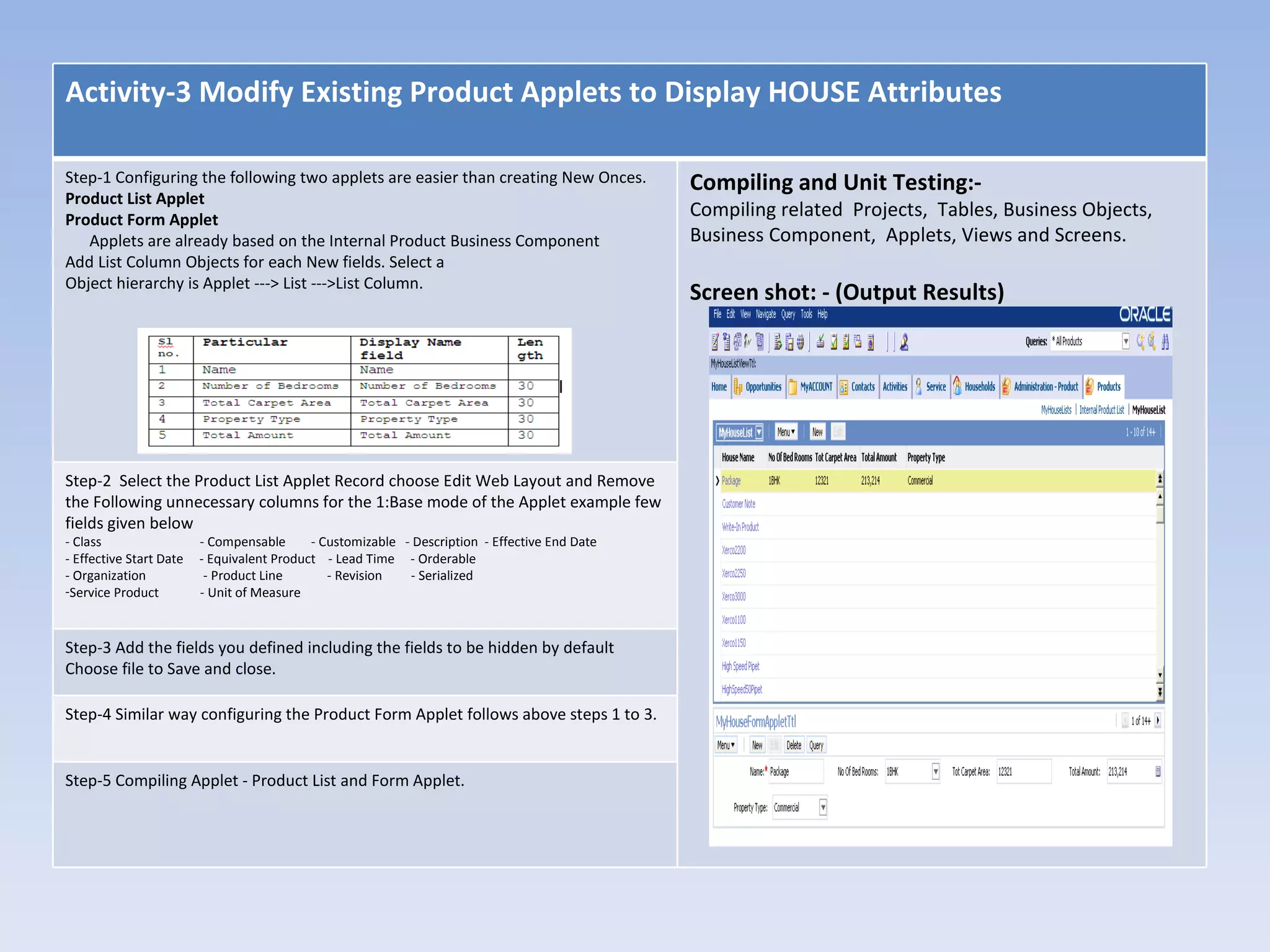
Activity-3 Modify Existing Product Applets to Display HOUSE Attributes

Step-1 Configuring the following two applets are easier than creating New Onces.                Compiling and Unit Testing:-
Product List Applet
Product Form Applet
                                                                                                Compiling related Projects, Tables, Business Objects,
   Applets are already based on the Internal Product Business Component                         Business Component, Applets, Views and Screens.
Add List Column Objects for each New fields. Select a
Object hierarchy is Applet ---> List --->List Column.
                                                                                                Screen shot: - (Output Results)


Step-2 Select the Product List Applet Record choose Edit Web Layout and Remove
the Following unnecessary columns for the 1:Base mode of the Applet example few
fields given below
- Class                  - Compensable      - Customizable - Description - Effective End Date
- Effective Start Date   - Equivalent Product - Lead Time - Orderable
- Organization            - Product Line       - Revision   - Serialized
-Service Product         - Unit of Measure


Step-3 Add the fields you defined including the fields to be hidden by default
Choose file to Save and close.

Step-4 Similar way configuring the Product Form Applet follows above steps 1 to 3.


Step-5 Compiling Applet - Product List and Form Applet.
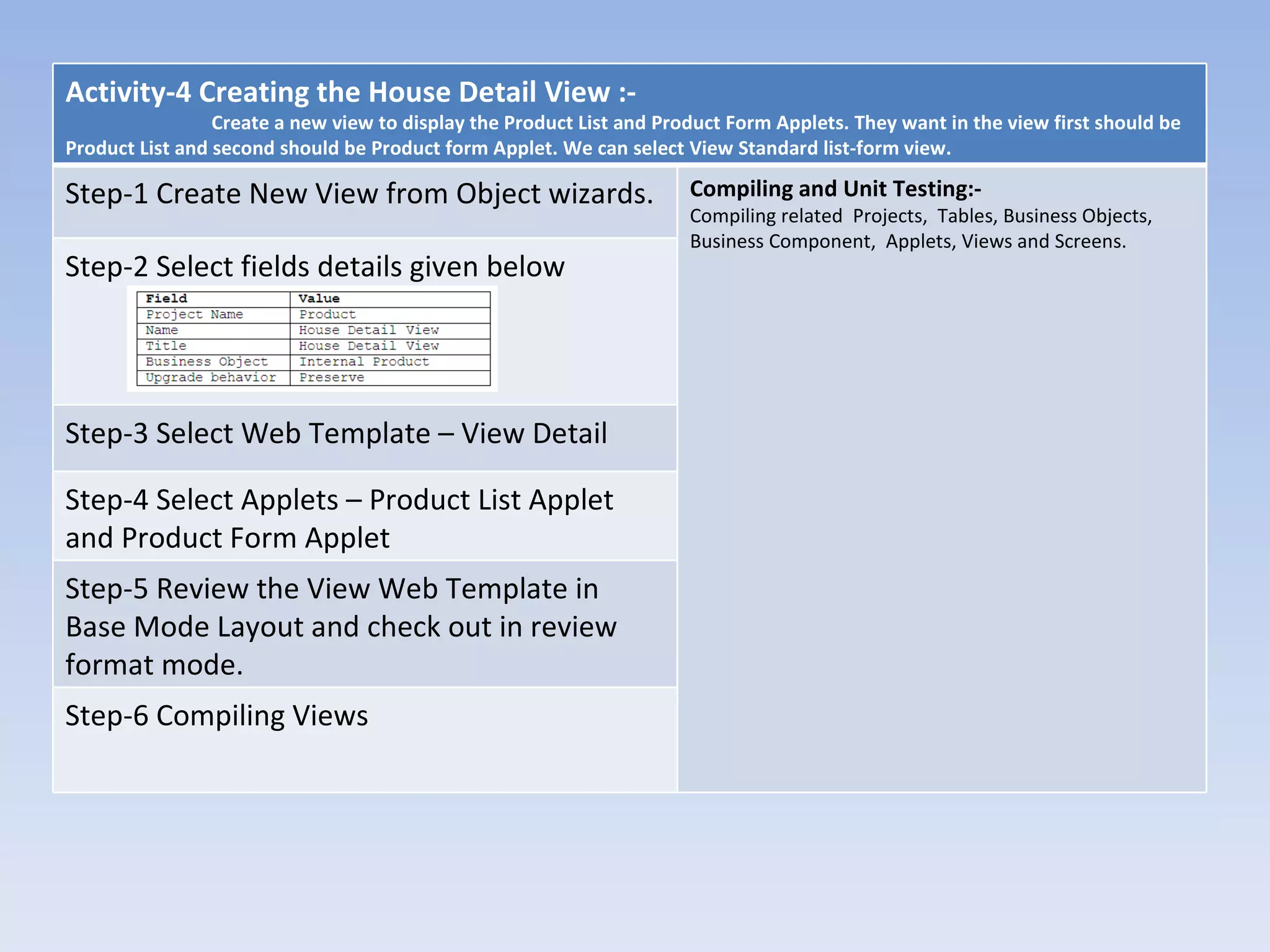
Activity-4 Creating the House Detail View :-
                 Create a new view to display the Product List and Product Form Applets. They want in the view first should be
Product List and second should be Product form Applet. We can select View Standard list-form view.

Step-1 Create New View from Object wizards.                           Compiling and Unit Testing:-
                                                                      Compiling related Projects, Tables, Business Objects,
                                                                      Business Component, Applets, Views and Screens.
Step-2 Select fields details given below


Step-3 Select Web Template – View Detail

Step-4 Select Applets – Product List Applet
and Product Form Applet
Step-5 Review the View Web Template in
Base Mode Layout and check out in review
format mode.
Step-6 Compiling Views
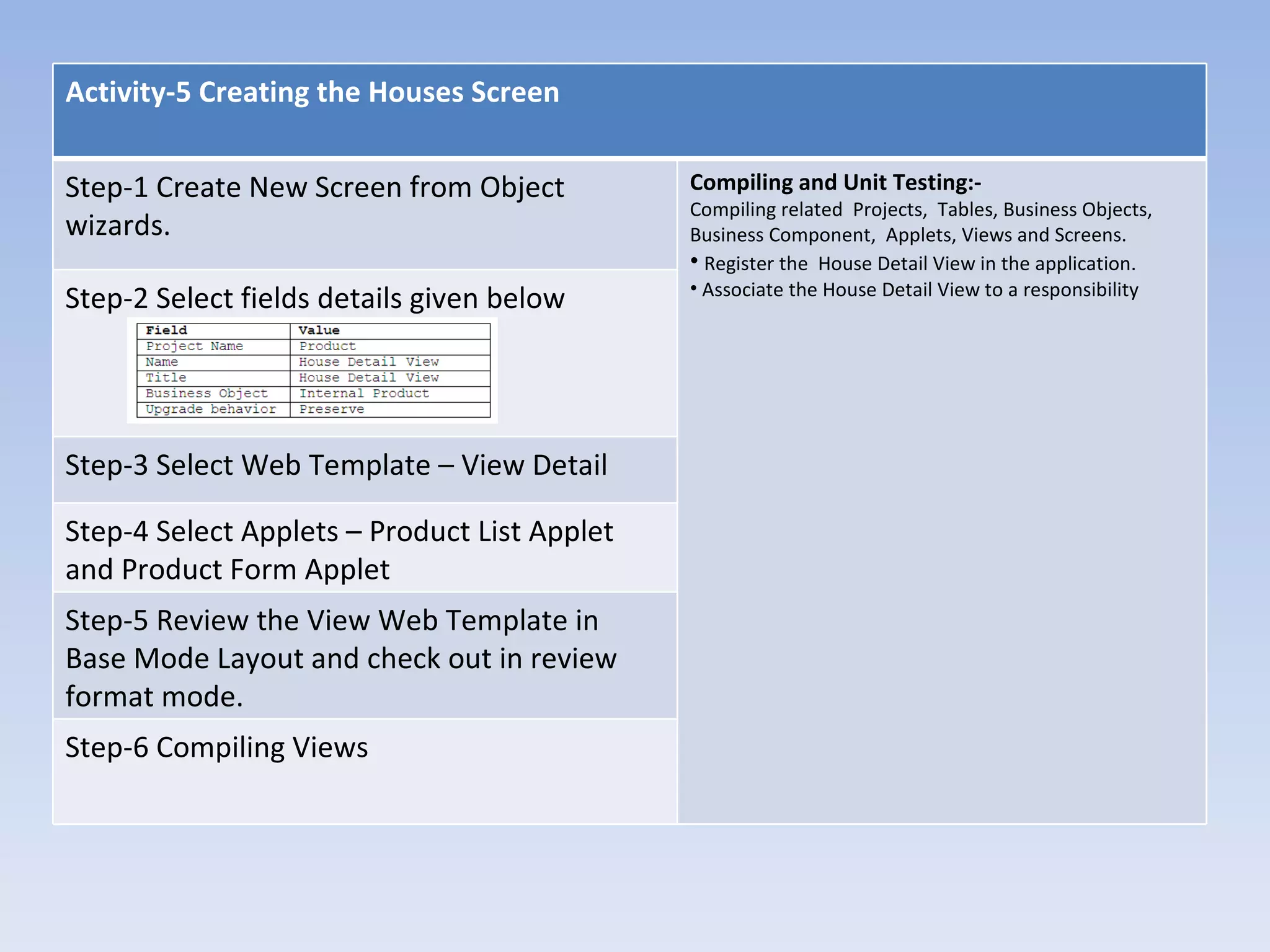
Activity-5 Creating the Houses Screen


Step-1 Create New Screen from Object          Compiling and Unit Testing:-
                                              Compiling related Projects, Tables, Business Objects,
wizards.                                      Business Component, Applets, Views and Screens.
                                              • Register the House Detail View in the application.
                                              • Associate the House Detail View to a responsibility
Step-2 Select fields details given below


Step-3 Select Web Template – View Detail

Step-4 Select Applets – Product List Applet
and Product Form Applet
Step-5 Review the View Web Template in
Base Mode Layout and check out in review
format mode.
Step-6 Compiling Views
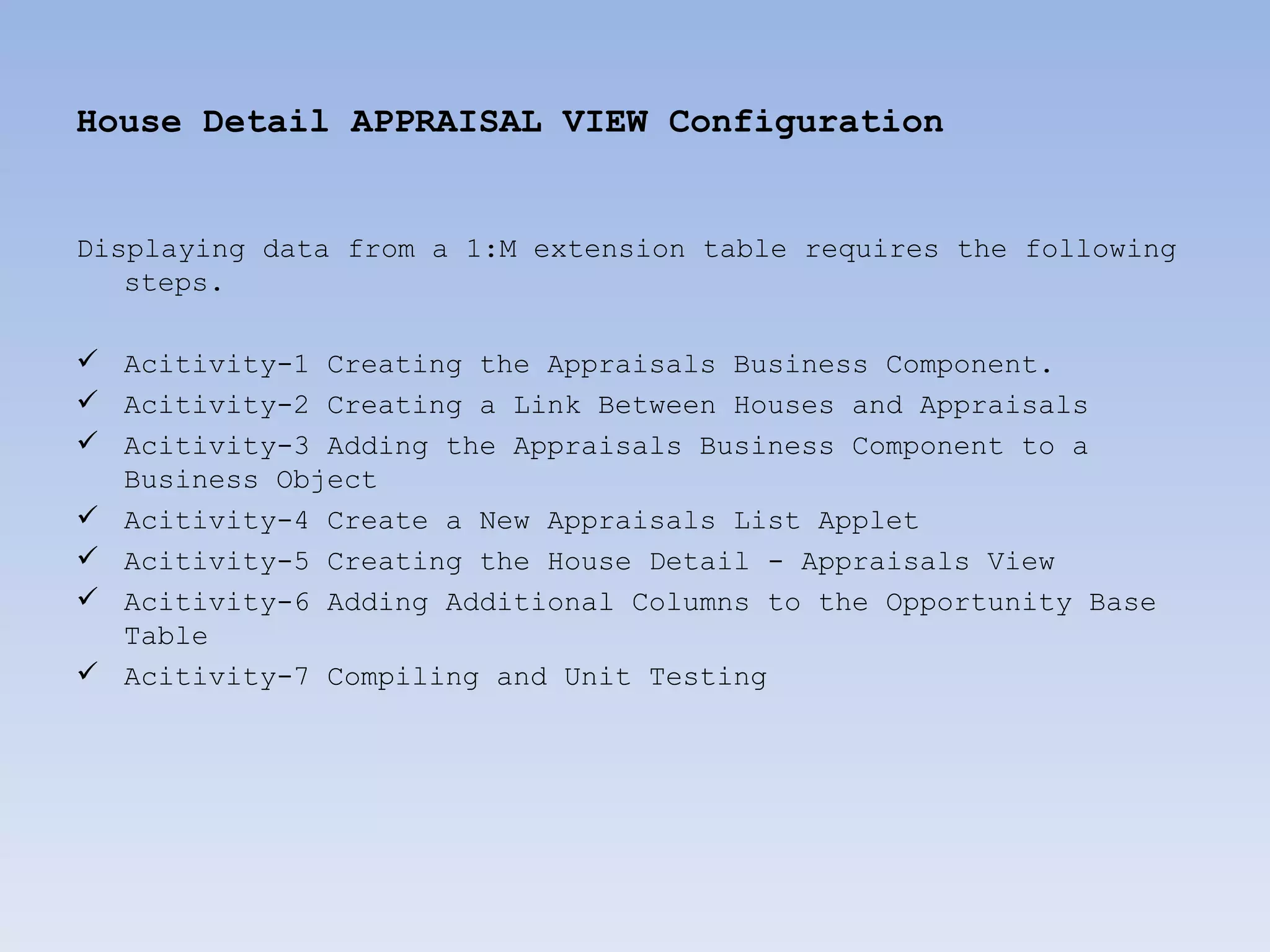
House Detail APPRAISAL VIEW Configuration


Displaying data from a 1:M extension table requires the following
   steps.

 Acitivity-1 Creating the Appraisals Business Component.
 Acitivity-2 Creating a Link Between Houses and Appraisals
 Acitivity-3 Adding the Appraisals Business Component to a
  Business Object
 Acitivity-4 Create a New Appraisals List Applet
 Acitivity-5 Creating the House Detail - Appraisals View
 Acitivity-6 Adding Additional Columns to the Opportunity Base
  Table
 Acitivity-7 Compiling and Unit Testing
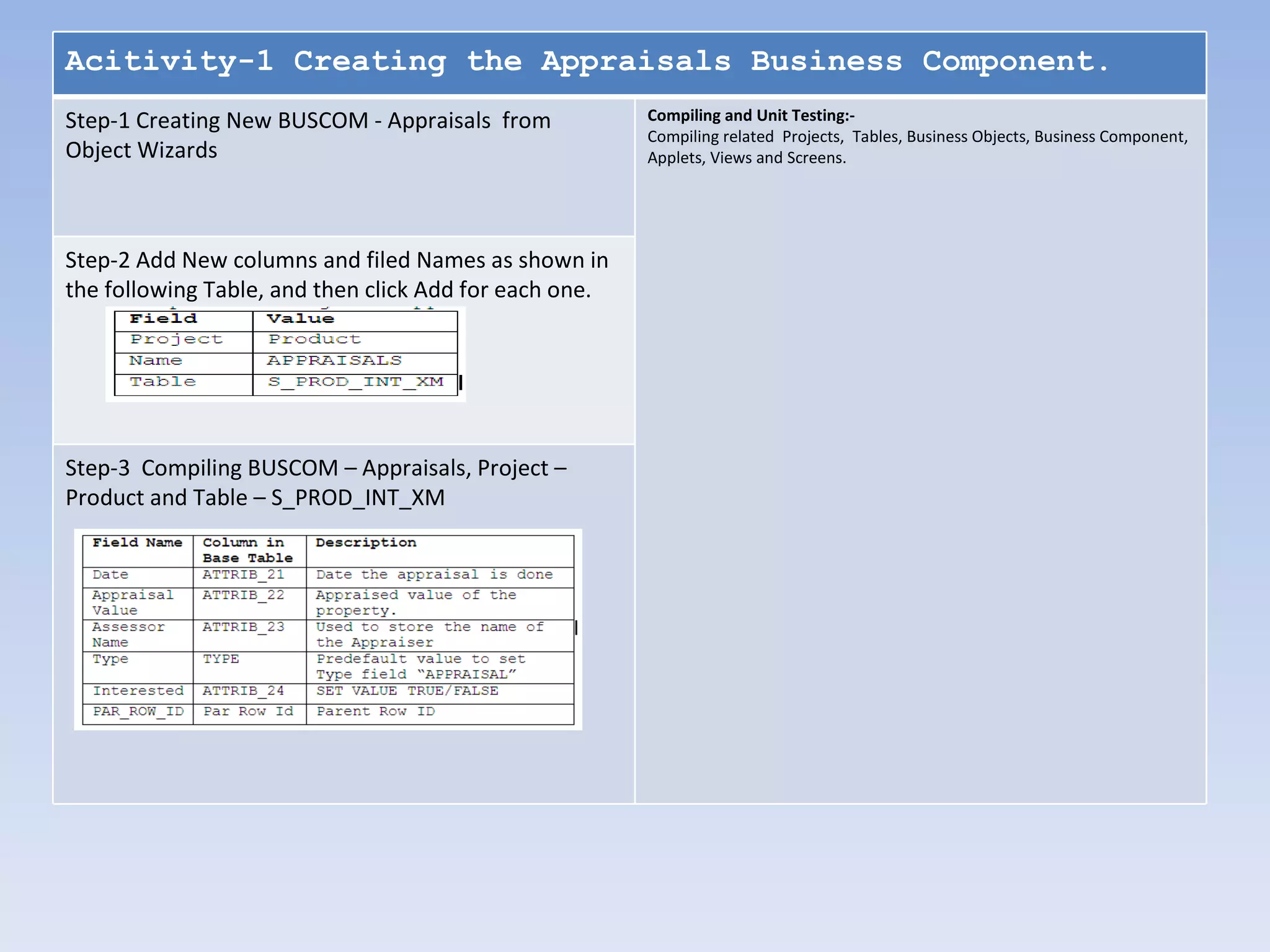
Acitivity-1 Creating the Appraisals Business Component.
Step-1 Creating New BUSCOM - Appraisals from            Compiling and Unit Testing:-
                                                        Compiling related Projects, Tables, Business Objects, Business Component,
Object Wizards                                          Applets, Views and Screens.


Step-2 Add New columns and filed Names as shown in
the following Table, and then click Add for each one.


Step-3 Compiling BUSCOM – Appraisals, Project –
Product and Table – S_PROD_INT_XM
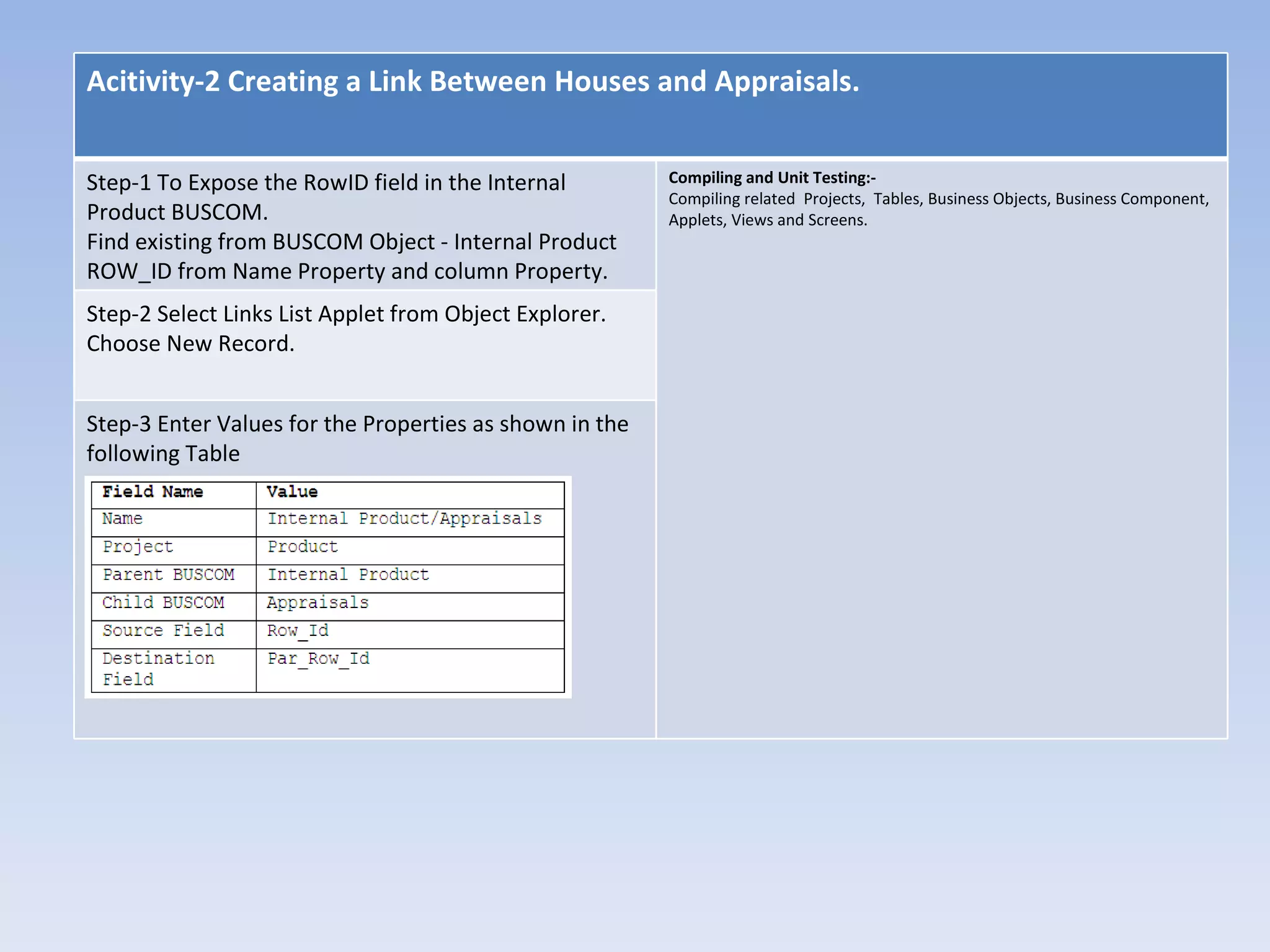
Acitivity-2 Creating a Link Between Houses and Appraisals.


Step-1 To Expose the RowID field in the Internal         Compiling and Unit Testing:-
                                                         Compiling related Projects, Tables, Business Objects, Business Component,
Product BUSCOM.                                          Applets, Views and Screens.
Find existing from BUSCOM Object - Internal Product
ROW_ID from Name Property and column Property.
Step-2 Select Links List Applet from Object Explorer.
Choose New Record.


Step-3 Enter Values for the Properties as shown in the
following Table
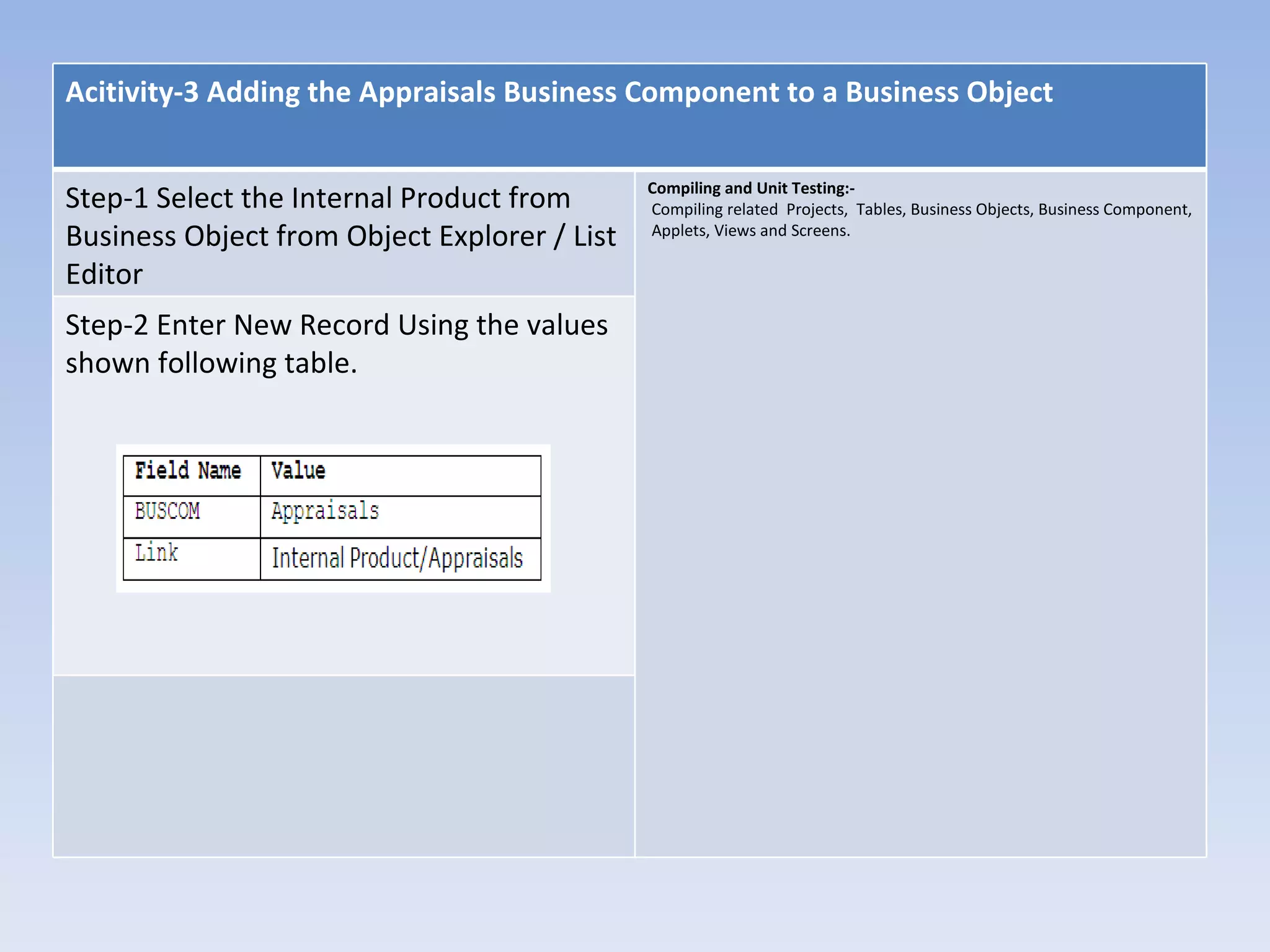
Acitivity-3 Adding the Appraisals Business Component to a Business Object

                                              Compiling and Unit Testing:-
Step-1 Select the Internal Product from       Compiling related Projects, Tables, Business Objects, Business Component,
Business Object from Object Explorer / List   Applets, Views and Screens.

Editor
Step-2 Enter New Record Using the values
shown following table.
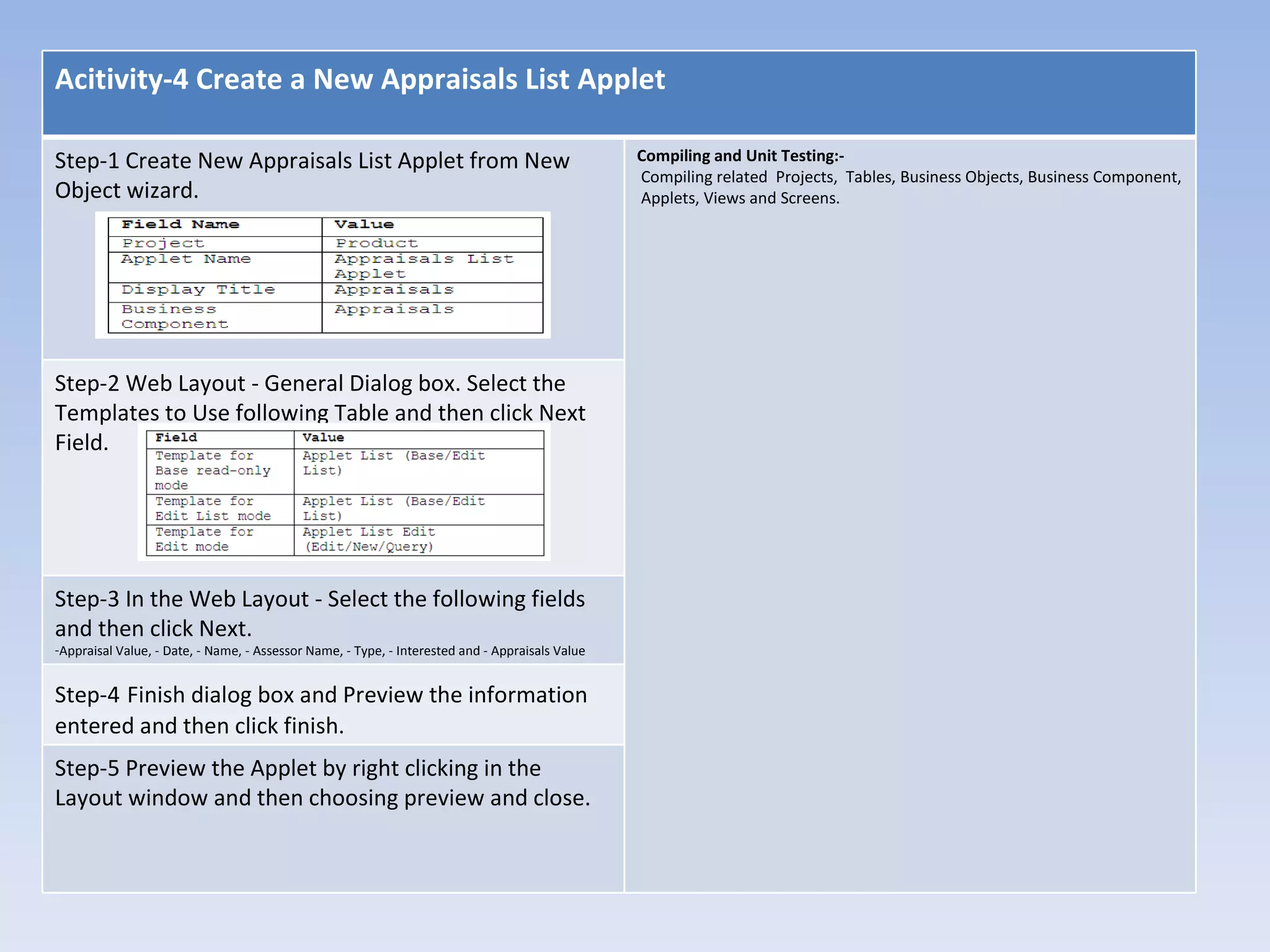
Acitivity-4 Create a New Appraisals List Applet

Step-1 Create New Appraisals List Applet from New                                                Compiling and Unit Testing:-
                                                                                                 Compiling related Projects, Tables, Business Objects, Business Component,
Object wizard.                                                                                   Applets, Views and Screens.


Step-2 Web Layout - General Dialog box. Select the
Templates to Use following Table and then click Next
Field.


Step-3 In the Web Layout - Select the following fields
and then click Next.
-Appraisal Value, - Date, - Name, - Assessor Name, - Type, - Interested and - Appraisals Value


Step-4 Finish dialog box and Preview the information
entered and then click finish.
Step-5 Preview the Applet by right clicking in the
Layout window and then choosing preview and close.
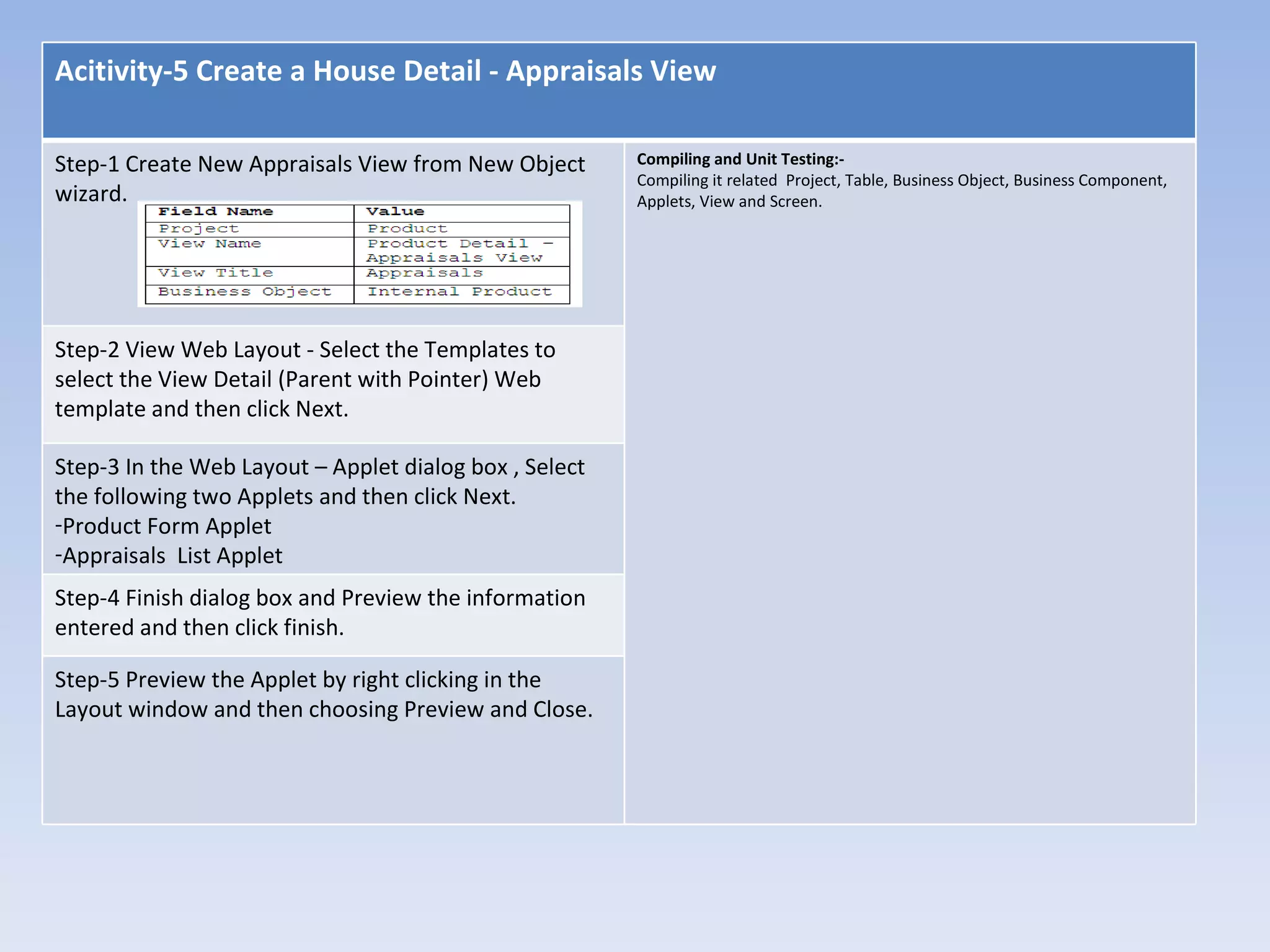
Acitivity-5 Create a House Detail - Appraisals View

Step-1 Create New Appraisals View from New Object       Compiling and Unit Testing:-
                                                        Compiling it related Project, Table, Business Object, Business Component,
wizard.                                                 Applets, View and Screen.


Step-2 View Web Layout - Select the Templates to
select the View Detail (Parent with Pointer) Web
template and then click Next.

Step-3 In the Web Layout – Applet dialog box , Select
the following two Applets and then click Next.
-Product Form Applet
-Appraisals List Applet
Step-4 Finish dialog box and Preview the information
entered and then click finish.

Step-5 Preview the Applet by right clicking in the
Layout window and then choosing Preview and Close.
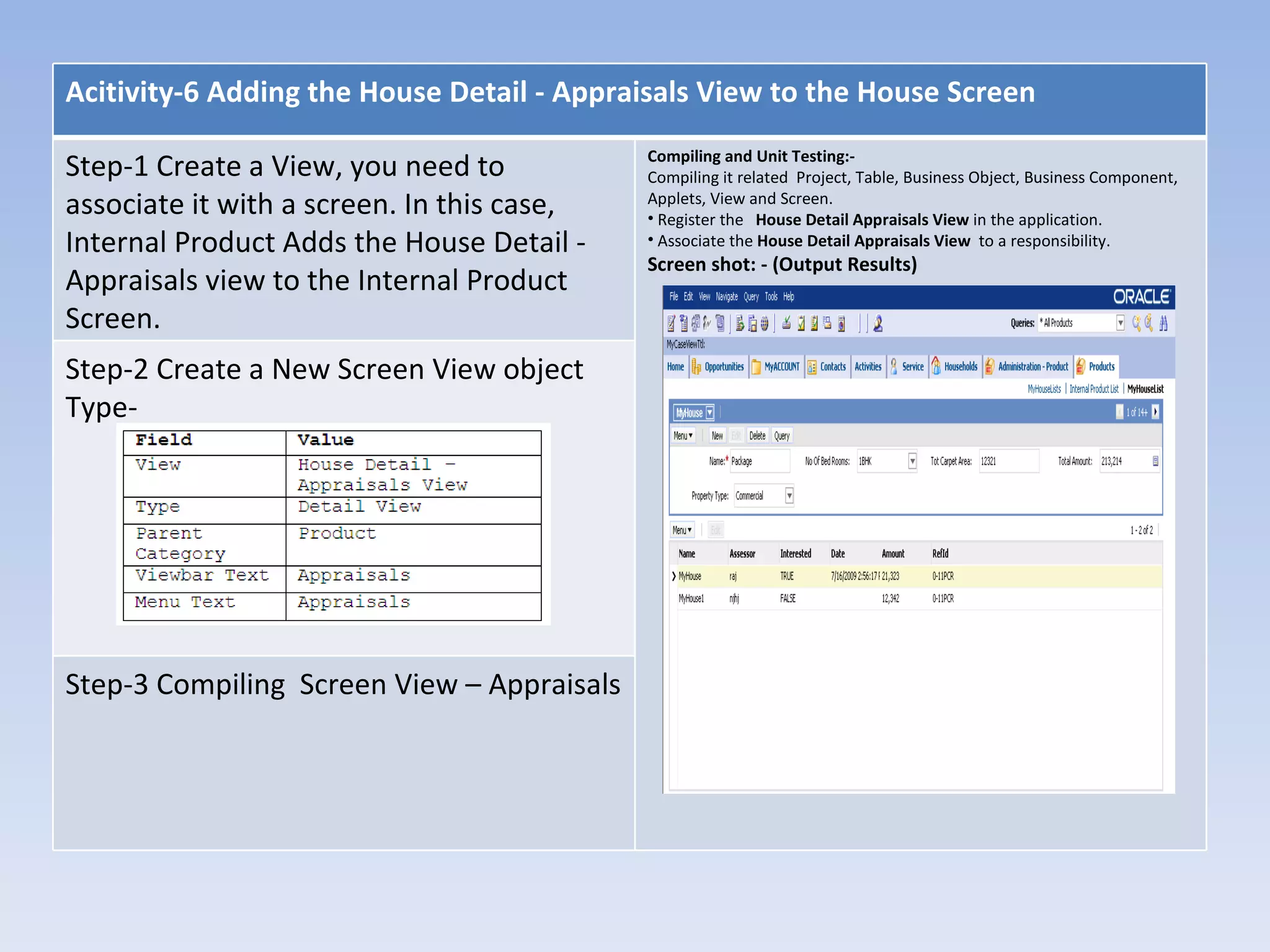
Acitivity-6 Adding the House Detail - Appraisals View to the House Screen
                                            Compiling and Unit Testing:-
Step-1 Create a View, you need to           Compiling it related Project, Table, Business Object, Business Component,
associate it with a screen. In this case,   Applets, View and Screen.
                                            • Register the House Detail Appraisals View in the application.
Internal Product Adds the House Detail -    • Associate the House Detail Appraisals View to a responsibility.
                                            Screen shot: - (Output Results)
Appraisals view to the Internal Product
Screen.
Step-2 Create a New Screen View object
Type-


Step-3 Compiling Screen View – Appraisals
OPPORTUNITIES Entity – House Detail View
Configuration

Activity-1 For Each Opportunity, Track the House features that the
   buyer is looking for and buyer characteristics.
Activity-2 Users may choose values for house attributes, Square
   feet, Price Range and so on from a list rather than enter them.
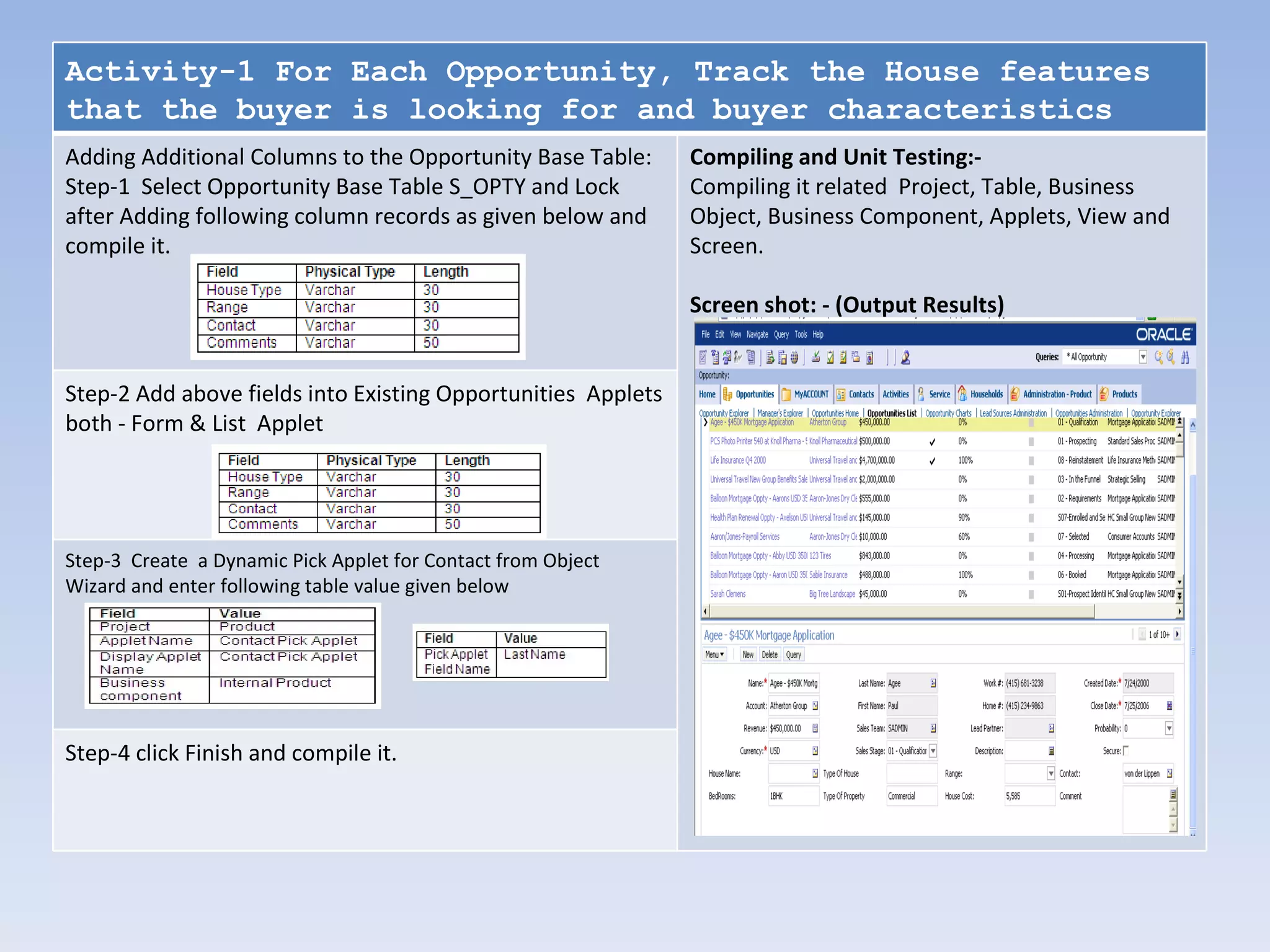
Activity-1 For Each Opportunity, Track the House features
that the buyer is looking for and buyer characteristics
Adding Additional Columns to the Opportunity Base Table:      Compiling and Unit Testing:-
Step-1 Select Opportunity Base Table S_OPTY and Lock          Compiling it related Project, Table, Business
after Adding following column records as given below and      Object, Business Component, Applets, View and
compile it.                                                   Screen.

                                                              Screen shot: - (Output Results)


Step-2 Add above fields into Existing Opportunities Applets
both - Form & List Applet


Step-3 Create a Dynamic Pick Applet for Contact from Object
Wizard and enter following table value given below


Step-4 click Finish and compile it.
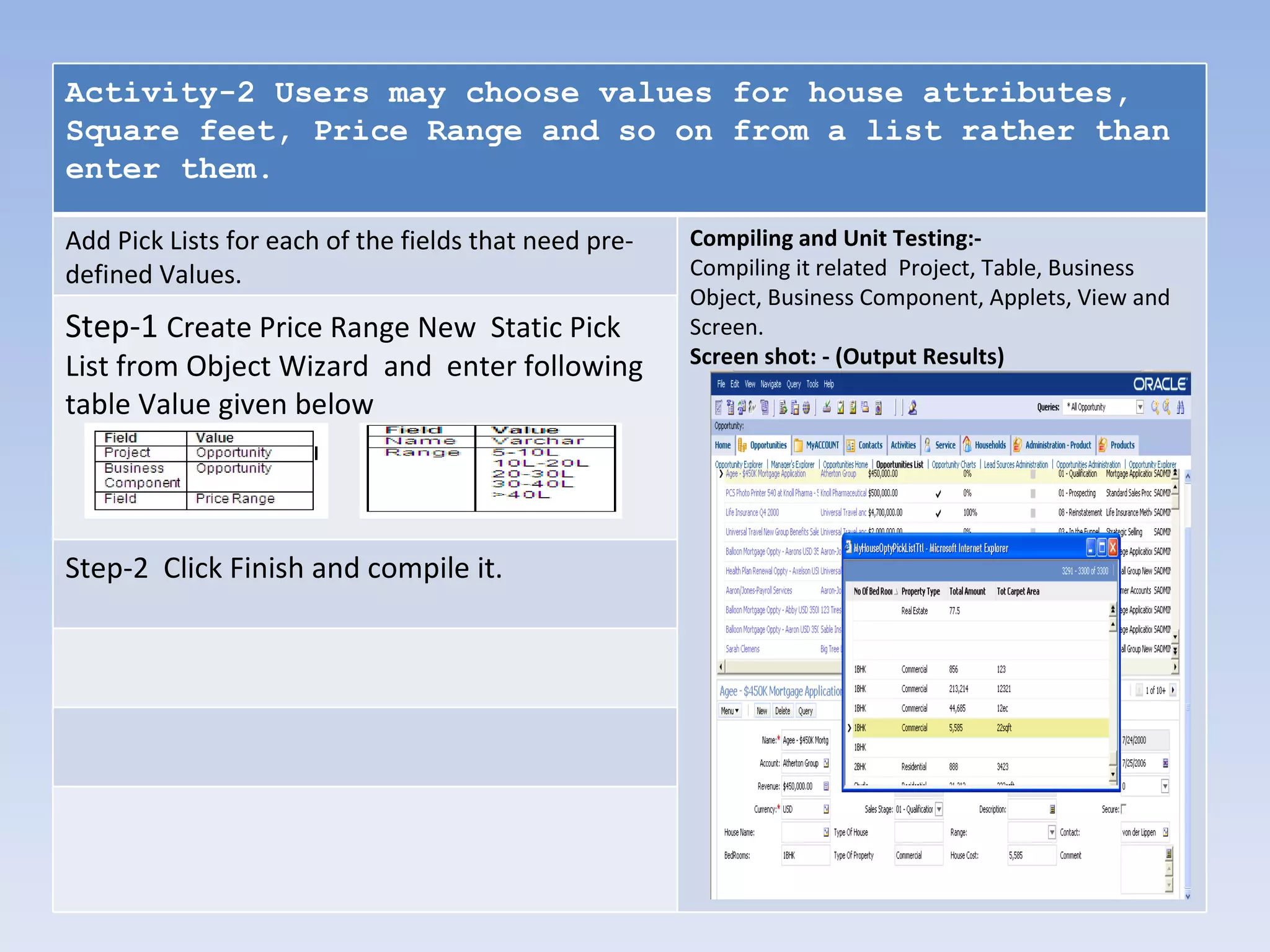
Activity-2 Users may choose values for house attributes,
Square feet, Price Range and so on from a list rather than
enter them.

Add Pick Lists for each of the fields that need pre-   Compiling and Unit Testing:-
defined Values.                                        Compiling it related Project, Table, Business
                                                       Object, Business Component, Applets, View and
Step-1 Create Price Range New Static Pick              Screen.
List from Object Wizard and enter following            Screen shot: - (Output Results)

table Value given below


Step-2 Click Finish and compile it.
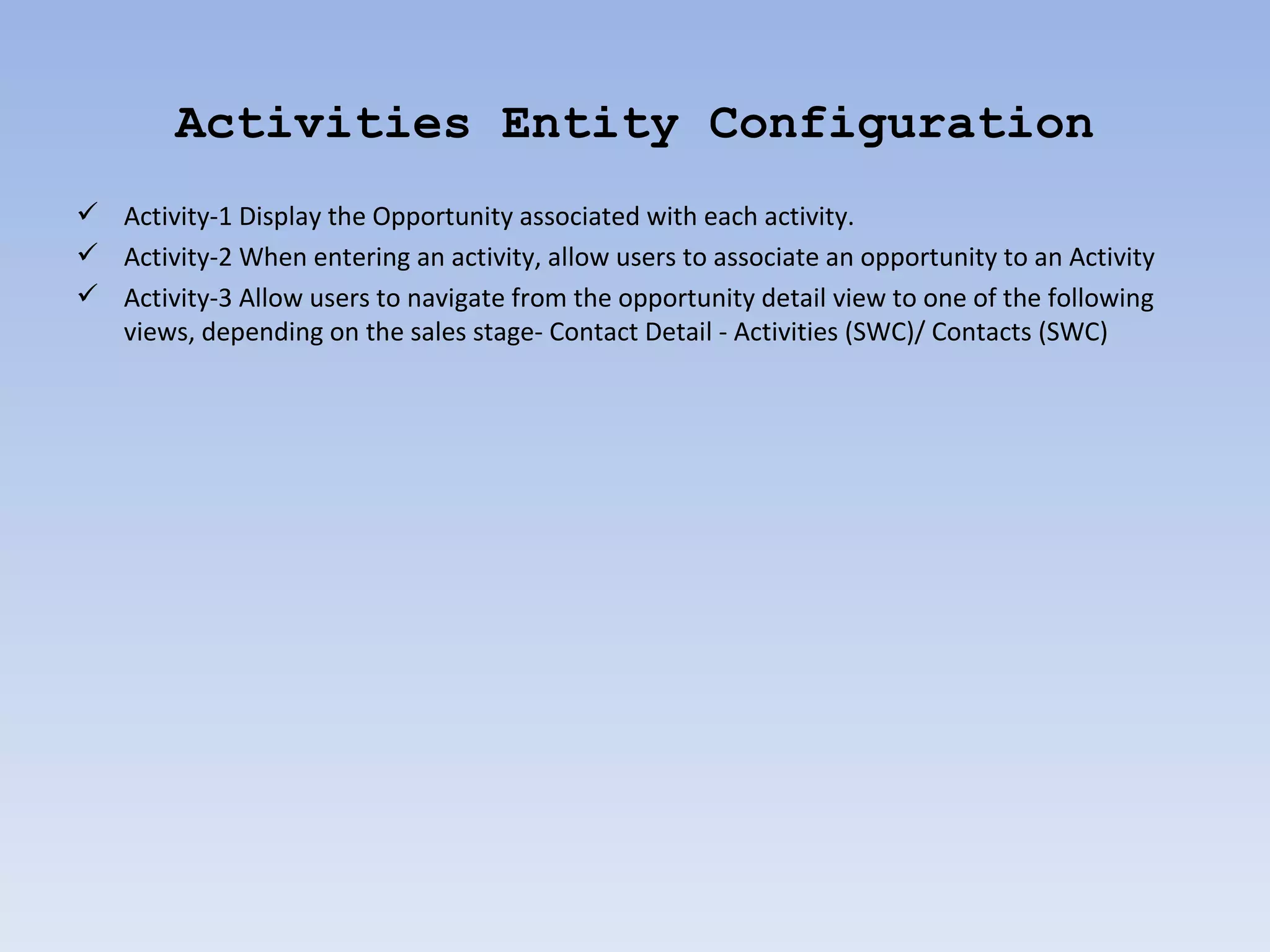
Activities Entity Configuration
 Activity-1 Display the Opportunity associated with each activity.
 Activity-2 When entering an activity, allow users to associate an opportunity to an Activity
 Activity-3 Allow users to navigate from the opportunity detail view to one of the following
  views, depending on the sales stage- Contact Detail - Activities (SWC)/ Contacts (SWC)
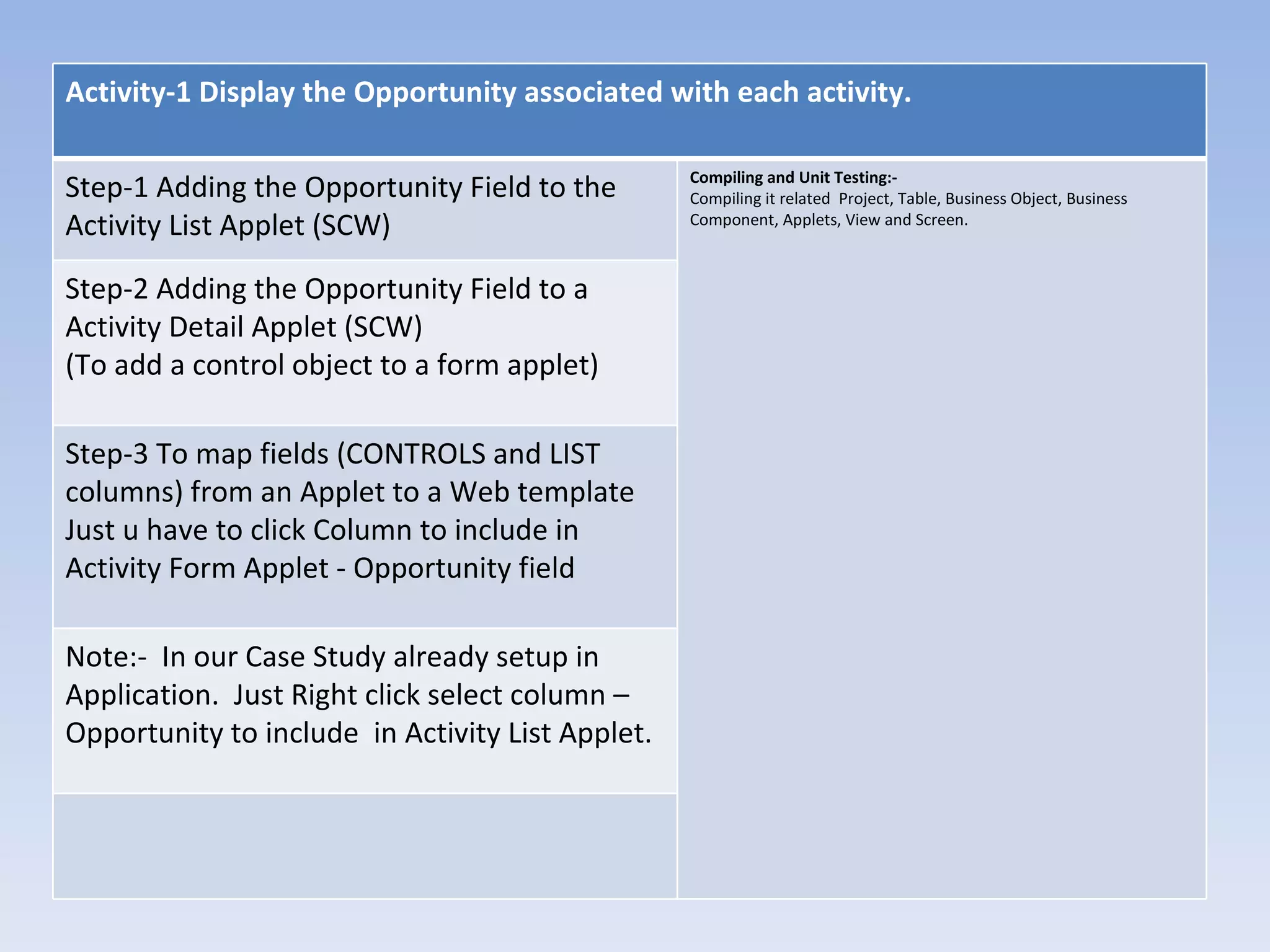
Activity-1 Display the Opportunity associated with each activity.

                                                  Compiling and Unit Testing:-
Step-1 Adding the Opportunity Field to the        Compiling it related Project, Table, Business Object, Business
Activity List Applet (SCW)                        Component, Applets, View and Screen.


Step-2 Adding the Opportunity Field to a
Activity Detail Applet (SCW)
(To add a control object to a form applet)

Step-3 To map fields (CONTROLS and LIST
columns) from an Applet to a Web template
Just u have to click Column to include in
Activity Form Applet - Opportunity field

Note:- In our Case Study already setup in
Application. Just Right click select column –
Opportunity to include in Activity List Applet.
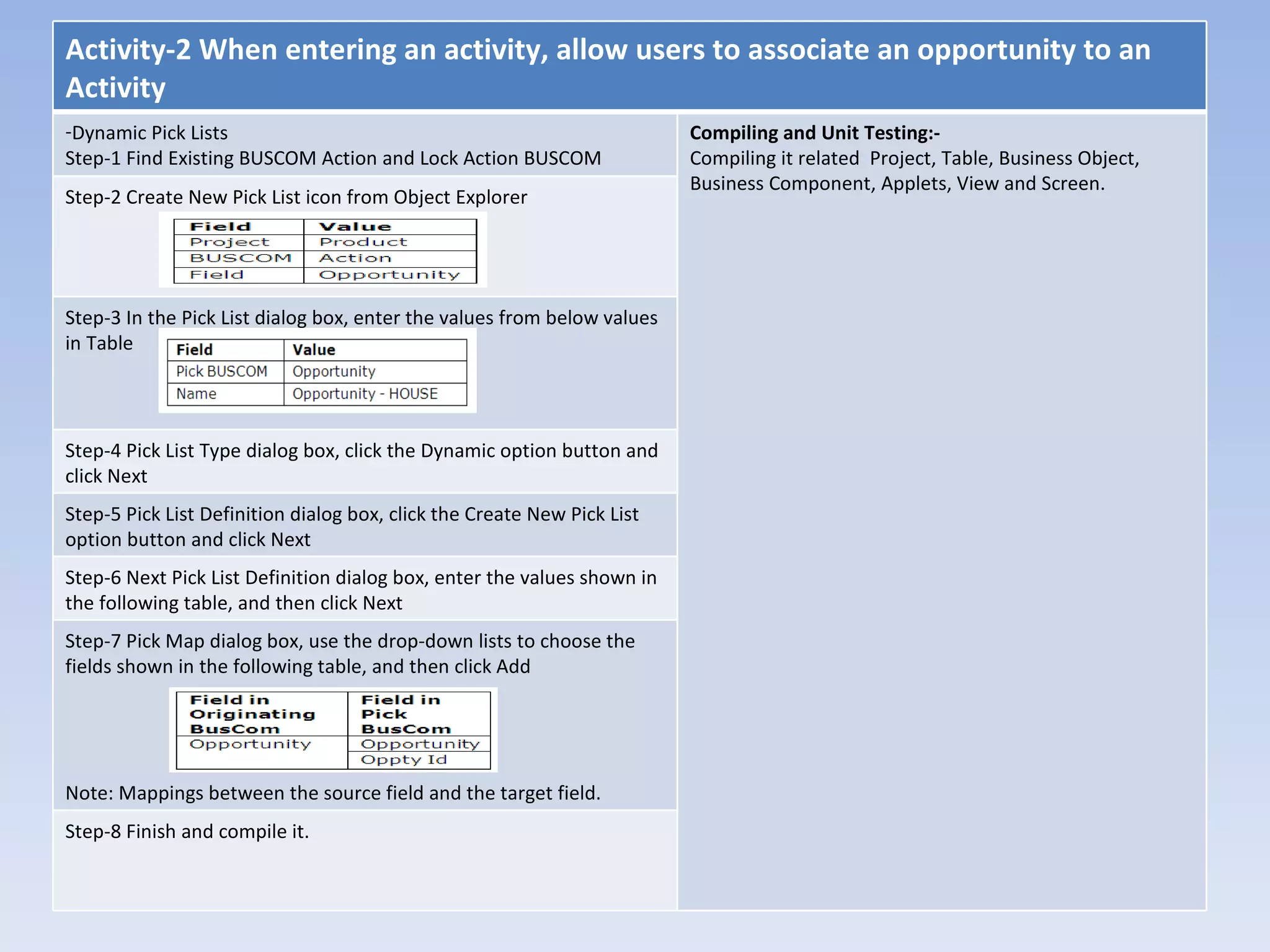
Activity-2 When entering an activity, allow users to associate an opportunity to an
Activity
-Dynamic Pick Lists                                                      Compiling and Unit Testing:-
Step-1 Find Existing BUSCOM Action and Lock Action BUSCOM                Compiling it related Project, Table, Business Object,
                                                                         Business Component, Applets, View and Screen.
Step-2 Create New Pick List icon from Object Explorer


Step-3 In the Pick List dialog box, enter the values from below values
in Table


Step-4 Pick List Type dialog box, click the Dynamic option button and
click Next
Step-5 Pick List Definition dialog box, click the Create New Pick List
option button and click Next
Step-6 Next Pick List Definition dialog box, enter the values shown in
the following table, and then click Next
Step-7 Pick Map dialog box, use the drop-down lists to choose the
fields shown in the following table, and then click Add


Note: Mappings between the source field and the target field.
Step-8 Finish and compile it.
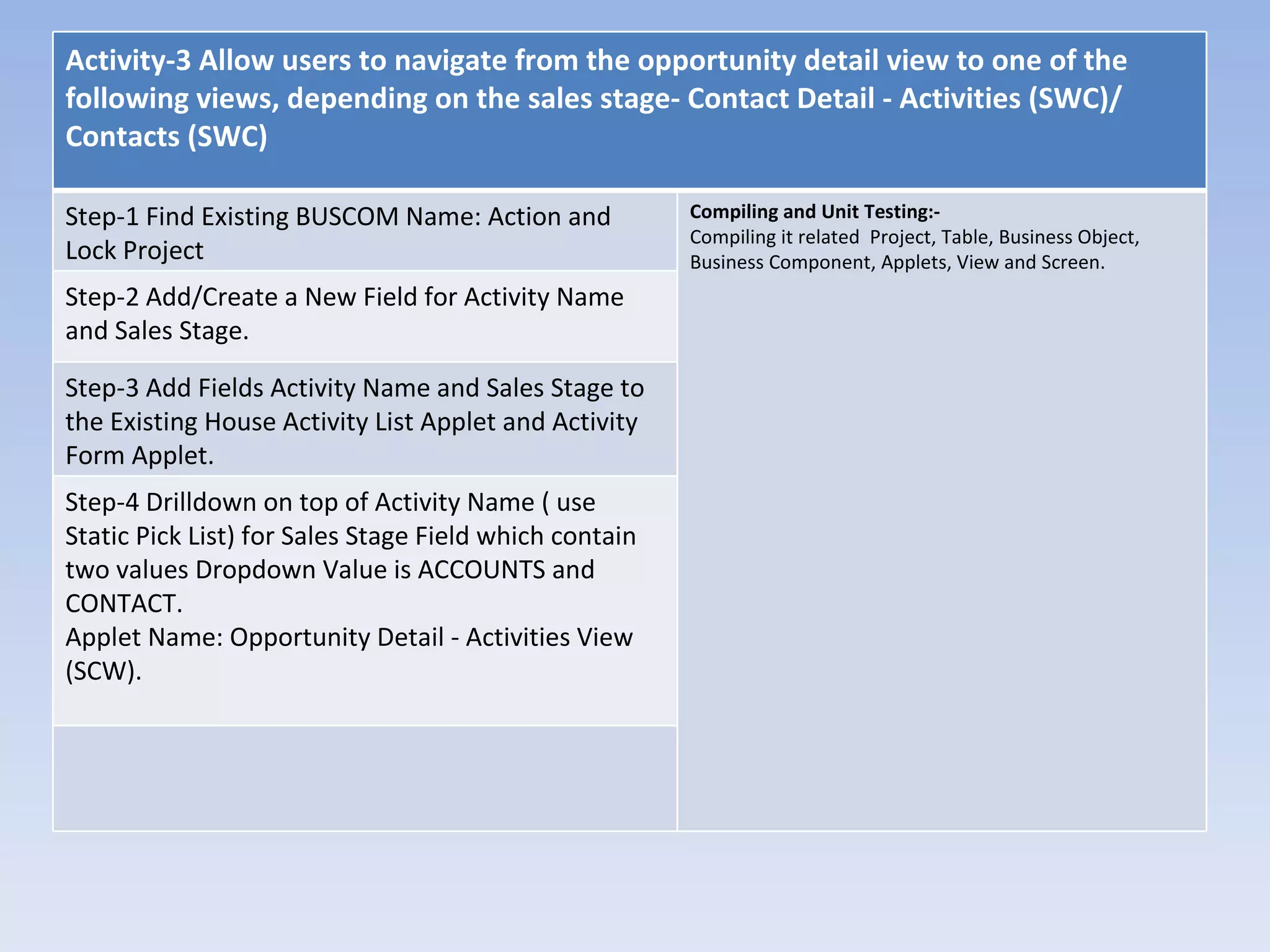
Activity-3 Allow users to navigate from the opportunity detail view to one of the
following views, depending on the sales stage- Contact Detail - Activities (SWC)/
Contacts (SWC)

Step-1 Find Existing BUSCOM Name: Action and            Compiling and Unit Testing:-
                                                        Compiling it related Project, Table, Business Object,
Lock Project                                            Business Component, Applets, View and Screen.
Step-2 Add/Create a New Field for Activity Name
and Sales Stage.

Step-3 Add Fields Activity Name and Sales Stage to
the Existing House Activity List Applet and Activity
Form Applet.
Step-4 Drilldown on top of Activity Name ( use
Static Pick List) for Sales Stage Field which contain
two values Dropdown Value is ACCOUNTS and
CONTACT.
Applet Name: Opportunity Detail - Activities View
(SCW).
Setting Up the Organizational Structure – Company A


 Company A Organizational Structure Diagram
 Navigation Path to Create Division / Position
Setting Up the Organizational Structure – Company A


  Division


  Position


  Position


Navigation Path :-
Creation of Division/Position: - GROUP ADMINISTRATION -> DIVISION / POSITION
Creation of Employees: - ADMINISTRATION – USER -> USERS
Creation of Responsibilities: - APPLICATION ADMINISTRATION –> REPONSIBILITIES
How to get
Siebel CRM Context Helper
Senthil Kumar Janakiraman
 Functional Consultant
email Id:
Senthil-Kumar.janakiraman@capgemini.com

     Together. Free your energies

Siebel Case Study Presentation Senthil Kumar

  • 1.
    SIEBEL CASE STUDYASSIGNMENT PRESENTATION
  • 2.
    Contents: • Case Study Requirement Detail - House (Internal Product) - Opportunities Entity - Activities Entity - Role setup in Siebel Application – Organization and Position • Diagram flow – Case Study • Three Layer in Siebel – Mapping with Case Study • Siebel Three Layer Mapping with Case Study - Use Interface Layer - Business Layer - Data Layer • Case Study Configuration flow - House Detail View – PRODUCT Entity - House Detail Appraisal View - Opportunities Entity – House Detail View - Activities Entity. - Organization and Position Role in Application.
  • 3.
    Case Study RequirementDetail - House (Internal Product) :- • Company A requires the ability to manage the list of houses that are currently for sale. This includes storing key characteristics, such as price, number of bedrooms, and square feet; keeping a history of appraisals; and pulling in any data about renovation history from an external file that is supplied by a third-party vendor. Table 1 lists the detailed requirements for the House entity. Table 1.Requirements Summary for the House Entity Requirement Comment Track houses for sale. Houses will map to the entity product BC: Internal Product Track the features of each Add additional columns (or any other alternative) to store house, such as square feet, additional attributes and number of bedrooms, and so expose them in the user interface. on. Fields: Number of bedrooms: (LOV)-Studio/1bhk/2bhk/3bhk (Static) Total Carpet Area: Property Type: Commercial /Residential (LOV) Total Amount Entering and editing records Applet with New/Delete/Update available for houses. Provide users with predefined values to choose from when entering house features. Track and display previous New BC on S_Product_XM, type=”Appraisal” appraisal information (date, Interested: True/False amount, assessor) for each house. This should be a 1: M link to house.
  • 4.
    Case Study RequirementDetail - Manage Opportunities Company A needs to give its internal employees as well as its partner agents ability to manage opportunities. Opportunities are recorded for potential buyers and include contact information and information about the type of house the buyer is interested in. Opportunities that come into Company A directly are passed on to a partner agency based on location. Table 4 summarizes the requirements for the opportunity entity. Table 2 Requirements Summary for the Opportunity Entity Requirement Comment For each opportunity, track BC: the house features that the Fields: House Type buyer is looking for and buyer Range: characteristics. 5-10L 10L-20L 20-30L 30-40L >40L Contact (Dynamic Pick applet) Comments: Freetext Users may choose values for house attributes.square feet, price range, and so on.from a list rather than enter them.
  • 5.
    Case Study RequirementDetail - Manage Activities:- Company A requires the ability to manage activities for each opportunity and contact. The standard Activity management functionality meets Company A requirements well, except for the gaps listed in Table 3 Table 3 Requirements Summary for the Activity Entity Requirement Comments Display the opportunity Add the opportunity to the associated with each activity. Activity List and Form Applets. Activity name: Desc: : (Pickapplet) Type: Comments When entering an activity, allow users to associate an opportunity to an activity. Constrain the values in the pick applet so it only shows the opportunities for the account associated with the activity. Allow users to navigate from the Configure dynamic drilldown Opportunity Detail view to one of that implements the the following views, depending on conditions described in the the sales stage: business requirement. Contact Detail - Activities (SCW) Account/Contact Contact Detail - Contacts (SCW)
  • 6.
    Case Study RequirementDetail - Additional Requirements:- • Company A has a manager and 2 sales rep. The sales rep work on commissions. Hence, Sales Rep A should not be able to see what Sales Rep B has in his opportunities. However, their manager should be able to see all the opportunities that they are working on. • The views seen by the manager in the application would be different from the one’s seen by the sales rep. • For attributes like No of Bedroom, ensure that we have a drop down with values Studio, 1 Bedroom, 2 Bedroom, 3 Bedroom • When a customer shows interest in a house and you select a house as his choice, all the pre-defined features should automatically be displayed along with it.
  • 7.
    Key Business ProcessDiagram flow - Case Study :-
  • 8.
  • 9.
  • 10.
  • 11.
  • 12.
    Organization and PositionRole in Application
  • 13.
    Case Study Configurationflow • House Detail View – PRODUCT Entity Configuration • House Detail APPRAISAL VIEW Configuration • OPPORTUNITIES Entity – House Detail View Configuration • ACTIVITIES Entity Configuration • Organization and Position Role in Application Configuration
  • 14.
    House Detail View– PRODUCT Entity Configuration  Activity-1 Extending the Database by Adding New Columns to the Base Table  Activity-2 Configuring the Internal Product Business Component  Activity-3 Modify Existing Product Applets to Display House Attributes  Activity-4 Creating the House Detail View  Activity-5 Creating the Houses Screen  Activity-6 Compiling and Unit Testing
  • 15.
    Activity-1 Extending theDatabase by Adding New Columns to the Base Table Compiling and Unit Testing:- Step-1 Select Table Name- S_PROD_INT in Compiling related Projects, Tables, Business Objects, Business Component, Table Object and Lock Project Table Applets, Views and Screens Step-2 Adding New Columns to the Products Extension Table - S_PROD_INT_X Select Table - S_PROD_INT_X and Create New column Object Name given below Step-3 Compiling - Table level S_PROD_INT_X
  • 16.
    Activity-2 Configuring theInternal Product Business Component Compiling and Unit Testing:- Step-1 Select Business Component Name- Compiling related Projects, Tables, Business Objects, Business Internal Product in Buscom Object and Lock Component, Applets, Views and Screens Project Buscom. Step-2 Adding New Fields to the Products Extension Table - S_PROD_INT Create New fields Object Name given below Step-3 Change the default Properties from Internal Products BUSCOM Fields --> No Delete, No Insert, No Merge and No Update value should set FALSE. Step-4 Compiling -Buscom Name: Internal Product.
  • 17.
    Activity-3 Modify ExistingProduct Applets to Display HOUSE Attributes Step-1 Configuring the following two applets are easier than creating New Onces. Compiling and Unit Testing:- Product List Applet Product Form Applet Compiling related Projects, Tables, Business Objects, Applets are already based on the Internal Product Business Component Business Component, Applets, Views and Screens. Add List Column Objects for each New fields. Select a Object hierarchy is Applet ---> List --->List Column. Screen shot: - (Output Results) Step-2 Select the Product List Applet Record choose Edit Web Layout and Remove the Following unnecessary columns for the 1:Base mode of the Applet example few fields given below - Class - Compensable - Customizable - Description - Effective End Date - Effective Start Date - Equivalent Product - Lead Time - Orderable - Organization - Product Line - Revision - Serialized -Service Product - Unit of Measure Step-3 Add the fields you defined including the fields to be hidden by default Choose file to Save and close. Step-4 Similar way configuring the Product Form Applet follows above steps 1 to 3. Step-5 Compiling Applet - Product List and Form Applet.
  • 18.
    Activity-4 Creating theHouse Detail View :- Create a new view to display the Product List and Product Form Applets. They want in the view first should be Product List and second should be Product form Applet. We can select View Standard list-form view. Step-1 Create New View from Object wizards. Compiling and Unit Testing:- Compiling related Projects, Tables, Business Objects, Business Component, Applets, Views and Screens. Step-2 Select fields details given below Step-3 Select Web Template – View Detail Step-4 Select Applets – Product List Applet and Product Form Applet Step-5 Review the View Web Template in Base Mode Layout and check out in review format mode. Step-6 Compiling Views
  • 19.
    Activity-5 Creating theHouses Screen Step-1 Create New Screen from Object Compiling and Unit Testing:- Compiling related Projects, Tables, Business Objects, wizards. Business Component, Applets, Views and Screens. • Register the House Detail View in the application. • Associate the House Detail View to a responsibility Step-2 Select fields details given below Step-3 Select Web Template – View Detail Step-4 Select Applets – Product List Applet and Product Form Applet Step-5 Review the View Web Template in Base Mode Layout and check out in review format mode. Step-6 Compiling Views
  • 20.
    House Detail APPRAISALVIEW Configuration Displaying data from a 1:M extension table requires the following steps.  Acitivity-1 Creating the Appraisals Business Component.  Acitivity-2 Creating a Link Between Houses and Appraisals  Acitivity-3 Adding the Appraisals Business Component to a Business Object  Acitivity-4 Create a New Appraisals List Applet  Acitivity-5 Creating the House Detail - Appraisals View  Acitivity-6 Adding Additional Columns to the Opportunity Base Table  Acitivity-7 Compiling and Unit Testing
  • 21.
    Acitivity-1 Creating theAppraisals Business Component. Step-1 Creating New BUSCOM - Appraisals from Compiling and Unit Testing:- Compiling related Projects, Tables, Business Objects, Business Component, Object Wizards Applets, Views and Screens. Step-2 Add New columns and filed Names as shown in the following Table, and then click Add for each one. Step-3 Compiling BUSCOM – Appraisals, Project – Product and Table – S_PROD_INT_XM
  • 22.
    Acitivity-2 Creating aLink Between Houses and Appraisals. Step-1 To Expose the RowID field in the Internal Compiling and Unit Testing:- Compiling related Projects, Tables, Business Objects, Business Component, Product BUSCOM. Applets, Views and Screens. Find existing from BUSCOM Object - Internal Product ROW_ID from Name Property and column Property. Step-2 Select Links List Applet from Object Explorer. Choose New Record. Step-3 Enter Values for the Properties as shown in the following Table
  • 23.
    Acitivity-3 Adding theAppraisals Business Component to a Business Object Compiling and Unit Testing:- Step-1 Select the Internal Product from Compiling related Projects, Tables, Business Objects, Business Component, Business Object from Object Explorer / List Applets, Views and Screens. Editor Step-2 Enter New Record Using the values shown following table.
  • 24.
    Acitivity-4 Create aNew Appraisals List Applet Step-1 Create New Appraisals List Applet from New Compiling and Unit Testing:- Compiling related Projects, Tables, Business Objects, Business Component, Object wizard. Applets, Views and Screens. Step-2 Web Layout - General Dialog box. Select the Templates to Use following Table and then click Next Field. Step-3 In the Web Layout - Select the following fields and then click Next. -Appraisal Value, - Date, - Name, - Assessor Name, - Type, - Interested and - Appraisals Value Step-4 Finish dialog box and Preview the information entered and then click finish. Step-5 Preview the Applet by right clicking in the Layout window and then choosing preview and close.
  • 25.
    Acitivity-5 Create aHouse Detail - Appraisals View Step-1 Create New Appraisals View from New Object Compiling and Unit Testing:- Compiling it related Project, Table, Business Object, Business Component, wizard. Applets, View and Screen. Step-2 View Web Layout - Select the Templates to select the View Detail (Parent with Pointer) Web template and then click Next. Step-3 In the Web Layout – Applet dialog box , Select the following two Applets and then click Next. -Product Form Applet -Appraisals List Applet Step-4 Finish dialog box and Preview the information entered and then click finish. Step-5 Preview the Applet by right clicking in the Layout window and then choosing Preview and Close.
  • 26.
    Acitivity-6 Adding theHouse Detail - Appraisals View to the House Screen Compiling and Unit Testing:- Step-1 Create a View, you need to Compiling it related Project, Table, Business Object, Business Component, associate it with a screen. In this case, Applets, View and Screen. • Register the House Detail Appraisals View in the application. Internal Product Adds the House Detail - • Associate the House Detail Appraisals View to a responsibility. Screen shot: - (Output Results) Appraisals view to the Internal Product Screen. Step-2 Create a New Screen View object Type- Step-3 Compiling Screen View – Appraisals
  • 27.
    OPPORTUNITIES Entity –House Detail View Configuration Activity-1 For Each Opportunity, Track the House features that the buyer is looking for and buyer characteristics. Activity-2 Users may choose values for house attributes, Square feet, Price Range and so on from a list rather than enter them.
  • 28.
    Activity-1 For EachOpportunity, Track the House features that the buyer is looking for and buyer characteristics Adding Additional Columns to the Opportunity Base Table: Compiling and Unit Testing:- Step-1 Select Opportunity Base Table S_OPTY and Lock Compiling it related Project, Table, Business after Adding following column records as given below and Object, Business Component, Applets, View and compile it. Screen. Screen shot: - (Output Results) Step-2 Add above fields into Existing Opportunities Applets both - Form & List Applet Step-3 Create a Dynamic Pick Applet for Contact from Object Wizard and enter following table value given below Step-4 click Finish and compile it.
  • 29.
    Activity-2 Users maychoose values for house attributes, Square feet, Price Range and so on from a list rather than enter them. Add Pick Lists for each of the fields that need pre- Compiling and Unit Testing:- defined Values. Compiling it related Project, Table, Business Object, Business Component, Applets, View and Step-1 Create Price Range New Static Pick Screen. List from Object Wizard and enter following Screen shot: - (Output Results) table Value given below Step-2 Click Finish and compile it.
  • 30.
    Activities Entity Configuration Activity-1 Display the Opportunity associated with each activity.  Activity-2 When entering an activity, allow users to associate an opportunity to an Activity  Activity-3 Allow users to navigate from the opportunity detail view to one of the following views, depending on the sales stage- Contact Detail - Activities (SWC)/ Contacts (SWC)
  • 31.
    Activity-1 Display theOpportunity associated with each activity. Compiling and Unit Testing:- Step-1 Adding the Opportunity Field to the Compiling it related Project, Table, Business Object, Business Activity List Applet (SCW) Component, Applets, View and Screen. Step-2 Adding the Opportunity Field to a Activity Detail Applet (SCW) (To add a control object to a form applet) Step-3 To map fields (CONTROLS and LIST columns) from an Applet to a Web template Just u have to click Column to include in Activity Form Applet - Opportunity field Note:- In our Case Study already setup in Application. Just Right click select column – Opportunity to include in Activity List Applet.
  • 32.
    Activity-2 When enteringan activity, allow users to associate an opportunity to an Activity -Dynamic Pick Lists Compiling and Unit Testing:- Step-1 Find Existing BUSCOM Action and Lock Action BUSCOM Compiling it related Project, Table, Business Object, Business Component, Applets, View and Screen. Step-2 Create New Pick List icon from Object Explorer Step-3 In the Pick List dialog box, enter the values from below values in Table Step-4 Pick List Type dialog box, click the Dynamic option button and click Next Step-5 Pick List Definition dialog box, click the Create New Pick List option button and click Next Step-6 Next Pick List Definition dialog box, enter the values shown in the following table, and then click Next Step-7 Pick Map dialog box, use the drop-down lists to choose the fields shown in the following table, and then click Add Note: Mappings between the source field and the target field. Step-8 Finish and compile it.
  • 33.
    Activity-3 Allow usersto navigate from the opportunity detail view to one of the following views, depending on the sales stage- Contact Detail - Activities (SWC)/ Contacts (SWC) Step-1 Find Existing BUSCOM Name: Action and Compiling and Unit Testing:- Compiling it related Project, Table, Business Object, Lock Project Business Component, Applets, View and Screen. Step-2 Add/Create a New Field for Activity Name and Sales Stage. Step-3 Add Fields Activity Name and Sales Stage to the Existing House Activity List Applet and Activity Form Applet. Step-4 Drilldown on top of Activity Name ( use Static Pick List) for Sales Stage Field which contain two values Dropdown Value is ACCOUNTS and CONTACT. Applet Name: Opportunity Detail - Activities View (SCW).
  • 34.
    Setting Up theOrganizational Structure – Company A  Company A Organizational Structure Diagram  Navigation Path to Create Division / Position
  • 35.
    Setting Up theOrganizational Structure – Company A Division Position Position Navigation Path :- Creation of Division/Position: - GROUP ADMINISTRATION -> DIVISION / POSITION Creation of Employees: - ADMINISTRATION – USER -> USERS Creation of Responsibilities: - APPLICATION ADMINISTRATION –> REPONSIBILITIES
  • 36.
    How to get SiebelCRM Context Helper Senthil Kumar Janakiraman Functional Consultant email Id: Senthil-Kumar.janakiraman@capgemini.com Together. Free your energies

Editor's Notes

  • #2 Top Page
  • #3 Contents
  • #4 Case study details
  • #5 Case study detail
  • #6 General case flow diagram