using System;
using OpenQA.Selenium.IE;
usingOpenQA.Selenium;
class Program {
static void Main(string[] args) {
IWebDriver driver = new InternetExplorerDriver();
Console.ReadKey();
driver.Quit();
}
}
とりあえず、ブラウザ起動してみる
10.
using System;
using OpenQA.Selenium.IE;
usingOpenQA.Selenium;
class Program {
static void Main(string[] args) {
IWebDriver driver = new InternetExplorerDriver();
driver.Navigate().GoToUrl("http://www.bing.com");
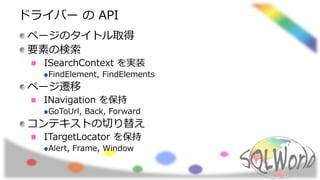
Console.WriteLine(driver.Title);
Console.ReadKey();
driver.Quit();
}
}
Bing にいってみる
using System;
using OpenQA.Selenium.IE;
usingOpenQA.Selenium;
class Program {
static void Main(string[] args) {
IWebDriver driver = new InternetExplorerDriver();
driver.Navigate().GoToUrl("http://www.bing.com");
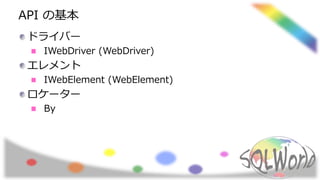
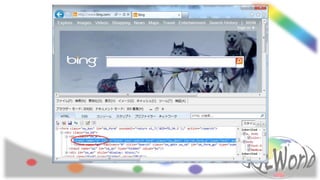
IWebElement element = driver.FindElement(By.Name("q"));
element.SendKeys("セレニウム ウェブドライバー");
Console.ReadKey();
driver.Quit();
}
}
テキストボックスに文字を入力
![using System;
using OpenQA.Selenium.IE;
using OpenQA.Selenium;
class Program {
static void Main(string[] args) {
IWebDriver driver = new InternetExplorerDriver();
Console.ReadKey();
driver.Quit();
}
}
とりあえず、ブラウザ起動してみる](https://image.slidesharecdn.com/selenium-150411160652-conversion-gate01/85/Selenium-9-320.jpg)
![using System;
using OpenQA.Selenium.IE;
using OpenQA.Selenium;
class Program {
static void Main(string[] args) {
IWebDriver driver = new InternetExplorerDriver();
driver.Navigate().GoToUrl("http://www.bing.com");
Console.WriteLine(driver.Title);
Console.ReadKey();
driver.Quit();
}
}
Bing にいってみる](https://image.slidesharecdn.com/selenium-150411160652-conversion-gate01/85/Selenium-10-320.jpg)
![using System;
using OpenQA.Selenium.IE;
using OpenQA.Selenium;
class Program {
static void Main(string[] args) {
IWebDriver driver = new InternetExplorerDriver();
driver.Navigate().GoToUrl("http://www.bing.com");
IWebElement element = driver.FindElement(By.Name("q"));
element.SendKeys("セレニウム ウェブドライバー");
Console.ReadKey();
driver.Quit();
}
}
テキストボックスに文字を入力](https://image.slidesharecdn.com/selenium-150411160652-conversion-gate01/85/Selenium-13-320.jpg)
![using System;
using OpenQA.Selenium.IE;
using OpenQA.Selenium;
class Program {
static void Main(string[] args) {
IWebDriver driver = new InternetExplorerDriver();
driver.Navigate().GoToUrl("http://www.bing.com");
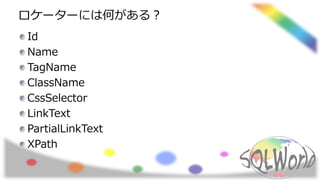
IWebElement elementByName = driver.FindElement(By.Name("q"));
elementByName.SendKeys("セレニウム ウェブドライバー");
IWebElement elementById = driver.FindElement(By.Id("sb_form_q"));
elementById.SendKeys(" ID で取ったお");
IWebElement elementByCss = driver.FindElement(
By.CssSelector("b_searchbox"));
elementByCss.Clear();
elementByCss.SendKeys("CssSelector で");
Console.ReadKey();
driver.Quit();
}
}
色んな取り方をしてみる](https://image.slidesharecdn.com/selenium-150411160652-conversion-gate01/85/Selenium-16-320.jpg)
![class Program {
static void Main(string[] args) {
var driver = new InternetExplorerDriver();
try {
driver.Navigate().GoToUrl("http://www.bing.com");
var txt条件 = driver.FindElementByName("q");
txt条件.SendKeys("SQLWorld");
txt条件.Submit();
Thread.Sleep(3000); // 次の画面に遷移するまで待つ
var lbl件数 = driver.FindElementByClassName("sb_count");
Console.WriteLine(lbl件数.Text);
Console.ReadKey();
} finally {
driver.Quit();
}
}
}
検索してみる](https://image.slidesharecdn.com/selenium-150411160652-conversion-gate01/85/Selenium-19-320.jpg)
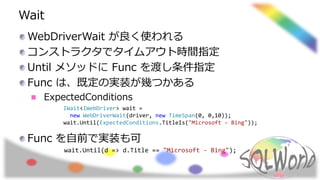
![class Program {
static void Main(string[] args) {
var driver = new InternetExplorerDriver();
try {
driver.Navigate().GoToUrl("http://www.bing.com");
var txt条件 = driver.FindElementByName("q");
txt条件.SendKeys("SQLWorld");
txt条件.Submit();
var wait = new WebDriverWait(driver, new TimeSpan(0, 0, 10));
wait.Until(ExpectedConditions.TitleIs("SQLWorld - Bing"));
var lbl件数 = driver.FindElementByClassName("sb_count");
Console.WriteLine(lbl件数.Text);
Console.ReadKey();
} finally {
driver.Quit();
}
}
}
Wait 使って検索してみる](https://image.slidesharecdn.com/selenium-150411160652-conversion-gate01/85/Selenium-22-320.jpg)
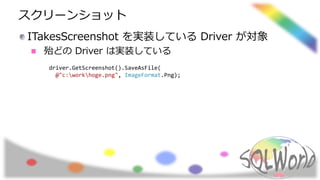
![class Program {
static void Main(string[] args) {
var driver = new InternetExplorerDriver();
try {
driver.Navigate().GoToUrl("http://sqlworld.org/event/20150425/");
var wait = new WebDriverWait(driver, new TimeSpan(0, 0, 10));
wait.Until(ExpectedConditions.TitleIs("SqlWorld :: SQLWorld★大阪#30"));
driver.GetScreenshot().SaveAsFile(
Environment.GetFolderPath(Environment.SpecialFolder.Desktop)
+ @"sqlworld.png",
ImageFormat.Png);
Console.ReadKey();
} finally {
driver.Quit();
}
}
}
スクリーンショット をとってみる](https://image.slidesharecdn.com/selenium-150411160652-conversion-gate01/85/Selenium-24-320.jpg)
![class Program {
static void Main(string[] args) {
var driver = new InternetExplorerDriver();
try {
driver.Navigate().GoToUrl("http://sqlworld.org/event/20150425/");
var wait = new WebDriverWait(driver, new TimeSpan(0, 0, 10));
wait.Until(ExpectedConditions.TitleIs("SqlWorld :: SQLWorld★大阪#30"));
driver.FindElementByName("name").SendKeys("あなたのお名前");
driver.FindElementByName("email").SendKeys("あなたのE-Mail");
driver.FindElementByName("commentText").SendKeys(@"宜しくお願いします!
懇親会:参加");
Console.ReadKey();
driver.FindElementByName("Post Comment").Submit();
Console.ReadKey();
} finally {
driver.Quit();
}
}
}
実践編!](https://image.slidesharecdn.com/selenium-150411160652-conversion-gate01/85/Selenium-25-320.jpg)


![[JavaDo] JAX-RS ハンズオン 第2部](https://cdn.slidesharecdn.com/ss_thumbnails/jaxrs2-170114151425-thumbnail.jpg?width=640&height=640&fit=bounds)


![テスト自動化ツール[Selenium]を検討してみて](https://cdn.slidesharecdn.com/ss_thumbnails/20160723selenium-160724074540-thumbnail.jpg?width=640&height=640&fit=bounds)


