1
2
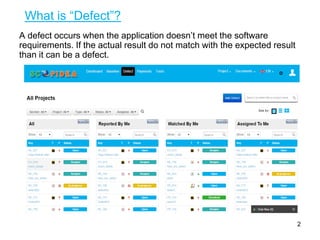
A defect occurs when the application doesn’t meet the software
requirements. If the actual result do not match with the expected result
than it can be a defect.
What is “Defect”?
What is all “Defect” section?
3
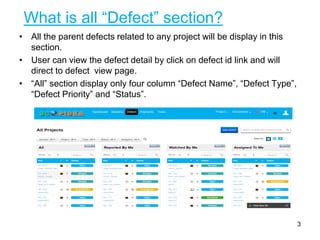
• All the parent defects related to any project will be display in this
section.
• User can view the defect detail by click on defect id link and will
direct to defect view page.
• “All” section display only four column “Defect Name”, “Defect Type”,
“Defect Priority” and “Status”.
What is “Reported By Me” section?
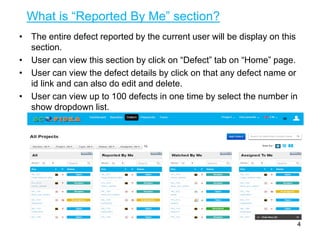
• The entire defect reported by the current user will be display on this
section.
• User can view this section by click on “Defect” tab on “Home” page.
• User can view the defect details by click on that any defect name or
id link and can also do edit and delete.
• User can view up to 100 defects in one time by select the number in
show dropdown list.
4
What is “Assign To Me”?
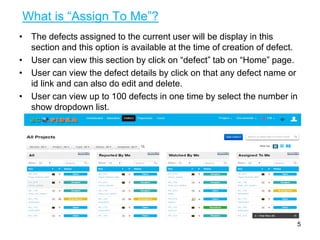
• The defects assigned to the current user will be display in this
section and this option is available at the time of creation of defect.
• User can view this section by click on “defect” tab on “Home” page.
• User can view the defect details by click on that any defect name or
id link and can also do edit and delete.
• User can view up to 100 defects in one time by select the number in
show dropdown list.
5
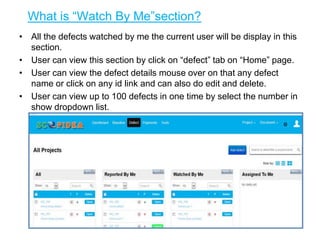
What is “Watch By Me”section?
• All the defects watched by me the current user will be display in this
section.
• User can view this section by click on “defect” tab on “Home” page.
• User can view the defect details mouse over on that any defect
name or click on any id link and can also do edit and delete.
• User can view up to 100 defects in one time by select the number in
show dropdown list.
6
How to create “Defect”?
7
• Whenever you got any defect then you can add your defect using
Scopidea. A defect can be a bug, a task or an issue etc. To create
any defect you can follow the given steps.
• Steps to Create defects:-
• Click on “Defect” tab on “Home” page
• Click on “Add Defect” button
• “Create Defect” pop up will be open.
• Fill all fields with valid data.
• Click on “Save” button.
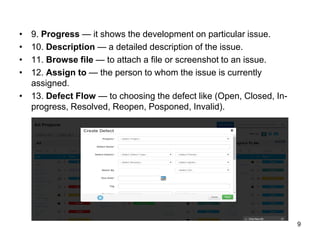
• The “Create Defect” pop up fields is:
• 1. Projects — the 'parent' project to which the defect belongs.
• 2. Defect Name — a unique name by which that defect is identified.
• 3. Defect Detail — It comprises of four fields:-
• Defect Type — see below for a list of types.
• Priority — the importance of the defect in relation to other defects.
(See below for a list of priorities).
• Browser — browsers on which the defect occurred like (Mozilla
Firefox, Chrome, and IE etc.)
• Sprint — sprint is the small components of any project or you can
say module.
• 4. OS — Operating systems on which the defect occurred like (XP,
Windows Vista, Windows7, Windows8, Mac, Linux, iPad, Tablet.)
• 5. Tag — it is information attached to someone.
• 6. Due Date — the date by which this issue is scheduled to be
completed...
• 7. Estimate Time (hrs) — the total amount of time required to
resolve the issue, as estimated when the issue was created.
• 8. Spend Time (hrs) — the total amount of time taken by Assignee
to resolve the issue.
8
• 9. Progress — it shows the development on particular issue.
• 10. Description — a detailed description of the issue.
• 11. Browse file — to attach a file or screenshot to an issue.
• 12. Assign to — the person to whom the issue is currently
assigned.
• 13. Defect Flow — to choosing the defect like (Open, Closed, In-
progress, Resolved, Reopen, Posponed, Invalid).
9
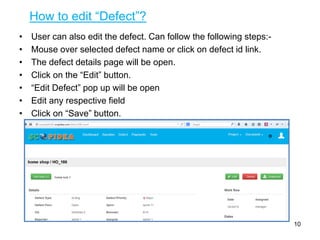
How to edit “Defect”?
• User can also edit the defect. Can follow the following steps:-
• Mouse over selected defect name or click on defect id link.
• The defect details page will be open.
• Click on the “Edit” button.
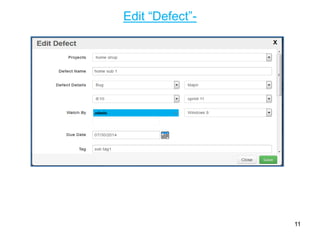
• “Edit Defect” pop up will be open
• Edit any respective field
• Click on “Save” button.
10
Edit “Defect”-
11
How to add “Subtask”?
• It is an act that must be completed as an element of completing a
larger and more complex task.
• Sub-task issues are useful for splitting up a parent issue into a
number of smaller tasks that can be assigned and tracked
separately. This can provide a better picture of the progress on the
issue, and allows each person involved in resolving the issue to
better understand what part of the process they are responsible for.
• Create a Sub task (+)
• 1. Go to “Defect” tab.
• 2. Click the defect name for which you want to create a “Sub task”.
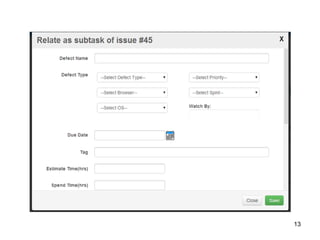
• 3. Click “Sub task” button.
• 4. Fill “Relate as subtask of issue” pop up.
• 5. Click “Save” button.
12
13
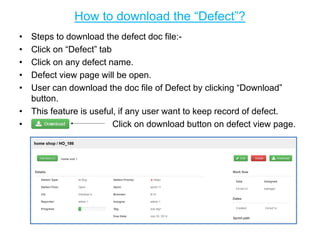
How to download the “Defect”?
• Steps to download the defect doc file:-
• Click on “Defect” tab
• Click on any defect name.
• Defect view page will be open.
• User can download the doc file of Defect by clicking “Download”
button.
• This feature is useful, if any user want to keep record of defect.
• Click on download button on defect view page.
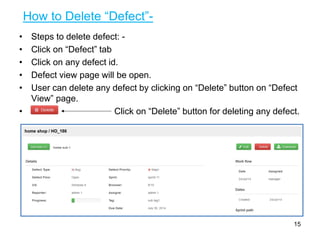
How to Delete “Defect”-
• Steps to delete defect: -
• Click on “Defect” tab
• Click on any defect id.
• Defect view page will be open.
• User can delete any defect by clicking on “Delete” button on “Defect
View” page.
• Click on “Delete” button for deleting any defect.
15
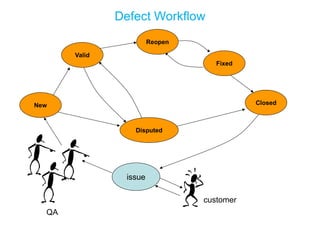
Defect Workflow
New
Fixed
Closed
Reopen
Disputed
issue
customer
QA
Valid

Scopidea defect

  • 1.
  • 2.
    2 A defect occurswhen the application doesn’t meet the software requirements. If the actual result do not match with the expected result than it can be a defect. What is “Defect”?
  • 3.
    What is all“Defect” section? 3 • All the parent defects related to any project will be display in this section. • User can view the defect detail by click on defect id link and will direct to defect view page. • “All” section display only four column “Defect Name”, “Defect Type”, “Defect Priority” and “Status”.
  • 4.
    What is “ReportedBy Me” section? • The entire defect reported by the current user will be display on this section. • User can view this section by click on “Defect” tab on “Home” page. • User can view the defect details by click on that any defect name or id link and can also do edit and delete. • User can view up to 100 defects in one time by select the number in show dropdown list. 4
  • 5.
    What is “AssignTo Me”? • The defects assigned to the current user will be display in this section and this option is available at the time of creation of defect. • User can view this section by click on “defect” tab on “Home” page. • User can view the defect details by click on that any defect name or id link and can also do edit and delete. • User can view up to 100 defects in one time by select the number in show dropdown list. 5
  • 6.
    What is “WatchBy Me”section? • All the defects watched by me the current user will be display in this section. • User can view this section by click on “defect” tab on “Home” page. • User can view the defect details mouse over on that any defect name or click on any id link and can also do edit and delete. • User can view up to 100 defects in one time by select the number in show dropdown list. 6
  • 7.
    How to create“Defect”? 7 • Whenever you got any defect then you can add your defect using Scopidea. A defect can be a bug, a task or an issue etc. To create any defect you can follow the given steps. • Steps to Create defects:- • Click on “Defect” tab on “Home” page • Click on “Add Defect” button • “Create Defect” pop up will be open. • Fill all fields with valid data. • Click on “Save” button. • The “Create Defect” pop up fields is: • 1. Projects — the 'parent' project to which the defect belongs. • 2. Defect Name — a unique name by which that defect is identified. • 3. Defect Detail — It comprises of four fields:-
  • 8.
    • Defect Type— see below for a list of types. • Priority — the importance of the defect in relation to other defects. (See below for a list of priorities). • Browser — browsers on which the defect occurred like (Mozilla Firefox, Chrome, and IE etc.) • Sprint — sprint is the small components of any project or you can say module. • 4. OS — Operating systems on which the defect occurred like (XP, Windows Vista, Windows7, Windows8, Mac, Linux, iPad, Tablet.) • 5. Tag — it is information attached to someone. • 6. Due Date — the date by which this issue is scheduled to be completed... • 7. Estimate Time (hrs) — the total amount of time required to resolve the issue, as estimated when the issue was created. • 8. Spend Time (hrs) — the total amount of time taken by Assignee to resolve the issue. 8
  • 9.
    • 9. Progress— it shows the development on particular issue. • 10. Description — a detailed description of the issue. • 11. Browse file — to attach a file or screenshot to an issue. • 12. Assign to — the person to whom the issue is currently assigned. • 13. Defect Flow — to choosing the defect like (Open, Closed, In- progress, Resolved, Reopen, Posponed, Invalid). 9
  • 10.
    How to edit“Defect”? • User can also edit the defect. Can follow the following steps:- • Mouse over selected defect name or click on defect id link. • The defect details page will be open. • Click on the “Edit” button. • “Edit Defect” pop up will be open • Edit any respective field • Click on “Save” button. 10
  • 11.
  • 12.
    How to add“Subtask”? • It is an act that must be completed as an element of completing a larger and more complex task. • Sub-task issues are useful for splitting up a parent issue into a number of smaller tasks that can be assigned and tracked separately. This can provide a better picture of the progress on the issue, and allows each person involved in resolving the issue to better understand what part of the process they are responsible for. • Create a Sub task (+) • 1. Go to “Defect” tab. • 2. Click the defect name for which you want to create a “Sub task”. • 3. Click “Sub task” button. • 4. Fill “Relate as subtask of issue” pop up. • 5. Click “Save” button. 12
  • 13.
  • 14.
    How to downloadthe “Defect”? • Steps to download the defect doc file:- • Click on “Defect” tab • Click on any defect name. • Defect view page will be open. • User can download the doc file of Defect by clicking “Download” button. • This feature is useful, if any user want to keep record of defect. • Click on download button on defect view page.
  • 15.
    How to Delete“Defect”- • Steps to delete defect: - • Click on “Defect” tab • Click on any defect id. • Defect view page will be open. • User can delete any defect by clicking on “Delete” button on “Defect View” page. • Click on “Delete” button for deleting any defect. 15
  • 16.