Salesforce Nonprofit Integration With
Donorbox Donation Form
Donorbox has partnered with Salesforce, the
world’s #1 CRM platform, to integrate with their
Nonprofit Success Pack
NPSP is built specifically for
nonprofits. It allows you to easily
analyze your donor data (names,
addresses, relationships, donation
frequency, etc.) and maintain positive
relations with your supporters
NPSP 3
This manual will guide you through the simple
integration process so that you can automatically
sync all your Donorbox donors, payments, and
campaign data with your Salesforce NPSP
account. Take a look—you can set up the
integration in just 20 minutes!
SET UP NPSP
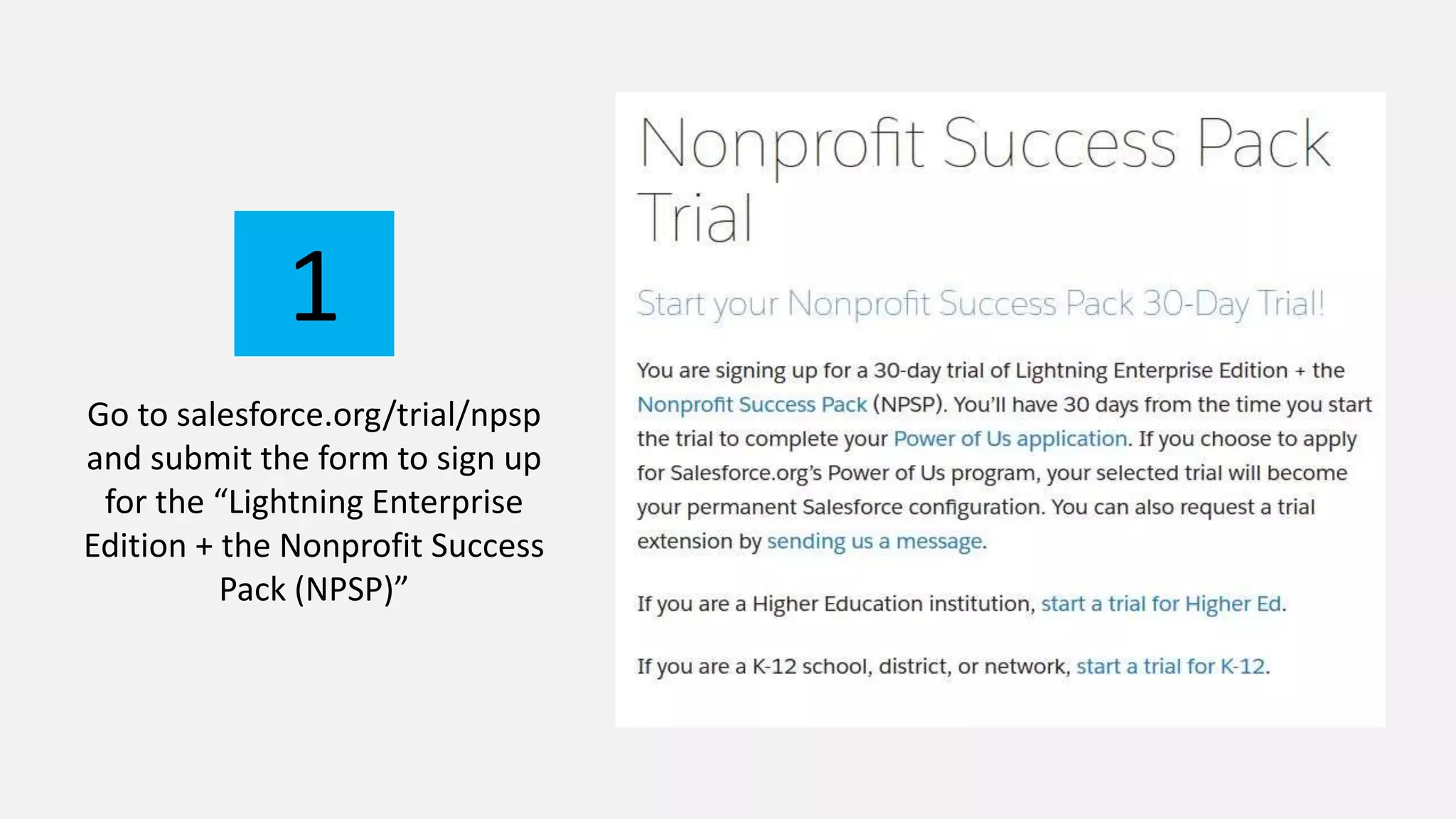
Go to salesforce.org/trial/npsp
and submit the form to sign up
for the “Lightning Enterprise
Edition + the Nonprofit Success
Pack (NPSP)”
1
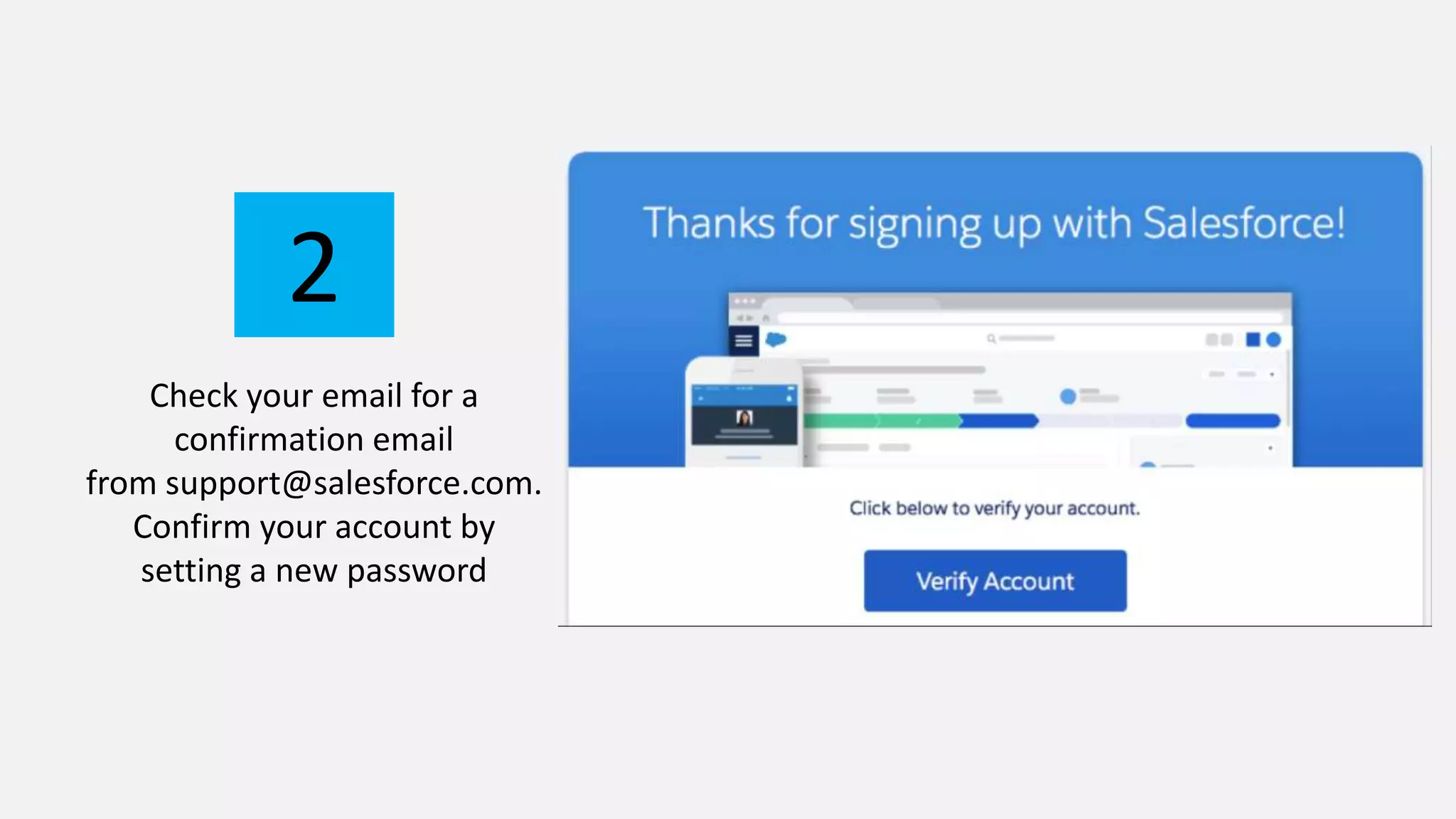
Check your email for a
confirmation email
from support@salesforce.com.
Confirm your account by
setting a new password
2
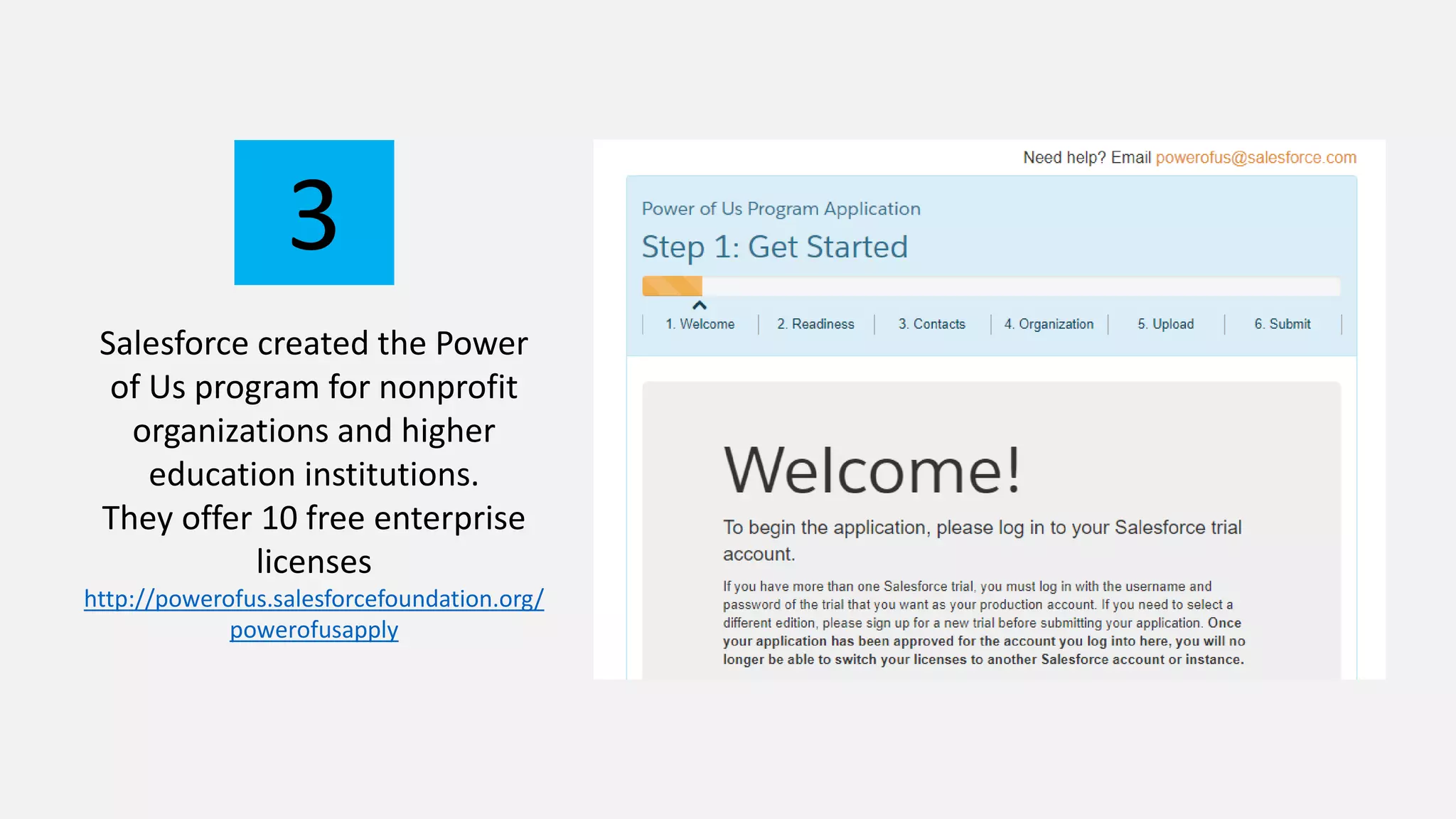
Salesforce created the Power
of Us program for nonprofit
organizations and higher
education institutions.
They offer 10 free enterprise
licenses
http://powerofus.salesforcefoundation.org/
powerofusapply
3
EXISTING SALESFORCE USER
INSTALL NPSP
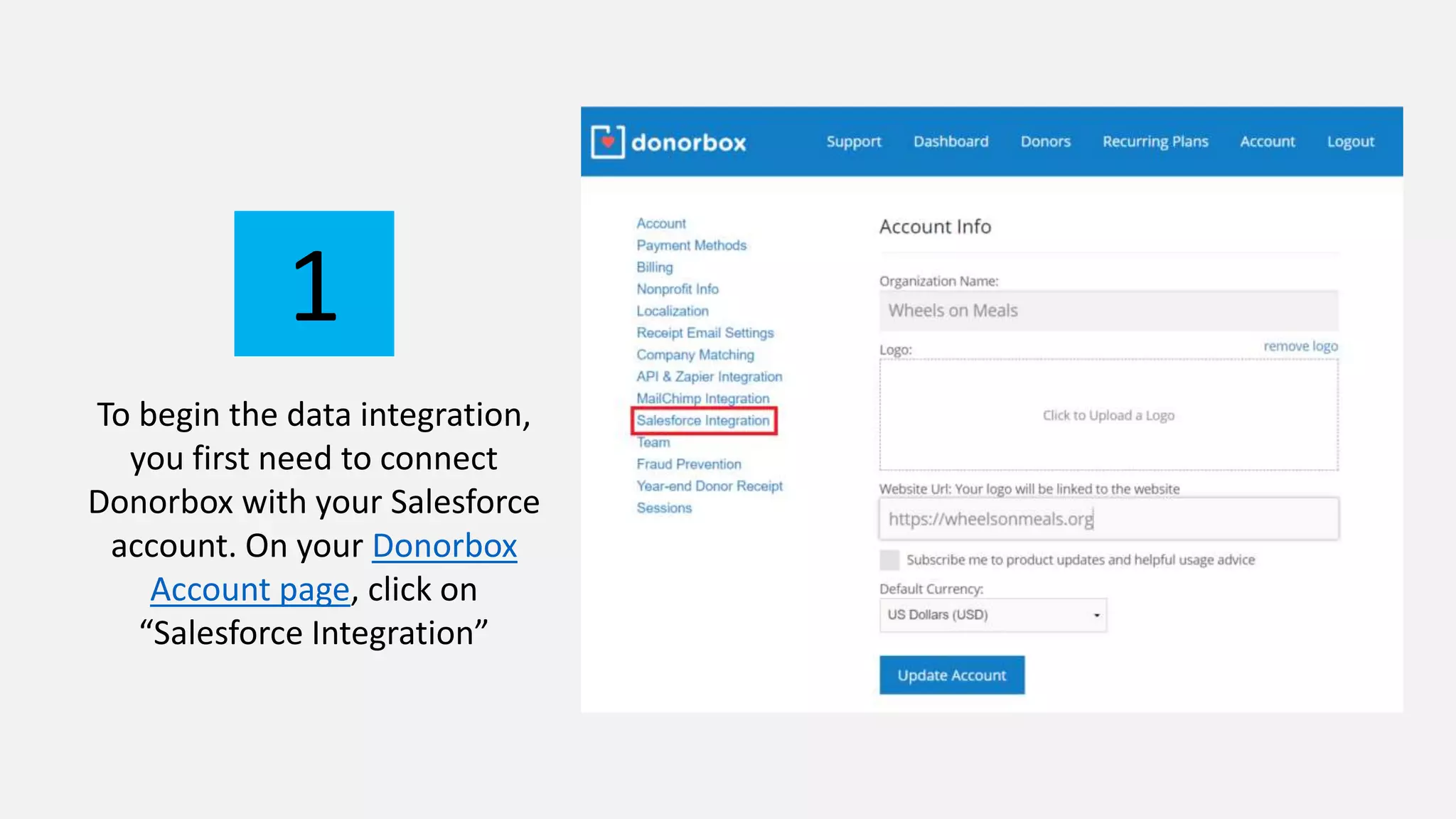
To begin the data integration,
you first need to connect
Donorbox with your Salesforce
account. On your Donorbox
Account page, click on
“Salesforce Integration”
1
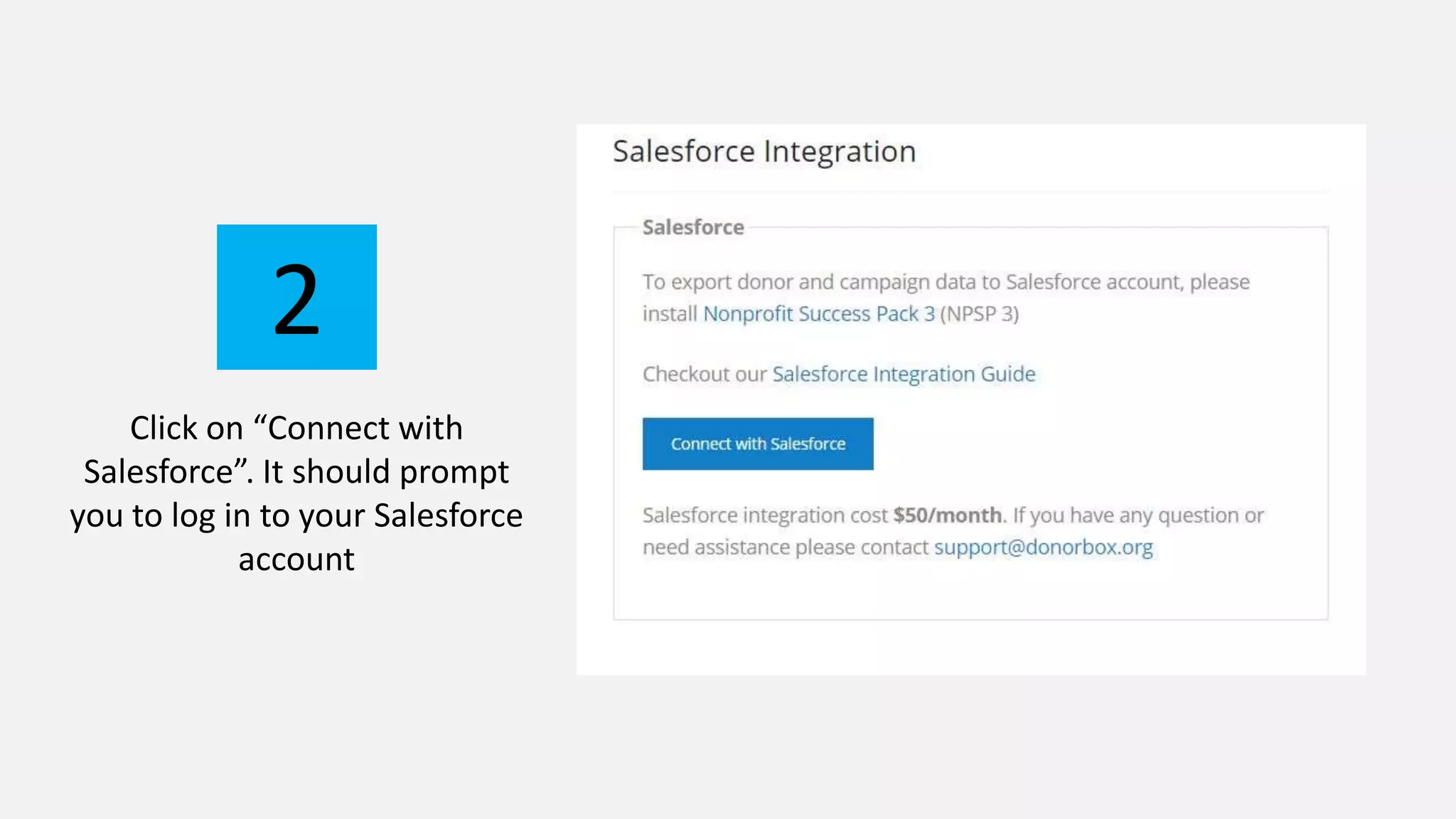
Click on “Connect with
Salesforce”. It should prompt
you to log in to your Salesforce
account
2
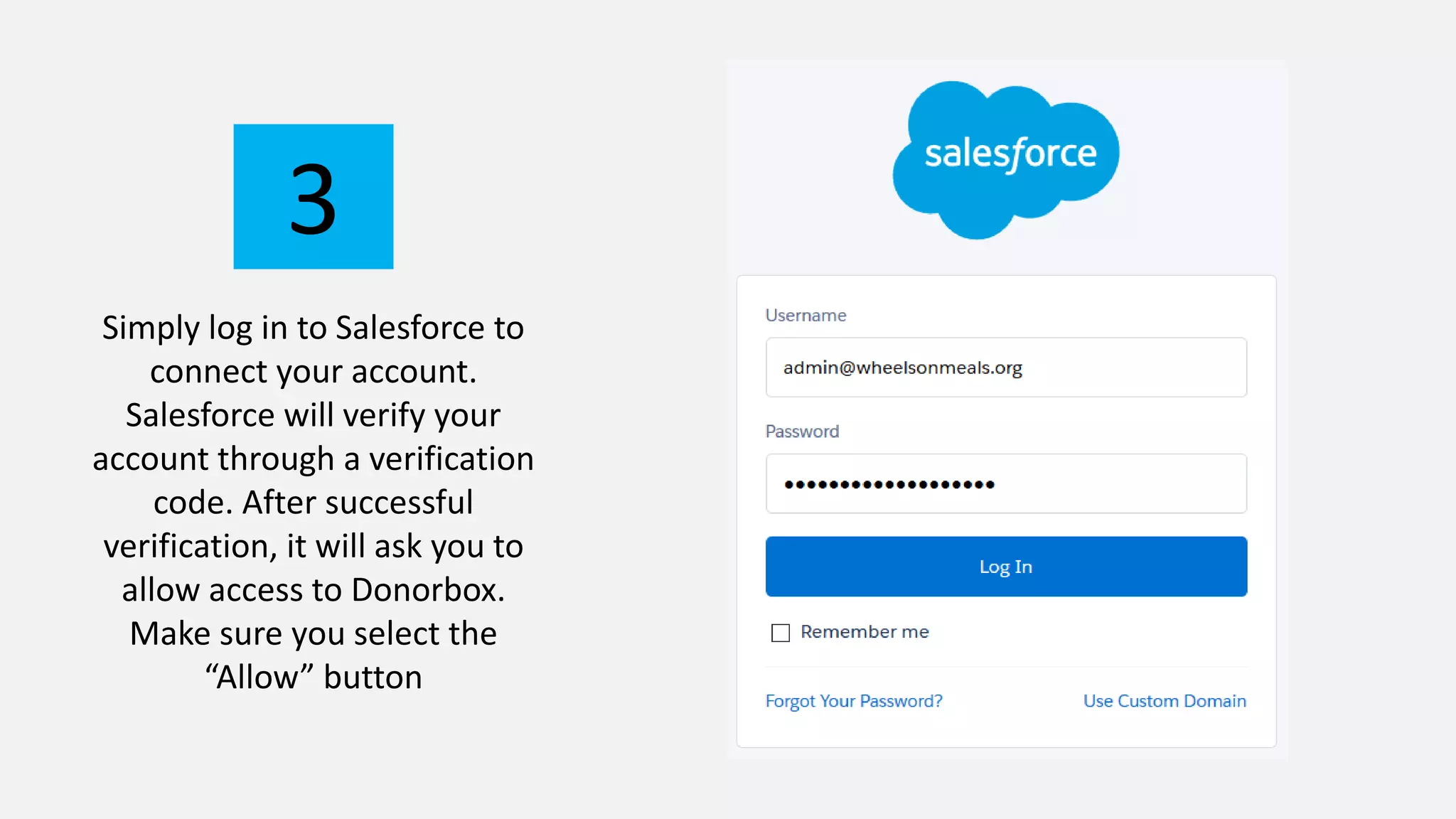
Simply log in to Salesforce to
connect your account.
Salesforce will verify your
account through a verification
code. After successful
verification, it will ask you to
allow access to Donorbox.
Make sure you select the
“Allow” button
3
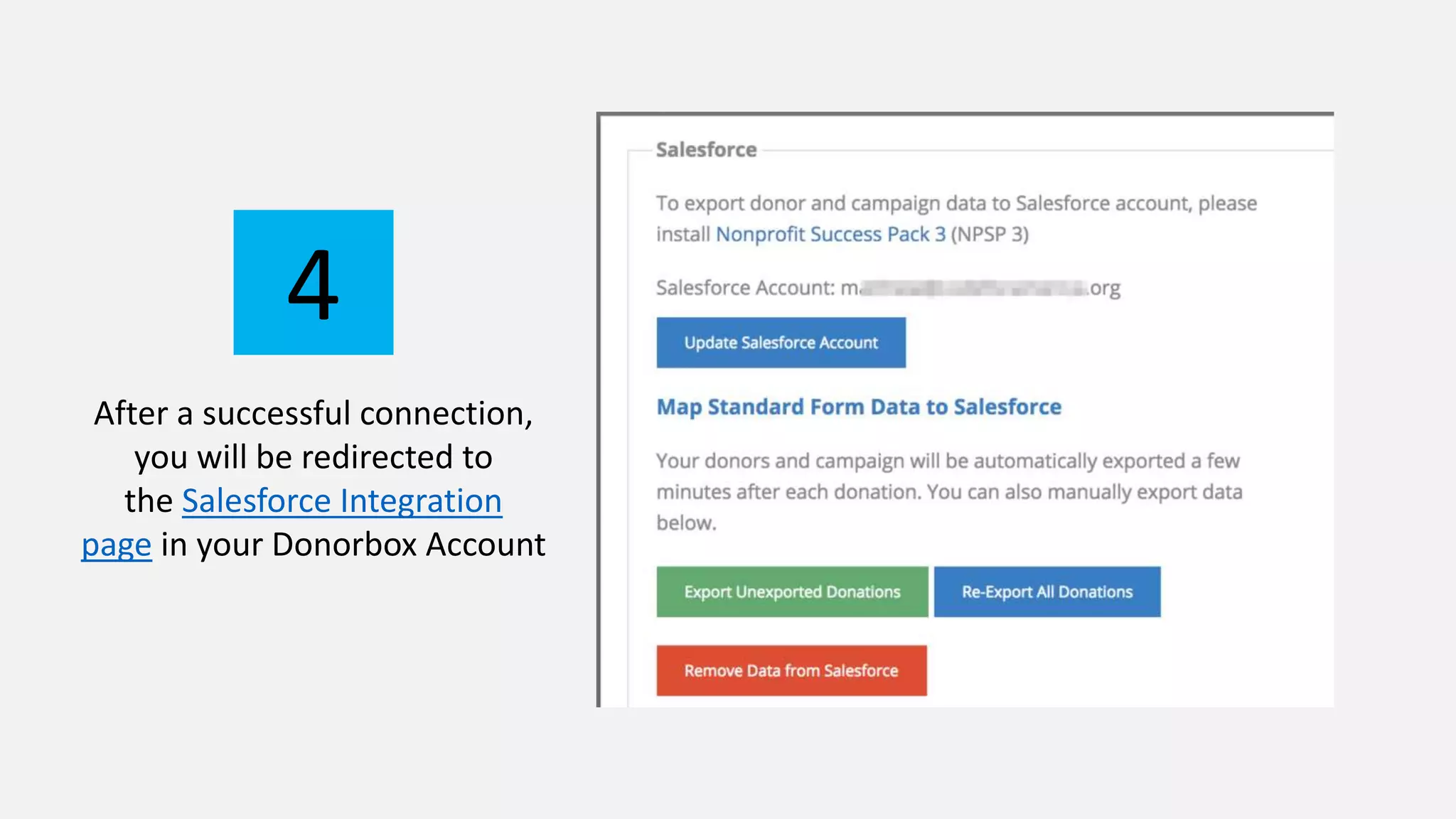
After a successful connection,
you will be redirected to
the Salesforce Integration
page in your Donorbox Account
4
MAP DONORBOX DATA TO
SALESFORCE OBJECTS
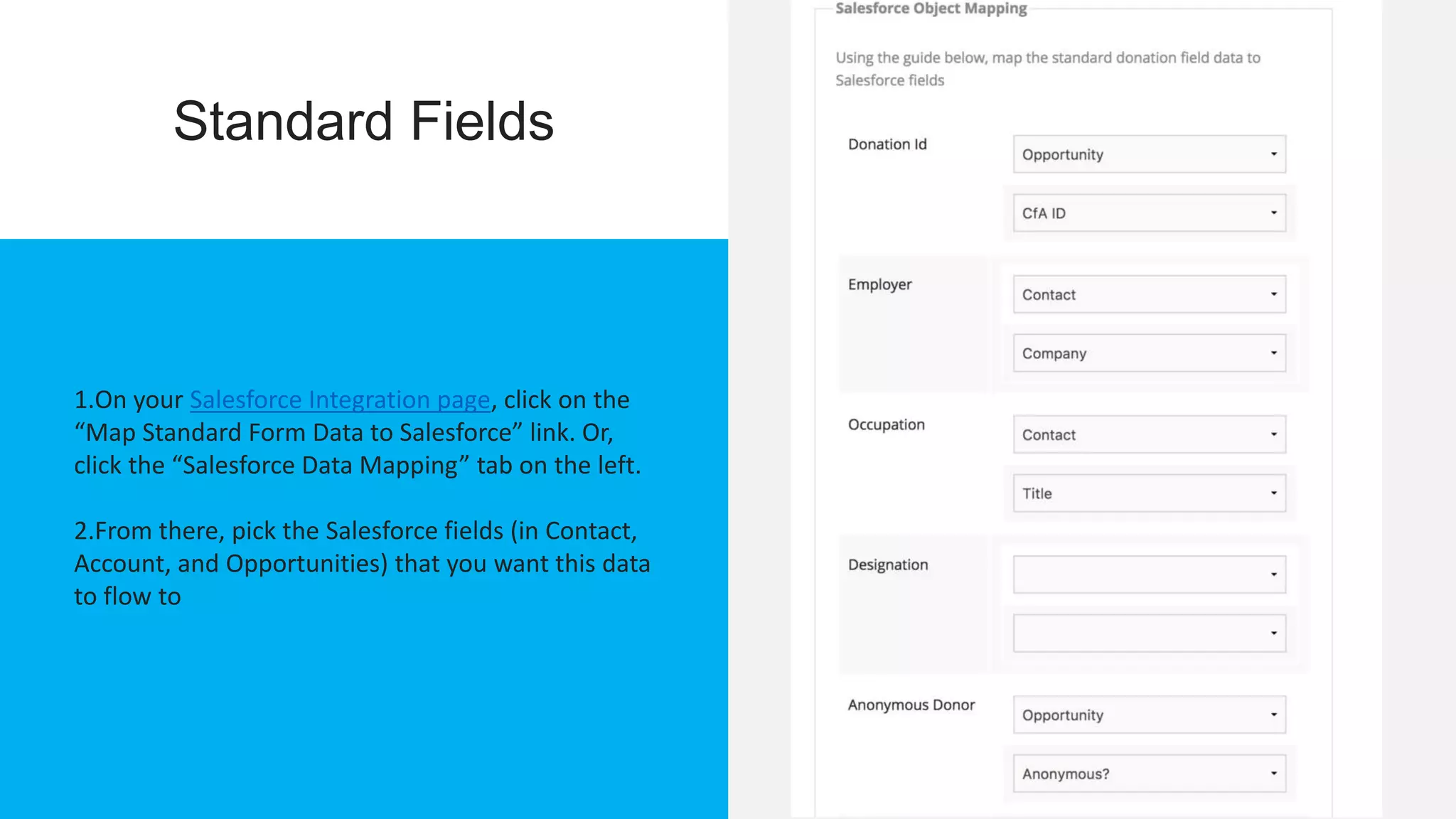
Standard Fields
1.On your Salesforce Integration page, click on the
“Map Standard Form Data to Salesforce” link. Or,
click the “Salesforce Data Mapping” tab on the left.
2.From there, pick the Salesforce fields (in Contact,
Account, and Opportunities) that you want this data
to flow to
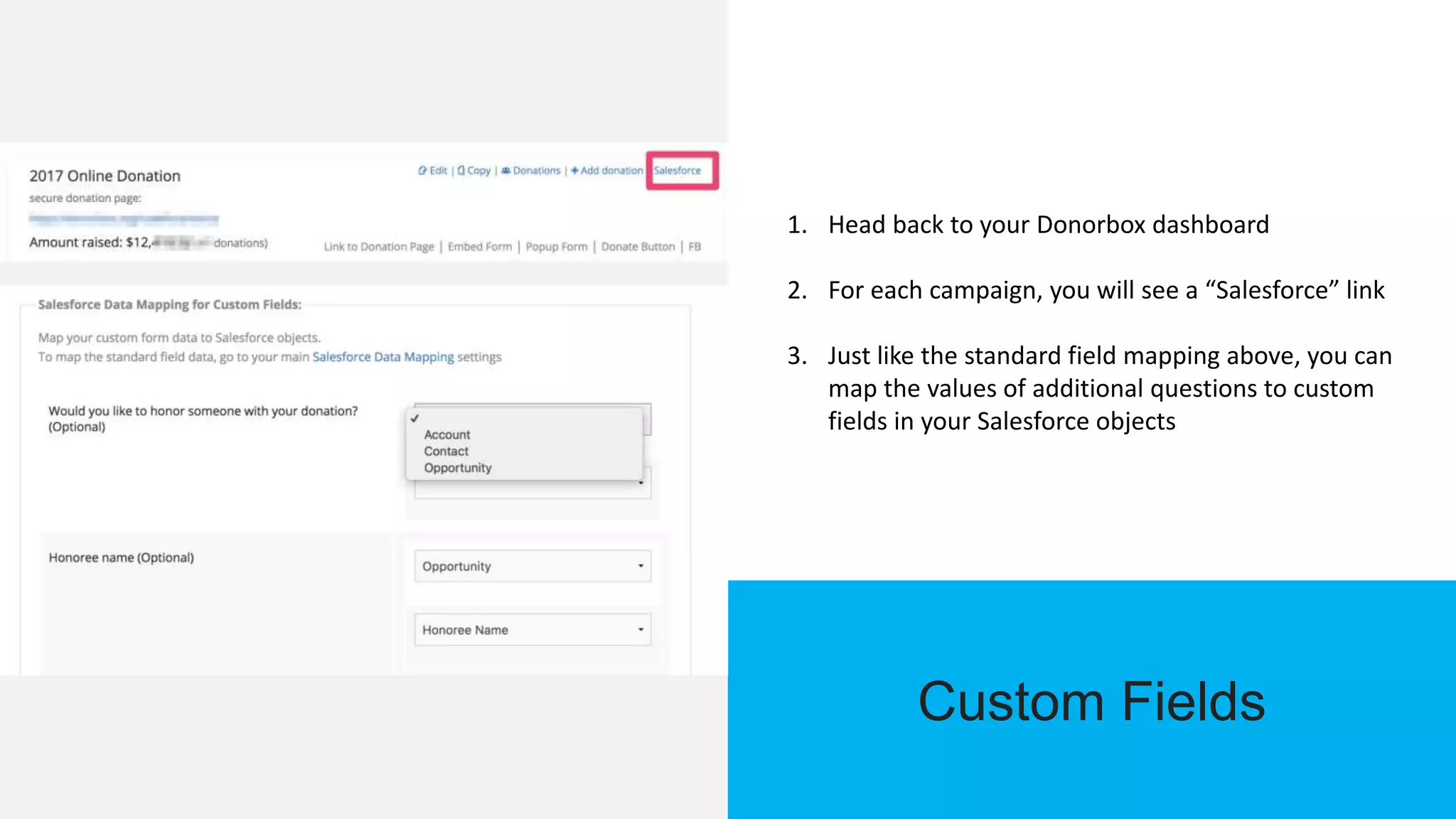
Custom Fields
1. Head back to your Donorbox dashboard
2. For each campaign, you will see a “Salesforce” link
3. Just like the standard field mapping above, you can
map the values of additional questions to custom
fields in your Salesforce objects
READ THE ENTIRE BLOG
https://donorbox.org/nonprofit-
blog/salesforce-npsp-integration/

Salesforce nonprofit integration with donorbox donation form

  • 1.
    Salesforce Nonprofit IntegrationWith Donorbox Donation Form
  • 2.
    Donorbox has partneredwith Salesforce, the world’s #1 CRM platform, to integrate with their Nonprofit Success Pack
  • 3.
    NPSP is builtspecifically for nonprofits. It allows you to easily analyze your donor data (names, addresses, relationships, donation frequency, etc.) and maintain positive relations with your supporters NPSP 3
  • 4.
    This manual willguide you through the simple integration process so that you can automatically sync all your Donorbox donors, payments, and campaign data with your Salesforce NPSP account. Take a look—you can set up the integration in just 20 minutes!
  • 5.
  • 6.
    Go to salesforce.org/trial/npsp andsubmit the form to sign up for the “Lightning Enterprise Edition + the Nonprofit Success Pack (NPSP)” 1
  • 7.
    Check your emailfor a confirmation email from support@salesforce.com. Confirm your account by setting a new password 2
  • 8.
    Salesforce created thePower of Us program for nonprofit organizations and higher education institutions. They offer 10 free enterprise licenses http://powerofus.salesforcefoundation.org/ powerofusapply 3
  • 9.
  • 10.
    To begin thedata integration, you first need to connect Donorbox with your Salesforce account. On your Donorbox Account page, click on “Salesforce Integration” 1
  • 11.
    Click on “Connectwith Salesforce”. It should prompt you to log in to your Salesforce account 2
  • 12.
    Simply log into Salesforce to connect your account. Salesforce will verify your account through a verification code. After successful verification, it will ask you to allow access to Donorbox. Make sure you select the “Allow” button 3
  • 13.
    After a successfulconnection, you will be redirected to the Salesforce Integration page in your Donorbox Account 4
  • 14.
    MAP DONORBOX DATATO SALESFORCE OBJECTS
  • 15.
    Standard Fields 1.On yourSalesforce Integration page, click on the “Map Standard Form Data to Salesforce” link. Or, click the “Salesforce Data Mapping” tab on the left. 2.From there, pick the Salesforce fields (in Contact, Account, and Opportunities) that you want this data to flow to
  • 16.
    Custom Fields 1. Headback to your Donorbox dashboard 2. For each campaign, you will see a “Salesforce” link 3. Just like the standard field mapping above, you can map the values of additional questions to custom fields in your Salesforce objects
  • 17.
    READ THE ENTIREBLOG https://donorbox.org/nonprofit- blog/salesforce-npsp-integration/