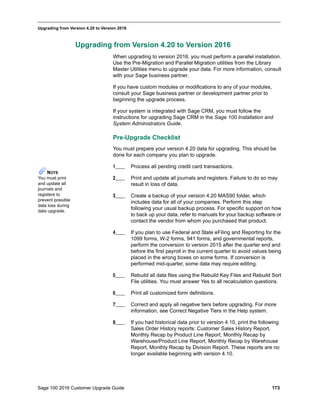
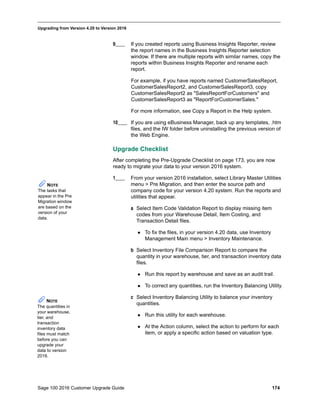
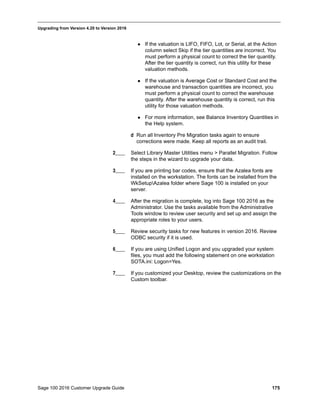
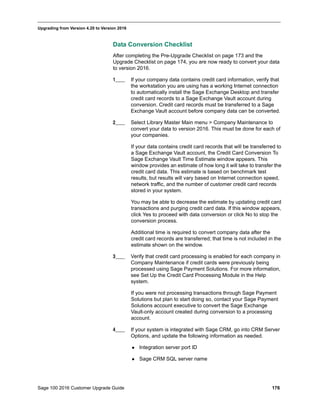
Sage 100 2016
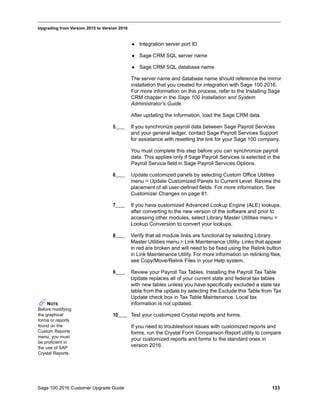
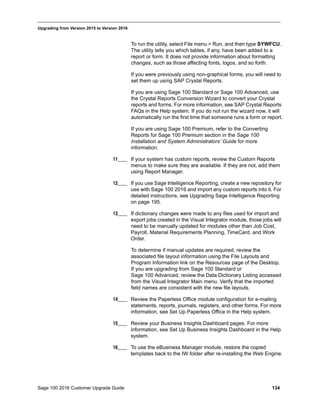
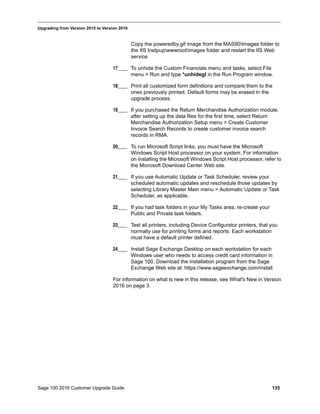
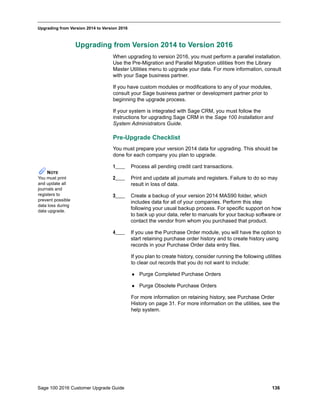
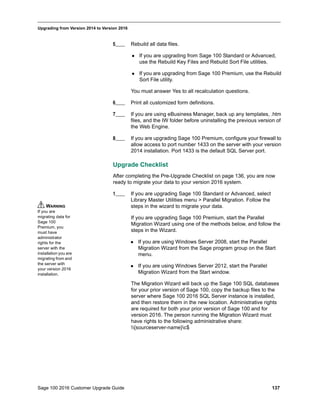
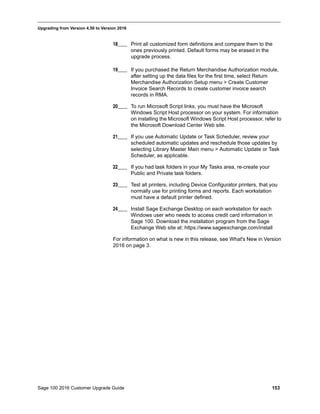
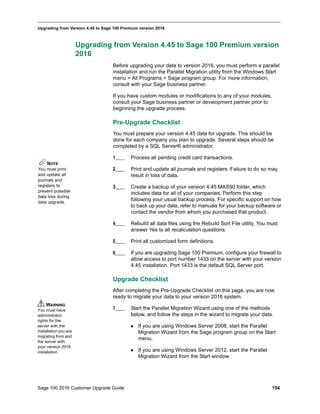
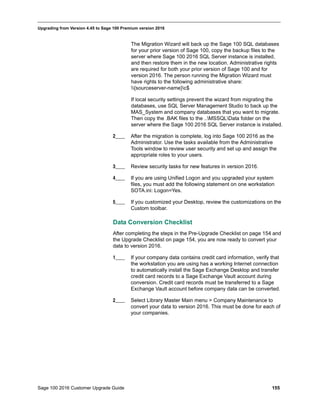
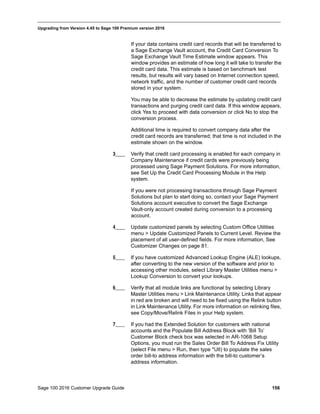
Customer Upgrade Guide
This is a publication of Sage Software, Inc.
Version 2016
Copyright © 2015 Sage Software, Inc. All rights reserved.
Sage, the Sage logos, and the Sage product and service names mentioned herein are registered trademarks or
trademarks of Sage Software, Inc., or its affiliated entities. All other trademarks are the property of their respective owners.
Business Objects® and the Business Objects logo, BusinessObjects®, and Crystal Reports® are trademarks or registered
trademarks of Business Objects Software Ltd. in the United Sates and in other countries. Business Objects is an SAP
company.
Microsoft® and Microsoft SQL Server® are either registered trademarks or trademarks of the Microsoft Corporation in the
United States and/or in other countries.
The names of all other products and services are property of their respective owners.
Your use of this document and the Sage product(s) described herein is governed by the terms and conditions of the Sage
End User License Agreement ("EULA") or other agreement that is provided with or included in the Sage product. Nothing in
this document supplements, modifies or amends those terms and conditions. Except as expressly stated in those terms
and conditions, the information in this document is provided by Sage "AS IS" and Sage disclaims all express, implied or
statutory warranties of any kind, including but not limited to the warranties of merchantability, fitness for a particular purpose
or of non-infringement. No implied license is granted to you under any Sage intellectual property or trade secret right. Sage
reserves the right to revise, supplement or remove information in this document at any time without notice to you or others.
Sage End User License: http://na.sage.com/sage-na/eula
Last updated: Tuesday, October 13, 2015
Contents...........................................................................................................................................................................................
Sage 100 2016 Customer Upgrade Guide i
Chapter 1 — Introduction 1
How to Use This Guide 1
Graphic Conventions 2
Text Conventions 2
Chapter 2 — What's New in Version 2016 3
Global Enhancements 3
New Product Key Required 3
New User Interface 3
Extended Item Descriptions for All Items 4
User Settings Window 4
Expanded Customer Purchase Order Field 4
New Fields Added to History Tables 5
Transfer Document to a Different Batch 5
Accounts Payable Enhancements 6
Electronic Payment Vendor Option for Aged Invoice Report 6
Larger Font Size Option for Aged Invoice Report 6
New Vendor Maintenance Fields for 1099 Reporting 6
Accounts Receivable Enhancements 6
Reference Memos in Repetitive Invoice Entry 6
Larger Font Size Option for Aged Invoice Report 6
General Ledger 7
Sage Payroll Services Integration 7
Library Master 7
Expanded SMTP (Email) Server Password Field 7
Theme Tab in Company Maintenance 7
New Task Scheduler Options 8
Payroll 8
Sage 100 Direct Deposit Service 8
Updates for ACA Employer Maintenance 8
Sales Order 9
Default Expiration Date for Quotes 9
Additional Options When Promoting Quotes 9
Use Default Order Date When Promoting Quotes 9
Expanded Check Number Field 9
Chapter 3 — Workflow Changes in 2016 10
General Ledger 10
Reset Linked Company for Sage Payroll Services 10
Library Master 10
Company-Specific Color Options 10
Payroll 10
Renamed Fields 10
Renamed Menu Option 10
Relocated Fields 11
Chapter 4 — Workflow Changes in 2015 12
Contents...........................................................................................................................................................................................
Sage 100 2016 Customer Upgrade Guide ii
Global Changes 12
Migration Changes 12
Option to Install Canadian Postal Codes 12
Module Options for Printing and Exporting 12
Expanded Vendor Name Field 12
Company-Specific Color for Window Frame Only 13
Lookup Wizard Button Added to Lookup Windows 13
Stay in Current Module When Changing Company 14
New Fields on User Logon Screen 14
Detailed Activity Log Entries for Changes to Module Setup Options 14
Accounts Payable Changes 14
Changes in Product Update 1 14
Changes in Version 2015 15
Accounts Receivable Changes 17
Changes in Product Update 1 17
Changes in Version 2015 17
Bank Reconciliation 19
Sample Format in Positive Pay Export Wizard 19
Remit-To Vendor Name In Positive Pay Export File 19
Ability to Sort By Multiple Columns 19
Print Full Comments Selection Retained When Printing Journals and Registers 20
Bar Code 20
Improved Process for Correcting Rejected Import Records 20
Bill of Materials 20
Option to Synchronize Bill and Item Description 20
Print Full Comments Selection Retained When Printing Journals and Registers 21
Credit Card Processing 21
Level 3 Credit Card Processing 21
Customer Purchase Order Number 22
Custom Office 22
User-Defined Scripts for Windows and Tabs 22
Customer Relationship Management 23
Changes in Product Update 1 23
Changes in Version 2015 23
General Ledger 24
Changes in Product Update 2 24
Changes in Product Update 1 24
Changes in Version 2015 25
Inventory Management 25
Module Options for Transaction Types 25
Copy From Button in Product Line Maintenance 26
Copy From Options for Items 26
Source Journal Zoom Button in Item Maintenance 26
Sort Report By Field for Item Audit Report 26
Access Bill of Materials Maintenance from Item Maintenance 27
Security Options for Item Vendor Maintenance 27
Last Physical Count Date Added to Item Maintenance 27
Contents...........................................................................................................................................................................................
Sage 100 2016 Customer Upgrade Guide iii
Library Master 27
Preexisting Codes in Country Code Maintenance 27
State Code Required Option 27
Paperless Office 28
Access Report Viewer Directly from Report Task Windows 28
Updated PDF Printer Driver 28
Paperless Office Feature Added to Reports and Registers 28
Payroll 29
Changes in Product Update 1 29
Changes in Version 2015 30
Purchase Order 30
Changes in Product Update 1 30
Changes in Version 2015 31
Return Merchandise Authorization 35
Calculator Button Added to Multiple Fields 35
Sage Intelligence Reporting 35
Updated Version of Sage Intelligence Reporting 35
Security Option for Report Viewer 36
Installation Process 36
Sales Order 36
Ability to Reauthorize Credit Card Transactions 36
New Customer Memo Button 36
Batch Number Added to Sales Order Entry Message 36
Ability to Omit Orders On Hold When Printing 36
Calendar Button Added to PO Req Date Field 37
Calculator Button Added to Tax Amount Field 37
Message Appears if Quantity Packed Does Not Match Quantity Shipped 37
Changes to Additional Fields Information 37
Option to Keep Window Open after Print or Preview 37
Chapter 5 — Workflow Changes in 2014 39
Global 39
Auto-Complete 39
Custom Reports 39
Default Column Name in Search Grid Window 39
MAS Office Button 40
Accounts Payable 40
Invoice List Button in Invoice Data Entry 40
Repetitive Invoice List Button in Repetitive Invoice Entry 40
Form 1099 Filing 40
Accounts Receivable 40
Repetitive Invoice List Button in Repetitive Invoice Entry 40
General Ledger 40
Keep Financial Reports Window Open 40
Library Master 41
Report Manager 41
System Configuration 41
Contents...........................................................................................................................................................................................
Sage 100 2016 Customer Upgrade Guide iv
User Maintenance 41
Payroll 41
Employer Medical Assistance Contribution (MAC) fields 41
Electronic Form Filing 41
W2 Puerto Rico Mapping E/D Codes 41
Sage Intelligence Reporting 42
Installation 42
Access within Sage 100 42
Excel 2010 and Excel 2013 64-Bit Support 42
.NET Framework 4.0 42
User Interface and Usability Improvements 42
Sage CRM 43
Retired Modules 43
Chapter 6 — Workflow Changes in 2013 44
Global Changes 44
64-Bit ODBC Driver 44
ALE Lookups in Data Entry Windows 44
Feedback Form in Help System 44
Installation Changes 44
Native SData Provider 44
Report Changes 44
SAP® Crystal Reports® 45
Sage Advisor Update 45
Installing with Microsoft Windows Installer (MSI) 45
Verify Account Information 45
Accounts Payable Changes 46
Expanded Accounts Payable Invoice Number 46
Inactive Vendors 46
View Cleared Checks in Vendor Maintenance 48
Accounts Receivable Changes 48
Inactive Customers 48
Credit Card Processing 50
Bank Reconciliation Changes 52
Common Information Changes 52
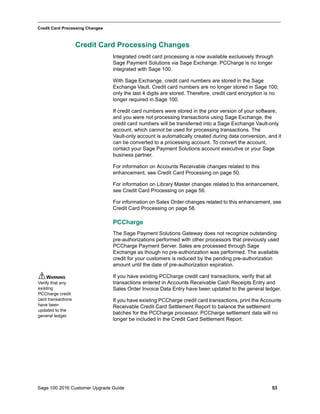
Credit Card Processing Changes 53
PCCharge 53
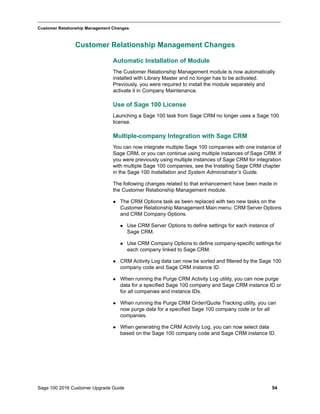
Customer Relationship Management Changes 54
Automatic Installation of Module 54
Use of Sage 100 License 54
Multiple-company Integration with Sage CRM 54
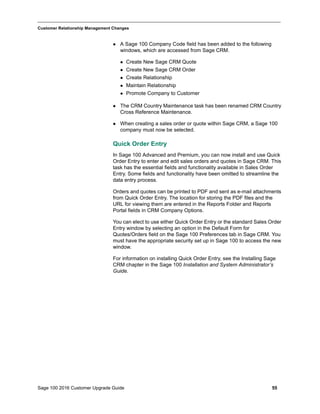
Quick Order Entry 55
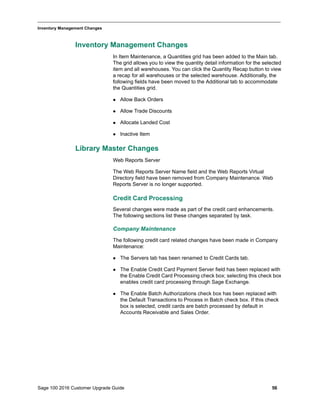
Inventory Management Changes 56
Library Master Changes 56
Credit Card Processing 56
Paperless Office Changes 58
Sales Order Changes 58
Contents...........................................................................................................................................................................................
Sage 100 2016 Customer Upgrade Guide v
Credit Card Processing 58
Visual Integrator Changes 59
Visual Process Flows 59
Retired Modules 59
Module PDFs 59
Chapter 7 — Workflow Changes in 4.50 60
Global Changes 60
Choose an Installation Option 60
Security Requirement 60
Participate in the Product Enhancement Program 60
Retain Report and Form Printer Information Setting 61
Manage Your System Window 61
Accounts Receivable Changes 61
Create National Accounts 61
Define Default Price Levels by Customer and Product Line 62
Purge Credit Card Data During Period-End Processing 62
Define Split Commissions by Customer 62
Recalculate Open Order Amounts 63
Bar Code Changes 63
Print Lot/Serial Distribution Information 63
Inventory Management Changes 63
Inactive Items 63
View Lot/Serial Distribution Information 64
Library Master Changes 64
Define Credit Card Security Options 64
Payroll Changes 65
Recalculate Deductions in Payroll Data Entry 65
Define Deduction Code Options 65
Recalculate All Option for Payroll Imports 66
Select Preconfigured Payroll Import Jobs 66
Define Minimum Hours for Benefit Accrual 66
Identify Business Type 66
Purchase Order Changes 67
Renamed Task 67
View Sales Orders from Purchase Order Entry 67
Set Up Additional Purchase Order/Auto Generate Options 67
Sales Order Changes 68
Set Up Additional Options for Job Cost 68
Calculate Sales Commissions by Line Item 69
Calculate Item Pricing by Total Quantity 69
Distribute Lot/Serial Items from Sales Order Entry 69
Generate Purchase Orders from Sales Orders 70
Assign Vendors to Miscellaneous/Special Items 70
Retired Modules 70
Chapter 8 — Workflow Changes in 4.40.0.X 71
Contents...........................................................................................................................................................................................
Sage 100 2016 Customer Upgrade Guide vi
Installation Changes 71
Changes in Version 4.40 71
Global Changes 71
Changes in Version 4.40 71
Library Master Changes 74
Changes in Version 4.40 74
Accounts Payable Changes 75
Changes in Product Update 4.40.0.2 75
Changes in Product Update 4.40.0.1 75
Change in Version 4.40 76
Accounts Receivable Changes 76
Change in Version 4.40 76
Bank Reconciliation Changes 76
Changes in Product Update 4.40.0.3 76
Change in Product Update 4.40.0.2 76
Bar Code Changes 77
Changes in Version 4.40 77
Bill of Materials Changes 77
Changes in Version 4.40 77
Business Insights Changes 79
Changes in Version 4.40 79
Common Information Changes 79
Change in Product Update 4.40.0.2 79
Changes in Version 4.40 80
Customizer Changes 81
Changes in Version 4.40 81
eBusiness Manager Changes 82
Changes in Version 4.40 82
General Ledger Changes 82
Changes in Version 4.40 82
Inventory Management Changes 82
Changes in Product Update 4.40.0.5 82
Changes in Version 4.40 83
Job Cost Changes 87
Changes in Version 4.40 87
Payroll Changes 88
Change in Product Update 4.40.0.5 88
Change in Version 4.40 88
Purchase Order Changes 88
Changes in Version 4.40 88
Return Merchandise Authorization Changes 93
Change in Version 4.40 93
Sales Order Changes 93
Changes in Product Update 4.40.0.1 93
Changes in Version 4.40 94
Visual Integrator Changes 95
Contents...........................................................................................................................................................................................
Sage 100 2016 Customer Upgrade Guide vii
Changes in Version 4.40 95
Work Order Changes 96
Changes in Version 4.40 96
Report Master Changes 97
Changes in Version 4.40 97
Retired Modules 97
Chapter 9 — Workflow Changes in 4.30 98
Installation Changes 98
Global Changes 98
Reports and Forms 98
Selection Grids 98
Library Master Changes 98
Role Maintenance 98
Accounts Receivable Changes 99
Customer Statements 99
Business Insights Changes 99
Business Insights Dashboard 99
Business Insights Reporter 99
Common Information Changes 99
Bank Code Maintenance 99
Payroll Changes 100
Direct Deposits 100
Visual Integrator Changes 100
Job Import 100
Report Master Changes 100
Chapter 10 — Workflow Changes in 4.20 101
Global Changes 101
Advanced Lookup Engine (ALE) 101
Sage 100 Desktop 101
Help System and Online Manuals 101
Inquiries 101
Printing 101
Printing to a Dot Matrix Printer 102
Report Master 102
Library Master Changes 102
Batch Faxing 102
Role Maintenance 103
Renamed Task 103
Reports 103
URL Maintenance 104
Accounts Payable Changes 104
Global Changes 104
Data Entry 105
Period End Processing 105
Reports and Forms 105
Contents...........................................................................................................................................................................................
Sage 100 2016 Customer Upgrade Guide viii
Renamed, Removed, or Moved Tasks 106
Accounts Receivable Changes 107
Memos 107
Business Insights Changes 107
Global Changes 107
Business Insights Explorer 107
Renamed Tasks 107
Common Information Changes 108
Renamed, Removed, or Moved Tasks 108
Customizer Changes 108
Global Changes 108
Electronic Reporting for W2 and 1099 (Magnetic Media Reporting) 109
Global Changes 109
Fixed Assets Changes 110
Global Changes 110
Payroll Changes 110
Taxes 110
Reports 111
Visual Integrator Changes 111
Data Dictionary Listing 111
Import Job Maintenance 111
Retired Modules 111
Chapter 11 — Workflow Changes in 4.10 112
Accounts Receivable Changes 112
Global Changes 112
Period End Processing 112
Renamed, Removed, or Moved Tasks 113
Business Insights Changes 113
Renamed, Removed, or Moved Tasks 113
Common Information Changes 113
Miscellaneous Item Maintenance 113
Customizer Changes 114
Global Changes 114
eBusiness Manager Changes 116
Global Changes 116
Return Merchandise Authorization Changes 116
Renamed, Removed, or Moved Tasks 116
Sales Order Changes 117
Global Changes 117
Sales History 117
Sales History Reports 117
Period End Processing 118
Job Cost Integration 118
Visual Integrator Changes 119
Data Dictionaries 119
Contents...........................................................................................................................................................................................
Sage 100 2016 Customer Upgrade Guide ix
Data Dictionary Listing 119
Import Job Maintenance 119
Chapter 12 — Workflow Changes in 4.00 120
Installation Changes 120
Global Changes 120
Advanced Lookup Engine (ALE) 120
Sage 100Desktop 120
Help System and Online Manuals 120
Upgrading Level 3.x Data 120
Module and Accounting Dates 121
Registering Your Modules 121
Security 121
Library Master Changes 121
Changed Tasks 121
Companies 122
Renamed, Removed, or Moved Tasks 122
Business Insights Changes 123
Business Insights Reporter 123
Customizer Changes 123
Global Changes 123
General Ledger Changes 123
Accounts 123
Allocations 124
Custom Financials 125
Standard Financials 125
Data Entry 125
Period End Processing 126
Reports 127
Renamed and Removed Tasks 127
Visual Integrator Changes 127
Data Dictionaries 127
Data Dictionary Listing 127
Import Job Maintenance 127
Export Jobs 128
Retired Modules 128
Appendix A — Checklists 129
Upgrade and Conversion Process 129
Upgrading from Version 2015 to Version 2016 130
Pre-Upgrade Checklist 130
Upgrade Checklist 131
Data Conversion Checklist 132
Upgrading from Version 2014 to Version 2016 136
Pre-Upgrade Checklist 136
Upgrade Checklist 137
Data Conversion Checklist 138
Contents...........................................................................................................................................................................................
Sage 100 2016 Customer Upgrade Guide x
Upgrading from Version 2013 to Version 2016 142
Pre-Upgrade Checklist 142
Upgrade Checklist 143
Data Conversion Checklist 144
Upgrading from Version 4.50 to Version 2016 148
Pre-Upgrade Checklist 148
Upgrade Checklist 149
Data Conversion Checklist 150
Upgrading from Version 4.45 to Sage 100 Premium version 2016 154
Pre-Upgrade Checklist 154
Upgrade Checklist 154
Data Conversion Checklist 155
Upgrading from Version 4.40 to Version 2016 159
Pre-Upgrade Checklist 159
Upgrade Checklist 160
Data Conversion Checklist 160
Upgrading from Version 4.30 to Version 2016 165
Pre-Upgrade Checklist 165
Upgrade Checklist 166
Data Conversion Checklist 168
Upgrading from Version 4.20 to Version 2016 173
Pre-Upgrade Checklist 173
Upgrade Checklist 174
Data Conversion Checklist 176
Upgrading from Version 4.10 to Version 2016 181
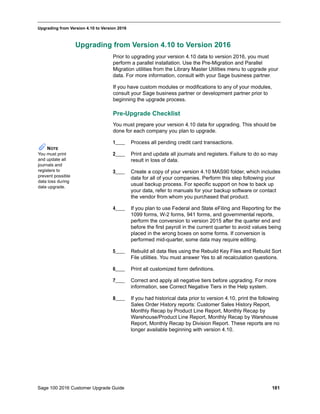
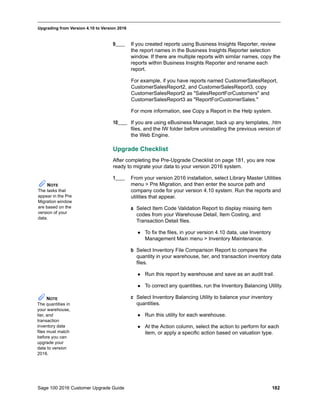
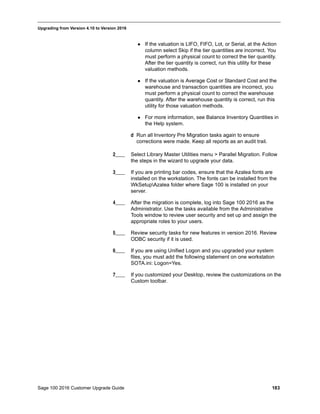
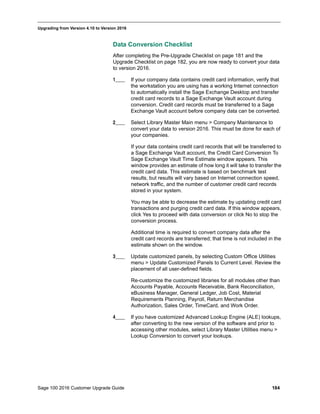
Pre-Upgrade Checklist 181
Upgrade Checklist 182
Data Conversion Checklist 184
Upgrading from Version 4.00 or 4.05 to Version 2016 188
Pre-Upgrade Checklist 188
Upgrade Checklist 189
Data Conversion Checklist 191
Appendix B — Upgrading Sage Intelligence Reporting 195
Report Compatibility 195
Export Custom Reports 195
Create a New Repository 196
Set Up Sage Intelligence Reporting in Sage 100 2016 196
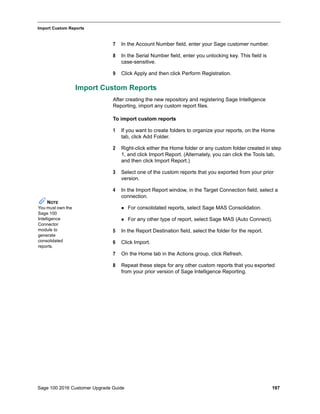
Import Custom Reports 197
Sage 100 2016 Customer Upgrade Guide 1
Chapter 1
Introduction
Chapter 1
Sage, the recognized leader in business management for small- and
mid-size businesses, welcomes you to Sage 100 2016.
How to Use This Guide
This guide has been created to ease the process of upgrading your
software. While the new features included in this release have been
designed to improve your workflow and business processes, this means
that the way you use your system may change.
This guide contains the following information you need for a successful
upgrade:
 A list of changes to the installation program
 A list of enhancements and changes made in Sage 100
 Checklists to guide you through migrating and converting your data
For a complete list of enhancements in this release, see What's New in
Version 2016 on page 3. After installing the product, you can view this
information and the release notices, which is a list of corrections
incorporated into this release. To view, click the Resources link on the
Tasks tab, and then click What’s New to see the enhancement
information. At the top of the What’s New page, click Release Notices to
see the list of corrections.
The remaining chapters highlight the differences that you need to be
aware of and the steps you need to take before using the new system.
The upgrade checklists provide instructions for migrating and converting
your company data.
Review the information in this guide before installing the software. For
more information, refer to your Installation and System Administrator's
Guide. The Installation and System Administrator's Guide can be found in
the Documents folder of the Sage 100 installation program, or by starting
the installation program, selecting a product, and then clicking
Documentation. The guide is in PDF format and is named
Sage 100_Install.pdf.
Some sections of this guide reference Business Insights Reporter and the
eBusiness Manager, Fixed Assets, Job Cost, Material Requirements
Planning, Payroll, TimeCard, and Work Order modules, which are not
available for Sage 100 Premium.
Sage 100 2016 Customer Upgrade Guide 2
_____________________________________________________________________________________________
How to Use This Guide
Graphic Conventions
The following icons are used throughout this guide to indicate different
types of information.
Text Conventions
The following table describes the text conventions used in this guide.
Text Convention Explanation
Menus Menus are shown in this format:
Select menu > menu task name.
Examples:
 Select File menu > Change
Company.
 Select General Ledger Budget
menu > Budget Maintenance.
Bold font Indicates text entered at a field or text
selected at a field.
Examples:
 At the Value field, type a search
value, such as 01, for the lookup.
 In the Filter window, to delete a
filter, select <none> at a filter's
Column field.
Italic font Indicates references to other manuals.
Example:
 For more information, refer to your
Installation and System
Administrator's Guide.
The NOTE symbol is followed by additional
information about a topic.
The WARNING symbol is followed by information
to help you avoid costly mistakes.
Sage 100 2016 Customer Upgrade Guide 3
Chapter 2
What's New in Version 2016
Chapter 2
Global Enhancements
New Product Key Required
If you use the Payroll module, you must enter your new product key when
installing Sage 100 2016. If you enter a product key obtained when
purchasing a previous version of the program, you will not be able to open
any Payroll tasks.
New User Interface
A new user interface is available as a benefit of Sage 100 modernization
subscription business case bundles. This user interface has been
updated with new features and a more modern appearance. The following
is a list of highlights.
For more details, refer to the Sage 100 Getting Started Guide, which you
can access form the Resources page: On the Sage 100 Desktop, click
Web Content, and then click Resources.
Ribbon Replaces the Toolbar
A ribbon has replaced the Desktop toolbar. You still have access to the
same features, but the new interface makes them easier to find.
Change Font Size for Desktop and Task Windows
You can now increase the size of text that appears in the Desktop and
task windows. The task windows will be automatically resized to
accommodate the text size. Use the Application Scaling menu on the
View tab to adjust the text size.
Themes for the Desktop and Task Windows
You can now select from one of several themes for the Desktop. Use the
View tab to select a theme.
Different themes are also available for task windows. You can select a
preconfigured theme or create your own. For more information, see
Theme Tab in Company Maintenance on page 7.
Individuals can select their own themes on the new User Settings window
if they have the appropriate security setup.
Sage 100 2016 Customer Upgrade Guide 4
_____________________________________________________________________________________________
Global Enhancements
Extended Item Descriptions for All Items
You can now enter an extended item description for all items, with the
exception of Comment-type items. The following changes have been
made as part of this enhancement:
 An Extended Item Description button has been added to the
Miscellaneous Item Maintenance window. Click this button to open the
Item Text Maintenance window to view and maintain extended item
descriptions.
 A Print Extended Descriptions check box has been added to the
Miscellaneous Item Listing window.
 An Extended Item Description button has been added to the Lines tab
in A/R Invoice Data Entry and A/R Repetitive Invoice Entry.
 On all other data entry screens with an Extended Item Description
button, the button will now be available when miscellaneous, special,
and charge items are selected.
User Settings Window
The new User Settings window allows users to set certain preferences,
such as the default zoom level for previewing reports and whether a
decimal point is automatically inserted when entering quantities.
Users can also use this window to select whether they want to use the
standard or classic Desktop and, if they have the appropriate security
setup, a theme for task windows. A new security event, Allow to Modify
Theme in User Settings, has been added to Role Maintenance. For more
information on selecting a Desktop or theme, see New User Interface on
page 3.
The User Settings window is accessed by clicking the Settings button on
the User Logon window after entering a valid user logon ID and password,
or by selecting Change User Settings from the Sage 100 File menu.
Expanded Customer Purchase Order Field
The customer purchase order number field has been expanded to 30
characters. The field held a maximum of 15 characters in prior versions.
 The standard forms and reports handle the expanded field differently,
depending on the report layout. If the longer number doesn’t fit on one
line, it wraps to the next.
 Test all customized forms that print the customer purchase order
number to ensure that they correctly display numbers that exceed 15
characters.
Sage 100 2016 Customer Upgrade Guide 5
_____________________________________________________________________________________________
Global Enhancements
 Reports created with the Business Insights Reporter Wizard must be
modified by editing the report using SAP Crystal Reports Designer, or
you can recreate the reports using the wizard.
 Windows and tabs that display the customer purchase order number
have been updated to display either all 30 characters or as many as
possible. For fields that do not display all 30 characters, you can use
the Right Arrow key or the End key to move the cursor within the field
and view the full number. The Home key returns the cursor to the
beginning of the field.
New Fields Added to History Tables
For internal control purposes, the following fields have been added to
various tables:
 Created By (UserCreatedKey)
 Date Created (DateCreated)
 Time Created (TimeCreated)
The fields were added to the following tables:
 AP_CheckDetailPosting
 AP_CheckHeaderPosting
 AP_CheckHistoryHeader
 AP_InvoiceHeaderPosting
 AP_InvoiceHistoryHeader
 AP_OpenInvoice
 AR_CashReceiptsHistory
 AR_InvoiceHistoryHeader
 AR_OpenInvoice
 AR_TransactionPosting
 PO_ReceiptHistoryHeader
 RA_ReceiptsHistoryHeader
The data in these fields can be viewed using a Visual Integrator export or
a custom report. In history inquiry tasks, you can right-click the task
window and then click System Info to view the Created By and Date
Created information.
Transfer Document to a Different Batch
A Transfer Document button has been added to data entry windows that
include the batch entry feature. If batch entry is enabled, you can click this
button to move the current document to a different batch.
Sage 100 2016 Customer Upgrade Guide 6
_____________________________________________________________________________________________
Accounts Payable Enhancements
Electronic Payment Vendor Option for Aged Invoice
Report
An Include Electronic Payment Vendors field has been added to the
Accounts Payable Aged Invoice Report window. You can use this field to
specify whether vendors with the Electronic Payment check box selected
in Vendor Maintenance are included on the report. The available options
in the field are No, Only, and Yes.
Larger Font Size Option for Aged Invoice Report
A Print Condensed check box has been added to the Accounts Payable
Aged Invoice Report window. When the check box is cleared, the report
will be printed in landscape view with an 8 point font size. When this
check box is selected, the report will be printed in portrait view with a 6
point font size as it was previously.
New Vendor Maintenance Fields for 1099 Reporting
Two check boxes used for 1099 reporting have been added to the
Additional tab in Vendor Maintenance:
 Electronic Consent Signed: Select this check box if the vendor has
provided consent to receive an electronic 1099 form instead of a paper
copy.
 FATCA: Select this check box if you are required to report payments to
this vendor according to the Foreign Account Tax Compliance Act.
Accounts Receivable Enhancements
Reference Memos in Repetitive Invoice Entry
A Memo button has been added next to the Reference field in Repetitive
Invoice Entry. When using the Copy From button to copy information to a
new repetitive invoice, you will have the option to copy any existing
memos.
Larger Font Size Option for Aged Invoice Report
A Print Condensed check box has been added to the Accounts
Receivable Aged Invoice Report window. When the check box is cleared,
the report will be printed in landscape view with an 8 point font size. When
this check box is selected, the report will be printed in portrait view with a
6 point font size as it was previously.
Sage 100 2016 Customer Upgrade Guide 7
_____________________________________________________________________________________________
General Ledger
General Ledger
Sage Payroll Services Integration
Sage 100 is now integrated with Sage Payroll Services (formerly known
as PayChoice). You can upload general ledger account numbers and
bank codes to Sage Payroll Services and download payroll transactions
into Transaction Journal Entry.
After setting up an account with Sage Payroll Services, use the tasks on
the General Ledger Payroll Services menu to set up the integration. For
detailed steps, see Integrate an Online Payroll Service with General
Ledger in the help system. To learn more, visit
http://na.sage.com/us/sage-payroll-services.
This feature will not affect anyone using the previously existing online
payroll service, BenefitMall. A Payroll Service field has been added to
Sage Payroll Services Options, which allows you to select the online
payroll service you are using. However, the correct option will be
automatically selected when you upgrade from a system that was
integrated with BenefitMall.
Library Master
Expanded SMTP (Email) Server Password Field
The SMTP (email) server Password field in Company Maintenance has
been expanded to 128 characters. The field held a maximum of 14
characters in prior versions.
Due to the space limitations, the data entry field displays 59 characters.
As you type a password that exceeds 59 characters, you’ll automatically
scroll through the field as needed.
Theme Tab in Company Maintenance
A Theme tab has been added to Company Maintenance. Use this tab to
choose a theme for the selected company. If you select the Classic
theme, you can specify a company-specific background color for the
window background, frame, or both.
The Enable Company Specific Background Color field and Select Color
button have been relocated from the Preferences tab to this tab. The
Select Color button is now identified by an image of a color palette instead
of a textual label.
The new theme options are part of the updated user interface, which is
available as a benefit of Sage 100 modernization subscription business
case bundles.
Sage 100 2016 Customer Upgrade Guide 8
_____________________________________________________________________________________________
Payroll
For more information on user interface-related changes in version 2016,
see New User Interface on page 3.
New Task Scheduler Options
You can now schedule the following tasks in Task Scheduler:
 Print reports
 Run Visual Integrator import and export jobs
As part of this change, a Type field has been added to the Schedule tab.
The grid on the Task tab will vary based on what type is selected in this
field.
Payroll
Sage 100 Direct Deposit Service
Sage 100 Direct Deposit, a new product offered through Sage Payroll
Services, is now available as part of the Payroll module. This new service
uses the same tasks as the existing direct deposit feature, but the process
has been simplified.
 You no longer need to transmit the ACH file to your bank. Sage
handles that for you.
 Less information is required in the Direct Deposit Interface Setup task.
To get started with the new service, complete the application form. A link
to the form has been added to the Direct Deposit tab in Payroll Options.
For setup instructions, see Setting Up Sage 100 Direct Deposit Service in
the help or refer to the Sage 100 Direct Deposit User Guide available
here:
https://cdn.na.sage.com/docs/en/customer/100erp/2016/open/Sage100_
DirectDeposit_GettingStartedGuide.pdf
As part of this change, the Direct Deposit Interface options available in
Payroll Options have changed.
 Sage 100 Direct Deposit Service has been added.
 The Sage option, which was used for the preexisting direct deposit
feature, has been renamed Manually Send ACH File.
Updates for ACA Employer Maintenance
Several new fields were added to the ACA Employer Maintenance
window.
Sage 100 2016 Customer Upgrade Guide 9
_____________________________________________________________________________________________
Sales Order
 The ACA Forms to Use field allows you to select whether to use the
1094-C/1095-C forms or the 1094-B/1095-B forms when preparing
forms in Federal eFiling and Reporting.
 You can enter a value in the new Policy Origin Code field to print on
Form 1095-B in Part I, field 8 when using Federal eFiling and
Reporting.
 The following check boxes allow you to select the corresponding check
boxes on Form 1094-C in Part II, section 22 when preparing forms in
Federal eFiling and Reporting:
 Qualifying Offer Method
 Qualifying Offer Method Transition Relief
 Section 4980H Transition Relief
 98% Offer Method
Sales Order
Default Expiration Date for Quotes
A Default Days Until Quote Expires field has been added to the Entry tab
in Sales Order Options. The value entered in this field will be added to the
Sales Order accounting date to calculate the expiration date for quotes in
Sales Order Entry.
Additional Options When Promoting Quotes
In addition to promoting quotes to standard orders in Sales Order Entry,
you can now promote them to back orders, master orders, and repeating
orders.
Use Default Order Date When Promoting Quotes
The following check box has been added to the Entry tab in Sales Order
Options: Use Default Order Date When Promoting to Order
If you select this check box, the original quote date is replaced with the
order date from the Default Values for Sales Order Entry window when
you promote a quote to an order. If the check box is cleared, the original
quote date is used for the order date, as it was in past versions.
Expanded Check Number Field
The Check Number field in Sales Order Entry and Invoice Data Entry has
been expanded to 10 characters. Only 6 characters could be entered in
the field in prior versions.
Sage 100 2016 Customer Upgrade Guide 10
Chapter 3
Workflow Changes in 2016
Chapter 3
This chapter describes the workflow changes incorporated into the
product for the 2016 release that you should be aware of. Installation and
global changes are listed first followed by module changes and
retirements.
General Ledger
Reset Linked Company for Sage Payroll Services
If you synchronize payroll data between Sage Payroll Services and your
general ledger, please contact Sage Payroll Services Support for
assistance with resetting the link for your Sage 100 company.
You must complete this step before you can synchronize payroll data.
This applies only if Sage Payroll Services is selected in the Payroll
Service field in Sage Payroll Services Options.
Library Master
Company-Specific Color Options
The Enable Company Specific Background Color field and Select Color
button have been relocated from the Preferences tab to the new Theme
tab. The Select Color button is now identified by an image of a color
palette instead of a textual label. To use the company-specific color
feature, you must select Classic from the Theme Code field.
Payroll
Renamed Fields
 In ACA Employee Maintenance and in the Tax Status window, the
1095-C Electronic Consent Signed form has been renamed 1095
Electronic Consent Signed.
 In ACA Employer Maintenance, the Provided Self-Insured Coverage
field has been renamed Provided Employer-Sponsored Self-Insured
Coverage.
Renamed Menu Option
In Payroll Options on the Direct Deposit tab, the Sage option on the Direct
Deposit Interface menu has been renamed Manually Send ACH File. For
more information, see Sage 100 Direct Deposit Service on page 8.
Sage 100 2016 Customer Upgrade Guide 11
_____________________________________________________________________________________________
Payroll
Relocated Fields
As part of the changes for the new Sage 100 Direct Deposit service, the
following fields in Direct Deposit Interface Setup have been moved from
the Advanced tab to the Main tab:
 Alternate Employer ID Number
 Alternate Company Name
For more information on the new service, see Sage 100 Direct Deposit
Service on page 8.
Sage 100 2016 Customer Upgrade Guide 12
Chapter 4
Workflow Changes in 2015
Chapter 4What's New in Version 2015
Chapter 4
This chapter describes the workflow changes incorporated in the product
for the 2015 release as well as product updates released for that version.
Installation and global changes are listed first followed by module
retirements.
Global Changes
Migration Changes
 If you are converting data for a company using the Purchase Order
module, a message appears asking if you want to retain purchase
order history and whether you want to create history using data in the
Purchase Order data entry files. For more information, see Purchase
Order History on page 31.
 When upgrading Sage 100 Premium, you no longer have to manually
copy your company databases from the prior installation to the new
one. The databases are now automatically copied when running the
Parallel Migration Wizard.
Option to Install Canadian Postal Codes
When installing Sage 100, you now have the option to install Canadian
postal codes. On the Module Selection page of the installation wizard,
select Canadian Postal Codes to install the codes. They can then be
maintained in ZIP Code Maintenance.
Module Options for Printing and Exporting
The module options for Library Master now include two options related to
securing the data that appears in lookup windows and grids.
 The Allow Export to Excel from Lookups/Grids option allows the user
to export the information listed in lookup windows and grids to Excel.
 The Allow Printing from Lookup Windows option allows the user to
print the information listed in the lookup window.
Expanded Vendor Name Field
The vendor name field has been expanded to 50 characters. The field
held a maximum of 30 characters in prior versions.
 Check forms now display up to 50 characters. If you have customized
check forms, they will automatically print up to 50 characters, and long
vendor names will wrap to a second line. The customized check forms
must be modified. Otherwise, if a vendor name wraps, the city, state,
and ZIP Code will not print when two address lines are used.
Sage 100 2016 Customer Upgrade Guide 13
_____________________________________________________________________________________________
Global Changes
 The standard forms and reports handle the expanded field differently,
depending on the report layout. On some, vendor names that exceed
30 characters wrap to the next line. On others, the longer names either
fit on one line, or they are truncated.
For all standard forms and reports, the vendor name field in the work
table has been expanded to hold 50 characters. You can use SAP
Crystal Reports to modify these forms to display the full name if
needed.
 Test all customized forms that print the vendor name to ensure that
they correctly display names that exceed 30 characters. Be sure to
check fields that include the vendor name, such as “remit to,”
“purchase name,” and so forth.
 Reports created with the Business Insights Reporter Wizard must be
modified by editing the report using SAP Crystal Reports Designer, or
you can recreate the reports using the wizard.
 Labels that include both the vendor name and address have been
updated to display a vendor name of 50 characters. Longer names will
extend to a second line.
The vendor name field for mailing labels that print in three columns
remains truncated. Also, labels that include only the vendor name,
such as inventory labels, were not updated.
 Windows and tabs that display the vendor name have been updated to
display either all 50 characters or as many as possible. For fields that
do not display all 50 characters, you can use the Right Arrow key or
the End key to move the cursor within the field and view the full name.
The Home key returns the cursor to the beginning of the field.
Company-Specific Color for Window Frame Only
The Enable Company Specific Color check box on the Preferences tab in
Company Maintenance has been replaced with a drop-down list. When
enabling the feature, you can now specify whether the company-specific
color will be used for the window background, for the frame around the
window, or for both.
Lookup Wizard Button Added to Lookup Windows
A Lookup Wizard button has been added to all lookup windows. Click the
button to start the User Lookup Wizard.
Clicking the Lookup Wizard button instead of the Custom button allows
you to specify which companies and users will have access to the
customized lookup view.
You must have the appropriate security setup to access the Lookup
Wizard button.
Sage 100 2016 Customer Upgrade Guide 14
_____________________________________________________________________________________________
Accounts Payable Changes
Stay in Current Module When Changing Company
You can now remain in the current module when switching to a different
company. To enable this feature, select the Retain Module on Company
Change check box on the Preferences tab in User Maintenance.
New Fields on User Logon Screen
The following fields have been added to the User Logon screen.
 Job Title
 E-mail Address
The fields appear if the Participate in Program check box is selected in
the Sage Product Enhancement Program window. The information will be
used to help Sage to learn more about who uses the software and to send
occasional product-related e-mails that provide information on product
features and helpful tips.
Detailed Activity Log Entries for Changes to Module
Setup Options
When changes are made in module setup tasks, such as Accounts
Receivable Options, a more detailed description appears in the Activity
Detail window accessed from the Activity Log.
A new activity type, Setup Options Activity, has been created to group
these events. This allows you to easily view them when sorting by the
Type column in the Activity Log and to search for them using the Activity
Log Search button.
Accounts Payable Changes
Changes in Product Update 1
The following changes were made in Product Update 1 (5.20.1).
Improved Message for Check Printing
When you attempt to print checks using a bank code that is currently
being used by someone else, the message that appears will now let you
know which type of check printing is in progress and which bank code is
being used.
Check Total on Invoice Payment Selection Listing
The following information now appears at the end of the Invoice Payment
Selection Listing:
Sage 100 2016 Customer Upgrade Guide 15
_____________________________________________________________________________________________
Accounts Payable Changes
 The total number of checks that will be printed. This total includes ACH
entries if you have ACH payments enabled and you are printing
remittance advices.
 The total number of checks that will not be printed. This total includes
ACH entries if you have ACH payments enabled and you are not
printing remittance advices.
 The total number of ACH entries (if you have ACH payments enabled
and you are printing remittance advices).
Changes in Version 2015
The following changes were made in Sage 100 2015.
Ability to Reprint Quick Print Checks
In Manual Check and Payment Entry, you can now reprint checks that
have been quick printed. To reprint a quick print check, enter the check
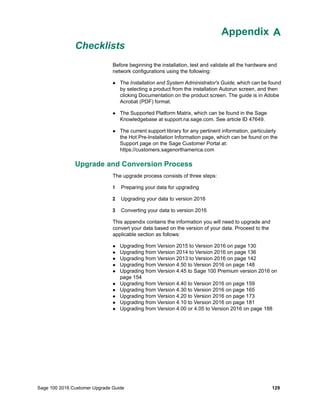
number and click the Reprint Check button. The checks can be printed as
long as they remain in the data entry file.
Sort Report By Field for Vendor Audit Report
A Sort Report By field has been added to the Vendor Audit Report. You
can now sort the report by either the vendor number or the user logon.
Ability to Sort By Multiple Columns
A Sort Columns button has been added to the windows listed below. Click
the button to select one or more columns and specify whether to sort each
one in ascending or descending order.
 Select Invoices for Payment window (accessed from Invoice Payment
Selection
 Select Check and Electronic Payment Maintenance Invoices
(accessed from Check and Electronic Payment Maintenance)
 Select Manual Check and Payment Invoices (accessed from Manual
Check and Payment Entry)
 Select Vendor Transfer Invoices (accessed from Invoice Data Entry
and Manual Check and Payment Entry)
 Select Customer Invoices (accessed through AP from AR Clearing
Entry)
Sage 100 2016 Customer Upgrade Guide 16
_____________________________________________________________________________________________
Accounts Payable Changes
Purchase Vendor Transfer Invoice Selection
The Select button in the Purchase Vendor Transfer window is now
available for all vendors so that you can select multiple invoices.
Previously the button was available only if the vendor selected in the
Purchase Vendor Transfer window was the same vendor selected in
Invoice Data Entry or Manual Check and Payment Entry.
Print Full Comments Selection Retained When Printing
Journals and Registers
When printing the journals and registers listed below, your choice of
selecting or clearing the Print Full Comments check box will be retained.
The same choice will be made automatically the next time you print the
journal or register.
 Daily Transaction Register
 Invoice Register
 Manual Check and Payment Register
UDF Data Sources Added for Manual Check Printing
The following UDF (user-defined field) data sources have been added to
AP_CheckStubWrk for manual check printing:
 AP_InvoiceHistoryDetail
 AP_InvoiceHistoryHeader
 AP_ManualCheckDetail
 AP_ManualCheckHeader
 AP_ManualCheckInvDetail
 GL_Account
Sage 100 2016 Customer Upgrade Guide 17
_____________________________________________________________________________________________
Accounts Receivable Changes
Changes in Product Update 1
The following changes were made in Product Update 1 (5.20.1).
Purge Commission by Pay Date
A Pay Date field has been added to the select grid in the Salesperson
Commission Purge window. The field is available only if the Commissions
Paid on Paid Invoices Only check box in Accounts Receivable Options is
selected.
Automatically Apply Changes to Repetitive Invoices
You can now specify whether changes to a customer’s default shipping
code, salesperson, tax schedule, or terms code made in Customer
Maintenance are automatically applied to the customer's existing
repetitive invoices. To enable this feature, select Yes or Prompt from the
new Apply Changes to Repetitive Invoices field on the Additional tab in
Accounts Receivable Options.
Changes in Version 2015
The following changes were made in Sage 100 2015.
Cash Receipt List Button
A Cash Receipt List button has been added to two windows.
 In the Cash Receipts Deposit window, clicking the button lists all
unposted cash receipts. If batch processing is enabled, all unposted
cash receipts for the selected batch are listed.
 In the Cash Receipts Entry window, clicking the button lists cash
receipts for the selected deposit.
Sage Data Cloud Invoice Printing Option
A Use Sage Data Cloud for Invoice Printing check box has been added in
Customer Maintenance. When this check box is selected, the Print
Invoice check box will be cleared by default in A/R Invoice Data Entry and
S/O Invoice Data Entry so that the customer’s invoices are not printed as
part of the typical invoice printing process.
This option is designed for use if you are e-mailing invoices to your
customers using Sage Billing and Payment. For more information on
Sage Billing and Payment or other solutions that leverage the power of
the Sage Data Cloud, visit www.sage.com.
NOTE
The Use Sage
Cloud for Invoice
Printing check
box does not
affect invoices
that originate in
the Job Cost
module because
they are not
processed in
Sage Billing and
Payment.
Sage 100 2016 Customer Upgrade Guide 18
_____________________________________________________________________________________________
Accounts Receivable Changes
Sort Report By Field for Customer Audit Report
A Sort Report By field has been added to the Customer Audit Report. You
can now sort the report by either the customer number or the user logon.
Ability to Sort By Multiple Columns
A Sort Columns button has been added to the Select Cash Receipts
Invoices window that is accessed through Cash Receipts Entry. Click the
button to select one or more columns and specify whether to sort each
one in ascending or descending order.
Calculator Button Added to Finance Charge Applied Field
A calculator button has been added to the Finance Charge Applied field in
the Finance Charge Entry window.
Ability to Filter Salesperson Commission Report by Pay Date
A Pay Date field has been added to the Selections grid in the Salesperson
Commission Report window. This field is available if the Commissions
Paid on Paid Invoices Only check box is selected in Accounts Receivable
Options.
Ship Via Field Added to Customer Ship-To Address
Maintenance
A Ship Via field has been added to customer Ship-To Address
Maintenance. The shipping code entered in this field will be the default
shipping code for sales orders and one-step Sales Order invoices.
Print Full Comments Selection Retained When Printing
Journals and Registers
When printing the journals and registers listed below, your choice of
selecting or clearing the Print Full Comments check box will be retained.
The same choice will be made automatically the next time you print the
journal or register.
 Daily Transaction Register
 Cash Receipts Journal
 Sales Journal
Option to Keep Window Open after Print or Preview
The following check boxes have been added to several task windows
used for form printing:
 Keep Window Open After Print
 Keep Window Open After Preview
Sage 100 2016 Customer Upgrade Guide 19
_____________________________________________________________________________________________
Bank Reconciliation
If the check boxes are selected, the window will remain open after printing
or previewing the form.
If the form is part of a printing sequence, a Print Add’l Documents button
will appear on the window. Click this button to continue with the print
sequence when you have one or both check boxes selected.
For example, if you have the Keep Open After Print check box selected in
Sales Order Printing, after you print sales orders, the Print Add’l
Documents button will be enabled. You can then click the button to print
picking sheets.
The check boxes were added to the following windows:
 Customer Mailing Labels
 Invoice History Printing
 Invoice History Printing (Quick Print)
 Invoice Printing
 Invoice Printing (Quick Print)
 Statement Printing
Bank Reconciliation
Sample Format in Positive Pay Export Wizard
A new sample format has been added to the Positive Pay Export Wizard.
Remit-To Vendor Name In Positive Pay Export File
If the Print Remit To Information check box in the Check Printing window
is selected when printing checks, the vendor name entered in Remit To
Address Maintenance is now used as the payee name in positive pay
export files.
Ability to Sort By Multiple Columns
A Sort Columns button has been added to the windows listed below. Click
the button to select one or more columns and specify whether to sort each
one in ascending or descending order.
 Check Deposit and Adjustment Entry
 Reconcile Bank
Sage 100 2016 Customer Upgrade Guide 20
_____________________________________________________________________________________________
Bar Code
Print Full Comments Selection Retained When Printing
Journals and Registers
When printing the journals and registers listed below, your choice of
selecting or clearing the Print Full Comments check box will be retained.
The same choice will be made automatically the next time you print the
journal or register.
 Bank Reconciliation Transaction Register
 Daily Transaction Register
Bar Code
Improved Process for Correcting Rejected Import
Records
A Fix Entry button has been added to the Rejected Import Maintenance
window. You can select a transaction and click this button to open the
record containing the error.
If the error exists in the line information, the Rejected Import Record - Line
Edit window opens with the applicable record selected, allowing you to
bypass the Rejected Import Record - Header Edit window.
Also, an Error Message field has been added to the window. The field
displays the message associated with the import failure.
Bill of Materials
Option to Synchronize Bill and Item Description
A Sync Bill Description and Item Description field has been added to Bill
of Materials Options. You can select Yes, No, or Prompt to determine
whether changes to the bill description and item description fields are
synchronized.
 If you select Yes and the two description fields contain the same value,
an update to one field automatically updates the other one.
 If you select Prompt and the two description fields contain the same
value, a message will appear when you update one field asking if you
want to update the other one.
This feature applies only to items that do not have an extended item
description. If the Require Bill Revisions check box is selected in Bill of
Materials Options, only the current revision is synchronized.
Sage 100 2016 Customer Upgrade Guide 21
_____________________________________________________________________________________________
Credit Card Processing
Print Full Comments Selection Retained When Printing
Journals and Registers
When printing the journals and registers listed below, your choice of
selecting or clearing the Print Full Comments check box will be retained.
The same choice will be made automatically the next time you print the
journal or register.
 Daily Transaction Register
 Disassembly Register/Update
 Production Register/Update
Credit Card Processing
Level 3 Credit Card Processing
You can now submit level 3 credit card transactions for payments entered
in Sales Order Entry and S/O Invoice Data Entry. (Deposit transactions
are not subject to level 3 processing because line item information is
required, and there is no way to associate specific lines with a deposit.)
The following related changes have been made.
Library Master
An ISO Country Code field has been added to the Country Code
Maintenance window. This code will be included with the ship-to address
information when processing level 3 credit card transactions.
Accounts Receivable
An Include Level 3 Data check box has been added to the Payment Type
Maintenance window.
Sales Order
The following fields have been added to the secondary grid in Sales Order
Entry and S/O Invoice Data Entry.
 Commodity Code
 Alt Tax ID
 Tax Type
 Net/Gross
 Debit/Credit
 Tax Amount
 Tax Rate
Sage 100 2016 Customer Upgrade Guide 22
_____________________________________________________________________________________________
Custom Office
A Level 3 button has been added to the Credit Card tab in Sales Order
Entry and S/O Invoice Data Entry. You can click the button to enter
additional information for level 3 transactions. An empty text string or a
zero value (depending on the field type) will automatically be transmitted
for level 3 transactions if you do not enter a value for these fields.
The new fields on the Lines tab and the Level 3 button are available only if
the following conditions are met:
 The customer’s credit card entered on the Credit Card tab is
associated with a payment type set up for level 3 processing.
 The transaction type is Payment/PrePost Authorization.
 A value is entered in the Corporate ID/PO field.
Certain default values must be set to ensure that the fields added to the
Lines tab are available without first entering information on the Credit
Card tab. For more details and the steps required to prepare for level 3
processing, see “Setup Customer Credit Cards for Level 3 Processing” in
the help system.
Customer Purchase Order Number
When you process level 3 credit card payments, customers' purchase
order numbers will now be transmitted as part of the transactions.
The purchase order number will share the same field as the sales order or
invoice number, and they will be separated by a dash. The purchase order
number will have “PO” appended to the end. “SO” will be added to sales
order numbers, and “IN” will be added to invoice numbers.
For example: 1234567PO - 7654321IN
This information may print on customers' credit card statements; it may be
truncated, depending on the statement design.
Custom Office
User-Defined Scripts for Windows and Tabs
You can now create user-defined scripts for windows and tabs in
Business Framework modules. A script can be added to any panel that is
available through Customizer Selection. A User-Defined Scripts button
has been added to the Customizer Selection window, and it will appear
when a panel is selected.
Also, a field with a drop-down list has been added next to the Compile
button in the User-Defined Script Maintenance window. Use this field to
specify what type of scripts you want to compile.
Sage 100 2016 Customer Upgrade Guide 23
_____________________________________________________________________________________________
Customer Relationship Management
Changes in Product Update 1
The following changes were made in Product Update 1 (5.20.1).
Workstation Setup Not Required to Manage Relationships
If you are using Sage 100 Advanced or Premium, you no longer need to
run Workstation Setup to access Maintain Relationships within Sage
CRM. To enable this feature, go to the ERP Preferences tab in Sage
CRM, and select Web Forms Embedded in Sage CRM in the Access
Sage 100 Tasks Using field. As part of this enhancement, that field name
was changed from Default Form for Quotes/Orders.
Note that you will not have access to the Sage 100 Inquiry tasks if you
use the embedded web forms to access Sage 100 tasks.
Promote Quote to Order from Sage CRM Quote Summary
Screen
A Promote to Order button has been added to the Quote Summary Page
in Sage CRM. When you click this button, the quote is promoted to an
order in Sage CRM and Sage 100. Please note that the page will not
automatically refresh after you promote a quote.
Quick Order Entry Print Options
When printing an order or quote from the Quick Order Entry screen in
Sage CRM, you can now print to any printer on your network. The Email
and PDF options are also still available.
Changes in Version 2015
The following changes were made in Sage 100 2015.
Access RMA Entry from Sage CRM
You can now access RMA Entry from within Sage CRM. An RMA Entry
button has been added to the following locations:
 The menu that appears when you right-click the New button on the left
side of the screen
 The Company Summary Page
You must be in the context of a company to access RMA Entry.
Reorganized Main Menu
The Main menu in the Customer Relationship Management module has
been reordered. The tasks now appear in the order in which you access
them to set up the module.
Sage 100 2016 Customer Upgrade Guide 24
_____________________________________________________________________________________________
General Ledger
CRM Country Cross Reference Maintenance Task Retired
Setting up records in CRM Country Cross Reference Maintenance is no
longer required because of changes to the Sage 100 Country file. The
task has been retired. For more information, see Preexisting Codes in
Country Code Maintenance on page 27.
General Ledger
Changes in Product Update 2
The following changes were made in Product Update 2 (5.20.2).
Sage Payroll Services Integration
Sage 100 is now integrated with Sage Payroll Services (formerly known
as PayChoice). You can upload general ledger account numbers and
bank codes to Sage Payroll Services and download payroll transactions
into Transaction Journal Entry.
After setting up an account with Sage Payroll Services, use the tasks on
the General Ledger Payroll Services menu to set up the integration. For
detailed steps, see Integrate an Online Payroll Service with General
Ledger in the help system.
This feature will not affect anyone using the previously existing online
payroll service, BenefitMall. A Payroll Service field has been added to
Sage Payroll Services Options, which allows you to select the online
payroll service you are using. However, the correct option will be
automatically selected when you upgrade from a system that was
integrated with BenefitMall.
Changes in Product Update 1
The following changes were made in Product Update 1 (5.20.1).
Out-of-Balance Message on General Ledger Detail by Source
Report
If an out-of-balance source journal is included in the General Ledger
Detail by Source Report, a not-in-balance message prints next to the
journal number and near the report totals.
Sage 100 2016 Customer Upgrade Guide 25
_____________________________________________________________________________________________
Inventory Management
Changes in Version 2015
The following changes were made in Sage 100 2015.
Out-Of-Balance Message on Detail Report
If the General Ledger Detail Report is out of balance, “The Detail Report is
not in balance” now prints next to the report totals.
Sort Report By Field for Account Audit Report
A Sort Report By field has been added to the Account Audit Report. You
can now sort the report by either the account number or the user logon.
One-Click Journal Reversals
A Journal Reversal button has been added to the Transactions tab in
Account Maintenance and to the Journal Drill Down window. Click this
button to perform one-click journal reversals. The reversing entry is
created, and a journal comment is added noting the reversal. You can
then review the entry in General Journal Entry before updating it.
A security event, Allow Journal Reversal, has been added in Role
Maintenance to enable the button.
Print Full Comments Selection Retained When Printing
Journals and Registers
When printing the journals and registers listed below, your choice of
selecting or clearing the Print Full Comments check box will be retained.
The same choice will be made automatically the next time you print the
journal or register.
 General Journal
 Recurring Journal
 Transaction Journal
 Daily Transaction Register
 Allocation Journal
Inventory Management
Module Options for Transaction Types
In Transaction Entry, the options available in the Transaction Type field
are now based on the user’s security setup.
The following module options have been added to Role Maintenance:
 Allow Transaction Entry Adjustments
 Allow Transaction Entry Issues
 Allow Transaction Entry Receipts
 Allow Transaction Entry Sales
Sage 100 2016 Customer Upgrade Guide 26
_____________________________________________________________________________________________
Inventory Management
 Allow Transaction Entry Transfers
For existing roles, the new module options are automatically selected so
that the transaction types are allowed by default.
If you create a role for which none of the transaction types are allowed,
users assigned to that role will not be able to access Transaction Entry.
Copy From Button in Product Line Maintenance
A Copy From button has been added to Product Line Maintenance. After
entering a new product line, you can now click Copy From to copy
information from an existing product line to the new one. The new Copy
From window has a Copy Accounts check box that allows you to specify
whether to copy the general ledger account information.
Copy From Options for Items
When using the Copy From button in Item Maintenance, you can now
specify whether to include the vendor and alias item records of the item
you are copying from.
The vendor and alias item information is copied by default, but you can
exclude it by clearing the following check boxes that have been added to
the Copy From window:
 Copy Item Vendors
 Copy Alias Items
The check boxes have also been added to the Item Maintenance
On-The-Fly window.
Source Journal Zoom Button in Item Maintenance
A Source Journal Zoom button has been added to the Transactions tab in
Item Maintenance. You can click the button to view detailed journal
information about the selected transaction. The journal information is
available only for transactions entered after you have upgraded from your
previous version of Sage 100.
Also, a Source Journal column has been added to the transactions grid to
display the source journal number.
Sort Report By Field for Item Audit Report
A Sort Report By field has been added to the Item Audit Report. You can
now sort the report by either the item code or the user logon.
Sage 100 2016 Customer Upgrade Guide 27
_____________________________________________________________________________________________
Library Master
Access Bill of Materials Maintenance from Item
Maintenance
You can now go directly from Item Maintenance to Bill of Materials
Maintenance by clicking the More drop-down button in the top-right corner
of the window and then clicking BOM Maintenance.
The BOM Maintenance option is available only if the currently selected
item exists as a bill in the Bill of Materials module.
Security Options for Item Vendor Maintenance
Security options for Item Vendor Maintenance have been added to Role
Maintenance; therefore, you can now maintain different levels of security
for this task and Item Maintenance.
Last Physical Count Date Added to Item Maintenance
You can now view the date of the last physical count for an item in Item
Maintenance and Item Inquiry. The Last Physical Count Date field
displays the date that the Physical Count Variance Register was last
updated. The field is view-only and has been added to the following
locations:
 Additional Tab
 Quantity Tab
 Quantities grid on the Main tab
Library Master
Preexisting Codes in Country Code Maintenance
Country Code Maintenance is now pre-populated with country codes. The
codes are the ones used in Sage CRM, as well as additional codes
defined by the International Organization for Standardization (ISO).
An Alternate Country Code field has been added to the Country Code
Maintenance window. This field, along with the others will be
pre-populated with values.
As a result of this enhancement, the CRM Country Cross Reference
Maintenance task is no longer necessary and has been retired. The
alternate country code in Country Code Maintenance will be referenced
by the Sage CRM integration when data is exchanged.
State Code Required Option
A State Code Required check box has been added to Country Code
Maintenance. If this check box is selected for a country, the State field in
ZIP Code Maintenance will be a required entry when adding a postal code
for the country.
Sage 100 2016 Customer Upgrade Guide 28
_____________________________________________________________________________________________
Paperless Office
Paperless Office
Access Report Viewer Directly from Report Task
Windows
You can now access the Report Viewer directly from report task windows.
To access the viewer, click the drop-down button in the top-right corner of
the window, and then click Report Viewer.
When the Report Viewer opens, the current company, module, and report
will be automatically entered in the applicable fields, and the existing
PDFs will appear in the list box.
The Report Viewer option is available only if the specific report is set up in
Report Maintenance, and you must have the appropriate security set up
to access it.
Updated PDF Printer Driver
The PDF printer driver used to create Paperless Office documents has
been updated.
Paperless Office Feature Added to Reports and
Registers
The following reports and registers can now be printed using Paperless
Office.
Accounts Payable
 Vendor Contact Listing
 Repetitive Invoice Listing
Accounts Receivable
 Repetitive Invoice Listing
 Customer Contact Listing
Custom Office
 Customizer Summary Report
 Customizer Detail Listing
General Ledger
 Sage Payroll Services Activity Log
Inventory Management
 Item Valuation Change Register
 Standard Cost Adjustment Register
 Missing Count Card Listing
Library Master
 Role Report
Sage 100 2016 Customer Upgrade Guide 29
_____________________________________________________________________________________________
Payroll
 User Report
 Activity Log Report
Purchase Order
 Vendor Purchase Address Listing
Return Merchandise Authorization
 RMA Receivers
 Generate Transactions Listing
Sales Order
 Customer Ship-To Address Listing
Visual Integrator
 Job Listing
 Data Dictionary Listing
Payroll
Changes in Product Update 1
The following changes were added in Product Update 1 (5.20.1).
ACA Menu
An ACA menu with three new tasks related to the Affordable Care Act has
been added to the Payroll module.
 Use ACA Employee Maintenance to enter information that will appear
on Form 1095-C.
 Use ACA Employer Maintenance to enter information that will appear
on Form 1094-C.
 Use the ACA Applicable Large Employer Report to generate a count of
your full time and full time equivalent (FTE) employees.
The totals can then be updated to the ACA Employer file, and they will
appear in the ALE Member Information - Monthly window accessed from
ACA Employer Maintenance.
For more information, refer to the help for these tasks.
Seasonal Employee Check Box
A Seasonal Employee check box has been added to the Wages tab in
Employee Maintenance. When printing the ACA Applicable Large
Employer Report, you have the option to include seasonal employees.
Sage 100 2016 Customer Upgrade Guide 30
_____________________________________________________________________________________________
Purchase Order
1095-C Electronic Consent Signed Check Box
A 1095-C Electronic Consent Signed check box has been added to the
Tax Status window accessed through Employee Maintenance. If this
check box is selected, 1095-C forms processed through Federal eFiling
and Reporting will be sent as an electronic copy.
Changes in Version 2015
The following changes were added in version 2015.
New Fields Added to Tax Status Window
Three new fields have been added to the Tax Status window accessed
from Employee Maintenance.
 The W2 Electronic Consent Signed check box, for use with Federal
eFiling and Reporting, determines whether the employee receives an
electronic or paper W-2 form.
 The MN Reporting Unit field, for use with State eFiling and Reporting
for Minnesota, appears when MN is selected in the State field.
 The PA PSD Code field, for use with State eFiling and Reporting for
Pennsylvania, appears when PA is selected in the State field.
Perpetual Payroll History Retained by Default
When a new company is created, the Retain Perpetual Payroll History
check box in Payroll Options is now selected by default.
Purchase Order
Changes in Product Update 1
The following changes were made in Product Update 1 (5.20.1).
Copy from History When Creating Return
A Copy From button has been added to the Return of Goods window. You
can now enter a new return number and then click Copy From to copy
information from one of the following:
 Purchase order history (if the Retain Purchase Order History check
box is selected in Purchase Order Options)
 Purchase order receipts, with the exception of invoice receipts (if Yes
or Until Period End is selected in the Retain Receipt History field in
Purchase Order Options)
NOTE
The Payroll
module is not
available for
Sage 100
Premium.
Sage 100 2016 Customer Upgrade Guide 31
_____________________________________________________________________________________________
Purchase Order
 Accounts Payable invoices (if the Post Accounts Payable Invoices
check box is selected in Purchase Order Options and the Track
Detailed Invoice/Payment History check box is selected in Accounts
Payable Options)
Changes in Version 2015
The following changes were made in version 2015.
Copy Purchase Order Information
A Copy from button has been added to the Purchase Order Entry window.
After entering a new purchase order number, you can now copy
information from one of the following:
 Purchase orders
 Purchase order history (if the Retain Purchase Order History check
box is selected in Purchase Order Options)
 Purchase order receipts (if Yes or Period End is selected in the Retain
Receipt History field in Purchase Order Options)
 Accounts Payable invoices (if the Post Accounts Payable Invoices
check box is selected in Purchase Order Options and the Track
Detailed Invoice/Payment History check box is selected in Accounts
Payable Options)
Purchase Order History
The following fields have been added to the History tab in Purchase Order
Options and to the Purchase Order Setup Wizard.
 Retain Purchase Order History
 Retain Deleted Orders
 Retain Deleted Lines for Orders
Select the Retain Purchase Order History check box to retain history.
When the check box is selected, you can select Yes, No, or Prompt to
define how deleted orders and lines are handled.
If the purchase order data entry files contain records and the purchase
order history files are empty when you select the Retain Purchase Order
History check box, a message appears asking if you want to create
history records. Click Yes to create records for any standard orders,
drop-ship orders, and material requisitions that exist in the purchase order
data entry files.
Sage 100 2016 Customer Upgrade Guide 32
_____________________________________________________________________________________________
Purchase Order
Option to Create History During Data Conversion
If you are upgrading from a prior version of Sage 100, before converting
data you will see a window with the same fields that were added to
Purchase Order Options. You can enable the history feature and choose
whether to create history at that time.
Create Purchase Order History Utility
If you do not choose to create history records when you first select the
Retain Purchase Order History check box, you can do so later using the
Create Purchase Order History utility. This new utility has been added to
the Purchase Order Utilities menu.
Purchase Order History Inquiry
A new task, Purchase Order History Inquiry, has been added to the
Purchase Order Inquiries menu. The task is available only if the Retain
Purchase Order History check box is selected in Purchase Order Options.
Purchase Order History Report
The Purchase Order History Report has been added to the Purchase
Order Reports menu. The report is available only if the Retain Purchase
Order History check box is selected in Purchase Order Options.
When generating the report, you can select which purchase order types to
print and choose from multiple sort options. The report can be further
filtered using the selections grid.
Cancel and Reason Code Maintenance
A new task, Cancel and Reason Code Maintenance, has been added to
the Purchase Order Setup menu. The task is available only if Prompt is
selected in the Retain Deleted Orders or Retain Deleted Lines for Orders
field in Purchase Order Options.
Use this task to create reason codes for tracking why purchase orders
and purchase orders lines are deleted. The codes can be flagged as
inactive so that they will not show up in lookup results.
Codes can also be created on they fly when deleting a purchase order or
line.
New Business Insights Views
Several views related to purchase order history have been added to
Business Insights Reporter, and one related view has been added to
Business Insights Explorer.
Sage 100 2016 Customer Upgrade Guide 33
_____________________________________________________________________________________________
Purchase Order
Sort Option for Auto-Generated Purchase Orders
A Sort Purchase Order Lines By field has been added to the Generate tab
in Purchase Order Options. Use this field to determine how purchase
order lines are sorted — either by item code or by sales order line number
— on the Auto-Generate from Sales Orders Listing and in Purchase
Order Entry.
Use Data Entry Email Address for Paperless Office Delivery
A Use E-mail Address in Data Entry check box has been added to the
Email tab in the Paperless Office Delivery Options window accessed from
Vendor Maintenance. The check box is available when you select either
P/O Order or P/O Return in the Document field and the E-mail check box
on the Main tab.
Select this check box to email purchase orders and return orders to the
vendor email address entered in Purchase Order Entry and Return Order
Entry.
Option to Keep Window Open after Print or Preview
The following check boxes have been added to several task windows
used for form printing:
 Keep Window Open After Print
 Keep Window Open After Preview
If the check boxes are selected, the window will remain open after printing
or previewing the form.
If the form is part of a printing sequence, a Print Add’l Documents button
will appear on the window. Click this button to continue with the print
sequence when you have one or both check boxes selected.
For example, if you have the Keep Open After Print check box selected in
Sales Order Printing, after you print sales orders, the Print Add’l
Documents button will be enabled. You can then click the button to print
picking sheets.
The check boxes were added to the following windows:
 Purchase Order Printing
 Purchase Order Printing (Quick Print)
 Return Order Printing
 Return Order Printing (Quick Print)
New Vendor Memo Button
A Vendor Memo button has been added next to the Vendor button in the
tasks listed below. From any tab, you can click the button to view, create,
or update memos for the currently selected vendor.
Sage 100 2016 Customer Upgrade Guide 34
_____________________________________________________________________________________________
Purchase Order
 Purchase Order Entry
 Receipt of Goods Entry
 Receipt of Invoice Entry
 Return of Goods Entry
Receipt History Inquiry
The following fields have been added to the grid on the Receipt history
Inquiry Lines tab.
 Allocated Freight
 Allocated Landed Cost
 Allocated Tax
The fields listed below have been added to the Additional Fields window
that appears when you select a line and click the Additional Information
button.
 Item Type
 Product Type
 Product Line
 Costing
Calculator Button for Landed Cost Amount Field
A Calculator button has been added to the Amount field in the Landed
Cost Entry window accessed through Receipt of Goods Entry.
Document and Batch Number Added to Purchase Order Entry
Message
The message that appears in Purchase Order Entry when you select an
order that is referenced in a receipt, return, or material requisition
transaction will now include the number of the referencing transaction. If
you have batch processing enabled for data entry tasks, the batch
number is also included.
Fields Added to Ship-To Address Maintenance
A warehouse field has been added in Ship-To Address Maintenance:
The warehouse code entered in this field will be used in the data entry
tasks listed below if you select a record and enter a ship-to address.
 Material Requisition Issue Entry
 Purchase Order Entry
 Receipt of Goods Entry
 Receipt of Invoice Entry
 Return of Goods Entry
Sage 100 2016 Customer Upgrade Guide 35
_____________________________________________________________________________________________
Return Merchandise Authorization
Print Full Comments Selection Retained When Printing
Journals and Registers
When printing the journals and registers listed below, your choice of
selecting or clearing the Print Full Comments check box will be retained.
The same choice will be made automatically the next time you print the
journal or register.
 Daily Receipts Registers
 Daily Transaction Register
 Material Requisition Register
 Return Order Register
Redisplay Source Document After Quick Printing
On the Printing tab in Purchase Order Options, you can now select
whether to redisplay the source document after quick printing in Purchase
Order Entry and Return of Goods Entry.
Calculator Button Added to Purchase Order Entry Fields
A calculator button has been added to the Unit Cost and Extension fields
in Purchase Order Entry.
Renamed Tasks and Fields
The Purge Purchases History task has been renamed Purge Purchases
History by Item and Vendor.
In Purchase Order Options, the Years to Retain Purchase History field
has been renamed Years to Retain Purchase History by Item and Vendor.
Return Merchandise Authorization
Calculator Button Added to Multiple Fields
A calculator button has been added to the Unit Price and Restocking
Charge fields in RMA Entry and RMA Receipts Entry.
Sage Intelligence Reporting
Updated Version of Sage Intelligence Reporting
An updated version of Sage Intelligence Reporting provides the following
benefits:
 Improved performance for the Financial Report Designer
 Missing accounts detection
 Context-specific help
 Inclusion of formula’s within distributed reports
 Updated report templates
Sage 100 2016 Customer Upgrade Guide 36
_____________________________________________________________________________________________
Sales Order
For details on these enhancements, see the What’s New document in the
Sage Intelligence Reporting online help.
Security Option for Report Viewer
You can now manage access to the Report Viewer through Role
Maintenance. On the Tasks tab, a Report Viewer check box has been
added under Sage Intelligence Reporting > Reports/Forms.
Installation Process
You can now install Sage 100 without installing Sage Intelligence
Reporting.
Sales Order
Ability to Reauthorize Credit Card Transactions
The Fix button is now available on the Credit Card tab in Sales Order
Entry and Invoice Data Entry if there is an expired credit card
authorization for the selected order or invoice. You can click this button to
reauthorize the credit card transaction.
The Fix button is available if the Allow to Override Credit Card
Authorization security event is selected for your role in Role Maintenance.
For more information on using this feature, see Reauthorize a Credit Card
Transaction in the help system.
New Customer Memo Button
A customer Memo button has been added next to the Customer button in
Sales Order Entry and Invoice Data Entry. From any tab, you can click the
new Memo button to view, create, or update memos for the currently
selected customer.
Batch Number Added to Sales Order Entry Message
If you have batch processing enabled for Invoice Data Entry, the
messages that appear in Sales Order Entry when you select an order that
is being invoiced or shipped will now include the batch number.
Ability to Omit Orders On Hold When Printing
A Print Orders On Hold check box has been added to the Sales Order
Printing window. The check box is selected by default, but you can clear it
to omit orders on hold when printing. A Print Order On Hold check box
has also been added to the quick print window.
Sage 100 2016 Customer Upgrade Guide 37
_____________________________________________________________________________________________
Sales Order
Calendar Button Added to PO Req Date Field
A calendar button has been added to the PO Req Date field in Sales
Order Entry.
Calculator Button Added to Tax Amount Field
A calculator button has been added to the Tax Amount field in the Tax
Detail window accessed through Sales Order Entry and Invoice Data
Entry.
Message Appears if Quantity Packed Does Not Match
Quantity Shipped
A message now appears in Shipping Data Entry and Item Package
Maintenance if the quantity packed does not match the quantity shipped
for one or more items.
Changes to Additional Fields Information
The following changes have been made for the information that is
displayed in the Additional Fields window accessed from Sales Order and
Quote History Inquiry:
 Information will now appear in the Product Type, Product Line, and
Price Code fields.
 The information in the Costing field is now formatted correctly.
 Bill options now appear as they do in Sales Order Entry.
 The user logon of the person who created the sales order now
appears in the upper-right corner of the window.
Option to Keep Window Open after Print or Preview
The following check boxes have been added to several task windows
used for form printing:
 Keep Window Open After Print
 Keep Window Open After Preview
If the check boxes are selected, the window will remain open after printing
or previewing the form.
If the form is part of a printing sequence, a Print Add’l Documents button
will appear on the window. Click this button to continue with the print
sequence when you have one or both check boxes selected.
For example, if you have the Keep Open After Print check box selected in
Sales Order Printing, after you print sales orders, the Print Add’l
Documents button will be enabled. You can then click the button to print
picking sheets.
Sage 100 2016 Customer Upgrade Guide 38
_____________________________________________________________________________________________
Sales Order
The check boxes were added to the following windows:
 Additional Packing List Printing
 Additional Packing List Printing (Quick Print)
 COD Label Printing
 COD Label Printing (Quick Print)
 Invoice Printing
 Invoice Printing (Quick Print)
 Packing List Printing
 Packing List Printing (Quick Print)
 Picking Sheets Printing
 Picking Sheets Printing (Quick Print)
 Sales Order Printing
 Sales Order Printing (Quick Print)
 Shipping Entry Label Printing
 Shipping Label Printing
 Shipping Label Printing (Quick Print)
Sage 100 2016 Customer Upgrade Guide 39
Chapter 5
Workflow Changes in 2014
Chapter 5
This chapter describes the workflow changes incorporated into the
product for the 2014 release that you should be aware of. Installation and
global changes are listed first followed by module changes and
retirements.
Global
Auto-Complete
An auto-complete feature has been added for customer number, vendor
number, and item code entry fields. You can now locate records by
entering the customer name, vendor name, or item description in the
respective field. As you type, a list of records matching your entry
appears, and you can select a record from the list.
For example, if you have vendors named United Airways, United Paper,
and United Parcel Service, when you type united in the vendor number
field, all three vendors will appear in a list, and you can select the one that
you want.
You can still select records by entering the customer number, vendor
number, and item code.
This feature is automatically enabled for all users. To disable the feature
for all users, clear the Enable Auto-Complete check box in Library Master
> System Configuration. You can also disable the feature for individual
users in Library Master > User Maintenance.
Custom Reports
The following check boxes will now appear on custom report windows:
 Keep Window Open After Print
 Keep Window Open After Preview
You can select these check boxes so that the windows do not
automatically close after printing or previewing reports.
Default Column Name in Search Grid Window
To make searching easier when using the Search Grid window, the
default value in the Column Name field is now the first column in the grid.
For example, in Check, Deposit and Adjustment Entry, when you click the
Find Row button to open the Search Grid window, Check No. is now the
default value in the Column Name field.
Sage 100 2016 Customer Upgrade Guide 40
_____________________________________________________________________________________________
Accounts Payable
MAS Office Button
The MAS Office button has been removed from the Job Cost, Payroll,
Material Requirements Planning, and Work Order modules.
Accounts Payable
Invoice List Button in Invoice Data Entry
An Invoice List button has been added to the Invoice Data Entry window.
You can now click that button to view a list of all invoices in the data entry
table.
Repetitive Invoice List Button in Repetitive Invoice Entry
A Repetitive Invoice List button has been added to the Repetitive Invoice
Entry window. You can now click that button to view a list of all invoices in
the data entry table.
Form 1099 Filing
The Form 1099 eFiling and Reporting task, which is located on the
Reports menu, is now the only option available for electronic filing of 1099
forms. The Electronic Reporting module has been retired.
Accounts Receivable
Repetitive Invoice List Button in Repetitive Invoice Entry
You no longer have to select a customer before selecting a repetitive
invoice in Repetitive Invoice Entry. You can now click the Repetitive
Invoices button to view and select from a list of repetitive invoices.
General Ledger
Keep Financial Reports Window Open
A Keep Window Open check box has been added to the Financial
Reports window. If you select that check box, the Financial Reports
window will no longer automatically close after clicking Proceed and then
closing the Print Financial Reports window.
Two check boxes have been added to the Print Financial Reports window:
 Keep Window Open After Print
 Keep Window Open After Preview
You can now select these check boxes so that the window does not
automatically close after printing or previewing reports.
Sage 100 2016 Customer Upgrade Guide 41
_____________________________________________________________________________________________
Library Master
Library Master
Report Manager
The following fields have been removed from the New Report window that
appears when creating a new report in Report Manager:
 Report Type
 Report Master Name
By default, Crystal Report is the only available report type.
System Configuration
The Web Services tab has been renamed; it is now the Preferences tab.
User Maintenance
Two fields, Email and Job Title, have been added to the User
Maintenance window.
Payroll
Employer Medical Assistance Contribution (MAC) fields
Employer Medical Assistance Contribution (MAC) fields have been added
to P/R Tax Table Maintenance. The fields appear when Massachusetts is
entered in the State field. You can enter a rate for the Employer MAC, but
the accrual account, limit, and limit type fields display what you have
entered for the unemployment tax and can only be viewed.
The Employer MAC amount is included with the unemployment tax on the
Employer’s Expense Summary, but it is separated into its own column on
the Quarterly Tax Report.
Electronic Form Filing
The Federal eFiling and Reporting and State eFiling and Reporting tasks,
located on the Payroll Period End menu, are now the only options
available for electronically filing payroll tax forms. The Electronic
Reporting module has been retired.
W2 Puerto Rico Mapping E/D Codes
The W2 Puerto Rico Mapping E/D Codes task has been renamed W2
Puerto Rico Mapping Maintenance. Also, the task has been relocated to
the Payroll Setup menu. The task was previously part of the Electronic
Reporting module.
NOTE
The Payroll
module is not
available for
Sage 100
Premium.
Sage 100 2016 Customer Upgrade Guide 42
_____________________________________________________________________________________________
Sage Intelligence Reporting
Installation
The Sage Intelligence Reporting installation program is now part of the
Sage 100 Workstation Setup program. Sage Intelligence Reporting is
automatically installed when you run Workstation Setup and select the
Typical installation option.
Access within Sage 100
Sage Intelligence Reporting is now accessed from the Sage 100 Module
Menus toolbar and the Tasks tab.
Excel 2010 and Excel 2013 64-Bit Support
Sage Intelligence Reporting is now compatible with the 64-bit version of
Excel 2010.
.NET Framework 4.0
Sage Intelligence Reporting has been upgraded to .NET Framework 4.0,
resulting in smoother integration with Excel and faster installation time if
.NET Framework 4.0 is already installed.
User Interface and Usability Improvements
Numerous enhancements were made to Sage Intelligence Reporting to
make the product more efficient and easy to use. These improvements
include the following:
User Interface
 Report Manager menu items have been reorganized to make
commonly used features easier to find. The most commonly used
items are grouped on the Home and Help tabs. Less frequently used
items are grouped on the File and Tools tabs.
 Connector menu items have been reorganized; more commonly used
items are now available on the File, Home, and Help tabs. Less
commonly used features are now on the Tools tab.
 The locked report screen and the Unlock on Copy screen have been
updated to display information in a more user-friendly manner.
Report Designer
 The new Report Designer Add-in gives you better control over
reporting layouts. You can now break reports into reusable pieces and
reassemble them in different configurations to create new reports.
 You can now maximize the Report Designer window.
Sage 100 2016 Customer Upgrade Guide 43
_____________________________________________________________________________________________
Sage CRM
 Rows and columns are now ordered alphabetically, and they are
easier to rearrange. Also, larger fonts are now used, and the row and
column placeholder bars within the selected row and column layout
are now wider to accommodate longer field names.
 You can now insert column or row fields at a specific location within
your layout instead of inserting it at the end of the column or row and
then moving it.
 Text columns added to a layout are now automatically resized based
on their content.
 You can now add and delete row reporting groups from within the
Mapping Tool.
Report Manager
 The columns that appear in Report Manager when a report is selected
are now automatically resized so that all text with the columns is
visible.
 When importing a report that includes a container with the same name
as an existing container, you can now rename the container to avoid
having two containers with the same name.
 The right-click menus have been simplified and more intuitive labels
have been added. The options that have been removed are still
available on the Report Manager Ribbon.
Report Viewer
 The Report Viewer now remains open after running a report.
 A minimum window size has been set for the Report viewer so that all
available reports are visible.
Sage CRM
Sage CRM customization has been enhanced to take advantage of the
new features in Sage CRM 7.2. For more information, review the Sage
CRM 7.2 Installation and Upgrade Guide.
Retired Modules
The Electronic Reporting module has been retired.
Sage 100 2016 Customer Upgrade Guide 44
Chapter 6
Workflow Changes in 2013
Chapter 6
This chapter describes the workflow changes incorporated into the
product for the 2013 release that you should be aware of. Installation and
global changes are listed first followed by module changes and
retirements.
Global Changes
64-Bit ODBC Driver
A 64-bit ODBC driver, which allows third-party 64-bit applications to
access Sage 100 data, is now available. The installation program for the
driver can be run from the Sage 100 — Applications installation program.
ALE Lookups in Data Entry Windows
You can now select whether to display or hide inactive customers and
vendors in some ALE lookups. These options can be selected in
Company Maintenance.
Feedback Form in Help System
A feedback form has been added to all Help System topics. You can now
indicate whether a topic is helpful and provide anonymous feedback that
will be used to improve product documentation.
Installation Changes
When uninstalling Sage 100, your company data is no longer deleted. To
remove the data, you must manually delete it from the MAS90 folder.
Native SData Provider
You can now use SData, an HTTP-based communication protocol, to
communicate with the workstation, server, and web-based applications,
as well as third-party applications and the World Wide Web.
SData is enabled in System Configuration, and security is assigned by
role for each user in Role Maintenance.
Report Changes
You can no longer e-mail report data when selecting the Export option in
the Printer/Output field in report windows. For information on e-mailing a
report using Paperless Office functionality, see E-mail, Fax, or Print a
Report as a PDF in the Help system.
Sage 100 2016 Customer Upgrade Guide 45
_____________________________________________________________________________________________
Global Changes
SAP® Crystal Reports®
SAP Crystal Reports 2011 is now included with Sage 100. Enhancements
in version 2011 include a .NET runtime engine component, the ability to
export directly to an Excel .xlsx file, Adobe Flash integration, built-in bar
code support, and enhanced SAP Crystal Reports Designer features.
Sage Advisor Update
You can now keep your Sage products up to date with the latest releases
and updates. Sage Advisor Update reviews the Sage products you have
installed on your server and lists the online updates available for
download.
Sage Advisor Update is automatically installed and can be launched from
your Program Files > Sage folder, and from the icon located in the system
tray. For more information, see the Sage 100 Installation and System
Administrators Guide.
Installing with Microsoft Windows Installer (MSI)
Sage 100 is now installed using Microsoft Windows Installer (MSI). MSI
will provide a single installation per version on your system; multiple
instances cannot be installed.
Verify Account Information
You no longer have to enter information in the Verify Account Information
window when verifying information for the following tasks:
 1099 eFiling and Reporting
 Federal eFiling and Reporting
 State eFiling and Reporting
The required information will automatically be transmitted when you click
OK.
Sage 100 2016 Customer Upgrade Guide 46
_____________________________________________________________________________________________
Accounts Payable Changes
Expanded Accounts Payable Invoice Number
 The invoice number field is now expanded to 20 characters, from 10
characters in previous releases.
 Reports and listings now display the full invoice number while retaining
the portrait orientation. Journals, register, updates, inquiries, lookups,
explorer views, and data entry programs will also display the full
invoice number.
 The 20-character invoice number can be viewed in the Job Cost and
General Ledger comments on reports.
 The full invoice number will be printed on the check stubs.
Inactive Vendors
 In Vendor Maintenance, the Temporary check box has been replaced
with a Vendor Status drop-down list that contains Active, Inactive, and
Temporary statuses. The Inactive option allows you to prevent users
from selecting inactive vendors in the following tasks:
 AP from AR Clearing Entry
 Check and Electronic Payment Maintenance
 A/P Invoice Data Entry
 Manual Check and Payment Entry
 A/P Repetitive Invoice Entry
 Salesperson Maintenance
 Item Maintenance
 Job Masterfile Maintenance (for cost codes only)
 Job Posting Entry (for direct costs only)
 Purchase Order Entry
 Receipt of Goods Entry
 Receipt of Invoice Entry
 Return of Goods Entry
 RMA Entry
 RMA Receipts Entry
 Sales Order Entry
 S/O Invoice Data Entry
 Work Order Transaction Entry (for outside processing charges only)
 A new field, Inactive Reason, has been added to the Additional tab in
Vendor Maintenance. Use this field to add a reason code for an
inactive vendor.
Sage 100 2016 Customer Upgrade Guide 47
_____________________________________________________________________________________________
Accounts Payable Changes
 A new Inactive Status Exception List window allows you to view and
print a list of reasons why the vendor status cannot be changed to
Inactive. You can also drill down to the source document, if applicable.
This window appears after clicking Details if a message dialog box
warns you that the vendor status cannot be changed.
 A change to a vendor’s status will appear on the Vendor Audit Report if
All or Changes is selected in the Vendor Changes to Track field on the
History tab in Accounts Payable Options.
 A security event has been added to allow the selection of inactive
vendors in Check and Electronic Payment Maintenance and to allow
the selection of inactive vendors’ invoices in Invoice Payment
Selection.
 You can now select to include or exclude inactive vendors from Vendor
Listing, Vendor Listing with Balances, and Vendor Mailing Labels.
 A new column, Status, has been added to some ALE vendor lookups.
This field allows you to group and filter inactive, temporary, and active
vendors.
 A new task, Inactive Reason Code Maintenance, has been added to
the Setup menu. This task allows you to create reason codes for
inactive vendors. A pre-defined reason code, OUTOB (Out of
Business), has been added and cannot be deleted.
These reason codes are shared with the Accounts Receivable module
for use with inactive customer records. The Inactive Reason Code
Maintenance task is also available on the Accounts Receivable Setup
menu and the Common Information Main menu.
 A new utility, Remove Inactive Vendors, has been added to the Utilities
menu. This utility allows you to delete inactive vendors.
 In Vendor Maintenance, the Temporary Vendor check box has been
replaced with a Vendor Status drop-down list and moved to the
Additional tab. You can now select a status of Active, Inactive, or
Temporary.
 Active has now replaced Permanent as a vendor status. Any
permanent vendors are converted to active vendors during data
conversion.
Sage 100 2016 Customer Upgrade Guide 48
_____________________________________________________________________________________________
Accounts Receivable Changes
View Cleared Checks in Vendor Maintenance
 Two new fields have been added in Vendor Maintenance that will allow
you to view check status information on checks that have cleared the
bank in Bank Reconciliation. The ability to view the cleared checks in
Vendor Maintenance can be enabled on the Main tab in Accounts
Payable Options if the Accounts Payable module is integrated with
Bank Reconciliation. Viewing cleared checks in Vendor Maintenance
applies only to checks processed in version 2013 or higher.
 You can now post ACH electronic payments in detail to the Bank
Reconciliation module. This feature is enabled in Accounts Payable
Options if Accounts Payable is integrated with Bank Reconciliation.
Accounts Receivable Changes
Inactive Customers
 In Customer Maintenance, the Temporary check box has been
replaced with a Customer Status drop-down list that contains Active,
Inactive, and Temporary statuses. The Inactive option allows you to
prevent users from selecting inactive customers in the following tasks:
 AP from AR Clearing Entry
 Cash Receipts Entry
 Finance Charge Entry
 A/R Invoice Data Entry
 Repetitive Invoice Entry
 User ID Maintenance
 Job Billing Data Entry
 Job Estimate Maintenance
 Job Masterfile Maintenance (for open jobs only)
 Material Requirements Planning
 Maintain Projected Demands
 RMA Entry
 RMA Receipts Entry
 S/O Invoice Data Entry
 Sales Order Entry
 A new field, Inactive Reason, has been added to the Additional tab in
Customer Maintenance that allows you to add a reason code for the
inactive customer.
 A new Inactive Status Exception List window allows you to view and
print a list of reasons why the customer status cannot be changed to
Inactive. You can also drill down to the source document, if applicable.
This window appears after clicking Details if a message dialog box
warns you that the customer status cannot be changed.
Sage 100 2016 Customer Upgrade Guide 49
_____________________________________________________________________________________________
Accounts Receivable Changes
 A change to a customer’s status will appear on the Customer Audit
Report if All or Changes is selected in the Customer Changes to Track
field on the History tab in Accounts Receivable Options.
 A security event as been added to allow the entry of an inactive
customer when adding a line in Cash Receipts Entry.
 You can now select to include or exclude inactive customers from
Statement Printing, Customer Listing, Customer Listing with Balances,
and Customer Mailing Labels.
 A new column, Status, has been added to some ALE customer
lookups. This field allows you to group and filter inactive, temporary,
and active customers.
 A new task, Inactive Reason Code Maintenance, has been added to
the Setup menu. This task allows you to create reason codes for
inactive customers. Additionally, an OUTOB (Out of Business)
pre-defined reason code has been added and cannot be deleted.
These reason codes are shared with the Accounts Payable module for
use with inactive vendor records. The Inactive Reason Code
Maintenance task is also available on the Accounts Payable Setup
menu and the Common Information Main menu.
 A new utility, Remove Inactive Customers, has been added to the
Utilities menu. This utility allows you to delete inactive customers.
 In Customer Maintenance, the Temporary Customer check box has
been replaced with a Customer Status drop-down list and moved to
the Additional tab. You can now select a status of Active, Inactive, or
Temporary.
 Active has now replaced Permanent as a customer status. Any
permanent customers are converted to active customers during data
conversion.
Sage 100 2016 Customer Upgrade Guide 50
_____________________________________________________________________________________________
Accounts Receivable Changes
Credit Card Processing
You can now integrate with Sage Exchange to secure your customers’
credit card numbers in a Sage Exchange Vault account, which is a
PCI-compliant location for storing sensitive credit card and banking
information.
For an overview of this enhancement, see Credit Card Processing
Changes on page 53.
Included in the numerous Accounts Receivable changes:
 You can now process credit card transactions in A/R Invoice Data
Entry.
 In Repetitive Invoice Entry, you can store credit card transactions to be
processed when the invoice is processed.
 You can swipe credit cards for payment acceptance.
 You can process credit card transactions in a batch.
 You can view credit card payment information in the Payment
Information window for a selected invoice.
 Printed invoices now reflect credit card payments.
 Because credit card numbers are no longer stored in Sage 100, the
following fields have been removed:
 The Purge Credit Card Data field in A/R Period End Processing
 The Days to Retain Credit Card History field in Accounts Receivable
Options (previously used in conjunction with the purging of credit
card data during period end processing)
The following sections list additional changes separated by task.
Payment Type Maintenance
 The Show Validation Code Verification and Show Address Verification
check boxes have been combined and renamed Show Address and
CVV Verification.
 The Merchant ID field has been renamed Merchant Account.
 The following fields have been added for entering Sage Exchange
account information.
 Virtual Terminal ID
 Merchant Key
Sage 100 2016 Customer Upgrade Guide 51
_____________________________________________________________________________________________
Accounts Receivable Changes
 The following fields have been removed; the settings are now defined
in Sage Exchange.
 Validation Code Length
 Require Validation Code
 The following PCCharge related fields have been removed:
 Credit Card Processor Code
 Processor Type
Customer Maintenance
 In Customer Maintenance, a Card ID field has been added to the
Additional tab for entering a unique card ID number to identify credit
card records. You can now add a credit card on the fly by typing a new
card ID number in this field to launch Customer Credit Card
Maintenance.
 The CC Number field has been removed. Credit card numbers are
now entered in the Sage Exchange Vault window, accessed from
Customer Credit Card Maintenance.
 The CC Pymt Type field has been renamed Payment Type.
Customer Credit Card Maintenance
 The Add New Card button has been added to open the Sage
Exchange Vault window for adding a credit card number and expiration
date.
 The Edit Card button has been added to open the Sage Exchange
Vault window for editing the expiration date of the current credit card
record.
 The CC Pymt Type field has been renamed Payment Type.
 The Card Number field has been removed.
 A Card ID field has been added, which allows you to enter a card ID
number to identify a credit card.
 The following view-only fields have been added; they display
information for credit cards entered in the Sage Exchange Vault.
 Card Type
 Last Four Digits
 The Expiration Date is now a view-only field; it displays the expiration
date for the credit card number entered in the Sage Exchange Vault
window.
Sage 100 2016 Customer Upgrade Guide 52
_____________________________________________________________________________________________
Bank Reconciliation Changes
 The following fields have been added:
 Address (second line)
 Country
 E-mail Address
Reports
The Print Formatted Credit Card check box has been removed from the
following Accounts Receivable report windows. The last four digits of the
credit card number will still appear on the reports.
 Customer Listing
 Customer Credit Card Listing
 Deposit Transaction Report
Bank Reconciliation Changes
 A new field, Cleared Date, has been added to all data entry tasks in
this module. You can enter a date when the check has cleared the
bank if the date is different than the module default date. The cleared
date can be viewed in registers and reports when reconciling the bank
statement. The field is available for inclusion in Auto Check
Reconciliation check settings.
 ACH electronic payments can now be listed in Reconcile Bank and
Check, Deposit and Adjustment Entry based on the selection made in
Accounts Payable Options. If the option is selected, ACH payments
will be listed on the Checks tab. If the option is cleared, one posting will
be listed on the Dep/Adjust tab.
Common Information Changes
A new task, Inactive Reason Code Maintenance, has been added to the
Main menu. This task allows you to create reason codes for inactive
customers and vendors. Additionally, an OUTOB (Out of Business)
pre-defined reason code has been added and cannot be deleted.
Sage 100 2016 Customer Upgrade Guide 53
_____________________________________________________________________________________________
Credit Card Processing Changes
Integrated credit card processing is now available exclusively through
Sage Payment Solutions via Sage Exchange. PCCharge is no longer
integrated with Sage 100.
With Sage Exchange, credit card numbers are stored in the Sage
Exchange Vault. Credit card numbers are no longer stored in Sage 100;
only the last 4 digits are stored. Therefore, credit card encryption is no
longer required in Sage 100.
If credit card numbers were stored in the prior version of your software,
and you were not processing transactions using Sage Exchange, the
credit card numbers will be transferred into a Sage Exchange Vault-only
account, which cannot be used for processing transactions. The
Vault-only account is automatically created during data conversion, and it
can be converted to a processing account. To convert the account,
contact your Sage Payment Solutions account executive or your Sage
business partner.
For information on Accounts Receivable changes related to this
enhancement, see Credit Card Processing on page 50.
For information on Library Master changes related to this enhancement,
see Credit Card Processing on page 56.
For information on Sales Order changes related to this enhancement, see
Credit Card Processing on page 58.
PCCharge
The Sage Payment Solutions Gateway does not recognize outstanding
pre-authorizations performed with other processors that previously used
PCCharge Payment Server. Sales are processed through Sage
Exchange as though no pre-authorization was performed. The available
credit for your customers is reduced by the pending pre-authorization
amount until the date of pre-authorization expiration.
If you have existing PCCharge credit card transactions, verify that all
transactions entered in Accounts Receivable Cash Receipts Entry and
Sales Order Invoice Data Entry have been updated to the general ledger.
If you have existing PCCharge credit card transactions, print the Accounts
Receivable Credit Card Settlement Report to balance the settlement
batches for the PCCharge processor. PCCharge settlement data will no
longer be included in the Credit Card Settlement Report.
WARNING
Verify that any
existing
PCCharge credit
card transactions
have been
updated to the
general ledger.
Sage 100 2016 Customer Upgrade Guide 54
_____________________________________________________________________________________________
Customer Relationship Management Changes
Automatic Installation of Module
The Customer Relationship Management module is now automatically
installed with Library Master and no longer has to be activated.
Previously, you were required to install the module separately and
activate it in Company Maintenance.
Use of Sage 100 License
Launching a Sage 100 task from Sage CRM no longer uses a Sage 100
license.
Multiple-company Integration with Sage CRM
You can now integrate multiple Sage 100 companies with one instance of
Sage CRM, or you can continue using multiple instances of Sage CRM. If
you were previously using multiple instances of Sage CRM for integration
with multiple Sage 100 companies, see the Installing Sage CRM chapter
in the Sage 100 Installation and System Administrator’s Guide.
The following changes related to that enhancement have been made in
the Customer Relationship Management module.
 The CRM Options task as been replaced with two new tasks on the
Customer Relationship Management Main menu: CRM Server Options
and CRM Company Options.
 Use CRM Server Options to define settings for each instance of
Sage CRM.
 Use CRM Company Options to define company-specific settings for
each company linked to Sage CRM.
 CRM Activity Log data can now be sorted and filtered by the Sage 100
company code and Sage CRM instance ID.
 When running the Purge CRM Activity Log utility, you can now purge
data for a specified Sage 100 company and Sage CRM instance ID or
for all companies and instance IDs.
 When running the Purge CRM Order/Quote Tracking utility, you can
now purge data for a specified Sage 100 company code or for all
companies.
 When generating the CRM Activity Log, you can now select data
based on the Sage 100 company code and Sage CRM instance ID.
Sage 100 2016 Customer Upgrade Guide 55
_____________________________________________________________________________________________
Customer Relationship Management Changes
 A Sage 100 Company Code field has been added to the following
windows, which are accessed from Sage CRM.
 Create New Sage CRM Quote
 Create New Sage CRM Order
 Create Relationship
 Maintain Relationship
 Promote Company to Customer
 The CRM Country Maintenance task has been renamed CRM Country
Cross Reference Maintenance.
 When creating a sales order or quote within Sage CRM, a Sage 100
company must now be selected.
Quick Order Entry
In Sage 100 Advanced and Premium, you can now install and use Quick
Order Entry to enter and edit sales orders and quotes in Sage CRM. This
task has the essential fields and functionality available in Sales Order
Entry. Some fields and functionality have been omitted to streamline the
data entry process.
Orders and quotes can be printed to PDF and sent as e-mail attachments
from Quick Order Entry. The location for storing the PDF files and the
URL for viewing them are entered in the Reports Folder and Reports
Portal fields in CRM Company Options.
You can elect to use either Quick Order Entry or the standard Sales Order
Entry window by selecting an option in the Default Form for
Quotes/Orders field on the Sage 100 Preferences tab in Sage CRM. You
must have the appropriate security set up in Sage 100 to access the new
window.
For information on installing Quick Order Entry, see the Installing Sage
CRM chapter in the Sage 100 Installation and System Administrator’s
Guide.
Sage 100 2016 Customer Upgrade Guide 56
_____________________________________________________________________________________________
Inventory Management Changes
In Item Maintenance, a Quantities grid has been added to the Main tab.
The grid allows you to view the quantity detail information for the selected
item and all warehouses. You can click the Quantity Recap button to view
a recap for all warehouses or the selected warehouse. Additionally, the
following fields have been moved to the Additional tab to accommodate
the Quantities grid.
 Allow Back Orders
 Allow Trade Discounts
 Allocate Landed Cost
 Inactive Item
Library Master Changes
Web Reports Server
The Web Reports Server Name field and the Web Reports Virtual
Directory field have been removed from Company Maintenance. Web
Reports Server is no longer supported.
Credit Card Processing
Several changes were made as part of the credit card enhancements.
The following sections list these changes separated by task.
Company Maintenance
The following credit card related changes have been made in Company
Maintenance:
 The Servers tab has been renamed to Credit Cards tab.
 The Enable Credit Card Payment Server field has been replaced with
the Enable Credit Card Processing check box; selecting this check box
enables credit card processing through Sage Exchange.
 The Enable Batch Authorizations check box has been replaced with
the Default Transactions to Process in Batch check box. If this check
box is selected, credit cards are batch processed by default in
Accounts Receivable and Sales Order.
Sage 100 2016 Customer Upgrade Guide 57
_____________________________________________________________________________________________
Library Master Changes
 The following PCCharge related fields have been removed:
 Use Default Server Settings
 IP Address
 Port
 Path
 Force Reconnect for Each Authorization
 Two new fields, Vault-Only ID and Vault-Only Key, will appear on the
Credit Cards tab if a Vault-Only account is created to store credit card
numbers. The ID and key will automatically be entered in these fields.
 The Credit Card Encryption button has been removed.
User Maintenance
The following check boxes have been removed from the Preferences tab:
 Display Formatted Credit Card
 Print Formatted Credit Card
Role Maintenance
 A security event has been added to allow users to override the credit
card information for Accounts Receivable and Sales Order credit
memos.
 A module option has been added that allows users to add new credit
card numbers and edit the expiration date for existing credit card
numbers on file.
The following security events have been removed:
 Allow Access to Credit Card Encryption in Company Maintenance
 Allow Deleting of Public Key
 Allow Purging of Credit Card Audit Log
Credit Card Audit Log
Credit Card Audit Log has been removed from the Library Master Reports
menu.
Administrative Tools
The Change Credit Card Encryption Key Phrase button has been
removed from the Administrative Tools window.
Sage 100 2016 Customer Upgrade Guide 58
_____________________________________________________________________________________________
Paperless Office Changes
You can now use Simple Mail Transfer Protocol (SMTP) authentication to
send e-mail messages. This includes Transport Layer Security (TLS) and
Secure Sockets Layer (SSL) mail services to encrypt the communication
between the client and server and protect sensitive company information.
This option can be enabled in Company Maintenance.
Sales Order Changes
Credit Card Processing
You can now integrate with Sage Exchange to secure your customers’
credit card numbers in a Sage Exchange Vault account, which is a
PCI-compliant location for storing sensitive credit card and banking
information.
For an overview of this enhancement, see Credit Card Processing
Changes on page 53.
The following changes were made as part of the credit card processing
enhancement:
 You can now swipe credit cards for payment acceptance.
 Credit cards transactions can now be processed in a batch.
 Printed sales orders and invoices now reflect credit card payments.
The following sections describe additional changes separated by task.
Sales Order Entry
 You can now obtain a pre-authorization for an amount that is greater or
less than the order amount.
 The Payment Type field on the Totals tab has been renamed Deposit
Payment Type to avoid confusion with the Payment Type field on the
Credit Card tab.
 The Deposit check box, Credit Card Number field, and Credit Card
Information button have been removed from the Totals tab.
S/O Invoice Data Entry
 The Payment Type field on the Totals tab has been renamed Deposit
Payment Type to avoid confusion with the Payment Type field on the
Credit Card tab.
 The Deposit check box, Credit Card Number field, and Credit Card
Information button have been removed from the Totals tab.
Sage 100 2016 Customer Upgrade Guide 59
_____________________________________________________________________________________________
Visual Integrator Changes
The option to export fully formatted credit card numbers has been
removed from the Export Job window.
Visual Process Flows
Visual process flows are interactive workflow diagrams that show the
steps to complete a task or process. Elements on the process flows are
linked to Sage 100 tasks; clicking an element starts the linked task. Other
actions, such as showing or hiding objects on the process flow, can also
be assigned to elements.
Seven predefined process flows are available on the Visual Process
Flows submenus. You can use these predefined process flows as
templates to create your own customized process flows, which appear on
the Custom Process Flows menu in the applicable modules.
The Visual Process Flows Manager task, located on the Visual Process
Flows Setup menu, allows you to create, copy, and delete custom
process flows, modify their settings, and open them in the Visual Process
Flow Designer.
Internet Explorer version 8 or higher and Adobe Flash Player are required
to use the process flows.
Retired Modules
The Business Alerts Professional module has been retired as of version
2013.
Module PDFs
The Module PDFs that contained the overview topics for Sage 100 tasks
are no longer accessed in the Help system; they are now accessed
through the Resources page on the Desktop.
Sage 100 2016 Customer Upgrade Guide 60
Chapter 7
Workflow Changes in 4.50
Chapter 7
This chapter describes the workflow changes incorporated into the
product for the 4.50 release that you should be aware of. Installation and
global changes are listed first followed by module changes and
retirements.
Global Changes
Choose an Installation Option
You now have the option to perform an in-place or parallel upgrade
installation. If you select to perform a parallel upgrade, use the Parallel
Migration wizard to move your data. An in-place installation can only be
performed for version 4.40.
The following products are now available on one DVD:
 Sage 100 Standard
 Sage 100 Advanced
 Sage 100 Premium
 Sage CRM
 eBusiness Manager
 eBusiness Web Services
 Federal and State eFiling and Reporting
 SAP Crystal Reports® Designer
Security Requirement
You are now required to set up security for your Sage 100 system. When
installing the software, you are now required to create an Administrator
password. Each user must have a user logon created in User
Maintenance in order to access the system.
Participate in the Product Enhancement Program
You can now participate in the Product Enhancement Program (PEP).
Through PEP, Sage collects information that will help Sage identify trends
and usage patterns to improve the quality of the products and services we
offer. Sage will not collect sensitive information such as financial
information or information on individual transactions.
When installing or upgrading to a new version of Sage 100, you will be
automatically enrolled in PEP. You can opt out at any time using the
Product Enhancement Program window accessed through the
Administrative Tools window.
Sage 100 2016 Customer Upgrade Guide 61
_____________________________________________________________________________________________
Accounts Receivable Changes
Retain Report and Form Printer Information Setting
You can now retain report and form printer information by workstation ID
and form code. This new functionality enables multiple users to save the
printer information specific to their workstation ID when selecting a form
code or report setting. Previously, the printer used by the last user of a
form code or report setting was saved for the next user.
Manage Your System Window
The Manage Your System Window no longer appears when starting your
Sage 100 system. The tasks that were available through this window,
Company Maintenance, Role Maintenance, and User Maintenance, can
be accessed from the Library Master Main menu or through the
Administrative Tools window, which appears when you log on using the
Administrator account.
Accounts Receivable Changes
Create National Accounts
A new feature has been added that allows you to create national
accounts. National accounts allow you to create relationships between a
bill-to account and its sold-to customers. Various fields have been added
to Accounts Receivable Options that enable the use of national accounts.
 Use the new Bill To Customer Maintenance task on the Accounts
Receivable Setup menu to set up relationships between a national
account and its sold-to customers. Any customer can be a national
account or be a member of a national account.
 Use the new Bill To/Sold To Maintenance task accessed from the
Customer Maintenance window to create tiers of bill-to and sold-to
customers.
 You now have the option to print bill-to/sold-to information on various
reports and forms. Additionally, bill-to/sold-to information can be
printed in Statement Printing.
Sage 100 2016 Customer Upgrade Guide 62
_____________________________________________________________________________________________
Accounts Receivable Changes
Define Default Price Levels by Customer and Product
Line
A new feature has been added that allows you to define default price
levels by customer and product line. Default price levels for the customer
can be set up by product line only, a combination of product line and price
code, or product line and ship-to code. Two fields have been added to
Sales Order Options that enable the default price level by customer and
product line feature based on price codes or ship-to codes.
 A new task, Price Level by Customer Maintenance, accessed from
either the Accounts Receivable Setup menu, from Customer
Maintenance, or from Product Line Maintenance, allows you to
establish default price levels to use when entering sales orders and
one-step sales order invoices.
 You can copy all or specific product line/price level records from a
customer to one or multiple customers using the new task, Price Level
by Customer Copy, on the Accounts Receivable Setup menu, or by
using the Copy button in Price Level by Customer Maintenance. You
can also copy from a customer with existing records to a single
customer by selecting Price Level from the drop-down menu in
Customer Maintenance to open Price Level by Customer Maintenance
and clicking Copy From.
 A new report, Customer Pricing Report, has been added to the
Accounts Receivable Reports menu that allows you to produce a list of
customers’ special pricing and discounts, including customers that
have been set up with product line/price level records.
Purge Credit Card Data During Period-End Processing
You can now define what credit card data is purged during Accounts
Receivable period-end processing and year-end processing. A new field
in the Period End Processing window allows you to purge either data for
expired credit cards only, credit card history only, expired credit card data
and credit card history, or you can choose to not purge any credit card
information.
Define Split Commissions by Customer
You can now define default percentage values for distributing sales order
and invoice commissions among salespersons on a per-customer basis.
Clicking the new Split Comm button in Customer Maintenance opens the
Customer Split Commission Maintenance window, which allows you to
distribute commissions among a maximum of five salespersons. The
default values defined in this window appear in the Split Commission
Entry window accessed through Sales Order Entry and Sales Order
Invoice Data Entry, but they can be changed.
Sage 100 2016 Customer Upgrade Guide 63
_____________________________________________________________________________________________
Bar Code Changes
The Split Comm button is available in Customer Maintenance if the Split
Commissions Between Salespersons check box is selected in Sales
Order Options.
Recalculate Open Order Amounts
The Recalculate Open Order Amounts utility has been added to the
Accounts Receivable Utilities menu. This utility allows you to recalculate
the open order amounts from the Customer file for all customers based on
open orders in the Sales Order data entry tasks.
Bar Code Changes
Print Lot/Serial Distribution Information
New fields in Sales Order Options allows you to enable lot/serial
distribution for sales orders. When enabled, you now have the option to
print the lot/serial number and distribution on sales orders and picking
sheets.
Inventory Management Changes
Inactive Items
In Item Maintenance, an Inactive Item check box has been added that
allows you to prevent users from selecting inactive items in certain data
entry tasks. The following data entry tasks check for inactive items as
noted:
 In Sales Order Entry, Sales Order Invoice Data Entry, Purchase Order
Entry, Receipt of Goods Entry, Receipt of Invoice Entry, and Material
Requisition Issue Entry, an inactive item cannot be entered when
adding a new line.
 In Return of Goods Entry and Inventory Management Transaction
Entry, an inactive item cannot be entered when adding a new line
without the appropriate security setup.
 In RMA Entry and RMA Receipts Entry, an inactive item cannot be
selected as a replacement item.
 In Shipping Data Entry, an inactive item cannot be selected as an
alternate item.
Sage 100 2016 Customer Upgrade Guide 64
_____________________________________________________________________________________________
Library Master Changes
An Inactive Item check box has also been added to the Product Line
Maintenance window, which allows you to have the Inactive Item check
box in Item Maintenance selected by default for new items added to a
product line. You can also use the Apply Product Line Information window
to apply the Inactive Item check box selection to existing items in Item
Maintenance.
You can now elect to include or exclude inactive items from most
Inventory Management reports.
View Lot/Serial Distribution Information
 In Item Maintenance/Item Inquiry, on the Cost Detail tab, you can now
view the committed quantities to various data entry tasks as well as the
quantity available if the Lot/Serial Distribution feature in Sales Order
Options is enabled. Additionally, on the Orders tab, you can now view
the order detail by lot/serial number when clicking the View/Lot Serial
button.
 A new Lot/Serial Order Detail window has been added to the
drop-down menu in Item Maintenance/Item Inquiry. This window
displays the lot/serial distribution (including available quantities) for the
selected item as well as the distribution already assigned to sales
orders and the sales order items still waiting to be distributed.
 You now have the option to print lot and serial distributions from sales
orders on the Stock Status Report, Open Sales Order Report, Open
Orders by Item Report, Open Orders by Promise Date Report, and
Open Orders by Job Report.
Library Master Changes
Define Credit Card Security Options
 Two new preferences have been added in User Maintenance to allow
you to designate users that can print or display fully formatted credit
card numbers. Users without those preferences will see only the
masked credit card number.
 Two new security event roles have been added in Role Maintenance to
allow you to designate which roles can change or delete the key used
to encrypt credit card numbers. Industry standards recommend that
you change this key at least annually to enhance security of the
encrypted credit card numbers stored in your system.
 The key used to encrypt the credit card information is now stored
separately from your company data. By using the alternate directory
feature, your key will be stored in a different physical location than your
company data; thereby, increasing the security of the credit card
information.
NOTE
The alternate
directory feature
is not available
for Sage 100
Premium.
Sage 100 2016 Customer Upgrade Guide 65
_____________________________________________________________________________________________
Payroll Changes
 A Credit Card Audit Log has been created. This log will show the
following:
 All credit card transaction requests sent to the payment server
 Each time credit card numbers are encrypted or decrypted
 Each time a user's print or display credit card preferences is
changed
 Each time a credit card key is changed or deleted
Payroll Changes
Recalculate Deductions in Payroll Data Entry
You now have multiple options for recalculating deductions that are based
on earnings in Payroll Data Entry after changing, adding, or deleting data
entry lines.
 Click the new Recalc Deductions button in Payroll Data Entry.
 Select Prompt at the new Recalc Deductions in Data Entry field in
Payroll Options. When clicking Accept after changing, adding, or
deleting a line in Payroll Data Entry, a message dialog box will appear
asking if you want to recalculate deductions for the selected employee.
 Select Yes at the Recalc Deductions in Data Entry field in Payroll
Options. Deductions will be automatically recalculated when clicking
Accept after changing, adding, or deleting a line in Payroll Data Entry.
You cannot manually overwrite a deduction if you select this option.
Define Deduction Code Options
Five new calculation methods are available in Deduction Code
Maintenance; deductions can now be calculated as follows:
 A percentage of another deduction (for employer contributions)
 An amount multiplied by the total number of regular and overtime
hours
 An amount multiplied by the total hours worked multiplied by the pay
rate multiplier
 A percentage of the pay rate multiplied by the total hours worked
 An amount multiplied by the pay rate
You can now set up a deduction that is calculated based on selected
earnings types.
NOTE
The Payroll
module is not
available for
Sage 100
Premium.
Sage 100 2016 Customer Upgrade Guide 66
_____________________________________________________________________________________________
Payroll Changes
Recalculate All Option for Payroll Imports
A Recalc All button has been added to the message dialog box that
appears when importing payroll data through Visual Integrator. Click the
button to recalculate automatic deductions for all records in the Payroll
Data Entry file regardless of whether they exist in the current import. If
you click the button, any previously calculated automatic deduction
amounts will be removed.
Select Preconfigured Payroll Import Jobs
Five preconfigured import jobs are now available to select when importing
payroll data using the Visual Integrator module.
 PR_ADP is configured to import delimited files in the ADP Paydata
format.
 PR_FORMAT_2 is configured to import ASCII files that use a fixed
field format and include a job number.
 PR_KRONOS is configured to import ASCII files in the Kronos
Connect and Time Bank format.
 PR_KRONOS_NO_DP is configured to import ASCII files in the
Kronos Connect and Time Bank format.
 PR_TIMETRAK is configured to import ASCII files in the Timetrak
version 8.0 format.
To make the jobs available in Import Job Maintenance, use the Job Import
task to import the PayrollDataEntryImports.exp file, which is available in
the MAS90PR folder. For more information, see Import Preconfigured
Payroll Import Jobs in the Help system.
Define Minimum Hours for Benefit Accrual
A new field, Min Hrs/Check, has been added to Benefit Schedule
Maintenance. This field allows you to define a minimum number of hours
that must be worked per check before benefits will accrue.
Identify Business Type
A new field, Kind of Employer, has been added to the Federal eFiling and
Reporting and State eFiling and Reporting tasks in the Payroll module,
and the W2 Electronic Reporting task in the Electronic Reporting module.
This new field allows you to identify your company’s type of business.
Sage 100 2016 Customer Upgrade Guide 67
_____________________________________________________________________________________________
Purchase Order Changes
Renamed Task
The Auto Generate Orders Selection task on the Main menu has been
renamed Auto Generate from Sales Orders. The task has been
redesigned to facilitate the auto generation process.
View Sales Orders from Purchase Order Entry
In Purchase Order Entry, you can now click the new Sales Order button
on the Lines tab to access and view the sales order for the purchase order
without having to return to the Desktop to open Sales Order Entry.
Set Up Additional Purchase Order/Auto Generate
Options
A new Generate tab has been added to Purchase Order Options. The tab
features additional options for automatically generating purchase orders
from sales orders. You now have the following options:
 Combine multiple sales orders for a vendor into one purchase order
 Use the sales order number as the purchase order number when
automatically generating purchase orders from sales orders
 Increment the purchase order number at the beginning or end when
using the sales order number as the purchase order number
 Select whether to base the purchase order header required date on
the system date, purchase order date, sales order ship date, sales
order date, or to be prompted for a date prior to generating the
purchase order
 Select whether to base the purchase order line required date on the
system date, purchase order date, sales order promise date, or to be
prompted for a date prior to generating the purchase order
 Print the Auto Generate from Sales Order Listing by customer number
and print the Purchase Order Number Assignment Listing after
generating the purchase orders
 Automatically open the Purchase Order Entry window after generating
the orders or print the purchase orders after generating the orders
 Enable generating purchase orders from Sales Order Entry and elect
to be prompted to generate purchase orders from Sales Order Entry
for new sales orders
Sage 100 2016 Customer Upgrade Guide 68
_____________________________________________________________________________________________
Sales Order Changes
 Elect to include the sales order ship-to address, ship via, FOB, confirm
to, e-mail address, line item’s cost of goods sold (COGS) account, and
alias item number for general alias item types on the purchase orders
during generation.
Sales Order Changes
Set Up Additional Options for Job Cost
A new Job Cost tab has been added to Sales Order Options. The tab
features additional options for integrating the Job Cost module with Sales
Order. You now have the following options:
 Update invoice costs to job estimates
 Post costs for drop-ship lines to the Job Cost module
 If the Purchase Order module is set up and integrated with Job Cost,
you can post costs for drop-ship lines in Purchase Order
 Have the job status automatically set to complete when the Sales
Journal is updated
 Elect to relieve job costs from the work in process account and post
them to the cost of sales account
 Have the quantity entered in Sales Order Entry update the quantity on
sales order and quantity on hand values used in the Inventory
Management module
 Include the job number and description in the general ledger posting
comment
 Define how exploded kit component items and costs are updated to
the Job Transaction Detail file
 Define how the system handles a discrepancy between the currently
selected customer number and the job number entered in Sales Order
Entry and Invoice Data Entry
 Define which cost of goods sold account and sales revenue account
are used for line items in Sales Order Entry and Invoice Data Entry
Sage 100 2016 Customer Upgrade Guide 69
_____________________________________________________________________________________________
Sales Order Changes
Also, the following fields have been relocated to the Job Cost tab:
 Post Invoice Costs to Job Cost
 Require Job Number
 Allow Jobs to be Created Automatically
 Require Cost Code
Calculate Sales Commissions by Line Item
A new task, Line Item Commission Maintenance, has been added to the
Sales Order Setup menu. The task allows you to set up salesperson
commission rates and amounts by combinations of salespersons,
customers, inventory items, and effective dates.
Calculate Item Pricing by Total Quantity
New fields in Sales Order Options allow you to combine the ordered
quantity for multiple sales order and invoice lines when calculating
quantity pricing discounts. You can elect to use the total ordered quantity
for all lines, or you can combine lines by product line or by the item
categories defined in Inventory Management.
You can define which unit of measure to use for totaling the quantity
ordered, and you can specify whether you want the item pricing by
quantity applied automatically, when prompted, or for new entries only.
Additionally, an Item Price button has been added to Sales Order Entry
and Invoice Data Entry, which you can click to apply item pricing by
quantity to the current order or invoice.
The rules that you set up for sales orders and Sales Order invoices will
also be applied to eBusiness Manager shopping cart orders when they
are accepted into Sales Order.
Distribute Lot/Serial Items from Sales Order Entry
Two new fields have been added to Sales Order Options that allow you to
enable lot/serial distribution for sales orders and require that the sales
order lines be fully distributed.
 You now have the option to distribute lot and serial numbers when
creating sales orders, similar to S/O Invoice Data Entry, and print the
lot and serial numbers on sales orders and picking sheets. This feature
allows you to specify a lot and serial number and commit the item at
the sales order level so they cannot be used by other tasks. The
lot/serial distribution can then be pulled into Invoice Data Entry when
the sales orders are invoiced.
 The new Lot/Serial Search button in Sales Order Entry allows you to
find sales orders that are referencing specific lot/serial numbers. This
feature allows you to easily select the lot/serial number and order for
adjustments.
Sage 100 2016 Customer Upgrade Guide 70
_____________________________________________________________________________________________
Retired Modules
You can now elect to include or exclude lot and serial distribution from all
Open Sales Order reports and the Inventory Stock Status Report.
Additionally, you now have the option to print the lot/serial number and
distribution on sales orders and picking sheets.
Generate Purchase Orders from Sales Orders
 You can now click the new Purchase Order button on the Lines tab to
access and view the purchase order for the sales order without having
to return to the Desktop to open Purchase Order Entry. Additionally,
you can now generate a purchase order by clicking the Generate PO
button on the Totals tab.
 You can now use a security event in Role Maintenance to prevent
users from overriding the bill-to customer number during order entry.
Assign Vendors to Miscellaneous/Special Items
 You can now select a vendor number for miscellaneous and special
items so that a purchase order can be automatically generated for
these item types. For regular inventory items, this field defaults to the
items primary vendor but can be changed. For previously entered
sales orders, the Vendor Number field will be blank.
 You can now use a security module option in Role Maintenance to
allow users to view the vendor number during order entry.
Retired Modules
The following modules have been retired as of version 4.50:
 StarShip (Freight and Parcel)
 FRx Reporting
 F9
 Business Alerts Select
 Report Master
Sage 100 2016 Customer Upgrade Guide 71
Chapter 8
Workflow Changes in 4.40.0.X
Chapter 8
This chapter describes the workflow changes incorporated in the product
for the 4.40 release and product updates 4.40.0.1 through 4.40.0.5 that
you should be aware of. Installation and global changes are listed first
followed by module retirements.
Installation Changes
Changes in Version 4.40
Upgrading
 If you are upgrading from any level prior to 3.71, you must first
upgrade to Level 3.71, and then perform a parallel installation with
version 4.40.
 If you have Level 3.x software and version 4.40 software installed on
the same workstation, only install SAP Crystal Reports XI Release 2
for Sage 100 version 4.40 because only this version can read SAP
Crystal Reports in both level 3.x and version 4.x.
Global Changes
Changes in Version 4.40
Data File Multi-Segment
 Sage 100 now supports segmented files. Data files that are reaching
the 2 GB limit will now be segmented. Adding the segmented feature
available in ProvideX will enhance the product’s ability to handle large
data files. For example, the previous need to purge data from history
files when the files reached the 2 GB limit has been eliminated.
The following is an example of how a segmented file would look in a
company’s data folder:
 IM_ItemTransactionHistory.M4T
 IM_ItemTransaction History.M4T.001
 IM_ItemTransactionHistory.M4T.002
 Index and sort files for modules that have not been upgraded to the
Business Framework will not be segmented.
 The Rebuild utilities are now enhanced to accommodate segmented
files and a progress meter will appear when running the rebuild
process.
NOTE
Contact your
development
partner if you
have segmented
files prior to
version 4.40.
Sage does not
support the
conversion of
those segmented
files.
Sage 100 2016 Customer Upgrade Guide 72
_____________________________________________________________________________________________
Global Changes
Activity Log
The Activity Log provides a log of all data removed and the date used.
Previously, the data removed and date used was not recorded for 4.x
level.
Advanced Lookup Engine (ALE)
 When you are customizing a lookup in any module other than Job
Cost, Material Requirements Planning, Payroll, and Work Order, you
can add fields from linked files to the lookup.
 Customizations to lookups in any module other than Job Cost, Material
Requirements Planning, Payroll, and Work Order will not be converted
to your version 4.40 software. You will need to re-create lookup
customizations in the affected modules. This includes customizations
created in the User Lookup Wizard and by clicking Custom in a lookup
window.
Batch Faxing
The fax number must include the area code to process a fax. Previously, if
the fax number was within the local area, the area code was not required.
Character-Based Forms
Forms for all modules other than Job Cost, Material Requirements
Planning, Payroll, and Work Order are printed using SAP Crystal Reports.
You can no longer print character-based or nongraphical forms for those
modules.
Customized Crystal Forms
 Customized Crystal forms in all modules other than Job Cost, Material
Requirements Planning, Payroll, and Work Order will need to be
re-created after upgrading to version 4.40.
 Run the Form Comparison report to compare your customized forms
to a default form from the prior version. This report prints the form
name, folder, .rpt name, form code, and any fields (including
user-defined fields) that were added or removed from the standard
forms shipped with version 4.x. Use this report as a reference to
modify the default version 4.40 Crystal forms. This report (SYWFCU) is
available on the product CD and on the Sage Online Web site at:
www.sagesoftwareonline.com
Data Dictionary Changes
The Job Cost, Material Requirements Planning, and Work Order file
layouts have been changed to accommodate the expanded item code
and expanded customer number options.
Sage 100 2016 Customer Upgrade Guide 73
_____________________________________________________________________________________________
Global Changes
Data Entry
 To access the Record Count functionality in any module other than Job
Cost, Material Requirements Planning, Payroll, and Work Order,
right-click in a window and select System Info. The old method of
pressing F8 is still available in all other modules.
 On the Lines tab of data entry windows in any module other than Job
Cost, Material Requirements Planning, Payroll, and Work Order, at a
field, press F2 or click the Lookup button to access the lookup window.
After entering the field, the Lookup button no longer appears; however,
you can still press F2 to access the lookup window.
Sage 100 Desktop
 Task folders in your Level 3.x Launcher's My Tasks area will not be
migrated to your version 4.40 Desktop. You will need to re-create your
task folders.
 Buttons on your Level 3.x Launcher's Custom toolbar will not be
migrated to your version 4.40 Desktop's Custom toolbar. You will need
to re-create your buttons on the Custom toolbar.
Expanded Customer Numbers
Reports and forms have changed to accommodate the expanded
customer number field.
Expanded Item Codes
Reports and forms have changed to accommodate the expanded item
code field.
Printing
 All reports and listings in modules other than Job Cost, Material
Requirements Planning, Payroll, and Work Order now use SAP Crystal
Reports. Because of this, those modules no longer use the settings
established in Library Master Report Format Maintenance.
 For reports and listings in modules other than Job Cost, Material
Requirements Planning, Payroll, and Work Order, the process for
exporting or printing a report to a file has changed. In those modules,
the Print to File option previously available in the Printer Setup window
has been moved to the Export/E-mail option accessed from the Printer
field and uses the SAP Crystal Reports engine. For more information
on how to export or print reports to a file in these modules, see Export
or Print to a File in the Help system.
Sage 100 2016 Customer Upgrade Guide 74
_____________________________________________________________________________________________
Library Master Changes
 For reports and listings in modules other than Job Cost, Material
Requirements Planning, Payroll, and Work Order the process for
deferring the printing of a report has changed. In those modules, the
Deferred option has been moved to the Deferred option accessed from
the Printer field. This option was previously available in the Printer
Setup window. For more information on how to defer the printing of a
report in these modules, see Defer a Report in the Help system.
 Print jobs scheduled for deferred printing are now located in the
following locations:
 Job Cost, Material Requirements Planning, Payroll, and Work Order
deferred files are located at ..HomeTextout.
 All other module files are located at ..HomeDeferred.
Reports and Forms
 In modules other than Job Cost, Material Requirements Planning,
Payroll, and Work Order, report setting options now appear on the
header area of the applicable report window. You can also define and
save customized report settings. For more information, see Create a
Report Setting in the Help system.
 The organization of reports on the Custom Reports menus will not be
migrated from your Level 3.x software to version 4.40. Before
upgrading, use the SUMNUA utility in your Level 3.x software to print
copies of the existing Custom Reports menus' organization to facilitate
adding your reports to the Custom Reports menus in your version 4.40
software. To access the SUMNUA utility in your Level 3.x software,
select File menu > Run. In the Run Program window, type SUMNUA.
Library Master Changes
Changes in Version 4.40
Changed Tasks
The Automatic Update process is now performed using Task Scheduler
for modules other than Job Cost, Material Requirements Planning,
Payroll, and Work Order.
Role Maintenance
Override passwords previously maintained in Bill of Materials, Inventory
Management, and Purchase Order Options are now handled as security
events in Role Maintenance.
WARNING
Reports on the
Custom Reports
menus will not be
migrated from
your Level 3.x to
version 4.40
software.
Sage 100 2016 Customer Upgrade Guide 75
_____________________________________________________________________________________________
Accounts Payable Changes
Changes in Product Update 4.40.0.2
ACH Electronic Payment Processing
 In Accounts Payable Options, the following fields have been renamed:
 The Check Register in Detail check box has been renamed Check
and Electronic Payment Register in Detail.
 The Check Comments Field has been renamed Check/Electronic
Payment Comments.
 The Print G/L Distribution on Check Register check box has been
renamed Print G/L Distribution on Check/Electronic Payment
Registers.
 The Include Voided Checks and Include Wire Transfers fields have
been removed from the Accounts Payable Check History Report
window. They have been replaced with a Payment Types to Print
section, which includes a Voided Checks check box and a Wire
Transfers check box.
 The Include Wire Transfers field has been removed from the Payment
History Report window. It has been replaced with a Payment Types to
Print section, which includes a Wire Transfers check box.
Renamed Tasks
 The Check Printing Menu has been renamed Check Printing and
Electronic Payment to reflect the ability to pay vendors electronically.
 Check Maintenance has been renamed Check and Electronic
Payment Maintenance.
 Check Printing has been renamed Check Printing and Electronic
Payment.
 Check Register has been renamed Check and Electronic Payment
Register. If you are processing electronic payments, you will be
prompted to print the Check Register and then the Electronic Payment
Register.
Changes in Product Update 4.40.0.1
Renamed Tasks
 Manual Check Entry has been renamed Manual Check and Payment
Entry to reflect the added ability to record and reverse wire transfers.
Sage 100 2016 Customer Upgrade Guide 76
_____________________________________________________________________________________________
Accounts Receivable Changes
 The Manual Check Register task has been renamed Manual Check
and Payment Register.
Change in Version 4.40
Renamed Task
The Detail Receipt History task in Vendor Maintenance has been
renamed Vendor Receipt History.
Accounts Receivable Changes
Change in Version 4.40
Renamed Task
The Detail Sales History task in Customer Maintenance has been
renamed Customer Sales History.
Bank Reconciliation Changes
Changes in Product Update 4.40.0.3
Registers and Updates
You can now use a security event in Role Maintenance to prevent users
from updating the registers.
Renamed Task
The Bank Reconciliation Register task on the Main menu has been
renamed to Bank Reconciliation Report.
Change in Product Update 4.40.0.2
Enter Checks, Deposits, and Adjustments On-the-Fly
In Reconcile Bank, you can now enter checks, deposits, and adjustments
on the fly. Previously, you had to exit Reconcile Bank and enter additional
checks, deposits, or adjustments in Check, Deposit and Adjustment Entry.
Sage 100 2016 Customer Upgrade Guide 77
_____________________________________________________________________________________________
Bar Code Changes
Bar Code Changes
Changes in Version 4.40
Bar Code Options
The Graphical Forms field has been removed as the Bar Code module
now uses SAP Crystal Reports to print forms and reports.
Unattended Bar Code Transaction Import
ODB files are no longer imported using the Unattended Bar Code
Transaction Import task. ODB files must now be imported using Import Bill
of Materials Transactions, Import Inventory Transactions, Import
Purchase Order Transactions, and Import Sales Order Transactions.
Renamed Tasks
 The Period End Processing task has been renamed Purge Bar Code
History.
 The Bar Code P/O Receiver Printing task has been renamed Purchase
Order Printing.
Bill of Materials Changes
Changes in Version 4.40
Global Changes
 You must re-create all Visual Integrator jobs to import bill of materials
data.
 You can now undo accidental data entry changes to a data entry
screen. Previously, you could only save the changes or cancel the
entry.
 You can now view all 30 characters of the item description. Previously,
only the first 24 characters were displayed.
Bill of Materials Options
 The option to Allow Entry of Negative Quantities no longer applies to
Option Interaction Maintenance.
 If the Allow Kit Bills and/or the Allow Phantom Bills check boxes are
cleared, a message dialog box will now appear in Bill of Materials
Options. Previously, the message dialog box displayed in Bill of
Materials Maintenance.
Sage 100 2016 Customer Upgrade Guide 78
_____________________________________________________________________________________________
Bill of Materials Changes
 You can now enter a unique next automatic disassembly number.
Previously, Production Entry and Disassembly Entry shared the same
option.
Data Entry
In all data entry windows, the Item Inquiry window has been replaced with
the Item Quantity Inquiry window.
Inquiry Changes
 The Bill of Materials Inquiry and Bill of Materials Where-Used Inquiry
windows have been re-designed with new fields and drill downs.
 The Options button in Bill of Materials Inquiry and Bill of Materials
Where-Used Inquiry has been replaced with radio buttons for the
different selections to inquire on. Additionally, a tree view now displays
when the Indented view is selected.
Printing
 Reports and listings now use SAP Crystal Reports. Because of this,
the Bill of Materials module no longer uses the settings established in
Library Master Report Format Maintenance.
 The process for exporting or printing a report to a file has changed.
The Print to File option previously available in the Printer Setup
window has been moved to the Export/E-mail option accessed from
the Printer field and uses the SAP Crystal Reports engine. For more
information on how to export or print reports to a file, see Export or
Print to a File in the Help system.
 The process for deferring the printing of a report has changed. The
Deferred option has been moved to the Deferred option accessed from
the Printer field. This option was previously available in the Printer
Setup window. For more information on how to defer the printing of a
report, see Defer a Report in the Help system.
 The report and form windows now remain open when you receive the
“Data is not selected for report printing” message dialog box, so you
can resolve the issue without losing your settings.
 Print jobs scheduled for deferred printing are now located in the
..HomeDeferred folder.
 The font size on some reports was changed to allow the report to
remain in portrait format.
Reports and Forms
Report setting options now appear on the header area of the applicable
report window. You can also define and save customized report settings.
For more information, see Create a Report Setting in the Help system.
Sage 100 2016 Customer Upgrade Guide 79
_____________________________________________________________________________________________
Business Insights Changes
Renamed, Removed, or Moved Tasks
 All the inquiry windows on the Main menu have been moved to the
Inquiries menu.
 The Replace/Delete Component Entry task on the Change Control
menu has been renamed Replace and Delete Component Entry.
 The Replace/Delete Component Register has been renamed Replace
and Delete Component Register.
 The Miscellaneous Charge Maintenance task on the Setup menu has
been renamed Miscellaneous Item Maintenance. This task is also
available from the Common Information Main menu.
Business Insights Changes
Changes in Version 4.40
Business Insights Reporter
After upgrading to version 4.40, you will need to re-create Business
Insights Reporter reports used in Bill of Materials, Inventory Management,
and Purchase Order.
 For custom reports previously created using version 4.30 or prior data
from the Bill of Materials, Inventory Management, and Purchase Order
modules, access Business Insights Reporter and select a report in the
Business Insights Reporter Selection window. You are prompted to
print the Business Insights Reporter Definition Listing and then delete
the report. Repeat this process for each custom report previously
created for the Bill of Materials, Inventory Management, and Purchase
Order modules.
Common Information Changes
Change in Product Update 4.40.0.2
Bank Code Maintenance
In Role Maintenance, a new module option for Common Information has
been created that controls which users can change the current balance
for each bank defined in Bank Code Maintenance. Previously, there was
no security for this function so all users could change the current balance.
NOTE
The Business
Insights Reporter
Definition Listing
prints fields,
sorts, and filters
for the report you
need to re-create.
Sage 100 2016 Customer Upgrade Guide 80
_____________________________________________________________________________________________
Common Information Changes
Changes in Version 4.40
Miscellaneous Item Maintenance
Miscellaneous Item Maintenance has been added to the Common
Information Main menu. This task remains on the Bill of Materials Setup
menu and Purchase Order Setup menu.
Common Information Options
 The Number of Decimal Places fields, previously in the Inventory
Management Options window on the Inventory Management Setup
menu and in the Purchase Order Options window on the Purchase
Order Setup menu, have been moved to the Common Information
Options window on the Common Information Setup menu.
 The Years to Retain Item History field, previously in the Inventory
Management Options window on the Inventory Management Setup
menu, has been moved to the Common Information Options window
on the Common Information Setup menu. Additionally, a minimum of
two years is now required to retain history.
 If the Inventory Management module is not set up for a company, the
Common Information period history will be accumulated based on the
General Ledger fiscal year setup. If the Inventory Management module
is set up, the history will be accumulated based on the selection made
at the Base Inventory Periods On field in Inventory Management
Options.
Renamed, Removed, or Moved Tasks
 The Unit of Measure Conversion Maintenance task, previously on the
Inventory Management Setup menu, has been moved to the Common
Information Setup menu.
 The Purge Miscellaneous Item History has been renamed Purge Item
History.
 Purge Obsolete Extended Descriptions, previously on the Library
Master Utilities menu, has been moved to the Common Information
Utilities menu.
 Memo Manager Maintenance, previously on the Library Master Setup
menu, has been moved to the Common Information Main menu. This
task remains on the Purchase Order Setup menu and Inventory
Management Setup menu.
NOTE
These options do
not apply in
Accounts
Receivable
Invoice Data
Entry and
RepetitiveInvoice
Entry.
Sage 100 2016 Customer Upgrade Guide 81
_____________________________________________________________________________________________
Customizer Changes
Customizer Changes
Changes in Version 4.40
Global Changes
 Customized libraries for the Bill of Materials, Inventory Management,
and Purchase Order modules will not be migrated and must be
re-created after the migration process.
 Data entry user-defined fields (UDFs) must be re-created in
User-Defined Field and Table Maintenance after upgrading to
version 4.40. After re-creating UDFs, you must map the UDFs to their
respective history files. For more information, see Map User-Defined
Fields (UDFs) in the Help system.
 For Purchase Order Receipt of Goods, Receipt of Invoice, and Return
of Goods, the new Purchase Order Invoice UDF migrated or converted
to 4.40 from 4.20 or 4.30 is no longer needed. For UDFs that existed in
the Purchase Order Invoice UDF file, these records will need to be
imported into an AP Invoice History Header UDF. The Purchase Order
Invoice UDFs are not automatically merged into the AP Invoice History
Header UDF upon upgrading to 4.40.
 When upgrading from a previous version of 4.x, the following list of
UDFs are updated to specific tables:
 The Bill of Materials Header UDFs are now updated to the new BM
Bill Header table.
 The Bill of Materials Lines UDFs are now updated to the new BM Bill
Detail table.
 The Inventory Management Warehouse Detail UDFs are updated to
the new IM Item Warehouse table.
 The Purchase Order Receipt History UDFs are now updated to the
new PO Receipt History Header table.
 The Purchase Order Receipt/Return Lines UDFs are now updated
to the new PO Receipt History Detail table.
 The Purchase Order UDFs are now updated to the new PO
Purchase Order Header table.
 The Purchase Order Lines UDFS are now updated to the new PO
Purchase Order Detail table.
Sage 100 2016 Customer Upgrade Guide 82
_____________________________________________________________________________________________
eBusiness Manager Changes
Changes in Version 4.40
Sage Web Engine
 You must uninstall the Sage Web Engine, and then re-install it after
upgrading to version 4.40.
 If you have customized templates in the IW folder, back them up in
another location before uninstalling the Sage Web Engine. After
uninstalling, you must merge your customized templates with the
Standard templates as some have changed for corrections or
enhancements.
 Enabling item code expansion (from 15 to 30 characters) can cause
layout changes in your HTML templates when rendering in a browser.
You should verify if your customized templates are affected.
General Ledger Changes
Changes in Version 4.40
Fiscal Year Maintenance
 In Fiscal Year Maintenance, if you change an existing period-end date
and/or year, the Item History by Period information is now included as
part of the recalculation. Previously, the system recalculated only the
General Ledger Posting History by Period and Sales Order Recap
information.
 The functionality of the Recalculate button has been changed to
recalculate only the Sales Order Recap information. Previously,
clicking this button recalculated the General Ledger summary
information. You can now use the Recalculate Account Balances utility
on the Utilities menu to recalculate the General Ledger information.
Inventory Management Changes
Changes in Product Update 4.40.0.5
Inactive Items
An Inactive Item check box has been added to the Item Maintenance,
Product Line Maintenance, and Apply Product Line Information windows.
Internet enabled items cannot be inactive. If the Inactive Item check box is
selected for an item, its Internet Enabled check box will automatically be
cleared and disabled.
NOTE
The eBusiness
Manager module
is not available
for Sage 100
Premium.
Sage 100 2016 Customer Upgrade Guide 83
_____________________________________________________________________________________________
Inventory Management Changes
Changes in Version 4.40
Global Changes
 If the Inventory Management module is not set up for a company, the
Common Information period history will be accumulated based on the
General Ledger fiscal year setup. If the Inventory Management module
is set up, the history will be accumulated based on the selection made
at the Base Inventory Periods On field in Inventory Management
Options.
 You can now undo accidental data entry changes to a data entry
screen. Previously, you could only save the changes or cancel the
entry.
 You can now view all 30 characters of the item description. Previously,
only the first 24 characters were displayed.
 You can now print receipt labels after printing or previewing the
Transaction Register. Previously, you could only print the receipt labels
before the update process.
 You must re-create all Visual Integrator jobs to import inventory data.
Inventory Management Options
 The ability to sort physical count by bin location, previously in the
Inventory Management Options window on the Setup menu has been
moved to the Physical Count Worksheet and Physical Count Entry
tasks on the Physical Count menu. You can now select to print by bin
location.
 The Number of Decimal Places fields, previously in the Inventory
Management Options window on the Inventory Management Setup
menu has been moved to the Common Information Options window on
the Common Information Setup menu.
 The Retain Transaction History check box has been removed from the
Inventory Management Options window. You can now use the Purge
Item History utility on the Inventory Management or Common
Information Utilities menu to purge transaction history. Additionally, at
least 2 years retention is required.
 The ability to add a not-on-file warehouse has been removed.
Validation occurs now when the warehouse code is entered.
 The next automatic entry numbers options have been moved to the
new Entry tab. In addition, you can now enter alphanumeric and
special characters.
Sage 100 2016 Customer Upgrade Guide 84
_____________________________________________________________________________________________
Inventory Management Changes
Product Line Maintenance
The Allow Back Orders check box must first be selected to enable the
Allow Returns check box. Selecting the Allow Returns check box will now
be the entry default selection for items in the Item Maintenance window
and can be applied to existing inventory items by clicking Apply.
Previously, the Allow Back Orders and Allow Returns check boxes were
both enabled, and an inventory item created with this product line then
inherited these settings.
Transaction Entry
 You can now use the batch entry feature to perform multiple entry
sessions simultaneously.
 You can now clear a previous distribution to enter a new distribution in
the Distribution Entry window when adjusting an item. Previously, you
had to enter a 0 (zero) at the Distribute field to clear the FIFO/LIFO/
Lot/Serial Number and Receipt No. fields.
Item Maintenance
 Some hot keys have been changed to provide convenient shortcuts to
tasks that are otherwise accessed through menu navigation. For a list
of the updated hot keys, see Using Hot Keys in Item Maintenance in
the Help system.
 The Standard Cost field can no longer be changed for standard cost
items with activity. If activity exists, this field can only be viewed.
Instead, use the new Standard Cost Adjustment Entry task to adjust
the standard cost.
 You can now view the information on a grid by quantity, sales, or
receipts by selecting the Quantities, Sales, or Receipts option on the
new History tab. Previously, you had to click the History button on the
Main tab to view item quantity, sales, or receipt information.
 Quantity information previously in the Quantity on Hand and Reorder
windows, is now available on the Quantity tab. Reorder information
can be accessed by clicking the Reorder button on the Quantity tab
and on the More button.
 Buttons on the Main tab have been moved to the More button.
Physical Count Changes
 You can now print the Physical Count Worksheet by bin location and
quantity on hand. Previously, the worksheet could only be printed by
item code and item description, and the quantity on hand was not
available to print.
Sage 100 2016 Customer Upgrade Guide 85
_____________________________________________________________________________________________
Inventory Management Changes
 The Physical Count Entry task now checks the Sales Order, Return
Merchandise Authorization, Bill of Materials, Purchase Order, and
Work Order modules and displays a warning if unprocessed inventory
transaction entries exist when trying to freeze the items. Previously, it
only checked Inventory Management.
Costing Changes
 If an average cost item has negative quantity on hand, when items are
received, the cost is adjusted only for the quantity received. Previously,
the cost was adjusted for the entire negative quantity.
 The Inventory Detail Transaction Report, Inventory Trial Balance
Report, and Inventory Valuation Report by Period now print the
historical standard cost by default and a selection to print the current or
historical cost is now available in the report windows. Previously, only
the current standard cost was provided.
 The Automatic Cost and Price Change task is no longer used to
change the standard cost for standard cost items. You must use
Standard Cost Adjustment Entry on the Inventory Management Utilities
menu to change the standard cost for standard cost items.
Utilities Menu
A new Utilities menu has been added to the Inventory Management
module. The tasks available in this menu are:
 Delete and Change Items
 Purge Item History
 Remove Zero Quantity Costing Tiers
 Recalculate Item History
 Item Valuation Change Selection
 Item Valuation Change Maintenance
 Item Valuation Change Register/Update
 Automatic Cost and Price Change
 Standard Cost Adjustment Selection
 Standard Cost Adjustment Entry
 Stand Cost Adjustment Register/Update
Period End Processing
Only full period-end processing can be performed in the Period End
Processing task accessed from the Period End menu.
Various fields previously included in the Period End Processing window
have been moved to the Utilities menu as follows:
 The Only Remove Detail History option has been replaced with the
Purge Item History task on the Utilities menu.
Sage 100 2016 Customer Upgrade Guide 86
_____________________________________________________________________________________________
Inventory Management Changes
 The Only Remove Costing Tiers with Zero Quantities option has been
replaced with the Remove Zero Quantity Costing Tiers task on the
Utilities menu.
 The Only Remove Transaction Detail option has been removed.
Printing
 You can now print receipt labels after printing or previewing the
Transaction Register. Previously, you could only print receipt labels
before the update process.
 The report and form windows now remain open when you receive the
message dialog box stating there is no data in the range to print so you
can resolve the issue without losing your settings.
 Reports and listings now use SAP Crystal Reports. Because of this,
the Inventory Management module no longer uses the settings
established in Library Master Report Format Maintenance.
 The process for exporting or printing a report to a file has changed.
The Print to File option previously available in the Printer Setup
window has been moved to the Export/E-mail option accessed from
the Printer field, and it uses the SAP Crystal Reports engine. For more
information on how to export or print reports to a file, see Export or
Print to a File in the Help system.
 The process for deferring the printing of a report has changed. The
Deferred option has been moved to the Deferred option accessed from
the Printer field. This option was previously available in the Printer
Setup window. For more information on how to defer the printing of a
report, see Defer a Report in the Help system.
 Print jobs scheduled for deferred printing are now located in the
..HomeDeferred folder.
 The font size on some reports was changed to allow the report to
remain in portrait format.
Reports and Forms
 The report and form windows now remain open when you receive the
“Data is not selected for report printing” message dialog box so you
can resolve the issue without losing your settings.
 The Inventory Valuation Report by Period can now print items with
zero balances and the unit cost for standard cost items can be viewed
by current or historical transactions.
Renamed, Removed, or Moved Tasks
 The Inventory Maintenance and Inventory Inquiry tasks on the Main
menu have been renamed Item Maintenance and Item Inquiry.
Sage 100 2016 Customer Upgrade Guide 87
_____________________________________________________________________________________________
Job Cost Changes
 The Transaction Journal on the Main menu has been renamed
Transaction Register.
 The Automatic Cost/Price Change task has been moved to the Utilities
menu and renamed Automatic Cost and Price Change.
 The Sales Kit Listing on the Kits menu has been renamed Sales Kit
Report.
 The Inventory Memo Printing report on the Reports menu has been
renamed Item Memo Printing.
 The Item Masterfile Audit Report on the Reports menu has been
renamed Item Audit Report.
 The U/M Conversion Maintenance task on the Setup menu has been
renamed Unit of Measure Conversion Maintenance and moved to the
Common Information Setup menu.
 The Buyer/Planner Code Maintenance task on the Setup menu has
been renamed Buyer and Planner Code Maintenance.
 The Bar Code Printer Maintenance task on the Setup menu has been
moved to the Work Order Setup menu.
 The Item Delete/Renumber/Merge option in the Inventory
Management Utilities window on the Setup menu has been moved to
the Utilities menu and renamed Delete and Change Items.
 The Item Valuation Change Selection, Item Valuation Change
Maintenance, and Item Valuation Change Register options in the
Inventory Management Utilities task on the Setup menu have been
moved to the Utilities menu.
 The name of the hidden utility, IMZBL1, has been changed to
IM_BalanceQtyOnHand_UI.
Job Cost Changes
Changes in Version 4.40
Job Cost Options
The Timberline Estimating and Directory for Estimating Database fields in
the Job Cost Options window have been removed due to the retirement of
Timberline Link.
Data Dictionary Changes
The file layouts have been changed to accommodate the expanded item
code and expanded customer number options.
NOTE
The Job Cost
module is not
available for
Sage 100
Premium.
Sage 100 2016 Customer Upgrade Guide 88
_____________________________________________________________________________________________
Payroll Changes
Payroll Changes
Change in Product Update 4.40.0.5
Quarterly 941 Printing
In the Quarterly 941 Printing window, the Tax Due on Unreported Tips
field has been added.
Change in Version 4.40
Quarterly 941 Printing
In the Quarterly 941 Printing window, the Current Tax Withholding, Prior
Quarter Social Sec/Medicare, Additions to Federal Tax, and Additions to
Social Sec/Medicare fields have been removed. The COBRA Premium
Assist. Payments and Individuals Provided COBRA Assist. fields have
been added.
Purchase Order Changes
Changes in Version 4.40
Global Changes
 You must re-create all Visual Integrator jobs to import purchase order
data.
 You can now undo accidental data entry changes to a data entry
screen. Previously, you could only save the changes or cancel the
entry.
 You can now view all 30 characters of the item description. Previously,
only the first 24 characters were displayed.
 The Tabs button has been removed from data entry tasks and the
settings are now available as part of the data entry grid.
 Batch processing is now handled through system Batch Manager
programs. Previously, there was one Batch Processing option that
applied to the data entry tasks. Receipt of Goods/Invoice Entry and
Return Of Goods/Material Requisition Issue Entry tasks now have their
own batch options.
NOTE
The Payroll
module is not
available for
Sage 100
Premium.
Sage 100 2016 Customer Upgrade Guide 89
_____________________________________________________________________________________________
Purchase Order Changes
 Previously, historical data was stored by the period to date (PTD), year
to date (YTD), last year, and future period. Purchase Order purchases
and receipt history are now stored by period by year. The conversion
for purchases and receipts history is now performed as follows:
 The PTD record is converted to the current period.
 The YTD record is converted to the period before the current period
(for example, if the current period is June, then the total YTD
amount should be in May).
 The prior year record is converted to the last fiscal period of the
prior year.
 The updating of files is now based on the posting date. Previously, the
General Ledger fiscal year was used to determine the period and year.
Purchase Order Options
 The ability to create passwords or allow overrides to data entry
security options has been removed from Purchase Order Options and
replaced with security event options in Role Maintenance on the
Library Master Main menu.
 The Number of Decimal Places fields, previously in the Purchase
Order Options window on the Purchase Order Setup menu, have been
moved to the Common Information Options window on the Common
Information Setup menu.
 The ability to inquire on a memo from an entry task has been replaced
with the Memo Manager Maintenance task on the Common
Information Main menu.
 Entry options have been moved to the Entry tab, line entry options
have been moved to the Line Entry tab, printing options have been
moved to the Printing tab, and history options have been moved to the
History tab.
 You can now display all drop-ship lines from a sales order, regardless
of the assigned purchase order vendor. Previously, when a drop-ship
purchase order was entered, the drop-ship lines on the sales order
would display if the vendor matched one of the vendors assigned to
the item.
 You can now remove purchase history from the Purchase Order file by
selecting the Purge Purchases History Utility task on the Purchase
Order Utilities menu. Previously, the purchase history was removed
during period-end processing.
 You can now retain comment lines in receipt history. Previously, the
Accounts Payable module controlled comments for receipt history.
Sage 100 2016 Customer Upgrade Guide 90
_____________________________________________________________________________________________
Purchase Order Changes
 You can now select a format to use for posting comments to General
Ledger.
 Additional fields have been added to print the Back Order Fill Report.
Purchases History
 Previously, purchase history was saved by period and month. With
version 4.40 and higher, purchase history is now continuously saved
by receipt date and posting date.
 You must now retain at least two years of purchase history at the Years
to Retain Purchase History field in the Purchase Order Options
window, with the option to retain up to 99 years.
Data Entry
 The Item Inquiry window has been replaced with the Item Quantity
Inquiry window in Purchase Order Entry, Receipt of Goods Entry, and
Receipt of Invoice Entry.
 The Tabs button has been removed and a Defaults button added to all
data entry windows.
 You can now use a security event in Role Maintenance to prevent
users from adding inventory items on the fly. Previously, the Allow
On-the-Fly Additions of Inventory Items field was available in Purchase
Order Options.
Utilities Menu
A new Utilities menu has been added to the Purchase Order module. The
tasks available in this menu are:
 Purge Completed Purchase Orders
 Purge Expired Master/Repeating Orders
 Purge Completed or Cancelled PO Recap
 Purge Obsolete Purchase Orders
 Purge Purchase Order Receipt History
 Purge Purchases History
Sage 100 2016 Customer Upgrade Guide 91
_____________________________________________________________________________________________
Purchase Order Changes
Period End Processing
Only full period-end processing can be performed in the Period End
Processing task accessed from the Period End menu.
Various fields previously included in the Period End Processing window
have been moved to the Utilities menu as follows:
 The Purge Completed Purchase Orders option has been replaced with
the Purge Completed Purchase Orders task.
 The Purge Expired Master/Repeating Orders option has been
replaced with the Purge Expired and Master Repeating Order task.
 The Purge Completed or Cancelled PO Recap option has been
replaced with the Purge Completed or Cancelled PO Recap task.
 The Purge Obsolete Purchase Orders option has been replaced with
the Purge Obsolete Purchase Orders task. Additionally, records dated
on or before the purge date entered has been removed.
 The Purge Purchase Order Receipt History option has been replaced
with the Purge Purchase Order Receipt History task.
 The Purge Purchases History utility has been added to the Utilities
menu to remove purchase history. Previously, the purchase history
was removed during period-end processing.
Printing
 Reports and listings now use SAP Crystal Reports. Because of this,
the Purchase Order module no longer uses the settings established in
Library Master Report Format Maintenance.
 The report and form windows now remain open when you receive the
message dialog box stating there is no data in the range to print so you
can resolve the issue without losing your settings.
 The process for exporting or printing a report to a file has changed.
The Print to File option previously available in the Printer Setup
window has been moved to the Export/E-mail option accessed from
the Printer field and it uses the SAP Crystal Reports engine. For more
information on how to export or print reports to a file, see Export or
Print to a File in the Help system.
 The process for deferring the printing of a report has changed. The
Deferred option has been moved to the Deferred option accessed from
the Printer field. This option was previously available in the Printer
Setup window. For more information on how to defer the printing of a
report, see Defer a Report in the Help system.
 Print jobs scheduled for deferred printing are now located in the
..HomeDeferred folder.
Sage 100 2016 Customer Upgrade Guide 92
_____________________________________________________________________________________________
Purchase Order Changes
 The font size on some reports was changed to allow the report to
remain in portrait format.
Registers and Updates
The Purchase Order Variance Register now prints after the register and
before the update. Previously, this register printed after the update.
Reports and Forms
 In the Back Order Fill Report, you can now print only the items that
have a back ordered quantity on the sales order if the received
quantity is not equal to zero. Previously, the report printed all items on
the purchase order that had a back ordered quantity on the sales
order.
 Report setting options now appear on the header area of the
applicable report window. You can also define and save customized
report settings. For more information, see Create a Report Setting in
the Help system.
 The report and form windows now remain open when you receive the
“Data is not selected for report printing” message dialog box so you
can resolve the issue without losing your settings.
Renamed, Removed, or Moved Tasks
 The Purge Completed Purchase Orders, Purge Expired
Master/Repeating Orders, Purge Completed or Cancelled PO Recap,
and Purge Obsolete Purchase Order utilities have been moved from
the Period End Processing window to the Utilities menu.
 The Purge Purchase Order Receipt History and Purge Purchases
History utilities have been added to the Utilities menu.
 The Open PO by Item Report has been renamed Open Orders by Item
Report.
 The Open PO by Job Report has been renamed Open Orders by Job
Report.
 The Receipt History Report has been renamed Purchase Order
Receipt History Report.
 The Open PO by Work Order Report has been renamed Open Orders
by Work Order Report.
Sage 100 2016 Customer Upgrade Guide 93
_____________________________________________________________________________________________
Return Merchandise Authorization Changes
 The Automatic Reorder Selection option has been renamed Auto
Reorder Selection.
 The Ship to Address Maintenance task has been renamed Ship-To
Address Maintenance.
 The Miscellaneous Charge Maintenance task has been renamed
Miscellaneous Item Maintenance.
Return Merchandise Authorization Changes
Change in Version 4.40
Renamed, Removed, or Moved Tasks
The Item Inquiry window has been replaced with the Item Quantity Inquiry
window in RMA Entry and RMA Receipts Entry.
Sales Order Changes
Changes in Product Update 4.40.0.1
Checking for Duplicate Customer PO Numbers
 The Check for Duplicate Customer PO Numbers check box in the
Sales Order Options window has been replaced with the Files to
Check for Duplicate Customer PO Numbers section.
 You can now select which Sales Order and Accounts Receivable
History and Entry files are searched when entering sales orders and
invoices.
 In Role Maintenance you now have a module option to prevent the use
of duplicate customer purchase order numbers.
Data Entry
When creating a sales order from a master or repeating order or quote,
the payment type on the sales order will be defaulted from the default
payment type in Customer Maintenance. Previously it would default from
the payment type in the master or repeating order or quote.
Expanded Quick Print Options
The Quick Print button in Sales Order Entry has been replaced with the
Print Order button, and the Print Pick button has been added. Based on
selections in Sales Order Options, you can now quick print picking sheets
in Sales Order Entry, and you can receive a prompt to quick print picking
sheets and shipping labels immediately after quick printing sales orders.
Sage 100 2016 Customer Upgrade Guide 94
_____________________________________________________________________________________________
Sales Order Changes
Changes for Picking Sheet Printing
 A picking sheet is no longer printed if the source sales order is in use
in Sales Order Entry during the picking sheet selection process.
 If the Print Pick Sheets check box for a sales order is not cleared after
the picking sheet is printed because the order is in use by another user
during the printing process, the message dialog box that appears now
lists the affected orders. Also, you can now turn off this message in
Sales Order Options; the order information will then be written to the
Activity Log.
Changes in Version 4.40
Sales History Reports
The Customer Sales History Report now prints by invoice date or posting
date depending on whether you base inventory periods by physical
periods or calendar months. Previously, this report was printed by period
or month. This same report also printed sales history by item or product
line. Now you can print information using three new reports.
 Customer Sales History by Item
 Customer Sales History by Product Line
 Customer Sales History
Security Option for Adding Inventory Items on the Fly
You can now use a security event in Role Maintenance to prevent users
from adding inventory items on the fly. Previously, the Allow On-the-Fly
Additions of Inventory Items field was available in Sales Order Options.
Data Entry
 In the Sales Order Entry window, the user login ID is now displayed if
security is set up. Previously, the user code displayed.
 The Item Inquiry window has been replaced with the Item Quantity
Inquiry window in Sales Order Entry and Invoice Data Entry.
Renamed Tasks
 The Monthly Recap by Division has been renamed Sales Recap by
Division.
 The Monthly Recap by Product Line has been renamed Sales Recap
by Product Line.
 The Monthly Recap by Warehouse has been renamed Sales Recap by
Warehouse.
 The Monthly Recap by Warehouse by Product Line has been renamed
Sales Recap by Warehouse by Product Line.
Sage 100 2016 Customer Upgrade Guide 95
_____________________________________________________________________________________________
Visual Integrator Changes
Changes in Version 4.40
Data Dictionaries
Before you use the Visual Integrator module, select Visual Integrator Main
menu > Export Job Maintenance or Import Job Maintenance after
installing version 4.40. This initiates the necessary update of the Data
Dictionaries so that you can successfully create Visual Integrator jobs.
Data Dictionary Listing
File information for modules other than Job Cost, Material Requirements
Planning, Payroll, and Work Order is no longer included on the Data
Dictionary Listing. To obtain file information for these modules, on the
Desktop, access the Resources page and click the File Layouts and
Program Information link. You must re-create Visual Integrator jobs for
these modules.
Import Job Maintenance
 When you select Visual Integrator Main menu > Import Job
Maintenance, the new window, V/I Import Job Selection appears. In
the V/I Import Job Selection window, you can enter a new job name or
select an existing job. For new jobs, you must select the table
(previously referred to as File Name) for which the import will be
prepared. After a table is selected, the Import Job Maintenance
window appears.
If a table for modules other than Job Cost, Material Requirements
Planning, Payroll, or Work Order is selected in the V/I Import Job
Selection window, only the tables for those modules are available for
selection at the Table Name field (previously called File Name field) in
the Import Job Maintenance window. If a table from Job Cost, Material
Requirements Planning, Payroll, TimeCard, or Work Order module is
selected in the V/I Import Job Selection window, files from only these
modules are available at the File Name field in the Import Job
Maintenance window.
 The Validation tab is no longer available because validation is done by
the business object. When you create a job for the Job Cost, Material
Requirements Planning, Payroll, TimeCard, or Work Order modules,
the Validation tab is available.
 In the Import Job Maintenance window, when you create a job for
modules other than Job Cost, Material Requirements Planning,
Payroll, TimeCard, or Work Order, you cannot test or execute the
import job until your system administrator gives you the rights to
execute the job in Role Maintenance. Previously, system security did
not prevent you from immediately executing jobs for these modules.
Sage 100 2016 Customer Upgrade Guide 96
_____________________________________________________________________________________________
Work Order Changes
 You must re-create all Visual Integrator jobs to import inventory, bill of
materials, and purchase order data.
 All data entry business objects now allow an existing line item in the
Detail file to be modified. The Line Key field is now displayed in red
and its value must be provided to edit an existing detail line. If the
value provided is blank or invalid, a new detail line will be added from
the import record.
 The ability to import lot and serial distribution records is now included
in the related header import. In the Available Fields section of the Data
tab, tier distribution fields are now available and are preceded by the
letters LL. Previously, importing lot and distribution records was
available only in Sales Order Invoice Data Entry and required a tier
distribution record type using a pre-defined tier distribution import
layout.
 In the Import Job Maintenance window, in the Available Selections
section of the Record tab, the Change Next On option has been
removed.
When evaluating the Header information in the Source file and a
change is found, the next record is automatically created. It is
important to have consistent Header information when importing
multiple line and distribution records. For example, if the key value
(sales order number) in the Source file is the same for three rows, and
one field in each row has a different value, the subsequent row will
replace the previous row imported with the same key.
 The Job Import Log now contains the record type to distinguish
between Header, Line, and Distribution records. Previously, only the
Header and Line records displayed. The Distribution records were
appended to the Line records.
Work Order Changes
Changes in Version 4.40
Renamed, Removed, or Moved Tasks
The Bar Code Printer Maintenance task, previously on the Inventory
Management Setup menu, has been moved to the Work Order Setup
menu.
File Layout
The file layouts have been changed to accommodate the expanded item
code and expanded customer number options.
NOTE
The Work Order
module is not
available for
Sage 100
Premium.
Sage 100 2016 Customer Upgrade Guide 97
_____________________________________________________________________________________________
Report Master Changes
Changes in Version 4.40
Reports
 Reports for modules other than Job Cost, Material Requirements
Planning, Payroll, and Work Order are now created using Business
Insights Reporter. Report Master reports can no longer be generated
for these modules.
 Sage recommends using Business Insights Reporter to create custom
reports for modules other than Job Cost, Material Requirements
Planning, Payroll, and Work Order.
 Sage recognizes that you may have expended considerable time and
effort creating custom reports for Job Cost, Material Requirements
Planning, Payroll, and Work Order in Report Master. As a result,
although Report Master has been removed, it can still be accessed by
using a hidden utility. To access Report Master, select File > Run and
type *unhiderm in the Run Program window.
Retired Modules
The following modules were retired as of version 4.40:
 Timberline
 ACT! Link
 SageCRM version 6.1 (This does not apply to Extended Enterprise
Suite customers)
 Crystal Web Reports
Sage 100 2016 Customer Upgrade Guide 98
Chapter 9
Workflow Changes in 4.30
Chapter 9
This chapter describes the workflow changes incorporated in the product
for the 4.30 release that you should be aware of. Installation and global
changes are listed first followed by module retirements.
Installation Changes
The option for installing Microsoft Internet Explorer is removed because
the version of Internet Explorer required is now available with the
supported versions of Windows.
Global Changes
Reports and Forms
 The information previously on the Main and Select tabs in report
windows is now conveniently on one screen.
 The report and form windows now remain open when you receive the
“Data is not selected for report printing” message dialog box, so you
can resolve the issue without losing your settings.
Selection Grids
In the selection grids, you can now enter the Value fields before selecting
an operand.
Library Master Changes
Role Maintenance
 When defining a role in Role Maintenance to provide users with
access to Business Insights Reporter, select the Business Insights
Reporter check box under Library Master > Setup Options. This check
box was previously located under the Business Insights folder in Role
Maintenance.
 You can now set up access to the Business Insights Dashboard for
each user using the Dashboard Maintenance Wizard. The module
options for the Business Insights Dashboard are removed from Role
Maintenance.
Sage 100 2016 Customer Upgrade Guide 99
_____________________________________________________________________________________________
Accounts Receivable Changes
Customer Statements
You must now set up the Paperless Office module to e-mail statements to
customers. Previously, to e-mail customer statements, you had to select
the E-mail Statements check box in Customer Maintenance and then
select the appropriate option at the Produce Statements For field in the
Statement Printing window. For more information, see Set Up Paperless
Office in the Help system.
Business Insights Changes
Business Insights Dashboard
 To take advantage of the Business Insights Dashboard's upgraded
architecture, you must set up your Dashboard pages again. For more
information, see Set Up Business Insights Dashboard in the Help
system.
 Internet Explorer 6.0 or higher is required to view the Dashboard
pages.
 You can now set up access to the Business Insights Dashboard for
each user using the Dashboard Maintenance Wizard. The module
options for the Business Insights Dashboard are removed from Role
Maintenance.
 In the Top Customer view, the Year to Date field now excludes
future-dated transactions that are in the same year. The new Business
Insights Dashboard displays the information as of the date entered. If a
date is not entered, the information is displayed as of the period-end
date.
Business Insights Reporter
 You must activate the Business Insights module to use Business
Insights Reporter.
 When defining a role in Role Maintenance to provide users with
access to Business Insights Reporter, select the Business Insights
Reporter check box under Library Master > Setup Options. This check
box was previously located under the Business Insights folder in Role
Maintenance.
Common Information Changes
Bank Code Maintenance
The Bank ID Number field in the Bank Code Maintenance window has
been renamed Bank Account Number.
NOTE
Business Insights
Reporter is not
available for
Sage 100
Premium.
Sage 100 2016 Customer Upgrade Guide 100
_____________________________________________________________________________________________
Payroll Changes
Payroll Changes
Direct Deposits
 In the Direct Deposit Interface Setup window, the account numbers
can now only be viewed. The account numbers can be changed using
Bank Code Maintenance.
 The Space Rather Than Dash in the Word 'Pre-Note' check box is now
available in the Direct Deposit Interface Setup window. Previously, this
check box was in the Extended Solution's PR-1017 Setup Options
window.
 During conversion, if there is a discrepancy between the bank ID (bank
account) number in Bank Code Maintenance and the bank account
number in Direct Deposit Information for a bank code, the account
number in Direct Deposit Information replaces the number in Bank
Code Maintenance. If an account number is not entered in Direct
Deposit Information, the number in Bank Code Maintenance is entered
in Direct Deposit Information. Account number changes are noted in
the conversion log.
Visual Integrator Changes
Job Import
You no longer need to run the VIWUD1 utility to update the data fields
after you use Job Import to import Level 3.x jobs into Visual Integrator.
This utility is now run automatically.
Report Master Changes
For printing reports from subsidiary modules that contain a general ledger
account number greater than 20 characters, you will need to manually
adjust the print position for the data fields following the account. This is
because the maximum mask length in Report Master is 20 characters and
that determines how much space Report Master defaults on the report.
NOTE
The Payroll
module is not
available for
Sage 100
Premium.
Sage 100 2016 Customer Upgrade Guide 101
Chapter 10
Workflow Changes in 4.20
Chapter 10
This chapter describes the workflow changes incorporated in the product
for the 4.20 release that you should be aware of. Installation and global
changes are listed first followed by module retirements.
Global Changes
Advanced Lookup Engine (ALE)
The ALE Conversion Utility has been renamed Lookup Conversion.
Sage 100 Desktop
 The Business Desktop has been renamed Sage 100 Desktop.
 The Modules tab has been renamed Tasks.
 File layout and program information previously included in the
Technical Reference and Support Guide is now accessible from the
File Layouts and Program Information link on the Resources page.
 Tutorials have been moved to the new Tutorials page.
Help System and Online Manuals
 On the Contents tab of the Help system, the Module Help book
contains links to individual Help systems for each module in Sage 100.
Under each module’s main book, Help topics are further categorized
into books of topics regarding procedures, information about printing
forms and reports, and glossary terms. You can select any grouping of
Help topics to print at one time, as well as print individual Help topics.
For more information, see Print a Book of Help Topics in the Help
system.
 Also available on the Contents tab of the Help system is the Module
PDFs book which contains links to individual PDFs for each module in
Sage 100. These PDFs have been specially constructed to allow you
to easily print the overview information for each task in a module. The
PDFs are organized according to the menu structure of the module.
For more information, see Print a Module PDF in the Help system.
Inquiries
The Accounts Receivable Inquiry, RMA Inquiry, and Sales Order Inquiry
tasks are available.
Printing
The font size on some reports was changed to allow the report to remain
in portrait format.
Sage 100 2016 Customer Upgrade Guide 102
_____________________________________________________________________________________________
Library Master Changes
Printing to a Dot Matrix Printer
You can print to a dot matrix printer as long as the printer has a
corresponding Windows printer driver and supports draft mode font to
enable high-speed printing.
A dot matrix form code is available for printing several forms. For more
information, see Customize Dot Matrix Form Template in the Help system.
Report Master
Report Master is no longer available for modules using the Business
Framework architecture.
Library Master Changes
Batch Faxing
You can set up batch faxing for the following forms using Report Manager:
 Statement Printing
 Accounts Receivable Invoice Printing
 Customer RMA Printing
 RMA Receiver Printing
 Sales Order Printing
 Picking Sheet Printing
 Sales Order Invoice Printing
 Purchase Order Printing
Previously, batch faxing for these forms was set up in the Fax Form
Definition window. To set up batch fax options for these forms, select
Library Master Setup menu > Report Manager. In the Report Manager
window, select a form and click the Maintain button. In the Maintain
window, click the Maintain Fax Options button.
Sage 100 2016 Customer Upgrade Guide 103
_____________________________________________________________________________________________
Library Master Changes
Role Maintenance
 Roles set up to establish access to tasks, security events, and module
options for modules other than Job Cost, Material Requirements
Planning, Payroll, and Work Order need to be verified after upgrading
to version 4.40. New tasks, security events, and module options added
for those modules are not selected for current roles after upgrading.
 If you are upgrading from version 4.10, roles need to be verified for the
Accounts Payable module and for the Accounts Receivable Inquiry,
RMA Inquiry, and Sales Order Inquiry tasks. New tasks, security
events, and module options added for this module are not selected for
current roles after upgrading.
 Override passwords previously maintained in Sales Order Options are
now handled as security events in Role Maintenance.
 ODBC Security will not be migrated when upgrading to version 4.20
and needs to be re-created.
Renamed Task
The FAS Link module has been renamed Fixed Assets.
Reports
 The .rpt files for reports on the Custom Reports menu now have a new
folder structure. To use your existing customized report files with
version 4.00 or higher, you must add the .rpt files to the Custom
Reports menu using the Menu wizard in Report Manager. The .rpt file
names must end with “custom.rpt” to be added using the Menu
Wizard. To access the Menu Wizard, select Library Master Setup
menu > Report Manager. In the Report Manager window, click Add
Report to Menu.
 The new folder structure for reports uses a combination of company
code, task name, and form code or report setting name determined by
the selections in the Add New Format window. Examples of the new
folder structure are as follows:
 For a specific company code, task name, and form code or report
setting name:
(...MAS90MAS_ABCReportsAR_InvoicePrintingINVOICESSTD
*.rpt)
 For a specific company code and task name and all form code or
report setting names:
(...MAS90MAS_ABCReportsAR_InvoicePrinting*.rpt)
Sage 100 2016 Customer Upgrade Guide 104
_____________________________________________________________________________________________
Accounts Payable Changes
 For all companies and specific task name and form code or report
setting names:
(...MAS90MAS_SYSTEMReportsAR_InvoicePrinting
INVOICESSTD*.rpt)
 For all companies, specific task name, and all form code or report
setting names:
(...MAS90MAS_SYSTEMReportsAR_InvoicePrinting*.rpt)
URL Maintenance
You can use the URL Maintenance task to store URL information for the
Electronic Reporting for W2 and 1099s module. Two URL codes and
descriptions were created for the Social Security Administration (SSA)
and the Internal Revenue Service (IRS).
Accounts Payable Changes
Global Changes
 Aging for all vendors is now recalculated using the system date during
the conversion of version 4.20 and higher.
 The updating of files is now based on the posting date. Previously, the
General Ledger fiscal year was used to determine the period and year.
 Previously, historical data was stored by the period to date (PTD), year
to date (YTD), last year, and future period. Accounts Payable vendor
history is now stored by period by year. The conversion for vendor
sales history is now performed as follows:
 The PTD record is converted to the current period.
 The YTD record is converted to the period before the current period
(for example, if the current period is June, then the total YTD
amount should be in May).
 The prior year record is converted to the last fiscal period of the prior
year.
 You can modify the history data by clicking the Fix button on the
Vendor Maintenance History tab. This button is available only when
security is enabled and the Allow Editing of History Data in Vendor
Maintenance security event is selected in Role Maintenance.
 The Number of Months to Retain Check History option was removed.
To retain or display check history in Vendor Maintenance, select the
Track Detailed Invoice/Payment History check box in the Accounts
Payable Options window.
Sage 100 2016 Customer Upgrade Guide 105
_____________________________________________________________________________________________
Accounts Payable Changes
 You can now post payments of existing invoices to the general ledger
in addition to payments of new invoices entered on the fly. Select the
Manual Check Register in Detail check box in the Accounts Payable
Options window.
 Certain memos can now flow from entity to entity based on the
document. For example, an invoice memo would flow to invoice
history.
 Time and Billing lines are no longer converted because they can cause
out-of-balance invoice totals that do not match the line totals. If you
have the Time and Billing module installed, contact your Sage
business partner before installing the upgrade.
Data Entry
 In the Manual Check Entry window, you can now add multiple general
ledger distribution lines using the Create G/L Distribution button.
 The Credit Card Payment Transfer Details window displays transfer
information for payments processed in version 4.20 and higher.
Period End Processing
 Only full period-end processing can be performed in the Period End
Processing task accessed from the Period End menu.
 Various fields previously included in the Period End Processing
window have been moved to the Utilities menu as follows:
 The Only Remove Invoices with Zero Balances option has been
replaced by the Remove Zero Balance Invoices task.
 The Only Remove Temporary Vendors with Zero Balances option
has been replaced by the Remove Temporary Vendors task.
 The Only Clear Check History File option and the Purge Detailed
Invoice/Payment History File options have been replaced by the
Purge Accounts Payable History task.
 The Purge Sales Tax History File option has been replaced by the
Purge Sales Tax History task.
Reports and Forms
 Report setting options now appear on the header area of the
applicable report window. You can also define and save customized
report settings. For more information, see Create a Report Setting in
the Help system.
 Vendor Listing no longer prints the balance data. To print the balance
information, print the new Vendor Listing with Balances.
Sage 100 2016 Customer Upgrade Guide 106
_____________________________________________________________________________________________
Accounts Payable Changes
 You can now print the remit-to address on checks using A/P Check
Printing or Manual Check Printing without customizing the check form.
 Accounts Payable reports and listings now use SAP Crystal Reports.
Because of this, the Accounts Payable module no longer uses the
settings established in Library Master Report Format Maintenance.
 The process for exporting or printing a report or listing to a file has
changed. The Print to File option previously available in the Printer
Setup window has been moved to the Export/E-mail option accessed
from the Printer field and uses the SAP Crystal Reports engine. For
more information on how to export or print reports to a file in these
modules, see Export or Print to a File in the Help system.
 The process for deferring the printing of a report or listing has
changed. The Deferred option has been moved to the Deferred option
accessed from the Printer field. This option was previously available in
the Printer Setup window. For more information on how to defer the
printing of a report in these modules, see Defer a Report in the Help
system.
 The font size on some reports was changed to allow the report to
remain in portrait format.
 Print jobs scheduled for deferred printing are now located at
...HomeDeferred.
Renamed, Removed, or Moved Tasks
 The Update Purchase Vendor task has been renamed Purchase
Vendor Transfer.
 Information that was previously on the Vendor Maintenance History
tab has been moved to the Statistics and Summary tabs. History
information is now maintained using period-sensitive data which
removes the requirement for future buckets and mandatory module
closing.
 The Vendor Delete/Renumber/Merge task previously on the Setup
menu has been moved to the Utilities menu and renamed Delete and
Change Vendors.
 The Assign Vendor Schedules task previously on the Setup menu has
been moved to the Utilities menu and renamed Assign Vendor Tax
Schedules.
 The Sales Tax Calculation task previously on the Setup menu has
been moved to the Utilities menu.
Sage 100 2016 Customer Upgrade Guide 107
_____________________________________________________________________________________________
Accounts Receivable Changes
Memos
Certain memos can now flow from entity to entity based on the document.
For example, an invoice memo would flow to invoice history.
Business Insights Changes
Global Changes
 After upgrading to version 4.20, you will need to re-create Business
Insights Reporter reports used in a previous 4.x version of the
software.
 For custom reports previously created using version 4.10 or prior
data from the Accounts Payable module, access Business Insights
Reporter and select a report in the Business Insights Reporter
Selection window. You are prompted to print the Business Insights
Reporter Definition Listing and then delete the report. Repeat this
process for each custom report previously created for the Accounts
Payable module.
 For custom reports previously created using version 4.05 or prior
data from the Accounts Receivable, Bank Reconciliation, General
Ledger, Library Master, Return Merchandise Authorization, or Sales
Order modules, access Business Insights Reporter and select a
report in the Business Insights Reporter Selection window. You are
prompted to print the Business Insights Reporter Definition Listing
and then delete the report. Repeat this process for each custom
report previously created for the Accounts Receivable, Bank
Reconciliation, Return Merchandise Authorization, and Sales Order
modules.
 For custom reports previously created for all other modules, select
Library Master Utilities menu > Rebuild Business Insights Reporter
Views to rebuild custom reports created with Business Insights
Reporter in a previous 4.x version of the software.
Business Insights Explorer
The new Business Insights Explorer, which provides an alternative
method of accessing data, is now available from the Desktop Tree view
and menu. Predefined views of customers, quotes, sales orders, and
invoices are available, providing a way to quickly view related data and
navigational links to other inquiries or tasks.
Renamed Tasks
Under the Business Insights Dashboard menu, the following tasks have
been renamed:
NOTE
The Business
Insights Reporter
Definition Listing
prints fields,
sorts, and filters
for the report you
need to re-create.
NOTE
Business Insights
Reporter is not
available for
Sage 100
Premium.
Sage 100 2016 Customer Upgrade Guide 108
_____________________________________________________________________________________________
Common Information Changes
 Business Insights Options has been renamed Dashboard Options.
 Dashboard Selection Wizard (previously named Business Insights
Wizard) has been renamed Dashboard Maintenance Wizard.
 Dashboard Selection Listing (previously named Business Insights
Listing) has been renamed Dashboard Maintenance Listing.
 Display Business Insights has been renamed Display Dashboard.
 Business Insights Automatic Update has been renamed Start
Automatic Dashboard Update.
Common Information Changes
Renamed, Removed, or Moved Tasks
 Miscellaneous Item Maintenance has been added to the Common
Information Main menu. This task remains on the Accounts Receivable
Setup menu and Sales Order Setup menu.
 Bank Code Maintenance has been added to the Common Information
Main menu. This task remains on the Accounts Payable Setup menu,
Accounts Receivable Setup menu, Bank Reconciliation Main menu,
and Payroll Setup menu.
 Memo Manager Maintenance, previously on the Library Master Setup
menu, has been moved to the Common Information Main menu. This
task remains on the Accounts Payable Setup menu, Accounts
Receivable Setup menu, General Ledger Setup menu, Return
Merchandise Authorization Setup menu, and Sales Order Setup
menu.
 Sales Tax Account Maintenance has been added to the Common
Information Main menu. This task remains on the Accounts Payable
Setup menu and Accounts Receivable Setup menu.
 Purge Obsolete Extended Descriptions, previously on the Library
Master Utilities menu, has been moved to the Common Information
Utilities menu.
Customizer Changes
Global Changes
 For modules using the Business Framework architecture, the External
Link Definition window now allows you to select business object
columns available to the panel instead of the control names in the
customized library. For example, to select the Customer No. field in the
Sales Order Entry window, you can now select the business object
name, SO_SalesOrder_bus_CustomerNo$, instead of the control
name, ML_CUST$.
Sage 100 2016 Customer Upgrade Guide 109
_____________________________________________________________________________________________
Electronic Reporting for W2 and 1099 (Magnetic Media Reporting)
 Customized libraries for the Accounts Payable module must be
re-customized.
 Data entry user-defined fields (UDFs) must be re-created in
User-Defined Field and Table Maintenance. After re-creating UDFs,
you must map the UDFs to their respective history files. For more
information, see Map User-Defined Fields (UDFs) in the Help system.
 The Accounts Payable Invoice Entry UDFs for both header and lines
will need to be re-created in User-Defined Field and Table
Maintenance. After these UDFs have been created and updated, it is
necessary to map the invoice entry UDFs to their respective history
tables.
 For Purchase Order Receipt of Goods, Receipt of Invoice, and Return
of Goods, the new Purchase Order Invoice UDF replaces the Accounts
Payable Invoice UDF. If an Accounts Payable Invoice UDF exists on a
customized Purchase Order .lib file migrated or converted to 4.20, it
must be manually removed, and the Purchase Order Invoice UDF
must be added.
 When you have upgraded to version 4.20 and re-created UDFs, the
following list of UDFs are updated to specific tables:
 The Accounts Payable Invoice UDFs are updated to the new AP
Invoice History Header table.
 The Accounts Payable Invoice Lines UDFs are updated to the new
AP Invoice History Detail table.
 The Accounts Payable Vendor UDFs are updated to the new AP
Vendor Master table.
Electronic Reporting for W2 and 1099 (Magnetic Media
Reporting)
Global Changes
 The Magnetic Media Reporting module has been renamed Electronic
Reporting for W2 and 1099s to accurately reflect the new process
required by the federal government.
 Starting from the 2006 tax year, the Internal Revenue Service (IRS)
requires that all payroll and 1099 filings be performed electronically
through the Internet. The federal government will no longer accept
W2 and 1099 information on any type of magnetic media (diskette).
In Sage 100, you can continue to create a data file compliant with
the IRS published standards and save it on the hard disk.
Sage 100 2016 Customer Upgrade Guide 110
_____________________________________________________________________________________________
Fixed Assets Changes
 Some states may still require or accept filings submitted on
magnetic media. If your state supports the Federal reporting format
and accepts submissions on a diskette, you can create the state
diskette by copying the data file you created to a 3.5" diskette. If
your state does not support the Federal reporting format, the
Electronic Reporting module cannot create your electronic file.
 The new Electronic File Transfer task allows you to launch the
appropriate government Web site to submit W2 and 1099 files.
 You can store the URL information for Electronic Reporting in Library
Master URL Maintenance. Two URL codes and descriptions were
created for the Social Security Administration (SSA) and Internal
Revenue Service (IRS).
 The 1099 Magnetic Media Reporting window was renamed 1099
Electronic Reporting. The default disk drive to use is now C.
 The W2 Magnetic Media Reporting window was renamed W2
Electronic Reporting. The default disk drive to use is now C.
 The Mag Media Tax Type Code field in the Payroll Tax Table
Maintenance window was renamed Electronic Reporting Tax Type
Code.
Fixed Assets Changes
Global Changes
 The FAS Link module has been renamed Fixed Assets.
 The new Fixed Assets Maintenance task is now available on the Fixed
Assets Main menu if Sage Fixed Assets is installed and the Fixed
Assets module is activated.
Payroll Changes
Taxes
 In the Federal Tax Summary window, the Employee FICA Tips and
Employer FICA Tips fields were added for wages. The Employee FICA
Tip fields were added for payroll taxes.
 In Manual Payroll Tax Entry window, the FICA Tip Tax field was added.
 In Quarterly Tax Report window, the Print FICA Tip Data check box
was added.
 The Mag Media Tax Type Code field in the P/R Tax Table Maintenance
window was renamed Electronic Reporting Tax Type Code. The field
name was changed to accurately reflect the new process required by
the federal government.
NOTE
The Fixed Assets
module is not
available for
Sage 100
Premium.
NOTE
The Payroll
module is not
available for
Sage 100
Premium.
Sage 100 2016 Customer Upgrade Guide 111
_____________________________________________________________________________________________
Visual Integrator Changes
Reports
To comply with new regulations regarding how Social Security tips are
being reported, the following reports are modified to show FICA and FICA
tips totals separately:
 Quarterly Governmental Report
 Payroll Data Entry Audit Report
 Payroll Check History Report
 Employee Listing
 Perpetual History Report
 Employee Listing
 Employer's Expense Summary
 Quarterly Pay Period Recap
 Payroll Check Printing
 Direct Deposit Stub Printing
 Quarterly Tax Report
Visual Integrator Changes
Data Dictionary Listing
File information for the Accounts Payable module is no longer included on
the Data Dictionary Listing. To obtain file information for these modules,
on the Desktop, access the Resources page and click the File Layouts
and Program Information link. You must re-create Visual Integrator jobs
for Accounts Payable.
Import Job Maintenance
If you select an Accounts Payable table for a new job in the V/I Import Job
Selection window, corresponding tables are available for selection at the
Table Name field in the Import Job Maintenance window. If a table from
any other module is selected in the V/I Import Job Selection window,
corresponding files from Accounts Payable are available for selection at
the File Name field in the Import Job Maintenance window.
Retired Modules
The FAS Select module was retired.
Sage 100 2016 Customer Upgrade Guide 112
Chapter 11
Workflow Changes in 4.10
Chapter 11
This chapter describes the workflow changes incorporated in the product
for the 4.10 release that you should be aware of. Installation and global
changes are listed first followed by module retirements.
Accounts Receivable Changes
Global Changes
 Aging for all customers is now recalculated using the system date
during the conversion of version 4.10 or higher data.
 The updating of files is now based on the posting date. Previously, the
General Ledger fiscal year was used to determine the period and year.
 You can modify the history data by clicking the Fix button on the
Customer Maintenance History tab. This button is only available when
security is enabled and the Allow Editing of History Data in Customer
Maintenance security event is selected in Role Maintenance.
 Previously, the historical data was stored by period to date (PTD), year
to date (YTD), last year, and future period. Accounts Receivable
customer sales history is now stored by period by year. The
conversion for customer sales history is now performed as follows:
 The PTD record is converted to the current period.
 The YTD record is converted to the period before the current period
(for example, if the current period is June, then the total YTD
amount should be in May).
 The prior year record is converted to the last fiscal period of the
prior year.
Period End Processing
 The Salesperson Commission Purge task, previously on the Period
End menu, has been moved to the Utilities menu.
 Only full period-end processing can be performed in the Period End
Processing task accessed from the Period End menu.
 Various fields previously included in the Period End Processing
window have been moved to the Utilities menu as follows:
 The Only Remove Temporary Customers with Zero Balances option
has been replaced by the Remove Temporary Customers task.
 The Only Remove Invoices with Zero Balances option has been
replaced by the Remove Zero Balance Invoices task.
Sage 100 2016 Customer Upgrade Guide 113
_____________________________________________________________________________________________
Business Insights Changes
 The Only Purge Sales Tax History File option has been replaced by
the Purge Sales Tax History task.
 The Only Clear Invoice/Shipping History File option has been
replaced by the Purge Accounts Receivable History task.
 The Only Recalculate Customer High Balances option has been
replaced by the Recalculate Customer High Balances task.
Renamed, Removed, or Moved Tasks
 Information that was previously on the Customer Maintenance History
tab has been moved to the Customer Maintenance Statistics and
Summary tabs. History information is now maintained using
period-sensitive data which removes the requirement for future
buckets and mandatory module closing.
 The following tasks previously on the Setup menu have been moved to
the Utilities menu: Global Customer Field Change, Sales Tax
Calculation, and Internet Customers Enable/Purge.
 The Delete/Renumber/Merge task previously on the Setup menu has
been moved to the Utilities menu and renamed Delete and Change
Customers.
Business Insights Changes
Renamed, Removed, or Moved Tasks
The Business Insights tasks are now on a separate module menu.
Previously, the Business Insights tasks were located in a menu under the
Library Master module. Business Insights is now organized on two
submenus: Dashboard and Reporter.
Common Information Changes
Miscellaneous Item Maintenance
 Sales codes and miscellaneous items, part of the Accounts Receivable
and Sales Order modules, are now referred to as Miscellaneous items
and are stored in a common file shared by both modules.
 Miscellaneous items are now designated by the following item types:
Miscellaneous items, Charge items, and Comment items. Comment
codes are now referred to as Comment items and Miscellaneous
Charges are now referred to as Charge items.
Sage 100 2016 Customer Upgrade Guide 114
_____________________________________________________________________________________________
Customizer Changes
Customizer Changes
Global Changes
 When upgrading from Level 3.7x, customized libraries for the
Accounts Receivable, Bank Reconciliation, General Ledger,
eBusiness Manager, Return Merchandise Authorization, and Sales
Order modules will not be migrated and must be re-created after the
migration process.
 After upgrading to Version 4.10, data entry UDFs must be re-created in
User-Defined Field and Table Maintenance. After re-creating UDFs,
you must map the UDFs to their respective history files. For more
information, see Map User-Defined Fields (UDFs) in the Help system.
 The link between the AR Invoice and Job Cost Header entity in Job
Billing Entry has been replaced by a link between the Job Cost Billing
entity and the Job Cost Header entity.
 The Accounts Receivable and Sales Order Invoice Data Entry UDFs
for both header and lines will need to be recreated in UDF and Table
Maintenance. After these UDFs have been established and updated, it
is necessary to map the invoice entry UDFs to their respective history
files.
 Job Cost Job Billing Entry has a new Job Cost Billing UDF that
replaces the Accounts Receivable Invoice UDF. The Job Invoice UDF
file is now the history file for Job Billing Entry’s Job Cost Billing UDF.
The Accounts Receivable Invoice UDF is no longer available in Job
Billing Entry. The ARI Entity UDF that exists on a customized lib and is
migrated or converted to 4.10 will have to be manually removed from
the 4.10 lib.
 The Inventory Master file UDF has been merged into the CI_Item file.
Use the Common Item File in User-Defined Field and Table
Maintenance to create UDFs and maintain existing UDFs. The IM_90
file is no longer available. SAP Crystal Reports that previously used
the IM_90 file should be modified to use the CI_Item file. The IM_90
UDF will need to be manually removed from the Inventory
Maintenance .lib file.
 In User-Defined Field Maintenance, pound signs (###) previously used
in the Mask field for a String data type UDF are now invalid. When
editing an existing UDF with a mask, the pound signs will be replaced
with Z.s and any separators will need to be retyped. Pound signs are
only valid for Numeric data type UDFs. For more information, see
Format Masks in the Customizer Help system.
 Previously, separators used in UDFs were saved to the applicable data
files. In Version 4.10, separators are not saved. After upgrading to
Version 4.10, use SAP Crystal Reports to reformat UDF data on
custom reports.
Sage 100 2016 Customer Upgrade Guide 115
_____________________________________________________________________________________________
Customizer Changes
 Conversion with AP Invoices in AP Invoice Data Entry will leave
orphan records in the AP_95 that are assigned the invoice data entry
sequence number. These records need to be manually removed using
the Data File Display and Maintenance task. To identify orphan
records, the sequence number in the key field for invoices removed
during conversion will start with a 99900001, etc.
 RA_91 UDFs will be added only to the Receipts History Header table.
You will need to create new UDFs for the Receipts Header table, then
go into the history table and map the new UDF to the existing UDF
which was migrated.
 RA_96 UDFs will be added only to the Receipts History Detail table.
You will need to create new UDFs for the Receipts Detail table, then go
into the history table and map the new UDF to the existing UDF which
was migrated.
 Pound signs (###) which were allowed for masking a String data type
UDF are no longer allowed in Version 4.10 as this is an invalid format
for a string (for more information, see String Format Table in the Help
system). In Version 4.10, when editing a UDF with a Mask of #’s, the
#’s are changed to Z’s. The separator will need to be re-added. Pound
signs (###) are only allowed on Numeric data type UDFs.
 For modules upgrading to 4.10, some modules wrote the Mask
separator to the UDF data file. UDF values for 4.x modules are written
without the separator. During the 4.10 conversion, separators included
in the UDF records in the UDF data file will be removed. This will only
occur for String data type UDFs.
 When upgrading from a previous Version of 4.x, the following list of
UDFs are updated to specific tables:
 Accounts Receivable Invoice UDFs are updated to the AR Invoice
History Header table.
 Accounts Receivable Invoice Line UDFs are updated to the AR
Invoice History Detail table.
 The Sales Order Entry UDFs are updated to the SO Sales Order
Header and the SO Sales Order History Header tables.
 The Sales Order Detail UDFs are updated to the SO Sales Order
Detail and the SO Sales Order History Detail tables.
 The Return Merchandise Authorization Receipt Entry/History
Header UDFs are updated to the RA Receipts History Header table.
 The Return Merchandise Authorization Receipt Entry/History Lines
UDFs are updated to the RA Receipts History Detail table.
Sage 100 2016 Customer Upgrade Guide 116
_____________________________________________________________________________________________
eBusiness Manager Changes
 The eBusiness Manager Customer UDFs are updated to the IT
Shopping Cart Header and IT UID Customer Change tables.
 The eBusiness Manager Shopping Cart Item UDFs are updated to
the IT Shopping Cart Item and IT Shopping Cart Items Selected
tables.
eBusiness Manager Changes
Global Changes
 The Microsoft Web Publishing Wizard is no longer installed or
supported. You must now publish eBusiness Manager images,
JavaScripts, and style sheets to the Internet Information Server (IIS)
using your own FTP software. For more information, see Publish Files
to the Internet in the eBusiness Manager Help system.
 The Publish Files to Web task, which was located on the Setup menu,
has been removed as it used the Microsoft Web Publishing Wizard
which is no longer supported.
 The polling process that formerly performed the real-time automatic
updates for user IDs, customers, and sales orders from the Sage Web
Engine has been removed. The options that controlled how often the
polling process polled for shopping cart entries and customer/user ID
changes have therefore also been removed from IT Options.
 You can no longer enter the SMTP server address in IT Options. It
must be entered in Company Maintenance in the Library Master
module before you can generate e-mail in eBusiness Manager.
Return Merchandise Authorization Changes
Renamed, Removed, or Moved Tasks
Various options previously included in the RMA Utilities task have been
moved to the Utilities menu as follows:
 The Purge Expired RMAs option has been replaced by the Purge
Expired RMA task.
 The Purge Return Reason Detail option has been replaced by the
Purge Return Reason Detail task.
 The Purge RMA Receipts History option has been replaced by the
Purge RMA Receipts History task.
 The Create Customer Invoice Search Records option has been
replaced by the Create Customer Invoice Search Records task.
NOTE
The eBusiness
Manager module
is not available
for Sage 100
Premium.
Sage 100 2016 Customer Upgrade Guide 117
_____________________________________________________________________________________________
Sales Order Changes
Sales Order Changes
Global Changes
If the Inventory Management module is integrated with Sales Order, you
can now retain a customer's last purchase price information for both
inventory items and miscellaneous items. Previously, you could retain the
last purchase price information for inventory items only.
Sales History
 Previously, sales history was saved by period and month. With version
4.10 and higher, sales history is now continuously saved by invoice
date and posting date.
 With version 4.10 and higher, you must retain at least two years of
sales history at the Years to Retain Sales History field in the Sales
Order Options window, with the option to retain up to 99 years.
 Because of the new method for saving history, the Enter Customer
Sales History Option by Customer Type check box and the Customer
Type/Option fields in Sales Order Options have been removed.
Sales History Reports
Because sales history is now saved by invoice date and posting date, four
new reports, Sales Recap by Division, Sales Recap by Product Line,
Sales Recap by Warehouse, and Sales Recap by Warehouse and
Product Line replace the Monthly Recap by Division, Monthly Recap by
Product Line, Monthly Recap by Warehouse, and Monthly Recap by
Warehouse and Product Line reports. After upgrading to version 4.10 or
higher, if you need to reference the Monthly Recap reports or the previous
Customer Sales History report, select File > Run and type the following in
the Run Program window:
 SOWRJA to access the Monthly Recap by Product Line report
 SOWRKA to access the Monthly Recap by Warehouse/Product Line
report
 SOWRLA to access the Monthly Recap by Warehouse report
 SOWRMA to access the Monthly Recap by Division report
 SOWRNA to access the Customer Sales History report
NOTE
These reports
contain data as of
the date of the
conversion to
4.10 or higher.
Sage 100 2016 Customer Upgrade Guide 118
_____________________________________________________________________________________________
Sales Order Changes
Period End Processing
Only full period-end processing can be performed in the Period End
Processing task accessed from the Period End menu.
Various fields previously included in the Period End Processing window
have been moved to the Utilities menu as follows:
 The Purge Sales Order History option has been replaced by the Purge
Order/Quote History task.
 The Purge Expired Master/Repeating Orders and Purge Expired Price
Quotes options have been replaced by the Purge Expired
Orders/Quotes task.
 The Purge Sales Order Recap option has been replaced by the Purge
Sales Order Recap task.
Job Cost Integration
Because the Job Cost module can now be integrated with Sales Order,
the way that job costs are posted can affect statements of profitability. If
you are upgrading from version 4.05 or prior, make sure you plan how to
post job costs before upgrading.
 If job costs are posted from the Accounts Payable or Purchase Order
module, do not select the Post Invoice Costs to Job Cost check box in
the Sales Order Options window. If this check box is selected, costs
can potentially be posted to the Job Cost module from more than one
module, resulting in an understatement of profitability.
 If the Accounts Payable or Purchase Order modules are not integrated
with Job Cost, select the Post Invoice Costs to Job Cost check box in
the Sales Order Options window. If this check box is not selected,
costs may not be posted to the Job Cost module at all, resulting in an
overstatement of profitability.
Sage 100 2016 Customer Upgrade Guide 119
_____________________________________________________________________________________________
Visual Integrator Changes
Data Dictionaries
After installing Version 4.10, before you use the Visual Integrator module,
select Visual Integrator Main menu > Export Job Maintenance. This
executes the necessary update of the Data Dictionaries so that you can
successfully create Visual Integrator jobs.
Data Dictionary Listing
File information for the Accounts Receivable, Bank Reconciliation,
eBusiness Manager, Return Merchandise Authorization, and Sales Order
modules is no longer included on the Data Dictionary Listing. To obtain file
information for these modules, on the Desktop, access the Resources
page and click the File Layouts and Program Information link. You must
re-create Visual Integrator jobs for these modules.
Import Job Maintenance
When you select Visual Integrator Main menu > Import Job Maintenance,
the new window, V/I Import Job Selection appears. In the V/I Import Job
Selection window, you can enter a new job name or select an existing job.
For new jobs, you must select the table (previously referred to as File
Name) for which the import will be prepared. After a table is selected, the
Import Job Maintenance window appears. If an Accounts Receivable,
Bank Reconciliation, Common Information, eBusiness Manager, Return
Merchandise Authorization, or Sales Order table is selected in the V/I
Import Job Selection window, only these tables are available for selection
at the Table Name field (previously called File Name field) in the Import
Job Maintenance window. If a table from a module other than Accounts
Receivable, Bank Reconciliation, Common Information, eBusiness
Manager, Return Merchandise Authorization, or Sales Order is selected in
the V/I Import Job Selection window, files from any other module are
available at the File Name field in the Import Job Maintenance window.
Sage 100 2016 Customer Upgrade Guide 120
Chapter 12
Workflow Changes in 4.00
Chapter 12
This chapter describes the workflow changes incorporated in the product
for the 4.00 release that you should be aware of. Installation and global
changes are listed first followed by module retirements.
Installation Changes
 The Sage 100 Advanced Host and Host Enterprise Manager are no
longer used for the Sage 100 Advanced installation and are replaced
by the Sage 100 Advanced Application Server. For more information,
refer to your Installation and System Administrator's Guide.
 If you are upgrading from version 4.00,you must perform an in-place
upgrade.
Global Changes
Advanced Lookup Engine (ALE)
You can now resize ALE windows.
Sage 100Desktop
The Launcher has been renamed Business Desktop.
Help System and Online Manuals
The Help system has been expanded and updated to provide immediate
access to all of the information previously found in the online PDF
manuals.
Upgrading Level 3.x Data
The new file structures in versions 4.x provide flexibility for both Sage and
development partners to make enhancements for you in the future. As a
result, some steps must be taken to prepare your Level 3.x or 4.x data for
migration to version 4.40.
 During the migration process, user codes with leading blanks or
special characters will not be migrated. You will need to re-create
these user codes after the migration process. After upgrading your
data, print and review the System Conversion log.
NOTE
Remote
administration of
the Application
Server can be
performed using
a Terminal
Services session
because this
functionality is
not part of the
Application
Server.
Sage 100 2016 Customer Upgrade Guide 121
_____________________________________________________________________________________________
Library Master Changes
Module and Accounting Dates
 The Library Master module now uses the Windows system date.
 Your date formats are now based on the Windows Regional Settings
from your workstation for consistency across your entire desktop.
Therefore, the default settings for Year Display Format and Year 2000
Default have been removed. The software does not support the “year
first” Windows date format. If you enter a two-digit year, the century is
determined by the century preferences setting in the Windows
Regional Settings for your workstation.
 The F6 functionality which allowed you to toggle between a 2-digit year
(05/31/10) and a 4-digit year (05/31/2010) has been removed to
accommodate the Windows Regional Settings.
Registering Your Modules
You now have 45 days to access unregistered modules. Previously, you
could access the module 40 times only.
Security
Version 4.00 introduced a new security model, which is role based rather
than menu based. Security in your Level 3.x software will not be migrated
to your version 4.40 software; however, you can choose to migrate users
from your Level 3.x software to your version 4.40 software, if you select
the Standard Security option during installation. To enable security, refer
to your Installation and System Administrator's Guide.
When All is selected at the Operand field, the operand now changes
automatically based on the Value fields entered. If you enter the first
Value field only, the operand changes to Equal to, then if you enter the
second Value field, the operand changes to Range.
Library Master Changes
Changed Tasks
 Reports, registers, and journals in the General Ledger, Library Master,
and Customizer modules and the Daily Transaction Register from
subsidiary modules except for Job Cost, Material Requirements
Planning, Payroll, and Work Order are now SAP Crystal Reports files.
As a result, printers defined in Device Configurator no longer apply to
printing these documents. Use a Windows printer for printing the
documents.
 The Data File Display and Maintenance task has been enhanced with
a new program. The new program determines if data is for Level 3.x or
version 4.x. A new field lists the different secondary keys available and
sorts the records in the file being displayed according to the key
selected.
WARNING
After security is
enabled, it cannot
be disabled.
Sage 100 2016 Customer Upgrade Guide 122
_____________________________________________________________________________________________
Library Master Changes
Companies
A Copy button has been added to Company Maintenance, allowing you to
copy data and forms from an existing company. As a result, the SVFCPY
and SVDATA utilities have been removed.
Renamed, Removed, or Moved Tasks
 Information from the Preferences task has been moved to the User
Maintenance, Company Maintenance, and System Configuration
tasks. As a result, the Preferences task has been removed.
 Information from the Alternate Directory Maintenance task has been
moved to the Change Data Location dialog box, which is accessed by
clicking Change Data Location on the Company Maintenance
Preferences tab. As a result, the Alternate Directory Maintenance task
has been removed.
 The Role Maintenance task replaces the Menu Security Maintenance
task.
 The functionality of the Resize Data Files task has been incorporated
into the Rebuild Application Key Files task. As a result, the Resize
Data Files task has been removed.
 The System Activity Log has been renamed Activity Log.
 The Uninstall Modules task has been added to the System
Configuration task.
 The Chat functionality has been removed from the Master Console
task.
 The functionality of the Visual Explorer task has been added to the
right-click menu accessed from the Sage 100 Desktop Tree View. As a
result, the Visual Explorer task has been removed. For more
information, see Open a Task in a Secondary Company in the Help
system.
 Registration information from the Product Registration Maintenance
task has been moved to the System Configuration task. As a result,
the Product Registration Maintenance task has been removed.
 The Installed Modules Listing on the Library Master Reports menu
replaces the *part utility.
 The following Library Master tasks have been removed because they
are no longer needed:
 Convert Evolution/2 Data Files
 Data Dictionary Transfer
 Maintain Explorer Menu
NOTE
For information
about changes to
the date format
settings that
previously
resided in the
Preferences task,
See Module and
Accounting Dates
on page 121.
Sage 100 2016 Customer Upgrade Guide 123
_____________________________________________________________________________________________
Business Insights Changes
 Rebuild Alternate Directory Pointers
 Task Menu Maintenance
 SVMUPD, SVFCPY, and SVDATA utilities
Business Insights Changes
Business Insights Reporter
The Business Insights Reporter menu includes the tasks, Business
Insights Reporter, and Business Insights Reporter Listing. You can use
Business Insights Reporter to create SAP Crystal Reports forms and
reports for all modules. These reports can optionally be added to the
Custom Reports menu for a specified module.
Customizer Changes
Global Changes
 When upgrading to Version 4.00, General Ledger user-defined fields
will be updated to the GL_Account data file; however, General Ledger
library customizations will not be migrated and must be re-created
after the migration process.
 The PostMaster Conversion Utility previously accessed from the
Customizer Main menu has been removed because the PostMaster
module has been retired.
General Ledger Changes
Accounts
The ability to have a general ledger account number of up to
32 characters and 10 segments means that the way in which accounts
are maintained has changed. The main account (also known as the
natural account) is now maintained separately from the other individual
segments. As a result, the system has changed in the following ways:
 The copy function is no longer available in Account Maintenance. The
copy function is now available in Main Account Maintenance and Sub
Account Maintenance.
 The process for creating new accounts in Account Maintenance has
changed. To create an account in Account Maintenance, you must
enter a valid combination of an existing main account and sub
accounts. For more information, see Create and Maintain Accounts in
Account Maintenance in the Help system.
Sage 100 2016 Customer Upgrade Guide 124
_____________________________________________________________________________________________
General Ledger Changes
 Options that control how general ledger accounts can be created and
added on the fly have changed in General Ledger Options. The Add
new accounts from data entry check box has been removed and
replaced with the Auto Create when all Segments are Valid field, Add
Main Accounts in General Ledger check box, and Add Sub Accounts
in General Ledger check box. For more information about these fields,
see General Ledger Options in the Help system.
Allocations
To support new features in allocations, as well as to make the terminology
more intuitive, the following changes were made in the system:
 The Allocation Maintenance task has been renamed Allocation Entry.
The Allocation Entry task is accessed by selecting General Ledger
Main menu > Allocation Entry.
 The Allocation Entry task has been renamed Manual Allocation Entry.
The Manual Allocation Entry task is accessed by selecting General
Ledger Main menu > General Journal Entry. In the General Journal
Entry window, click Copy From. In the Copy From window, select the
Allocation option and click OK.
 The method of calculating masked allocation distributions has
changed. The allocation is now calculated first, then the total amount is
distributed to all the accounts that match the masked account.
Previously, the allocation percent/quantity entered was distributed to
each account that matched the masked account.
 The activity or balance for Period, Quarterly, and Annual allocation
cycles is now allocated based on the entire selected cycle rather than
just the period ending that cycle. For example, now a quarterly
allocation distributes the activity for the entire quarter. Previously,
quarterly and annual allocations used the activity for the current period
as the allocation amount. For example, previously a quarterly
allocation generated at the end of the third period used only the activity
for period 3, not the activity for periods 1, 2, and 3.
 In Allocation Selection, there are now separate allocation totals for
financial and nonfinancial allocations.
Sage 100 2016 Customer Upgrade Guide 125
_____________________________________________________________________________________________
General Ledger Changes
Custom Financials
In order to have maximum flexibility and customization capabilities, you
should use Sage Management Intelligence (SMI) for your custom
financial reporting needs; however, Sage recognizes that you may have
expended considerable time and effort in creating custom financial reports
and want to continue using them. Although the Custom Financials menu
has been removed, it can still be accessed by using a hidden utility, as
long as you do not expand your general ledger account beyond nine
characters and three segments.
 You can access the Custom Financials menu and tasks by selecting
File > Run and typing *unhidegl in the Run Program window.
 The Custom Financials tasks can only be accessed if you have
general ledger account numbers with nine or fewer characters and
three or fewer segments.
Standard Financials
The Standard Financial Statements have been renamed Financial
Reports and have been enhanced to include the former Monthly Trend
Report.
Data Entry
 The system now calculates beginning balances for each fiscal year
based on prior year data. As a result, the Beginning Balance (BB)
source journal has been removed. To post beginning balances for a
new company, you must enter them as journal entries to your general
ledger accounts and update them.
 In Transaction Journal Entry, the logic for the offset postings has
changed. The Debit/Credit field has been renamed Offset field. During
conversion, the source journal orientation will be changed to Credit if it
was previously Debit, and it will be changed to Debit if it was
previously Credit. Previously, the value selected at the Debit/Credit
field determined the orientation of the lines. Now the value selected at
the Offset field determines the orientation of the offset only.
 When you use General Ledger Exchange to import transactions into
the General Ledger module, transactions now import to the General
Journal Entry files. Previously, transactions were imported directly to
the history files. This change was made because of the large number
of inter-related tables that must be updated and linked when each
transaction is posted. After the import is complete, the General Journal
must be printed and updated.
NOTE
For information
about changes to
customizations
for General
Ledger lookups,
See Advanced
Lookup Engine
(ALE) on
page 72.
Sage 100 2016 Customer Upgrade Guide 126
_____________________________________________________________________________________________
General Ledger Changes
Period End Processing
Many of the functions previously found in Period End Processing have
been moved. Only full period-end processing can be performed from this
task. In addition, to support the reopening and closing of periods, the
Fiscal Year Consolidation and Consolidate Detail Records logic has been
removed. Previously, you could perform the following tasks from Period
End Processing:
 Full period-end processing
 Consolidate General Ledger Detail Records
 Purge Transaction Detail History
 Purge Period Summary History
The new location of various functions follows:
 The Clear Next Year Current Budgets logic is now performed in Budget
Maintenance.
 The Purge Transaction Detail History task has been renamed Purge
General Ledger History and is now accessible from the General
Ledger Utilities menu.
 Journal and register numbers are now reset separately based on the
selections at the Reset Journal Numbers During and Reset Register
Numbers During fields in the General Ledger Options window.
The following changes have been made to year-end processing:
 The Years to Retain General Ledger History field in the General
Ledger Options window now applies to both summary and detail
history information. As a result, the Number of Years to Retain
Summary History field in the General Ledger Options window has
been removed.
 The Posting to Retained Earnings and Updating Beginning Balances
logic has been removed as this is now done through the data entry
update routines and the Daily Transaction Register. If the next fiscal
year has not been created, year-end processing will create the next
fiscal year and recalculate beginning balances.
 Zero budget accounts are now removed from the Period Budget Detail
file when all periods for any year are zero.
 The Copy Budget at Year End option has been modified to use the
new Copy Actual to Default Budget at Year End check box in the
General Ledger Options window.
Sage 100 2016 Customer Upgrade Guide 127
_____________________________________________________________________________________________
Visual Integrator Changes
Reports
 The Budget and History Report has been separated into two reports,
the Budget and History Report and the Budget and History Report by
Period.
 The Standard Financial Statements have been renamed Financial
Reports. The Financial Reports now include the former Monthly Trend
Report.
Renamed and Removed Tasks
 To provide more flexibility in giving users access to tasks, the Account
Inquiry task is now a security event. To give users access to Account
Inquiry, use Library Master Role Maintenance to set up users with
View Only access to Account Maintenance.
 The Account Maintenance task has been removed from all subsidiary
modules because all installations require the General Ledger module.
 The Account Group Maintenance task replaces the Account Break
Maintenance task. In Version 4.00, the term account group is now
used in place of account break.
 The Sub Account Maintenance task replaces the Department
Maintenance task.
Visual Integrator Changes
Data Dictionaries
After installing Version 4.00, before you use the Visual Integrator module,
select Visual Integrator Main menu > Export Job Maintenance. This
executes the necessary update of the Data Dictionaries so that you can
successfully create Visual Integrator jobs.
Data Dictionary Listing
General Ledger files are no longer available in the Data Dictionary Listing
(Visual Integrator Main menu > Data Dictionary Listing). Instead, use the
Technical Reference and Support Guide (TRSG) for a listing of General
Ledger files.
Import Job Maintenance
 When you select Visual Integrator Main menu > Import Job
Maintenance, the new window, V/I Import Job Selection appears. In
the V/I Import Job Selection window, you can enter a new job name or
select an existing job. For new jobs, you must select the table
(previously referred to as File Name) for which the import will be
prepared. After a table is selected, the Import Job Maintenance
window appears. If a General Ledger table is selected in the V/I Import
Sage 100 2016 Customer Upgrade Guide 128
_____________________________________________________________________________________________
Retired Modules
Job Selection window, only General Ledger tables are available for
selection at the Table Name field (previously called File Name field) in
the Import Job Maintenance window. If a table from a module other
than General Ledger is selected in the V/I Import Job Selection
window, files from all modules other than General Ledger are available
at the File Name field in the Import Job Maintenance window.
 In the Import Job Maintenance window, when you create a General
Ledger job the Records tab is no longer available because there are
no record types in General Ledger. Also, the Validation tab is no longer
available because validation is done by the system. When you create
a job for a module other than General Ledger in the Import Job
Maintenance window, the Records tab and Validation tab are available.
 In the Import Job Maintenance window, when you create a General
Ledger job, you cannot test or execute the import job until your system
administrator gives you the rights to execute the job in Role
Maintenance. Previously, system security did not prevent you from
immediately executing General Ledger jobs.
Export Jobs
You can no longer export General Ledger jobs using Export Job
Maintenance. Instead, select General Ledger Utilities menu > General
Ledger Exchange to export General Ledger jobs. You can still export jobs
from any module other than General Ledger using Export Job
Maintenance.
Retired Modules
The following modules were retired:
 Client Write-Up (If you need Client Write-Up functionality, contact your
Sage business partner)
 Import Master
 PostMaster
 TimeSlips Link
 Visual PostMaster
Sage 100 2016 Customer Upgrade Guide 129
Appendix A
Checklists
Appendix A
Appendix B
Before beginning the installation, test and validate all the hardware and
network configurations using the following:
 The Installation and System Administrator's Guide, which can be found
by selecting a product from the installation Autorun screen, and then
clicking Documentation on the product screen. The guide is in Adobe
Acrobat (PDF) format.
 The Supported Platform Matrix, which can be found in the Sage
Knowledgebase at support.na.sage.com. See article ID 47649.
 The current support library for any pertinent information, particularly
the Hot Pre-Installation Information page, which can be found on the
Support page on the Sage Customer Portal at:
https://customers.sagenorthamerica.com
Upgrade and Conversion Process
The upgrade process consists of three steps:
1 Preparing your data for upgrading
2 Upgrading your data to version 2016
3 Converting your data to version 2016
This appendix contains the information you will need to upgrade and
convert your data based on the version of your data. Proceed to the
applicable section as follows:
 Upgrading from Version 2015 to Version 2016 on page 130
 Upgrading from Version 2014 to Version 2016 on page 136
 Upgrading from Version 2013 to Version 2016 on page 142
 Upgrading from Version 4.50 to Version 2016 on page 148
 Upgrading from Version 4.45 to Sage 100 Premium version 2016 on
page 154
 Upgrading from Version 4.40 to Version 2016 on page 159
 Upgrading from Version 4.30 to Version 2016 on page 165
 Upgrading from Version 4.20 to Version 2016 on page 173
 Upgrading from Version 4.10 to Version 2016 on page 181
 Upgrading from Version 4.00 or 4.05 to Version 2016 on page 188
Sage 100 2016 Customer Upgrade Guide 130
_____________________________________________________________________________________________
Upgrading from Version 2015 to Version 2016
When upgrading to version 2016, you must perform a parallel installation.
Use the Pre-Migration and Parallel Migration utilities from the Library
Master Utilities menu to upgrade your data. For more information, consult
with your Sage business partner.
If you have custom modules or modifications to any of your modules,
consult your Sage business partner or development partner prior to
beginning the upgrade process.
If your system is integrated with Sage CRM, you must follow the
instructions for upgrading Sage CRM in the Sage 100 Installation and
System Administrators Guide.
Pre-Upgrade Checklist
You must prepare your version 2015 data for upgrading. This should be
done for each company you plan to upgrade.
1____ Process all pending credit card transactions.
2____ Print and update all journals and registers. Failure to do so may
result in loss of data.
3____ Create a backup of your version 2015 MAS90 folder, which
includes data for all of your companies. Perform this step
following your usual backup process. For specific support on how
to back up your data, refer to manuals for your backup software or
contact the vendor from whom you purchased that product.
4____ If you use the Purchase Order module, you will have the option to
start retaining purchase order history and to create history using
records in your Purchase Order data entry files.
If you plan to create history, consider running the following utilities
to clear out records that you do not want to include:
 Purge Completed Purchase Orders
 Purge Obsolete Purchase Orders
For more information on retaining history, see Purchase Order
History on page 31. For more information on the utilities, see the
help system.
NOTE
You must print
and update all
journals and
registers to
prevent possible
data loss during
data upgrade.
Sage 100 2016 Customer Upgrade Guide 131
_____________________________________________________________________________________________
Upgrading from Version 2015 to Version 2016
5____ Rebuild all data files.
 If you are upgrading from Sage 100 Standard or Advanced,
use the Rebuild Key Files and Rebuild Sort File utilities.
 If you are upgrading from Sage 100 Premium, use the Rebuild
Sort File utility.
You must answer Yes to all recalculation questions.
6____ Print all customized form definitions.
7____ If you are using eBusiness Manager, back up any templates, .htm
files, and the IW folder before uninstalling the previous version of
the Web Engine.
8____ If you are upgrading Sage 100 Premium, configure your firewall to
allow access to port number 1433 on the server with your version
2015 installation. Port 1433 is the default SQL Server port.
Upgrade Checklist
After completing the Pre-Upgrade Checklist on page 130, you are now
ready to migrate your data to your version 2016 system.
1____ If you are upgrading Sage 100 Standard or Advanced, select
Library Master Utilities menu > Parallel Migration. Follow the
steps in the wizard to migrate your data.
If you are upgrading Sage 100 Premium, start the Parallel
Migration Wizard using one of the methods below, and follow the
steps in the Wizard.
 If you are using Windows Server 2008, start the Parallel
Migration Wizard from the Sage program group on the Start
menu.
 If you are using Windows Server 2012, start the Parallel
Migration Wizard from the Start window.
The Migration Wizard will back up the Sage 100 SQL databases
for your prior version of Sage 100, copy the backup files to the
server where Sage 100 2016 SQL Server instance is installed,
and then restore them in the new location. Administrative rights
are required for both your prior version of Sage 100 and for
version 2016. The person running the Migration Wizard must
have rights to the following administrative share:
{sourceserver-name}c$
WARNING
If you are
migrating data for
Sage 100
Premium, you
must have
administrator
rights for the
server with the
installation you are
migrating from and
the server with
your version 2016
installation.
Sage 100 2016 Customer Upgrade Guide 132
_____________________________________________________________________________________________
Upgrading from Version 2015 to Version 2016
If local security settings prevent the wizard from migrating the
databases, use SQL Server Management Studio to back up the
MAS_System and company databases that you want to migrate.
Then copy the .BAK files to the ..MSSQLData folder on the
server where the Sage 100 2016 SQL Server instance is installed.
2____ After the migration is complete, log into Sage 100 2016 as the
Administrator. Use the tasks available from the Administrative
Tools window to review user security and set up and assign the
appropriate roles to your users.
3____ Review security tasks for new features in version 2016. Review
ODBC security if it is used.
4____ If you are using Unified Logon and you upgraded your system
files, you must add the following statement on one workstation
SOTA.ini: Logon=Yes.
5____ If you customized your Desktop, review the customizations on the
Custom toolbar.
Data Conversion Checklist
After completing the steps in the Pre-Upgrade Checklist on page 130 and
the Upgrade Checklist on page 131, you are now ready to convert your
data to version 2016.
1____ If your company data contains credit card information, verify that
the workstation you are using has a working Internet connection
to automatically install the Sage Exchange Desktop and transfer
credit card records to a Sage Exchange Vault account during
conversion. Credit card records must be transferred to a Sage
Exchange Vault account before company data can be converted.
2____ Select Library Master Main menu > Company Maintenance to
convert your data to version 2016. This must be done for each of
your companies.
If the Purchase Order module is set up for a company, a window
with options for retaining purchase order history appears. You can
set up the feature and create history during data conversion or
you can do so at a later time. For more information, see Purchase
Order History on page 31.
3____ If you were not processing transactions through Sage Payment
Solutions but plan to start doing so, contact your Sage Payment
Solutions account executive to convert the Sage Exchange
Vault-only account created during conversion to a processing
account.
4____ If your system is integrated with Sage CRM, go into CRM Server
Options, and update the following information as needed.
Sage 100 2016 Customer Upgrade Guide 133
_____________________________________________________________________________________________
Upgrading from Version 2015 to Version 2016
 Integration server port ID
 Sage CRM SQL server name
 Sage CRM SQL database name
The server name and database name should reference the mirror
installation that you created for integration with Sage 100 2016.
For more information on this process, refer to the Installing Sage
CRM chapter in the Sage 100 Installation and System
Administrator’s Guide.
After updating the information, load the Sage CRM data.
5____ If you synchronize payroll data between Sage Payroll Services
and your general ledger, contact Sage Payroll Services Support
for assistance with resetting the link for your Sage 100 company.
You must complete this step before you can synchronize payroll
data. This applies only if Sage Payroll Services is selected in the
Payroll Service field in Sage Payroll Services Options.
6____ Update customized panels by selecting Custom Office Utilities
menu > Update Customized Panels to Current Level. Review the
placement of all user-defined fields. For more information, See
Customizer Changes on page 81.
7____ If you have customized Advanced Lookup Engine (ALE) lookups,
after converting to the new version of the software and prior to
accessing other modules, select Library Master Utilities menu >
Lookup Conversion to convert your lookups.
8____ Verify that all module links are functional by selecting Library
Master Utilities menu > Link Maintenance Utility. Links that appear
in red are broken and will need to be fixed using the Relink button
in Link Maintenance Utility. For more information on relinking files,
see Copy/Move/Relink Files in your Help system.
9____ Review your Payroll Tax Tables. Installing the Payroll Tax Table
Update replaces all of your current state and federal tax tables
with new tables unless you have specifically excluded a state tax
table from the update by selecting the Exclude this Table from Tax
Update check box in Tax Table Maintenance. Local tax
information is not updated.
10____ Test your customized Crystal reports and forms.
If you need to troubleshoot issues with customized reports and
forms, run the Crystal Form Comparison Report utility to compare
your customized reports and forms to the standard ones in
version 2016.
NOTE
Before modifying
the graphical
forms or reports
found on the
Custom Reports
menu, you must
be proficient in
the use of SAP
Crystal Reports.
Sage 100 2016 Customer Upgrade Guide 134
_____________________________________________________________________________________________
Upgrading from Version 2015 to Version 2016
To run the utility, select File menu > Run, and then type SYWFCU.
The utility tells you which tables, if any, have been added to a
report or form. It does not provide information about formatting
changes, such as those affecting fonts, logos, and so forth.
If you were previously using non-graphical forms, you will need to
set them up using SAP Crystal Reports.
If you are using Sage 100 Standard or Sage 100 Advanced, use
the Crystal Reports Conversion Wizard to convert your Crystal
reports and forms. For more information, see SAP Crystal Reports
FAQs in the Help system. If you do not run the wizard now, it will
automatically run the first time that someone runs a form or report.
If you are using Sage 100 Premium, refer to the Converting
Reports for Sage 100 Premium section in the Sage 100
Installation and System Administrators’ Guide for more
information.
11____ If your system has custom reports, review the Custom Reports
menus to make sure they are available. If they are not, add them
using Report Manager.
12____ If you use Sage Intelligence Reporting, create a new repository for
use with Sage 100 2016 and import any custom reports into it. For
detailed instructions, see Upgrading Sage Intelligence Reporting
on page 195.
13____ If dictionary changes were made to any files used for import and
export jobs created in the Visual Integrator module, those jobs will
need to be manually updated for modules other than Job Cost,
Payroll, Material Requirements Planning, TimeCard, and Work
Order.
To determine if manual updates are required, review the
associated file layout information using the File Layouts and
Program Information link on the Resources page of the Desktop.
If you are upgrading from Sage 100 Standard or
Sage 100 Advanced, review the Data Dictionary Listing accessed
from the Visual Integrator Main menu. Verify that the imported
field names are consistent with the new file layouts.
14____ Review the Paperless Office module configuration for e-mailing
statements, reports, journals, registers, and other forms. For more
information, see Set Up Paperless Office in the Help system.
15____ Review your Business Insights Dashboard pages. For more
information, see Set Up Business Insights Dashboard in the Help
system.
16____ To use the eBusiness Manager module, restore the copied
templates back to the IW folder after re-installing the Web Engine.
Sage 100 2016 Customer Upgrade Guide 135
_____________________________________________________________________________________________
Upgrading from Version 2015 to Version 2016
Copy the poweredby.gif image from the MAS90Images folder to
the IIS Inetpupwwwrootimages folder and restart the IIS Web
service.
17____ To unhide the Custom Financials menu and tasks, select File
menu > Run and type *unhidegl in the Run Program window.
18____ Print all customized form definitions and compare them to the
ones previously printed. Default forms may be erased in the
upgrade process.
19____ If you purchased the Return Merchandise Authorization module,
after setting up the data files for the first time, select Return
Merchandise Authorization Setup menu > Create Customer
Invoice Search Records to create customer invoice search
records in RMA.
20____ To run Microsoft Script links, you must have the Microsoft
Windows Script Host processor on your system. For information
on installing the Microsoft Windows Script Host processor, refer to
the Microsoft Download Center Web site.
21____ If you use Automatic Update or Task Scheduler, review your
scheduled automatic updates and reschedule those updates by
selecting Library Master Main menu > Automatic Update or Task
Scheduler, as applicable.
22____ If you had task folders in your My Tasks area, re-create your
Public and Private task folders.
23____ Test all printers, including Device Configurator printers, that you
normally use for printing forms and reports. Each workstation
must have a default printer defined.
24____ Install Sage Exchange Desktop on each workstation for each
Windows user who needs to access credit card information in
Sage 100. Download the installation program from the Sage
Exchange Web site at: https://www.sageexchange.com/install
For information on what is new in this release, see What's New in Version
2016 on page 3.
Sage 100 2016 Customer Upgrade Guide 136
_____________________________________________________________________________________________
Upgrading from Version 2014 to Version 2016
When upgrading to version 2016, you must perform a parallel installation.
Use the Pre-Migration and Parallel Migration utilities from the Library
Master Utilities menu to upgrade your data. For more information, consult
with your Sage business partner.
If you have custom modules or modifications to any of your modules,
consult your Sage business partner or development partner prior to
beginning the upgrade process.
If your system is integrated with Sage CRM, you must follow the
instructions for upgrading Sage CRM in the Sage 100 Installation and
System Administrators Guide.
Pre-Upgrade Checklist
You must prepare your version 2014 data for upgrading. This should be
done for each company you plan to upgrade.
1____ Process all pending credit card transactions.
2____ Print and update all journals and registers. Failure to do so may
result in loss of data.
3____ Create a backup of your version 2014 MAS90 folder, which
includes data for all of your companies. Perform this step
following your usual backup process. For specific support on how
to back up your data, refer to manuals for your backup software or
contact the vendor from whom you purchased that product.
4____ If you use the Purchase Order module, you will have the option to
start retaining purchase order history and to create history using
records in your Purchase Order data entry files.
If you plan to create history, consider running the following utilities
to clear out records that you do not want to include:
 Purge Completed Purchase Orders
 Purge Obsolete Purchase Orders
For more information on retaining history, see Purchase Order
History on page 31. For more information on the utilities, see the
help system.
NOTE
You must print
and update all
journals and
registers to
prevent possible
data loss during
data upgrade.
Sage 100 2016 Customer Upgrade Guide 137
_____________________________________________________________________________________________
Upgrading from Version 2014 to Version 2016
5____ Rebuild all data files.
 If you are upgrading from Sage 100 Standard or Advanced,
use the Rebuild Key Files and Rebuild Sort File utilities.
 If you are upgrading from Sage 100 Premium, use the Rebuild
Sort File utility.
You must answer Yes to all recalculation questions.
6____ Print all customized form definitions.
7____ If you are using eBusiness Manager, back up any templates, .htm
files, and the IW folder before uninstalling the previous version of
the Web Engine.
8____ If you are upgrading Sage 100 Premium, configure your firewall to
allow access to port number 1433 on the server with your version
2014 installation. Port 1433 is the default SQL Server port.
Upgrade Checklist
After completing the Pre-Upgrade Checklist on page 136, you are now
ready to migrate your data to your version 2016 system.
1____ If you are upgrading Sage 100 Standard or Advanced, select
Library Master Utilities menu > Parallel Migration. Follow the
steps in the wizard to migrate your data.
If you are upgrading Sage 100 Premium, start the Parallel
Migration Wizard using one of the methods below, and follow the
steps in the Wizard.
 If you are using Windows Server 2008, start the Parallel
Migration Wizard from the Sage program group on the Start
menu.
 If you are using Windows Server 2012, start the Parallel
Migration Wizard from the Start window.
The Migration Wizard will back up the Sage 100 SQL databases
for your prior version of Sage 100, copy the backup files to the
server where Sage 100 2016 SQL Server instance is installed,
and then restore them in the new location. Administrative rights
are required for both your prior version of Sage 100 and for
version 2016. The person running the Migration Wizard must
have rights to the following administrative share:
{sourceserver-name}c$
WARNING
If you are
migrating data for
Sage 100
Premium, you
must have
administrator
rights for the
server with the
installation you are
migrating from and
the server with
your version 2016
installation.
Sage 100 2016 Customer Upgrade Guide 138
_____________________________________________________________________________________________
Upgrading from Version 2014 to Version 2016
If local security settings prevent the wizard from migrating the
databases, use SQL Server Management Studio to back up the
MAS_System and company databases that you want to migrate.
Then copy the .BAK files to the ..MSSQLData folder on the
server where the Sage 100 2016 SQL Server instance is installed.
2____ After the migration is complete, log into Sage 100 2016 as the
Administrator. Use the tasks available from the Administrative
Tools window to review user security and set up and assign the
appropriate roles to your users.
3____ Review security tasks for new features in version 2016. Review
ODBC security if it is used.
4____ If you are using Unified Logon and you upgraded your system
files, you must add the following statement on one workstation
SOTA.ini: Logon=Yes.
5____ If you customized your Desktop, review the customizations on the
Custom toolbar.
Data Conversion Checklist
After completing the steps in the Pre-Upgrade Checklist on page 136 and
the Upgrade Checklist on page 137, you are now ready to convert your
data to version 2016.
1____ If your company data contains credit card information, verify that
the workstation you are using has a working Internet connection
to automatically install the Sage Exchange Desktop and transfer
credit card records to a Sage Exchange Vault account during
conversion. Credit card records must be transferred to a Sage
Exchange Vault account before company data can be converted.
2____ Select Library Master Main menu > Company Maintenance to
convert your data to version 2016. This must be done for each of
your companies.
If the Purchase Order module is set up for a company, a window
with options for retaining purchase order history appears. You can
set up the feature and create history during data conversion or
you can do so at a later time. For more information, see Purchase
Order History on page 31.
3____ If you were not processing transactions through Sage Payment
Solutions but plan to start doing so, contact your Sage Payment
Solutions account executive to convert the Sage Exchange
Vault-only account created during conversion to a processing
account.
4____ If your system is integrated with Sage CRM, go into CRM Server
Options, and update the following information as needed.
Sage 100 2016 Customer Upgrade Guide 139
_____________________________________________________________________________________________
Upgrading from Version 2014 to Version 2016
 Integration server port ID
 Sage CRM SQL server name
 Sage CRM SQL database name
The server name and database name should reference the mirror
installation that you created for integration with Sage 100 2016.
For more information on this process, refer to the Installing Sage
CRM chapter in the Sage 100 Installation and System
Administrator’s Guide.
After updating the information, load the Sage CRM data.
5____ Update customized panels by selecting Custom Office Utilities
menu > Update Customized Panels to Current Level. Review the
placement of all user-defined fields. For more information, See
Customizer Changes on page 81.
6____ If you have customized Advanced Lookup Engine (ALE) lookups,
after converting to the new version of the software and prior to
accessing other modules, select Library Master Utilities menu >
Lookup Conversion to convert your lookups.
7____ Verify that all module links are functional by selecting Library
Master Utilities menu > Link Maintenance Utility. Links that appear
in red are broken and will need to be fixed using the Relink button
in Link Maintenance Utility. For more information on relinking files,
see Copy/Move/Relink Files in your Help system.
8____ Review your Payroll Tax Tables. Installing the Payroll Tax Table
Update replaces all of your current state and federal tax tables
with new tables unless you have specifically excluded a state tax
table from the update by selecting the Exclude this Table from Tax
Update check box in Tax Table Maintenance. Local tax
information is not updated.
9____ Test your customized Crystal reports and forms.
If you need to troubleshoot issues with customized reports and
forms, run the Crystal Form Comparison Report utility to compare
your customized reports and forms to the standard ones in
version 2016.
To run the utility, select File menu > Run, and then type SYWFCU.
The utility tells you which tables, if any, have been added to a
report or form. It does not provide information about formatting
changes, such as those affecting fonts, logos, and so forth.
If you were previously using non-graphical forms, you will need to
set them up using SAP Crystal Reports.
NOTE
Before modifying
the graphical
forms or reports
found on the
Custom Reports
menu, you must
be proficient in
the use of SAP
Crystal Reports.
Sage 100 2016 Customer Upgrade Guide 140
_____________________________________________________________________________________________
Upgrading from Version 2014 to Version 2016
If you are using Sage 100 Standard or Sage 100 Advanced, use
the Crystal Reports Conversion Wizard to convert your Crystal
reports and forms. For more information, see SAP Crystal Reports
FAQs in the Help system. If you do not run the wizard now, it will
automatically run the first time that someone runs a form or report.
If you are using Sage 100 Premium, refer to the Converting
Reports for Sage 100 Premium section in the Sage 100
Installation and System Administrators’ Guide for more
information.
10____ If your system has custom reports, review the Custom Reports
menus to make sure they are available. If they are not, add them
using Report Manager.
11____ If you use Sage Intelligence Reporting, create a new repository for
use with Sage 100 2016 and import any custom reports into it. For
detailed instructions, see Upgrading Sage Intelligence Reporting
on page 195.
12____ If dictionary changes were made to any files used for import and
export jobs created in the Visual Integrator module, those jobs will
need to be manually updated for modules other than Job Cost,
Payroll, Material Requirements Planning, TimeCard, and Work
Order.
To determine if manual updates are required, review the
associated file layout information using the File Layouts and
Program Information link on the Resources page of the Desktop.
If you are upgrading from Sage 100 Standard or
Sage 100 Advanced, review the Data Dictionary Listing accessed
from the Visual Integrator Main menu. Verify that the imported
field names are consistent with the new file layouts.
13____ Review the Paperless Office module configuration for e-mailing
statements, reports, journals, registers, and other forms. For more
information, see Set Up Paperless Office in the Help system.
14____ Review your Business Insights Dashboard pages. For more
information, see Set Up Business Insights Dashboard in the Help
system.
15____ To use the eBusiness Manager module, restore the copied
templates back to the IW folder after re-installing the Web Engine.
Copy the poweredby.gif image from the MAS90Images folder to
the IIS Inetpupwwwrootimages folder and restart the IIS Web
service.
16____ To unhide the Custom Financials menu and tasks, select File
menu > Run and type *unhidegl in the Run Program window.
Sage 100 2016 Customer Upgrade Guide 141
_____________________________________________________________________________________________
Upgrading from Version 2014 to Version 2016
17____ Print all customized form definitions and compare them to the
ones previously printed. Default forms may be erased in the
upgrade process.
18____ If you purchased the Return Merchandise Authorization module,
after setting up the data files for the first time, select Return
Merchandise Authorization Setup menu > Create Customer
Invoice Search Records to create customer invoice search
records in RMA.
19____ To run Microsoft Script links, you must have the Microsoft
Windows Script Host processor on your system. For information
on installing the Microsoft Windows Script Host processor, refer to
the Microsoft Download Center Web site.
20____ If you use Automatic Update or Task Scheduler, review your
scheduled automatic updates and reschedule those updates by
selecting Library Master Main menu > Automatic Update or Task
Scheduler, as applicable.
21____ If you had task folders in your My Tasks area, re-create your
Public and Private task folders.
22____ Test all printers, including Device Configurator printers, that you
normally use for printing forms and reports. Each workstation
must have a default printer defined.
23____ Install Sage Exchange Desktop on each workstation for each
Windows user who needs to access credit card information in
Sage 100. Download the installation program from the Sage
Exchange Web site at: https://www.sageexchange.com/install
For information on what is new in this release, see What's New in Version
2016 on page 3.
Sage 100 2016 Customer Upgrade Guide 142
_____________________________________________________________________________________________
Upgrading from Version 2013 to Version 2016
When upgrading to version 2016, you must perform a parallel installation.
Use the Pre-Migration and Parallel Migration utilities from the Library
Master Utilities menu to upgrade your data. For more information, consult
with your Sage business partner.
If you have custom modules or modifications to any of your modules,
consult your Sage business partner or development partner prior to
beginning the upgrade process.
If your system is integrated with Sage CRM, you must follow the
instructions for upgrading Sage CRM in the Sage 100 Installation and
System Administrators Guide.
Pre-Upgrade Checklist
You must prepare your version 2013 data for upgrading. This should be
done for each company you plan to upgrade.
1____ Process all pending credit card transactions.
2____ Print and update all journals and registers. Failure to do so may
result in loss of data.
3____ Create a backup of your version 2013 MAS90 folder, which
includes data for all of your companies. Perform this step
following your usual backup process. For specific support on how
to back up your data, refer to manuals for your backup software or
contact the vendor from whom you purchased that product.
4____ Rebuild all data files.
 If you are upgrading from Sage 100 Standard or Advanced,
use the Rebuild Key Files and Rebuild Sort File utilities.
 If you are upgrading from Sage 100 Premium, use the Rebuild
Sort File utility.
You must answer Yes to all recalculation questions.
5____ Print all customized form definitions.
6____ If you are using eBusiness Manager, back up any templates, .htm
files, and the IW folder before uninstalling the previous version of
the Web Engine.
7____ If you are upgrading Sage 100 Premium, configure your firewall to
allow access to port number 1433 on the server with your version
2013 installation. Port 1433 is the default SQL Server port.
NOTE
You must print
and update all
journals and
registers to
prevent possible
data loss during
data upgrade.
Sage 100 2016 Customer Upgrade Guide 143
_____________________________________________________________________________________________
Upgrading from Version 2013 to Version 2016
Upgrade Checklist
After completing the Pre-Upgrade Checklist on page 142, you are now
ready to migrate your data to your version 2016 system.
1____ If you are upgrading Sage 100 Standard or Advanced, select
Library Master Utilities menu > Parallel Migration. Follow the
steps in the wizard to migrate your data.
If you are upgrading Sage 100 Premium, start the Parallel
Migration Wizard using one of the methods below, and follow the
steps in the Wizard.
 If you are using Windows Server 2008, start the Parallel
Migration Wizard from the Sage program group on the Start
menu.
 If you are using Windows Server 2012, start the Parallel
Migration Wizard from the Start window.
The Migration Wizard will back up the Sage 100 SQL databases
for your prior version of Sage 100, copy the backup files to the
server where Sage 100 2016 SQL Server instance is installed,
and then restore them in the new location. Administrative rights
are required for both your prior version of Sage 100 and for
version 2016. The person running the Migration Wizard must
have rights to the following administrative share:
{sourceserver-name}c$
If local security settings prevent the wizard from migrating the
databases, use SQL Server Management Studio to back up the
MAS_System and company databases that you want to migrate.
Then copy the .BAK files to the ..MSSQLData folder on the
server where the Sage 100 2016 SQL Server instance is installed.
2____ After the migration is complete, log into Sage 100 2016 as the
Administrator. Use the tasks available from the Administrative
Tools window to review user security and set up and assign the
appropriate roles to your users.
3____ Review security tasks for new features in version 2016. Review
ODBC security if it is used.
4____ If you are using Unified Logon and you upgraded your system
files, you must add the following statement on one workstation
SOTA.ini: Logon=Yes.
5____ If you customized your Desktop, review the customizations on the
Custom toolbar.
WARNING
If you are
migrating data for
Sage 100
Premium, you
must have
administrator
rights for the
server with the
installation you are
migrating from and
the server with
your version 2016
installation.
Sage 100 2016 Customer Upgrade Guide 144
_____________________________________________________________________________________________
Upgrading from Version 2013 to Version 2016
Data Conversion Checklist
After completing the steps in the Pre-Upgrade Checklist on page 142 and
the Upgrade Checklist on page 143, you are now ready to convert your
data to version 2016.
1____ If your company data contains credit card information, verify that
the workstation you are using has a working Internet connection
to automatically install the Sage Exchange Desktop and transfer
credit card records to a Sage Exchange Vault account during
conversion. Credit card records must be transferred to a Sage
Exchange Vault account before company data can be converted.
2____ Select Library Master Main menu > Company Maintenance to
convert your data to version 2016. This must be done for each of
your companies.
3____ If you were not processing transactions through Sage Payment
Solutions but plan to start doing so, contact your Sage Payment
Solutions account executive to convert the Sage Exchange
Vault-only account created during conversion to a processing
account.
4____ If your system is integrated with Sage CRM, go into CRM Server
Options, and update the following information as needed.
 Integration server port ID
 Sage CRM SQL server name
 Sage CRM SQL database name
The server name and database name should reference the mirror
installation that you created for integration with Sage 100 2016.
For more information on this process, refer to the Installing Sage
CRM chapter in the Sage 100 Installation and System
Administrator’s Guide.
After updating the information, load the Sage CRM data.
5____ Update customized panels by selecting Custom Office Utilities
menu > Update Customized Panels to Current Level. Review the
placement of all user-defined fields. For more information, See
Customizer Changes on page 81.
6____ If you have customized Advanced Lookup Engine (ALE) lookups,
after converting to the new version of the software and prior to
accessing other modules, select Library Master Utilities menu >
Lookup Conversion to convert your lookups.
Sage 100 2016 Customer Upgrade Guide 145
_____________________________________________________________________________________________
Upgrading from Version 2013 to Version 2016
7____ Verify that all module links are functional by selecting Library
Master Utilities menu > Link Maintenance Utility. Links that appear
in red are broken and will need to be fixed using the Relink button
in Link Maintenance Utility. For more information on relinking files,
see Copy/Move/Relink Files in your Help system.
8____ Review your Payroll Tax Tables. Installing the Payroll Tax Table
Update replaces all of your current state and federal tax tables
with new tables unless you have specifically excluded a state tax
table from the update by selecting the Exclude this Table from Tax
Update check box in Tax Table Maintenance. Local tax
information is not updated.
9____ Test your customized Crystal reports and forms.
If you need to troubleshoot issues with customized reports and
forms, run the Crystal Form Comparison Report utility to compare
your customized reports and forms to the standard ones in
version 2016.
To run the utility, select File menu > Run, and then type SYWFCU.
The utility tells you which tables, if any, have been added to a
report or form. It does not provide information about formatting
changes, such as those affecting fonts, logos, and so forth.
If you were previously using non-graphical forms, you will need to
set them up using SAP Crystal Reports.
If you are using Sage 100 Standard or Sage 100 Advanced, use
the Crystal Reports Conversion Wizard to convert your Crystal
reports and forms. For more information, see SAP Crystal Reports
FAQs in the Help system. If you do not run the wizard now, it will
automatically run the first time that someone runs a form or report.
If you are using Sage 100 Premium, refer to the Converting
Reports for Sage 100 Premium section in the Sage 100
Installation and System Administrators’ Guide for more
information.
10____ If your system has custom reports, review the Custom Reports
menus to make sure they are available. If they are not, add them
using Report Manager.
11____ If you use Sage Intelligence Reporting, create a new repository for
use with Sage 100 2016 and import any custom reports into it. For
detailed instructions, see Upgrading Sage Intelligence Reporting
on page 195.
12____ If dictionary changes were made to any files used for import and
export jobs created in the Visual Integrator module, those jobs will
need to be manually updated for modules other than Job Cost,
Payroll, Material Requirements Planning, TimeCard, and Work
Order.
NOTE
Before modifying
the graphical
forms or reports
found on the
Custom Reports
menu, you must
be proficient in
the use of SAP
Crystal Reports.
Sage 100 2016 Customer Upgrade Guide 146
_____________________________________________________________________________________________
Upgrading from Version 2013 to Version 2016
To determine if manual updates are required, review the
associated file layout information using the File Layouts and
Program Information link on the Resources page of the Desktop.
If you are upgrading from Sage 100 Standard or
Sage 100 Advanced, review the Data Dictionary Listing accessed
from the Visual Integrator Main menu. Verify that the imported
field names are consistent with the new file layouts.
13____ Review the Paperless Office module configuration for e-mailing
statements, reports, journals, registers, and other forms. For more
information, see Set Up Paperless Office in the Help system.
14____ Review your Business Insights Dashboard pages. For more
information, see Set Up Business Insights Dashboard in the Help
system.
15____ To use the eBusiness Manager module, restore the copied
templates back to the IW folder after re-installing the Web Engine.
Copy the poweredby.gif image from the MAS90Images folder to
the IIS Inetpupwwwrootimages folder and restart the IIS Web
service.
16____ To unhide the Custom Financials menu and tasks, select File
menu > Run and type *unhidegl in the Run Program window.
17____ Print all customized form definitions and compare them to the
ones previously printed. Default forms may be erased in the
upgrade process.
18____ If you purchased the Return Merchandise Authorization module,
after setting up the data files for the first time, select Return
Merchandise Authorization Setup menu > Create Customer
Invoice Search Records to create customer invoice search
records in RMA.
19____ To run Microsoft Script links, you must have the Microsoft
Windows Script Host processor on your system. For information
on installing the Microsoft Windows Script Host processor, refer to
the Microsoft Download Center Web site.
20____ If you use Automatic Update or Task Scheduler, review your
scheduled automatic updates and reschedule those updates by
selecting Library Master Main menu > Automatic Update or Task
Scheduler, as applicable.
21____ If you had task folders in your My Tasks area, re-create your
Public and Private task folders.
22____ Test all printers, including Device Configurator printers, that you
normally use for printing forms and reports. Each workstation
must have a default printer defined.
Sage 100 2016 Customer Upgrade Guide 147
_____________________________________________________________________________________________
Upgrading from Version 2013 to Version 2016
23____ Install Sage Exchange Desktop on each workstation for each
Windows user who needs to access credit card information in
Sage 100. Download the installation program from the Sage
Exchange Web site at: https://www.sageexchange.com/install
For information on what is new in this release, see What's New in Version
2016 on page 3.
Sage 100 2016 Customer Upgrade Guide 148
_____________________________________________________________________________________________
Upgrading from Version 4.50 to Version 2016
When upgrading to version 2016, you must perform a parallel installation.
Use the Pre-Migration and Parallel Migration utilities from the Library
Master Utilities menu to upgrade your data. For more information, consult
with your Sage business partner.
If you have custom modules or modifications to any of your modules,
consult your Sage business partner or development partner prior to
beginning the upgrade process.
If your system is integrated with Sage CRM, you must follow the
instructions for upgrading Sage CRM in the Sage 100 Installation and
System Administrators Guide.
Pre-Upgrade Checklist
You must prepare your version 4.50 data for upgrading. This should be
done for each company you plan to upgrade.
1____ Process all pending credit card transactions.
2____ Print and update all journals and registers. Failure to do so may
result in loss of data.
3____ Create a backup of your version 4.50 MAS90 folder, which
includes data for all of your companies. Perform this step
following your usual backup process. For specific support on how
to back up your data, refer to manuals for your backup software or
contact the vendor from whom you purchased that product.
4____ If you use credit card processing, verify that you have a valid
credit card encryption key in Company Maintenance for proper
conversion of credit card data.
5____ Rebuild all data files.
 If you are upgrading from Sage 100 Standard or Advanced,
use the Rebuild Key Files and Rebuild Sort File utilities.
 If you are upgrading from Sage 100 Premium, use the Rebuild
Sort File utility.
You must answer Yes to all recalculation questions.
6____ Print all customized form definitions.
7____ If you are using eBusiness Manager, back up any templates, .htm
files, and the IW folder before uninstalling the previous version of
the Web Engine.
NOTE
You must print
and update all
journals and
registers to
prevent possible
data loss during
data upgrade.
Sage 100 2016 Customer Upgrade Guide 149
_____________________________________________________________________________________________
Upgrading from Version 4.50 to Version 2016
8____ If you are upgrading Sage 100 Premium, configure your firewall to
allow access to port number 1433 on the server with your version
4.50 installation. Port 1433 is the default SQL Server port.
Upgrade Checklist
After completing the Pre-Upgrade Checklist on page 148, you are now
ready to migrate your data to your version 2016 system.
1____ If you are upgrading Sage 100 Standard or Advanced, select
Library Master Utilities menu > Parallel Migration. Follow the
steps in the wizard to migrate your data.
If you are upgrading Sage 100 Premium, start the Parallel
Migration Wizard using one of the methods below, and follow the
steps in the Wizard.
 If you are using Windows Server 2008, start the Parallel
Migration Wizard from the Sage program group on the Start
menu.
 If you are using Windows Server 2012, start the Parallel
Migration Wizard from the Start window.
The Migration Wizard will back up the Sage 100 SQL databases
for your prior version of Sage 100, copy the backup files to the
server where Sage 100 2016 SQL Server instance is installed,
and then restore them in the new location. Administrative rights
are required for both your prior version of Sage 100 and for
version 2016. The person running the Migration Wizard must
have rights to the following administrative share:
{sourceserver-name}c$
If local security settings prevent the wizard from migrating the
databases, use SQL Server Management Studio to back up the
MAS_System and company databases that you want to migrate.
Then copy the .BAK files to the ..MSSQLData folder on the
server where the Sage 100 2016 SQL Server instance is installed.
2____ After the migration is complete, log into Sage 100 2016 as the
Administrator. Use the tasks available from the Administrative
Tools window to review user security and set up and assign the
appropriate roles to your users.
3____ Review security tasks for new features in version 2016. Review
ODBC security if it is used.
4____ If you are using Unified Logon and you upgraded your system
files, you must add the following statement on one workstation
SOTA.ini: Logon=Yes.
5____ If you customized your Desktop, review the customizations on the
Custom toolbar.
WARNING
If you are
migrating data for
Sage 100
Premium, you
must have
administrator
rights for the
server with the
installation you are
migrating from and
the server with
your version 2016
installation.
Sage 100 2016 Customer Upgrade Guide 150
_____________________________________________________________________________________________
Upgrading from Version 4.50 to Version 2016
Data Conversion Checklist
After completing the steps in the Pre-Upgrade Checklist on page 148 and
the Upgrade Checklist on page 149, you are now ready to convert your
data to version 2016.
1____ If your company data contains credit card information, verify that
the workstation you are using has a working Internet connection
to automatically install the Sage Exchange Desktop and transfer
credit card records to a Sage Exchange Vault account during
conversion. Credit card records must be transferred to a Sage
Exchange Vault account before company data can be converted.
2____ Select Library Master Main menu > Company Maintenance to
convert your data to version 2016. This must be done for each of
your companies.
If your data contains credit card records that will be transferred to
a Sage Exchange Vault account, the Credit Card Conversion To
Sage Exchange Vault Time Estimate window appears. This
window provides an estimate of how long it will take to transfer the
credit card data. This estimate is based on benchmark test
results, but results will vary based on Internet connection speed,
network traffic, and the number of customer credit card records
stored in your system.
You may be able to decrease the estimate by updating credit card
transactions and purging credit card data. If this window appears,
click Yes to proceed with data conversion or click No to stop the
conversion process.
Additional time is required to convert company data after the
credit card records are transferred; that time is not included in the
estimate shown on the window.
3____ Verify that credit card processing is enabled for each company in
Company Maintenance if credit cards were previously being
processed using Sage Payment Solutions. For more information,
see Set Up the Credit Card Processing Module in the Help
system.
If you were not processing transactions through Sage Payment
Solutions but plan to start doing so, contact your Sage Payment
Solutions account executive to convert the Sage Exchange
Vault-only account created during conversion to a processing
account.
4____ If your system is integrated with Sage CRM, go into CRM Server
Options, and update the following information as needed.
 Integration server port ID
 Sage CRM SQL server name
Sage 100 2016 Customer Upgrade Guide 151
_____________________________________________________________________________________________
Upgrading from Version 4.50 to Version 2016
 Sage CRM SQL database name
The server name and database name should reference the mirror
installation that you created for integration with Sage 100 2016.
For more information on this process, refer to the Installing Sage
CRM chapter in the Sage 100 Installation and System
Administrator’s Guide.
After updating the information, load the Sage CRM data.
5____ Update customized panels by selecting Custom Office Utilities
menu > Update Customized Panels to Current Level. Review the
placement of all user-defined fields. For more information, See
Customizer Changes on page 81.
6____ If you have customers with national accounts and credit cards are
assigned to the sold-to customers, review those records to
determine whether the credit card information should be manually
transferred to the bill-to customer.
7____ If you have customized Advanced Lookup Engine (ALE) lookups,
after converting to the new version of the software and prior to
accessing other modules, select Library Master Utilities menu >
Lookup Conversion to convert your lookups.
8____ Verify that all module links are functional by selecting Library
Master Utilities menu > Link Maintenance Utility. Links that appear
in red are broken and will need to be fixed using the Relink button
in Link Maintenance Utility. For more information on relinking files,
see Copy/Move/Relink Files in your Help system.
9____ Review your Payroll Tax Tables. Installing the Payroll Tax Table
Update replaces all of your current state and federal tax tables
with new tables unless you have specifically excluded a state tax
table from the update by selecting the Exclude this Table from Tax
Update check box in Tax Table Maintenance. Local tax
information is not updated.
10____ Test your customized Crystal reports and forms.
If you need to troubleshoot issues with customized reports and
forms, run the Crystal Form Comparison Report utility to compare
your customized reports and forms to the standard ones in
version 2016.
To run the utility, select File menu > Run, and then type SYWFCU.
The utility tells you which tables, if any, have been added to a
report or form. It does not provide information about formatting
changes, such as those affecting fonts, logos, and so forth.
If you were previously using non-graphical forms, you will need to
set them up using SAP Crystal Reports.
NOTE
Before modifying
the graphical
forms or reports
found on the
Custom Reports
menu, you must
be proficient in
the use of SAP
Crystal Reports.
Sage 100 2016 Customer Upgrade Guide 152
_____________________________________________________________________________________________
Upgrading from Version 4.50 to Version 2016
If you are using Sage 100 Standard or Sage 100 Advanced, use
the Crystal Reports Conversion Wizard to convert your Crystal
reports and forms. For more information, see SAP Crystal Reports
FAQs in the Help system. If you do not run the wizard now, it will
automatically run the first time that someone runs a form or report.
If you are using Sage 100 Premium, refer to the Converting
Reports for Sage 100 Premium section in the Sage 100
Installation and System Administrators’ Guide for more
information.
11____ If your system has custom reports, review the Custom Reports
menus to make sure they are available. If they are not, add them
using Report Manager.
12____ If you use Sage Intelligence Reporting, create a new repository for
use with Sage 100 2016 and import any custom reports into it. For
detailed instructions, see Upgrading Sage Intelligence Reporting
on page 195.
13____ If dictionary changes were made to any files used for import and
export jobs created in the Visual Integrator module, those jobs will
need to be manually updated for modules other than Job Cost,
Payroll, Material Requirements Planning, TimeCard, and Work
Order.
To determine if manual updates are required, review the
associated file layout information using the File Layouts and
Program Information link on the Resources page of the Desktop.
If you are upgrading from Sage 100 Standard or
Sage 100 Advanced, review the Data Dictionary Listing accessed
from the Visual Integrator Main menu. Verify that the imported
field names are consistent with the new file layouts.
14____ Review the Paperless Office module configuration for e-mailing
statements, reports, journals, registers, and other forms. For more
information, see Set Up Paperless Office in the Help system.
15____ Review your Business Insights Dashboard pages. For more
information, see Set Up Business Insights Dashboard in the Help
system.
16____ To use the eBusiness Manager module, restore the copied
templates back to the IW folder after re-installing the Web Engine.
Copy the poweredby.gif image from the MAS90Images folder to
the IIS Inetpupwwwrootimages folder and restart the IIS Web
service.
17____ To unhide the Custom Financials menu and tasks, select File
menu > Run and type *unhidegl in the Run Program window.
Sage 100 2016 Customer Upgrade Guide 153
_____________________________________________________________________________________________
Upgrading from Version 4.50 to Version 2016
18____ Print all customized form definitions and compare them to the
ones previously printed. Default forms may be erased in the
upgrade process.
19____ If you purchased the Return Merchandise Authorization module,
after setting up the data files for the first time, select Return
Merchandise Authorization Setup menu > Create Customer
Invoice Search Records to create customer invoice search
records in RMA.
20____ To run Microsoft Script links, you must have the Microsoft
Windows Script Host processor on your system. For information
on installing the Microsoft Windows Script Host processor, refer to
the Microsoft Download Center Web site.
21____ If you use Automatic Update or Task Scheduler, review your
scheduled automatic updates and reschedule those updates by
selecting Library Master Main menu > Automatic Update or Task
Scheduler, as applicable.
22____ If you had task folders in your My Tasks area, re-create your
Public and Private task folders.
23____ Test all printers, including Device Configurator printers, that you
normally use for printing forms and reports. Each workstation
must have a default printer defined.
24____ Install Sage Exchange Desktop on each workstation for each
Windows user who needs to access credit card information in
Sage 100. Download the installation program from the Sage
Exchange Web site at: https://www.sageexchange.com/install
For information on what is new in this release, see What's New in Version
2016 on page 3.
Sage 100 2016 Customer Upgrade Guide 154
_____________________________________________________________________________________________
Upgrading from Version 4.45 to Sage 100 Premium version 2016
Upgrading from Version 4.45 to Sage 100 Premium version
2016
Before upgrading your data to version 2016, you must perform a parallel
installation and run the Parallel Migration utility from the Windows Start
menu > All Programs > Sage program group. For more information,
consult with your Sage business partner.
If you have custom modules or modifications to any of your modules,
consult your Sage business partner or development partner prior to
beginning the upgrade process.
Pre-Upgrade Checklist
You must prepare your version 4.45 data for upgrade. This should be
done for each company you plan to upgrade. Several steps should be
completed by a SQL Server® administrator.
1____ Process all pending credit card transactions.
2____ Print and update all journals and registers. Failure to do so may
result in loss of data.
3____ Create a backup of your version 4.45 MAS90 folder, which
includes data for all of your companies. Perform this step
following your usual backup process. For specific support on how
to back up your data, refer to manuals for your backup software or
contact the vendor from whom you purchased that product.
4____ Rebuild all data files using the Rebuild Sort File utility. You must
answer Yes to all recalculation questions.
5____ Print all customized form definitions.
6____ If you are upgrading Sage 100 Premium, configure your firewall to
allow access to port number 1433 on the server with your version
4.45 installation. Port 1433 is the default SQL Server port.
Upgrade Checklist
After completing the Pre-Upgrade Checklist on this page, you are now
ready to migrate your data to your version 2016 system.
1____ Start the Parallel Migration Wizard using one of the methods
below, and follow the steps in the wizard to migrate your data.
 If you are using Windows Server 2008, start the Parallel
Migration Wizard from the Sage program group on the Start
menu.
 If you are using Windows Server 2012, start the Parallel
Migration Wizard from the Start window.
NOTE
You must print
and update all
journals and
registers to
prevent possible
data loss during
data upgrade.
WARNING
You must have
administrator
rights for the
server with the
installation you are
migrating from and
the server with
your version 2016
installation.
Sage 100 2016 Customer Upgrade Guide 155
_____________________________________________________________________________________________
Upgrading from Version 4.45 to Sage 100 Premium version 2016
The Migration Wizard will back up the Sage 100 SQL databases
for your prior version of Sage 100, copy the backup files to the
server where Sage 100 2016 SQL Server instance is installed,
and then restore them in the new location. Administrative rights
are required for both your prior version of Sage 100 and for
version 2016. The person running the Migration Wizard must
have rights to the following administrative share:
{sourceserver-name}c$
If local security settings prevent the wizard from migrating the
databases, use SQL Server Management Studio to back up the
MAS_System and company databases that you want to migrate.
Then copy the .BAK files to the ..MSSQLData folder on the
server where the Sage 100 2016 SQL Server instance is installed.
2____ After the migration is complete, log into Sage 100 2016 as the
Administrator. Use the tasks available from the Administrative
Tools window to review user security and set up and assign the
appropriate roles to your users.
3____ Review security tasks for new features in version 2016.
4____ If you are using Unified Logon and you upgraded your system
files, you must add the following statement on one workstation
SOTA.ini: Logon=Yes.
5____ If you customized your Desktop, review the customizations on the
Custom toolbar.
Data Conversion Checklist
After completing the steps in the Pre-Upgrade Checklist on page 154 and
the Upgrade Checklist on page 154, you are now ready to convert your
data to version 2016.
1____ If your company data contains credit card information, verify that
the workstation you are using has a working Internet connection
to automatically install the Sage Exchange Desktop and transfer
credit card records to a Sage Exchange Vault account during
conversion. Credit card records must be transferred to a Sage
Exchange Vault account before company data can be converted.
2____ Select Library Master Main menu > Company Maintenance to
convert your data to version 2016. This must be done for each of
your companies.
Sage 100 2016 Customer Upgrade Guide 156
_____________________________________________________________________________________________
Upgrading from Version 4.45 to Sage 100 Premium version 2016
If your data contains credit card records that will be transferred to
a Sage Exchange Vault account, the Credit Card Conversion To
Sage Exchange Vault Time Estimate window appears. This
window provides an estimate of how long it will take to transfer the
credit card data. This estimate is based on benchmark test
results, but results will vary based on Internet connection speed,
network traffic, and the number of customer credit card records
stored in your system.
You may be able to decrease the estimate by updating credit card
transactions and purging credit card data. If this window appears,
click Yes to proceed with data conversion or click No to stop the
conversion process.
Additional time is required to convert company data after the
credit card records are transferred; that time is not included in the
estimate shown on the window.
3____ Verify that credit card processing is enabled for each company in
Company Maintenance if credit cards were previously being
processed using Sage Payment Solutions. For more information,
see Set Up the Credit Card Processing Module in the Help
system.
If you were not processing transactions through Sage Payment
Solutions but plan to start doing so, contact your Sage Payment
Solutions account executive to convert the Sage Exchange
Vault-only account created during conversion to a processing
account.
4____ Update customized panels by selecting Custom Office Utilities
menu > Update Customized Panels to Current Level. Review the
placement of all user-defined fields. For more information, See
Customizer Changes on page 81.
5____ If you have customized Advanced Lookup Engine (ALE) lookups,
after converting to the new version of the software and prior to
accessing other modules, select Library Master Utilities menu >
Lookup Conversion to convert your lookups.
6____ Verify that all module links are functional by selecting Library
Master Utilities menu > Link Maintenance Utility. Links that appear
in red are broken and will need to be fixed using the Relink button
in Link Maintenance Utility. For more information on relinking files,
see Copy/Move/Relink Files in your Help system.
7____ If you had the Extended Solution for customers with national
accounts and the Populate Bill Address Block with ’Bill To’
Customer Block check box was selected in AR-1068 Setup
Options, you must run the Sales Order Bill To Address Fix Utility
(select File menu > Run, then type *Utl) to populate the sales
order bill-to address information with the bill-to customer’s
address information.
Sage 100 2016 Customer Upgrade Guide 157
_____________________________________________________________________________________________
Upgrading from Version 4.45 to Sage 100 Premium version 2016
8____ Test your modified SAP Crystal reports and forms. Use SAP
Crystal Reports Designer to modify reports as needed.
You must either be logged on using a Windows account that has
read access to the applicable SQL Server database, or you must
have a separate SQL Server authenticated logon ID and
password. Integrated Security is used by default; if your Windows
account does not have rights to the database, a logon dialog box
appears, allowing you to enter a different logon ID and password
for database access.
Before modifying forms or the standard Crystal reports found on
the Custom Reports menu, you must be proficient in the use of
SAP Crystal Reports.
9____ If your system has custom reports, review the Custom Reports
menus to make sure they are available. If they are not, add them
using Report Manager.
10____ If you use Sage Intelligence Reporting, create a new repository for
use with Sage 100 2016 and import any custom reports into it. For
detailed instructions, see Upgrading Sage Intelligence Reporting
on page 195.
11____ If dictionary changes were made to any files used for import or
export jobs created in the Visual Integrator module, those jobs will
need to be manually updated.
To determine if manual updates are required, review the
associated file layout information using the File Layouts and
Program Information link on the Resources page of the Desktop.
Verify that the imported field names are consistent with the new
file layouts.
12____ Review the Paperless Office module configuration for e-mailing
statements, reports, journals, registers, and other forms. For more
information, see Set Up Paperless Office in the Help system.
13____ If you do not use taxation for purchase orders, clear the Sales Tax
Reporting check box in Accounts Payable Options.
14____ If you include sales tax on purchase orders and want to enter
default tax schedules for vendors, use Accounts Payable Assign
Vendor Tax Schedules to set up tax schedules.
15____ Confirm in Accounts Receivable Customer Maintenance that all
customers that have exemption numbers still have the exemption
number defined.
16____ To unhide the Custom Financials menu and tasks, select File
menu > Run and type *unhidegl in the Run Program window.
Sage 100 2016 Customer Upgrade Guide 158
_____________________________________________________________________________________________
Upgrading from Version 4.45 to Sage 100 Premium version 2016
17____ If you purchased the Return Merchandise Authorization module,
after setting up the data files for the first time, select Return
Merchandise Authorization Setup menu > Create Customer
Invoice Search Records to create customer invoice search
records in RMA.
18____ To run Microsoft Script links, you must have the Microsoft
Windows Script Host processor on your system. For information
on installing the Microsoft Windows Script Host processor, refer to
the Microsoft Download Center Web site.
19____ If you use Automatic Update or Task Scheduler, review your
scheduled automatic updates and reschedule those updates by
selecting Library Master Main menu > Automatic Update or Task
Scheduler, as applicable.
20____ If you had task folders in your My Tasks area, re-create your
Public and Private task folders.
21____ Test all printers, that you normally use for printing forms and
reports. Each workstation must have a default printer defined.
22____ Install Sage Exchange Desktop on each workstation for each
Windows user who needs to access credit card information in
Sage 100. Download the installation program from the Sage
Exchange Web site at: https://www.sageexchange.com/install
For information on what is new in this release, see What's New in Version
2016 on page 3.
Sage 100 2016 Customer Upgrade Guide 159
_____________________________________________________________________________________________
Upgrading from Version 4.40 to Version 2016
When upgrading to version 2016, you must perform a parallel installation.
Use the Pre-Migration and Parallel Migration utilities from the Library
Master Utilities menu to upgrade your data. For more information, consult
with your Sage business partner.
If you have custom modules or modifications to any of your modules,
consult your Sage business partner or development partner prior to
beginning the upgrade process.
If your system is integrated with Sage CRM, you must follow the
instructions for upgrading Sage CRM in the Sage 100 Installation and
System Administrators Guide.
Pre-Upgrade Checklist
You must prepare your version 4.40 data for upgrading. This should be
done for each company you plan to upgrade.
1____ Process all pending credit card transactions.
2____ Print and update all journals and registers. Failure to do so may
result in loss of data.
3____ Create a backup of your version 4.40 MAS90 folder, which
includes data for all of your companies. Perform this step
following your usual backup process. For specific support on how
to back up your data, refer to manuals for your backup software or
contact the vendor from whom you purchased that product.
4____ If you are upgrading from version 4.40 Product Update 4 and
higher, verify that you have a valid credit card encryption key in
Company Maintenance for proper conversion of credit card data.
5____ Rebuild all data files using the Rebuild Key Files and Rebuild Sort
File utilities. You must answer Yes to all recalculation questions.
6____ Print all customized form definitions.
7____ If you are using eBusiness Manager, back up any templates, .htm
files, and the IW folder before uninstalling the previous version of
the Web Engine.
NOTE
You must print
and update all
journals and
registers to
prevent possible
data loss during
data upgrade.
Sage 100 2016 Customer Upgrade Guide 160
_____________________________________________________________________________________________
Upgrading from Version 4.40 to Version 2016
Upgrade Checklist
After completing the Pre-Upgrade Checklist on page 159, you are now
ready to migrate your data to your version 2016 system.
1____ From your version 2016 installation, select Library Master Utilities
menu > Pre Migration, and then enter the source path and
company code for your version 4.40 system. Run the reports and
utilities that appear.
It is critical that you address everything listed in the Pre Migration
window before you proceed to the next step. If nothing appears,
no action is required.
2____ Select Library Master Utilities menu > Parallel Migration. Follow
the steps in the wizard to upgrade your data.
3____ After the migration is complete, log into Sage 100 2016 as the
Administrator. Use the tasks available from the Administrative
Tools window to review user security and set up and assign the
appropriate roles to your users.
4____ Review security tasks for new features in version 2016. Review
ODBC security if it is used.
5____ If you are using Unified Logon and you upgraded your system
files, you must add the following statement on one workstation
SOTA.ini: Logon=Yes.
6____ If you customized your Desktop, review the customizations on the
Custom toolbar.
Data Conversion Checklist
After completing the steps in the Pre-Upgrade Checklist on page 159 and
the Upgrade Checklist on page 160, you are now ready to convert your
data to version 2016.
1____ If your company data contains credit card information, verify that
the workstation you are using has a working Internet connection
to automatically install the Sage Exchange Desktop and transfer
credit card records to a Sage Exchange Vault account during
conversion. Credit card records must be transferred to a Sage
Exchange Vault account before company data can be converted.
2____ Select Library Master Main menu > Company Maintenance to
convert your data to version 2016. This must be done for each of
your companies.
NOTE
The tasks that
appear in the Pre
Migration window
are based on the
version of your
data.
Sage 100 2016 Customer Upgrade Guide 161
_____________________________________________________________________________________________
Upgrading from Version 4.40 to Version 2016
If your data contains credit card records that will be transferred to
a Sage Exchange Vault account, the Credit Card Conversion To
Sage Exchange Vault Time Estimate window appears. This
window provides an estimate of how long it will take to transfer the
credit card data. This estimate is based on benchmark test
results, but results will vary based on Internet connection speed,
network traffic, and the number of customer credit card records
stored in your system.
You may be able to decrease the estimate by updating credit card
transactions and purging credit card data. If this window appears,
click Yes to proceed with data conversion or click No to stop the
conversion process.
Additional time is required to convert company data after the
credit card records are transferred; that time is not included in the
estimate shown on the window.
3____ Verify that credit card processing is enabled for each company in
Company Maintenance if credit cards were previously being
processed using Sage Payment Solutions. For more information,
see Set Up the Credit Card Processing Module in the Help
system.
If you were not processing transactions through Sage Payment
Solutions but plan to start doing so, contact your Sage Payment
Solutions account executive to convert the Sage Exchange
Vault-only account created during conversion to a processing
account.
4____ If your system is integrated with Sage CRM, go into CRM Server
Options, and update the following information as needed.
 Integration server port ID
 Sage CRM SQL server name
 Sage CRM SQL database name
The server name and database name should reference the mirror
installation that you created for integration with Sage 100 2016.
For more information on this process, refer to the Installing Sage
CRM chapter in the Sage 100 Installation and System
Administrator’s Guide.
After updating the information, load the Sage CRM data.
5____ Update customized panels by selecting Custom Office Utilities
menu > Update Customized Panels to Current Level. Review the
placement of all user-defined fields. For more information, See
Customizer Changes on page 81.
Sage 100 2016 Customer Upgrade Guide 162
_____________________________________________________________________________________________
Upgrading from Version 4.40 to Version 2016
6____ If you have customized Advanced Lookup Engine (ALE) lookups,
after converting to the new version of the software and prior to
accessing other modules, select Library Master Utilities menu >
Lookup Conversion to convert your lookups.
7____ If you had the Extended Solution for customers with national
accounts and the Populate Bill Address Block with ’Bill To’
Customer Block check box was selected in AR-1068 Setup
Options, you must run the Sales Order Bill To Address Fix Utility
(select File menu > Run, then type *Utl) to populate the sales
order bill-to address information with the bill-to customer’s
address information.
8____ Verify that all module links are functional by selecting Library
Master Utilities menu > Link Maintenance Utility. Links that appear
in red are broken and will need to be fixed using the Relink button
in Link Maintenance Utility. For more information on relinking files,
see Copy/Move/Relink Files in your Help system.
9____ Review your Payroll Tax Tables. Installing the Payroll Tax Table
Update replaces all of your current state and federal tax tables
with new tables unless you have specifically excluded a state tax
table from the update by selecting the Exclude this Table from Tax
Update check box in Tax Table Maintenance. Local tax
information is not updated.
10____ Test your customized Crystal reports and forms.
If you need to troubleshoot issues with customized reports and
forms, run the Crystal Form Comparison Report utility to compare
your customized reports and forms to the standard ones in
version 2016.
To run the utility, select File menu > Run, and then type SYWFCU.
The utility tells you which tables, if any, have been added to a
report or form. It does not provide information about formatting
changes, such as those affecting fonts, logos, and so forth.
If you were previously using non-graphical forms, you will need to
set them up using SAP Crystal Reports.
If you are using Sage 100 Standard or Sage 100 Advanced, use
the Crystal Reports Conversion Wizard to convert your Crystal
reports and forms. For more information, see SAP Crystal Reports
FAQs in the Help system. If you do not run the wizard now, it will
automatically run the first time that someone runs a form or report.
If you are using Sage 100 Premium, refer to the Converting
Reports for Sage 100 Premium section in the Sage 100
Installation and System Administrators’ Guide for more
information.
NOTE
Before modifying
the graphical
forms or reports
found on the
Custom Reports
menu, you must
be proficient in
the use of SAP
Crystal Reports.
Sage 100 2016 Customer Upgrade Guide 163
_____________________________________________________________________________________________
Upgrading from Version 4.40 to Version 2016
11____ If your system has custom reports, review the Custom Reports
menus to make sure they are available. If they are not, add them
using Report Manager.
12____ If you use Sage Intelligence Reporting, create a new repository for
use with Sage 100 2016 and import any custom reports into it. For
detailed instructions, see Upgrading Sage Intelligence Reporting
on page 195.
13____ If dictionary changes were made to any files used for import or
export jobs created in the Visual Integrator module, those jobs will
need to be manually updated for modules other than Job Cost,
Payroll, Material Requirements Planning, TimeCard, and Work
Order.
To determine if manual updates are required, review the
associated file layout information using the File Layouts and
Program Information link on the Resources page of the Desktop.
If you are upgrading from Sage 100 Standard or
Sage 100 Advanced, review the Data Dictionary Listing accessed
from the Visual Integrator Main menu. Verify that the imported
field names are consistent with the new file layouts.
14____ Review the Paperless Office module configuration for e-mailing
statements, reports, journals, registers, and other forms. For more
information, see Set Up Paperless Office in the Help system.
15____ Review your Business Insights Dashboard pages. For more
information, see Set Up Business Insights Dashboard in the Help
system.
16____ To use the eBusiness Manager module, restore the copied
templates back to the IW folder after re-installing the Web Engine.
Copy the poweredby.gif image from the MAS90Images folder to
the IIS Inetpupwwwrootimages folder and restart the IIS Web
service.
17____ If you do not use taxation for purchase orders, clear the Sales Tax
Reporting check box in Accounts Payable Options.
18____ If you include sales tax on purchase orders and want to enter
default tax schedules for vendors, use Accounts Payable Assign
Vendor Tax Schedules to set up tax schedules.
19____ Confirm in Accounts Receivable Customer Maintenance that all
customers that have exemption numbers still have the exemption
number defined.
20____ To unhide the Custom Financials menu and tasks, select File
menu > Run and type *unhidegl in the Run Program window.
Sage 100 2016 Customer Upgrade Guide 164
_____________________________________________________________________________________________
Upgrading from Version 4.40 to Version 2016
21____ Print all customized form definitions and compare them to the
ones previously printed. Default forms may be erased in the
upgrade process.
22____ If you purchased the Return Merchandise Authorization module,
after setting up the data files for the first time, select Return
Merchandise Authorization Setup menu > Create Customer
Invoice Search Records to create customer invoice search
records in RMA.
23____ To run Microsoft Script links, you must have the Microsoft
Windows Script Host processor on your system. For information
on installing the Microsoft Windows Script Host processor, refer to
the Microsoft Download Center Web site.
24____ If you use Automatic Update or Task Scheduler, review your
scheduled automatic updates and reschedule those updates by
selecting Library Master Main menu > Automatic Update or Task
Scheduler, as applicable.
25____ If you had task folders in your My Tasks area, re-create your
Public and Private task folders.
26____ Test all printers, including Device Configurator printers, that you
normally use for printing forms and reports. Each workstation
must have a default printer defined.
27____ Install Sage Exchange Desktop on each workstation for each
Windows user who needs to access credit card information in
Sage 100. Download the installation program from the Sage
Exchange Web site at: https://www.sageexchange.com/install
For information on what is new in this release, see What's New in Version
2016 on page 3.
Sage 100 2016 Customer Upgrade Guide 165
_____________________________________________________________________________________________
Upgrading from Version 4.30 to Version 2016
When upgrading to version 2016, you must perform a parallel installation.
Use the Pre-Migration and Parallel Migration utilities from the Library
Master Utilities menu to upgrade your data. For more information, consult
with your Sage business partner.
If you have custom modules or modifications to any of your modules,
consult your Sage business partner or development partner prior to
beginning the upgrade process.
If your system is integrated with Sage CRM, you must follow the
instructions for upgrading Sage CRM in the Sage 100 Installation and
System Administrators Guide.
Pre-Upgrade Checklist
You must prepare your version 4.30 data for upgrading. This should be
done for each company you plan to upgrade.
1____ Process all pending credit card transactions.
2____ Print and update all journals and registers. Failure to do so may
result in loss of data.
3____ Create a backup of your version 4.30 MAS90 folder, which
includes data for all of your companies. Perform this step
following your usual backup process. For specific support on how
to back up your data, refer to manuals for your backup software or
contact the vendor from whom you purchased that product.
4____ If you use credit card processing and are upgrading from version
4.30 Service Update 18 through 23, verify that you have a valid
credit card encryption key in Company Maintenance for proper
conversion of credit card data.
5____ Rebuild all data files using the Rebuild Key Files and Rebuild Sort
File utilities. You must answer Yes to all recalculation questions.
6____ Print all customized form definitions.
7____ Correct and apply all negative tiers before upgrading. For more
information, see Correct Negative Tiers in the Help system.
8____ If you had historical data prior to version 4.10, print the following
Sales Order History reports: Customer Sales History Report,
Monthly Recap by Product Line Report, Monthly Recap by
Warehouse/Product Line Report, Monthly Recap by Warehouse
Report, Monthly Recap by Division Report. These reports are no
longer available beginning with version 4.10.
NOTE
You must print
and update all
journals and
registers to
prevent possible
data loss during
data upgrade.
Sage 100 2016 Customer Upgrade Guide 166
_____________________________________________________________________________________________
Upgrading from Version 4.30 to Version 2016
9____ If you created reports using Business Insights Reporter, review
the report names in the Business Insights Reporter selection
window. If there are multiple reports with similar names, copy the
reports within Business Insights Reporter and rename each
report.
For example, if you have reports named CustomerSalesReport,
CustomerSalesReport2, and CustomerSalesReport3, copy
CustomerSalesReport2 as "SalesReportForCustomers" and
CustomerSalesReport3 as "ReportForCustomerSales."
For more information, see Copy a Report in the Help system.
10____ If you are using eBusiness Manager, back up any templates, .htm
files, and the IW folder before uninstalling the previous version of
the Web Engine.
Upgrade Checklist
After completing the Pre-Upgrade Checklist on page 165, you are now
ready to migrate your data to your version 2016 system.
1____ From your version 2016 installation, select Library Master Utilities
menu > Pre Migration, and then enter the source path and
company code for your version 4.30 system. Run the reports and
utilities that appear.
a Select Item Code Validation Report to display missing item
codes from your Warehouse Detail, Item Costing, and
Transaction Detail files.
 To fix the files, in your version 4.30 data, use Inventory
Management Main menu > Inventory Maintenance.
b Select Inventory File Comparison Report to compare the
quantity in your warehouse, tier, and transaction inventory data
files.
 Run this report by warehouse and save as an audit trail.
 To correct any quantities, run the Inventory Balancing Utility.
c Select Inventory Balancing Utility to balance your inventory
quantities.
 Run this utility for each warehouse.
 In the Action column, select the action to perform for each
item, or apply a specific action based on valuation type.
NOTE
The tasks that
appear in the Pre
Migration window
are based on the
version of your
data.
NOTE
The quantities in
your warehouse,
tier, and
transaction
inventory data
files must match
before you can
upgrade your
data to version
2016.
Sage 100 2016 Customer Upgrade Guide 167
_____________________________________________________________________________________________
Upgrading from Version 4.30 to Version 2016
 If the valuation is LIFO, FIFO, Lot, or Serial, in the Action
column select Skip if the tier quantities are incorrect. You
must perform a physical count to correct the tier quantity.
After the tier quantity is correct, run this utility for these
valuation methods.
 If the valuation is Average Cost or Standard Cost and the
warehouse and transaction quantities are incorrect, you
must perform a physical count to correct the warehouse
quantity. After the warehouse quantity is correct, run this
utility for those valuation methods.
 For more information, see Balance Inventory Quantities in
the Help system.
d Run all Inventory Pre Migration tasks again to ensure
corrections were made. Keep all reports as an audit trail.
2____ Select Library Master Utilities menu > Parallel Migration. Follow
the steps in the wizard to upgrade your data.
3____ After the migration is complete, log into Sage 100 2016 as the
Administrator. Use the tasks available from the Administrative
Tools window to review user security and set up and assign the
appropriate roles to your users.
4____ Review security tasks for new features in version 2016. Review
ODBC security if it is used.
5____ If you are using Unified Logon and you upgraded your system
files, you must add the following statement on one workstation
SOTA.ini: Logon=Yes.
6____ If you customized your Desktop, review the customizations on the
Custom toolbar.
Sage 100 2016 Customer Upgrade Guide 168
_____________________________________________________________________________________________
Upgrading from Version 4.30 to Version 2016
Data Conversion Checklist
After completing the Pre-Upgrade Checklist on page 165 and the
Upgrade Checklist on page 166, you are now ready to convert your data
to version 2016.
1____ If your company data contains credit card information, verify that
the workstation you are using has a working Internet connection
to automatically install the Sage Exchange Desktop and transfer
credit card records to a Sage Exchange Vault account during
conversion. Credit card records must be transferred to a Sage
Exchange Vault account before company data can be converted.
2____ Select Library Master Main menu > Company Maintenance to
convert your data to version 2016. This must be done for each of
your companies.
If your data contains credit card records that will be transferred to
a Sage Exchange Vault account, the Credit Card Conversion To
Sage Exchange Vault Time Estimate window appears. This
window provides an estimate of how long it will take to transfer the
credit card data. This estimate is based on benchmark test
results, but results will vary based on Internet connection speed,
network traffic, and the number of customer credit card records
stored in your system.
You may be able to decrease the estimate by updating credit card
transactions and purging credit card data. If this window appears,
click Yes to proceed with data conversion or click No to stop the
conversion process.
Additional time is required to convert company data after the
credit card records are transferred; that time is not included in the
estimate shown on the window.
3____ Verify that credit card processing is enabled for each company in
Company Maintenance if credit cards were previously being
processed using Sage Payment Solutions. For more information,
see Set Up the Credit Card Processing Module in the Help
system.
If you were not processing transactions through Sage Payment
Solutions but plan to start doing so, contact your Sage Payment
Solutions account executive to convert the Sage Exchange
Vault-only account created during conversion to a processing
account.
4____ If your system is integrated with Sage CRM, go into CRM Server
Options, and update the following information as needed.
 Integration server port ID
 Sage CRM SQL server name
Sage 100 2016 Customer Upgrade Guide 169
_____________________________________________________________________________________________
Upgrading from Version 4.30 to Version 2016
 Sage CRM SQL database name
The server name and database name should reference the mirror
installation that you created for integration with Sage 100 2016.
For more information on this process, refer to the Installing Sage
CRM chapter in the Sage 100 Installation and System
Administrator’s Guide.
After updating the information, load the Sage CRM data.
5____ Update customized panels by selecting Custom Office Utilities
menu > Update Customized Panels to Current Level. Review the
placement of all user-defined fields. For more information, See
Customizer Changes on page 81.
Re-customize the customized libraries for the Bar Code, Bill of
Materials, Inventory Management, and Purchase Order modules.
6____ If you have customized Advanced Lookup Engine (ALE) lookups,
after converting to the new version of the software and prior to
accessing other modules, select Library Master Utilities menu >
Lookup Conversion to convert your lookups.
7____ If you had the Extended Solution for customers with national
accounts and the Populate Bill Address Block with ’Bill To’
Customer Block check box was selected in AR-1068 Setup
Options, you must run the Sales Order Bill To Address Fix Utility
(select File menu > Run, then type *Utl) to populate the sales
order bill-to address information with the bill-to customer’s
address information.
8____ Verify that all module links are functional by selecting Library
Master Utilities menu > Link Maintenance Utility. Links that appear
in red are broken and will need to be fixed using the Relink button
in Link Maintenance Utility. For more information on relinking files,
see Copy/Move/Relink Files in your Help system.
9____ Review your Payroll Tax Tables. Installing the Payroll Tax Table
Update replaces all of your current state and federal tax tables
with new tables unless you have specifically excluded a state tax
table from the update by selecting the Exclude this Table from Tax
Update check box in Tax Table Maintenance. Local tax
information is not updated.
10____ Test your customized Crystal reports and forms.
If you need to troubleshoot issues with customized reports and
forms, run the Crystal Form Comparison Report utility to compare
your customized reports and forms to the standard ones in
version 2016.
NOTE
Before modifying
the graphical
forms or reports
found on the
Custom Reports
menu, you must
be proficient in
the use of SAP
Crystal Reports.
Sage 100 2016 Customer Upgrade Guide 170
_____________________________________________________________________________________________
Upgrading from Version 4.30 to Version 2016
To run the utility, select File menu > Run, and then type SYWFCU.
The utility tells you which tables, if any, have been added to a
report or form. It does not provide information about formatting
changes, such as those affecting fonts, logos, and so forth.
If you were previously using non-graphical forms, you will need to
set them up using SAP Crystal Reports.
If you are using Sage 100 Standard or Sage 100 Advanced, use
the Crystal Reports Conversion Wizard to convert your Crystal
reports and forms. For more information, see SAP Crystal Reports
FAQs in the Help system. If you do not run the wizard now, it will
automatically run the first time that someone runs a form or report.
If you are using Sage 100 Premium, refer to the Converting
Reports for Sage 100 Premium section in the Sage 100
Installation and System Administrators’ Guide for more
information.
11____ If your system has custom reports, review the Custom Reports
menus to make sure they are available. If they are not, add them
using Report Manager.
12____ If dictionary changes were made to any files used for import or
export jobs created in the Visual Integrator module, those jobs will
need to be manually updated for modules other than Job Cost,
Payroll, Material Requirements Planning, TimeCard, and Work
Order.
To determine if manual updates are required, review the
associated file layout information using the File Layouts and
Program Information link on the Resources page of the Desktop.
If you are upgrading from Sage 100 Standard or
Sage 100 Advanced, review the Data Dictionary Listing accessed
from the Visual Integrator Main menu. Verify that the imported
field names are consistent with the new file layouts.
13____ Review the Paperless Office module configuration for e-mailing
statements, reports, journals, registers, and other forms. For more
information, see Set Up Paperless Office in the Help system.
14____ Review your Business Insights Dashboard pages. For more
information, see Set Up Business Insights Dashboard in the Help
system.
15____ To use the eBusiness Manager module, restore the copied
templates back to the IW folder after re-installing the Web Engine.
Copy the poweredby.gif image from the MAS90Images folder to
the IIS Inetpupwwwrootimages folder and restart the IIS Web
service.
Sage 100 2016 Customer Upgrade Guide 171
_____________________________________________________________________________________________
Upgrading from Version 4.30 to Version 2016
16____ If you do not use taxation for purchase orders, clear the Sales Tax
Reporting check box in Accounts Payable Options.
17____ If you include sales tax on purchase orders and want to enter
default tax schedules for vendors, use Accounts Payable Assign
Vendor Tax Schedules to set up tax schedules.
18____ Confirm in Accounts Receivable Customer Maintenance that all
customers that have exemption numbers still have the exemption
number defined.
19____ To unhide the Custom Financials menu and tasks, select File
menu > Run and type *unhidegl in the Run Program window.
20____ If you had the Extended Solution for direct deposits, verify the
bank ID (bank account) number for each bank code. During
conversion, if there is a discrepancy between the bank ID number
in Bank Code Maintenance and the bank account number in
Direct Deposit Information for a bank code, the account number in
Direct Deposit Information replaces the number in Bank Code
Maintenance. If an account number is not entered in Direct
Deposit Information, the number in Bank Code Maintenance is
entered in Direct Deposit Information. Account number changes
are noted in the conversion log.
21____ Print all customized form definitions and compare them to the
ones previously printed. Default forms may be erased in the
upgrade process.
22____ Compare the following version 4.30 and 2016 reports because
sales tax may be recalculated during the conversion: Accounts
Receivable Sales Tax Report, Accounts Receivable Repetitive
Invoice Listing, Accounts Payable Repetitive Invoice Listing, Open
Sales Order Report, and Open Purchase Order Report.
23____ If you purchased the Return Merchandise Authorization module,
after setting up the data files for the first time, select Return
Merchandise Authorization Setup menu > Create Customer
Invoice Search Records to create customer invoice search
records in RMA.
24____ To run Microsoft Script links, you must have the Microsoft
Windows Script Host processor on your system. For information
on installing the Microsoft Windows Script Host processor, refer to
the Microsoft Download Center Web site.
25____ If you use Automatic Update or Task Scheduler, review your
scheduled automatic updates and reschedule those updates by
selecting Library Master Main menu > Automatic Update or Task
Scheduler, as applicable.
26____ If you had task folders in your My Tasks area, re-create your
Public and Private task folders.
Sage 100 2016 Customer Upgrade Guide 172
_____________________________________________________________________________________________
Upgrading from Version 4.30 to Version 2016
27____ Test all printers, including Device Configurator printers, that you
normally use for printing forms and reports. Each workstation
must have a default printer defined.
28____ Install Sage Exchange Desktop on each workstation for each
Windows user who needs to access credit card information in
Sage 100. Download the installation program from the Sage
Exchange Web site at: https://www.sageexchange.com/install
For information on what is new in this release, see What's New in Version
2016 on page 3.
Sage 100 2016 Customer Upgrade Guide 173
_____________________________________________________________________________________________
Upgrading from Version 4.20 to Version 2016
When upgrading to version 2016, you must perform a parallel installation.
Use the Pre-Migration and Parallel Migration utilities from the Library
Master Utilities menu to upgrade your data. For more information, consult
with your Sage business partner.
If you have custom modules or modifications to any of your modules,
consult your Sage business partner or development partner prior to
beginning the upgrade process.
If your system is integrated with Sage CRM, you must follow the
instructions for upgrading Sage CRM in the Sage 100 Installation and
System Administrators Guide.
Pre-Upgrade Checklist
You must prepare your version 4.20 data for upgrading. This should be
done for each company you plan to upgrade.
1____ Process all pending credit card transactions.
2____ Print and update all journals and registers. Failure to do so may
result in loss of data.
3____ Create a backup of your version 4.20 MAS90 folder, which
includes data for all of your companies. Perform this step
following your usual backup process. For specific support on how
to back up your data, refer to manuals for your backup software or
contact the vendor from whom you purchased that product.
4____ If you plan to use Federal and State eFiling and Reporting for the
1099 forms, W-2 forms, 941 forms, and governmental reports,
perform the conversion to version 2015 after the quarter end and
before the first payroll in the current quarter to avoid values being
placed in the wrong boxes on some forms. If conversion is
performed mid-quarter, some data may require editing.
5____ Rebuild all data files using the Rebuild Key Files and Rebuild Sort
File utilities. You must answer Yes to all recalculation questions.
6____ Print all customized form definitions.
7____ Correct and apply all negative tiers before upgrading. For more
information, see Correct Negative Tiers in the Help system.
8____ If you had historical data prior to version 4.10, print the following
Sales Order History reports: Customer Sales History Report,
Monthly Recap by Product Line Report, Monthly Recap by
Warehouse/Product Line Report, Monthly Recap by Warehouse
Report, Monthly Recap by Division Report. These reports are no
longer available beginning with version 4.10.
NOTE
You must print
and update all
journals and
registers to
prevent possible
data loss during
data upgrade.
Sage 100 2016 Customer Upgrade Guide 174
_____________________________________________________________________________________________
Upgrading from Version 4.20 to Version 2016
9____ If you created reports using Business Insights Reporter, review
the report names in the Business Insights Reporter selection
window. If there are multiple reports with similar names, copy the
reports within Business Insights Reporter and rename each
report.
For example, if you have reports named CustomerSalesReport,
CustomerSalesReport2, and CustomerSalesReport3, copy
CustomerSalesReport2 as "SalesReportForCustomers" and
CustomerSalesReport3 as "ReportForCustomerSales."
For more information, see Copy a Report in the Help system.
10____ If you are using eBusiness Manager, back up any templates, .htm
files, and the IW folder before uninstalling the previous version of
the Web Engine.
Upgrade Checklist
After completing the Pre-Upgrade Checklist on page 173, you are now
ready to migrate your data to your version 2016 system.
1____ From your version 2016 installation, select Library Master Utilities
menu > Pre Migration, and then enter the source path and
company code for your version 4.20 system. Run the reports and
utilities that appear.
a Select Item Code Validation Report to display missing item
codes from your Warehouse Detail, Item Costing, and
Transaction Detail files.
 To fix the files, in your version 4.20 data, use Inventory
Management Main menu > Inventory Maintenance.
b Select Inventory File Comparison Report to compare the
quantity in your warehouse, tier, and transaction inventory data
files.
 Run this report by warehouse and save as an audit trail.
 To correct any quantities, run the Inventory Balancing Utility.
c Select Inventory Balancing Utility to balance your inventory
quantities.
 Run this utility for each warehouse.
 At the Action column, select the action to perform for each
item, or apply a specific action based on valuation type.
NOTE
The tasks that
appear in the Pre
Migration window
are based on the
version of your
data.
NOTE
The quantities in
your warehouse,
tier, and
transaction
inventory data
files must match
before you can
upgrade your
data to version
2016.
Sage 100 2016 Customer Upgrade Guide 175
_____________________________________________________________________________________________
Upgrading from Version 4.20 to Version 2016
 If the valuation is LIFO, FIFO, Lot, or Serial, at the Action
column select Skip if the tier quantities are incorrect. You
must perform a physical count to correct the tier quantity.
After the tier quantity is correct, run this utility for these
valuation methods.
 If the valuation is Average Cost or Standard Cost and the
warehouse and transaction quantities are incorrect, you
must perform a physical count to correct the warehouse
quantity. After the warehouse quantity is correct, run this
utility for those valuation methods.
 For more information, see Balance Inventory Quantities in
the Help system.
d Run all Inventory Pre Migration tasks again to ensure
corrections were made. Keep all reports as an audit trail.
2____ Select Library Master Utilities menu > Parallel Migration. Follow
the steps in the wizard to upgrade your data.
3____ If you are printing bar codes, ensure that the Azalea fonts are
installed on the workstation. The fonts can be installed from the
WkSetupAzalea folder where Sage 100 is installed on your
server.
4____ After the migration is complete, log into Sage 100 2016 as the
Administrator. Use the tasks available from the Administrative
Tools window to review user security and set up and assign the
appropriate roles to your users.
5____ Review security tasks for new features in version 2016. Review
ODBC security if it is used.
6____ If you are using Unified Logon and you upgraded your system
files, you must add the following statement on one workstation
SOTA.ini: Logon=Yes.
7____ If you customized your Desktop, review the customizations on the
Custom toolbar.
Sage 100 2016 Customer Upgrade Guide 176
_____________________________________________________________________________________________
Upgrading from Version 4.20 to Version 2016
Data Conversion Checklist
After completing the Pre-Upgrade Checklist on page 173 and the
Upgrade Checklist on page 174, you are now ready to convert your data
to version 2016.
1____ If your company data contains credit card information, verify that
the workstation you are using has a working Internet connection
to automatically install the Sage Exchange Desktop and transfer
credit card records to a Sage Exchange Vault account during
conversion. Credit card records must be transferred to a Sage
Exchange Vault account before company data can be converted.
2____ Select Library Master Main menu > Company Maintenance to
convert your data to version 2016. This must be done for each of
your companies.
If your data contains credit card records that will be transferred to
a Sage Exchange Vault account, the Credit Card Conversion To
Sage Exchange Vault Time Estimate window appears. This
window provides an estimate of how long it will take to transfer the
credit card data. This estimate is based on benchmark test
results, but results will vary based on Internet connection speed,
network traffic, and the number of customer credit card records
stored in your system.
You may be able to decrease the estimate by updating credit card
transactions and purging credit card data. If this window appears,
click Yes to proceed with data conversion or click No to stop the
conversion process.
Additional time is required to convert company data after the
credit card records are transferred; that time is not included in the
estimate shown on the window.
3____ Verify that credit card processing is enabled for each company in
Company Maintenance if credit cards were previously being
processed using Sage Payment Solutions. For more information,
see Set Up the Credit Card Processing Module in the Help
system.
If you were not processing transactions through Sage Payment
Solutions but plan to start doing so, contact your Sage Payment
Solutions account executive to convert the Sage Exchange
Vault-only account created during conversion to a processing
account.
4____ If your system is integrated with Sage CRM, go into CRM Server
Options, and update the following information as needed.
 Integration server port ID
 Sage CRM SQL server name
Sage 100 2016 Customer Upgrade Guide 177
_____________________________________________________________________________________________
Upgrading from Version 4.20 to Version 2016
 Sage CRM SQL database name
The server name and database name should reference the mirror
installation that you created for integration with Sage 100 2016.
For more information on this process, refer to the Installing Sage
CRM chapter in the Sage 100 Installation and System
Administrator’s Guide.
After updating the information, load the Sage CRM data.
5____ Update customized panels by selecting Custom Office Utilities
menu > Update Customized Panels to Current Level. Review the
placement of all user-defined fields. For more information, See
Customizer Changes on page 81.
Re-customize the customized libraries for all modules other than
Accounts Payable, Accounts Receivable, Bank Reconciliation,
eBusiness Manager, General Ledger, Job Cost, Material
Requirements Planning, Payroll, Return Merchandise
Authorization, Sales Order, TimeCard, and Work Order.
6____ If you have customized Advanced Lookup Engine (ALE) lookups,
after converting to the new version of the software and prior to
accessing other modules, select Library Master Utilities menu >
Lookup Conversion to convert your lookups.
7____ If you had the Extended Solution for customers with national
accounts and the Populate Bill Address Block with ’Bill To’
Customer Block check box was selected in AR-1068 Setup
Options, you must run the Sales Order Bill To Address Fix Utility
(select File menu > Run, then type *Utl) to populate the sales
order bill-to address information with the bill-to customer’s
address information.
8____ Verify that all module links are functional by selecting Library
Master Utilities menu > Link Maintenance Utility. Links that appear
in red are broken and will need to be fixed using the Relink button
in Link Maintenance Utility. For more information on relinking files,
see Copy/Move/Relink Files in your Help system.
9____ Review your Payroll Tax Tables. Installing the Payroll Tax Table
Update replaces all of your current state and federal tax tables
with new tables unless you have specifically excluded a state tax
table from the update by selecting the Exclude this Table from Tax
Update check box in Tax Table Maintenance. Local tax
information is not updated.
10____ Test your customized Crystal reports and forms.
If you need to troubleshoot issues with customized reports and
forms, run the Crystal Form Comparison Report utility to compare
your customized reports and forms to the standard ones in
version 2016.
NOTE
Before modifying
the graphical
forms or reports
found on the
Custom Reports
menu, you must
be proficient in
the use of SAP
Crystal Reports.
Sage 100 2016 Customer Upgrade Guide 178
_____________________________________________________________________________________________
Upgrading from Version 4.20 to Version 2016
To run the utility, select File menu > Run, and then type SYWFCU.
The utility tells you which tables, if any, have been added to a
report or form. It does not provide information about formatting
changes, such as those affecting fonts, logos, and so forth.
If you were previously using non-graphical forms, you will need to
set them up using SAP Crystal Reports.
If you are using Sage 100 Standard or Sage 100 Advanced, use
the Crystal Reports Conversion Wizard to convert your Crystal
reports and forms. For more information, see SAP Crystal Reports
FAQs in the Help system. If you do not run the wizard now, it will
automatically run the first time that someone runs a form or report.
If you are using Sage 100 Premium, refer to the Converting
Reports for Sage 100 Premium section in the Sage 100
Installation and System Administrators’ Guide for more
information.
11____ If your system has custom reports, review the Custom Reports
menus to make sure they are available. If they are not, add them
using Report Manager.
12____ If dictionary changes were made to any files used for import or
export jobs created in the Visual Integrator module, those jobs will
need to be manually updated for modules other than Job Cost,
Payroll, Material Requirements Planning, TimeCard, and Work
Order.
To determine if manual updates are required, review the
associated file layout information using the File Layouts and
Program Information link on the Resources page of the Desktop.
If you are upgrading from Sage 100 Standard or
Sage 100 Advanced, review the Data Dictionary Listing accessed
from the Visual Integrator Main menu. Verify that the imported
field names are consistent with the new file layouts.
13____ Review the Paperless Office module configuration for e-mailing
statements, reports, journals, registers, and other forms. For more
information, see Set Up Paperless Office in the Help system.
14____ Review your Business Insights Dashboard pages. For more
information, see Set Up Business Insights Dashboard in the Help
system.
15____ To use the eBusiness Manager module, restore the copied
templates back to the IW folder after re-installing the Web Engine.
Copy the poweredby.gif image from the MAS90Images folder to
the IIS Inetpupwwwrootimages folder and restart the IIS Web
service.
Sage 100 2016 Customer Upgrade Guide 179
_____________________________________________________________________________________________
Upgrading from Version 4.20 to Version 2016
16____ If you do not use taxation for purchase orders, clear the Sales Tax
Reporting check box in Accounts Payable Options.
17____ If you include sales tax on purchase orders and want to enter
default tax schedules for vendors, use Accounts Payable Assign
Vendor Tax Schedules to set up tax schedules.
18____ Confirm in Accounts Receivable Customer Maintenance that all
customers that have exemption numbers still have the exemption
number defined.
19____ To unhide the Custom Financials menu and tasks, select File
menu > Run and type *unhidegl in the Run Program window.
20____ If you had the Extended Solution for direct deposits, verify the
bank ID (bank account) number for each bank code. During
conversion, if there is a discrepancy between the bank ID number
in Bank Code Maintenance and the bank account number in
Direct Deposit Information for a bank code, the account number in
Direct Deposit Information replaces the number in Bank Code
Maintenance. If an account number is not entered in Direct
Deposit Information, the number in Bank Code Maintenance is
entered in Direct Deposit Information. Account number changes
are noted in the conversion log.
21____ Print all customized form definitions and compare them to the
ones previously printed. Default forms may be erased in the
upgrade process.
22____ Compare the following version 4.20 and 2016 reports because
sales tax may be recalculated during the conversion: Accounts
Receivable Sales Tax Report, Accounts Receivable Repetitive
Invoice Listing, Accounts Payable Repetitive Invoice Listing, Open
Sales Order Report, and Open Purchase Order Report.
23____ If you purchased the Return Merchandise Authorization module,
after setting up the data files for the first time, select Return
Merchandise Authorization Setup menu > Create Customer
Invoice Search Records to create customer invoice search
records in RMA.
24____ To run Microsoft Script links, you must have the Microsoft
Windows Script Host processor on your system. For information
on installing the Microsoft Windows Script Host processor, refer to
the Microsoft Download Center Web site.
25____ If you use Automatic Update or Task Scheduler, review your
scheduled automatic updates and reschedule those updates by
selecting Library Master Main menu > Automatic Update or Task
Scheduler, as applicable.
26____ If you had task folders in your My Tasks area, re-create your
Public and Private task folders.
Sage 100 2016 Customer Upgrade Guide 180
_____________________________________________________________________________________________
Upgrading from Version 4.20 to Version 2016
27____ Test all printers, including Device Configurator printers, that you
normally use for printing forms and reports. Each workstation
must have a default printer defined.
28____ Install Sage Exchange Desktop on each workstation for each
Windows user who needs to access credit card information in
Sage 100. Download the installation program from the Sage
Exchange Web site at: https://www.sageexchange.com/install
For information on what is new in this release, see What's New in Version
2016 on page 3.
Sage 100 2016 Customer Upgrade Guide 181
_____________________________________________________________________________________________
Upgrading from Version 4.10 to Version 2016
Prior to upgrading your version 4.10 data to version 2016, you must
perform a parallel installation. Use the Pre-Migration and Parallel
Migration utilities from the Library Master Utilities menu to upgrade your
data. For more information, consult with your Sage business partner.
If you have custom modules or modifications to any of your modules,
consult your Sage business partner or development partner prior to
beginning the upgrade process.
Pre-Upgrade Checklist
You must prepare your version 4.10 data for upgrading. This should be
done for each company you plan to upgrade.
1____ Process all pending credit card transactions.
2____ Print and update all journals and registers. Failure to do so may
result in loss of data.
3____ Create a copy of your version 4.10 MAS90 folder, which includes
data for all of your companies. Perform this step following your
usual backup process. For specific support on how to back up
your data, refer to manuals for your backup software or contact
the vendor from whom you purchased that product.
4____ If you plan to use Federal and State eFiling and Reporting for the
1099 forms, W-2 forms, 941 forms, and governmental reports,
perform the conversion to version 2015 after the quarter end and
before the first payroll in the current quarter to avoid values being
placed in the wrong boxes on some forms. If conversion is
performed mid-quarter, some data may require editing.
5____ Rebuild all data files using the Rebuild Key Files and Rebuild Sort
File utilities. You must answer Yes to all recalculation questions.
6____ Print all customized form definitions.
7____ Correct and apply all negative tiers before upgrading. For more
information, see Correct Negative Tiers in the Help system.
8____ If you had historical data prior to version 4.10, print the following
Sales Order History reports: Customer Sales History Report,
Monthly Recap by Product Line Report, Monthly Recap by
Warehouse/Product Line Report, Monthly Recap by Warehouse
Report, Monthly Recap by Division Report. These reports are no
longer available beginning with version 4.10.
NOTE
You must print
and update all
journals and
registers to
prevent possible
data loss during
data upgrade.
Sage 100 2016 Customer Upgrade Guide 182
_____________________________________________________________________________________________
Upgrading from Version 4.10 to Version 2016
9____ If you created reports using Business Insights Reporter, review
the report names in the Business Insights Reporter selection
window. If there are multiple reports with similar names, copy the
reports within Business Insights Reporter and rename each
report.
For example, if you have reports named CustomerSalesReport,
CustomerSalesReport2, and CustomerSalesReport3, copy
CustomerSalesReport2 as "SalesReportForCustomers" and
CustomerSalesReport3 as "ReportForCustomerSales."
For more information, see Copy a Report in the Help system.
10____ If you are using eBusiness Manager, back up any templates, .htm
files, and the IW folder before uninstalling the previous version of
the Web Engine.
Upgrade Checklist
After completing the Pre-Upgrade Checklist on page 181, you are now
ready to migrate your data to your version 2016 system.
1____ From your version 2016 installation, select Library Master Utilities
menu > Pre Migration, and then enter the source path and
company code for your version 4.10 system. Run the reports and
utilities that appear.
a Select Item Code Validation Report to display missing item
codes from your Warehouse Detail, Item Costing, and
Transaction Detail files.
 To fix the files, in your version 4.10 data, use Inventory
Management Main menu > Inventory Maintenance.
b Select Inventory File Comparison Report to compare the
quantity in your warehouse, tier, and transaction inventory data
files.
 Run this report by warehouse and save as an audit trail.
 To correct any quantities, run the Inventory Balancing Utility.
c Select Inventory Balancing Utility to balance your inventory
quantities.
 Run this utility for each warehouse.
 At the Action column, select the action to perform for each
item, or apply a specific action based on valuation type.
NOTE
The tasks that
appear in the Pre
Migration window
are based on the
version of your
data.
NOTE
The quantities in
your warehouse,
tier, and
transaction
inventory data
files must match
before you can
upgrade your
data to version
2016.
Sage 100 2016 Customer Upgrade Guide 183
_____________________________________________________________________________________________
Upgrading from Version 4.10 to Version 2016
 If the valuation is LIFO, FIFO, Lot, or Serial, at the Action
column select Skip if the tier quantities are incorrect. You
must perform a physical count to correct the tier quantity.
After the tier quantity is correct, run this utility for these
valuation methods.
 If the valuation is Average Cost or Standard Cost and the
warehouse and transaction quantities are incorrect, you
must perform a physical count to correct the warehouse
quantity. After the warehouse quantity is correct, run this
utility for those valuation methods.
 For more information, see Balance Inventory Quantities in
the Help system.
d Run all Inventory Pre Migration tasks again to ensure
corrections were made. Keep all reports as an audit trail.
2____ Select Library Master Utilities menu > Parallel Migration. Follow
the steps in the wizard to upgrade your data.
3____ If you are printing bar codes, ensure that the Azalea fonts are
installed on the workstation. The fonts can be installed from the
WkSetupAzalea folder where Sage 100 is installed on your
server.
4____ After the migration is complete, log into Sage 100 2016 as the
Administrator. Use the tasks available from the Administrative
Tools window to review user security and set up and assign the
appropriate roles to your users.
5____ Review security tasks for new features in version 2016. Review
ODBC security if it is used.
6____ If you are using Unified Logon and you upgraded your system
files, you must add the following statement on one workstation
SOTA.ini: Logon=Yes.
7____ If you customized your Desktop, review the customizations on the
Custom toolbar.
Sage 100 2016 Customer Upgrade Guide 184
_____________________________________________________________________________________________
Upgrading from Version 4.10 to Version 2016
Data Conversion Checklist
After completing the Pre-Upgrade Checklist on page 181 and the
Upgrade Checklist on page 182, you are now ready to convert your data
to version 2016.
1____ If your company data contains credit card information, verify that
the workstation you are using has a working Internet connection
to automatically install the Sage Exchange Desktop and transfer
credit card records to a Sage Exchange Vault account during
conversion. Credit card records must be transferred to a Sage
Exchange Vault account before company data can be converted.
2____ Select Library Master Main menu > Company Maintenance to
convert your data to version 2016. This must be done for each of
your companies.
If your data contains credit card records that will be transferred to
a Sage Exchange Vault account, the Credit Card Conversion To
Sage Exchange Vault Time Estimate window appears. This
window provides an estimate of how long it will take to transfer the
credit card data. This estimate is based on benchmark test
results, but results will vary based on Internet connection speed,
network traffic, and the number of customer credit card records
stored in your system.
You may be able to decrease the estimate by updating credit card
transactions and purging credit card data. If this window appears,
click Yes to proceed with data conversion or click No to stop the
conversion process.
Additional time is required to convert company data after the
credit card records are transferred; that time is not included in the
estimate shown on the window.
3____ Update customized panels, by selecting Custom Office Utilities
menu > Update Customized Panels to Current Level. Review the
placement of all user-defined fields.
Re-customize the customized libraries for all modules other than
Accounts Payable, Accounts Receivable, Bank Reconciliation,
eBusiness Manager, General Ledger, Job Cost, Material
Requirements Planning, Payroll, Return Merchandise
Authorization, Sales Order, TimeCard, and Work Order.
4____ If you have customized Advanced Lookup Engine (ALE) lookups,
after converting to the new version of the software and prior to
accessing other modules, select Library Master Utilities menu >
Lookup Conversion to convert your lookups.
Sage 100 2016 Customer Upgrade Guide 185
_____________________________________________________________________________________________
Upgrading from Version 4.10 to Version 2016
5____ Verify that all module links are functional by selecting Library
Master Utilities menu > Link Maintenance Utility. Links that appear
in red are broken and will need to be fixed using the Relink button
in Link Maintenance Utility. For more information on relinking files,
see Copy/Move/Relink Files in your Help system.
6____ If you had the Extended Solution for customers with national
accounts and the Populate Bill Address Block with ’Bill To’
Customer Block check box was selected in AR-1068 Setup
Options, you must run the Sales Order Bill To Address Fix Utility
(select File menu > Run, then type *Utl) to populate the sales
order bill-to address information with the bill-to customer’s
address information.
7____ Review your Payroll Tax Tables. Installing the Payroll Tax Table
Update replaces all of your current state and federal tax tables
with new tables unless you have specifically excluded a state tax
table from the update by selecting the Exclude this Table from Tax
Update check box in Tax Table Maintenance. Local tax
information is not updated.
8____ Test your customized Crystal reports and forms.
If you need to troubleshoot issues with customized reports and
forms, run the Crystal Form Comparison Report utility to compare
your customized reports and forms to the standard ones in
version 2016.
To run the utility, select File menu > Run, and then type SYWFCU.
The utility tells you which tables, if any, have been added to a
report or form. It does not provide information about formatting
changes, such as those affecting fonts, logos, and so forth.
If you were previously using non-graphical forms, you will need to
set them up using SAP Crystal Reports.
If you are using Sage 100 Standard or Sage 100 Advanced, use
the Crystal Reports Conversion Wizard to convert your Crystal
reports and forms. For more information, see SAP Crystal Reports
FAQs in the Help system. If you do not run the wizard now, it will
automatically run the first time that someone runs a form or report.
If you are using Sage 100 Premium, refer to the Converting
Reports for Sage 100 Premium section in the Sage 100
Installation and System Administrators’ Guide for more
information.
9____ If your system has custom reports, review the Custom Reports
menus to make sure they are available. If they are not, add them
using Report Manager.
NOTE
Before modifying
the graphical
forms or reports
found on the
Custom Reports
menu, you must
be proficient in
the use of SAP
Crystal Reports.
Sage 100 2016 Customer Upgrade Guide 186
_____________________________________________________________________________________________
Upgrading from Version 4.10 to Version 2016
10____ If dictionary changes were made to any files used for import or
export jobs created in the Visual Integrator module, those jobs will
need to be manually updated for modules other than Job Cost,
Payroll, Material Requirements Planning, TimeCard, and Work
Order.
To determine if manual updates are required, review the
associated file layout information using the File Layouts and
Program Information link on the Resources page of the Desktop.
If you are upgrading from Sage 100 Standard or
Sage 100 Advanced, review the Data Dictionary Listing accessed
from the Visual Integrator Main menu. Verify that the imported
field names are consistent with the new file layouts.
11____ Review the Paperless Office module configuration for e-mailing
statements, reports, journals, registers, and other forms. For more
information, see Set Up Paperless Office in the Help system.
12____ Review your Business Insights Dashboard pages. For more
information, see Set Up Business Insights Dashboard in the Help
system.
13____ To use the eBusiness Manager module, restore the copied
templates back to the IW folder after re-installing the Web Engine.
Copy the poweredby.gif image from the MAS90Images folder to
the IIS Inetpupwwwrootimages folder and restart the IIS Web
service.
14____ If you do not use taxation for purchase orders, clear the Sales Tax
Reporting check box in Accounts Payable Options.
15____ If you include sales tax on purchase orders and want to enter
default tax schedules for vendors, use Accounts Payable Assign
Vendor Tax Schedules to set up tax schedules.
16____ Confirm in Accounts Receivable Customer Maintenance that all
customers that have exemption numbers still have the exemption
number defined.
17____ To unhide the Custom Financials menu and tasks, select File
menu > Run and type *unhidegl in the Run Program window.
18____ If you had the Extended Solution for direct deposits, verify the
bank ID (bank account) number for each bank code. During
conversion, if there is a discrepancy between the bank ID number
in Bank Code Maintenance and the bank account number in
Direct Deposit Information for a bank code, the account number in
Direct Deposit Information replaces the number in Bank Code
Maintenance. If an account number is not entered in Direct
Deposit Information, the number in Bank Code Maintenance is
entered in Direct Deposit Information. Account number changes
are noted in the conversion log.
Sage 100 2016 Customer Upgrade Guide 187
_____________________________________________________________________________________________
Upgrading from Version 4.10 to Version 2016
19____ Print all customized form definitions and compare them to the
ones previously printed. Default forms may be erased in the
upgrade process.
20____ Compare the following version 4.10 and 2016 reports because
sales tax may be recalculated during the conversion: Accounts
Receivable Sales Tax Report, Accounts Receivable Repetitive
Invoice Listing, Accounts Payable Repetitive Invoice Listing, Open
Sales Order Report, and Open Purchase Order Report.
21____ If you purchased the Return Merchandise Authorization module,
after setting up the data files for the first time, select Return
Merchandise Authorization Setup menu > Create Customer
Invoice Search Records to create customer invoice search
records in RMA.
22____ To run Microsoft Script links, you must have the Microsoft
Windows Script Host processor on your system. For information
on installing the Microsoft Windows Script Host processor, refer to
the Microsoft Download Center Web site.
23____ If you use Automatic Update or Task Scheduler, review your
scheduled automatic updates and reschedule those updates by
selecting Library Master Main menu > Automatic Update or Task
Scheduler, as applicable.
24____ If you had task folders in your My Tasks area, re-create your
Public and Private task folders.
25____ Test all printers, including Device Configurator printers, that you
normally use for printing forms and reports. Each workstation
must have a default printer defined.
26____ Install Sage Exchange Desktop on each workstation for each
Windows user who needs to access credit card information in
Sage 100. Download the installation program from the Sage
Exchange Web site at: https://www.sageexchange.com/install
For information on what is new in this release, see What's New in Version
2016 on page 3.
Sage 100 2016 Customer Upgrade Guide 188
_____________________________________________________________________________________________
Upgrading from Version 4.00 or 4.05 to Version 2016
Prior to upgrading your version 4.00 or 4.05 data to version 2016, you
must perform a parallel installation. Use the Pre-Migration and Parallel
Migration utilities from the Library Master Utilities menu to upgrade your
data. For more information, consult with your Sage business partner.
If you have custom modules or modifications to any of your modules,
consult your Sage business partner or development partner prior to
beginning the upgrade process.
Pre-Upgrade Checklist
You must prepare your version 4.00 or 4.05 data for upgrading. This
should be done for each company you plan to upgrade.
1____ Process all pending credit card transactions.
2____ Print and update all journals and registers. Failure to do so may
result in loss of data.
3____ Create a copy of your version 4.x MAS90 folder, which includes
data for all of your companies. Perform this step following your
usual backup process. For specific support on how to back up
your data, refer to manuals for your backup software or contact
the vendor from whom you purchased that product.
4____ If you plan to use Federal and State eFiling and Reporting for the
1099 forms, W-2 forms, 941 forms, and governmental reports,
perform the conversion to version 2015 after the quarter end and
before the first payroll in the current quarter to avoid values being
placed in the wrong boxes on some forms. If conversion is
performed mid-quarter, some data may require editing.
5____ Rebuild all data files using the Rebuild Key Files and Rebuild Sort
File utilities. You must answer Yes to all recalculation questions.
6____ Print all customized form definitions.
7____ Correct and apply all negative tiers before upgrading. For more
information, see Correct Negative Tiers in the Help system.
8____ Print the following Sales Order History reports: Customer Sales
History Report, Monthly Recap by Product Line Report, Monthly
Recap by Warehouse/Product Line Report, Monthly Recap by
Warehouse Report, Monthly Recap by Division Report. These
reports are no longer available beginning with version 4.10.
NOTE
You must print
and update all
journals and
registers to
prevent possible
data loss during
data upgrade.
Sage 100 2016 Customer Upgrade Guide 189
_____________________________________________________________________________________________
Upgrading from Version 4.00 or 4.05 to Version 2016
9____ If you created reports using Business Insights Reporter, review
the report names in the Business Insights Reporter selection
window. If there are multiple reports with similar names, copy the
reports within Business Insights Reporter and rename each
report.
For example, if you have reports named CustomerSalesReport,
CustomerSalesReport2, and CustomerSalesReport3, copy
CustomerSalesReport2 as "SalesReportForCustomers" and
CustomerSalesReport3 as "ReportForCustomerSales."
For more information, see Copy a Report in the Help system.
10____ If you are using eBusiness Manager, back up any templates, .htm
files, and the IW folder before uninstalling the previous version of
the Web Engine.
Upgrade Checklist
After completing the Pre-Upgrade Checklist on page 188, you are now
ready to migrate your data to your version 2016 system.
1____ From your version 2016 installation, select Library Master Utilities
menu > Pre Migration, and then enter the source path and
company code for your version 4.00 or 4.05 system. Run the
reports and utilities that appear.
a Select Item Code Validation Report to display missing item
codes from your Warehouse Detail, Item Costing, and
Transaction Detail files.
 To fix the files, in your version 4.00 or 4.05 data, use
Inventory Management Main menu > Inventory
Maintenance.
b Select Inventory File Comparison Report to compare the
quantity in your warehouse, tier, and transaction inventory data
files.
 Run this report by warehouse and save as an audit trail.
 To correct any quantities, run the Inventory Balancing Utility.
c Select Inventory Balancing Utility to balance your inventory
quantities.
 Run this utility for each warehouse.
 At the Action column, select the action to perform for each
item, or apply a specific action based on valuation type.
NOTE
The tasks that
appear in the Pre
Migration window
are based on the
version of your
data.
NOTE
The quantities in
your warehouse,
tier, and
transaction
inventory data
files must match
before you can
upgrade your
data to version
2016.
Sage 100 2016 Customer Upgrade Guide 190
_____________________________________________________________________________________________
Upgrading from Version 4.00 or 4.05 to Version 2016
 If the valuation is LIFO, FIFO, Lot, or Serial, at the Action
column select Skip if the tier quantities are incorrect. You
must perform a physical count to correct the tier quantity.
After the tier quantity is correct, run this utility for these
valuation methods.
 If the valuation is Average Cost or Standard Cost and the
warehouse and transaction quantities are incorrect, you
must perform a physical count to correct the warehouse
quantity. After the warehouse quantity is correct, run this
utility for those valuation methods.
 For more information, see Balance Inventory Quantities in
the Help system.
d Run all Inventory Pre Migration tasks again to ensure
corrections were made. Keep all reports as an audit trail.
2____ Select Library Master Utilities menu > Parallel Migration. Follow
the steps in the wizard to upgrade your data.
3____ If you are printing bar codes, ensure that the Azalea fonts are
installed on the workstation. The fonts can be installed from the
WkSetupAzalea folder where Sage 100 is installed on your
server.
4____ After the migration is complete, log into Sage 100 2016 as the
Administrator. Use the tasks available from the Administrative
Tools window to review user security and set up and assign the
appropriate roles to your users.
5____ Review security tasks for new features in version 2016. Review
ODBC security if it is used.
6____ If you are using Unified Logon and you upgraded your system
files, you must add the following statement on one workstation
SOTA.ini: Logon=Yes.
7____ If you customized your Desktop, review the customizations on the
Custom toolbar.
Sage 100 2016 Customer Upgrade Guide 191
_____________________________________________________________________________________________
Upgrading from Version 4.00 or 4.05 to Version 2016
Data Conversion Checklist
After completing the Pre-Upgrade Checklist on page 188 and the
Upgrade Checklist on page 189, you are now ready to convert your data
to version 2016.
1____ If your company data contains credit card information, verify that
the workstation you are using has a working Internet connection
to automatically install the Sage Exchange Desktop and transfer
credit card records to a Sage Exchange Vault account during
conversion. Credit card records must be transferred to a Sage
Exchange Vault account before company data can be converted.
2____ Select Library Master Main menu > Company Maintenance to
convert your data to version 2016. This must be done for each of
your companies.
If your data contains credit card records that will be transferred to
a Sage Exchange Vault account, the Credit Card Conversion To
Sage Exchange Vault Time Estimate window appears. This
window provides an estimate of how long it will take to transfer the
credit card data. This estimate is based on benchmark test
results, but results will vary based on Internet connection speed,
network traffic, and the number of customer credit card records
stored in your system.
You may be able to decrease the estimate by updating credit card
transactions and purging credit card data. If this window appears,
click Yes to proceed with data conversion or click No to stop the
conversion process.
Additional time is required to convert company data after the
credit card records are transferred; that time is not included in the
estimate shown on the window.
3____ Update customized panels by selecting Custom Office Utilities
menu > Update Customized Panels to Current Level. Review the
placement of all user-defined fields. For more information, See
Customizer Changes on page 81.
Re-customize the customized libraries for all modules other than
Accounts Payable, Accounts Receivable, Bank Reconciliation,
eBusiness Manager, General Ledger, Job Cost, Material
Requirements Planning, Payroll, Return Merchandise
Authorization, Sales Order, TimeCard, and Work Order.
4____ If you have customized Advanced Lookup Engine (ALE) lookups,
after converting to the new version of the software and prior to
accessing other modules, select Library Master Utilities menu >
Lookup Conversion to convert your lookups.
Sage 100 2016 Customer Upgrade Guide 192
_____________________________________________________________________________________________
Upgrading from Version 4.00 or 4.05 to Version 2016
5____ If you had the Extended Solution for customers with national
accounts and the Populate Bill Address Block with ’Bill To’
Customer Block check box was selected in AR-1068 Setup
Options, you must run the Sales Order Bill To Address Fix Utility
(select File menu > Run, then type *Utl) to populate the sales
order bill-to address information with the bill-to customer’s
address information.
6____ Review your Payroll Tax Tables. Installing the Payroll Tax Table
Update replaces all of your current state and federal tax tables
with new tables unless you have specifically excluded a state tax
table from the update by selecting the Exclude this Table from Tax
Update check box in Tax Table Maintenance. Local tax
information is not updated.
7____ Test your customized Crystal reports and forms.
If you need to troubleshoot issues with customized reports and
forms, run the Crystal Form Comparison Report utility to compare
your customized reports and forms to the standard ones in
version 2016.
To run the utility, select File menu > Run, and then type SYWFCU.
The utility tells you which tables, if any, have been added to a
report or form. It does not provide information about formatting
changes, such as those affecting fonts, logos, and so forth.
If you were previously using non-graphical forms, you will need to
set them up using SAP Crystal Reports.
If you are using Sage 100 Standard or Sage 100 Advanced, use
the Crystal Reports Conversion Wizard to convert your Crystal
reports and forms. For more information, see SAP Crystal Reports
FAQs in the Help system. If you do not run the wizard now, it will
automatically run the first time that someone runs a form or report.
If you are using Sage 100 Premium, refer to the Converting
Reports for Sage 100 Premium section in the Sage 100
Installation and System Administrators’ Guide for more
information.
8____ If your system has custom reports, review the Custom Reports
menus to make sure they are available. If they are not, add them
using Report Manager.
9____ If dictionary changes were made to any files used for import or
export jobs created in the Visual Integrator module, those jobs will
need to be manually updated for modules other than Job Cost,
Payroll, Material Requirements Planning, TimeCard, and Work
Order.
NOTE
Before modifying
the graphical
forms or reports
found on the
Custom Reports
menu, you must
be proficient in
the use of SAP
Crystal Reports.
Sage 100 2016 Customer Upgrade Guide 193
_____________________________________________________________________________________________
Upgrading from Version 4.00 or 4.05 to Version 2016
To determine if manual updates are required, review the
associated file layout information using the File Layouts and
Program Information link on the Resources page of the Desktop.
If you are upgrading from Sage 100 Standard or
Sage 100 Advanced, review the Data Dictionary Listing accessed
from the Visual Integrator Main menu. Verify that the imported
field names are consistent with the new file layouts.
10____ Review the Paperless Office module configuration for e-mailing
statements, reports, journals, registers, and other forms. For more
information, see Set Up Paperless Office in the Help system.
11____ Review your Business Insights Dashboard pages. For more
information, see Set Up Business Insights Dashboard in the Help
system.
12____ To use the eBusiness Manager module, restore the copied
templates back to the IW folder after re-installing the Web Engine.
Copy the poweredby.gif image from the MAS90Images folder to
the IIS Inetpupwwwrootimages folder and restart the IIS Web
service.
13____ If you do not use taxation for purchase orders, clear the Sales Tax
Reporting check box in Accounts Payable Options.
14____ If you include sales tax on purchase orders and want to enter
default tax schedules for vendors, use Accounts Payable Assign
Vendor Tax Schedules to set up tax schedules.
15____ Confirm in Accounts Receivable Customer Maintenance that all
customers that have exemption numbers still have the exemption
number defined.
16____ To unhide the Custom Financials menu and tasks, select File
menu > Run and type *unhidegl in the Run Program window. For
more information, See Custom Financials on page 125.
17____ If you had the Extended Solution for direct deposits, verify the
bank ID (bank account) number for each bank code. During
conversion, if there is a discrepancy between the bank ID number
in Bank Code Maintenance and the bank account number in
Direct Deposit Information for a bank code, the account number in
Direct Deposit Information replaces the number in Bank Code
Maintenance. If an account number is not entered in Direct
Deposit Information, the number in Bank Code Maintenance is
entered in Direct Deposit Information. Account number changes
are noted in the conversion log.
18____ Print all customized form definitions and compare them to the
ones previously printed. Default forms may be erased in the
upgrade process.
Sage 100 2016 Customer Upgrade Guide 194
_____________________________________________________________________________________________
Upgrading from Version 4.00 or 4.05 to Version 2016
19____ Compare the following version 4.x and 2016 reports because
sales tax may be recalculated during the conversion: Accounts
Receivable Sales Tax Report, Accounts Receivable Repetitive
Invoice Listing, Accounts Payable Repetitive Invoice Listing, Open
Sales Order Report, and Open Purchase Order Report.If you
purchased the Return Merchandise Authorization module, after
setting up the data files for the first time, select Return
Merchandise Authorization Setup menu > Create Customer
Invoice Search Records to create customer invoice search
records in RMA.
20____ To run Microsoft Script links, you must have the Microsoft
Windows Script Host processor on your system. For information
on installing the Microsoft Windows Script Host processor, refer to
the Microsoft Download Center Web site.
21____ If you use Automatic Update or Task Scheduler, review your
scheduled automatic updates and reschedule those updates by
selecting Library Master Main menu > Automatic Update or Task
Scheduler, as applicable.
22____ If you had task folders in your My Tasks area, re-create your
Public and Private task folders.
23____ Test all printers, including Device Configurator printers, that you
normally use for printing forms and reports. Each workstation
must have a default printer defined.
24____ Install Sage Exchange Desktop on each workstation for each
Windows user who needs to access credit card information in
Sage 100. Download the installation program from the Sage
Exchange Web site at: https://www.sageexchange.com/install
For information on what is new in this release, see What's New in Version
2016 on page 3.
Sage 100 2016 Customer Upgrade Guide 195
Appendix B
Upgrading Sage Intelligence Reporting
Appendix A
If you use Sage Intelligence Reporting, follow the steps in this chapter to
create a new repository for Sage 100 2016. If you have custom reports,
follow the instructions to export custom reports from your prior version of
the program and import them into the new repository.
For detailed instructions on each step, see:
 Export Custom Reports on this page
 Create a New Repository on page 196
 Set Up Sage Intelligence Reporting in Sage 100 2016 on page 196
 Import Custom Reports on page 197
Report Compatibility
Reports can be imported only from an earlier version of the program or
another instance of the same version. For example, you can import a
report created in version 2013 into version 2016. You cannot import a
report created in version 2016 into version 2013.
Reports created in Sage 100 Standard and Sage 100 Advanced are not
compatible with Sage 100 Premium. Likewise, reports created in
Sage 100 Premium are not compatible with Sage 100 Standard and
Sage 100 Advanced.
Export Custom Reports
In your prior version of Sage 100, export all of the custom reports that you
want to use in version 2016.
To export custom reports
1 In your prior version of Sage 100, select Sage Intelligence Reporting
Main menu > Report Manager.
2 Right-click a report and then click Export Report. (Alternately, select a
report and then, on the Tools menu, click Export Report.)
3 Select the location where you want to save the file and then click
Save. A file with an AL_ extension is created.
4 Repeat these steps for all custom reports that you want to use in
version 2016.
Sage 100 2016 Customer Upgrade Guide 196
_____________________________________________________________________________________________
Create a New Repository
Create a shared folder to use as the Sage Intelligence Reporting
repository for Sage 100 2016. We recommend using a separate
repository for each installation of Sage Intelligence Reporting.
To create a repository
1 Use Windows File Explorer to create a folder in the desired location.
2 Right-click the folder, point to "Share with," and click "Advanced
sharing."
3 On the Sharing tab, select the "Share this folder" check box.
4 Enter a share name.
5 Click Permissions.
6 For all applicable users, select the Full Control or Read and Write
check boxes.
7 Click OK.
8 If you use reporting trees or distribution settings, copy the following
folders from the old repository to the new one:
 Report Trees
 Distribution
Set Up Sage Intelligence Reporting in Sage 100 2016
After creating the shared folder, enter its location in Sage 100 2016. If you
haven’t already registered your 2016 version of Sage Intelligence
Reporting, you will be asked to do so.
To set up Sage Intelligence Reporting
1 In Sage 100 2016, select Sage Intelligence Reporting Main menu >
Report Manager.
2 Click File and then click Change.
3 Click Yes in the message window.
4 In the Network Repository Path field, type the UNC path to the shared
folder that you created. For example: ServerNameReportRpository
5 Click OK.
6 If you receive a message asking you to register Sage Intelligence
Reporting, click OK to open the License Manager window.
NOTE
These steps may
vary depending
on what version
of Windows you
are using. Check
with your network
administrator if
you need
assistance.
Sage 100 2016 Customer Upgrade Guide 197
_____________________________________________________________________________________________
Import Custom Reports
7 In the Account Number field, enter your Sage customer number.
8 In the Serial Number field, enter you unlocking key. This field is
case-sensitive.
9 Click Apply and then click Perform Registration.
Import Custom Reports
After creating the new repository and registering Sage Intelligence
Reporting, import any custom report files.
To import custom reports
1 If you want to create folders to organize your reports, on the Home
tab, click Add Folder.
2 Right-click either the Home folder or any custom folder created in step
1, and click Import Report. (Alternately, you can click the Tools tab,
and then click Import Report.)
3 Select one of the custom reports that you exported from your prior
version.
4 In the Import Report window, in the Target Connection field, select a
connection.
 For consolidated reports, select Sage MAS Consolidation.
 For any other type of report, select Sage MAS (Auto Connect).
5 In the Report Destination field, select the folder for the report.
6 Click Import.
7 On the Home tab in the Actions group, click Refresh.
8 Repeat these steps for any other custom reports that you exported
from your prior version of Sage Intelligence Reporting.
NOTE
You must own the
Sage 100
Intelligence
Connector
module to
generate
consolidated
reports.
Sage 100 2016 Customer Upgrade Guide 198
Index
A
ACA Applicable Large Employer Report 29
ACA Employee Maintenance 29
ACA Employer Maintenance 29
accounting dates 121
accounts 123
Accounts Payable
ACH payment 75
Aged Invoice Report, font size 6
changes in product update 4.40.0.2 75
changes in version 2013 46
changes in version 2015 14
changes in version 4.20 104
data entry 105
enhancements in version 2016 6
expanded invoice number 46
global changes 104
inactive vendors 46
Invoice search button 40
period-end processing 105
renamed, removed, or moved tasks 75, 106
Repetitive Invoice search button 40
view cleared checks in Vendor Maintenance 48
wire transfers 75
Accounts Receivable
Aged Invoice Report, font size 6
changes in version 2013 48
changes in version 2015 17
changes in version 4.10 112
changes in version 4.20 107
changes in version 4.30 99
changes in version 4.40 76
changes in version 4.50 61
enhancements in version 2016 6
global changes 112
inactive customers 48
national accounts 61
period-end processing 112
purge credit card data 62
recalculate utility 62
renamed, removed, or moved tasks 76, 113
Repetitive Invoice search button 40
split commission 62
utility 63
ACE Employer Maintenance
new fields in 2016 8
ACH electronic payments
viewing in Bank Reconciliation 52
activity log 72
Administrative Tools window 57
Advanced Lookup Engine
changes in version 2013 44
changes in version 4.00 120
changes in version 4.20 101
changes in version 4.40 72
allocations 124
auto-complete 39
B
Bank Reconciliation
changes in product update 4.40.0.2 76
changes in product update 4.40.0.3 76
changes in version 2013 52
changes in version 2015 19
on the fly 76
registers 76
renamed and removed tasks 76
Bar Code
changes in version 2015 20
changes in version 4.40 77
changes in version 4.50 63
lot/serial distribution 63
renamed, removed, or moved tasks 77
batch fax 102
bill and item description, synchronization option 20
Bill of Materials
changes in version 2015 20
changes in version 4.40 77
data entry 78
global changes 77
inquiry changes 78
options 77
printing 78
renamed, removed, or moved tasks 79
reports and forms 78
Bill of Materials Maintenance, access from Item
Maintenance 27
Business Insights
changes in version 4.00 123
changes in version 4.10 113
changes in version 4.20 107
changes in version 4.30 99
changes in version 4.40 79
global changes 107
renamed, removed, or moved tasks 107, 113
Business Insights Dashboard
changes in version 4.30 99
renamed tasks 107
Business Insights Explorer 107
Business Insights Reporter 79
changes in version 4.00 123
changes in version 4.30 99
C
Canadian, postal codes 12
Cash Receipts Entry
inactive customers 49
Check and Electronic Payment Maintenance, inactive
vendors 47
checklists
version 2013 data conversion 144
version 2013 pre-upgrade 142
version 2013 upgrade 143
version 2014 data conversion 132, 138
version 2014 pre-upgrade 130, 136
version 2014 upgrade 137
version 2015 upgrade 131
version 4.0 or 4.05 data conversion 191
version 4.0 or 4.05 pre-upgrade 188
Sage 100 2016 Customer Upgrade Guide 199
Index
checklists (continued)
version 4.0 or 4.05 upgrade 189
version 4.10 data conversion 184
version 4.10 pre-upgrade 181
version 4.10 upgrade 182
version 4.20 data conversion 176
version 4.20 pre-upgrade 173
version 4.20 upgrade 174
version 4.30 data conversion 168
version 4.30 pre-upgrade 165
version 4.30 upgrade 166
version 4.40 data conversion 160
version 4.40 pre-upgrade 159
version 4.40 upgrade 160
version 4.45 data conversion 155
version 4.45 pre-upgrade 154
version 4.45 upgrade 154
version 4.50 data conversion 150
version 4.50 pre-upgrade 148
version 4.50 upgrade 149
checks, cleared date 52
commission
by customer 62
by line item 69
Common Information
changes in product update 4.40.0.2 79
changes in version 2013 52
changes in version 4.10 113
changes in version 4.20 108
changes in version 4.30 99
changes in version 4.40 80
options 80
renamed, removed, or moved tasks 80, 99, 108
reports 108
companies, copying data 122
Company Maintenance
credit card-related changes 56
costing changes 85
Credit Card Processing
changes in version 2013 50
changes in version 2015 21
related changes in Sales Order 58
credit card related changes
Accounts Receivable Options 50
Customer Credit Card Maintenance 51
S/O Invoice Data Entry 58
credit card related changes in version 2013
A/R Period End Processing 50
Customer Maintenance 51
Payment Type Maintenance 50
reports 52
credit cards
batch processing 50
data storage 50
swiping 50, 58
CRM Company Options 54
CRM Options 54
CRM Server Options 54
Crystal Reports 2011 45
Custom Office
changes in version 2015 22
custom reports 39
Customer Credit Card Maintenance
credit card related changes 51
Customer Maintenance
Card ID field 51
Customer Status field 48
inactive customers 48
Inactive Reason field 48
Temporary check box 48
customer numbers, expanded 73
Customer Relationship Management
automatically installed 54
changes in version 2013 54
changes in version 2015 23
multi-company integration with Sage CRM 54
renamed, removed, or moved tasks 55
customized Crystal forms 72
Customizer
changes in version 4.00 123
changes in version 4.10 114
changes in version 4.20 108
changes in version 4.40 81
global changes 81, 108, 114, 123
D
data dictionaries 95, 119, 127
data dictionary listing 95, 111, 119, 127
data entry
General Ledger 125
in version 4.40 73
Sales Order 93
Data File Display and Maintenance 121
data file multi-segment 71
dates, accounting and module 121
direct deposit
Direct Deposit Interface Setup
relocated fields 10
renamed menu option 10
Sage 100 Direct Deposit Service 8
dot matrix printers 102
E
eBusiness Manager
changes in version 4.10 116
changes in version 4.40 82
global changes 116
Sage Web Engine 82
Electronic Reporting
changes in version 4.20 109
global changes 109
e-mail
encrypt with SMTP
e-mail statements, setup 99
enhancements in 2016
Sales Order 9
enhancements in version 2016
Accounts Payable 6
Accounts Receivable 6
General Ledger 7
global 3
Library Master 7
Sage 100 2016 Customer Upgrade Guide 200
Index
enhancements in version 2016 (continued)
Payroll 8
expanded
check numbers 9
customer numbers 73
email server password 7
invoice number 46
item codes 73
vendor names 12
expiration date, default for quotes 9
export jobs 128
F
fax, batch faxing 102
Fixed Assets
changes in version 4.20 110
global changes 110
font size
A/P Aged Invoice Report 6
A/R Aged Invoice Report 6
changing 3
G
General Ledger
changes in version 2015 24
changes in version 4.00 123
changes in version 4.40 82
custom financials 125
data entry 125
enhancements in version 2016 7
Keep Financial Reports Window Open 40
period-end processing 126
renamed and removed tasks 127
reports 127
standard financials 125
global changes
in version 2013 44
in version 2015 12
in version 4.00 120
in version 4.20 101
in version 4.30 98
in version 4.40 71
in version 4.50 60
printing in version 4.40 73
reports and forms in version 4.40 74
graphic conventions 2
H
Help system 101, 120
I
Import Job Maintenance 95, 111, 119, 127
import jobs in Payroll 66
imported, ODB files 77
inactive customers
Cash Receipts Entry 49
Customer Maintenance 48
excluding from listings and mailing labels 49
Inactive Reason Code Maintenance 52
Inactive Reason Code Maintenance 49, 52
inactive vendors 46
Check and Electronic Payment Maintenance 47
Invoice Payment Selection 47
inquiries 101
installation changes
in version 4.00 120
in version 4.30 98
in version 4.40 71
installation, Microsoft Windows Installer 45
installation, parallel or in-place 60
inventory items, on the fly 94
Inventory Management
changes in 4.50 63
changes in version 2013 56
changes in version 2015 25
changes in version 4.40 82
costing 85
item quantities 56
lot/serial distribution 64
options 83
period-end processing 85
physical count 84
printing 86
product lines 84
renamed, removed, or moved tasks 86
reports and forms 86
transactions 84
utilities 85
Invoice Payment Selection, inactive vendors 47
Invoice Search button
A/P Invoice Data Entry 40
A/P Repetitive Invoice Entry 40
A/R Invoice Data Entry 40
item and bill description, synchronization option 20
item codes, expanded 73
Item Maintenance 84
access to Bill of Materials Maintenance 27
item quantities 56
item pricing by total quantity 69
item quantities 56
J
Job Cost
changes in version 4.40 87
dictionary changes 87
options 87
job import changes in version 4.30 100
L
Library Master
changes in 4.50 64
changes in version 2013 56
changes in version 2015 27
changes in version 2016 10
changes in version 4.00 121
changes in version 4.20 102
changes in version 4.30 98
changes in version 4.40 74
credit card security 64
Sage 100 2016 Customer Upgrade Guide 201
Index
Library Master (continued)
enhancements in version 2016 7
renamed, removed, or moved tasks 74, 122
lot/serial distribution, sales orders 70
M
Manage Your System 61
manuals 101, 120
memos 107
Microsoft Windows Installer 45
migrate, Level 3.x data 120
Miscellaneous Item Maintenance 113
module option
add and edit credit card information 57
allow export to Excel 12
allow printing from Lookup window 12
change current balance in Bank Code Maintenance 79
prevent duplicate purchase order numbers 93
view vendor number during order entry 70
Module PDFs 59
modules
dates 121
registering 121
retired 97, 111, 128
MSI 45
N
national accounts 61
New Report window, Report Type field 41
O
Operand field 98
P
Paperless Office
changes in version 2013 58
changes in version 2015 28
updated printer driver 28
Payroll
changes in 4.50 65
changes in product update 4.40.0.5 88
changes in version 2015 29
changes in version 2016 10
changes in version 4.20 110
changes in version 4.30 100
changes in version 4.40 88
deduction options 65
direct deposit 100
enhancements in version 2016 8
import jobs 66
imports 66
recalculate deductions 65
reports 111
taxes 110
PCCharge 53
PDF printer driver 28
PEP 60
period-end processing, General Ledger 126
physical count changes 84
postal codes,Canadian 12
printer, report and form setting 61
printing
font size 101
Product Enhancement Program 60
product key 3
Purchase Order
auto generate options 67
changes in version 2015 30
changes in version 4.40 88
changes in version 4.50 67
copying information 31
data entry 67, 90
global changes 88
history 31
options 89
period-end processing 91
printing 91
purchases history 90
registers and updates 92
renamed, removed, or moved tasks 67, 92
reports and forms 92
utilities 90
Q
Quarterly 941 Printing 88
Quick Order Entry 55
quotes
default expiration date 9
default order date 9
promoting 9
R
Remove Inactive Customers utility 49
renamed, removed, or moved tasks 24, 35
Report Manager, new reports 41
Report Master
changes in version 4.30 100
changes in version 4.40 97
reports
General Ledger 127
global 98
SAP Crystal Reports 121
retired modules
in version 2013 59
in version 2014 43
in version 4.00 128
in version 4.20 111
in version 4.40 97
in version 4.50 70
Return Merchandise Authorization
changes in version 2015 35
ribbon 3
RMA
changes in version 4.10 116
changes in version 4.40 93
renamed, removed, or moved tasks 93, 116
roles, maintaining 98
Sage 100 2016 Customer Upgrade Guide 202
Index
S
Sage 100 Direct Deposit Service 8
Sage Advisor 45
Sage CRM
changes in 2014 43
multi-company integration 54
Quick Order Entry 55
Sage Exchange 50
Sage Intelligence Reporting
changes in version 2014 42
changes in version 2015 35
Sage Payroll Services, integration 7
Sage Web Engine 82
sales history 117
Sales Order
changes in 4.50 68
changes in product update 4.40.0.1 93
changes in version 2013 58
changes in version 2015 36
changes in version 4.10 117
changes in version 4.40 94
data entry 70, 93, 94
duplicate purchase order numbers 93
enhancements in 2016 9
global changes 117
item pricing 69
job cost integration 118
job cost options 68
line item commission 69
lot/serial distribution 69
period-end processing 118
picking sheets 94
quick print options 93
renamed, removed, or moved tasks 94
reports 94, 117
SAP Crystal Reports 2011 45
SData 44
Search Grid window 39
security
credit card 64
in version 4.00 121
in version 4.50 60
requirement 60
Role Maintenance 74
roles 98
security event
Account Inquiry 127
adding inventory items on-the-fly 90
allow entry of inactive customers 49
editing customer history 112
override credit card information 57
override passwords 74, 103
overriding bill-to customer 70
removed 57
select inactive vendors 47
updating registers 76
selection grids 98
Simple Mail Transfer Protocol, see SMTP
SMTP e-mail authentication in Paperless Office 58
T
Task Scheduler, new options 8
text size, changing 3
themes
Desktop 3
tab in Company Maintenance 7
U
URL, maintaining 104
user settings 4
utility, recalculate amounts 62, 63
V
Value field 98
Vendor Maintenance
inactive vendors 46
view cleared checks 48
vendors, make inactive 46
view cleared checks in Vendor Maintenance 48
Visual Integrator
changes in version 2013 59
changes in version 4.00 127
changes in version 4.10 119
changes in version 4.20 111
changes in version 4.30 100
changes in version 4.40 95
data dictionaries 95, 100, 111, 119, 127
Visual Process Flows
changes in version 2013 59
Visual Process Flows Manager 59
W
W2 Puerto Rico Mapping E/D Codes 41
Web Reports Server 56
Work Order
changes in version 4.40 96
file layouts 96
renamed, removed, or moved tasks 96

Sage100 2016 Customer Upgrade Guide

  • 1.
  • 2.
    This is apublication of Sage Software, Inc. Version 2016 Copyright © 2015 Sage Software, Inc. All rights reserved. Sage, the Sage logos, and the Sage product and service names mentioned herein are registered trademarks or trademarks of Sage Software, Inc., or its affiliated entities. All other trademarks are the property of their respective owners. Business Objects® and the Business Objects logo, BusinessObjects®, and Crystal Reports® are trademarks or registered trademarks of Business Objects Software Ltd. in the United Sates and in other countries. Business Objects is an SAP company. Microsoft® and Microsoft SQL Server® are either registered trademarks or trademarks of the Microsoft Corporation in the United States and/or in other countries. The names of all other products and services are property of their respective owners. Your use of this document and the Sage product(s) described herein is governed by the terms and conditions of the Sage End User License Agreement ("EULA") or other agreement that is provided with or included in the Sage product. Nothing in this document supplements, modifies or amends those terms and conditions. Except as expressly stated in those terms and conditions, the information in this document is provided by Sage "AS IS" and Sage disclaims all express, implied or statutory warranties of any kind, including but not limited to the warranties of merchantability, fitness for a particular purpose or of non-infringement. No implied license is granted to you under any Sage intellectual property or trade secret right. Sage reserves the right to revise, supplement or remove information in this document at any time without notice to you or others. Sage End User License: http://na.sage.com/sage-na/eula Last updated: Tuesday, October 13, 2015
  • 3.
    Contents........................................................................................................................................................................................... Sage 100 2016Customer Upgrade Guide i Chapter 1 — Introduction 1 How to Use This Guide 1 Graphic Conventions 2 Text Conventions 2 Chapter 2 — What's New in Version 2016 3 Global Enhancements 3 New Product Key Required 3 New User Interface 3 Extended Item Descriptions for All Items 4 User Settings Window 4 Expanded Customer Purchase Order Field 4 New Fields Added to History Tables 5 Transfer Document to a Different Batch 5 Accounts Payable Enhancements 6 Electronic Payment Vendor Option for Aged Invoice Report 6 Larger Font Size Option for Aged Invoice Report 6 New Vendor Maintenance Fields for 1099 Reporting 6 Accounts Receivable Enhancements 6 Reference Memos in Repetitive Invoice Entry 6 Larger Font Size Option for Aged Invoice Report 6 General Ledger 7 Sage Payroll Services Integration 7 Library Master 7 Expanded SMTP (Email) Server Password Field 7 Theme Tab in Company Maintenance 7 New Task Scheduler Options 8 Payroll 8 Sage 100 Direct Deposit Service 8 Updates for ACA Employer Maintenance 8 Sales Order 9 Default Expiration Date for Quotes 9 Additional Options When Promoting Quotes 9 Use Default Order Date When Promoting Quotes 9 Expanded Check Number Field 9 Chapter 3 — Workflow Changes in 2016 10 General Ledger 10 Reset Linked Company for Sage Payroll Services 10 Library Master 10 Company-Specific Color Options 10 Payroll 10 Renamed Fields 10 Renamed Menu Option 10 Relocated Fields 11 Chapter 4 — Workflow Changes in 2015 12
  • 4.
    Contents........................................................................................................................................................................................... Sage 100 2016Customer Upgrade Guide ii Global Changes 12 Migration Changes 12 Option to Install Canadian Postal Codes 12 Module Options for Printing and Exporting 12 Expanded Vendor Name Field 12 Company-Specific Color for Window Frame Only 13 Lookup Wizard Button Added to Lookup Windows 13 Stay in Current Module When Changing Company 14 New Fields on User Logon Screen 14 Detailed Activity Log Entries for Changes to Module Setup Options 14 Accounts Payable Changes 14 Changes in Product Update 1 14 Changes in Version 2015 15 Accounts Receivable Changes 17 Changes in Product Update 1 17 Changes in Version 2015 17 Bank Reconciliation 19 Sample Format in Positive Pay Export Wizard 19 Remit-To Vendor Name In Positive Pay Export File 19 Ability to Sort By Multiple Columns 19 Print Full Comments Selection Retained When Printing Journals and Registers 20 Bar Code 20 Improved Process for Correcting Rejected Import Records 20 Bill of Materials 20 Option to Synchronize Bill and Item Description 20 Print Full Comments Selection Retained When Printing Journals and Registers 21 Credit Card Processing 21 Level 3 Credit Card Processing 21 Customer Purchase Order Number 22 Custom Office 22 User-Defined Scripts for Windows and Tabs 22 Customer Relationship Management 23 Changes in Product Update 1 23 Changes in Version 2015 23 General Ledger 24 Changes in Product Update 2 24 Changes in Product Update 1 24 Changes in Version 2015 25 Inventory Management 25 Module Options for Transaction Types 25 Copy From Button in Product Line Maintenance 26 Copy From Options for Items 26 Source Journal Zoom Button in Item Maintenance 26 Sort Report By Field for Item Audit Report 26 Access Bill of Materials Maintenance from Item Maintenance 27 Security Options for Item Vendor Maintenance 27 Last Physical Count Date Added to Item Maintenance 27
  • 5.
    Contents........................................................................................................................................................................................... Sage 100 2016Customer Upgrade Guide iii Library Master 27 Preexisting Codes in Country Code Maintenance 27 State Code Required Option 27 Paperless Office 28 Access Report Viewer Directly from Report Task Windows 28 Updated PDF Printer Driver 28 Paperless Office Feature Added to Reports and Registers 28 Payroll 29 Changes in Product Update 1 29 Changes in Version 2015 30 Purchase Order 30 Changes in Product Update 1 30 Changes in Version 2015 31 Return Merchandise Authorization 35 Calculator Button Added to Multiple Fields 35 Sage Intelligence Reporting 35 Updated Version of Sage Intelligence Reporting 35 Security Option for Report Viewer 36 Installation Process 36 Sales Order 36 Ability to Reauthorize Credit Card Transactions 36 New Customer Memo Button 36 Batch Number Added to Sales Order Entry Message 36 Ability to Omit Orders On Hold When Printing 36 Calendar Button Added to PO Req Date Field 37 Calculator Button Added to Tax Amount Field 37 Message Appears if Quantity Packed Does Not Match Quantity Shipped 37 Changes to Additional Fields Information 37 Option to Keep Window Open after Print or Preview 37 Chapter 5 — Workflow Changes in 2014 39 Global 39 Auto-Complete 39 Custom Reports 39 Default Column Name in Search Grid Window 39 MAS Office Button 40 Accounts Payable 40 Invoice List Button in Invoice Data Entry 40 Repetitive Invoice List Button in Repetitive Invoice Entry 40 Form 1099 Filing 40 Accounts Receivable 40 Repetitive Invoice List Button in Repetitive Invoice Entry 40 General Ledger 40 Keep Financial Reports Window Open 40 Library Master 41 Report Manager 41 System Configuration 41
  • 6.
    Contents........................................................................................................................................................................................... Sage 100 2016Customer Upgrade Guide iv User Maintenance 41 Payroll 41 Employer Medical Assistance Contribution (MAC) fields 41 Electronic Form Filing 41 W2 Puerto Rico Mapping E/D Codes 41 Sage Intelligence Reporting 42 Installation 42 Access within Sage 100 42 Excel 2010 and Excel 2013 64-Bit Support 42 .NET Framework 4.0 42 User Interface and Usability Improvements 42 Sage CRM 43 Retired Modules 43 Chapter 6 — Workflow Changes in 2013 44 Global Changes 44 64-Bit ODBC Driver 44 ALE Lookups in Data Entry Windows 44 Feedback Form in Help System 44 Installation Changes 44 Native SData Provider 44 Report Changes 44 SAP® Crystal Reports® 45 Sage Advisor Update 45 Installing with Microsoft Windows Installer (MSI) 45 Verify Account Information 45 Accounts Payable Changes 46 Expanded Accounts Payable Invoice Number 46 Inactive Vendors 46 View Cleared Checks in Vendor Maintenance 48 Accounts Receivable Changes 48 Inactive Customers 48 Credit Card Processing 50 Bank Reconciliation Changes 52 Common Information Changes 52 Credit Card Processing Changes 53 PCCharge 53 Customer Relationship Management Changes 54 Automatic Installation of Module 54 Use of Sage 100 License 54 Multiple-company Integration with Sage CRM 54 Quick Order Entry 55 Inventory Management Changes 56 Library Master Changes 56 Credit Card Processing 56 Paperless Office Changes 58 Sales Order Changes 58
  • 7.
    Contents........................................................................................................................................................................................... Sage 100 2016Customer Upgrade Guide v Credit Card Processing 58 Visual Integrator Changes 59 Visual Process Flows 59 Retired Modules 59 Module PDFs 59 Chapter 7 — Workflow Changes in 4.50 60 Global Changes 60 Choose an Installation Option 60 Security Requirement 60 Participate in the Product Enhancement Program 60 Retain Report and Form Printer Information Setting 61 Manage Your System Window 61 Accounts Receivable Changes 61 Create National Accounts 61 Define Default Price Levels by Customer and Product Line 62 Purge Credit Card Data During Period-End Processing 62 Define Split Commissions by Customer 62 Recalculate Open Order Amounts 63 Bar Code Changes 63 Print Lot/Serial Distribution Information 63 Inventory Management Changes 63 Inactive Items 63 View Lot/Serial Distribution Information 64 Library Master Changes 64 Define Credit Card Security Options 64 Payroll Changes 65 Recalculate Deductions in Payroll Data Entry 65 Define Deduction Code Options 65 Recalculate All Option for Payroll Imports 66 Select Preconfigured Payroll Import Jobs 66 Define Minimum Hours for Benefit Accrual 66 Identify Business Type 66 Purchase Order Changes 67 Renamed Task 67 View Sales Orders from Purchase Order Entry 67 Set Up Additional Purchase Order/Auto Generate Options 67 Sales Order Changes 68 Set Up Additional Options for Job Cost 68 Calculate Sales Commissions by Line Item 69 Calculate Item Pricing by Total Quantity 69 Distribute Lot/Serial Items from Sales Order Entry 69 Generate Purchase Orders from Sales Orders 70 Assign Vendors to Miscellaneous/Special Items 70 Retired Modules 70 Chapter 8 — Workflow Changes in 4.40.0.X 71
  • 8.
    Contents........................................................................................................................................................................................... Sage 100 2016Customer Upgrade Guide vi Installation Changes 71 Changes in Version 4.40 71 Global Changes 71 Changes in Version 4.40 71 Library Master Changes 74 Changes in Version 4.40 74 Accounts Payable Changes 75 Changes in Product Update 4.40.0.2 75 Changes in Product Update 4.40.0.1 75 Change in Version 4.40 76 Accounts Receivable Changes 76 Change in Version 4.40 76 Bank Reconciliation Changes 76 Changes in Product Update 4.40.0.3 76 Change in Product Update 4.40.0.2 76 Bar Code Changes 77 Changes in Version 4.40 77 Bill of Materials Changes 77 Changes in Version 4.40 77 Business Insights Changes 79 Changes in Version 4.40 79 Common Information Changes 79 Change in Product Update 4.40.0.2 79 Changes in Version 4.40 80 Customizer Changes 81 Changes in Version 4.40 81 eBusiness Manager Changes 82 Changes in Version 4.40 82 General Ledger Changes 82 Changes in Version 4.40 82 Inventory Management Changes 82 Changes in Product Update 4.40.0.5 82 Changes in Version 4.40 83 Job Cost Changes 87 Changes in Version 4.40 87 Payroll Changes 88 Change in Product Update 4.40.0.5 88 Change in Version 4.40 88 Purchase Order Changes 88 Changes in Version 4.40 88 Return Merchandise Authorization Changes 93 Change in Version 4.40 93 Sales Order Changes 93 Changes in Product Update 4.40.0.1 93 Changes in Version 4.40 94 Visual Integrator Changes 95
  • 9.
    Contents........................................................................................................................................................................................... Sage 100 2016Customer Upgrade Guide vii Changes in Version 4.40 95 Work Order Changes 96 Changes in Version 4.40 96 Report Master Changes 97 Changes in Version 4.40 97 Retired Modules 97 Chapter 9 — Workflow Changes in 4.30 98 Installation Changes 98 Global Changes 98 Reports and Forms 98 Selection Grids 98 Library Master Changes 98 Role Maintenance 98 Accounts Receivable Changes 99 Customer Statements 99 Business Insights Changes 99 Business Insights Dashboard 99 Business Insights Reporter 99 Common Information Changes 99 Bank Code Maintenance 99 Payroll Changes 100 Direct Deposits 100 Visual Integrator Changes 100 Job Import 100 Report Master Changes 100 Chapter 10 — Workflow Changes in 4.20 101 Global Changes 101 Advanced Lookup Engine (ALE) 101 Sage 100 Desktop 101 Help System and Online Manuals 101 Inquiries 101 Printing 101 Printing to a Dot Matrix Printer 102 Report Master 102 Library Master Changes 102 Batch Faxing 102 Role Maintenance 103 Renamed Task 103 Reports 103 URL Maintenance 104 Accounts Payable Changes 104 Global Changes 104 Data Entry 105 Period End Processing 105 Reports and Forms 105
  • 10.
    Contents........................................................................................................................................................................................... Sage 100 2016Customer Upgrade Guide viii Renamed, Removed, or Moved Tasks 106 Accounts Receivable Changes 107 Memos 107 Business Insights Changes 107 Global Changes 107 Business Insights Explorer 107 Renamed Tasks 107 Common Information Changes 108 Renamed, Removed, or Moved Tasks 108 Customizer Changes 108 Global Changes 108 Electronic Reporting for W2 and 1099 (Magnetic Media Reporting) 109 Global Changes 109 Fixed Assets Changes 110 Global Changes 110 Payroll Changes 110 Taxes 110 Reports 111 Visual Integrator Changes 111 Data Dictionary Listing 111 Import Job Maintenance 111 Retired Modules 111 Chapter 11 — Workflow Changes in 4.10 112 Accounts Receivable Changes 112 Global Changes 112 Period End Processing 112 Renamed, Removed, or Moved Tasks 113 Business Insights Changes 113 Renamed, Removed, or Moved Tasks 113 Common Information Changes 113 Miscellaneous Item Maintenance 113 Customizer Changes 114 Global Changes 114 eBusiness Manager Changes 116 Global Changes 116 Return Merchandise Authorization Changes 116 Renamed, Removed, or Moved Tasks 116 Sales Order Changes 117 Global Changes 117 Sales History 117 Sales History Reports 117 Period End Processing 118 Job Cost Integration 118 Visual Integrator Changes 119 Data Dictionaries 119
  • 11.
    Contents........................................................................................................................................................................................... Sage 100 2016Customer Upgrade Guide ix Data Dictionary Listing 119 Import Job Maintenance 119 Chapter 12 — Workflow Changes in 4.00 120 Installation Changes 120 Global Changes 120 Advanced Lookup Engine (ALE) 120 Sage 100Desktop 120 Help System and Online Manuals 120 Upgrading Level 3.x Data 120 Module and Accounting Dates 121 Registering Your Modules 121 Security 121 Library Master Changes 121 Changed Tasks 121 Companies 122 Renamed, Removed, or Moved Tasks 122 Business Insights Changes 123 Business Insights Reporter 123 Customizer Changes 123 Global Changes 123 General Ledger Changes 123 Accounts 123 Allocations 124 Custom Financials 125 Standard Financials 125 Data Entry 125 Period End Processing 126 Reports 127 Renamed and Removed Tasks 127 Visual Integrator Changes 127 Data Dictionaries 127 Data Dictionary Listing 127 Import Job Maintenance 127 Export Jobs 128 Retired Modules 128 Appendix A — Checklists 129 Upgrade and Conversion Process 129 Upgrading from Version 2015 to Version 2016 130 Pre-Upgrade Checklist 130 Upgrade Checklist 131 Data Conversion Checklist 132 Upgrading from Version 2014 to Version 2016 136 Pre-Upgrade Checklist 136 Upgrade Checklist 137 Data Conversion Checklist 138
  • 12.
    Contents........................................................................................................................................................................................... Sage 100 2016Customer Upgrade Guide x Upgrading from Version 2013 to Version 2016 142 Pre-Upgrade Checklist 142 Upgrade Checklist 143 Data Conversion Checklist 144 Upgrading from Version 4.50 to Version 2016 148 Pre-Upgrade Checklist 148 Upgrade Checklist 149 Data Conversion Checklist 150 Upgrading from Version 4.45 to Sage 100 Premium version 2016 154 Pre-Upgrade Checklist 154 Upgrade Checklist 154 Data Conversion Checklist 155 Upgrading from Version 4.40 to Version 2016 159 Pre-Upgrade Checklist 159 Upgrade Checklist 160 Data Conversion Checklist 160 Upgrading from Version 4.30 to Version 2016 165 Pre-Upgrade Checklist 165 Upgrade Checklist 166 Data Conversion Checklist 168 Upgrading from Version 4.20 to Version 2016 173 Pre-Upgrade Checklist 173 Upgrade Checklist 174 Data Conversion Checklist 176 Upgrading from Version 4.10 to Version 2016 181 Pre-Upgrade Checklist 181 Upgrade Checklist 182 Data Conversion Checklist 184 Upgrading from Version 4.00 or 4.05 to Version 2016 188 Pre-Upgrade Checklist 188 Upgrade Checklist 189 Data Conversion Checklist 191 Appendix B — Upgrading Sage Intelligence Reporting 195 Report Compatibility 195 Export Custom Reports 195 Create a New Repository 196 Set Up Sage Intelligence Reporting in Sage 100 2016 196 Import Custom Reports 197
  • 13.
    Sage 100 2016Customer Upgrade Guide 1 Chapter 1 Introduction Chapter 1 Sage, the recognized leader in business management for small- and mid-size businesses, welcomes you to Sage 100 2016. How to Use This Guide This guide has been created to ease the process of upgrading your software. While the new features included in this release have been designed to improve your workflow and business processes, this means that the way you use your system may change. This guide contains the following information you need for a successful upgrade:  A list of changes to the installation program  A list of enhancements and changes made in Sage 100  Checklists to guide you through migrating and converting your data For a complete list of enhancements in this release, see What's New in Version 2016 on page 3. After installing the product, you can view this information and the release notices, which is a list of corrections incorporated into this release. To view, click the Resources link on the Tasks tab, and then click What’s New to see the enhancement information. At the top of the What’s New page, click Release Notices to see the list of corrections. The remaining chapters highlight the differences that you need to be aware of and the steps you need to take before using the new system. The upgrade checklists provide instructions for migrating and converting your company data. Review the information in this guide before installing the software. For more information, refer to your Installation and System Administrator's Guide. The Installation and System Administrator's Guide can be found in the Documents folder of the Sage 100 installation program, or by starting the installation program, selecting a product, and then clicking Documentation. The guide is in PDF format and is named Sage 100_Install.pdf. Some sections of this guide reference Business Insights Reporter and the eBusiness Manager, Fixed Assets, Job Cost, Material Requirements Planning, Payroll, TimeCard, and Work Order modules, which are not available for Sage 100 Premium.
  • 14.
    Sage 100 2016Customer Upgrade Guide 2 _____________________________________________________________________________________________ How to Use This Guide Graphic Conventions The following icons are used throughout this guide to indicate different types of information. Text Conventions The following table describes the text conventions used in this guide. Text Convention Explanation Menus Menus are shown in this format: Select menu > menu task name. Examples:  Select File menu > Change Company.  Select General Ledger Budget menu > Budget Maintenance. Bold font Indicates text entered at a field or text selected at a field. Examples:  At the Value field, type a search value, such as 01, for the lookup.  In the Filter window, to delete a filter, select <none> at a filter's Column field. Italic font Indicates references to other manuals. Example:  For more information, refer to your Installation and System Administrator's Guide. The NOTE symbol is followed by additional information about a topic. The WARNING symbol is followed by information to help you avoid costly mistakes.
  • 15.
    Sage 100 2016Customer Upgrade Guide 3 Chapter 2 What's New in Version 2016 Chapter 2 Global Enhancements New Product Key Required If you use the Payroll module, you must enter your new product key when installing Sage 100 2016. If you enter a product key obtained when purchasing a previous version of the program, you will not be able to open any Payroll tasks. New User Interface A new user interface is available as a benefit of Sage 100 modernization subscription business case bundles. This user interface has been updated with new features and a more modern appearance. The following is a list of highlights. For more details, refer to the Sage 100 Getting Started Guide, which you can access form the Resources page: On the Sage 100 Desktop, click Web Content, and then click Resources. Ribbon Replaces the Toolbar A ribbon has replaced the Desktop toolbar. You still have access to the same features, but the new interface makes them easier to find. Change Font Size for Desktop and Task Windows You can now increase the size of text that appears in the Desktop and task windows. The task windows will be automatically resized to accommodate the text size. Use the Application Scaling menu on the View tab to adjust the text size. Themes for the Desktop and Task Windows You can now select from one of several themes for the Desktop. Use the View tab to select a theme. Different themes are also available for task windows. You can select a preconfigured theme or create your own. For more information, see Theme Tab in Company Maintenance on page 7. Individuals can select their own themes on the new User Settings window if they have the appropriate security setup.
  • 16.
    Sage 100 2016Customer Upgrade Guide 4 _____________________________________________________________________________________________ Global Enhancements Extended Item Descriptions for All Items You can now enter an extended item description for all items, with the exception of Comment-type items. The following changes have been made as part of this enhancement:  An Extended Item Description button has been added to the Miscellaneous Item Maintenance window. Click this button to open the Item Text Maintenance window to view and maintain extended item descriptions.  A Print Extended Descriptions check box has been added to the Miscellaneous Item Listing window.  An Extended Item Description button has been added to the Lines tab in A/R Invoice Data Entry and A/R Repetitive Invoice Entry.  On all other data entry screens with an Extended Item Description button, the button will now be available when miscellaneous, special, and charge items are selected. User Settings Window The new User Settings window allows users to set certain preferences, such as the default zoom level for previewing reports and whether a decimal point is automatically inserted when entering quantities. Users can also use this window to select whether they want to use the standard or classic Desktop and, if they have the appropriate security setup, a theme for task windows. A new security event, Allow to Modify Theme in User Settings, has been added to Role Maintenance. For more information on selecting a Desktop or theme, see New User Interface on page 3. The User Settings window is accessed by clicking the Settings button on the User Logon window after entering a valid user logon ID and password, or by selecting Change User Settings from the Sage 100 File menu. Expanded Customer Purchase Order Field The customer purchase order number field has been expanded to 30 characters. The field held a maximum of 15 characters in prior versions.  The standard forms and reports handle the expanded field differently, depending on the report layout. If the longer number doesn’t fit on one line, it wraps to the next.  Test all customized forms that print the customer purchase order number to ensure that they correctly display numbers that exceed 15 characters.
  • 17.
    Sage 100 2016Customer Upgrade Guide 5 _____________________________________________________________________________________________ Global Enhancements  Reports created with the Business Insights Reporter Wizard must be modified by editing the report using SAP Crystal Reports Designer, or you can recreate the reports using the wizard.  Windows and tabs that display the customer purchase order number have been updated to display either all 30 characters or as many as possible. For fields that do not display all 30 characters, you can use the Right Arrow key or the End key to move the cursor within the field and view the full number. The Home key returns the cursor to the beginning of the field. New Fields Added to History Tables For internal control purposes, the following fields have been added to various tables:  Created By (UserCreatedKey)  Date Created (DateCreated)  Time Created (TimeCreated) The fields were added to the following tables:  AP_CheckDetailPosting  AP_CheckHeaderPosting  AP_CheckHistoryHeader  AP_InvoiceHeaderPosting  AP_InvoiceHistoryHeader  AP_OpenInvoice  AR_CashReceiptsHistory  AR_InvoiceHistoryHeader  AR_OpenInvoice  AR_TransactionPosting  PO_ReceiptHistoryHeader  RA_ReceiptsHistoryHeader The data in these fields can be viewed using a Visual Integrator export or a custom report. In history inquiry tasks, you can right-click the task window and then click System Info to view the Created By and Date Created information. Transfer Document to a Different Batch A Transfer Document button has been added to data entry windows that include the batch entry feature. If batch entry is enabled, you can click this button to move the current document to a different batch.
  • 18.
    Sage 100 2016Customer Upgrade Guide 6 _____________________________________________________________________________________________ Accounts Payable Enhancements Accounts Payable Enhancements Electronic Payment Vendor Option for Aged Invoice Report An Include Electronic Payment Vendors field has been added to the Accounts Payable Aged Invoice Report window. You can use this field to specify whether vendors with the Electronic Payment check box selected in Vendor Maintenance are included on the report. The available options in the field are No, Only, and Yes. Larger Font Size Option for Aged Invoice Report A Print Condensed check box has been added to the Accounts Payable Aged Invoice Report window. When the check box is cleared, the report will be printed in landscape view with an 8 point font size. When this check box is selected, the report will be printed in portrait view with a 6 point font size as it was previously. New Vendor Maintenance Fields for 1099 Reporting Two check boxes used for 1099 reporting have been added to the Additional tab in Vendor Maintenance:  Electronic Consent Signed: Select this check box if the vendor has provided consent to receive an electronic 1099 form instead of a paper copy.  FATCA: Select this check box if you are required to report payments to this vendor according to the Foreign Account Tax Compliance Act. Accounts Receivable Enhancements Reference Memos in Repetitive Invoice Entry A Memo button has been added next to the Reference field in Repetitive Invoice Entry. When using the Copy From button to copy information to a new repetitive invoice, you will have the option to copy any existing memos. Larger Font Size Option for Aged Invoice Report A Print Condensed check box has been added to the Accounts Receivable Aged Invoice Report window. When the check box is cleared, the report will be printed in landscape view with an 8 point font size. When this check box is selected, the report will be printed in portrait view with a 6 point font size as it was previously.
  • 19.
    Sage 100 2016Customer Upgrade Guide 7 _____________________________________________________________________________________________ General Ledger General Ledger Sage Payroll Services Integration Sage 100 is now integrated with Sage Payroll Services (formerly known as PayChoice). You can upload general ledger account numbers and bank codes to Sage Payroll Services and download payroll transactions into Transaction Journal Entry. After setting up an account with Sage Payroll Services, use the tasks on the General Ledger Payroll Services menu to set up the integration. For detailed steps, see Integrate an Online Payroll Service with General Ledger in the help system. To learn more, visit http://na.sage.com/us/sage-payroll-services. This feature will not affect anyone using the previously existing online payroll service, BenefitMall. A Payroll Service field has been added to Sage Payroll Services Options, which allows you to select the online payroll service you are using. However, the correct option will be automatically selected when you upgrade from a system that was integrated with BenefitMall. Library Master Expanded SMTP (Email) Server Password Field The SMTP (email) server Password field in Company Maintenance has been expanded to 128 characters. The field held a maximum of 14 characters in prior versions. Due to the space limitations, the data entry field displays 59 characters. As you type a password that exceeds 59 characters, you’ll automatically scroll through the field as needed. Theme Tab in Company Maintenance A Theme tab has been added to Company Maintenance. Use this tab to choose a theme for the selected company. If you select the Classic theme, you can specify a company-specific background color for the window background, frame, or both. The Enable Company Specific Background Color field and Select Color button have been relocated from the Preferences tab to this tab. The Select Color button is now identified by an image of a color palette instead of a textual label. The new theme options are part of the updated user interface, which is available as a benefit of Sage 100 modernization subscription business case bundles.
  • 20.
    Sage 100 2016Customer Upgrade Guide 8 _____________________________________________________________________________________________ Payroll For more information on user interface-related changes in version 2016, see New User Interface on page 3. New Task Scheduler Options You can now schedule the following tasks in Task Scheduler:  Print reports  Run Visual Integrator import and export jobs As part of this change, a Type field has been added to the Schedule tab. The grid on the Task tab will vary based on what type is selected in this field. Payroll Sage 100 Direct Deposit Service Sage 100 Direct Deposit, a new product offered through Sage Payroll Services, is now available as part of the Payroll module. This new service uses the same tasks as the existing direct deposit feature, but the process has been simplified.  You no longer need to transmit the ACH file to your bank. Sage handles that for you.  Less information is required in the Direct Deposit Interface Setup task. To get started with the new service, complete the application form. A link to the form has been added to the Direct Deposit tab in Payroll Options. For setup instructions, see Setting Up Sage 100 Direct Deposit Service in the help or refer to the Sage 100 Direct Deposit User Guide available here: https://cdn.na.sage.com/docs/en/customer/100erp/2016/open/Sage100_ DirectDeposit_GettingStartedGuide.pdf As part of this change, the Direct Deposit Interface options available in Payroll Options have changed.  Sage 100 Direct Deposit Service has been added.  The Sage option, which was used for the preexisting direct deposit feature, has been renamed Manually Send ACH File. Updates for ACA Employer Maintenance Several new fields were added to the ACA Employer Maintenance window.
  • 21.
    Sage 100 2016Customer Upgrade Guide 9 _____________________________________________________________________________________________ Sales Order  The ACA Forms to Use field allows you to select whether to use the 1094-C/1095-C forms or the 1094-B/1095-B forms when preparing forms in Federal eFiling and Reporting.  You can enter a value in the new Policy Origin Code field to print on Form 1095-B in Part I, field 8 when using Federal eFiling and Reporting.  The following check boxes allow you to select the corresponding check boxes on Form 1094-C in Part II, section 22 when preparing forms in Federal eFiling and Reporting:  Qualifying Offer Method  Qualifying Offer Method Transition Relief  Section 4980H Transition Relief  98% Offer Method Sales Order Default Expiration Date for Quotes A Default Days Until Quote Expires field has been added to the Entry tab in Sales Order Options. The value entered in this field will be added to the Sales Order accounting date to calculate the expiration date for quotes in Sales Order Entry. Additional Options When Promoting Quotes In addition to promoting quotes to standard orders in Sales Order Entry, you can now promote them to back orders, master orders, and repeating orders. Use Default Order Date When Promoting Quotes The following check box has been added to the Entry tab in Sales Order Options: Use Default Order Date When Promoting to Order If you select this check box, the original quote date is replaced with the order date from the Default Values for Sales Order Entry window when you promote a quote to an order. If the check box is cleared, the original quote date is used for the order date, as it was in past versions. Expanded Check Number Field The Check Number field in Sales Order Entry and Invoice Data Entry has been expanded to 10 characters. Only 6 characters could be entered in the field in prior versions.
  • 22.
    Sage 100 2016Customer Upgrade Guide 10 Chapter 3 Workflow Changes in 2016 Chapter 3 This chapter describes the workflow changes incorporated into the product for the 2016 release that you should be aware of. Installation and global changes are listed first followed by module changes and retirements. General Ledger Reset Linked Company for Sage Payroll Services If you synchronize payroll data between Sage Payroll Services and your general ledger, please contact Sage Payroll Services Support for assistance with resetting the link for your Sage 100 company. You must complete this step before you can synchronize payroll data. This applies only if Sage Payroll Services is selected in the Payroll Service field in Sage Payroll Services Options. Library Master Company-Specific Color Options The Enable Company Specific Background Color field and Select Color button have been relocated from the Preferences tab to the new Theme tab. The Select Color button is now identified by an image of a color palette instead of a textual label. To use the company-specific color feature, you must select Classic from the Theme Code field. Payroll Renamed Fields  In ACA Employee Maintenance and in the Tax Status window, the 1095-C Electronic Consent Signed form has been renamed 1095 Electronic Consent Signed.  In ACA Employer Maintenance, the Provided Self-Insured Coverage field has been renamed Provided Employer-Sponsored Self-Insured Coverage. Renamed Menu Option In Payroll Options on the Direct Deposit tab, the Sage option on the Direct Deposit Interface menu has been renamed Manually Send ACH File. For more information, see Sage 100 Direct Deposit Service on page 8.
  • 23.
    Sage 100 2016Customer Upgrade Guide 11 _____________________________________________________________________________________________ Payroll Relocated Fields As part of the changes for the new Sage 100 Direct Deposit service, the following fields in Direct Deposit Interface Setup have been moved from the Advanced tab to the Main tab:  Alternate Employer ID Number  Alternate Company Name For more information on the new service, see Sage 100 Direct Deposit Service on page 8.
  • 24.
    Sage 100 2016Customer Upgrade Guide 12 Chapter 4 Workflow Changes in 2015 Chapter 4What's New in Version 2015 Chapter 4 This chapter describes the workflow changes incorporated in the product for the 2015 release as well as product updates released for that version. Installation and global changes are listed first followed by module retirements. Global Changes Migration Changes  If you are converting data for a company using the Purchase Order module, a message appears asking if you want to retain purchase order history and whether you want to create history using data in the Purchase Order data entry files. For more information, see Purchase Order History on page 31.  When upgrading Sage 100 Premium, you no longer have to manually copy your company databases from the prior installation to the new one. The databases are now automatically copied when running the Parallel Migration Wizard. Option to Install Canadian Postal Codes When installing Sage 100, you now have the option to install Canadian postal codes. On the Module Selection page of the installation wizard, select Canadian Postal Codes to install the codes. They can then be maintained in ZIP Code Maintenance. Module Options for Printing and Exporting The module options for Library Master now include two options related to securing the data that appears in lookup windows and grids.  The Allow Export to Excel from Lookups/Grids option allows the user to export the information listed in lookup windows and grids to Excel.  The Allow Printing from Lookup Windows option allows the user to print the information listed in the lookup window. Expanded Vendor Name Field The vendor name field has been expanded to 50 characters. The field held a maximum of 30 characters in prior versions.  Check forms now display up to 50 characters. If you have customized check forms, they will automatically print up to 50 characters, and long vendor names will wrap to a second line. The customized check forms must be modified. Otherwise, if a vendor name wraps, the city, state, and ZIP Code will not print when two address lines are used.
  • 25.
    Sage 100 2016Customer Upgrade Guide 13 _____________________________________________________________________________________________ Global Changes  The standard forms and reports handle the expanded field differently, depending on the report layout. On some, vendor names that exceed 30 characters wrap to the next line. On others, the longer names either fit on one line, or they are truncated. For all standard forms and reports, the vendor name field in the work table has been expanded to hold 50 characters. You can use SAP Crystal Reports to modify these forms to display the full name if needed.  Test all customized forms that print the vendor name to ensure that they correctly display names that exceed 30 characters. Be sure to check fields that include the vendor name, such as “remit to,” “purchase name,” and so forth.  Reports created with the Business Insights Reporter Wizard must be modified by editing the report using SAP Crystal Reports Designer, or you can recreate the reports using the wizard.  Labels that include both the vendor name and address have been updated to display a vendor name of 50 characters. Longer names will extend to a second line. The vendor name field for mailing labels that print in three columns remains truncated. Also, labels that include only the vendor name, such as inventory labels, were not updated.  Windows and tabs that display the vendor name have been updated to display either all 50 characters or as many as possible. For fields that do not display all 50 characters, you can use the Right Arrow key or the End key to move the cursor within the field and view the full name. The Home key returns the cursor to the beginning of the field. Company-Specific Color for Window Frame Only The Enable Company Specific Color check box on the Preferences tab in Company Maintenance has been replaced with a drop-down list. When enabling the feature, you can now specify whether the company-specific color will be used for the window background, for the frame around the window, or for both. Lookup Wizard Button Added to Lookup Windows A Lookup Wizard button has been added to all lookup windows. Click the button to start the User Lookup Wizard. Clicking the Lookup Wizard button instead of the Custom button allows you to specify which companies and users will have access to the customized lookup view. You must have the appropriate security setup to access the Lookup Wizard button.
  • 26.
    Sage 100 2016Customer Upgrade Guide 14 _____________________________________________________________________________________________ Accounts Payable Changes Stay in Current Module When Changing Company You can now remain in the current module when switching to a different company. To enable this feature, select the Retain Module on Company Change check box on the Preferences tab in User Maintenance. New Fields on User Logon Screen The following fields have been added to the User Logon screen.  Job Title  E-mail Address The fields appear if the Participate in Program check box is selected in the Sage Product Enhancement Program window. The information will be used to help Sage to learn more about who uses the software and to send occasional product-related e-mails that provide information on product features and helpful tips. Detailed Activity Log Entries for Changes to Module Setup Options When changes are made in module setup tasks, such as Accounts Receivable Options, a more detailed description appears in the Activity Detail window accessed from the Activity Log. A new activity type, Setup Options Activity, has been created to group these events. This allows you to easily view them when sorting by the Type column in the Activity Log and to search for them using the Activity Log Search button. Accounts Payable Changes Changes in Product Update 1 The following changes were made in Product Update 1 (5.20.1). Improved Message for Check Printing When you attempt to print checks using a bank code that is currently being used by someone else, the message that appears will now let you know which type of check printing is in progress and which bank code is being used. Check Total on Invoice Payment Selection Listing The following information now appears at the end of the Invoice Payment Selection Listing:
  • 27.
    Sage 100 2016Customer Upgrade Guide 15 _____________________________________________________________________________________________ Accounts Payable Changes  The total number of checks that will be printed. This total includes ACH entries if you have ACH payments enabled and you are printing remittance advices.  The total number of checks that will not be printed. This total includes ACH entries if you have ACH payments enabled and you are not printing remittance advices.  The total number of ACH entries (if you have ACH payments enabled and you are printing remittance advices). Changes in Version 2015 The following changes were made in Sage 100 2015. Ability to Reprint Quick Print Checks In Manual Check and Payment Entry, you can now reprint checks that have been quick printed. To reprint a quick print check, enter the check number and click the Reprint Check button. The checks can be printed as long as they remain in the data entry file. Sort Report By Field for Vendor Audit Report A Sort Report By field has been added to the Vendor Audit Report. You can now sort the report by either the vendor number or the user logon. Ability to Sort By Multiple Columns A Sort Columns button has been added to the windows listed below. Click the button to select one or more columns and specify whether to sort each one in ascending or descending order.  Select Invoices for Payment window (accessed from Invoice Payment Selection  Select Check and Electronic Payment Maintenance Invoices (accessed from Check and Electronic Payment Maintenance)  Select Manual Check and Payment Invoices (accessed from Manual Check and Payment Entry)  Select Vendor Transfer Invoices (accessed from Invoice Data Entry and Manual Check and Payment Entry)  Select Customer Invoices (accessed through AP from AR Clearing Entry)
  • 28.
    Sage 100 2016Customer Upgrade Guide 16 _____________________________________________________________________________________________ Accounts Payable Changes Purchase Vendor Transfer Invoice Selection The Select button in the Purchase Vendor Transfer window is now available for all vendors so that you can select multiple invoices. Previously the button was available only if the vendor selected in the Purchase Vendor Transfer window was the same vendor selected in Invoice Data Entry or Manual Check and Payment Entry. Print Full Comments Selection Retained When Printing Journals and Registers When printing the journals and registers listed below, your choice of selecting or clearing the Print Full Comments check box will be retained. The same choice will be made automatically the next time you print the journal or register.  Daily Transaction Register  Invoice Register  Manual Check and Payment Register UDF Data Sources Added for Manual Check Printing The following UDF (user-defined field) data sources have been added to AP_CheckStubWrk for manual check printing:  AP_InvoiceHistoryDetail  AP_InvoiceHistoryHeader  AP_ManualCheckDetail  AP_ManualCheckHeader  AP_ManualCheckInvDetail  GL_Account
  • 29.
    Sage 100 2016Customer Upgrade Guide 17 _____________________________________________________________________________________________ Accounts Receivable Changes Accounts Receivable Changes Changes in Product Update 1 The following changes were made in Product Update 1 (5.20.1). Purge Commission by Pay Date A Pay Date field has been added to the select grid in the Salesperson Commission Purge window. The field is available only if the Commissions Paid on Paid Invoices Only check box in Accounts Receivable Options is selected. Automatically Apply Changes to Repetitive Invoices You can now specify whether changes to a customer’s default shipping code, salesperson, tax schedule, or terms code made in Customer Maintenance are automatically applied to the customer's existing repetitive invoices. To enable this feature, select Yes or Prompt from the new Apply Changes to Repetitive Invoices field on the Additional tab in Accounts Receivable Options. Changes in Version 2015 The following changes were made in Sage 100 2015. Cash Receipt List Button A Cash Receipt List button has been added to two windows.  In the Cash Receipts Deposit window, clicking the button lists all unposted cash receipts. If batch processing is enabled, all unposted cash receipts for the selected batch are listed.  In the Cash Receipts Entry window, clicking the button lists cash receipts for the selected deposit. Sage Data Cloud Invoice Printing Option A Use Sage Data Cloud for Invoice Printing check box has been added in Customer Maintenance. When this check box is selected, the Print Invoice check box will be cleared by default in A/R Invoice Data Entry and S/O Invoice Data Entry so that the customer’s invoices are not printed as part of the typical invoice printing process. This option is designed for use if you are e-mailing invoices to your customers using Sage Billing and Payment. For more information on Sage Billing and Payment or other solutions that leverage the power of the Sage Data Cloud, visit www.sage.com. NOTE The Use Sage Cloud for Invoice Printing check box does not affect invoices that originate in the Job Cost module because they are not processed in Sage Billing and Payment.
  • 30.
    Sage 100 2016Customer Upgrade Guide 18 _____________________________________________________________________________________________ Accounts Receivable Changes Sort Report By Field for Customer Audit Report A Sort Report By field has been added to the Customer Audit Report. You can now sort the report by either the customer number or the user logon. Ability to Sort By Multiple Columns A Sort Columns button has been added to the Select Cash Receipts Invoices window that is accessed through Cash Receipts Entry. Click the button to select one or more columns and specify whether to sort each one in ascending or descending order. Calculator Button Added to Finance Charge Applied Field A calculator button has been added to the Finance Charge Applied field in the Finance Charge Entry window. Ability to Filter Salesperson Commission Report by Pay Date A Pay Date field has been added to the Selections grid in the Salesperson Commission Report window. This field is available if the Commissions Paid on Paid Invoices Only check box is selected in Accounts Receivable Options. Ship Via Field Added to Customer Ship-To Address Maintenance A Ship Via field has been added to customer Ship-To Address Maintenance. The shipping code entered in this field will be the default shipping code for sales orders and one-step Sales Order invoices. Print Full Comments Selection Retained When Printing Journals and Registers When printing the journals and registers listed below, your choice of selecting or clearing the Print Full Comments check box will be retained. The same choice will be made automatically the next time you print the journal or register.  Daily Transaction Register  Cash Receipts Journal  Sales Journal Option to Keep Window Open after Print or Preview The following check boxes have been added to several task windows used for form printing:  Keep Window Open After Print  Keep Window Open After Preview
  • 31.
    Sage 100 2016Customer Upgrade Guide 19 _____________________________________________________________________________________________ Bank Reconciliation If the check boxes are selected, the window will remain open after printing or previewing the form. If the form is part of a printing sequence, a Print Add’l Documents button will appear on the window. Click this button to continue with the print sequence when you have one or both check boxes selected. For example, if you have the Keep Open After Print check box selected in Sales Order Printing, after you print sales orders, the Print Add’l Documents button will be enabled. You can then click the button to print picking sheets. The check boxes were added to the following windows:  Customer Mailing Labels  Invoice History Printing  Invoice History Printing (Quick Print)  Invoice Printing  Invoice Printing (Quick Print)  Statement Printing Bank Reconciliation Sample Format in Positive Pay Export Wizard A new sample format has been added to the Positive Pay Export Wizard. Remit-To Vendor Name In Positive Pay Export File If the Print Remit To Information check box in the Check Printing window is selected when printing checks, the vendor name entered in Remit To Address Maintenance is now used as the payee name in positive pay export files. Ability to Sort By Multiple Columns A Sort Columns button has been added to the windows listed below. Click the button to select one or more columns and specify whether to sort each one in ascending or descending order.  Check Deposit and Adjustment Entry  Reconcile Bank
  • 32.
    Sage 100 2016Customer Upgrade Guide 20 _____________________________________________________________________________________________ Bar Code Print Full Comments Selection Retained When Printing Journals and Registers When printing the journals and registers listed below, your choice of selecting or clearing the Print Full Comments check box will be retained. The same choice will be made automatically the next time you print the journal or register.  Bank Reconciliation Transaction Register  Daily Transaction Register Bar Code Improved Process for Correcting Rejected Import Records A Fix Entry button has been added to the Rejected Import Maintenance window. You can select a transaction and click this button to open the record containing the error. If the error exists in the line information, the Rejected Import Record - Line Edit window opens with the applicable record selected, allowing you to bypass the Rejected Import Record - Header Edit window. Also, an Error Message field has been added to the window. The field displays the message associated with the import failure. Bill of Materials Option to Synchronize Bill and Item Description A Sync Bill Description and Item Description field has been added to Bill of Materials Options. You can select Yes, No, or Prompt to determine whether changes to the bill description and item description fields are synchronized.  If you select Yes and the two description fields contain the same value, an update to one field automatically updates the other one.  If you select Prompt and the two description fields contain the same value, a message will appear when you update one field asking if you want to update the other one. This feature applies only to items that do not have an extended item description. If the Require Bill Revisions check box is selected in Bill of Materials Options, only the current revision is synchronized.
  • 33.
    Sage 100 2016Customer Upgrade Guide 21 _____________________________________________________________________________________________ Credit Card Processing Print Full Comments Selection Retained When Printing Journals and Registers When printing the journals and registers listed below, your choice of selecting or clearing the Print Full Comments check box will be retained. The same choice will be made automatically the next time you print the journal or register.  Daily Transaction Register  Disassembly Register/Update  Production Register/Update Credit Card Processing Level 3 Credit Card Processing You can now submit level 3 credit card transactions for payments entered in Sales Order Entry and S/O Invoice Data Entry. (Deposit transactions are not subject to level 3 processing because line item information is required, and there is no way to associate specific lines with a deposit.) The following related changes have been made. Library Master An ISO Country Code field has been added to the Country Code Maintenance window. This code will be included with the ship-to address information when processing level 3 credit card transactions. Accounts Receivable An Include Level 3 Data check box has been added to the Payment Type Maintenance window. Sales Order The following fields have been added to the secondary grid in Sales Order Entry and S/O Invoice Data Entry.  Commodity Code  Alt Tax ID  Tax Type  Net/Gross  Debit/Credit  Tax Amount  Tax Rate
  • 34.
    Sage 100 2016Customer Upgrade Guide 22 _____________________________________________________________________________________________ Custom Office A Level 3 button has been added to the Credit Card tab in Sales Order Entry and S/O Invoice Data Entry. You can click the button to enter additional information for level 3 transactions. An empty text string or a zero value (depending on the field type) will automatically be transmitted for level 3 transactions if you do not enter a value for these fields. The new fields on the Lines tab and the Level 3 button are available only if the following conditions are met:  The customer’s credit card entered on the Credit Card tab is associated with a payment type set up for level 3 processing.  The transaction type is Payment/PrePost Authorization.  A value is entered in the Corporate ID/PO field. Certain default values must be set to ensure that the fields added to the Lines tab are available without first entering information on the Credit Card tab. For more details and the steps required to prepare for level 3 processing, see “Setup Customer Credit Cards for Level 3 Processing” in the help system. Customer Purchase Order Number When you process level 3 credit card payments, customers' purchase order numbers will now be transmitted as part of the transactions. The purchase order number will share the same field as the sales order or invoice number, and they will be separated by a dash. The purchase order number will have “PO” appended to the end. “SO” will be added to sales order numbers, and “IN” will be added to invoice numbers. For example: 1234567PO - 7654321IN This information may print on customers' credit card statements; it may be truncated, depending on the statement design. Custom Office User-Defined Scripts for Windows and Tabs You can now create user-defined scripts for windows and tabs in Business Framework modules. A script can be added to any panel that is available through Customizer Selection. A User-Defined Scripts button has been added to the Customizer Selection window, and it will appear when a panel is selected. Also, a field with a drop-down list has been added next to the Compile button in the User-Defined Script Maintenance window. Use this field to specify what type of scripts you want to compile.
  • 35.
    Sage 100 2016Customer Upgrade Guide 23 _____________________________________________________________________________________________ Customer Relationship Management Customer Relationship Management Changes in Product Update 1 The following changes were made in Product Update 1 (5.20.1). Workstation Setup Not Required to Manage Relationships If you are using Sage 100 Advanced or Premium, you no longer need to run Workstation Setup to access Maintain Relationships within Sage CRM. To enable this feature, go to the ERP Preferences tab in Sage CRM, and select Web Forms Embedded in Sage CRM in the Access Sage 100 Tasks Using field. As part of this enhancement, that field name was changed from Default Form for Quotes/Orders. Note that you will not have access to the Sage 100 Inquiry tasks if you use the embedded web forms to access Sage 100 tasks. Promote Quote to Order from Sage CRM Quote Summary Screen A Promote to Order button has been added to the Quote Summary Page in Sage CRM. When you click this button, the quote is promoted to an order in Sage CRM and Sage 100. Please note that the page will not automatically refresh after you promote a quote. Quick Order Entry Print Options When printing an order or quote from the Quick Order Entry screen in Sage CRM, you can now print to any printer on your network. The Email and PDF options are also still available. Changes in Version 2015 The following changes were made in Sage 100 2015. Access RMA Entry from Sage CRM You can now access RMA Entry from within Sage CRM. An RMA Entry button has been added to the following locations:  The menu that appears when you right-click the New button on the left side of the screen  The Company Summary Page You must be in the context of a company to access RMA Entry. Reorganized Main Menu The Main menu in the Customer Relationship Management module has been reordered. The tasks now appear in the order in which you access them to set up the module.
  • 36.
    Sage 100 2016Customer Upgrade Guide 24 _____________________________________________________________________________________________ General Ledger CRM Country Cross Reference Maintenance Task Retired Setting up records in CRM Country Cross Reference Maintenance is no longer required because of changes to the Sage 100 Country file. The task has been retired. For more information, see Preexisting Codes in Country Code Maintenance on page 27. General Ledger Changes in Product Update 2 The following changes were made in Product Update 2 (5.20.2). Sage Payroll Services Integration Sage 100 is now integrated with Sage Payroll Services (formerly known as PayChoice). You can upload general ledger account numbers and bank codes to Sage Payroll Services and download payroll transactions into Transaction Journal Entry. After setting up an account with Sage Payroll Services, use the tasks on the General Ledger Payroll Services menu to set up the integration. For detailed steps, see Integrate an Online Payroll Service with General Ledger in the help system. This feature will not affect anyone using the previously existing online payroll service, BenefitMall. A Payroll Service field has been added to Sage Payroll Services Options, which allows you to select the online payroll service you are using. However, the correct option will be automatically selected when you upgrade from a system that was integrated with BenefitMall. Changes in Product Update 1 The following changes were made in Product Update 1 (5.20.1). Out-of-Balance Message on General Ledger Detail by Source Report If an out-of-balance source journal is included in the General Ledger Detail by Source Report, a not-in-balance message prints next to the journal number and near the report totals.
  • 37.
    Sage 100 2016Customer Upgrade Guide 25 _____________________________________________________________________________________________ Inventory Management Changes in Version 2015 The following changes were made in Sage 100 2015. Out-Of-Balance Message on Detail Report If the General Ledger Detail Report is out of balance, “The Detail Report is not in balance” now prints next to the report totals. Sort Report By Field for Account Audit Report A Sort Report By field has been added to the Account Audit Report. You can now sort the report by either the account number or the user logon. One-Click Journal Reversals A Journal Reversal button has been added to the Transactions tab in Account Maintenance and to the Journal Drill Down window. Click this button to perform one-click journal reversals. The reversing entry is created, and a journal comment is added noting the reversal. You can then review the entry in General Journal Entry before updating it. A security event, Allow Journal Reversal, has been added in Role Maintenance to enable the button. Print Full Comments Selection Retained When Printing Journals and Registers When printing the journals and registers listed below, your choice of selecting or clearing the Print Full Comments check box will be retained. The same choice will be made automatically the next time you print the journal or register.  General Journal  Recurring Journal  Transaction Journal  Daily Transaction Register  Allocation Journal Inventory Management Module Options for Transaction Types In Transaction Entry, the options available in the Transaction Type field are now based on the user’s security setup. The following module options have been added to Role Maintenance:  Allow Transaction Entry Adjustments  Allow Transaction Entry Issues  Allow Transaction Entry Receipts  Allow Transaction Entry Sales
  • 38.
    Sage 100 2016Customer Upgrade Guide 26 _____________________________________________________________________________________________ Inventory Management  Allow Transaction Entry Transfers For existing roles, the new module options are automatically selected so that the transaction types are allowed by default. If you create a role for which none of the transaction types are allowed, users assigned to that role will not be able to access Transaction Entry. Copy From Button in Product Line Maintenance A Copy From button has been added to Product Line Maintenance. After entering a new product line, you can now click Copy From to copy information from an existing product line to the new one. The new Copy From window has a Copy Accounts check box that allows you to specify whether to copy the general ledger account information. Copy From Options for Items When using the Copy From button in Item Maintenance, you can now specify whether to include the vendor and alias item records of the item you are copying from. The vendor and alias item information is copied by default, but you can exclude it by clearing the following check boxes that have been added to the Copy From window:  Copy Item Vendors  Copy Alias Items The check boxes have also been added to the Item Maintenance On-The-Fly window. Source Journal Zoom Button in Item Maintenance A Source Journal Zoom button has been added to the Transactions tab in Item Maintenance. You can click the button to view detailed journal information about the selected transaction. The journal information is available only for transactions entered after you have upgraded from your previous version of Sage 100. Also, a Source Journal column has been added to the transactions grid to display the source journal number. Sort Report By Field for Item Audit Report A Sort Report By field has been added to the Item Audit Report. You can now sort the report by either the item code or the user logon.
  • 39.
    Sage 100 2016Customer Upgrade Guide 27 _____________________________________________________________________________________________ Library Master Access Bill of Materials Maintenance from Item Maintenance You can now go directly from Item Maintenance to Bill of Materials Maintenance by clicking the More drop-down button in the top-right corner of the window and then clicking BOM Maintenance. The BOM Maintenance option is available only if the currently selected item exists as a bill in the Bill of Materials module. Security Options for Item Vendor Maintenance Security options for Item Vendor Maintenance have been added to Role Maintenance; therefore, you can now maintain different levels of security for this task and Item Maintenance. Last Physical Count Date Added to Item Maintenance You can now view the date of the last physical count for an item in Item Maintenance and Item Inquiry. The Last Physical Count Date field displays the date that the Physical Count Variance Register was last updated. The field is view-only and has been added to the following locations:  Additional Tab  Quantity Tab  Quantities grid on the Main tab Library Master Preexisting Codes in Country Code Maintenance Country Code Maintenance is now pre-populated with country codes. The codes are the ones used in Sage CRM, as well as additional codes defined by the International Organization for Standardization (ISO). An Alternate Country Code field has been added to the Country Code Maintenance window. This field, along with the others will be pre-populated with values. As a result of this enhancement, the CRM Country Cross Reference Maintenance task is no longer necessary and has been retired. The alternate country code in Country Code Maintenance will be referenced by the Sage CRM integration when data is exchanged. State Code Required Option A State Code Required check box has been added to Country Code Maintenance. If this check box is selected for a country, the State field in ZIP Code Maintenance will be a required entry when adding a postal code for the country.
  • 40.
    Sage 100 2016Customer Upgrade Guide 28 _____________________________________________________________________________________________ Paperless Office Paperless Office Access Report Viewer Directly from Report Task Windows You can now access the Report Viewer directly from report task windows. To access the viewer, click the drop-down button in the top-right corner of the window, and then click Report Viewer. When the Report Viewer opens, the current company, module, and report will be automatically entered in the applicable fields, and the existing PDFs will appear in the list box. The Report Viewer option is available only if the specific report is set up in Report Maintenance, and you must have the appropriate security set up to access it. Updated PDF Printer Driver The PDF printer driver used to create Paperless Office documents has been updated. Paperless Office Feature Added to Reports and Registers The following reports and registers can now be printed using Paperless Office. Accounts Payable  Vendor Contact Listing  Repetitive Invoice Listing Accounts Receivable  Repetitive Invoice Listing  Customer Contact Listing Custom Office  Customizer Summary Report  Customizer Detail Listing General Ledger  Sage Payroll Services Activity Log Inventory Management  Item Valuation Change Register  Standard Cost Adjustment Register  Missing Count Card Listing Library Master  Role Report
  • 41.
    Sage 100 2016Customer Upgrade Guide 29 _____________________________________________________________________________________________ Payroll  User Report  Activity Log Report Purchase Order  Vendor Purchase Address Listing Return Merchandise Authorization  RMA Receivers  Generate Transactions Listing Sales Order  Customer Ship-To Address Listing Visual Integrator  Job Listing  Data Dictionary Listing Payroll Changes in Product Update 1 The following changes were added in Product Update 1 (5.20.1). ACA Menu An ACA menu with three new tasks related to the Affordable Care Act has been added to the Payroll module.  Use ACA Employee Maintenance to enter information that will appear on Form 1095-C.  Use ACA Employer Maintenance to enter information that will appear on Form 1094-C.  Use the ACA Applicable Large Employer Report to generate a count of your full time and full time equivalent (FTE) employees. The totals can then be updated to the ACA Employer file, and they will appear in the ALE Member Information - Monthly window accessed from ACA Employer Maintenance. For more information, refer to the help for these tasks. Seasonal Employee Check Box A Seasonal Employee check box has been added to the Wages tab in Employee Maintenance. When printing the ACA Applicable Large Employer Report, you have the option to include seasonal employees.
  • 42.
    Sage 100 2016Customer Upgrade Guide 30 _____________________________________________________________________________________________ Purchase Order 1095-C Electronic Consent Signed Check Box A 1095-C Electronic Consent Signed check box has been added to the Tax Status window accessed through Employee Maintenance. If this check box is selected, 1095-C forms processed through Federal eFiling and Reporting will be sent as an electronic copy. Changes in Version 2015 The following changes were added in version 2015. New Fields Added to Tax Status Window Three new fields have been added to the Tax Status window accessed from Employee Maintenance.  The W2 Electronic Consent Signed check box, for use with Federal eFiling and Reporting, determines whether the employee receives an electronic or paper W-2 form.  The MN Reporting Unit field, for use with State eFiling and Reporting for Minnesota, appears when MN is selected in the State field.  The PA PSD Code field, for use with State eFiling and Reporting for Pennsylvania, appears when PA is selected in the State field. Perpetual Payroll History Retained by Default When a new company is created, the Retain Perpetual Payroll History check box in Payroll Options is now selected by default. Purchase Order Changes in Product Update 1 The following changes were made in Product Update 1 (5.20.1). Copy from History When Creating Return A Copy From button has been added to the Return of Goods window. You can now enter a new return number and then click Copy From to copy information from one of the following:  Purchase order history (if the Retain Purchase Order History check box is selected in Purchase Order Options)  Purchase order receipts, with the exception of invoice receipts (if Yes or Until Period End is selected in the Retain Receipt History field in Purchase Order Options) NOTE The Payroll module is not available for Sage 100 Premium.
  • 43.
    Sage 100 2016Customer Upgrade Guide 31 _____________________________________________________________________________________________ Purchase Order  Accounts Payable invoices (if the Post Accounts Payable Invoices check box is selected in Purchase Order Options and the Track Detailed Invoice/Payment History check box is selected in Accounts Payable Options) Changes in Version 2015 The following changes were made in version 2015. Copy Purchase Order Information A Copy from button has been added to the Purchase Order Entry window. After entering a new purchase order number, you can now copy information from one of the following:  Purchase orders  Purchase order history (if the Retain Purchase Order History check box is selected in Purchase Order Options)  Purchase order receipts (if Yes or Period End is selected in the Retain Receipt History field in Purchase Order Options)  Accounts Payable invoices (if the Post Accounts Payable Invoices check box is selected in Purchase Order Options and the Track Detailed Invoice/Payment History check box is selected in Accounts Payable Options) Purchase Order History The following fields have been added to the History tab in Purchase Order Options and to the Purchase Order Setup Wizard.  Retain Purchase Order History  Retain Deleted Orders  Retain Deleted Lines for Orders Select the Retain Purchase Order History check box to retain history. When the check box is selected, you can select Yes, No, or Prompt to define how deleted orders and lines are handled. If the purchase order data entry files contain records and the purchase order history files are empty when you select the Retain Purchase Order History check box, a message appears asking if you want to create history records. Click Yes to create records for any standard orders, drop-ship orders, and material requisitions that exist in the purchase order data entry files.
  • 44.
    Sage 100 2016Customer Upgrade Guide 32 _____________________________________________________________________________________________ Purchase Order Option to Create History During Data Conversion If you are upgrading from a prior version of Sage 100, before converting data you will see a window with the same fields that were added to Purchase Order Options. You can enable the history feature and choose whether to create history at that time. Create Purchase Order History Utility If you do not choose to create history records when you first select the Retain Purchase Order History check box, you can do so later using the Create Purchase Order History utility. This new utility has been added to the Purchase Order Utilities menu. Purchase Order History Inquiry A new task, Purchase Order History Inquiry, has been added to the Purchase Order Inquiries menu. The task is available only if the Retain Purchase Order History check box is selected in Purchase Order Options. Purchase Order History Report The Purchase Order History Report has been added to the Purchase Order Reports menu. The report is available only if the Retain Purchase Order History check box is selected in Purchase Order Options. When generating the report, you can select which purchase order types to print and choose from multiple sort options. The report can be further filtered using the selections grid. Cancel and Reason Code Maintenance A new task, Cancel and Reason Code Maintenance, has been added to the Purchase Order Setup menu. The task is available only if Prompt is selected in the Retain Deleted Orders or Retain Deleted Lines for Orders field in Purchase Order Options. Use this task to create reason codes for tracking why purchase orders and purchase orders lines are deleted. The codes can be flagged as inactive so that they will not show up in lookup results. Codes can also be created on they fly when deleting a purchase order or line. New Business Insights Views Several views related to purchase order history have been added to Business Insights Reporter, and one related view has been added to Business Insights Explorer.
  • 45.
    Sage 100 2016Customer Upgrade Guide 33 _____________________________________________________________________________________________ Purchase Order Sort Option for Auto-Generated Purchase Orders A Sort Purchase Order Lines By field has been added to the Generate tab in Purchase Order Options. Use this field to determine how purchase order lines are sorted — either by item code or by sales order line number — on the Auto-Generate from Sales Orders Listing and in Purchase Order Entry. Use Data Entry Email Address for Paperless Office Delivery A Use E-mail Address in Data Entry check box has been added to the Email tab in the Paperless Office Delivery Options window accessed from Vendor Maintenance. The check box is available when you select either P/O Order or P/O Return in the Document field and the E-mail check box on the Main tab. Select this check box to email purchase orders and return orders to the vendor email address entered in Purchase Order Entry and Return Order Entry. Option to Keep Window Open after Print or Preview The following check boxes have been added to several task windows used for form printing:  Keep Window Open After Print  Keep Window Open After Preview If the check boxes are selected, the window will remain open after printing or previewing the form. If the form is part of a printing sequence, a Print Add’l Documents button will appear on the window. Click this button to continue with the print sequence when you have one or both check boxes selected. For example, if you have the Keep Open After Print check box selected in Sales Order Printing, after you print sales orders, the Print Add’l Documents button will be enabled. You can then click the button to print picking sheets. The check boxes were added to the following windows:  Purchase Order Printing  Purchase Order Printing (Quick Print)  Return Order Printing  Return Order Printing (Quick Print) New Vendor Memo Button A Vendor Memo button has been added next to the Vendor button in the tasks listed below. From any tab, you can click the button to view, create, or update memos for the currently selected vendor.
  • 46.
    Sage 100 2016Customer Upgrade Guide 34 _____________________________________________________________________________________________ Purchase Order  Purchase Order Entry  Receipt of Goods Entry  Receipt of Invoice Entry  Return of Goods Entry Receipt History Inquiry The following fields have been added to the grid on the Receipt history Inquiry Lines tab.  Allocated Freight  Allocated Landed Cost  Allocated Tax The fields listed below have been added to the Additional Fields window that appears when you select a line and click the Additional Information button.  Item Type  Product Type  Product Line  Costing Calculator Button for Landed Cost Amount Field A Calculator button has been added to the Amount field in the Landed Cost Entry window accessed through Receipt of Goods Entry. Document and Batch Number Added to Purchase Order Entry Message The message that appears in Purchase Order Entry when you select an order that is referenced in a receipt, return, or material requisition transaction will now include the number of the referencing transaction. If you have batch processing enabled for data entry tasks, the batch number is also included. Fields Added to Ship-To Address Maintenance A warehouse field has been added in Ship-To Address Maintenance: The warehouse code entered in this field will be used in the data entry tasks listed below if you select a record and enter a ship-to address.  Material Requisition Issue Entry  Purchase Order Entry  Receipt of Goods Entry  Receipt of Invoice Entry  Return of Goods Entry
  • 47.
    Sage 100 2016Customer Upgrade Guide 35 _____________________________________________________________________________________________ Return Merchandise Authorization Print Full Comments Selection Retained When Printing Journals and Registers When printing the journals and registers listed below, your choice of selecting or clearing the Print Full Comments check box will be retained. The same choice will be made automatically the next time you print the journal or register.  Daily Receipts Registers  Daily Transaction Register  Material Requisition Register  Return Order Register Redisplay Source Document After Quick Printing On the Printing tab in Purchase Order Options, you can now select whether to redisplay the source document after quick printing in Purchase Order Entry and Return of Goods Entry. Calculator Button Added to Purchase Order Entry Fields A calculator button has been added to the Unit Cost and Extension fields in Purchase Order Entry. Renamed Tasks and Fields The Purge Purchases History task has been renamed Purge Purchases History by Item and Vendor. In Purchase Order Options, the Years to Retain Purchase History field has been renamed Years to Retain Purchase History by Item and Vendor. Return Merchandise Authorization Calculator Button Added to Multiple Fields A calculator button has been added to the Unit Price and Restocking Charge fields in RMA Entry and RMA Receipts Entry. Sage Intelligence Reporting Updated Version of Sage Intelligence Reporting An updated version of Sage Intelligence Reporting provides the following benefits:  Improved performance for the Financial Report Designer  Missing accounts detection  Context-specific help  Inclusion of formula’s within distributed reports  Updated report templates
  • 48.
    Sage 100 2016Customer Upgrade Guide 36 _____________________________________________________________________________________________ Sales Order For details on these enhancements, see the What’s New document in the Sage Intelligence Reporting online help. Security Option for Report Viewer You can now manage access to the Report Viewer through Role Maintenance. On the Tasks tab, a Report Viewer check box has been added under Sage Intelligence Reporting > Reports/Forms. Installation Process You can now install Sage 100 without installing Sage Intelligence Reporting. Sales Order Ability to Reauthorize Credit Card Transactions The Fix button is now available on the Credit Card tab in Sales Order Entry and Invoice Data Entry if there is an expired credit card authorization for the selected order or invoice. You can click this button to reauthorize the credit card transaction. The Fix button is available if the Allow to Override Credit Card Authorization security event is selected for your role in Role Maintenance. For more information on using this feature, see Reauthorize a Credit Card Transaction in the help system. New Customer Memo Button A customer Memo button has been added next to the Customer button in Sales Order Entry and Invoice Data Entry. From any tab, you can click the new Memo button to view, create, or update memos for the currently selected customer. Batch Number Added to Sales Order Entry Message If you have batch processing enabled for Invoice Data Entry, the messages that appear in Sales Order Entry when you select an order that is being invoiced or shipped will now include the batch number. Ability to Omit Orders On Hold When Printing A Print Orders On Hold check box has been added to the Sales Order Printing window. The check box is selected by default, but you can clear it to omit orders on hold when printing. A Print Order On Hold check box has also been added to the quick print window.
  • 49.
    Sage 100 2016Customer Upgrade Guide 37 _____________________________________________________________________________________________ Sales Order Calendar Button Added to PO Req Date Field A calendar button has been added to the PO Req Date field in Sales Order Entry. Calculator Button Added to Tax Amount Field A calculator button has been added to the Tax Amount field in the Tax Detail window accessed through Sales Order Entry and Invoice Data Entry. Message Appears if Quantity Packed Does Not Match Quantity Shipped A message now appears in Shipping Data Entry and Item Package Maintenance if the quantity packed does not match the quantity shipped for one or more items. Changes to Additional Fields Information The following changes have been made for the information that is displayed in the Additional Fields window accessed from Sales Order and Quote History Inquiry:  Information will now appear in the Product Type, Product Line, and Price Code fields.  The information in the Costing field is now formatted correctly.  Bill options now appear as they do in Sales Order Entry.  The user logon of the person who created the sales order now appears in the upper-right corner of the window. Option to Keep Window Open after Print or Preview The following check boxes have been added to several task windows used for form printing:  Keep Window Open After Print  Keep Window Open After Preview If the check boxes are selected, the window will remain open after printing or previewing the form. If the form is part of a printing sequence, a Print Add’l Documents button will appear on the window. Click this button to continue with the print sequence when you have one or both check boxes selected. For example, if you have the Keep Open After Print check box selected in Sales Order Printing, after you print sales orders, the Print Add’l Documents button will be enabled. You can then click the button to print picking sheets.
  • 50.
    Sage 100 2016Customer Upgrade Guide 38 _____________________________________________________________________________________________ Sales Order The check boxes were added to the following windows:  Additional Packing List Printing  Additional Packing List Printing (Quick Print)  COD Label Printing  COD Label Printing (Quick Print)  Invoice Printing  Invoice Printing (Quick Print)  Packing List Printing  Packing List Printing (Quick Print)  Picking Sheets Printing  Picking Sheets Printing (Quick Print)  Sales Order Printing  Sales Order Printing (Quick Print)  Shipping Entry Label Printing  Shipping Label Printing  Shipping Label Printing (Quick Print)
  • 51.
    Sage 100 2016Customer Upgrade Guide 39 Chapter 5 Workflow Changes in 2014 Chapter 5 This chapter describes the workflow changes incorporated into the product for the 2014 release that you should be aware of. Installation and global changes are listed first followed by module changes and retirements. Global Auto-Complete An auto-complete feature has been added for customer number, vendor number, and item code entry fields. You can now locate records by entering the customer name, vendor name, or item description in the respective field. As you type, a list of records matching your entry appears, and you can select a record from the list. For example, if you have vendors named United Airways, United Paper, and United Parcel Service, when you type united in the vendor number field, all three vendors will appear in a list, and you can select the one that you want. You can still select records by entering the customer number, vendor number, and item code. This feature is automatically enabled for all users. To disable the feature for all users, clear the Enable Auto-Complete check box in Library Master > System Configuration. You can also disable the feature for individual users in Library Master > User Maintenance. Custom Reports The following check boxes will now appear on custom report windows:  Keep Window Open After Print  Keep Window Open After Preview You can select these check boxes so that the windows do not automatically close after printing or previewing reports. Default Column Name in Search Grid Window To make searching easier when using the Search Grid window, the default value in the Column Name field is now the first column in the grid. For example, in Check, Deposit and Adjustment Entry, when you click the Find Row button to open the Search Grid window, Check No. is now the default value in the Column Name field.
  • 52.
    Sage 100 2016Customer Upgrade Guide 40 _____________________________________________________________________________________________ Accounts Payable MAS Office Button The MAS Office button has been removed from the Job Cost, Payroll, Material Requirements Planning, and Work Order modules. Accounts Payable Invoice List Button in Invoice Data Entry An Invoice List button has been added to the Invoice Data Entry window. You can now click that button to view a list of all invoices in the data entry table. Repetitive Invoice List Button in Repetitive Invoice Entry A Repetitive Invoice List button has been added to the Repetitive Invoice Entry window. You can now click that button to view a list of all invoices in the data entry table. Form 1099 Filing The Form 1099 eFiling and Reporting task, which is located on the Reports menu, is now the only option available for electronic filing of 1099 forms. The Electronic Reporting module has been retired. Accounts Receivable Repetitive Invoice List Button in Repetitive Invoice Entry You no longer have to select a customer before selecting a repetitive invoice in Repetitive Invoice Entry. You can now click the Repetitive Invoices button to view and select from a list of repetitive invoices. General Ledger Keep Financial Reports Window Open A Keep Window Open check box has been added to the Financial Reports window. If you select that check box, the Financial Reports window will no longer automatically close after clicking Proceed and then closing the Print Financial Reports window. Two check boxes have been added to the Print Financial Reports window:  Keep Window Open After Print  Keep Window Open After Preview You can now select these check boxes so that the window does not automatically close after printing or previewing reports.
  • 53.
    Sage 100 2016Customer Upgrade Guide 41 _____________________________________________________________________________________________ Library Master Library Master Report Manager The following fields have been removed from the New Report window that appears when creating a new report in Report Manager:  Report Type  Report Master Name By default, Crystal Report is the only available report type. System Configuration The Web Services tab has been renamed; it is now the Preferences tab. User Maintenance Two fields, Email and Job Title, have been added to the User Maintenance window. Payroll Employer Medical Assistance Contribution (MAC) fields Employer Medical Assistance Contribution (MAC) fields have been added to P/R Tax Table Maintenance. The fields appear when Massachusetts is entered in the State field. You can enter a rate for the Employer MAC, but the accrual account, limit, and limit type fields display what you have entered for the unemployment tax and can only be viewed. The Employer MAC amount is included with the unemployment tax on the Employer’s Expense Summary, but it is separated into its own column on the Quarterly Tax Report. Electronic Form Filing The Federal eFiling and Reporting and State eFiling and Reporting tasks, located on the Payroll Period End menu, are now the only options available for electronically filing payroll tax forms. The Electronic Reporting module has been retired. W2 Puerto Rico Mapping E/D Codes The W2 Puerto Rico Mapping E/D Codes task has been renamed W2 Puerto Rico Mapping Maintenance. Also, the task has been relocated to the Payroll Setup menu. The task was previously part of the Electronic Reporting module. NOTE The Payroll module is not available for Sage 100 Premium.
  • 54.
    Sage 100 2016Customer Upgrade Guide 42 _____________________________________________________________________________________________ Sage Intelligence Reporting Sage Intelligence Reporting Installation The Sage Intelligence Reporting installation program is now part of the Sage 100 Workstation Setup program. Sage Intelligence Reporting is automatically installed when you run Workstation Setup and select the Typical installation option. Access within Sage 100 Sage Intelligence Reporting is now accessed from the Sage 100 Module Menus toolbar and the Tasks tab. Excel 2010 and Excel 2013 64-Bit Support Sage Intelligence Reporting is now compatible with the 64-bit version of Excel 2010. .NET Framework 4.0 Sage Intelligence Reporting has been upgraded to .NET Framework 4.0, resulting in smoother integration with Excel and faster installation time if .NET Framework 4.0 is already installed. User Interface and Usability Improvements Numerous enhancements were made to Sage Intelligence Reporting to make the product more efficient and easy to use. These improvements include the following: User Interface  Report Manager menu items have been reorganized to make commonly used features easier to find. The most commonly used items are grouped on the Home and Help tabs. Less frequently used items are grouped on the File and Tools tabs.  Connector menu items have been reorganized; more commonly used items are now available on the File, Home, and Help tabs. Less commonly used features are now on the Tools tab.  The locked report screen and the Unlock on Copy screen have been updated to display information in a more user-friendly manner. Report Designer  The new Report Designer Add-in gives you better control over reporting layouts. You can now break reports into reusable pieces and reassemble them in different configurations to create new reports.  You can now maximize the Report Designer window.
  • 55.
    Sage 100 2016Customer Upgrade Guide 43 _____________________________________________________________________________________________ Sage CRM  Rows and columns are now ordered alphabetically, and they are easier to rearrange. Also, larger fonts are now used, and the row and column placeholder bars within the selected row and column layout are now wider to accommodate longer field names.  You can now insert column or row fields at a specific location within your layout instead of inserting it at the end of the column or row and then moving it.  Text columns added to a layout are now automatically resized based on their content.  You can now add and delete row reporting groups from within the Mapping Tool. Report Manager  The columns that appear in Report Manager when a report is selected are now automatically resized so that all text with the columns is visible.  When importing a report that includes a container with the same name as an existing container, you can now rename the container to avoid having two containers with the same name.  The right-click menus have been simplified and more intuitive labels have been added. The options that have been removed are still available on the Report Manager Ribbon. Report Viewer  The Report Viewer now remains open after running a report.  A minimum window size has been set for the Report viewer so that all available reports are visible. Sage CRM Sage CRM customization has been enhanced to take advantage of the new features in Sage CRM 7.2. For more information, review the Sage CRM 7.2 Installation and Upgrade Guide. Retired Modules The Electronic Reporting module has been retired.
  • 56.
    Sage 100 2016Customer Upgrade Guide 44 Chapter 6 Workflow Changes in 2013 Chapter 6 This chapter describes the workflow changes incorporated into the product for the 2013 release that you should be aware of. Installation and global changes are listed first followed by module changes and retirements. Global Changes 64-Bit ODBC Driver A 64-bit ODBC driver, which allows third-party 64-bit applications to access Sage 100 data, is now available. The installation program for the driver can be run from the Sage 100 — Applications installation program. ALE Lookups in Data Entry Windows You can now select whether to display or hide inactive customers and vendors in some ALE lookups. These options can be selected in Company Maintenance. Feedback Form in Help System A feedback form has been added to all Help System topics. You can now indicate whether a topic is helpful and provide anonymous feedback that will be used to improve product documentation. Installation Changes When uninstalling Sage 100, your company data is no longer deleted. To remove the data, you must manually delete it from the MAS90 folder. Native SData Provider You can now use SData, an HTTP-based communication protocol, to communicate with the workstation, server, and web-based applications, as well as third-party applications and the World Wide Web. SData is enabled in System Configuration, and security is assigned by role for each user in Role Maintenance. Report Changes You can no longer e-mail report data when selecting the Export option in the Printer/Output field in report windows. For information on e-mailing a report using Paperless Office functionality, see E-mail, Fax, or Print a Report as a PDF in the Help system.
  • 57.
    Sage 100 2016Customer Upgrade Guide 45 _____________________________________________________________________________________________ Global Changes SAP® Crystal Reports® SAP Crystal Reports 2011 is now included with Sage 100. Enhancements in version 2011 include a .NET runtime engine component, the ability to export directly to an Excel .xlsx file, Adobe Flash integration, built-in bar code support, and enhanced SAP Crystal Reports Designer features. Sage Advisor Update You can now keep your Sage products up to date with the latest releases and updates. Sage Advisor Update reviews the Sage products you have installed on your server and lists the online updates available for download. Sage Advisor Update is automatically installed and can be launched from your Program Files > Sage folder, and from the icon located in the system tray. For more information, see the Sage 100 Installation and System Administrators Guide. Installing with Microsoft Windows Installer (MSI) Sage 100 is now installed using Microsoft Windows Installer (MSI). MSI will provide a single installation per version on your system; multiple instances cannot be installed. Verify Account Information You no longer have to enter information in the Verify Account Information window when verifying information for the following tasks:  1099 eFiling and Reporting  Federal eFiling and Reporting  State eFiling and Reporting The required information will automatically be transmitted when you click OK.
  • 58.
    Sage 100 2016Customer Upgrade Guide 46 _____________________________________________________________________________________________ Accounts Payable Changes Accounts Payable Changes Expanded Accounts Payable Invoice Number  The invoice number field is now expanded to 20 characters, from 10 characters in previous releases.  Reports and listings now display the full invoice number while retaining the portrait orientation. Journals, register, updates, inquiries, lookups, explorer views, and data entry programs will also display the full invoice number.  The 20-character invoice number can be viewed in the Job Cost and General Ledger comments on reports.  The full invoice number will be printed on the check stubs. Inactive Vendors  In Vendor Maintenance, the Temporary check box has been replaced with a Vendor Status drop-down list that contains Active, Inactive, and Temporary statuses. The Inactive option allows you to prevent users from selecting inactive vendors in the following tasks:  AP from AR Clearing Entry  Check and Electronic Payment Maintenance  A/P Invoice Data Entry  Manual Check and Payment Entry  A/P Repetitive Invoice Entry  Salesperson Maintenance  Item Maintenance  Job Masterfile Maintenance (for cost codes only)  Job Posting Entry (for direct costs only)  Purchase Order Entry  Receipt of Goods Entry  Receipt of Invoice Entry  Return of Goods Entry  RMA Entry  RMA Receipts Entry  Sales Order Entry  S/O Invoice Data Entry  Work Order Transaction Entry (for outside processing charges only)  A new field, Inactive Reason, has been added to the Additional tab in Vendor Maintenance. Use this field to add a reason code for an inactive vendor.
  • 59.
    Sage 100 2016Customer Upgrade Guide 47 _____________________________________________________________________________________________ Accounts Payable Changes  A new Inactive Status Exception List window allows you to view and print a list of reasons why the vendor status cannot be changed to Inactive. You can also drill down to the source document, if applicable. This window appears after clicking Details if a message dialog box warns you that the vendor status cannot be changed.  A change to a vendor’s status will appear on the Vendor Audit Report if All or Changes is selected in the Vendor Changes to Track field on the History tab in Accounts Payable Options.  A security event has been added to allow the selection of inactive vendors in Check and Electronic Payment Maintenance and to allow the selection of inactive vendors’ invoices in Invoice Payment Selection.  You can now select to include or exclude inactive vendors from Vendor Listing, Vendor Listing with Balances, and Vendor Mailing Labels.  A new column, Status, has been added to some ALE vendor lookups. This field allows you to group and filter inactive, temporary, and active vendors.  A new task, Inactive Reason Code Maintenance, has been added to the Setup menu. This task allows you to create reason codes for inactive vendors. A pre-defined reason code, OUTOB (Out of Business), has been added and cannot be deleted. These reason codes are shared with the Accounts Receivable module for use with inactive customer records. The Inactive Reason Code Maintenance task is also available on the Accounts Receivable Setup menu and the Common Information Main menu.  A new utility, Remove Inactive Vendors, has been added to the Utilities menu. This utility allows you to delete inactive vendors.  In Vendor Maintenance, the Temporary Vendor check box has been replaced with a Vendor Status drop-down list and moved to the Additional tab. You can now select a status of Active, Inactive, or Temporary.  Active has now replaced Permanent as a vendor status. Any permanent vendors are converted to active vendors during data conversion.
  • 60.
    Sage 100 2016Customer Upgrade Guide 48 _____________________________________________________________________________________________ Accounts Receivable Changes View Cleared Checks in Vendor Maintenance  Two new fields have been added in Vendor Maintenance that will allow you to view check status information on checks that have cleared the bank in Bank Reconciliation. The ability to view the cleared checks in Vendor Maintenance can be enabled on the Main tab in Accounts Payable Options if the Accounts Payable module is integrated with Bank Reconciliation. Viewing cleared checks in Vendor Maintenance applies only to checks processed in version 2013 or higher.  You can now post ACH electronic payments in detail to the Bank Reconciliation module. This feature is enabled in Accounts Payable Options if Accounts Payable is integrated with Bank Reconciliation. Accounts Receivable Changes Inactive Customers  In Customer Maintenance, the Temporary check box has been replaced with a Customer Status drop-down list that contains Active, Inactive, and Temporary statuses. The Inactive option allows you to prevent users from selecting inactive customers in the following tasks:  AP from AR Clearing Entry  Cash Receipts Entry  Finance Charge Entry  A/R Invoice Data Entry  Repetitive Invoice Entry  User ID Maintenance  Job Billing Data Entry  Job Estimate Maintenance  Job Masterfile Maintenance (for open jobs only)  Material Requirements Planning  Maintain Projected Demands  RMA Entry  RMA Receipts Entry  S/O Invoice Data Entry  Sales Order Entry  A new field, Inactive Reason, has been added to the Additional tab in Customer Maintenance that allows you to add a reason code for the inactive customer.  A new Inactive Status Exception List window allows you to view and print a list of reasons why the customer status cannot be changed to Inactive. You can also drill down to the source document, if applicable. This window appears after clicking Details if a message dialog box warns you that the customer status cannot be changed.
  • 61.
    Sage 100 2016Customer Upgrade Guide 49 _____________________________________________________________________________________________ Accounts Receivable Changes  A change to a customer’s status will appear on the Customer Audit Report if All or Changes is selected in the Customer Changes to Track field on the History tab in Accounts Receivable Options.  A security event as been added to allow the entry of an inactive customer when adding a line in Cash Receipts Entry.  You can now select to include or exclude inactive customers from Statement Printing, Customer Listing, Customer Listing with Balances, and Customer Mailing Labels.  A new column, Status, has been added to some ALE customer lookups. This field allows you to group and filter inactive, temporary, and active customers.  A new task, Inactive Reason Code Maintenance, has been added to the Setup menu. This task allows you to create reason codes for inactive customers. Additionally, an OUTOB (Out of Business) pre-defined reason code has been added and cannot be deleted. These reason codes are shared with the Accounts Payable module for use with inactive vendor records. The Inactive Reason Code Maintenance task is also available on the Accounts Payable Setup menu and the Common Information Main menu.  A new utility, Remove Inactive Customers, has been added to the Utilities menu. This utility allows you to delete inactive customers.  In Customer Maintenance, the Temporary Customer check box has been replaced with a Customer Status drop-down list and moved to the Additional tab. You can now select a status of Active, Inactive, or Temporary.  Active has now replaced Permanent as a customer status. Any permanent customers are converted to active customers during data conversion.
  • 62.
    Sage 100 2016Customer Upgrade Guide 50 _____________________________________________________________________________________________ Accounts Receivable Changes Credit Card Processing You can now integrate with Sage Exchange to secure your customers’ credit card numbers in a Sage Exchange Vault account, which is a PCI-compliant location for storing sensitive credit card and banking information. For an overview of this enhancement, see Credit Card Processing Changes on page 53. Included in the numerous Accounts Receivable changes:  You can now process credit card transactions in A/R Invoice Data Entry.  In Repetitive Invoice Entry, you can store credit card transactions to be processed when the invoice is processed.  You can swipe credit cards for payment acceptance.  You can process credit card transactions in a batch.  You can view credit card payment information in the Payment Information window for a selected invoice.  Printed invoices now reflect credit card payments.  Because credit card numbers are no longer stored in Sage 100, the following fields have been removed:  The Purge Credit Card Data field in A/R Period End Processing  The Days to Retain Credit Card History field in Accounts Receivable Options (previously used in conjunction with the purging of credit card data during period end processing) The following sections list additional changes separated by task. Payment Type Maintenance  The Show Validation Code Verification and Show Address Verification check boxes have been combined and renamed Show Address and CVV Verification.  The Merchant ID field has been renamed Merchant Account.  The following fields have been added for entering Sage Exchange account information.  Virtual Terminal ID  Merchant Key
  • 63.
    Sage 100 2016Customer Upgrade Guide 51 _____________________________________________________________________________________________ Accounts Receivable Changes  The following fields have been removed; the settings are now defined in Sage Exchange.  Validation Code Length  Require Validation Code  The following PCCharge related fields have been removed:  Credit Card Processor Code  Processor Type Customer Maintenance  In Customer Maintenance, a Card ID field has been added to the Additional tab for entering a unique card ID number to identify credit card records. You can now add a credit card on the fly by typing a new card ID number in this field to launch Customer Credit Card Maintenance.  The CC Number field has been removed. Credit card numbers are now entered in the Sage Exchange Vault window, accessed from Customer Credit Card Maintenance.  The CC Pymt Type field has been renamed Payment Type. Customer Credit Card Maintenance  The Add New Card button has been added to open the Sage Exchange Vault window for adding a credit card number and expiration date.  The Edit Card button has been added to open the Sage Exchange Vault window for editing the expiration date of the current credit card record.  The CC Pymt Type field has been renamed Payment Type.  The Card Number field has been removed.  A Card ID field has been added, which allows you to enter a card ID number to identify a credit card.  The following view-only fields have been added; they display information for credit cards entered in the Sage Exchange Vault.  Card Type  Last Four Digits  The Expiration Date is now a view-only field; it displays the expiration date for the credit card number entered in the Sage Exchange Vault window.
  • 64.
    Sage 100 2016Customer Upgrade Guide 52 _____________________________________________________________________________________________ Bank Reconciliation Changes  The following fields have been added:  Address (second line)  Country  E-mail Address Reports The Print Formatted Credit Card check box has been removed from the following Accounts Receivable report windows. The last four digits of the credit card number will still appear on the reports.  Customer Listing  Customer Credit Card Listing  Deposit Transaction Report Bank Reconciliation Changes  A new field, Cleared Date, has been added to all data entry tasks in this module. You can enter a date when the check has cleared the bank if the date is different than the module default date. The cleared date can be viewed in registers and reports when reconciling the bank statement. The field is available for inclusion in Auto Check Reconciliation check settings.  ACH electronic payments can now be listed in Reconcile Bank and Check, Deposit and Adjustment Entry based on the selection made in Accounts Payable Options. If the option is selected, ACH payments will be listed on the Checks tab. If the option is cleared, one posting will be listed on the Dep/Adjust tab. Common Information Changes A new task, Inactive Reason Code Maintenance, has been added to the Main menu. This task allows you to create reason codes for inactive customers and vendors. Additionally, an OUTOB (Out of Business) pre-defined reason code has been added and cannot be deleted.
  • 65.
    Sage 100 2016Customer Upgrade Guide 53 _____________________________________________________________________________________________ Credit Card Processing Changes Credit Card Processing Changes Integrated credit card processing is now available exclusively through Sage Payment Solutions via Sage Exchange. PCCharge is no longer integrated with Sage 100. With Sage Exchange, credit card numbers are stored in the Sage Exchange Vault. Credit card numbers are no longer stored in Sage 100; only the last 4 digits are stored. Therefore, credit card encryption is no longer required in Sage 100. If credit card numbers were stored in the prior version of your software, and you were not processing transactions using Sage Exchange, the credit card numbers will be transferred into a Sage Exchange Vault-only account, which cannot be used for processing transactions. The Vault-only account is automatically created during data conversion, and it can be converted to a processing account. To convert the account, contact your Sage Payment Solutions account executive or your Sage business partner. For information on Accounts Receivable changes related to this enhancement, see Credit Card Processing on page 50. For information on Library Master changes related to this enhancement, see Credit Card Processing on page 56. For information on Sales Order changes related to this enhancement, see Credit Card Processing on page 58. PCCharge The Sage Payment Solutions Gateway does not recognize outstanding pre-authorizations performed with other processors that previously used PCCharge Payment Server. Sales are processed through Sage Exchange as though no pre-authorization was performed. The available credit for your customers is reduced by the pending pre-authorization amount until the date of pre-authorization expiration. If you have existing PCCharge credit card transactions, verify that all transactions entered in Accounts Receivable Cash Receipts Entry and Sales Order Invoice Data Entry have been updated to the general ledger. If you have existing PCCharge credit card transactions, print the Accounts Receivable Credit Card Settlement Report to balance the settlement batches for the PCCharge processor. PCCharge settlement data will no longer be included in the Credit Card Settlement Report. WARNING Verify that any existing PCCharge credit card transactions have been updated to the general ledger.
  • 66.
    Sage 100 2016Customer Upgrade Guide 54 _____________________________________________________________________________________________ Customer Relationship Management Changes Customer Relationship Management Changes Automatic Installation of Module The Customer Relationship Management module is now automatically installed with Library Master and no longer has to be activated. Previously, you were required to install the module separately and activate it in Company Maintenance. Use of Sage 100 License Launching a Sage 100 task from Sage CRM no longer uses a Sage 100 license. Multiple-company Integration with Sage CRM You can now integrate multiple Sage 100 companies with one instance of Sage CRM, or you can continue using multiple instances of Sage CRM. If you were previously using multiple instances of Sage CRM for integration with multiple Sage 100 companies, see the Installing Sage CRM chapter in the Sage 100 Installation and System Administrator’s Guide. The following changes related to that enhancement have been made in the Customer Relationship Management module.  The CRM Options task as been replaced with two new tasks on the Customer Relationship Management Main menu: CRM Server Options and CRM Company Options.  Use CRM Server Options to define settings for each instance of Sage CRM.  Use CRM Company Options to define company-specific settings for each company linked to Sage CRM.  CRM Activity Log data can now be sorted and filtered by the Sage 100 company code and Sage CRM instance ID.  When running the Purge CRM Activity Log utility, you can now purge data for a specified Sage 100 company and Sage CRM instance ID or for all companies and instance IDs.  When running the Purge CRM Order/Quote Tracking utility, you can now purge data for a specified Sage 100 company code or for all companies.  When generating the CRM Activity Log, you can now select data based on the Sage 100 company code and Sage CRM instance ID.
  • 67.
    Sage 100 2016Customer Upgrade Guide 55 _____________________________________________________________________________________________ Customer Relationship Management Changes  A Sage 100 Company Code field has been added to the following windows, which are accessed from Sage CRM.  Create New Sage CRM Quote  Create New Sage CRM Order  Create Relationship  Maintain Relationship  Promote Company to Customer  The CRM Country Maintenance task has been renamed CRM Country Cross Reference Maintenance.  When creating a sales order or quote within Sage CRM, a Sage 100 company must now be selected. Quick Order Entry In Sage 100 Advanced and Premium, you can now install and use Quick Order Entry to enter and edit sales orders and quotes in Sage CRM. This task has the essential fields and functionality available in Sales Order Entry. Some fields and functionality have been omitted to streamline the data entry process. Orders and quotes can be printed to PDF and sent as e-mail attachments from Quick Order Entry. The location for storing the PDF files and the URL for viewing them are entered in the Reports Folder and Reports Portal fields in CRM Company Options. You can elect to use either Quick Order Entry or the standard Sales Order Entry window by selecting an option in the Default Form for Quotes/Orders field on the Sage 100 Preferences tab in Sage CRM. You must have the appropriate security set up in Sage 100 to access the new window. For information on installing Quick Order Entry, see the Installing Sage CRM chapter in the Sage 100 Installation and System Administrator’s Guide.
  • 68.
    Sage 100 2016Customer Upgrade Guide 56 _____________________________________________________________________________________________ Inventory Management Changes Inventory Management Changes In Item Maintenance, a Quantities grid has been added to the Main tab. The grid allows you to view the quantity detail information for the selected item and all warehouses. You can click the Quantity Recap button to view a recap for all warehouses or the selected warehouse. Additionally, the following fields have been moved to the Additional tab to accommodate the Quantities grid.  Allow Back Orders  Allow Trade Discounts  Allocate Landed Cost  Inactive Item Library Master Changes Web Reports Server The Web Reports Server Name field and the Web Reports Virtual Directory field have been removed from Company Maintenance. Web Reports Server is no longer supported. Credit Card Processing Several changes were made as part of the credit card enhancements. The following sections list these changes separated by task. Company Maintenance The following credit card related changes have been made in Company Maintenance:  The Servers tab has been renamed to Credit Cards tab.  The Enable Credit Card Payment Server field has been replaced with the Enable Credit Card Processing check box; selecting this check box enables credit card processing through Sage Exchange.  The Enable Batch Authorizations check box has been replaced with the Default Transactions to Process in Batch check box. If this check box is selected, credit cards are batch processed by default in Accounts Receivable and Sales Order.
  • 69.
    Sage 100 2016Customer Upgrade Guide 57 _____________________________________________________________________________________________ Library Master Changes  The following PCCharge related fields have been removed:  Use Default Server Settings  IP Address  Port  Path  Force Reconnect for Each Authorization  Two new fields, Vault-Only ID and Vault-Only Key, will appear on the Credit Cards tab if a Vault-Only account is created to store credit card numbers. The ID and key will automatically be entered in these fields.  The Credit Card Encryption button has been removed. User Maintenance The following check boxes have been removed from the Preferences tab:  Display Formatted Credit Card  Print Formatted Credit Card Role Maintenance  A security event has been added to allow users to override the credit card information for Accounts Receivable and Sales Order credit memos.  A module option has been added that allows users to add new credit card numbers and edit the expiration date for existing credit card numbers on file. The following security events have been removed:  Allow Access to Credit Card Encryption in Company Maintenance  Allow Deleting of Public Key  Allow Purging of Credit Card Audit Log Credit Card Audit Log Credit Card Audit Log has been removed from the Library Master Reports menu. Administrative Tools The Change Credit Card Encryption Key Phrase button has been removed from the Administrative Tools window.
  • 70.
    Sage 100 2016Customer Upgrade Guide 58 _____________________________________________________________________________________________ Paperless Office Changes Paperless Office Changes You can now use Simple Mail Transfer Protocol (SMTP) authentication to send e-mail messages. This includes Transport Layer Security (TLS) and Secure Sockets Layer (SSL) mail services to encrypt the communication between the client and server and protect sensitive company information. This option can be enabled in Company Maintenance. Sales Order Changes Credit Card Processing You can now integrate with Sage Exchange to secure your customers’ credit card numbers in a Sage Exchange Vault account, which is a PCI-compliant location for storing sensitive credit card and banking information. For an overview of this enhancement, see Credit Card Processing Changes on page 53. The following changes were made as part of the credit card processing enhancement:  You can now swipe credit cards for payment acceptance.  Credit cards transactions can now be processed in a batch.  Printed sales orders and invoices now reflect credit card payments. The following sections describe additional changes separated by task. Sales Order Entry  You can now obtain a pre-authorization for an amount that is greater or less than the order amount.  The Payment Type field on the Totals tab has been renamed Deposit Payment Type to avoid confusion with the Payment Type field on the Credit Card tab.  The Deposit check box, Credit Card Number field, and Credit Card Information button have been removed from the Totals tab. S/O Invoice Data Entry  The Payment Type field on the Totals tab has been renamed Deposit Payment Type to avoid confusion with the Payment Type field on the Credit Card tab.  The Deposit check box, Credit Card Number field, and Credit Card Information button have been removed from the Totals tab.
  • 71.
    Sage 100 2016Customer Upgrade Guide 59 _____________________________________________________________________________________________ Visual Integrator Changes Visual Integrator Changes The option to export fully formatted credit card numbers has been removed from the Export Job window. Visual Process Flows Visual process flows are interactive workflow diagrams that show the steps to complete a task or process. Elements on the process flows are linked to Sage 100 tasks; clicking an element starts the linked task. Other actions, such as showing or hiding objects on the process flow, can also be assigned to elements. Seven predefined process flows are available on the Visual Process Flows submenus. You can use these predefined process flows as templates to create your own customized process flows, which appear on the Custom Process Flows menu in the applicable modules. The Visual Process Flows Manager task, located on the Visual Process Flows Setup menu, allows you to create, copy, and delete custom process flows, modify their settings, and open them in the Visual Process Flow Designer. Internet Explorer version 8 or higher and Adobe Flash Player are required to use the process flows. Retired Modules The Business Alerts Professional module has been retired as of version 2013. Module PDFs The Module PDFs that contained the overview topics for Sage 100 tasks are no longer accessed in the Help system; they are now accessed through the Resources page on the Desktop.
  • 72.
    Sage 100 2016Customer Upgrade Guide 60 Chapter 7 Workflow Changes in 4.50 Chapter 7 This chapter describes the workflow changes incorporated into the product for the 4.50 release that you should be aware of. Installation and global changes are listed first followed by module changes and retirements. Global Changes Choose an Installation Option You now have the option to perform an in-place or parallel upgrade installation. If you select to perform a parallel upgrade, use the Parallel Migration wizard to move your data. An in-place installation can only be performed for version 4.40. The following products are now available on one DVD:  Sage 100 Standard  Sage 100 Advanced  Sage 100 Premium  Sage CRM  eBusiness Manager  eBusiness Web Services  Federal and State eFiling and Reporting  SAP Crystal Reports® Designer Security Requirement You are now required to set up security for your Sage 100 system. When installing the software, you are now required to create an Administrator password. Each user must have a user logon created in User Maintenance in order to access the system. Participate in the Product Enhancement Program You can now participate in the Product Enhancement Program (PEP). Through PEP, Sage collects information that will help Sage identify trends and usage patterns to improve the quality of the products and services we offer. Sage will not collect sensitive information such as financial information or information on individual transactions. When installing or upgrading to a new version of Sage 100, you will be automatically enrolled in PEP. You can opt out at any time using the Product Enhancement Program window accessed through the Administrative Tools window.
  • 73.
    Sage 100 2016Customer Upgrade Guide 61 _____________________________________________________________________________________________ Accounts Receivable Changes Retain Report and Form Printer Information Setting You can now retain report and form printer information by workstation ID and form code. This new functionality enables multiple users to save the printer information specific to their workstation ID when selecting a form code or report setting. Previously, the printer used by the last user of a form code or report setting was saved for the next user. Manage Your System Window The Manage Your System Window no longer appears when starting your Sage 100 system. The tasks that were available through this window, Company Maintenance, Role Maintenance, and User Maintenance, can be accessed from the Library Master Main menu or through the Administrative Tools window, which appears when you log on using the Administrator account. Accounts Receivable Changes Create National Accounts A new feature has been added that allows you to create national accounts. National accounts allow you to create relationships between a bill-to account and its sold-to customers. Various fields have been added to Accounts Receivable Options that enable the use of national accounts.  Use the new Bill To Customer Maintenance task on the Accounts Receivable Setup menu to set up relationships between a national account and its sold-to customers. Any customer can be a national account or be a member of a national account.  Use the new Bill To/Sold To Maintenance task accessed from the Customer Maintenance window to create tiers of bill-to and sold-to customers.  You now have the option to print bill-to/sold-to information on various reports and forms. Additionally, bill-to/sold-to information can be printed in Statement Printing.
  • 74.
    Sage 100 2016Customer Upgrade Guide 62 _____________________________________________________________________________________________ Accounts Receivable Changes Define Default Price Levels by Customer and Product Line A new feature has been added that allows you to define default price levels by customer and product line. Default price levels for the customer can be set up by product line only, a combination of product line and price code, or product line and ship-to code. Two fields have been added to Sales Order Options that enable the default price level by customer and product line feature based on price codes or ship-to codes.  A new task, Price Level by Customer Maintenance, accessed from either the Accounts Receivable Setup menu, from Customer Maintenance, or from Product Line Maintenance, allows you to establish default price levels to use when entering sales orders and one-step sales order invoices.  You can copy all or specific product line/price level records from a customer to one or multiple customers using the new task, Price Level by Customer Copy, on the Accounts Receivable Setup menu, or by using the Copy button in Price Level by Customer Maintenance. You can also copy from a customer with existing records to a single customer by selecting Price Level from the drop-down menu in Customer Maintenance to open Price Level by Customer Maintenance and clicking Copy From.  A new report, Customer Pricing Report, has been added to the Accounts Receivable Reports menu that allows you to produce a list of customers’ special pricing and discounts, including customers that have been set up with product line/price level records. Purge Credit Card Data During Period-End Processing You can now define what credit card data is purged during Accounts Receivable period-end processing and year-end processing. A new field in the Period End Processing window allows you to purge either data for expired credit cards only, credit card history only, expired credit card data and credit card history, or you can choose to not purge any credit card information. Define Split Commissions by Customer You can now define default percentage values for distributing sales order and invoice commissions among salespersons on a per-customer basis. Clicking the new Split Comm button in Customer Maintenance opens the Customer Split Commission Maintenance window, which allows you to distribute commissions among a maximum of five salespersons. The default values defined in this window appear in the Split Commission Entry window accessed through Sales Order Entry and Sales Order Invoice Data Entry, but they can be changed.
  • 75.
    Sage 100 2016Customer Upgrade Guide 63 _____________________________________________________________________________________________ Bar Code Changes The Split Comm button is available in Customer Maintenance if the Split Commissions Between Salespersons check box is selected in Sales Order Options. Recalculate Open Order Amounts The Recalculate Open Order Amounts utility has been added to the Accounts Receivable Utilities menu. This utility allows you to recalculate the open order amounts from the Customer file for all customers based on open orders in the Sales Order data entry tasks. Bar Code Changes Print Lot/Serial Distribution Information New fields in Sales Order Options allows you to enable lot/serial distribution for sales orders. When enabled, you now have the option to print the lot/serial number and distribution on sales orders and picking sheets. Inventory Management Changes Inactive Items In Item Maintenance, an Inactive Item check box has been added that allows you to prevent users from selecting inactive items in certain data entry tasks. The following data entry tasks check for inactive items as noted:  In Sales Order Entry, Sales Order Invoice Data Entry, Purchase Order Entry, Receipt of Goods Entry, Receipt of Invoice Entry, and Material Requisition Issue Entry, an inactive item cannot be entered when adding a new line.  In Return of Goods Entry and Inventory Management Transaction Entry, an inactive item cannot be entered when adding a new line without the appropriate security setup.  In RMA Entry and RMA Receipts Entry, an inactive item cannot be selected as a replacement item.  In Shipping Data Entry, an inactive item cannot be selected as an alternate item.
  • 76.
    Sage 100 2016Customer Upgrade Guide 64 _____________________________________________________________________________________________ Library Master Changes An Inactive Item check box has also been added to the Product Line Maintenance window, which allows you to have the Inactive Item check box in Item Maintenance selected by default for new items added to a product line. You can also use the Apply Product Line Information window to apply the Inactive Item check box selection to existing items in Item Maintenance. You can now elect to include or exclude inactive items from most Inventory Management reports. View Lot/Serial Distribution Information  In Item Maintenance/Item Inquiry, on the Cost Detail tab, you can now view the committed quantities to various data entry tasks as well as the quantity available if the Lot/Serial Distribution feature in Sales Order Options is enabled. Additionally, on the Orders tab, you can now view the order detail by lot/serial number when clicking the View/Lot Serial button.  A new Lot/Serial Order Detail window has been added to the drop-down menu in Item Maintenance/Item Inquiry. This window displays the lot/serial distribution (including available quantities) for the selected item as well as the distribution already assigned to sales orders and the sales order items still waiting to be distributed.  You now have the option to print lot and serial distributions from sales orders on the Stock Status Report, Open Sales Order Report, Open Orders by Item Report, Open Orders by Promise Date Report, and Open Orders by Job Report. Library Master Changes Define Credit Card Security Options  Two new preferences have been added in User Maintenance to allow you to designate users that can print or display fully formatted credit card numbers. Users without those preferences will see only the masked credit card number.  Two new security event roles have been added in Role Maintenance to allow you to designate which roles can change or delete the key used to encrypt credit card numbers. Industry standards recommend that you change this key at least annually to enhance security of the encrypted credit card numbers stored in your system.  The key used to encrypt the credit card information is now stored separately from your company data. By using the alternate directory feature, your key will be stored in a different physical location than your company data; thereby, increasing the security of the credit card information. NOTE The alternate directory feature is not available for Sage 100 Premium.
  • 77.
    Sage 100 2016Customer Upgrade Guide 65 _____________________________________________________________________________________________ Payroll Changes  A Credit Card Audit Log has been created. This log will show the following:  All credit card transaction requests sent to the payment server  Each time credit card numbers are encrypted or decrypted  Each time a user's print or display credit card preferences is changed  Each time a credit card key is changed or deleted Payroll Changes Recalculate Deductions in Payroll Data Entry You now have multiple options for recalculating deductions that are based on earnings in Payroll Data Entry after changing, adding, or deleting data entry lines.  Click the new Recalc Deductions button in Payroll Data Entry.  Select Prompt at the new Recalc Deductions in Data Entry field in Payroll Options. When clicking Accept after changing, adding, or deleting a line in Payroll Data Entry, a message dialog box will appear asking if you want to recalculate deductions for the selected employee.  Select Yes at the Recalc Deductions in Data Entry field in Payroll Options. Deductions will be automatically recalculated when clicking Accept after changing, adding, or deleting a line in Payroll Data Entry. You cannot manually overwrite a deduction if you select this option. Define Deduction Code Options Five new calculation methods are available in Deduction Code Maintenance; deductions can now be calculated as follows:  A percentage of another deduction (for employer contributions)  An amount multiplied by the total number of regular and overtime hours  An amount multiplied by the total hours worked multiplied by the pay rate multiplier  A percentage of the pay rate multiplied by the total hours worked  An amount multiplied by the pay rate You can now set up a deduction that is calculated based on selected earnings types. NOTE The Payroll module is not available for Sage 100 Premium.
  • 78.
    Sage 100 2016Customer Upgrade Guide 66 _____________________________________________________________________________________________ Payroll Changes Recalculate All Option for Payroll Imports A Recalc All button has been added to the message dialog box that appears when importing payroll data through Visual Integrator. Click the button to recalculate automatic deductions for all records in the Payroll Data Entry file regardless of whether they exist in the current import. If you click the button, any previously calculated automatic deduction amounts will be removed. Select Preconfigured Payroll Import Jobs Five preconfigured import jobs are now available to select when importing payroll data using the Visual Integrator module.  PR_ADP is configured to import delimited files in the ADP Paydata format.  PR_FORMAT_2 is configured to import ASCII files that use a fixed field format and include a job number.  PR_KRONOS is configured to import ASCII files in the Kronos Connect and Time Bank format.  PR_KRONOS_NO_DP is configured to import ASCII files in the Kronos Connect and Time Bank format.  PR_TIMETRAK is configured to import ASCII files in the Timetrak version 8.0 format. To make the jobs available in Import Job Maintenance, use the Job Import task to import the PayrollDataEntryImports.exp file, which is available in the MAS90PR folder. For more information, see Import Preconfigured Payroll Import Jobs in the Help system. Define Minimum Hours for Benefit Accrual A new field, Min Hrs/Check, has been added to Benefit Schedule Maintenance. This field allows you to define a minimum number of hours that must be worked per check before benefits will accrue. Identify Business Type A new field, Kind of Employer, has been added to the Federal eFiling and Reporting and State eFiling and Reporting tasks in the Payroll module, and the W2 Electronic Reporting task in the Electronic Reporting module. This new field allows you to identify your company’s type of business.
  • 79.
    Sage 100 2016Customer Upgrade Guide 67 _____________________________________________________________________________________________ Purchase Order Changes Purchase Order Changes Renamed Task The Auto Generate Orders Selection task on the Main menu has been renamed Auto Generate from Sales Orders. The task has been redesigned to facilitate the auto generation process. View Sales Orders from Purchase Order Entry In Purchase Order Entry, you can now click the new Sales Order button on the Lines tab to access and view the sales order for the purchase order without having to return to the Desktop to open Sales Order Entry. Set Up Additional Purchase Order/Auto Generate Options A new Generate tab has been added to Purchase Order Options. The tab features additional options for automatically generating purchase orders from sales orders. You now have the following options:  Combine multiple sales orders for a vendor into one purchase order  Use the sales order number as the purchase order number when automatically generating purchase orders from sales orders  Increment the purchase order number at the beginning or end when using the sales order number as the purchase order number  Select whether to base the purchase order header required date on the system date, purchase order date, sales order ship date, sales order date, or to be prompted for a date prior to generating the purchase order  Select whether to base the purchase order line required date on the system date, purchase order date, sales order promise date, or to be prompted for a date prior to generating the purchase order  Print the Auto Generate from Sales Order Listing by customer number and print the Purchase Order Number Assignment Listing after generating the purchase orders  Automatically open the Purchase Order Entry window after generating the orders or print the purchase orders after generating the orders  Enable generating purchase orders from Sales Order Entry and elect to be prompted to generate purchase orders from Sales Order Entry for new sales orders
  • 80.
    Sage 100 2016Customer Upgrade Guide 68 _____________________________________________________________________________________________ Sales Order Changes  Elect to include the sales order ship-to address, ship via, FOB, confirm to, e-mail address, line item’s cost of goods sold (COGS) account, and alias item number for general alias item types on the purchase orders during generation. Sales Order Changes Set Up Additional Options for Job Cost A new Job Cost tab has been added to Sales Order Options. The tab features additional options for integrating the Job Cost module with Sales Order. You now have the following options:  Update invoice costs to job estimates  Post costs for drop-ship lines to the Job Cost module  If the Purchase Order module is set up and integrated with Job Cost, you can post costs for drop-ship lines in Purchase Order  Have the job status automatically set to complete when the Sales Journal is updated  Elect to relieve job costs from the work in process account and post them to the cost of sales account  Have the quantity entered in Sales Order Entry update the quantity on sales order and quantity on hand values used in the Inventory Management module  Include the job number and description in the general ledger posting comment  Define how exploded kit component items and costs are updated to the Job Transaction Detail file  Define how the system handles a discrepancy between the currently selected customer number and the job number entered in Sales Order Entry and Invoice Data Entry  Define which cost of goods sold account and sales revenue account are used for line items in Sales Order Entry and Invoice Data Entry
  • 81.
    Sage 100 2016Customer Upgrade Guide 69 _____________________________________________________________________________________________ Sales Order Changes Also, the following fields have been relocated to the Job Cost tab:  Post Invoice Costs to Job Cost  Require Job Number  Allow Jobs to be Created Automatically  Require Cost Code Calculate Sales Commissions by Line Item A new task, Line Item Commission Maintenance, has been added to the Sales Order Setup menu. The task allows you to set up salesperson commission rates and amounts by combinations of salespersons, customers, inventory items, and effective dates. Calculate Item Pricing by Total Quantity New fields in Sales Order Options allow you to combine the ordered quantity for multiple sales order and invoice lines when calculating quantity pricing discounts. You can elect to use the total ordered quantity for all lines, or you can combine lines by product line or by the item categories defined in Inventory Management. You can define which unit of measure to use for totaling the quantity ordered, and you can specify whether you want the item pricing by quantity applied automatically, when prompted, or for new entries only. Additionally, an Item Price button has been added to Sales Order Entry and Invoice Data Entry, which you can click to apply item pricing by quantity to the current order or invoice. The rules that you set up for sales orders and Sales Order invoices will also be applied to eBusiness Manager shopping cart orders when they are accepted into Sales Order. Distribute Lot/Serial Items from Sales Order Entry Two new fields have been added to Sales Order Options that allow you to enable lot/serial distribution for sales orders and require that the sales order lines be fully distributed.  You now have the option to distribute lot and serial numbers when creating sales orders, similar to S/O Invoice Data Entry, and print the lot and serial numbers on sales orders and picking sheets. This feature allows you to specify a lot and serial number and commit the item at the sales order level so they cannot be used by other tasks. The lot/serial distribution can then be pulled into Invoice Data Entry when the sales orders are invoiced.  The new Lot/Serial Search button in Sales Order Entry allows you to find sales orders that are referencing specific lot/serial numbers. This feature allows you to easily select the lot/serial number and order for adjustments.
  • 82.
    Sage 100 2016Customer Upgrade Guide 70 _____________________________________________________________________________________________ Retired Modules You can now elect to include or exclude lot and serial distribution from all Open Sales Order reports and the Inventory Stock Status Report. Additionally, you now have the option to print the lot/serial number and distribution on sales orders and picking sheets. Generate Purchase Orders from Sales Orders  You can now click the new Purchase Order button on the Lines tab to access and view the purchase order for the sales order without having to return to the Desktop to open Purchase Order Entry. Additionally, you can now generate a purchase order by clicking the Generate PO button on the Totals tab.  You can now use a security event in Role Maintenance to prevent users from overriding the bill-to customer number during order entry. Assign Vendors to Miscellaneous/Special Items  You can now select a vendor number for miscellaneous and special items so that a purchase order can be automatically generated for these item types. For regular inventory items, this field defaults to the items primary vendor but can be changed. For previously entered sales orders, the Vendor Number field will be blank.  You can now use a security module option in Role Maintenance to allow users to view the vendor number during order entry. Retired Modules The following modules have been retired as of version 4.50:  StarShip (Freight and Parcel)  FRx Reporting  F9  Business Alerts Select  Report Master
  • 83.
    Sage 100 2016Customer Upgrade Guide 71 Chapter 8 Workflow Changes in 4.40.0.X Chapter 8 This chapter describes the workflow changes incorporated in the product for the 4.40 release and product updates 4.40.0.1 through 4.40.0.5 that you should be aware of. Installation and global changes are listed first followed by module retirements. Installation Changes Changes in Version 4.40 Upgrading  If you are upgrading from any level prior to 3.71, you must first upgrade to Level 3.71, and then perform a parallel installation with version 4.40.  If you have Level 3.x software and version 4.40 software installed on the same workstation, only install SAP Crystal Reports XI Release 2 for Sage 100 version 4.40 because only this version can read SAP Crystal Reports in both level 3.x and version 4.x. Global Changes Changes in Version 4.40 Data File Multi-Segment  Sage 100 now supports segmented files. Data files that are reaching the 2 GB limit will now be segmented. Adding the segmented feature available in ProvideX will enhance the product’s ability to handle large data files. For example, the previous need to purge data from history files when the files reached the 2 GB limit has been eliminated. The following is an example of how a segmented file would look in a company’s data folder:  IM_ItemTransactionHistory.M4T  IM_ItemTransaction History.M4T.001  IM_ItemTransactionHistory.M4T.002  Index and sort files for modules that have not been upgraded to the Business Framework will not be segmented.  The Rebuild utilities are now enhanced to accommodate segmented files and a progress meter will appear when running the rebuild process. NOTE Contact your development partner if you have segmented files prior to version 4.40. Sage does not support the conversion of those segmented files.
  • 84.
    Sage 100 2016Customer Upgrade Guide 72 _____________________________________________________________________________________________ Global Changes Activity Log The Activity Log provides a log of all data removed and the date used. Previously, the data removed and date used was not recorded for 4.x level. Advanced Lookup Engine (ALE)  When you are customizing a lookup in any module other than Job Cost, Material Requirements Planning, Payroll, and Work Order, you can add fields from linked files to the lookup.  Customizations to lookups in any module other than Job Cost, Material Requirements Planning, Payroll, and Work Order will not be converted to your version 4.40 software. You will need to re-create lookup customizations in the affected modules. This includes customizations created in the User Lookup Wizard and by clicking Custom in a lookup window. Batch Faxing The fax number must include the area code to process a fax. Previously, if the fax number was within the local area, the area code was not required. Character-Based Forms Forms for all modules other than Job Cost, Material Requirements Planning, Payroll, and Work Order are printed using SAP Crystal Reports. You can no longer print character-based or nongraphical forms for those modules. Customized Crystal Forms  Customized Crystal forms in all modules other than Job Cost, Material Requirements Planning, Payroll, and Work Order will need to be re-created after upgrading to version 4.40.  Run the Form Comparison report to compare your customized forms to a default form from the prior version. This report prints the form name, folder, .rpt name, form code, and any fields (including user-defined fields) that were added or removed from the standard forms shipped with version 4.x. Use this report as a reference to modify the default version 4.40 Crystal forms. This report (SYWFCU) is available on the product CD and on the Sage Online Web site at: www.sagesoftwareonline.com Data Dictionary Changes The Job Cost, Material Requirements Planning, and Work Order file layouts have been changed to accommodate the expanded item code and expanded customer number options.
  • 85.
    Sage 100 2016Customer Upgrade Guide 73 _____________________________________________________________________________________________ Global Changes Data Entry  To access the Record Count functionality in any module other than Job Cost, Material Requirements Planning, Payroll, and Work Order, right-click in a window and select System Info. The old method of pressing F8 is still available in all other modules.  On the Lines tab of data entry windows in any module other than Job Cost, Material Requirements Planning, Payroll, and Work Order, at a field, press F2 or click the Lookup button to access the lookup window. After entering the field, the Lookup button no longer appears; however, you can still press F2 to access the lookup window. Sage 100 Desktop  Task folders in your Level 3.x Launcher's My Tasks area will not be migrated to your version 4.40 Desktop. You will need to re-create your task folders.  Buttons on your Level 3.x Launcher's Custom toolbar will not be migrated to your version 4.40 Desktop's Custom toolbar. You will need to re-create your buttons on the Custom toolbar. Expanded Customer Numbers Reports and forms have changed to accommodate the expanded customer number field. Expanded Item Codes Reports and forms have changed to accommodate the expanded item code field. Printing  All reports and listings in modules other than Job Cost, Material Requirements Planning, Payroll, and Work Order now use SAP Crystal Reports. Because of this, those modules no longer use the settings established in Library Master Report Format Maintenance.  For reports and listings in modules other than Job Cost, Material Requirements Planning, Payroll, and Work Order, the process for exporting or printing a report to a file has changed. In those modules, the Print to File option previously available in the Printer Setup window has been moved to the Export/E-mail option accessed from the Printer field and uses the SAP Crystal Reports engine. For more information on how to export or print reports to a file in these modules, see Export or Print to a File in the Help system.
  • 86.
    Sage 100 2016Customer Upgrade Guide 74 _____________________________________________________________________________________________ Library Master Changes  For reports and listings in modules other than Job Cost, Material Requirements Planning, Payroll, and Work Order the process for deferring the printing of a report has changed. In those modules, the Deferred option has been moved to the Deferred option accessed from the Printer field. This option was previously available in the Printer Setup window. For more information on how to defer the printing of a report in these modules, see Defer a Report in the Help system.  Print jobs scheduled for deferred printing are now located in the following locations:  Job Cost, Material Requirements Planning, Payroll, and Work Order deferred files are located at ..HomeTextout.  All other module files are located at ..HomeDeferred. Reports and Forms  In modules other than Job Cost, Material Requirements Planning, Payroll, and Work Order, report setting options now appear on the header area of the applicable report window. You can also define and save customized report settings. For more information, see Create a Report Setting in the Help system.  The organization of reports on the Custom Reports menus will not be migrated from your Level 3.x software to version 4.40. Before upgrading, use the SUMNUA utility in your Level 3.x software to print copies of the existing Custom Reports menus' organization to facilitate adding your reports to the Custom Reports menus in your version 4.40 software. To access the SUMNUA utility in your Level 3.x software, select File menu > Run. In the Run Program window, type SUMNUA. Library Master Changes Changes in Version 4.40 Changed Tasks The Automatic Update process is now performed using Task Scheduler for modules other than Job Cost, Material Requirements Planning, Payroll, and Work Order. Role Maintenance Override passwords previously maintained in Bill of Materials, Inventory Management, and Purchase Order Options are now handled as security events in Role Maintenance. WARNING Reports on the Custom Reports menus will not be migrated from your Level 3.x to version 4.40 software.
  • 87.
    Sage 100 2016Customer Upgrade Guide 75 _____________________________________________________________________________________________ Accounts Payable Changes Accounts Payable Changes Changes in Product Update 4.40.0.2 ACH Electronic Payment Processing  In Accounts Payable Options, the following fields have been renamed:  The Check Register in Detail check box has been renamed Check and Electronic Payment Register in Detail.  The Check Comments Field has been renamed Check/Electronic Payment Comments.  The Print G/L Distribution on Check Register check box has been renamed Print G/L Distribution on Check/Electronic Payment Registers.  The Include Voided Checks and Include Wire Transfers fields have been removed from the Accounts Payable Check History Report window. They have been replaced with a Payment Types to Print section, which includes a Voided Checks check box and a Wire Transfers check box.  The Include Wire Transfers field has been removed from the Payment History Report window. It has been replaced with a Payment Types to Print section, which includes a Wire Transfers check box. Renamed Tasks  The Check Printing Menu has been renamed Check Printing and Electronic Payment to reflect the ability to pay vendors electronically.  Check Maintenance has been renamed Check and Electronic Payment Maintenance.  Check Printing has been renamed Check Printing and Electronic Payment.  Check Register has been renamed Check and Electronic Payment Register. If you are processing electronic payments, you will be prompted to print the Check Register and then the Electronic Payment Register. Changes in Product Update 4.40.0.1 Renamed Tasks  Manual Check Entry has been renamed Manual Check and Payment Entry to reflect the added ability to record and reverse wire transfers.
  • 88.
    Sage 100 2016Customer Upgrade Guide 76 _____________________________________________________________________________________________ Accounts Receivable Changes  The Manual Check Register task has been renamed Manual Check and Payment Register. Change in Version 4.40 Renamed Task The Detail Receipt History task in Vendor Maintenance has been renamed Vendor Receipt History. Accounts Receivable Changes Change in Version 4.40 Renamed Task The Detail Sales History task in Customer Maintenance has been renamed Customer Sales History. Bank Reconciliation Changes Changes in Product Update 4.40.0.3 Registers and Updates You can now use a security event in Role Maintenance to prevent users from updating the registers. Renamed Task The Bank Reconciliation Register task on the Main menu has been renamed to Bank Reconciliation Report. Change in Product Update 4.40.0.2 Enter Checks, Deposits, and Adjustments On-the-Fly In Reconcile Bank, you can now enter checks, deposits, and adjustments on the fly. Previously, you had to exit Reconcile Bank and enter additional checks, deposits, or adjustments in Check, Deposit and Adjustment Entry.
  • 89.
    Sage 100 2016Customer Upgrade Guide 77 _____________________________________________________________________________________________ Bar Code Changes Bar Code Changes Changes in Version 4.40 Bar Code Options The Graphical Forms field has been removed as the Bar Code module now uses SAP Crystal Reports to print forms and reports. Unattended Bar Code Transaction Import ODB files are no longer imported using the Unattended Bar Code Transaction Import task. ODB files must now be imported using Import Bill of Materials Transactions, Import Inventory Transactions, Import Purchase Order Transactions, and Import Sales Order Transactions. Renamed Tasks  The Period End Processing task has been renamed Purge Bar Code History.  The Bar Code P/O Receiver Printing task has been renamed Purchase Order Printing. Bill of Materials Changes Changes in Version 4.40 Global Changes  You must re-create all Visual Integrator jobs to import bill of materials data.  You can now undo accidental data entry changes to a data entry screen. Previously, you could only save the changes or cancel the entry.  You can now view all 30 characters of the item description. Previously, only the first 24 characters were displayed. Bill of Materials Options  The option to Allow Entry of Negative Quantities no longer applies to Option Interaction Maintenance.  If the Allow Kit Bills and/or the Allow Phantom Bills check boxes are cleared, a message dialog box will now appear in Bill of Materials Options. Previously, the message dialog box displayed in Bill of Materials Maintenance.
  • 90.
    Sage 100 2016Customer Upgrade Guide 78 _____________________________________________________________________________________________ Bill of Materials Changes  You can now enter a unique next automatic disassembly number. Previously, Production Entry and Disassembly Entry shared the same option. Data Entry In all data entry windows, the Item Inquiry window has been replaced with the Item Quantity Inquiry window. Inquiry Changes  The Bill of Materials Inquiry and Bill of Materials Where-Used Inquiry windows have been re-designed with new fields and drill downs.  The Options button in Bill of Materials Inquiry and Bill of Materials Where-Used Inquiry has been replaced with radio buttons for the different selections to inquire on. Additionally, a tree view now displays when the Indented view is selected. Printing  Reports and listings now use SAP Crystal Reports. Because of this, the Bill of Materials module no longer uses the settings established in Library Master Report Format Maintenance.  The process for exporting or printing a report to a file has changed. The Print to File option previously available in the Printer Setup window has been moved to the Export/E-mail option accessed from the Printer field and uses the SAP Crystal Reports engine. For more information on how to export or print reports to a file, see Export or Print to a File in the Help system.  The process for deferring the printing of a report has changed. The Deferred option has been moved to the Deferred option accessed from the Printer field. This option was previously available in the Printer Setup window. For more information on how to defer the printing of a report, see Defer a Report in the Help system.  The report and form windows now remain open when you receive the “Data is not selected for report printing” message dialog box, so you can resolve the issue without losing your settings.  Print jobs scheduled for deferred printing are now located in the ..HomeDeferred folder.  The font size on some reports was changed to allow the report to remain in portrait format. Reports and Forms Report setting options now appear on the header area of the applicable report window. You can also define and save customized report settings. For more information, see Create a Report Setting in the Help system.
  • 91.
    Sage 100 2016Customer Upgrade Guide 79 _____________________________________________________________________________________________ Business Insights Changes Renamed, Removed, or Moved Tasks  All the inquiry windows on the Main menu have been moved to the Inquiries menu.  The Replace/Delete Component Entry task on the Change Control menu has been renamed Replace and Delete Component Entry.  The Replace/Delete Component Register has been renamed Replace and Delete Component Register.  The Miscellaneous Charge Maintenance task on the Setup menu has been renamed Miscellaneous Item Maintenance. This task is also available from the Common Information Main menu. Business Insights Changes Changes in Version 4.40 Business Insights Reporter After upgrading to version 4.40, you will need to re-create Business Insights Reporter reports used in Bill of Materials, Inventory Management, and Purchase Order.  For custom reports previously created using version 4.30 or prior data from the Bill of Materials, Inventory Management, and Purchase Order modules, access Business Insights Reporter and select a report in the Business Insights Reporter Selection window. You are prompted to print the Business Insights Reporter Definition Listing and then delete the report. Repeat this process for each custom report previously created for the Bill of Materials, Inventory Management, and Purchase Order modules. Common Information Changes Change in Product Update 4.40.0.2 Bank Code Maintenance In Role Maintenance, a new module option for Common Information has been created that controls which users can change the current balance for each bank defined in Bank Code Maintenance. Previously, there was no security for this function so all users could change the current balance. NOTE The Business Insights Reporter Definition Listing prints fields, sorts, and filters for the report you need to re-create.
  • 92.
    Sage 100 2016Customer Upgrade Guide 80 _____________________________________________________________________________________________ Common Information Changes Changes in Version 4.40 Miscellaneous Item Maintenance Miscellaneous Item Maintenance has been added to the Common Information Main menu. This task remains on the Bill of Materials Setup menu and Purchase Order Setup menu. Common Information Options  The Number of Decimal Places fields, previously in the Inventory Management Options window on the Inventory Management Setup menu and in the Purchase Order Options window on the Purchase Order Setup menu, have been moved to the Common Information Options window on the Common Information Setup menu.  The Years to Retain Item History field, previously in the Inventory Management Options window on the Inventory Management Setup menu, has been moved to the Common Information Options window on the Common Information Setup menu. Additionally, a minimum of two years is now required to retain history.  If the Inventory Management module is not set up for a company, the Common Information period history will be accumulated based on the General Ledger fiscal year setup. If the Inventory Management module is set up, the history will be accumulated based on the selection made at the Base Inventory Periods On field in Inventory Management Options. Renamed, Removed, or Moved Tasks  The Unit of Measure Conversion Maintenance task, previously on the Inventory Management Setup menu, has been moved to the Common Information Setup menu.  The Purge Miscellaneous Item History has been renamed Purge Item History.  Purge Obsolete Extended Descriptions, previously on the Library Master Utilities menu, has been moved to the Common Information Utilities menu.  Memo Manager Maintenance, previously on the Library Master Setup menu, has been moved to the Common Information Main menu. This task remains on the Purchase Order Setup menu and Inventory Management Setup menu. NOTE These options do not apply in Accounts Receivable Invoice Data Entry and RepetitiveInvoice Entry.
  • 93.
    Sage 100 2016Customer Upgrade Guide 81 _____________________________________________________________________________________________ Customizer Changes Customizer Changes Changes in Version 4.40 Global Changes  Customized libraries for the Bill of Materials, Inventory Management, and Purchase Order modules will not be migrated and must be re-created after the migration process.  Data entry user-defined fields (UDFs) must be re-created in User-Defined Field and Table Maintenance after upgrading to version 4.40. After re-creating UDFs, you must map the UDFs to their respective history files. For more information, see Map User-Defined Fields (UDFs) in the Help system.  For Purchase Order Receipt of Goods, Receipt of Invoice, and Return of Goods, the new Purchase Order Invoice UDF migrated or converted to 4.40 from 4.20 or 4.30 is no longer needed. For UDFs that existed in the Purchase Order Invoice UDF file, these records will need to be imported into an AP Invoice History Header UDF. The Purchase Order Invoice UDFs are not automatically merged into the AP Invoice History Header UDF upon upgrading to 4.40.  When upgrading from a previous version of 4.x, the following list of UDFs are updated to specific tables:  The Bill of Materials Header UDFs are now updated to the new BM Bill Header table.  The Bill of Materials Lines UDFs are now updated to the new BM Bill Detail table.  The Inventory Management Warehouse Detail UDFs are updated to the new IM Item Warehouse table.  The Purchase Order Receipt History UDFs are now updated to the new PO Receipt History Header table.  The Purchase Order Receipt/Return Lines UDFs are now updated to the new PO Receipt History Detail table.  The Purchase Order UDFs are now updated to the new PO Purchase Order Header table.  The Purchase Order Lines UDFS are now updated to the new PO Purchase Order Detail table.
  • 94.
    Sage 100 2016Customer Upgrade Guide 82 _____________________________________________________________________________________________ eBusiness Manager Changes eBusiness Manager Changes Changes in Version 4.40 Sage Web Engine  You must uninstall the Sage Web Engine, and then re-install it after upgrading to version 4.40.  If you have customized templates in the IW folder, back them up in another location before uninstalling the Sage Web Engine. After uninstalling, you must merge your customized templates with the Standard templates as some have changed for corrections or enhancements.  Enabling item code expansion (from 15 to 30 characters) can cause layout changes in your HTML templates when rendering in a browser. You should verify if your customized templates are affected. General Ledger Changes Changes in Version 4.40 Fiscal Year Maintenance  In Fiscal Year Maintenance, if you change an existing period-end date and/or year, the Item History by Period information is now included as part of the recalculation. Previously, the system recalculated only the General Ledger Posting History by Period and Sales Order Recap information.  The functionality of the Recalculate button has been changed to recalculate only the Sales Order Recap information. Previously, clicking this button recalculated the General Ledger summary information. You can now use the Recalculate Account Balances utility on the Utilities menu to recalculate the General Ledger information. Inventory Management Changes Changes in Product Update 4.40.0.5 Inactive Items An Inactive Item check box has been added to the Item Maintenance, Product Line Maintenance, and Apply Product Line Information windows. Internet enabled items cannot be inactive. If the Inactive Item check box is selected for an item, its Internet Enabled check box will automatically be cleared and disabled. NOTE The eBusiness Manager module is not available for Sage 100 Premium.
  • 95.
    Sage 100 2016Customer Upgrade Guide 83 _____________________________________________________________________________________________ Inventory Management Changes Changes in Version 4.40 Global Changes  If the Inventory Management module is not set up for a company, the Common Information period history will be accumulated based on the General Ledger fiscal year setup. If the Inventory Management module is set up, the history will be accumulated based on the selection made at the Base Inventory Periods On field in Inventory Management Options.  You can now undo accidental data entry changes to a data entry screen. Previously, you could only save the changes or cancel the entry.  You can now view all 30 characters of the item description. Previously, only the first 24 characters were displayed.  You can now print receipt labels after printing or previewing the Transaction Register. Previously, you could only print the receipt labels before the update process.  You must re-create all Visual Integrator jobs to import inventory data. Inventory Management Options  The ability to sort physical count by bin location, previously in the Inventory Management Options window on the Setup menu has been moved to the Physical Count Worksheet and Physical Count Entry tasks on the Physical Count menu. You can now select to print by bin location.  The Number of Decimal Places fields, previously in the Inventory Management Options window on the Inventory Management Setup menu has been moved to the Common Information Options window on the Common Information Setup menu.  The Retain Transaction History check box has been removed from the Inventory Management Options window. You can now use the Purge Item History utility on the Inventory Management or Common Information Utilities menu to purge transaction history. Additionally, at least 2 years retention is required.  The ability to add a not-on-file warehouse has been removed. Validation occurs now when the warehouse code is entered.  The next automatic entry numbers options have been moved to the new Entry tab. In addition, you can now enter alphanumeric and special characters.
  • 96.
    Sage 100 2016Customer Upgrade Guide 84 _____________________________________________________________________________________________ Inventory Management Changes Product Line Maintenance The Allow Back Orders check box must first be selected to enable the Allow Returns check box. Selecting the Allow Returns check box will now be the entry default selection for items in the Item Maintenance window and can be applied to existing inventory items by clicking Apply. Previously, the Allow Back Orders and Allow Returns check boxes were both enabled, and an inventory item created with this product line then inherited these settings. Transaction Entry  You can now use the batch entry feature to perform multiple entry sessions simultaneously.  You can now clear a previous distribution to enter a new distribution in the Distribution Entry window when adjusting an item. Previously, you had to enter a 0 (zero) at the Distribute field to clear the FIFO/LIFO/ Lot/Serial Number and Receipt No. fields. Item Maintenance  Some hot keys have been changed to provide convenient shortcuts to tasks that are otherwise accessed through menu navigation. For a list of the updated hot keys, see Using Hot Keys in Item Maintenance in the Help system.  The Standard Cost field can no longer be changed for standard cost items with activity. If activity exists, this field can only be viewed. Instead, use the new Standard Cost Adjustment Entry task to adjust the standard cost.  You can now view the information on a grid by quantity, sales, or receipts by selecting the Quantities, Sales, or Receipts option on the new History tab. Previously, you had to click the History button on the Main tab to view item quantity, sales, or receipt information.  Quantity information previously in the Quantity on Hand and Reorder windows, is now available on the Quantity tab. Reorder information can be accessed by clicking the Reorder button on the Quantity tab and on the More button.  Buttons on the Main tab have been moved to the More button. Physical Count Changes  You can now print the Physical Count Worksheet by bin location and quantity on hand. Previously, the worksheet could only be printed by item code and item description, and the quantity on hand was not available to print.
  • 97.
    Sage 100 2016Customer Upgrade Guide 85 _____________________________________________________________________________________________ Inventory Management Changes  The Physical Count Entry task now checks the Sales Order, Return Merchandise Authorization, Bill of Materials, Purchase Order, and Work Order modules and displays a warning if unprocessed inventory transaction entries exist when trying to freeze the items. Previously, it only checked Inventory Management. Costing Changes  If an average cost item has negative quantity on hand, when items are received, the cost is adjusted only for the quantity received. Previously, the cost was adjusted for the entire negative quantity.  The Inventory Detail Transaction Report, Inventory Trial Balance Report, and Inventory Valuation Report by Period now print the historical standard cost by default and a selection to print the current or historical cost is now available in the report windows. Previously, only the current standard cost was provided.  The Automatic Cost and Price Change task is no longer used to change the standard cost for standard cost items. You must use Standard Cost Adjustment Entry on the Inventory Management Utilities menu to change the standard cost for standard cost items. Utilities Menu A new Utilities menu has been added to the Inventory Management module. The tasks available in this menu are:  Delete and Change Items  Purge Item History  Remove Zero Quantity Costing Tiers  Recalculate Item History  Item Valuation Change Selection  Item Valuation Change Maintenance  Item Valuation Change Register/Update  Automatic Cost and Price Change  Standard Cost Adjustment Selection  Standard Cost Adjustment Entry  Stand Cost Adjustment Register/Update Period End Processing Only full period-end processing can be performed in the Period End Processing task accessed from the Period End menu. Various fields previously included in the Period End Processing window have been moved to the Utilities menu as follows:  The Only Remove Detail History option has been replaced with the Purge Item History task on the Utilities menu.
  • 98.
    Sage 100 2016Customer Upgrade Guide 86 _____________________________________________________________________________________________ Inventory Management Changes  The Only Remove Costing Tiers with Zero Quantities option has been replaced with the Remove Zero Quantity Costing Tiers task on the Utilities menu.  The Only Remove Transaction Detail option has been removed. Printing  You can now print receipt labels after printing or previewing the Transaction Register. Previously, you could only print receipt labels before the update process.  The report and form windows now remain open when you receive the message dialog box stating there is no data in the range to print so you can resolve the issue without losing your settings.  Reports and listings now use SAP Crystal Reports. Because of this, the Inventory Management module no longer uses the settings established in Library Master Report Format Maintenance.  The process for exporting or printing a report to a file has changed. The Print to File option previously available in the Printer Setup window has been moved to the Export/E-mail option accessed from the Printer field, and it uses the SAP Crystal Reports engine. For more information on how to export or print reports to a file, see Export or Print to a File in the Help system.  The process for deferring the printing of a report has changed. The Deferred option has been moved to the Deferred option accessed from the Printer field. This option was previously available in the Printer Setup window. For more information on how to defer the printing of a report, see Defer a Report in the Help system.  Print jobs scheduled for deferred printing are now located in the ..HomeDeferred folder.  The font size on some reports was changed to allow the report to remain in portrait format. Reports and Forms  The report and form windows now remain open when you receive the “Data is not selected for report printing” message dialog box so you can resolve the issue without losing your settings.  The Inventory Valuation Report by Period can now print items with zero balances and the unit cost for standard cost items can be viewed by current or historical transactions. Renamed, Removed, or Moved Tasks  The Inventory Maintenance and Inventory Inquiry tasks on the Main menu have been renamed Item Maintenance and Item Inquiry.
  • 99.
    Sage 100 2016Customer Upgrade Guide 87 _____________________________________________________________________________________________ Job Cost Changes  The Transaction Journal on the Main menu has been renamed Transaction Register.  The Automatic Cost/Price Change task has been moved to the Utilities menu and renamed Automatic Cost and Price Change.  The Sales Kit Listing on the Kits menu has been renamed Sales Kit Report.  The Inventory Memo Printing report on the Reports menu has been renamed Item Memo Printing.  The Item Masterfile Audit Report on the Reports menu has been renamed Item Audit Report.  The U/M Conversion Maintenance task on the Setup menu has been renamed Unit of Measure Conversion Maintenance and moved to the Common Information Setup menu.  The Buyer/Planner Code Maintenance task on the Setup menu has been renamed Buyer and Planner Code Maintenance.  The Bar Code Printer Maintenance task on the Setup menu has been moved to the Work Order Setup menu.  The Item Delete/Renumber/Merge option in the Inventory Management Utilities window on the Setup menu has been moved to the Utilities menu and renamed Delete and Change Items.  The Item Valuation Change Selection, Item Valuation Change Maintenance, and Item Valuation Change Register options in the Inventory Management Utilities task on the Setup menu have been moved to the Utilities menu.  The name of the hidden utility, IMZBL1, has been changed to IM_BalanceQtyOnHand_UI. Job Cost Changes Changes in Version 4.40 Job Cost Options The Timberline Estimating and Directory for Estimating Database fields in the Job Cost Options window have been removed due to the retirement of Timberline Link. Data Dictionary Changes The file layouts have been changed to accommodate the expanded item code and expanded customer number options. NOTE The Job Cost module is not available for Sage 100 Premium.
  • 100.
    Sage 100 2016Customer Upgrade Guide 88 _____________________________________________________________________________________________ Payroll Changes Payroll Changes Change in Product Update 4.40.0.5 Quarterly 941 Printing In the Quarterly 941 Printing window, the Tax Due on Unreported Tips field has been added. Change in Version 4.40 Quarterly 941 Printing In the Quarterly 941 Printing window, the Current Tax Withholding, Prior Quarter Social Sec/Medicare, Additions to Federal Tax, and Additions to Social Sec/Medicare fields have been removed. The COBRA Premium Assist. Payments and Individuals Provided COBRA Assist. fields have been added. Purchase Order Changes Changes in Version 4.40 Global Changes  You must re-create all Visual Integrator jobs to import purchase order data.  You can now undo accidental data entry changes to a data entry screen. Previously, you could only save the changes or cancel the entry.  You can now view all 30 characters of the item description. Previously, only the first 24 characters were displayed.  The Tabs button has been removed from data entry tasks and the settings are now available as part of the data entry grid.  Batch processing is now handled through system Batch Manager programs. Previously, there was one Batch Processing option that applied to the data entry tasks. Receipt of Goods/Invoice Entry and Return Of Goods/Material Requisition Issue Entry tasks now have their own batch options. NOTE The Payroll module is not available for Sage 100 Premium.
  • 101.
    Sage 100 2016Customer Upgrade Guide 89 _____________________________________________________________________________________________ Purchase Order Changes  Previously, historical data was stored by the period to date (PTD), year to date (YTD), last year, and future period. Purchase Order purchases and receipt history are now stored by period by year. The conversion for purchases and receipts history is now performed as follows:  The PTD record is converted to the current period.  The YTD record is converted to the period before the current period (for example, if the current period is June, then the total YTD amount should be in May).  The prior year record is converted to the last fiscal period of the prior year.  The updating of files is now based on the posting date. Previously, the General Ledger fiscal year was used to determine the period and year. Purchase Order Options  The ability to create passwords or allow overrides to data entry security options has been removed from Purchase Order Options and replaced with security event options in Role Maintenance on the Library Master Main menu.  The Number of Decimal Places fields, previously in the Purchase Order Options window on the Purchase Order Setup menu, have been moved to the Common Information Options window on the Common Information Setup menu.  The ability to inquire on a memo from an entry task has been replaced with the Memo Manager Maintenance task on the Common Information Main menu.  Entry options have been moved to the Entry tab, line entry options have been moved to the Line Entry tab, printing options have been moved to the Printing tab, and history options have been moved to the History tab.  You can now display all drop-ship lines from a sales order, regardless of the assigned purchase order vendor. Previously, when a drop-ship purchase order was entered, the drop-ship lines on the sales order would display if the vendor matched one of the vendors assigned to the item.  You can now remove purchase history from the Purchase Order file by selecting the Purge Purchases History Utility task on the Purchase Order Utilities menu. Previously, the purchase history was removed during period-end processing.  You can now retain comment lines in receipt history. Previously, the Accounts Payable module controlled comments for receipt history.
  • 102.
    Sage 100 2016Customer Upgrade Guide 90 _____________________________________________________________________________________________ Purchase Order Changes  You can now select a format to use for posting comments to General Ledger.  Additional fields have been added to print the Back Order Fill Report. Purchases History  Previously, purchase history was saved by period and month. With version 4.40 and higher, purchase history is now continuously saved by receipt date and posting date.  You must now retain at least two years of purchase history at the Years to Retain Purchase History field in the Purchase Order Options window, with the option to retain up to 99 years. Data Entry  The Item Inquiry window has been replaced with the Item Quantity Inquiry window in Purchase Order Entry, Receipt of Goods Entry, and Receipt of Invoice Entry.  The Tabs button has been removed and a Defaults button added to all data entry windows.  You can now use a security event in Role Maintenance to prevent users from adding inventory items on the fly. Previously, the Allow On-the-Fly Additions of Inventory Items field was available in Purchase Order Options. Utilities Menu A new Utilities menu has been added to the Purchase Order module. The tasks available in this menu are:  Purge Completed Purchase Orders  Purge Expired Master/Repeating Orders  Purge Completed or Cancelled PO Recap  Purge Obsolete Purchase Orders  Purge Purchase Order Receipt History  Purge Purchases History
  • 103.
    Sage 100 2016Customer Upgrade Guide 91 _____________________________________________________________________________________________ Purchase Order Changes Period End Processing Only full period-end processing can be performed in the Period End Processing task accessed from the Period End menu. Various fields previously included in the Period End Processing window have been moved to the Utilities menu as follows:  The Purge Completed Purchase Orders option has been replaced with the Purge Completed Purchase Orders task.  The Purge Expired Master/Repeating Orders option has been replaced with the Purge Expired and Master Repeating Order task.  The Purge Completed or Cancelled PO Recap option has been replaced with the Purge Completed or Cancelled PO Recap task.  The Purge Obsolete Purchase Orders option has been replaced with the Purge Obsolete Purchase Orders task. Additionally, records dated on or before the purge date entered has been removed.  The Purge Purchase Order Receipt History option has been replaced with the Purge Purchase Order Receipt History task.  The Purge Purchases History utility has been added to the Utilities menu to remove purchase history. Previously, the purchase history was removed during period-end processing. Printing  Reports and listings now use SAP Crystal Reports. Because of this, the Purchase Order module no longer uses the settings established in Library Master Report Format Maintenance.  The report and form windows now remain open when you receive the message dialog box stating there is no data in the range to print so you can resolve the issue without losing your settings.  The process for exporting or printing a report to a file has changed. The Print to File option previously available in the Printer Setup window has been moved to the Export/E-mail option accessed from the Printer field and it uses the SAP Crystal Reports engine. For more information on how to export or print reports to a file, see Export or Print to a File in the Help system.  The process for deferring the printing of a report has changed. The Deferred option has been moved to the Deferred option accessed from the Printer field. This option was previously available in the Printer Setup window. For more information on how to defer the printing of a report, see Defer a Report in the Help system.  Print jobs scheduled for deferred printing are now located in the ..HomeDeferred folder.
  • 104.
    Sage 100 2016Customer Upgrade Guide 92 _____________________________________________________________________________________________ Purchase Order Changes  The font size on some reports was changed to allow the report to remain in portrait format. Registers and Updates The Purchase Order Variance Register now prints after the register and before the update. Previously, this register printed after the update. Reports and Forms  In the Back Order Fill Report, you can now print only the items that have a back ordered quantity on the sales order if the received quantity is not equal to zero. Previously, the report printed all items on the purchase order that had a back ordered quantity on the sales order.  Report setting options now appear on the header area of the applicable report window. You can also define and save customized report settings. For more information, see Create a Report Setting in the Help system.  The report and form windows now remain open when you receive the “Data is not selected for report printing” message dialog box so you can resolve the issue without losing your settings. Renamed, Removed, or Moved Tasks  The Purge Completed Purchase Orders, Purge Expired Master/Repeating Orders, Purge Completed or Cancelled PO Recap, and Purge Obsolete Purchase Order utilities have been moved from the Period End Processing window to the Utilities menu.  The Purge Purchase Order Receipt History and Purge Purchases History utilities have been added to the Utilities menu.  The Open PO by Item Report has been renamed Open Orders by Item Report.  The Open PO by Job Report has been renamed Open Orders by Job Report.  The Receipt History Report has been renamed Purchase Order Receipt History Report.  The Open PO by Work Order Report has been renamed Open Orders by Work Order Report.
  • 105.
    Sage 100 2016Customer Upgrade Guide 93 _____________________________________________________________________________________________ Return Merchandise Authorization Changes  The Automatic Reorder Selection option has been renamed Auto Reorder Selection.  The Ship to Address Maintenance task has been renamed Ship-To Address Maintenance.  The Miscellaneous Charge Maintenance task has been renamed Miscellaneous Item Maintenance. Return Merchandise Authorization Changes Change in Version 4.40 Renamed, Removed, or Moved Tasks The Item Inquiry window has been replaced with the Item Quantity Inquiry window in RMA Entry and RMA Receipts Entry. Sales Order Changes Changes in Product Update 4.40.0.1 Checking for Duplicate Customer PO Numbers  The Check for Duplicate Customer PO Numbers check box in the Sales Order Options window has been replaced with the Files to Check for Duplicate Customer PO Numbers section.  You can now select which Sales Order and Accounts Receivable History and Entry files are searched when entering sales orders and invoices.  In Role Maintenance you now have a module option to prevent the use of duplicate customer purchase order numbers. Data Entry When creating a sales order from a master or repeating order or quote, the payment type on the sales order will be defaulted from the default payment type in Customer Maintenance. Previously it would default from the payment type in the master or repeating order or quote. Expanded Quick Print Options The Quick Print button in Sales Order Entry has been replaced with the Print Order button, and the Print Pick button has been added. Based on selections in Sales Order Options, you can now quick print picking sheets in Sales Order Entry, and you can receive a prompt to quick print picking sheets and shipping labels immediately after quick printing sales orders.
  • 106.
    Sage 100 2016Customer Upgrade Guide 94 _____________________________________________________________________________________________ Sales Order Changes Changes for Picking Sheet Printing  A picking sheet is no longer printed if the source sales order is in use in Sales Order Entry during the picking sheet selection process.  If the Print Pick Sheets check box for a sales order is not cleared after the picking sheet is printed because the order is in use by another user during the printing process, the message dialog box that appears now lists the affected orders. Also, you can now turn off this message in Sales Order Options; the order information will then be written to the Activity Log. Changes in Version 4.40 Sales History Reports The Customer Sales History Report now prints by invoice date or posting date depending on whether you base inventory periods by physical periods or calendar months. Previously, this report was printed by period or month. This same report also printed sales history by item or product line. Now you can print information using three new reports.  Customer Sales History by Item  Customer Sales History by Product Line  Customer Sales History Security Option for Adding Inventory Items on the Fly You can now use a security event in Role Maintenance to prevent users from adding inventory items on the fly. Previously, the Allow On-the-Fly Additions of Inventory Items field was available in Sales Order Options. Data Entry  In the Sales Order Entry window, the user login ID is now displayed if security is set up. Previously, the user code displayed.  The Item Inquiry window has been replaced with the Item Quantity Inquiry window in Sales Order Entry and Invoice Data Entry. Renamed Tasks  The Monthly Recap by Division has been renamed Sales Recap by Division.  The Monthly Recap by Product Line has been renamed Sales Recap by Product Line.  The Monthly Recap by Warehouse has been renamed Sales Recap by Warehouse.  The Monthly Recap by Warehouse by Product Line has been renamed Sales Recap by Warehouse by Product Line.
  • 107.
    Sage 100 2016Customer Upgrade Guide 95 _____________________________________________________________________________________________ Visual Integrator Changes Visual Integrator Changes Changes in Version 4.40 Data Dictionaries Before you use the Visual Integrator module, select Visual Integrator Main menu > Export Job Maintenance or Import Job Maintenance after installing version 4.40. This initiates the necessary update of the Data Dictionaries so that you can successfully create Visual Integrator jobs. Data Dictionary Listing File information for modules other than Job Cost, Material Requirements Planning, Payroll, and Work Order is no longer included on the Data Dictionary Listing. To obtain file information for these modules, on the Desktop, access the Resources page and click the File Layouts and Program Information link. You must re-create Visual Integrator jobs for these modules. Import Job Maintenance  When you select Visual Integrator Main menu > Import Job Maintenance, the new window, V/I Import Job Selection appears. In the V/I Import Job Selection window, you can enter a new job name or select an existing job. For new jobs, you must select the table (previously referred to as File Name) for which the import will be prepared. After a table is selected, the Import Job Maintenance window appears. If a table for modules other than Job Cost, Material Requirements Planning, Payroll, or Work Order is selected in the V/I Import Job Selection window, only the tables for those modules are available for selection at the Table Name field (previously called File Name field) in the Import Job Maintenance window. If a table from Job Cost, Material Requirements Planning, Payroll, TimeCard, or Work Order module is selected in the V/I Import Job Selection window, files from only these modules are available at the File Name field in the Import Job Maintenance window.  The Validation tab is no longer available because validation is done by the business object. When you create a job for the Job Cost, Material Requirements Planning, Payroll, TimeCard, or Work Order modules, the Validation tab is available.  In the Import Job Maintenance window, when you create a job for modules other than Job Cost, Material Requirements Planning, Payroll, TimeCard, or Work Order, you cannot test or execute the import job until your system administrator gives you the rights to execute the job in Role Maintenance. Previously, system security did not prevent you from immediately executing jobs for these modules.
  • 108.
    Sage 100 2016Customer Upgrade Guide 96 _____________________________________________________________________________________________ Work Order Changes  You must re-create all Visual Integrator jobs to import inventory, bill of materials, and purchase order data.  All data entry business objects now allow an existing line item in the Detail file to be modified. The Line Key field is now displayed in red and its value must be provided to edit an existing detail line. If the value provided is blank or invalid, a new detail line will be added from the import record.  The ability to import lot and serial distribution records is now included in the related header import. In the Available Fields section of the Data tab, tier distribution fields are now available and are preceded by the letters LL. Previously, importing lot and distribution records was available only in Sales Order Invoice Data Entry and required a tier distribution record type using a pre-defined tier distribution import layout.  In the Import Job Maintenance window, in the Available Selections section of the Record tab, the Change Next On option has been removed. When evaluating the Header information in the Source file and a change is found, the next record is automatically created. It is important to have consistent Header information when importing multiple line and distribution records. For example, if the key value (sales order number) in the Source file is the same for three rows, and one field in each row has a different value, the subsequent row will replace the previous row imported with the same key.  The Job Import Log now contains the record type to distinguish between Header, Line, and Distribution records. Previously, only the Header and Line records displayed. The Distribution records were appended to the Line records. Work Order Changes Changes in Version 4.40 Renamed, Removed, or Moved Tasks The Bar Code Printer Maintenance task, previously on the Inventory Management Setup menu, has been moved to the Work Order Setup menu. File Layout The file layouts have been changed to accommodate the expanded item code and expanded customer number options. NOTE The Work Order module is not available for Sage 100 Premium.
  • 109.
    Sage 100 2016Customer Upgrade Guide 97 _____________________________________________________________________________________________ Report Master Changes Report Master Changes Changes in Version 4.40 Reports  Reports for modules other than Job Cost, Material Requirements Planning, Payroll, and Work Order are now created using Business Insights Reporter. Report Master reports can no longer be generated for these modules.  Sage recommends using Business Insights Reporter to create custom reports for modules other than Job Cost, Material Requirements Planning, Payroll, and Work Order.  Sage recognizes that you may have expended considerable time and effort creating custom reports for Job Cost, Material Requirements Planning, Payroll, and Work Order in Report Master. As a result, although Report Master has been removed, it can still be accessed by using a hidden utility. To access Report Master, select File > Run and type *unhiderm in the Run Program window. Retired Modules The following modules were retired as of version 4.40:  Timberline  ACT! Link  SageCRM version 6.1 (This does not apply to Extended Enterprise Suite customers)  Crystal Web Reports
  • 110.
    Sage 100 2016Customer Upgrade Guide 98 Chapter 9 Workflow Changes in 4.30 Chapter 9 This chapter describes the workflow changes incorporated in the product for the 4.30 release that you should be aware of. Installation and global changes are listed first followed by module retirements. Installation Changes The option for installing Microsoft Internet Explorer is removed because the version of Internet Explorer required is now available with the supported versions of Windows. Global Changes Reports and Forms  The information previously on the Main and Select tabs in report windows is now conveniently on one screen.  The report and form windows now remain open when you receive the “Data is not selected for report printing” message dialog box, so you can resolve the issue without losing your settings. Selection Grids In the selection grids, you can now enter the Value fields before selecting an operand. Library Master Changes Role Maintenance  When defining a role in Role Maintenance to provide users with access to Business Insights Reporter, select the Business Insights Reporter check box under Library Master > Setup Options. This check box was previously located under the Business Insights folder in Role Maintenance.  You can now set up access to the Business Insights Dashboard for each user using the Dashboard Maintenance Wizard. The module options for the Business Insights Dashboard are removed from Role Maintenance.
  • 111.
    Sage 100 2016Customer Upgrade Guide 99 _____________________________________________________________________________________________ Accounts Receivable Changes Accounts Receivable Changes Customer Statements You must now set up the Paperless Office module to e-mail statements to customers. Previously, to e-mail customer statements, you had to select the E-mail Statements check box in Customer Maintenance and then select the appropriate option at the Produce Statements For field in the Statement Printing window. For more information, see Set Up Paperless Office in the Help system. Business Insights Changes Business Insights Dashboard  To take advantage of the Business Insights Dashboard's upgraded architecture, you must set up your Dashboard pages again. For more information, see Set Up Business Insights Dashboard in the Help system.  Internet Explorer 6.0 or higher is required to view the Dashboard pages.  You can now set up access to the Business Insights Dashboard for each user using the Dashboard Maintenance Wizard. The module options for the Business Insights Dashboard are removed from Role Maintenance.  In the Top Customer view, the Year to Date field now excludes future-dated transactions that are in the same year. The new Business Insights Dashboard displays the information as of the date entered. If a date is not entered, the information is displayed as of the period-end date. Business Insights Reporter  You must activate the Business Insights module to use Business Insights Reporter.  When defining a role in Role Maintenance to provide users with access to Business Insights Reporter, select the Business Insights Reporter check box under Library Master > Setup Options. This check box was previously located under the Business Insights folder in Role Maintenance. Common Information Changes Bank Code Maintenance The Bank ID Number field in the Bank Code Maintenance window has been renamed Bank Account Number. NOTE Business Insights Reporter is not available for Sage 100 Premium.
  • 112.
    Sage 100 2016Customer Upgrade Guide 100 _____________________________________________________________________________________________ Payroll Changes Payroll Changes Direct Deposits  In the Direct Deposit Interface Setup window, the account numbers can now only be viewed. The account numbers can be changed using Bank Code Maintenance.  The Space Rather Than Dash in the Word 'Pre-Note' check box is now available in the Direct Deposit Interface Setup window. Previously, this check box was in the Extended Solution's PR-1017 Setup Options window.  During conversion, if there is a discrepancy between the bank ID (bank account) number in Bank Code Maintenance and the bank account number in Direct Deposit Information for a bank code, the account number in Direct Deposit Information replaces the number in Bank Code Maintenance. If an account number is not entered in Direct Deposit Information, the number in Bank Code Maintenance is entered in Direct Deposit Information. Account number changes are noted in the conversion log. Visual Integrator Changes Job Import You no longer need to run the VIWUD1 utility to update the data fields after you use Job Import to import Level 3.x jobs into Visual Integrator. This utility is now run automatically. Report Master Changes For printing reports from subsidiary modules that contain a general ledger account number greater than 20 characters, you will need to manually adjust the print position for the data fields following the account. This is because the maximum mask length in Report Master is 20 characters and that determines how much space Report Master defaults on the report. NOTE The Payroll module is not available for Sage 100 Premium.
  • 113.
    Sage 100 2016Customer Upgrade Guide 101 Chapter 10 Workflow Changes in 4.20 Chapter 10 This chapter describes the workflow changes incorporated in the product for the 4.20 release that you should be aware of. Installation and global changes are listed first followed by module retirements. Global Changes Advanced Lookup Engine (ALE) The ALE Conversion Utility has been renamed Lookup Conversion. Sage 100 Desktop  The Business Desktop has been renamed Sage 100 Desktop.  The Modules tab has been renamed Tasks.  File layout and program information previously included in the Technical Reference and Support Guide is now accessible from the File Layouts and Program Information link on the Resources page.  Tutorials have been moved to the new Tutorials page. Help System and Online Manuals  On the Contents tab of the Help system, the Module Help book contains links to individual Help systems for each module in Sage 100. Under each module’s main book, Help topics are further categorized into books of topics regarding procedures, information about printing forms and reports, and glossary terms. You can select any grouping of Help topics to print at one time, as well as print individual Help topics. For more information, see Print a Book of Help Topics in the Help system.  Also available on the Contents tab of the Help system is the Module PDFs book which contains links to individual PDFs for each module in Sage 100. These PDFs have been specially constructed to allow you to easily print the overview information for each task in a module. The PDFs are organized according to the menu structure of the module. For more information, see Print a Module PDF in the Help system. Inquiries The Accounts Receivable Inquiry, RMA Inquiry, and Sales Order Inquiry tasks are available. Printing The font size on some reports was changed to allow the report to remain in portrait format.
  • 114.
    Sage 100 2016Customer Upgrade Guide 102 _____________________________________________________________________________________________ Library Master Changes Printing to a Dot Matrix Printer You can print to a dot matrix printer as long as the printer has a corresponding Windows printer driver and supports draft mode font to enable high-speed printing. A dot matrix form code is available for printing several forms. For more information, see Customize Dot Matrix Form Template in the Help system. Report Master Report Master is no longer available for modules using the Business Framework architecture. Library Master Changes Batch Faxing You can set up batch faxing for the following forms using Report Manager:  Statement Printing  Accounts Receivable Invoice Printing  Customer RMA Printing  RMA Receiver Printing  Sales Order Printing  Picking Sheet Printing  Sales Order Invoice Printing  Purchase Order Printing Previously, batch faxing for these forms was set up in the Fax Form Definition window. To set up batch fax options for these forms, select Library Master Setup menu > Report Manager. In the Report Manager window, select a form and click the Maintain button. In the Maintain window, click the Maintain Fax Options button.
  • 115.
    Sage 100 2016Customer Upgrade Guide 103 _____________________________________________________________________________________________ Library Master Changes Role Maintenance  Roles set up to establish access to tasks, security events, and module options for modules other than Job Cost, Material Requirements Planning, Payroll, and Work Order need to be verified after upgrading to version 4.40. New tasks, security events, and module options added for those modules are not selected for current roles after upgrading.  If you are upgrading from version 4.10, roles need to be verified for the Accounts Payable module and for the Accounts Receivable Inquiry, RMA Inquiry, and Sales Order Inquiry tasks. New tasks, security events, and module options added for this module are not selected for current roles after upgrading.  Override passwords previously maintained in Sales Order Options are now handled as security events in Role Maintenance.  ODBC Security will not be migrated when upgrading to version 4.20 and needs to be re-created. Renamed Task The FAS Link module has been renamed Fixed Assets. Reports  The .rpt files for reports on the Custom Reports menu now have a new folder structure. To use your existing customized report files with version 4.00 or higher, you must add the .rpt files to the Custom Reports menu using the Menu wizard in Report Manager. The .rpt file names must end with “custom.rpt” to be added using the Menu Wizard. To access the Menu Wizard, select Library Master Setup menu > Report Manager. In the Report Manager window, click Add Report to Menu.  The new folder structure for reports uses a combination of company code, task name, and form code or report setting name determined by the selections in the Add New Format window. Examples of the new folder structure are as follows:  For a specific company code, task name, and form code or report setting name: (...MAS90MAS_ABCReportsAR_InvoicePrintingINVOICESSTD *.rpt)  For a specific company code and task name and all form code or report setting names: (...MAS90MAS_ABCReportsAR_InvoicePrinting*.rpt)
  • 116.
    Sage 100 2016Customer Upgrade Guide 104 _____________________________________________________________________________________________ Accounts Payable Changes  For all companies and specific task name and form code or report setting names: (...MAS90MAS_SYSTEMReportsAR_InvoicePrinting INVOICESSTD*.rpt)  For all companies, specific task name, and all form code or report setting names: (...MAS90MAS_SYSTEMReportsAR_InvoicePrinting*.rpt) URL Maintenance You can use the URL Maintenance task to store URL information for the Electronic Reporting for W2 and 1099s module. Two URL codes and descriptions were created for the Social Security Administration (SSA) and the Internal Revenue Service (IRS). Accounts Payable Changes Global Changes  Aging for all vendors is now recalculated using the system date during the conversion of version 4.20 and higher.  The updating of files is now based on the posting date. Previously, the General Ledger fiscal year was used to determine the period and year.  Previously, historical data was stored by the period to date (PTD), year to date (YTD), last year, and future period. Accounts Payable vendor history is now stored by period by year. The conversion for vendor sales history is now performed as follows:  The PTD record is converted to the current period.  The YTD record is converted to the period before the current period (for example, if the current period is June, then the total YTD amount should be in May).  The prior year record is converted to the last fiscal period of the prior year.  You can modify the history data by clicking the Fix button on the Vendor Maintenance History tab. This button is available only when security is enabled and the Allow Editing of History Data in Vendor Maintenance security event is selected in Role Maintenance.  The Number of Months to Retain Check History option was removed. To retain or display check history in Vendor Maintenance, select the Track Detailed Invoice/Payment History check box in the Accounts Payable Options window.
  • 117.
    Sage 100 2016Customer Upgrade Guide 105 _____________________________________________________________________________________________ Accounts Payable Changes  You can now post payments of existing invoices to the general ledger in addition to payments of new invoices entered on the fly. Select the Manual Check Register in Detail check box in the Accounts Payable Options window.  Certain memos can now flow from entity to entity based on the document. For example, an invoice memo would flow to invoice history.  Time and Billing lines are no longer converted because they can cause out-of-balance invoice totals that do not match the line totals. If you have the Time and Billing module installed, contact your Sage business partner before installing the upgrade. Data Entry  In the Manual Check Entry window, you can now add multiple general ledger distribution lines using the Create G/L Distribution button.  The Credit Card Payment Transfer Details window displays transfer information for payments processed in version 4.20 and higher. Period End Processing  Only full period-end processing can be performed in the Period End Processing task accessed from the Period End menu.  Various fields previously included in the Period End Processing window have been moved to the Utilities menu as follows:  The Only Remove Invoices with Zero Balances option has been replaced by the Remove Zero Balance Invoices task.  The Only Remove Temporary Vendors with Zero Balances option has been replaced by the Remove Temporary Vendors task.  The Only Clear Check History File option and the Purge Detailed Invoice/Payment History File options have been replaced by the Purge Accounts Payable History task.  The Purge Sales Tax History File option has been replaced by the Purge Sales Tax History task. Reports and Forms  Report setting options now appear on the header area of the applicable report window. You can also define and save customized report settings. For more information, see Create a Report Setting in the Help system.  Vendor Listing no longer prints the balance data. To print the balance information, print the new Vendor Listing with Balances.
  • 118.
    Sage 100 2016Customer Upgrade Guide 106 _____________________________________________________________________________________________ Accounts Payable Changes  You can now print the remit-to address on checks using A/P Check Printing or Manual Check Printing without customizing the check form.  Accounts Payable reports and listings now use SAP Crystal Reports. Because of this, the Accounts Payable module no longer uses the settings established in Library Master Report Format Maintenance.  The process for exporting or printing a report or listing to a file has changed. The Print to File option previously available in the Printer Setup window has been moved to the Export/E-mail option accessed from the Printer field and uses the SAP Crystal Reports engine. For more information on how to export or print reports to a file in these modules, see Export or Print to a File in the Help system.  The process for deferring the printing of a report or listing has changed. The Deferred option has been moved to the Deferred option accessed from the Printer field. This option was previously available in the Printer Setup window. For more information on how to defer the printing of a report in these modules, see Defer a Report in the Help system.  The font size on some reports was changed to allow the report to remain in portrait format.  Print jobs scheduled for deferred printing are now located at ...HomeDeferred. Renamed, Removed, or Moved Tasks  The Update Purchase Vendor task has been renamed Purchase Vendor Transfer.  Information that was previously on the Vendor Maintenance History tab has been moved to the Statistics and Summary tabs. History information is now maintained using period-sensitive data which removes the requirement for future buckets and mandatory module closing.  The Vendor Delete/Renumber/Merge task previously on the Setup menu has been moved to the Utilities menu and renamed Delete and Change Vendors.  The Assign Vendor Schedules task previously on the Setup menu has been moved to the Utilities menu and renamed Assign Vendor Tax Schedules.  The Sales Tax Calculation task previously on the Setup menu has been moved to the Utilities menu.
  • 119.
    Sage 100 2016Customer Upgrade Guide 107 _____________________________________________________________________________________________ Accounts Receivable Changes Accounts Receivable Changes Memos Certain memos can now flow from entity to entity based on the document. For example, an invoice memo would flow to invoice history. Business Insights Changes Global Changes  After upgrading to version 4.20, you will need to re-create Business Insights Reporter reports used in a previous 4.x version of the software.  For custom reports previously created using version 4.10 or prior data from the Accounts Payable module, access Business Insights Reporter and select a report in the Business Insights Reporter Selection window. You are prompted to print the Business Insights Reporter Definition Listing and then delete the report. Repeat this process for each custom report previously created for the Accounts Payable module.  For custom reports previously created using version 4.05 or prior data from the Accounts Receivable, Bank Reconciliation, General Ledger, Library Master, Return Merchandise Authorization, or Sales Order modules, access Business Insights Reporter and select a report in the Business Insights Reporter Selection window. You are prompted to print the Business Insights Reporter Definition Listing and then delete the report. Repeat this process for each custom report previously created for the Accounts Receivable, Bank Reconciliation, Return Merchandise Authorization, and Sales Order modules.  For custom reports previously created for all other modules, select Library Master Utilities menu > Rebuild Business Insights Reporter Views to rebuild custom reports created with Business Insights Reporter in a previous 4.x version of the software. Business Insights Explorer The new Business Insights Explorer, which provides an alternative method of accessing data, is now available from the Desktop Tree view and menu. Predefined views of customers, quotes, sales orders, and invoices are available, providing a way to quickly view related data and navigational links to other inquiries or tasks. Renamed Tasks Under the Business Insights Dashboard menu, the following tasks have been renamed: NOTE The Business Insights Reporter Definition Listing prints fields, sorts, and filters for the report you need to re-create. NOTE Business Insights Reporter is not available for Sage 100 Premium.
  • 120.
    Sage 100 2016Customer Upgrade Guide 108 _____________________________________________________________________________________________ Common Information Changes  Business Insights Options has been renamed Dashboard Options.  Dashboard Selection Wizard (previously named Business Insights Wizard) has been renamed Dashboard Maintenance Wizard.  Dashboard Selection Listing (previously named Business Insights Listing) has been renamed Dashboard Maintenance Listing.  Display Business Insights has been renamed Display Dashboard.  Business Insights Automatic Update has been renamed Start Automatic Dashboard Update. Common Information Changes Renamed, Removed, or Moved Tasks  Miscellaneous Item Maintenance has been added to the Common Information Main menu. This task remains on the Accounts Receivable Setup menu and Sales Order Setup menu.  Bank Code Maintenance has been added to the Common Information Main menu. This task remains on the Accounts Payable Setup menu, Accounts Receivable Setup menu, Bank Reconciliation Main menu, and Payroll Setup menu.  Memo Manager Maintenance, previously on the Library Master Setup menu, has been moved to the Common Information Main menu. This task remains on the Accounts Payable Setup menu, Accounts Receivable Setup menu, General Ledger Setup menu, Return Merchandise Authorization Setup menu, and Sales Order Setup menu.  Sales Tax Account Maintenance has been added to the Common Information Main menu. This task remains on the Accounts Payable Setup menu and Accounts Receivable Setup menu.  Purge Obsolete Extended Descriptions, previously on the Library Master Utilities menu, has been moved to the Common Information Utilities menu. Customizer Changes Global Changes  For modules using the Business Framework architecture, the External Link Definition window now allows you to select business object columns available to the panel instead of the control names in the customized library. For example, to select the Customer No. field in the Sales Order Entry window, you can now select the business object name, SO_SalesOrder_bus_CustomerNo$, instead of the control name, ML_CUST$.
  • 121.
    Sage 100 2016Customer Upgrade Guide 109 _____________________________________________________________________________________________ Electronic Reporting for W2 and 1099 (Magnetic Media Reporting)  Customized libraries for the Accounts Payable module must be re-customized.  Data entry user-defined fields (UDFs) must be re-created in User-Defined Field and Table Maintenance. After re-creating UDFs, you must map the UDFs to their respective history files. For more information, see Map User-Defined Fields (UDFs) in the Help system.  The Accounts Payable Invoice Entry UDFs for both header and lines will need to be re-created in User-Defined Field and Table Maintenance. After these UDFs have been created and updated, it is necessary to map the invoice entry UDFs to their respective history tables.  For Purchase Order Receipt of Goods, Receipt of Invoice, and Return of Goods, the new Purchase Order Invoice UDF replaces the Accounts Payable Invoice UDF. If an Accounts Payable Invoice UDF exists on a customized Purchase Order .lib file migrated or converted to 4.20, it must be manually removed, and the Purchase Order Invoice UDF must be added.  When you have upgraded to version 4.20 and re-created UDFs, the following list of UDFs are updated to specific tables:  The Accounts Payable Invoice UDFs are updated to the new AP Invoice History Header table.  The Accounts Payable Invoice Lines UDFs are updated to the new AP Invoice History Detail table.  The Accounts Payable Vendor UDFs are updated to the new AP Vendor Master table. Electronic Reporting for W2 and 1099 (Magnetic Media Reporting) Global Changes  The Magnetic Media Reporting module has been renamed Electronic Reporting for W2 and 1099s to accurately reflect the new process required by the federal government.  Starting from the 2006 tax year, the Internal Revenue Service (IRS) requires that all payroll and 1099 filings be performed electronically through the Internet. The federal government will no longer accept W2 and 1099 information on any type of magnetic media (diskette). In Sage 100, you can continue to create a data file compliant with the IRS published standards and save it on the hard disk.
  • 122.
    Sage 100 2016Customer Upgrade Guide 110 _____________________________________________________________________________________________ Fixed Assets Changes  Some states may still require or accept filings submitted on magnetic media. If your state supports the Federal reporting format and accepts submissions on a diskette, you can create the state diskette by copying the data file you created to a 3.5" diskette. If your state does not support the Federal reporting format, the Electronic Reporting module cannot create your electronic file.  The new Electronic File Transfer task allows you to launch the appropriate government Web site to submit W2 and 1099 files.  You can store the URL information for Electronic Reporting in Library Master URL Maintenance. Two URL codes and descriptions were created for the Social Security Administration (SSA) and Internal Revenue Service (IRS).  The 1099 Magnetic Media Reporting window was renamed 1099 Electronic Reporting. The default disk drive to use is now C.  The W2 Magnetic Media Reporting window was renamed W2 Electronic Reporting. The default disk drive to use is now C.  The Mag Media Tax Type Code field in the Payroll Tax Table Maintenance window was renamed Electronic Reporting Tax Type Code. Fixed Assets Changes Global Changes  The FAS Link module has been renamed Fixed Assets.  The new Fixed Assets Maintenance task is now available on the Fixed Assets Main menu if Sage Fixed Assets is installed and the Fixed Assets module is activated. Payroll Changes Taxes  In the Federal Tax Summary window, the Employee FICA Tips and Employer FICA Tips fields were added for wages. The Employee FICA Tip fields were added for payroll taxes.  In Manual Payroll Tax Entry window, the FICA Tip Tax field was added.  In Quarterly Tax Report window, the Print FICA Tip Data check box was added.  The Mag Media Tax Type Code field in the P/R Tax Table Maintenance window was renamed Electronic Reporting Tax Type Code. The field name was changed to accurately reflect the new process required by the federal government. NOTE The Fixed Assets module is not available for Sage 100 Premium. NOTE The Payroll module is not available for Sage 100 Premium.
  • 123.
    Sage 100 2016Customer Upgrade Guide 111 _____________________________________________________________________________________________ Visual Integrator Changes Reports To comply with new regulations regarding how Social Security tips are being reported, the following reports are modified to show FICA and FICA tips totals separately:  Quarterly Governmental Report  Payroll Data Entry Audit Report  Payroll Check History Report  Employee Listing  Perpetual History Report  Employee Listing  Employer's Expense Summary  Quarterly Pay Period Recap  Payroll Check Printing  Direct Deposit Stub Printing  Quarterly Tax Report Visual Integrator Changes Data Dictionary Listing File information for the Accounts Payable module is no longer included on the Data Dictionary Listing. To obtain file information for these modules, on the Desktop, access the Resources page and click the File Layouts and Program Information link. You must re-create Visual Integrator jobs for Accounts Payable. Import Job Maintenance If you select an Accounts Payable table for a new job in the V/I Import Job Selection window, corresponding tables are available for selection at the Table Name field in the Import Job Maintenance window. If a table from any other module is selected in the V/I Import Job Selection window, corresponding files from Accounts Payable are available for selection at the File Name field in the Import Job Maintenance window. Retired Modules The FAS Select module was retired.
  • 124.
    Sage 100 2016Customer Upgrade Guide 112 Chapter 11 Workflow Changes in 4.10 Chapter 11 This chapter describes the workflow changes incorporated in the product for the 4.10 release that you should be aware of. Installation and global changes are listed first followed by module retirements. Accounts Receivable Changes Global Changes  Aging for all customers is now recalculated using the system date during the conversion of version 4.10 or higher data.  The updating of files is now based on the posting date. Previously, the General Ledger fiscal year was used to determine the period and year.  You can modify the history data by clicking the Fix button on the Customer Maintenance History tab. This button is only available when security is enabled and the Allow Editing of History Data in Customer Maintenance security event is selected in Role Maintenance.  Previously, the historical data was stored by period to date (PTD), year to date (YTD), last year, and future period. Accounts Receivable customer sales history is now stored by period by year. The conversion for customer sales history is now performed as follows:  The PTD record is converted to the current period.  The YTD record is converted to the period before the current period (for example, if the current period is June, then the total YTD amount should be in May).  The prior year record is converted to the last fiscal period of the prior year. Period End Processing  The Salesperson Commission Purge task, previously on the Period End menu, has been moved to the Utilities menu.  Only full period-end processing can be performed in the Period End Processing task accessed from the Period End menu.  Various fields previously included in the Period End Processing window have been moved to the Utilities menu as follows:  The Only Remove Temporary Customers with Zero Balances option has been replaced by the Remove Temporary Customers task.  The Only Remove Invoices with Zero Balances option has been replaced by the Remove Zero Balance Invoices task.
  • 125.
    Sage 100 2016Customer Upgrade Guide 113 _____________________________________________________________________________________________ Business Insights Changes  The Only Purge Sales Tax History File option has been replaced by the Purge Sales Tax History task.  The Only Clear Invoice/Shipping History File option has been replaced by the Purge Accounts Receivable History task.  The Only Recalculate Customer High Balances option has been replaced by the Recalculate Customer High Balances task. Renamed, Removed, or Moved Tasks  Information that was previously on the Customer Maintenance History tab has been moved to the Customer Maintenance Statistics and Summary tabs. History information is now maintained using period-sensitive data which removes the requirement for future buckets and mandatory module closing.  The following tasks previously on the Setup menu have been moved to the Utilities menu: Global Customer Field Change, Sales Tax Calculation, and Internet Customers Enable/Purge.  The Delete/Renumber/Merge task previously on the Setup menu has been moved to the Utilities menu and renamed Delete and Change Customers. Business Insights Changes Renamed, Removed, or Moved Tasks The Business Insights tasks are now on a separate module menu. Previously, the Business Insights tasks were located in a menu under the Library Master module. Business Insights is now organized on two submenus: Dashboard and Reporter. Common Information Changes Miscellaneous Item Maintenance  Sales codes and miscellaneous items, part of the Accounts Receivable and Sales Order modules, are now referred to as Miscellaneous items and are stored in a common file shared by both modules.  Miscellaneous items are now designated by the following item types: Miscellaneous items, Charge items, and Comment items. Comment codes are now referred to as Comment items and Miscellaneous Charges are now referred to as Charge items.
  • 126.
    Sage 100 2016Customer Upgrade Guide 114 _____________________________________________________________________________________________ Customizer Changes Customizer Changes Global Changes  When upgrading from Level 3.7x, customized libraries for the Accounts Receivable, Bank Reconciliation, General Ledger, eBusiness Manager, Return Merchandise Authorization, and Sales Order modules will not be migrated and must be re-created after the migration process.  After upgrading to Version 4.10, data entry UDFs must be re-created in User-Defined Field and Table Maintenance. After re-creating UDFs, you must map the UDFs to their respective history files. For more information, see Map User-Defined Fields (UDFs) in the Help system.  The link between the AR Invoice and Job Cost Header entity in Job Billing Entry has been replaced by a link between the Job Cost Billing entity and the Job Cost Header entity.  The Accounts Receivable and Sales Order Invoice Data Entry UDFs for both header and lines will need to be recreated in UDF and Table Maintenance. After these UDFs have been established and updated, it is necessary to map the invoice entry UDFs to their respective history files.  Job Cost Job Billing Entry has a new Job Cost Billing UDF that replaces the Accounts Receivable Invoice UDF. The Job Invoice UDF file is now the history file for Job Billing Entry’s Job Cost Billing UDF. The Accounts Receivable Invoice UDF is no longer available in Job Billing Entry. The ARI Entity UDF that exists on a customized lib and is migrated or converted to 4.10 will have to be manually removed from the 4.10 lib.  The Inventory Master file UDF has been merged into the CI_Item file. Use the Common Item File in User-Defined Field and Table Maintenance to create UDFs and maintain existing UDFs. The IM_90 file is no longer available. SAP Crystal Reports that previously used the IM_90 file should be modified to use the CI_Item file. The IM_90 UDF will need to be manually removed from the Inventory Maintenance .lib file.  In User-Defined Field Maintenance, pound signs (###) previously used in the Mask field for a String data type UDF are now invalid. When editing an existing UDF with a mask, the pound signs will be replaced with Z.s and any separators will need to be retyped. Pound signs are only valid for Numeric data type UDFs. For more information, see Format Masks in the Customizer Help system.  Previously, separators used in UDFs were saved to the applicable data files. In Version 4.10, separators are not saved. After upgrading to Version 4.10, use SAP Crystal Reports to reformat UDF data on custom reports.
  • 127.
    Sage 100 2016Customer Upgrade Guide 115 _____________________________________________________________________________________________ Customizer Changes  Conversion with AP Invoices in AP Invoice Data Entry will leave orphan records in the AP_95 that are assigned the invoice data entry sequence number. These records need to be manually removed using the Data File Display and Maintenance task. To identify orphan records, the sequence number in the key field for invoices removed during conversion will start with a 99900001, etc.  RA_91 UDFs will be added only to the Receipts History Header table. You will need to create new UDFs for the Receipts Header table, then go into the history table and map the new UDF to the existing UDF which was migrated.  RA_96 UDFs will be added only to the Receipts History Detail table. You will need to create new UDFs for the Receipts Detail table, then go into the history table and map the new UDF to the existing UDF which was migrated.  Pound signs (###) which were allowed for masking a String data type UDF are no longer allowed in Version 4.10 as this is an invalid format for a string (for more information, see String Format Table in the Help system). In Version 4.10, when editing a UDF with a Mask of #’s, the #’s are changed to Z’s. The separator will need to be re-added. Pound signs (###) are only allowed on Numeric data type UDFs.  For modules upgrading to 4.10, some modules wrote the Mask separator to the UDF data file. UDF values for 4.x modules are written without the separator. During the 4.10 conversion, separators included in the UDF records in the UDF data file will be removed. This will only occur for String data type UDFs.  When upgrading from a previous Version of 4.x, the following list of UDFs are updated to specific tables:  Accounts Receivable Invoice UDFs are updated to the AR Invoice History Header table.  Accounts Receivable Invoice Line UDFs are updated to the AR Invoice History Detail table.  The Sales Order Entry UDFs are updated to the SO Sales Order Header and the SO Sales Order History Header tables.  The Sales Order Detail UDFs are updated to the SO Sales Order Detail and the SO Sales Order History Detail tables.  The Return Merchandise Authorization Receipt Entry/History Header UDFs are updated to the RA Receipts History Header table.  The Return Merchandise Authorization Receipt Entry/History Lines UDFs are updated to the RA Receipts History Detail table.
  • 128.
    Sage 100 2016Customer Upgrade Guide 116 _____________________________________________________________________________________________ eBusiness Manager Changes  The eBusiness Manager Customer UDFs are updated to the IT Shopping Cart Header and IT UID Customer Change tables.  The eBusiness Manager Shopping Cart Item UDFs are updated to the IT Shopping Cart Item and IT Shopping Cart Items Selected tables. eBusiness Manager Changes Global Changes  The Microsoft Web Publishing Wizard is no longer installed or supported. You must now publish eBusiness Manager images, JavaScripts, and style sheets to the Internet Information Server (IIS) using your own FTP software. For more information, see Publish Files to the Internet in the eBusiness Manager Help system.  The Publish Files to Web task, which was located on the Setup menu, has been removed as it used the Microsoft Web Publishing Wizard which is no longer supported.  The polling process that formerly performed the real-time automatic updates for user IDs, customers, and sales orders from the Sage Web Engine has been removed. The options that controlled how often the polling process polled for shopping cart entries and customer/user ID changes have therefore also been removed from IT Options.  You can no longer enter the SMTP server address in IT Options. It must be entered in Company Maintenance in the Library Master module before you can generate e-mail in eBusiness Manager. Return Merchandise Authorization Changes Renamed, Removed, or Moved Tasks Various options previously included in the RMA Utilities task have been moved to the Utilities menu as follows:  The Purge Expired RMAs option has been replaced by the Purge Expired RMA task.  The Purge Return Reason Detail option has been replaced by the Purge Return Reason Detail task.  The Purge RMA Receipts History option has been replaced by the Purge RMA Receipts History task.  The Create Customer Invoice Search Records option has been replaced by the Create Customer Invoice Search Records task. NOTE The eBusiness Manager module is not available for Sage 100 Premium.
  • 129.
    Sage 100 2016Customer Upgrade Guide 117 _____________________________________________________________________________________________ Sales Order Changes Sales Order Changes Global Changes If the Inventory Management module is integrated with Sales Order, you can now retain a customer's last purchase price information for both inventory items and miscellaneous items. Previously, you could retain the last purchase price information for inventory items only. Sales History  Previously, sales history was saved by period and month. With version 4.10 and higher, sales history is now continuously saved by invoice date and posting date.  With version 4.10 and higher, you must retain at least two years of sales history at the Years to Retain Sales History field in the Sales Order Options window, with the option to retain up to 99 years.  Because of the new method for saving history, the Enter Customer Sales History Option by Customer Type check box and the Customer Type/Option fields in Sales Order Options have been removed. Sales History Reports Because sales history is now saved by invoice date and posting date, four new reports, Sales Recap by Division, Sales Recap by Product Line, Sales Recap by Warehouse, and Sales Recap by Warehouse and Product Line replace the Monthly Recap by Division, Monthly Recap by Product Line, Monthly Recap by Warehouse, and Monthly Recap by Warehouse and Product Line reports. After upgrading to version 4.10 or higher, if you need to reference the Monthly Recap reports or the previous Customer Sales History report, select File > Run and type the following in the Run Program window:  SOWRJA to access the Monthly Recap by Product Line report  SOWRKA to access the Monthly Recap by Warehouse/Product Line report  SOWRLA to access the Monthly Recap by Warehouse report  SOWRMA to access the Monthly Recap by Division report  SOWRNA to access the Customer Sales History report NOTE These reports contain data as of the date of the conversion to 4.10 or higher.
  • 130.
    Sage 100 2016Customer Upgrade Guide 118 _____________________________________________________________________________________________ Sales Order Changes Period End Processing Only full period-end processing can be performed in the Period End Processing task accessed from the Period End menu. Various fields previously included in the Period End Processing window have been moved to the Utilities menu as follows:  The Purge Sales Order History option has been replaced by the Purge Order/Quote History task.  The Purge Expired Master/Repeating Orders and Purge Expired Price Quotes options have been replaced by the Purge Expired Orders/Quotes task.  The Purge Sales Order Recap option has been replaced by the Purge Sales Order Recap task. Job Cost Integration Because the Job Cost module can now be integrated with Sales Order, the way that job costs are posted can affect statements of profitability. If you are upgrading from version 4.05 or prior, make sure you plan how to post job costs before upgrading.  If job costs are posted from the Accounts Payable or Purchase Order module, do not select the Post Invoice Costs to Job Cost check box in the Sales Order Options window. If this check box is selected, costs can potentially be posted to the Job Cost module from more than one module, resulting in an understatement of profitability.  If the Accounts Payable or Purchase Order modules are not integrated with Job Cost, select the Post Invoice Costs to Job Cost check box in the Sales Order Options window. If this check box is not selected, costs may not be posted to the Job Cost module at all, resulting in an overstatement of profitability.
  • 131.
    Sage 100 2016Customer Upgrade Guide 119 _____________________________________________________________________________________________ Visual Integrator Changes Visual Integrator Changes Data Dictionaries After installing Version 4.10, before you use the Visual Integrator module, select Visual Integrator Main menu > Export Job Maintenance. This executes the necessary update of the Data Dictionaries so that you can successfully create Visual Integrator jobs. Data Dictionary Listing File information for the Accounts Receivable, Bank Reconciliation, eBusiness Manager, Return Merchandise Authorization, and Sales Order modules is no longer included on the Data Dictionary Listing. To obtain file information for these modules, on the Desktop, access the Resources page and click the File Layouts and Program Information link. You must re-create Visual Integrator jobs for these modules. Import Job Maintenance When you select Visual Integrator Main menu > Import Job Maintenance, the new window, V/I Import Job Selection appears. In the V/I Import Job Selection window, you can enter a new job name or select an existing job. For new jobs, you must select the table (previously referred to as File Name) for which the import will be prepared. After a table is selected, the Import Job Maintenance window appears. If an Accounts Receivable, Bank Reconciliation, Common Information, eBusiness Manager, Return Merchandise Authorization, or Sales Order table is selected in the V/I Import Job Selection window, only these tables are available for selection at the Table Name field (previously called File Name field) in the Import Job Maintenance window. If a table from a module other than Accounts Receivable, Bank Reconciliation, Common Information, eBusiness Manager, Return Merchandise Authorization, or Sales Order is selected in the V/I Import Job Selection window, files from any other module are available at the File Name field in the Import Job Maintenance window.
  • 132.
    Sage 100 2016Customer Upgrade Guide 120 Chapter 12 Workflow Changes in 4.00 Chapter 12 This chapter describes the workflow changes incorporated in the product for the 4.00 release that you should be aware of. Installation and global changes are listed first followed by module retirements. Installation Changes  The Sage 100 Advanced Host and Host Enterprise Manager are no longer used for the Sage 100 Advanced installation and are replaced by the Sage 100 Advanced Application Server. For more information, refer to your Installation and System Administrator's Guide.  If you are upgrading from version 4.00,you must perform an in-place upgrade. Global Changes Advanced Lookup Engine (ALE) You can now resize ALE windows. Sage 100Desktop The Launcher has been renamed Business Desktop. Help System and Online Manuals The Help system has been expanded and updated to provide immediate access to all of the information previously found in the online PDF manuals. Upgrading Level 3.x Data The new file structures in versions 4.x provide flexibility for both Sage and development partners to make enhancements for you in the future. As a result, some steps must be taken to prepare your Level 3.x or 4.x data for migration to version 4.40.  During the migration process, user codes with leading blanks or special characters will not be migrated. You will need to re-create these user codes after the migration process. After upgrading your data, print and review the System Conversion log. NOTE Remote administration of the Application Server can be performed using a Terminal Services session because this functionality is not part of the Application Server.
  • 133.
    Sage 100 2016Customer Upgrade Guide 121 _____________________________________________________________________________________________ Library Master Changes Module and Accounting Dates  The Library Master module now uses the Windows system date.  Your date formats are now based on the Windows Regional Settings from your workstation for consistency across your entire desktop. Therefore, the default settings for Year Display Format and Year 2000 Default have been removed. The software does not support the “year first” Windows date format. If you enter a two-digit year, the century is determined by the century preferences setting in the Windows Regional Settings for your workstation.  The F6 functionality which allowed you to toggle between a 2-digit year (05/31/10) and a 4-digit year (05/31/2010) has been removed to accommodate the Windows Regional Settings. Registering Your Modules You now have 45 days to access unregistered modules. Previously, you could access the module 40 times only. Security Version 4.00 introduced a new security model, which is role based rather than menu based. Security in your Level 3.x software will not be migrated to your version 4.40 software; however, you can choose to migrate users from your Level 3.x software to your version 4.40 software, if you select the Standard Security option during installation. To enable security, refer to your Installation and System Administrator's Guide. When All is selected at the Operand field, the operand now changes automatically based on the Value fields entered. If you enter the first Value field only, the operand changes to Equal to, then if you enter the second Value field, the operand changes to Range. Library Master Changes Changed Tasks  Reports, registers, and journals in the General Ledger, Library Master, and Customizer modules and the Daily Transaction Register from subsidiary modules except for Job Cost, Material Requirements Planning, Payroll, and Work Order are now SAP Crystal Reports files. As a result, printers defined in Device Configurator no longer apply to printing these documents. Use a Windows printer for printing the documents.  The Data File Display and Maintenance task has been enhanced with a new program. The new program determines if data is for Level 3.x or version 4.x. A new field lists the different secondary keys available and sorts the records in the file being displayed according to the key selected. WARNING After security is enabled, it cannot be disabled.
  • 134.
    Sage 100 2016Customer Upgrade Guide 122 _____________________________________________________________________________________________ Library Master Changes Companies A Copy button has been added to Company Maintenance, allowing you to copy data and forms from an existing company. As a result, the SVFCPY and SVDATA utilities have been removed. Renamed, Removed, or Moved Tasks  Information from the Preferences task has been moved to the User Maintenance, Company Maintenance, and System Configuration tasks. As a result, the Preferences task has been removed.  Information from the Alternate Directory Maintenance task has been moved to the Change Data Location dialog box, which is accessed by clicking Change Data Location on the Company Maintenance Preferences tab. As a result, the Alternate Directory Maintenance task has been removed.  The Role Maintenance task replaces the Menu Security Maintenance task.  The functionality of the Resize Data Files task has been incorporated into the Rebuild Application Key Files task. As a result, the Resize Data Files task has been removed.  The System Activity Log has been renamed Activity Log.  The Uninstall Modules task has been added to the System Configuration task.  The Chat functionality has been removed from the Master Console task.  The functionality of the Visual Explorer task has been added to the right-click menu accessed from the Sage 100 Desktop Tree View. As a result, the Visual Explorer task has been removed. For more information, see Open a Task in a Secondary Company in the Help system.  Registration information from the Product Registration Maintenance task has been moved to the System Configuration task. As a result, the Product Registration Maintenance task has been removed.  The Installed Modules Listing on the Library Master Reports menu replaces the *part utility.  The following Library Master tasks have been removed because they are no longer needed:  Convert Evolution/2 Data Files  Data Dictionary Transfer  Maintain Explorer Menu NOTE For information about changes to the date format settings that previously resided in the Preferences task, See Module and Accounting Dates on page 121.
  • 135.
    Sage 100 2016Customer Upgrade Guide 123 _____________________________________________________________________________________________ Business Insights Changes  Rebuild Alternate Directory Pointers  Task Menu Maintenance  SVMUPD, SVFCPY, and SVDATA utilities Business Insights Changes Business Insights Reporter The Business Insights Reporter menu includes the tasks, Business Insights Reporter, and Business Insights Reporter Listing. You can use Business Insights Reporter to create SAP Crystal Reports forms and reports for all modules. These reports can optionally be added to the Custom Reports menu for a specified module. Customizer Changes Global Changes  When upgrading to Version 4.00, General Ledger user-defined fields will be updated to the GL_Account data file; however, General Ledger library customizations will not be migrated and must be re-created after the migration process.  The PostMaster Conversion Utility previously accessed from the Customizer Main menu has been removed because the PostMaster module has been retired. General Ledger Changes Accounts The ability to have a general ledger account number of up to 32 characters and 10 segments means that the way in which accounts are maintained has changed. The main account (also known as the natural account) is now maintained separately from the other individual segments. As a result, the system has changed in the following ways:  The copy function is no longer available in Account Maintenance. The copy function is now available in Main Account Maintenance and Sub Account Maintenance.  The process for creating new accounts in Account Maintenance has changed. To create an account in Account Maintenance, you must enter a valid combination of an existing main account and sub accounts. For more information, see Create and Maintain Accounts in Account Maintenance in the Help system.
  • 136.
    Sage 100 2016Customer Upgrade Guide 124 _____________________________________________________________________________________________ General Ledger Changes  Options that control how general ledger accounts can be created and added on the fly have changed in General Ledger Options. The Add new accounts from data entry check box has been removed and replaced with the Auto Create when all Segments are Valid field, Add Main Accounts in General Ledger check box, and Add Sub Accounts in General Ledger check box. For more information about these fields, see General Ledger Options in the Help system. Allocations To support new features in allocations, as well as to make the terminology more intuitive, the following changes were made in the system:  The Allocation Maintenance task has been renamed Allocation Entry. The Allocation Entry task is accessed by selecting General Ledger Main menu > Allocation Entry.  The Allocation Entry task has been renamed Manual Allocation Entry. The Manual Allocation Entry task is accessed by selecting General Ledger Main menu > General Journal Entry. In the General Journal Entry window, click Copy From. In the Copy From window, select the Allocation option and click OK.  The method of calculating masked allocation distributions has changed. The allocation is now calculated first, then the total amount is distributed to all the accounts that match the masked account. Previously, the allocation percent/quantity entered was distributed to each account that matched the masked account.  The activity or balance for Period, Quarterly, and Annual allocation cycles is now allocated based on the entire selected cycle rather than just the period ending that cycle. For example, now a quarterly allocation distributes the activity for the entire quarter. Previously, quarterly and annual allocations used the activity for the current period as the allocation amount. For example, previously a quarterly allocation generated at the end of the third period used only the activity for period 3, not the activity for periods 1, 2, and 3.  In Allocation Selection, there are now separate allocation totals for financial and nonfinancial allocations.
  • 137.
    Sage 100 2016Customer Upgrade Guide 125 _____________________________________________________________________________________________ General Ledger Changes Custom Financials In order to have maximum flexibility and customization capabilities, you should use Sage Management Intelligence (SMI) for your custom financial reporting needs; however, Sage recognizes that you may have expended considerable time and effort in creating custom financial reports and want to continue using them. Although the Custom Financials menu has been removed, it can still be accessed by using a hidden utility, as long as you do not expand your general ledger account beyond nine characters and three segments.  You can access the Custom Financials menu and tasks by selecting File > Run and typing *unhidegl in the Run Program window.  The Custom Financials tasks can only be accessed if you have general ledger account numbers with nine or fewer characters and three or fewer segments. Standard Financials The Standard Financial Statements have been renamed Financial Reports and have been enhanced to include the former Monthly Trend Report. Data Entry  The system now calculates beginning balances for each fiscal year based on prior year data. As a result, the Beginning Balance (BB) source journal has been removed. To post beginning balances for a new company, you must enter them as journal entries to your general ledger accounts and update them.  In Transaction Journal Entry, the logic for the offset postings has changed. The Debit/Credit field has been renamed Offset field. During conversion, the source journal orientation will be changed to Credit if it was previously Debit, and it will be changed to Debit if it was previously Credit. Previously, the value selected at the Debit/Credit field determined the orientation of the lines. Now the value selected at the Offset field determines the orientation of the offset only.  When you use General Ledger Exchange to import transactions into the General Ledger module, transactions now import to the General Journal Entry files. Previously, transactions were imported directly to the history files. This change was made because of the large number of inter-related tables that must be updated and linked when each transaction is posted. After the import is complete, the General Journal must be printed and updated. NOTE For information about changes to customizations for General Ledger lookups, See Advanced Lookup Engine (ALE) on page 72.
  • 138.
    Sage 100 2016Customer Upgrade Guide 126 _____________________________________________________________________________________________ General Ledger Changes Period End Processing Many of the functions previously found in Period End Processing have been moved. Only full period-end processing can be performed from this task. In addition, to support the reopening and closing of periods, the Fiscal Year Consolidation and Consolidate Detail Records logic has been removed. Previously, you could perform the following tasks from Period End Processing:  Full period-end processing  Consolidate General Ledger Detail Records  Purge Transaction Detail History  Purge Period Summary History The new location of various functions follows:  The Clear Next Year Current Budgets logic is now performed in Budget Maintenance.  The Purge Transaction Detail History task has been renamed Purge General Ledger History and is now accessible from the General Ledger Utilities menu.  Journal and register numbers are now reset separately based on the selections at the Reset Journal Numbers During and Reset Register Numbers During fields in the General Ledger Options window. The following changes have been made to year-end processing:  The Years to Retain General Ledger History field in the General Ledger Options window now applies to both summary and detail history information. As a result, the Number of Years to Retain Summary History field in the General Ledger Options window has been removed.  The Posting to Retained Earnings and Updating Beginning Balances logic has been removed as this is now done through the data entry update routines and the Daily Transaction Register. If the next fiscal year has not been created, year-end processing will create the next fiscal year and recalculate beginning balances.  Zero budget accounts are now removed from the Period Budget Detail file when all periods for any year are zero.  The Copy Budget at Year End option has been modified to use the new Copy Actual to Default Budget at Year End check box in the General Ledger Options window.
  • 139.
    Sage 100 2016Customer Upgrade Guide 127 _____________________________________________________________________________________________ Visual Integrator Changes Reports  The Budget and History Report has been separated into two reports, the Budget and History Report and the Budget and History Report by Period.  The Standard Financial Statements have been renamed Financial Reports. The Financial Reports now include the former Monthly Trend Report. Renamed and Removed Tasks  To provide more flexibility in giving users access to tasks, the Account Inquiry task is now a security event. To give users access to Account Inquiry, use Library Master Role Maintenance to set up users with View Only access to Account Maintenance.  The Account Maintenance task has been removed from all subsidiary modules because all installations require the General Ledger module.  The Account Group Maintenance task replaces the Account Break Maintenance task. In Version 4.00, the term account group is now used in place of account break.  The Sub Account Maintenance task replaces the Department Maintenance task. Visual Integrator Changes Data Dictionaries After installing Version 4.00, before you use the Visual Integrator module, select Visual Integrator Main menu > Export Job Maintenance. This executes the necessary update of the Data Dictionaries so that you can successfully create Visual Integrator jobs. Data Dictionary Listing General Ledger files are no longer available in the Data Dictionary Listing (Visual Integrator Main menu > Data Dictionary Listing). Instead, use the Technical Reference and Support Guide (TRSG) for a listing of General Ledger files. Import Job Maintenance  When you select Visual Integrator Main menu > Import Job Maintenance, the new window, V/I Import Job Selection appears. In the V/I Import Job Selection window, you can enter a new job name or select an existing job. For new jobs, you must select the table (previously referred to as File Name) for which the import will be prepared. After a table is selected, the Import Job Maintenance window appears. If a General Ledger table is selected in the V/I Import
  • 140.
    Sage 100 2016Customer Upgrade Guide 128 _____________________________________________________________________________________________ Retired Modules Job Selection window, only General Ledger tables are available for selection at the Table Name field (previously called File Name field) in the Import Job Maintenance window. If a table from a module other than General Ledger is selected in the V/I Import Job Selection window, files from all modules other than General Ledger are available at the File Name field in the Import Job Maintenance window.  In the Import Job Maintenance window, when you create a General Ledger job the Records tab is no longer available because there are no record types in General Ledger. Also, the Validation tab is no longer available because validation is done by the system. When you create a job for a module other than General Ledger in the Import Job Maintenance window, the Records tab and Validation tab are available.  In the Import Job Maintenance window, when you create a General Ledger job, you cannot test or execute the import job until your system administrator gives you the rights to execute the job in Role Maintenance. Previously, system security did not prevent you from immediately executing General Ledger jobs. Export Jobs You can no longer export General Ledger jobs using Export Job Maintenance. Instead, select General Ledger Utilities menu > General Ledger Exchange to export General Ledger jobs. You can still export jobs from any module other than General Ledger using Export Job Maintenance. Retired Modules The following modules were retired:  Client Write-Up (If you need Client Write-Up functionality, contact your Sage business partner)  Import Master  PostMaster  TimeSlips Link  Visual PostMaster
  • 141.
    Sage 100 2016Customer Upgrade Guide 129 Appendix A Checklists Appendix A Appendix B Before beginning the installation, test and validate all the hardware and network configurations using the following:  The Installation and System Administrator's Guide, which can be found by selecting a product from the installation Autorun screen, and then clicking Documentation on the product screen. The guide is in Adobe Acrobat (PDF) format.  The Supported Platform Matrix, which can be found in the Sage Knowledgebase at support.na.sage.com. See article ID 47649.  The current support library for any pertinent information, particularly the Hot Pre-Installation Information page, which can be found on the Support page on the Sage Customer Portal at: https://customers.sagenorthamerica.com Upgrade and Conversion Process The upgrade process consists of three steps: 1 Preparing your data for upgrading 2 Upgrading your data to version 2016 3 Converting your data to version 2016 This appendix contains the information you will need to upgrade and convert your data based on the version of your data. Proceed to the applicable section as follows:  Upgrading from Version 2015 to Version 2016 on page 130  Upgrading from Version 2014 to Version 2016 on page 136  Upgrading from Version 2013 to Version 2016 on page 142  Upgrading from Version 4.50 to Version 2016 on page 148  Upgrading from Version 4.45 to Sage 100 Premium version 2016 on page 154  Upgrading from Version 4.40 to Version 2016 on page 159  Upgrading from Version 4.30 to Version 2016 on page 165  Upgrading from Version 4.20 to Version 2016 on page 173  Upgrading from Version 4.10 to Version 2016 on page 181  Upgrading from Version 4.00 or 4.05 to Version 2016 on page 188
  • 142.
    Sage 100 2016Customer Upgrade Guide 130 _____________________________________________________________________________________________ Upgrading from Version 2015 to Version 2016 Upgrading from Version 2015 to Version 2016 When upgrading to version 2016, you must perform a parallel installation. Use the Pre-Migration and Parallel Migration utilities from the Library Master Utilities menu to upgrade your data. For more information, consult with your Sage business partner. If you have custom modules or modifications to any of your modules, consult your Sage business partner or development partner prior to beginning the upgrade process. If your system is integrated with Sage CRM, you must follow the instructions for upgrading Sage CRM in the Sage 100 Installation and System Administrators Guide. Pre-Upgrade Checklist You must prepare your version 2015 data for upgrading. This should be done for each company you plan to upgrade. 1____ Process all pending credit card transactions. 2____ Print and update all journals and registers. Failure to do so may result in loss of data. 3____ Create a backup of your version 2015 MAS90 folder, which includes data for all of your companies. Perform this step following your usual backup process. For specific support on how to back up your data, refer to manuals for your backup software or contact the vendor from whom you purchased that product. 4____ If you use the Purchase Order module, you will have the option to start retaining purchase order history and to create history using records in your Purchase Order data entry files. If you plan to create history, consider running the following utilities to clear out records that you do not want to include:  Purge Completed Purchase Orders  Purge Obsolete Purchase Orders For more information on retaining history, see Purchase Order History on page 31. For more information on the utilities, see the help system. NOTE You must print and update all journals and registers to prevent possible data loss during data upgrade.
  • 143.
    Sage 100 2016Customer Upgrade Guide 131 _____________________________________________________________________________________________ Upgrading from Version 2015 to Version 2016 5____ Rebuild all data files.  If you are upgrading from Sage 100 Standard or Advanced, use the Rebuild Key Files and Rebuild Sort File utilities.  If you are upgrading from Sage 100 Premium, use the Rebuild Sort File utility. You must answer Yes to all recalculation questions. 6____ Print all customized form definitions. 7____ If you are using eBusiness Manager, back up any templates, .htm files, and the IW folder before uninstalling the previous version of the Web Engine. 8____ If you are upgrading Sage 100 Premium, configure your firewall to allow access to port number 1433 on the server with your version 2015 installation. Port 1433 is the default SQL Server port. Upgrade Checklist After completing the Pre-Upgrade Checklist on page 130, you are now ready to migrate your data to your version 2016 system. 1____ If you are upgrading Sage 100 Standard or Advanced, select Library Master Utilities menu > Parallel Migration. Follow the steps in the wizard to migrate your data. If you are upgrading Sage 100 Premium, start the Parallel Migration Wizard using one of the methods below, and follow the steps in the Wizard.  If you are using Windows Server 2008, start the Parallel Migration Wizard from the Sage program group on the Start menu.  If you are using Windows Server 2012, start the Parallel Migration Wizard from the Start window. The Migration Wizard will back up the Sage 100 SQL databases for your prior version of Sage 100, copy the backup files to the server where Sage 100 2016 SQL Server instance is installed, and then restore them in the new location. Administrative rights are required for both your prior version of Sage 100 and for version 2016. The person running the Migration Wizard must have rights to the following administrative share: {sourceserver-name}c$ WARNING If you are migrating data for Sage 100 Premium, you must have administrator rights for the server with the installation you are migrating from and the server with your version 2016 installation.
  • 144.
    Sage 100 2016Customer Upgrade Guide 132 _____________________________________________________________________________________________ Upgrading from Version 2015 to Version 2016 If local security settings prevent the wizard from migrating the databases, use SQL Server Management Studio to back up the MAS_System and company databases that you want to migrate. Then copy the .BAK files to the ..MSSQLData folder on the server where the Sage 100 2016 SQL Server instance is installed. 2____ After the migration is complete, log into Sage 100 2016 as the Administrator. Use the tasks available from the Administrative Tools window to review user security and set up and assign the appropriate roles to your users. 3____ Review security tasks for new features in version 2016. Review ODBC security if it is used. 4____ If you are using Unified Logon and you upgraded your system files, you must add the following statement on one workstation SOTA.ini: Logon=Yes. 5____ If you customized your Desktop, review the customizations on the Custom toolbar. Data Conversion Checklist After completing the steps in the Pre-Upgrade Checklist on page 130 and the Upgrade Checklist on page 131, you are now ready to convert your data to version 2016. 1____ If your company data contains credit card information, verify that the workstation you are using has a working Internet connection to automatically install the Sage Exchange Desktop and transfer credit card records to a Sage Exchange Vault account during conversion. Credit card records must be transferred to a Sage Exchange Vault account before company data can be converted. 2____ Select Library Master Main menu > Company Maintenance to convert your data to version 2016. This must be done for each of your companies. If the Purchase Order module is set up for a company, a window with options for retaining purchase order history appears. You can set up the feature and create history during data conversion or you can do so at a later time. For more information, see Purchase Order History on page 31. 3____ If you were not processing transactions through Sage Payment Solutions but plan to start doing so, contact your Sage Payment Solutions account executive to convert the Sage Exchange Vault-only account created during conversion to a processing account. 4____ If your system is integrated with Sage CRM, go into CRM Server Options, and update the following information as needed.
  • 145.
    Sage 100 2016Customer Upgrade Guide 133 _____________________________________________________________________________________________ Upgrading from Version 2015 to Version 2016  Integration server port ID  Sage CRM SQL server name  Sage CRM SQL database name The server name and database name should reference the mirror installation that you created for integration with Sage 100 2016. For more information on this process, refer to the Installing Sage CRM chapter in the Sage 100 Installation and System Administrator’s Guide. After updating the information, load the Sage CRM data. 5____ If you synchronize payroll data between Sage Payroll Services and your general ledger, contact Sage Payroll Services Support for assistance with resetting the link for your Sage 100 company. You must complete this step before you can synchronize payroll data. This applies only if Sage Payroll Services is selected in the Payroll Service field in Sage Payroll Services Options. 6____ Update customized panels by selecting Custom Office Utilities menu > Update Customized Panels to Current Level. Review the placement of all user-defined fields. For more information, See Customizer Changes on page 81. 7____ If you have customized Advanced Lookup Engine (ALE) lookups, after converting to the new version of the software and prior to accessing other modules, select Library Master Utilities menu > Lookup Conversion to convert your lookups. 8____ Verify that all module links are functional by selecting Library Master Utilities menu > Link Maintenance Utility. Links that appear in red are broken and will need to be fixed using the Relink button in Link Maintenance Utility. For more information on relinking files, see Copy/Move/Relink Files in your Help system. 9____ Review your Payroll Tax Tables. Installing the Payroll Tax Table Update replaces all of your current state and federal tax tables with new tables unless you have specifically excluded a state tax table from the update by selecting the Exclude this Table from Tax Update check box in Tax Table Maintenance. Local tax information is not updated. 10____ Test your customized Crystal reports and forms. If you need to troubleshoot issues with customized reports and forms, run the Crystal Form Comparison Report utility to compare your customized reports and forms to the standard ones in version 2016. NOTE Before modifying the graphical forms or reports found on the Custom Reports menu, you must be proficient in the use of SAP Crystal Reports.
  • 146.
    Sage 100 2016Customer Upgrade Guide 134 _____________________________________________________________________________________________ Upgrading from Version 2015 to Version 2016 To run the utility, select File menu > Run, and then type SYWFCU. The utility tells you which tables, if any, have been added to a report or form. It does not provide information about formatting changes, such as those affecting fonts, logos, and so forth. If you were previously using non-graphical forms, you will need to set them up using SAP Crystal Reports. If you are using Sage 100 Standard or Sage 100 Advanced, use the Crystal Reports Conversion Wizard to convert your Crystal reports and forms. For more information, see SAP Crystal Reports FAQs in the Help system. If you do not run the wizard now, it will automatically run the first time that someone runs a form or report. If you are using Sage 100 Premium, refer to the Converting Reports for Sage 100 Premium section in the Sage 100 Installation and System Administrators’ Guide for more information. 11____ If your system has custom reports, review the Custom Reports menus to make sure they are available. If they are not, add them using Report Manager. 12____ If you use Sage Intelligence Reporting, create a new repository for use with Sage 100 2016 and import any custom reports into it. For detailed instructions, see Upgrading Sage Intelligence Reporting on page 195. 13____ If dictionary changes were made to any files used for import and export jobs created in the Visual Integrator module, those jobs will need to be manually updated for modules other than Job Cost, Payroll, Material Requirements Planning, TimeCard, and Work Order. To determine if manual updates are required, review the associated file layout information using the File Layouts and Program Information link on the Resources page of the Desktop. If you are upgrading from Sage 100 Standard or Sage 100 Advanced, review the Data Dictionary Listing accessed from the Visual Integrator Main menu. Verify that the imported field names are consistent with the new file layouts. 14____ Review the Paperless Office module configuration for e-mailing statements, reports, journals, registers, and other forms. For more information, see Set Up Paperless Office in the Help system. 15____ Review your Business Insights Dashboard pages. For more information, see Set Up Business Insights Dashboard in the Help system. 16____ To use the eBusiness Manager module, restore the copied templates back to the IW folder after re-installing the Web Engine.
  • 147.
    Sage 100 2016Customer Upgrade Guide 135 _____________________________________________________________________________________________ Upgrading from Version 2015 to Version 2016 Copy the poweredby.gif image from the MAS90Images folder to the IIS Inetpupwwwrootimages folder and restart the IIS Web service. 17____ To unhide the Custom Financials menu and tasks, select File menu > Run and type *unhidegl in the Run Program window. 18____ Print all customized form definitions and compare them to the ones previously printed. Default forms may be erased in the upgrade process. 19____ If you purchased the Return Merchandise Authorization module, after setting up the data files for the first time, select Return Merchandise Authorization Setup menu > Create Customer Invoice Search Records to create customer invoice search records in RMA. 20____ To run Microsoft Script links, you must have the Microsoft Windows Script Host processor on your system. For information on installing the Microsoft Windows Script Host processor, refer to the Microsoft Download Center Web site. 21____ If you use Automatic Update or Task Scheduler, review your scheduled automatic updates and reschedule those updates by selecting Library Master Main menu > Automatic Update or Task Scheduler, as applicable. 22____ If you had task folders in your My Tasks area, re-create your Public and Private task folders. 23____ Test all printers, including Device Configurator printers, that you normally use for printing forms and reports. Each workstation must have a default printer defined. 24____ Install Sage Exchange Desktop on each workstation for each Windows user who needs to access credit card information in Sage 100. Download the installation program from the Sage Exchange Web site at: https://www.sageexchange.com/install For information on what is new in this release, see What's New in Version 2016 on page 3.
  • 148.
    Sage 100 2016Customer Upgrade Guide 136 _____________________________________________________________________________________________ Upgrading from Version 2014 to Version 2016 Upgrading from Version 2014 to Version 2016 When upgrading to version 2016, you must perform a parallel installation. Use the Pre-Migration and Parallel Migration utilities from the Library Master Utilities menu to upgrade your data. For more information, consult with your Sage business partner. If you have custom modules or modifications to any of your modules, consult your Sage business partner or development partner prior to beginning the upgrade process. If your system is integrated with Sage CRM, you must follow the instructions for upgrading Sage CRM in the Sage 100 Installation and System Administrators Guide. Pre-Upgrade Checklist You must prepare your version 2014 data for upgrading. This should be done for each company you plan to upgrade. 1____ Process all pending credit card transactions. 2____ Print and update all journals and registers. Failure to do so may result in loss of data. 3____ Create a backup of your version 2014 MAS90 folder, which includes data for all of your companies. Perform this step following your usual backup process. For specific support on how to back up your data, refer to manuals for your backup software or contact the vendor from whom you purchased that product. 4____ If you use the Purchase Order module, you will have the option to start retaining purchase order history and to create history using records in your Purchase Order data entry files. If you plan to create history, consider running the following utilities to clear out records that you do not want to include:  Purge Completed Purchase Orders  Purge Obsolete Purchase Orders For more information on retaining history, see Purchase Order History on page 31. For more information on the utilities, see the help system. NOTE You must print and update all journals and registers to prevent possible data loss during data upgrade.
  • 149.
    Sage 100 2016Customer Upgrade Guide 137 _____________________________________________________________________________________________ Upgrading from Version 2014 to Version 2016 5____ Rebuild all data files.  If you are upgrading from Sage 100 Standard or Advanced, use the Rebuild Key Files and Rebuild Sort File utilities.  If you are upgrading from Sage 100 Premium, use the Rebuild Sort File utility. You must answer Yes to all recalculation questions. 6____ Print all customized form definitions. 7____ If you are using eBusiness Manager, back up any templates, .htm files, and the IW folder before uninstalling the previous version of the Web Engine. 8____ If you are upgrading Sage 100 Premium, configure your firewall to allow access to port number 1433 on the server with your version 2014 installation. Port 1433 is the default SQL Server port. Upgrade Checklist After completing the Pre-Upgrade Checklist on page 136, you are now ready to migrate your data to your version 2016 system. 1____ If you are upgrading Sage 100 Standard or Advanced, select Library Master Utilities menu > Parallel Migration. Follow the steps in the wizard to migrate your data. If you are upgrading Sage 100 Premium, start the Parallel Migration Wizard using one of the methods below, and follow the steps in the Wizard.  If you are using Windows Server 2008, start the Parallel Migration Wizard from the Sage program group on the Start menu.  If you are using Windows Server 2012, start the Parallel Migration Wizard from the Start window. The Migration Wizard will back up the Sage 100 SQL databases for your prior version of Sage 100, copy the backup files to the server where Sage 100 2016 SQL Server instance is installed, and then restore them in the new location. Administrative rights are required for both your prior version of Sage 100 and for version 2016. The person running the Migration Wizard must have rights to the following administrative share: {sourceserver-name}c$ WARNING If you are migrating data for Sage 100 Premium, you must have administrator rights for the server with the installation you are migrating from and the server with your version 2016 installation.
  • 150.
    Sage 100 2016Customer Upgrade Guide 138 _____________________________________________________________________________________________ Upgrading from Version 2014 to Version 2016 If local security settings prevent the wizard from migrating the databases, use SQL Server Management Studio to back up the MAS_System and company databases that you want to migrate. Then copy the .BAK files to the ..MSSQLData folder on the server where the Sage 100 2016 SQL Server instance is installed. 2____ After the migration is complete, log into Sage 100 2016 as the Administrator. Use the tasks available from the Administrative Tools window to review user security and set up and assign the appropriate roles to your users. 3____ Review security tasks for new features in version 2016. Review ODBC security if it is used. 4____ If you are using Unified Logon and you upgraded your system files, you must add the following statement on one workstation SOTA.ini: Logon=Yes. 5____ If you customized your Desktop, review the customizations on the Custom toolbar. Data Conversion Checklist After completing the steps in the Pre-Upgrade Checklist on page 136 and the Upgrade Checklist on page 137, you are now ready to convert your data to version 2016. 1____ If your company data contains credit card information, verify that the workstation you are using has a working Internet connection to automatically install the Sage Exchange Desktop and transfer credit card records to a Sage Exchange Vault account during conversion. Credit card records must be transferred to a Sage Exchange Vault account before company data can be converted. 2____ Select Library Master Main menu > Company Maintenance to convert your data to version 2016. This must be done for each of your companies. If the Purchase Order module is set up for a company, a window with options for retaining purchase order history appears. You can set up the feature and create history during data conversion or you can do so at a later time. For more information, see Purchase Order History on page 31. 3____ If you were not processing transactions through Sage Payment Solutions but plan to start doing so, contact your Sage Payment Solutions account executive to convert the Sage Exchange Vault-only account created during conversion to a processing account. 4____ If your system is integrated with Sage CRM, go into CRM Server Options, and update the following information as needed.
  • 151.
    Sage 100 2016Customer Upgrade Guide 139 _____________________________________________________________________________________________ Upgrading from Version 2014 to Version 2016  Integration server port ID  Sage CRM SQL server name  Sage CRM SQL database name The server name and database name should reference the mirror installation that you created for integration with Sage 100 2016. For more information on this process, refer to the Installing Sage CRM chapter in the Sage 100 Installation and System Administrator’s Guide. After updating the information, load the Sage CRM data. 5____ Update customized panels by selecting Custom Office Utilities menu > Update Customized Panels to Current Level. Review the placement of all user-defined fields. For more information, See Customizer Changes on page 81. 6____ If you have customized Advanced Lookup Engine (ALE) lookups, after converting to the new version of the software and prior to accessing other modules, select Library Master Utilities menu > Lookup Conversion to convert your lookups. 7____ Verify that all module links are functional by selecting Library Master Utilities menu > Link Maintenance Utility. Links that appear in red are broken and will need to be fixed using the Relink button in Link Maintenance Utility. For more information on relinking files, see Copy/Move/Relink Files in your Help system. 8____ Review your Payroll Tax Tables. Installing the Payroll Tax Table Update replaces all of your current state and federal tax tables with new tables unless you have specifically excluded a state tax table from the update by selecting the Exclude this Table from Tax Update check box in Tax Table Maintenance. Local tax information is not updated. 9____ Test your customized Crystal reports and forms. If you need to troubleshoot issues with customized reports and forms, run the Crystal Form Comparison Report utility to compare your customized reports and forms to the standard ones in version 2016. To run the utility, select File menu > Run, and then type SYWFCU. The utility tells you which tables, if any, have been added to a report or form. It does not provide information about formatting changes, such as those affecting fonts, logos, and so forth. If you were previously using non-graphical forms, you will need to set them up using SAP Crystal Reports. NOTE Before modifying the graphical forms or reports found on the Custom Reports menu, you must be proficient in the use of SAP Crystal Reports.
  • 152.
    Sage 100 2016Customer Upgrade Guide 140 _____________________________________________________________________________________________ Upgrading from Version 2014 to Version 2016 If you are using Sage 100 Standard or Sage 100 Advanced, use the Crystal Reports Conversion Wizard to convert your Crystal reports and forms. For more information, see SAP Crystal Reports FAQs in the Help system. If you do not run the wizard now, it will automatically run the first time that someone runs a form or report. If you are using Sage 100 Premium, refer to the Converting Reports for Sage 100 Premium section in the Sage 100 Installation and System Administrators’ Guide for more information. 10____ If your system has custom reports, review the Custom Reports menus to make sure they are available. If they are not, add them using Report Manager. 11____ If you use Sage Intelligence Reporting, create a new repository for use with Sage 100 2016 and import any custom reports into it. For detailed instructions, see Upgrading Sage Intelligence Reporting on page 195. 12____ If dictionary changes were made to any files used for import and export jobs created in the Visual Integrator module, those jobs will need to be manually updated for modules other than Job Cost, Payroll, Material Requirements Planning, TimeCard, and Work Order. To determine if manual updates are required, review the associated file layout information using the File Layouts and Program Information link on the Resources page of the Desktop. If you are upgrading from Sage 100 Standard or Sage 100 Advanced, review the Data Dictionary Listing accessed from the Visual Integrator Main menu. Verify that the imported field names are consistent with the new file layouts. 13____ Review the Paperless Office module configuration for e-mailing statements, reports, journals, registers, and other forms. For more information, see Set Up Paperless Office in the Help system. 14____ Review your Business Insights Dashboard pages. For more information, see Set Up Business Insights Dashboard in the Help system. 15____ To use the eBusiness Manager module, restore the copied templates back to the IW folder after re-installing the Web Engine. Copy the poweredby.gif image from the MAS90Images folder to the IIS Inetpupwwwrootimages folder and restart the IIS Web service. 16____ To unhide the Custom Financials menu and tasks, select File menu > Run and type *unhidegl in the Run Program window.
  • 153.
    Sage 100 2016Customer Upgrade Guide 141 _____________________________________________________________________________________________ Upgrading from Version 2014 to Version 2016 17____ Print all customized form definitions and compare them to the ones previously printed. Default forms may be erased in the upgrade process. 18____ If you purchased the Return Merchandise Authorization module, after setting up the data files for the first time, select Return Merchandise Authorization Setup menu > Create Customer Invoice Search Records to create customer invoice search records in RMA. 19____ To run Microsoft Script links, you must have the Microsoft Windows Script Host processor on your system. For information on installing the Microsoft Windows Script Host processor, refer to the Microsoft Download Center Web site. 20____ If you use Automatic Update or Task Scheduler, review your scheduled automatic updates and reschedule those updates by selecting Library Master Main menu > Automatic Update or Task Scheduler, as applicable. 21____ If you had task folders in your My Tasks area, re-create your Public and Private task folders. 22____ Test all printers, including Device Configurator printers, that you normally use for printing forms and reports. Each workstation must have a default printer defined. 23____ Install Sage Exchange Desktop on each workstation for each Windows user who needs to access credit card information in Sage 100. Download the installation program from the Sage Exchange Web site at: https://www.sageexchange.com/install For information on what is new in this release, see What's New in Version 2016 on page 3.
  • 154.
    Sage 100 2016Customer Upgrade Guide 142 _____________________________________________________________________________________________ Upgrading from Version 2013 to Version 2016 Upgrading from Version 2013 to Version 2016 When upgrading to version 2016, you must perform a parallel installation. Use the Pre-Migration and Parallel Migration utilities from the Library Master Utilities menu to upgrade your data. For more information, consult with your Sage business partner. If you have custom modules or modifications to any of your modules, consult your Sage business partner or development partner prior to beginning the upgrade process. If your system is integrated with Sage CRM, you must follow the instructions for upgrading Sage CRM in the Sage 100 Installation and System Administrators Guide. Pre-Upgrade Checklist You must prepare your version 2013 data for upgrading. This should be done for each company you plan to upgrade. 1____ Process all pending credit card transactions. 2____ Print and update all journals and registers. Failure to do so may result in loss of data. 3____ Create a backup of your version 2013 MAS90 folder, which includes data for all of your companies. Perform this step following your usual backup process. For specific support on how to back up your data, refer to manuals for your backup software or contact the vendor from whom you purchased that product. 4____ Rebuild all data files.  If you are upgrading from Sage 100 Standard or Advanced, use the Rebuild Key Files and Rebuild Sort File utilities.  If you are upgrading from Sage 100 Premium, use the Rebuild Sort File utility. You must answer Yes to all recalculation questions. 5____ Print all customized form definitions. 6____ If you are using eBusiness Manager, back up any templates, .htm files, and the IW folder before uninstalling the previous version of the Web Engine. 7____ If you are upgrading Sage 100 Premium, configure your firewall to allow access to port number 1433 on the server with your version 2013 installation. Port 1433 is the default SQL Server port. NOTE You must print and update all journals and registers to prevent possible data loss during data upgrade.
  • 155.
    Sage 100 2016Customer Upgrade Guide 143 _____________________________________________________________________________________________ Upgrading from Version 2013 to Version 2016 Upgrade Checklist After completing the Pre-Upgrade Checklist on page 142, you are now ready to migrate your data to your version 2016 system. 1____ If you are upgrading Sage 100 Standard or Advanced, select Library Master Utilities menu > Parallel Migration. Follow the steps in the wizard to migrate your data. If you are upgrading Sage 100 Premium, start the Parallel Migration Wizard using one of the methods below, and follow the steps in the Wizard.  If you are using Windows Server 2008, start the Parallel Migration Wizard from the Sage program group on the Start menu.  If you are using Windows Server 2012, start the Parallel Migration Wizard from the Start window. The Migration Wizard will back up the Sage 100 SQL databases for your prior version of Sage 100, copy the backup files to the server where Sage 100 2016 SQL Server instance is installed, and then restore them in the new location. Administrative rights are required for both your prior version of Sage 100 and for version 2016. The person running the Migration Wizard must have rights to the following administrative share: {sourceserver-name}c$ If local security settings prevent the wizard from migrating the databases, use SQL Server Management Studio to back up the MAS_System and company databases that you want to migrate. Then copy the .BAK files to the ..MSSQLData folder on the server where the Sage 100 2016 SQL Server instance is installed. 2____ After the migration is complete, log into Sage 100 2016 as the Administrator. Use the tasks available from the Administrative Tools window to review user security and set up and assign the appropriate roles to your users. 3____ Review security tasks for new features in version 2016. Review ODBC security if it is used. 4____ If you are using Unified Logon and you upgraded your system files, you must add the following statement on one workstation SOTA.ini: Logon=Yes. 5____ If you customized your Desktop, review the customizations on the Custom toolbar. WARNING If you are migrating data for Sage 100 Premium, you must have administrator rights for the server with the installation you are migrating from and the server with your version 2016 installation.
  • 156.
    Sage 100 2016Customer Upgrade Guide 144 _____________________________________________________________________________________________ Upgrading from Version 2013 to Version 2016 Data Conversion Checklist After completing the steps in the Pre-Upgrade Checklist on page 142 and the Upgrade Checklist on page 143, you are now ready to convert your data to version 2016. 1____ If your company data contains credit card information, verify that the workstation you are using has a working Internet connection to automatically install the Sage Exchange Desktop and transfer credit card records to a Sage Exchange Vault account during conversion. Credit card records must be transferred to a Sage Exchange Vault account before company data can be converted. 2____ Select Library Master Main menu > Company Maintenance to convert your data to version 2016. This must be done for each of your companies. 3____ If you were not processing transactions through Sage Payment Solutions but plan to start doing so, contact your Sage Payment Solutions account executive to convert the Sage Exchange Vault-only account created during conversion to a processing account. 4____ If your system is integrated with Sage CRM, go into CRM Server Options, and update the following information as needed.  Integration server port ID  Sage CRM SQL server name  Sage CRM SQL database name The server name and database name should reference the mirror installation that you created for integration with Sage 100 2016. For more information on this process, refer to the Installing Sage CRM chapter in the Sage 100 Installation and System Administrator’s Guide. After updating the information, load the Sage CRM data. 5____ Update customized panels by selecting Custom Office Utilities menu > Update Customized Panels to Current Level. Review the placement of all user-defined fields. For more information, See Customizer Changes on page 81. 6____ If you have customized Advanced Lookup Engine (ALE) lookups, after converting to the new version of the software and prior to accessing other modules, select Library Master Utilities menu > Lookup Conversion to convert your lookups.
  • 157.
    Sage 100 2016Customer Upgrade Guide 145 _____________________________________________________________________________________________ Upgrading from Version 2013 to Version 2016 7____ Verify that all module links are functional by selecting Library Master Utilities menu > Link Maintenance Utility. Links that appear in red are broken and will need to be fixed using the Relink button in Link Maintenance Utility. For more information on relinking files, see Copy/Move/Relink Files in your Help system. 8____ Review your Payroll Tax Tables. Installing the Payroll Tax Table Update replaces all of your current state and federal tax tables with new tables unless you have specifically excluded a state tax table from the update by selecting the Exclude this Table from Tax Update check box in Tax Table Maintenance. Local tax information is not updated. 9____ Test your customized Crystal reports and forms. If you need to troubleshoot issues with customized reports and forms, run the Crystal Form Comparison Report utility to compare your customized reports and forms to the standard ones in version 2016. To run the utility, select File menu > Run, and then type SYWFCU. The utility tells you which tables, if any, have been added to a report or form. It does not provide information about formatting changes, such as those affecting fonts, logos, and so forth. If you were previously using non-graphical forms, you will need to set them up using SAP Crystal Reports. If you are using Sage 100 Standard or Sage 100 Advanced, use the Crystal Reports Conversion Wizard to convert your Crystal reports and forms. For more information, see SAP Crystal Reports FAQs in the Help system. If you do not run the wizard now, it will automatically run the first time that someone runs a form or report. If you are using Sage 100 Premium, refer to the Converting Reports for Sage 100 Premium section in the Sage 100 Installation and System Administrators’ Guide for more information. 10____ If your system has custom reports, review the Custom Reports menus to make sure they are available. If they are not, add them using Report Manager. 11____ If you use Sage Intelligence Reporting, create a new repository for use with Sage 100 2016 and import any custom reports into it. For detailed instructions, see Upgrading Sage Intelligence Reporting on page 195. 12____ If dictionary changes were made to any files used for import and export jobs created in the Visual Integrator module, those jobs will need to be manually updated for modules other than Job Cost, Payroll, Material Requirements Planning, TimeCard, and Work Order. NOTE Before modifying the graphical forms or reports found on the Custom Reports menu, you must be proficient in the use of SAP Crystal Reports.
  • 158.
    Sage 100 2016Customer Upgrade Guide 146 _____________________________________________________________________________________________ Upgrading from Version 2013 to Version 2016 To determine if manual updates are required, review the associated file layout information using the File Layouts and Program Information link on the Resources page of the Desktop. If you are upgrading from Sage 100 Standard or Sage 100 Advanced, review the Data Dictionary Listing accessed from the Visual Integrator Main menu. Verify that the imported field names are consistent with the new file layouts. 13____ Review the Paperless Office module configuration for e-mailing statements, reports, journals, registers, and other forms. For more information, see Set Up Paperless Office in the Help system. 14____ Review your Business Insights Dashboard pages. For more information, see Set Up Business Insights Dashboard in the Help system. 15____ To use the eBusiness Manager module, restore the copied templates back to the IW folder after re-installing the Web Engine. Copy the poweredby.gif image from the MAS90Images folder to the IIS Inetpupwwwrootimages folder and restart the IIS Web service. 16____ To unhide the Custom Financials menu and tasks, select File menu > Run and type *unhidegl in the Run Program window. 17____ Print all customized form definitions and compare them to the ones previously printed. Default forms may be erased in the upgrade process. 18____ If you purchased the Return Merchandise Authorization module, after setting up the data files for the first time, select Return Merchandise Authorization Setup menu > Create Customer Invoice Search Records to create customer invoice search records in RMA. 19____ To run Microsoft Script links, you must have the Microsoft Windows Script Host processor on your system. For information on installing the Microsoft Windows Script Host processor, refer to the Microsoft Download Center Web site. 20____ If you use Automatic Update or Task Scheduler, review your scheduled automatic updates and reschedule those updates by selecting Library Master Main menu > Automatic Update or Task Scheduler, as applicable. 21____ If you had task folders in your My Tasks area, re-create your Public and Private task folders. 22____ Test all printers, including Device Configurator printers, that you normally use for printing forms and reports. Each workstation must have a default printer defined.
  • 159.
    Sage 100 2016Customer Upgrade Guide 147 _____________________________________________________________________________________________ Upgrading from Version 2013 to Version 2016 23____ Install Sage Exchange Desktop on each workstation for each Windows user who needs to access credit card information in Sage 100. Download the installation program from the Sage Exchange Web site at: https://www.sageexchange.com/install For information on what is new in this release, see What's New in Version 2016 on page 3.
  • 160.
    Sage 100 2016Customer Upgrade Guide 148 _____________________________________________________________________________________________ Upgrading from Version 4.50 to Version 2016 Upgrading from Version 4.50 to Version 2016 When upgrading to version 2016, you must perform a parallel installation. Use the Pre-Migration and Parallel Migration utilities from the Library Master Utilities menu to upgrade your data. For more information, consult with your Sage business partner. If you have custom modules or modifications to any of your modules, consult your Sage business partner or development partner prior to beginning the upgrade process. If your system is integrated with Sage CRM, you must follow the instructions for upgrading Sage CRM in the Sage 100 Installation and System Administrators Guide. Pre-Upgrade Checklist You must prepare your version 4.50 data for upgrading. This should be done for each company you plan to upgrade. 1____ Process all pending credit card transactions. 2____ Print and update all journals and registers. Failure to do so may result in loss of data. 3____ Create a backup of your version 4.50 MAS90 folder, which includes data for all of your companies. Perform this step following your usual backup process. For specific support on how to back up your data, refer to manuals for your backup software or contact the vendor from whom you purchased that product. 4____ If you use credit card processing, verify that you have a valid credit card encryption key in Company Maintenance for proper conversion of credit card data. 5____ Rebuild all data files.  If you are upgrading from Sage 100 Standard or Advanced, use the Rebuild Key Files and Rebuild Sort File utilities.  If you are upgrading from Sage 100 Premium, use the Rebuild Sort File utility. You must answer Yes to all recalculation questions. 6____ Print all customized form definitions. 7____ If you are using eBusiness Manager, back up any templates, .htm files, and the IW folder before uninstalling the previous version of the Web Engine. NOTE You must print and update all journals and registers to prevent possible data loss during data upgrade.
  • 161.
    Sage 100 2016Customer Upgrade Guide 149 _____________________________________________________________________________________________ Upgrading from Version 4.50 to Version 2016 8____ If you are upgrading Sage 100 Premium, configure your firewall to allow access to port number 1433 on the server with your version 4.50 installation. Port 1433 is the default SQL Server port. Upgrade Checklist After completing the Pre-Upgrade Checklist on page 148, you are now ready to migrate your data to your version 2016 system. 1____ If you are upgrading Sage 100 Standard or Advanced, select Library Master Utilities menu > Parallel Migration. Follow the steps in the wizard to migrate your data. If you are upgrading Sage 100 Premium, start the Parallel Migration Wizard using one of the methods below, and follow the steps in the Wizard.  If you are using Windows Server 2008, start the Parallel Migration Wizard from the Sage program group on the Start menu.  If you are using Windows Server 2012, start the Parallel Migration Wizard from the Start window. The Migration Wizard will back up the Sage 100 SQL databases for your prior version of Sage 100, copy the backup files to the server where Sage 100 2016 SQL Server instance is installed, and then restore them in the new location. Administrative rights are required for both your prior version of Sage 100 and for version 2016. The person running the Migration Wizard must have rights to the following administrative share: {sourceserver-name}c$ If local security settings prevent the wizard from migrating the databases, use SQL Server Management Studio to back up the MAS_System and company databases that you want to migrate. Then copy the .BAK files to the ..MSSQLData folder on the server where the Sage 100 2016 SQL Server instance is installed. 2____ After the migration is complete, log into Sage 100 2016 as the Administrator. Use the tasks available from the Administrative Tools window to review user security and set up and assign the appropriate roles to your users. 3____ Review security tasks for new features in version 2016. Review ODBC security if it is used. 4____ If you are using Unified Logon and you upgraded your system files, you must add the following statement on one workstation SOTA.ini: Logon=Yes. 5____ If you customized your Desktop, review the customizations on the Custom toolbar. WARNING If you are migrating data for Sage 100 Premium, you must have administrator rights for the server with the installation you are migrating from and the server with your version 2016 installation.
  • 162.
    Sage 100 2016Customer Upgrade Guide 150 _____________________________________________________________________________________________ Upgrading from Version 4.50 to Version 2016 Data Conversion Checklist After completing the steps in the Pre-Upgrade Checklist on page 148 and the Upgrade Checklist on page 149, you are now ready to convert your data to version 2016. 1____ If your company data contains credit card information, verify that the workstation you are using has a working Internet connection to automatically install the Sage Exchange Desktop and transfer credit card records to a Sage Exchange Vault account during conversion. Credit card records must be transferred to a Sage Exchange Vault account before company data can be converted. 2____ Select Library Master Main menu > Company Maintenance to convert your data to version 2016. This must be done for each of your companies. If your data contains credit card records that will be transferred to a Sage Exchange Vault account, the Credit Card Conversion To Sage Exchange Vault Time Estimate window appears. This window provides an estimate of how long it will take to transfer the credit card data. This estimate is based on benchmark test results, but results will vary based on Internet connection speed, network traffic, and the number of customer credit card records stored in your system. You may be able to decrease the estimate by updating credit card transactions and purging credit card data. If this window appears, click Yes to proceed with data conversion or click No to stop the conversion process. Additional time is required to convert company data after the credit card records are transferred; that time is not included in the estimate shown on the window. 3____ Verify that credit card processing is enabled for each company in Company Maintenance if credit cards were previously being processed using Sage Payment Solutions. For more information, see Set Up the Credit Card Processing Module in the Help system. If you were not processing transactions through Sage Payment Solutions but plan to start doing so, contact your Sage Payment Solutions account executive to convert the Sage Exchange Vault-only account created during conversion to a processing account. 4____ If your system is integrated with Sage CRM, go into CRM Server Options, and update the following information as needed.  Integration server port ID  Sage CRM SQL server name
  • 163.
    Sage 100 2016Customer Upgrade Guide 151 _____________________________________________________________________________________________ Upgrading from Version 4.50 to Version 2016  Sage CRM SQL database name The server name and database name should reference the mirror installation that you created for integration with Sage 100 2016. For more information on this process, refer to the Installing Sage CRM chapter in the Sage 100 Installation and System Administrator’s Guide. After updating the information, load the Sage CRM data. 5____ Update customized panels by selecting Custom Office Utilities menu > Update Customized Panels to Current Level. Review the placement of all user-defined fields. For more information, See Customizer Changes on page 81. 6____ If you have customers with national accounts and credit cards are assigned to the sold-to customers, review those records to determine whether the credit card information should be manually transferred to the bill-to customer. 7____ If you have customized Advanced Lookup Engine (ALE) lookups, after converting to the new version of the software and prior to accessing other modules, select Library Master Utilities menu > Lookup Conversion to convert your lookups. 8____ Verify that all module links are functional by selecting Library Master Utilities menu > Link Maintenance Utility. Links that appear in red are broken and will need to be fixed using the Relink button in Link Maintenance Utility. For more information on relinking files, see Copy/Move/Relink Files in your Help system. 9____ Review your Payroll Tax Tables. Installing the Payroll Tax Table Update replaces all of your current state and federal tax tables with new tables unless you have specifically excluded a state tax table from the update by selecting the Exclude this Table from Tax Update check box in Tax Table Maintenance. Local tax information is not updated. 10____ Test your customized Crystal reports and forms. If you need to troubleshoot issues with customized reports and forms, run the Crystal Form Comparison Report utility to compare your customized reports and forms to the standard ones in version 2016. To run the utility, select File menu > Run, and then type SYWFCU. The utility tells you which tables, if any, have been added to a report or form. It does not provide information about formatting changes, such as those affecting fonts, logos, and so forth. If you were previously using non-graphical forms, you will need to set them up using SAP Crystal Reports. NOTE Before modifying the graphical forms or reports found on the Custom Reports menu, you must be proficient in the use of SAP Crystal Reports.
  • 164.
    Sage 100 2016Customer Upgrade Guide 152 _____________________________________________________________________________________________ Upgrading from Version 4.50 to Version 2016 If you are using Sage 100 Standard or Sage 100 Advanced, use the Crystal Reports Conversion Wizard to convert your Crystal reports and forms. For more information, see SAP Crystal Reports FAQs in the Help system. If you do not run the wizard now, it will automatically run the first time that someone runs a form or report. If you are using Sage 100 Premium, refer to the Converting Reports for Sage 100 Premium section in the Sage 100 Installation and System Administrators’ Guide for more information. 11____ If your system has custom reports, review the Custom Reports menus to make sure they are available. If they are not, add them using Report Manager. 12____ If you use Sage Intelligence Reporting, create a new repository for use with Sage 100 2016 and import any custom reports into it. For detailed instructions, see Upgrading Sage Intelligence Reporting on page 195. 13____ If dictionary changes were made to any files used for import and export jobs created in the Visual Integrator module, those jobs will need to be manually updated for modules other than Job Cost, Payroll, Material Requirements Planning, TimeCard, and Work Order. To determine if manual updates are required, review the associated file layout information using the File Layouts and Program Information link on the Resources page of the Desktop. If you are upgrading from Sage 100 Standard or Sage 100 Advanced, review the Data Dictionary Listing accessed from the Visual Integrator Main menu. Verify that the imported field names are consistent with the new file layouts. 14____ Review the Paperless Office module configuration for e-mailing statements, reports, journals, registers, and other forms. For more information, see Set Up Paperless Office in the Help system. 15____ Review your Business Insights Dashboard pages. For more information, see Set Up Business Insights Dashboard in the Help system. 16____ To use the eBusiness Manager module, restore the copied templates back to the IW folder after re-installing the Web Engine. Copy the poweredby.gif image from the MAS90Images folder to the IIS Inetpupwwwrootimages folder and restart the IIS Web service. 17____ To unhide the Custom Financials menu and tasks, select File menu > Run and type *unhidegl in the Run Program window.
  • 165.
    Sage 100 2016Customer Upgrade Guide 153 _____________________________________________________________________________________________ Upgrading from Version 4.50 to Version 2016 18____ Print all customized form definitions and compare them to the ones previously printed. Default forms may be erased in the upgrade process. 19____ If you purchased the Return Merchandise Authorization module, after setting up the data files for the first time, select Return Merchandise Authorization Setup menu > Create Customer Invoice Search Records to create customer invoice search records in RMA. 20____ To run Microsoft Script links, you must have the Microsoft Windows Script Host processor on your system. For information on installing the Microsoft Windows Script Host processor, refer to the Microsoft Download Center Web site. 21____ If you use Automatic Update or Task Scheduler, review your scheduled automatic updates and reschedule those updates by selecting Library Master Main menu > Automatic Update or Task Scheduler, as applicable. 22____ If you had task folders in your My Tasks area, re-create your Public and Private task folders. 23____ Test all printers, including Device Configurator printers, that you normally use for printing forms and reports. Each workstation must have a default printer defined. 24____ Install Sage Exchange Desktop on each workstation for each Windows user who needs to access credit card information in Sage 100. Download the installation program from the Sage Exchange Web site at: https://www.sageexchange.com/install For information on what is new in this release, see What's New in Version 2016 on page 3.
  • 166.
    Sage 100 2016Customer Upgrade Guide 154 _____________________________________________________________________________________________ Upgrading from Version 4.45 to Sage 100 Premium version 2016 Upgrading from Version 4.45 to Sage 100 Premium version 2016 Before upgrading your data to version 2016, you must perform a parallel installation and run the Parallel Migration utility from the Windows Start menu > All Programs > Sage program group. For more information, consult with your Sage business partner. If you have custom modules or modifications to any of your modules, consult your Sage business partner or development partner prior to beginning the upgrade process. Pre-Upgrade Checklist You must prepare your version 4.45 data for upgrade. This should be done for each company you plan to upgrade. Several steps should be completed by a SQL Server® administrator. 1____ Process all pending credit card transactions. 2____ Print and update all journals and registers. Failure to do so may result in loss of data. 3____ Create a backup of your version 4.45 MAS90 folder, which includes data for all of your companies. Perform this step following your usual backup process. For specific support on how to back up your data, refer to manuals for your backup software or contact the vendor from whom you purchased that product. 4____ Rebuild all data files using the Rebuild Sort File utility. You must answer Yes to all recalculation questions. 5____ Print all customized form definitions. 6____ If you are upgrading Sage 100 Premium, configure your firewall to allow access to port number 1433 on the server with your version 4.45 installation. Port 1433 is the default SQL Server port. Upgrade Checklist After completing the Pre-Upgrade Checklist on this page, you are now ready to migrate your data to your version 2016 system. 1____ Start the Parallel Migration Wizard using one of the methods below, and follow the steps in the wizard to migrate your data.  If you are using Windows Server 2008, start the Parallel Migration Wizard from the Sage program group on the Start menu.  If you are using Windows Server 2012, start the Parallel Migration Wizard from the Start window. NOTE You must print and update all journals and registers to prevent possible data loss during data upgrade. WARNING You must have administrator rights for the server with the installation you are migrating from and the server with your version 2016 installation.
  • 167.
    Sage 100 2016Customer Upgrade Guide 155 _____________________________________________________________________________________________ Upgrading from Version 4.45 to Sage 100 Premium version 2016 The Migration Wizard will back up the Sage 100 SQL databases for your prior version of Sage 100, copy the backup files to the server where Sage 100 2016 SQL Server instance is installed, and then restore them in the new location. Administrative rights are required for both your prior version of Sage 100 and for version 2016. The person running the Migration Wizard must have rights to the following administrative share: {sourceserver-name}c$ If local security settings prevent the wizard from migrating the databases, use SQL Server Management Studio to back up the MAS_System and company databases that you want to migrate. Then copy the .BAK files to the ..MSSQLData folder on the server where the Sage 100 2016 SQL Server instance is installed. 2____ After the migration is complete, log into Sage 100 2016 as the Administrator. Use the tasks available from the Administrative Tools window to review user security and set up and assign the appropriate roles to your users. 3____ Review security tasks for new features in version 2016. 4____ If you are using Unified Logon and you upgraded your system files, you must add the following statement on one workstation SOTA.ini: Logon=Yes. 5____ If you customized your Desktop, review the customizations on the Custom toolbar. Data Conversion Checklist After completing the steps in the Pre-Upgrade Checklist on page 154 and the Upgrade Checklist on page 154, you are now ready to convert your data to version 2016. 1____ If your company data contains credit card information, verify that the workstation you are using has a working Internet connection to automatically install the Sage Exchange Desktop and transfer credit card records to a Sage Exchange Vault account during conversion. Credit card records must be transferred to a Sage Exchange Vault account before company data can be converted. 2____ Select Library Master Main menu > Company Maintenance to convert your data to version 2016. This must be done for each of your companies.
  • 168.
    Sage 100 2016Customer Upgrade Guide 156 _____________________________________________________________________________________________ Upgrading from Version 4.45 to Sage 100 Premium version 2016 If your data contains credit card records that will be transferred to a Sage Exchange Vault account, the Credit Card Conversion To Sage Exchange Vault Time Estimate window appears. This window provides an estimate of how long it will take to transfer the credit card data. This estimate is based on benchmark test results, but results will vary based on Internet connection speed, network traffic, and the number of customer credit card records stored in your system. You may be able to decrease the estimate by updating credit card transactions and purging credit card data. If this window appears, click Yes to proceed with data conversion or click No to stop the conversion process. Additional time is required to convert company data after the credit card records are transferred; that time is not included in the estimate shown on the window. 3____ Verify that credit card processing is enabled for each company in Company Maintenance if credit cards were previously being processed using Sage Payment Solutions. For more information, see Set Up the Credit Card Processing Module in the Help system. If you were not processing transactions through Sage Payment Solutions but plan to start doing so, contact your Sage Payment Solutions account executive to convert the Sage Exchange Vault-only account created during conversion to a processing account. 4____ Update customized panels by selecting Custom Office Utilities menu > Update Customized Panels to Current Level. Review the placement of all user-defined fields. For more information, See Customizer Changes on page 81. 5____ If you have customized Advanced Lookup Engine (ALE) lookups, after converting to the new version of the software and prior to accessing other modules, select Library Master Utilities menu > Lookup Conversion to convert your lookups. 6____ Verify that all module links are functional by selecting Library Master Utilities menu > Link Maintenance Utility. Links that appear in red are broken and will need to be fixed using the Relink button in Link Maintenance Utility. For more information on relinking files, see Copy/Move/Relink Files in your Help system. 7____ If you had the Extended Solution for customers with national accounts and the Populate Bill Address Block with ’Bill To’ Customer Block check box was selected in AR-1068 Setup Options, you must run the Sales Order Bill To Address Fix Utility (select File menu > Run, then type *Utl) to populate the sales order bill-to address information with the bill-to customer’s address information.
  • 169.
    Sage 100 2016Customer Upgrade Guide 157 _____________________________________________________________________________________________ Upgrading from Version 4.45 to Sage 100 Premium version 2016 8____ Test your modified SAP Crystal reports and forms. Use SAP Crystal Reports Designer to modify reports as needed. You must either be logged on using a Windows account that has read access to the applicable SQL Server database, or you must have a separate SQL Server authenticated logon ID and password. Integrated Security is used by default; if your Windows account does not have rights to the database, a logon dialog box appears, allowing you to enter a different logon ID and password for database access. Before modifying forms or the standard Crystal reports found on the Custom Reports menu, you must be proficient in the use of SAP Crystal Reports. 9____ If your system has custom reports, review the Custom Reports menus to make sure they are available. If they are not, add them using Report Manager. 10____ If you use Sage Intelligence Reporting, create a new repository for use with Sage 100 2016 and import any custom reports into it. For detailed instructions, see Upgrading Sage Intelligence Reporting on page 195. 11____ If dictionary changes were made to any files used for import or export jobs created in the Visual Integrator module, those jobs will need to be manually updated. To determine if manual updates are required, review the associated file layout information using the File Layouts and Program Information link on the Resources page of the Desktop. Verify that the imported field names are consistent with the new file layouts. 12____ Review the Paperless Office module configuration for e-mailing statements, reports, journals, registers, and other forms. For more information, see Set Up Paperless Office in the Help system. 13____ If you do not use taxation for purchase orders, clear the Sales Tax Reporting check box in Accounts Payable Options. 14____ If you include sales tax on purchase orders and want to enter default tax schedules for vendors, use Accounts Payable Assign Vendor Tax Schedules to set up tax schedules. 15____ Confirm in Accounts Receivable Customer Maintenance that all customers that have exemption numbers still have the exemption number defined. 16____ To unhide the Custom Financials menu and tasks, select File menu > Run and type *unhidegl in the Run Program window.
  • 170.
    Sage 100 2016Customer Upgrade Guide 158 _____________________________________________________________________________________________ Upgrading from Version 4.45 to Sage 100 Premium version 2016 17____ If you purchased the Return Merchandise Authorization module, after setting up the data files for the first time, select Return Merchandise Authorization Setup menu > Create Customer Invoice Search Records to create customer invoice search records in RMA. 18____ To run Microsoft Script links, you must have the Microsoft Windows Script Host processor on your system. For information on installing the Microsoft Windows Script Host processor, refer to the Microsoft Download Center Web site. 19____ If you use Automatic Update or Task Scheduler, review your scheduled automatic updates and reschedule those updates by selecting Library Master Main menu > Automatic Update or Task Scheduler, as applicable. 20____ If you had task folders in your My Tasks area, re-create your Public and Private task folders. 21____ Test all printers, that you normally use for printing forms and reports. Each workstation must have a default printer defined. 22____ Install Sage Exchange Desktop on each workstation for each Windows user who needs to access credit card information in Sage 100. Download the installation program from the Sage Exchange Web site at: https://www.sageexchange.com/install For information on what is new in this release, see What's New in Version 2016 on page 3.
  • 171.
    Sage 100 2016Customer Upgrade Guide 159 _____________________________________________________________________________________________ Upgrading from Version 4.40 to Version 2016 Upgrading from Version 4.40 to Version 2016 When upgrading to version 2016, you must perform a parallel installation. Use the Pre-Migration and Parallel Migration utilities from the Library Master Utilities menu to upgrade your data. For more information, consult with your Sage business partner. If you have custom modules or modifications to any of your modules, consult your Sage business partner or development partner prior to beginning the upgrade process. If your system is integrated with Sage CRM, you must follow the instructions for upgrading Sage CRM in the Sage 100 Installation and System Administrators Guide. Pre-Upgrade Checklist You must prepare your version 4.40 data for upgrading. This should be done for each company you plan to upgrade. 1____ Process all pending credit card transactions. 2____ Print and update all journals and registers. Failure to do so may result in loss of data. 3____ Create a backup of your version 4.40 MAS90 folder, which includes data for all of your companies. Perform this step following your usual backup process. For specific support on how to back up your data, refer to manuals for your backup software or contact the vendor from whom you purchased that product. 4____ If you are upgrading from version 4.40 Product Update 4 and higher, verify that you have a valid credit card encryption key in Company Maintenance for proper conversion of credit card data. 5____ Rebuild all data files using the Rebuild Key Files and Rebuild Sort File utilities. You must answer Yes to all recalculation questions. 6____ Print all customized form definitions. 7____ If you are using eBusiness Manager, back up any templates, .htm files, and the IW folder before uninstalling the previous version of the Web Engine. NOTE You must print and update all journals and registers to prevent possible data loss during data upgrade.
  • 172.
    Sage 100 2016Customer Upgrade Guide 160 _____________________________________________________________________________________________ Upgrading from Version 4.40 to Version 2016 Upgrade Checklist After completing the Pre-Upgrade Checklist on page 159, you are now ready to migrate your data to your version 2016 system. 1____ From your version 2016 installation, select Library Master Utilities menu > Pre Migration, and then enter the source path and company code for your version 4.40 system. Run the reports and utilities that appear. It is critical that you address everything listed in the Pre Migration window before you proceed to the next step. If nothing appears, no action is required. 2____ Select Library Master Utilities menu > Parallel Migration. Follow the steps in the wizard to upgrade your data. 3____ After the migration is complete, log into Sage 100 2016 as the Administrator. Use the tasks available from the Administrative Tools window to review user security and set up and assign the appropriate roles to your users. 4____ Review security tasks for new features in version 2016. Review ODBC security if it is used. 5____ If you are using Unified Logon and you upgraded your system files, you must add the following statement on one workstation SOTA.ini: Logon=Yes. 6____ If you customized your Desktop, review the customizations on the Custom toolbar. Data Conversion Checklist After completing the steps in the Pre-Upgrade Checklist on page 159 and the Upgrade Checklist on page 160, you are now ready to convert your data to version 2016. 1____ If your company data contains credit card information, verify that the workstation you are using has a working Internet connection to automatically install the Sage Exchange Desktop and transfer credit card records to a Sage Exchange Vault account during conversion. Credit card records must be transferred to a Sage Exchange Vault account before company data can be converted. 2____ Select Library Master Main menu > Company Maintenance to convert your data to version 2016. This must be done for each of your companies. NOTE The tasks that appear in the Pre Migration window are based on the version of your data.
  • 173.
    Sage 100 2016Customer Upgrade Guide 161 _____________________________________________________________________________________________ Upgrading from Version 4.40 to Version 2016 If your data contains credit card records that will be transferred to a Sage Exchange Vault account, the Credit Card Conversion To Sage Exchange Vault Time Estimate window appears. This window provides an estimate of how long it will take to transfer the credit card data. This estimate is based on benchmark test results, but results will vary based on Internet connection speed, network traffic, and the number of customer credit card records stored in your system. You may be able to decrease the estimate by updating credit card transactions and purging credit card data. If this window appears, click Yes to proceed with data conversion or click No to stop the conversion process. Additional time is required to convert company data after the credit card records are transferred; that time is not included in the estimate shown on the window. 3____ Verify that credit card processing is enabled for each company in Company Maintenance if credit cards were previously being processed using Sage Payment Solutions. For more information, see Set Up the Credit Card Processing Module in the Help system. If you were not processing transactions through Sage Payment Solutions but plan to start doing so, contact your Sage Payment Solutions account executive to convert the Sage Exchange Vault-only account created during conversion to a processing account. 4____ If your system is integrated with Sage CRM, go into CRM Server Options, and update the following information as needed.  Integration server port ID  Sage CRM SQL server name  Sage CRM SQL database name The server name and database name should reference the mirror installation that you created for integration with Sage 100 2016. For more information on this process, refer to the Installing Sage CRM chapter in the Sage 100 Installation and System Administrator’s Guide. After updating the information, load the Sage CRM data. 5____ Update customized panels by selecting Custom Office Utilities menu > Update Customized Panels to Current Level. Review the placement of all user-defined fields. For more information, See Customizer Changes on page 81.
  • 174.
    Sage 100 2016Customer Upgrade Guide 162 _____________________________________________________________________________________________ Upgrading from Version 4.40 to Version 2016 6____ If you have customized Advanced Lookup Engine (ALE) lookups, after converting to the new version of the software and prior to accessing other modules, select Library Master Utilities menu > Lookup Conversion to convert your lookups. 7____ If you had the Extended Solution for customers with national accounts and the Populate Bill Address Block with ’Bill To’ Customer Block check box was selected in AR-1068 Setup Options, you must run the Sales Order Bill To Address Fix Utility (select File menu > Run, then type *Utl) to populate the sales order bill-to address information with the bill-to customer’s address information. 8____ Verify that all module links are functional by selecting Library Master Utilities menu > Link Maintenance Utility. Links that appear in red are broken and will need to be fixed using the Relink button in Link Maintenance Utility. For more information on relinking files, see Copy/Move/Relink Files in your Help system. 9____ Review your Payroll Tax Tables. Installing the Payroll Tax Table Update replaces all of your current state and federal tax tables with new tables unless you have specifically excluded a state tax table from the update by selecting the Exclude this Table from Tax Update check box in Tax Table Maintenance. Local tax information is not updated. 10____ Test your customized Crystal reports and forms. If you need to troubleshoot issues with customized reports and forms, run the Crystal Form Comparison Report utility to compare your customized reports and forms to the standard ones in version 2016. To run the utility, select File menu > Run, and then type SYWFCU. The utility tells you which tables, if any, have been added to a report or form. It does not provide information about formatting changes, such as those affecting fonts, logos, and so forth. If you were previously using non-graphical forms, you will need to set them up using SAP Crystal Reports. If you are using Sage 100 Standard or Sage 100 Advanced, use the Crystal Reports Conversion Wizard to convert your Crystal reports and forms. For more information, see SAP Crystal Reports FAQs in the Help system. If you do not run the wizard now, it will automatically run the first time that someone runs a form or report. If you are using Sage 100 Premium, refer to the Converting Reports for Sage 100 Premium section in the Sage 100 Installation and System Administrators’ Guide for more information. NOTE Before modifying the graphical forms or reports found on the Custom Reports menu, you must be proficient in the use of SAP Crystal Reports.
  • 175.
    Sage 100 2016Customer Upgrade Guide 163 _____________________________________________________________________________________________ Upgrading from Version 4.40 to Version 2016 11____ If your system has custom reports, review the Custom Reports menus to make sure they are available. If they are not, add them using Report Manager. 12____ If you use Sage Intelligence Reporting, create a new repository for use with Sage 100 2016 and import any custom reports into it. For detailed instructions, see Upgrading Sage Intelligence Reporting on page 195. 13____ If dictionary changes were made to any files used for import or export jobs created in the Visual Integrator module, those jobs will need to be manually updated for modules other than Job Cost, Payroll, Material Requirements Planning, TimeCard, and Work Order. To determine if manual updates are required, review the associated file layout information using the File Layouts and Program Information link on the Resources page of the Desktop. If you are upgrading from Sage 100 Standard or Sage 100 Advanced, review the Data Dictionary Listing accessed from the Visual Integrator Main menu. Verify that the imported field names are consistent with the new file layouts. 14____ Review the Paperless Office module configuration for e-mailing statements, reports, journals, registers, and other forms. For more information, see Set Up Paperless Office in the Help system. 15____ Review your Business Insights Dashboard pages. For more information, see Set Up Business Insights Dashboard in the Help system. 16____ To use the eBusiness Manager module, restore the copied templates back to the IW folder after re-installing the Web Engine. Copy the poweredby.gif image from the MAS90Images folder to the IIS Inetpupwwwrootimages folder and restart the IIS Web service. 17____ If you do not use taxation for purchase orders, clear the Sales Tax Reporting check box in Accounts Payable Options. 18____ If you include sales tax on purchase orders and want to enter default tax schedules for vendors, use Accounts Payable Assign Vendor Tax Schedules to set up tax schedules. 19____ Confirm in Accounts Receivable Customer Maintenance that all customers that have exemption numbers still have the exemption number defined. 20____ To unhide the Custom Financials menu and tasks, select File menu > Run and type *unhidegl in the Run Program window.
  • 176.
    Sage 100 2016Customer Upgrade Guide 164 _____________________________________________________________________________________________ Upgrading from Version 4.40 to Version 2016 21____ Print all customized form definitions and compare them to the ones previously printed. Default forms may be erased in the upgrade process. 22____ If you purchased the Return Merchandise Authorization module, after setting up the data files for the first time, select Return Merchandise Authorization Setup menu > Create Customer Invoice Search Records to create customer invoice search records in RMA. 23____ To run Microsoft Script links, you must have the Microsoft Windows Script Host processor on your system. For information on installing the Microsoft Windows Script Host processor, refer to the Microsoft Download Center Web site. 24____ If you use Automatic Update or Task Scheduler, review your scheduled automatic updates and reschedule those updates by selecting Library Master Main menu > Automatic Update or Task Scheduler, as applicable. 25____ If you had task folders in your My Tasks area, re-create your Public and Private task folders. 26____ Test all printers, including Device Configurator printers, that you normally use for printing forms and reports. Each workstation must have a default printer defined. 27____ Install Sage Exchange Desktop on each workstation for each Windows user who needs to access credit card information in Sage 100. Download the installation program from the Sage Exchange Web site at: https://www.sageexchange.com/install For information on what is new in this release, see What's New in Version 2016 on page 3.
  • 177.
    Sage 100 2016Customer Upgrade Guide 165 _____________________________________________________________________________________________ Upgrading from Version 4.30 to Version 2016 Upgrading from Version 4.30 to Version 2016 When upgrading to version 2016, you must perform a parallel installation. Use the Pre-Migration and Parallel Migration utilities from the Library Master Utilities menu to upgrade your data. For more information, consult with your Sage business partner. If you have custom modules or modifications to any of your modules, consult your Sage business partner or development partner prior to beginning the upgrade process. If your system is integrated with Sage CRM, you must follow the instructions for upgrading Sage CRM in the Sage 100 Installation and System Administrators Guide. Pre-Upgrade Checklist You must prepare your version 4.30 data for upgrading. This should be done for each company you plan to upgrade. 1____ Process all pending credit card transactions. 2____ Print and update all journals and registers. Failure to do so may result in loss of data. 3____ Create a backup of your version 4.30 MAS90 folder, which includes data for all of your companies. Perform this step following your usual backup process. For specific support on how to back up your data, refer to manuals for your backup software or contact the vendor from whom you purchased that product. 4____ If you use credit card processing and are upgrading from version 4.30 Service Update 18 through 23, verify that you have a valid credit card encryption key in Company Maintenance for proper conversion of credit card data. 5____ Rebuild all data files using the Rebuild Key Files and Rebuild Sort File utilities. You must answer Yes to all recalculation questions. 6____ Print all customized form definitions. 7____ Correct and apply all negative tiers before upgrading. For more information, see Correct Negative Tiers in the Help system. 8____ If you had historical data prior to version 4.10, print the following Sales Order History reports: Customer Sales History Report, Monthly Recap by Product Line Report, Monthly Recap by Warehouse/Product Line Report, Monthly Recap by Warehouse Report, Monthly Recap by Division Report. These reports are no longer available beginning with version 4.10. NOTE You must print and update all journals and registers to prevent possible data loss during data upgrade.
  • 178.
    Sage 100 2016Customer Upgrade Guide 166 _____________________________________________________________________________________________ Upgrading from Version 4.30 to Version 2016 9____ If you created reports using Business Insights Reporter, review the report names in the Business Insights Reporter selection window. If there are multiple reports with similar names, copy the reports within Business Insights Reporter and rename each report. For example, if you have reports named CustomerSalesReport, CustomerSalesReport2, and CustomerSalesReport3, copy CustomerSalesReport2 as "SalesReportForCustomers" and CustomerSalesReport3 as "ReportForCustomerSales." For more information, see Copy a Report in the Help system. 10____ If you are using eBusiness Manager, back up any templates, .htm files, and the IW folder before uninstalling the previous version of the Web Engine. Upgrade Checklist After completing the Pre-Upgrade Checklist on page 165, you are now ready to migrate your data to your version 2016 system. 1____ From your version 2016 installation, select Library Master Utilities menu > Pre Migration, and then enter the source path and company code for your version 4.30 system. Run the reports and utilities that appear. a Select Item Code Validation Report to display missing item codes from your Warehouse Detail, Item Costing, and Transaction Detail files.  To fix the files, in your version 4.30 data, use Inventory Management Main menu > Inventory Maintenance. b Select Inventory File Comparison Report to compare the quantity in your warehouse, tier, and transaction inventory data files.  Run this report by warehouse and save as an audit trail.  To correct any quantities, run the Inventory Balancing Utility. c Select Inventory Balancing Utility to balance your inventory quantities.  Run this utility for each warehouse.  In the Action column, select the action to perform for each item, or apply a specific action based on valuation type. NOTE The tasks that appear in the Pre Migration window are based on the version of your data. NOTE The quantities in your warehouse, tier, and transaction inventory data files must match before you can upgrade your data to version 2016.
  • 179.
    Sage 100 2016Customer Upgrade Guide 167 _____________________________________________________________________________________________ Upgrading from Version 4.30 to Version 2016  If the valuation is LIFO, FIFO, Lot, or Serial, in the Action column select Skip if the tier quantities are incorrect. You must perform a physical count to correct the tier quantity. After the tier quantity is correct, run this utility for these valuation methods.  If the valuation is Average Cost or Standard Cost and the warehouse and transaction quantities are incorrect, you must perform a physical count to correct the warehouse quantity. After the warehouse quantity is correct, run this utility for those valuation methods.  For more information, see Balance Inventory Quantities in the Help system. d Run all Inventory Pre Migration tasks again to ensure corrections were made. Keep all reports as an audit trail. 2____ Select Library Master Utilities menu > Parallel Migration. Follow the steps in the wizard to upgrade your data. 3____ After the migration is complete, log into Sage 100 2016 as the Administrator. Use the tasks available from the Administrative Tools window to review user security and set up and assign the appropriate roles to your users. 4____ Review security tasks for new features in version 2016. Review ODBC security if it is used. 5____ If you are using Unified Logon and you upgraded your system files, you must add the following statement on one workstation SOTA.ini: Logon=Yes. 6____ If you customized your Desktop, review the customizations on the Custom toolbar.
  • 180.
    Sage 100 2016Customer Upgrade Guide 168 _____________________________________________________________________________________________ Upgrading from Version 4.30 to Version 2016 Data Conversion Checklist After completing the Pre-Upgrade Checklist on page 165 and the Upgrade Checklist on page 166, you are now ready to convert your data to version 2016. 1____ If your company data contains credit card information, verify that the workstation you are using has a working Internet connection to automatically install the Sage Exchange Desktop and transfer credit card records to a Sage Exchange Vault account during conversion. Credit card records must be transferred to a Sage Exchange Vault account before company data can be converted. 2____ Select Library Master Main menu > Company Maintenance to convert your data to version 2016. This must be done for each of your companies. If your data contains credit card records that will be transferred to a Sage Exchange Vault account, the Credit Card Conversion To Sage Exchange Vault Time Estimate window appears. This window provides an estimate of how long it will take to transfer the credit card data. This estimate is based on benchmark test results, but results will vary based on Internet connection speed, network traffic, and the number of customer credit card records stored in your system. You may be able to decrease the estimate by updating credit card transactions and purging credit card data. If this window appears, click Yes to proceed with data conversion or click No to stop the conversion process. Additional time is required to convert company data after the credit card records are transferred; that time is not included in the estimate shown on the window. 3____ Verify that credit card processing is enabled for each company in Company Maintenance if credit cards were previously being processed using Sage Payment Solutions. For more information, see Set Up the Credit Card Processing Module in the Help system. If you were not processing transactions through Sage Payment Solutions but plan to start doing so, contact your Sage Payment Solutions account executive to convert the Sage Exchange Vault-only account created during conversion to a processing account. 4____ If your system is integrated with Sage CRM, go into CRM Server Options, and update the following information as needed.  Integration server port ID  Sage CRM SQL server name
  • 181.
    Sage 100 2016Customer Upgrade Guide 169 _____________________________________________________________________________________________ Upgrading from Version 4.30 to Version 2016  Sage CRM SQL database name The server name and database name should reference the mirror installation that you created for integration with Sage 100 2016. For more information on this process, refer to the Installing Sage CRM chapter in the Sage 100 Installation and System Administrator’s Guide. After updating the information, load the Sage CRM data. 5____ Update customized panels by selecting Custom Office Utilities menu > Update Customized Panels to Current Level. Review the placement of all user-defined fields. For more information, See Customizer Changes on page 81. Re-customize the customized libraries for the Bar Code, Bill of Materials, Inventory Management, and Purchase Order modules. 6____ If you have customized Advanced Lookup Engine (ALE) lookups, after converting to the new version of the software and prior to accessing other modules, select Library Master Utilities menu > Lookup Conversion to convert your lookups. 7____ If you had the Extended Solution for customers with national accounts and the Populate Bill Address Block with ’Bill To’ Customer Block check box was selected in AR-1068 Setup Options, you must run the Sales Order Bill To Address Fix Utility (select File menu > Run, then type *Utl) to populate the sales order bill-to address information with the bill-to customer’s address information. 8____ Verify that all module links are functional by selecting Library Master Utilities menu > Link Maintenance Utility. Links that appear in red are broken and will need to be fixed using the Relink button in Link Maintenance Utility. For more information on relinking files, see Copy/Move/Relink Files in your Help system. 9____ Review your Payroll Tax Tables. Installing the Payroll Tax Table Update replaces all of your current state and federal tax tables with new tables unless you have specifically excluded a state tax table from the update by selecting the Exclude this Table from Tax Update check box in Tax Table Maintenance. Local tax information is not updated. 10____ Test your customized Crystal reports and forms. If you need to troubleshoot issues with customized reports and forms, run the Crystal Form Comparison Report utility to compare your customized reports and forms to the standard ones in version 2016. NOTE Before modifying the graphical forms or reports found on the Custom Reports menu, you must be proficient in the use of SAP Crystal Reports.
  • 182.
    Sage 100 2016Customer Upgrade Guide 170 _____________________________________________________________________________________________ Upgrading from Version 4.30 to Version 2016 To run the utility, select File menu > Run, and then type SYWFCU. The utility tells you which tables, if any, have been added to a report or form. It does not provide information about formatting changes, such as those affecting fonts, logos, and so forth. If you were previously using non-graphical forms, you will need to set them up using SAP Crystal Reports. If you are using Sage 100 Standard or Sage 100 Advanced, use the Crystal Reports Conversion Wizard to convert your Crystal reports and forms. For more information, see SAP Crystal Reports FAQs in the Help system. If you do not run the wizard now, it will automatically run the first time that someone runs a form or report. If you are using Sage 100 Premium, refer to the Converting Reports for Sage 100 Premium section in the Sage 100 Installation and System Administrators’ Guide for more information. 11____ If your system has custom reports, review the Custom Reports menus to make sure they are available. If they are not, add them using Report Manager. 12____ If dictionary changes were made to any files used for import or export jobs created in the Visual Integrator module, those jobs will need to be manually updated for modules other than Job Cost, Payroll, Material Requirements Planning, TimeCard, and Work Order. To determine if manual updates are required, review the associated file layout information using the File Layouts and Program Information link on the Resources page of the Desktop. If you are upgrading from Sage 100 Standard or Sage 100 Advanced, review the Data Dictionary Listing accessed from the Visual Integrator Main menu. Verify that the imported field names are consistent with the new file layouts. 13____ Review the Paperless Office module configuration for e-mailing statements, reports, journals, registers, and other forms. For more information, see Set Up Paperless Office in the Help system. 14____ Review your Business Insights Dashboard pages. For more information, see Set Up Business Insights Dashboard in the Help system. 15____ To use the eBusiness Manager module, restore the copied templates back to the IW folder after re-installing the Web Engine. Copy the poweredby.gif image from the MAS90Images folder to the IIS Inetpupwwwrootimages folder and restart the IIS Web service.
  • 183.
    Sage 100 2016Customer Upgrade Guide 171 _____________________________________________________________________________________________ Upgrading from Version 4.30 to Version 2016 16____ If you do not use taxation for purchase orders, clear the Sales Tax Reporting check box in Accounts Payable Options. 17____ If you include sales tax on purchase orders and want to enter default tax schedules for vendors, use Accounts Payable Assign Vendor Tax Schedules to set up tax schedules. 18____ Confirm in Accounts Receivable Customer Maintenance that all customers that have exemption numbers still have the exemption number defined. 19____ To unhide the Custom Financials menu and tasks, select File menu > Run and type *unhidegl in the Run Program window. 20____ If you had the Extended Solution for direct deposits, verify the bank ID (bank account) number for each bank code. During conversion, if there is a discrepancy between the bank ID number in Bank Code Maintenance and the bank account number in Direct Deposit Information for a bank code, the account number in Direct Deposit Information replaces the number in Bank Code Maintenance. If an account number is not entered in Direct Deposit Information, the number in Bank Code Maintenance is entered in Direct Deposit Information. Account number changes are noted in the conversion log. 21____ Print all customized form definitions and compare them to the ones previously printed. Default forms may be erased in the upgrade process. 22____ Compare the following version 4.30 and 2016 reports because sales tax may be recalculated during the conversion: Accounts Receivable Sales Tax Report, Accounts Receivable Repetitive Invoice Listing, Accounts Payable Repetitive Invoice Listing, Open Sales Order Report, and Open Purchase Order Report. 23____ If you purchased the Return Merchandise Authorization module, after setting up the data files for the first time, select Return Merchandise Authorization Setup menu > Create Customer Invoice Search Records to create customer invoice search records in RMA. 24____ To run Microsoft Script links, you must have the Microsoft Windows Script Host processor on your system. For information on installing the Microsoft Windows Script Host processor, refer to the Microsoft Download Center Web site. 25____ If you use Automatic Update or Task Scheduler, review your scheduled automatic updates and reschedule those updates by selecting Library Master Main menu > Automatic Update or Task Scheduler, as applicable. 26____ If you had task folders in your My Tasks area, re-create your Public and Private task folders.
  • 184.
    Sage 100 2016Customer Upgrade Guide 172 _____________________________________________________________________________________________ Upgrading from Version 4.30 to Version 2016 27____ Test all printers, including Device Configurator printers, that you normally use for printing forms and reports. Each workstation must have a default printer defined. 28____ Install Sage Exchange Desktop on each workstation for each Windows user who needs to access credit card information in Sage 100. Download the installation program from the Sage Exchange Web site at: https://www.sageexchange.com/install For information on what is new in this release, see What's New in Version 2016 on page 3.
  • 185.
    Sage 100 2016Customer Upgrade Guide 173 _____________________________________________________________________________________________ Upgrading from Version 4.20 to Version 2016 Upgrading from Version 4.20 to Version 2016 When upgrading to version 2016, you must perform a parallel installation. Use the Pre-Migration and Parallel Migration utilities from the Library Master Utilities menu to upgrade your data. For more information, consult with your Sage business partner. If you have custom modules or modifications to any of your modules, consult your Sage business partner or development partner prior to beginning the upgrade process. If your system is integrated with Sage CRM, you must follow the instructions for upgrading Sage CRM in the Sage 100 Installation and System Administrators Guide. Pre-Upgrade Checklist You must prepare your version 4.20 data for upgrading. This should be done for each company you plan to upgrade. 1____ Process all pending credit card transactions. 2____ Print and update all journals and registers. Failure to do so may result in loss of data. 3____ Create a backup of your version 4.20 MAS90 folder, which includes data for all of your companies. Perform this step following your usual backup process. For specific support on how to back up your data, refer to manuals for your backup software or contact the vendor from whom you purchased that product. 4____ If you plan to use Federal and State eFiling and Reporting for the 1099 forms, W-2 forms, 941 forms, and governmental reports, perform the conversion to version 2015 after the quarter end and before the first payroll in the current quarter to avoid values being placed in the wrong boxes on some forms. If conversion is performed mid-quarter, some data may require editing. 5____ Rebuild all data files using the Rebuild Key Files and Rebuild Sort File utilities. You must answer Yes to all recalculation questions. 6____ Print all customized form definitions. 7____ Correct and apply all negative tiers before upgrading. For more information, see Correct Negative Tiers in the Help system. 8____ If you had historical data prior to version 4.10, print the following Sales Order History reports: Customer Sales History Report, Monthly Recap by Product Line Report, Monthly Recap by Warehouse/Product Line Report, Monthly Recap by Warehouse Report, Monthly Recap by Division Report. These reports are no longer available beginning with version 4.10. NOTE You must print and update all journals and registers to prevent possible data loss during data upgrade.
  • 186.
    Sage 100 2016Customer Upgrade Guide 174 _____________________________________________________________________________________________ Upgrading from Version 4.20 to Version 2016 9____ If you created reports using Business Insights Reporter, review the report names in the Business Insights Reporter selection window. If there are multiple reports with similar names, copy the reports within Business Insights Reporter and rename each report. For example, if you have reports named CustomerSalesReport, CustomerSalesReport2, and CustomerSalesReport3, copy CustomerSalesReport2 as "SalesReportForCustomers" and CustomerSalesReport3 as "ReportForCustomerSales." For more information, see Copy a Report in the Help system. 10____ If you are using eBusiness Manager, back up any templates, .htm files, and the IW folder before uninstalling the previous version of the Web Engine. Upgrade Checklist After completing the Pre-Upgrade Checklist on page 173, you are now ready to migrate your data to your version 2016 system. 1____ From your version 2016 installation, select Library Master Utilities menu > Pre Migration, and then enter the source path and company code for your version 4.20 system. Run the reports and utilities that appear. a Select Item Code Validation Report to display missing item codes from your Warehouse Detail, Item Costing, and Transaction Detail files.  To fix the files, in your version 4.20 data, use Inventory Management Main menu > Inventory Maintenance. b Select Inventory File Comparison Report to compare the quantity in your warehouse, tier, and transaction inventory data files.  Run this report by warehouse and save as an audit trail.  To correct any quantities, run the Inventory Balancing Utility. c Select Inventory Balancing Utility to balance your inventory quantities.  Run this utility for each warehouse.  At the Action column, select the action to perform for each item, or apply a specific action based on valuation type. NOTE The tasks that appear in the Pre Migration window are based on the version of your data. NOTE The quantities in your warehouse, tier, and transaction inventory data files must match before you can upgrade your data to version 2016.
  • 187.
    Sage 100 2016Customer Upgrade Guide 175 _____________________________________________________________________________________________ Upgrading from Version 4.20 to Version 2016  If the valuation is LIFO, FIFO, Lot, or Serial, at the Action column select Skip if the tier quantities are incorrect. You must perform a physical count to correct the tier quantity. After the tier quantity is correct, run this utility for these valuation methods.  If the valuation is Average Cost or Standard Cost and the warehouse and transaction quantities are incorrect, you must perform a physical count to correct the warehouse quantity. After the warehouse quantity is correct, run this utility for those valuation methods.  For more information, see Balance Inventory Quantities in the Help system. d Run all Inventory Pre Migration tasks again to ensure corrections were made. Keep all reports as an audit trail. 2____ Select Library Master Utilities menu > Parallel Migration. Follow the steps in the wizard to upgrade your data. 3____ If you are printing bar codes, ensure that the Azalea fonts are installed on the workstation. The fonts can be installed from the WkSetupAzalea folder where Sage 100 is installed on your server. 4____ After the migration is complete, log into Sage 100 2016 as the Administrator. Use the tasks available from the Administrative Tools window to review user security and set up and assign the appropriate roles to your users. 5____ Review security tasks for new features in version 2016. Review ODBC security if it is used. 6____ If you are using Unified Logon and you upgraded your system files, you must add the following statement on one workstation SOTA.ini: Logon=Yes. 7____ If you customized your Desktop, review the customizations on the Custom toolbar.
  • 188.
    Sage 100 2016Customer Upgrade Guide 176 _____________________________________________________________________________________________ Upgrading from Version 4.20 to Version 2016 Data Conversion Checklist After completing the Pre-Upgrade Checklist on page 173 and the Upgrade Checklist on page 174, you are now ready to convert your data to version 2016. 1____ If your company data contains credit card information, verify that the workstation you are using has a working Internet connection to automatically install the Sage Exchange Desktop and transfer credit card records to a Sage Exchange Vault account during conversion. Credit card records must be transferred to a Sage Exchange Vault account before company data can be converted. 2____ Select Library Master Main menu > Company Maintenance to convert your data to version 2016. This must be done for each of your companies. If your data contains credit card records that will be transferred to a Sage Exchange Vault account, the Credit Card Conversion To Sage Exchange Vault Time Estimate window appears. This window provides an estimate of how long it will take to transfer the credit card data. This estimate is based on benchmark test results, but results will vary based on Internet connection speed, network traffic, and the number of customer credit card records stored in your system. You may be able to decrease the estimate by updating credit card transactions and purging credit card data. If this window appears, click Yes to proceed with data conversion or click No to stop the conversion process. Additional time is required to convert company data after the credit card records are transferred; that time is not included in the estimate shown on the window. 3____ Verify that credit card processing is enabled for each company in Company Maintenance if credit cards were previously being processed using Sage Payment Solutions. For more information, see Set Up the Credit Card Processing Module in the Help system. If you were not processing transactions through Sage Payment Solutions but plan to start doing so, contact your Sage Payment Solutions account executive to convert the Sage Exchange Vault-only account created during conversion to a processing account. 4____ If your system is integrated with Sage CRM, go into CRM Server Options, and update the following information as needed.  Integration server port ID  Sage CRM SQL server name
  • 189.
    Sage 100 2016Customer Upgrade Guide 177 _____________________________________________________________________________________________ Upgrading from Version 4.20 to Version 2016  Sage CRM SQL database name The server name and database name should reference the mirror installation that you created for integration with Sage 100 2016. For more information on this process, refer to the Installing Sage CRM chapter in the Sage 100 Installation and System Administrator’s Guide. After updating the information, load the Sage CRM data. 5____ Update customized panels by selecting Custom Office Utilities menu > Update Customized Panels to Current Level. Review the placement of all user-defined fields. For more information, See Customizer Changes on page 81. Re-customize the customized libraries for all modules other than Accounts Payable, Accounts Receivable, Bank Reconciliation, eBusiness Manager, General Ledger, Job Cost, Material Requirements Planning, Payroll, Return Merchandise Authorization, Sales Order, TimeCard, and Work Order. 6____ If you have customized Advanced Lookup Engine (ALE) lookups, after converting to the new version of the software and prior to accessing other modules, select Library Master Utilities menu > Lookup Conversion to convert your lookups. 7____ If you had the Extended Solution for customers with national accounts and the Populate Bill Address Block with ’Bill To’ Customer Block check box was selected in AR-1068 Setup Options, you must run the Sales Order Bill To Address Fix Utility (select File menu > Run, then type *Utl) to populate the sales order bill-to address information with the bill-to customer’s address information. 8____ Verify that all module links are functional by selecting Library Master Utilities menu > Link Maintenance Utility. Links that appear in red are broken and will need to be fixed using the Relink button in Link Maintenance Utility. For more information on relinking files, see Copy/Move/Relink Files in your Help system. 9____ Review your Payroll Tax Tables. Installing the Payroll Tax Table Update replaces all of your current state and federal tax tables with new tables unless you have specifically excluded a state tax table from the update by selecting the Exclude this Table from Tax Update check box in Tax Table Maintenance. Local tax information is not updated. 10____ Test your customized Crystal reports and forms. If you need to troubleshoot issues with customized reports and forms, run the Crystal Form Comparison Report utility to compare your customized reports and forms to the standard ones in version 2016. NOTE Before modifying the graphical forms or reports found on the Custom Reports menu, you must be proficient in the use of SAP Crystal Reports.
  • 190.
    Sage 100 2016Customer Upgrade Guide 178 _____________________________________________________________________________________________ Upgrading from Version 4.20 to Version 2016 To run the utility, select File menu > Run, and then type SYWFCU. The utility tells you which tables, if any, have been added to a report or form. It does not provide information about formatting changes, such as those affecting fonts, logos, and so forth. If you were previously using non-graphical forms, you will need to set them up using SAP Crystal Reports. If you are using Sage 100 Standard or Sage 100 Advanced, use the Crystal Reports Conversion Wizard to convert your Crystal reports and forms. For more information, see SAP Crystal Reports FAQs in the Help system. If you do not run the wizard now, it will automatically run the first time that someone runs a form or report. If you are using Sage 100 Premium, refer to the Converting Reports for Sage 100 Premium section in the Sage 100 Installation and System Administrators’ Guide for more information. 11____ If your system has custom reports, review the Custom Reports menus to make sure they are available. If they are not, add them using Report Manager. 12____ If dictionary changes were made to any files used for import or export jobs created in the Visual Integrator module, those jobs will need to be manually updated for modules other than Job Cost, Payroll, Material Requirements Planning, TimeCard, and Work Order. To determine if manual updates are required, review the associated file layout information using the File Layouts and Program Information link on the Resources page of the Desktop. If you are upgrading from Sage 100 Standard or Sage 100 Advanced, review the Data Dictionary Listing accessed from the Visual Integrator Main menu. Verify that the imported field names are consistent with the new file layouts. 13____ Review the Paperless Office module configuration for e-mailing statements, reports, journals, registers, and other forms. For more information, see Set Up Paperless Office in the Help system. 14____ Review your Business Insights Dashboard pages. For more information, see Set Up Business Insights Dashboard in the Help system. 15____ To use the eBusiness Manager module, restore the copied templates back to the IW folder after re-installing the Web Engine. Copy the poweredby.gif image from the MAS90Images folder to the IIS Inetpupwwwrootimages folder and restart the IIS Web service.
  • 191.
    Sage 100 2016Customer Upgrade Guide 179 _____________________________________________________________________________________________ Upgrading from Version 4.20 to Version 2016 16____ If you do not use taxation for purchase orders, clear the Sales Tax Reporting check box in Accounts Payable Options. 17____ If you include sales tax on purchase orders and want to enter default tax schedules for vendors, use Accounts Payable Assign Vendor Tax Schedules to set up tax schedules. 18____ Confirm in Accounts Receivable Customer Maintenance that all customers that have exemption numbers still have the exemption number defined. 19____ To unhide the Custom Financials menu and tasks, select File menu > Run and type *unhidegl in the Run Program window. 20____ If you had the Extended Solution for direct deposits, verify the bank ID (bank account) number for each bank code. During conversion, if there is a discrepancy between the bank ID number in Bank Code Maintenance and the bank account number in Direct Deposit Information for a bank code, the account number in Direct Deposit Information replaces the number in Bank Code Maintenance. If an account number is not entered in Direct Deposit Information, the number in Bank Code Maintenance is entered in Direct Deposit Information. Account number changes are noted in the conversion log. 21____ Print all customized form definitions and compare them to the ones previously printed. Default forms may be erased in the upgrade process. 22____ Compare the following version 4.20 and 2016 reports because sales tax may be recalculated during the conversion: Accounts Receivable Sales Tax Report, Accounts Receivable Repetitive Invoice Listing, Accounts Payable Repetitive Invoice Listing, Open Sales Order Report, and Open Purchase Order Report. 23____ If you purchased the Return Merchandise Authorization module, after setting up the data files for the first time, select Return Merchandise Authorization Setup menu > Create Customer Invoice Search Records to create customer invoice search records in RMA. 24____ To run Microsoft Script links, you must have the Microsoft Windows Script Host processor on your system. For information on installing the Microsoft Windows Script Host processor, refer to the Microsoft Download Center Web site. 25____ If you use Automatic Update or Task Scheduler, review your scheduled automatic updates and reschedule those updates by selecting Library Master Main menu > Automatic Update or Task Scheduler, as applicable. 26____ If you had task folders in your My Tasks area, re-create your Public and Private task folders.
  • 192.
    Sage 100 2016Customer Upgrade Guide 180 _____________________________________________________________________________________________ Upgrading from Version 4.20 to Version 2016 27____ Test all printers, including Device Configurator printers, that you normally use for printing forms and reports. Each workstation must have a default printer defined. 28____ Install Sage Exchange Desktop on each workstation for each Windows user who needs to access credit card information in Sage 100. Download the installation program from the Sage Exchange Web site at: https://www.sageexchange.com/install For information on what is new in this release, see What's New in Version 2016 on page 3.
  • 193.
    Sage 100 2016Customer Upgrade Guide 181 _____________________________________________________________________________________________ Upgrading from Version 4.10 to Version 2016 Upgrading from Version 4.10 to Version 2016 Prior to upgrading your version 4.10 data to version 2016, you must perform a parallel installation. Use the Pre-Migration and Parallel Migration utilities from the Library Master Utilities menu to upgrade your data. For more information, consult with your Sage business partner. If you have custom modules or modifications to any of your modules, consult your Sage business partner or development partner prior to beginning the upgrade process. Pre-Upgrade Checklist You must prepare your version 4.10 data for upgrading. This should be done for each company you plan to upgrade. 1____ Process all pending credit card transactions. 2____ Print and update all journals and registers. Failure to do so may result in loss of data. 3____ Create a copy of your version 4.10 MAS90 folder, which includes data for all of your companies. Perform this step following your usual backup process. For specific support on how to back up your data, refer to manuals for your backup software or contact the vendor from whom you purchased that product. 4____ If you plan to use Federal and State eFiling and Reporting for the 1099 forms, W-2 forms, 941 forms, and governmental reports, perform the conversion to version 2015 after the quarter end and before the first payroll in the current quarter to avoid values being placed in the wrong boxes on some forms. If conversion is performed mid-quarter, some data may require editing. 5____ Rebuild all data files using the Rebuild Key Files and Rebuild Sort File utilities. You must answer Yes to all recalculation questions. 6____ Print all customized form definitions. 7____ Correct and apply all negative tiers before upgrading. For more information, see Correct Negative Tiers in the Help system. 8____ If you had historical data prior to version 4.10, print the following Sales Order History reports: Customer Sales History Report, Monthly Recap by Product Line Report, Monthly Recap by Warehouse/Product Line Report, Monthly Recap by Warehouse Report, Monthly Recap by Division Report. These reports are no longer available beginning with version 4.10. NOTE You must print and update all journals and registers to prevent possible data loss during data upgrade.
  • 194.
    Sage 100 2016Customer Upgrade Guide 182 _____________________________________________________________________________________________ Upgrading from Version 4.10 to Version 2016 9____ If you created reports using Business Insights Reporter, review the report names in the Business Insights Reporter selection window. If there are multiple reports with similar names, copy the reports within Business Insights Reporter and rename each report. For example, if you have reports named CustomerSalesReport, CustomerSalesReport2, and CustomerSalesReport3, copy CustomerSalesReport2 as "SalesReportForCustomers" and CustomerSalesReport3 as "ReportForCustomerSales." For more information, see Copy a Report in the Help system. 10____ If you are using eBusiness Manager, back up any templates, .htm files, and the IW folder before uninstalling the previous version of the Web Engine. Upgrade Checklist After completing the Pre-Upgrade Checklist on page 181, you are now ready to migrate your data to your version 2016 system. 1____ From your version 2016 installation, select Library Master Utilities menu > Pre Migration, and then enter the source path and company code for your version 4.10 system. Run the reports and utilities that appear. a Select Item Code Validation Report to display missing item codes from your Warehouse Detail, Item Costing, and Transaction Detail files.  To fix the files, in your version 4.10 data, use Inventory Management Main menu > Inventory Maintenance. b Select Inventory File Comparison Report to compare the quantity in your warehouse, tier, and transaction inventory data files.  Run this report by warehouse and save as an audit trail.  To correct any quantities, run the Inventory Balancing Utility. c Select Inventory Balancing Utility to balance your inventory quantities.  Run this utility for each warehouse.  At the Action column, select the action to perform for each item, or apply a specific action based on valuation type. NOTE The tasks that appear in the Pre Migration window are based on the version of your data. NOTE The quantities in your warehouse, tier, and transaction inventory data files must match before you can upgrade your data to version 2016.
  • 195.
    Sage 100 2016Customer Upgrade Guide 183 _____________________________________________________________________________________________ Upgrading from Version 4.10 to Version 2016  If the valuation is LIFO, FIFO, Lot, or Serial, at the Action column select Skip if the tier quantities are incorrect. You must perform a physical count to correct the tier quantity. After the tier quantity is correct, run this utility for these valuation methods.  If the valuation is Average Cost or Standard Cost and the warehouse and transaction quantities are incorrect, you must perform a physical count to correct the warehouse quantity. After the warehouse quantity is correct, run this utility for those valuation methods.  For more information, see Balance Inventory Quantities in the Help system. d Run all Inventory Pre Migration tasks again to ensure corrections were made. Keep all reports as an audit trail. 2____ Select Library Master Utilities menu > Parallel Migration. Follow the steps in the wizard to upgrade your data. 3____ If you are printing bar codes, ensure that the Azalea fonts are installed on the workstation. The fonts can be installed from the WkSetupAzalea folder where Sage 100 is installed on your server. 4____ After the migration is complete, log into Sage 100 2016 as the Administrator. Use the tasks available from the Administrative Tools window to review user security and set up and assign the appropriate roles to your users. 5____ Review security tasks for new features in version 2016. Review ODBC security if it is used. 6____ If you are using Unified Logon and you upgraded your system files, you must add the following statement on one workstation SOTA.ini: Logon=Yes. 7____ If you customized your Desktop, review the customizations on the Custom toolbar.
  • 196.
    Sage 100 2016Customer Upgrade Guide 184 _____________________________________________________________________________________________ Upgrading from Version 4.10 to Version 2016 Data Conversion Checklist After completing the Pre-Upgrade Checklist on page 181 and the Upgrade Checklist on page 182, you are now ready to convert your data to version 2016. 1____ If your company data contains credit card information, verify that the workstation you are using has a working Internet connection to automatically install the Sage Exchange Desktop and transfer credit card records to a Sage Exchange Vault account during conversion. Credit card records must be transferred to a Sage Exchange Vault account before company data can be converted. 2____ Select Library Master Main menu > Company Maintenance to convert your data to version 2016. This must be done for each of your companies. If your data contains credit card records that will be transferred to a Sage Exchange Vault account, the Credit Card Conversion To Sage Exchange Vault Time Estimate window appears. This window provides an estimate of how long it will take to transfer the credit card data. This estimate is based on benchmark test results, but results will vary based on Internet connection speed, network traffic, and the number of customer credit card records stored in your system. You may be able to decrease the estimate by updating credit card transactions and purging credit card data. If this window appears, click Yes to proceed with data conversion or click No to stop the conversion process. Additional time is required to convert company data after the credit card records are transferred; that time is not included in the estimate shown on the window. 3____ Update customized panels, by selecting Custom Office Utilities menu > Update Customized Panels to Current Level. Review the placement of all user-defined fields. Re-customize the customized libraries for all modules other than Accounts Payable, Accounts Receivable, Bank Reconciliation, eBusiness Manager, General Ledger, Job Cost, Material Requirements Planning, Payroll, Return Merchandise Authorization, Sales Order, TimeCard, and Work Order. 4____ If you have customized Advanced Lookup Engine (ALE) lookups, after converting to the new version of the software and prior to accessing other modules, select Library Master Utilities menu > Lookup Conversion to convert your lookups.
  • 197.
    Sage 100 2016Customer Upgrade Guide 185 _____________________________________________________________________________________________ Upgrading from Version 4.10 to Version 2016 5____ Verify that all module links are functional by selecting Library Master Utilities menu > Link Maintenance Utility. Links that appear in red are broken and will need to be fixed using the Relink button in Link Maintenance Utility. For more information on relinking files, see Copy/Move/Relink Files in your Help system. 6____ If you had the Extended Solution for customers with national accounts and the Populate Bill Address Block with ’Bill To’ Customer Block check box was selected in AR-1068 Setup Options, you must run the Sales Order Bill To Address Fix Utility (select File menu > Run, then type *Utl) to populate the sales order bill-to address information with the bill-to customer’s address information. 7____ Review your Payroll Tax Tables. Installing the Payroll Tax Table Update replaces all of your current state and federal tax tables with new tables unless you have specifically excluded a state tax table from the update by selecting the Exclude this Table from Tax Update check box in Tax Table Maintenance. Local tax information is not updated. 8____ Test your customized Crystal reports and forms. If you need to troubleshoot issues with customized reports and forms, run the Crystal Form Comparison Report utility to compare your customized reports and forms to the standard ones in version 2016. To run the utility, select File menu > Run, and then type SYWFCU. The utility tells you which tables, if any, have been added to a report or form. It does not provide information about formatting changes, such as those affecting fonts, logos, and so forth. If you were previously using non-graphical forms, you will need to set them up using SAP Crystal Reports. If you are using Sage 100 Standard or Sage 100 Advanced, use the Crystal Reports Conversion Wizard to convert your Crystal reports and forms. For more information, see SAP Crystal Reports FAQs in the Help system. If you do not run the wizard now, it will automatically run the first time that someone runs a form or report. If you are using Sage 100 Premium, refer to the Converting Reports for Sage 100 Premium section in the Sage 100 Installation and System Administrators’ Guide for more information. 9____ If your system has custom reports, review the Custom Reports menus to make sure they are available. If they are not, add them using Report Manager. NOTE Before modifying the graphical forms or reports found on the Custom Reports menu, you must be proficient in the use of SAP Crystal Reports.
  • 198.
    Sage 100 2016Customer Upgrade Guide 186 _____________________________________________________________________________________________ Upgrading from Version 4.10 to Version 2016 10____ If dictionary changes were made to any files used for import or export jobs created in the Visual Integrator module, those jobs will need to be manually updated for modules other than Job Cost, Payroll, Material Requirements Planning, TimeCard, and Work Order. To determine if manual updates are required, review the associated file layout information using the File Layouts and Program Information link on the Resources page of the Desktop. If you are upgrading from Sage 100 Standard or Sage 100 Advanced, review the Data Dictionary Listing accessed from the Visual Integrator Main menu. Verify that the imported field names are consistent with the new file layouts. 11____ Review the Paperless Office module configuration for e-mailing statements, reports, journals, registers, and other forms. For more information, see Set Up Paperless Office in the Help system. 12____ Review your Business Insights Dashboard pages. For more information, see Set Up Business Insights Dashboard in the Help system. 13____ To use the eBusiness Manager module, restore the copied templates back to the IW folder after re-installing the Web Engine. Copy the poweredby.gif image from the MAS90Images folder to the IIS Inetpupwwwrootimages folder and restart the IIS Web service. 14____ If you do not use taxation for purchase orders, clear the Sales Tax Reporting check box in Accounts Payable Options. 15____ If you include sales tax on purchase orders and want to enter default tax schedules for vendors, use Accounts Payable Assign Vendor Tax Schedules to set up tax schedules. 16____ Confirm in Accounts Receivable Customer Maintenance that all customers that have exemption numbers still have the exemption number defined. 17____ To unhide the Custom Financials menu and tasks, select File menu > Run and type *unhidegl in the Run Program window. 18____ If you had the Extended Solution for direct deposits, verify the bank ID (bank account) number for each bank code. During conversion, if there is a discrepancy between the bank ID number in Bank Code Maintenance and the bank account number in Direct Deposit Information for a bank code, the account number in Direct Deposit Information replaces the number in Bank Code Maintenance. If an account number is not entered in Direct Deposit Information, the number in Bank Code Maintenance is entered in Direct Deposit Information. Account number changes are noted in the conversion log.
  • 199.
    Sage 100 2016Customer Upgrade Guide 187 _____________________________________________________________________________________________ Upgrading from Version 4.10 to Version 2016 19____ Print all customized form definitions and compare them to the ones previously printed. Default forms may be erased in the upgrade process. 20____ Compare the following version 4.10 and 2016 reports because sales tax may be recalculated during the conversion: Accounts Receivable Sales Tax Report, Accounts Receivable Repetitive Invoice Listing, Accounts Payable Repetitive Invoice Listing, Open Sales Order Report, and Open Purchase Order Report. 21____ If you purchased the Return Merchandise Authorization module, after setting up the data files for the first time, select Return Merchandise Authorization Setup menu > Create Customer Invoice Search Records to create customer invoice search records in RMA. 22____ To run Microsoft Script links, you must have the Microsoft Windows Script Host processor on your system. For information on installing the Microsoft Windows Script Host processor, refer to the Microsoft Download Center Web site. 23____ If you use Automatic Update or Task Scheduler, review your scheduled automatic updates and reschedule those updates by selecting Library Master Main menu > Automatic Update or Task Scheduler, as applicable. 24____ If you had task folders in your My Tasks area, re-create your Public and Private task folders. 25____ Test all printers, including Device Configurator printers, that you normally use for printing forms and reports. Each workstation must have a default printer defined. 26____ Install Sage Exchange Desktop on each workstation for each Windows user who needs to access credit card information in Sage 100. Download the installation program from the Sage Exchange Web site at: https://www.sageexchange.com/install For information on what is new in this release, see What's New in Version 2016 on page 3.
  • 200.
    Sage 100 2016Customer Upgrade Guide 188 _____________________________________________________________________________________________ Upgrading from Version 4.00 or 4.05 to Version 2016 Upgrading from Version 4.00 or 4.05 to Version 2016 Prior to upgrading your version 4.00 or 4.05 data to version 2016, you must perform a parallel installation. Use the Pre-Migration and Parallel Migration utilities from the Library Master Utilities menu to upgrade your data. For more information, consult with your Sage business partner. If you have custom modules or modifications to any of your modules, consult your Sage business partner or development partner prior to beginning the upgrade process. Pre-Upgrade Checklist You must prepare your version 4.00 or 4.05 data for upgrading. This should be done for each company you plan to upgrade. 1____ Process all pending credit card transactions. 2____ Print and update all journals and registers. Failure to do so may result in loss of data. 3____ Create a copy of your version 4.x MAS90 folder, which includes data for all of your companies. Perform this step following your usual backup process. For specific support on how to back up your data, refer to manuals for your backup software or contact the vendor from whom you purchased that product. 4____ If you plan to use Federal and State eFiling and Reporting for the 1099 forms, W-2 forms, 941 forms, and governmental reports, perform the conversion to version 2015 after the quarter end and before the first payroll in the current quarter to avoid values being placed in the wrong boxes on some forms. If conversion is performed mid-quarter, some data may require editing. 5____ Rebuild all data files using the Rebuild Key Files and Rebuild Sort File utilities. You must answer Yes to all recalculation questions. 6____ Print all customized form definitions. 7____ Correct and apply all negative tiers before upgrading. For more information, see Correct Negative Tiers in the Help system. 8____ Print the following Sales Order History reports: Customer Sales History Report, Monthly Recap by Product Line Report, Monthly Recap by Warehouse/Product Line Report, Monthly Recap by Warehouse Report, Monthly Recap by Division Report. These reports are no longer available beginning with version 4.10. NOTE You must print and update all journals and registers to prevent possible data loss during data upgrade.
  • 201.
    Sage 100 2016Customer Upgrade Guide 189 _____________________________________________________________________________________________ Upgrading from Version 4.00 or 4.05 to Version 2016 9____ If you created reports using Business Insights Reporter, review the report names in the Business Insights Reporter selection window. If there are multiple reports with similar names, copy the reports within Business Insights Reporter and rename each report. For example, if you have reports named CustomerSalesReport, CustomerSalesReport2, and CustomerSalesReport3, copy CustomerSalesReport2 as "SalesReportForCustomers" and CustomerSalesReport3 as "ReportForCustomerSales." For more information, see Copy a Report in the Help system. 10____ If you are using eBusiness Manager, back up any templates, .htm files, and the IW folder before uninstalling the previous version of the Web Engine. Upgrade Checklist After completing the Pre-Upgrade Checklist on page 188, you are now ready to migrate your data to your version 2016 system. 1____ From your version 2016 installation, select Library Master Utilities menu > Pre Migration, and then enter the source path and company code for your version 4.00 or 4.05 system. Run the reports and utilities that appear. a Select Item Code Validation Report to display missing item codes from your Warehouse Detail, Item Costing, and Transaction Detail files.  To fix the files, in your version 4.00 or 4.05 data, use Inventory Management Main menu > Inventory Maintenance. b Select Inventory File Comparison Report to compare the quantity in your warehouse, tier, and transaction inventory data files.  Run this report by warehouse and save as an audit trail.  To correct any quantities, run the Inventory Balancing Utility. c Select Inventory Balancing Utility to balance your inventory quantities.  Run this utility for each warehouse.  At the Action column, select the action to perform for each item, or apply a specific action based on valuation type. NOTE The tasks that appear in the Pre Migration window are based on the version of your data. NOTE The quantities in your warehouse, tier, and transaction inventory data files must match before you can upgrade your data to version 2016.
  • 202.
    Sage 100 2016Customer Upgrade Guide 190 _____________________________________________________________________________________________ Upgrading from Version 4.00 or 4.05 to Version 2016  If the valuation is LIFO, FIFO, Lot, or Serial, at the Action column select Skip if the tier quantities are incorrect. You must perform a physical count to correct the tier quantity. After the tier quantity is correct, run this utility for these valuation methods.  If the valuation is Average Cost or Standard Cost and the warehouse and transaction quantities are incorrect, you must perform a physical count to correct the warehouse quantity. After the warehouse quantity is correct, run this utility for those valuation methods.  For more information, see Balance Inventory Quantities in the Help system. d Run all Inventory Pre Migration tasks again to ensure corrections were made. Keep all reports as an audit trail. 2____ Select Library Master Utilities menu > Parallel Migration. Follow the steps in the wizard to upgrade your data. 3____ If you are printing bar codes, ensure that the Azalea fonts are installed on the workstation. The fonts can be installed from the WkSetupAzalea folder where Sage 100 is installed on your server. 4____ After the migration is complete, log into Sage 100 2016 as the Administrator. Use the tasks available from the Administrative Tools window to review user security and set up and assign the appropriate roles to your users. 5____ Review security tasks for new features in version 2016. Review ODBC security if it is used. 6____ If you are using Unified Logon and you upgraded your system files, you must add the following statement on one workstation SOTA.ini: Logon=Yes. 7____ If you customized your Desktop, review the customizations on the Custom toolbar.
  • 203.
    Sage 100 2016Customer Upgrade Guide 191 _____________________________________________________________________________________________ Upgrading from Version 4.00 or 4.05 to Version 2016 Data Conversion Checklist After completing the Pre-Upgrade Checklist on page 188 and the Upgrade Checklist on page 189, you are now ready to convert your data to version 2016. 1____ If your company data contains credit card information, verify that the workstation you are using has a working Internet connection to automatically install the Sage Exchange Desktop and transfer credit card records to a Sage Exchange Vault account during conversion. Credit card records must be transferred to a Sage Exchange Vault account before company data can be converted. 2____ Select Library Master Main menu > Company Maintenance to convert your data to version 2016. This must be done for each of your companies. If your data contains credit card records that will be transferred to a Sage Exchange Vault account, the Credit Card Conversion To Sage Exchange Vault Time Estimate window appears. This window provides an estimate of how long it will take to transfer the credit card data. This estimate is based on benchmark test results, but results will vary based on Internet connection speed, network traffic, and the number of customer credit card records stored in your system. You may be able to decrease the estimate by updating credit card transactions and purging credit card data. If this window appears, click Yes to proceed with data conversion or click No to stop the conversion process. Additional time is required to convert company data after the credit card records are transferred; that time is not included in the estimate shown on the window. 3____ Update customized panels by selecting Custom Office Utilities menu > Update Customized Panels to Current Level. Review the placement of all user-defined fields. For more information, See Customizer Changes on page 81. Re-customize the customized libraries for all modules other than Accounts Payable, Accounts Receivable, Bank Reconciliation, eBusiness Manager, General Ledger, Job Cost, Material Requirements Planning, Payroll, Return Merchandise Authorization, Sales Order, TimeCard, and Work Order. 4____ If you have customized Advanced Lookup Engine (ALE) lookups, after converting to the new version of the software and prior to accessing other modules, select Library Master Utilities menu > Lookup Conversion to convert your lookups.
  • 204.
    Sage 100 2016Customer Upgrade Guide 192 _____________________________________________________________________________________________ Upgrading from Version 4.00 or 4.05 to Version 2016 5____ If you had the Extended Solution for customers with national accounts and the Populate Bill Address Block with ’Bill To’ Customer Block check box was selected in AR-1068 Setup Options, you must run the Sales Order Bill To Address Fix Utility (select File menu > Run, then type *Utl) to populate the sales order bill-to address information with the bill-to customer’s address information. 6____ Review your Payroll Tax Tables. Installing the Payroll Tax Table Update replaces all of your current state and federal tax tables with new tables unless you have specifically excluded a state tax table from the update by selecting the Exclude this Table from Tax Update check box in Tax Table Maintenance. Local tax information is not updated. 7____ Test your customized Crystal reports and forms. If you need to troubleshoot issues with customized reports and forms, run the Crystal Form Comparison Report utility to compare your customized reports and forms to the standard ones in version 2016. To run the utility, select File menu > Run, and then type SYWFCU. The utility tells you which tables, if any, have been added to a report or form. It does not provide information about formatting changes, such as those affecting fonts, logos, and so forth. If you were previously using non-graphical forms, you will need to set them up using SAP Crystal Reports. If you are using Sage 100 Standard or Sage 100 Advanced, use the Crystal Reports Conversion Wizard to convert your Crystal reports and forms. For more information, see SAP Crystal Reports FAQs in the Help system. If you do not run the wizard now, it will automatically run the first time that someone runs a form or report. If you are using Sage 100 Premium, refer to the Converting Reports for Sage 100 Premium section in the Sage 100 Installation and System Administrators’ Guide for more information. 8____ If your system has custom reports, review the Custom Reports menus to make sure they are available. If they are not, add them using Report Manager. 9____ If dictionary changes were made to any files used for import or export jobs created in the Visual Integrator module, those jobs will need to be manually updated for modules other than Job Cost, Payroll, Material Requirements Planning, TimeCard, and Work Order. NOTE Before modifying the graphical forms or reports found on the Custom Reports menu, you must be proficient in the use of SAP Crystal Reports.
  • 205.
    Sage 100 2016Customer Upgrade Guide 193 _____________________________________________________________________________________________ Upgrading from Version 4.00 or 4.05 to Version 2016 To determine if manual updates are required, review the associated file layout information using the File Layouts and Program Information link on the Resources page of the Desktop. If you are upgrading from Sage 100 Standard or Sage 100 Advanced, review the Data Dictionary Listing accessed from the Visual Integrator Main menu. Verify that the imported field names are consistent with the new file layouts. 10____ Review the Paperless Office module configuration for e-mailing statements, reports, journals, registers, and other forms. For more information, see Set Up Paperless Office in the Help system. 11____ Review your Business Insights Dashboard pages. For more information, see Set Up Business Insights Dashboard in the Help system. 12____ To use the eBusiness Manager module, restore the copied templates back to the IW folder after re-installing the Web Engine. Copy the poweredby.gif image from the MAS90Images folder to the IIS Inetpupwwwrootimages folder and restart the IIS Web service. 13____ If you do not use taxation for purchase orders, clear the Sales Tax Reporting check box in Accounts Payable Options. 14____ If you include sales tax on purchase orders and want to enter default tax schedules for vendors, use Accounts Payable Assign Vendor Tax Schedules to set up tax schedules. 15____ Confirm in Accounts Receivable Customer Maintenance that all customers that have exemption numbers still have the exemption number defined. 16____ To unhide the Custom Financials menu and tasks, select File menu > Run and type *unhidegl in the Run Program window. For more information, See Custom Financials on page 125. 17____ If you had the Extended Solution for direct deposits, verify the bank ID (bank account) number for each bank code. During conversion, if there is a discrepancy between the bank ID number in Bank Code Maintenance and the bank account number in Direct Deposit Information for a bank code, the account number in Direct Deposit Information replaces the number in Bank Code Maintenance. If an account number is not entered in Direct Deposit Information, the number in Bank Code Maintenance is entered in Direct Deposit Information. Account number changes are noted in the conversion log. 18____ Print all customized form definitions and compare them to the ones previously printed. Default forms may be erased in the upgrade process.
  • 206.
    Sage 100 2016Customer Upgrade Guide 194 _____________________________________________________________________________________________ Upgrading from Version 4.00 or 4.05 to Version 2016 19____ Compare the following version 4.x and 2016 reports because sales tax may be recalculated during the conversion: Accounts Receivable Sales Tax Report, Accounts Receivable Repetitive Invoice Listing, Accounts Payable Repetitive Invoice Listing, Open Sales Order Report, and Open Purchase Order Report.If you purchased the Return Merchandise Authorization module, after setting up the data files for the first time, select Return Merchandise Authorization Setup menu > Create Customer Invoice Search Records to create customer invoice search records in RMA. 20____ To run Microsoft Script links, you must have the Microsoft Windows Script Host processor on your system. For information on installing the Microsoft Windows Script Host processor, refer to the Microsoft Download Center Web site. 21____ If you use Automatic Update or Task Scheduler, review your scheduled automatic updates and reschedule those updates by selecting Library Master Main menu > Automatic Update or Task Scheduler, as applicable. 22____ If you had task folders in your My Tasks area, re-create your Public and Private task folders. 23____ Test all printers, including Device Configurator printers, that you normally use for printing forms and reports. Each workstation must have a default printer defined. 24____ Install Sage Exchange Desktop on each workstation for each Windows user who needs to access credit card information in Sage 100. Download the installation program from the Sage Exchange Web site at: https://www.sageexchange.com/install For information on what is new in this release, see What's New in Version 2016 on page 3.
  • 207.
    Sage 100 2016Customer Upgrade Guide 195 Appendix B Upgrading Sage Intelligence Reporting Appendix A If you use Sage Intelligence Reporting, follow the steps in this chapter to create a new repository for Sage 100 2016. If you have custom reports, follow the instructions to export custom reports from your prior version of the program and import them into the new repository. For detailed instructions on each step, see:  Export Custom Reports on this page  Create a New Repository on page 196  Set Up Sage Intelligence Reporting in Sage 100 2016 on page 196  Import Custom Reports on page 197 Report Compatibility Reports can be imported only from an earlier version of the program or another instance of the same version. For example, you can import a report created in version 2013 into version 2016. You cannot import a report created in version 2016 into version 2013. Reports created in Sage 100 Standard and Sage 100 Advanced are not compatible with Sage 100 Premium. Likewise, reports created in Sage 100 Premium are not compatible with Sage 100 Standard and Sage 100 Advanced. Export Custom Reports In your prior version of Sage 100, export all of the custom reports that you want to use in version 2016. To export custom reports 1 In your prior version of Sage 100, select Sage Intelligence Reporting Main menu > Report Manager. 2 Right-click a report and then click Export Report. (Alternately, select a report and then, on the Tools menu, click Export Report.) 3 Select the location where you want to save the file and then click Save. A file with an AL_ extension is created. 4 Repeat these steps for all custom reports that you want to use in version 2016.
  • 208.
    Sage 100 2016Customer Upgrade Guide 196 _____________________________________________________________________________________________ Create a New Repository Create a New Repository Create a shared folder to use as the Sage Intelligence Reporting repository for Sage 100 2016. We recommend using a separate repository for each installation of Sage Intelligence Reporting. To create a repository 1 Use Windows File Explorer to create a folder in the desired location. 2 Right-click the folder, point to "Share with," and click "Advanced sharing." 3 On the Sharing tab, select the "Share this folder" check box. 4 Enter a share name. 5 Click Permissions. 6 For all applicable users, select the Full Control or Read and Write check boxes. 7 Click OK. 8 If you use reporting trees or distribution settings, copy the following folders from the old repository to the new one:  Report Trees  Distribution Set Up Sage Intelligence Reporting in Sage 100 2016 After creating the shared folder, enter its location in Sage 100 2016. If you haven’t already registered your 2016 version of Sage Intelligence Reporting, you will be asked to do so. To set up Sage Intelligence Reporting 1 In Sage 100 2016, select Sage Intelligence Reporting Main menu > Report Manager. 2 Click File and then click Change. 3 Click Yes in the message window. 4 In the Network Repository Path field, type the UNC path to the shared folder that you created. For example: ServerNameReportRpository 5 Click OK. 6 If you receive a message asking you to register Sage Intelligence Reporting, click OK to open the License Manager window. NOTE These steps may vary depending on what version of Windows you are using. Check with your network administrator if you need assistance.
  • 209.
    Sage 100 2016Customer Upgrade Guide 197 _____________________________________________________________________________________________ Import Custom Reports 7 In the Account Number field, enter your Sage customer number. 8 In the Serial Number field, enter you unlocking key. This field is case-sensitive. 9 Click Apply and then click Perform Registration. Import Custom Reports After creating the new repository and registering Sage Intelligence Reporting, import any custom report files. To import custom reports 1 If you want to create folders to organize your reports, on the Home tab, click Add Folder. 2 Right-click either the Home folder or any custom folder created in step 1, and click Import Report. (Alternately, you can click the Tools tab, and then click Import Report.) 3 Select one of the custom reports that you exported from your prior version. 4 In the Import Report window, in the Target Connection field, select a connection.  For consolidated reports, select Sage MAS Consolidation.  For any other type of report, select Sage MAS (Auto Connect). 5 In the Report Destination field, select the folder for the report. 6 Click Import. 7 On the Home tab in the Actions group, click Refresh. 8 Repeat these steps for any other custom reports that you exported from your prior version of Sage Intelligence Reporting. NOTE You must own the Sage 100 Intelligence Connector module to generate consolidated reports.
  • 210.
    Sage 100 2016Customer Upgrade Guide 198 Index A ACA Applicable Large Employer Report 29 ACA Employee Maintenance 29 ACA Employer Maintenance 29 accounting dates 121 accounts 123 Accounts Payable ACH payment 75 Aged Invoice Report, font size 6 changes in product update 4.40.0.2 75 changes in version 2013 46 changes in version 2015 14 changes in version 4.20 104 data entry 105 enhancements in version 2016 6 expanded invoice number 46 global changes 104 inactive vendors 46 Invoice search button 40 period-end processing 105 renamed, removed, or moved tasks 75, 106 Repetitive Invoice search button 40 view cleared checks in Vendor Maintenance 48 wire transfers 75 Accounts Receivable Aged Invoice Report, font size 6 changes in version 2013 48 changes in version 2015 17 changes in version 4.10 112 changes in version 4.20 107 changes in version 4.30 99 changes in version 4.40 76 changes in version 4.50 61 enhancements in version 2016 6 global changes 112 inactive customers 48 national accounts 61 period-end processing 112 purge credit card data 62 recalculate utility 62 renamed, removed, or moved tasks 76, 113 Repetitive Invoice search button 40 split commission 62 utility 63 ACE Employer Maintenance new fields in 2016 8 ACH electronic payments viewing in Bank Reconciliation 52 activity log 72 Administrative Tools window 57 Advanced Lookup Engine changes in version 2013 44 changes in version 4.00 120 changes in version 4.20 101 changes in version 4.40 72 allocations 124 auto-complete 39 B Bank Reconciliation changes in product update 4.40.0.2 76 changes in product update 4.40.0.3 76 changes in version 2013 52 changes in version 2015 19 on the fly 76 registers 76 renamed and removed tasks 76 Bar Code changes in version 2015 20 changes in version 4.40 77 changes in version 4.50 63 lot/serial distribution 63 renamed, removed, or moved tasks 77 batch fax 102 bill and item description, synchronization option 20 Bill of Materials changes in version 2015 20 changes in version 4.40 77 data entry 78 global changes 77 inquiry changes 78 options 77 printing 78 renamed, removed, or moved tasks 79 reports and forms 78 Bill of Materials Maintenance, access from Item Maintenance 27 Business Insights changes in version 4.00 123 changes in version 4.10 113 changes in version 4.20 107 changes in version 4.30 99 changes in version 4.40 79 global changes 107 renamed, removed, or moved tasks 107, 113 Business Insights Dashboard changes in version 4.30 99 renamed tasks 107 Business Insights Explorer 107 Business Insights Reporter 79 changes in version 4.00 123 changes in version 4.30 99 C Canadian, postal codes 12 Cash Receipts Entry inactive customers 49 Check and Electronic Payment Maintenance, inactive vendors 47 checklists version 2013 data conversion 144 version 2013 pre-upgrade 142 version 2013 upgrade 143 version 2014 data conversion 132, 138 version 2014 pre-upgrade 130, 136 version 2014 upgrade 137 version 2015 upgrade 131 version 4.0 or 4.05 data conversion 191 version 4.0 or 4.05 pre-upgrade 188
  • 211.
    Sage 100 2016Customer Upgrade Guide 199 Index checklists (continued) version 4.0 or 4.05 upgrade 189 version 4.10 data conversion 184 version 4.10 pre-upgrade 181 version 4.10 upgrade 182 version 4.20 data conversion 176 version 4.20 pre-upgrade 173 version 4.20 upgrade 174 version 4.30 data conversion 168 version 4.30 pre-upgrade 165 version 4.30 upgrade 166 version 4.40 data conversion 160 version 4.40 pre-upgrade 159 version 4.40 upgrade 160 version 4.45 data conversion 155 version 4.45 pre-upgrade 154 version 4.45 upgrade 154 version 4.50 data conversion 150 version 4.50 pre-upgrade 148 version 4.50 upgrade 149 checks, cleared date 52 commission by customer 62 by line item 69 Common Information changes in product update 4.40.0.2 79 changes in version 2013 52 changes in version 4.10 113 changes in version 4.20 108 changes in version 4.30 99 changes in version 4.40 80 options 80 renamed, removed, or moved tasks 80, 99, 108 reports 108 companies, copying data 122 Company Maintenance credit card-related changes 56 costing changes 85 Credit Card Processing changes in version 2013 50 changes in version 2015 21 related changes in Sales Order 58 credit card related changes Accounts Receivable Options 50 Customer Credit Card Maintenance 51 S/O Invoice Data Entry 58 credit card related changes in version 2013 A/R Period End Processing 50 Customer Maintenance 51 Payment Type Maintenance 50 reports 52 credit cards batch processing 50 data storage 50 swiping 50, 58 CRM Company Options 54 CRM Options 54 CRM Server Options 54 Crystal Reports 2011 45 Custom Office changes in version 2015 22 custom reports 39 Customer Credit Card Maintenance credit card related changes 51 Customer Maintenance Card ID field 51 Customer Status field 48 inactive customers 48 Inactive Reason field 48 Temporary check box 48 customer numbers, expanded 73 Customer Relationship Management automatically installed 54 changes in version 2013 54 changes in version 2015 23 multi-company integration with Sage CRM 54 renamed, removed, or moved tasks 55 customized Crystal forms 72 Customizer changes in version 4.00 123 changes in version 4.10 114 changes in version 4.20 108 changes in version 4.40 81 global changes 81, 108, 114, 123 D data dictionaries 95, 119, 127 data dictionary listing 95, 111, 119, 127 data entry General Ledger 125 in version 4.40 73 Sales Order 93 Data File Display and Maintenance 121 data file multi-segment 71 dates, accounting and module 121 direct deposit Direct Deposit Interface Setup relocated fields 10 renamed menu option 10 Sage 100 Direct Deposit Service 8 dot matrix printers 102 E eBusiness Manager changes in version 4.10 116 changes in version 4.40 82 global changes 116 Sage Web Engine 82 Electronic Reporting changes in version 4.20 109 global changes 109 e-mail encrypt with SMTP e-mail statements, setup 99 enhancements in 2016 Sales Order 9 enhancements in version 2016 Accounts Payable 6 Accounts Receivable 6 General Ledger 7 global 3 Library Master 7
  • 212.
    Sage 100 2016Customer Upgrade Guide 200 Index enhancements in version 2016 (continued) Payroll 8 expanded check numbers 9 customer numbers 73 email server password 7 invoice number 46 item codes 73 vendor names 12 expiration date, default for quotes 9 export jobs 128 F fax, batch faxing 102 Fixed Assets changes in version 4.20 110 global changes 110 font size A/P Aged Invoice Report 6 A/R Aged Invoice Report 6 changing 3 G General Ledger changes in version 2015 24 changes in version 4.00 123 changes in version 4.40 82 custom financials 125 data entry 125 enhancements in version 2016 7 Keep Financial Reports Window Open 40 period-end processing 126 renamed and removed tasks 127 reports 127 standard financials 125 global changes in version 2013 44 in version 2015 12 in version 4.00 120 in version 4.20 101 in version 4.30 98 in version 4.40 71 in version 4.50 60 printing in version 4.40 73 reports and forms in version 4.40 74 graphic conventions 2 H Help system 101, 120 I Import Job Maintenance 95, 111, 119, 127 import jobs in Payroll 66 imported, ODB files 77 inactive customers Cash Receipts Entry 49 Customer Maintenance 48 excluding from listings and mailing labels 49 Inactive Reason Code Maintenance 52 Inactive Reason Code Maintenance 49, 52 inactive vendors 46 Check and Electronic Payment Maintenance 47 Invoice Payment Selection 47 inquiries 101 installation changes in version 4.00 120 in version 4.30 98 in version 4.40 71 installation, Microsoft Windows Installer 45 installation, parallel or in-place 60 inventory items, on the fly 94 Inventory Management changes in 4.50 63 changes in version 2013 56 changes in version 2015 25 changes in version 4.40 82 costing 85 item quantities 56 lot/serial distribution 64 options 83 period-end processing 85 physical count 84 printing 86 product lines 84 renamed, removed, or moved tasks 86 reports and forms 86 transactions 84 utilities 85 Invoice Payment Selection, inactive vendors 47 Invoice Search button A/P Invoice Data Entry 40 A/P Repetitive Invoice Entry 40 A/R Invoice Data Entry 40 item and bill description, synchronization option 20 item codes, expanded 73 Item Maintenance 84 access to Bill of Materials Maintenance 27 item quantities 56 item pricing by total quantity 69 item quantities 56 J Job Cost changes in version 4.40 87 dictionary changes 87 options 87 job import changes in version 4.30 100 L Library Master changes in 4.50 64 changes in version 2013 56 changes in version 2015 27 changes in version 2016 10 changes in version 4.00 121 changes in version 4.20 102 changes in version 4.30 98 changes in version 4.40 74 credit card security 64
  • 213.
    Sage 100 2016Customer Upgrade Guide 201 Index Library Master (continued) enhancements in version 2016 7 renamed, removed, or moved tasks 74, 122 lot/serial distribution, sales orders 70 M Manage Your System 61 manuals 101, 120 memos 107 Microsoft Windows Installer 45 migrate, Level 3.x data 120 Miscellaneous Item Maintenance 113 module option add and edit credit card information 57 allow export to Excel 12 allow printing from Lookup window 12 change current balance in Bank Code Maintenance 79 prevent duplicate purchase order numbers 93 view vendor number during order entry 70 Module PDFs 59 modules dates 121 registering 121 retired 97, 111, 128 MSI 45 N national accounts 61 New Report window, Report Type field 41 O Operand field 98 P Paperless Office changes in version 2013 58 changes in version 2015 28 updated printer driver 28 Payroll changes in 4.50 65 changes in product update 4.40.0.5 88 changes in version 2015 29 changes in version 2016 10 changes in version 4.20 110 changes in version 4.30 100 changes in version 4.40 88 deduction options 65 direct deposit 100 enhancements in version 2016 8 import jobs 66 imports 66 recalculate deductions 65 reports 111 taxes 110 PCCharge 53 PDF printer driver 28 PEP 60 period-end processing, General Ledger 126 physical count changes 84 postal codes,Canadian 12 printer, report and form setting 61 printing font size 101 Product Enhancement Program 60 product key 3 Purchase Order auto generate options 67 changes in version 2015 30 changes in version 4.40 88 changes in version 4.50 67 copying information 31 data entry 67, 90 global changes 88 history 31 options 89 period-end processing 91 printing 91 purchases history 90 registers and updates 92 renamed, removed, or moved tasks 67, 92 reports and forms 92 utilities 90 Q Quarterly 941 Printing 88 Quick Order Entry 55 quotes default expiration date 9 default order date 9 promoting 9 R Remove Inactive Customers utility 49 renamed, removed, or moved tasks 24, 35 Report Manager, new reports 41 Report Master changes in version 4.30 100 changes in version 4.40 97 reports General Ledger 127 global 98 SAP Crystal Reports 121 retired modules in version 2013 59 in version 2014 43 in version 4.00 128 in version 4.20 111 in version 4.40 97 in version 4.50 70 Return Merchandise Authorization changes in version 2015 35 ribbon 3 RMA changes in version 4.10 116 changes in version 4.40 93 renamed, removed, or moved tasks 93, 116 roles, maintaining 98
  • 214.
    Sage 100 2016Customer Upgrade Guide 202 Index S Sage 100 Direct Deposit Service 8 Sage Advisor 45 Sage CRM changes in 2014 43 multi-company integration 54 Quick Order Entry 55 Sage Exchange 50 Sage Intelligence Reporting changes in version 2014 42 changes in version 2015 35 Sage Payroll Services, integration 7 Sage Web Engine 82 sales history 117 Sales Order changes in 4.50 68 changes in product update 4.40.0.1 93 changes in version 2013 58 changes in version 2015 36 changes in version 4.10 117 changes in version 4.40 94 data entry 70, 93, 94 duplicate purchase order numbers 93 enhancements in 2016 9 global changes 117 item pricing 69 job cost integration 118 job cost options 68 line item commission 69 lot/serial distribution 69 period-end processing 118 picking sheets 94 quick print options 93 renamed, removed, or moved tasks 94 reports 94, 117 SAP Crystal Reports 2011 45 SData 44 Search Grid window 39 security credit card 64 in version 4.00 121 in version 4.50 60 requirement 60 Role Maintenance 74 roles 98 security event Account Inquiry 127 adding inventory items on-the-fly 90 allow entry of inactive customers 49 editing customer history 112 override credit card information 57 override passwords 74, 103 overriding bill-to customer 70 removed 57 select inactive vendors 47 updating registers 76 selection grids 98 Simple Mail Transfer Protocol, see SMTP SMTP e-mail authentication in Paperless Office 58 T Task Scheduler, new options 8 text size, changing 3 themes Desktop 3 tab in Company Maintenance 7 U URL, maintaining 104 user settings 4 utility, recalculate amounts 62, 63 V Value field 98 Vendor Maintenance inactive vendors 46 view cleared checks 48 vendors, make inactive 46 view cleared checks in Vendor Maintenance 48 Visual Integrator changes in version 2013 59 changes in version 4.00 127 changes in version 4.10 119 changes in version 4.20 111 changes in version 4.30 100 changes in version 4.40 95 data dictionaries 95, 100, 111, 119, 127 Visual Process Flows changes in version 2013 59 Visual Process Flows Manager 59 W W2 Puerto Rico Mapping E/D Codes 41 Web Reports Server 56 Work Order changes in version 4.40 96 file layouts 96 renamed, removed, or moved tasks 96