ROUTER MENGGUNAKAN WIN7
Click on picture below see it in bigger size.
2. Once found, click on it to open it.
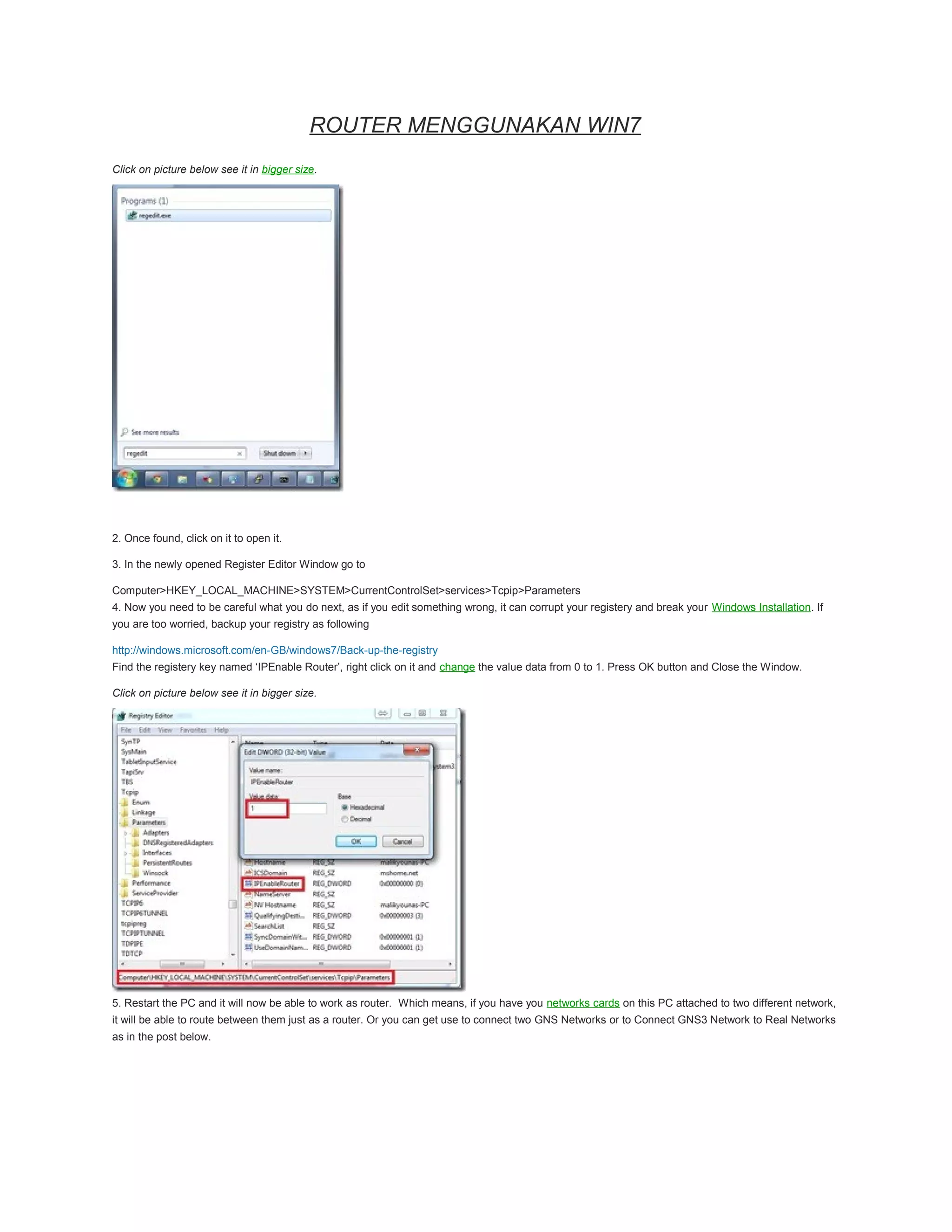
3. In the newly opened Register Editor Window go to
Computer>HKEY_LOCAL_MACHINE>SYSTEM>CurrentControlSet>services>Tcpip>Parameters
4. Now you need to be careful what you do next, as if you edit something wrong, it can corrupt your registery and break your Windows Installation. If
you are too worried, backup your registry as following
http://windows.microsoft.com/en-GB/windows7/Back-up-the-registry
Find the registery key named ‘IPEnable Router’, right click on it and change the value data from 0 to 1. Press OK button and Close the Window.
Click on picture below see it in bigger size.
5. Restart the PC and it will now be able to work as router. Which means, if you have you networks cards on this PC attached to two different network,
it will be able to route between them just as a router. Or you can get use to connect two GNS Networks or to Connect GNS3 Network to Real Networks
as in the post below.

Router win7

  • 1.
    ROUTER MENGGUNAKAN WIN7 Clickon picture below see it in bigger size. 2. Once found, click on it to open it. 3. In the newly opened Register Editor Window go to Computer>HKEY_LOCAL_MACHINE>SYSTEM>CurrentControlSet>services>Tcpip>Parameters 4. Now you need to be careful what you do next, as if you edit something wrong, it can corrupt your registery and break your Windows Installation. If you are too worried, backup your registry as following http://windows.microsoft.com/en-GB/windows7/Back-up-the-registry Find the registery key named ‘IPEnable Router’, right click on it and change the value data from 0 to 1. Press OK button and Close the Window. Click on picture below see it in bigger size. 5. Restart the PC and it will now be able to work as router. Which means, if you have you networks cards on this PC attached to two different network, it will be able to route between them just as a router. Or you can get use to connect two GNS Networks or to Connect GNS3 Network to Real Networks as in the post below.