ROS Tutorials
By, Eng. Mina G. Sadek
Slides Outline
▶ Why ROS
▶ What is ROS
▶ ROS architecture
▶ ROS Nodes, Messages, Topics, Master, Services, Actions, Bags.
▶ Catkin Package:
▶ Creating catkin workspace
▶ Creating & Building Package
▶ Creating node [Publisher]
◻ [C++ Publisher]
◻ [Python Publisher]
▶ Creating node [Subscriber]
◻ [C++ Subscriber]
◻ [Python Subscriber]
▶ ROS Launch
▶ Message passing between multiple machines
Slides Outline
▶ GAZEBO
▶ Building and controlling a robot in GAZEBO
▶ 1. Pre-Built Robots
◻ TIAGo robot and environment
◻ HUSKY robot and environment
▶ 2. Natively building robot in GAZEBO:
◻ Adding a Robot to GAZEBO
◻ Driving robot on GAZEBO using a node
▶ Installing ROS indigo/kinetic/melodic on Linux UBUNTU Desktop:
▶ ROS melodic for UBUNTU 18.04: http://wiki.ros.org/melodic/Installation/Ubuntu
▶ ROS kinetic for UBUNTU 16.04: http://wiki.ros.org/kinetic/Installation/Ubuntu
▶ ROS indigo for UBUNTU 14.04: http://wiki.ros.org/indigo/Installation/Ubuntu
Slides Outline
▶ Real-Time Robot using RPi
▶ A. Installing Raspbian and ROS on the RPi
▶ [METHOD_I]: Using pre-built image of Raspbian image + ROS
▶ [METHOD_II]: Native installation
◻ 1. Installing Raspbian Kinetic on RPi
◻ 2. Installing ROS on RPi
▶ C. Installing wiringPi on RPi
▶ D. Controlling RPi’s GPIO pins from ROS and wiringPi
▶ E. ROS Communication with Arduino [ROS Serial]
▶ Useful ROS Commands
Why ROS
▶ Open-source robotic software.
▶ Free for private and commercial use
▶ Has many built-in software packages [reusable code packages] essential
in the robotic applications.
▶ Communications Infrastructure
▶ Message Passing
▶ Facilitate the communication required between processes even if they are
on different machines.
▶ Recording & Playback of Messages
▶ Remote Procedure Calls
▶ Distributed Parameter System
Source: https://www.ros.org/core-components/
Why ROS
▶ Community support.
▶ The Robot Operating System [ROS] is a flexible framework for writing
robot software. It is a collection of tools, libraries and conventions that aim
to simplify the task of creating complex and robust robot behavior across
a wide variety of robotic platforms.
Why ROS
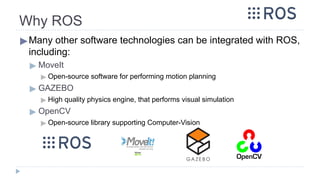
▶Many other software technologies can be integrated with ROS,
including:
▶ MoveIt
▶ Open-source software for performing motion planning
▶ GAZEBO
▶ High quality physics engine, that performs visual simulation
▶ OpenCV
▶ Open-source library supporting Computer-Vision
What is ROS
▶Robot Operating System [ROS]
▶Peer to Peer
▶ Individual programs communicate over defined API (messages, services,
etc.)
▶Distributed
▶ Programs can be run on multiple computers and communicate over the
network.
▶Programming language Independent
▶ Client libraries exist for C++, Python, MATLAB, Java.
▶Free and Open-Source
▶ Most ROS software is open-source and free to use.
What is ROS
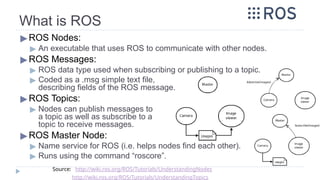
▶ROS Nodes:
▶ An executable that uses ROS to communicate with other nodes.
▶ROS Messages:
▶ ROS data type used when subscribing or publishing to a topic.
▶ Coded as a .msg simple text file,
describing fields of the ROS message.
▶ROS Topics:
▶ Nodes can publish messages to
a topic as well as subscribe to a
topic to receive messages.
▶ROS Master Node:
▶ Name service for ROS (i.e. helps nodes find each other).
▶ Runs using the command “roscore”.
Source: http://wiki.ros.org/ROS/Tutorials/UnderstandingNodes
http://wiki.ros.org/ROS/Tutorials/UnderstandingTopics
What is ROS
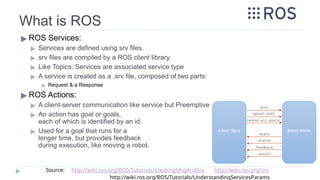
▶ROS Services:
▶ Topics are many-to-many way of communication. This technique is not
appropriate for RPC [Remote Procedure Call] Request/Reply interactions.
▶ Request/Reply is done via a SERVICE.
▶ A Service is defined by a pair of messages:
▶ A message for the Request
▶ A message for the Reply
▶ Its technique:
▶ ROS node providing the service [Server Node] offers a service under a string name
▶ Client ROS node calls the service by sending the request message and awaiting the
reply.
Source: http://wiki.ros.org/ROS/Tutorials/CreatingMsgAndSrv http://wiki.ros.org/srv
http://wiki.ros.org/ROS/Tutorials/UnderstandingServicesParams
What is ROS
▶ ROS Services:
▶ Services are defined using srv files.
▶ srv files are compiled by a ROS client library.
▶ Like Topics, Services are associated service type
▶ A service is created as a .srv file, composed of two parts:
▶ Request & a Response
▶ ROS Actions:
▶ A client-server communication like service but Preemptive
▶ An action has goal or goals,
each of which is identified by an id.
▶ Used for a goal that runs for a
longer time, but provides feedback
during execution, like moving a robot.
Source: http://wiki.ros.org/ROS/Tutorials/CreatingMsgAndSrv http://wiki.ros.org/srv
http://wiki.ros.org/ROS/Tutorials/UnderstandingServicesParams
What is ROS
▶ROS Bags:
▶ Used for Recording and Playback.
▶ Recording:
▶ Storing ROS message data, for later usage.
▶ Playback:
▶ Bag files can be played back in ROS to the same topics they were recorded
from, or even remapped to new topics
▶ ROS has variety of tools to store, process, analyze, and visualize
rosbags.
▶ A rosbag subscribes to one or more ROS topics, and store the
serialized message data in a file as it is received
Source: http://wiki.ros.org/Bags
http://wiki.ros.org/ROS/Tutorials/Recording%20and%20playing%20back%20data
▶ Follow steps available in the following link [Ubuntu 18.04]:
▶ http://wiki.ros.org/melodic/Installation/Ubuntu
▶ Follow steps available in the following link [Ubuntu 16.04]:
▶ http://wiki.ros.org/kinetic/Installation/Ubuntu
▶ Follow steps available in the following link [Ubuntu 14.04]:
▶ http://wiki.ros.org/indigo/Installation/Ubuntu
Source: http://wiki.ros.org/ROS/Tutorials/CreatingPackage
Installing ROS on UBUNTU
▶ Creating catkin workspace
▶ This is a one-time step, it is only required at the first time to create a
workspace
▶ This step is for PC [not RPi], as the RPi ROS installation creates a workspace calls
“ros_catkin_ws”, as will be shown later
> mkdir -p ~/catkin_ws
> cd ~/catkin_ws/src
> catkin_init_workspace
Source: http://wiki.ros.org/ROS/Tutorials/CreatingPackage
Catkin Package:
Creating catkin workspace
▶1. Creating package
▶ Catkin_create_pkg package_name [depend1] [depend2]
▶ depends: are the libraries required by the nodes that will be created in the
package [roscpp & rospy will be almost always included]
▶ The package structure should look like this:
> cd ~/catkin_ws/src
> catkin_create_pkg ros_001 roscpp rospy std_msgs
Source: http://wiki.ros.org/ROS/Tutorials/CreatingPackage
Catkin Package:
Creating & Building a Package
▶1. Creating package
▶ The package will have two auto-generated files
[Will be explained in more details when creating C/C++ nodes]
▶ a. “CMakeLists.txt”: Defines which C/C++ nodes to be built, and what
dependencies the package requires, also the libraries to be linked when building
▶ b. “Package.xml”: Provides meta information about the package and required
dependencies at build and runtime also.
▶2. Building the package
▶ To compile the package, first cd to ~/catkin_ws, then use the
catkin_make command:
> cd ~/catkin_ws
> catkin_make
Source: http://wiki.ros.org/ROS/Tutorials/CreatingPackage
Catkin Package:
Creating catkin workspace & Building first package
Catkin Package:
Creating node [PUBLISHER] [C++]
▶To create a C/C++ node:
▶ A. Create the C/C++ source code file “publisher.cpp”
▶ Create a source code C++ file of the node inside “src” directory inside the
package main directory
▶ B. Make some changes to the package’s “CMakeLists.txt”, located at
~/catkin_ws/src/ros_001
▶ To include the C/C++ file when building the package
▶ C. Make some changes to the package’s “package.xml”, located at
~/catkin_ws/src/ros_001
▶ To define the build and run dependencies that the package will require
Source: https://www.clearpathrobotics.com/assets/guides/ros/Creating%20publisher.html
Catkin Package:
Creating node [PUBLISHER] [C++]
▶A. Create the C/C++ source code file “publisher.cpp”
Important code snippets a ROS Publisher Node should have:
▶ 1. Commonly used Libraries
▶ <ros/ros.h>: required for ROS functionality
▶ <geometry_msgs/Twist.h>: to be able to create a message of type Twist
▶ <std_msgs/String.h>: for standard string messages
> mkdir ~/catkin_ws/src/ros_001/src
> cd ~/catkin_ws/src/ros_001/src
> gedit publisher.cpp
Source: https://www.clearpathrobotics.com/assets/guides/ros/Creating%20publisher.html
Catkin Package:
Creating node [PUBLISHER] [C++]
▶A. Create the C/C++ source code file “publisher.cpp”
Important code snippets a ROS Node should have:
▶ 2. Initialization
▶ [Optional]: In case of using GAZEBO husky package: To control the
husky robot, the topic name it subscribe to is:
“husky_velocity_controller/cmd_vel”
Source: https://www.clearpathrobotics.com/assets/guides/ros/Creating%20publisher.html
Catkin Package:
Creating node [PUBLISHER] [C++]
▶A. Create the C/C++ source code file “publisher.cpp”
Important code snippets a ROS Node should have:
▶ 3. Loop until an exit interrupt happens [Ctrl+C]
Source: https://www.clearpathrobotics.com/assets/guides/ros/Creating%20publisher.html
Catkin Package:
Creating node [PUBLISHER] [C++]
▶ B. Perform some changes to the package’s “CMakeLists.txt”, located at
~/catkin_ws/src/ros_001
▶ 1. Make the cpp source files executable by adding it as a node to the package
CMakeLists: [MANDATORY]
▶ Under
###########
## Build ##
###########
Under
## Declare a cpp executable
add the next lines:
NOTE: >>>> node_name is the given name to the node, here publisher
add_executable(node_name src/file_name.cpp)
target_link_libraries(node_name ${catkin_LIBRARIES})
Source: https://www.clearpathrobotics.com/assets/guides/ros/Creating%20publisher.html
http://wiki.ros.org/ROS/Tutorials/WritingPublisherSubscriber%28c%2B%2B%29
add_dependencies(node_name ${${PROJECT_NAME}_EXPORTED_TARGETS} ${catkin_EXPORTED_TARGETS})
# [OPTIONAL]
Catkin Package:
Creating node [PUBLISHER] [C++]
▶ B. Perform some changes to the package’s “CMakeLists.txt”, located
at ~/catkin_ws/src/ros_001
▶ 2. Make sure dependencies are added: [optional]
Dependencies are components imported from ROS and used in the code
▶ At the first of the CMakeLists.txt
Under
find_package(catkin REQUIRED)
add the next lines:
find_package(catkin REQUIRED COMPONENTS
roscpp
rospy
std_msgs
geometry_msgs # mostly used, but not required here
)
Source: https://www.clearpathrobotics.com/assets/guides/ros/Creating%20publisher.html
http://wiki.ros.org/ROS/Tutorials/WritingPublisherSubscriber%28c%2B%2B%29
Catkin Package:
Creating node [PUBLISHER] [C++]
▶B. Perform some changes to the package’s “CMakeLists.txt”,
located at ~/catkin_ws/src/ros_001
▶ 3. Make sure catkin specific configuration added:[optional]
▶ Under
###################################
## catkin specific configuration ##
###################################
Under
## DEPENDS: system dependencies of this project that dependent projects also
need
edit the catkin_package( ... )
to add the required configuration dependencies
catkin_package(
CATKIN_DEPENDS roscpp rospy std_msgs geometry_msgs
)
Source: https://www.clearpathrobotics.com/assets/guides/ros/Creating%20publisher.html
http://wiki.ros.org/ROS/Tutorials/WritingPublisherSubscriber%28c%2B%2B%29
Catkin Package:
Creating node [PUBLISHER] [C++]
▶C. Perform some changes to the package’s “package.xml”,
located at ~/catkin_ws/src/ros_001
▶ 1. Add Build and Run dependencies: [MANDATORY]
▶ Under <buildtool_depend>catkin</buildtool_depend>
add the next lines: <build_depend>std_msgs</build_depend>
<build_depend>geometry_msgs</build_depend>
<build_export_depend>std_msgs</build_export_depend>
<build_export_depend>geometry_msgs</build_export_depend>
<exec_depend>std_msgs</exec_depend>
<exec_depend>geometry_msgs</exec_depend>
<!-- for ros indigo and before use “run_depend” instead of “exec_depend” -->
<run_depend>std_msgs</run_depend>
<run_depend>geometry_msgs</run_depend>
Source: https://www.clearpathrobotics.com/assets/guides/ros/Creating%20publisher.html
http://wiki.ros.org/ROS/Tutorials/WritingPublisherSubscriber%28c%2B%2B%29
Catkin Package:
Creating node [PUBLISHER] [C++]
▶After performing A, B, and C, now cd to ~/catkin_ws and build the
package
▶ If you have error with “geometry_msgs package” not found or
something, install it manually, then rerun the “catkin_make” command
▶ If the problem still not solved, then download the geometry_msgs
manually from github indigo repo. to “~/ros_catkin_ws/src”
▶ We may need to remove some not used packages from the downloaded
folder if they generated error.
▶ Then re-build the catkin_ws as explained before.
> cd ~/catkin_ws
> catkin_make
> cd ~/ros_catkin_ws/src
> git clone -b indigo-devel https://github.com/ros/common_msgs.git
Source: https://www.clearpathrobotics.com/assets/guides/ros/Creating%20publisher.html
http://wiki.ros.org/ROS/Tutorials/WritingPublisherSubscriber%28c%2B%2B%29
> sudo apt-get install ros-geometry-msgs
Catkin Package:
Creating node [PUBLISHER] [C++]
▶To run the node
▶ 1. Run the Master node in a separate terminal terminal
▶ 2. In a new terminal, source the catkin_ws
▶ 3. Then, run the node:
▶ > rosrun [package_name] [node_name]
▶ To list the current available topics, open a new terminal
▶ To monitor the data published by a topic
> roscore
> source ~/catkin_ws/devel/setup.bash
> rosrun ros_001 publisher
> rostopic list
> source ~/catkin_ws/devel/setup.bash
> rostopic echo /topic_name
Source: https://www.clearpathrobotics.com/assets/guides/ros/Creating%20publisher.html
http://wiki.ros.org/ROS/Tutorials/WritingPublisherSubscriber%28c%2B%2B%29
Catkin Package:
Creating node [PUBLISHER] [Python]
▶To create the node in Python:
▶ In the package you created, create a folder called “scripts”
▶ In that folder “scripts”, create your python publisher node
▶ After finishing the python script coding, make the script executable
▶ Now, the python script is ready to rosrun, catkin_make is not required.
Also editing “CMakeLists.txt” is not required
> mkdir ~/catkin_ws/src/ros_001/scripts
> cd ~/catkin_ws/src/ros_001/scripts
> gedit publisher.py
> chmod a+x publisher.py
> source ~/catkin_ws/devel/setup.bash
> rosrun ros_001 publisher.py
Catkin Package:
Creating node [PUBLISHER] [Python]
▶ Important python code snippets in the node:
Catkin Package:
Creating node [PUBLISHER] [Python]
▶ Important python code snippets in the node:
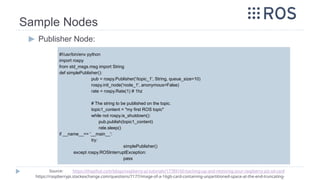
Sample Nodes
▶ Publisher Node:
#!/usr/bin/env python
import rospy
from std_msgs.msg import String
def simplePublisher():
pub = rospy.Publisher('/topic_1', String, queue_size=10)
rospy.init_node('node_1', anonymous=False)
rate = rospy.Rate(1) # 1hz
# The string to be published on the topic.
topic1_content = "my first ROS topic"
while not rospy.is_shutdown():
pub.publish(topic1_content)
rate.sleep()
if __name__== '__main__':
try:
simplePublisher()
except rospy.ROSInterruptException:
pass
Source: https://thepihut.com/blogs/raspberry-pi-tutorials/17789160-backing-up-and-restoring-your-raspberry-pis-sd-card
https://raspberrypi.stackexchange.com/questions/7177/image-of-a-16gb-card-containing-unpartitioned-space-at-the-end-truncating-
Catkin Package:
Creating node [SUBSCRIBER] [C++]
▶To create a C/C++ node:
▶ A. Create the C/C++ source code file “publisher.cpp”
▶ Create a source code C++ file of the node inside “src” directory inside the package
main directory
▶ B. Make some changes to the package’s “CMakeLists.txt”, located at
~/catkin_ws/src/ros_001
▶ To include the C/C++ file when building the package
▶ C. Make some changes to the package’s “package.xml”, located at
~/catkin_ws/src/ros_001 [if required]
▶ To define the build and run dependencies that the package will require
> cd ~/catkin_ws/src/ros_001/src
> gedit subscriber.cpp
Catkin Package:
Creating node [SUBSCRIBER] [C++]
Important code snippets a ROS Subscriber should have:
Source: https://www.clearpathrobotics.com/assets/guides/ros/Creating%20publisher.html
http://wiki.ros.org/ROS/Tutorials/WritingPublisherSubscriber%28c%2B%2B%29
Catkin Package:
Creating node [SUBSCRIBER] [C++]
▶ B. Perform some changes to the package’s “CMakeLists.txt”, located at
~/catkin_ws/src/ros_001
▶ 1. Make the cpp source files executable by adding it as a node to the package
CMakeLists: [MANDATORY]
▶ Under
###########
## Build ##
###########
Under
## Declare a cpp executable
add the next lines:
NOTE: >>>> node_name is the given name to the node, here publisher
## add_dependencies(subscriber ${${PROJECT_NAME}_EXPORTED_TARGETS} $
{catkin_EXPORTED_TARGETS}) [OPTIONAL]
add_executable(subscriber src/subscriber.cpp)
target_link_libraries(subscriber ${catkin_LIBRARIES})
Catkin Package:
Creating node [SUBSCRIBER] [C++]
▶After performing A, B and may be C, now cd to the catkin_ws and
build the package
▶Run the subscriber node
▶ 1. source the catkin_ws
▶ 2. run the node
> cd ~/catkin_ws
> catkin_make
> source ~/catkin_ws/devel/setup.bash
> rosrun ros_001 subscriber
Catkin Package:
Creating node [SUBSCRIBER] [Python]
▶To create the node in Python:
▶ In the package you created, create a folder called “scripts”
▶ In that folder “scripts”, create your python publisher node
▶ After finishing the python script coding, make the script executable
▶ Now, the python script is ready to rosrun, catkin_make is not required.
Also editing “CMakeLists.txt” is not required
> mkdir ~/catkin_ws/ros_001/scripts
> cd ~/catkin_ws/ros_001/scripts
> gedit subscriber.py
> chmod a+x subscriber.py
> source ~/catkin_ws/devel/setup.bash
> rosrun ros_001 subscriber.py
Catkin Package:
Creating node [SUBSCRIBER] [Python]
▶ Important python code snippets in the node:
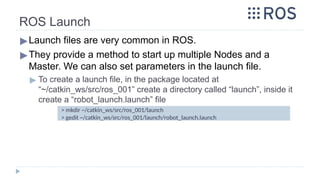
ROS Launch
▶Launch files are very common in ROS.
▶They provide a method to start up multiple Nodes and a
Master. We can also set parameters in the launch file.
▶ To create a launch file, in the package located at
“~/catkin_ws/src/ros_001” create a directory called “launch”, inside it
create a “robot_launch.launch” file
> mkdir ~/catkin_ws/src/ros_001/launch
> gedit ~/catkin_ws/src/ros_001/launch/robot_launch.launch
ROS Launch
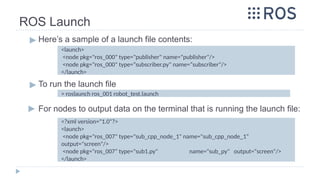
▶ Here’s a sample of a launch file contents:
▶ To run the launch file
▶ For nodes to output data on the terminal that is running the launch file:
> roslaunch ros_001 robot_test.launch
<launch>
<node pkg="ros_000" type="publisher" name="publisher"/>
<node pkg="ros_000" type=“subscriber.py" name=“subscriber"/>
</launch>
<?xml version="1.0"?>
<launch>
<node pkg="ros_007" type="sub_cpp_node_1" name="sub_cpp_node_1"
output="screen"/>
<node pkg="ros_007" type="sub1.py" name="sub_py" output="screen"/>
</launch>
ROS Launch
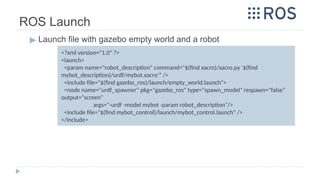
▶ Launch file with gazebo empty world and a robot
<?xml version="1.0" ?>
<launch>
<param name="robot_description" command="$(find xacro)/xacro.py '$(find
mybot_description)/urdf/mybot.xacro'" />
<include file="$(find gazebo_ros)/launch/empty_world.launch">
<node name="urdf_spawner" pkg="gazebo_ros" type="spawn_model" respawn="false"
output="screen"
args="-urdf -model mybot -param robot_description"/>
<include file="$(find mybot_control)/launch/mybot_control.launch" />
</include>
ROS Launch
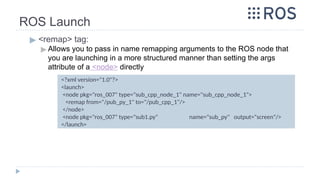
▶ <remap> tag:
▶ Allows you to pass in name remapping arguments to the ROS node that
you are launching in a more structured manner than setting the args
attribute of a <node> directly
<?xml version="1.0"?>
<launch>
<node pkg="ros_007" type="sub_cpp_node_1" name="sub_cpp_node_1">
<remap from="/pub_py_1" to="/pub_cpp_1"/>
</node>
<node pkg="ros_007" type="sub1.py" name="sub_py" output="screen"/>
</launch>
Message passing between
Multiple Machines
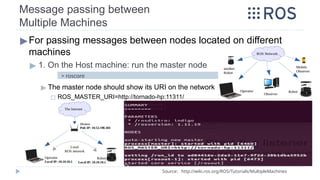
▶For passing messages between nodes located on different
machines
▶ 1. On the Host machine: run the master node
▶ The master node should show its URI on the network
◻ ROS_MASTER_URI=http://tornado-hp:11311/
> roscore
Source: http://wiki.ros.org/ROS/Tutorials/MultipleMachines
Message passing between
Multiple Machines
▶For passing messages between nodes located on different
machines
▶ 2. On every other machine: [on the same network], on each new terminal
A. First, Configure the ROS_MASTER_URI, so that the master on the
host machine is used
▶
Then, run the node you want, now all nodes on all machines are using the
same ROS Master node
▶ Run the publisher node on the guest machine
▶ On the host machine, run the subscriber node
> source ~/catkin_ws/devel/setup.bash
> Rosrun ros_001 subscriber
> export ROS_IP=machine_IP
> export ROS_MASTER_URI=http://master_machine_IP:11311
> source ~/catkin_ws/devel/setup.bash
> rosrun ros_001 publisher
Source: http://wiki.ros.org/ROS/Tutorials/MultipleMachines
Message passing between
Multiple Machines
▶Troubleshooting:
▶ On the guest machine, if the hostname of the Master Node [roscore]
machine is not identified, write its IP instead
▶ On every terminal on the guest machine, before running a node, we
have to identify the roscore before working
> export ROS_MASTER_URI=http://192.168.1.106:11311
> source ~/catkin_ws/devel/setup.bash
> export ROS_MASTER_URI=http://192.168.1.106:11311
> rosrun ros_001 subscriber
Source: http://wiki.ros.org/ROS/Tutorials/MultipleMachines
Message passing between
Multiple Machines
▶Troubleshooting:
▶ If the host-machine (running the Master Node [roscore]) can’t find ip of
the machine running a node, on the machine, before running the
node, export its local ip
▶ Exporting the
ROS_IP can also
be useful if any node
on any machine even
the master machine
wasn’t well recognized
by the Master Node,
because its IP isn’t published > export ROS_IP=‘hostname -I’
> rosrun ros_001 subscriber
Source: http://wiki.ros.org/ROS/Tutorials/MultipleMachines
Message passing between
Multiple Machines
▶Troubleshooting:
▶ If, later, a problem happened with the master node, and the terminal
can’t find it, re-export it, using its name or its IP, even if it is to the
localhost
> export ROS_MASTER_URI=http://localhost:11311
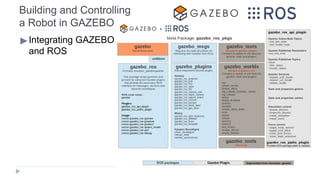
Building and Controlling
a Robot in GAZEBO
▶Integrating GAZEBO
and ROS
Building and Controlling
a Robot in GAZEBO [Pre-Built]
▶First, let’s download and try a pre-built robot and world. [TIAGO]
▶ A. Make sure that the Tiago robot and world is installed:
▶ 1. Download this file and name it “tiago_public.rosinstall” in the catkin_ws directory:
https://raw.githubusercontent.com/pal-robotics/tiago_tutorials/kinetic-devel/tiago_public-mel
odic.rosinstall
▶ 2. Install the environment as follows:
▶ 3. Run the following instruction to make sure all dependencies are installed
> cd ~/catkin_ws
> rosinstall src /opt/ros/melodic tiago_public.rosinstall
> sudo rosdep init
> rosdep update
Source: http://wiki.ros.org/Robots/TIAGo/Tutorials
http://wiki.ros.org/Robots/TIAGo/Tutorials/Installation/TiagoSimulation
> rosdep install -y --from-paths src --ignore-src --rosdistro melodic --skip-keys="opencv2 opencv2-nonfree
pal_laser_filters speed_limit sensor_to_cloud hokuyo_node libdw-dev python-graphitesend-pip python-statsd
pal_filters pal_vo_server pal_usb_utils pal_pcl pal_pcl_points_throttle_and_filter pal_karto pal_local_joint_control
camera_calibration_files pal_startup_msgs pal-orbbec-openni2 dummy_actuators_manager pal_local_planner
gravity_compensation_controller current_limit_controller dynamic_footprint dynamixel_cpp tf_lookup opencv3"
Building and Controlling
a Robot in GAZEBO [Pre-Built]
▶First, let’s download and try a pre-built robot and world. [TIAGO]
▶ A. Make sure that the Tiago robot and world is installed:
▶ 4. Build the workspace and source it
Note:
The public simulation of TIAGo allows two different versions:
- TIAGo Steel: in this configuration the end-effector is a parallel gripper
- TIAGo Titanium: the wrist has a 6-axis force/torque sensor and the end-effector is the
under-actuated 5-finger Hey5 hand.
▶ 5. Launch simulation:
To launch simulation of TIAGo steel or titanium, run one the following commands:
> roslaunch tiago_gazebo tiago_gazebo.launch public_sim:=true robot:=steel
Source: http://wiki.ros.org/Robots/TIAGo/Tutorials/Installation/TiagoSimulation
> cd ~/catkin_ws
> catkin_make
> source ~/catkin_ws/devel/setup.bash
> roslaunch tiago_gazebo tiago_gazebo.launch public_sim:=true robot:=titanium
Building and Controlling
a Robot in GAZEBO [Pre-Built]
▶First, let’s download and try a pre-built robot and world. [TIAGO]
▶ B. Teleoperating the mobile base with keyboard:
▶ 1. Launch the simulation by running the following command in a terminal:
▶ 2. Open a new terminal and run the key_teleop using the following command:
> rosrun key_teleop key_teleop.py
Source: http://wiki.ros.org/Robots/TIAGo/Tutorials/motions/key_teleop
> roslaunch tiago_gazebo tiago_gazebo.launch public_sim:=true robot:=titanium
world:=simple_office_with_people
Building and Controlling
a Robot in GAZEBO [Pre-Built]
▶First, let’s download and try a pre-built robot and world. [TIAGO]
▶ C. Moving the base through velocity commands:
▶ 1. Launch the simulation by running the following command in a terminal:
▶ 2. Open a new terminal and run the following command to find exact name of the required
node to talk to:
▶ 3. Send velocity commands through terminal
◻ a. Moving forward and backward:
◻ b. Turning left and right:
> rostopic list
Source: http://wiki.ros.org/Robots/TIAGo/Tutorials/motions/cmd_vel
> roslaunch tiago_gazebo tiago_gazebo.launch public_sim:=true robot:=titanium
world:=simple_office_with_people
> rostopic pub /mobile_base_controller/cmd_vel geometry_msgs/Twist -r 3 -- '[0.5,0.0,0.0]'
'[0.0, 0.0, 0.0]'
> rostopic pub /mobile_base_controller/cmd_vel geometry_msgs/Twist -r 3 -- '[0.0,0.0,0.0]'
'[0.0, 0.0, 0.5]'
Building and Controlling
a Robot in GAZEBO [Pre-Built]
▶First, let’s download and try a pre-built robot and world. [HUSKY]
▶ Make sure that the husky robot is installed
▶ Running a virtual husky in gazebo, in new terminal write:
▶ Running a virtual husky in RViz, in a new terminal write:
▶ Now, to make the robot move, publish a geometry twist message with the
required linear and angular velocities:
> sudo apt-get update
> sudo apt-get install ros-melodic-husky-desktop
> sudo apt-get install ros-melodic-husky-simulator
> roslaunch husky_gazebo husky_empty_world.launch
Source: https://www.clearpathrobotics.com/assets/guides/ros/Drive%20a%20Husky.html
> rostopic pub -r 10 /husky_velocity_controller/cmd_vel geometry_msgs/Twist '{linear: {x: 1.0, y:
0.0, z: 0.0}, angular: {x: 0.0,y: 0.0,z: 0.0}}'
> roslaunch husky_viz view_robot.launch
Building and Controlling
a Robot in GAZEBO [Pre-Built]
▶ First, let’s download and try a pre-built robot and world.
▶ Now, to make the robot move, publish a geometry twist message with the
required linear and angular velocities:
▶ “/husky_velocity_controller/cmd_vel”: topic name
▶ “geometry_msgs/Twist”: topic type
▶ “linear x: 1.0”: means go forward at 1m/s speed
▶ “-r 10”: means publish at rate 10 Hz (10 messages/sec)
▶ We may run the “rqt_graph” ROS node to show the current nodes and topics
and their publishers and subscribers relations visually
▶ We may use teleop_twist_keyboard node to control the robot
Source: https://www.clearpathrobotics.com/assets/guides/ros/Drive%20a%20Husky.html
> rosrun rqt_graph rqt_graph
> rostopic pub -r 10 /husky_velocity_controller/cmd_vel geometry_msgs/Twist '{linear: {x: 1.0, y: 0.0, z:
0.0}, angular: {x: 0.0,y: 0.0,z: 0.0}}'
> sudo apt-get install ros-melodic-teleop-twist-keyboard
> rosrun teleop_twist_keyboard teleop_twist_keyboard.py
Building and Controlling
a Robot in GAZEBO [Native]
▶A package including diffBot description with sample worlds can be
found in the following github repository:
▶ https://github.com/mina-sadek/ROS-dev_sim_1.git
▶ To clone it locally:
▶ Place the launch file code
▶ teleop_twist_keyboard can be used to control the robot.
◻ To match its topic name with that of diffBot package, run it using the following command
> cd catkin_ws/src
> git clone https://github.com/mina-sadek/ROS-dev_sim_1.git
> cd catkin_ws
> catkin_make
> roslaunch diffBot_000 diffBot_world.launch world_file:=world3 robot_name:=diffBot
> roslaunch diffBot_000 diffBot_multi_2.launch # For spawning 2 robots.
> rosrun teleop_twist_keyboard teleop_twist_keyboard.py cmd_vel:=diffBot/cmd_vel
Building and Controlling
a Robot in GAZEBO [Native]
▶Simple Navigation:
▶ Run gotopoint2.py with desired x and y coordinates to make the diffBot
navigates to the desired point:
Usage: rosrun diffBot_000 gotopoint2.py x_value y_value
▶ Important topics:
▶ /diffBot/cmd_vel: Type: geometry_msgs/Twist
To control robot linear and angular movements.
▶ /diffBot/odom: Type: nav_msgs/Odometry
Gives feedback of robot’s current position and orientation.
◻ To echo odometry data in a terminal, run the following command
> rosrun diffBot_000 gotopoint2.py 2 1
> rostopic echo /diffBot/odom
Building and Controlling
a Robot in GAZEBO [Native]
▶Simple Navigation:
▶ To follow the wall (wall-follower), laser scanned reading must be considered to
find the wall and follow it.
▶ Run follow_wall.py to make the diffBot start following the wall:
▶ Important topics:
▶ /diffBot/cmd_vel: Type: geometry_msgs/Twist
To control robot linear and angular movements.
▶ /diffBot/laser/scan: Type: sensor_msgs/LaserScan
Provide on-board laser sensor readings.
◻ To echo odometry data in a terminal, run the following command
> rosrun diffBot_000 follow_wall.py
> rostopic echo /diffBot/laser/scan
Building and Controlling
a Robot in GAZEBO [Native]
▶We can also follow step 1 shown in this tutorial:
http://www.theconstructsim.com/ros-projects-exploring-ros-using-2-wheeled-robot-part-1/
▶
▶ Github repository of diffBot_000 package:
▶ https://github.com/mina-sadek/ROS-dev_sim_1.git
▶ To get the repository:
▶ git clone https://github.com/mina-sadek/ROS-dev_sim_1.git
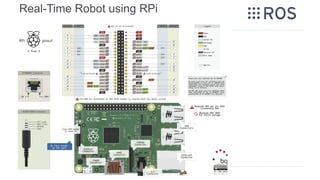
Real-Time Robot using RPi
▶
▶ Choose Your LINUX distribution, you can choose from:
▶ METHOD_I: ROSberryPi image: [Recommended for new users]
▶ Prebuilt SD card image of Raspbian or Ubuntu with ROS already installed
and may be OpenCV installed too:
◻ i. ROSbots provides Raspbian Stretch Lite + ROS Kinetic + OpenCV
https://github.com/ROSbots/rosbots_setup_tools
◻ ii. ROSberryPi, approved by ROS, provide ubuntu + ROS Kinetic
https://downloads.ubiquityrobotics.com/pi.html
▶ METHOD_II: New & clean installation, then install ROS manually
Two of the most famous distributions to use:
◻ Raspbian Stretch [Latest Raspbian distro to the moment], Raspbian
Lite is preferred.
◻ UBUNTU Core, which is very trending in the IOT industry.
Real-Time Robot using RPi
Installing Raspbian Stretch & ROS on the RPi
Download Link for Raspbian images: https://downloads.raspberrypi.org/raspbian/images/
▶ METHOD_I:
i. Installing ROSberryPi image with Raspbian Stretch Lite + ROS Kinetic +
OpenCV:
▶ 1. Download the SD card image:
◻ Open the github link of the project
https://github.com/ROSbots/rosbots_setup_tools
◻ Find the image download link and download it.
https://goo.gl/forms/d1Qa97xm8NhkLTR52
▶ 2. Flash the SD card image to your SD card
▶ Using Etcher app [linux].
◻ Run etcher application.
◻ Select the downloaded SD card image.
◻ Select your SD card.
◻ Click on Flash button.
Real-Time Robot using RPi [METHOD_I]
Installing Raspbian Stretch & ROS on the RPi
Resources: https://github.com/ROSbots/rosbots_setup_tools
https://www.balena.io/etcher/
Real-Time Robot using RPi [METHOD_II]
A. Installing Raspbian Stretch on the RPi
▶ Install Clean Raspbian Stretch Lite on the RPi -- METHOD 1
▶ 1. Download Raspbian Stretch Lite:
https://www.raspberrypi.org/downloads/raspbian/
▶ 2. Download the etcher application for linux or windows from this link:
https://www.balena.io/etcher/
▶ 3. Insert the SD Card [Recommended: >16 GB]
Download Link for Raspbian images: https://downloads.raspberrypi.org/raspbian/images/
▶ 1. Install Raspbian Stretch distribution on the RPi -- METHOD 1
▶ Download the etcher application for linux or windows from this link:
▶ Use the etcher application to choose the required image then choose the
target SD card, then flash it.
> https://etcher.io/
Download Link for Raspbian images: https://downloads.raspberrypi.org/raspbian/images/
Real-Time Robot using RPi [METHOD_II]
A. Installing Raspbian Stretch on the RPi
Real-Time Robot using RPi [METHOD_II]
A. Installing Raspbian Stretch on the RPi
▶ 1. Install Raspbian Stretch distribution on the RPi -- METHOD 2
▶ 1. Download Raspbian Stretch Lite SD card image.
▶ 2. Insert the SD Card [Recommended: 16 GB]
▶ 3. Detect the SD card path [/dev/sdx]
▶ 4. Unmount all SD card drives
▶ 5. Copy the image to the SD card
▶ May require “sudo” to run
If the pv application is not installed, then install it using the command
▶ Wait until the copying has finished
> df -h
Sources: https://www.raspberrypi.org/documentation/installation/installing-images/linux.md
https://www.raspberrypi.org/downloads/raspbian/ https://askubuntu.com/questions/215505/how-do-you-monitor-the-progress-of-
> umount /dev/sdb1
> umount /dev/sdb2
> sudo dd if=2017-01-11-raspbian-jessie.img | pv | sudo dd of=/dev/sdb bs=4M conv=fsync
> sudo apt-get install pv
Real-Time Robot using RPi
A. Installing Raspbian Stretch on the RPi
▶2. Preparing the Raspbian Stretch for booting
▶ Activating SSH:
In the new Raspbian Stretch, SSH could be disabled by default
To Activate the SSH:
▶ Just open the boot partition on the SD card, and add an empty file with the name
“ssh”, without any extensions
> cd /media/$USER/boot
> touch ssh
Source: https://www.youtube.com/watch?v=ud8QH6pkc0o
Real-Time Robot using RPi
A. Installing Raspbian Stretch on the RPi
▶2. Preparing the Raspbian Stretch [Networking]
▶ If you want the RPi to connect to your wifi hotspot/router WLAN:
Add ssid and pasword of your network to the file “wpa_supplicant.conf”
located on the other drive (drive other that “boot” drive) at
“etc/wpa_supplicant/”
▶ The file, “wpa_supplicant.conf”, needs to be edited from the command line, using any
text editor you have, also it needs “sudo ” permission
▶ Add network information at the end of the form:
> sudo gedit etc/wpa_supplicant/wpa_supplicant.conf
country=GB
ctrl_interface=DIR=/var/run/wpa_supplicant GROUP=netdev
update_config=1
network={
ssid="NETWORK_SSID"
psk="NETWORK_PASS"
key_mgmt=WPA-PSK
}
Real-Time Robot using RPi
A. Installing Raspbian Stretch on the RPi
▶2. Preparing the Raspbian Stretch [Networking]
▶ To enable the onboard (RPi3) or USB WiFi (RPi2) and make it try to
access networks defined in the wpa_supplicant.conf file:
▶ Edit the file “interfaces” found at “/etc/network/”, it may need “sudo ” permission
▶ At the end of the file, add these lines, to define using the wlan0 trying to access
networks found at wpa_supplicant.conf
> sudo gedit /etc/network/interfaces
auto lo
iface lo inet loopback
iface eth0 inet manual
allow-hotplug wlan0
iface wlan0 inet manual
wpa-conf /etc/wpa_supplicant/wpa_supplicant.conf
Real-Time Robot using RPi
A. Installing Raspbian Stretch on the RPi
▶ 3. Booting and accessing the Raspbian Stretch
▶ Install the SD card on the RPi, and power it up.
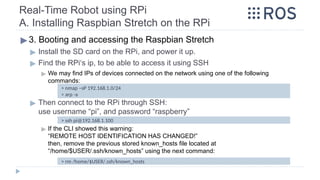
▶ Find the RPi‘s ip, to be able to access it using SSH
▶ We may find IPs of devices connected on the network using one of the following
commands:
▶ Then connect to the RPi through SSH:
use username “pi”, and password “raspberry”
▶ If the CLI showed this warning:
“REMOTE HOST IDENTIFICATION HAS CHANGED!”
then, remove the previous stored known_hosts file located at
“/home/$USER/.ssh/known_hosts” using the next command:
> nmap –sP 192.168.1.0/24
> arp -a
> ssh pi@192.168.1.100
> rm /home/$USER/.ssh/known_hosts
Real-Time Robot using RPi
A. Installing Raspbian Stretch on the RPi
▶3. Booting and accessing the Raspbian Stretch
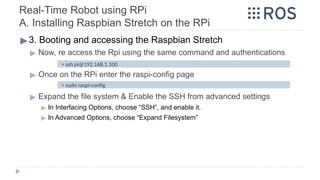
▶ Now, re access the Rpi using the same command and authentications
▶ Once on the RPi enter the raspi-config page
▶ Expand the file system & Enable the SSH from advanced settings
▶ In Interfacing Options, choose “SSH”, and enable it.
▶ In Advanced Options, choose “Expand Filesystem”
> ssh pi@192.168.1.100
> sudo raspi-config
Real-Time Robot using RPi
A. Installing Raspbian Stretch on the RPi
▶3. Booting and accessing the Raspbian Stretch
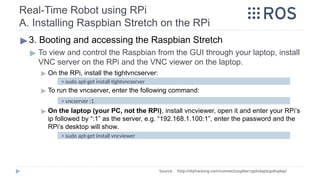
▶ To view and control the Raspbian from the GUI through your laptop, install
VNC server on the RPi and the VNC viewer on the laptop.
▶ On the RPi, install the tightvncserver:
▶ To run the vncserver, enter the following command:
▶ On the laptop (your PC, not the RPi), install vncviewer, open it and enter your RPi’s
ip followed by “:1” as the server, e.g. “192.168.1.100:1”, enter the password and the
RPi’s desktop will show.
Source: http://diyhacking.com/connect­
raspberry­
pi­
to­
laptop­
display/
> sudo apt-get install tightvncserver
> vncserver :1
> sudo apt-get install vncviewer
Real-Time Robot using RPi
A. Installing Raspbian Stretch on the RPi
▶3. Booting and accessing the Raspbian Stretch
▶ To Run the VNC server at startup on the RPi:
▶ Create a file named “tightvnc.desktop” in “~/.config/autostart/”
▶ Then, edit the file and add the following lines:
▶ Now, next time you reboot your RPi, the vncserver will start automatically.
Source: http://diyhacking.com/connect­
raspberry­
pi­
to­
laptop­
display/
[Desktop Entry]
Type=Application
Name=TightVNC
Exec=vncserver :1
StartupNotify=false
> cd ~/.config/
> mkdir autostart
> cd autostart/
> touch tightvnc.desktop
> nano tightvnc.desktop
Real-Time Robot using RPi [IF METHOD_II]
B. Installing ROS on RPi
Source: https://dev.px4.io/en/ros/raspberrypi_installation.html
http://wiki.ros.org/ROSberryPi/Installing%20ROS%20Indigo%20on%20Raspberry%20Pi
▶Install ROS kinetic on the Raspbian Stretch
▶ One way to get ROS on your Raspbian Stretch OS, is to use a pre-
compiled image of Jessie with ROS indigo already installed on it.
◻ Check this link for such image:
◻ https://neverbenever.wordpress.com/2017/12/20/install-ros-and-opencv-in-raspberry-pir
aspbian-stretch/
◻ Image link:
ROS Kinetic (Robot Operating System) and OpenCV-3.3.1 on the Raspberry Pi 2 or 3 with Raspbian Stretch.
https://drive.google.com/file/d/1KMP9R-Yg3GXGDGbAxtfe_mwYa9hFUwmh/view
▶ If you installed a fresh native copy of the Jessie OS, then you need to
manually install the required ROS Distro on your Raspbian Stretch OS
Real-Time Robot using RPi [IF METHOD_II]
B. Installing ROS on RPi
▶Install ROS kinetic on the Raspbian Stretch
▶ 1. Preparing prerequisites:
Source: https://dev.px4.io/en/ros/raspberrypi_installation.html
http://wiki.ros.org/ROSberryPi/Installing%20ROS%20Kinetic%20on%20the%20Raspberry%20Pi
> sudo apt-get install dirmngr
> sudo sh -c 'echo "deb http://packages.ros.org/ros/ubuntu $(lsb_release -sc) main" >
/etc/apt/sources.list.d/ros-latest.list'
> sudo apt-key adv --keyserver hkp://ha.pool.sks-keyservers.net:80 --recv-key
421C365BD9FF1F717815A3895523BAEEB01FA11
> sudo apt-get update
> sudo apt-get upgrade # [optional]
> sudo apt-get install python-rosdep python-rosinstall-generator python-wstool python-
rosinstall build-essential cmake
Real-Time Robot using RPi [IF METHOD_II]
B. Installing ROS on RPi
▶Install ROS kinetic on the Raspbian Stretch
▶ 1. Preparing prerequisites:
◻ If the pip command failed, add “-H” option to the command, if it still raise errors, install the
packages separately [this step is optional]
▶ Now, initialize and update the rosdep
◻ If the “rosdep update” failed, remove the initialized file then re-run the previous 2 commands.
Source: https://dev.px4.io/en/ros/raspberrypi_installation.html
https://github.com/pypa/pip/issues/1093
> sudo -H pip install rosdep# [optional]
> sudo -H pip install rosinstall_generator # [optional]
> sudo -H pip install wstool # [optional]
> sudo -H pip install rosinstall # [optional]
> sudo rosdep init
> rosdep update
> sudo rm /etc/ros/rosdep/sources.list.d/20-default.list # [optional]
Real-Time Robot using RPi [IF METHOD_II]
B. Installing ROS on RPi
▶Install ROS kinetic on the Raspbian Stretch
▶ 2.1 Now, we will download and build ROS indigo, two variants are
available: desktop (full version - recommended) & ROS-Comm (light version)
▶ This indigo packages are for robotic applications, can be added after
adding the ros_comm, [more support robots]: [optional]
◻ If wstool init fails or is interrupted, you can resume the download by running the next command.
It may require sudo privilege:
Source: https://dev.px4.io/en/ros/raspberrypi_installation.html
http://www.ros.org/reps/rep-0131.html#variants
> mkdir ~/ros_catkin_ws
> cd ~/ros_catkin_ws
> rosinstall_generator ros_comm --rosdistro kinetic --deps --wet-only --tar > kinetic-ros_comm-
wet.rosinstall
> wstool init -j8 src kinetic-ros_comm-wet.rosinstall
> rosinstall_generator robot --rosdistro kinetic --deps --wet-only --tar > kinetic-robot-wet.rosinstall
> wstool update -t src
> wstool merge -t src kinetic-robot-wet.rosinstall
> wstool update -t src # [optional]
Real-Time Robot using RPi [IF METHOD_II]
B. Installing ROS on RPi
▶Install ROS kinetic on the Raspbian Stretch
▶ 2.2 Resolving Dependencies for ros_comm on Stretch
▶ 2.2.1. Resolving Unavailable Dependencies: [optional]
▶ 2.2.2. Resolving Dependencies with rosdep, and make sure all dependencies are installed:
> mkdir -p ~/ros_catkin_ws/external_src
> cd ~/ros_catkin_ws/external_src
> wget http://sourceforge.net/projects/assimp/files/assimp-3.1/assimp-
3.1.1_no_test_models.zip/download -O assimp-3.1.1_no_test_models.zip
> unzip assimp-3.1.1_no_test_models.zip
> cd assimp-3.1.1
> cmake .
> make
> sudo make install
> cd ~/ros_catkin_ws
> rosdep install -y --from-paths src --ignore-src --rosdistro kinetic -r --os=debian:stretch
Source: http://wiki.ros.org/ROSberryPi/Installing%20ROS%20Indigo%20on%20Raspberry%20Pi
Real-Time Robot using RPi [IF METHOD_II]
B. Installing ROS on RPi
▶Install ROS kinetic on the Raspbian Stretch
▶ 2.3 Building the catkin workspace
▶ Before installing ROS, it is recommended to increase the swap space on the RPi, to
avoid out-of-memory error [optional]. Note: make sure to expand file system
Note that: It is recommended to reset the swap size to 100 after ros installation.
◻ The default value in Raspbian is “CONF_SWAPSIZE=100”
Change it to: 1024
◻ Then, stop and start the service that manages the swapfile:
◻ To verify the amount of memory + swap:
Source: https://dev.px4.io/en/ros/raspberrypi_installation.html
http://raspberrypimaker.com/adding-swap-to-the-raspberrypi/
> sudo nano /etc/dphys-swapfile
CONF_SWAPSIZE=1024
> sudo /etc/init.d/dphys-swapfile stop
> sudo /etc/init.d/dphys-swapfile start
> free -m
Real-Time Robot using RPi [IF METHOD_II]
B. Installing ROS on RPi
▶Install ROS kinetic on the Raspbian Stretch
▶ 2.3 Building the catkin workspace
▶ This will install ROS in the equivalent file location to Ubuntu in /opt/ros/kinetic
however you can modify this as you wish
This step may take too much time to finish:
◻ If compilation fail with an "internal compiler error", it may be because the RPi is out of memory:
Add swap space to the Pi and recompile.
◻ If the error persists try building with the -j2 option instead of the default -j4 option:
◻ If the compilation raised error due to the cmake file, follow the solution available in this link:
▶ https://answers.ros.org/question/266665/ros-indigo-installation-problem-on-raspbian-jessie/
> sudo ./src/catkin/bin/catkin_make_isolated --install -DCMAKE_BUILD_TYPE=Release --install-
space /opt/ros/kinetic -j2 # [optional]
> sudo ./src/catkin/bin/catkin_make_isolated --install -DCMAKE_BUILD_TYPE=Release --install-
space /opt/ros/kinetic
Source: http://wiki.ros.org/ROSberryPi/Installing%20ROS%20Indigo%20on%20Raspberry%20Pi
Real-Time Robot using RPi [IF METHOD_II]
B. Installing ROS on RPi
▶Install ROS kinetic on the Raspbian Stretch
▶ 2.3 Building the catkin workspace
▶ Now, ROS should be installed. Don’t forget to source the new installation, it is
recommended to source the “setup.bash” in the ~/.bashrc, so that ROS environment
variables are automatically added to your bash session every time a new shell is
launched
▶ Now, you can compile all the workspace by running “catkin_make”, or compile
certain packages using:
▶ If for some reason catkin_make required root permissions, change the ownership of
the ros_catkin_ws to “pi”
> echo "source /opt/ros/kinetic/setup.bash" >> ~/.bashrc
> echo "source /home/pi/ros_catkin_ws/devel/setup.bash" >> ~/.bashrc
> source ~/.bashrc
Source: http://wiki.ros.org/ROSberryPi/Installing%20ROS%20Indigo%20on%20Raspberry%20Pi
> cd ~
> sudo chown –R pi ros_catkin_ws
> catkin_make --pkg pkg_1 pkg_2
Real-Time Robot using RPi [IF METHOD_II]
B. Installing ROS on RPi
▶Adding Released Packages [Optional for Future]
▶ To add additional packages to the installed ROS workspace:
▶ After updating the workspace, run rosdep to install new dependencies that
are required
▶ Then, rebuild the workspace:
> cd ~/ros_catkin_ws
> rosinstall_generator ros_comm ros_control joystick_drivers --rosdistro kinetic --deps --
wet-only --tar > kinetic-custom_ros.rosinstall
> wstool merge -t src kinetic-custom_ros.rosinstall
> wstool update -t src
Source: http://wiki.ros.org/ROSberryPi/Installing%20ROS%20Indigo%20on%20Raspberry%20Pi
> rosdep install -y --from-paths src --ignore-src --rosdistro kinetic -r --os=debian:stretch
> sudo ./src/catkin/bin/catkin_make_isolated --install -DCMAKE_BUILD_TYPE=Release
--install-space /opt/ros/kinetic
Troubleshooting
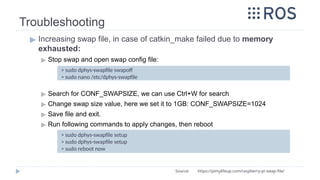
▶ Increasing swap file, in case of catkin_make failed due to memory
exhausted:
▶ Stop swap and open swap config file:
▶ Search for CONF_SWAPSIZE, we can use Ctrl+W for search
▶ Change swap size value, here we set it to 1GB: CONF_SWAPSIZE=1024
▶ Save file and exit.
▶ Run following commands to apply changes, then reboot
> sudo dphys-swapfile swapoff
> sudo nano /etc/dphys-swapfile
Source: https://pimylifeup.com/raspberry-pi-swap-file/
> sudo dphys-swapfile setup
> sudo reboot now
Real-Time Robot using RPi
C. Installing wiringPi on RPi
▶1. Installing wiringPi [C++] on Raspbian Stretch:
▶ To make sure wiringPi is well installed, and to show the RPi‘s pinout
configuration:
> sudo apt install wiringpi
Source: http://wiringpi.com/download-and-install/
> gpio –v
> gpio readall
Real-Time Robot using RPi
C. Installing wiringPi on RPi
▶1. Installing wiringPi [C++] on Raspbian Stretch:
▶ To compile a C/C++ code, the wiringPi library has to be added as a library
to the linker.
▶ To run a compiled file, a sudo privilege must be given.
▶ Either use sudo to run a file
▶ Or use “su” command to enter the root privileged shell, then all commands in that
shell will run as super user privileged.
Then “./file_output” can be run directly without “sudo” in this shell
> gcc -Wall -o file_output file.c -lwiringPi
Source: http://wiringpi.com/download-and-install/
> sudo ./file_output
> su
> ./file_output
Real-Time Robot using RPi
C. Installing wiringPi on RPi
▶1. Installing wiringPi [C++] on Raspbian Stretch:
▶ This is the pinout mapping of the RPi with the wiringPi lib.:
Source: http://wiringpi.com/download-and-install/
Real-Time Robot using RPi
C. Installing wiringPi on RPi
▶2. Using wiringPi [C++]: LED Blinking:
▶ To organize our work, all codes will be in “~/ros_catkin_ws/src”
▶ We will create and build a simple blink code to test the wiringpi library:
> cd ~/ros_catkin_ws/src
Source: http://wiringpi.com/download-and-install/
> mkdir blink
> cd blink
> nano blink.c
Real-Time Robot using RPi
C. Installing wiringPi on RPi
▶2. Using wiringPi [C++]: LED Blinking:
▶ Then write this code in the blink.c file, the LED is connected to pin 12 in
the RPi, which is pin “1” in wiringPi
▶ To compile the code use
▶ To run the compiled file use: (don’t forget “sudo”)
> gcc -Wall -o blink blink.c -lwiringPi
#include <wiringPi.h>
int main (void) {
wiringPiSetup () ;
pinMode (1, OUTPUT) ;
for (;;) {
digitalWrite (1, HIGH) ; delay (500) ;
digitalWrite (1, LOW) ; delay (500) ;
}
return 0 ;
}
> sudo ./blink
Real-Time Robot using RPi
C. Installing wiringPi on RPi
▶3. Installing wiringPi [Python] on Raspbian Stretch [NeW]:
▶ For python wiringPi, first install these prerequisites:
▶ Then, install python wiringPi directly:
Source: https://github.com/WiringPi/WiringPi-Python
> python -m pip install wiringpi
> sudo apt-get install python-dev python-setuptools swig wiringpi
Real-Time Robot using RPi
C. Installing wiringPi on RPi
▶3. Installing wiringPi [Python] on Raspbian Stretch [OLD]:
▶ For python wiringPi, first install these prerequisites:
▶ Then, download and install python wiringPi:
Source: https://github.com/WiringPi/WiringPi-Python
> cd ~
> git clone --recursive https://github.com/WiringPi/WiringPi-Python.git
> cd ~/WiringPi-Python
> sudo python setup.py install
> sudo apt-get install python-dev python-setuptools swig
Real-Time Robot using RPi
C. Installing wiringPi on RPi
▶4. Using wiringPi [Python]: LED Blinking:
▶ Create a blink.py file in “> cd ~/ros_catkin_ws/src/blink”:
▶ And add this code to the blink.py file:
▶ To run blink.py: (sudo is not required to run python codes)
Source: https://github.com/WiringPi/WiringPi-Python
import wiringpi
import time
wiringpi.wiringPiSetup()
wiringpi.pinMode(1,1)
while True:
time.sleep(0.5)
wiringpi.digitalWrite(1,1)
time.sleep(0.5)
wiringpi.digitalWrite(1,0)
> cd ~/ros_catkin_ws/src/blink
> nano blink.py
> python blink.py
Real-Time Robot using RPi
D. Controlling RPi’s GPIO: ROS & wiringPi
▶Using wiringPi in a ROS node:
▶ Used to make RPi with ROS has full access and control over its GPIO
pins.
▶ To compile a C++ node that uses wiringPi library, just add the work
“wiringPi” to the CMakeLists.txt file of tha package at
“target_link_libraries”
▶ To run a ROS node that uses wiringPi and access the hardware GPIO,
you may need a root user privilege.
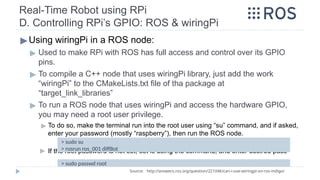
▶ To do so, make the terminal run into the root user using “su” command, and if asked,
enter your password (mostly “raspberry”), then run the ROS node.
▶ If the root password is not set, set is using the command, and enter desired pass
Source: http://answers.ros.org/question/221046/can-i-use-wiringpi-on-ros-indigo/
> sudo su
> rosrun ros_001 diffBot
> sudo passwd root
Real-Time Robot using RPi
diffBot package control RPi based robot
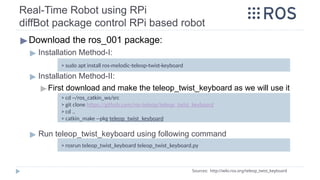
▶Download the ros_001 package:
▶ Installation Method-I:
▶ Installation Method-II:
▶ First download and make the teleop_twist_keyboard as we will use it
▶ Run teleop_twist_keyboard using following command
Sources: http://wiki.ros.org/teleop_twist_keyboard
> cd ~/ros_catkin_ws/src
> git clone https://github.com/ros-teleop/teleop_twist_keyboard
> cd ..
> catkin_make --pkg teleop_twist_keyboard
> sudo apt install ros-melodic-teleop-twist-keyboard
> rosrun teleop_twist_keyboard teleop_twist_keyboard.py
Real-Time Robot using RPi
diffBot package control RPi based robot
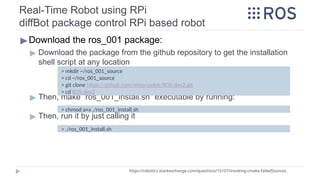
▶Download the ros_001 package:
▶ Download the package from the github repository to get the installation
shell script at any location
▶ Then, make “ros_001_install.sh” executable by running:
▶ Then, run it by just calling it
https://robotics.stackexchange.com/questions/15107/invoking-cmake-failedSources:
> mkdir ~/ros_001_source
> cd ~/ros_001_source
> git clone https://github.com/mina-sadek/ROS-dev2.git
> cd ROS-dev2
> chmod a+x ./ros_001_install.sh
> ./ros_001_install.sh
Real-Time Robot using RPi
diffBot package control RPi based robot
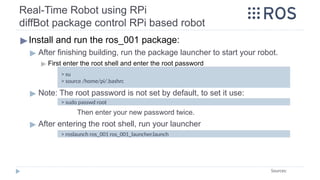
▶Install and run the ros_001 package:
▶ After finishing building, run the package launcher to start your robot.
▶ First enter the root shell and enter the root password
▶ Note: The root password is not set by default, to set it use:
Then enter your new password twice.
▶ After entering the root shell, run your launcher
Sources:
> roslaunch ros_001 ros_001_launcher.launch
> su
> source /home/pi/.bashrc
> sudo passwd root
Real-Time Robot using RPi
E. ROS Communication with Arduino [ROS Serial]
▶ROS Serial:
▶ Used to make RPi with ROS installed communicate with Arduino.
▶ 1. Setup arduino environment on the developing PC
Sources: http://wiki.ros.org/rosserial
http://wiki.ros.org/rosserial_arduino/Tutorials
https://www.clearpathrobotics.com/assets/guides/ros/Driving%20Husky%20with%20ROSSerial.html
> sudo apt-get install arduino arduino-core ros-melodicrosserial ros-melodic-rosserial-arduino
ROS SERIAL:
Using Arduino with RPi using ROSSERIAL
▶Setup rosserial for Arduino IDE - on the Desktop machine
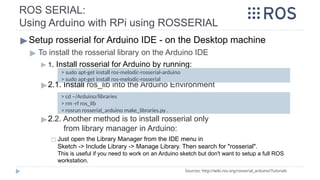
▶ To install the rosserial library on the Arduino IDE
▶ 1. Install rosserial for Arduino by running:
▶2.1. Install ros_lib into the Arduino Environment
▶2.2. Another method is to install rosserial only
from library manager in Arduino:
◻ Just open the Library Manager from the IDE menu in
Sketch -> Include Library -> Manage Library. Then search for "rosserial".
This is useful if you need to work on an Arduino sketch but don't want to setup a full ROS
workstation.
Sources: http://wiki.ros.org/rosserial_arduino/Tutorials
> cd ~/Arduino/libraries
> rm -rf ros_lib
> rosrun rosserial_arduino make_libraries.py .
> sudo apt-get install ros-melodic-rosserial-arduino
> sudo apt-get install ros-melodic-rosserial
ROS SERIAL:
Using Arduino with RPi using ROSSERIAL
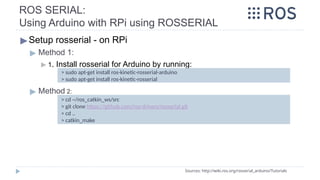
▶Setup rosserial - on RPi
▶ Method 1:
▶ 1. Install rosserial for Arduino by running:
▶ Method 2:
Sources: http://wiki.ros.org/rosserial_arduino/Tutorials
> cd ~/ros_catkin_ws/src
> git clone https://github.com/ros-drivers/rosserial.git
> cd ..
> catkin_make
> sudo apt-get install ros-kinetic-rosserial-arduino
> sudo apt-get install ros-kinetic-rosserial
ROS SERIAL:
Using Arduino with RPi using ROSSERIAL
▶Running listener node ot the Arduino node - on Desktop or RPi
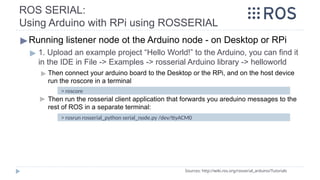
▶ 1. Upload an example project “Hello World!” to the Arduino, you can find it
in the IDE in File -> Examples -> rosserial Arduino library -> helloworld
▶ Then connect your arduino board to the Desktop or the RPi, and on the host device
run the roscore in a terminal
▶ Then run the rosserial client application that forwards you areduino messages to the
rest of ROS in a separate terminal:
Sources: http://wiki.ros.org/rosserial_arduino/Tutorials
> roscore
> rosrun rosserial_python serial_node.py /dev/ttyACM0
ROS SERIAL:
Using Arduino with RPi using ROSSERIAL
▶Running listener node ot the Arduino node - on Desktop or RPi
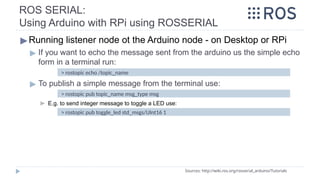
▶ If you want to echo the message sent from the arduino us the simple echo
form in a terminal run:
▶ To publish a simple message from the terminal use:
▶ E.g. to send integer message to toggle a LED use:
Sources: http://wiki.ros.org/rosserial_arduino/Tutorials
> rostopic echo /topic_name
> rostopic pub toggle_led std_msgs/UInt16 1
> rostopic pub topic_name msg_type msg
Installing ROS Kinetic on Linux Ubuntu Desktop
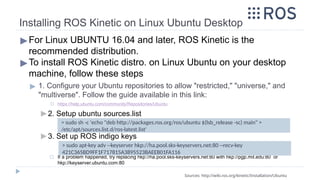
▶For Linux UBUNTU 16.04 and later, ROS Kinetic is the
recommended distribution.
▶To install ROS Kinetic distro. on Linux Ubuntu on your desktop
machine, follow these steps
▶ 1. Configure your Ubuntu repositories to allow "restricted," "universe," and
"multiverse". Follow the guide available in this link:
◻ https://help.ubuntu.com/community/Repositories/Ubuntu
▶ 2. Setup ubuntu sources.list
▶ 3. Set up ROS indigo keys
◻ If a problem happened, try replacing hkp://ha.pool.sks-keyservers.net:80 with hkp://pgp.mit.edu:80 or
hkp://keyserver.ubuntu.com:80
Sources: http://wiki.ros.org/kinetic/Installation/Ubuntu
> sudo sh -c 'echo "deb http://packages.ros.org/ros/ubuntu $(lsb_release -sc) main" >
/etc/apt/sources.list.d/ros-latest.list'
> sudo apt-key adv --keyserver hkp://ha.pool.sks-keyservers.net:80 --recv-key
421C365BD9FF1F717815A3895523BAEEB01FA116
Installing ROS Kinetic on Linux Ubuntu Desktop
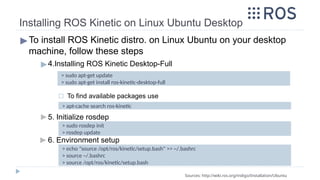
▶To install ROS Kinetic distro. on Linux Ubuntu on your desktop
machine, follow these steps
▶4.Installing ROS Kinetic Desktop-Full
◻ To find available packages use
▶ 5. Initialize rosdep
▶ 6. Environment setup
Sources: http://wiki.ros.org/indigo/Installation/Ubuntu
> sudo apt-get update
> sudo apt-get install ros-kinetic-desktop-full
> apt-cache search ros-kinetic
> sudo rosdep init
> rosdep update
> echo "source /opt/ros/kinetic/setup.bash" >> ~/.bashrc
> source ~/.bashrc
> source /opt/ros/kinetic/setup.bash
Installing ROS Kinetic on Linux Ubuntu Desktop
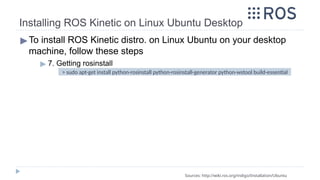
▶To install ROS Kinetic distro. on Linux Ubuntu on your desktop
machine, follow these steps
▶ 7. Getting rosinstall
Sources: http://wiki.ros.org/indigo/Installation/Ubuntu
> sudo apt-get install python-rosinstall python-rosinstall-generator python-wstool build-essential
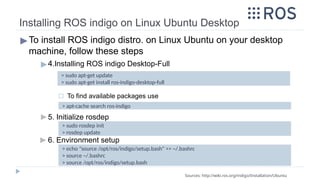
Installing ROS indigo on Linux Ubuntu Desktop
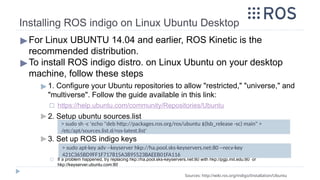
▶For Linux UBUNTU 14.04 and earlier, ROS Kinetic is the
recommended distribution.
▶To install ROS indigo distro. on Linux Ubuntu on your desktop
machine, follow these steps
▶ 1. Configure your Ubuntu repositories to allow "restricted," "universe," and
"multiverse". Follow the guide available in this link:
◻ https://help.ubuntu.com/community/Repositories/Ubuntu
▶ 2. Setup ubuntu sources.list
▶ 3. Set up ROS indigo keys
◻ If a problem happened, try replacing hkp://ha.pool.sks-keyservers.net:80 with hkp://pgp.mit.edu:80 or
hkp://keyserver.ubuntu.com:80
Sources: http://wiki.ros.org/indigo/Installation/Ubuntu
> sudo sh -c 'echo "deb http://packages.ros.org/ros/ubuntu $(lsb_release -sc) main" >
/etc/apt/sources.list.d/ros-latest.list'
> sudo apt-key adv --keyserver hkp://ha.pool.sks-keyservers.net:80 --recv-key
421C365BD9FF1F717815A3895523BAEEB01FA116
Installing ROS indigo on Linux Ubuntu Desktop
▶To install ROS indigo distro. on Linux Ubuntu on your desktop
machine, follow these steps
▶4.Installing ROS indigo Desktop-Full
◻ To find available packages use
▶ 5. Initialize rosdep
▶ 6. Environment setup
Sources: http://wiki.ros.org/indigo/Installation/Ubuntu
> sudo apt-get update
> sudo apt-get install ros-indigo-desktop-full
> apt-cache search ros-indigo
> sudo rosdep init
> rosdep update
> echo "source /opt/ros/indigo/setup.bash" >> ~/.bashrc
> source ~/.bashrc
> source /opt/ros/indigo/setup.bash
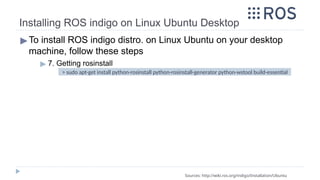
Installing ROS indigo on Linux Ubuntu Desktop
▶To install ROS indigo distro. on Linux Ubuntu on your desktop
machine, follow these steps
▶ 7. Getting rosinstall
Sources: http://wiki.ros.org/indigo/Installation/Ubuntu
> sudo apt-get install python-rosinstall python-rosinstall-generator python-wstool build-essential
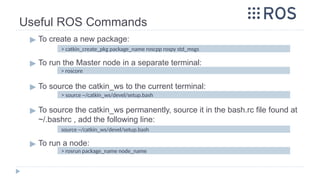
Useful ROS Commands
▶ To create a new package:
▶ To run the Master node in a separate terminal:
▶ To source the catkin_ws to the current terminal:
▶ To source the catkin_ws permanently, source it in the bash.rc file found at
~/.bashrc , add the following line:
▶ To run a node:
> roscore
> source ~/catkin_ws/devel/setup.bash
> rosrun package_name node_name
> catkin_create_pkg package_name roscpp rospy std_msgs
source ~/catkin_ws/devel/setup.bash
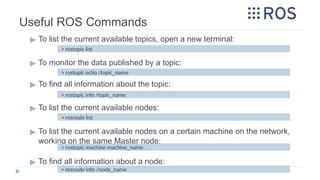
Useful ROS Commands
▶ To list the current available topics, open a new terminal:
▶ To monitor the data published by a topic:
▶ To find all information about the topic:
▶ To list the current available nodes:
▶ To list the current available nodes on a certain machine on the network,
working on the same Master node:
▶ To find all information about a node:
> rostopic info /topic_name
> rosnode list
> rostopic machine machine_name
> rosnode info /node_name
> rostopic echo /topic_name
> rostopic list
Useful ROS Commands
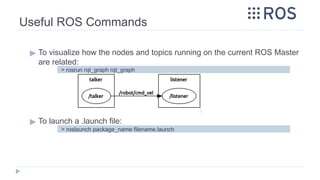
▶ To visualize how the nodes and topics running on the current ROS Master
are related:
▶ To launch a .launch file:
> rosrun rqt_graph rqt_graph
> roslaunch package_name filename.launch
Useful ROS Commands
▶ To create a topic and publish a message on it from the terminal, without
creating a node:
▶ Example on the cmd_vel message:
> rostopic pub -1 /topic_name message_type ‘message’
> rostopic pub -r 10 /diffBot/cmd_vel geometry_msgs/Twist '{linear: {x: 500, y: 0.0, z: 0.0},
angular: {x: 0.0,y: 0.0,z: 0.0}}'
Useful ROS Commands
▶ To Install a package from github
▶ Then, clone the repository using:
▶ > git clone –b <branch> <address>
▶ Once it is completed, catkin_make the workspace
▶ Then, source the setup.bash again
> cd ~/ros_catkin_ws/src
> git clone -b indigo-devel https://github.com/ros/common_msgs.git
Source: http://answers.ros.org/question/240235/how-to-install-packages-from-github/
> cd ~/ros_catkin_ws
> catkin_make
> source ~/catkin_ws/devel/setup.bash
> source ~/.bashrc
> cd ~/ros_catkin_ws
> catkin_make
Useful ROS Packages
▶ 1. common_msgs
▶ 2. teleop_twist_keyboard
▶ 3. tf
> cd ~/ros_catkin_ws/src
> git clone -b indigo-devel https://github.com/ros/common_msgs.git
> cd ~/ros_catkin_ws
> catkin_make
Source: http://answers.ros.org/question/240235/how-to-install-packages-from-github/
https://answers.ros.org/question/199363/error-run-teleop_twist_keyboard-package/
> cd ~/ros_catkin_ws/src
> git clone -b indigo-devel https://github.com/ros-teleop/teleop_twist_keyboard.git
> cd ~/ros_catkin_ws
> catkin_make
> cd ~/ros_catkin_ws/src
> git clone -b indigo-devel https://github.com/ros/geometry.git
> cd ~/ros_catkin_ws
> catkin_make
Useful ROS Packages
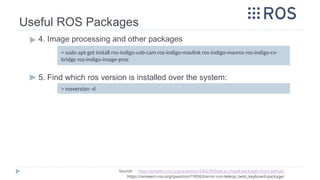
▶ 4. Image processing and other packages
▶ 5. Find which ros version is installed over the system:
> sudo apt-get install ros-indigo-usb-cam ros-indigo-mavlink ros-indigo-mavros ros-indigo-cv-
bridge ros-indigo-image-proc
Source: http://answers.ros.org/question/240235/how-to-install-packages-from-github/
https://answers.ros.org/question/199363/error-run-teleop_twist_keyboard-package/
> rosversion -d
Useful ROS Commands
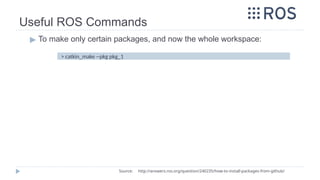
▶ To make only certain packages, and now the whole workspace:
> catkin_make --pkg pkg_1
Source: http://answers.ros.org/question/240235/how-to-install-packages-from-github/
Troubleshooting
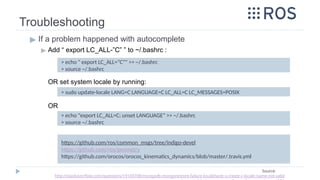
▶ If a problem happened with autocomplete
▶ Add “ export LC_ALL-”C” ” to ~/.bashrc :
OR set system locale by running:
OR
> echo " export LC_ALL="C"" >> ~/.bashrc
> source ~/.bashrc
https://github.com/ros/common_msgs/tree/indigo-devel
https://github.com/ros/geometry
https://github.com/orocos/orocos_kinematics_dynamics/blob/master/.travis.yml
Source:
http://stackoverflow.com/questions/19100708/mongodb-mongorestore-failure-localefacet-s-create-c-locale-name-not-valid
> sudo update-locale LANG=C LANGUAGE=C LC_ALL=C LC_MESSAGES=POSIX
> echo "export LC_ALL=C; unset LANGUAGE" >> ~/.bashrc
> source ~/.bashrc
Troubleshooting
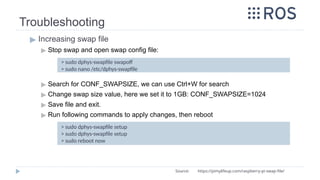
▶ Increasing swap file
▶ Stop swap and open swap config file:
▶ Search for CONF_SWAPSIZE, we can use Ctrl+W for search
▶ Change swap size value, here we set it to 1GB: CONF_SWAPSIZE=1024
▶ Save file and exit.
▶ Run following commands to apply changes, then reboot
> sudo dphys-swapfile swapoff
> sudo nano /etc/dphys-swapfile
Source: https://pimylifeup.com/raspberry-pi-swap-file/
> sudo dphys-swapfile setup
> sudo reboot now
Useful General Linux Commands
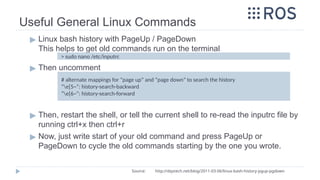
▶ Linux bash history with PageUp / PageDown
This helps to get old commands run on the terminal
▶ Then uncomment
▶ Then, restart the shell, or tell the current shell to re-read the inputrc file by
running ctrl+x then ctrl+r
▶ Now, just write start of your old command and press PageUp or
PageDown to cycle the old commands starting by the one you wrote.
> sudo nano /etc/inputrc
# alternate mappings for “page up” and “page down” to search the history
“e[5~”: history-search-backward
“e[6~”: history-search-forward
Source: http://dqxtech.net/blog/2011-03-06/linux-bash-history-pgup-pgdown
Backup & Restore SD Card
▶ To backup your SD card, we take image of it to the hard disk.
▶ 1. Use the next command to backup your sd card which is located at
“/dev/sdb”
▶ If the image is much large than the actually contained data, it can be truncated
◻ Use this to find the actual data size
◻ Now, truncate the image using number of sectors which is the value
of the “End“ sector number plus “1”
◻ A better and complete way to truncate the image using GParted app. can be found in
this link:
> sudo dd if=/dev/sdb of=./jessie_indigo.img
https://softwarebakery.com//shrinking-images-on-linux
Source: https://thepihut.com/blogs/raspberry-pi-tutorials/17789160-backing-up-and-restoring-your-raspberry-pis-sd-card
https://raspberrypi.stackexchange.com/questions/7177/image-of-a-16gb-card-containing-unpartitioned-space-at-the-end-truncating-
> fdisk -lu jessie_indigo.img
> truncate --size=$[(5872026+1)*512] image.img
Backup & Restore SD Card
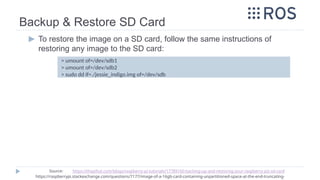
▶ To restore the image on a SD card, follow the same instructions of
restoring any image to the SD card:
> umount of=/dev/sdb1
> umount of=/dev/sdb2
> sudo dd if=./jessie_indigo.img of=/dev/sdb
Source: https://thepihut.com/blogs/raspberry-pi-tutorials/17789160-backing-up-and-restoring-your-raspberry-pis-sd-card
https://raspberrypi.stackexchange.com/questions/7177/image-of-a-16gb-card-containing-unpartitioned-space-at-the-end-truncating-
Sample Nodes
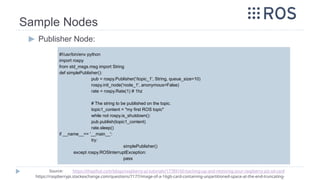
▶ Publisher Node:
#!/usr/bin/env python
import rospy
from std_msgs.msg import String
def simplePublisher():
pub = rospy.Publisher('/topic_1', String, queue_size=10)
rospy.init_node('node_1', anonymous=False)
rate = rospy.Rate(1) # 1hz
# The string to be published on the topic.
topic1_content = "my first ROS topic"
while not rospy.is_shutdown():
pub.publish(topic1_content)
rate.sleep()
if __name__== '__main__':
try:
simplePublisher()
except rospy.ROSInterruptException:
pass
Source: https://thepihut.com/blogs/raspberry-pi-tutorials/17789160-backing-up-and-restoring-your-raspberry-pis-sd-card
https://raspberrypi.stackexchange.com/questions/7177/image-of-a-16gb-card-containing-unpartitioned-space-at-the-end-truncating-
Sample Nodes
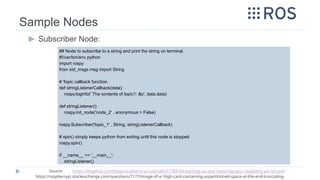
▶ Subscriber Node:
## Node to subscribe to a string and print the string on terminal.
#!/usr/bin/env python
import rospy
from std_msgs.msg import String
# Topic callback function.
def stringListenerCallback(data):
rospy.loginfo(' The contents of topic1: &s', data.data)
def stringListener():
rospy.init_node('node_2' , anonymous = False)
rospy.Subscriber('topic_1' , String, stringListenerCallback)
# spin() simply keeps python from exiting until this node is stopped
rospy.spin()
if __name__ == '__main__':
stringListener()
Source: https://thepihut.com/blogs/raspberry-pi-tutorials/17789160-backing-up-and-restoring-your-raspberry-pis-sd-card
https://raspberrypi.stackexchange.com/questions/7177/image-of-a-16gb-card-containing-unpartitioned-space-at-the-end-truncating-
Resources
▶ROS Home Page
▶ http://wiki.ros.org/
▶ROS Concepts
▶ http://wiki.ros.org/ROS/Concepts
▶ROS indigo installation on UBUNTU 14.04 LTS
▶ http://wiki.ros.org/indigo/Installation/Ubuntu
▶ROS indigo installation on Raspberry Pi
▶ http://wiki.ros.org/ROSberryPi/Installing%20ROS%20Indigo%20on%20Ra
spberry%20Pi
▶Running ROS across multiple machines
▶ http://wiki.ros.org/ROS/Tutorials/MultipleMachines
Resources
▶ROS Serial
▶ http://wiki.ros.org/rosserial
▶ROS & Arduino
▶ http://wiki.ros.org/rosserial_arduino/Tutorials
▶Useful ROS Tutorial
▶ http://wiki.ros.org/Courses
▶ http://clearpathrobotics.com/guides/ros/Intro%20to%20the%20Robot%20
Operating%20System.html
▶ http://www.rsl.ethz.ch/education-students/lectures/ros.html
▶ http://barzinm.com/robotics/2016/odriod-setup.html
Resources
▶ROS-dev2
▶ https://github.com/mina-sadek/ROS-dev2
Resources
▶Useful links
▶ http://www.venelinpetkov.com/how-to-install-ros-robot-operating-system-o
n-raspberry-pi-3-with-raspbian-stretch/
▶ https://neverbenever.wordpress.com/2017/12/20/install-ros-and-opencv-in
-raspberry-piraspbian-stretch/
▶ http://barzinm.com/robotics/2016/odriod-setup.html
▶ https://github.com/olinrobotics/Odroid_Setup/wiki/Odroid-and-ROS

ROS Tutorials with examples for beginners.pptx

  • 1.
  • 2.
    Slides Outline ▶ WhyROS ▶ What is ROS ▶ ROS architecture ▶ ROS Nodes, Messages, Topics, Master, Services, Actions, Bags. ▶ Catkin Package: ▶ Creating catkin workspace ▶ Creating & Building Package ▶ Creating node [Publisher] ◻ [C++ Publisher] ◻ [Python Publisher] ▶ Creating node [Subscriber] ◻ [C++ Subscriber] ◻ [Python Subscriber] ▶ ROS Launch ▶ Message passing between multiple machines
  • 3.
    Slides Outline ▶ GAZEBO ▶Building and controlling a robot in GAZEBO ▶ 1. Pre-Built Robots ◻ TIAGo robot and environment ◻ HUSKY robot and environment ▶ 2. Natively building robot in GAZEBO: ◻ Adding a Robot to GAZEBO ◻ Driving robot on GAZEBO using a node ▶ Installing ROS indigo/kinetic/melodic on Linux UBUNTU Desktop: ▶ ROS melodic for UBUNTU 18.04: http://wiki.ros.org/melodic/Installation/Ubuntu ▶ ROS kinetic for UBUNTU 16.04: http://wiki.ros.org/kinetic/Installation/Ubuntu ▶ ROS indigo for UBUNTU 14.04: http://wiki.ros.org/indigo/Installation/Ubuntu
  • 4.
    Slides Outline ▶ Real-TimeRobot using RPi ▶ A. Installing Raspbian and ROS on the RPi ▶ [METHOD_I]: Using pre-built image of Raspbian image + ROS ▶ [METHOD_II]: Native installation ◻ 1. Installing Raspbian Kinetic on RPi ◻ 2. Installing ROS on RPi ▶ C. Installing wiringPi on RPi ▶ D. Controlling RPi’s GPIO pins from ROS and wiringPi ▶ E. ROS Communication with Arduino [ROS Serial] ▶ Useful ROS Commands
  • 5.
    Why ROS ▶ Open-sourcerobotic software. ▶ Free for private and commercial use ▶ Has many built-in software packages [reusable code packages] essential in the robotic applications. ▶ Communications Infrastructure ▶ Message Passing ▶ Facilitate the communication required between processes even if they are on different machines. ▶ Recording & Playback of Messages ▶ Remote Procedure Calls ▶ Distributed Parameter System Source: https://www.ros.org/core-components/
  • 6.
    Why ROS ▶ Communitysupport. ▶ The Robot Operating System [ROS] is a flexible framework for writing robot software. It is a collection of tools, libraries and conventions that aim to simplify the task of creating complex and robust robot behavior across a wide variety of robotic platforms.
  • 7.
    Why ROS ▶Many othersoftware technologies can be integrated with ROS, including: ▶ MoveIt ▶ Open-source software for performing motion planning ▶ GAZEBO ▶ High quality physics engine, that performs visual simulation ▶ OpenCV ▶ Open-source library supporting Computer-Vision
  • 8.
    What is ROS ▶RobotOperating System [ROS] ▶Peer to Peer ▶ Individual programs communicate over defined API (messages, services, etc.) ▶Distributed ▶ Programs can be run on multiple computers and communicate over the network. ▶Programming language Independent ▶ Client libraries exist for C++, Python, MATLAB, Java. ▶Free and Open-Source ▶ Most ROS software is open-source and free to use.
  • 9.
    What is ROS ▶ROSNodes: ▶ An executable that uses ROS to communicate with other nodes. ▶ROS Messages: ▶ ROS data type used when subscribing or publishing to a topic. ▶ Coded as a .msg simple text file, describing fields of the ROS message. ▶ROS Topics: ▶ Nodes can publish messages to a topic as well as subscribe to a topic to receive messages. ▶ROS Master Node: ▶ Name service for ROS (i.e. helps nodes find each other). ▶ Runs using the command “roscore”. Source: http://wiki.ros.org/ROS/Tutorials/UnderstandingNodes http://wiki.ros.org/ROS/Tutorials/UnderstandingTopics
  • 10.
    What is ROS ▶ROSServices: ▶ Topics are many-to-many way of communication. This technique is not appropriate for RPC [Remote Procedure Call] Request/Reply interactions. ▶ Request/Reply is done via a SERVICE. ▶ A Service is defined by a pair of messages: ▶ A message for the Request ▶ A message for the Reply ▶ Its technique: ▶ ROS node providing the service [Server Node] offers a service under a string name ▶ Client ROS node calls the service by sending the request message and awaiting the reply. Source: http://wiki.ros.org/ROS/Tutorials/CreatingMsgAndSrv http://wiki.ros.org/srv http://wiki.ros.org/ROS/Tutorials/UnderstandingServicesParams
  • 11.
    What is ROS ▶ROS Services: ▶ Services are defined using srv files. ▶ srv files are compiled by a ROS client library. ▶ Like Topics, Services are associated service type ▶ A service is created as a .srv file, composed of two parts: ▶ Request & a Response ▶ ROS Actions: ▶ A client-server communication like service but Preemptive ▶ An action has goal or goals, each of which is identified by an id. ▶ Used for a goal that runs for a longer time, but provides feedback during execution, like moving a robot. Source: http://wiki.ros.org/ROS/Tutorials/CreatingMsgAndSrv http://wiki.ros.org/srv http://wiki.ros.org/ROS/Tutorials/UnderstandingServicesParams
  • 12.
    What is ROS ▶ROSBags: ▶ Used for Recording and Playback. ▶ Recording: ▶ Storing ROS message data, for later usage. ▶ Playback: ▶ Bag files can be played back in ROS to the same topics they were recorded from, or even remapped to new topics ▶ ROS has variety of tools to store, process, analyze, and visualize rosbags. ▶ A rosbag subscribes to one or more ROS topics, and store the serialized message data in a file as it is received Source: http://wiki.ros.org/Bags http://wiki.ros.org/ROS/Tutorials/Recording%20and%20playing%20back%20data
  • 13.
    ▶ Follow stepsavailable in the following link [Ubuntu 18.04]: ▶ http://wiki.ros.org/melodic/Installation/Ubuntu ▶ Follow steps available in the following link [Ubuntu 16.04]: ▶ http://wiki.ros.org/kinetic/Installation/Ubuntu ▶ Follow steps available in the following link [Ubuntu 14.04]: ▶ http://wiki.ros.org/indigo/Installation/Ubuntu Source: http://wiki.ros.org/ROS/Tutorials/CreatingPackage Installing ROS on UBUNTU
  • 14.
    ▶ Creating catkinworkspace ▶ This is a one-time step, it is only required at the first time to create a workspace ▶ This step is for PC [not RPi], as the RPi ROS installation creates a workspace calls “ros_catkin_ws”, as will be shown later > mkdir -p ~/catkin_ws > cd ~/catkin_ws/src > catkin_init_workspace Source: http://wiki.ros.org/ROS/Tutorials/CreatingPackage Catkin Package: Creating catkin workspace
  • 15.
    ▶1. Creating package ▶Catkin_create_pkg package_name [depend1] [depend2] ▶ depends: are the libraries required by the nodes that will be created in the package [roscpp & rospy will be almost always included] ▶ The package structure should look like this: > cd ~/catkin_ws/src > catkin_create_pkg ros_001 roscpp rospy std_msgs Source: http://wiki.ros.org/ROS/Tutorials/CreatingPackage Catkin Package: Creating & Building a Package
  • 16.
    ▶1. Creating package ▶The package will have two auto-generated files [Will be explained in more details when creating C/C++ nodes] ▶ a. “CMakeLists.txt”: Defines which C/C++ nodes to be built, and what dependencies the package requires, also the libraries to be linked when building ▶ b. “Package.xml”: Provides meta information about the package and required dependencies at build and runtime also. ▶2. Building the package ▶ To compile the package, first cd to ~/catkin_ws, then use the catkin_make command: > cd ~/catkin_ws > catkin_make Source: http://wiki.ros.org/ROS/Tutorials/CreatingPackage Catkin Package: Creating catkin workspace & Building first package
  • 17.
    Catkin Package: Creating node[PUBLISHER] [C++] ▶To create a C/C++ node: ▶ A. Create the C/C++ source code file “publisher.cpp” ▶ Create a source code C++ file of the node inside “src” directory inside the package main directory ▶ B. Make some changes to the package’s “CMakeLists.txt”, located at ~/catkin_ws/src/ros_001 ▶ To include the C/C++ file when building the package ▶ C. Make some changes to the package’s “package.xml”, located at ~/catkin_ws/src/ros_001 ▶ To define the build and run dependencies that the package will require Source: https://www.clearpathrobotics.com/assets/guides/ros/Creating%20publisher.html
  • 18.
    Catkin Package: Creating node[PUBLISHER] [C++] ▶A. Create the C/C++ source code file “publisher.cpp” Important code snippets a ROS Publisher Node should have: ▶ 1. Commonly used Libraries ▶ <ros/ros.h>: required for ROS functionality ▶ <geometry_msgs/Twist.h>: to be able to create a message of type Twist ▶ <std_msgs/String.h>: for standard string messages > mkdir ~/catkin_ws/src/ros_001/src > cd ~/catkin_ws/src/ros_001/src > gedit publisher.cpp Source: https://www.clearpathrobotics.com/assets/guides/ros/Creating%20publisher.html
  • 19.
    Catkin Package: Creating node[PUBLISHER] [C++] ▶A. Create the C/C++ source code file “publisher.cpp” Important code snippets a ROS Node should have: ▶ 2. Initialization ▶ [Optional]: In case of using GAZEBO husky package: To control the husky robot, the topic name it subscribe to is: “husky_velocity_controller/cmd_vel” Source: https://www.clearpathrobotics.com/assets/guides/ros/Creating%20publisher.html
  • 20.
    Catkin Package: Creating node[PUBLISHER] [C++] ▶A. Create the C/C++ source code file “publisher.cpp” Important code snippets a ROS Node should have: ▶ 3. Loop until an exit interrupt happens [Ctrl+C] Source: https://www.clearpathrobotics.com/assets/guides/ros/Creating%20publisher.html
  • 21.
    Catkin Package: Creating node[PUBLISHER] [C++] ▶ B. Perform some changes to the package’s “CMakeLists.txt”, located at ~/catkin_ws/src/ros_001 ▶ 1. Make the cpp source files executable by adding it as a node to the package CMakeLists: [MANDATORY] ▶ Under ########### ## Build ## ########### Under ## Declare a cpp executable add the next lines: NOTE: >>>> node_name is the given name to the node, here publisher add_executable(node_name src/file_name.cpp) target_link_libraries(node_name ${catkin_LIBRARIES}) Source: https://www.clearpathrobotics.com/assets/guides/ros/Creating%20publisher.html http://wiki.ros.org/ROS/Tutorials/WritingPublisherSubscriber%28c%2B%2B%29 add_dependencies(node_name ${${PROJECT_NAME}_EXPORTED_TARGETS} ${catkin_EXPORTED_TARGETS}) # [OPTIONAL]
  • 22.
    Catkin Package: Creating node[PUBLISHER] [C++] ▶ B. Perform some changes to the package’s “CMakeLists.txt”, located at ~/catkin_ws/src/ros_001 ▶ 2. Make sure dependencies are added: [optional] Dependencies are components imported from ROS and used in the code ▶ At the first of the CMakeLists.txt Under find_package(catkin REQUIRED) add the next lines: find_package(catkin REQUIRED COMPONENTS roscpp rospy std_msgs geometry_msgs # mostly used, but not required here ) Source: https://www.clearpathrobotics.com/assets/guides/ros/Creating%20publisher.html http://wiki.ros.org/ROS/Tutorials/WritingPublisherSubscriber%28c%2B%2B%29
  • 23.
    Catkin Package: Creating node[PUBLISHER] [C++] ▶B. Perform some changes to the package’s “CMakeLists.txt”, located at ~/catkin_ws/src/ros_001 ▶ 3. Make sure catkin specific configuration added:[optional] ▶ Under ################################### ## catkin specific configuration ## ################################### Under ## DEPENDS: system dependencies of this project that dependent projects also need edit the catkin_package( ... ) to add the required configuration dependencies catkin_package( CATKIN_DEPENDS roscpp rospy std_msgs geometry_msgs ) Source: https://www.clearpathrobotics.com/assets/guides/ros/Creating%20publisher.html http://wiki.ros.org/ROS/Tutorials/WritingPublisherSubscriber%28c%2B%2B%29
  • 24.
    Catkin Package: Creating node[PUBLISHER] [C++] ▶C. Perform some changes to the package’s “package.xml”, located at ~/catkin_ws/src/ros_001 ▶ 1. Add Build and Run dependencies: [MANDATORY] ▶ Under <buildtool_depend>catkin</buildtool_depend> add the next lines: <build_depend>std_msgs</build_depend> <build_depend>geometry_msgs</build_depend> <build_export_depend>std_msgs</build_export_depend> <build_export_depend>geometry_msgs</build_export_depend> <exec_depend>std_msgs</exec_depend> <exec_depend>geometry_msgs</exec_depend> <!-- for ros indigo and before use “run_depend” instead of “exec_depend” --> <run_depend>std_msgs</run_depend> <run_depend>geometry_msgs</run_depend> Source: https://www.clearpathrobotics.com/assets/guides/ros/Creating%20publisher.html http://wiki.ros.org/ROS/Tutorials/WritingPublisherSubscriber%28c%2B%2B%29
  • 25.
    Catkin Package: Creating node[PUBLISHER] [C++] ▶After performing A, B, and C, now cd to ~/catkin_ws and build the package ▶ If you have error with “geometry_msgs package” not found or something, install it manually, then rerun the “catkin_make” command ▶ If the problem still not solved, then download the geometry_msgs manually from github indigo repo. to “~/ros_catkin_ws/src” ▶ We may need to remove some not used packages from the downloaded folder if they generated error. ▶ Then re-build the catkin_ws as explained before. > cd ~/catkin_ws > catkin_make > cd ~/ros_catkin_ws/src > git clone -b indigo-devel https://github.com/ros/common_msgs.git Source: https://www.clearpathrobotics.com/assets/guides/ros/Creating%20publisher.html http://wiki.ros.org/ROS/Tutorials/WritingPublisherSubscriber%28c%2B%2B%29 > sudo apt-get install ros-geometry-msgs
  • 26.
    Catkin Package: Creating node[PUBLISHER] [C++] ▶To run the node ▶ 1. Run the Master node in a separate terminal terminal ▶ 2. In a new terminal, source the catkin_ws ▶ 3. Then, run the node: ▶ > rosrun [package_name] [node_name] ▶ To list the current available topics, open a new terminal ▶ To monitor the data published by a topic > roscore > source ~/catkin_ws/devel/setup.bash > rosrun ros_001 publisher > rostopic list > source ~/catkin_ws/devel/setup.bash > rostopic echo /topic_name Source: https://www.clearpathrobotics.com/assets/guides/ros/Creating%20publisher.html http://wiki.ros.org/ROS/Tutorials/WritingPublisherSubscriber%28c%2B%2B%29
  • 27.
    Catkin Package: Creating node[PUBLISHER] [Python] ▶To create the node in Python: ▶ In the package you created, create a folder called “scripts” ▶ In that folder “scripts”, create your python publisher node ▶ After finishing the python script coding, make the script executable ▶ Now, the python script is ready to rosrun, catkin_make is not required. Also editing “CMakeLists.txt” is not required > mkdir ~/catkin_ws/src/ros_001/scripts > cd ~/catkin_ws/src/ros_001/scripts > gedit publisher.py > chmod a+x publisher.py > source ~/catkin_ws/devel/setup.bash > rosrun ros_001 publisher.py
  • 28.
    Catkin Package: Creating node[PUBLISHER] [Python] ▶ Important python code snippets in the node:
  • 29.
    Catkin Package: Creating node[PUBLISHER] [Python] ▶ Important python code snippets in the node:
  • 30.
    Sample Nodes ▶ PublisherNode: #!/usr/bin/env python import rospy from std_msgs.msg import String def simplePublisher(): pub = rospy.Publisher('/topic_1', String, queue_size=10) rospy.init_node('node_1', anonymous=False) rate = rospy.Rate(1) # 1hz # The string to be published on the topic. topic1_content = "my first ROS topic" while not rospy.is_shutdown(): pub.publish(topic1_content) rate.sleep() if __name__== '__main__': try: simplePublisher() except rospy.ROSInterruptException: pass Source: https://thepihut.com/blogs/raspberry-pi-tutorials/17789160-backing-up-and-restoring-your-raspberry-pis-sd-card https://raspberrypi.stackexchange.com/questions/7177/image-of-a-16gb-card-containing-unpartitioned-space-at-the-end-truncating-
  • 31.
    Catkin Package: Creating node[SUBSCRIBER] [C++] ▶To create a C/C++ node: ▶ A. Create the C/C++ source code file “publisher.cpp” ▶ Create a source code C++ file of the node inside “src” directory inside the package main directory ▶ B. Make some changes to the package’s “CMakeLists.txt”, located at ~/catkin_ws/src/ros_001 ▶ To include the C/C++ file when building the package ▶ C. Make some changes to the package’s “package.xml”, located at ~/catkin_ws/src/ros_001 [if required] ▶ To define the build and run dependencies that the package will require > cd ~/catkin_ws/src/ros_001/src > gedit subscriber.cpp
  • 32.
    Catkin Package: Creating node[SUBSCRIBER] [C++] Important code snippets a ROS Subscriber should have: Source: https://www.clearpathrobotics.com/assets/guides/ros/Creating%20publisher.html http://wiki.ros.org/ROS/Tutorials/WritingPublisherSubscriber%28c%2B%2B%29
  • 33.
    Catkin Package: Creating node[SUBSCRIBER] [C++] ▶ B. Perform some changes to the package’s “CMakeLists.txt”, located at ~/catkin_ws/src/ros_001 ▶ 1. Make the cpp source files executable by adding it as a node to the package CMakeLists: [MANDATORY] ▶ Under ########### ## Build ## ########### Under ## Declare a cpp executable add the next lines: NOTE: >>>> node_name is the given name to the node, here publisher ## add_dependencies(subscriber ${${PROJECT_NAME}_EXPORTED_TARGETS} $ {catkin_EXPORTED_TARGETS}) [OPTIONAL] add_executable(subscriber src/subscriber.cpp) target_link_libraries(subscriber ${catkin_LIBRARIES})
  • 34.
    Catkin Package: Creating node[SUBSCRIBER] [C++] ▶After performing A, B and may be C, now cd to the catkin_ws and build the package ▶Run the subscriber node ▶ 1. source the catkin_ws ▶ 2. run the node > cd ~/catkin_ws > catkin_make > source ~/catkin_ws/devel/setup.bash > rosrun ros_001 subscriber
  • 35.
    Catkin Package: Creating node[SUBSCRIBER] [Python] ▶To create the node in Python: ▶ In the package you created, create a folder called “scripts” ▶ In that folder “scripts”, create your python publisher node ▶ After finishing the python script coding, make the script executable ▶ Now, the python script is ready to rosrun, catkin_make is not required. Also editing “CMakeLists.txt” is not required > mkdir ~/catkin_ws/ros_001/scripts > cd ~/catkin_ws/ros_001/scripts > gedit subscriber.py > chmod a+x subscriber.py > source ~/catkin_ws/devel/setup.bash > rosrun ros_001 subscriber.py
  • 36.
    Catkin Package: Creating node[SUBSCRIBER] [Python] ▶ Important python code snippets in the node:
  • 37.
    ROS Launch ▶Launch filesare very common in ROS. ▶They provide a method to start up multiple Nodes and a Master. We can also set parameters in the launch file. ▶ To create a launch file, in the package located at “~/catkin_ws/src/ros_001” create a directory called “launch”, inside it create a “robot_launch.launch” file > mkdir ~/catkin_ws/src/ros_001/launch > gedit ~/catkin_ws/src/ros_001/launch/robot_launch.launch
  • 38.
    ROS Launch ▶ Here’sa sample of a launch file contents: ▶ To run the launch file ▶ For nodes to output data on the terminal that is running the launch file: > roslaunch ros_001 robot_test.launch <launch> <node pkg="ros_000" type="publisher" name="publisher"/> <node pkg="ros_000" type=“subscriber.py" name=“subscriber"/> </launch> <?xml version="1.0"?> <launch> <node pkg="ros_007" type="sub_cpp_node_1" name="sub_cpp_node_1" output="screen"/> <node pkg="ros_007" type="sub1.py" name="sub_py" output="screen"/> </launch>
  • 39.
    ROS Launch ▶ Launchfile with gazebo empty world and a robot <?xml version="1.0" ?> <launch> <param name="robot_description" command="$(find xacro)/xacro.py '$(find mybot_description)/urdf/mybot.xacro'" /> <include file="$(find gazebo_ros)/launch/empty_world.launch"> <node name="urdf_spawner" pkg="gazebo_ros" type="spawn_model" respawn="false" output="screen" args="-urdf -model mybot -param robot_description"/> <include file="$(find mybot_control)/launch/mybot_control.launch" /> </include>
  • 40.
    ROS Launch ▶ <remap>tag: ▶ Allows you to pass in name remapping arguments to the ROS node that you are launching in a more structured manner than setting the args attribute of a <node> directly <?xml version="1.0"?> <launch> <node pkg="ros_007" type="sub_cpp_node_1" name="sub_cpp_node_1"> <remap from="/pub_py_1" to="/pub_cpp_1"/> </node> <node pkg="ros_007" type="sub1.py" name="sub_py" output="screen"/> </launch>
  • 41.
    Message passing between MultipleMachines ▶For passing messages between nodes located on different machines ▶ 1. On the Host machine: run the master node ▶ The master node should show its URI on the network ◻ ROS_MASTER_URI=http://tornado-hp:11311/ > roscore Source: http://wiki.ros.org/ROS/Tutorials/MultipleMachines
  • 42.
    Message passing between MultipleMachines ▶For passing messages between nodes located on different machines ▶ 2. On every other machine: [on the same network], on each new terminal A. First, Configure the ROS_MASTER_URI, so that the master on the host machine is used ▶ Then, run the node you want, now all nodes on all machines are using the same ROS Master node ▶ Run the publisher node on the guest machine ▶ On the host machine, run the subscriber node > source ~/catkin_ws/devel/setup.bash > Rosrun ros_001 subscriber > export ROS_IP=machine_IP > export ROS_MASTER_URI=http://master_machine_IP:11311 > source ~/catkin_ws/devel/setup.bash > rosrun ros_001 publisher Source: http://wiki.ros.org/ROS/Tutorials/MultipleMachines
  • 43.
    Message passing between MultipleMachines ▶Troubleshooting: ▶ On the guest machine, if the hostname of the Master Node [roscore] machine is not identified, write its IP instead ▶ On every terminal on the guest machine, before running a node, we have to identify the roscore before working > export ROS_MASTER_URI=http://192.168.1.106:11311 > source ~/catkin_ws/devel/setup.bash > export ROS_MASTER_URI=http://192.168.1.106:11311 > rosrun ros_001 subscriber Source: http://wiki.ros.org/ROS/Tutorials/MultipleMachines
  • 44.
    Message passing between MultipleMachines ▶Troubleshooting: ▶ If the host-machine (running the Master Node [roscore]) can’t find ip of the machine running a node, on the machine, before running the node, export its local ip ▶ Exporting the ROS_IP can also be useful if any node on any machine even the master machine wasn’t well recognized by the Master Node, because its IP isn’t published > export ROS_IP=‘hostname -I’ > rosrun ros_001 subscriber Source: http://wiki.ros.org/ROS/Tutorials/MultipleMachines
  • 45.
    Message passing between MultipleMachines ▶Troubleshooting: ▶ If, later, a problem happened with the master node, and the terminal can’t find it, re-export it, using its name or its IP, even if it is to the localhost > export ROS_MASTER_URI=http://localhost:11311
  • 46.
    Building and Controlling aRobot in GAZEBO ▶Integrating GAZEBO and ROS
  • 47.
    Building and Controlling aRobot in GAZEBO [Pre-Built] ▶First, let’s download and try a pre-built robot and world. [TIAGO] ▶ A. Make sure that the Tiago robot and world is installed: ▶ 1. Download this file and name it “tiago_public.rosinstall” in the catkin_ws directory: https://raw.githubusercontent.com/pal-robotics/tiago_tutorials/kinetic-devel/tiago_public-mel odic.rosinstall ▶ 2. Install the environment as follows: ▶ 3. Run the following instruction to make sure all dependencies are installed > cd ~/catkin_ws > rosinstall src /opt/ros/melodic tiago_public.rosinstall > sudo rosdep init > rosdep update Source: http://wiki.ros.org/Robots/TIAGo/Tutorials http://wiki.ros.org/Robots/TIAGo/Tutorials/Installation/TiagoSimulation > rosdep install -y --from-paths src --ignore-src --rosdistro melodic --skip-keys="opencv2 opencv2-nonfree pal_laser_filters speed_limit sensor_to_cloud hokuyo_node libdw-dev python-graphitesend-pip python-statsd pal_filters pal_vo_server pal_usb_utils pal_pcl pal_pcl_points_throttle_and_filter pal_karto pal_local_joint_control camera_calibration_files pal_startup_msgs pal-orbbec-openni2 dummy_actuators_manager pal_local_planner gravity_compensation_controller current_limit_controller dynamic_footprint dynamixel_cpp tf_lookup opencv3"
  • 48.
    Building and Controlling aRobot in GAZEBO [Pre-Built] ▶First, let’s download and try a pre-built robot and world. [TIAGO] ▶ A. Make sure that the Tiago robot and world is installed: ▶ 4. Build the workspace and source it Note: The public simulation of TIAGo allows two different versions: - TIAGo Steel: in this configuration the end-effector is a parallel gripper - TIAGo Titanium: the wrist has a 6-axis force/torque sensor and the end-effector is the under-actuated 5-finger Hey5 hand. ▶ 5. Launch simulation: To launch simulation of TIAGo steel or titanium, run one the following commands: > roslaunch tiago_gazebo tiago_gazebo.launch public_sim:=true robot:=steel Source: http://wiki.ros.org/Robots/TIAGo/Tutorials/Installation/TiagoSimulation > cd ~/catkin_ws > catkin_make > source ~/catkin_ws/devel/setup.bash > roslaunch tiago_gazebo tiago_gazebo.launch public_sim:=true robot:=titanium
  • 49.
    Building and Controlling aRobot in GAZEBO [Pre-Built] ▶First, let’s download and try a pre-built robot and world. [TIAGO] ▶ B. Teleoperating the mobile base with keyboard: ▶ 1. Launch the simulation by running the following command in a terminal: ▶ 2. Open a new terminal and run the key_teleop using the following command: > rosrun key_teleop key_teleop.py Source: http://wiki.ros.org/Robots/TIAGo/Tutorials/motions/key_teleop > roslaunch tiago_gazebo tiago_gazebo.launch public_sim:=true robot:=titanium world:=simple_office_with_people
  • 50.
    Building and Controlling aRobot in GAZEBO [Pre-Built] ▶First, let’s download and try a pre-built robot and world. [TIAGO] ▶ C. Moving the base through velocity commands: ▶ 1. Launch the simulation by running the following command in a terminal: ▶ 2. Open a new terminal and run the following command to find exact name of the required node to talk to: ▶ 3. Send velocity commands through terminal ◻ a. Moving forward and backward: ◻ b. Turning left and right: > rostopic list Source: http://wiki.ros.org/Robots/TIAGo/Tutorials/motions/cmd_vel > roslaunch tiago_gazebo tiago_gazebo.launch public_sim:=true robot:=titanium world:=simple_office_with_people > rostopic pub /mobile_base_controller/cmd_vel geometry_msgs/Twist -r 3 -- '[0.5,0.0,0.0]' '[0.0, 0.0, 0.0]' > rostopic pub /mobile_base_controller/cmd_vel geometry_msgs/Twist -r 3 -- '[0.0,0.0,0.0]' '[0.0, 0.0, 0.5]'
  • 51.
    Building and Controlling aRobot in GAZEBO [Pre-Built] ▶First, let’s download and try a pre-built robot and world. [HUSKY] ▶ Make sure that the husky robot is installed ▶ Running a virtual husky in gazebo, in new terminal write: ▶ Running a virtual husky in RViz, in a new terminal write: ▶ Now, to make the robot move, publish a geometry twist message with the required linear and angular velocities: > sudo apt-get update > sudo apt-get install ros-melodic-husky-desktop > sudo apt-get install ros-melodic-husky-simulator > roslaunch husky_gazebo husky_empty_world.launch Source: https://www.clearpathrobotics.com/assets/guides/ros/Drive%20a%20Husky.html > rostopic pub -r 10 /husky_velocity_controller/cmd_vel geometry_msgs/Twist '{linear: {x: 1.0, y: 0.0, z: 0.0}, angular: {x: 0.0,y: 0.0,z: 0.0}}' > roslaunch husky_viz view_robot.launch
  • 52.
    Building and Controlling aRobot in GAZEBO [Pre-Built] ▶ First, let’s download and try a pre-built robot and world. ▶ Now, to make the robot move, publish a geometry twist message with the required linear and angular velocities: ▶ “/husky_velocity_controller/cmd_vel”: topic name ▶ “geometry_msgs/Twist”: topic type ▶ “linear x: 1.0”: means go forward at 1m/s speed ▶ “-r 10”: means publish at rate 10 Hz (10 messages/sec) ▶ We may run the “rqt_graph” ROS node to show the current nodes and topics and their publishers and subscribers relations visually ▶ We may use teleop_twist_keyboard node to control the robot Source: https://www.clearpathrobotics.com/assets/guides/ros/Drive%20a%20Husky.html > rosrun rqt_graph rqt_graph > rostopic pub -r 10 /husky_velocity_controller/cmd_vel geometry_msgs/Twist '{linear: {x: 1.0, y: 0.0, z: 0.0}, angular: {x: 0.0,y: 0.0,z: 0.0}}' > sudo apt-get install ros-melodic-teleop-twist-keyboard > rosrun teleop_twist_keyboard teleop_twist_keyboard.py
  • 53.
    Building and Controlling aRobot in GAZEBO [Native] ▶A package including diffBot description with sample worlds can be found in the following github repository: ▶ https://github.com/mina-sadek/ROS-dev_sim_1.git ▶ To clone it locally: ▶ Place the launch file code ▶ teleop_twist_keyboard can be used to control the robot. ◻ To match its topic name with that of diffBot package, run it using the following command > cd catkin_ws/src > git clone https://github.com/mina-sadek/ROS-dev_sim_1.git > cd catkin_ws > catkin_make > roslaunch diffBot_000 diffBot_world.launch world_file:=world3 robot_name:=diffBot > roslaunch diffBot_000 diffBot_multi_2.launch # For spawning 2 robots. > rosrun teleop_twist_keyboard teleop_twist_keyboard.py cmd_vel:=diffBot/cmd_vel
  • 54.
    Building and Controlling aRobot in GAZEBO [Native] ▶Simple Navigation: ▶ Run gotopoint2.py with desired x and y coordinates to make the diffBot navigates to the desired point: Usage: rosrun diffBot_000 gotopoint2.py x_value y_value ▶ Important topics: ▶ /diffBot/cmd_vel: Type: geometry_msgs/Twist To control robot linear and angular movements. ▶ /diffBot/odom: Type: nav_msgs/Odometry Gives feedback of robot’s current position and orientation. ◻ To echo odometry data in a terminal, run the following command > rosrun diffBot_000 gotopoint2.py 2 1 > rostopic echo /diffBot/odom
  • 55.
    Building and Controlling aRobot in GAZEBO [Native] ▶Simple Navigation: ▶ To follow the wall (wall-follower), laser scanned reading must be considered to find the wall and follow it. ▶ Run follow_wall.py to make the diffBot start following the wall: ▶ Important topics: ▶ /diffBot/cmd_vel: Type: geometry_msgs/Twist To control robot linear and angular movements. ▶ /diffBot/laser/scan: Type: sensor_msgs/LaserScan Provide on-board laser sensor readings. ◻ To echo odometry data in a terminal, run the following command > rosrun diffBot_000 follow_wall.py > rostopic echo /diffBot/laser/scan
  • 56.
    Building and Controlling aRobot in GAZEBO [Native] ▶We can also follow step 1 shown in this tutorial: http://www.theconstructsim.com/ros-projects-exploring-ros-using-2-wheeled-robot-part-1/ ▶ ▶ Github repository of diffBot_000 package: ▶ https://github.com/mina-sadek/ROS-dev_sim_1.git ▶ To get the repository: ▶ git clone https://github.com/mina-sadek/ROS-dev_sim_1.git
  • 57.
  • 58.
    ▶ Choose YourLINUX distribution, you can choose from: ▶ METHOD_I: ROSberryPi image: [Recommended for new users] ▶ Prebuilt SD card image of Raspbian or Ubuntu with ROS already installed and may be OpenCV installed too: ◻ i. ROSbots provides Raspbian Stretch Lite + ROS Kinetic + OpenCV https://github.com/ROSbots/rosbots_setup_tools ◻ ii. ROSberryPi, approved by ROS, provide ubuntu + ROS Kinetic https://downloads.ubiquityrobotics.com/pi.html ▶ METHOD_II: New & clean installation, then install ROS manually Two of the most famous distributions to use: ◻ Raspbian Stretch [Latest Raspbian distro to the moment], Raspbian Lite is preferred. ◻ UBUNTU Core, which is very trending in the IOT industry. Real-Time Robot using RPi Installing Raspbian Stretch & ROS on the RPi Download Link for Raspbian images: https://downloads.raspberrypi.org/raspbian/images/
  • 59.
    ▶ METHOD_I: i. InstallingROSberryPi image with Raspbian Stretch Lite + ROS Kinetic + OpenCV: ▶ 1. Download the SD card image: ◻ Open the github link of the project https://github.com/ROSbots/rosbots_setup_tools ◻ Find the image download link and download it. https://goo.gl/forms/d1Qa97xm8NhkLTR52 ▶ 2. Flash the SD card image to your SD card ▶ Using Etcher app [linux]. ◻ Run etcher application. ◻ Select the downloaded SD card image. ◻ Select your SD card. ◻ Click on Flash button. Real-Time Robot using RPi [METHOD_I] Installing Raspbian Stretch & ROS on the RPi Resources: https://github.com/ROSbots/rosbots_setup_tools https://www.balena.io/etcher/
  • 60.
    Real-Time Robot usingRPi [METHOD_II] A. Installing Raspbian Stretch on the RPi ▶ Install Clean Raspbian Stretch Lite on the RPi -- METHOD 1 ▶ 1. Download Raspbian Stretch Lite: https://www.raspberrypi.org/downloads/raspbian/ ▶ 2. Download the etcher application for linux or windows from this link: https://www.balena.io/etcher/ ▶ 3. Insert the SD Card [Recommended: >16 GB] Download Link for Raspbian images: https://downloads.raspberrypi.org/raspbian/images/
  • 61.
    ▶ 1. InstallRaspbian Stretch distribution on the RPi -- METHOD 1 ▶ Download the etcher application for linux or windows from this link: ▶ Use the etcher application to choose the required image then choose the target SD card, then flash it. > https://etcher.io/ Download Link for Raspbian images: https://downloads.raspberrypi.org/raspbian/images/ Real-Time Robot using RPi [METHOD_II] A. Installing Raspbian Stretch on the RPi
  • 62.
    Real-Time Robot usingRPi [METHOD_II] A. Installing Raspbian Stretch on the RPi ▶ 1. Install Raspbian Stretch distribution on the RPi -- METHOD 2 ▶ 1. Download Raspbian Stretch Lite SD card image. ▶ 2. Insert the SD Card [Recommended: 16 GB] ▶ 3. Detect the SD card path [/dev/sdx] ▶ 4. Unmount all SD card drives ▶ 5. Copy the image to the SD card ▶ May require “sudo” to run If the pv application is not installed, then install it using the command ▶ Wait until the copying has finished > df -h Sources: https://www.raspberrypi.org/documentation/installation/installing-images/linux.md https://www.raspberrypi.org/downloads/raspbian/ https://askubuntu.com/questions/215505/how-do-you-monitor-the-progress-of- > umount /dev/sdb1 > umount /dev/sdb2 > sudo dd if=2017-01-11-raspbian-jessie.img | pv | sudo dd of=/dev/sdb bs=4M conv=fsync > sudo apt-get install pv
  • 63.
    Real-Time Robot usingRPi A. Installing Raspbian Stretch on the RPi ▶2. Preparing the Raspbian Stretch for booting ▶ Activating SSH: In the new Raspbian Stretch, SSH could be disabled by default To Activate the SSH: ▶ Just open the boot partition on the SD card, and add an empty file with the name “ssh”, without any extensions > cd /media/$USER/boot > touch ssh Source: https://www.youtube.com/watch?v=ud8QH6pkc0o
  • 64.
    Real-Time Robot usingRPi A. Installing Raspbian Stretch on the RPi ▶2. Preparing the Raspbian Stretch [Networking] ▶ If you want the RPi to connect to your wifi hotspot/router WLAN: Add ssid and pasword of your network to the file “wpa_supplicant.conf” located on the other drive (drive other that “boot” drive) at “etc/wpa_supplicant/” ▶ The file, “wpa_supplicant.conf”, needs to be edited from the command line, using any text editor you have, also it needs “sudo ” permission ▶ Add network information at the end of the form: > sudo gedit etc/wpa_supplicant/wpa_supplicant.conf country=GB ctrl_interface=DIR=/var/run/wpa_supplicant GROUP=netdev update_config=1 network={ ssid="NETWORK_SSID" psk="NETWORK_PASS" key_mgmt=WPA-PSK }
  • 65.
    Real-Time Robot usingRPi A. Installing Raspbian Stretch on the RPi ▶2. Preparing the Raspbian Stretch [Networking] ▶ To enable the onboard (RPi3) or USB WiFi (RPi2) and make it try to access networks defined in the wpa_supplicant.conf file: ▶ Edit the file “interfaces” found at “/etc/network/”, it may need “sudo ” permission ▶ At the end of the file, add these lines, to define using the wlan0 trying to access networks found at wpa_supplicant.conf > sudo gedit /etc/network/interfaces auto lo iface lo inet loopback iface eth0 inet manual allow-hotplug wlan0 iface wlan0 inet manual wpa-conf /etc/wpa_supplicant/wpa_supplicant.conf
  • 66.
    Real-Time Robot usingRPi A. Installing Raspbian Stretch on the RPi ▶ 3. Booting and accessing the Raspbian Stretch ▶ Install the SD card on the RPi, and power it up. ▶ Find the RPi‘s ip, to be able to access it using SSH ▶ We may find IPs of devices connected on the network using one of the following commands: ▶ Then connect to the RPi through SSH: use username “pi”, and password “raspberry” ▶ If the CLI showed this warning: “REMOTE HOST IDENTIFICATION HAS CHANGED!” then, remove the previous stored known_hosts file located at “/home/$USER/.ssh/known_hosts” using the next command: > nmap –sP 192.168.1.0/24 > arp -a > ssh pi@192.168.1.100 > rm /home/$USER/.ssh/known_hosts
  • 67.
    Real-Time Robot usingRPi A. Installing Raspbian Stretch on the RPi ▶3. Booting and accessing the Raspbian Stretch ▶ Now, re access the Rpi using the same command and authentications ▶ Once on the RPi enter the raspi-config page ▶ Expand the file system & Enable the SSH from advanced settings ▶ In Interfacing Options, choose “SSH”, and enable it. ▶ In Advanced Options, choose “Expand Filesystem” > ssh pi@192.168.1.100 > sudo raspi-config
  • 68.
    Real-Time Robot usingRPi A. Installing Raspbian Stretch on the RPi ▶3. Booting and accessing the Raspbian Stretch ▶ To view and control the Raspbian from the GUI through your laptop, install VNC server on the RPi and the VNC viewer on the laptop. ▶ On the RPi, install the tightvncserver: ▶ To run the vncserver, enter the following command: ▶ On the laptop (your PC, not the RPi), install vncviewer, open it and enter your RPi’s ip followed by “:1” as the server, e.g. “192.168.1.100:1”, enter the password and the RPi’s desktop will show. Source: http://diyhacking.com/connect­ raspberry­ pi­ to­ laptop­ display/ > sudo apt-get install tightvncserver > vncserver :1 > sudo apt-get install vncviewer
  • 69.
    Real-Time Robot usingRPi A. Installing Raspbian Stretch on the RPi ▶3. Booting and accessing the Raspbian Stretch ▶ To Run the VNC server at startup on the RPi: ▶ Create a file named “tightvnc.desktop” in “~/.config/autostart/” ▶ Then, edit the file and add the following lines: ▶ Now, next time you reboot your RPi, the vncserver will start automatically. Source: http://diyhacking.com/connect­ raspberry­ pi­ to­ laptop­ display/ [Desktop Entry] Type=Application Name=TightVNC Exec=vncserver :1 StartupNotify=false > cd ~/.config/ > mkdir autostart > cd autostart/ > touch tightvnc.desktop > nano tightvnc.desktop
  • 70.
    Real-Time Robot usingRPi [IF METHOD_II] B. Installing ROS on RPi Source: https://dev.px4.io/en/ros/raspberrypi_installation.html http://wiki.ros.org/ROSberryPi/Installing%20ROS%20Indigo%20on%20Raspberry%20Pi ▶Install ROS kinetic on the Raspbian Stretch ▶ One way to get ROS on your Raspbian Stretch OS, is to use a pre- compiled image of Jessie with ROS indigo already installed on it. ◻ Check this link for such image: ◻ https://neverbenever.wordpress.com/2017/12/20/install-ros-and-opencv-in-raspberry-pir aspbian-stretch/ ◻ Image link: ROS Kinetic (Robot Operating System) and OpenCV-3.3.1 on the Raspberry Pi 2 or 3 with Raspbian Stretch. https://drive.google.com/file/d/1KMP9R-Yg3GXGDGbAxtfe_mwYa9hFUwmh/view ▶ If you installed a fresh native copy of the Jessie OS, then you need to manually install the required ROS Distro on your Raspbian Stretch OS
  • 71.
    Real-Time Robot usingRPi [IF METHOD_II] B. Installing ROS on RPi ▶Install ROS kinetic on the Raspbian Stretch ▶ 1. Preparing prerequisites: Source: https://dev.px4.io/en/ros/raspberrypi_installation.html http://wiki.ros.org/ROSberryPi/Installing%20ROS%20Kinetic%20on%20the%20Raspberry%20Pi > sudo apt-get install dirmngr > sudo sh -c 'echo "deb http://packages.ros.org/ros/ubuntu $(lsb_release -sc) main" > /etc/apt/sources.list.d/ros-latest.list' > sudo apt-key adv --keyserver hkp://ha.pool.sks-keyservers.net:80 --recv-key 421C365BD9FF1F717815A3895523BAEEB01FA11 > sudo apt-get update > sudo apt-get upgrade # [optional] > sudo apt-get install python-rosdep python-rosinstall-generator python-wstool python- rosinstall build-essential cmake
  • 72.
    Real-Time Robot usingRPi [IF METHOD_II] B. Installing ROS on RPi ▶Install ROS kinetic on the Raspbian Stretch ▶ 1. Preparing prerequisites: ◻ If the pip command failed, add “-H” option to the command, if it still raise errors, install the packages separately [this step is optional] ▶ Now, initialize and update the rosdep ◻ If the “rosdep update” failed, remove the initialized file then re-run the previous 2 commands. Source: https://dev.px4.io/en/ros/raspberrypi_installation.html https://github.com/pypa/pip/issues/1093 > sudo -H pip install rosdep# [optional] > sudo -H pip install rosinstall_generator # [optional] > sudo -H pip install wstool # [optional] > sudo -H pip install rosinstall # [optional] > sudo rosdep init > rosdep update > sudo rm /etc/ros/rosdep/sources.list.d/20-default.list # [optional]
  • 73.
    Real-Time Robot usingRPi [IF METHOD_II] B. Installing ROS on RPi ▶Install ROS kinetic on the Raspbian Stretch ▶ 2.1 Now, we will download and build ROS indigo, two variants are available: desktop (full version - recommended) & ROS-Comm (light version) ▶ This indigo packages are for robotic applications, can be added after adding the ros_comm, [more support robots]: [optional] ◻ If wstool init fails or is interrupted, you can resume the download by running the next command. It may require sudo privilege: Source: https://dev.px4.io/en/ros/raspberrypi_installation.html http://www.ros.org/reps/rep-0131.html#variants > mkdir ~/ros_catkin_ws > cd ~/ros_catkin_ws > rosinstall_generator ros_comm --rosdistro kinetic --deps --wet-only --tar > kinetic-ros_comm- wet.rosinstall > wstool init -j8 src kinetic-ros_comm-wet.rosinstall > rosinstall_generator robot --rosdistro kinetic --deps --wet-only --tar > kinetic-robot-wet.rosinstall > wstool update -t src > wstool merge -t src kinetic-robot-wet.rosinstall > wstool update -t src # [optional]
  • 74.
    Real-Time Robot usingRPi [IF METHOD_II] B. Installing ROS on RPi ▶Install ROS kinetic on the Raspbian Stretch ▶ 2.2 Resolving Dependencies for ros_comm on Stretch ▶ 2.2.1. Resolving Unavailable Dependencies: [optional] ▶ 2.2.2. Resolving Dependencies with rosdep, and make sure all dependencies are installed: > mkdir -p ~/ros_catkin_ws/external_src > cd ~/ros_catkin_ws/external_src > wget http://sourceforge.net/projects/assimp/files/assimp-3.1/assimp- 3.1.1_no_test_models.zip/download -O assimp-3.1.1_no_test_models.zip > unzip assimp-3.1.1_no_test_models.zip > cd assimp-3.1.1 > cmake . > make > sudo make install > cd ~/ros_catkin_ws > rosdep install -y --from-paths src --ignore-src --rosdistro kinetic -r --os=debian:stretch Source: http://wiki.ros.org/ROSberryPi/Installing%20ROS%20Indigo%20on%20Raspberry%20Pi
  • 75.
    Real-Time Robot usingRPi [IF METHOD_II] B. Installing ROS on RPi ▶Install ROS kinetic on the Raspbian Stretch ▶ 2.3 Building the catkin workspace ▶ Before installing ROS, it is recommended to increase the swap space on the RPi, to avoid out-of-memory error [optional]. Note: make sure to expand file system Note that: It is recommended to reset the swap size to 100 after ros installation. ◻ The default value in Raspbian is “CONF_SWAPSIZE=100” Change it to: 1024 ◻ Then, stop and start the service that manages the swapfile: ◻ To verify the amount of memory + swap: Source: https://dev.px4.io/en/ros/raspberrypi_installation.html http://raspberrypimaker.com/adding-swap-to-the-raspberrypi/ > sudo nano /etc/dphys-swapfile CONF_SWAPSIZE=1024 > sudo /etc/init.d/dphys-swapfile stop > sudo /etc/init.d/dphys-swapfile start > free -m
  • 76.
    Real-Time Robot usingRPi [IF METHOD_II] B. Installing ROS on RPi ▶Install ROS kinetic on the Raspbian Stretch ▶ 2.3 Building the catkin workspace ▶ This will install ROS in the equivalent file location to Ubuntu in /opt/ros/kinetic however you can modify this as you wish This step may take too much time to finish: ◻ If compilation fail with an "internal compiler error", it may be because the RPi is out of memory: Add swap space to the Pi and recompile. ◻ If the error persists try building with the -j2 option instead of the default -j4 option: ◻ If the compilation raised error due to the cmake file, follow the solution available in this link: ▶ https://answers.ros.org/question/266665/ros-indigo-installation-problem-on-raspbian-jessie/ > sudo ./src/catkin/bin/catkin_make_isolated --install -DCMAKE_BUILD_TYPE=Release --install- space /opt/ros/kinetic -j2 # [optional] > sudo ./src/catkin/bin/catkin_make_isolated --install -DCMAKE_BUILD_TYPE=Release --install- space /opt/ros/kinetic Source: http://wiki.ros.org/ROSberryPi/Installing%20ROS%20Indigo%20on%20Raspberry%20Pi
  • 77.
    Real-Time Robot usingRPi [IF METHOD_II] B. Installing ROS on RPi ▶Install ROS kinetic on the Raspbian Stretch ▶ 2.3 Building the catkin workspace ▶ Now, ROS should be installed. Don’t forget to source the new installation, it is recommended to source the “setup.bash” in the ~/.bashrc, so that ROS environment variables are automatically added to your bash session every time a new shell is launched ▶ Now, you can compile all the workspace by running “catkin_make”, or compile certain packages using: ▶ If for some reason catkin_make required root permissions, change the ownership of the ros_catkin_ws to “pi” > echo "source /opt/ros/kinetic/setup.bash" >> ~/.bashrc > echo "source /home/pi/ros_catkin_ws/devel/setup.bash" >> ~/.bashrc > source ~/.bashrc Source: http://wiki.ros.org/ROSberryPi/Installing%20ROS%20Indigo%20on%20Raspberry%20Pi > cd ~ > sudo chown –R pi ros_catkin_ws > catkin_make --pkg pkg_1 pkg_2
  • 78.
    Real-Time Robot usingRPi [IF METHOD_II] B. Installing ROS on RPi ▶Adding Released Packages [Optional for Future] ▶ To add additional packages to the installed ROS workspace: ▶ After updating the workspace, run rosdep to install new dependencies that are required ▶ Then, rebuild the workspace: > cd ~/ros_catkin_ws > rosinstall_generator ros_comm ros_control joystick_drivers --rosdistro kinetic --deps -- wet-only --tar > kinetic-custom_ros.rosinstall > wstool merge -t src kinetic-custom_ros.rosinstall > wstool update -t src Source: http://wiki.ros.org/ROSberryPi/Installing%20ROS%20Indigo%20on%20Raspberry%20Pi > rosdep install -y --from-paths src --ignore-src --rosdistro kinetic -r --os=debian:stretch > sudo ./src/catkin/bin/catkin_make_isolated --install -DCMAKE_BUILD_TYPE=Release --install-space /opt/ros/kinetic
  • 79.
    Troubleshooting ▶ Increasing swapfile, in case of catkin_make failed due to memory exhausted: ▶ Stop swap and open swap config file: ▶ Search for CONF_SWAPSIZE, we can use Ctrl+W for search ▶ Change swap size value, here we set it to 1GB: CONF_SWAPSIZE=1024 ▶ Save file and exit. ▶ Run following commands to apply changes, then reboot > sudo dphys-swapfile swapoff > sudo nano /etc/dphys-swapfile Source: https://pimylifeup.com/raspberry-pi-swap-file/ > sudo dphys-swapfile setup > sudo dphys-swapfile setup > sudo reboot now
  • 80.
    Real-Time Robot usingRPi C. Installing wiringPi on RPi ▶1. Installing wiringPi [C++] on Raspbian Stretch: ▶ To make sure wiringPi is well installed, and to show the RPi‘s pinout configuration: > sudo apt install wiringpi Source: http://wiringpi.com/download-and-install/ > gpio –v > gpio readall
  • 81.
    Real-Time Robot usingRPi C. Installing wiringPi on RPi ▶1. Installing wiringPi [C++] on Raspbian Stretch: ▶ To compile a C/C++ code, the wiringPi library has to be added as a library to the linker. ▶ To run a compiled file, a sudo privilege must be given. ▶ Either use sudo to run a file ▶ Or use “su” command to enter the root privileged shell, then all commands in that shell will run as super user privileged. Then “./file_output” can be run directly without “sudo” in this shell > gcc -Wall -o file_output file.c -lwiringPi Source: http://wiringpi.com/download-and-install/ > sudo ./file_output > su > ./file_output
  • 82.
    Real-Time Robot usingRPi C. Installing wiringPi on RPi ▶1. Installing wiringPi [C++] on Raspbian Stretch: ▶ This is the pinout mapping of the RPi with the wiringPi lib.: Source: http://wiringpi.com/download-and-install/
  • 83.
    Real-Time Robot usingRPi C. Installing wiringPi on RPi ▶2. Using wiringPi [C++]: LED Blinking: ▶ To organize our work, all codes will be in “~/ros_catkin_ws/src” ▶ We will create and build a simple blink code to test the wiringpi library: > cd ~/ros_catkin_ws/src Source: http://wiringpi.com/download-and-install/ > mkdir blink > cd blink > nano blink.c
  • 84.
    Real-Time Robot usingRPi C. Installing wiringPi on RPi ▶2. Using wiringPi [C++]: LED Blinking: ▶ Then write this code in the blink.c file, the LED is connected to pin 12 in the RPi, which is pin “1” in wiringPi ▶ To compile the code use ▶ To run the compiled file use: (don’t forget “sudo”) > gcc -Wall -o blink blink.c -lwiringPi #include <wiringPi.h> int main (void) { wiringPiSetup () ; pinMode (1, OUTPUT) ; for (;;) { digitalWrite (1, HIGH) ; delay (500) ; digitalWrite (1, LOW) ; delay (500) ; } return 0 ; } > sudo ./blink
  • 85.
    Real-Time Robot usingRPi C. Installing wiringPi on RPi ▶3. Installing wiringPi [Python] on Raspbian Stretch [NeW]: ▶ For python wiringPi, first install these prerequisites: ▶ Then, install python wiringPi directly: Source: https://github.com/WiringPi/WiringPi-Python > python -m pip install wiringpi > sudo apt-get install python-dev python-setuptools swig wiringpi
  • 86.
    Real-Time Robot usingRPi C. Installing wiringPi on RPi ▶3. Installing wiringPi [Python] on Raspbian Stretch [OLD]: ▶ For python wiringPi, first install these prerequisites: ▶ Then, download and install python wiringPi: Source: https://github.com/WiringPi/WiringPi-Python > cd ~ > git clone --recursive https://github.com/WiringPi/WiringPi-Python.git > cd ~/WiringPi-Python > sudo python setup.py install > sudo apt-get install python-dev python-setuptools swig
  • 87.
    Real-Time Robot usingRPi C. Installing wiringPi on RPi ▶4. Using wiringPi [Python]: LED Blinking: ▶ Create a blink.py file in “> cd ~/ros_catkin_ws/src/blink”: ▶ And add this code to the blink.py file: ▶ To run blink.py: (sudo is not required to run python codes) Source: https://github.com/WiringPi/WiringPi-Python import wiringpi import time wiringpi.wiringPiSetup() wiringpi.pinMode(1,1) while True: time.sleep(0.5) wiringpi.digitalWrite(1,1) time.sleep(0.5) wiringpi.digitalWrite(1,0) > cd ~/ros_catkin_ws/src/blink > nano blink.py > python blink.py
  • 88.
    Real-Time Robot usingRPi D. Controlling RPi’s GPIO: ROS & wiringPi ▶Using wiringPi in a ROS node: ▶ Used to make RPi with ROS has full access and control over its GPIO pins. ▶ To compile a C++ node that uses wiringPi library, just add the work “wiringPi” to the CMakeLists.txt file of tha package at “target_link_libraries” ▶ To run a ROS node that uses wiringPi and access the hardware GPIO, you may need a root user privilege. ▶ To do so, make the terminal run into the root user using “su” command, and if asked, enter your password (mostly “raspberry”), then run the ROS node. ▶ If the root password is not set, set is using the command, and enter desired pass Source: http://answers.ros.org/question/221046/can-i-use-wiringpi-on-ros-indigo/ > sudo su > rosrun ros_001 diffBot > sudo passwd root
  • 89.
    Real-Time Robot usingRPi diffBot package control RPi based robot ▶Download the ros_001 package: ▶ Installation Method-I: ▶ Installation Method-II: ▶ First download and make the teleop_twist_keyboard as we will use it ▶ Run teleop_twist_keyboard using following command Sources: http://wiki.ros.org/teleop_twist_keyboard > cd ~/ros_catkin_ws/src > git clone https://github.com/ros-teleop/teleop_twist_keyboard > cd .. > catkin_make --pkg teleop_twist_keyboard > sudo apt install ros-melodic-teleop-twist-keyboard > rosrun teleop_twist_keyboard teleop_twist_keyboard.py
  • 90.
    Real-Time Robot usingRPi diffBot package control RPi based robot ▶Download the ros_001 package: ▶ Download the package from the github repository to get the installation shell script at any location ▶ Then, make “ros_001_install.sh” executable by running: ▶ Then, run it by just calling it https://robotics.stackexchange.com/questions/15107/invoking-cmake-failedSources: > mkdir ~/ros_001_source > cd ~/ros_001_source > git clone https://github.com/mina-sadek/ROS-dev2.git > cd ROS-dev2 > chmod a+x ./ros_001_install.sh > ./ros_001_install.sh
  • 91.
    Real-Time Robot usingRPi diffBot package control RPi based robot ▶Install and run the ros_001 package: ▶ After finishing building, run the package launcher to start your robot. ▶ First enter the root shell and enter the root password ▶ Note: The root password is not set by default, to set it use: Then enter your new password twice. ▶ After entering the root shell, run your launcher Sources: > roslaunch ros_001 ros_001_launcher.launch > su > source /home/pi/.bashrc > sudo passwd root
  • 92.
    Real-Time Robot usingRPi E. ROS Communication with Arduino [ROS Serial] ▶ROS Serial: ▶ Used to make RPi with ROS installed communicate with Arduino. ▶ 1. Setup arduino environment on the developing PC Sources: http://wiki.ros.org/rosserial http://wiki.ros.org/rosserial_arduino/Tutorials https://www.clearpathrobotics.com/assets/guides/ros/Driving%20Husky%20with%20ROSSerial.html > sudo apt-get install arduino arduino-core ros-melodicrosserial ros-melodic-rosserial-arduino
  • 93.
    ROS SERIAL: Using Arduinowith RPi using ROSSERIAL ▶Setup rosserial for Arduino IDE - on the Desktop machine ▶ To install the rosserial library on the Arduino IDE ▶ 1. Install rosserial for Arduino by running: ▶2.1. Install ros_lib into the Arduino Environment ▶2.2. Another method is to install rosserial only from library manager in Arduino: ◻ Just open the Library Manager from the IDE menu in Sketch -> Include Library -> Manage Library. Then search for "rosserial". This is useful if you need to work on an Arduino sketch but don't want to setup a full ROS workstation. Sources: http://wiki.ros.org/rosserial_arduino/Tutorials > cd ~/Arduino/libraries > rm -rf ros_lib > rosrun rosserial_arduino make_libraries.py . > sudo apt-get install ros-melodic-rosserial-arduino > sudo apt-get install ros-melodic-rosserial
  • 94.
    ROS SERIAL: Using Arduinowith RPi using ROSSERIAL ▶Setup rosserial - on RPi ▶ Method 1: ▶ 1. Install rosserial for Arduino by running: ▶ Method 2: Sources: http://wiki.ros.org/rosserial_arduino/Tutorials > cd ~/ros_catkin_ws/src > git clone https://github.com/ros-drivers/rosserial.git > cd .. > catkin_make > sudo apt-get install ros-kinetic-rosserial-arduino > sudo apt-get install ros-kinetic-rosserial
  • 95.
    ROS SERIAL: Using Arduinowith RPi using ROSSERIAL ▶Running listener node ot the Arduino node - on Desktop or RPi ▶ 1. Upload an example project “Hello World!” to the Arduino, you can find it in the IDE in File -> Examples -> rosserial Arduino library -> helloworld ▶ Then connect your arduino board to the Desktop or the RPi, and on the host device run the roscore in a terminal ▶ Then run the rosserial client application that forwards you areduino messages to the rest of ROS in a separate terminal: Sources: http://wiki.ros.org/rosserial_arduino/Tutorials > roscore > rosrun rosserial_python serial_node.py /dev/ttyACM0
  • 96.
    ROS SERIAL: Using Arduinowith RPi using ROSSERIAL ▶Running listener node ot the Arduino node - on Desktop or RPi ▶ If you want to echo the message sent from the arduino us the simple echo form in a terminal run: ▶ To publish a simple message from the terminal use: ▶ E.g. to send integer message to toggle a LED use: Sources: http://wiki.ros.org/rosserial_arduino/Tutorials > rostopic echo /topic_name > rostopic pub toggle_led std_msgs/UInt16 1 > rostopic pub topic_name msg_type msg
  • 97.
    Installing ROS Kineticon Linux Ubuntu Desktop ▶For Linux UBUNTU 16.04 and later, ROS Kinetic is the recommended distribution. ▶To install ROS Kinetic distro. on Linux Ubuntu on your desktop machine, follow these steps ▶ 1. Configure your Ubuntu repositories to allow "restricted," "universe," and "multiverse". Follow the guide available in this link: ◻ https://help.ubuntu.com/community/Repositories/Ubuntu ▶ 2. Setup ubuntu sources.list ▶ 3. Set up ROS indigo keys ◻ If a problem happened, try replacing hkp://ha.pool.sks-keyservers.net:80 with hkp://pgp.mit.edu:80 or hkp://keyserver.ubuntu.com:80 Sources: http://wiki.ros.org/kinetic/Installation/Ubuntu > sudo sh -c 'echo "deb http://packages.ros.org/ros/ubuntu $(lsb_release -sc) main" > /etc/apt/sources.list.d/ros-latest.list' > sudo apt-key adv --keyserver hkp://ha.pool.sks-keyservers.net:80 --recv-key 421C365BD9FF1F717815A3895523BAEEB01FA116
  • 98.
    Installing ROS Kineticon Linux Ubuntu Desktop ▶To install ROS Kinetic distro. on Linux Ubuntu on your desktop machine, follow these steps ▶4.Installing ROS Kinetic Desktop-Full ◻ To find available packages use ▶ 5. Initialize rosdep ▶ 6. Environment setup Sources: http://wiki.ros.org/indigo/Installation/Ubuntu > sudo apt-get update > sudo apt-get install ros-kinetic-desktop-full > apt-cache search ros-kinetic > sudo rosdep init > rosdep update > echo "source /opt/ros/kinetic/setup.bash" >> ~/.bashrc > source ~/.bashrc > source /opt/ros/kinetic/setup.bash
  • 99.
    Installing ROS Kineticon Linux Ubuntu Desktop ▶To install ROS Kinetic distro. on Linux Ubuntu on your desktop machine, follow these steps ▶ 7. Getting rosinstall Sources: http://wiki.ros.org/indigo/Installation/Ubuntu > sudo apt-get install python-rosinstall python-rosinstall-generator python-wstool build-essential
  • 100.
    Installing ROS indigoon Linux Ubuntu Desktop ▶For Linux UBUNTU 14.04 and earlier, ROS Kinetic is the recommended distribution. ▶To install ROS indigo distro. on Linux Ubuntu on your desktop machine, follow these steps ▶ 1. Configure your Ubuntu repositories to allow "restricted," "universe," and "multiverse". Follow the guide available in this link: ◻ https://help.ubuntu.com/community/Repositories/Ubuntu ▶ 2. Setup ubuntu sources.list ▶ 3. Set up ROS indigo keys ◻ If a problem happened, try replacing hkp://ha.pool.sks-keyservers.net:80 with hkp://pgp.mit.edu:80 or hkp://keyserver.ubuntu.com:80 Sources: http://wiki.ros.org/indigo/Installation/Ubuntu > sudo sh -c 'echo "deb http://packages.ros.org/ros/ubuntu $(lsb_release -sc) main" > /etc/apt/sources.list.d/ros-latest.list' > sudo apt-key adv --keyserver hkp://ha.pool.sks-keyservers.net:80 --recv-key 421C365BD9FF1F717815A3895523BAEEB01FA116
  • 101.
    Installing ROS indigoon Linux Ubuntu Desktop ▶To install ROS indigo distro. on Linux Ubuntu on your desktop machine, follow these steps ▶4.Installing ROS indigo Desktop-Full ◻ To find available packages use ▶ 5. Initialize rosdep ▶ 6. Environment setup Sources: http://wiki.ros.org/indigo/Installation/Ubuntu > sudo apt-get update > sudo apt-get install ros-indigo-desktop-full > apt-cache search ros-indigo > sudo rosdep init > rosdep update > echo "source /opt/ros/indigo/setup.bash" >> ~/.bashrc > source ~/.bashrc > source /opt/ros/indigo/setup.bash
  • 102.
    Installing ROS indigoon Linux Ubuntu Desktop ▶To install ROS indigo distro. on Linux Ubuntu on your desktop machine, follow these steps ▶ 7. Getting rosinstall Sources: http://wiki.ros.org/indigo/Installation/Ubuntu > sudo apt-get install python-rosinstall python-rosinstall-generator python-wstool build-essential
  • 103.
    Useful ROS Commands ▶To create a new package: ▶ To run the Master node in a separate terminal: ▶ To source the catkin_ws to the current terminal: ▶ To source the catkin_ws permanently, source it in the bash.rc file found at ~/.bashrc , add the following line: ▶ To run a node: > roscore > source ~/catkin_ws/devel/setup.bash > rosrun package_name node_name > catkin_create_pkg package_name roscpp rospy std_msgs source ~/catkin_ws/devel/setup.bash
  • 104.
    Useful ROS Commands ▶To list the current available topics, open a new terminal: ▶ To monitor the data published by a topic: ▶ To find all information about the topic: ▶ To list the current available nodes: ▶ To list the current available nodes on a certain machine on the network, working on the same Master node: ▶ To find all information about a node: > rostopic info /topic_name > rosnode list > rostopic machine machine_name > rosnode info /node_name > rostopic echo /topic_name > rostopic list
  • 105.
    Useful ROS Commands ▶To visualize how the nodes and topics running on the current ROS Master are related: ▶ To launch a .launch file: > rosrun rqt_graph rqt_graph > roslaunch package_name filename.launch
  • 106.
    Useful ROS Commands ▶To create a topic and publish a message on it from the terminal, without creating a node: ▶ Example on the cmd_vel message: > rostopic pub -1 /topic_name message_type ‘message’ > rostopic pub -r 10 /diffBot/cmd_vel geometry_msgs/Twist '{linear: {x: 500, y: 0.0, z: 0.0}, angular: {x: 0.0,y: 0.0,z: 0.0}}'
  • 107.
    Useful ROS Commands ▶To Install a package from github ▶ Then, clone the repository using: ▶ > git clone –b <branch> <address> ▶ Once it is completed, catkin_make the workspace ▶ Then, source the setup.bash again > cd ~/ros_catkin_ws/src > git clone -b indigo-devel https://github.com/ros/common_msgs.git Source: http://answers.ros.org/question/240235/how-to-install-packages-from-github/ > cd ~/ros_catkin_ws > catkin_make > source ~/catkin_ws/devel/setup.bash > source ~/.bashrc > cd ~/ros_catkin_ws > catkin_make
  • 108.
    Useful ROS Packages ▶1. common_msgs ▶ 2. teleop_twist_keyboard ▶ 3. tf > cd ~/ros_catkin_ws/src > git clone -b indigo-devel https://github.com/ros/common_msgs.git > cd ~/ros_catkin_ws > catkin_make Source: http://answers.ros.org/question/240235/how-to-install-packages-from-github/ https://answers.ros.org/question/199363/error-run-teleop_twist_keyboard-package/ > cd ~/ros_catkin_ws/src > git clone -b indigo-devel https://github.com/ros-teleop/teleop_twist_keyboard.git > cd ~/ros_catkin_ws > catkin_make > cd ~/ros_catkin_ws/src > git clone -b indigo-devel https://github.com/ros/geometry.git > cd ~/ros_catkin_ws > catkin_make
  • 109.
    Useful ROS Packages ▶4. Image processing and other packages ▶ 5. Find which ros version is installed over the system: > sudo apt-get install ros-indigo-usb-cam ros-indigo-mavlink ros-indigo-mavros ros-indigo-cv- bridge ros-indigo-image-proc Source: http://answers.ros.org/question/240235/how-to-install-packages-from-github/ https://answers.ros.org/question/199363/error-run-teleop_twist_keyboard-package/ > rosversion -d
  • 110.
    Useful ROS Commands ▶To make only certain packages, and now the whole workspace: > catkin_make --pkg pkg_1 Source: http://answers.ros.org/question/240235/how-to-install-packages-from-github/
  • 111.
    Troubleshooting ▶ If aproblem happened with autocomplete ▶ Add “ export LC_ALL-”C” ” to ~/.bashrc : OR set system locale by running: OR > echo " export LC_ALL="C"" >> ~/.bashrc > source ~/.bashrc https://github.com/ros/common_msgs/tree/indigo-devel https://github.com/ros/geometry https://github.com/orocos/orocos_kinematics_dynamics/blob/master/.travis.yml Source: http://stackoverflow.com/questions/19100708/mongodb-mongorestore-failure-localefacet-s-create-c-locale-name-not-valid > sudo update-locale LANG=C LANGUAGE=C LC_ALL=C LC_MESSAGES=POSIX > echo "export LC_ALL=C; unset LANGUAGE" >> ~/.bashrc > source ~/.bashrc
  • 112.
    Troubleshooting ▶ Increasing swapfile ▶ Stop swap and open swap config file: ▶ Search for CONF_SWAPSIZE, we can use Ctrl+W for search ▶ Change swap size value, here we set it to 1GB: CONF_SWAPSIZE=1024 ▶ Save file and exit. ▶ Run following commands to apply changes, then reboot > sudo dphys-swapfile swapoff > sudo nano /etc/dphys-swapfile Source: https://pimylifeup.com/raspberry-pi-swap-file/ > sudo dphys-swapfile setup > sudo dphys-swapfile setup > sudo reboot now
  • 113.
    Useful General LinuxCommands ▶ Linux bash history with PageUp / PageDown This helps to get old commands run on the terminal ▶ Then uncomment ▶ Then, restart the shell, or tell the current shell to re-read the inputrc file by running ctrl+x then ctrl+r ▶ Now, just write start of your old command and press PageUp or PageDown to cycle the old commands starting by the one you wrote. > sudo nano /etc/inputrc # alternate mappings for “page up” and “page down” to search the history “e[5~”: history-search-backward “e[6~”: history-search-forward Source: http://dqxtech.net/blog/2011-03-06/linux-bash-history-pgup-pgdown
  • 114.
    Backup & RestoreSD Card ▶ To backup your SD card, we take image of it to the hard disk. ▶ 1. Use the next command to backup your sd card which is located at “/dev/sdb” ▶ If the image is much large than the actually contained data, it can be truncated ◻ Use this to find the actual data size ◻ Now, truncate the image using number of sectors which is the value of the “End“ sector number plus “1” ◻ A better and complete way to truncate the image using GParted app. can be found in this link: > sudo dd if=/dev/sdb of=./jessie_indigo.img https://softwarebakery.com//shrinking-images-on-linux Source: https://thepihut.com/blogs/raspberry-pi-tutorials/17789160-backing-up-and-restoring-your-raspberry-pis-sd-card https://raspberrypi.stackexchange.com/questions/7177/image-of-a-16gb-card-containing-unpartitioned-space-at-the-end-truncating- > fdisk -lu jessie_indigo.img > truncate --size=$[(5872026+1)*512] image.img
  • 115.
    Backup & RestoreSD Card ▶ To restore the image on a SD card, follow the same instructions of restoring any image to the SD card: > umount of=/dev/sdb1 > umount of=/dev/sdb2 > sudo dd if=./jessie_indigo.img of=/dev/sdb Source: https://thepihut.com/blogs/raspberry-pi-tutorials/17789160-backing-up-and-restoring-your-raspberry-pis-sd-card https://raspberrypi.stackexchange.com/questions/7177/image-of-a-16gb-card-containing-unpartitioned-space-at-the-end-truncating-
  • 116.
    Sample Nodes ▶ PublisherNode: #!/usr/bin/env python import rospy from std_msgs.msg import String def simplePublisher(): pub = rospy.Publisher('/topic_1', String, queue_size=10) rospy.init_node('node_1', anonymous=False) rate = rospy.Rate(1) # 1hz # The string to be published on the topic. topic1_content = "my first ROS topic" while not rospy.is_shutdown(): pub.publish(topic1_content) rate.sleep() if __name__== '__main__': try: simplePublisher() except rospy.ROSInterruptException: pass Source: https://thepihut.com/blogs/raspberry-pi-tutorials/17789160-backing-up-and-restoring-your-raspberry-pis-sd-card https://raspberrypi.stackexchange.com/questions/7177/image-of-a-16gb-card-containing-unpartitioned-space-at-the-end-truncating-
  • 117.
    Sample Nodes ▶ SubscriberNode: ## Node to subscribe to a string and print the string on terminal. #!/usr/bin/env python import rospy from std_msgs.msg import String # Topic callback function. def stringListenerCallback(data): rospy.loginfo(' The contents of topic1: &s', data.data) def stringListener(): rospy.init_node('node_2' , anonymous = False) rospy.Subscriber('topic_1' , String, stringListenerCallback) # spin() simply keeps python from exiting until this node is stopped rospy.spin() if __name__ == '__main__': stringListener() Source: https://thepihut.com/blogs/raspberry-pi-tutorials/17789160-backing-up-and-restoring-your-raspberry-pis-sd-card https://raspberrypi.stackexchange.com/questions/7177/image-of-a-16gb-card-containing-unpartitioned-space-at-the-end-truncating-
  • 118.
    Resources ▶ROS Home Page ▶http://wiki.ros.org/ ▶ROS Concepts ▶ http://wiki.ros.org/ROS/Concepts ▶ROS indigo installation on UBUNTU 14.04 LTS ▶ http://wiki.ros.org/indigo/Installation/Ubuntu ▶ROS indigo installation on Raspberry Pi ▶ http://wiki.ros.org/ROSberryPi/Installing%20ROS%20Indigo%20on%20Ra spberry%20Pi ▶Running ROS across multiple machines ▶ http://wiki.ros.org/ROS/Tutorials/MultipleMachines
  • 119.
    Resources ▶ROS Serial ▶ http://wiki.ros.org/rosserial ▶ROS& Arduino ▶ http://wiki.ros.org/rosserial_arduino/Tutorials ▶Useful ROS Tutorial ▶ http://wiki.ros.org/Courses ▶ http://clearpathrobotics.com/guides/ros/Intro%20to%20the%20Robot%20 Operating%20System.html ▶ http://www.rsl.ethz.ch/education-students/lectures/ros.html ▶ http://barzinm.com/robotics/2016/odriod-setup.html
  • 120.
  • 121.
    Resources ▶Useful links ▶ http://www.venelinpetkov.com/how-to-install-ros-robot-operating-system-o n-raspberry-pi-3-with-raspbian-stretch/ ▶https://neverbenever.wordpress.com/2017/12/20/install-ros-and-opencv-in -raspberry-piraspbian-stretch/ ▶ http://barzinm.com/robotics/2016/odriod-setup.html ▶ https://github.com/olinrobotics/Odroid_Setup/wiki/Odroid-and-ROS

Editor's Notes

  • #66 Sources: https://www.raspberrypi.org/forums/viewtopic.php?t=191252
  • #72 http://wiki.ros.org/ROSberryPi/Installing%20ROS%20Indigo%20on%20Raspberry%20Pi https://dev.px4.io/en/ros/raspberrypi_installation.html https://chenzhongxian.gitbooks.io/learning-robotics-using-ros/content/installing_ros_indigo_on_the_raspberry_pi.html http://www.robopgmr.com/?p=3993
  • #73 http://wiki.ros.org/ROSberryPi/Installing%20ROS%20Indigo%20on%20Raspberry%20Pi https://dev.px4.io/en/ros/raspberrypi_installation.html https://chenzhongxian.gitbooks.io/learning-robotics-using-ros/content/installing_ros_indigo_on_the_raspberry_pi.html http://www.robopgmr.com/?p=3993
  • #74 http://wiki.ros.org/ROSberryPi/Installing%20ROS%20Indigo%20on%20Raspberry%20Pi https://dev.px4.io/en/ros/raspberrypi_installation.html https://chenzhongxian.gitbooks.io/learning-robotics-using-ros/content/installing_ros_indigo_on_the_raspberry_pi.html http://www.robopgmr.com/?p=3993
  • #75 http://wiki.ros.org/ROSberryPi/Installing%20ROS%20Indigo%20on%20Raspberry%20Pi https://dev.px4.io/en/ros/raspberrypi_installation.html https://chenzhongxian.gitbooks.io/learning-robotics-using-ros/content/installing_ros_indigo_on_the_raspberry_pi.html http://www.robopgmr.com/?p=3993
  • #76 http://wiki.ros.org/ROSberryPi/Installing%20ROS%20Indigo%20on%20Raspberry%20Pi https://dev.px4.io/en/ros/raspberrypi_installation.html https://chenzhongxian.gitbooks.io/learning-robotics-using-ros/content/installing_ros_indigo_on_the_raspberry_pi.html http://www.robopgmr.com/?p=3993
  • #77 http://wiki.ros.org/ROSberryPi/Installing%20ROS%20Indigo%20on%20Raspberry%20Pi https://dev.px4.io/en/ros/raspberrypi_installation.html https://chenzhongxian.gitbooks.io/learning-robotics-using-ros/content/installing_ros_indigo_on_the_raspberry_pi.html http://www.robopgmr.com/?p=3993
  • #78 http://wiki.ros.org/ROSberryPi/Installing%20ROS%20Indigo%20on%20Raspberry%20Pi https://dev.px4.io/en/ros/raspberrypi_installation.html https://chenzhongxian.gitbooks.io/learning-robotics-using-ros/content/installing_ros_indigo_on_the_raspberry_pi.html http://www.robopgmr.com/?p=3993
  • #79 http://wiki.ros.org/ROSberryPi/Installing%20ROS%20Indigo%20on%20Raspberry%20Pi https://dev.px4.io/en/ros/raspberrypi_installation.html https://chenzhongxian.gitbooks.io/learning-robotics-using-ros/content/installing_ros_indigo_on_the_raspberry_pi.html http://www.robopgmr.com/?p=3993
  • #80 http://wiki.ros.org/ROSberryPi/Installing%20ROS%20Indigo%20on%20Raspberry%20Pi https://dev.px4.io/en/ros/raspberrypi_installation.html https://chenzhongxian.gitbooks.io/learning-robotics-using-ros/content/installing_ros_indigo_on_the_raspberry_pi.html http://www.robopgmr.com/?p=3993