HOW TO USE JING
(techsmith.com/jing)
http://vaversion2point0.wordpress.com
Learn from the Empowered VA
http://vaversion2point0.wordpress.com
For video and still shots capturingLearn from the Empowered VA
http://vaversion2point0.wordpr
ess.com
To start with, open your browser.Learn from the Empowered VA
http://vaversion2point0.wordpr
ess.com
Go to www.techsmith.com/jingLearn from the Empowered VA
http://vaversion2point0.wordpr
ess.com
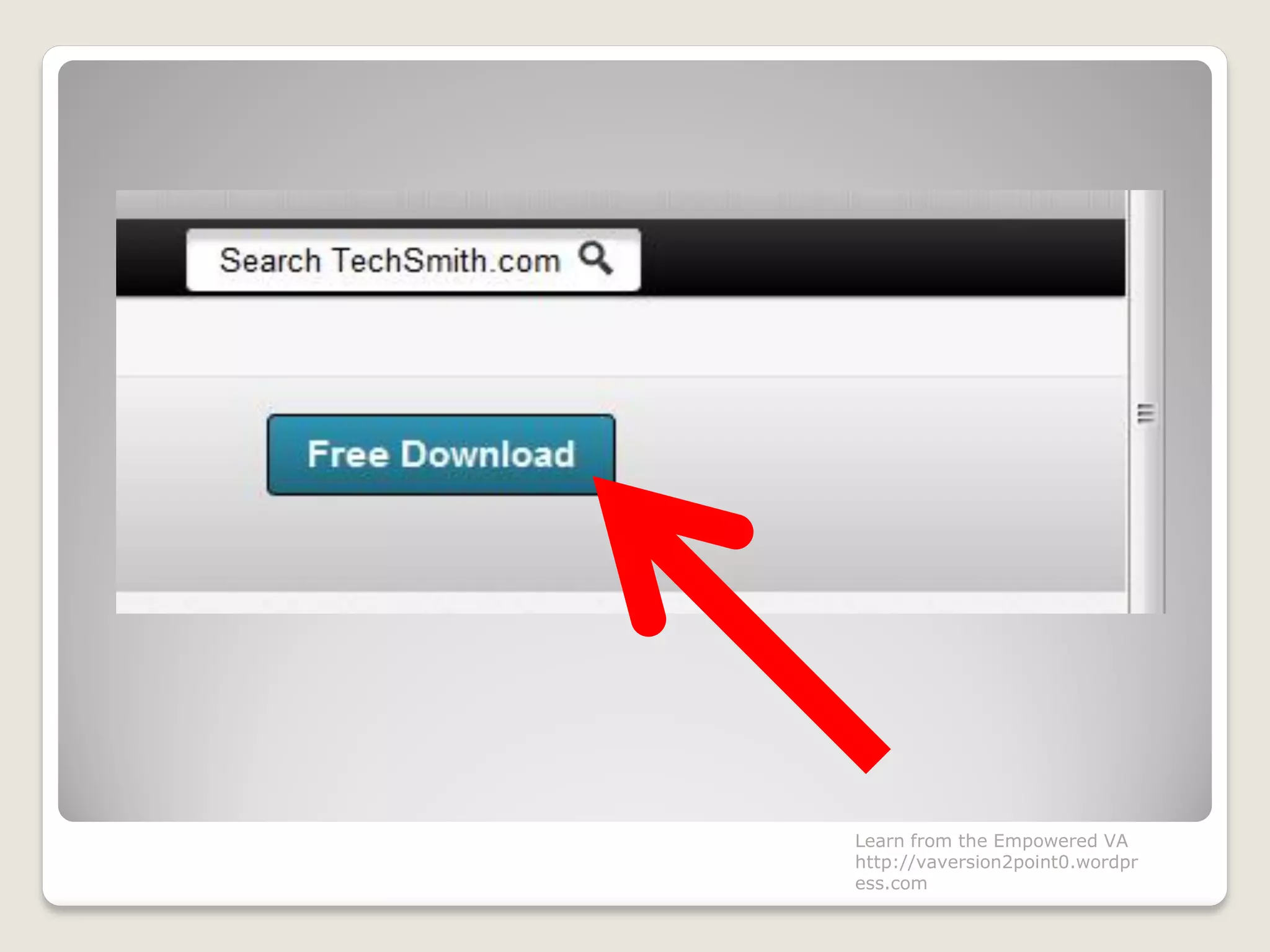
Click Free DownloadLearn from the Empowered VA
http://vaversion2point0.wordpr
ess.com
Learn from the Empowered VA
http://vaversion2point0.wordpr
ess.com
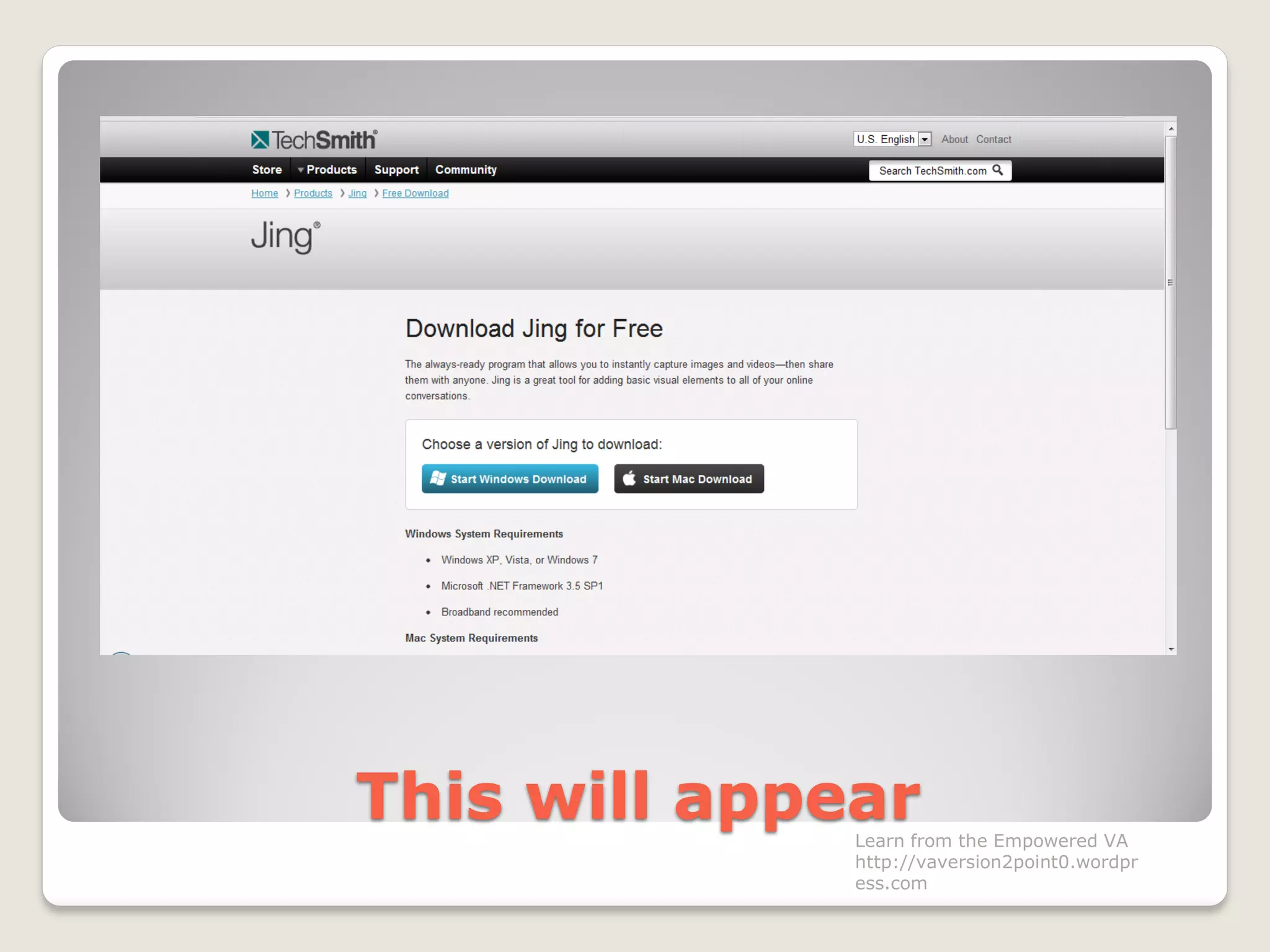
This will appearLearn from the Empowered VA
http://vaversion2point0.wordpr
ess.com
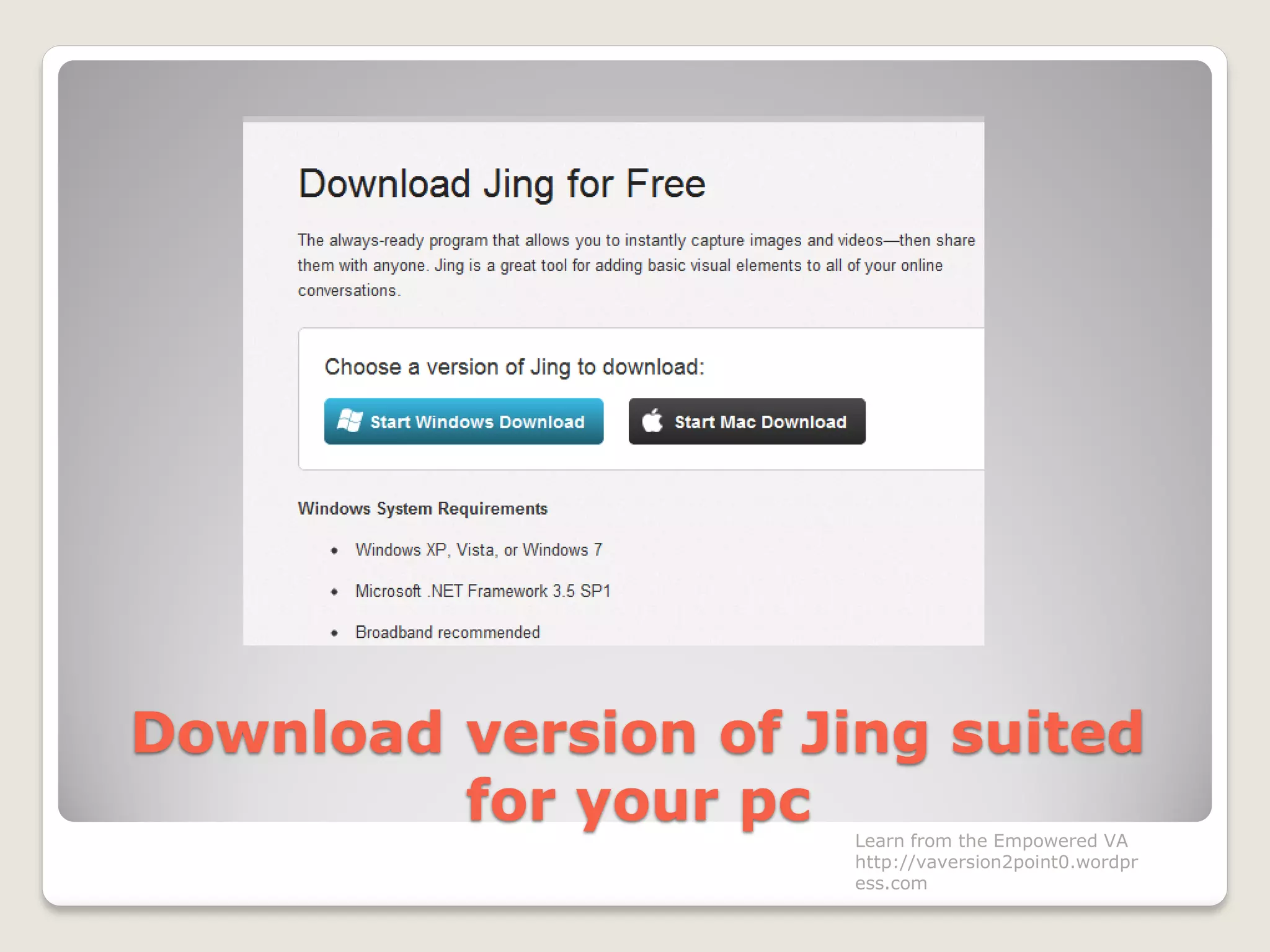
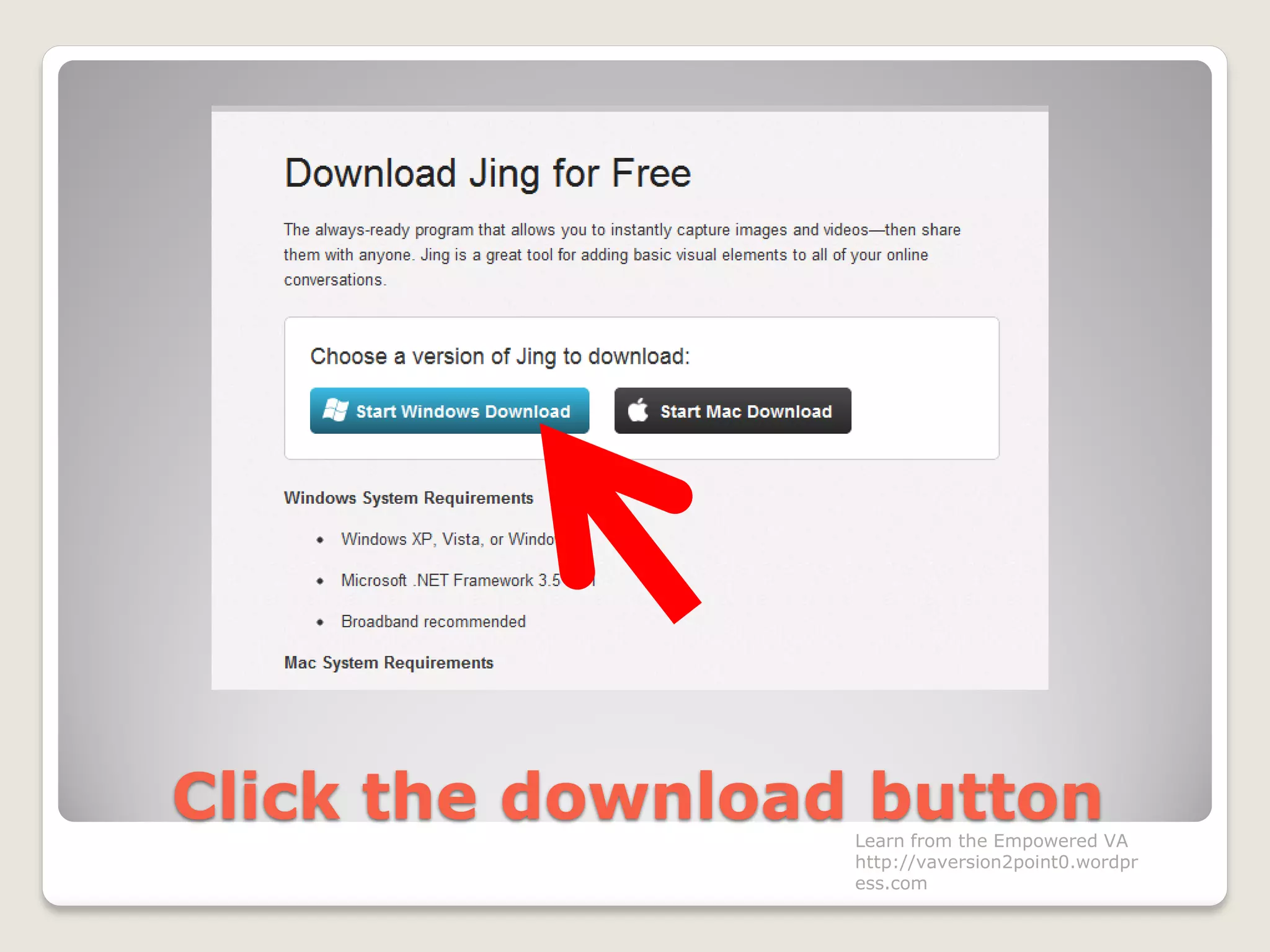
Download version of Jing suited
for your pc Learn from the Empowered VA
http://vaversion2point0.wordpr
ess.com
Click the download buttonLearn from the Empowered VA
http://vaversion2point0.wordpr
ess.com
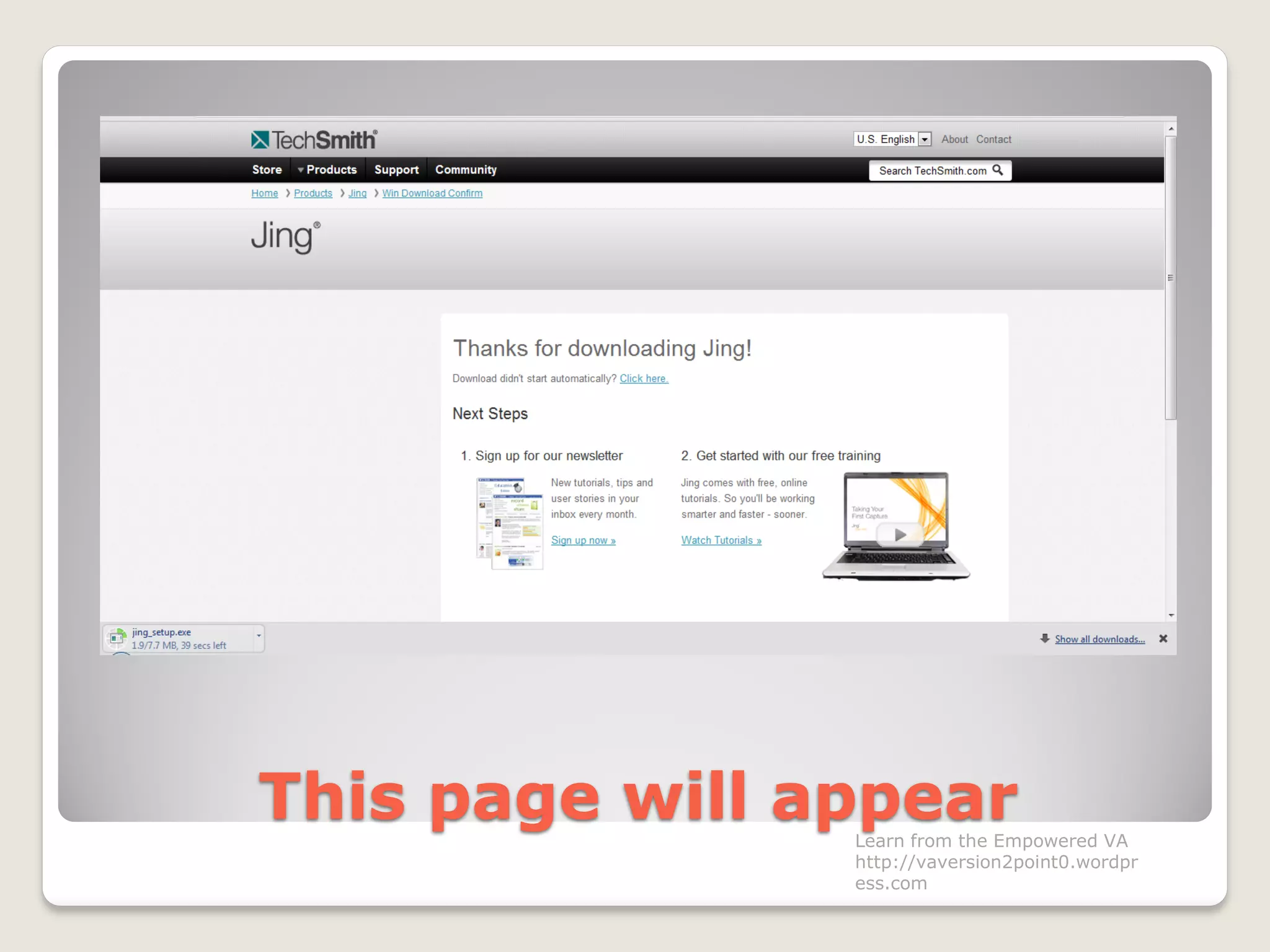
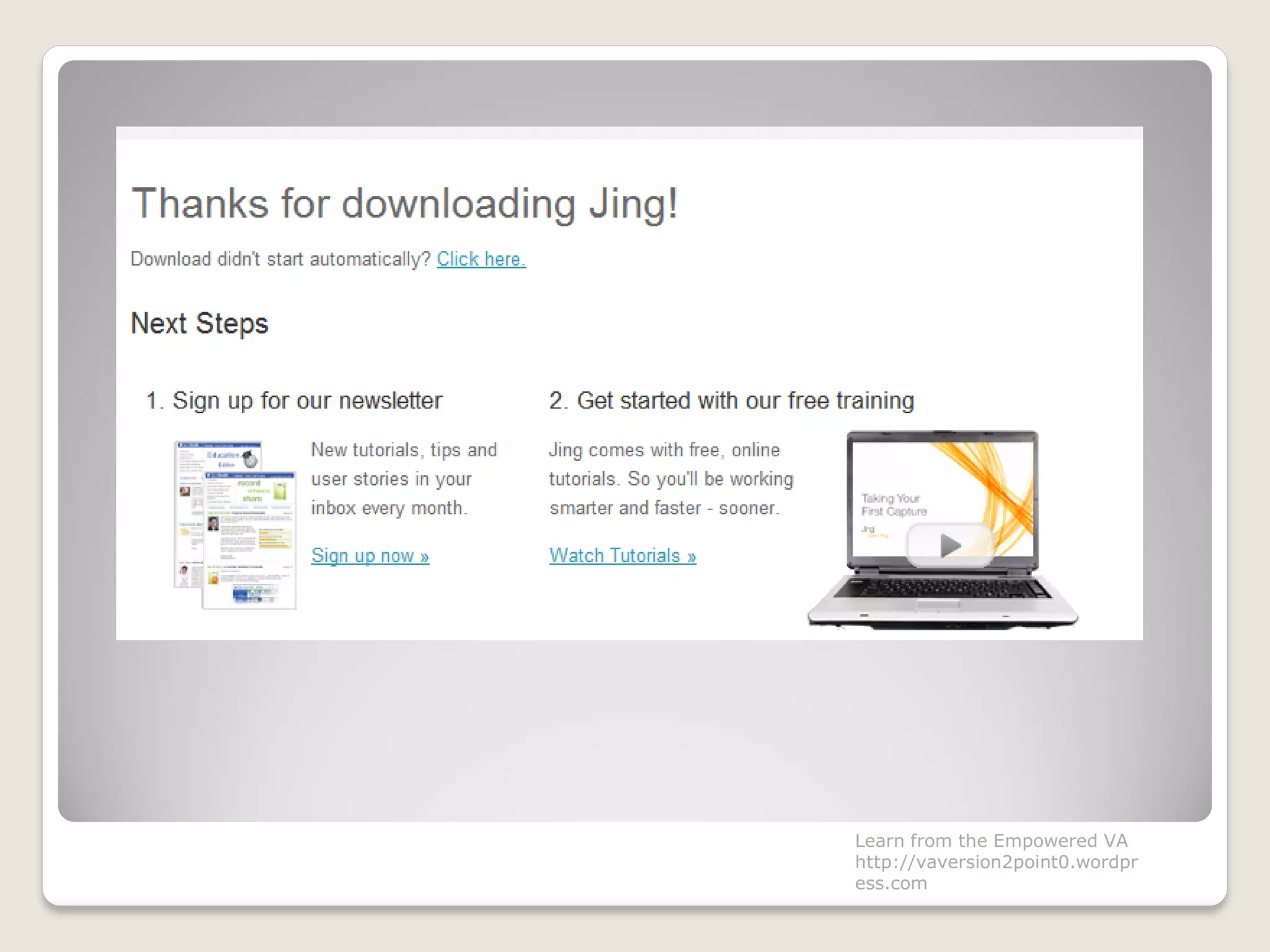
This page will appearLearn from the Empowered VA
http://vaversion2point0.wordpr
ess.com
Learn from the Empowered VA
http://vaversion2point0.wordpr
ess.com
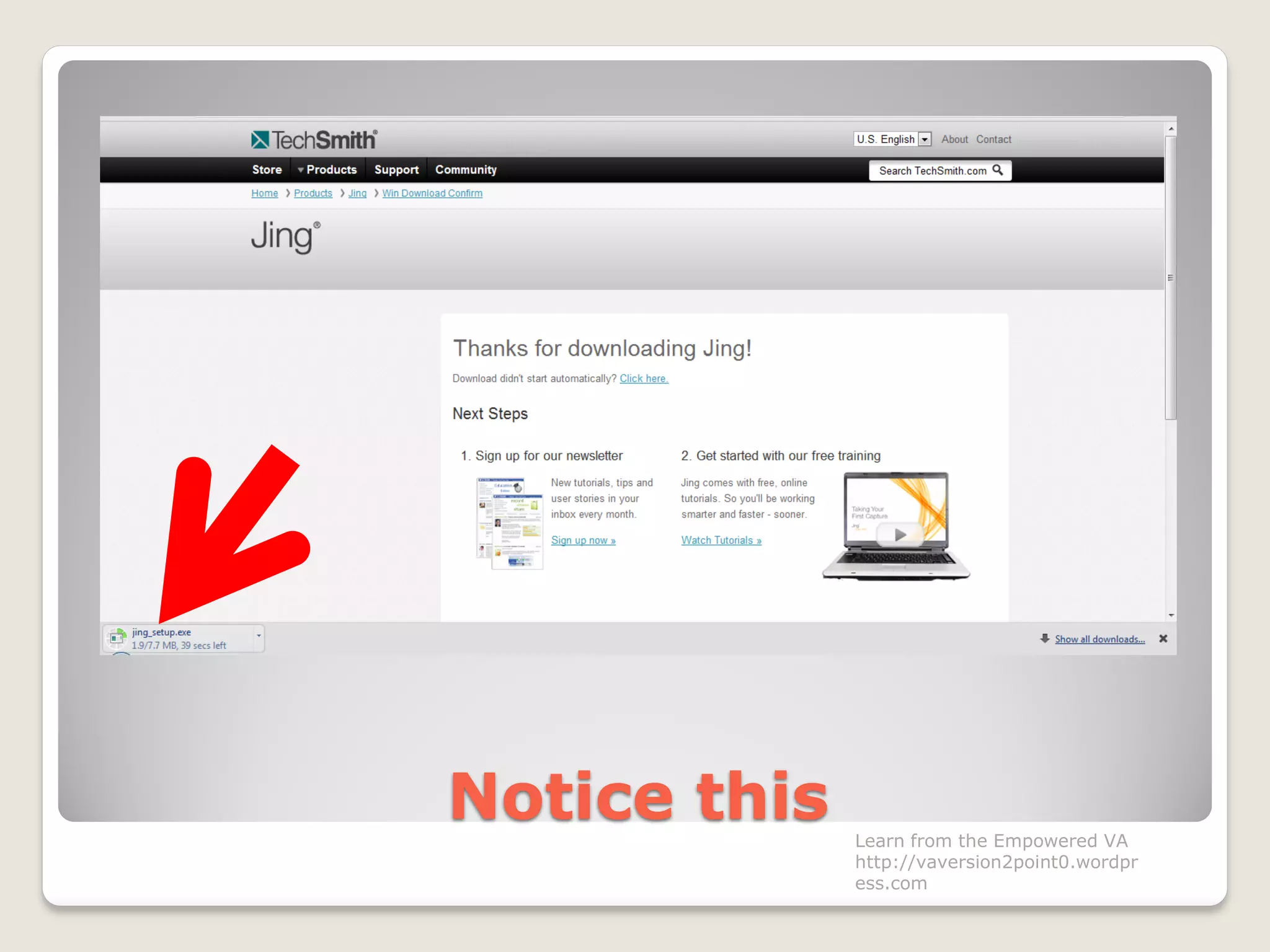
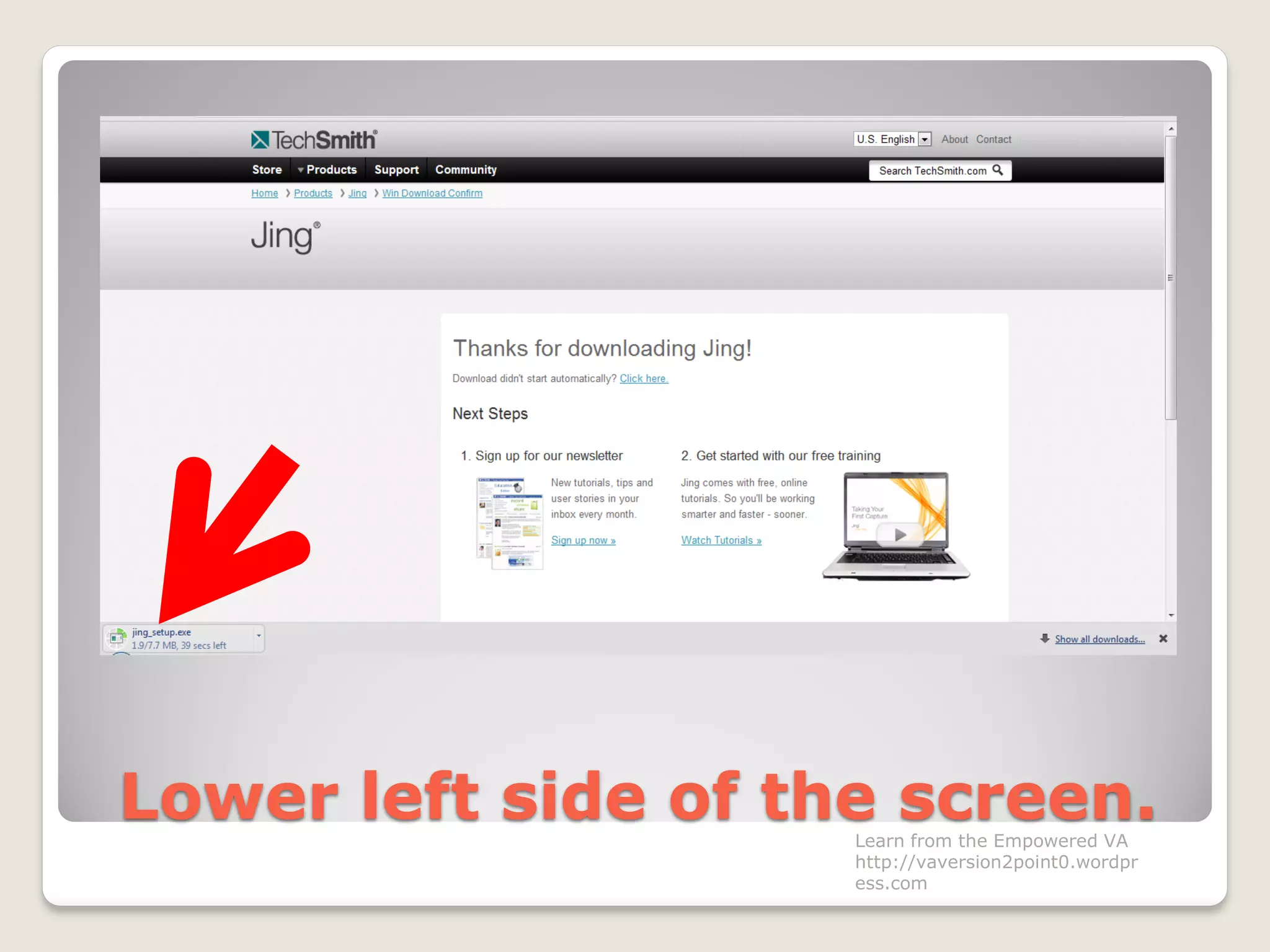
Notice this Learn from the Empowered VA
http://vaversion2point0.wordpr
ess.com
Lower left side of the screen.Learn from the Empowered VA
http://vaversion2point0.wordpr
ess.com
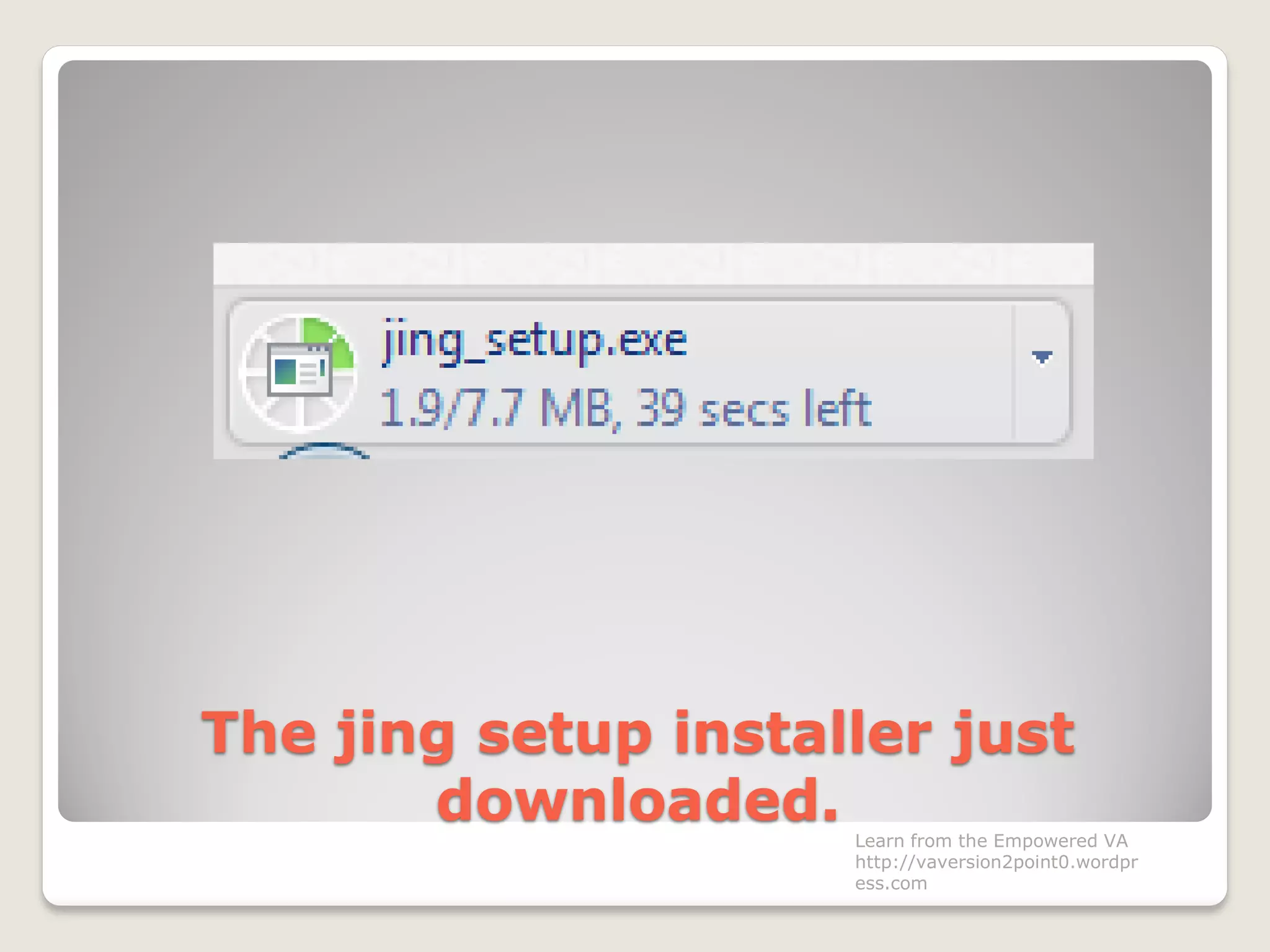
The jing setup installer just
downloaded. Learn from the Empowered VA
http://vaversion2point0.wordpr
ess.com
Wait for the download to finishLearn from the Empowered VA
http://vaversion2point0.wordpr
ess.com
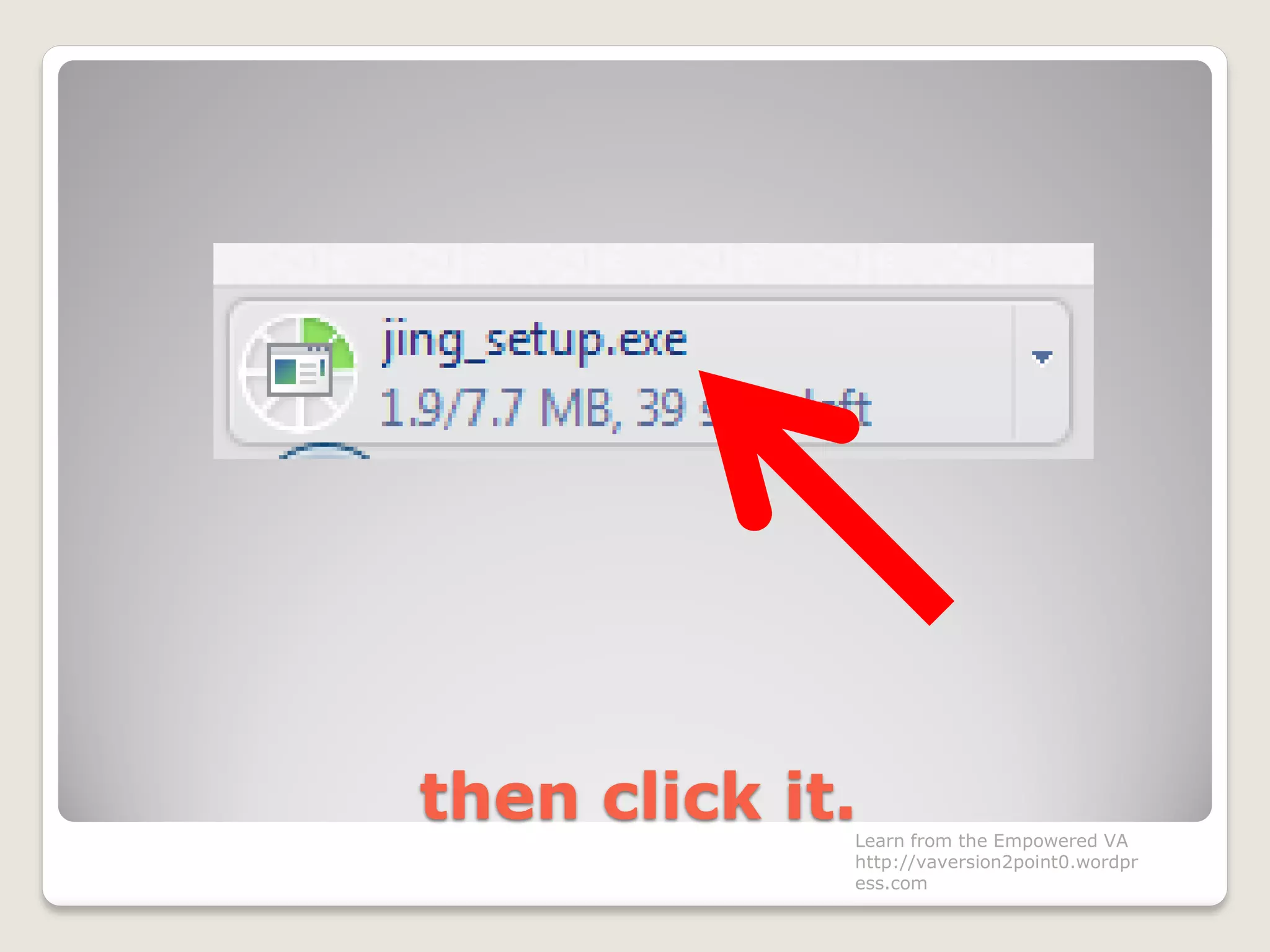
then click it.Learn from the Empowered VA
http://vaversion2point0.wordpr
ess.com
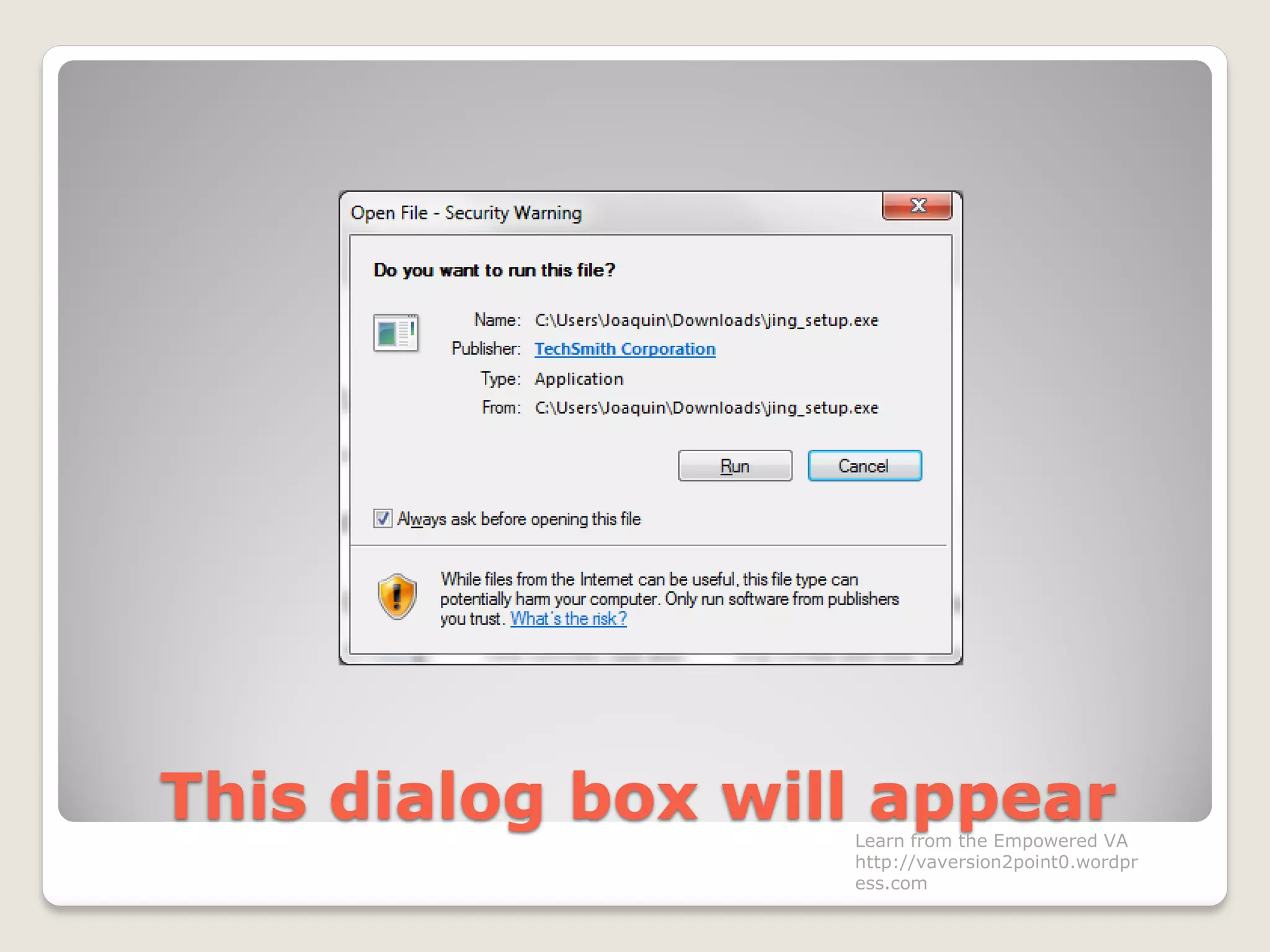
This dialog box will appearLearn from the Empowered VA
http://vaversion2point0.wordpr
ess.com
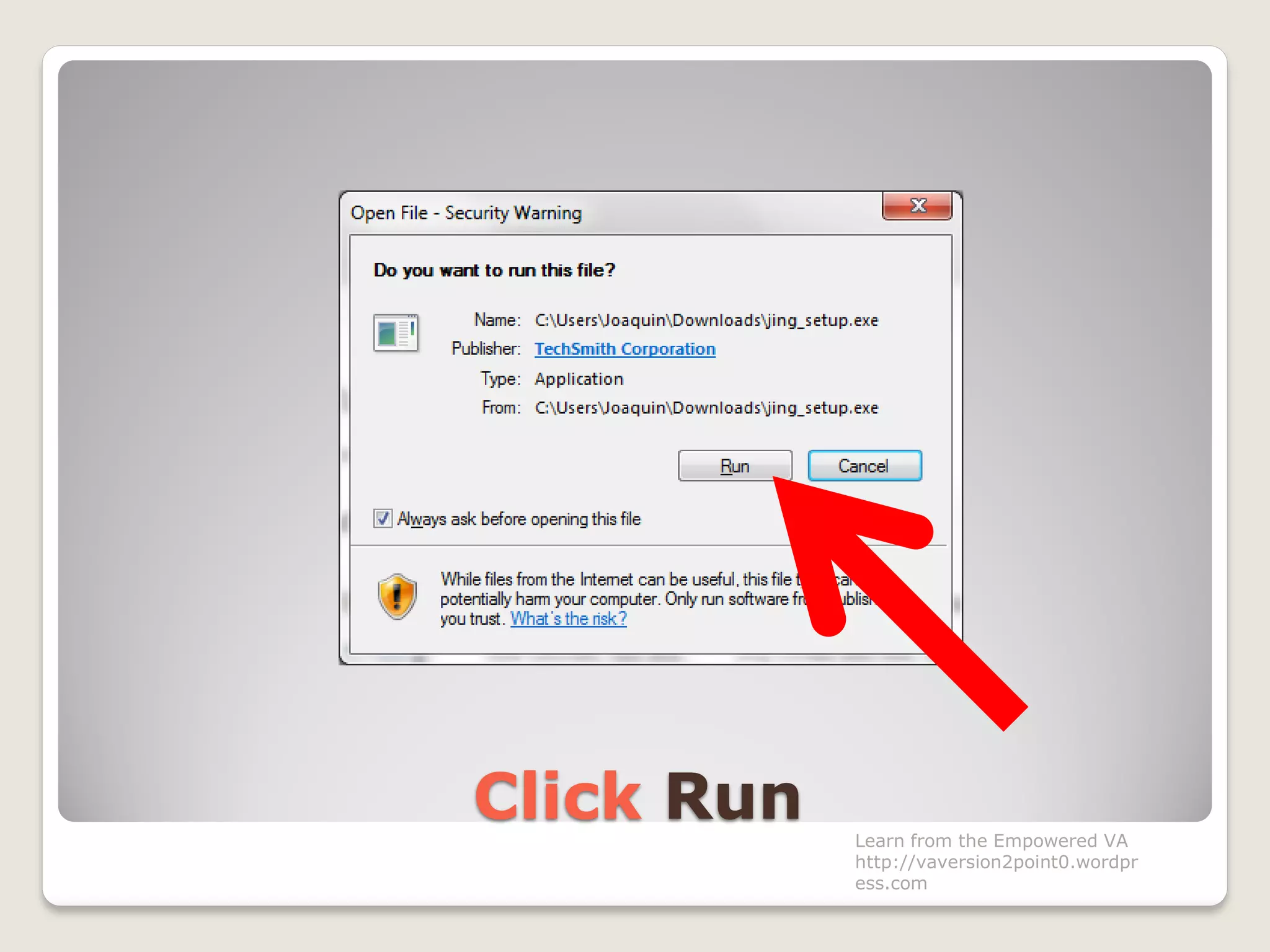
Click Run Learn from the Empowered VA
http://vaversion2point0.wordpr
ess.com
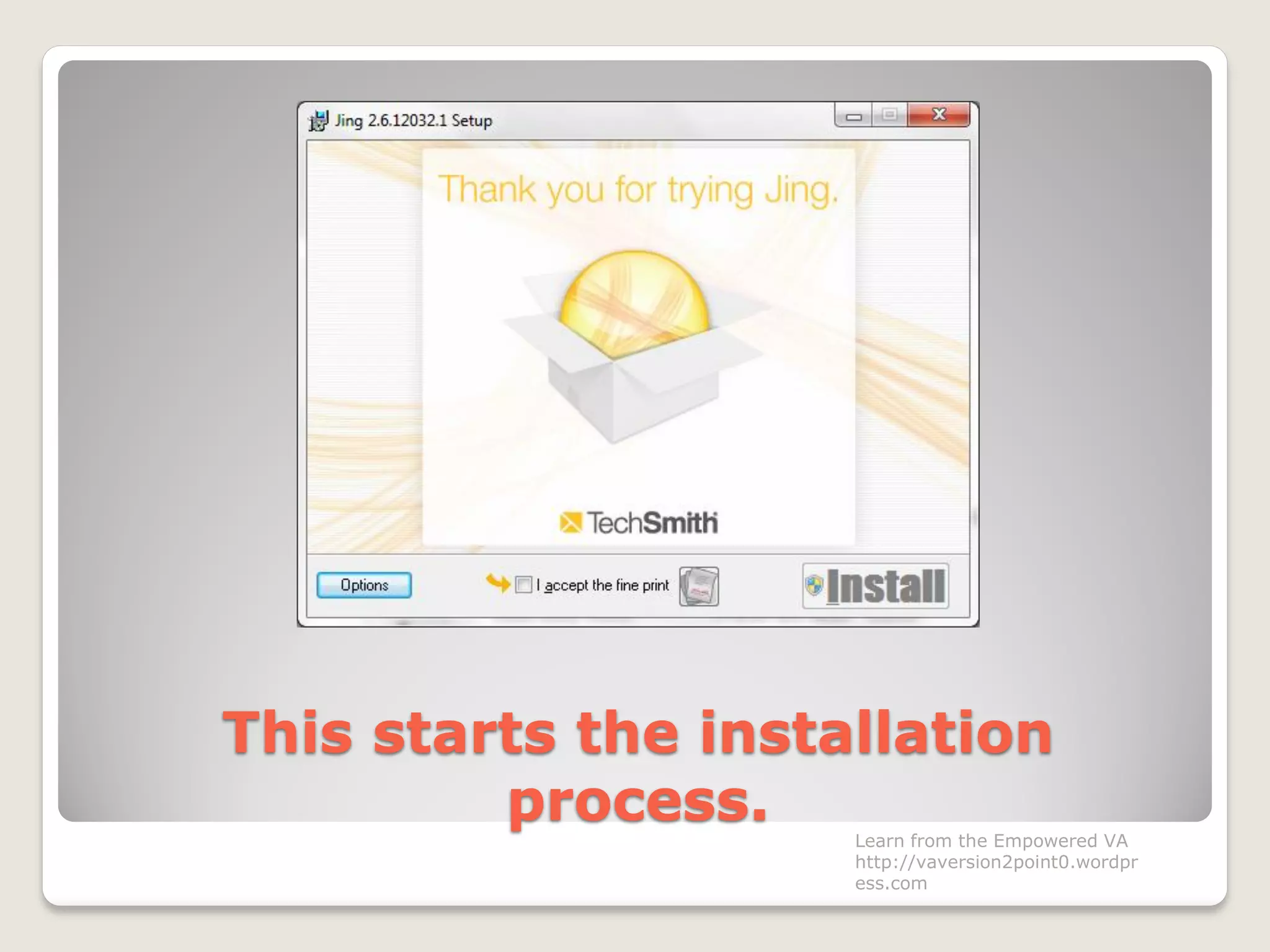
This starts the installation
process. Learn from the Empowered VA
http://vaversion2point0.wordpr
ess.com
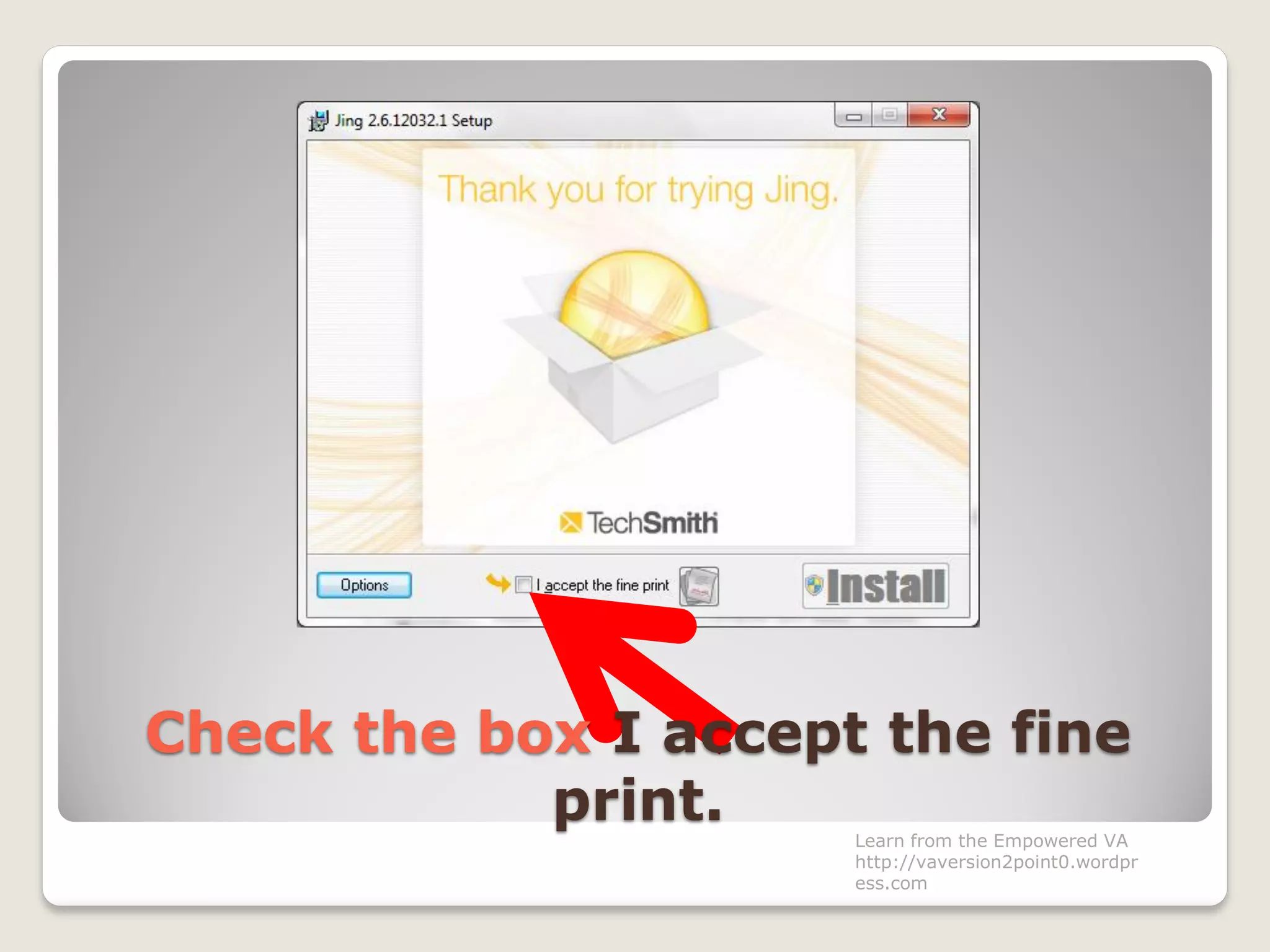
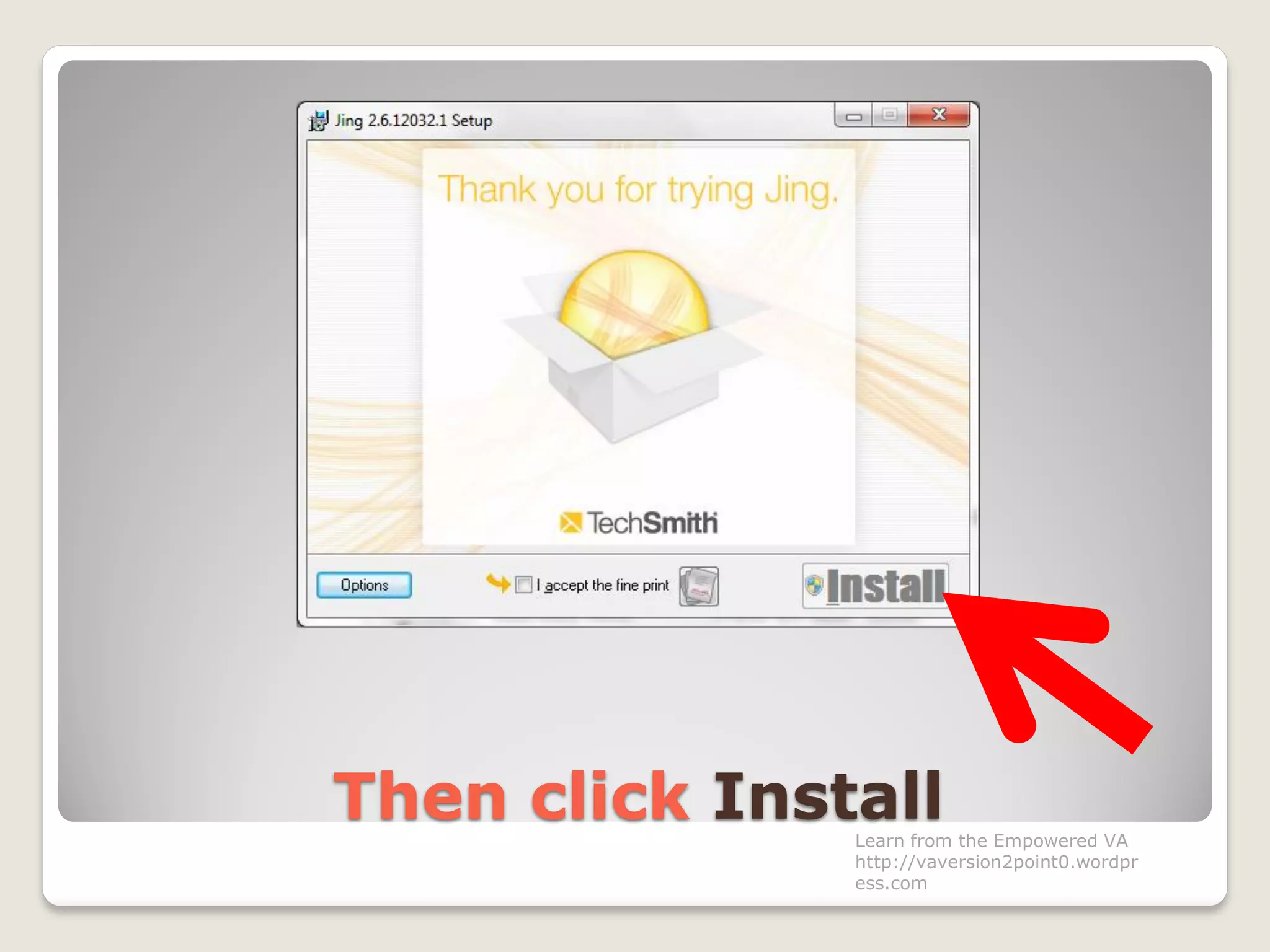
Check the box I accept the fine
print. Learn from the Empowered VA
http://vaversion2point0.wordpr
ess.com
Then click InstallLearn from the Empowered VA
http://vaversion2point0.wordpr
ess.com
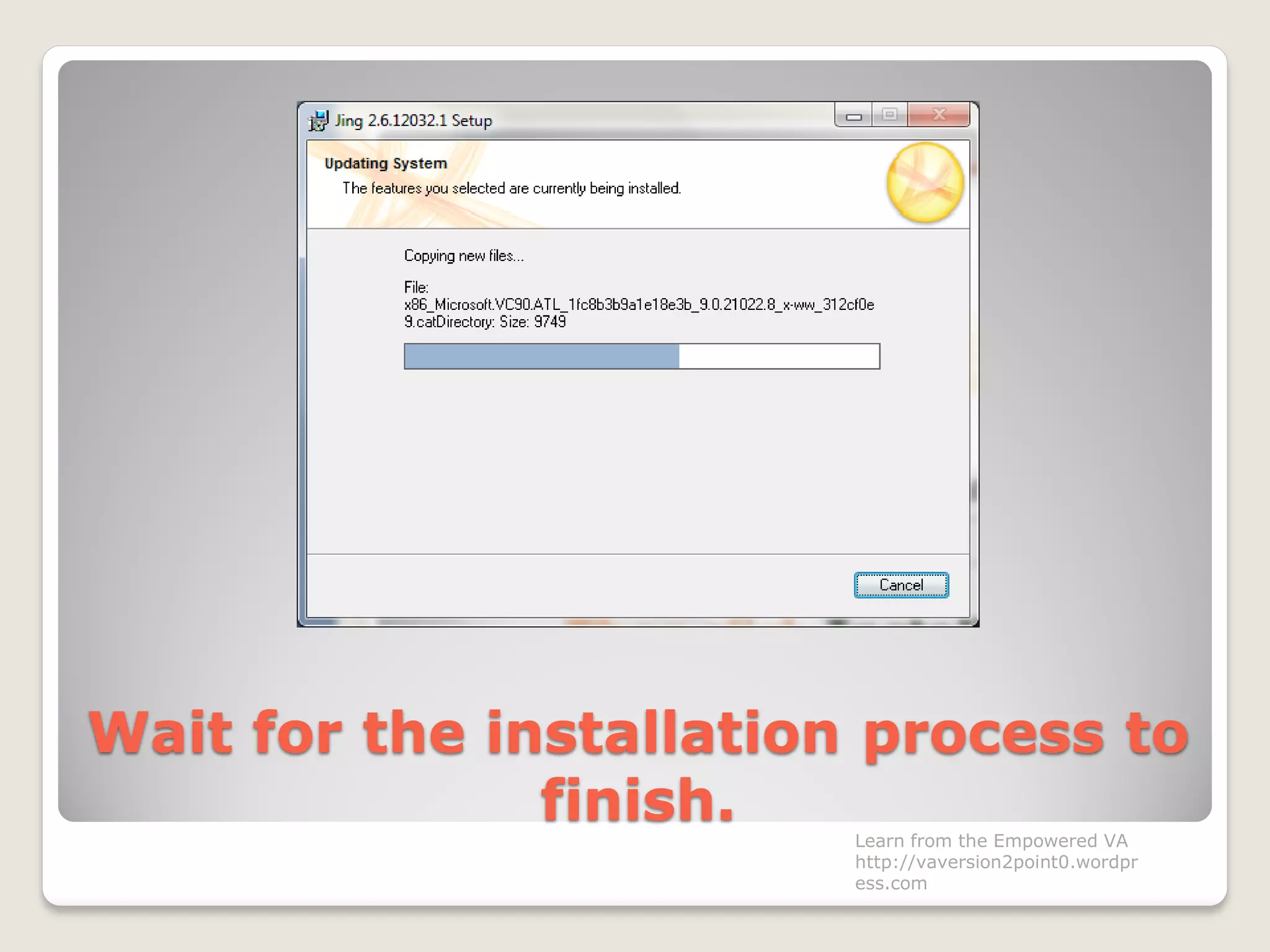
Wait for the installation process to
finish. Learn from the Empowered VA
http://vaversion2point0.wordpr
ess.com
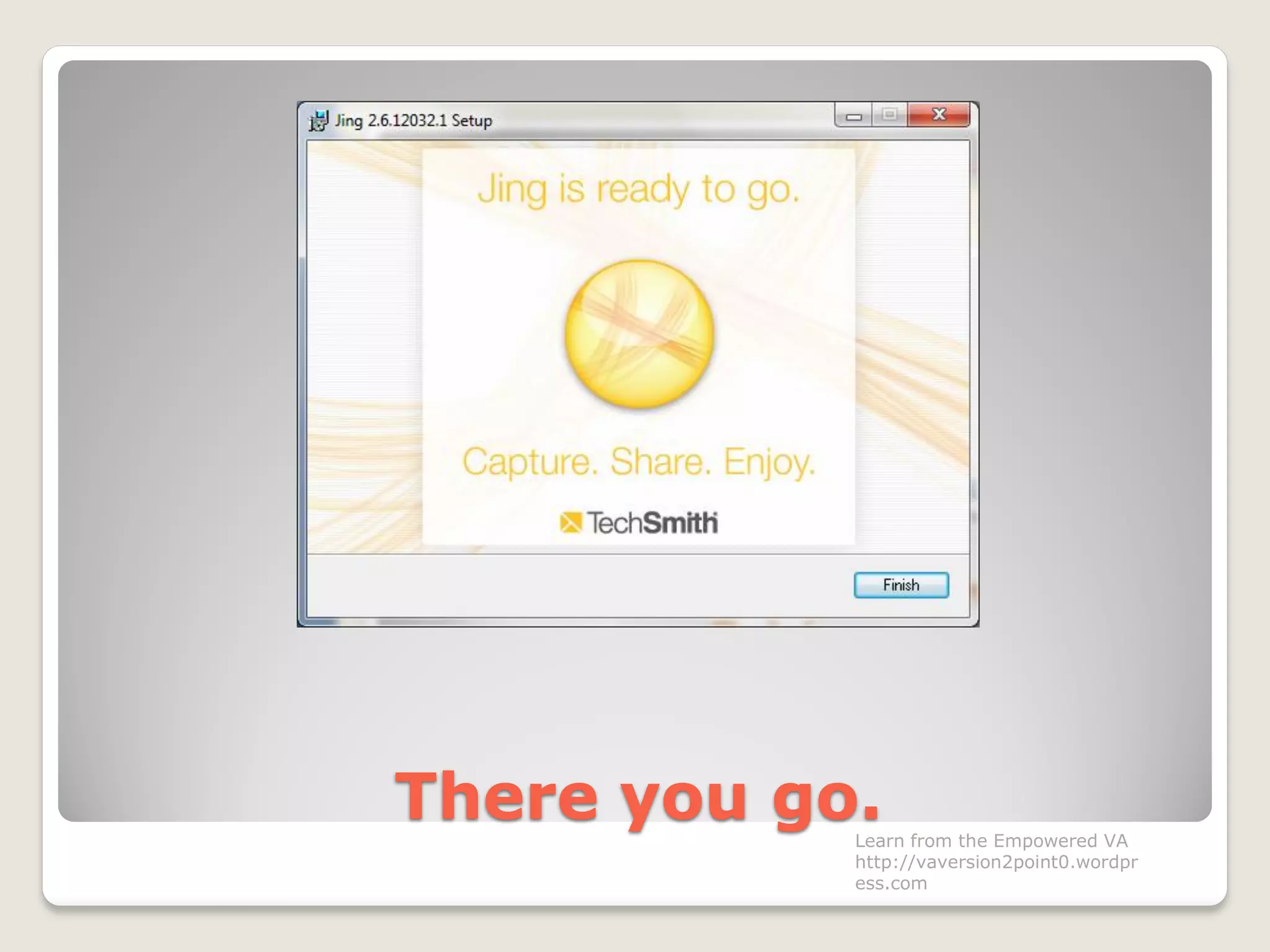
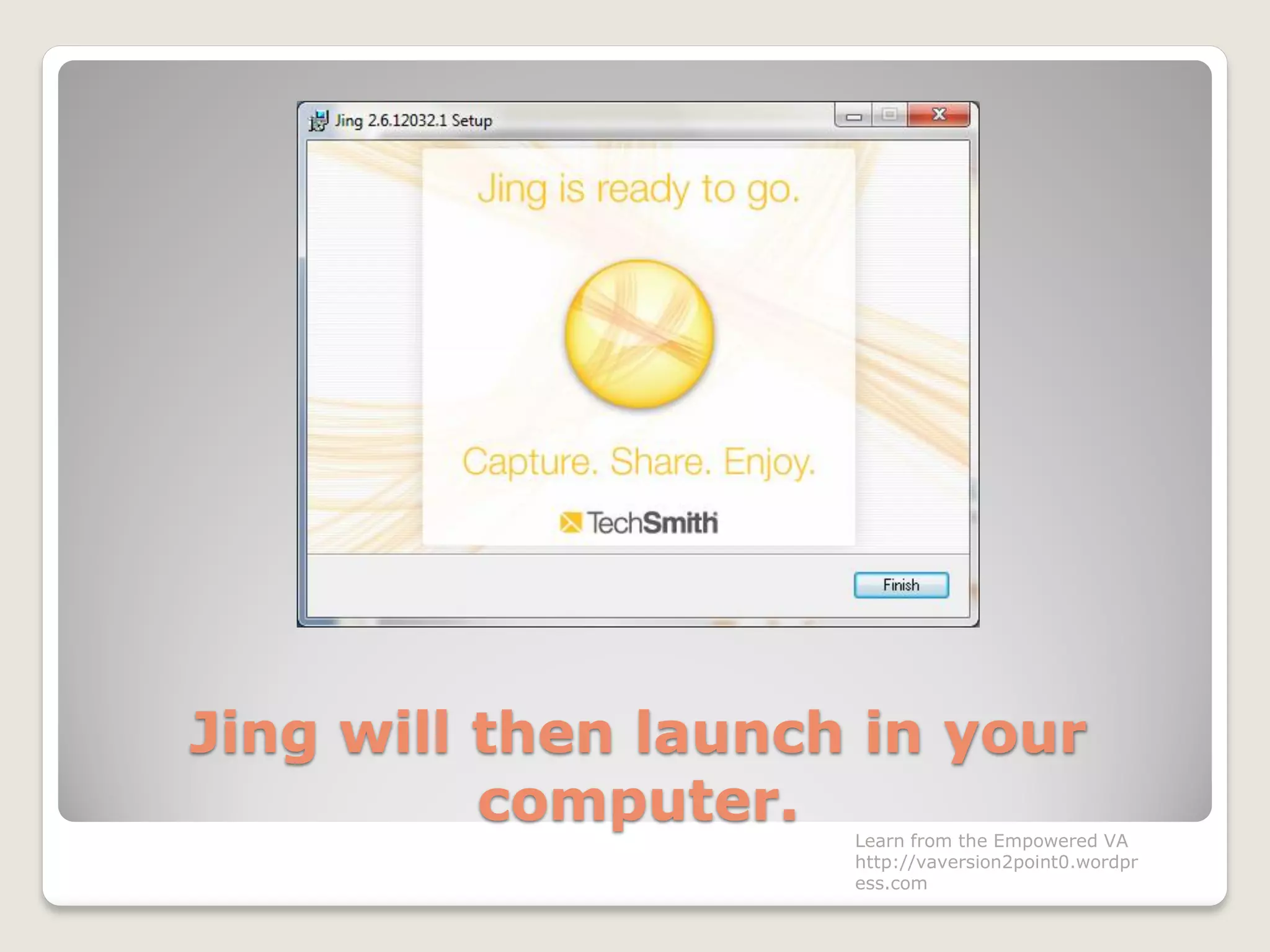
There you go.Learn from the Empowered VA
http://vaversion2point0.wordpr
ess.com
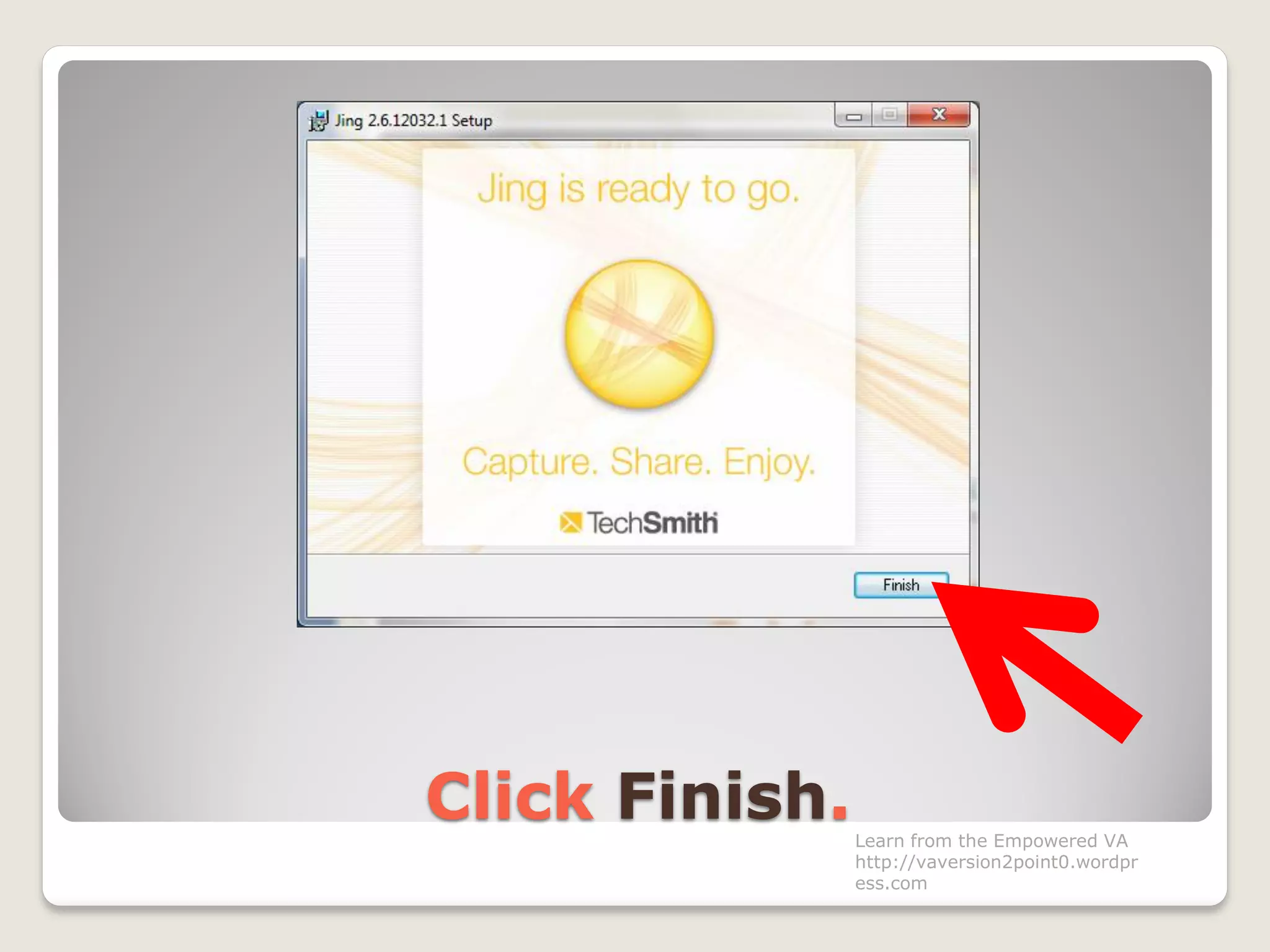
Click Finish.Learn from the Empowered VA
http://vaversion2point0.wordpr
ess.com
Jing will then launch in your
computer. Learn from the Empowered VA
http://vaversion2point0.wordpr
ess.com
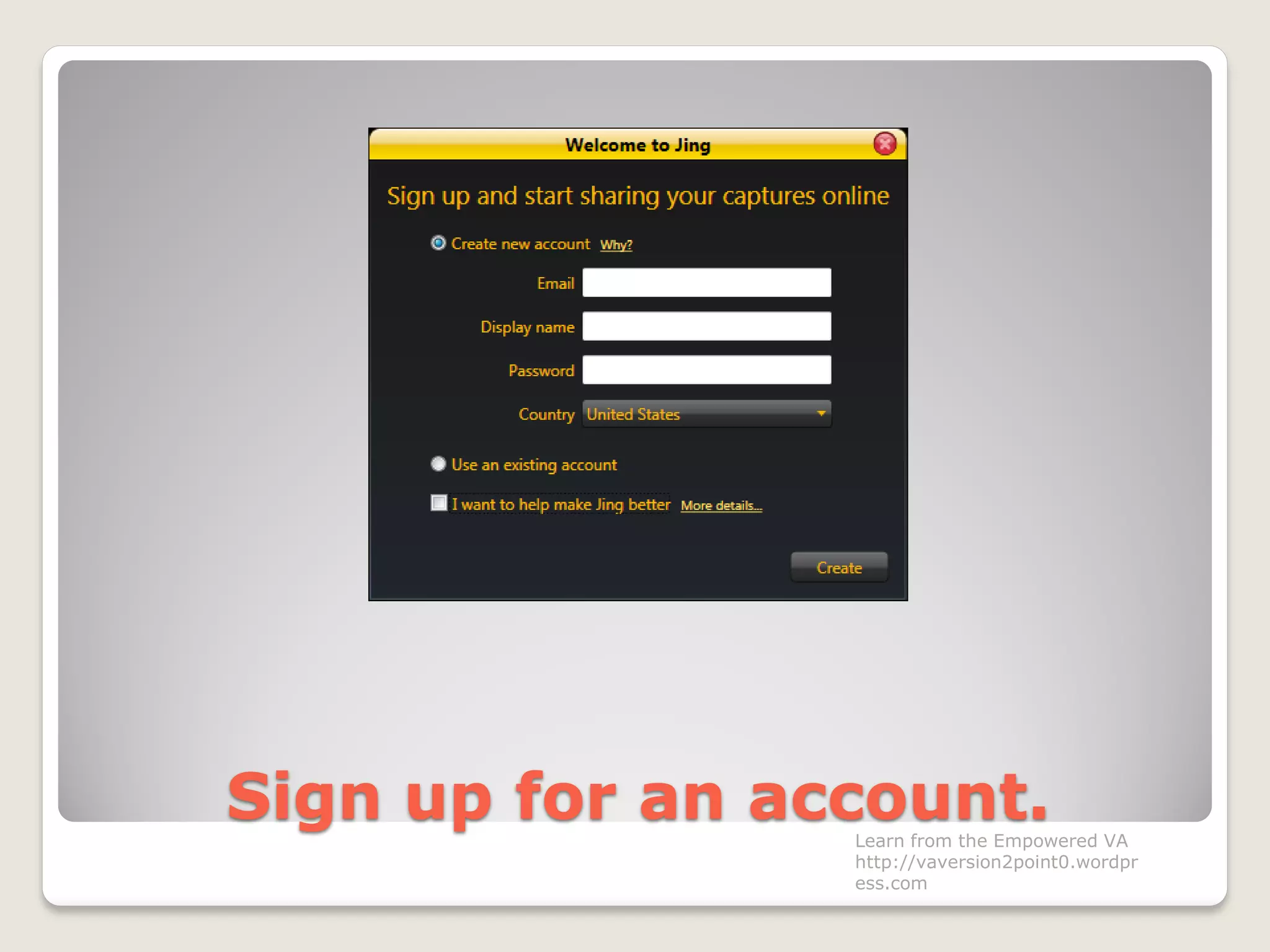
Sign up for an account.Learn from the Empowered VA
http://vaversion2point0.wordpr
ess.com
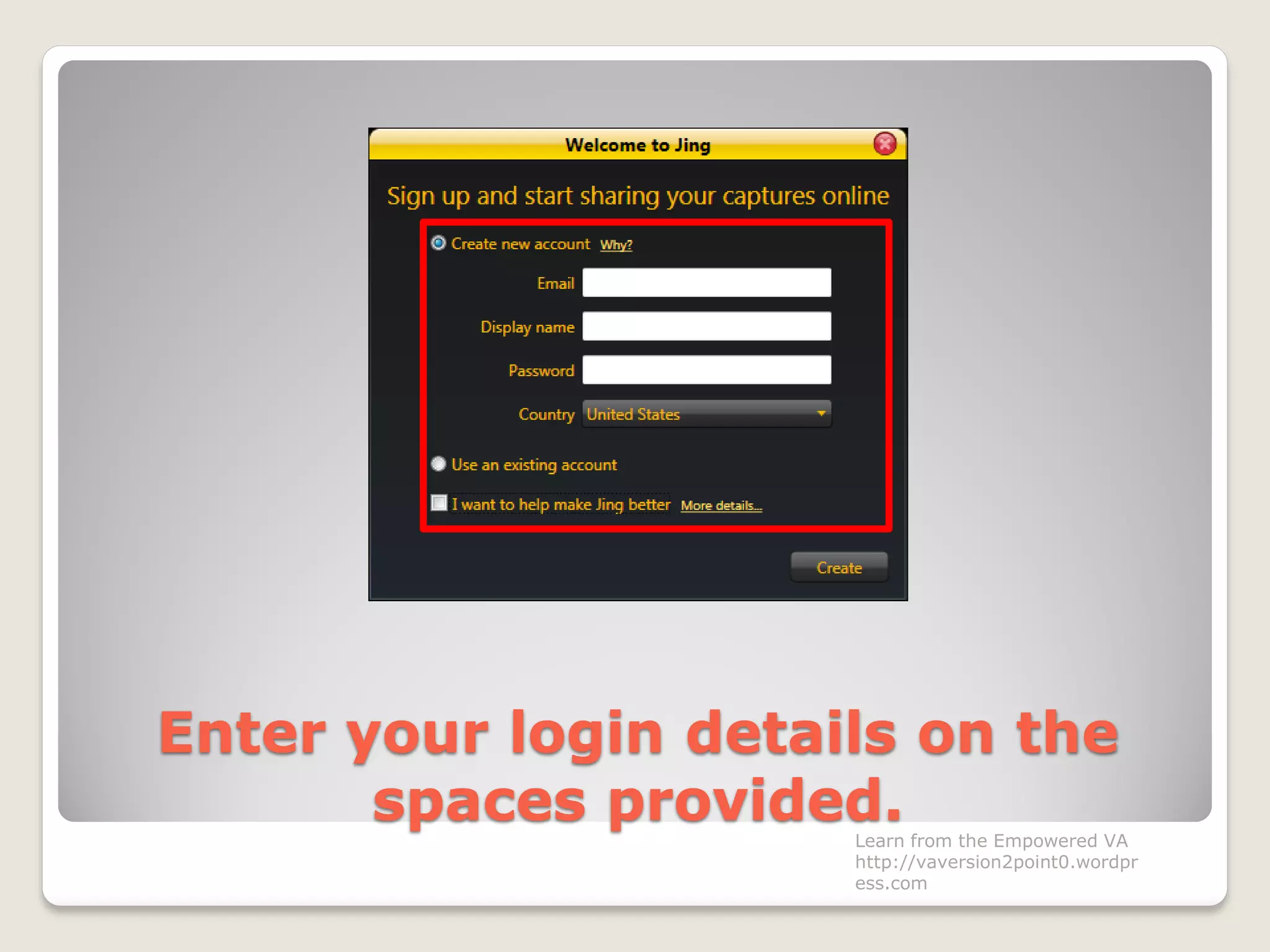
Enter your login details on the
spaces provided.Learn from the Empowered VA
http://vaversion2point0.wordpr
ess.com
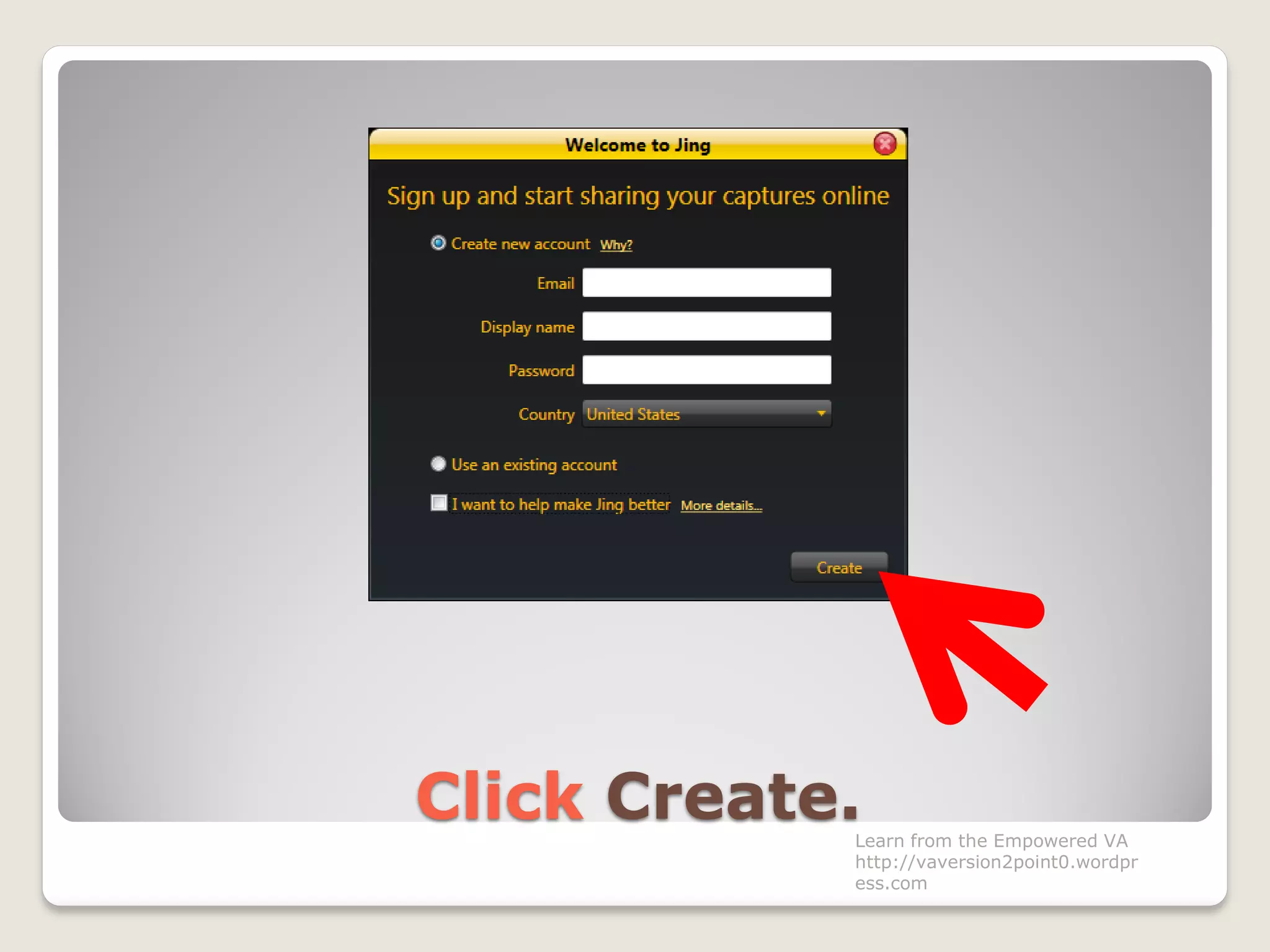
Click Create.Learn from the Empowered VA
http://vaversion2point0.wordpr
ess.com
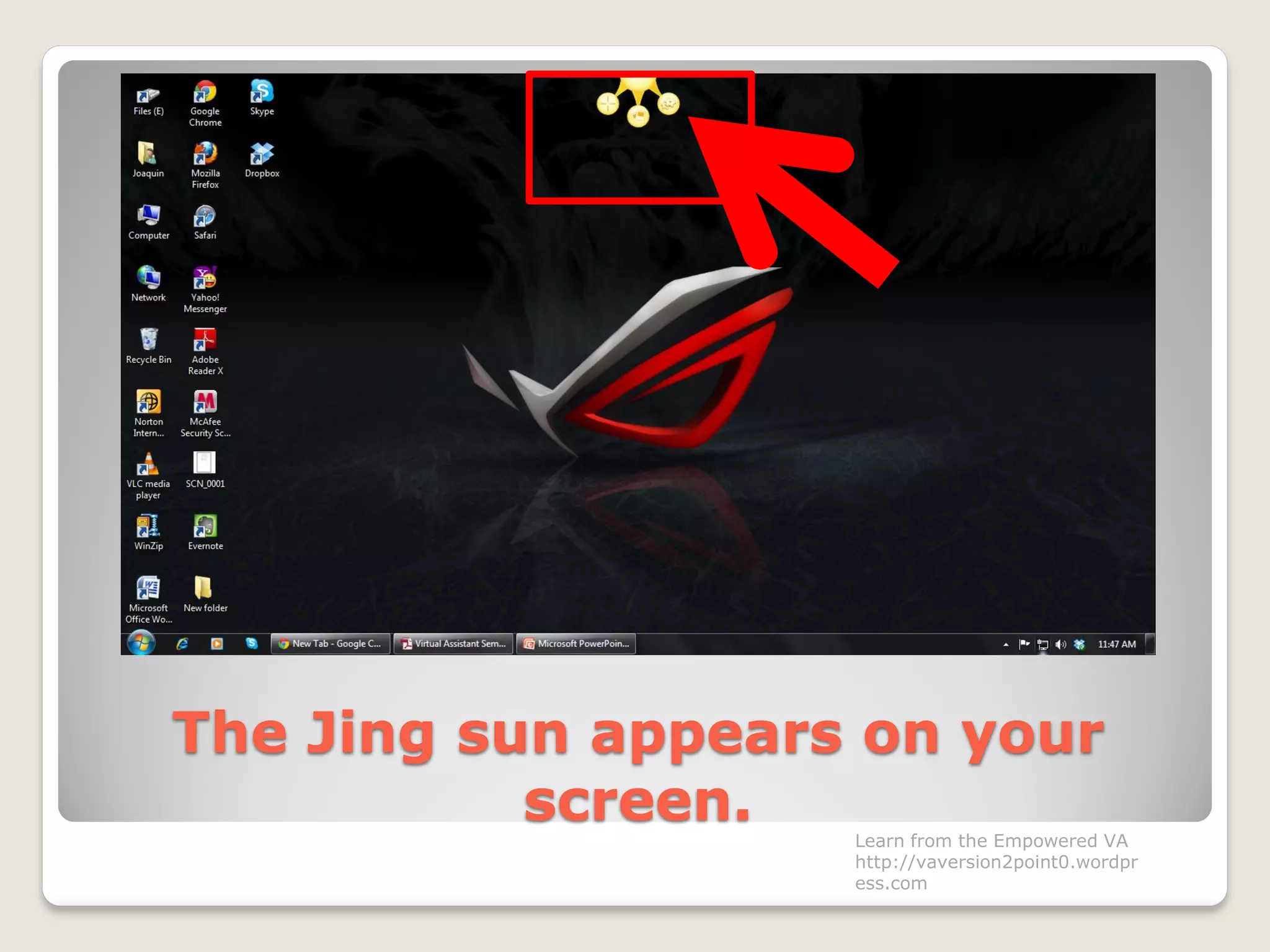
The Jing sun appears on your
screen. Learn from the Empowered VA
http://vaversion2point0.wordpr
ess.com
This serves as the main menu for
using Jing. Learn from the Empowered VA
http://vaversion2point0.wordpr
ess.com
Notice it has 3 icons.Learn from the Empowered VA
http://vaversion2point0.wordpr
ess.com
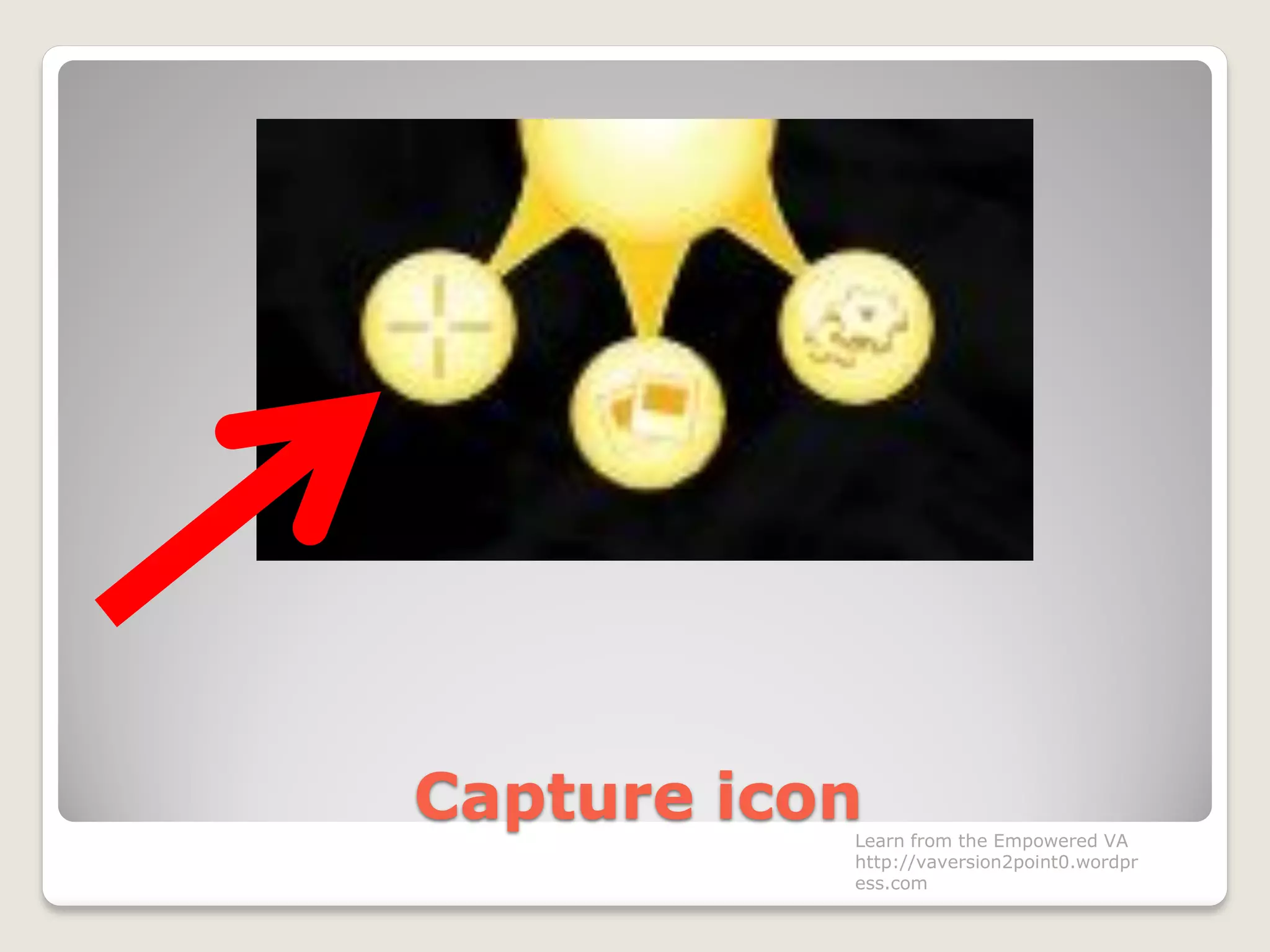
Capture iconLearn from the Empowered VA
http://vaversion2point0.wordpr
ess.com
History iconLearn from the Empowered VA
http://vaversion2point0.wordpr
ess.com
Settings iconLearn from the Empowered VA
http://vaversion2point0.wordpr
ess.com
Let’s explore Capture Icon.Learn from the Empowered VA
http://vaversion2point0.wordpr
ess.com
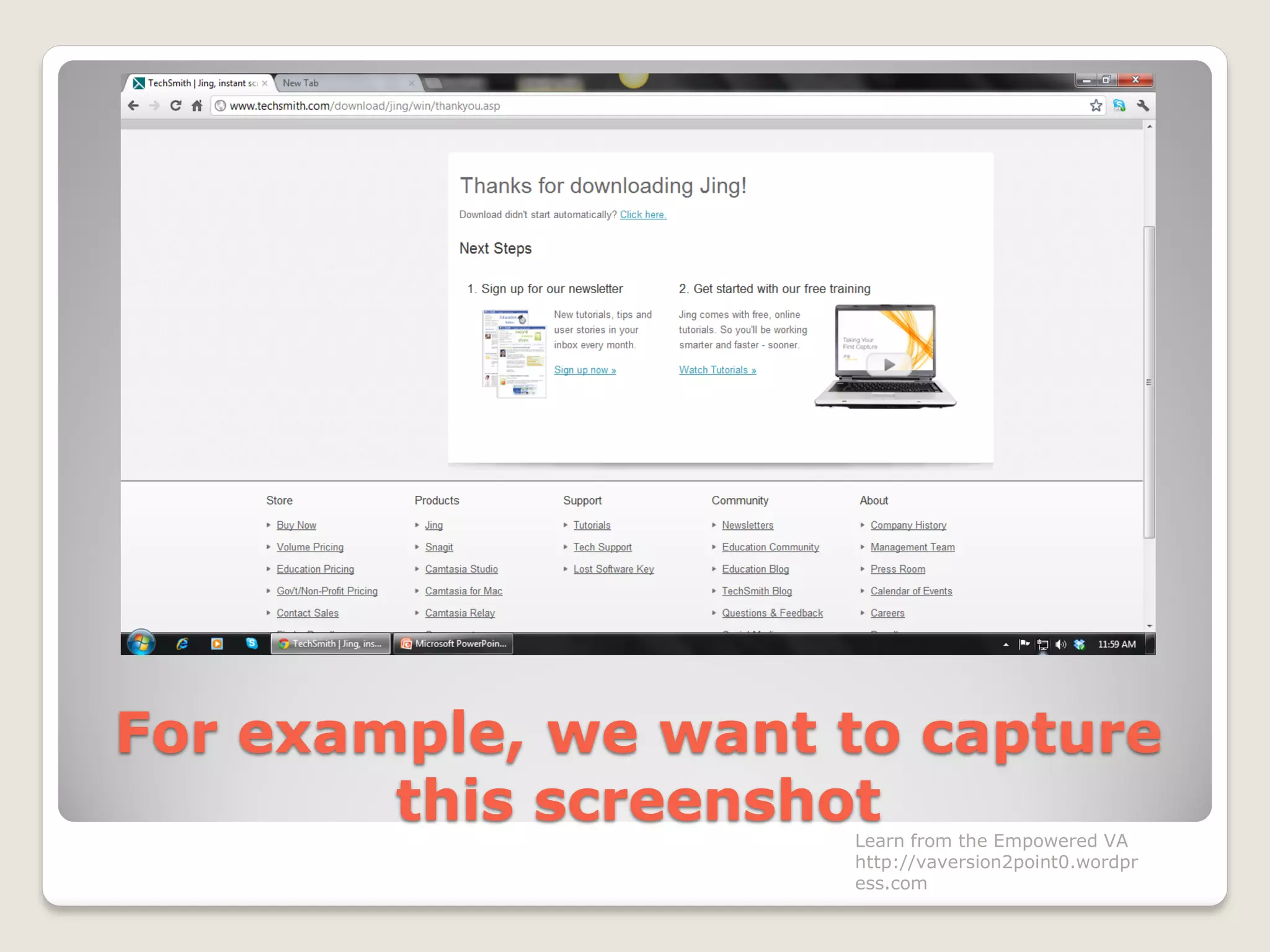
For example, we want to capture
this screenshotLearn from the Empowered VA
http://vaversion2point0.wordpr
ess.com
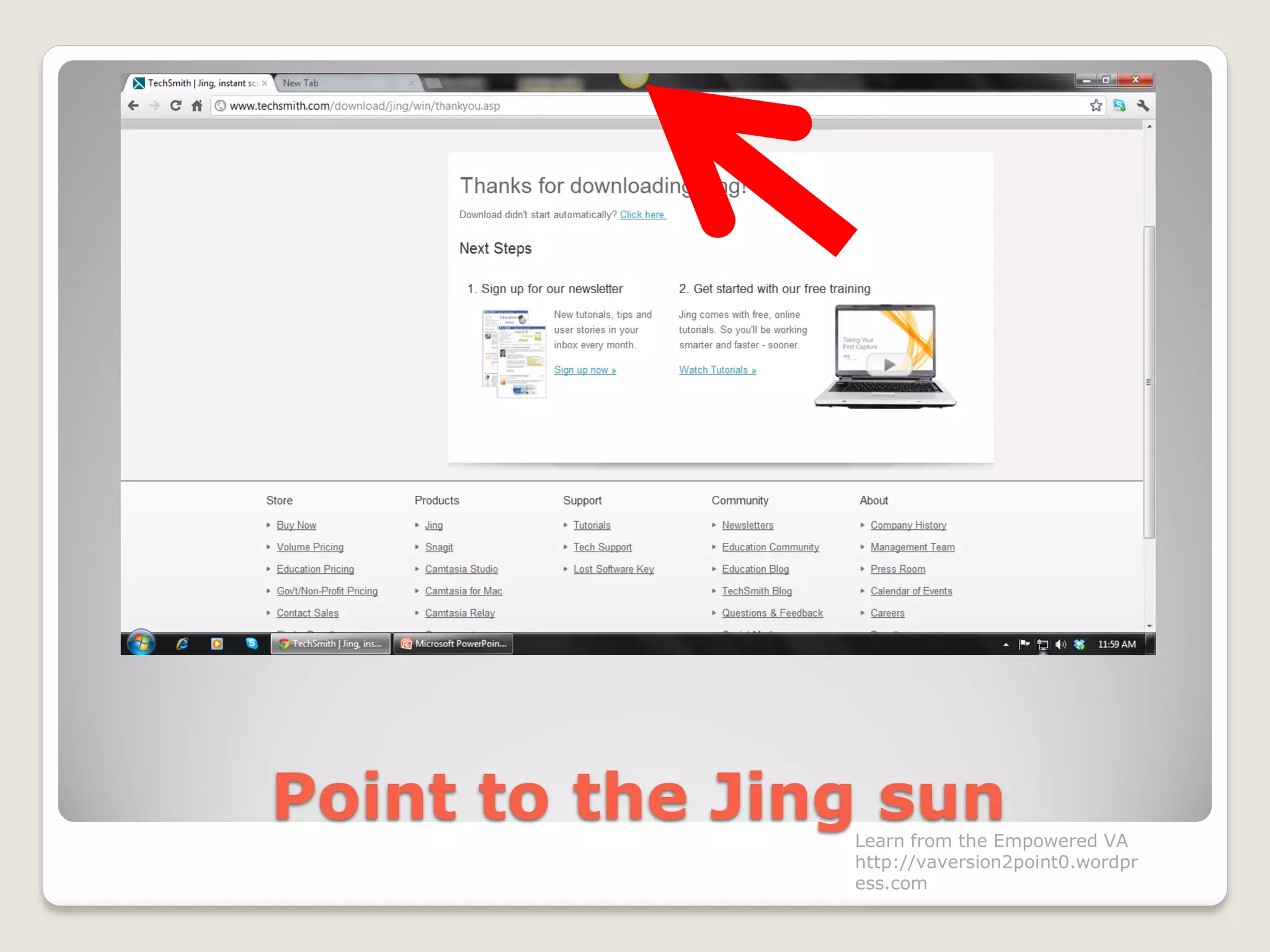
Point to the Jing sunLearn from the Empowered VA
http://vaversion2point0.wordpr
ess.com
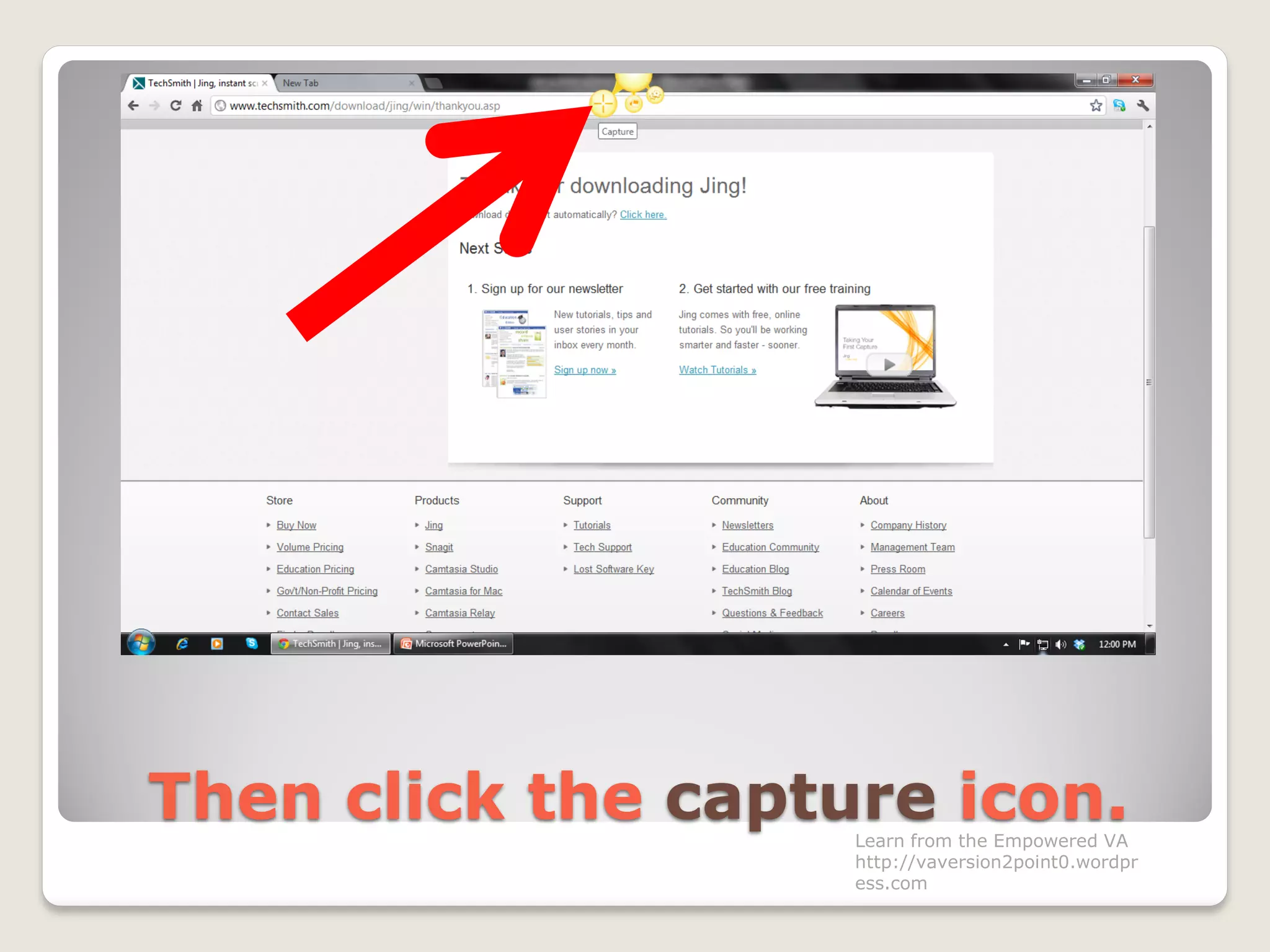
Then click the capture icon.Learn from the Empowered VA
http://vaversion2point0.wordpr
ess.com
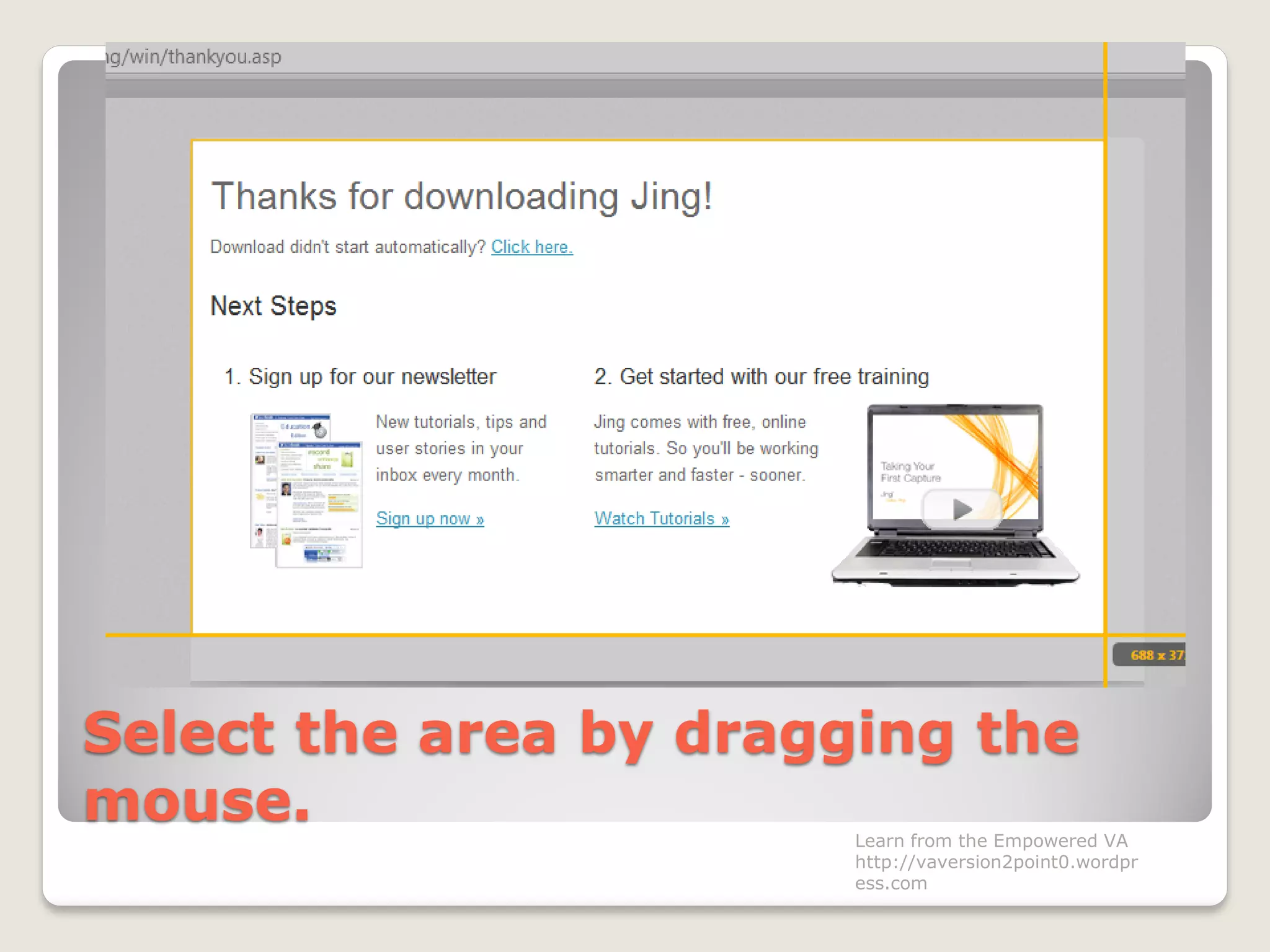
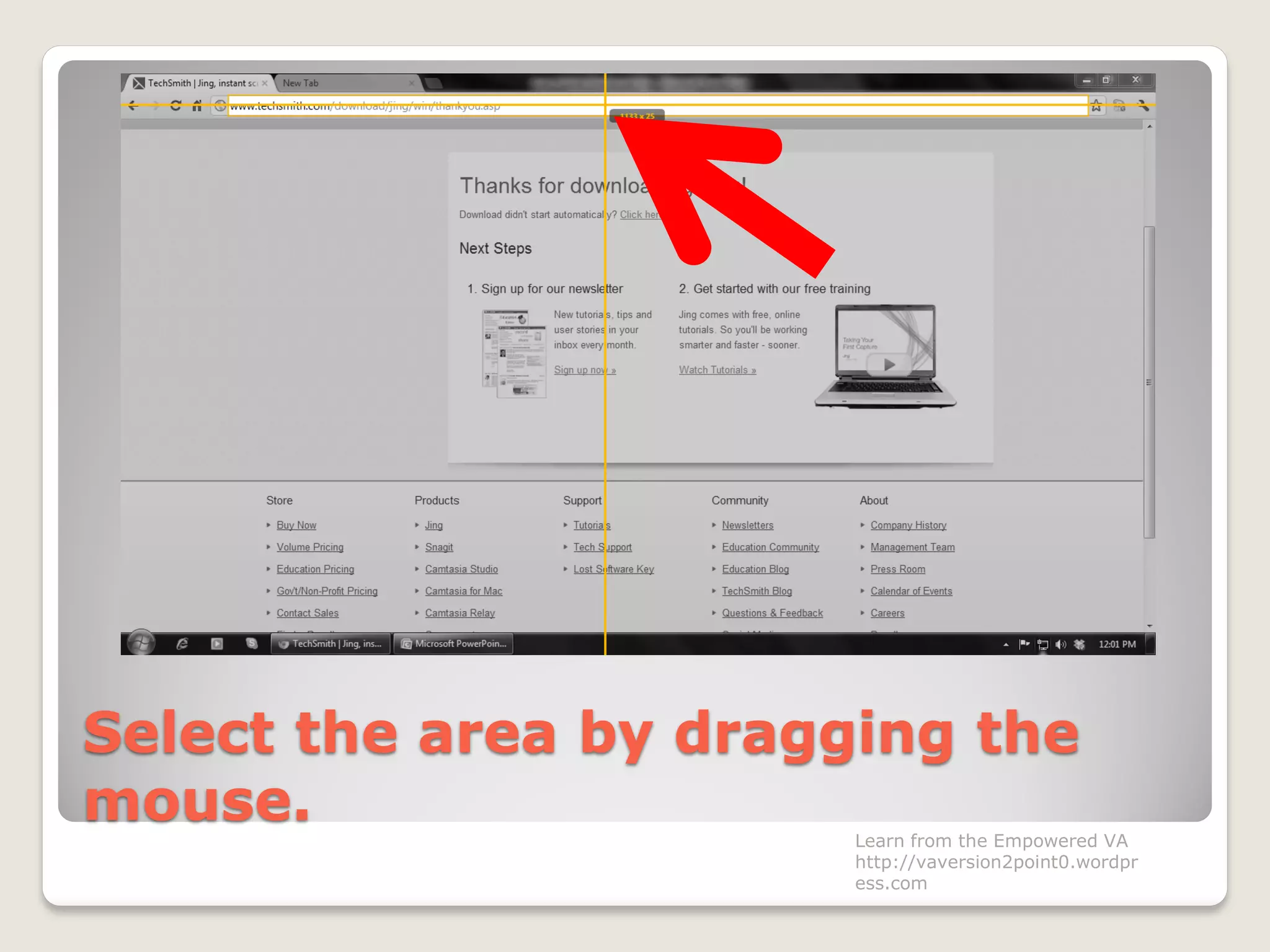
Select the area by dragging the
mouse. Learn from the Empowered VA
http://vaversion2point0.wordpr
ess.com
Select the area by dragging the
mouse. Learn from the Empowered VA
http://vaversion2point0.wordpr
ess.com
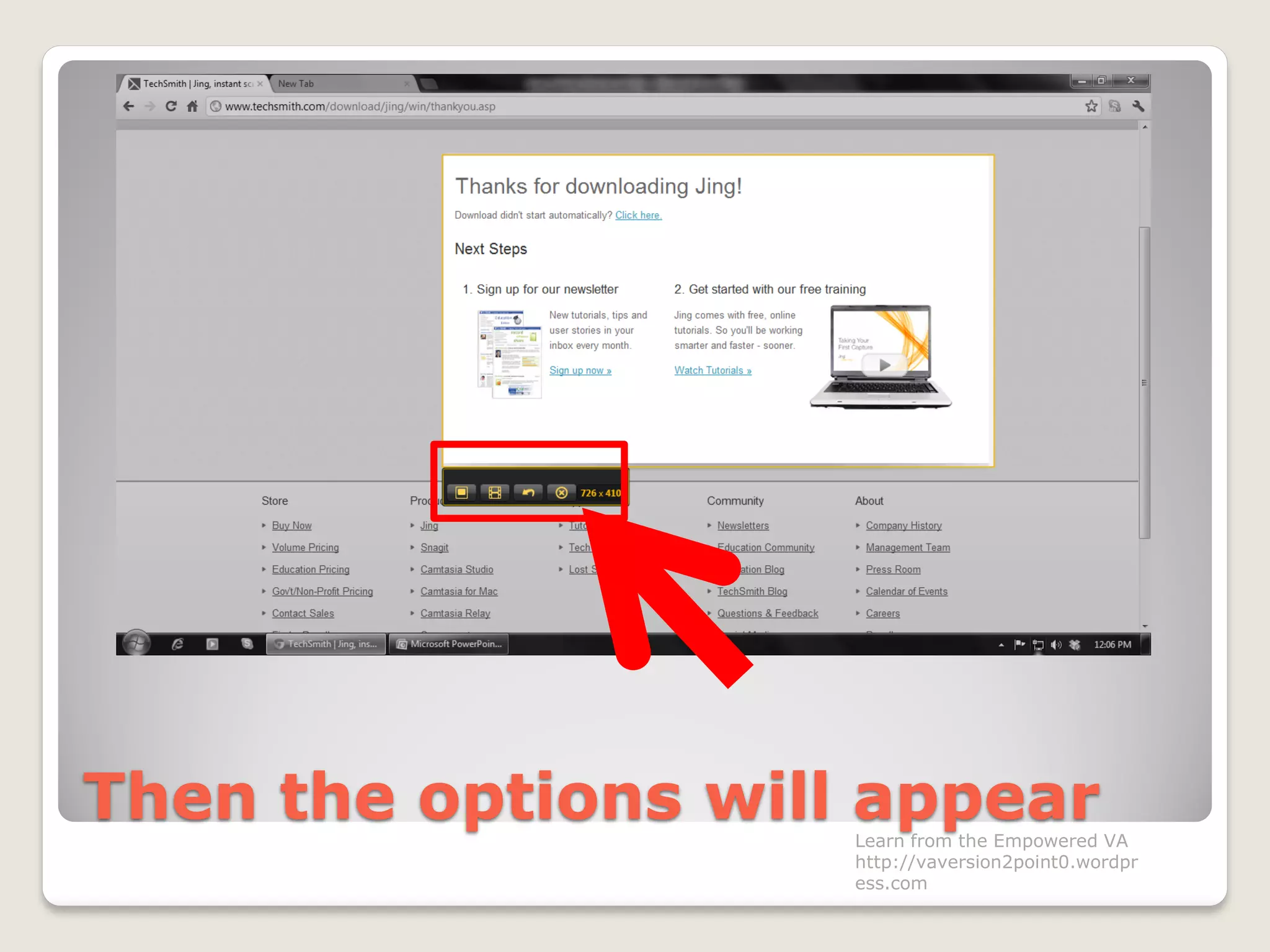
Then the options will appearLearn from the Empowered VA
http://vaversion2point0.wordpr
ess.com
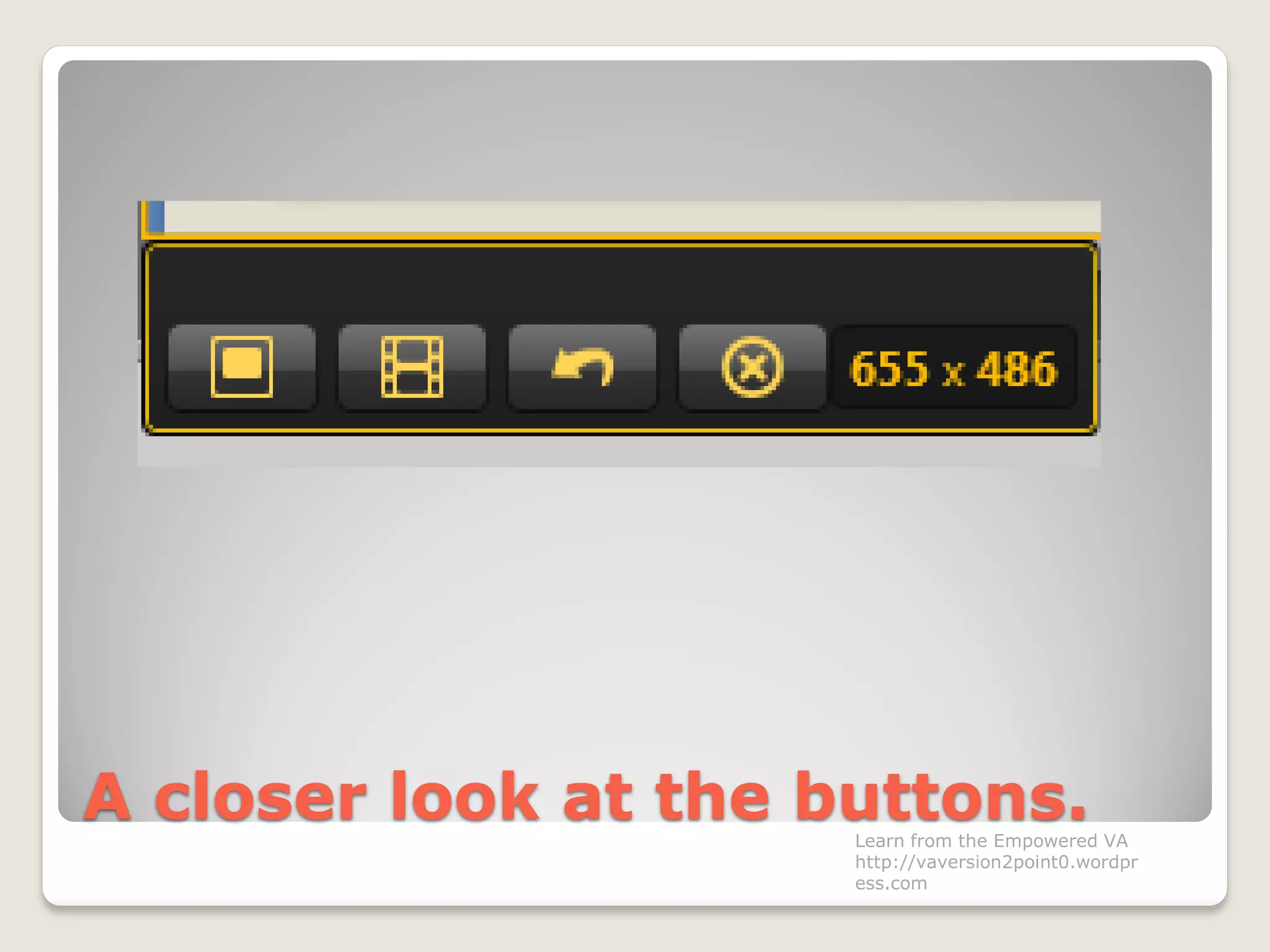
A closer look at the buttons.Learn from the Empowered VA
http://vaversion2point0.wordpr
ess.com
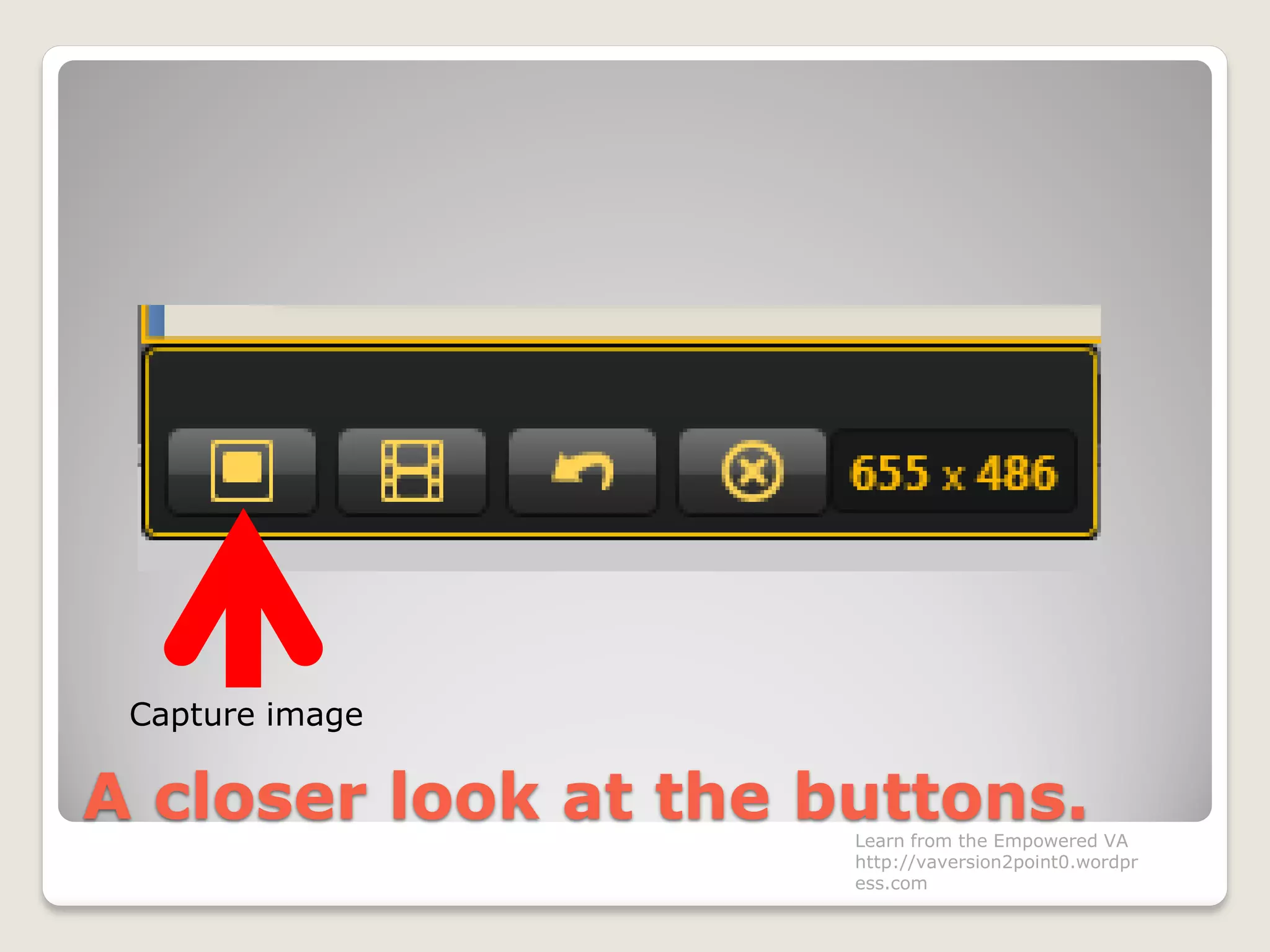
A closer look at the buttons.
Capture image
Learn from the Empowered VA
http://vaversion2point0.wordpr
ess.com
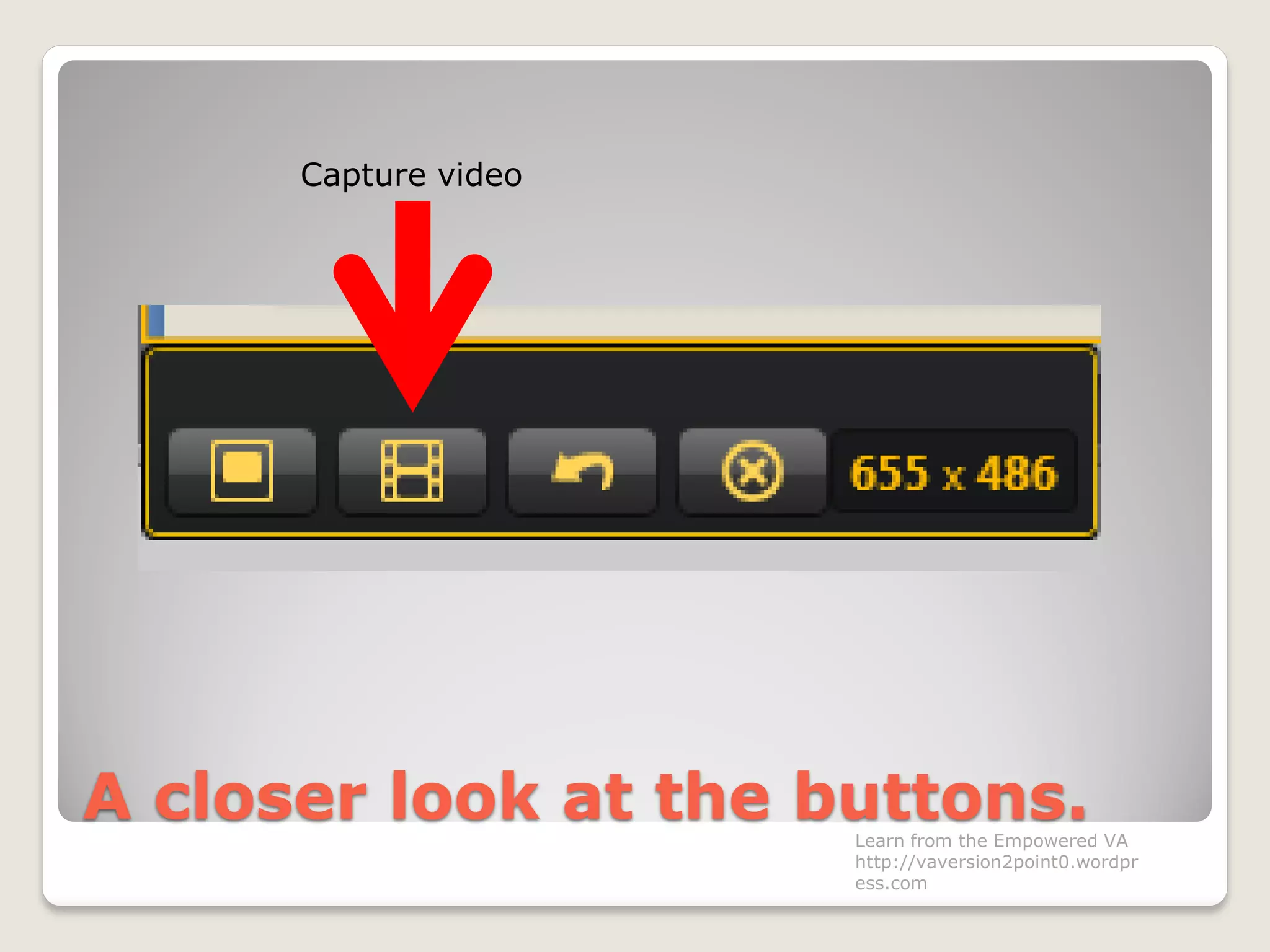
A closer look at the buttons.
Capture video
Learn from the Empowered VA
http://vaversion2point0.wordpr
ess.com
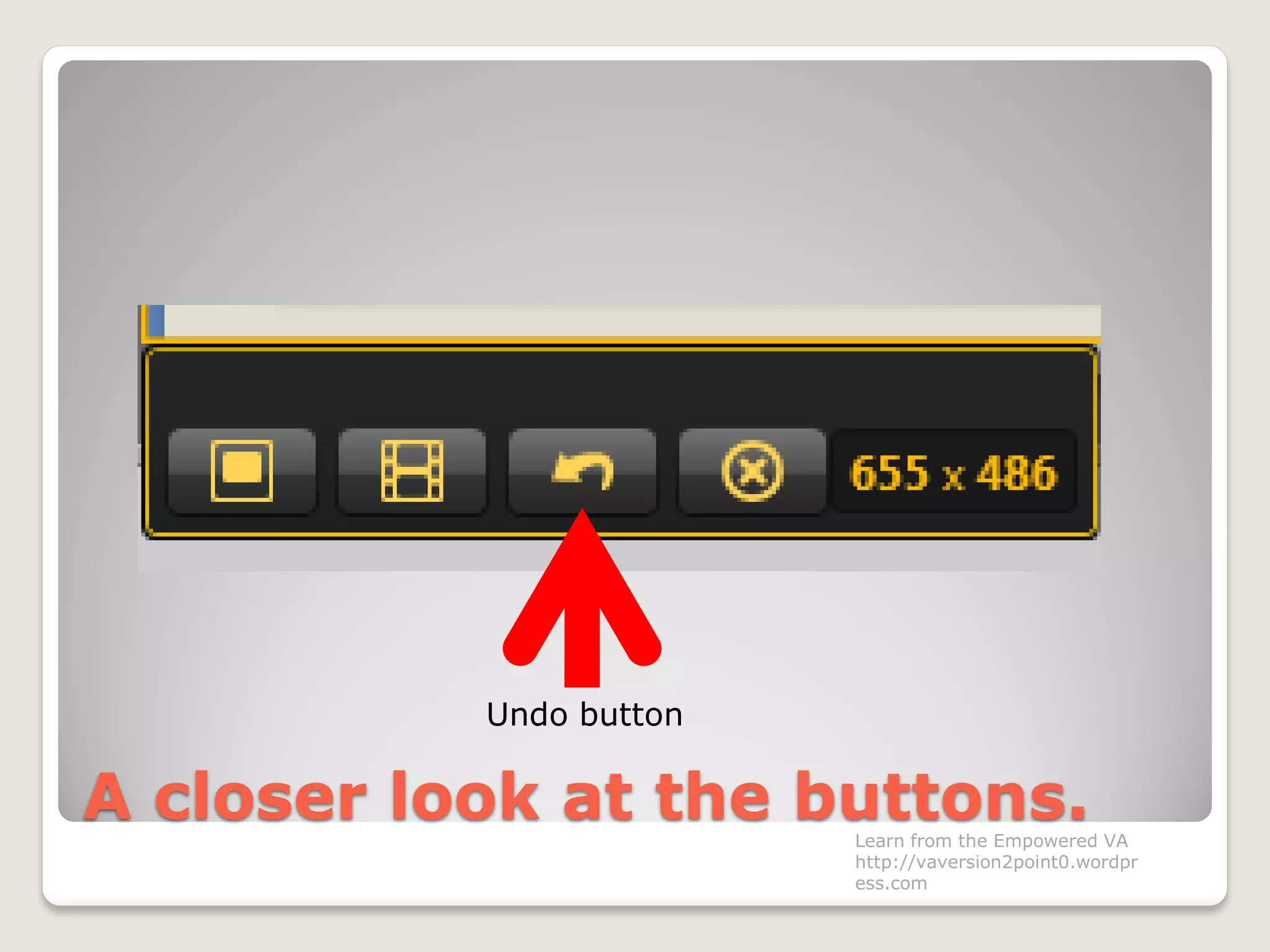
A closer look at the buttons.
Undo button
Learn from the Empowered VA
http://vaversion2point0.wordpr
ess.com
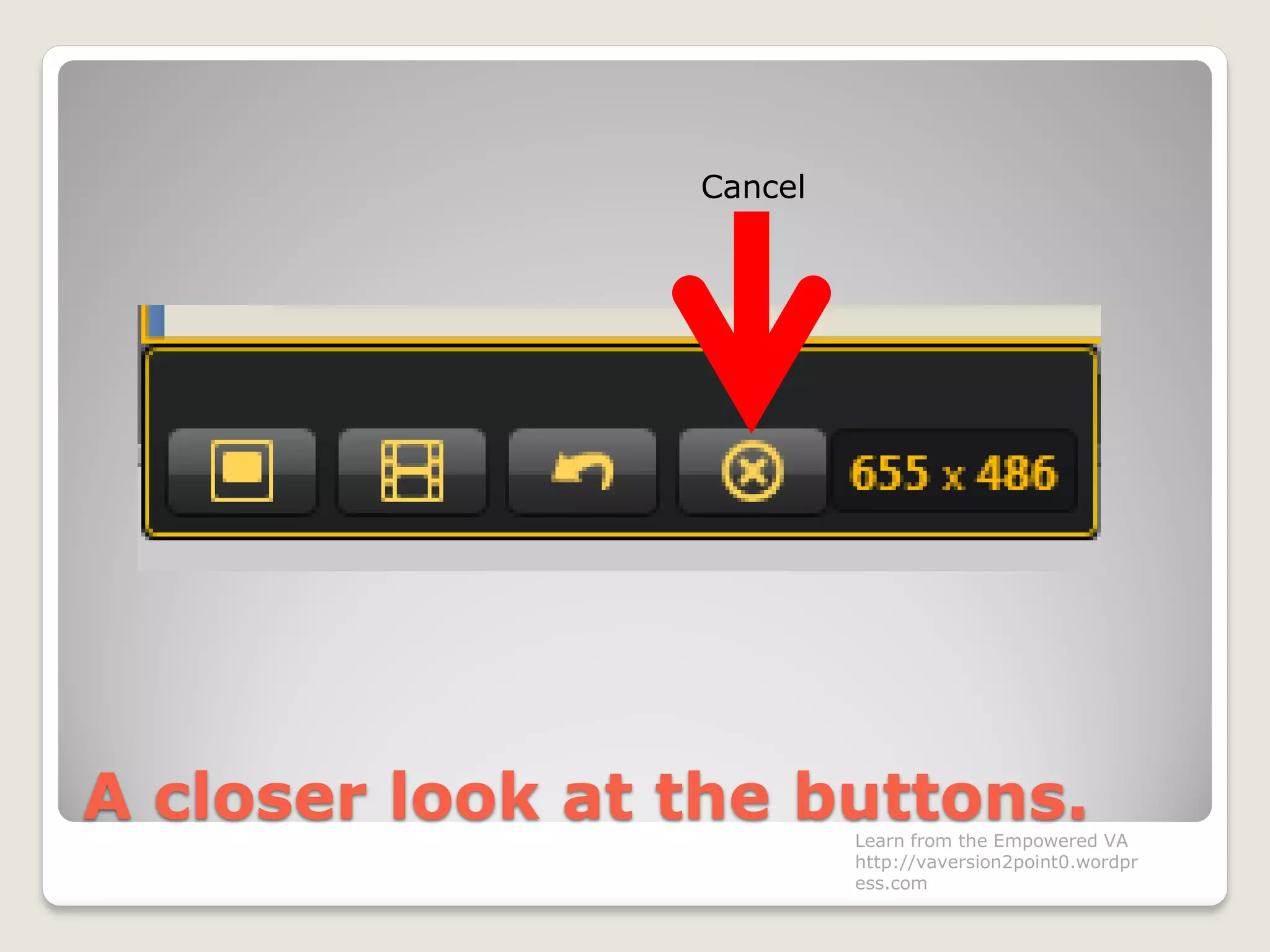
A closer look at the buttons.
Cancel
Learn from the Empowered VA
http://vaversion2point0.wordpr
ess.com
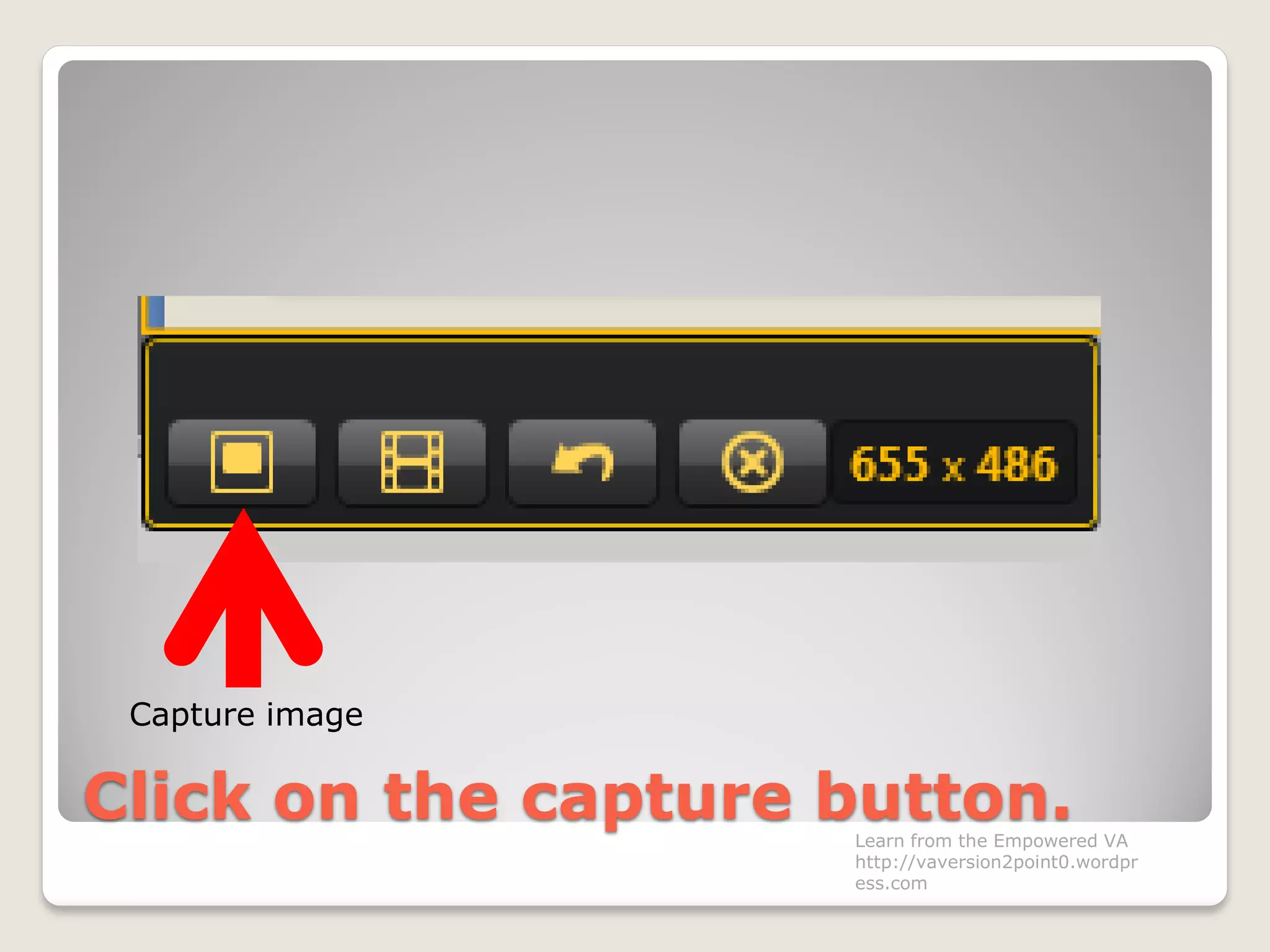
Click on the capture button.
Capture image
Learn from the Empowered VA
http://vaversion2point0.wordpr
ess.com
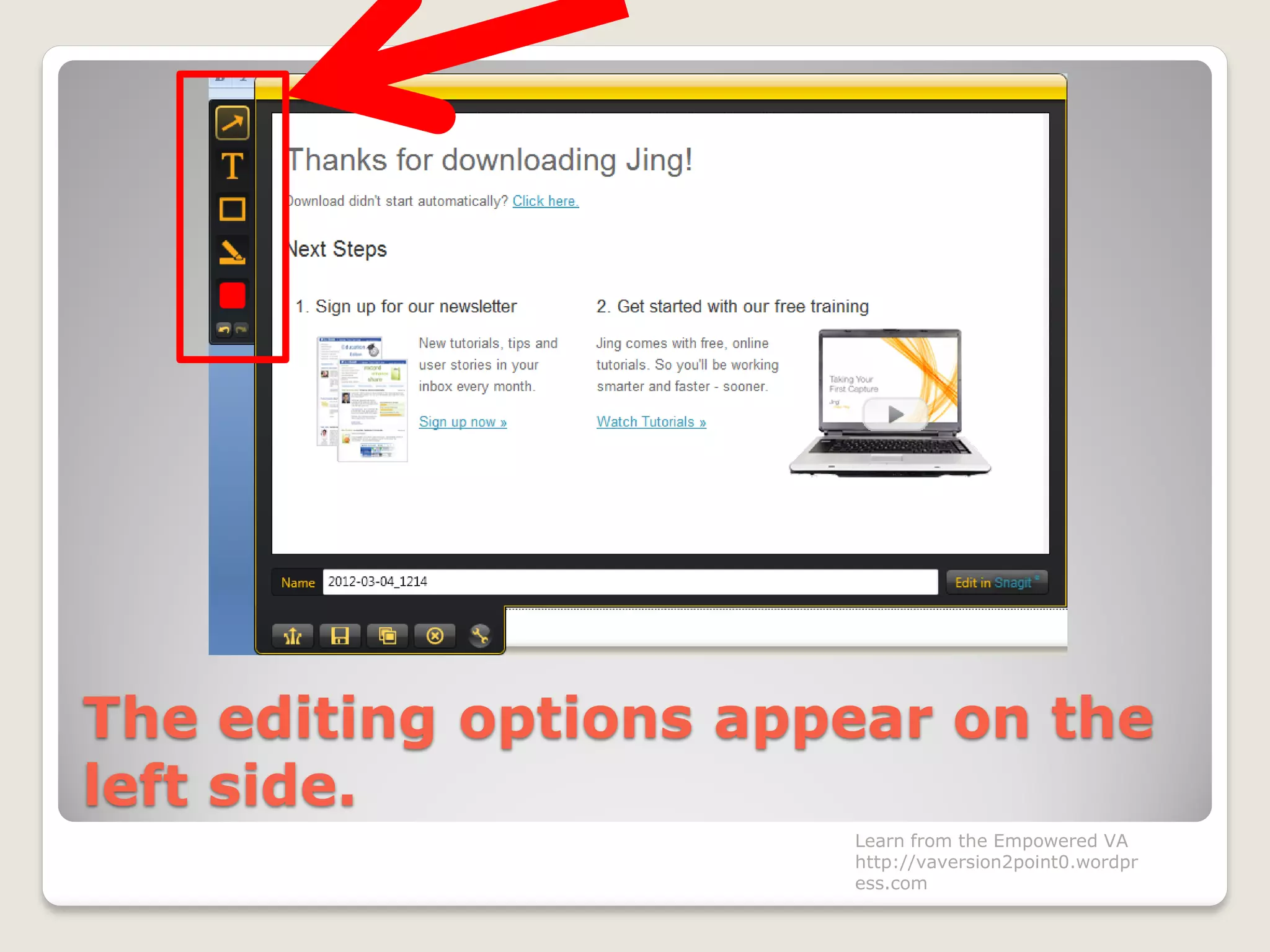
The editing options appear on the
left side.
Learn from the Empowered VA
http://vaversion2point0.wordpr
ess.com
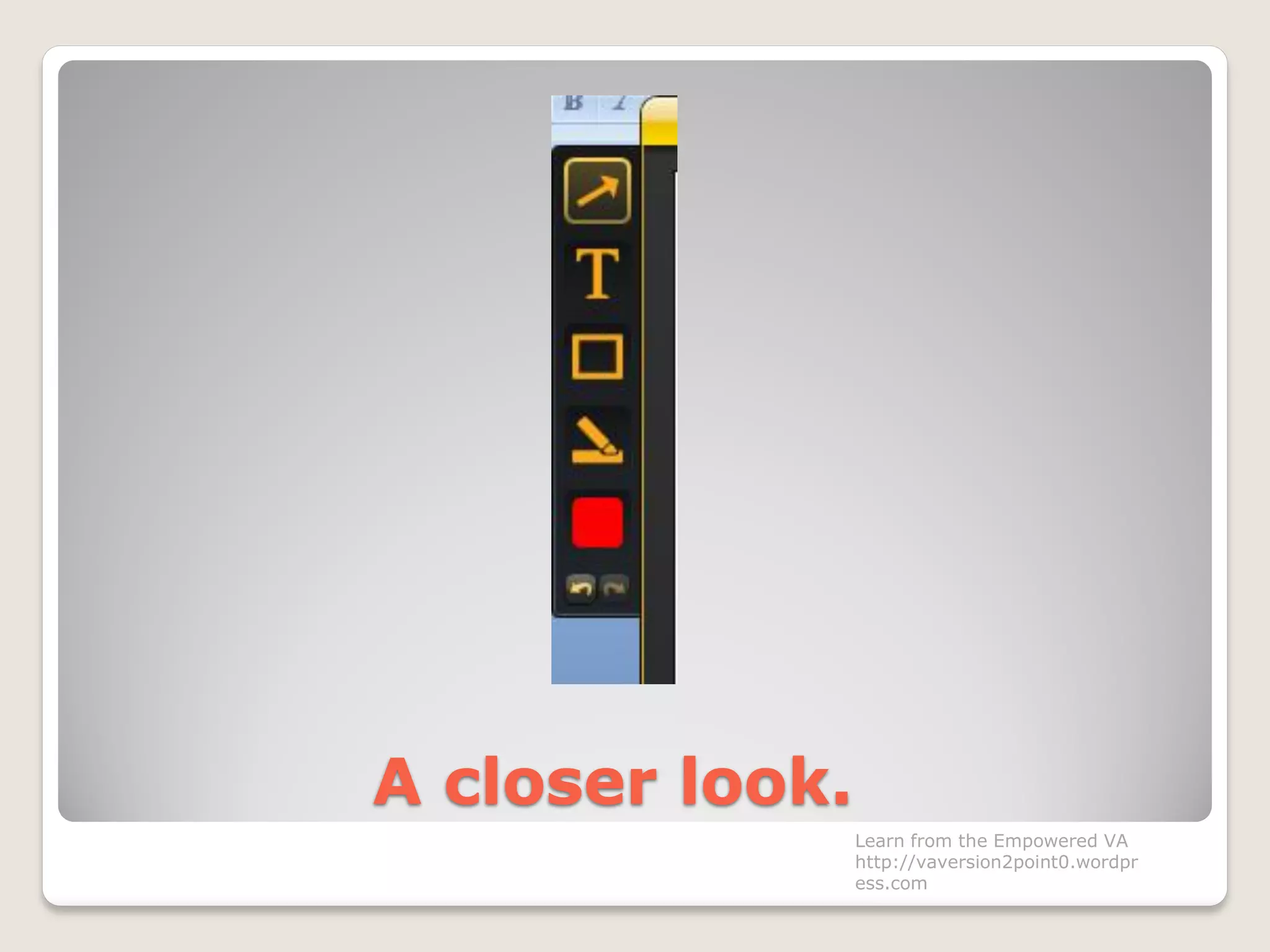
A closer look.
Learn from the Empowered VA
http://vaversion2point0.wordpr
ess.com
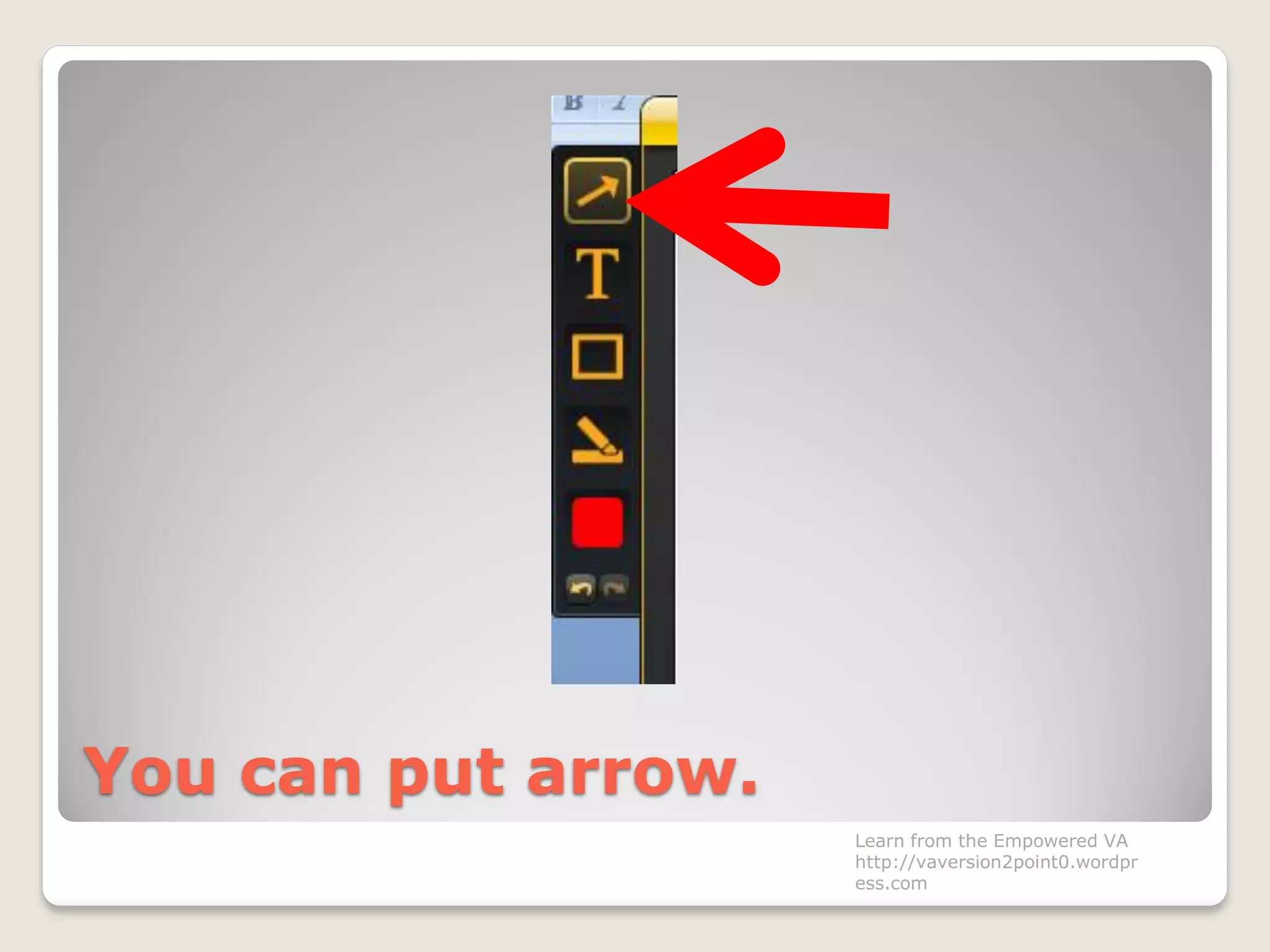
You can put arrow.
Learn from the Empowered VA
http://vaversion2point0.wordpr
ess.com
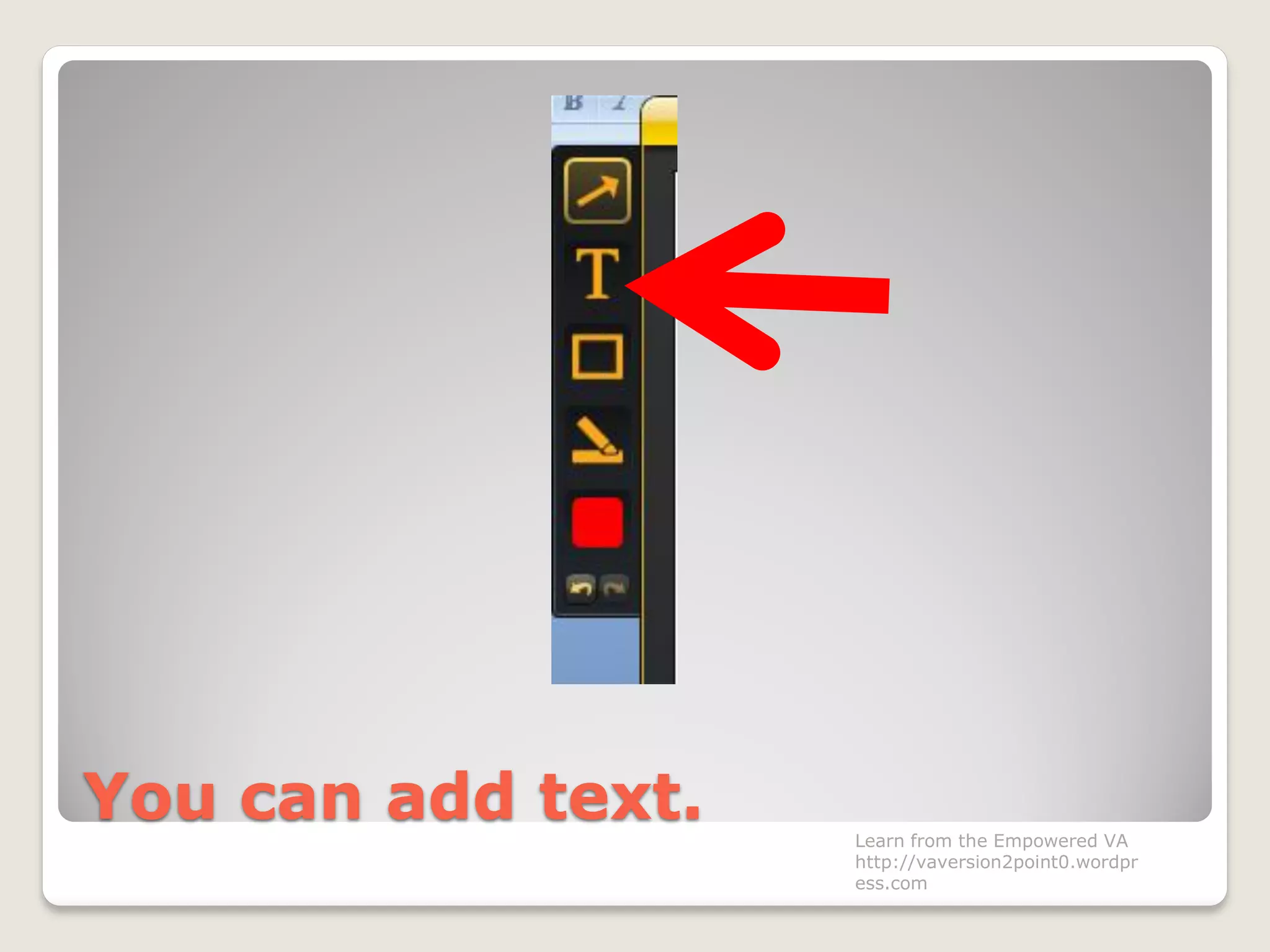
You can add text. Learn from the Empowered VA
http://vaversion2point0.wordpr
ess.com
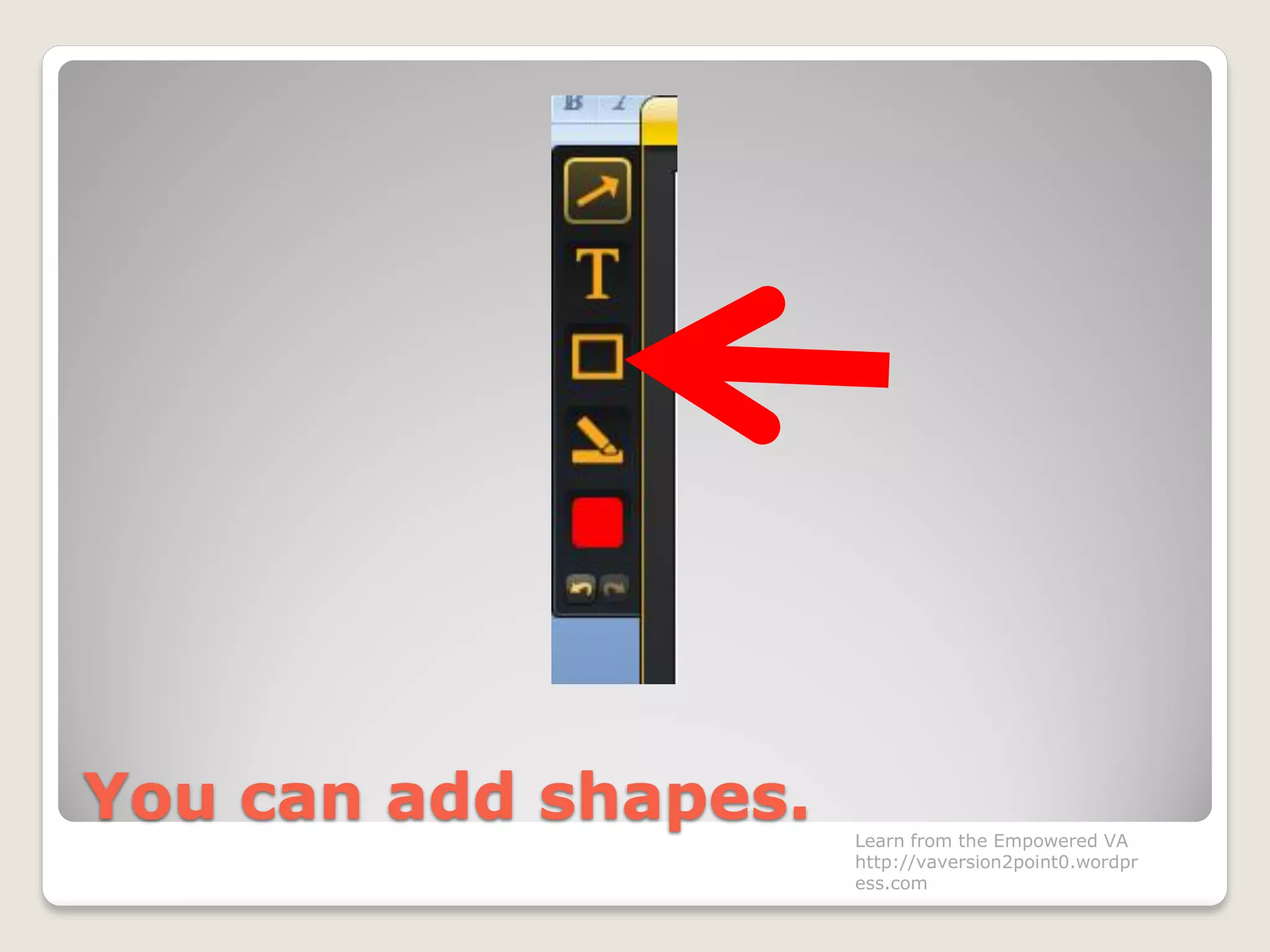
You can add shapes. Learn from the Empowered VA
http://vaversion2point0.wordpr
ess.com
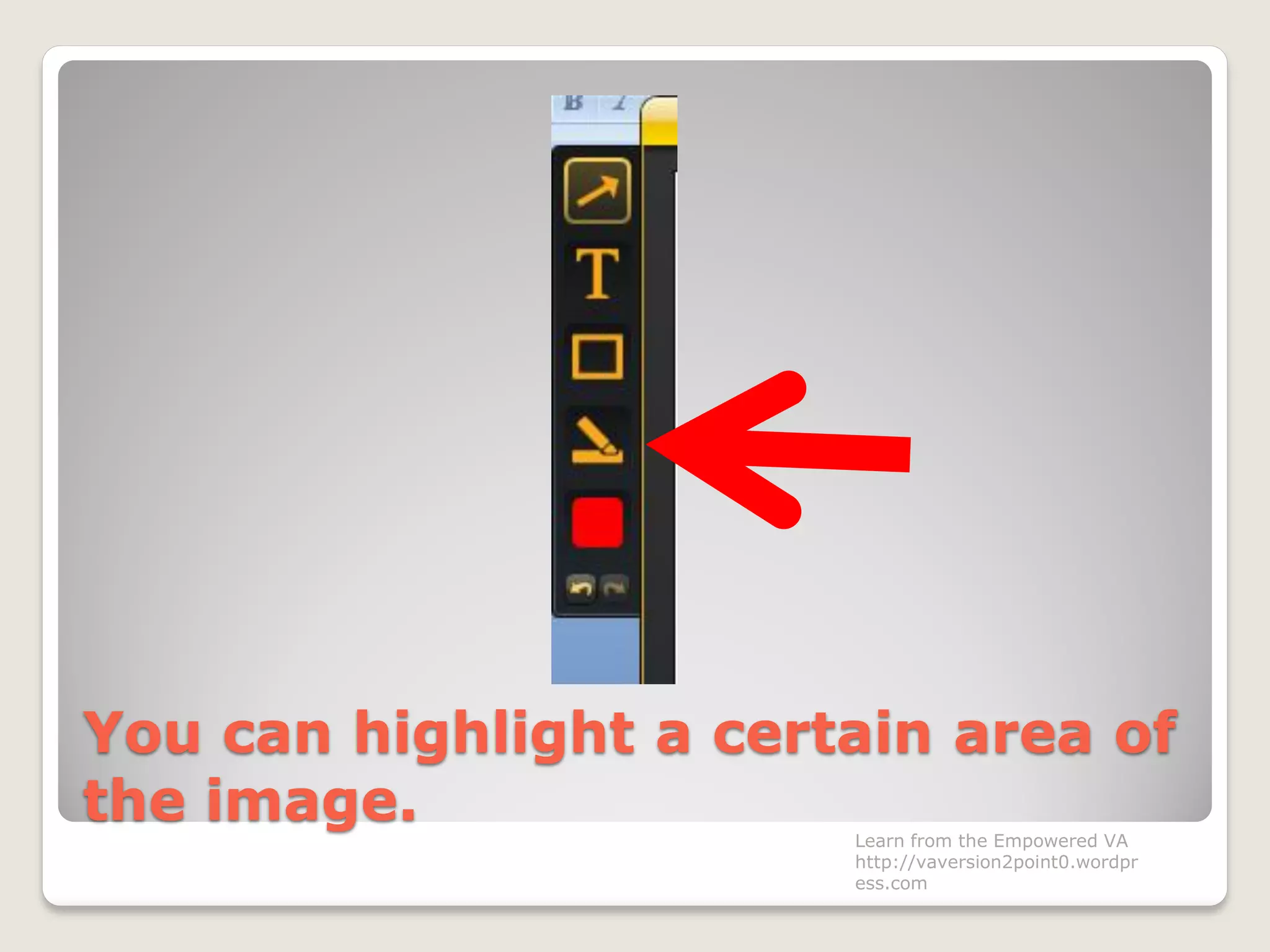
You can highlight a certain area of
the image. Learn from the Empowered VA
http://vaversion2point0.wordpr
ess.com
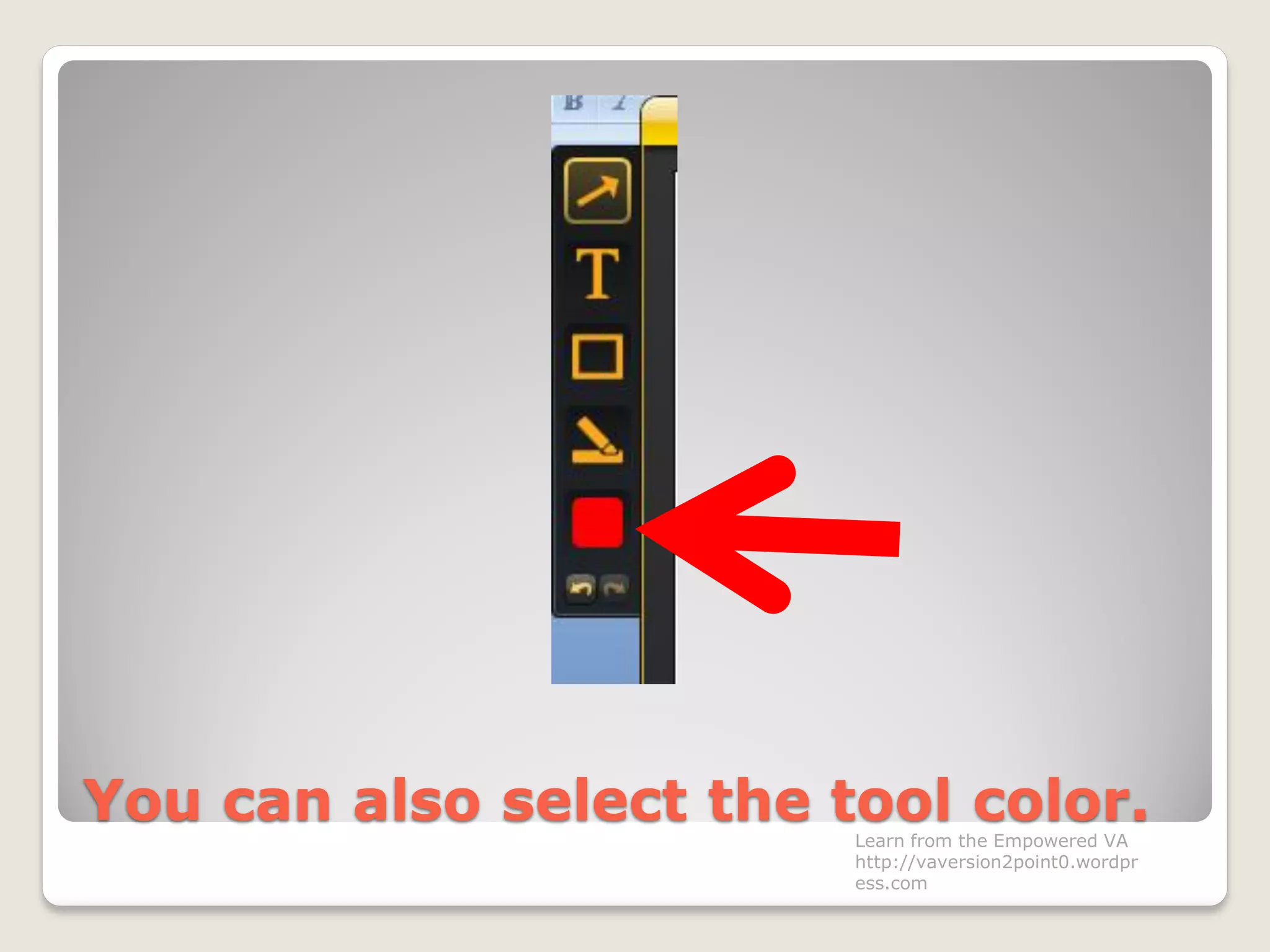
You can also select the tool color.Learn from the Empowered VA
http://vaversion2point0.wordpr
ess.com
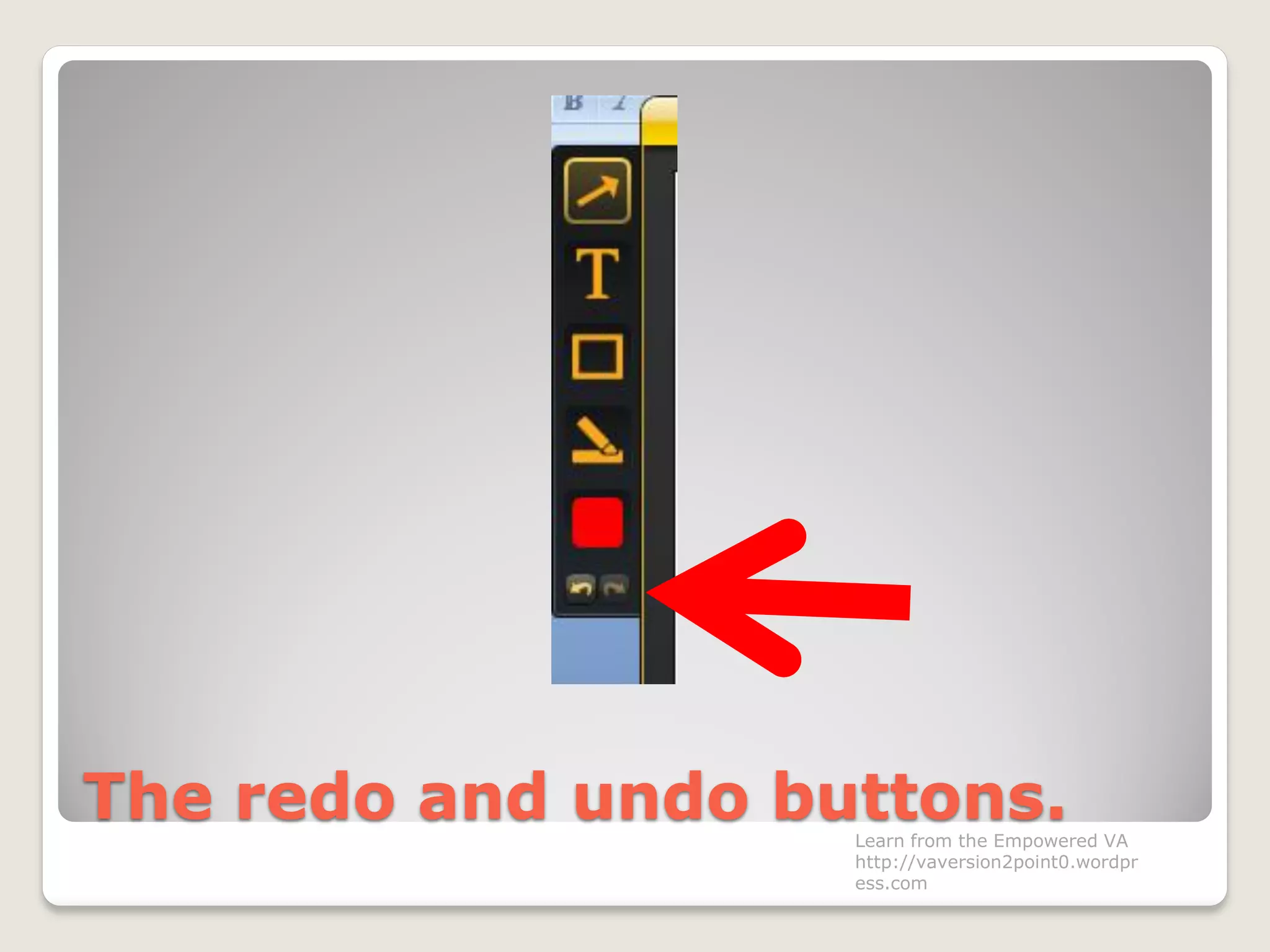
The redo and undo buttons.Learn from the Empowered VA
http://vaversion2point0.wordpr
ess.com
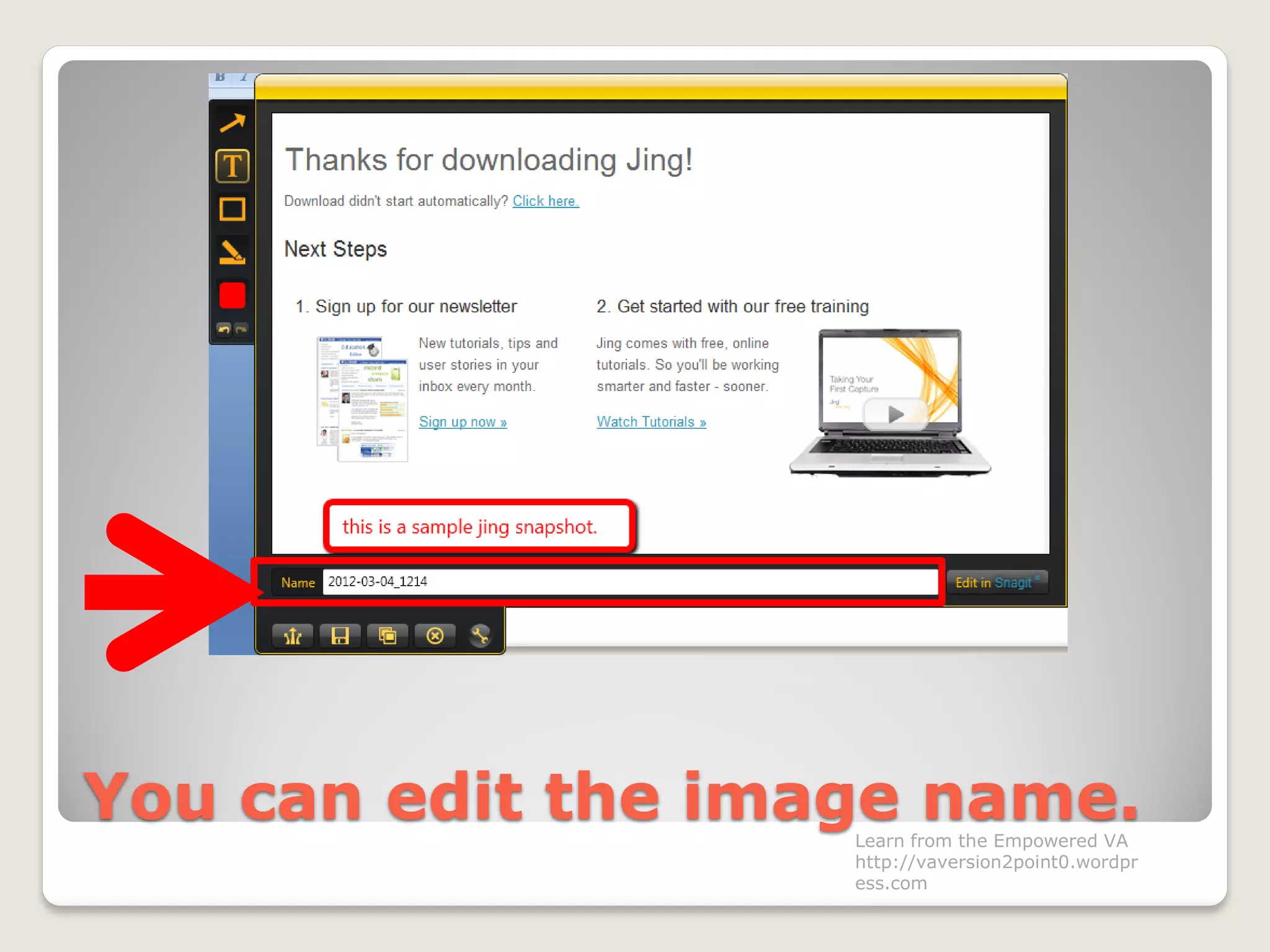
You can edit the image name.Learn from the Empowered VA
http://vaversion2point0.wordpr
ess.com
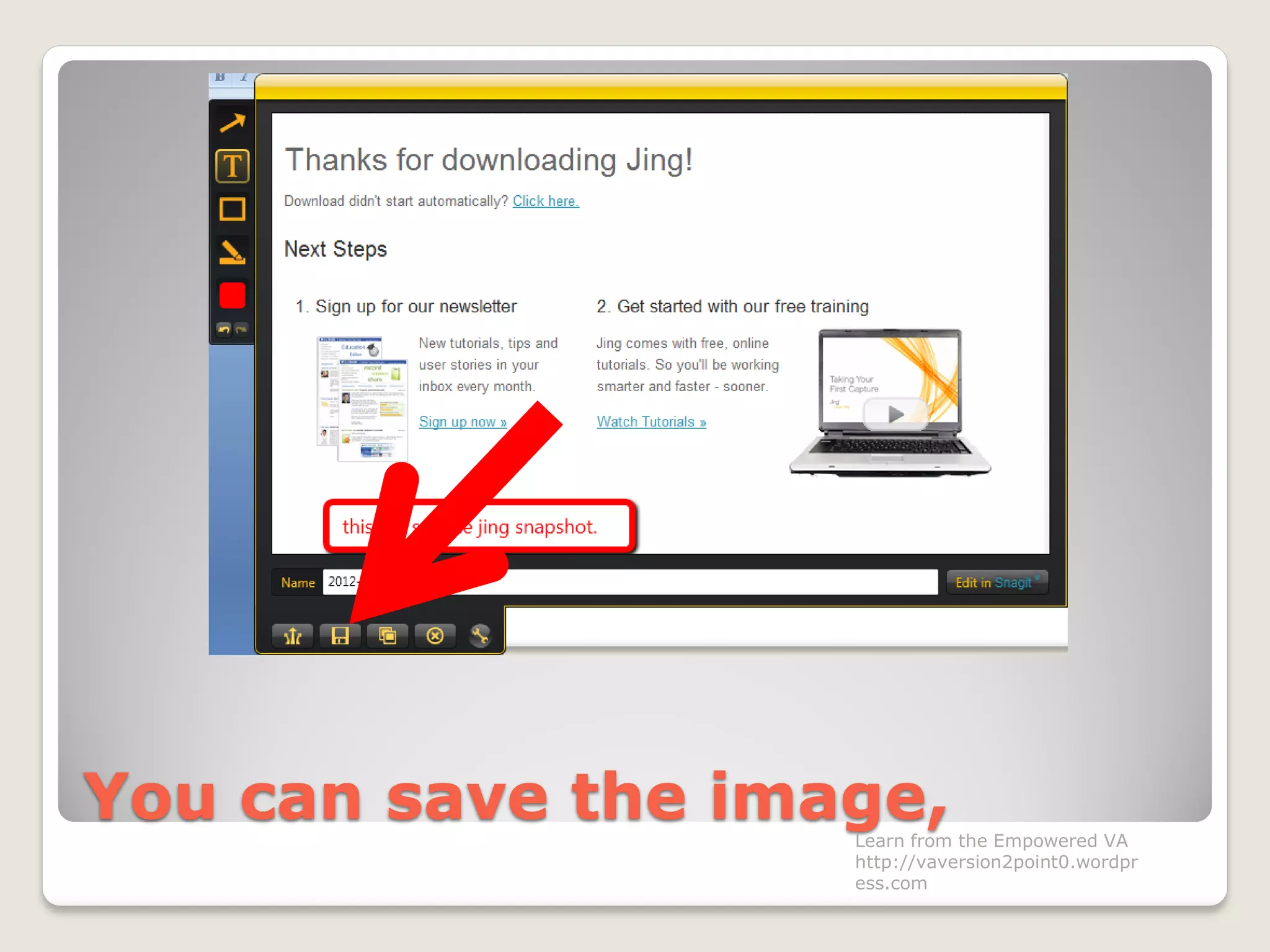
You can save the image,Learn from the Empowered VA
http://vaversion2point0.wordpr
ess.com
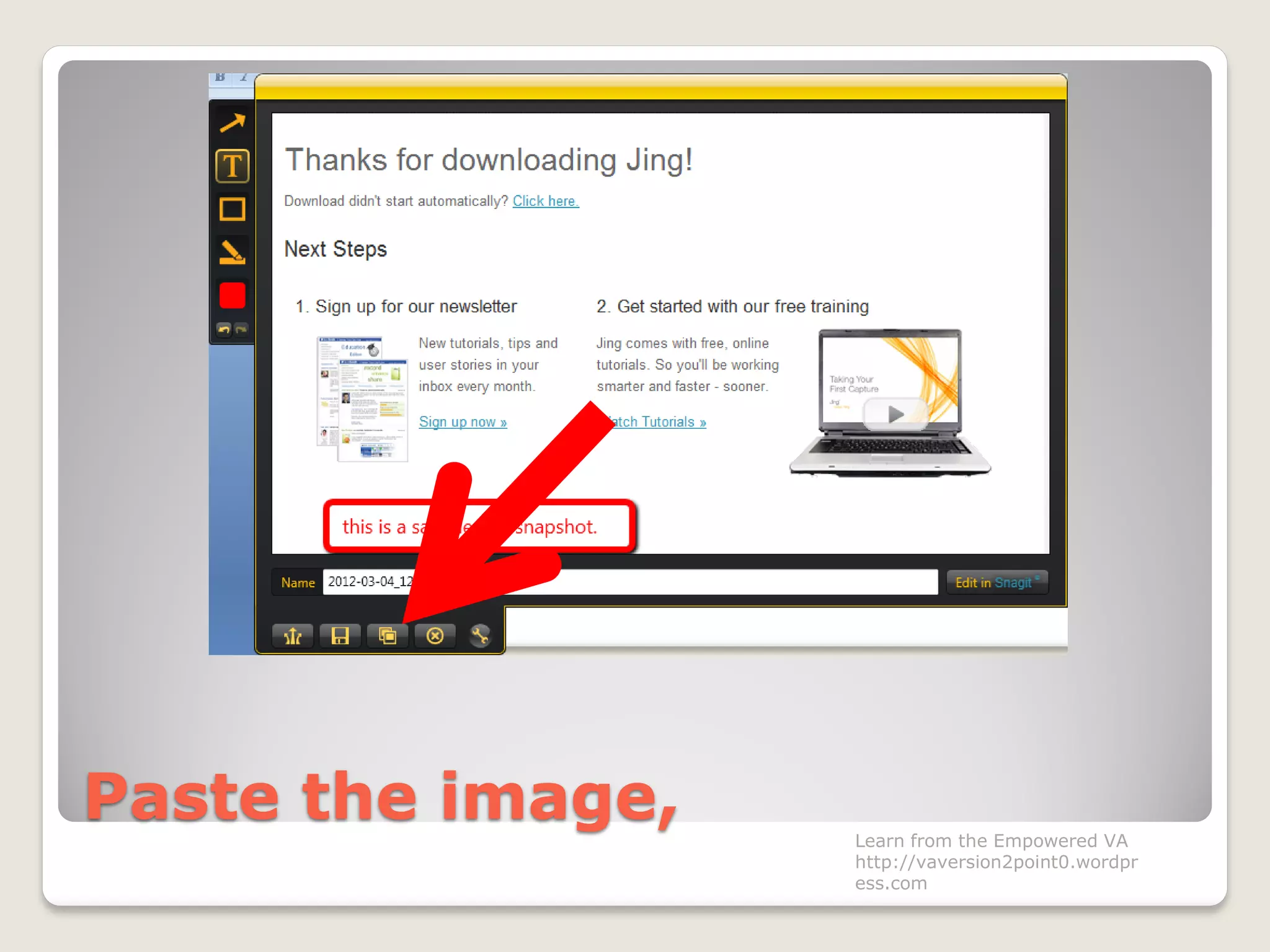
Paste the image, Learn from the Empowered VA
http://vaversion2point0.wordpr
ess.com
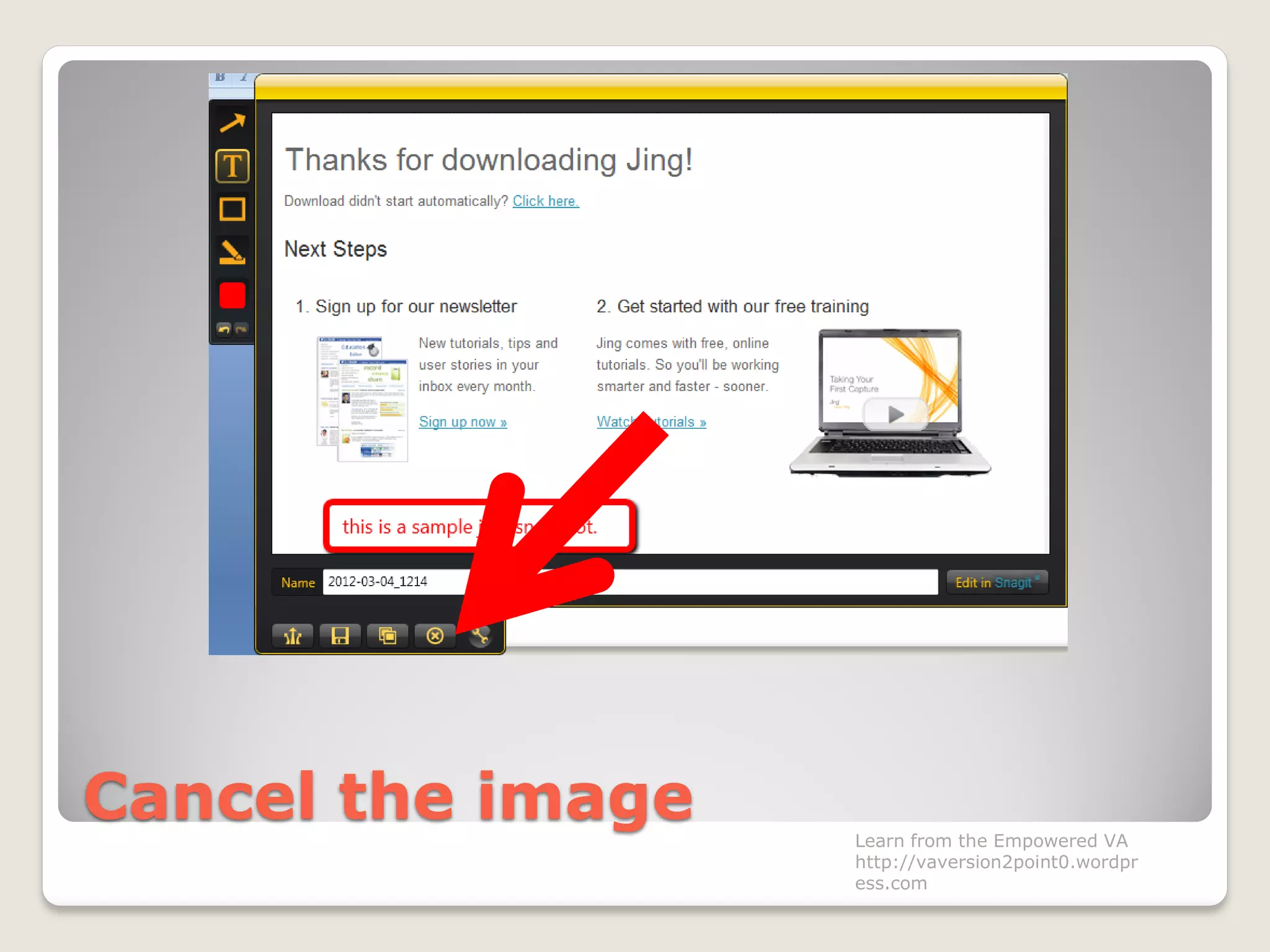
Cancel the image Learn from the Empowered VA
http://vaversion2point0.wordpr
ess.com
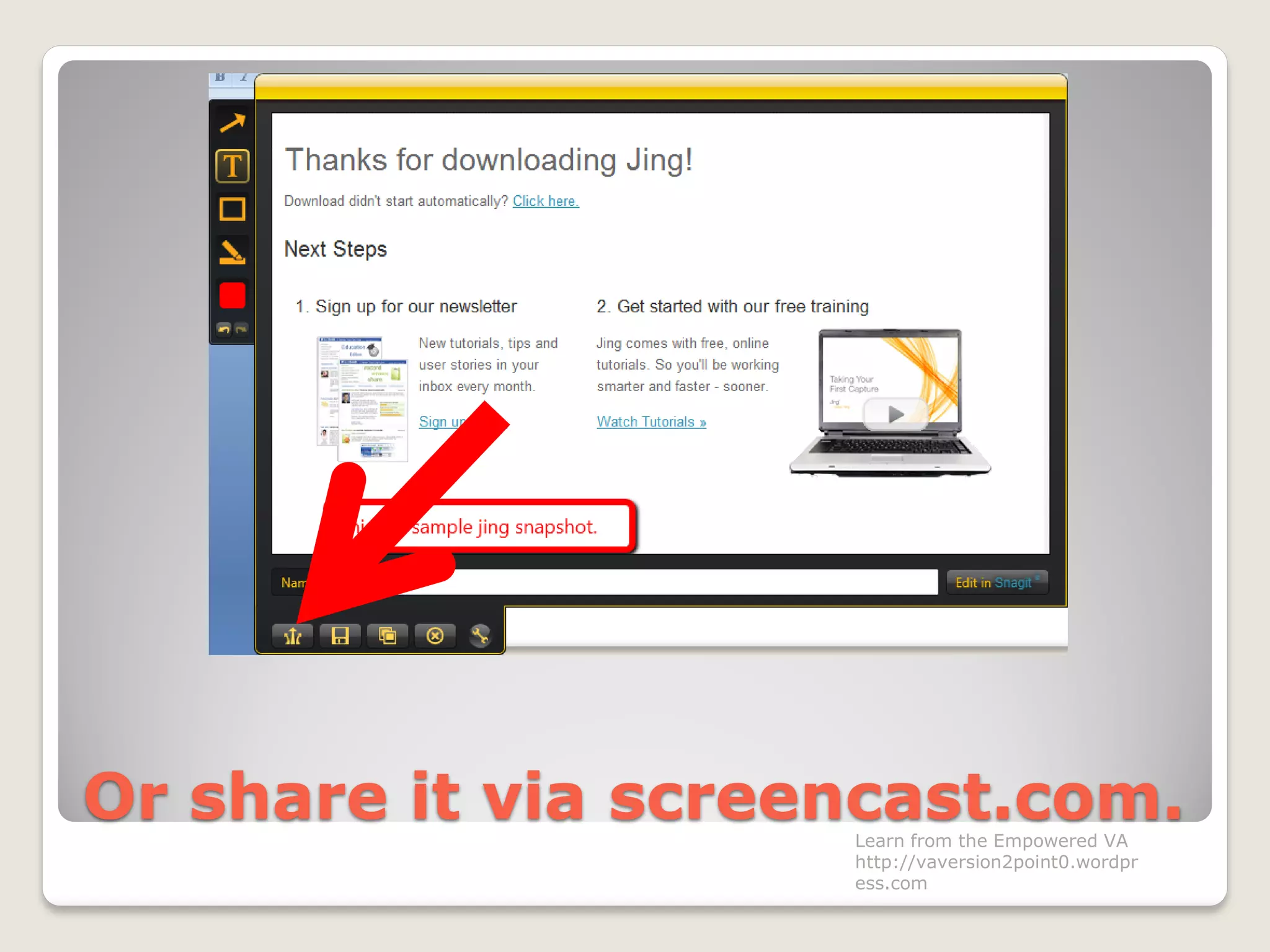
Or share it via screencast.com.Learn from the Empowered VA
http://vaversion2point0.wordpr
ess.com
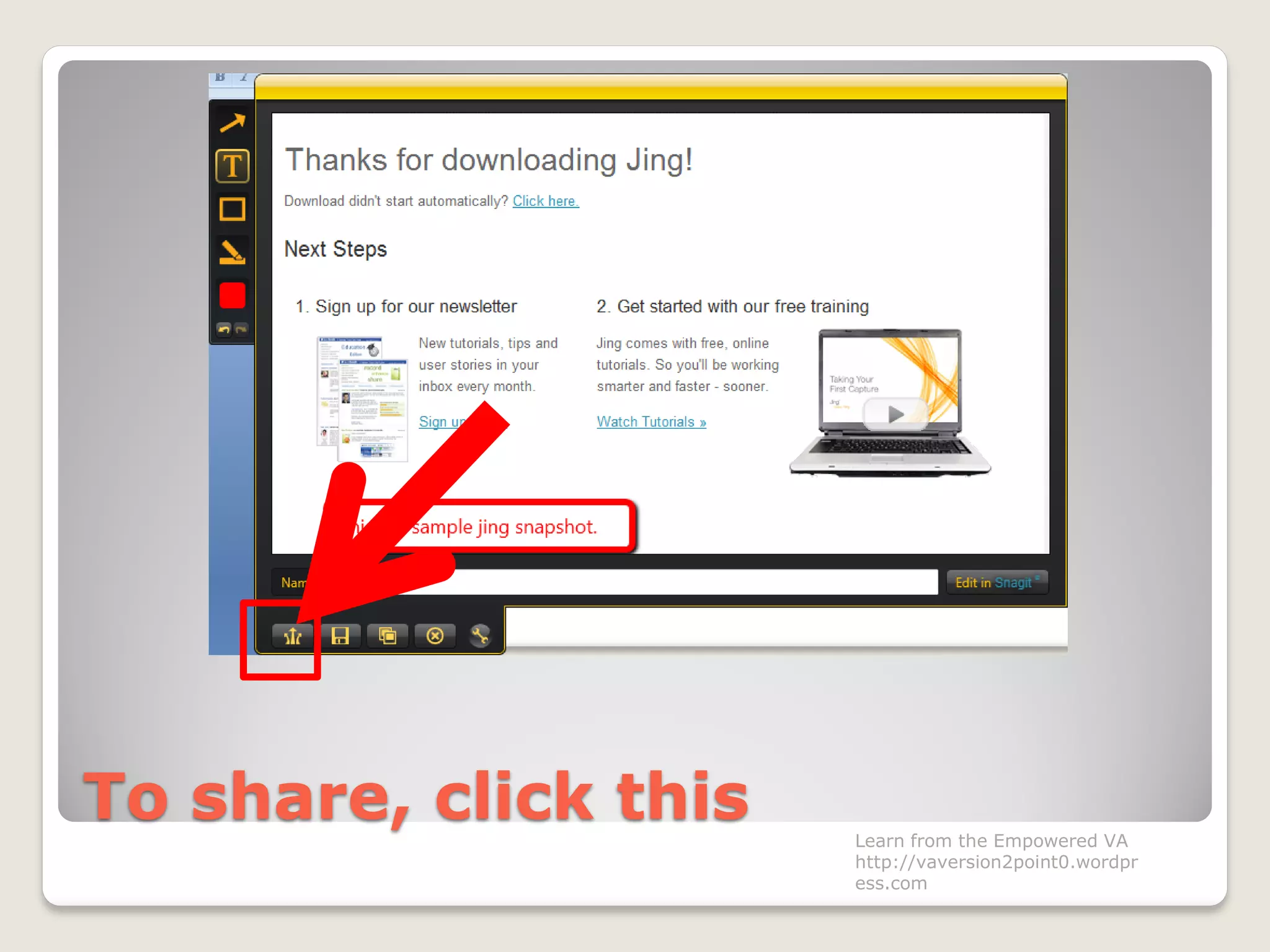
To share, click this Learn from the Empowered VA
http://vaversion2point0.wordpr
ess.com
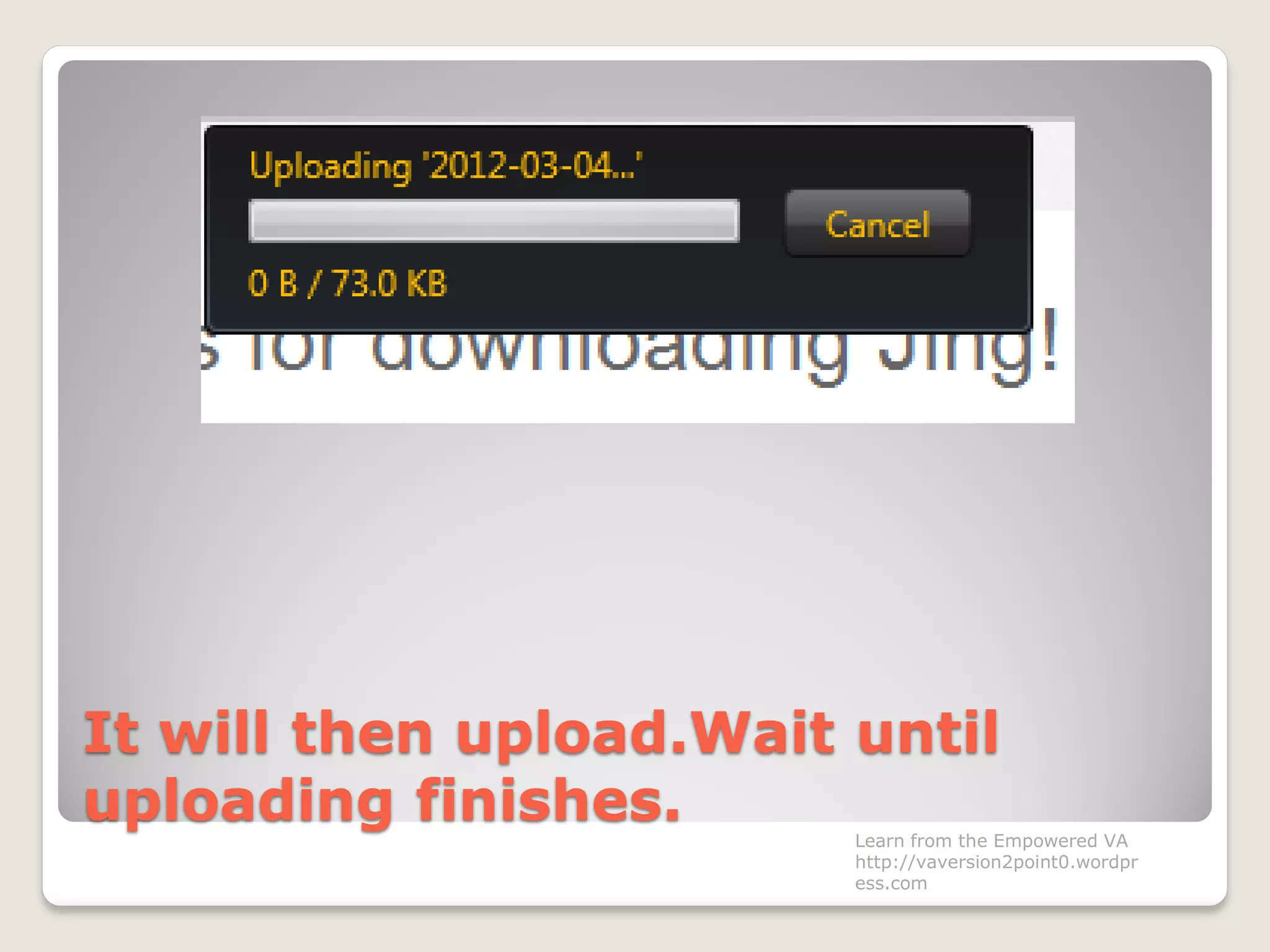
It will then upload.Wait until
uploading finishes. Learn from the Empowered VA
http://vaversion2point0.wordpr
ess.com
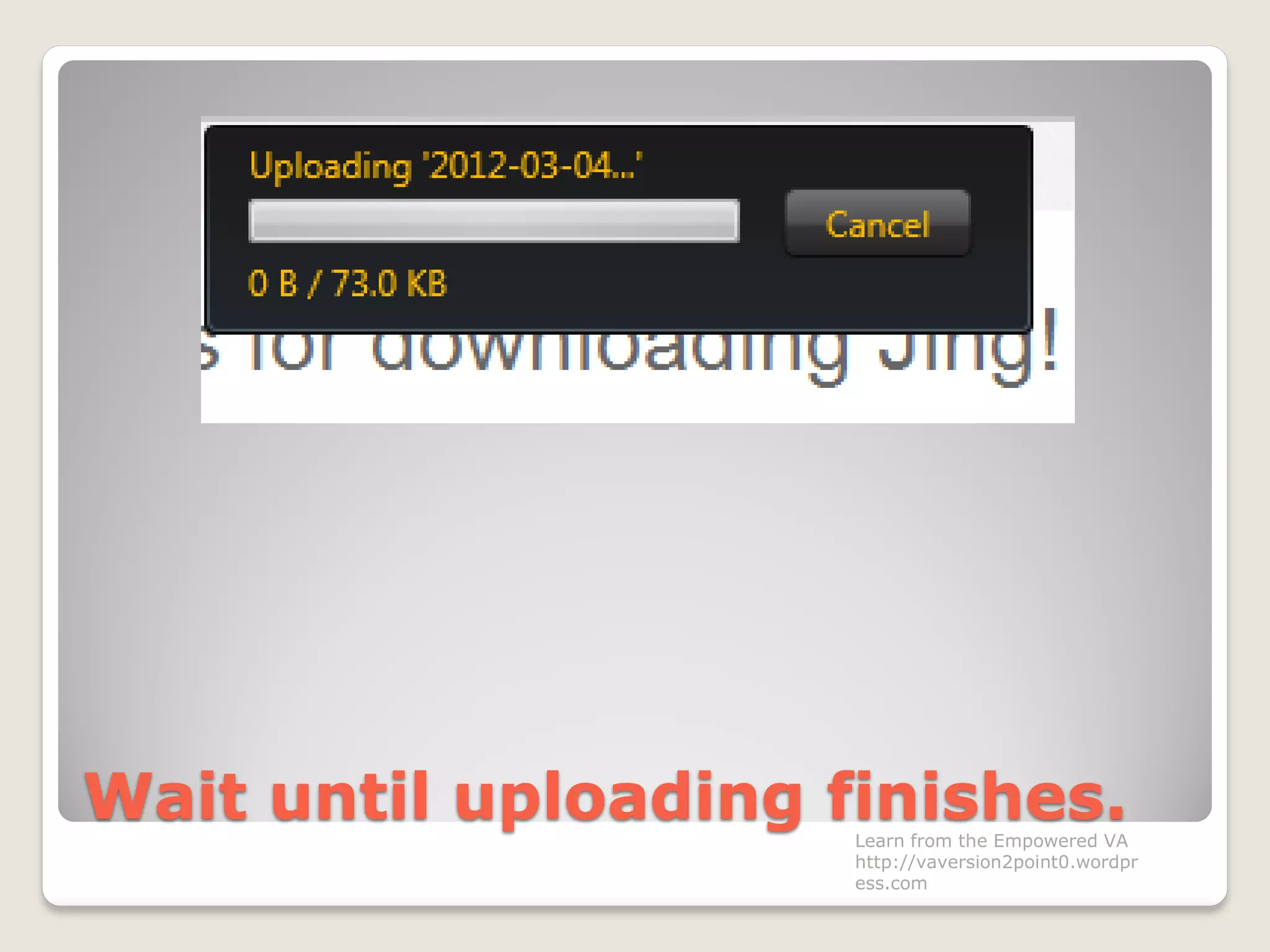
Wait until uploading finishes.Learn from the Empowered VA
http://vaversion2point0.wordpr
ess.com
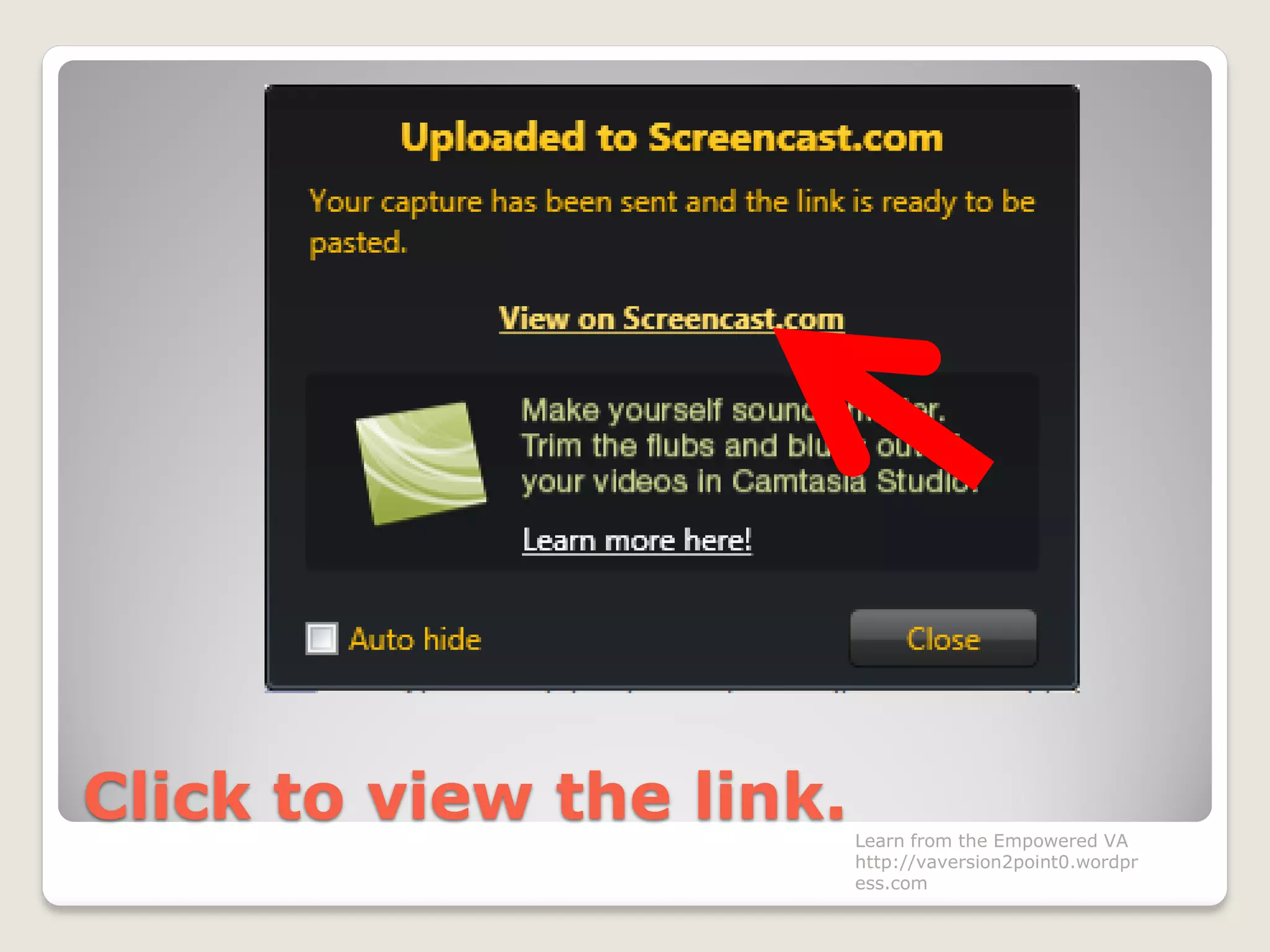
This box will appear Learn from the Empowered VA
http://vaversion2point0.wordpr
ess.com
Click to view the link.Learn from the Empowered VA
http://vaversion2point0.wordpr
ess.com
Your image link is ready.
Learn from the Empowered VA
http://vaversion2point0.wordpr
ess.com
You can post and share to friends.
Learn from the Empowered VA
http://vaversion2point0.wordpr
ess.com
When they click the link,
Learn from the Empowered VA
http://vaversion2point0.wordpr
ess.com
they can see the captured image.
Learn from the Empowered VA
http://vaversion2point0.wordpr
ess.com
Now we will try to use the video .
Learn from the Empowered VA
http://vaversion2point0.wordpr
ess.com
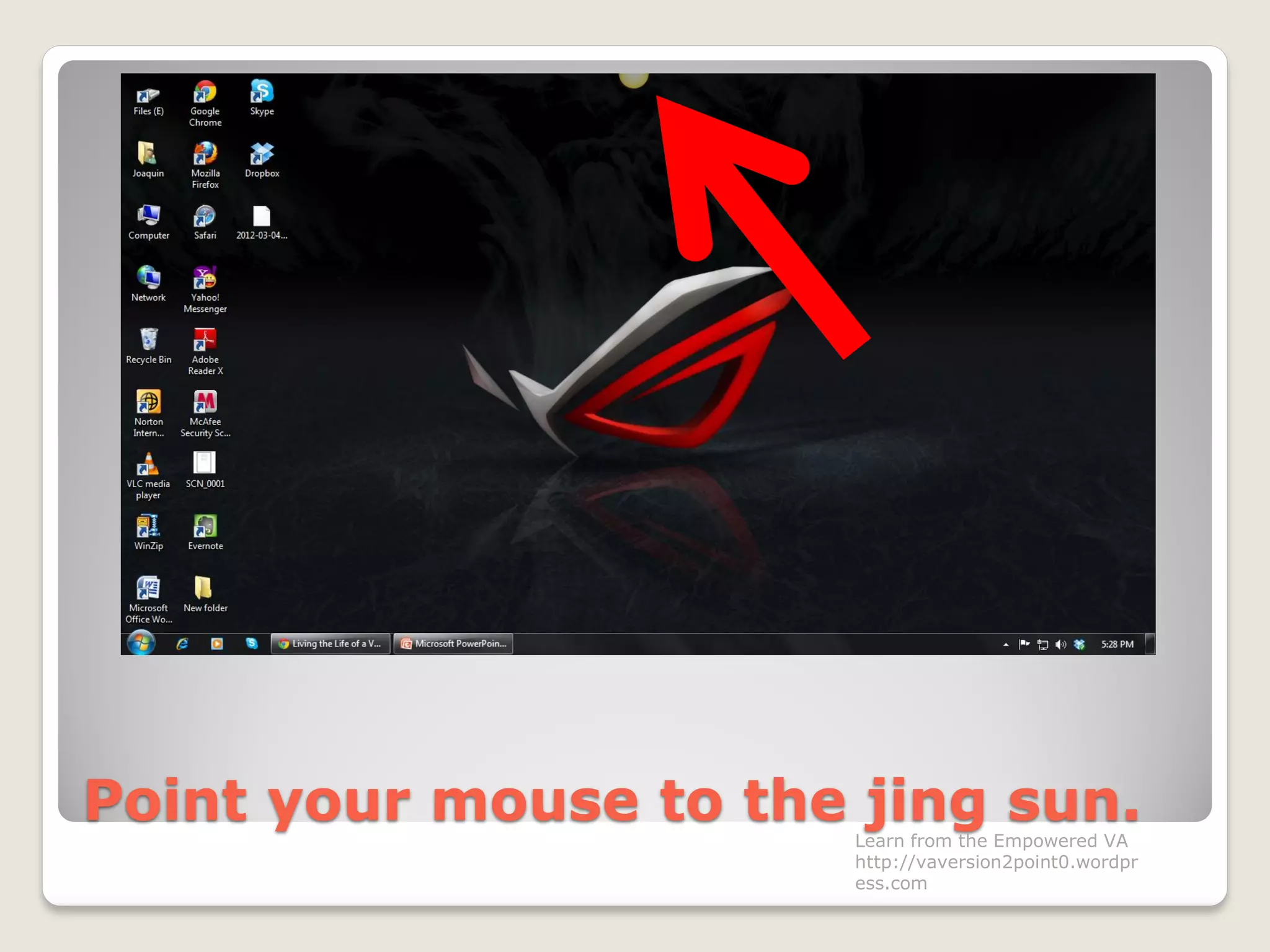
Point your mouse to the jing sun.Learn from the Empowered VA
http://vaversion2point0.wordpr
ess.com
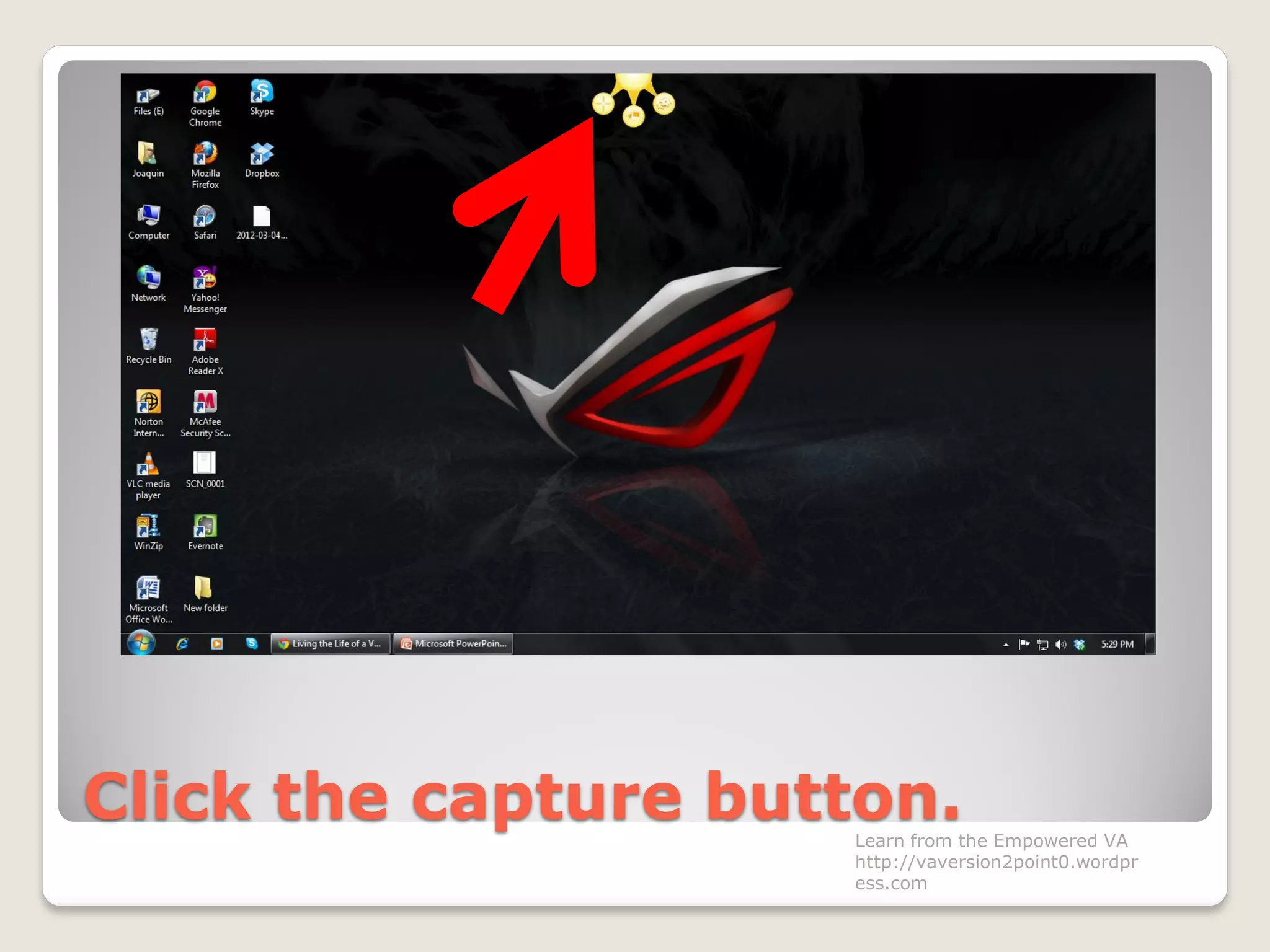
Click the capture button.Learn from the Empowered VA
http://vaversion2point0.wordpr
ess.com
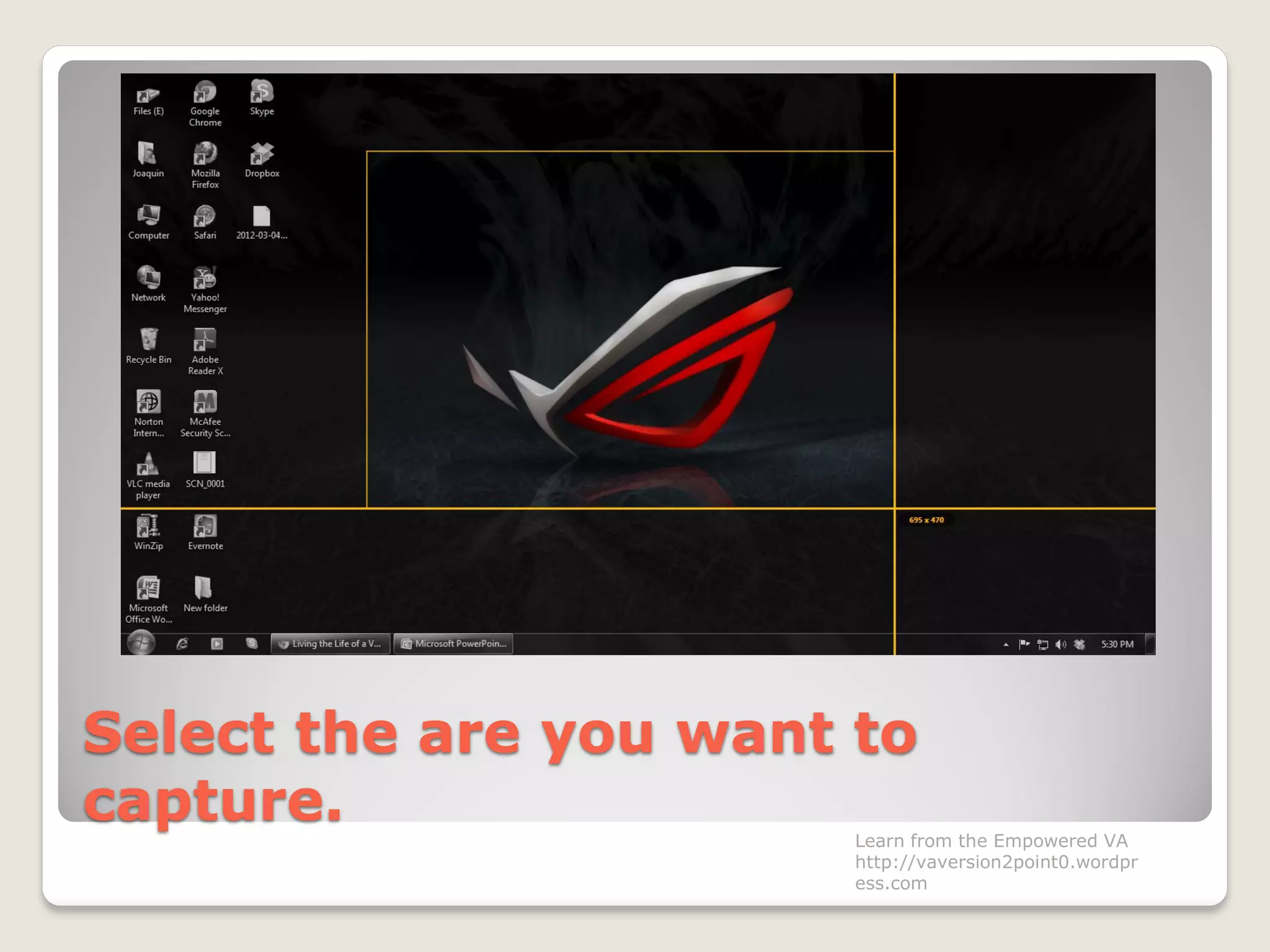
Select the are you want to
capture. Learn from the Empowered VA
http://vaversion2point0.wordpr
ess.com
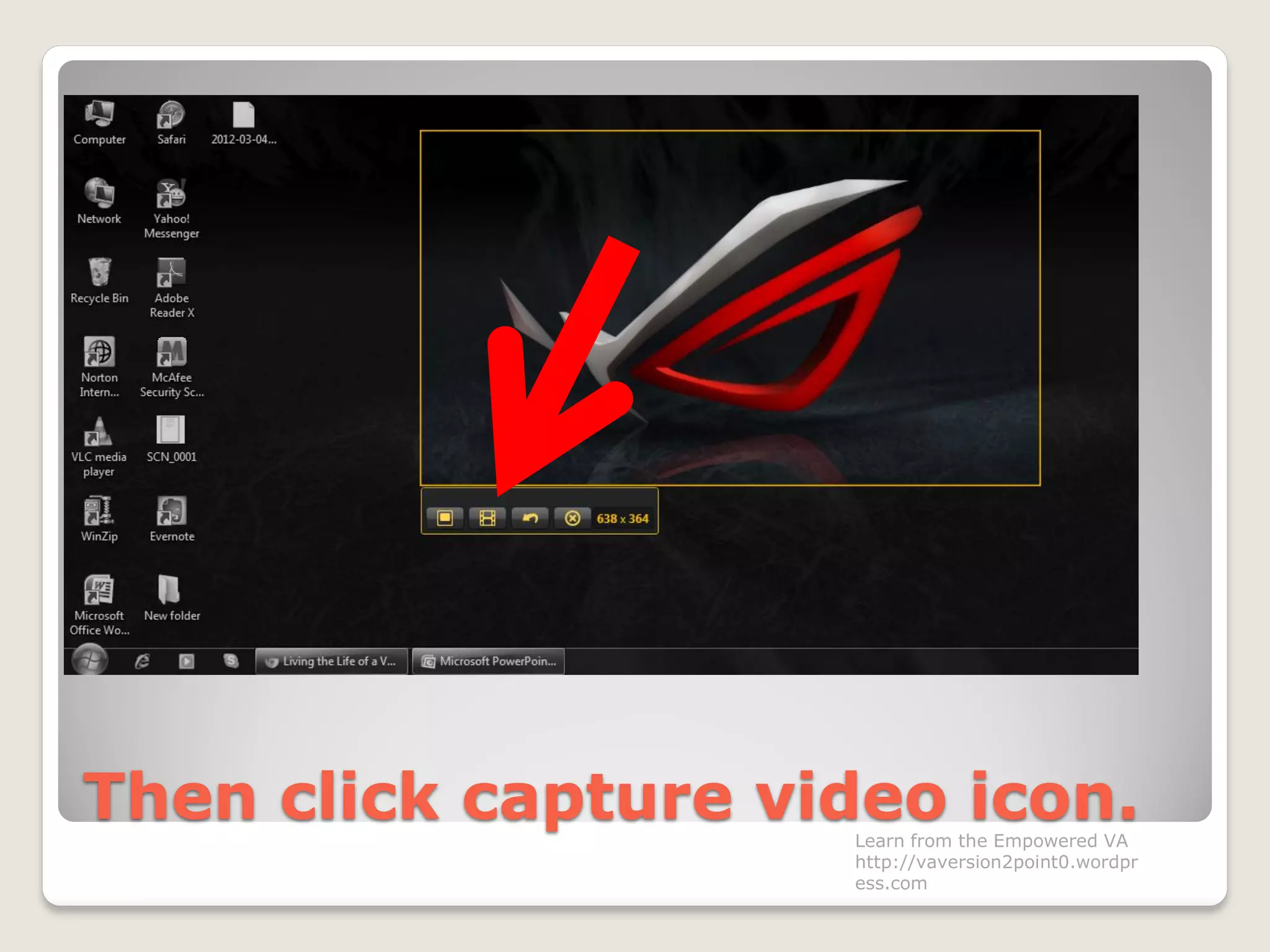
Then click capture video icon.Learn from the Empowered VA
http://vaversion2point0.wordpr
ess.com
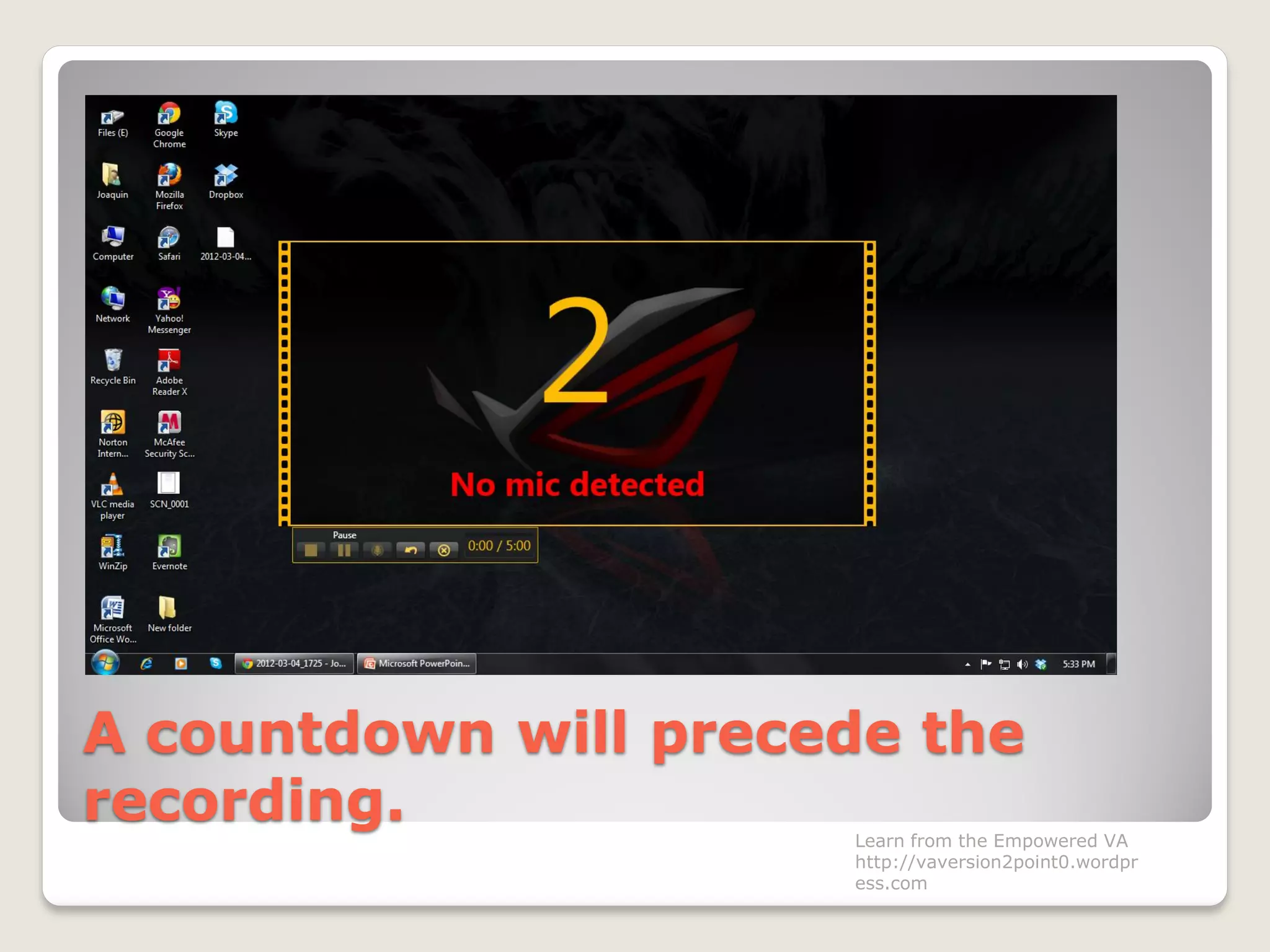
A countdown will precede the
recording. Learn from the Empowered VA
http://vaversion2point0.wordpr
ess.com
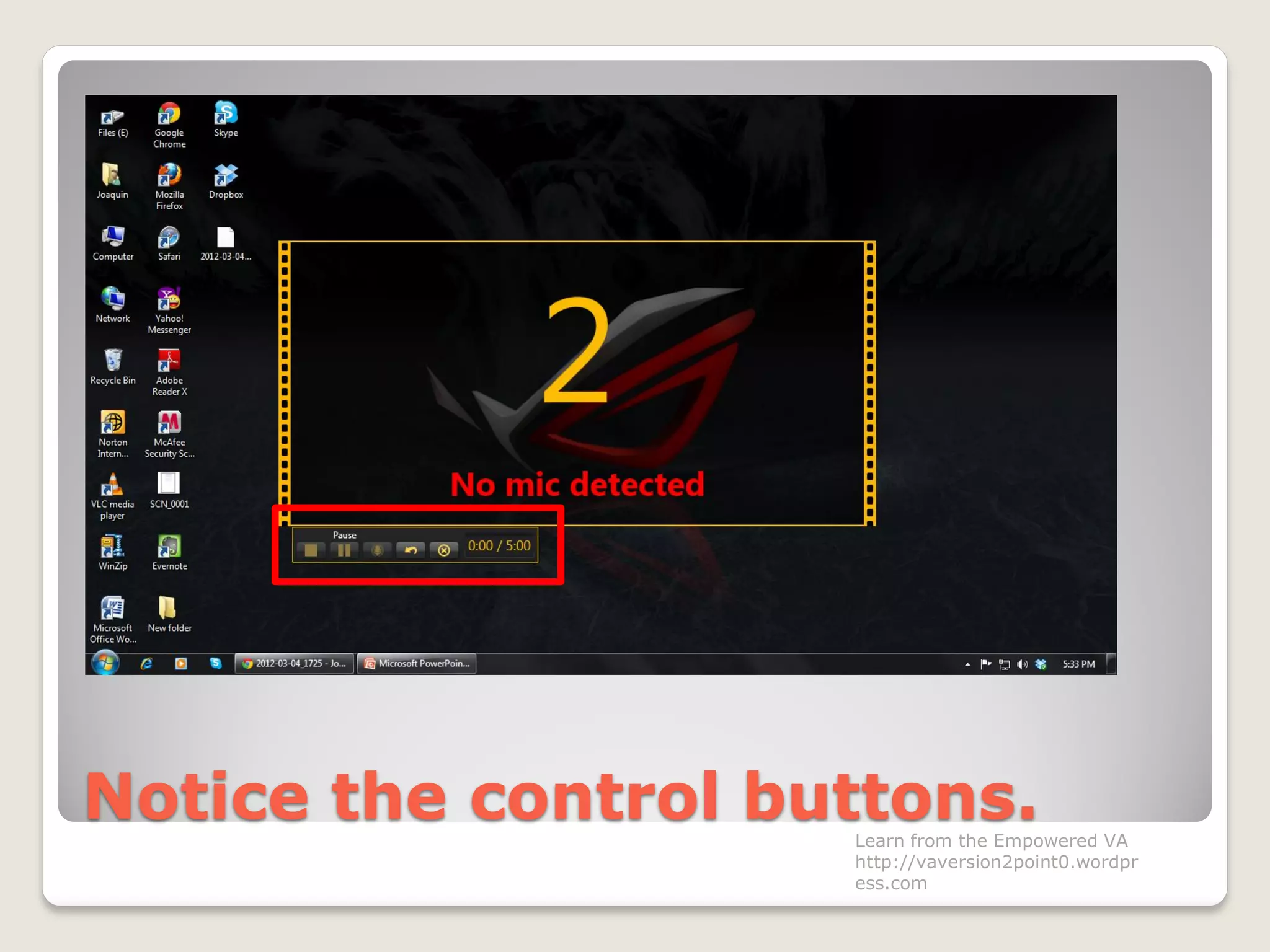
Notice the control buttons.Learn from the Empowered VA
http://vaversion2point0.wordpr
ess.com
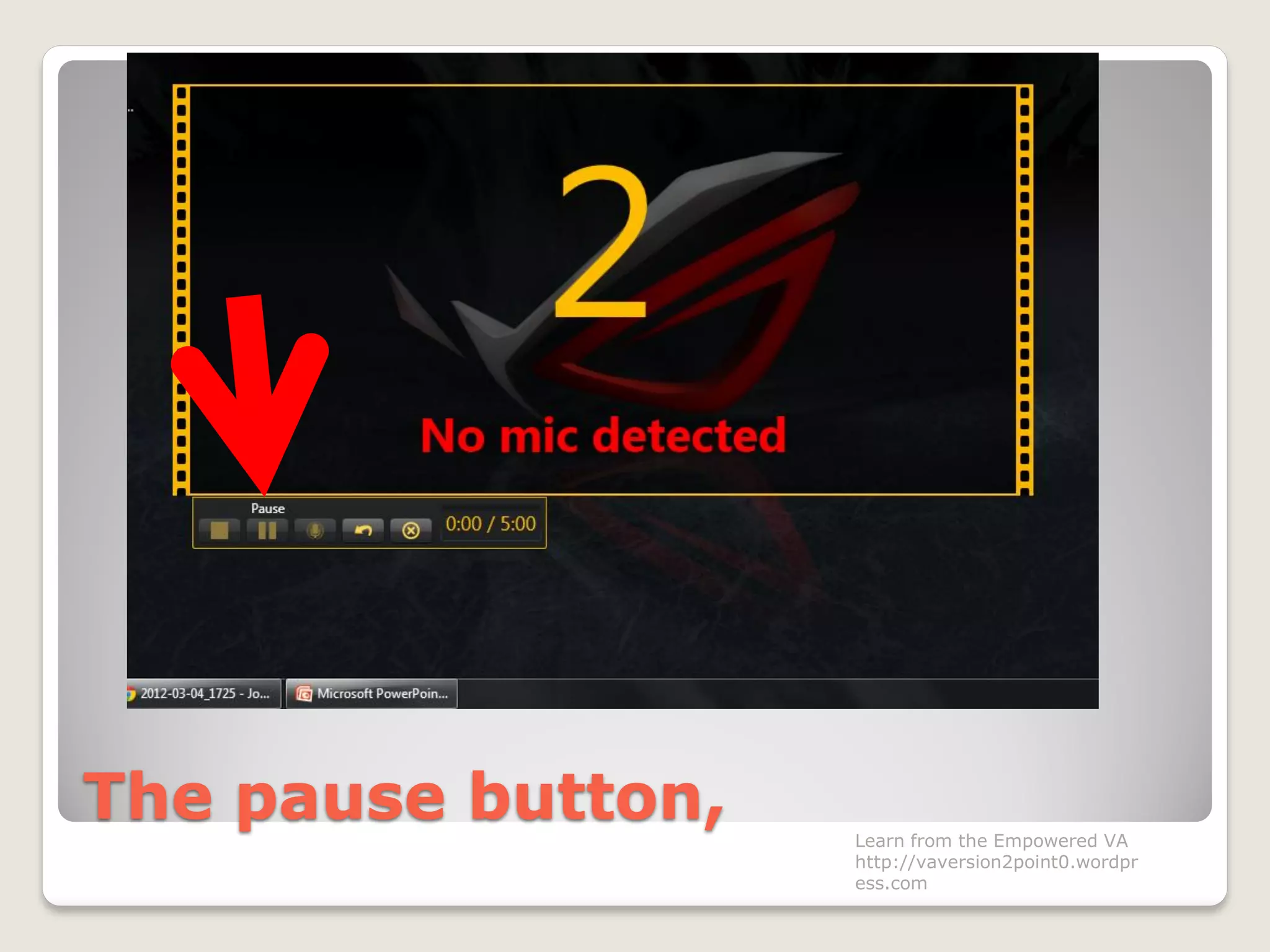
The pause button, Learn from the Empowered VA
http://vaversion2point0.wordpr
ess.com
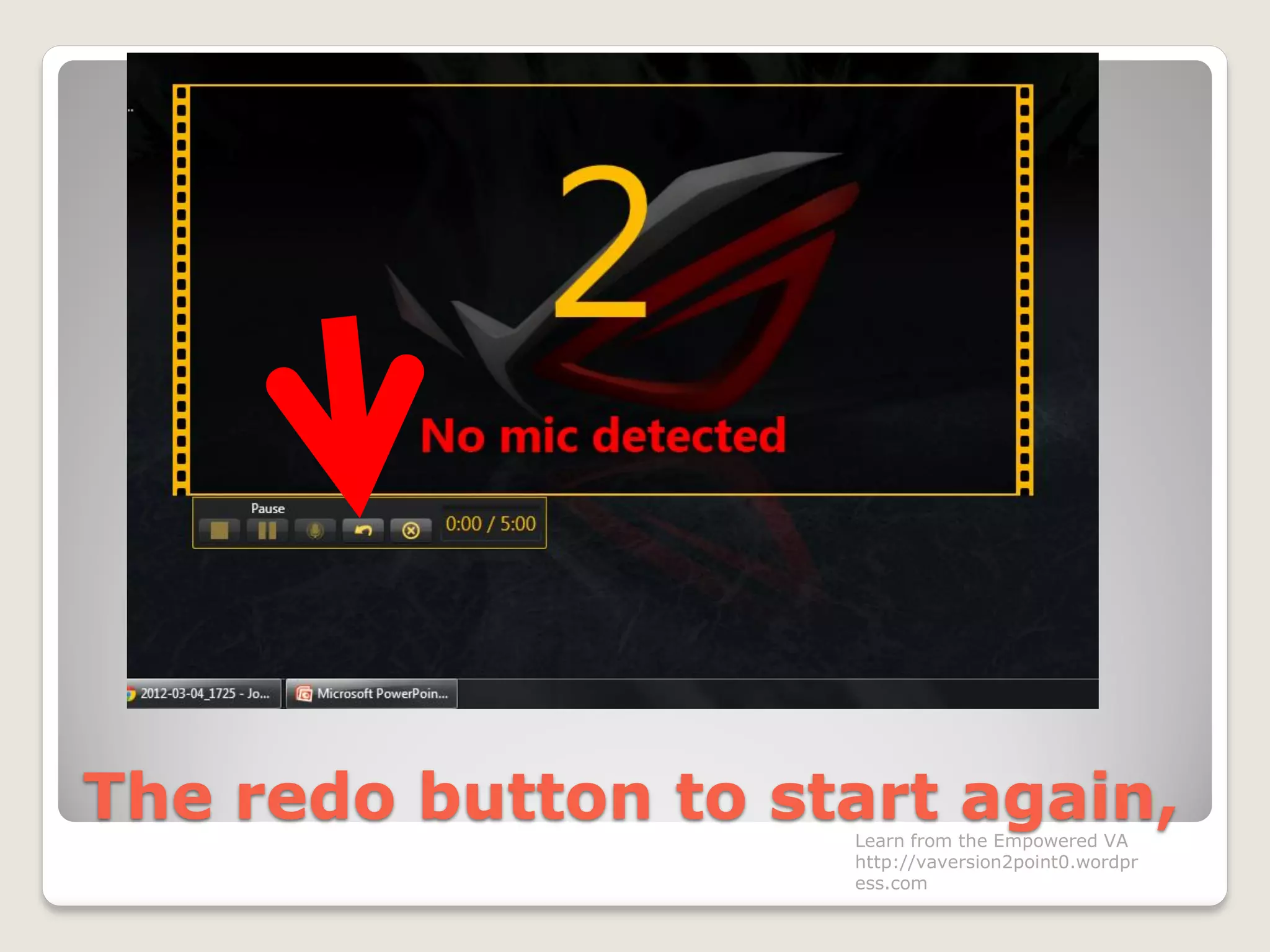
The redo button to start again,Learn from the Empowered VA
http://vaversion2point0.wordpr
ess.com
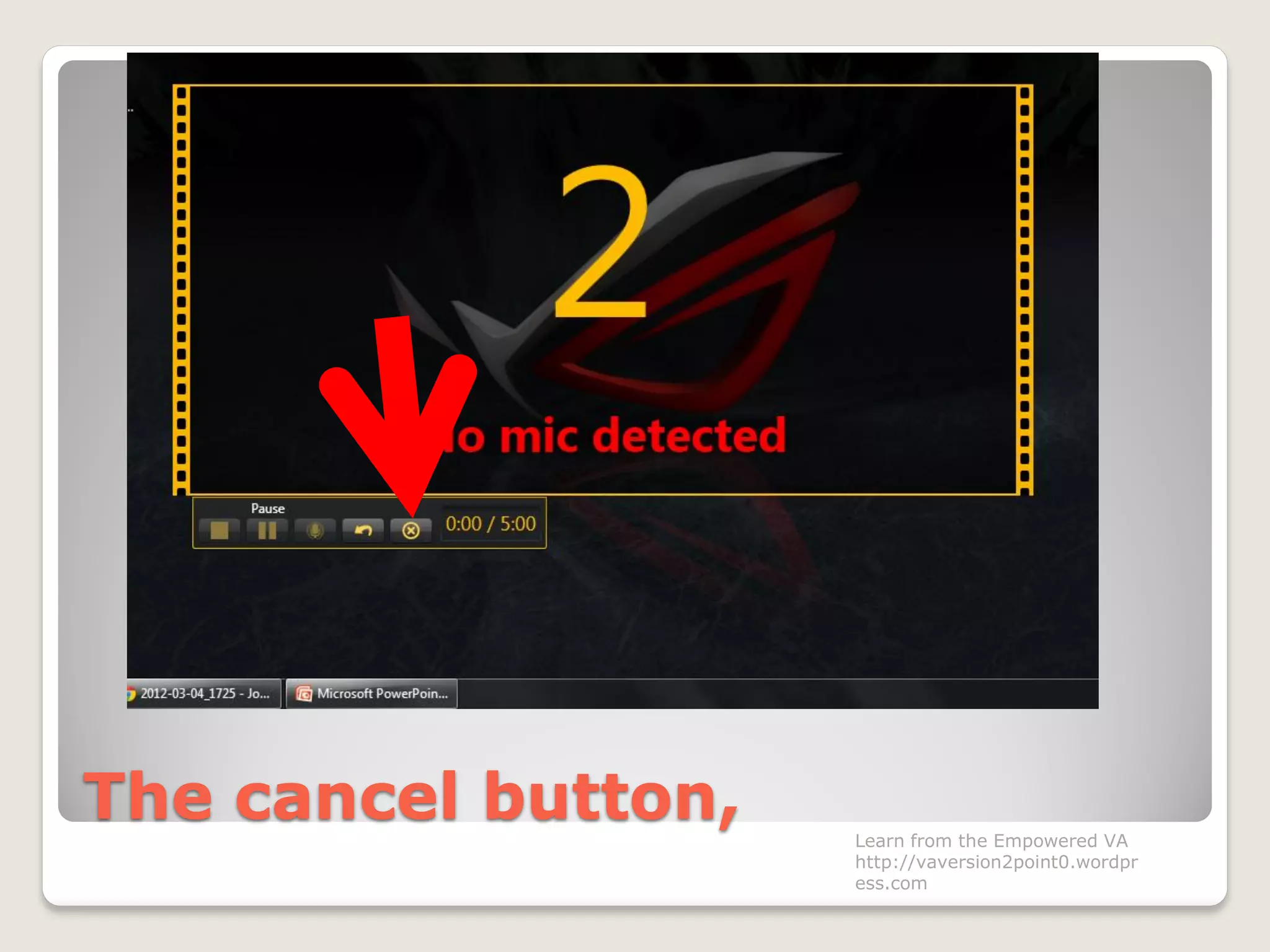
The cancel button, Learn from the Empowered VA
http://vaversion2point0.wordpr
ess.com
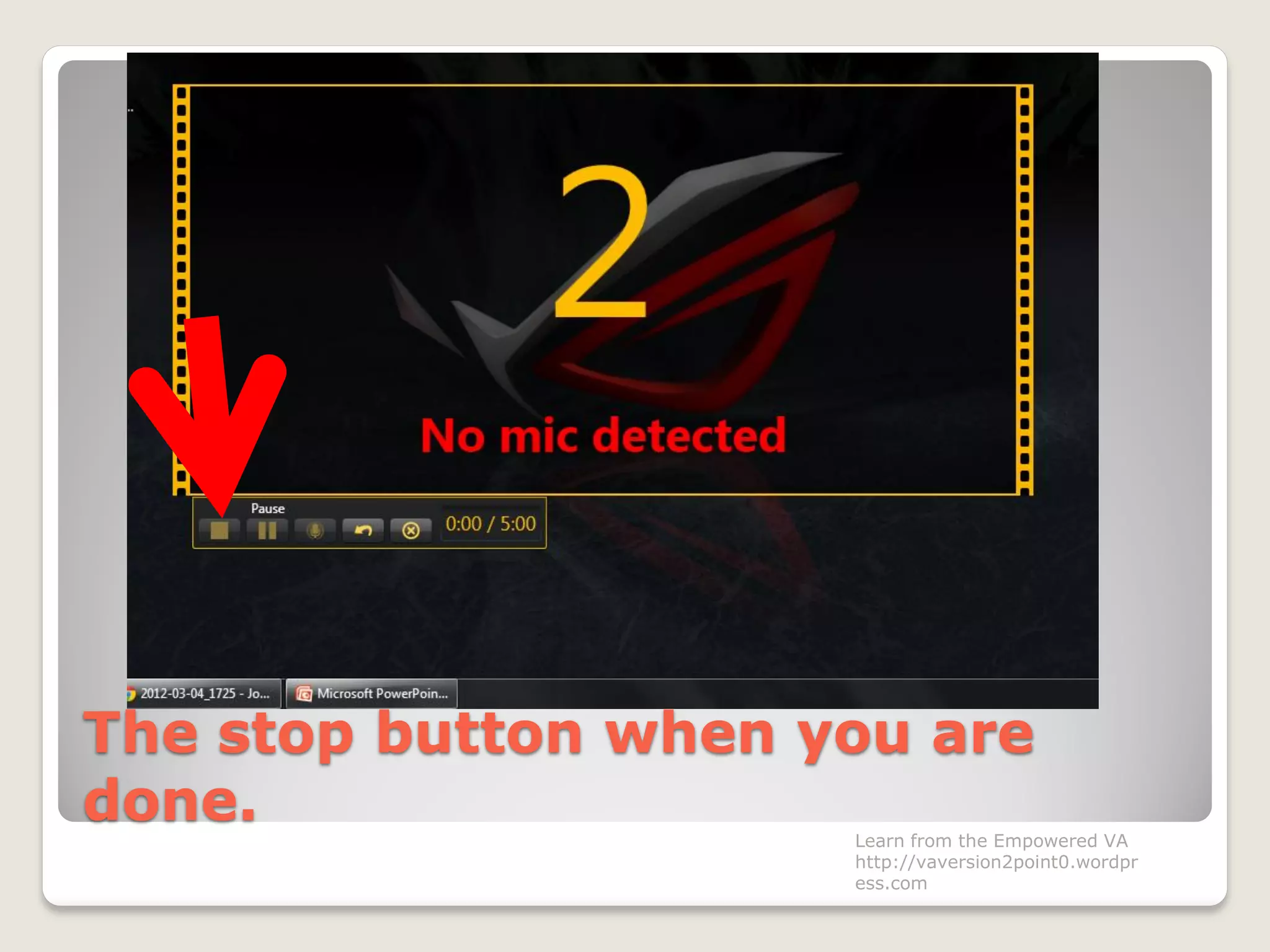
The stop button when you are
done. Learn from the Empowered VA
http://vaversion2point0.wordpr
ess.com
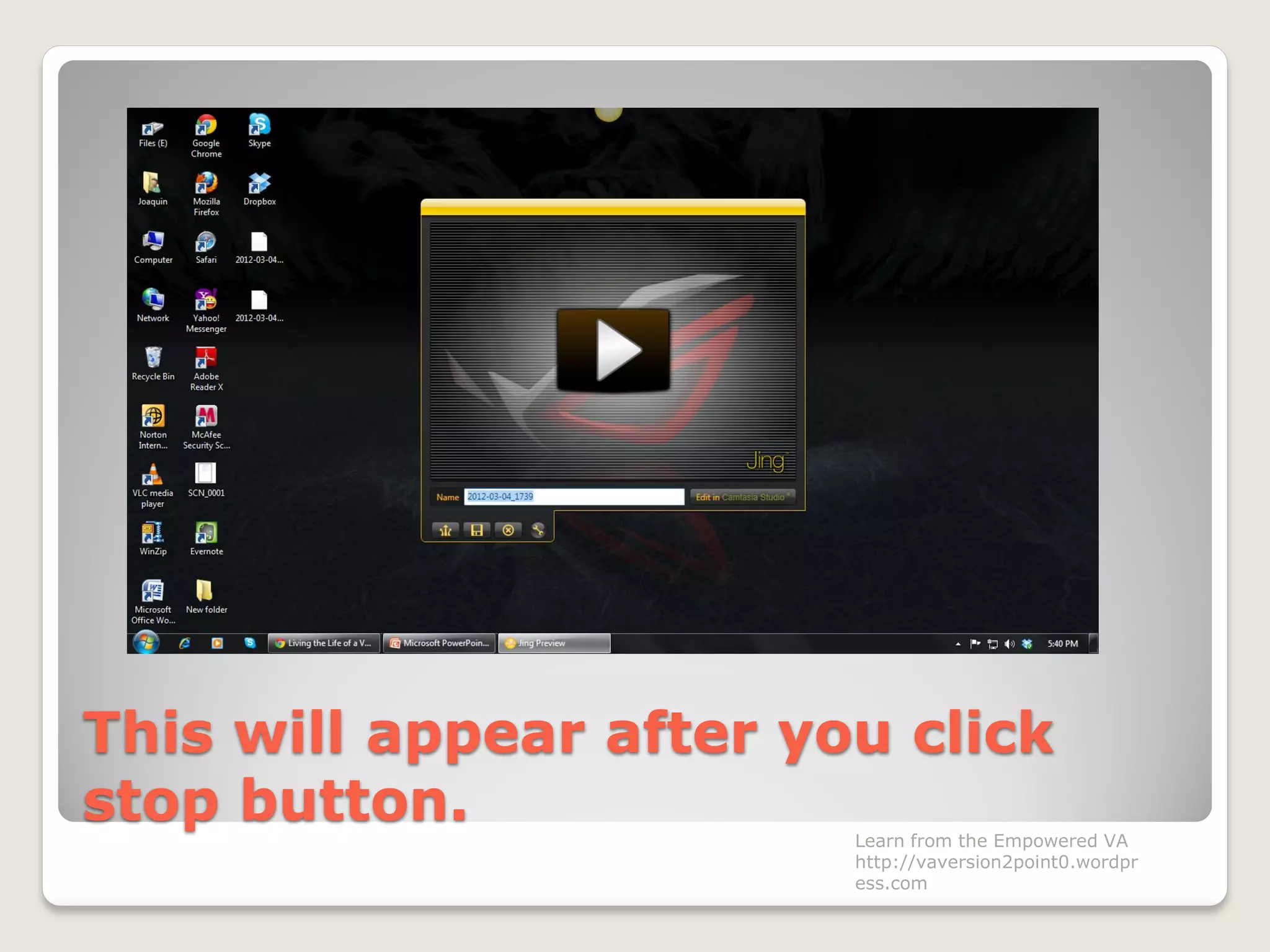
This will appear after you click
stop button. Learn from the Empowered VA
http://vaversion2point0.wordpr
ess.com
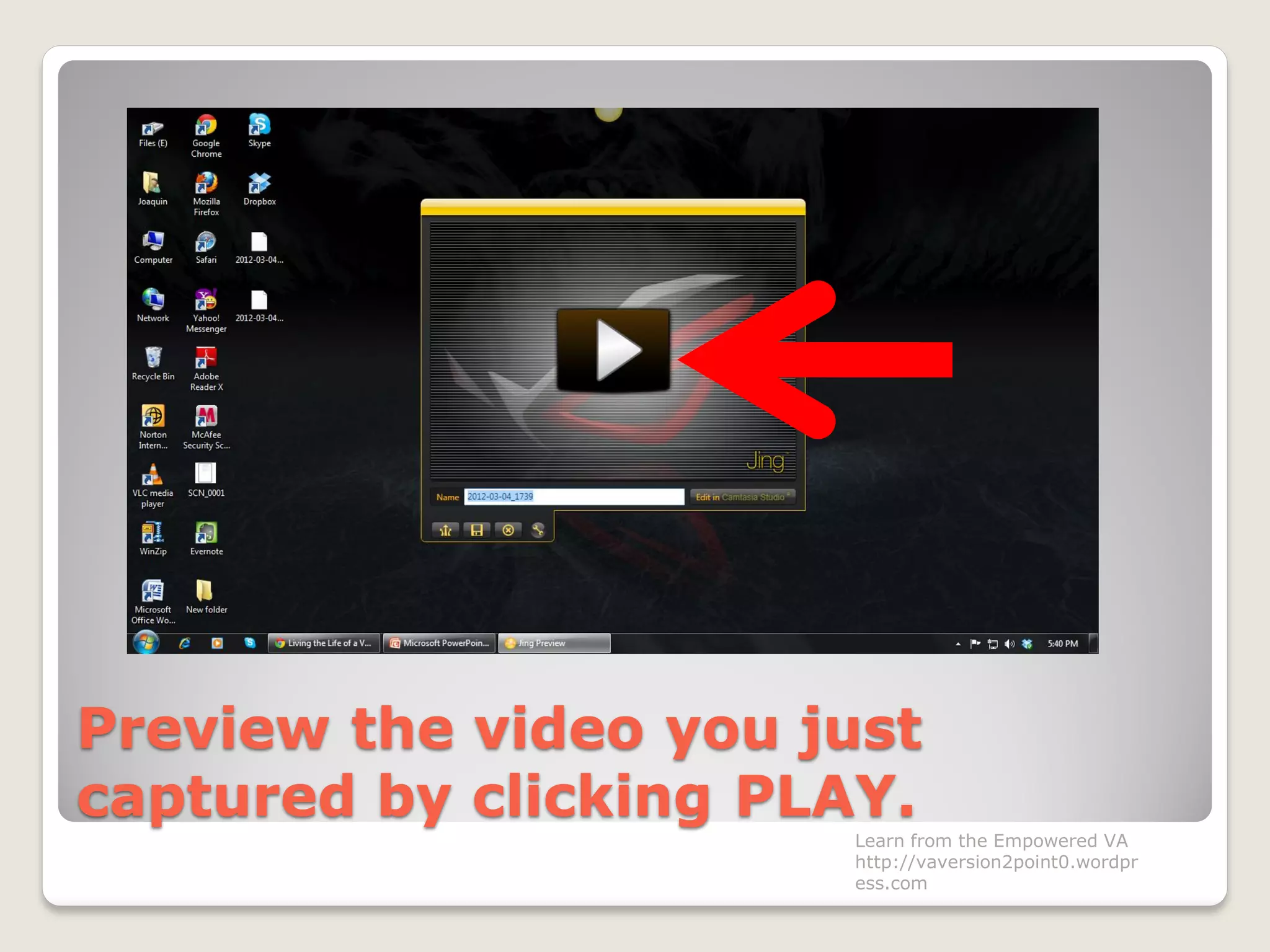
Preview the video you just
captured by clicking PLAY.
Learn from the Empowered VA
http://vaversion2point0.wordpr
ess.com
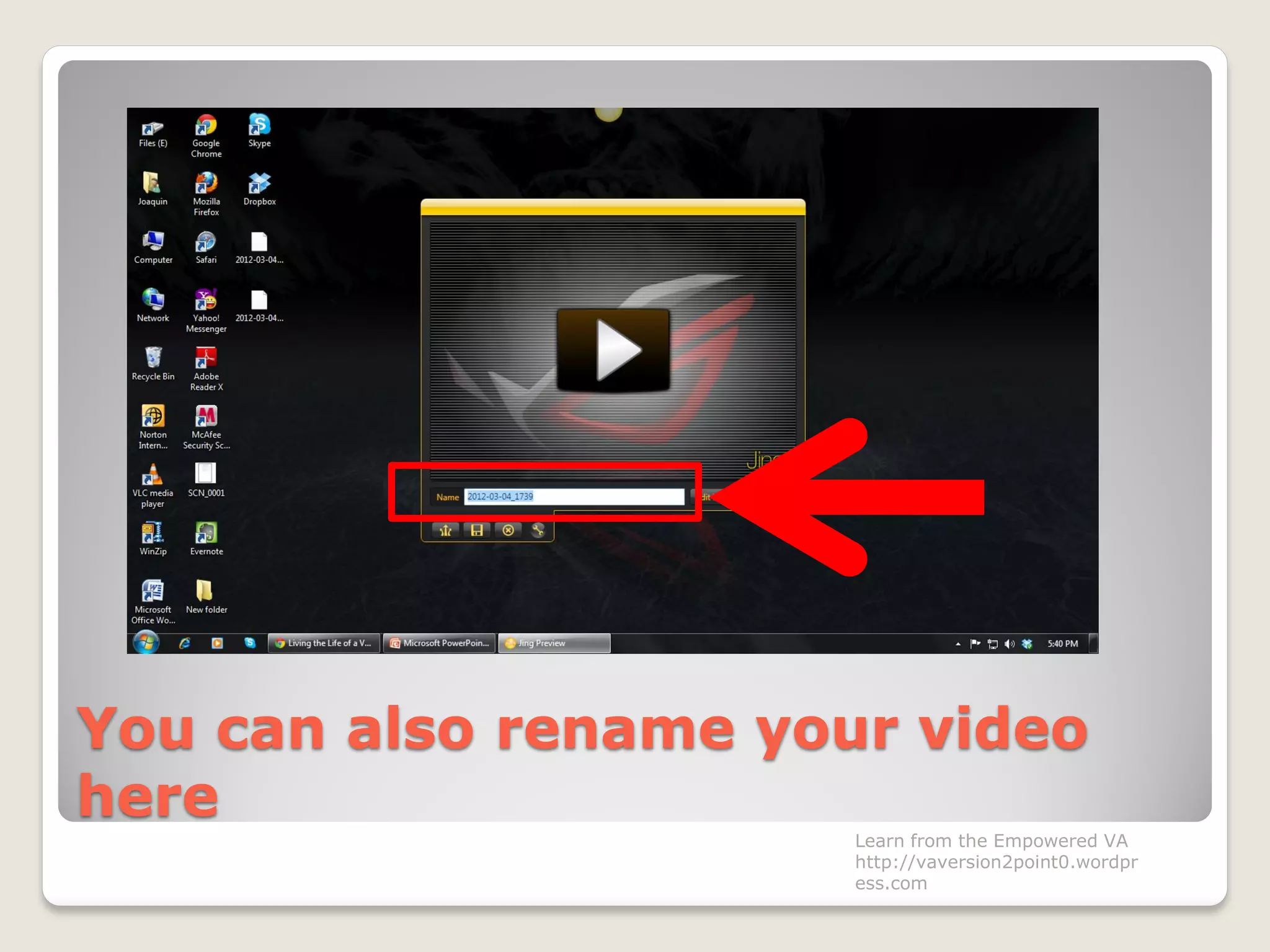
You can also rename your video
here
Learn from the Empowered VA
http://vaversion2point0.wordpr
ess.com
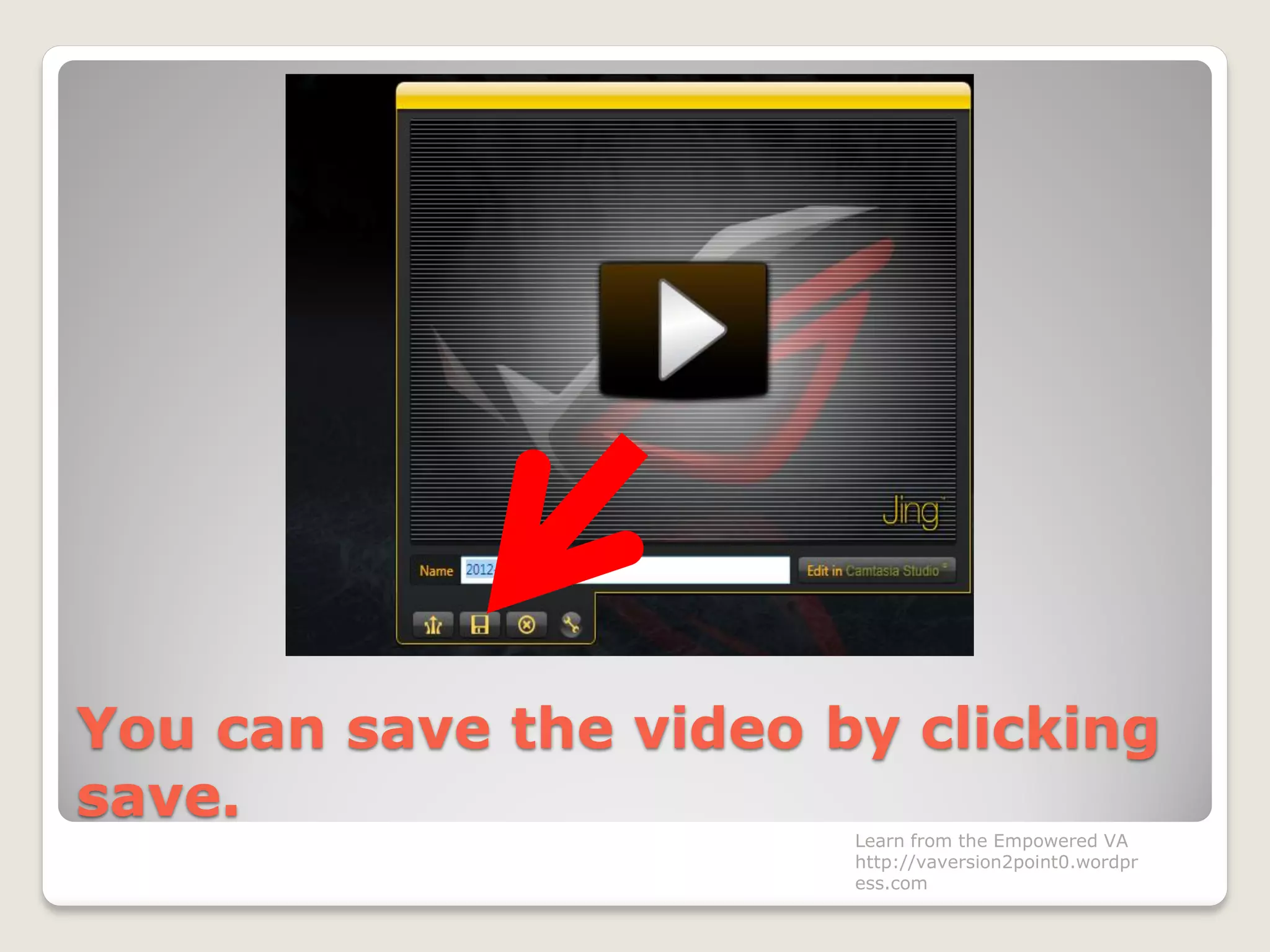
You can save the video by clicking
save.
Learn from the Empowered VA
http://vaversion2point0.wordpr
ess.com
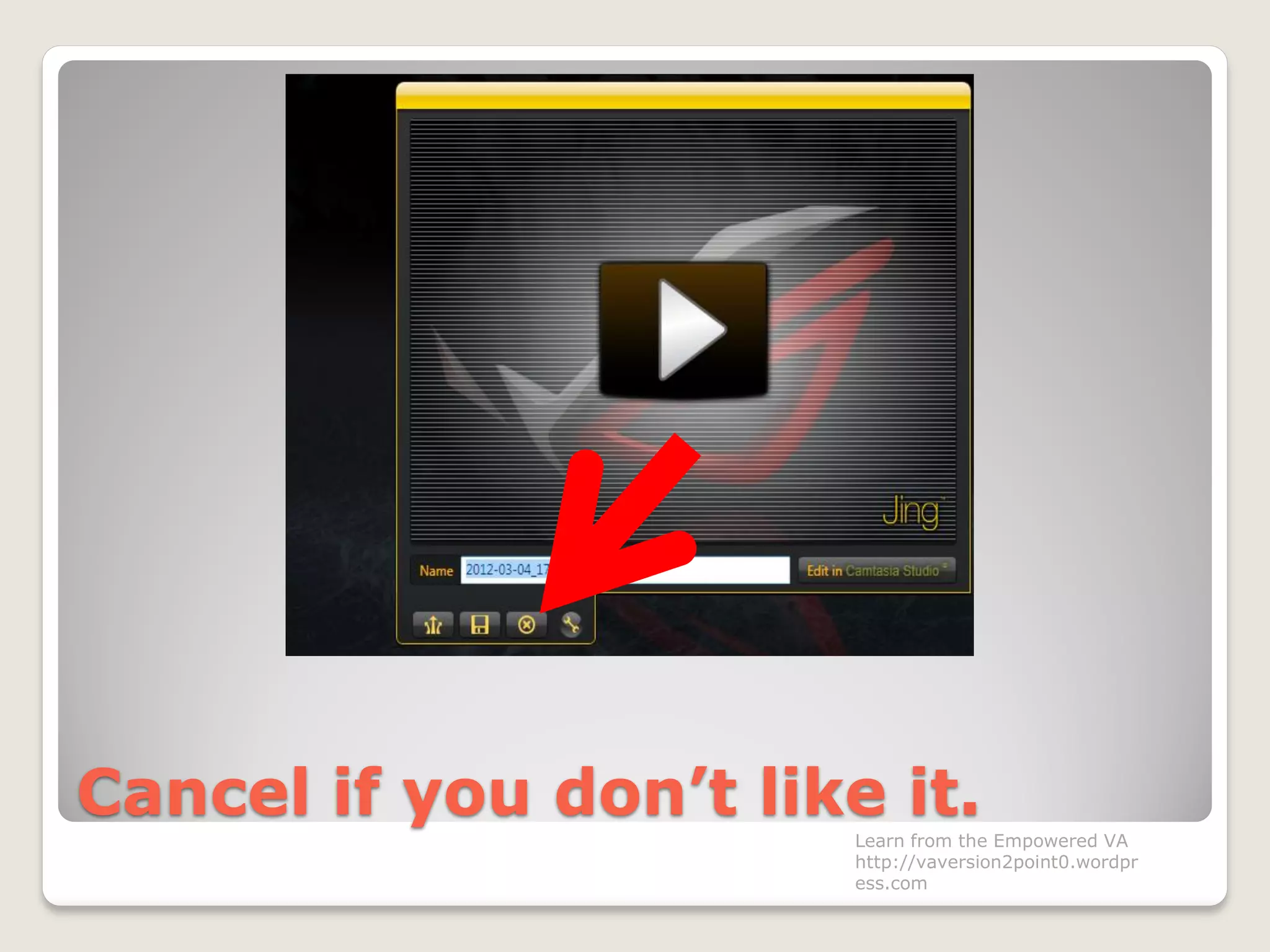
Cancel if you don’t like it.
Learn from the Empowered VA
http://vaversion2point0.wordpr
ess.com
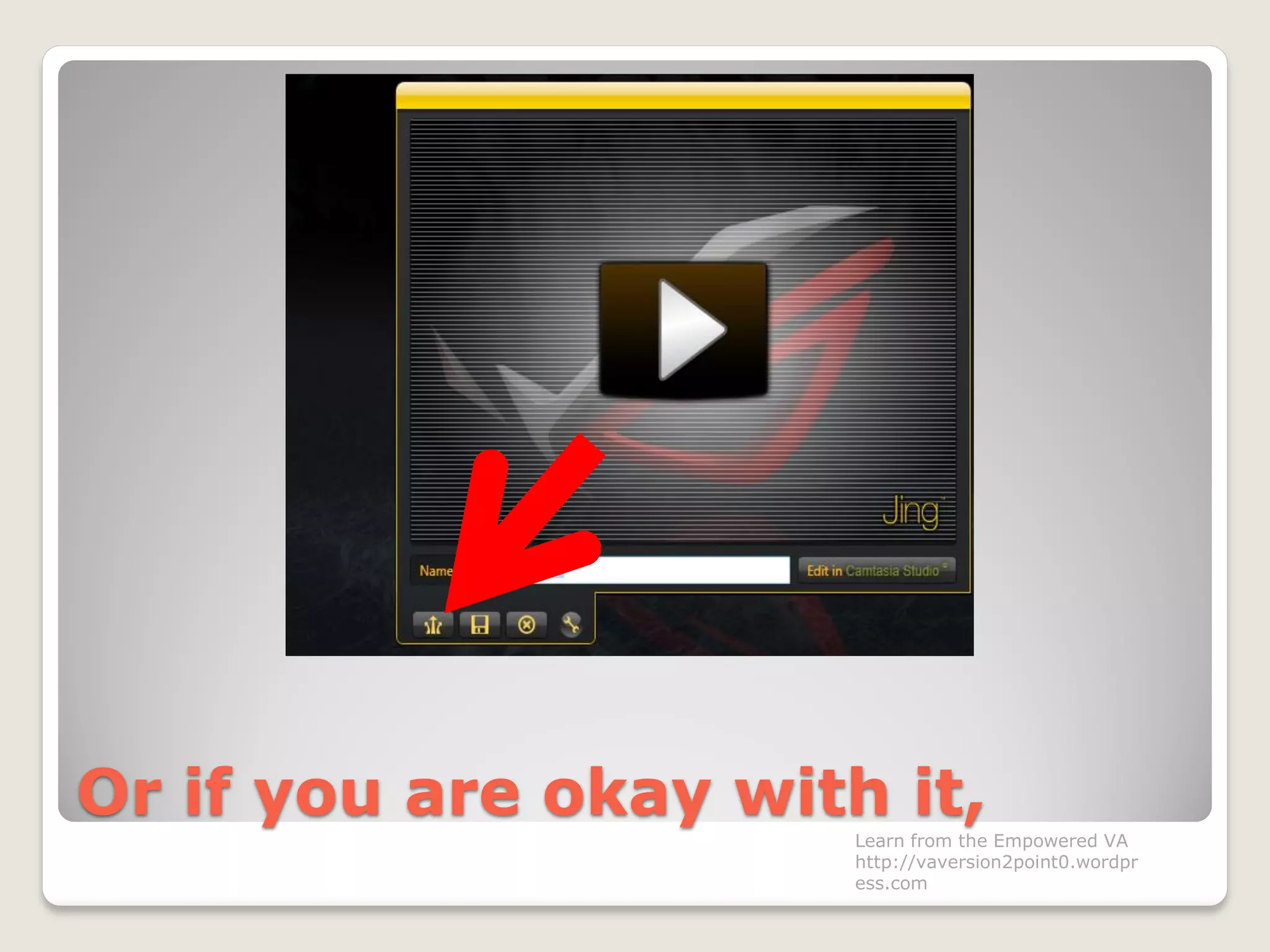
Or if you are okay with it,
Learn from the Empowered VA
http://vaversion2point0.wordpr
ess.com
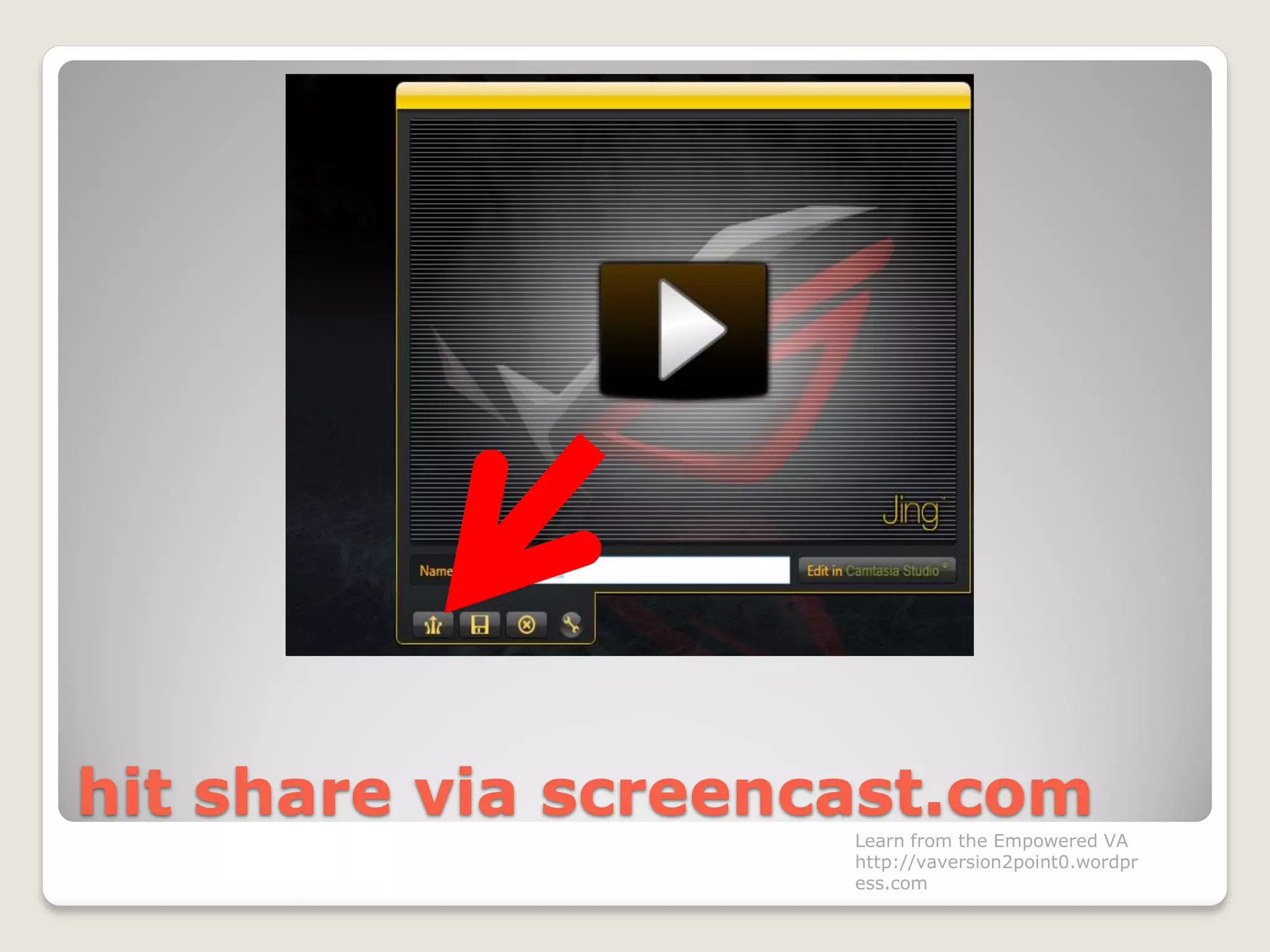
hit share via screencast.com
Learn from the Empowered VA
http://vaversion2point0.wordpr
ess.com
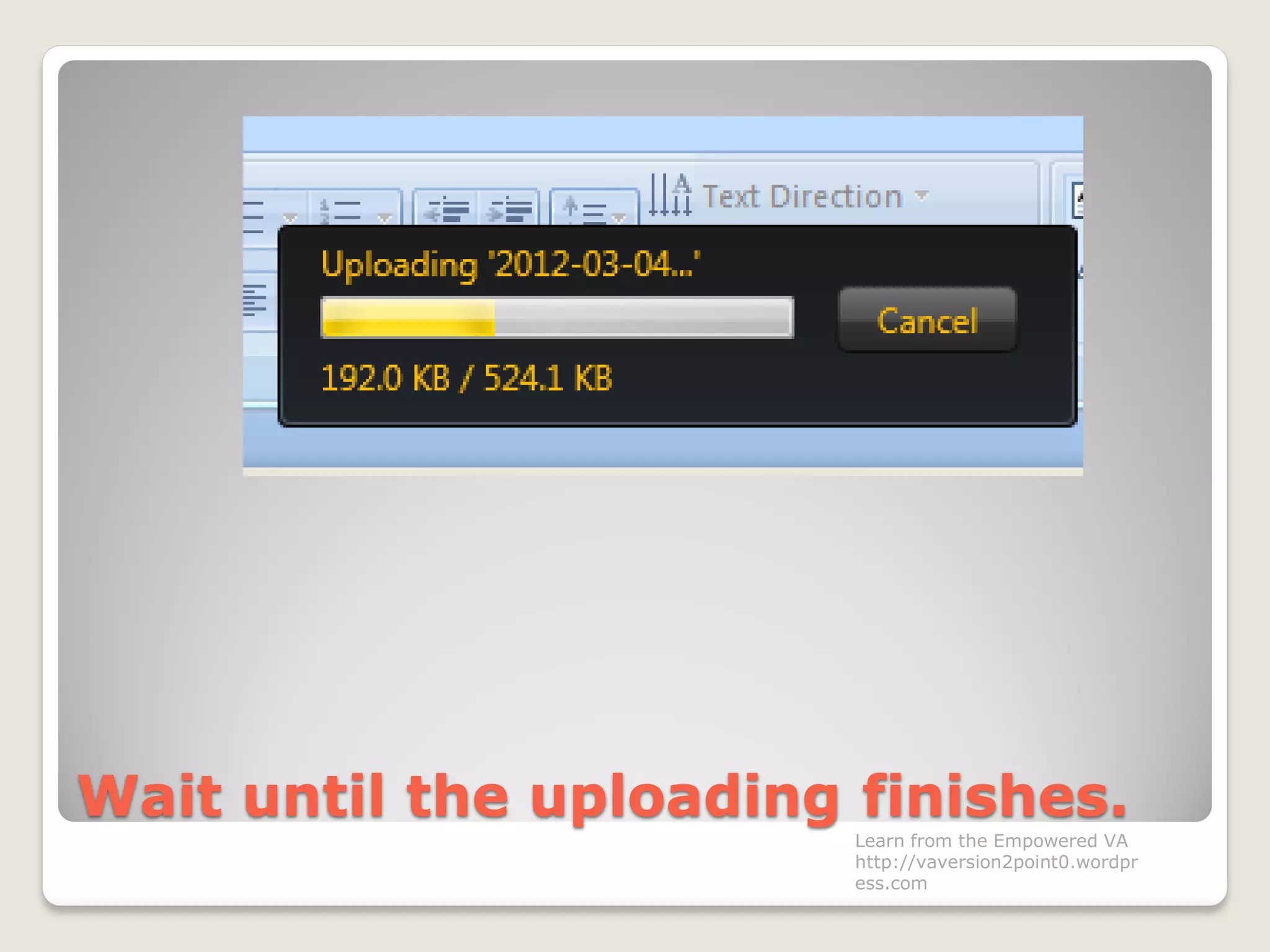
Wait until the uploading finishes.
Learn from the Empowered VA
http://vaversion2point0.wordpr
ess.com
Your video link is ready for
posting and shared to your
friends.
Learn from the Empowered VA
http://vaversion2point0.wordpr
ess.com
Your video link is ready.
Learn from the Empowered VA
http://vaversion2point0.wordpr
ess.com
We just discussed all about the
capture icon.
Learn from the Empowered VA
http://vaversion2point0.wordpr
ess.com
For the history icon,
Learn from the Empowered VA
http://vaversion2point0.wordpr
ess.com
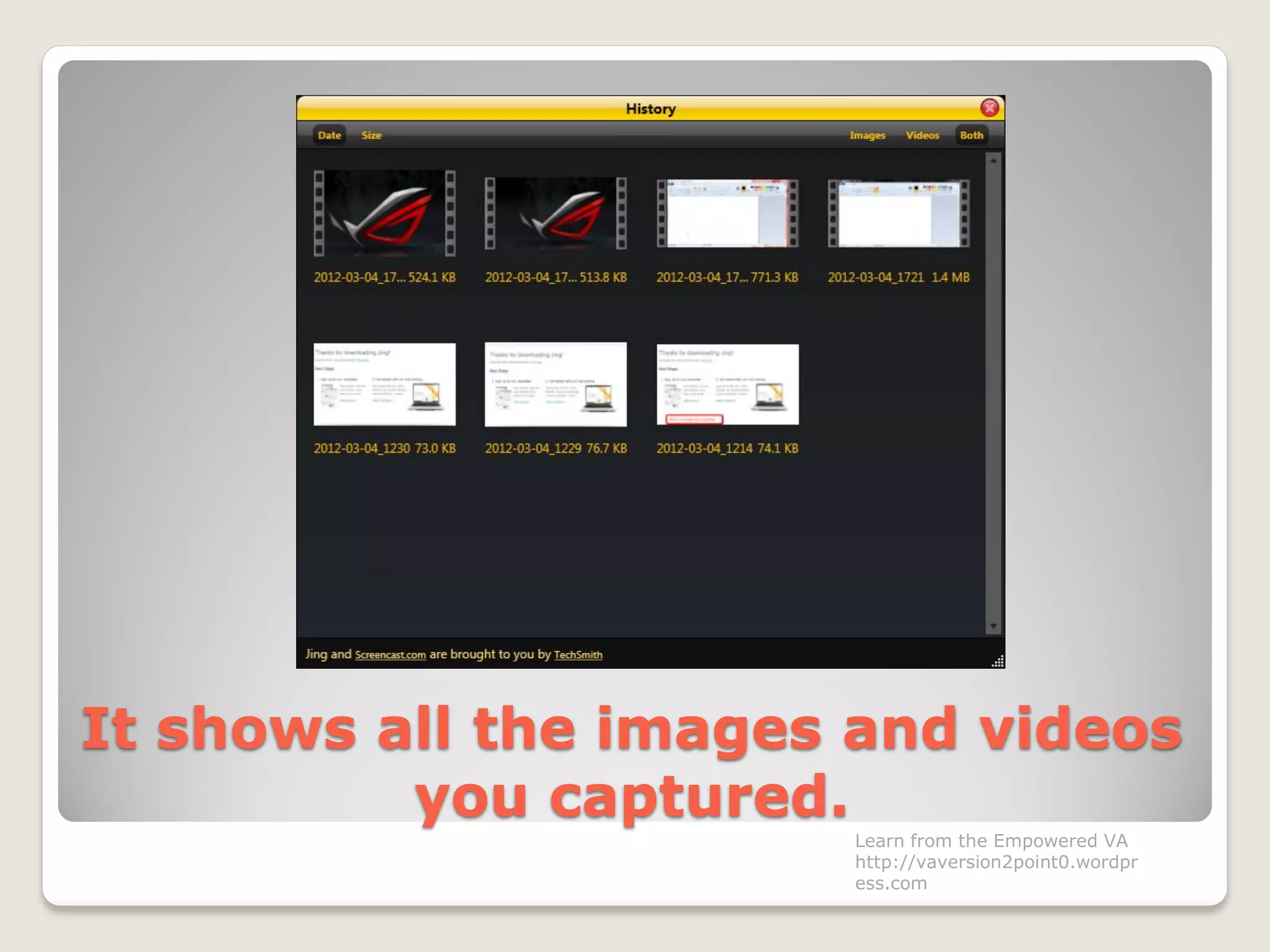
It shows all the images and videos
you captured.
Learn from the Empowered VA
http://vaversion2point0.wordpr
ess.com
The more button contains the
settings.
Learn from the Empowered VA
http://vaversion2point0.wordpr
ess.com
Click it.
Learn from the Empowered VA
http://vaversion2point0.wordpr
ess.com
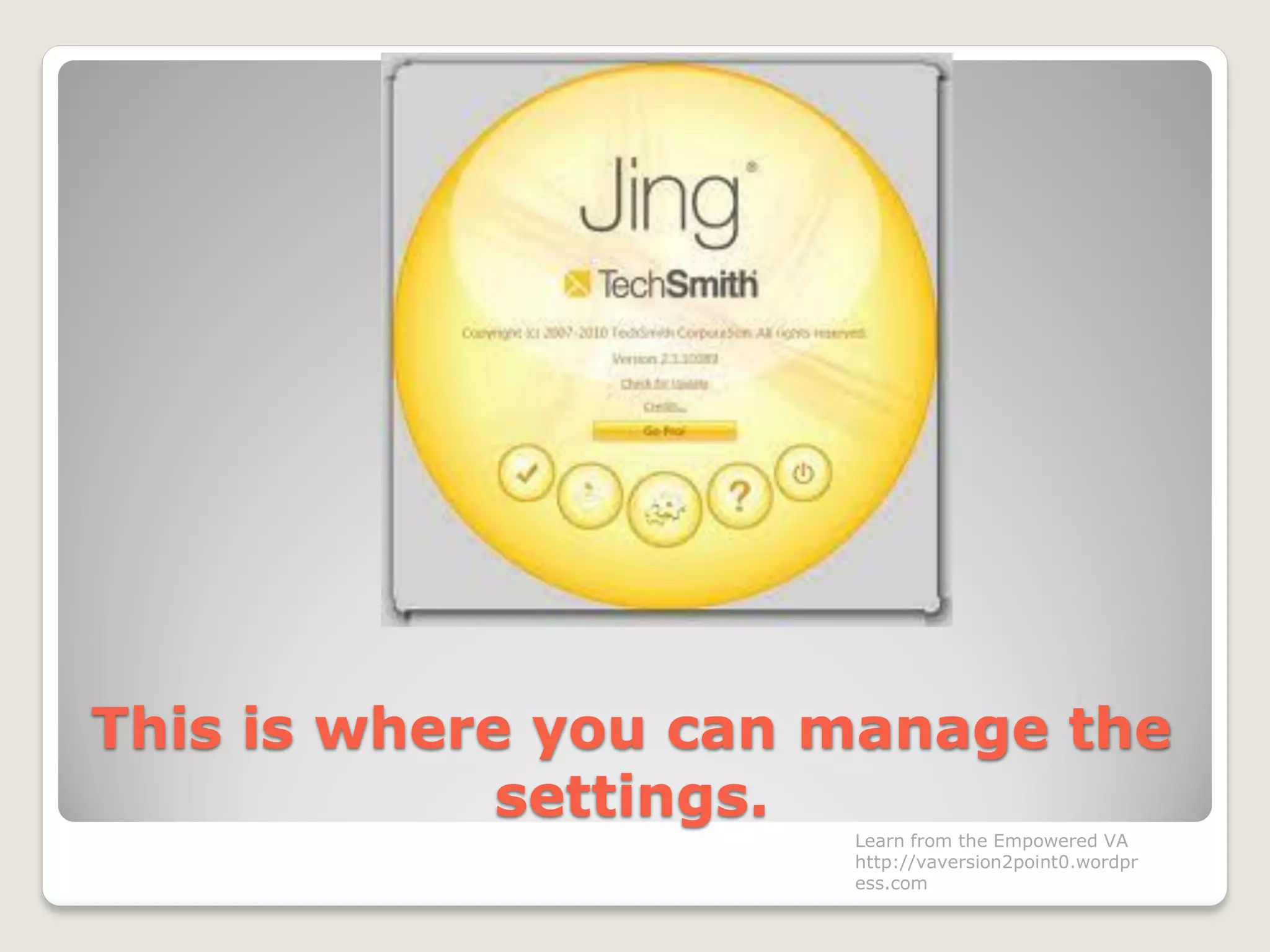
This is where you can manage the
settings.
Learn from the Empowered VA
http://vaversion2point0.wordpr
ess.com
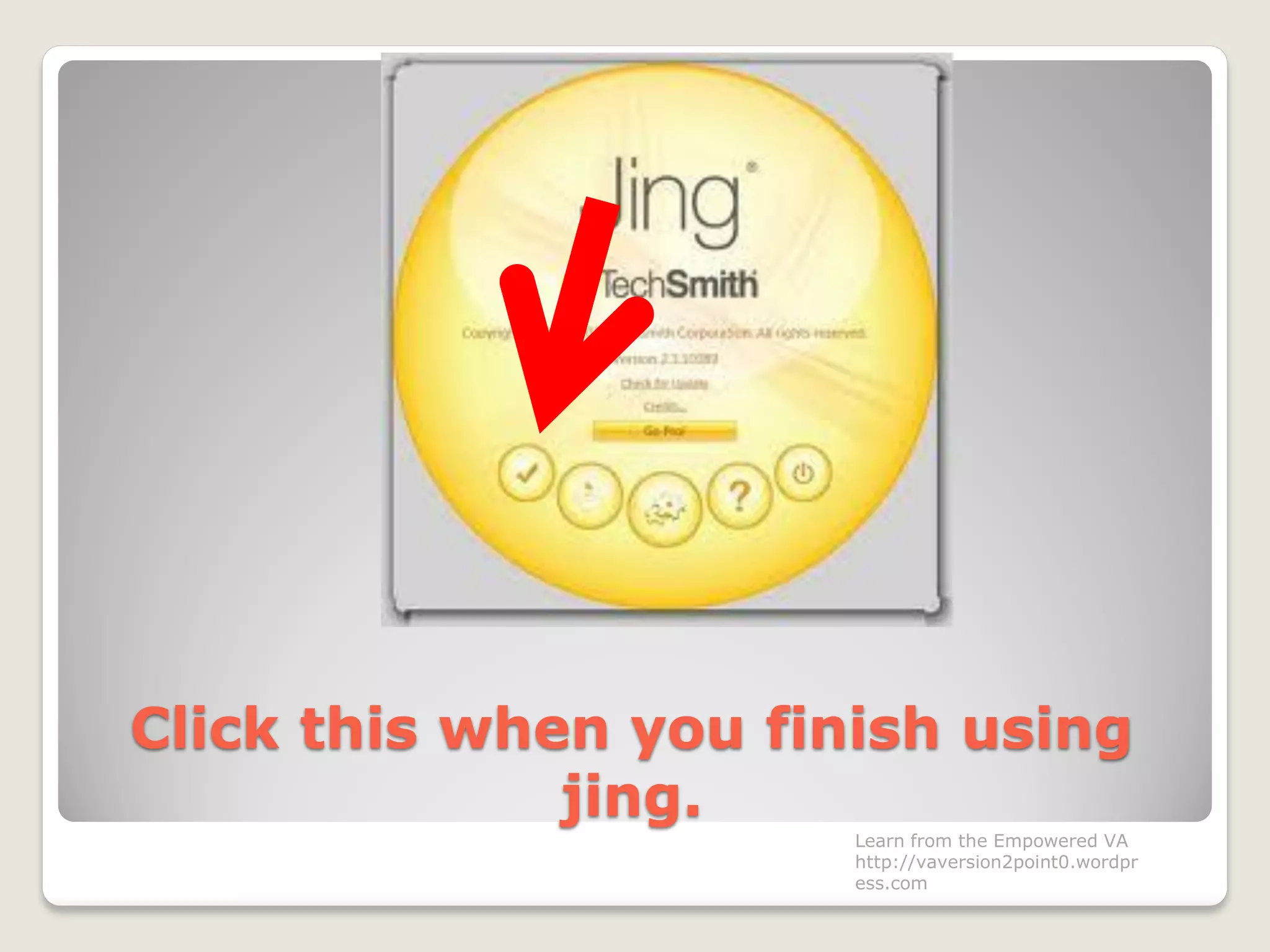
Click this when you finish using
jing.
Learn from the Empowered VA
http://vaversion2point0.wordpr
ess.com
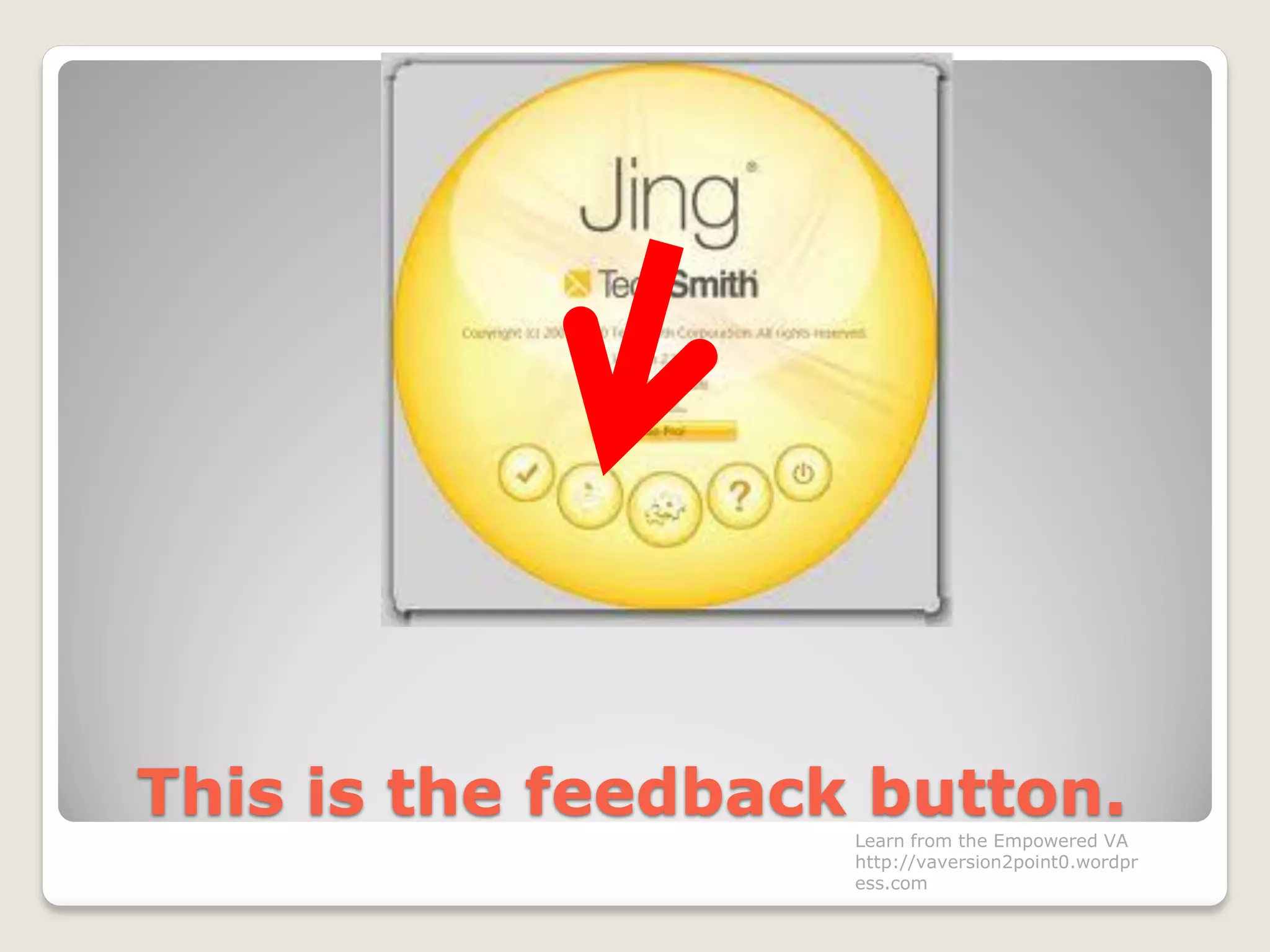
This is the feedback button.
Learn from the Empowered VA
http://vaversion2point0.wordpr
ess.com
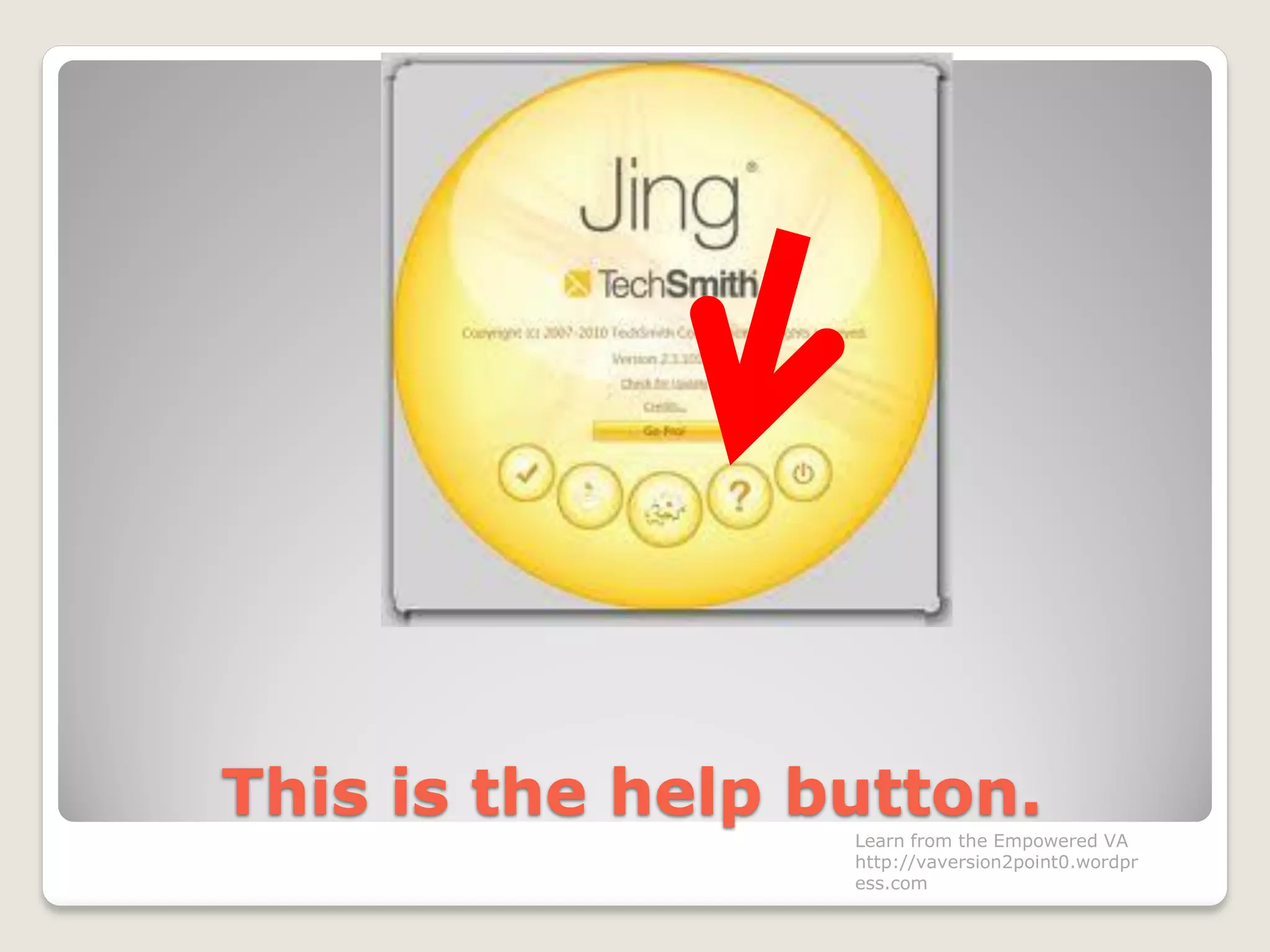
This is the help button.
Learn from the Empowered VA
http://vaversion2point0.wordpr
ess.com
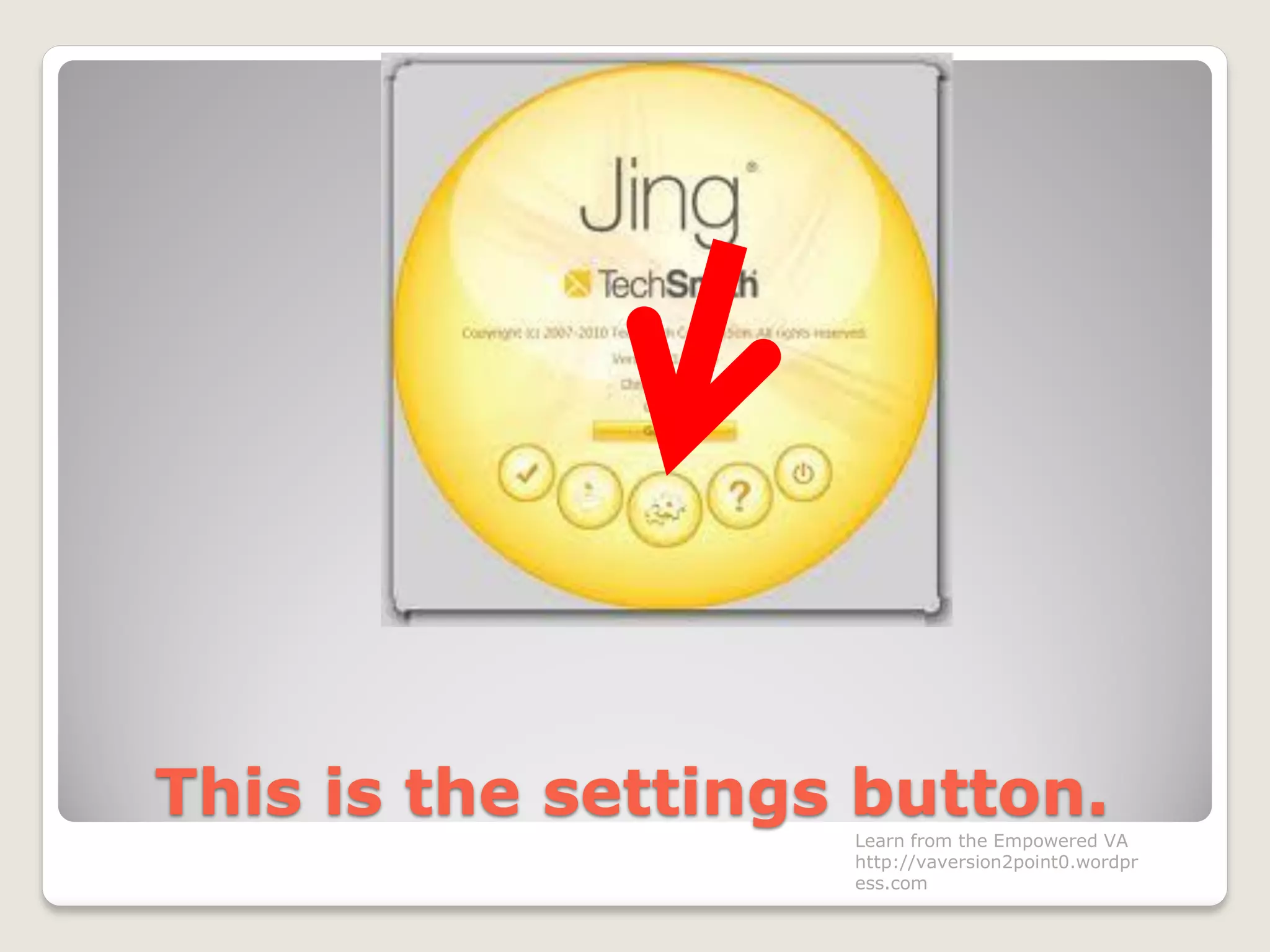
This is the settings button.
Learn from the Empowered VA
http://vaversion2point0.wordpr
ess.com
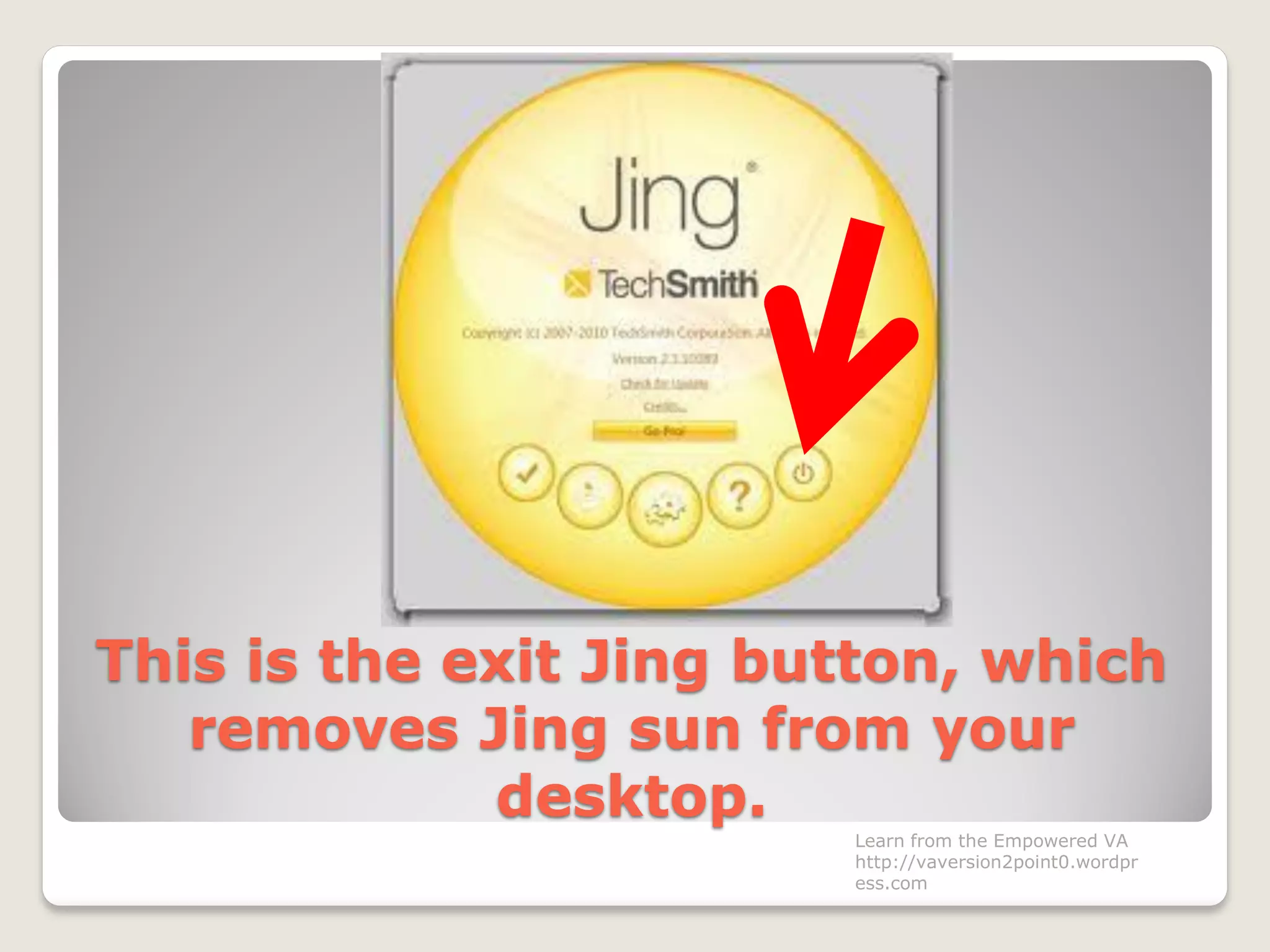
This is the exit Jing button, which
removes Jing sun from your
desktop.
Learn from the Empowered VA
http://vaversion2point0.wordpr
ess.com
So these are the basic steps in
using Jing.
Learn from the Empowered VA
http://vaversion2point0.wordpress.com
It is nice to learn new things.
Learn from the Empowered VA
http://vaversion2point0.wordpress.com
Techie at that.
Learn from the Empowered VA
http://vaversion2point0.wordpress.com
Have a nice day! 
Learn from the Empowered VA
http://vaversion2point0.wordpr
ess.com

How to use Jing (Techsmith)

  • 1.
    HOW TO USEJING (techsmith.com/jing) http://vaversion2point0.wordpress.com Learn from the Empowered VA http://vaversion2point0.wordpress.com
  • 2.
    For video andstill shots capturingLearn from the Empowered VA http://vaversion2point0.wordpr ess.com
  • 3.
    To start with,open your browser.Learn from the Empowered VA http://vaversion2point0.wordpr ess.com
  • 4.
    Go to www.techsmith.com/jingLearnfrom the Empowered VA http://vaversion2point0.wordpr ess.com
  • 5.
    Click Free DownloadLearnfrom the Empowered VA http://vaversion2point0.wordpr ess.com
  • 6.
    Learn from theEmpowered VA http://vaversion2point0.wordpr ess.com
  • 7.
    This will appearLearnfrom the Empowered VA http://vaversion2point0.wordpr ess.com
  • 8.
    Download version ofJing suited for your pc Learn from the Empowered VA http://vaversion2point0.wordpr ess.com
  • 9.
    Click the downloadbuttonLearn from the Empowered VA http://vaversion2point0.wordpr ess.com
  • 10.
    This page willappearLearn from the Empowered VA http://vaversion2point0.wordpr ess.com
  • 11.
    Learn from theEmpowered VA http://vaversion2point0.wordpr ess.com
  • 12.
    Notice this Learnfrom the Empowered VA http://vaversion2point0.wordpr ess.com
  • 13.
    Lower left sideof the screen.Learn from the Empowered VA http://vaversion2point0.wordpr ess.com
  • 14.
    The jing setupinstaller just downloaded. Learn from the Empowered VA http://vaversion2point0.wordpr ess.com
  • 15.
    Wait for thedownload to finishLearn from the Empowered VA http://vaversion2point0.wordpr ess.com
  • 16.
    then click it.Learnfrom the Empowered VA http://vaversion2point0.wordpr ess.com
  • 17.
    This dialog boxwill appearLearn from the Empowered VA http://vaversion2point0.wordpr ess.com
  • 18.
    Click Run Learnfrom the Empowered VA http://vaversion2point0.wordpr ess.com
  • 19.
    This starts theinstallation process. Learn from the Empowered VA http://vaversion2point0.wordpr ess.com
  • 20.
    Check the boxI accept the fine print. Learn from the Empowered VA http://vaversion2point0.wordpr ess.com
  • 21.
    Then click InstallLearnfrom the Empowered VA http://vaversion2point0.wordpr ess.com
  • 22.
    Wait for theinstallation process to finish. Learn from the Empowered VA http://vaversion2point0.wordpr ess.com
  • 23.
    There you go.Learnfrom the Empowered VA http://vaversion2point0.wordpr ess.com
  • 24.
    Click Finish.Learn fromthe Empowered VA http://vaversion2point0.wordpr ess.com
  • 25.
    Jing will thenlaunch in your computer. Learn from the Empowered VA http://vaversion2point0.wordpr ess.com
  • 26.
    Sign up foran account.Learn from the Empowered VA http://vaversion2point0.wordpr ess.com
  • 27.
    Enter your logindetails on the spaces provided.Learn from the Empowered VA http://vaversion2point0.wordpr ess.com
  • 28.
    Click Create.Learn fromthe Empowered VA http://vaversion2point0.wordpr ess.com
  • 29.
    The Jing sunappears on your screen. Learn from the Empowered VA http://vaversion2point0.wordpr ess.com
  • 30.
    This serves asthe main menu for using Jing. Learn from the Empowered VA http://vaversion2point0.wordpr ess.com
  • 31.
    Notice it has3 icons.Learn from the Empowered VA http://vaversion2point0.wordpr ess.com
  • 32.
    Capture iconLearn fromthe Empowered VA http://vaversion2point0.wordpr ess.com
  • 33.
    History iconLearn fromthe Empowered VA http://vaversion2point0.wordpr ess.com
  • 34.
    Settings iconLearn fromthe Empowered VA http://vaversion2point0.wordpr ess.com
  • 35.
    Let’s explore CaptureIcon.Learn from the Empowered VA http://vaversion2point0.wordpr ess.com
  • 36.
    For example, wewant to capture this screenshotLearn from the Empowered VA http://vaversion2point0.wordpr ess.com
  • 37.
    Point to theJing sunLearn from the Empowered VA http://vaversion2point0.wordpr ess.com
  • 38.
    Then click thecapture icon.Learn from the Empowered VA http://vaversion2point0.wordpr ess.com
  • 39.
    Select the areaby dragging the mouse. Learn from the Empowered VA http://vaversion2point0.wordpr ess.com
  • 40.
    Select the areaby dragging the mouse. Learn from the Empowered VA http://vaversion2point0.wordpr ess.com
  • 41.
    Then the optionswill appearLearn from the Empowered VA http://vaversion2point0.wordpr ess.com
  • 42.
    A closer lookat the buttons.Learn from the Empowered VA http://vaversion2point0.wordpr ess.com
  • 43.
    A closer lookat the buttons. Capture image Learn from the Empowered VA http://vaversion2point0.wordpr ess.com
  • 44.
    A closer lookat the buttons. Capture video Learn from the Empowered VA http://vaversion2point0.wordpr ess.com
  • 45.
    A closer lookat the buttons. Undo button Learn from the Empowered VA http://vaversion2point0.wordpr ess.com
  • 46.
    A closer lookat the buttons. Cancel Learn from the Empowered VA http://vaversion2point0.wordpr ess.com
  • 47.
    Click on thecapture button. Capture image Learn from the Empowered VA http://vaversion2point0.wordpr ess.com
  • 48.
    The editing optionsappear on the left side. Learn from the Empowered VA http://vaversion2point0.wordpr ess.com
  • 49.
    A closer look. Learnfrom the Empowered VA http://vaversion2point0.wordpr ess.com
  • 50.
    You can putarrow. Learn from the Empowered VA http://vaversion2point0.wordpr ess.com
  • 51.
    You can addtext. Learn from the Empowered VA http://vaversion2point0.wordpr ess.com
  • 52.
    You can addshapes. Learn from the Empowered VA http://vaversion2point0.wordpr ess.com
  • 53.
    You can highlighta certain area of the image. Learn from the Empowered VA http://vaversion2point0.wordpr ess.com
  • 54.
    You can alsoselect the tool color.Learn from the Empowered VA http://vaversion2point0.wordpr ess.com
  • 55.
    The redo andundo buttons.Learn from the Empowered VA http://vaversion2point0.wordpr ess.com
  • 56.
    You can editthe image name.Learn from the Empowered VA http://vaversion2point0.wordpr ess.com
  • 57.
    You can savethe image,Learn from the Empowered VA http://vaversion2point0.wordpr ess.com
  • 58.
    Paste the image,Learn from the Empowered VA http://vaversion2point0.wordpr ess.com
  • 59.
    Cancel the imageLearn from the Empowered VA http://vaversion2point0.wordpr ess.com
  • 60.
    Or share itvia screencast.com.Learn from the Empowered VA http://vaversion2point0.wordpr ess.com
  • 61.
    To share, clickthis Learn from the Empowered VA http://vaversion2point0.wordpr ess.com
  • 62.
    It will thenupload.Wait until uploading finishes. Learn from the Empowered VA http://vaversion2point0.wordpr ess.com
  • 63.
    Wait until uploadingfinishes.Learn from the Empowered VA http://vaversion2point0.wordpr ess.com
  • 64.
    This box willappear Learn from the Empowered VA http://vaversion2point0.wordpr ess.com
  • 65.
    Click to viewthe link.Learn from the Empowered VA http://vaversion2point0.wordpr ess.com
  • 66.
    Your image linkis ready. Learn from the Empowered VA http://vaversion2point0.wordpr ess.com
  • 67.
    You can postand share to friends. Learn from the Empowered VA http://vaversion2point0.wordpr ess.com
  • 68.
    When they clickthe link, Learn from the Empowered VA http://vaversion2point0.wordpr ess.com
  • 69.
    they can seethe captured image. Learn from the Empowered VA http://vaversion2point0.wordpr ess.com
  • 70.
    Now we willtry to use the video . Learn from the Empowered VA http://vaversion2point0.wordpr ess.com
  • 71.
    Point your mouseto the jing sun.Learn from the Empowered VA http://vaversion2point0.wordpr ess.com
  • 72.
    Click the capturebutton.Learn from the Empowered VA http://vaversion2point0.wordpr ess.com
  • 73.
    Select the areyou want to capture. Learn from the Empowered VA http://vaversion2point0.wordpr ess.com
  • 74.
    Then click capturevideo icon.Learn from the Empowered VA http://vaversion2point0.wordpr ess.com
  • 75.
    A countdown willprecede the recording. Learn from the Empowered VA http://vaversion2point0.wordpr ess.com
  • 76.
    Notice the controlbuttons.Learn from the Empowered VA http://vaversion2point0.wordpr ess.com
  • 77.
    The pause button,Learn from the Empowered VA http://vaversion2point0.wordpr ess.com
  • 78.
    The redo buttonto start again,Learn from the Empowered VA http://vaversion2point0.wordpr ess.com
  • 79.
    The cancel button,Learn from the Empowered VA http://vaversion2point0.wordpr ess.com
  • 80.
    The stop buttonwhen you are done. Learn from the Empowered VA http://vaversion2point0.wordpr ess.com
  • 81.
    This will appearafter you click stop button. Learn from the Empowered VA http://vaversion2point0.wordpr ess.com
  • 82.
    Preview the videoyou just captured by clicking PLAY. Learn from the Empowered VA http://vaversion2point0.wordpr ess.com
  • 83.
    You can alsorename your video here Learn from the Empowered VA http://vaversion2point0.wordpr ess.com
  • 84.
    You can savethe video by clicking save. Learn from the Empowered VA http://vaversion2point0.wordpr ess.com
  • 85.
    Cancel if youdon’t like it. Learn from the Empowered VA http://vaversion2point0.wordpr ess.com
  • 86.
    Or if youare okay with it, Learn from the Empowered VA http://vaversion2point0.wordpr ess.com
  • 87.
    hit share viascreencast.com Learn from the Empowered VA http://vaversion2point0.wordpr ess.com
  • 88.
    Wait until theuploading finishes. Learn from the Empowered VA http://vaversion2point0.wordpr ess.com
  • 89.
    Your video linkis ready for posting and shared to your friends. Learn from the Empowered VA http://vaversion2point0.wordpr ess.com
  • 90.
    Your video linkis ready. Learn from the Empowered VA http://vaversion2point0.wordpr ess.com
  • 91.
    We just discussedall about the capture icon. Learn from the Empowered VA http://vaversion2point0.wordpr ess.com
  • 92.
    For the historyicon, Learn from the Empowered VA http://vaversion2point0.wordpr ess.com
  • 93.
    It shows allthe images and videos you captured. Learn from the Empowered VA http://vaversion2point0.wordpr ess.com
  • 94.
    The more buttoncontains the settings. Learn from the Empowered VA http://vaversion2point0.wordpr ess.com
  • 95.
    Click it. Learn fromthe Empowered VA http://vaversion2point0.wordpr ess.com
  • 96.
    This is whereyou can manage the settings. Learn from the Empowered VA http://vaversion2point0.wordpr ess.com
  • 97.
    Click this whenyou finish using jing. Learn from the Empowered VA http://vaversion2point0.wordpr ess.com
  • 98.
    This is thefeedback button. Learn from the Empowered VA http://vaversion2point0.wordpr ess.com
  • 99.
    This is thehelp button. Learn from the Empowered VA http://vaversion2point0.wordpr ess.com
  • 100.
    This is thesettings button. Learn from the Empowered VA http://vaversion2point0.wordpr ess.com
  • 101.
    This is theexit Jing button, which removes Jing sun from your desktop. Learn from the Empowered VA http://vaversion2point0.wordpr ess.com
  • 102.
    So these arethe basic steps in using Jing. Learn from the Empowered VA http://vaversion2point0.wordpress.com
  • 103.
    It is niceto learn new things. Learn from the Empowered VA http://vaversion2point0.wordpress.com
  • 104.
    Techie at that. Learnfrom the Empowered VA http://vaversion2point0.wordpress.com
  • 105.
    Have a niceday!  Learn from the Empowered VA http://vaversion2point0.wordpr ess.com