1
REAXYS SEARCH STRATEGIES
1
Webinar presented May 21, 2013
Slides can be viewed at:
http://www.slideshare.net/Reaxys/reaxys-
searchstrategies?from_search=3
2
AGENDA
• QUERYING METHODS
• EFFECTIVE FILTERING
• LIST LOGIC
• FINDING MARKUSH STRUCTURES
2
Today I’m going to go through some
workflows and show you some
querying methods, filtering, and other
ways to help you find the answers you
need. This is not an intro, so there is an
assumption that you have used Reaxys
before.
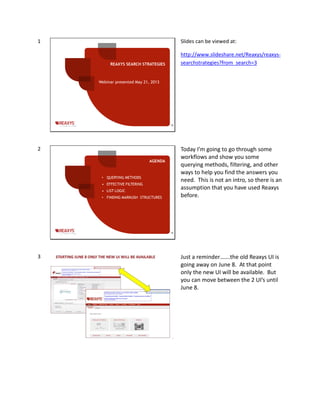
3 Just a reminder…….the old Reaxys UI is
going away on June 8. At that point
only the new UI will be available. But
you can move between the 2 UI’s until
June 8.
4 For today’s session, I have chosen a few
scenarios. We would love to get your
feedback so that we cover the topics
you are interested in for future
webinars. A survey will pop at the end
so you can share your thoughts.
Find Pyrroles - In the first scenario, you
want to find pyrroles with certain
functional groups anywhere on the
substance. Limit it to up to 2 rings and
specify no additional ring closure.
5 Open the structure editor, draw the
fragments, and return to Reaxys. Check
the appropriate boxes, as shown. An
Rgroup query would bring more
specificity to the results but is not
required for this search.
6 The query retrieves 307 substances.
What if you didn’t limit the number of
ring closures? All of your results would
have at least 2 rings (the query rings)
and 1260 substances would be
retrieved.
What if you didn’t specify “1”
fragment? You would retrieve a few
more substances, 331 instead of 307.
7 Does your list of 307 contain isotopes?
In the original query the box for “No
isotopes” was not checked, so your list
most likely contains isotopes. Re-run
the search with the box checked. Then
subtract the second list from the first
list.
8
9
10 Use “Create Structure Template from
Name” to get the structure for
atorvastatin. Bring the structure into
the structure editor, draw hydrogens on
the phenyl ring, click each hydrogen
(one at a time) and select
Object>Atom>Isotope>2H. Run the
search. Five substances retrieved.
11 Instructions for drawing the query are
on the next slide.
12
13 13,159 reactions are retrieved. Notice
that with some reactions the reactant
contains the same substructure as the
product.
14 Eliminate reactions where the reactant
contains the same substructure as the
product. Follow the steps, as shown.
15 Try another filter, like “Number of
Steps”. Click the Analysis View tool to
get an overview of the characteristics of
the reactions in the list. You can also
filter from the Analysis View tool.
16 Use the same query to find “one pot”
synthesis reactions. Click the “Reaction
Data” button. Type into the “Reaction
Basic Index” box.
17
18
19 To create the query on the preceding
slide, click the “Physical” button. If
“circular dichroism” and “Optical rotory
power” are not on the form, click the
“View more fields” link. Type the field
name into the box on the left, select
the field, and click “Add”. Then click
“Save”. Check the boxes in the newly-
created form, and click OK. Run the
search.
20 32 substances that have any kind of
data for circular dichroism and optical
rotary power are retrieved. Filter to
display only those with a particular
optical rotary power (>15).
21 Check the box for “Include related
Markush”.
22
23 Follow the steps shown, and then run
the search.
24 To view the Markush substances, sort
by Mol. Wt. Then jump to the last
page. To exclude them from the list,
check the boxes and click the “Exclude”
button. To keep only the Markush
structures, select them and then click
the “Include” button.
25 Export the list - Filter this list so that it
only contains substances with
bioactivity data (keep in mind that the
bioactivity data can come from multiple
sources, not just the patent that you
searched for originally). Now you want
to export the list and bio data to an
Excel sheet. Before you do this, you
might want to scan some of the
substances and possibly exclude them
before exporting the list. For example,
notice that methanol and
formaldehyde are in the list and they
each contain hundreds of bioactivity
data that will take up a lot of rows in
your spreadsheet.
26
THANK YOU
26
Contact info:
Christine Flemming
Product Training Manager
c.flemming@elsevier.com
Next webinar is:
June 6, 2013 1:00 PM EDT
The new Reaxys: optimized querying,
extended content, and sophisticated
result analysis and refinement
Training materials are available
by clicking the Training link in
the Reaxys Help file.

Reaxys Search Strategies webinar script - May 21, 2013

  • 1.
    1 REAXYS SEARCH STRATEGIES 1 Webinarpresented May 21, 2013 Slides can be viewed at: http://www.slideshare.net/Reaxys/reaxys- searchstrategies?from_search=3 2 AGENDA • QUERYING METHODS • EFFECTIVE FILTERING • LIST LOGIC • FINDING MARKUSH STRUCTURES 2 Today I’m going to go through some workflows and show you some querying methods, filtering, and other ways to help you find the answers you need. This is not an intro, so there is an assumption that you have used Reaxys before. 3 Just a reminder…….the old Reaxys UI is going away on June 8. At that point only the new UI will be available. But you can move between the 2 UI’s until June 8.
  • 2.
    4 For today’ssession, I have chosen a few scenarios. We would love to get your feedback so that we cover the topics you are interested in for future webinars. A survey will pop at the end so you can share your thoughts. Find Pyrroles - In the first scenario, you want to find pyrroles with certain functional groups anywhere on the substance. Limit it to up to 2 rings and specify no additional ring closure. 5 Open the structure editor, draw the fragments, and return to Reaxys. Check the appropriate boxes, as shown. An Rgroup query would bring more specificity to the results but is not required for this search.
  • 3.
    6 The queryretrieves 307 substances. What if you didn’t limit the number of ring closures? All of your results would have at least 2 rings (the query rings) and 1260 substances would be retrieved. What if you didn’t specify “1” fragment? You would retrieve a few more substances, 331 instead of 307. 7 Does your list of 307 contain isotopes? In the original query the box for “No isotopes” was not checked, so your list most likely contains isotopes. Re-run the search with the box checked. Then subtract the second list from the first list. 8
  • 4.
    9 10 Use “CreateStructure Template from Name” to get the structure for atorvastatin. Bring the structure into the structure editor, draw hydrogens on the phenyl ring, click each hydrogen (one at a time) and select Object>Atom>Isotope>2H. Run the search. Five substances retrieved. 11 Instructions for drawing the query are on the next slide.
  • 5.
    12 13 13,159 reactionsare retrieved. Notice that with some reactions the reactant contains the same substructure as the product.
  • 6.
    14 Eliminate reactionswhere the reactant contains the same substructure as the product. Follow the steps, as shown. 15 Try another filter, like “Number of Steps”. Click the Analysis View tool to get an overview of the characteristics of the reactions in the list. You can also filter from the Analysis View tool.
  • 7.
    16 Use thesame query to find “one pot” synthesis reactions. Click the “Reaction Data” button. Type into the “Reaction Basic Index” box. 17
  • 8.
    18 19 To createthe query on the preceding slide, click the “Physical” button. If “circular dichroism” and “Optical rotory power” are not on the form, click the “View more fields” link. Type the field name into the box on the left, select the field, and click “Add”. Then click “Save”. Check the boxes in the newly- created form, and click OK. Run the search. 20 32 substances that have any kind of data for circular dichroism and optical rotary power are retrieved. Filter to display only those with a particular optical rotary power (>15).
  • 9.
    21 Check thebox for “Include related Markush”. 22
  • 10.
    23 Follow thesteps shown, and then run the search. 24 To view the Markush substances, sort by Mol. Wt. Then jump to the last page. To exclude them from the list, check the boxes and click the “Exclude” button. To keep only the Markush structures, select them and then click the “Include” button.
  • 11.
    25 Export thelist - Filter this list so that it only contains substances with bioactivity data (keep in mind that the bioactivity data can come from multiple sources, not just the patent that you searched for originally). Now you want to export the list and bio data to an Excel sheet. Before you do this, you might want to scan some of the substances and possibly exclude them before exporting the list. For example, notice that methanol and formaldehyde are in the list and they each contain hundreds of bioactivity data that will take up a lot of rows in your spreadsheet. 26 THANK YOU 26 Contact info: Christine Flemming Product Training Manager c.flemming@elsevier.com Next webinar is: June 6, 2013 1:00 PM EDT The new Reaxys: optimized querying, extended content, and sophisticated result analysis and refinement Training materials are available by clicking the Training link in the Reaxys Help file.