PROPER USE OF
ESD TOOLS
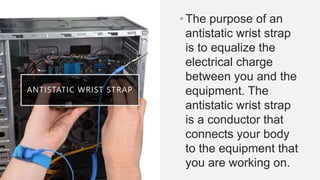
ANTISTATIC WRIST STRAP
•The purpose of an
antistatic wrist strap
is to equalize the
electrical charge
between you and the
equipment. The
antistatic wrist strap
is a conductor that
connects your body
to the equipment that
you are working on.
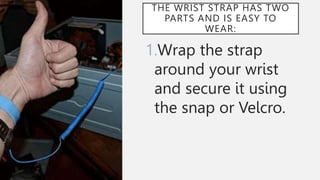
THE WRIST STRAP HAS TWO
PARTS AND IS EASY TO
WEAR:
1.Wrap the strap
around your wrist
and secure it using
the snap or Velcro.
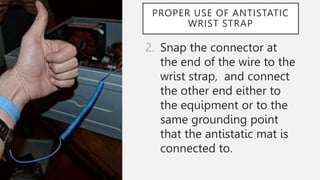
PROPER USE OF ANTISTATIC
WRIST STRAP
2. Snap the connector at
the end of the wire to the
wrist strap, and connect
the other end either to
the equipment or to the
same grounding point
that the antistatic mat is
connected to.
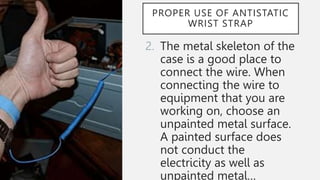
PROPER USE OF ANTISTATIC
WRIST STRAP
2. The metal skeleton of the
case is a good place to
connect the wire. When
connecting the wire to
equipment that you are
working on, choose an
unpainted metal surface.
A painted surface does
not conduct the
electricity as well as
unpainted metal…
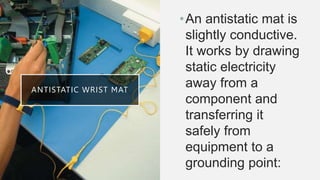
ANTISTATIC WRIST MAT
•An antistatic mat is
slightly conductive.
It works by drawing
static electricity
away from a
component and
transferring it
safely from
equipment to a
grounding point:
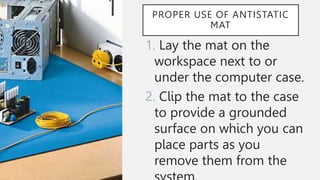
PROPER USE OF ANTISTATIC
MAT
1. Lay the mat on the
workspace next to or
under the computer case.
2. Clip the mat to the case
to provide a grounded
surface on which you can
place parts as you
remove them from the
PROPER USE OF
HAND TOOLS
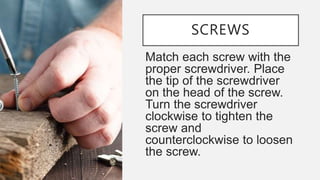
SCREWS
Match each screw with the
proper screwdriver. Place
the tip of the screwdriver
on the head of the screw.
Turn the screwdriver
clockwise to tighten the
screw and
counterclockwise to loosen
the screw.
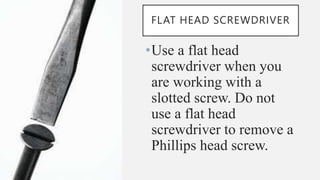
FLAT HEAD SCREWDRIVER
•Use a flat head
screwdriver when you
are working with a
slotted screw. Do not
use a flat head
screwdriver to remove a
Phillips head screw.
•If excessive force is needed to remove
or add a component, something is
probably wrong. Take a second look to
make sure that you have not missed a
screw or a locking clip that is holding
the component in place. Refer to the
device manual or diagram for
additional information.
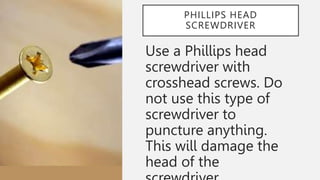
PHILLIPS HEAD
SCREWDRIVER
Use a Phillips head
screwdriver with
crosshead screws. Do
not use this type of
screwdriver to
puncture anything.
This will damage the
head of the
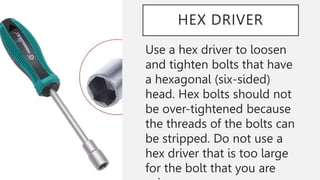
HEX DRIVER
Use a hex driver to loosen
and tighten bolts that have
a hexagonal (six-sided)
head. Hex bolts should not
be over-tightened because
the threads of the bolts can
be stripped. Do not use a
hex driver that is too large
for the bolt that you are
Some tools are magnetized. When
working around electronic devices, be
sure that the tools you are using have
not been magnetized. Magnetic fields
can be harmful to data stored on
magnetic media. Test your tool by
touching the tool with a screw. If the
screw is attracted to the tool, do not
use the tool.
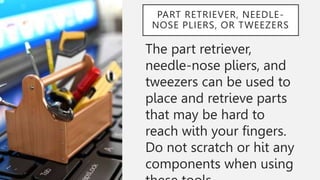
PART RETRIEVER, NEEDLE-
NOSE PLIERS, OR TWEEZERS
The part retriever,
needle-nose pliers, and
tweezers can be used to
place and retrieve parts
that may be hard to
reach with your fingers.
Do not scratch or hit any
components when using
Pencils should not be used inside the
computer to change the setting of
switches or to pry off jumpers. The
pencil lead can act as a conductor and
may damage the computer
components.
PROPER USE OF CLEANING
MATERIALS
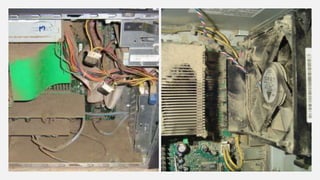
Keeping computers clean inside and out is a
vital part of a maintenance program. Dirt can
cause problems with the physical operation of
fans, buttons, and other mechanical
components. On electrical components, an
excessive buildup of dust will act like an
insulator and trap the heat. This insulation will
impair the ability of heat sinks and cooling
fans to keep components cool, causing chips
and circuits to overheat and fail.
When compressed air is used to clean
inside the computer, the air should be
blown around the components with a
minimum distance of four inches from
the nozzle. The power supply and the
fan should be cleaned from the back of
the case.
Before cleaning any device, turn it off
and unplug the device from the power
source.
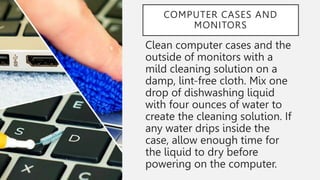
COMPUTER CASES AND
MONITORS
Clean computer cases and the
outside of monitors with a
mild cleaning solution on a
damp, lint-free cloth. Mix one
drop of dishwashing liquid
with four ounces of water to
create the cleaning solution. If
any water drips inside the
case, allow enough time for
the liquid to dry before
powering on the computer.
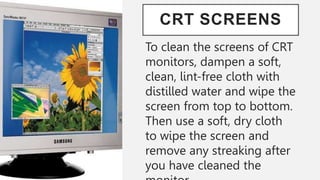
CRT SCREENS
To clean the screens of CRT
monitors, dampen a soft,
clean, lint-free cloth with
distilled water and wipe the
screen from top to bottom.
Then use a soft, dry cloth
to wipe the screen and
remove any streaking after
you have cleaned the
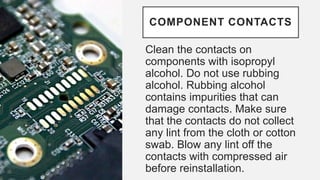
COMPONENT CONTACTS
Clean the contacts on
components with isopropyl
alcohol. Do not use rubbing
alcohol. Rubbing alcohol
contains impurities that can
damage contacts. Make sure
that the contacts do not collect
any lint from the cloth or cotton
swab. Blow any lint off the
contacts with compressed air
before reinstallation.
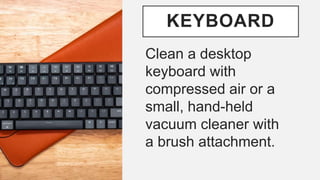
KEYBOARD
Clean a desktop
keyboard with
compressed air or a
small, hand-held
vacuum cleaner with
a brush attachment.
Never use a standard vacuum cleaner
inside a computer case. The plastic
parts of the vacuum cleaner can build
up static electricity and discharge to the
components. Use only a vacuum
approved for electronic components.
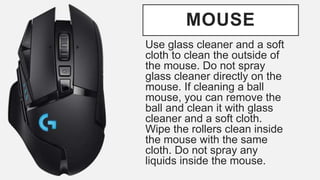
MOUSE
Use glass cleaner and a soft
cloth to clean the outside of
the mouse. Do not spray
glass cleaner directly on the
mouse. If cleaning a ball
mouse, you can remove the
ball and clean it with glass
cleaner and a soft cloth.
Wipe the rollers clean inside
the mouse with the same
cloth. Do not spray any
liquids inside the mouse.
ACTIVITY
1. The purpose of an
antistatic wrist strap is
to ________ the
electrical charge
between you and the
2. Turn the
screwdriver _________
to tighten the screw.
3. Turn the
screwdriver
________________ to
loosen the screw.
4. Use a ________
head screwdriver with
crosshead screws.
5.On electrical
components, an
excessive buildup of
dust will act like an
_________ and trap the
6. When compressed air is
used to clean inside the
computer, the air should be
blown around the components
with a minimum distance of
______ inches from the nozzle.
7. Pencils should not be used
inside the computer to change
the setting of switches or to
pry off jumpers because the
tip contains _____ which can act
as a conductor and may
damage the computer
components.
8. To clean the screens of
CRT monitors, dampen a
soft, clean, lint-free cloth
with _______ water and wipe
the screen from top to
bottom.
9.Clean the contacts on
components with
_________ alcohol.
10. Use a __________ to
loosen and tighten bolts
that have a hexagonal
(six-sided) head.
11. Kimpamparahas
12. Kimpamparahas
13. Kimpamparahas
14. Kimpamparahas
15. Kimpamparahas
1. Equalize
2. Clockwise
3. Counterclockwis
e
4. Phillips
5. Insulator
6. Four
7. Lead
8. Distilled
9. Isopropyl
10. Hex driver
ANSWER
11. Arial Rounded
MT Bold
12. Rockwell
13. Times New
Roman
14. Lucida Bright
15. Brush Script
MT
QUIZ 1.1
1
used to stand
on or place
hardware on
to prevent
static
electricity
2
Used to prevent
ESD damage to
computer
equipment.
3
used to light
up areas that
you cannot
see well.
4
used to
manipulate
small parts.
5
used to blow
away dust and
debris from
different
computer parts
without
touching the
6
used to test the
functionality of
computer ports.
7
It is sometimes
called a nut
driver, is used to
tighten nuts in
the same way
that a
screwdriver
tightens screws.
8
used to loosen
or tighten
slotted screws
9
used to loosen
or tighten screws
that have a star-
like depression
on the top, a
feature that is
mainly found on
laptop.
1
0
used to retrieve
parts from
location that
are too small
for your hand to
fit.
11
On electrical
components, an
excessive
buildup of dust
will act like an
_________ and
trap the heat.
1
2
Use a __________
to loosen and
tighten bolts
that have a
hexagonal (six-
sided) head.
13
To clean the
screens of CRT
monitors, dampen
a soft, clean, lint-
free cloth with
_______ water and
wipe the screen
from top to
bottom.
1
4
Use a ________
head
screwdriver with
crosshead
screws.
15
The purpose of
an antistatic
wrist strap is to
________ the
electrical
charge between
you and the
1
6
Turn the
screwdriver
_________ to
tighten the
screw.
17
Turn the
screwdriver
__________ to
loosen the
screw.
1
8
Clean the
contacts on
components
with _________
alcohol.
19
Pencils should not be
used inside the
computer to change
the setting of switches
or to pry off jumpers
because the tip
contains _____ which
can act as a conductor
and may damage the
computer components.
2
0
When compressed
air is used to clean
inside the computer,
the air should be
blown around the
components with a
minimum distance
of ______ inches from
the nozzle.
Shortcut Keys for
the following:
21. copy
22. save
23. Align text to
right
24. center
25. new page
26. aesthetic
27. aesthetic
28. aesthetic
29. aesthetic
30. aesthetic
1. Anti-static mat
2. Anti-Static wrist
trap
3. Flashlight
4. Tweezers
5. Compressor air
6. Loopback adapter
7. Hex driver
8. Flathead
screwdriver
9. Torx screwdriver
10. Part retriever
ANSWER
11. Insulator
12. Hex driver
13. Distilled
14. Phillip
15. Equalized
16. Clockwise
17. Counterclockwis
e
18. Isopropyl
19. Lead
20. Four

Q1 Proper Use of Computer Hardware Tools.pptx

  • 1.
  • 3.
    ANTISTATIC WRIST STRAP •Thepurpose of an antistatic wrist strap is to equalize the electrical charge between you and the equipment. The antistatic wrist strap is a conductor that connects your body to the equipment that you are working on.
  • 4.
    THE WRIST STRAPHAS TWO PARTS AND IS EASY TO WEAR: 1.Wrap the strap around your wrist and secure it using the snap or Velcro.
  • 5.
    PROPER USE OFANTISTATIC WRIST STRAP 2. Snap the connector at the end of the wire to the wrist strap, and connect the other end either to the equipment or to the same grounding point that the antistatic mat is connected to.
  • 6.
    PROPER USE OFANTISTATIC WRIST STRAP 2. The metal skeleton of the case is a good place to connect the wire. When connecting the wire to equipment that you are working on, choose an unpainted metal surface. A painted surface does not conduct the electricity as well as unpainted metal…
  • 7.
    ANTISTATIC WRIST MAT •Anantistatic mat is slightly conductive. It works by drawing static electricity away from a component and transferring it safely from equipment to a grounding point:
  • 8.
    PROPER USE OFANTISTATIC MAT 1. Lay the mat on the workspace next to or under the computer case. 2. Clip the mat to the case to provide a grounded surface on which you can place parts as you remove them from the
  • 9.
  • 10.
    SCREWS Match each screwwith the proper screwdriver. Place the tip of the screwdriver on the head of the screw. Turn the screwdriver clockwise to tighten the screw and counterclockwise to loosen the screw.
  • 11.
    FLAT HEAD SCREWDRIVER •Usea flat head screwdriver when you are working with a slotted screw. Do not use a flat head screwdriver to remove a Phillips head screw.
  • 12.
    •If excessive forceis needed to remove or add a component, something is probably wrong. Take a second look to make sure that you have not missed a screw or a locking clip that is holding the component in place. Refer to the device manual or diagram for additional information.
  • 13.
    PHILLIPS HEAD SCREWDRIVER Use aPhillips head screwdriver with crosshead screws. Do not use this type of screwdriver to puncture anything. This will damage the head of the
  • 14.
    HEX DRIVER Use ahex driver to loosen and tighten bolts that have a hexagonal (six-sided) head. Hex bolts should not be over-tightened because the threads of the bolts can be stripped. Do not use a hex driver that is too large for the bolt that you are
  • 15.
    Some tools aremagnetized. When working around electronic devices, be sure that the tools you are using have not been magnetized. Magnetic fields can be harmful to data stored on magnetic media. Test your tool by touching the tool with a screw. If the screw is attracted to the tool, do not use the tool.
  • 16.
    PART RETRIEVER, NEEDLE- NOSEPLIERS, OR TWEEZERS The part retriever, needle-nose pliers, and tweezers can be used to place and retrieve parts that may be hard to reach with your fingers. Do not scratch or hit any components when using
  • 17.
    Pencils should notbe used inside the computer to change the setting of switches or to pry off jumpers. The pencil lead can act as a conductor and may damage the computer components.
  • 18.
    PROPER USE OFCLEANING MATERIALS
  • 20.
    Keeping computers cleaninside and out is a vital part of a maintenance program. Dirt can cause problems with the physical operation of fans, buttons, and other mechanical components. On electrical components, an excessive buildup of dust will act like an insulator and trap the heat. This insulation will impair the ability of heat sinks and cooling fans to keep components cool, causing chips and circuits to overheat and fail.
  • 21.
    When compressed airis used to clean inside the computer, the air should be blown around the components with a minimum distance of four inches from the nozzle. The power supply and the fan should be cleaned from the back of the case. Before cleaning any device, turn it off and unplug the device from the power source.
  • 22.
    COMPUTER CASES AND MONITORS Cleancomputer cases and the outside of monitors with a mild cleaning solution on a damp, lint-free cloth. Mix one drop of dishwashing liquid with four ounces of water to create the cleaning solution. If any water drips inside the case, allow enough time for the liquid to dry before powering on the computer.
  • 23.
    CRT SCREENS To cleanthe screens of CRT monitors, dampen a soft, clean, lint-free cloth with distilled water and wipe the screen from top to bottom. Then use a soft, dry cloth to wipe the screen and remove any streaking after you have cleaned the
  • 25.
    COMPONENT CONTACTS Clean thecontacts on components with isopropyl alcohol. Do not use rubbing alcohol. Rubbing alcohol contains impurities that can damage contacts. Make sure that the contacts do not collect any lint from the cloth or cotton swab. Blow any lint off the contacts with compressed air before reinstallation.
  • 26.
    KEYBOARD Clean a desktop keyboardwith compressed air or a small, hand-held vacuum cleaner with a brush attachment.
  • 27.
    Never use astandard vacuum cleaner inside a computer case. The plastic parts of the vacuum cleaner can build up static electricity and discharge to the components. Use only a vacuum approved for electronic components.
  • 28.
    MOUSE Use glass cleanerand a soft cloth to clean the outside of the mouse. Do not spray glass cleaner directly on the mouse. If cleaning a ball mouse, you can remove the ball and clean it with glass cleaner and a soft cloth. Wipe the rollers clean inside the mouse with the same cloth. Do not spray any liquids inside the mouse.
  • 29.
  • 30.
    1. The purposeof an antistatic wrist strap is to ________ the electrical charge between you and the
  • 31.
    2. Turn the screwdriver_________ to tighten the screw.
  • 32.
  • 33.
    4. Use a________ head screwdriver with crosshead screws.
  • 34.
    5.On electrical components, an excessivebuildup of dust will act like an _________ and trap the
  • 35.
    6. When compressedair is used to clean inside the computer, the air should be blown around the components with a minimum distance of ______ inches from the nozzle.
  • 36.
    7. Pencils shouldnot be used inside the computer to change the setting of switches or to pry off jumpers because the tip contains _____ which can act as a conductor and may damage the computer components.
  • 37.
    8. To cleanthe screens of CRT monitors, dampen a soft, clean, lint-free cloth with _______ water and wipe the screen from top to bottom.
  • 38.
    9.Clean the contactson components with _________ alcohol.
  • 39.
    10. Use a__________ to loosen and tighten bolts that have a hexagonal (six-sided) head.
  • 40.
    11. Kimpamparahas 12. Kimpamparahas 13.Kimpamparahas 14. Kimpamparahas 15. Kimpamparahas
  • 41.
    1. Equalize 2. Clockwise 3.Counterclockwis e 4. Phillips 5. Insulator 6. Four 7. Lead 8. Distilled 9. Isopropyl 10. Hex driver ANSWER 11. Arial Rounded MT Bold 12. Rockwell 13. Times New Roman 14. Lucida Bright 15. Brush Script MT
  • 42.
  • 43.
    1 used to stand onor place hardware on to prevent static electricity 2 Used to prevent ESD damage to computer equipment.
  • 44.
    3 used to light upareas that you cannot see well. 4 used to manipulate small parts.
  • 45.
    5 used to blow awaydust and debris from different computer parts without touching the 6 used to test the functionality of computer ports.
  • 46.
    7 It is sometimes calleda nut driver, is used to tighten nuts in the same way that a screwdriver tightens screws. 8 used to loosen or tighten slotted screws
  • 47.
    9 used to loosen ortighten screws that have a star- like depression on the top, a feature that is mainly found on laptop. 1 0 used to retrieve parts from location that are too small for your hand to fit.
  • 48.
    11 On electrical components, an excessive buildupof dust will act like an _________ and trap the heat. 1 2 Use a __________ to loosen and tighten bolts that have a hexagonal (six- sided) head.
  • 49.
    13 To clean the screensof CRT monitors, dampen a soft, clean, lint- free cloth with _______ water and wipe the screen from top to bottom. 1 4 Use a ________ head screwdriver with crosshead screws.
  • 50.
    15 The purpose of anantistatic wrist strap is to ________ the electrical charge between you and the 1 6 Turn the screwdriver _________ to tighten the screw.
  • 51.
    17 Turn the screwdriver __________ to loosenthe screw. 1 8 Clean the contacts on components with _________ alcohol.
  • 52.
    19 Pencils should notbe used inside the computer to change the setting of switches or to pry off jumpers because the tip contains _____ which can act as a conductor and may damage the computer components. 2 0 When compressed air is used to clean inside the computer, the air should be blown around the components with a minimum distance of ______ inches from the nozzle.
  • 53.
    Shortcut Keys for thefollowing: 21. copy 22. save 23. Align text to right 24. center 25. new page 26. aesthetic 27. aesthetic 28. aesthetic 29. aesthetic 30. aesthetic
  • 54.
    1. Anti-static mat 2.Anti-Static wrist trap 3. Flashlight 4. Tweezers 5. Compressor air 6. Loopback adapter 7. Hex driver 8. Flathead screwdriver 9. Torx screwdriver 10. Part retriever ANSWER 11. Insulator 12. Hex driver 13. Distilled 14. Phillip 15. Equalized 16. Clockwise 17. Counterclockwis e 18. Isopropyl 19. Lead 20. Four