PYTHON
INSTALLATION
GUIDE
Tushar Banga
Presentation by
TABLE OF CONTENT
Python Installation On System
VS Code Setup
PYTHON
INSTALLATION
1
Go the "https://www.python.org/"
and install
https://www.python.org/
2
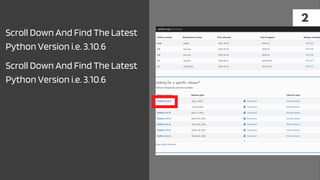
Scroll Down And Find The Latest
Python Version i.e. 3.10.6
Scroll Down And Find The Latest
Python Version i.e. 3.10.6
3
Scroll Down And download the
windows installer (64bit/32bit)
depending on your operating
system
4
Open The Downloaded File and
install it on the path C:Python
5
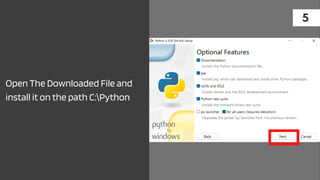
Open The Downloaded File and
install it on the path C:Python
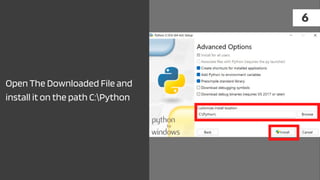
6
Open The Downloaded File and
install it on the path C:Python
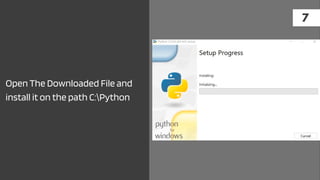
7
Open The Downloaded File and
install it on the path C:Python
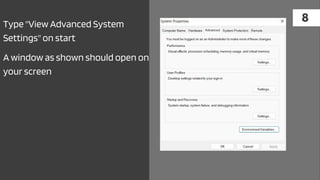
8
Type "View Advanced System
Settings" on start
A window as shown should open on
your screen
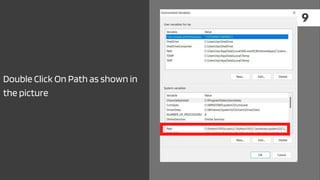
9
Double Click On Path as shown in
the picture
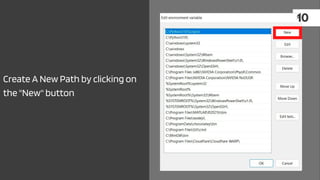
10
Create A New Path by clicking on
the "New" button
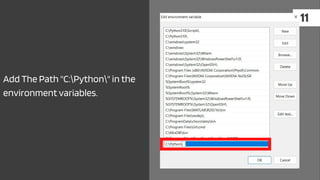
11
Add The Path "C:Python" in the
environment variables.
YOU HAVE SUCCESSFULLY
INSTALLED PYTHON ON YOUR
SYSTEM.
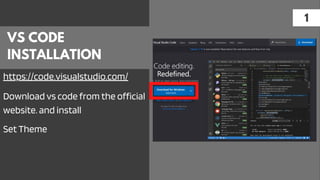
VS CODE
INSTALLATION
1
Download vs code from the official
website. and install
Set Theme
https://code.visualstudio.com/
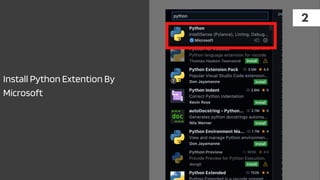
2
Install Python Extention By
Microsoft
3
Install Code Runner Extension.
YOU HAVE SUCCESSFULLY
INSTALLED VS CODE FOR
PYTHON
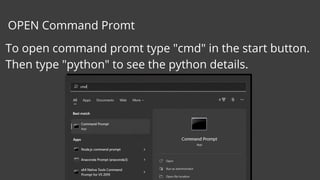
OPEN Command Promt
To open command promt type "cmd" in the start button.
Then type "python" to see the python details.
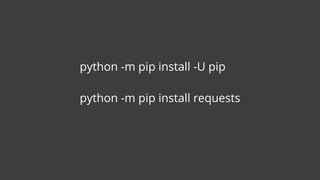
python -m pip install -U pip
python -m pip install requests
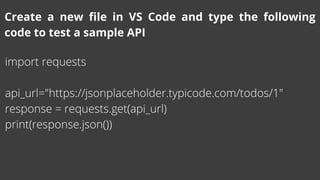
import requests
api_url="https://jsonplaceholder.typicode.com/todos/1"
response = requests.get(api_url)
print(response.json())
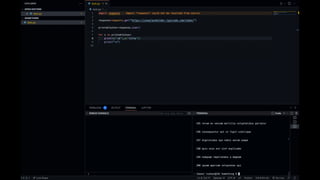
Create a new file in VS Code and type the following
code to test a sample API
Python Installation Guide  (1).pdf

Python Installation Guide (1).pdf