Computer Science
Class XI ( As per CBSE Board)
Chapter 6
Getting
Started
With Python
New
syllabus
2020-21
Visit : python.mykvs.in for regular updates
Python Introduction
It is widely used general purpose, high level programming
language. Developed by Guido van Rossum in 1991.
It is used for:
software development,
web development (server-side),
system scripting,
Mathematics.
Visit : python.mykvs.in for regular updates
Features of Python
1. Easy to use – Due to simple syntax rule
2. Interpreted language – Code execution &
interpretation line by line
3. Cross-platform language – It can run on windows,
Linux, Macintosh etc. equally
4. Expressive language – Less code to be written as it
itself express the purpose of the code.
5. Completeness – Support wide rage of library
6. Free & Open Source – Can be downloaded freely
and source code can be modify for improvement
Visit : python.mykvs.in for regular updates
Shortcomings of Python
1. Lesser libraries – as compared to other
programming languages like c++,java,. Net
2. Slow language – as it is interpreted languages, it
executes the program slowly.
3. Weak on Type-binding – It not pin point on use of a
single variable for different data type.
Visit : python.mykvs.in for regular updates
Installing Python
Two Steps Only –
1. Download Python distribution
2. Python installation process
Visit : python.mykvs.in for regular updates
Installing Python
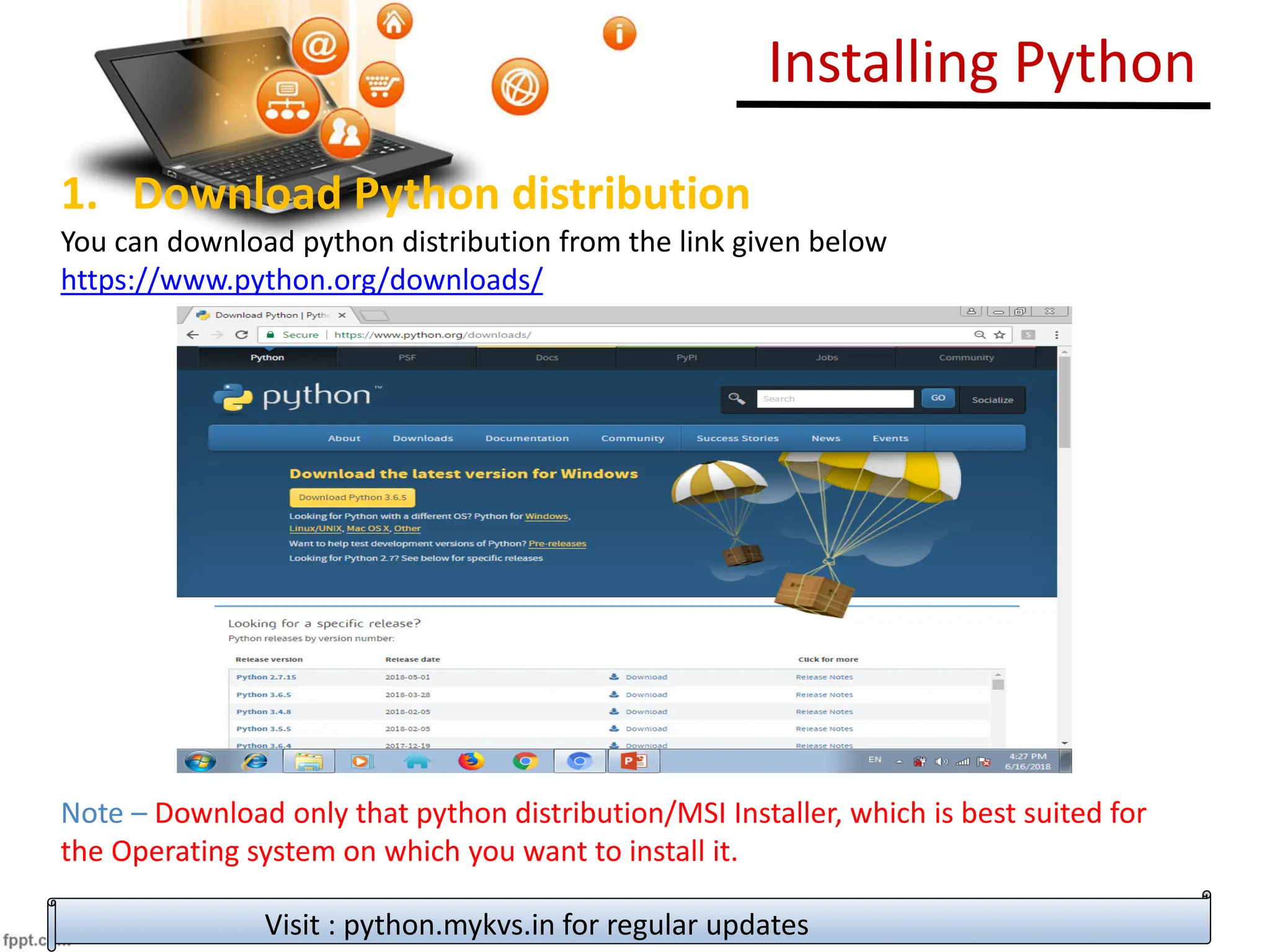
1. Download Python distribution
You can download python distribution from the link given below
https://www.python.org/downloads/
Note – Download only that python distribution/MSI Installer, which is best suited for
the Operating system on which you want to install it.
Visit : python.mykvs.in for regular updates
Installing Python
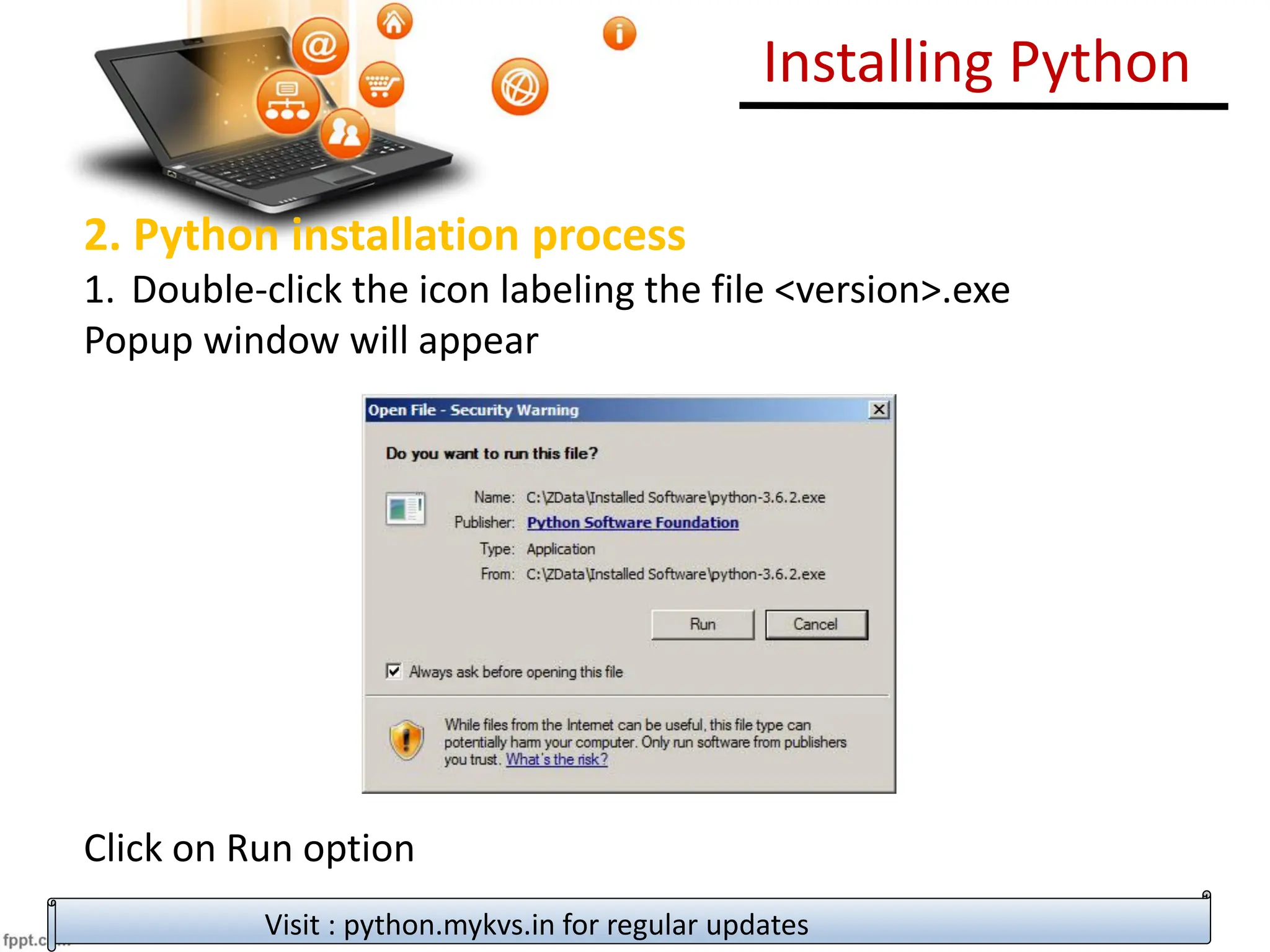
2. Python installation process
1. Double-click the icon labeling the file <version>.exe
Popup window will appear
Click on Run option
Visit : python.mykvs.in for regular updates
Installing Python
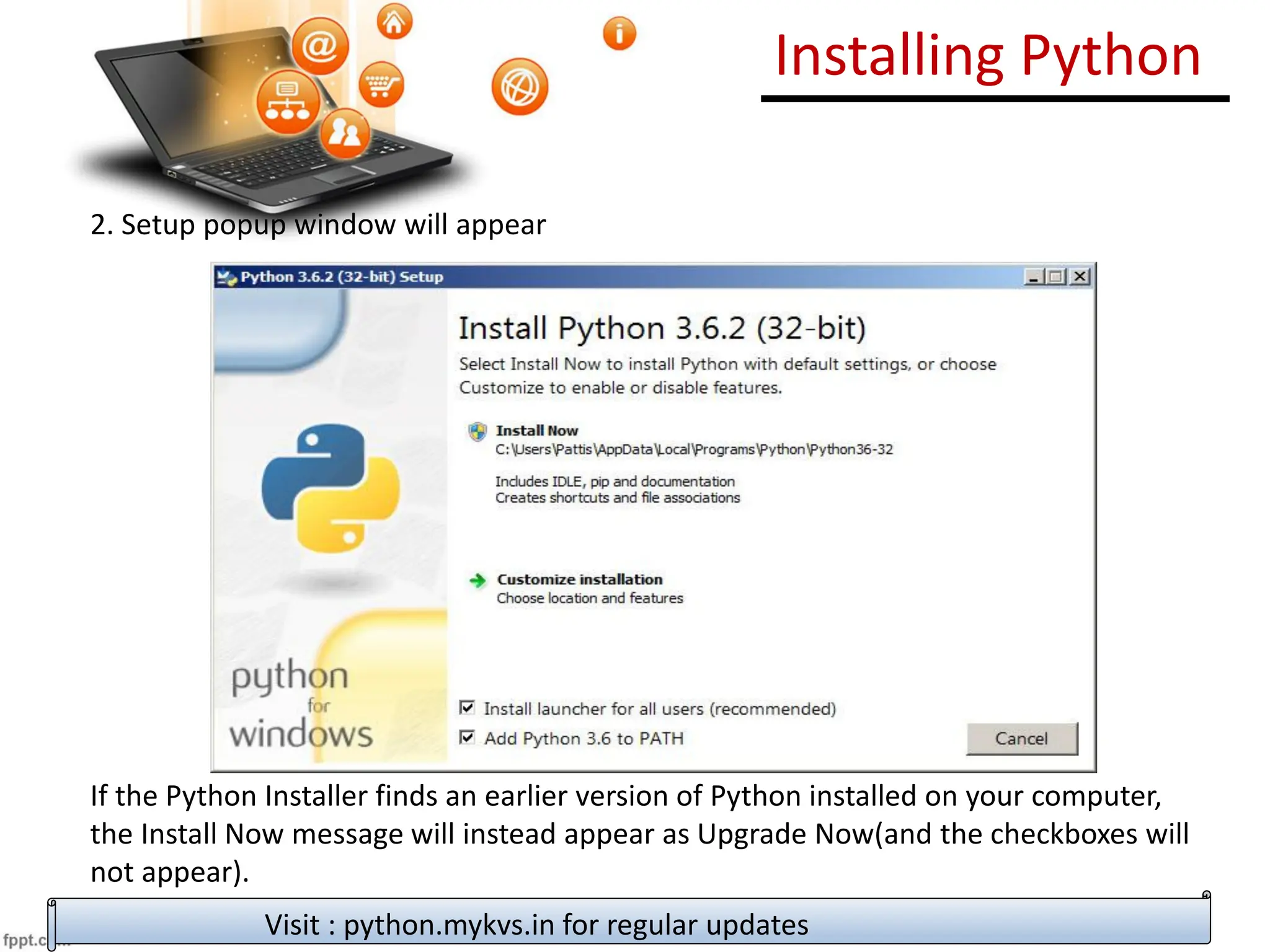
2. Setup popup window will appear
If the Python Installer finds an earlier version of Python installed on your computer,
the Install Now message will instead appear as Upgrade Now(and the checkboxes will
not appear).
Highlight the Install Now (or Upgrade Now) message, and then click it
Visit : python.mykvs.in for regular updates
Installing Python
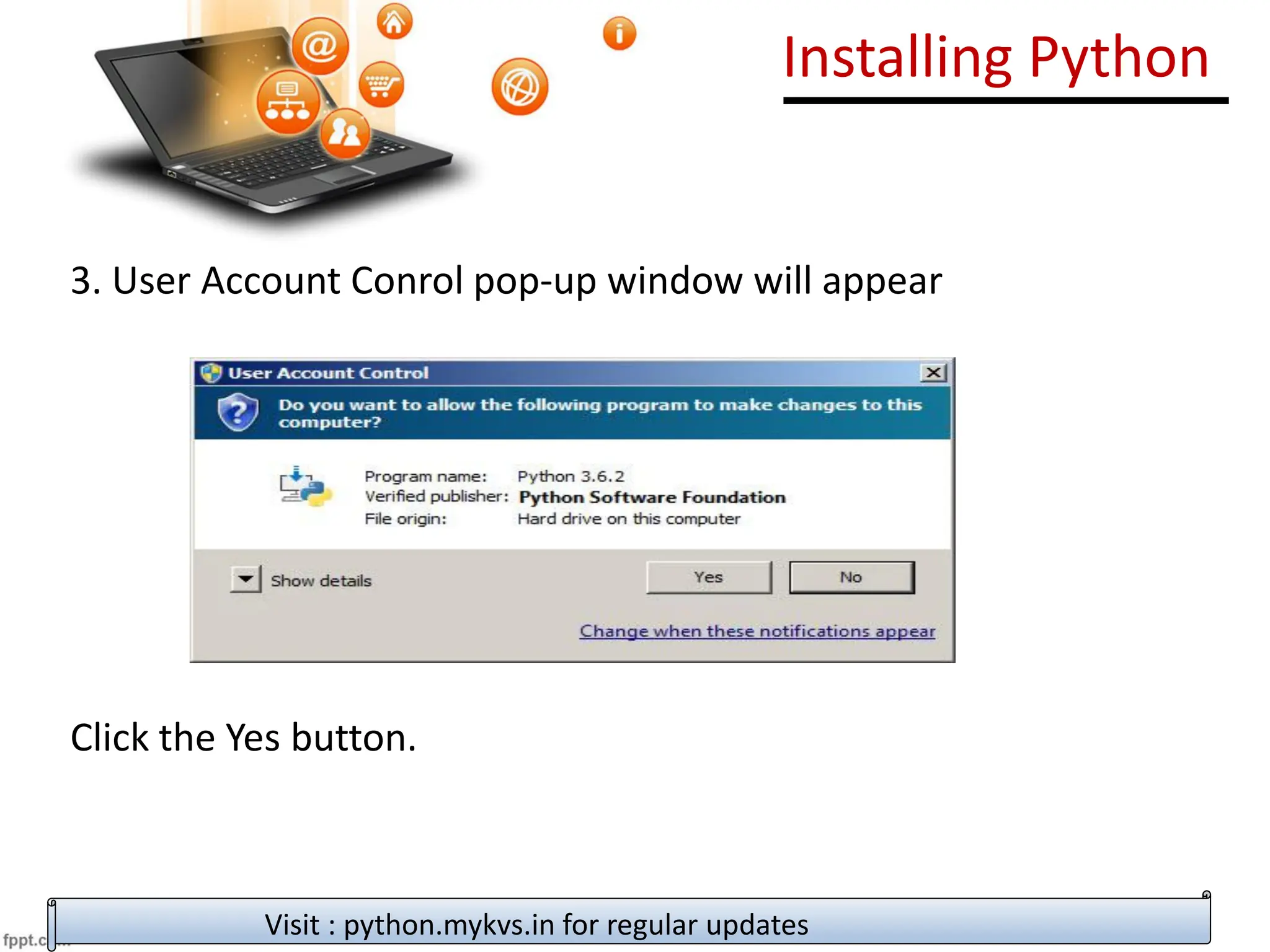
3. User Account Conrol pop-up window will appear
Click the Yes button.
Visit : python.mykvs.in for regular updates
Installing Python
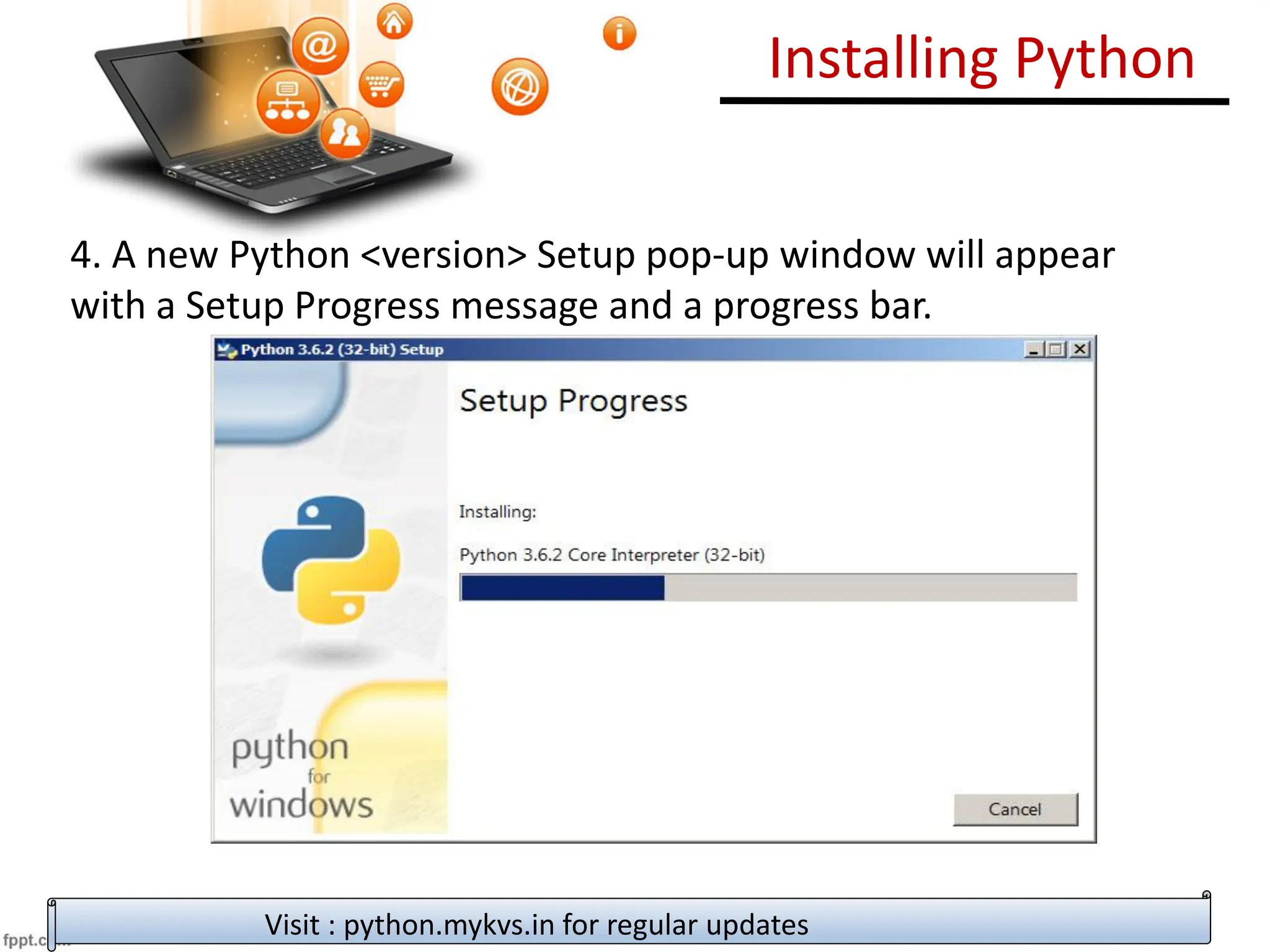
4. A new Python <version> Setup pop-up window will appear
with a Setup Progress message and a progress bar.
Visit : python.mykvs.in for regular updates
Installing Python
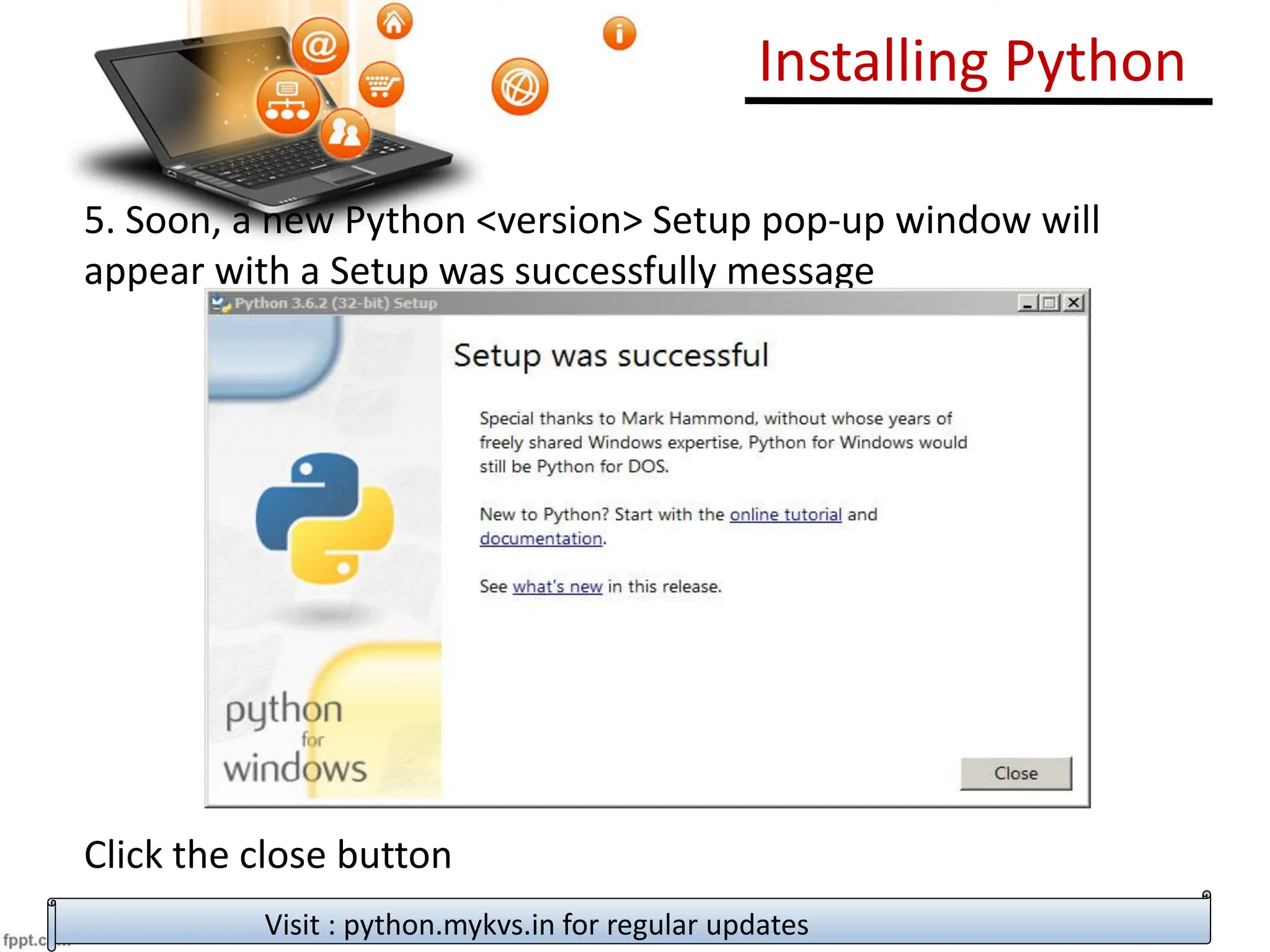
5. Soon, a new Python <version> Setup pop-up window will
appear with a Setup was successfully message
Click the close button
Visit : python.mykvs.in for regular updates
How to work in Python
Visit : python.mykvs.in for regular updates
PROCESS OF WRITING PROGRAM
After installation of python ,we can work on it in following ways
(i) in Interactive mode
(ii) in Script mode
How to work in Python
Visit : python.mykvs.in for regular updates
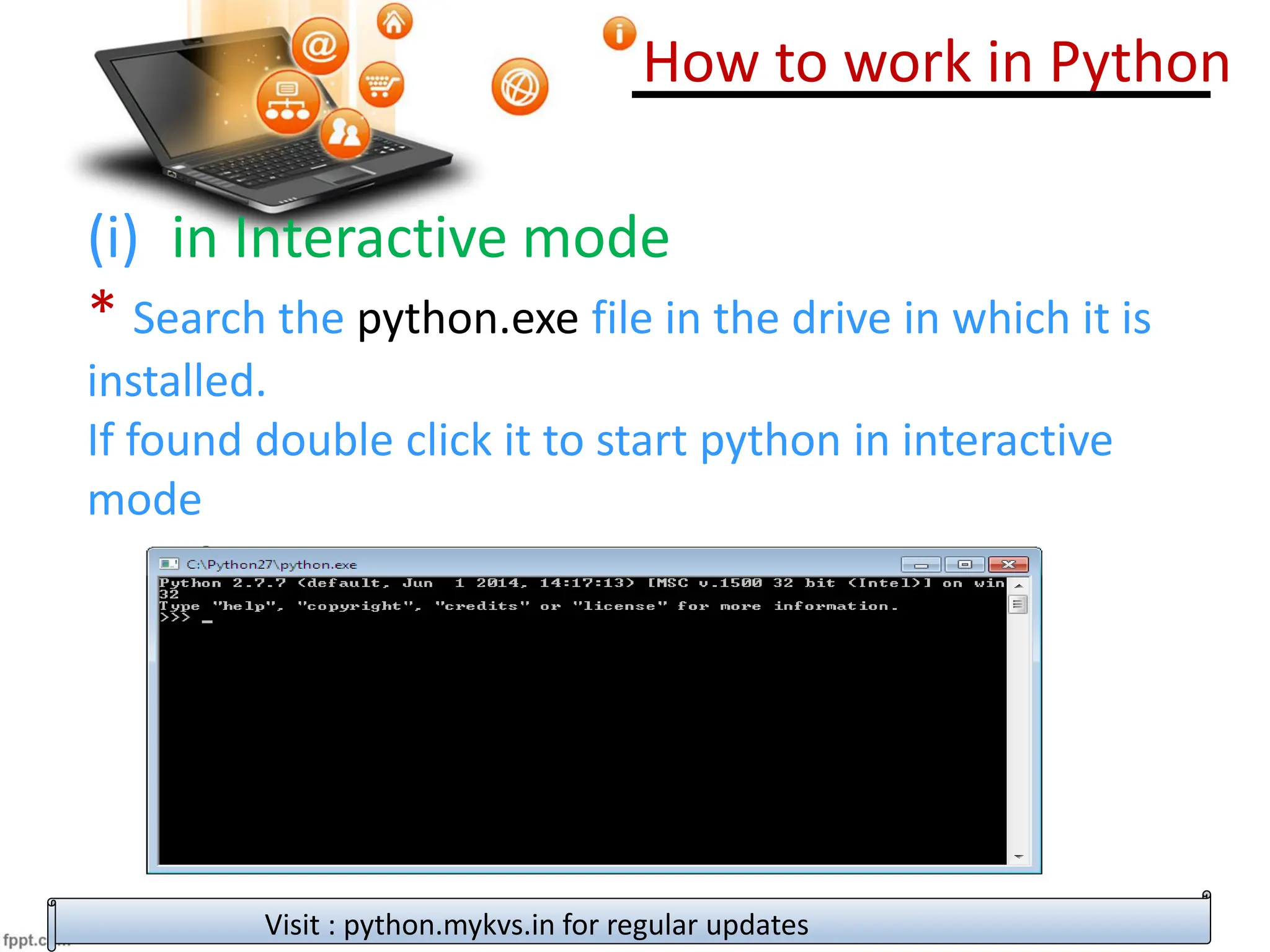
(i) in Interactive mode
* Search the python.exe file in the drive in which it is
installed.
If found double click it to start python in interactive
mode
How to work in Python
Visit : python.mykvs.in for regular updates
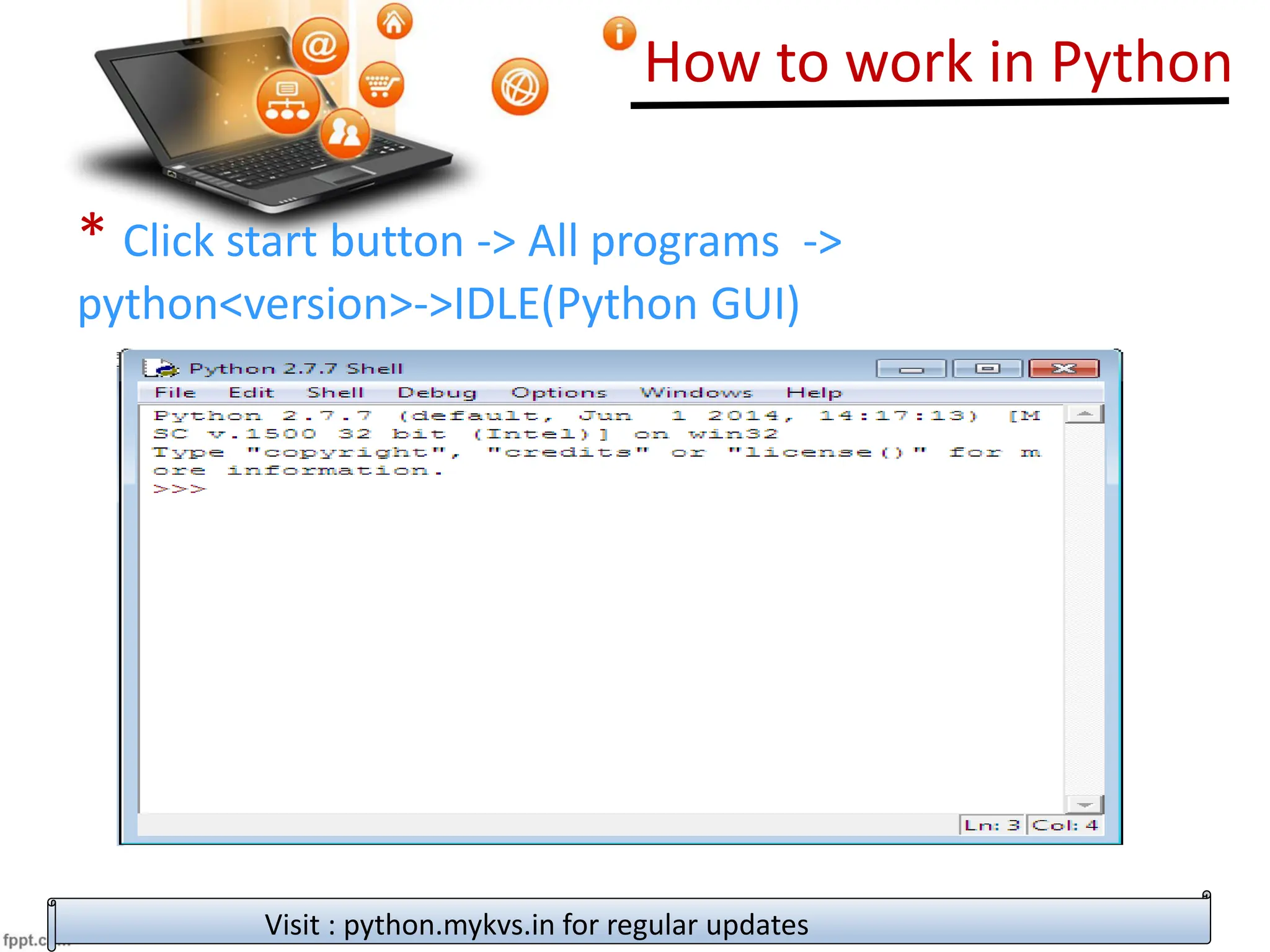
* Click start button -> All programs ->
python<version>->IDLE(Python GUI)
How to work in Python
Visit : python.mykvs.in for regular updates
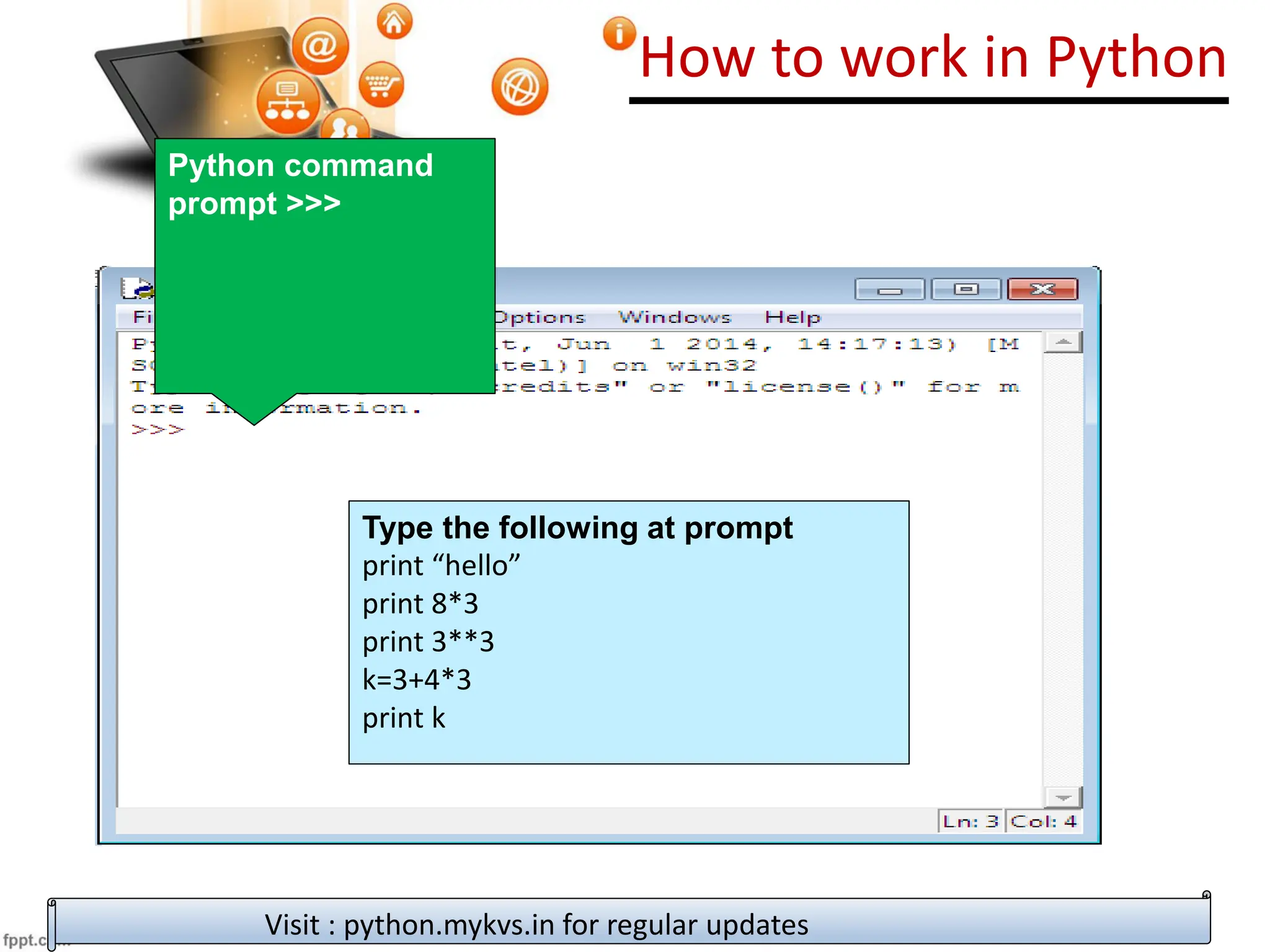
Python command
prompt >>>
Type the following at prompt
print “hello”
print 8*3
print 3**3
k=3+4*3
print k
How to work in Python
Visit : python.mykvs.in for regular updates
(ii) in Script mode
Step 1 (Create program file) / Hello world program
Below steps are for simple hello world program
a. Click Start button->All Programs ->
Python<version>->IDLE
b. Now click File->New in IDLE Python Shell
Now type
print (“hello”)
print (“world”)
print (“python is”,”object oriented programming lang.”)
c. Click File->Save and then save the file with filename
and .py extension
How to work in Python
Visit : python.mykvs.in for regular updates
(ii) in Script mode
Step 2 (Run program file)
a. Click Open command from IDLE’s File menu and select the file
you have already saved
b. Click Run-> Run Module
c. It will execute all the commands of program file and display
output in separate python shell window
Note :- Python comes in 2 flavors – python 2.x and python 3.x . Later
one is Backward incompatible language as decide by Python
Software foundation(PSF). Mean code written in 2.x will not execute
on 3.x . Visit the below link for difference between 2.x & 3.x
https://www.geeksforgeeks.org/important-differences-
between-python-2-x-and-python-3-x-with-examples/

6_getting__started_with_python.pdf

  • 1.
    Computer Science Class XI( As per CBSE Board) Chapter 6 Getting Started With Python New syllabus 2020-21 Visit : python.mykvs.in for regular updates
  • 2.
    Python Introduction It iswidely used general purpose, high level programming language. Developed by Guido van Rossum in 1991. It is used for: software development, web development (server-side), system scripting, Mathematics. Visit : python.mykvs.in for regular updates
  • 3.
    Features of Python 1.Easy to use – Due to simple syntax rule 2. Interpreted language – Code execution & interpretation line by line 3. Cross-platform language – It can run on windows, Linux, Macintosh etc. equally 4. Expressive language – Less code to be written as it itself express the purpose of the code. 5. Completeness – Support wide rage of library 6. Free & Open Source – Can be downloaded freely and source code can be modify for improvement Visit : python.mykvs.in for regular updates
  • 4.
    Shortcomings of Python 1.Lesser libraries – as compared to other programming languages like c++,java,. Net 2. Slow language – as it is interpreted languages, it executes the program slowly. 3. Weak on Type-binding – It not pin point on use of a single variable for different data type. Visit : python.mykvs.in for regular updates
  • 5.
    Installing Python Two StepsOnly – 1. Download Python distribution 2. Python installation process Visit : python.mykvs.in for regular updates
  • 6.
    Installing Python 1. DownloadPython distribution You can download python distribution from the link given below https://www.python.org/downloads/ Note – Download only that python distribution/MSI Installer, which is best suited for the Operating system on which you want to install it. Visit : python.mykvs.in for regular updates
  • 7.
    Installing Python 2. Pythoninstallation process 1. Double-click the icon labeling the file <version>.exe Popup window will appear Click on Run option Visit : python.mykvs.in for regular updates
  • 8.
    Installing Python 2. Setuppopup window will appear If the Python Installer finds an earlier version of Python installed on your computer, the Install Now message will instead appear as Upgrade Now(and the checkboxes will not appear). Highlight the Install Now (or Upgrade Now) message, and then click it Visit : python.mykvs.in for regular updates
  • 9.
    Installing Python 3. UserAccount Conrol pop-up window will appear Click the Yes button. Visit : python.mykvs.in for regular updates
  • 10.
    Installing Python 4. Anew Python <version> Setup pop-up window will appear with a Setup Progress message and a progress bar. Visit : python.mykvs.in for regular updates
  • 11.
    Installing Python 5. Soon,a new Python <version> Setup pop-up window will appear with a Setup was successfully message Click the close button Visit : python.mykvs.in for regular updates
  • 12.
    How to workin Python Visit : python.mykvs.in for regular updates PROCESS OF WRITING PROGRAM After installation of python ,we can work on it in following ways (i) in Interactive mode (ii) in Script mode
  • 13.
    How to workin Python Visit : python.mykvs.in for regular updates (i) in Interactive mode * Search the python.exe file in the drive in which it is installed. If found double click it to start python in interactive mode
  • 14.
    How to workin Python Visit : python.mykvs.in for regular updates * Click start button -> All programs -> python<version>->IDLE(Python GUI)
  • 15.
    How to workin Python Visit : python.mykvs.in for regular updates Python command prompt >>> Type the following at prompt print “hello” print 8*3 print 3**3 k=3+4*3 print k
  • 16.
    How to workin Python Visit : python.mykvs.in for regular updates (ii) in Script mode Step 1 (Create program file) / Hello world program Below steps are for simple hello world program a. Click Start button->All Programs -> Python<version>->IDLE b. Now click File->New in IDLE Python Shell Now type print (“hello”) print (“world”) print (“python is”,”object oriented programming lang.”) c. Click File->Save and then save the file with filename and .py extension
  • 17.
    How to workin Python Visit : python.mykvs.in for regular updates (ii) in Script mode Step 2 (Run program file) a. Click Open command from IDLE’s File menu and select the file you have already saved b. Click Run-> Run Module c. It will execute all the commands of program file and display output in separate python shell window Note :- Python comes in 2 flavors – python 2.x and python 3.x . Later one is Backward incompatible language as decide by Python Software foundation(PSF). Mean code written in 2.x will not execute on 3.x . Visit the below link for difference between 2.x & 3.x https://www.geeksforgeeks.org/important-differences- between-python-2-x-and-python-3-x-with-examples/