How to Install Python on Mac
Python is one of the oldest programming languages around. However, with the onset of Machine
Learning, Python has been given a new lease of life. It has become a popular tool for both Machine
Learning and Deep Learning.
Currently, Python is available as two distinct versions. That is Python 2 and Python 3.
In this tutorial, you are going to learn how install both versions on your system.
Selecting a Version of Python
With two great choices, how do you decide on which one to use? It all comes down to
compatibility. Certain programmes or libraries that you want to use in your project may only be
compatible with one version of Python.
So keep your end goal in mind when selecting a version. If you want to have more flexibility when
it comes to Python projects, just download, both versions.
Begin Installation
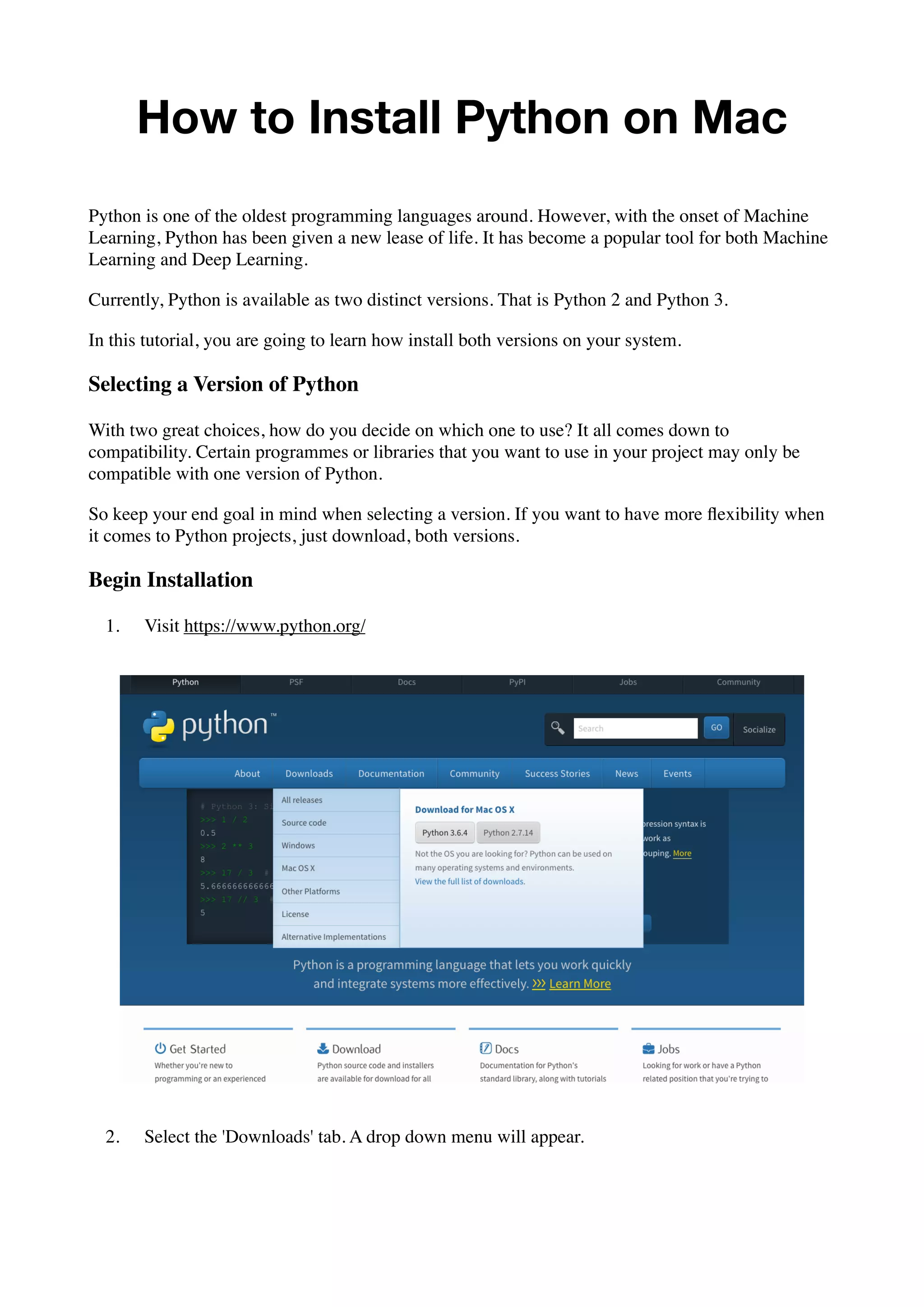
1. Visit https://www.python.org/
2. Select the 'Downloads' tab. A drop down menu will appear.
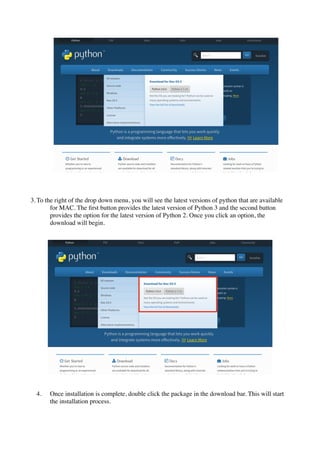
3. To the right of the drop down menu, you will see the latest versions of python that are available
for MAC. The first button provides the latest version of Python 3 and the second button
provides the option for the latest version of Python 2. Once you click an option, the
download will begin.
4. Once installation is complete, double click the package in the download bar. This will start
the installation process.
5. In the dialogue box that pops up you will be shown a welcome notice, select "Continue".
6. In the new dialogue box, you will be presented with important information regarding the
changes made to Python, once again select "Continue".
7. Now you will be shown the terms and conditions for using Python. Select "Continue".
8. A mini dialogue box will appear requesting you to agree to the terms and conditions listed.
Select "Agree".
9. Finally you will be told how much memory will be used on your system. Select "install"
10. For security purposes, the system will request you to enter your user name and password.
Enter the details, then select "Install Software"
11. Now the dialogue box will display a progress bar to indicate how much of the installation is
complete. This should only take a few minutes depending on your system's memory and
speed.
12. Once the installation is complete, you will be presented with a dialogue box indicating that
your installation was successful.
Test Your Installation
Now that you have downloaded Python, test it to make sure it is working correctly.
• Open the Mac Terminal.
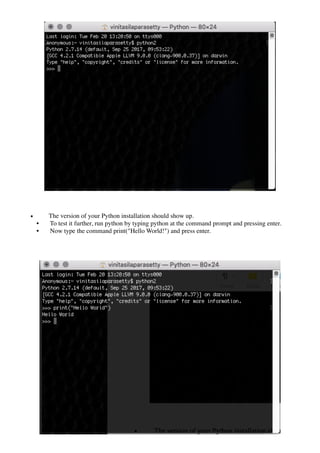
• Type python2 (or python3 ,depending on the version you installed) and press enter.
• The version of your Python installation should show up.
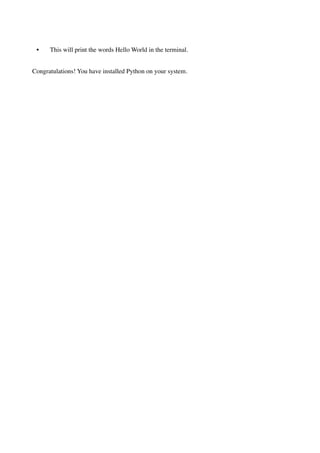
• To test it further, run python by typing python at the command prompt and pressing enter.
• Now type the command print("Hello World!") and press enter.
• This will print the words Hello World in the terminal.
 Congratulations! You have installed Python on your system.

How to Install Python on Mac

  • 1.
    How to InstallPython on Mac Python is one of the oldest programming languages around. However, with the onset of Machine Learning, Python has been given a new lease of life. It has become a popular tool for both Machine Learning and Deep Learning. Currently, Python is available as two distinct versions. That is Python 2 and Python 3. In this tutorial, you are going to learn how install both versions on your system. Selecting a Version of Python With two great choices, how do you decide on which one to use? It all comes down to compatibility. Certain programmes or libraries that you want to use in your project may only be compatible with one version of Python. So keep your end goal in mind when selecting a version. If you want to have more flexibility when it comes to Python projects, just download, both versions. Begin Installation 1. Visit https://www.python.org/ 2. Select the 'Downloads' tab. A drop down menu will appear.
  • 2.
    3. To theright of the drop down menu, you will see the latest versions of python that are available for MAC. The first button provides the latest version of Python 3 and the second button provides the option for the latest version of Python 2. Once you click an option, the download will begin. 4. Once installation is complete, double click the package in the download bar. This will start the installation process.
  • 3.
    5. In thedialogue box that pops up you will be shown a welcome notice, select "Continue". 6. In the new dialogue box, you will be presented with important information regarding the changes made to Python, once again select "Continue". 7. Now you will be shown the terms and conditions for using Python. Select "Continue". 8. A mini dialogue box will appear requesting you to agree to the terms and conditions listed. Select "Agree". 9. Finally you will be told how much memory will be used on your system. Select "install" 10. For security purposes, the system will request you to enter your user name and password. Enter the details, then select "Install Software" 11. Now the dialogue box will display a progress bar to indicate how much of the installation is complete. This should only take a few minutes depending on your system's memory and speed. 12. Once the installation is complete, you will be presented with a dialogue box indicating that your installation was successful. Test Your Installation Now that you have downloaded Python, test it to make sure it is working correctly. • Open the Mac Terminal. • Type python2 (or python3 ,depending on the version you installed) and press enter.
  • 4.
    • The versionof your Python installation should show up. • To test it further, run python by typing python at the command prompt and pressing enter. • Now type the command print("Hello World!") and press enter.
  • 5.
    • This willprint the words Hello World in the terminal.  Congratulations! You have installed Python on your system.