How to Manage
Users in Casual
Visit the ‘People’ section of your workspace to invite
or manage user accounts.
There are 2 ways to add Accounts:
- Invite a user via email
- Add a person placeholder (detached account)
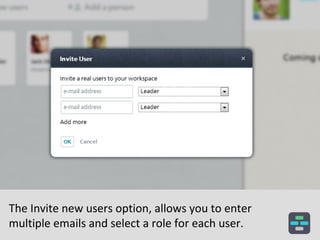
The Invite new users option, allows you to enter
multiple emails and select a role for each user.
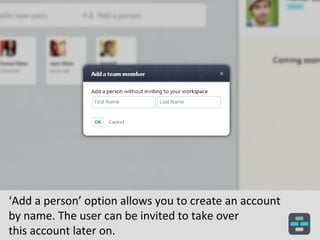
‘Add a person’ option allows you to create an account
by name. The user can be invited to take over
this account later on.
User accounts are displayed as cards. Select a card
to see additional info about a user.
To edit user details & manage permissions, Click on the
‘Edit’ option located on the top-right corner.
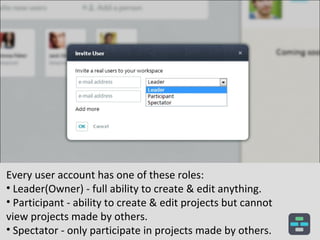
Every user account has one of these roles:
• Leader(Owner) - full ability to create & edit anything.
• Participant - ability to create & edit projects but cannot
view projects made by others.
• Spectator - only participate in projects made by others.
Visit the ‘Team’ section in your project to manage
the project team.
Easily add users from your workspace or invite new users.
Every user will be invited to join the workspace & project.
Change the role of each team member. Team member can
have one of these roles:
1. Leader (Owner) - Manager; Ability to edit project plan.
2. Participant - ability to execute tasks ONLY.
3. Spectator - ability to see project’s progress ONLY.
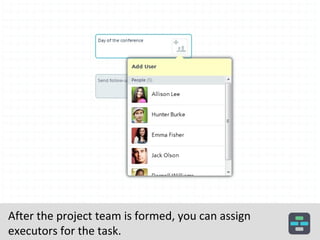
After the project team is formed, you can assign
executors for the task.
‘People’ tab located on the left of your screen - displays
the list of people who are responsible for the process.
Have a Question?
Send us an email:
founders@casual.pm

People

  • 1.
  • 2.
    Visit the ‘People’section of your workspace to invite or manage user accounts.
  • 3.
    There are 2ways to add Accounts: - Invite a user via email - Add a person placeholder (detached account)
  • 4.
    The Invite newusers option, allows you to enter multiple emails and select a role for each user.
  • 5.
    ‘Add a person’option allows you to create an account by name. The user can be invited to take over this account later on.
  • 6.
    User accounts aredisplayed as cards. Select a card to see additional info about a user.
  • 7.
    To edit userdetails & manage permissions, Click on the ‘Edit’ option located on the top-right corner.
  • 8.
    Every user accounthas one of these roles: • Leader(Owner) - full ability to create & edit anything. • Participant - ability to create & edit projects but cannot view projects made by others. • Spectator - only participate in projects made by others.
  • 9.
    Visit the ‘Team’section in your project to manage the project team.
  • 10.
    Easily add usersfrom your workspace or invite new users. Every user will be invited to join the workspace & project.
  • 11.
    Change the roleof each team member. Team member can have one of these roles: 1. Leader (Owner) - Manager; Ability to edit project plan. 2. Participant - ability to execute tasks ONLY. 3. Spectator - ability to see project’s progress ONLY.
  • 12.
    After the projectteam is formed, you can assign executors for the task.
  • 13.
    ‘People’ tab locatedon the left of your screen - displays the list of people who are responsible for the process.
  • 14.
    Have a Question? Sendus an email: founders@casual.pm