Mostafa Ayman
1
Internal Material Transfer
Under the same BU For Planned and nonplanned item
This document will illustrate the IMT Under the same BU For
Planned and nonplanned item Internal Requisition process.
providing a detailed explanation of most of the application’s
screens.
Mostafa Ayman
2
Table of Contents
What is Internal Material Transfer ..........................................................................................................3
Quick setup without prints screens.........................................................................................................4
SET UP Print Screens................................................................................................................................6
1- Enable Internal Material Transfer Enable the Internal Material Transfer feature for Self Service
Procurement if not already enabled.........................................................................................................6
2-Create item and Enable Internal Material Transfer Enable the Internal Material Transfer feature ..........6
3- Enable supply availability details on the Configure Requisitioning Business Function page.Select the
Enable supply availability for internal transfers check box........................................................................7
4- After item creation next step is defining the Interorganization Parameters between source and
destination organizations.........................................................................................................................7
5-Create shipping method and assign to organizations on the Manage Carriers page...............................8
6- Create Transit Times between source and destination locations on the Manage Transit Times page....9
Completing The Required setup to create internal requisition for planned item ..................................10
7-Create ATP Rule..................................................................................................................................10
7.1 -Fill The ATP Rule Criteria .............................................................................................................10
7.2 -ATP Rule Assignment ..................................................................................................................11
8-Manage Sourcing Rules ......................................................................................................................12
9-Manage Assignment Set.....................................................................................................................13
Test scenario .........................................................................................................................................14
Mostafa Ayman
3
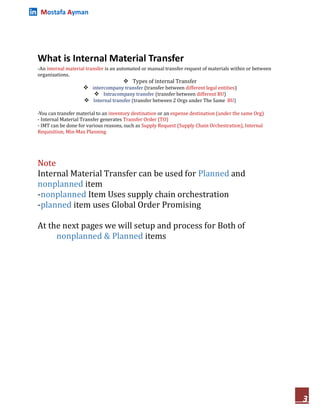
What is Internal Material Transfer
-An internal material transfer is an automated or manual transfer request of materials within or between
organizations.
 Types of internal Transfer
 intercompany transfer (transfer between different legal entities)
 Intracompany transfer (transfer between different BU)
 Internal transfer (transfer between 2 Orgs under The Same BU)
-You can transfer material to an inventory destination or an expense destination (under the same Org)
- Internal Material Transfer generates Transfer Order (TO)
- IMT can be done for various reasons, such as Supply Request (Supply Chain Orchestration), Internal
Requisition, Min-Max Planning
Note
Internal Material Transfer can be used for Planned and
nonplanned item
-nonplanned Item Uses supply chain orchestration
-planned item uses Global Order Promising
At the next pages we will setup and process for Both of
nonplanned & Planned items
Mostafa Ayman
4
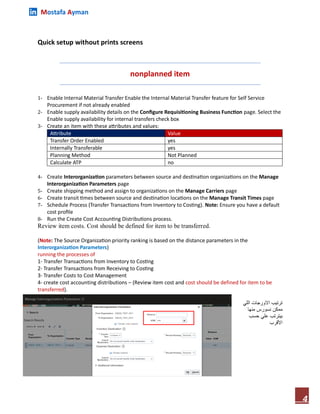
Quick setup without prints screens
nonplanned item
1- Enable Internal Material Transfer Enable the Internal Material Transfer feature for Self Service
Procurement if not already enabled
2- Enable supply availability details on the Configure Requisitioning Business Function page. Select the
Enable supply availability for internal transfers check box
3- Create an item with these attributes and values:
Attribute Value
Transfer Order Enabled yes
Internally Transferable yes
Planning Method Not Planned
Calculate ATP no
4- Create Interorganization parameters between source and destination organizations on the Manage
Interorganization Parameters page
5- Create shipping method and assign to organizations on the Manage Carriers page
6- Create transit times between source and destination locations on the Manage Transit Times page
7- Schedule Process (Transfer Transactions from Inventory to Costing). Note: Ensure you have a default
cost profile
8- Run the Create Cost Accounting Distributions process.
Review item costs. Cost should be defined for item to be transferred.
(Note: The Source Organization priority ranking is based on the distance parameters in the
Interorganization Parameters)
running the processes of
1- Transfer Transactions from Inventory to Costing
2- Transfer Transactions from Receiving to Costing
3- Transfer Costs to Cost Management
4- create cost accounting distributions – (Review item cost and cost should be defined for item to be
transferred).
‫اللي‬ ‫االورجات‬ ‫ترتيب‬
‫منها‬ ‫نسورس‬ ‫ممكن‬
‫حسب‬ ‫علي‬ ‫بيترتب‬
‫األقرب‬
Mostafa Ayman
5
Planned item
Same previous setup with different item attributes
Attribute Value
Transfer Order Enabled yes
Internally Transferable yes
Planning Method MRP planning
Calculate ATP yes
Additional setup for planned item only
1- Add orgs to Manage Planning Source Systems to specify Oracle
Order Orchestration and Planning as your source system
steps: Home Page >> Setup and Maintenance >> Manage Planning Source Systems >>
select OPS >>manage organization list >>add organizations (Refresh Organization List) >> Save
and Close>> Run 'Collect Planning Data' for Entity Organizations
2-Create ATP Rule
2.1 -Fill The ATP Rule Criteria
2.2 -ATP Rule Assignment
3-Manage Sourcing Rules
4-Manage Assignment Set
- Run processes of
1-Collect Planning data
2-Refresh And Start the Order Promising Server
3-Transfer Transactions from Inventory to Costing. Note: Ensure you have a default cost profile
4-Transfer Transactions from Receiving to Costing
5- Transfer Costs to Cost Management
6- Create Cost Accounting Distribution
Mostafa Ayman
6
SET UP Print Screens
1- Enable Internal Material Transfer Enable the Internal Material Transfer feature for Self Service
Procurement if not already enabled
2-Create item and Enable Internal Material Transfer Enable the Internal Material Transfer feature
Planned Item Specific setups
Planning Method = MRP Planning or MPS Planning and Calculate ATP = Yes
note
A planned item is an item used for planning purposes. You can use planned items to create supply in Oracle
Fusion Cloud Supply Chain Planning depends on supply and demand
Mostafa Ayman
7
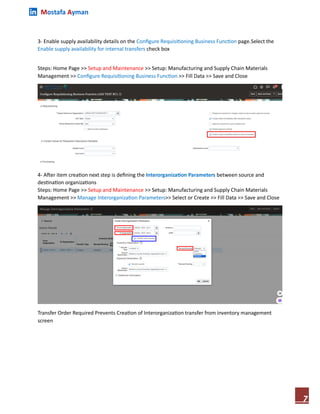
3- Enable supply availability details on the Configure Requisitioning Business Function page.Select the
Enable supply availability for internal transfers check box
Steps: Home Page >> Setup and Maintenance >> Setup: Manufacturing and Supply Chain Materials
Management >> Configure Requisitioning Business Function >> Fill Data >> Save and Close
4- After item creation next step is defining the Interorganization Parameters between source and
destination organizations
Steps: Home Page >> Setup and Maintenance >> Setup: Manufacturing and Supply Chain Materials
Management >> Manage Interorganization Parameters>> Select or Create >> Fill Data >> Save and Close
Transfer Order Required Prevents Creation of Interorganization transfer from inventory management
screen
Mostafa Ayman
8
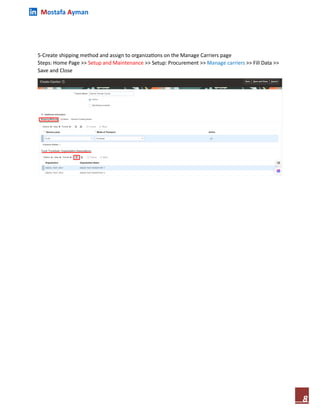
5-Create shipping method and assign to organizations on the Manage Carriers page
Steps: Home Page >> Setup and Maintenance >> Setup: Procurement >> Manage carriers >> Fill Data >>
Save and Close
Mostafa Ayman
9
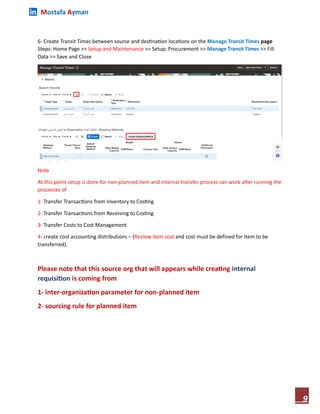
6- Create Transit Times between source and destination locations on the Manage Transit Times page
Steps: Home Page >> Setup and Maintenance >> Setup: Procurement >> Manage Transit Times >> Fill
Data >> Save and Close
Note
At this point setup is done for non-planned item and internal transfer process can work after running the
processes of
1- Transfer Transactions from Inventory to Costing
2- Transfer Transactions from Receiving to Costing
3- Transfer Costs to Cost Management
4- create cost accounting distributions – (Review item cost and cost must be defined for item to be
transferred).
Please note that this source org that will appears while creating internal
requisition is coming from
1- inter-organization parameter for non-planned item
2- sourcing rule for planned item
Mostafa Ayman
10
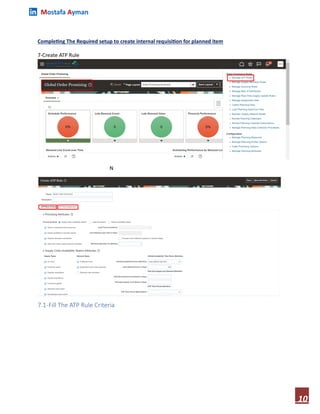
Completing The Required setup to create internal requisition for planned item
7-Create ATP Rule
N
7.1-Fill The ATP Rule Criteria
Mostafa Ayman
11
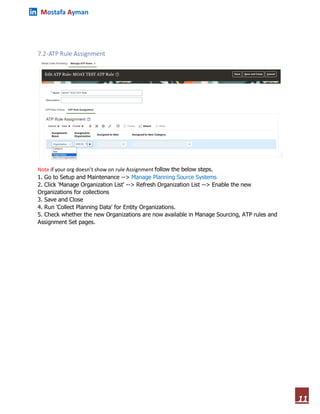
7.2-ATP Rule Assignment
Note if your org doesn’t show on rule Assignment follow the below steps.
1. Go to Setup and Maintenance --> Manage Planning Source Systems
2. Click 'Manage Organization List' --> Refresh Organization List --> Enable the new
Organizations for collections
3. Save and Close
4. Run 'Collect Planning Data' for Entity Organizations.
5. Check whether the new Organizations are now available in Manage Sourcing, ATP rules and
Assignment Set pages.
Mostafa Ayman
12
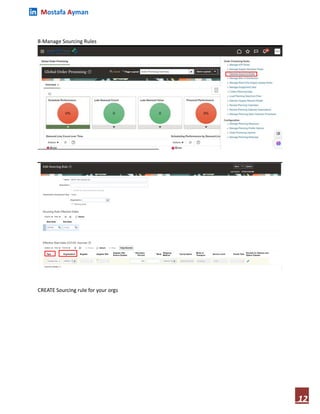
8-Manage Sourcing Rules
CREATE Sourcing rule for your orgs
Mostafa Ayman
13
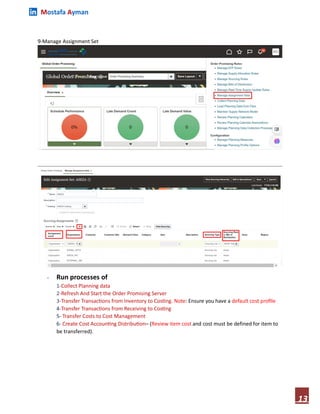
9-Manage Assignment Set
- Run processes of
1-Collect Planning data
2-Refresh And Start the Order Promising Server
3-Transfer Transactions from Inventory to Costing. Note: Ensure you have a default cost profile
4-Transfer Transactions from Receiving to Costing
5- Transfer Costs to Cost Management
6- Create Cost Accounting Distribution– (Review item cost and cost must be defined for item to
be transferred).
Mostafa Ayman
14
Test scenario
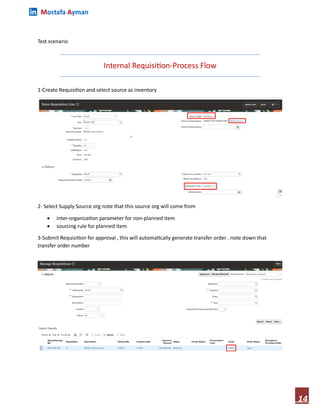
Internal Requisition-Process Flow
1-Create Requisition and select source as inventory
2- Select Supply Source org note that this source org will come from
 inter-organization parameter for non-planned item
 sourcing rule for planned item
3-Submit Requisition for approval , this will automatically generate transfer order . note down that
transfer order number
Mostafa Ayman
15
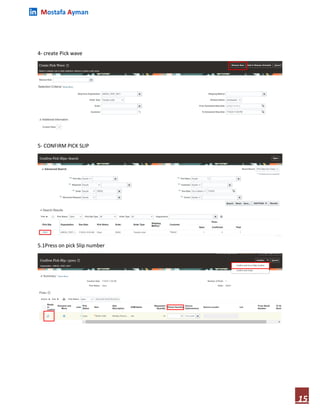
4- create Pick wave
5- CONFIRM PICK SLIP
5.1Press on pick Slip number
Mostafa Ayman
16
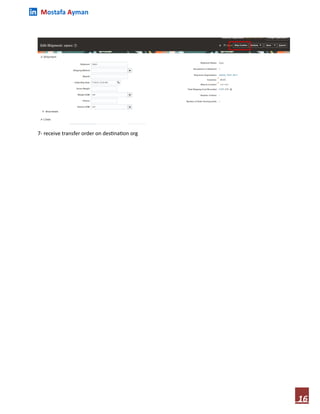
7- receive transfer order on destination org

Oracle cloud internal material transfer and internal requisition

  • 1.
    Mostafa Ayman 1 Internal MaterialTransfer Under the same BU For Planned and nonplanned item This document will illustrate the IMT Under the same BU For Planned and nonplanned item Internal Requisition process. providing a detailed explanation of most of the application’s screens.
  • 2.
    Mostafa Ayman 2 Table ofContents What is Internal Material Transfer ..........................................................................................................3 Quick setup without prints screens.........................................................................................................4 SET UP Print Screens................................................................................................................................6 1- Enable Internal Material Transfer Enable the Internal Material Transfer feature for Self Service Procurement if not already enabled.........................................................................................................6 2-Create item and Enable Internal Material Transfer Enable the Internal Material Transfer feature ..........6 3- Enable supply availability details on the Configure Requisitioning Business Function page.Select the Enable supply availability for internal transfers check box........................................................................7 4- After item creation next step is defining the Interorganization Parameters between source and destination organizations.........................................................................................................................7 5-Create shipping method and assign to organizations on the Manage Carriers page...............................8 6- Create Transit Times between source and destination locations on the Manage Transit Times page....9 Completing The Required setup to create internal requisition for planned item ..................................10 7-Create ATP Rule..................................................................................................................................10 7.1 -Fill The ATP Rule Criteria .............................................................................................................10 7.2 -ATP Rule Assignment ..................................................................................................................11 8-Manage Sourcing Rules ......................................................................................................................12 9-Manage Assignment Set.....................................................................................................................13 Test scenario .........................................................................................................................................14
  • 3.
    Mostafa Ayman 3 What isInternal Material Transfer -An internal material transfer is an automated or manual transfer request of materials within or between organizations.  Types of internal Transfer  intercompany transfer (transfer between different legal entities)  Intracompany transfer (transfer between different BU)  Internal transfer (transfer between 2 Orgs under The Same BU) -You can transfer material to an inventory destination or an expense destination (under the same Org) - Internal Material Transfer generates Transfer Order (TO) - IMT can be done for various reasons, such as Supply Request (Supply Chain Orchestration), Internal Requisition, Min-Max Planning Note Internal Material Transfer can be used for Planned and nonplanned item -nonplanned Item Uses supply chain orchestration -planned item uses Global Order Promising At the next pages we will setup and process for Both of nonplanned & Planned items
  • 4.
    Mostafa Ayman 4 Quick setupwithout prints screens nonplanned item 1- Enable Internal Material Transfer Enable the Internal Material Transfer feature for Self Service Procurement if not already enabled 2- Enable supply availability details on the Configure Requisitioning Business Function page. Select the Enable supply availability for internal transfers check box 3- Create an item with these attributes and values: Attribute Value Transfer Order Enabled yes Internally Transferable yes Planning Method Not Planned Calculate ATP no 4- Create Interorganization parameters between source and destination organizations on the Manage Interorganization Parameters page 5- Create shipping method and assign to organizations on the Manage Carriers page 6- Create transit times between source and destination locations on the Manage Transit Times page 7- Schedule Process (Transfer Transactions from Inventory to Costing). Note: Ensure you have a default cost profile 8- Run the Create Cost Accounting Distributions process. Review item costs. Cost should be defined for item to be transferred. (Note: The Source Organization priority ranking is based on the distance parameters in the Interorganization Parameters) running the processes of 1- Transfer Transactions from Inventory to Costing 2- Transfer Transactions from Receiving to Costing 3- Transfer Costs to Cost Management 4- create cost accounting distributions – (Review item cost and cost should be defined for item to be transferred). ‫اللي‬ ‫االورجات‬ ‫ترتيب‬ ‫منها‬ ‫نسورس‬ ‫ممكن‬ ‫حسب‬ ‫علي‬ ‫بيترتب‬ ‫األقرب‬
  • 5.
    Mostafa Ayman 5 Planned item Sameprevious setup with different item attributes Attribute Value Transfer Order Enabled yes Internally Transferable yes Planning Method MRP planning Calculate ATP yes Additional setup for planned item only 1- Add orgs to Manage Planning Source Systems to specify Oracle Order Orchestration and Planning as your source system steps: Home Page >> Setup and Maintenance >> Manage Planning Source Systems >> select OPS >>manage organization list >>add organizations (Refresh Organization List) >> Save and Close>> Run 'Collect Planning Data' for Entity Organizations 2-Create ATP Rule 2.1 -Fill The ATP Rule Criteria 2.2 -ATP Rule Assignment 3-Manage Sourcing Rules 4-Manage Assignment Set - Run processes of 1-Collect Planning data 2-Refresh And Start the Order Promising Server 3-Transfer Transactions from Inventory to Costing. Note: Ensure you have a default cost profile 4-Transfer Transactions from Receiving to Costing 5- Transfer Costs to Cost Management 6- Create Cost Accounting Distribution
  • 6.
    Mostafa Ayman 6 SET UPPrint Screens 1- Enable Internal Material Transfer Enable the Internal Material Transfer feature for Self Service Procurement if not already enabled 2-Create item and Enable Internal Material Transfer Enable the Internal Material Transfer feature Planned Item Specific setups Planning Method = MRP Planning or MPS Planning and Calculate ATP = Yes note A planned item is an item used for planning purposes. You can use planned items to create supply in Oracle Fusion Cloud Supply Chain Planning depends on supply and demand
  • 7.
    Mostafa Ayman 7 3- Enablesupply availability details on the Configure Requisitioning Business Function page.Select the Enable supply availability for internal transfers check box Steps: Home Page >> Setup and Maintenance >> Setup: Manufacturing and Supply Chain Materials Management >> Configure Requisitioning Business Function >> Fill Data >> Save and Close 4- After item creation next step is defining the Interorganization Parameters between source and destination organizations Steps: Home Page >> Setup and Maintenance >> Setup: Manufacturing and Supply Chain Materials Management >> Manage Interorganization Parameters>> Select or Create >> Fill Data >> Save and Close Transfer Order Required Prevents Creation of Interorganization transfer from inventory management screen
  • 8.
    Mostafa Ayman 8 5-Create shippingmethod and assign to organizations on the Manage Carriers page Steps: Home Page >> Setup and Maintenance >> Setup: Procurement >> Manage carriers >> Fill Data >> Save and Close
  • 9.
    Mostafa Ayman 9 6- CreateTransit Times between source and destination locations on the Manage Transit Times page Steps: Home Page >> Setup and Maintenance >> Setup: Procurement >> Manage Transit Times >> Fill Data >> Save and Close Note At this point setup is done for non-planned item and internal transfer process can work after running the processes of 1- Transfer Transactions from Inventory to Costing 2- Transfer Transactions from Receiving to Costing 3- Transfer Costs to Cost Management 4- create cost accounting distributions – (Review item cost and cost must be defined for item to be transferred). Please note that this source org that will appears while creating internal requisition is coming from 1- inter-organization parameter for non-planned item 2- sourcing rule for planned item
  • 10.
    Mostafa Ayman 10 Completing TheRequired setup to create internal requisition for planned item 7-Create ATP Rule N 7.1-Fill The ATP Rule Criteria
  • 11.
    Mostafa Ayman 11 7.2-ATP RuleAssignment Note if your org doesn’t show on rule Assignment follow the below steps. 1. Go to Setup and Maintenance --> Manage Planning Source Systems 2. Click 'Manage Organization List' --> Refresh Organization List --> Enable the new Organizations for collections 3. Save and Close 4. Run 'Collect Planning Data' for Entity Organizations. 5. Check whether the new Organizations are now available in Manage Sourcing, ATP rules and Assignment Set pages.
  • 12.
    Mostafa Ayman 12 8-Manage SourcingRules CREATE Sourcing rule for your orgs
  • 13.
    Mostafa Ayman 13 9-Manage AssignmentSet - Run processes of 1-Collect Planning data 2-Refresh And Start the Order Promising Server 3-Transfer Transactions from Inventory to Costing. Note: Ensure you have a default cost profile 4-Transfer Transactions from Receiving to Costing 5- Transfer Costs to Cost Management 6- Create Cost Accounting Distribution– (Review item cost and cost must be defined for item to be transferred).
  • 14.
    Mostafa Ayman 14 Test scenario InternalRequisition-Process Flow 1-Create Requisition and select source as inventory 2- Select Supply Source org note that this source org will come from  inter-organization parameter for non-planned item  sourcing rule for planned item 3-Submit Requisition for approval , this will automatically generate transfer order . note down that transfer order number
  • 15.
    Mostafa Ayman 15 4- createPick wave 5- CONFIRM PICK SLIP 5.1Press on pick Slip number
  • 16.
    Mostafa Ayman 16 7- receivetransfer order on destination org